
Description lists
Use Bootstrap description lists for key/value layouts, with responsive alignment helpers.
Description list container
Section titled “Description list container”Description lists pair terms (dt) with definitions (dd)—ideal for metadata blocks and compact summaries. Let’s review the container options first.
Description list example
Section titled “Description list example”This description list example shows how Bootstrap can present paired labels and values in a way that is easier to scan than a plain paragraph. It is useful for metadata, profile details, and admin summaries where the relationship between each term and its value should stay visually obvious.
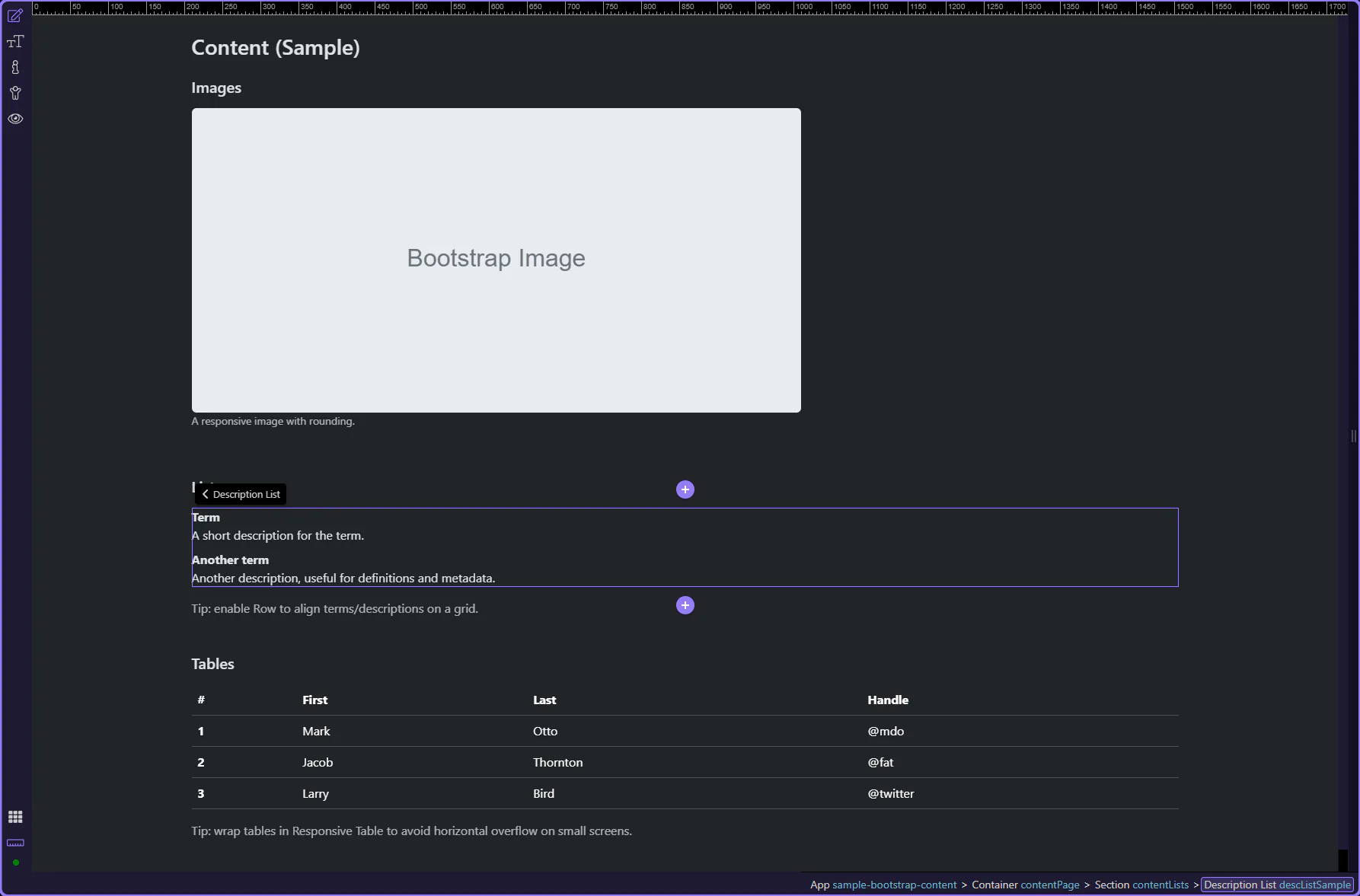
Orient yourself in Properties panel
Section titled “Orient yourself in Properties panel”Start with the wider context in the Properties panel so the next control makes sense in the full workflow. In the next step, you will focus on Row layout and see how it fits into this area.
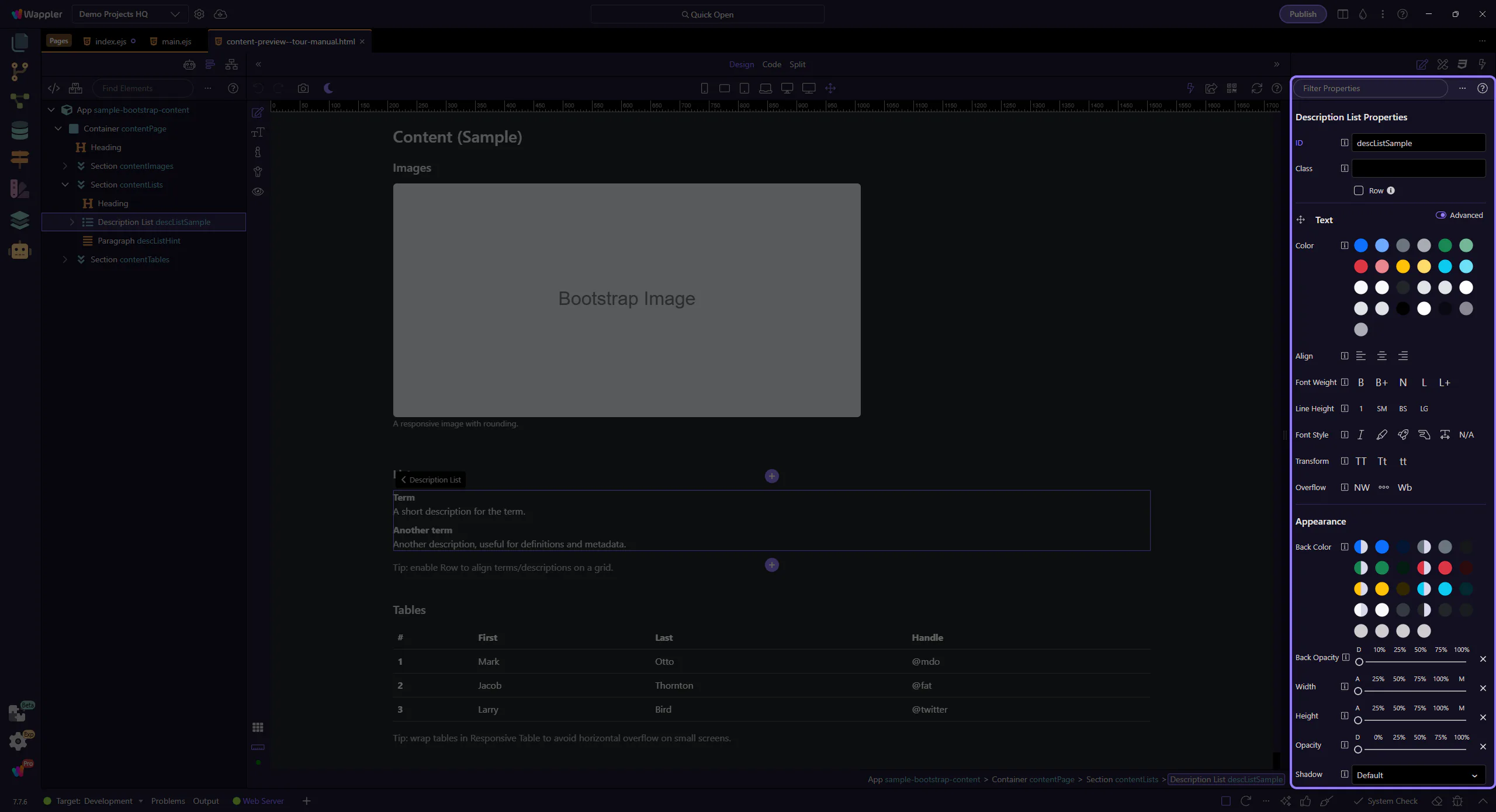
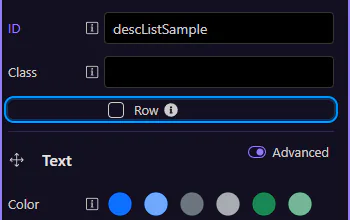
Row layout
Section titled “Row layout”Enable Row to align terms and descriptions using Bootstrap’s grid. This step matters because Row layout is part of Selection Panels Properties Desclistrow, and understanding that context makes the next action easier to repeat in your own project.
Edit terms and descriptions
Section titled “Edit terms and descriptions”Each row is made of a term (dt) and a description (dd). Let’s look at how you edit each one.
Term (dt)
Section titled “Term (dt)”Terms (dt) are the labels—short and scannable. This step matters because Term (dt) is part of Design View, and understanding that context makes the next action easier to repeat in your own project.
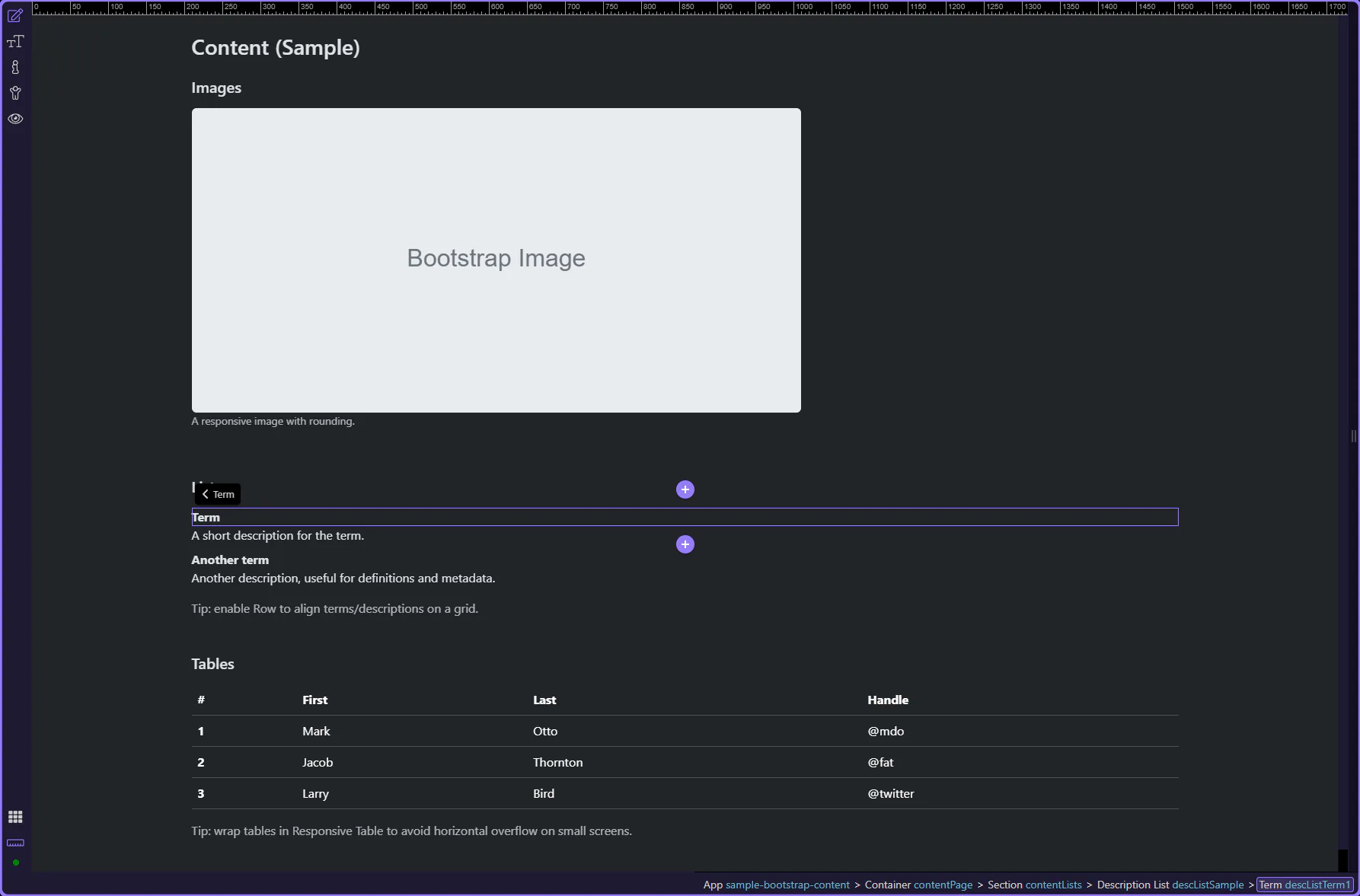
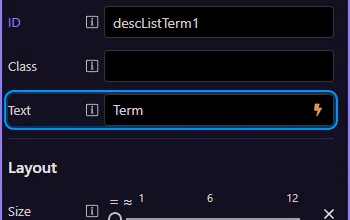
Term text
Section titled “Term text”Edit the Text field to change the term content. This step matters because Term text is part of Selection Panels Properties Desclisttermtext, and understanding that context makes the next action easier to repeat in your own project.
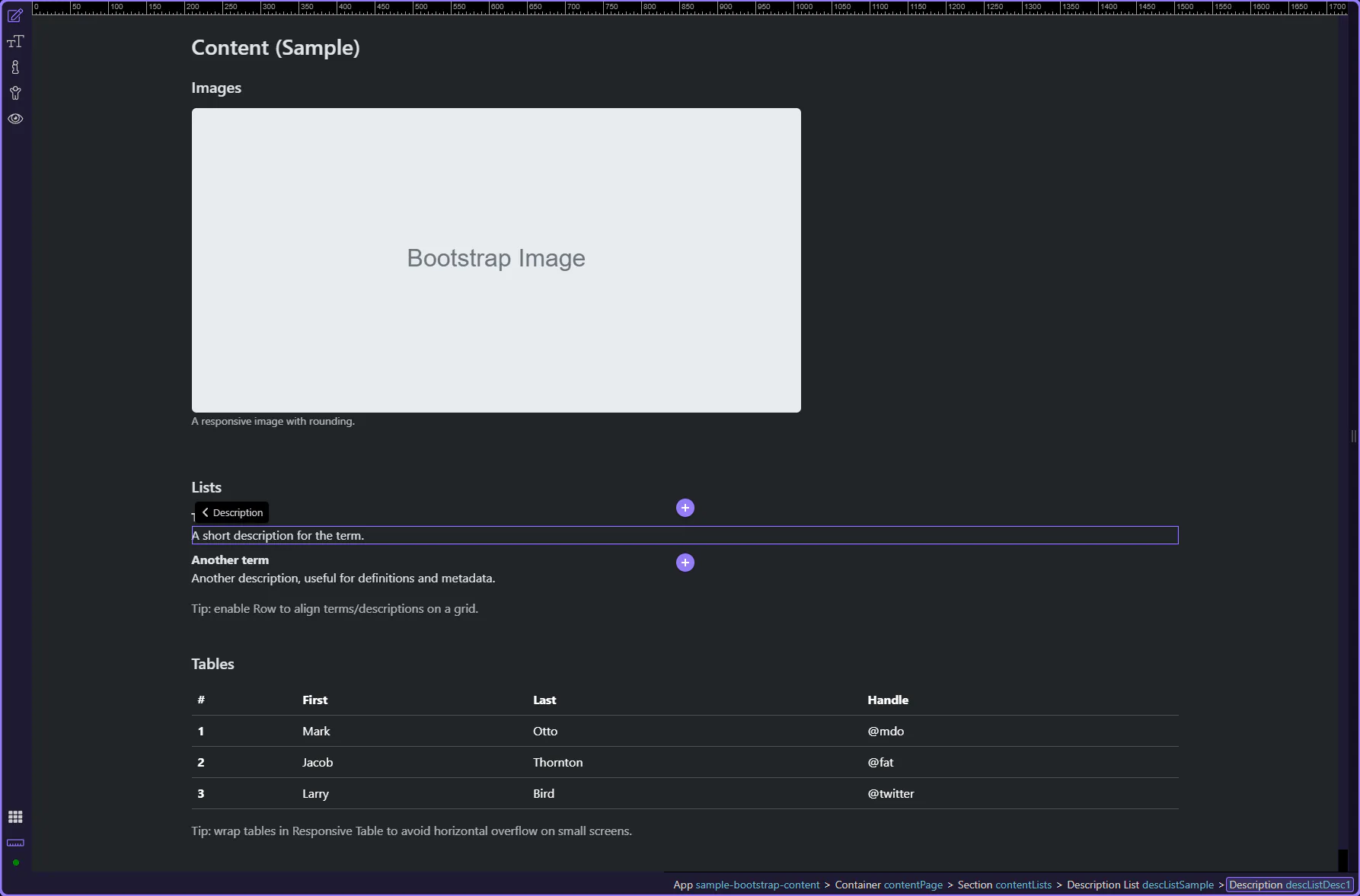
Description (dd)
Section titled “Description (dd)”Descriptions (dd) hold the value text and can be longer if needed. This step matters because Description (dd) is part of Design View, and understanding that context makes the next action easier to repeat in your own project.
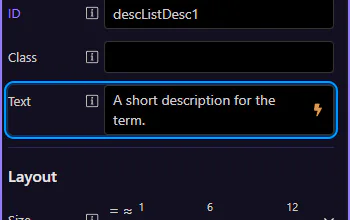
Description text
Section titled “Description text”Edit the Text field to change the description content. This step matters because Description text is part of Selection Panels Properties Desclistdesctext, and understanding that context makes the next action easier to repeat in your own project.
Next steps
Section titled “Next steps”Continue with other Content topics or return to the Content menu.