
Create and Manipulate Database Schemas
Use every current Database Manager creation and manipulation path: connections, tables, fields, relations, document structures, data, seeds, templates, and refresh actions.
Introduction
Section titled “Introduction”Database Manager is both a schema browser and a schema editor. Work on a local development target, create or manipulate the structure from the tree, review the Properties panel, apply the pending changes as a migration, then test the affected data and server actions before publishing.
Create a database connection
Section titled “Create a database connection”The Databases branch exposes New Connection. A connection defines the database engine and target-specific access Wappler uses for schema discovery, data editing, queries, seeds, and migrations. Name it clearly and confirm that the current project target is the intended development target before adding structure.
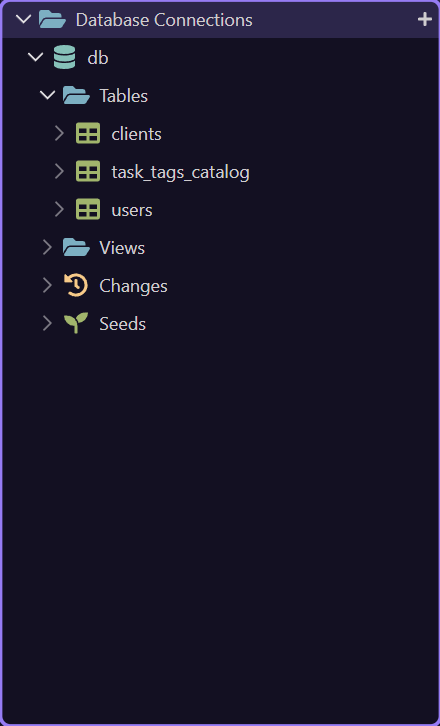
Create from the Tables context menu
Section titled “Create from the Tables context menu”This opens the real Tables menu. New Table starts an inline-named SQL table; CouchDB and PouchDB use New Collection. This branch also applies database templates, opens the templates folder, refreshes the list, or reloads the full schema.
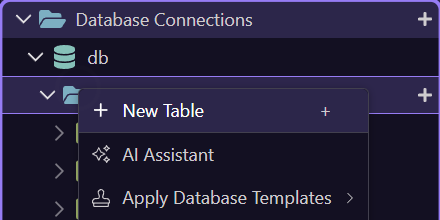
Tables branch action reference
Section titled “Tables branch action reference”Choose the branch action that matches the job. Creating is intentionally separate from refreshing or applying a reusable template.
| Action | Result |
|---|---|
| New Table / New Collection | Creates a provisional structure and starts inline naming; cancelling removes it. |
| Apply Database Templates | Generates and applies the selected reusable schema template. |
| Manage Templates Folder | Opens the project template location for maintenance. |
| Refresh List | Reloads the connection's table list. |
| Refresh Full Schema | Reloads complete schema metadata for the connection. |
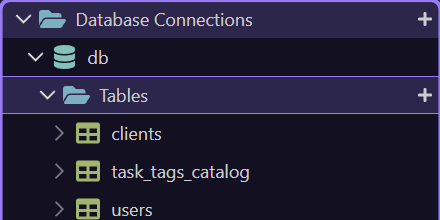
New SQL tables start with a primary key
Section titled “New SQL tables start with a primary key”A regular SQL table receives a primary key using the connection or project default. Auto-increment is the normal default; UUID and timestamp-based key styles are also supported. Review the generated field and naming convention in Properties before building relationships around it.
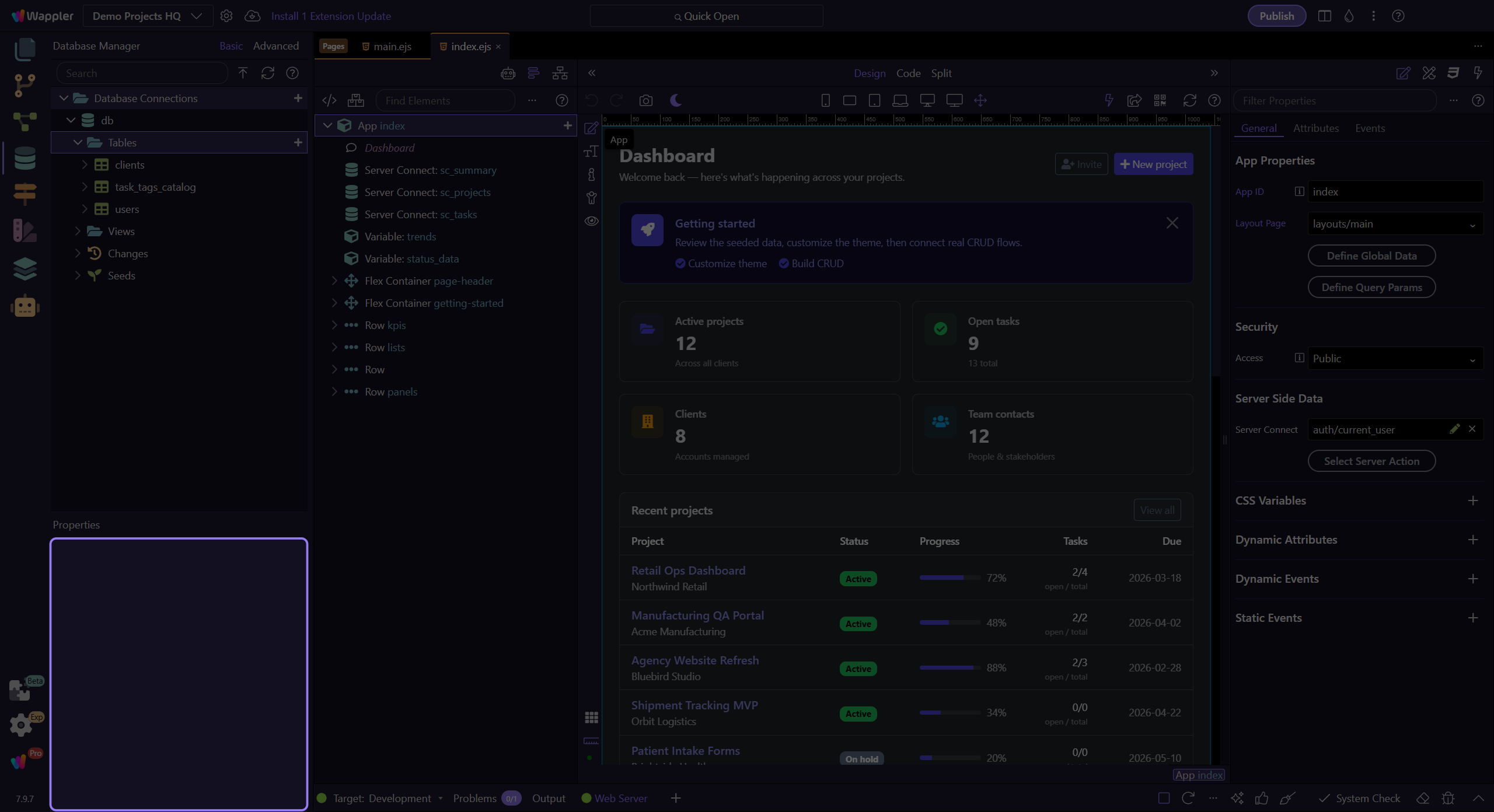
All table creation and manipulation actions
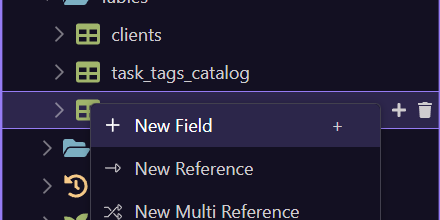
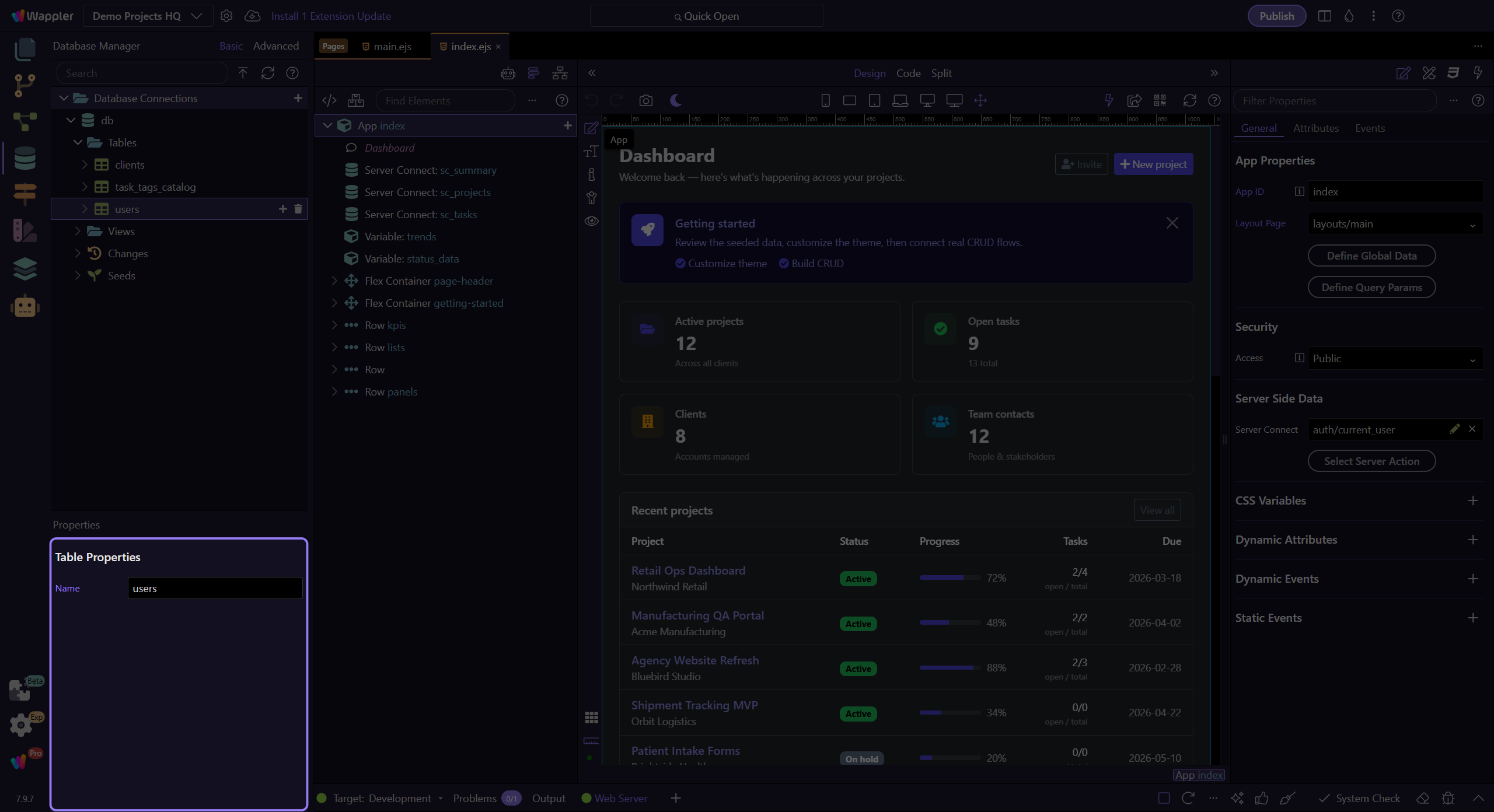
Section titled “All table creation and manipulation actions”This opens the current menu on the live users table. Creation commands sit beside live-data, reuse, naming, deletion, navigation, and refresh commands so the selected table remains the center of the workflow.
SQL table action reference
Section titled “SQL table action reference”The current table menu covers structure, data, reuse, and tree maintenance. Destructive actions are explained here but are not run by the tour.
| Action | Use |
|---|---|
| New Field | Adds a normal column and opens its properties. |
| New Reference | Adds a foreign-key style link to one parent record. |
| New Multi Reference | Creates the junction structure for a many-to-many relationship. |
| New Sub Table | Creates an owned child table, primary key, and parent reference with cascading updates/deletes. |
| View/Edit Data | Opens live row browsing and editing; this changes data, not schema history. |
| Create Seed | Creates reusable bootstrap data for the table. |
| Create New Template | Captures reusable schema setup from the selected table. |
| AI Assistant | Opens schema assistance when the project assistant is available. |
| Rename / Delete | Changes or removes the selected schema object; review dependencies first. |
| Collapse All / Expand All | Controls the visible tree depth under the selected node. |
| Refresh Schema | Reloads schema metadata for the selected table. |
SQL field types available in Properties
Section titled “SQL field types available in Properties”Choose the semantic type that matches the values and the database engine. Advanced properties then refine length, precision, defaults, unsigned/nullability, indexing, uniqueness, and engine-specific behavior.
| Group | Types |
|---|---|
| Text | string, text, enum |
| Integer and identity | increments, bigIncrements, integer, bigInteger |
| Numeric | float, decimal |
| Identifiers and relations | uuid, reference |
| Date and time | date, datetime, time, timestamp |
| Other scalar | boolean, binary |
| Structured | json, jsonb, array, object |
| Database-specific | specificType |
Reference, multi reference, or sub table?
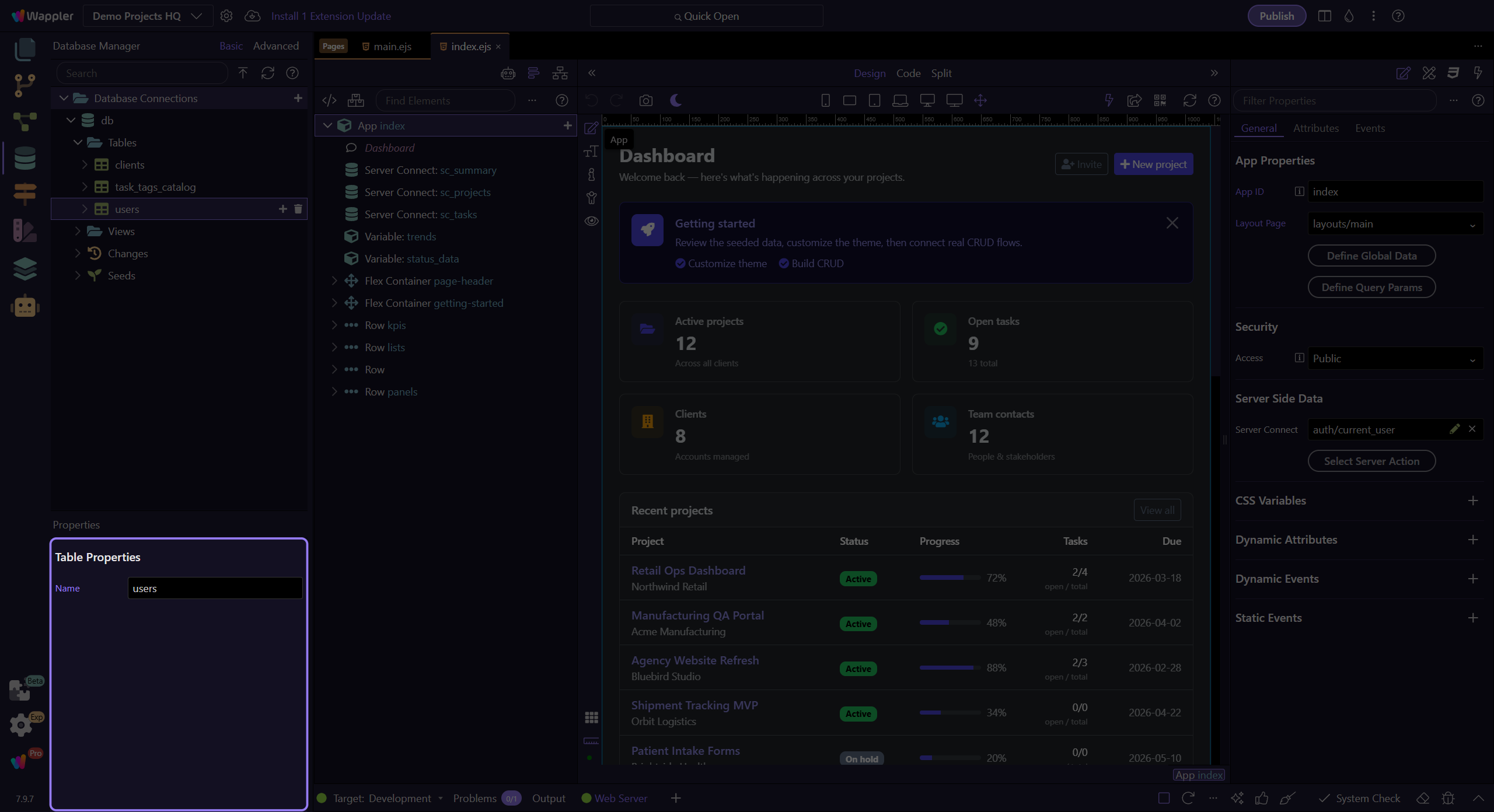
Section titled “Reference, multi reference, or sub table?”Use New Reference when this table stores one parent identifier. Use New Multi Reference when records on both sides can have many links; Wappler creates the junction table and reference fields. Use New Sub Table when the child rows belong to the parent; Wappler creates the child key and cascading parent reference automatically.
Document and JSON structure creation
Section titled “Document and JSON structure creation”CouchDB, PouchDB, and document-shaped nodes expose New Variable or New Field, New Array, and New Object. CouchDB and PouchDB also expose New Reference and New Multi Reference. Their Views branch exposes New View, while Import Schema on supported view/table contexts imports external structure. Nested variable, array, and object nodes repeat the creation choices, letting the tree describe the document shape directly.
| Document type | Purpose |
|---|---|
| objectId | Document identifier. |
| reference / multiReference | Single or multiple document links. |
| text / number / boolean | Scalar values. |
| date / time | Temporal values. |
| file | File-oriented value. |
| array | Repeated nested values. |
| object | Nested named structure. |
Use Basic and Advanced deliberately
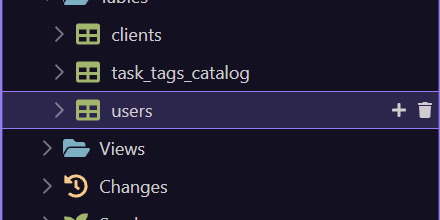
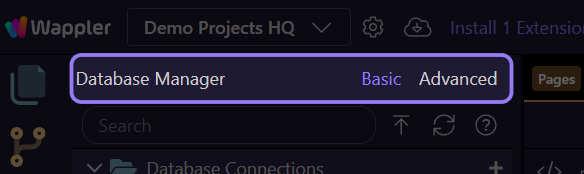
Section titled “Use Basic and Advanced deliberately”Basic keeps common properties and assisted relationship setup visible. Advanced exposes deeper structural details and advanced-only nodes. Switching views does not apply a change; it changes how much configuration you can inspect and edit.
Direct connection is required for manipulation
Section titled “Direct connection is required for manipulation”Database Manager can discover schema through supported target paths, but table/field manipulation and live data editing require a direct connection where that option applies. Schema editing is restricted to local development targets so changes can become tested migrations before deployment.
Fast access and safe refresh
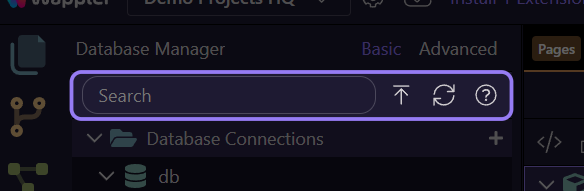
Section titled “Fast access and safe refresh”The same selected-node workflow is accessible through the UI shortcuts: Plus creates for the current context, F2 renames, Delete requests removal, and F5 refreshes. Search filters a large tree; Refresh reloads schema; Apply Database Changes commits validated pending structure into migration history.
| Control | Meaning |
|---|---|
| + | Create the structure valid for the current selection. |
| F2 | Rename the selected supported node. |
| Delete | Request deletion of the selected supported node. |
| F5 | Refresh the current tree context. |
| Search | Filter visible schema nodes. |
| Apply Database Changes | Validate, describe, generate, and apply a migration. |
Next steps
Section titled “Next steps”You now have the complete creation and manipulation map. Continue with Migrations and Change History for apply, rollback, per-migration, reset, and unlock actions, then Seeds and Templates for reusable data and schema setup.