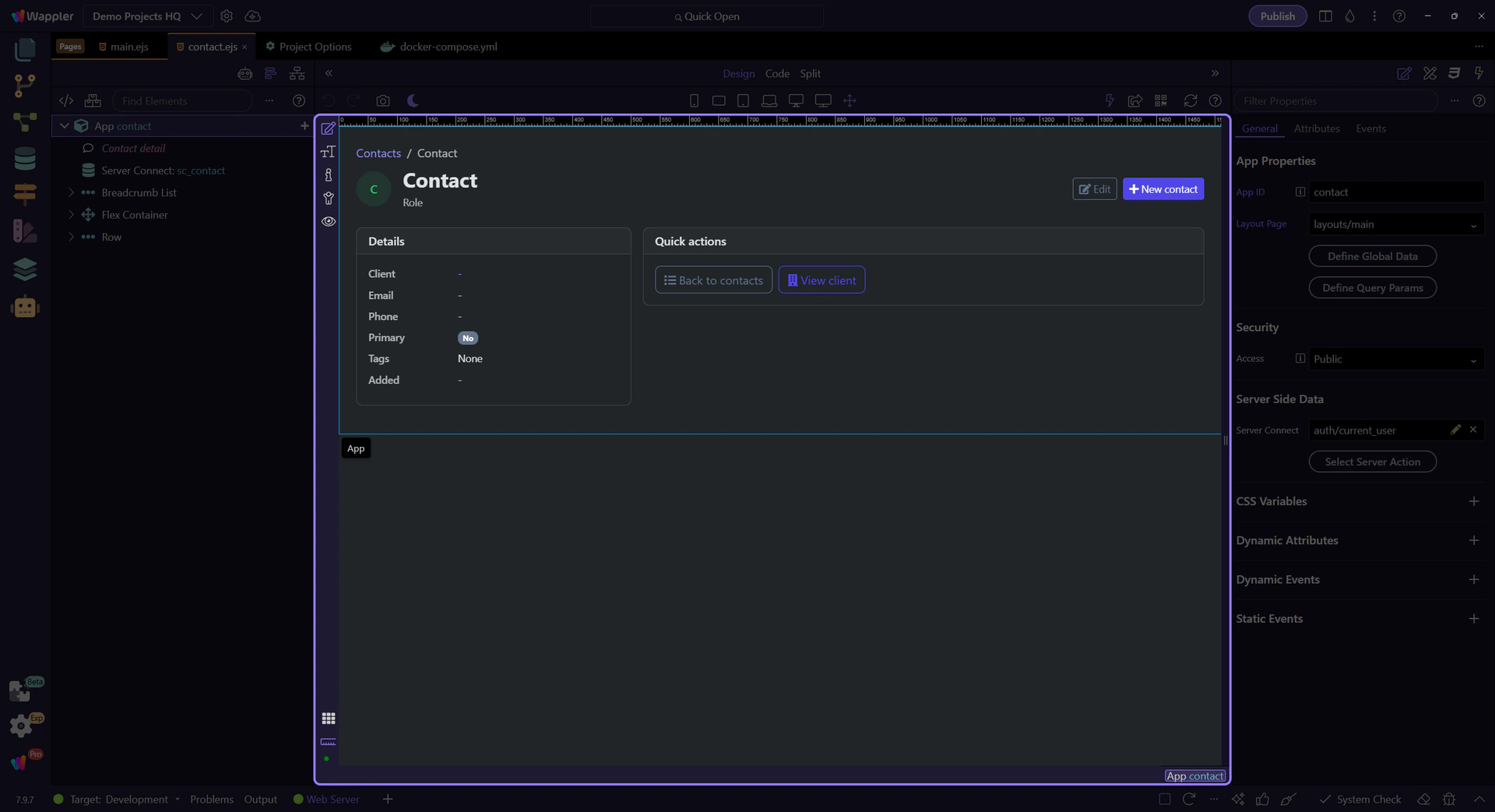
Direct manipulation
Select and edit the real page
on the visual canvas
on the visual canvas
Design responsive pages visually in the real HTML editor while keeping editable markup, structure, and property controls in the same project workspace.
Design View gives you a responsive visual canvas inside the HTML editor while the project keeps its real HTML, CSS, components, and bindings. Select page elements directly, work with structure and properties around the canvas, and switch to code whenever a detail needs lower-level control. This makes visual speed and code ownership part of one workflow rather than separate tools.
Design View is the live editing surface where page structure becomes something you can inspect and manipulate directly. This overview explains why the view matters, what kind of work belongs here, and how it connects to the toolbar and panels you use for deeper changes.
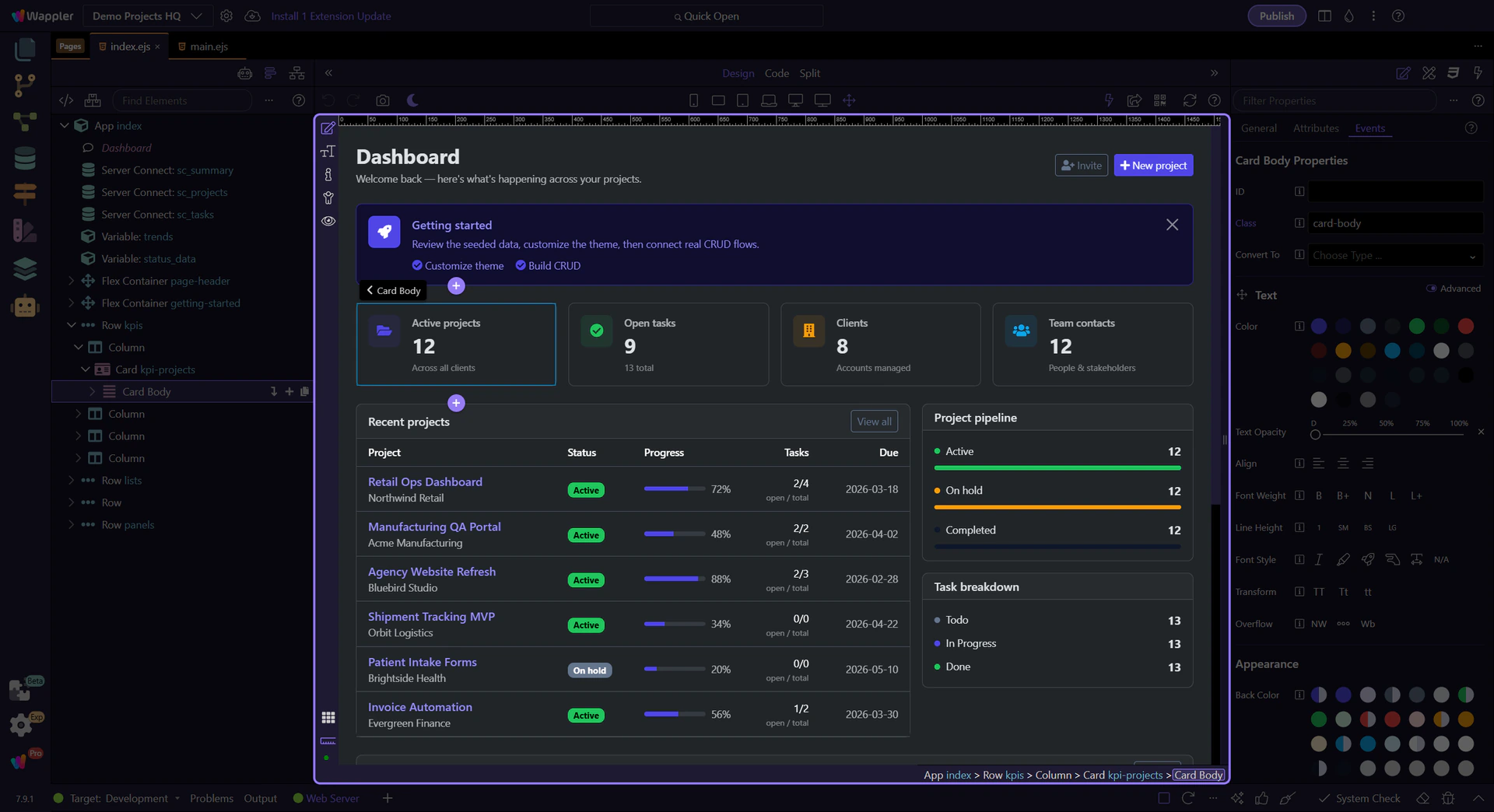
The Design toolbar keeps selection, insertion, responsive viewport controls, themes, and canvas tools close to the page. Use it to change how you inspect and compose the interface without leaving the HTML editor or losing sight of the real project structure.
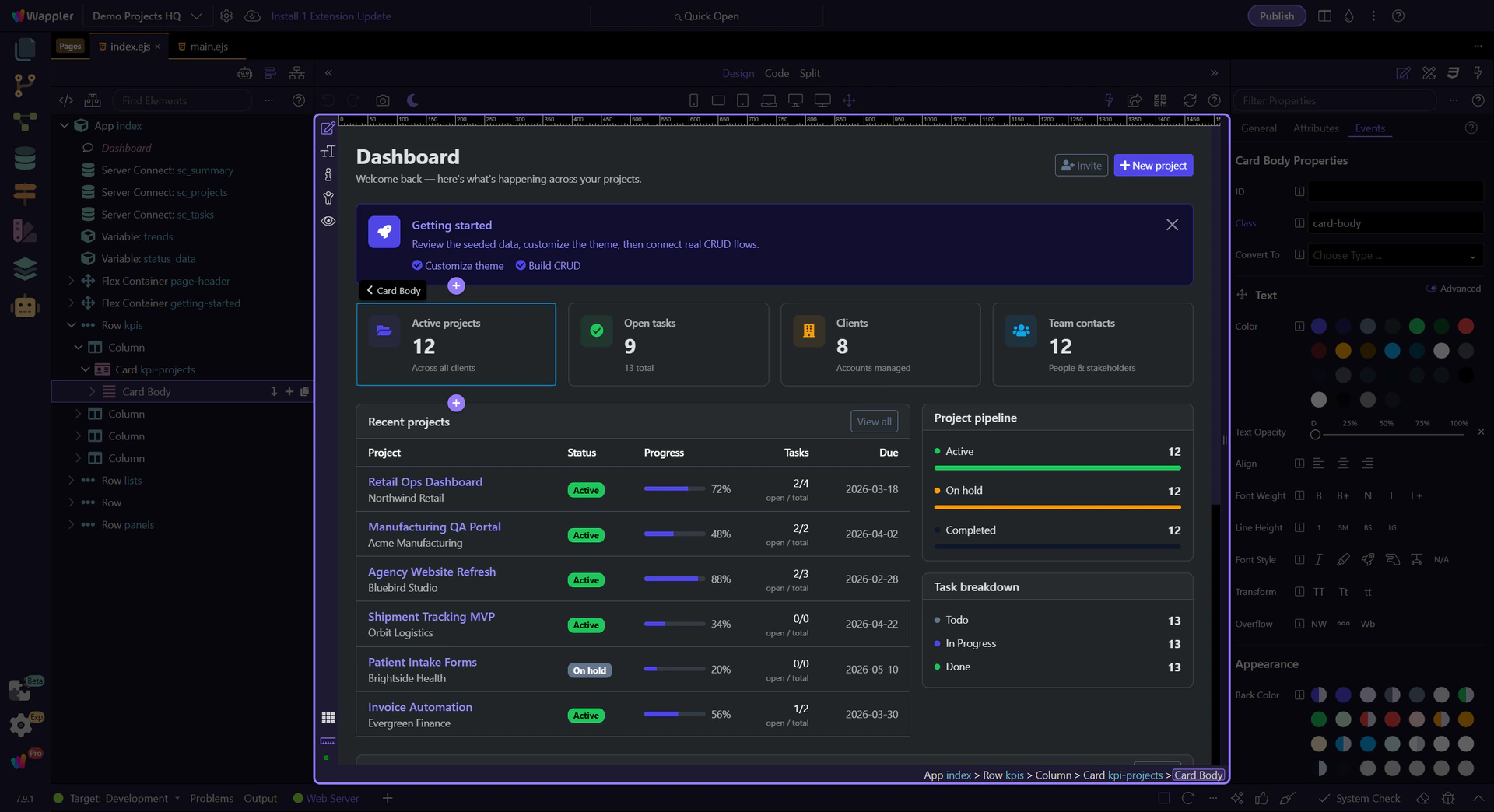
The canvas is the live page surface. Select a real element here, then use Structure and Properties to understand where it sits and how it behaves. Changes remain connected to the underlying markup and styles, so visual editing and direct code work stay synchronized.