Drag & Drop Elements
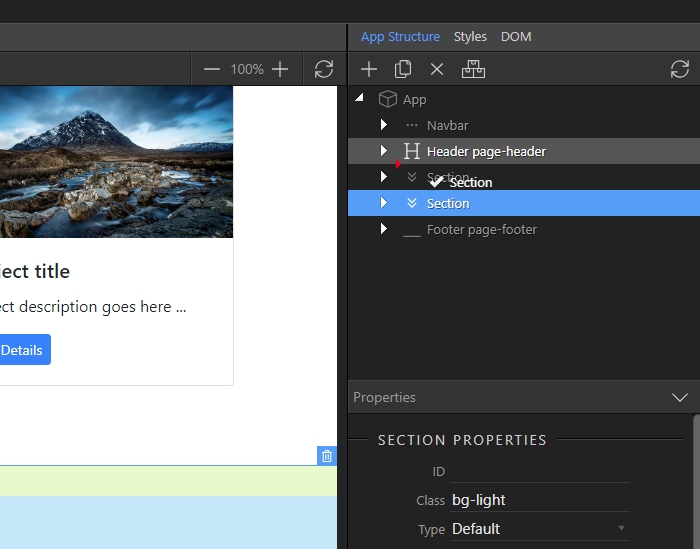
You can drag any of the elements inside App Structure. Just select the element you want to move and start dragging it in the tree: When the element which you are dragging cannot to be placed at specif
Step 1
Section titled “Step 1”You can drag any of the elements inside App Structure. Just select the element you want to move and start dragging it in the tree:
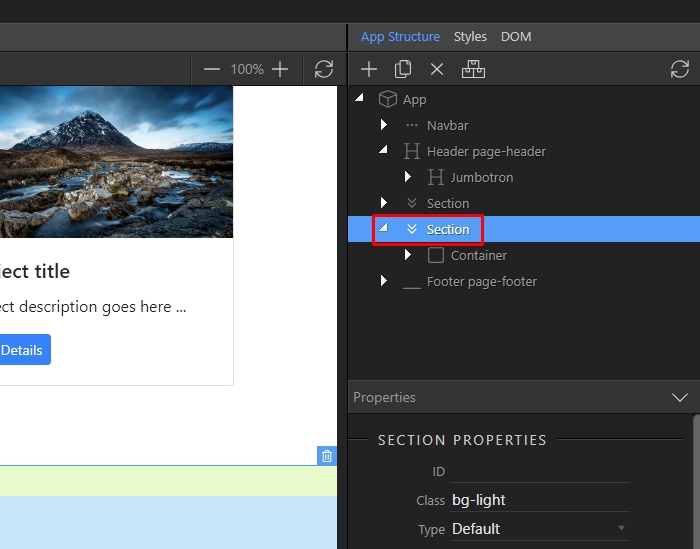
Step 2
Section titled “Step 2”When the element which you are dragging cannot to be placed at specific locations, you will see a X - this means you can't drop it here as it is not allowed to move it here:
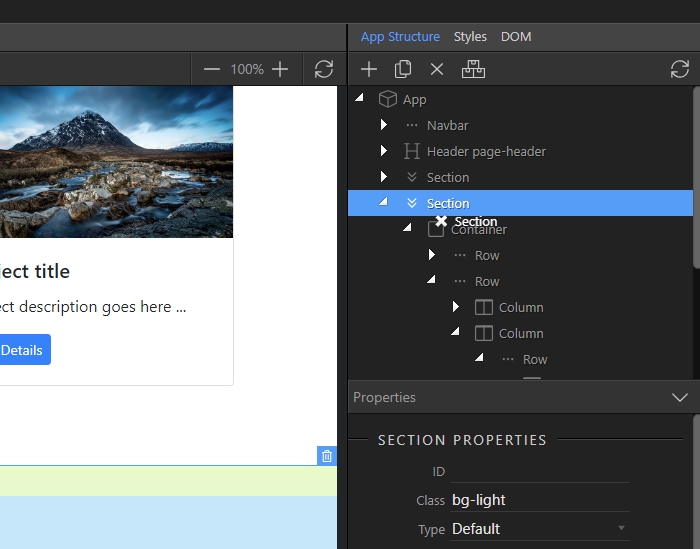
Step 3
Section titled “Step 3”When the element can be placed at the selected location you will see a red arrow. You can drop the element there: