
Text formatting
Use text utilities for alignment, wrapping, truncation, and emphasis.
Text Formatting essentials
Section titled “Text Formatting essentials”Text utilities are easiest to review on a paragraph. A lead paragraph is selected so the most common Text Formatting properties are visible.
Paragraph example
Section titled “Paragraph example”Text utilities help you adjust alignment, wrapping, emphasis, and readability without changing semantics. The lead paragraph is selected so you can immediately see the Text Formatting options. Tip: if selection is tricky, use App Structure to jump to the exact text node.
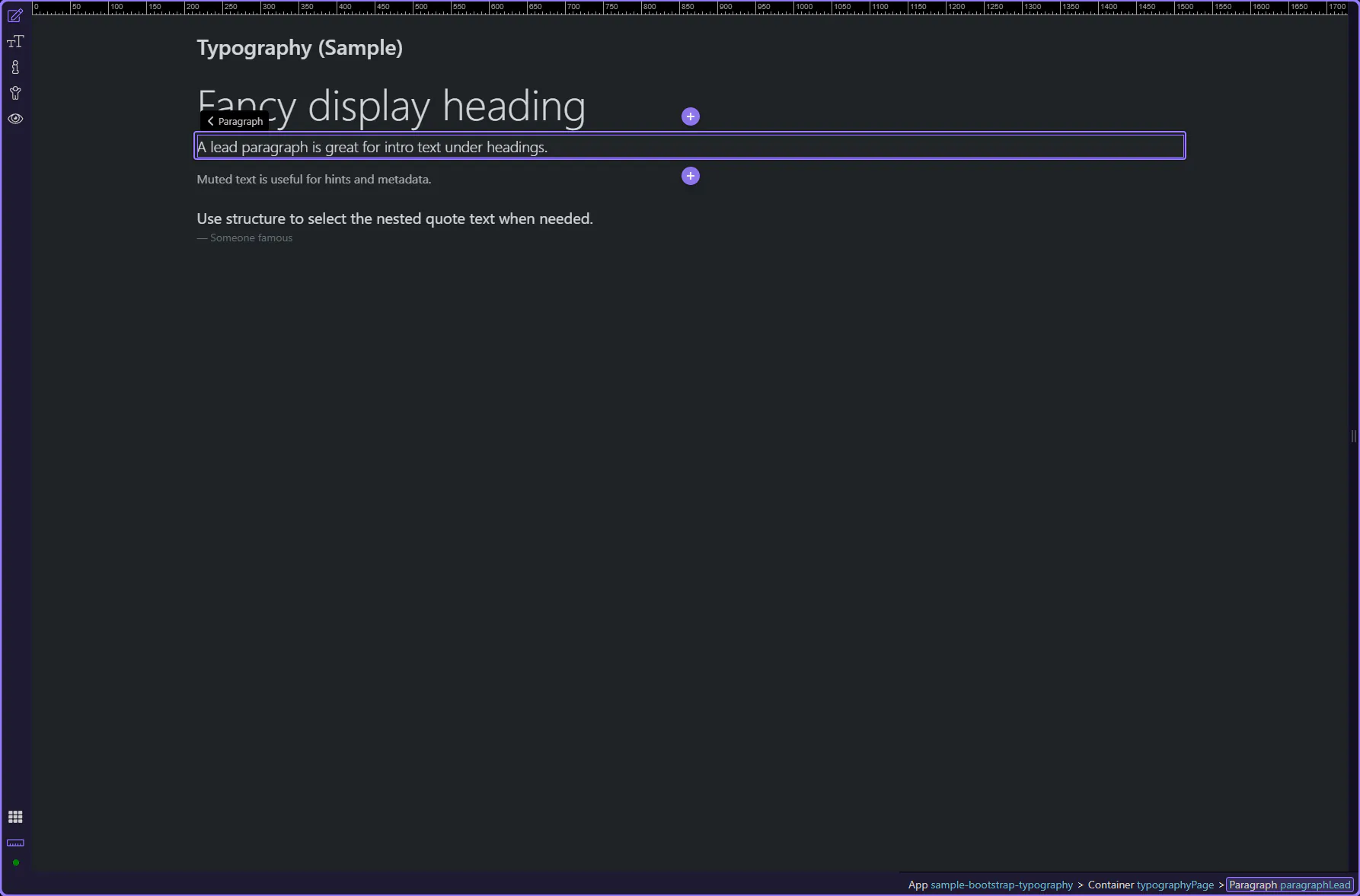
Orient yourself in Properties panel
Section titled “Orient yourself in Properties panel”Start with the wider context in the Properties panel so the next control makes sense in the full workflow. In the next step, you will focus on Text: Color and see how it fits into this area.
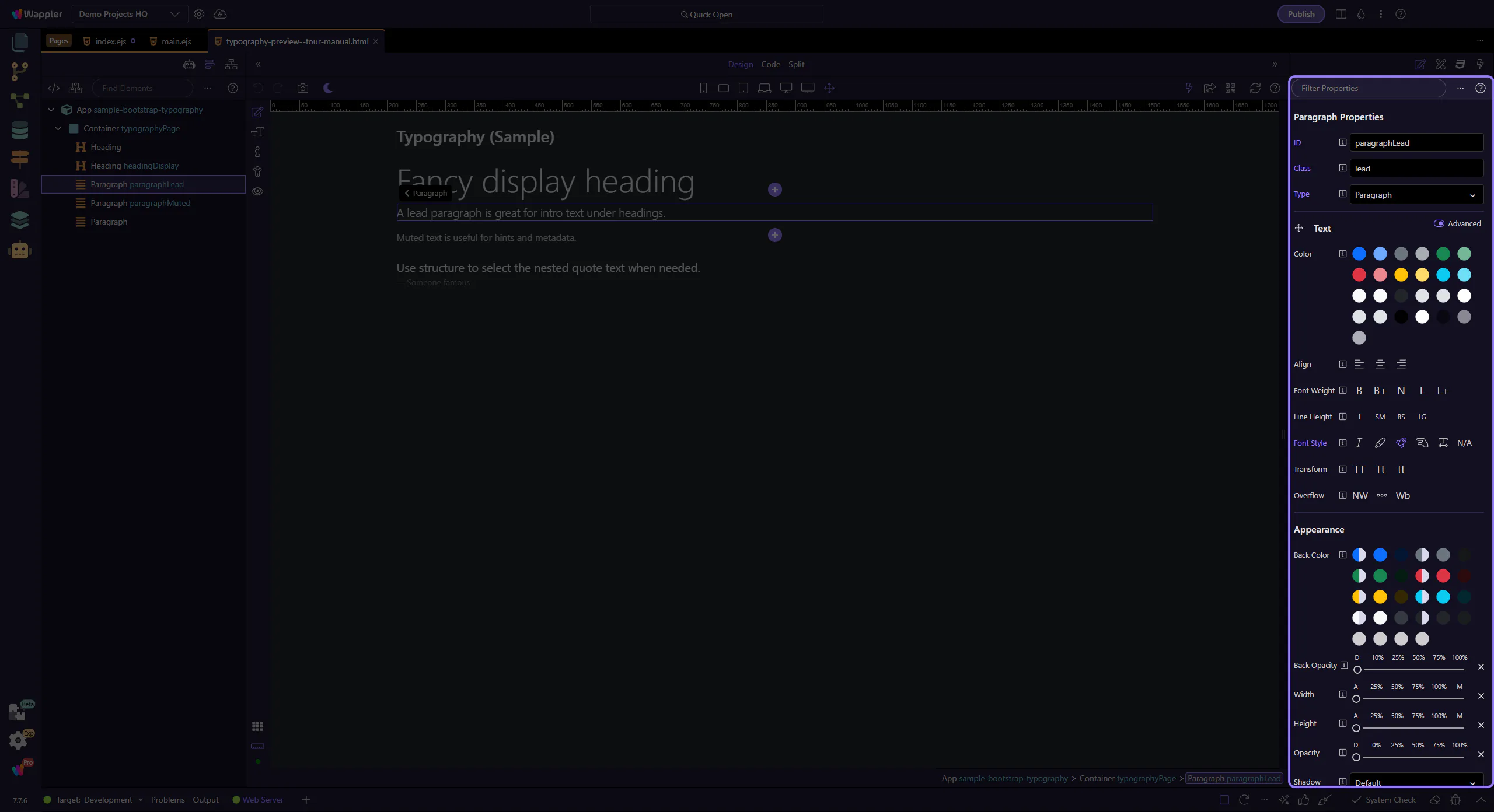
Text: Color
Section titled “Text: Color”Use Color for text-* utilities (including the new *-emphasis variants). This step matters because Text: Color is part of Selection Panels Properties Textelementcolor, and understanding that context makes the next action easier to repeat in your own project.
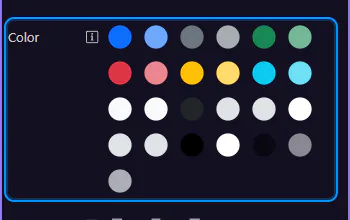
Text: Alignment
Section titled “Text: Alignment”Use Align for text-start, text-center, and text-end. This step matters because Text: Alignment is part of Selection Panels Properties Textalign, and understanding that context makes the next action easier to repeat in your own project.
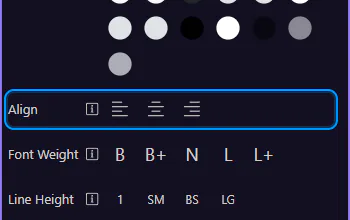
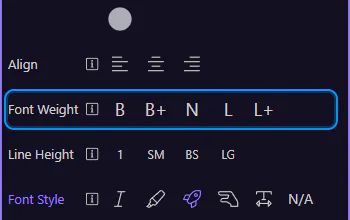
Text: Weight & line height
Section titled “Text: Weight & line height”Use Font Weight and Line Height to tune hierarchy without custom CSS. This step matters because Text: Weight & line height is part of Selection Panels Properties Textfontweight, and understanding that context makes the next action easier to repeat in your own project.
Text: Advanced toggle
Section titled “Text: Advanced toggle”Some Text utilities are tucked behind the Advanced toggle to keep the inspector concise. When you don’t see an option you expect, enable Advanced.
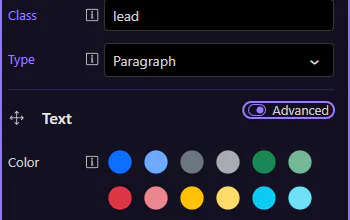
Enable Advanced
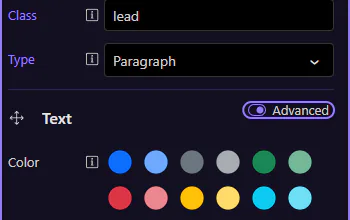
Section titled “Enable Advanced”Turn on Advanced to reveal additional Text options. This step matters because Enable Advanced is part of Selection Panels Properties Text Advanced Layout, and understanding that context makes the next action easier to repeat in your own project.
Text: Transform
Section titled “Text: Transform”With Advanced enabled, Transform becomes available for uppercase/capitalize/lowercase. This step matters because Text: Transform is part of Selection Panels Properties Texttransform, and understanding that context makes the next action easier to repeat in your own project.
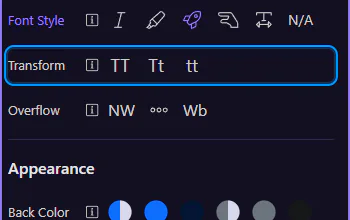
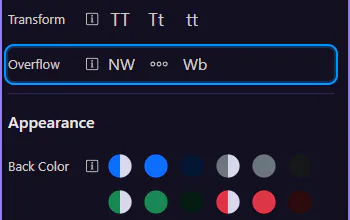
Text: Overflow
Section titled “Text: Overflow”More options appear under Advanced, including Overflow for nowrap/truncate/text-break. This step matters because Text: Overflow is part of Selection Panels Properties Textoverflow, and understanding that context makes the next action easier to repeat in your own project.
Next steps
Section titled “Next steps”Continue with other Utilities tours or go back to the Utilities menu.