
Text formatting
Use text utilities for alignment, wrapping, truncation, and emphasis.
Text Formatting essentials
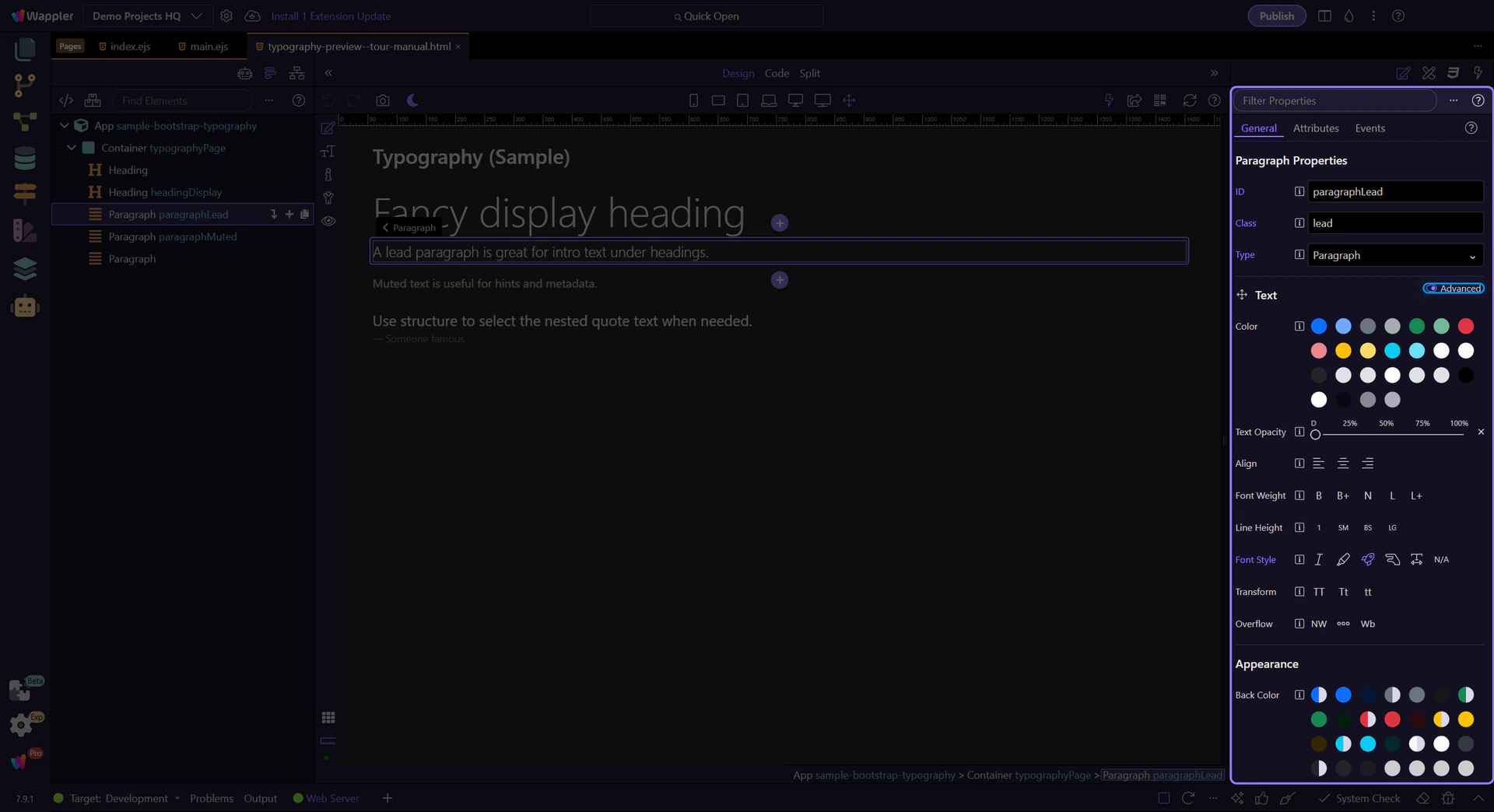
Section titled “Text Formatting essentials”Text utilities are easiest to review on a paragraph. A lead paragraph is selected so the most common Text Formatting properties are visible.
Paragraph example
Section titled “Paragraph example”Text utilities help you adjust alignment, wrapping, emphasis, and readability without changing semantics. The lead paragraph is selected so you can immediately see the Text Formatting options. Tip: if selection is tricky, use App Structure to jump to the exact text node.
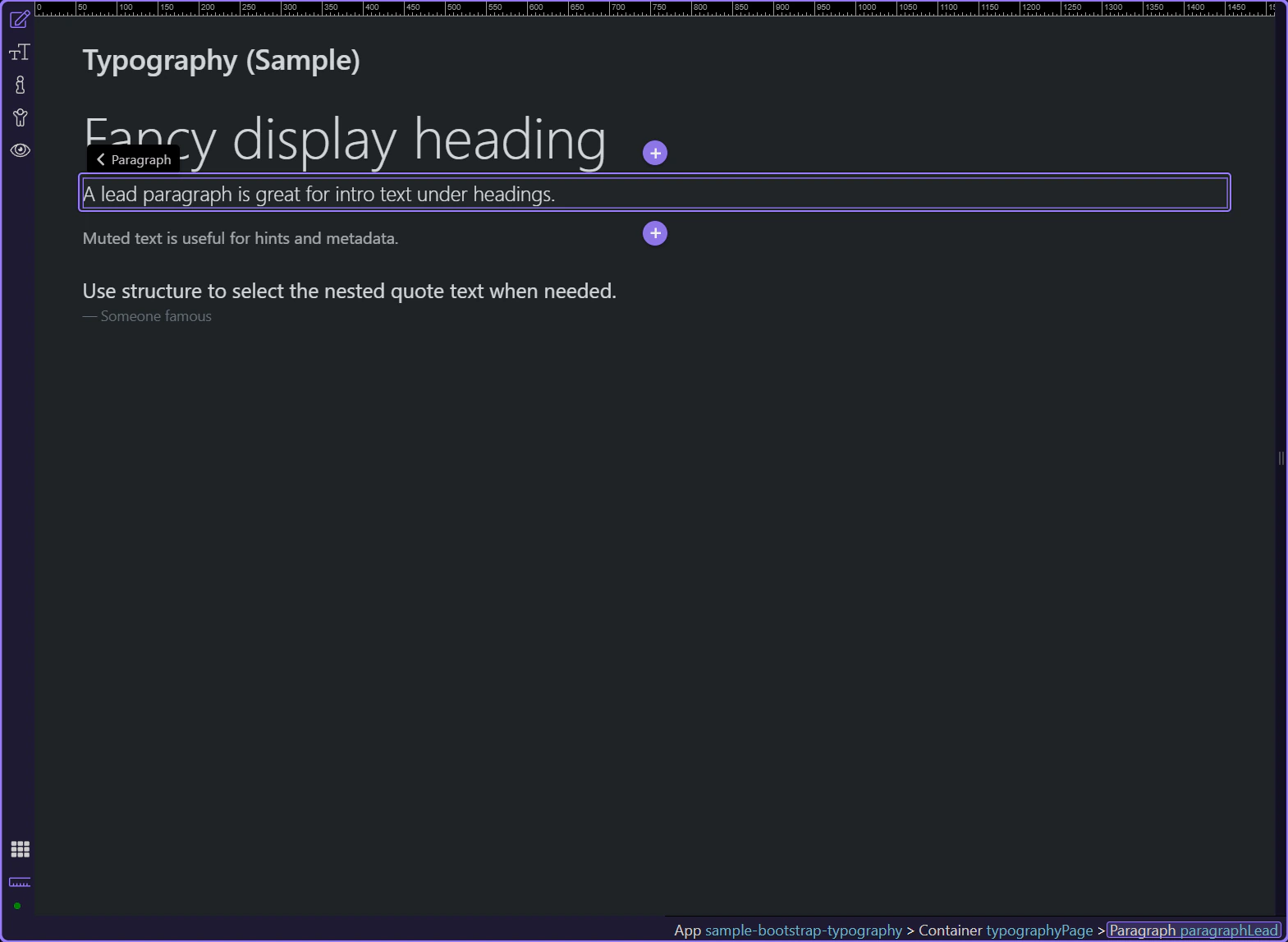
Text: Color
Section titled “Text: Color”Use Color for text-* utilities (including the new *-emphasis variants).
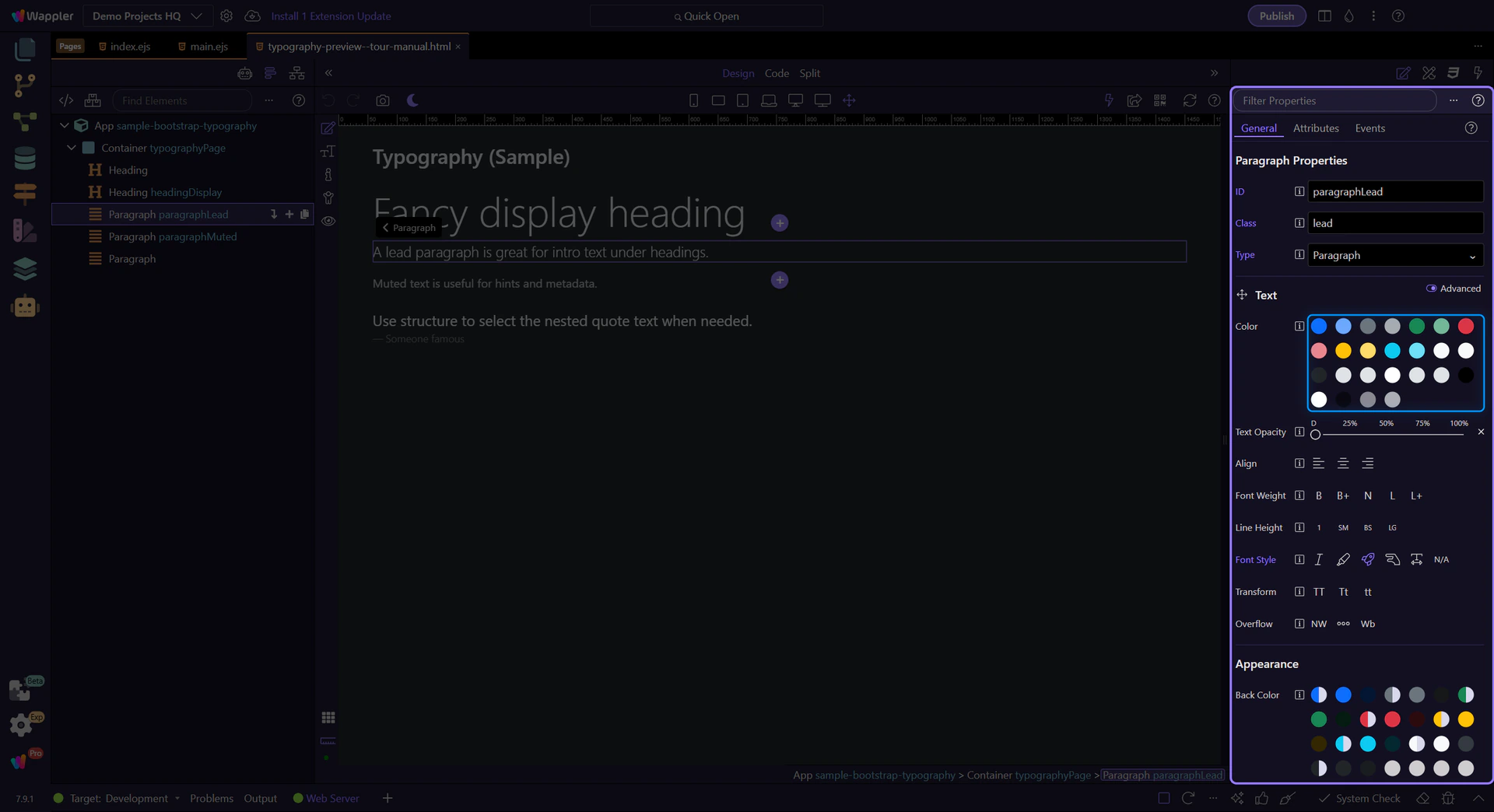
Text: Alignment
Section titled “Text: Alignment”Use Align for text-start, text-center, and text-end.
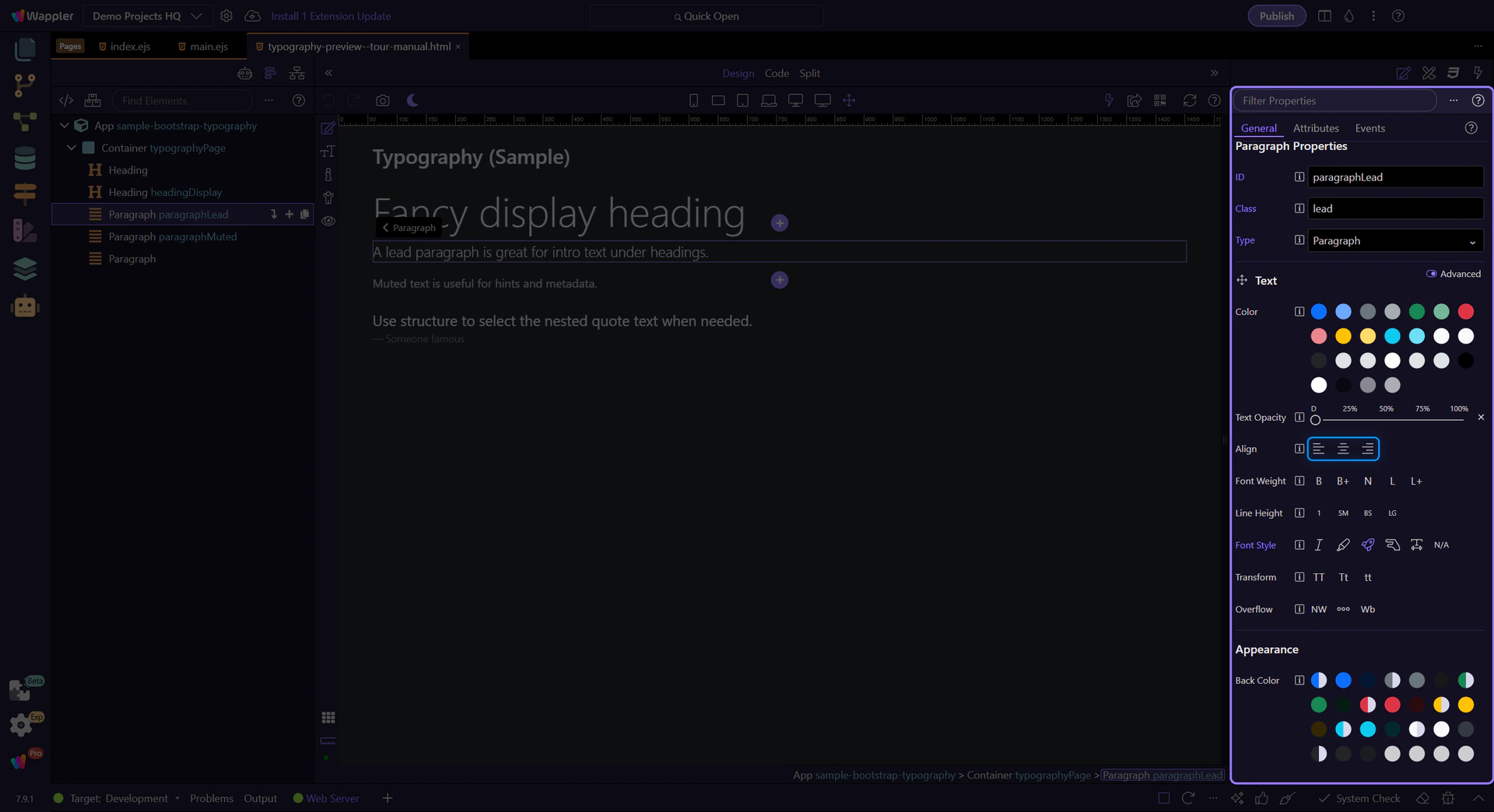
Text: Weight & line height
Section titled “Text: Weight & line height”Use Font Weight and Line Height to tune hierarchy without custom CSS.
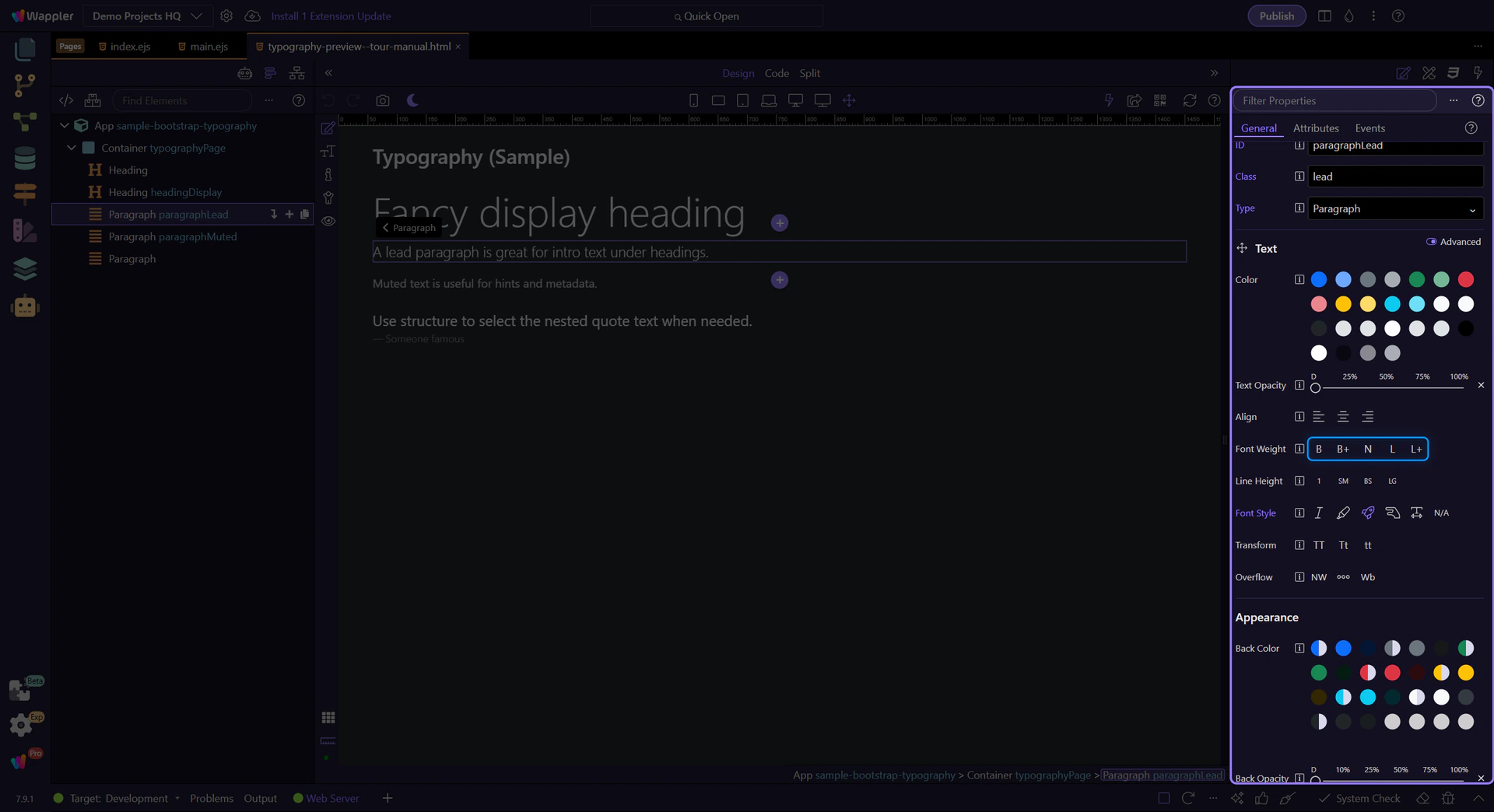
Text: Advanced toggle
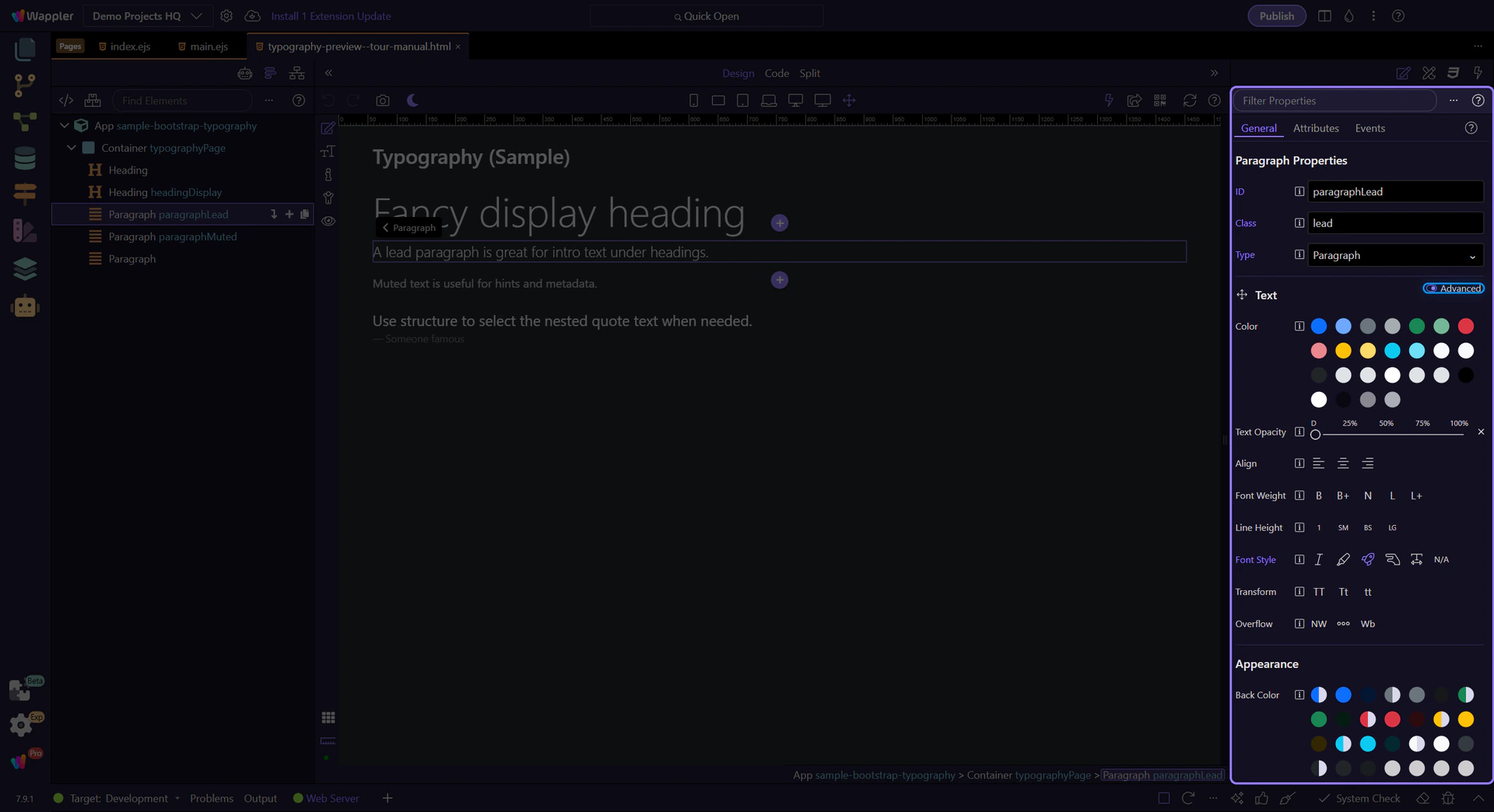
Section titled “Text: Advanced toggle”Some Text utilities are tucked behind the Advanced toggle to keep the inspector concise. When you don’t see an option you expect, enable Advanced.
Enable Advanced
Section titled “Enable Advanced”Turn on Advanced to reveal additional Text options.
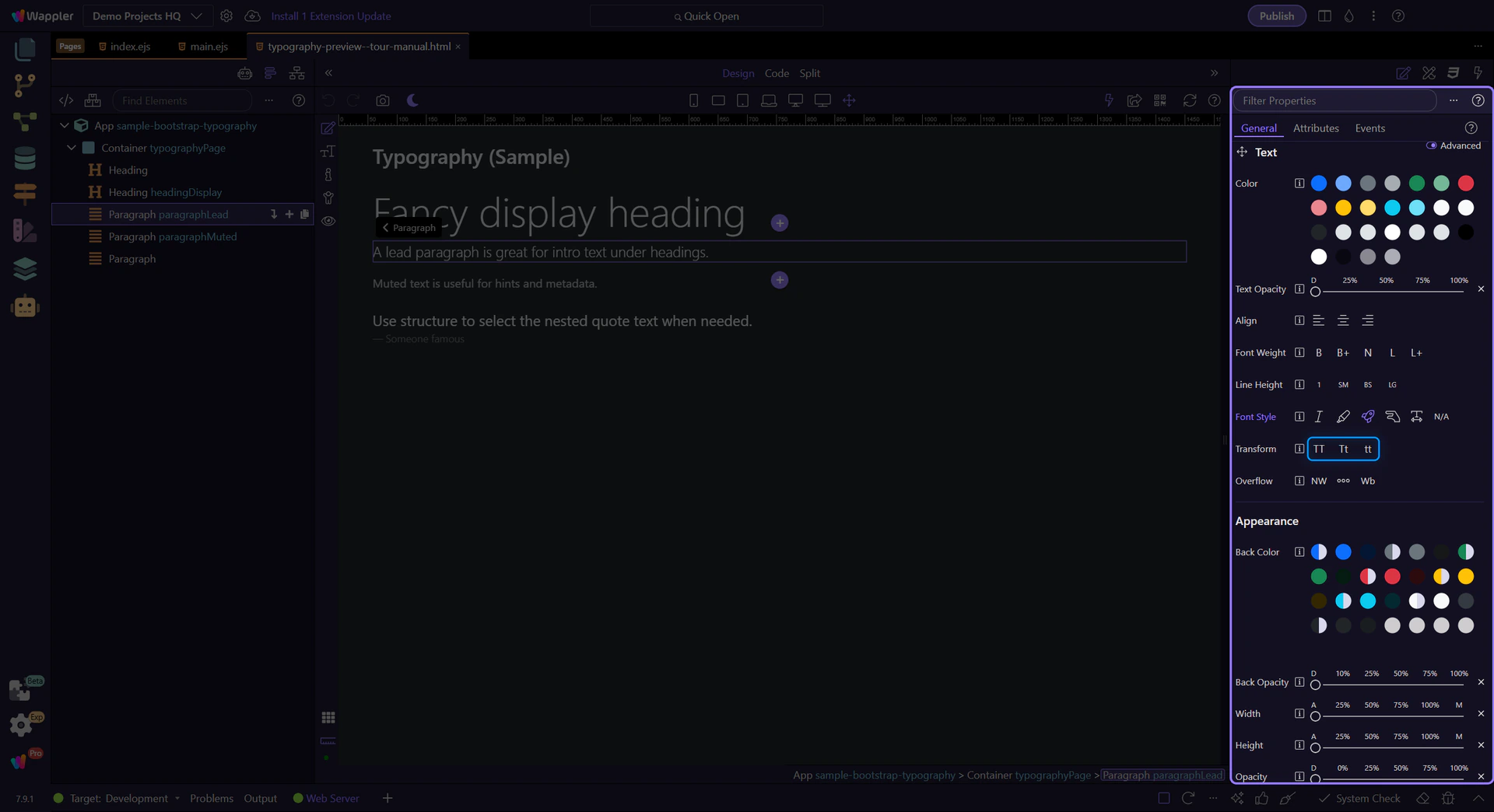
Text: Transform
Section titled “Text: Transform”With Advanced enabled, Transform becomes available for uppercase/capitalize/lowercase.
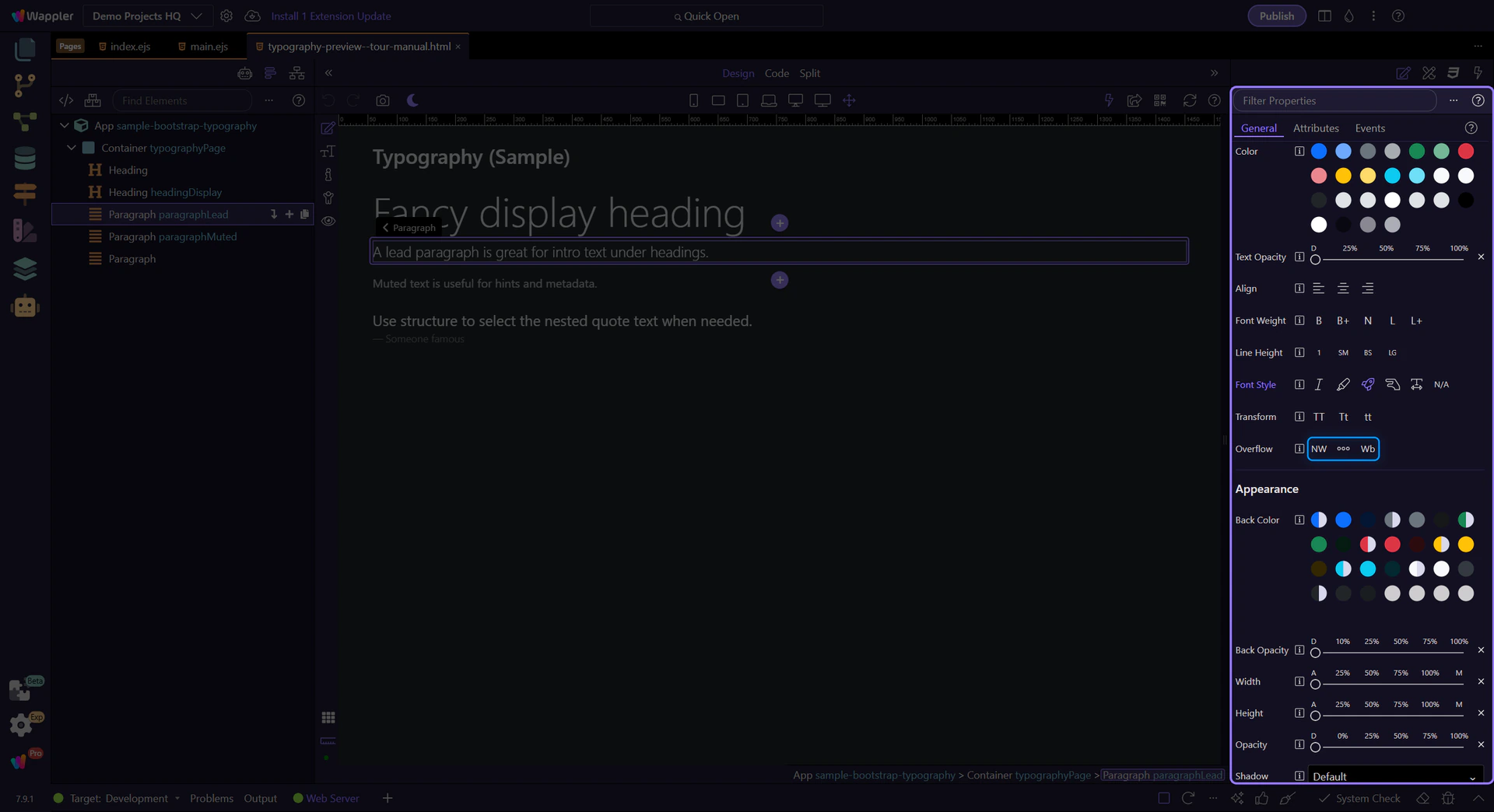
Text: Overflow
Section titled “Text: Overflow”More options appear under Advanced, including Overflow for nowrap/truncate/text-break.
Next steps
Section titled “Next steps”Continue with other Utilities tours or go back to the Utilities menu.