
Supporting data
The page loads listings and date helpers before the form is submitted.
Focused walkthrough of the renewed inquiry page: Server Connect form posting, listing picker, calendar availability, validation, and success feedback.
The inquiry page is the demo’s form workflow example. It combines page-level data, availability helpers, and a Server Connect form that posts into the SQLite-backed inquiry pipeline.
The walkthrough starts on views/inquiry.ejs, where the renewed demo combines calendar guidance with a Server Connect form workflow.
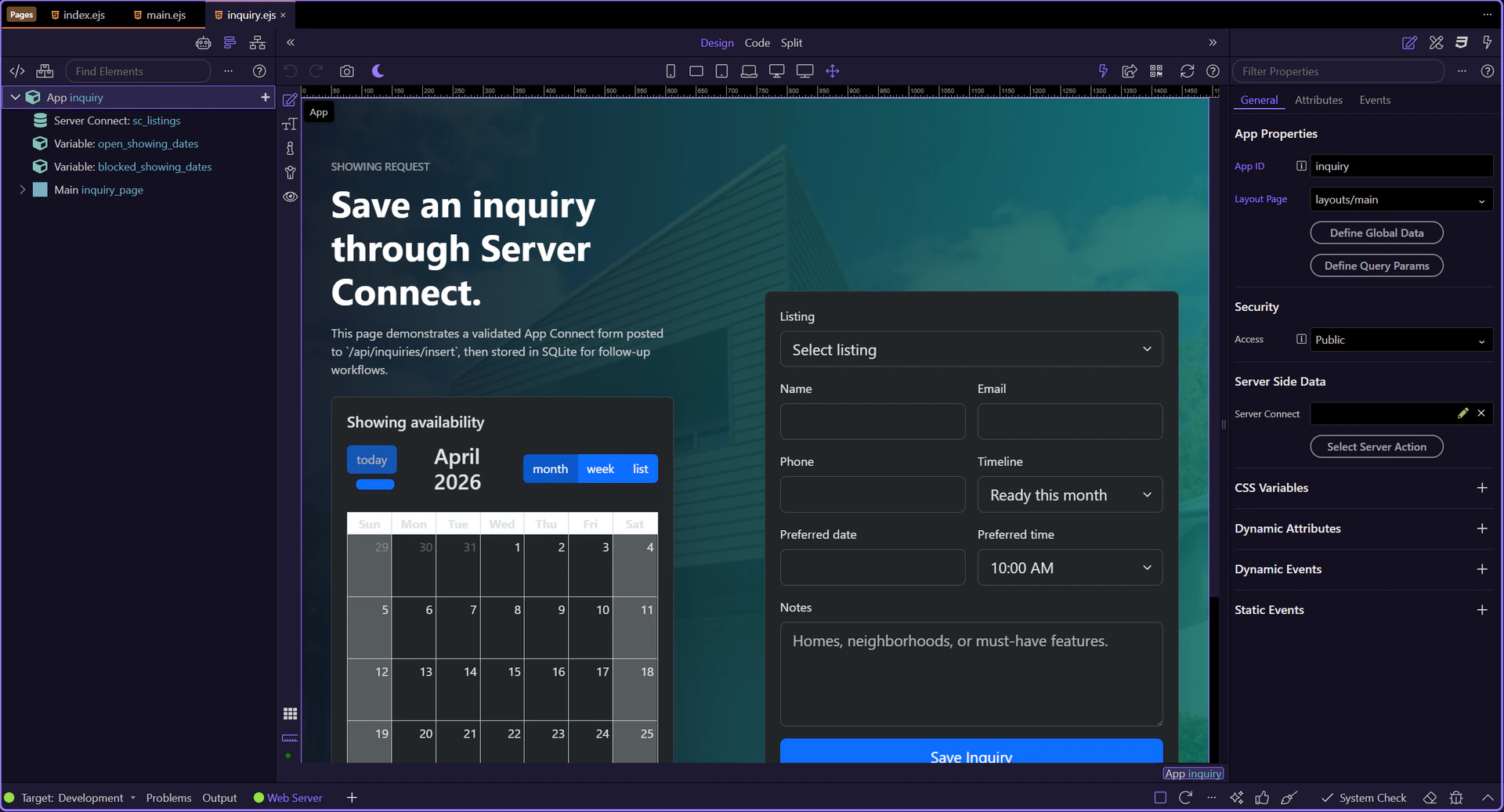
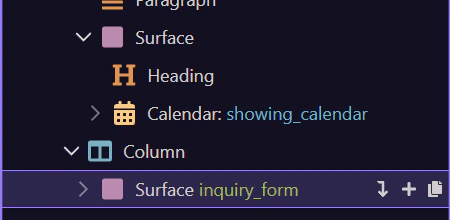
The inquiry page is now active in Design View, so the Structure and Properties panels can follow the live page context.
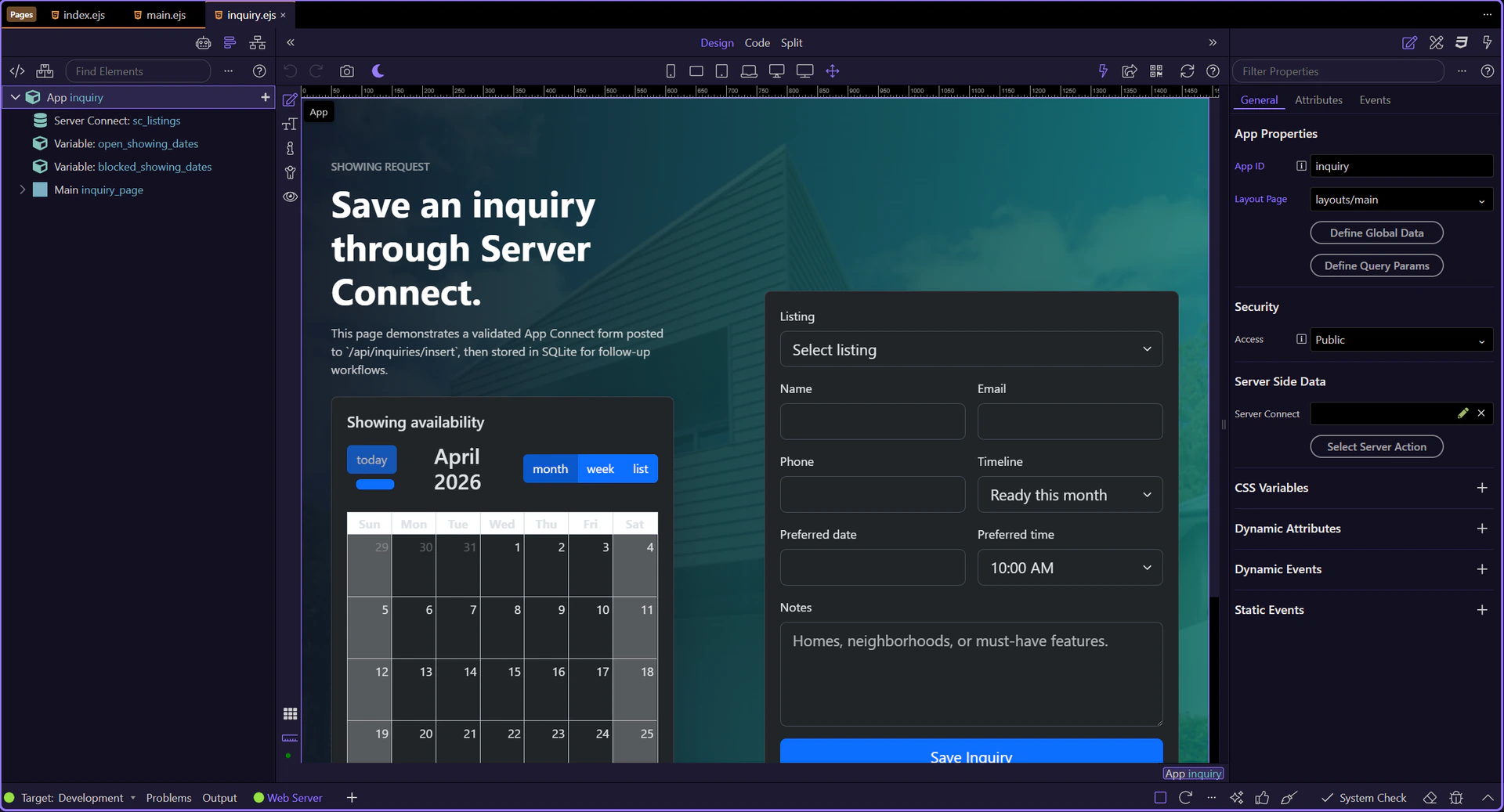
sc_listings loads the available listings so the form can present a live property picker instead of hard-coded options.
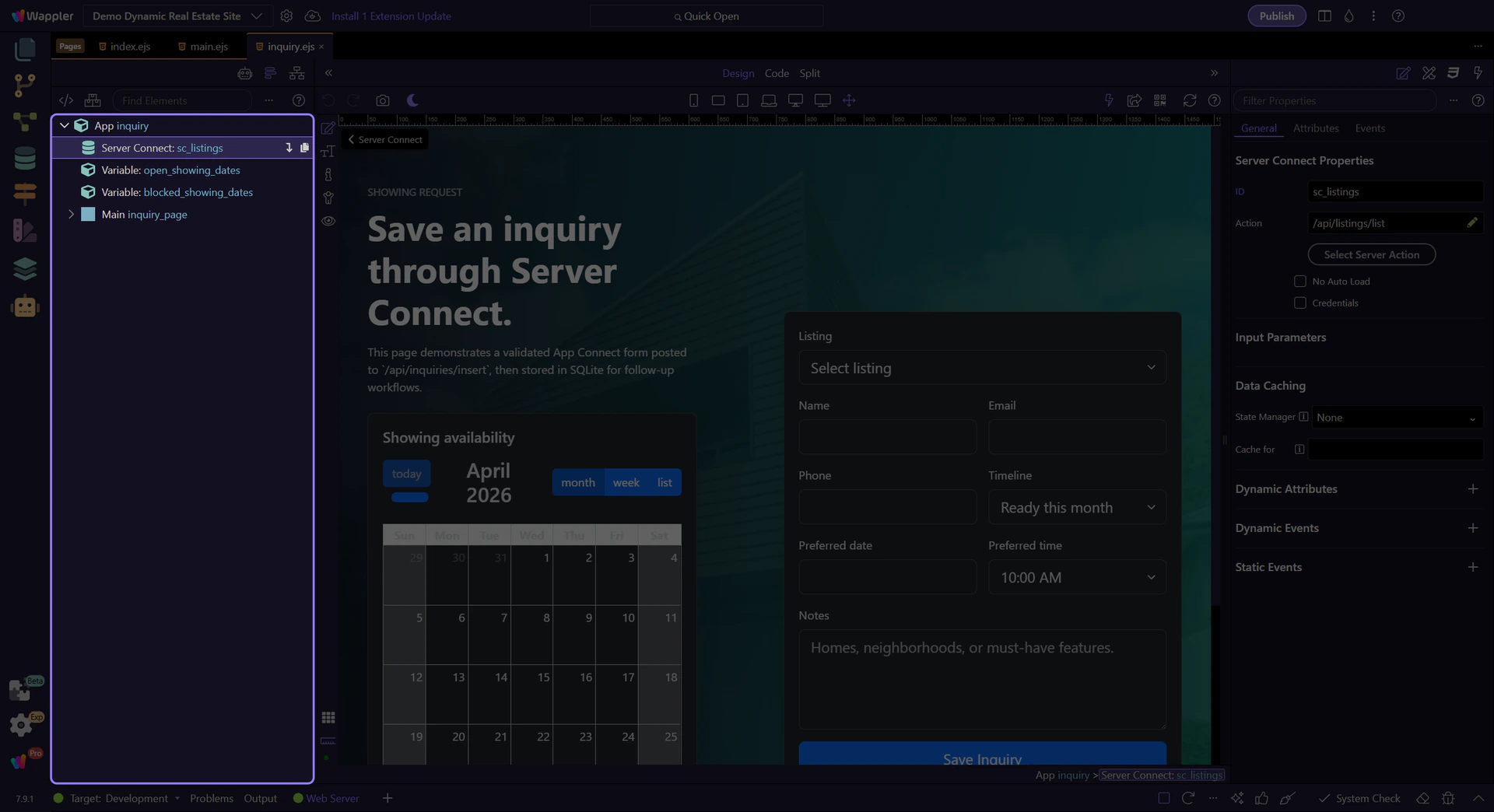
The calendar gives users immediate context about availability before they fill the form, which makes the page feel guided instead of blank.
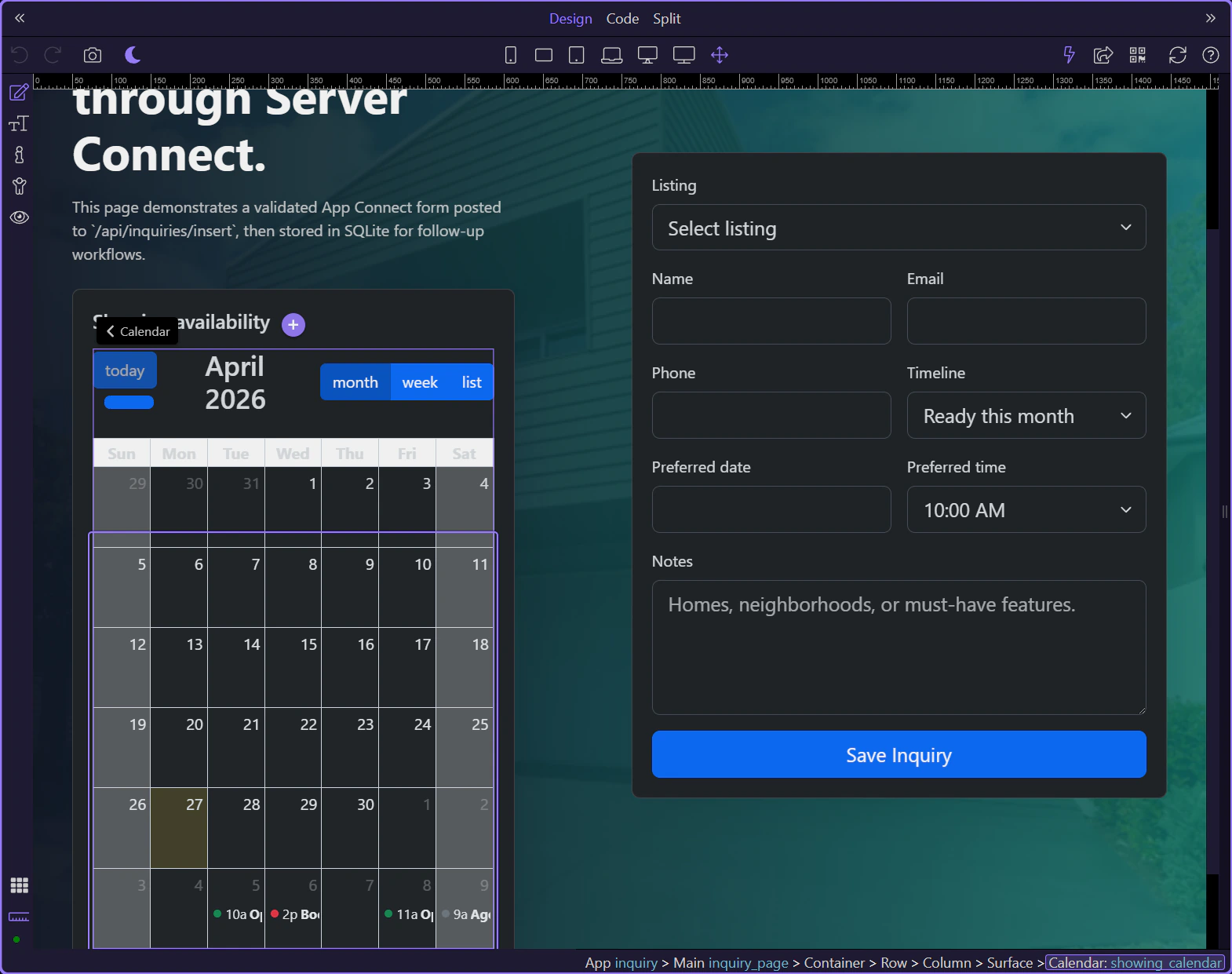
inquiry_form is the page’s main workflow component. It posts to /api/inquiries/insert and exposes execution and feedback state directly to the UI.
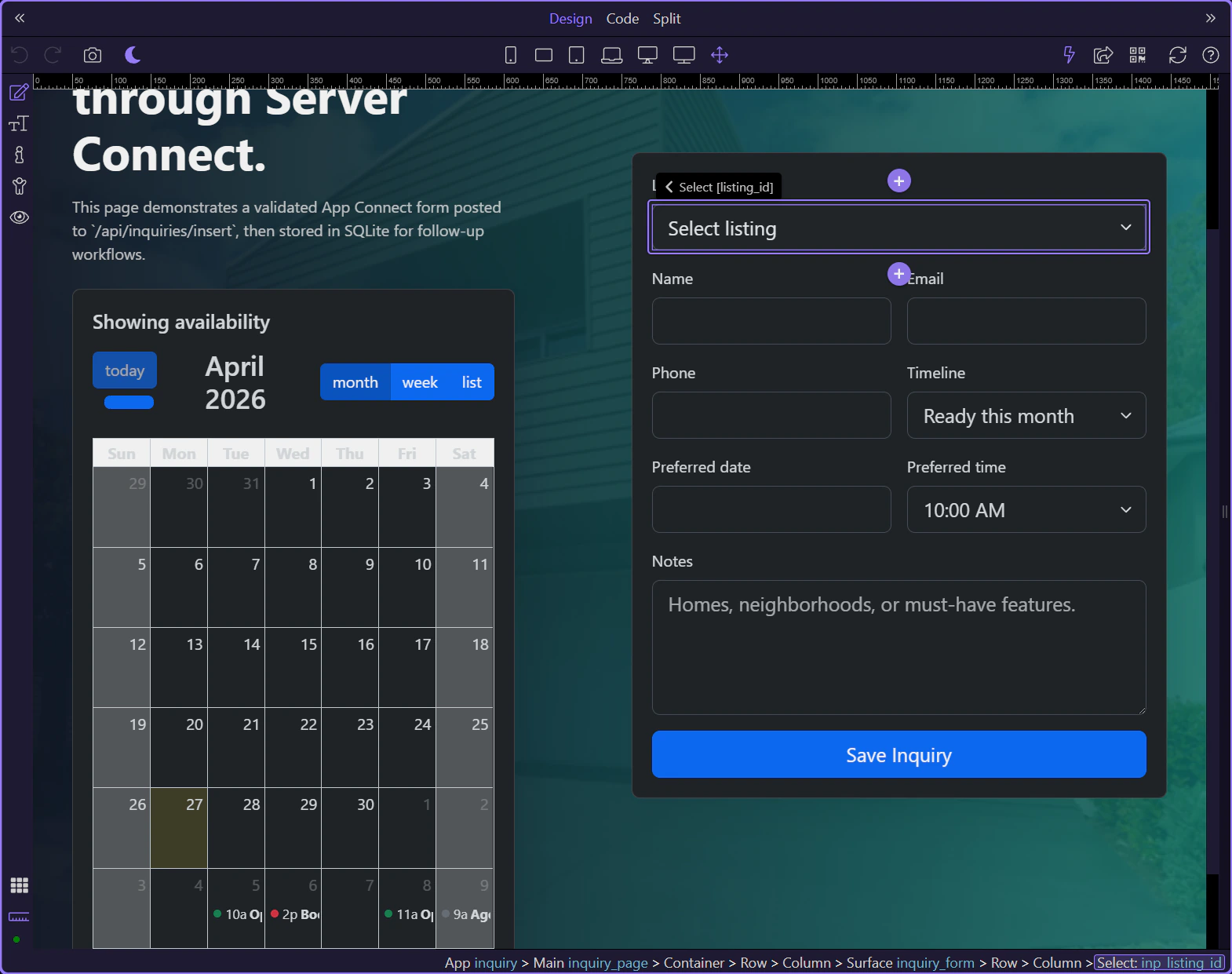
inp_listing_id shows how the form reuses the loaded listing collection to generate live select options and also accepts a prefilled query value from other pages.
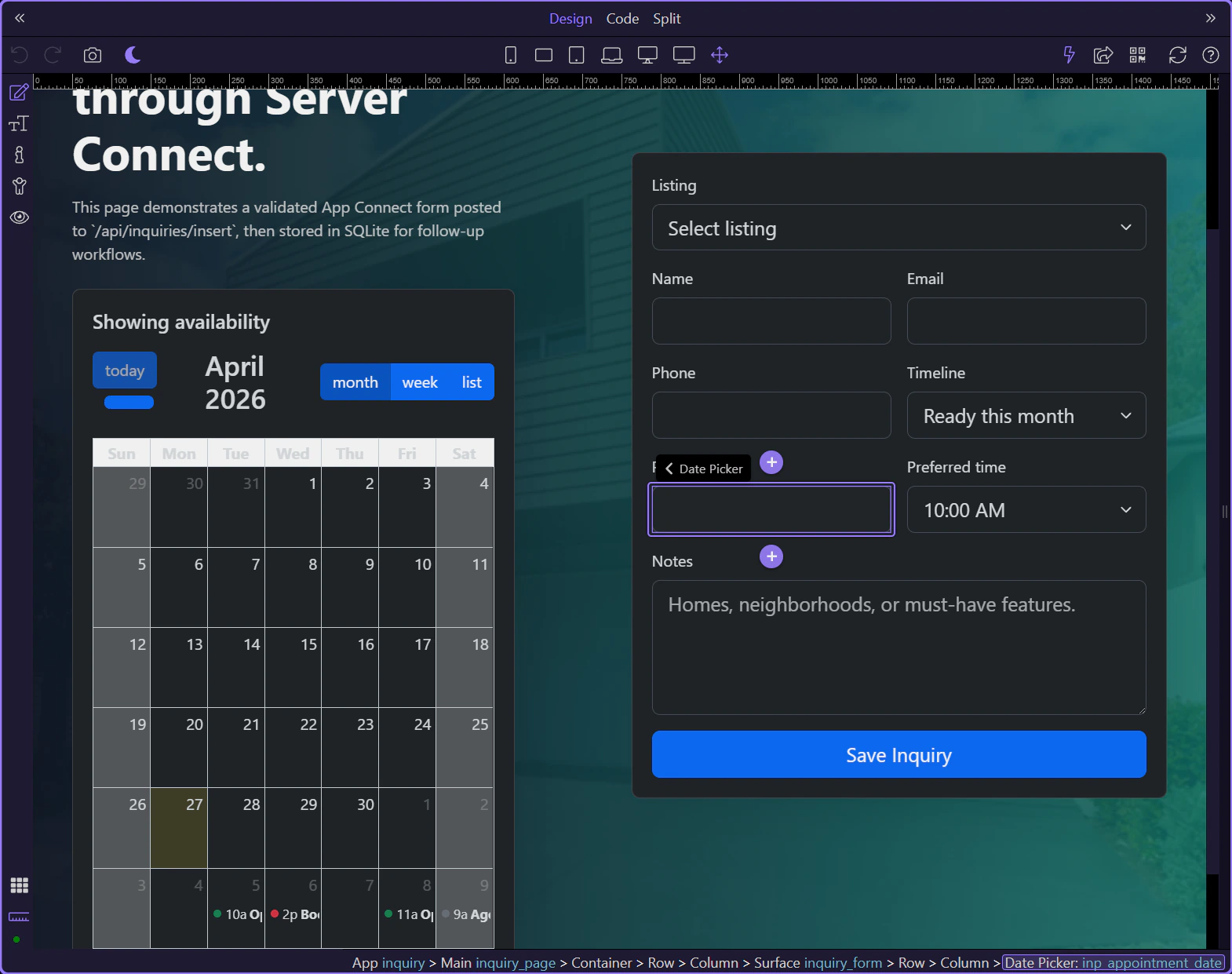
The date picker mixes custom available dates and blocked dates, which is a practical example of App Connect enriching input controls with page-level data.
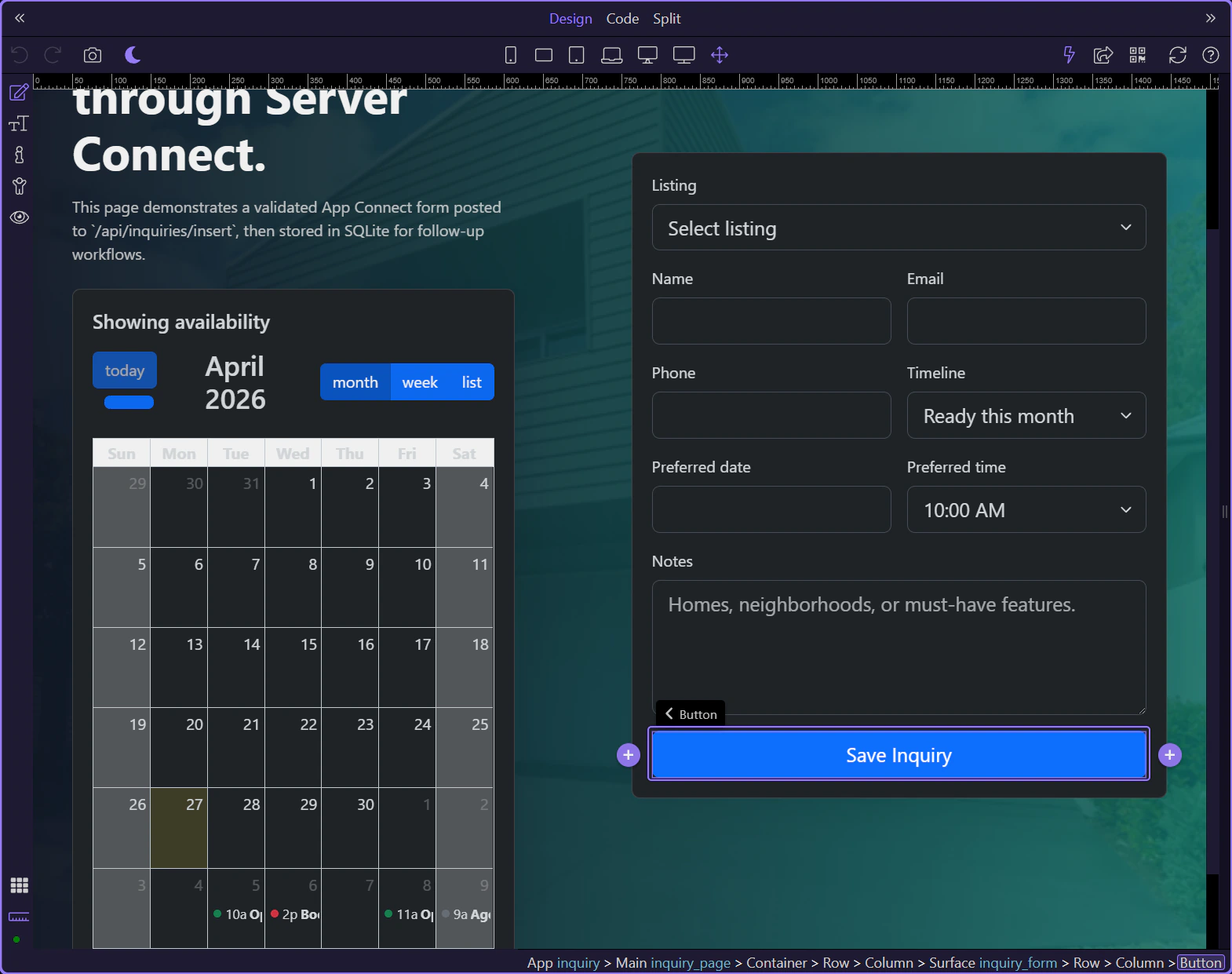
The submit button reacts to inquiry_form.state.executing, while the alert blocks above the form reflect success or failure after submission. That keeps the whole workflow visible on one page.
The inquiry page completes the renewed demo’s workflow chain: browse listings, inspect a property, then save an inquiry through a guided App Connect form.
Continue back to the detail page, the listings page, or the wider App Connect index.