
Multiple views
Offer month, week, and list views from one calendar component.
Build and inspect a populated App Connect Event Calendar with views, a calendar source, styled events, and a real scheduling page around it.
The Real Estate inquiry page uses Event Calendar to show available and booked appointment windows beside a working Server Connect inquiry form. This makes the component, its source, and the surrounding user journey visible together.
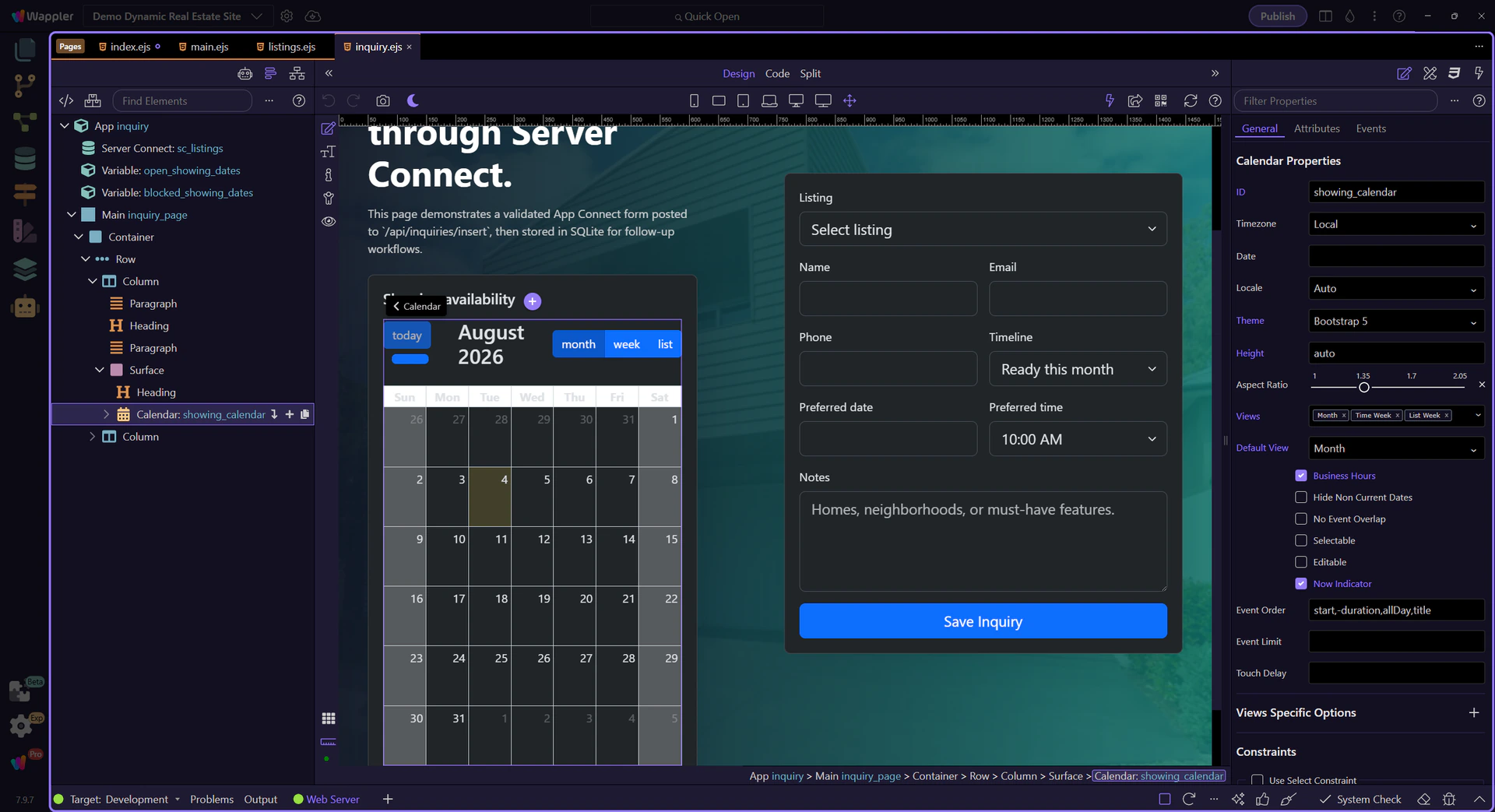
Select showing_calendar in the expanded Structure tree. The populated Properties panel exposes its theme, default view, available views, sizing, and calendar behavior while Design View keeps the complete inquiry page visible.
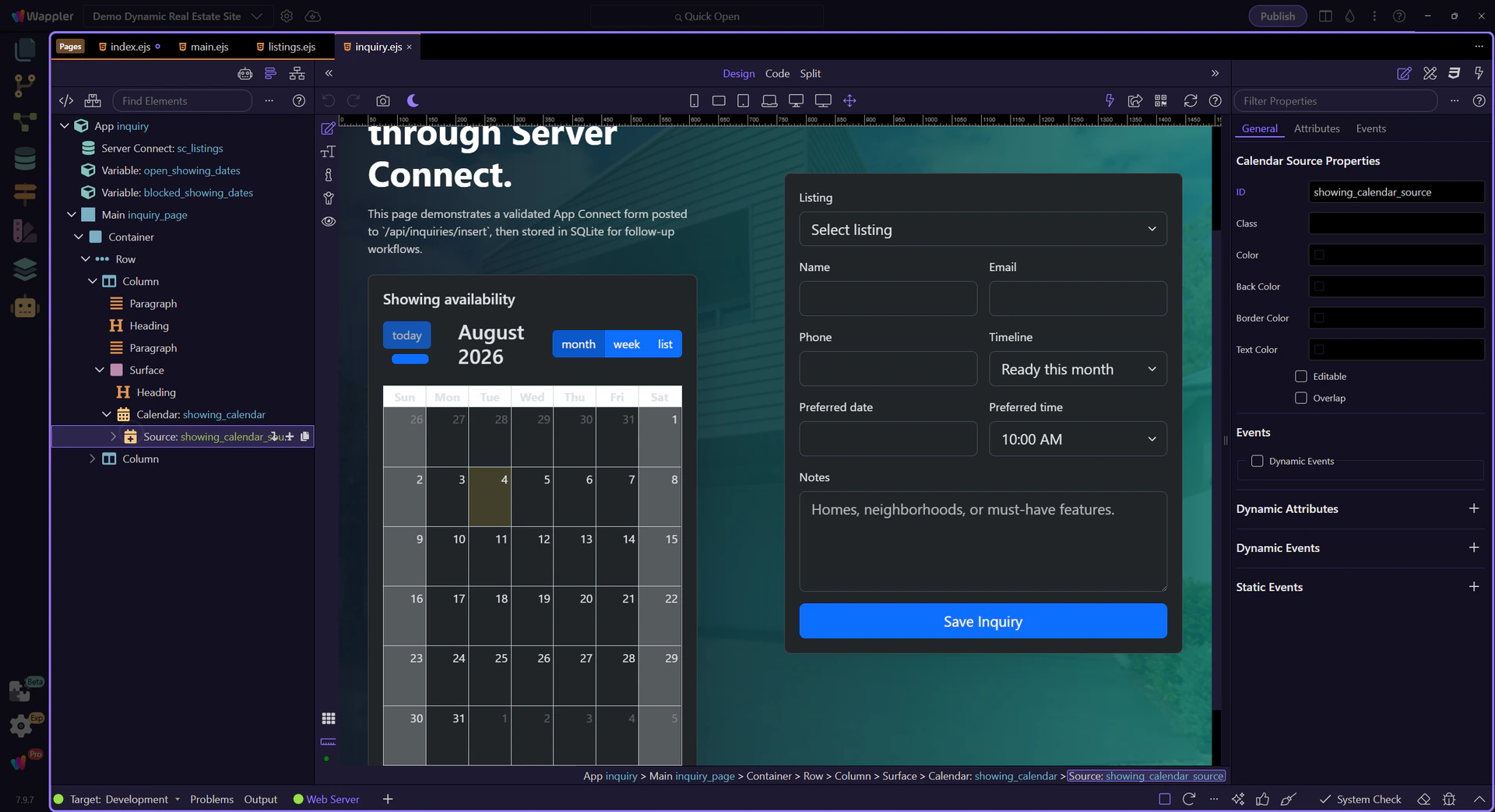
showing_calendar_source groups the event records beneath the calendar. Keeping the source explicit in Structure makes it easier to inspect, replace, or connect the schedule to live application data later.
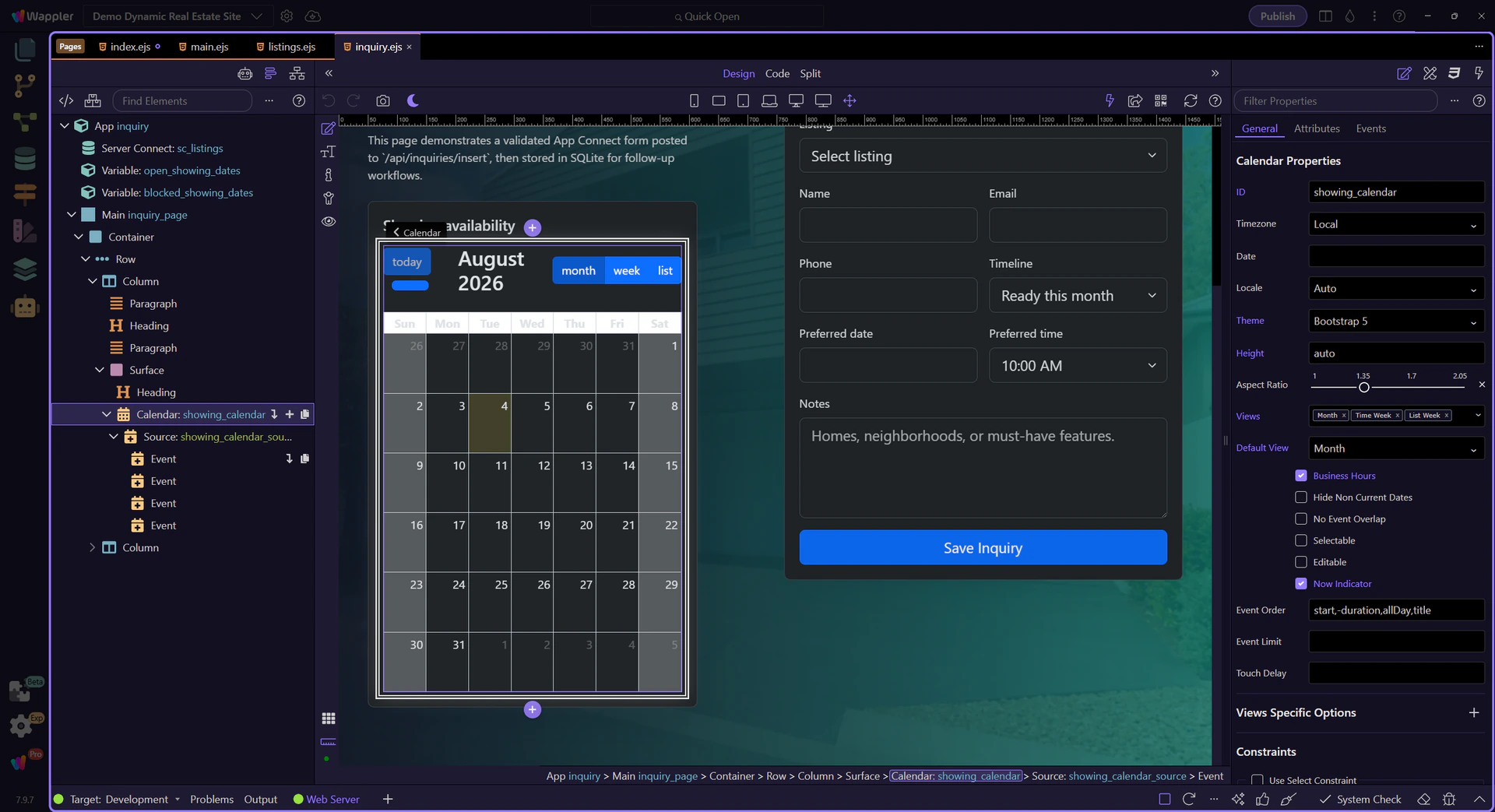
Each event has a title, start and end time, plus optional styling. The selected open-showing event demonstrates a fully populated inspector, including the green status color used to distinguish available time from booked or blocked slots.

The final page pairs scheduling context with the inquiry form. Test the different calendar views, confirm event colors remain legible in the dark and light application themes, and verify that dates match the timezone expectations of the backend workflow.
Start with clearly modeled event records, choose only the calendar views the audience needs, and use consistent status colors. When the workflow grows, keep the same calendar component and feed its source from App Connect or Server Connect data.