
Load an action on your page
The complete connection from a saved API action to a visible text binding in App Connect.
Load the greeting API action on your page and display its response.
Before you begin
Section titled “Before you begin”- Complete Create your first Server Connect action.
- Open your
public/learn.htmlpage with App Connect enabled.
Add Server Connect to the page
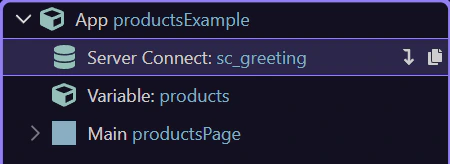
Section titled “Add Server Connect to the page”The tour opens the completed Products page with its greeting; its sample endpoint is /api/wappler_tours/first-action. In Wappler Learning, keep the table and sample products already in public/learn.html; add the greeting to this same page. Select App in App Structure. Open the Components picker, choose Data → Server Connect and name the component sc_greeting. In its Action picker select my-first-action. Leave No Auto Load unchecked so the action is requested when the page loads.
Bind a paragraph to the response
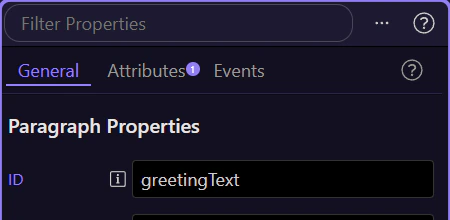
Section titled “Bind a paragraph to the response”Select the Products heading in App Structure and use Insert After → Paragraph to place a paragraph below it. Select the paragraph. In Properties, add Dynamic Attributes → Display → Inner Text, then open the picker beside its Value. Expand sc_greeting → data and select greeting. Switch the picker to Code and confirm sc_greeting.data.greeting, then click Select. The bound response replaces the paragraph’s placeholder text.
Check the request and visible result
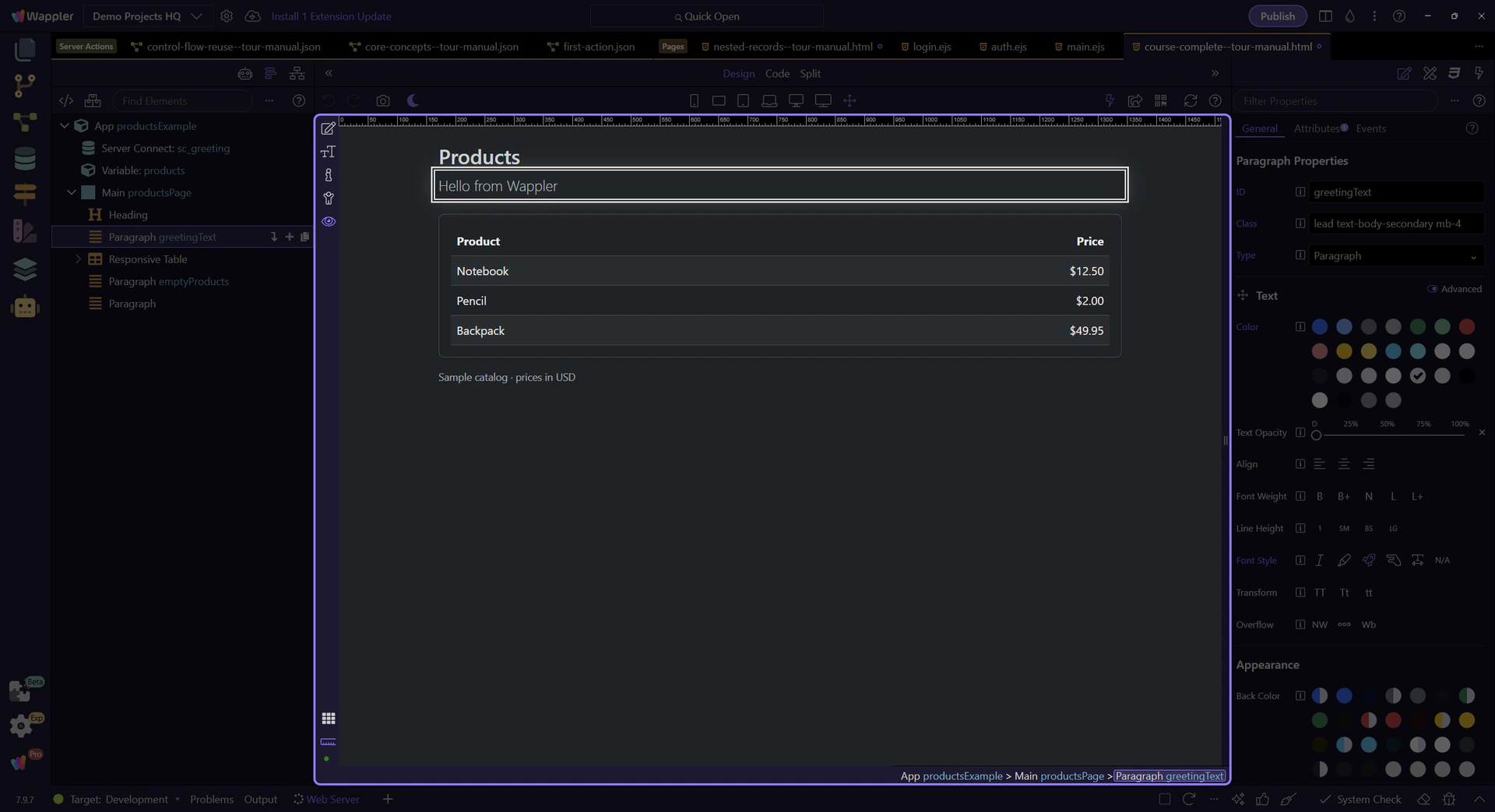
Section titled “Check the request and visible result”Save public/learn.html and Preview. The paragraph should display Hello from Wappler while the three product rows and formatted prices remain visible. In the action, change the greeting to Hello again, save and reload the page to check the new response. Restore Hello from Wappler, save and reload before the final lesson. If the paragraph is blank, inspect Network: check that the request succeeded and its response contains a greeting property. A differently named output needs a matching binding.
After the course: database records
Section titled “After the course: database records”Keep products.value as the collection for the final Preview lesson. Database records are an optional next project: create a Database Query step named products with Output enabled, then select that action in a Server Connect component called sc_products. The repeat would then use sc_products.data.products. Continue into Database Manager and Database Query after finishing this course.
Check your result
Section titled “Check your result”Preview shows Hello from Wappler. Changing the action’s greeting, saving and reloading the page displays the new value.