
Create a New Local Project
Learn how to move from Project Manager into the New Project flow, pick a clean starter template, and understand the settings that shape your first local project.
Create the practice project used throughout the beginner course.
Before you begin
Section titled “Before you begin”- Wappler installed and a writable empty folder for the practice project.
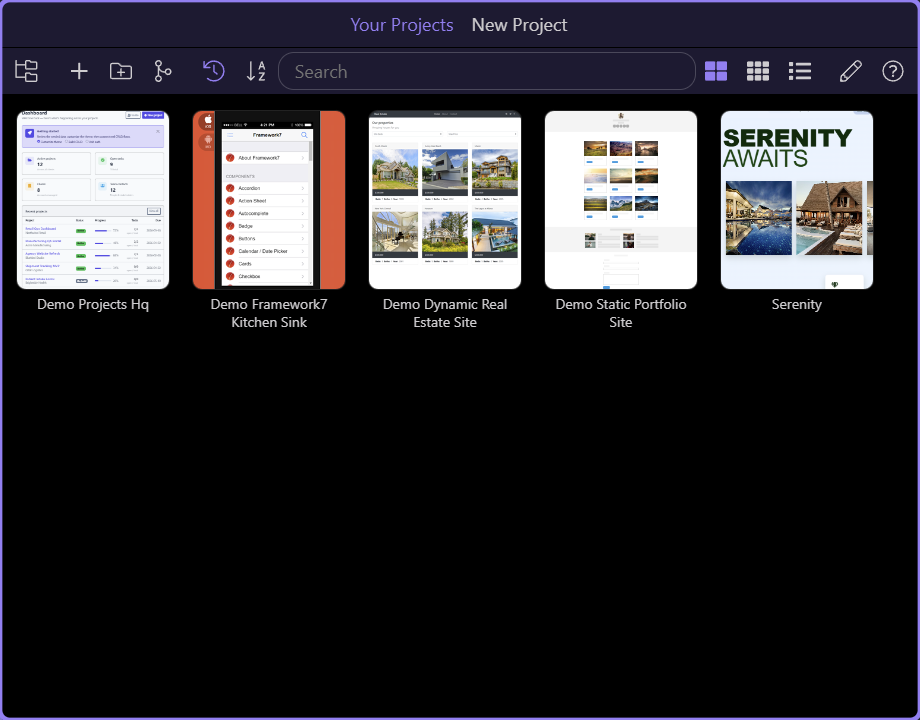
Create a practice project named Wappler Learning. Use a new empty folder and keep this project for the whole beginner course. From the Welcome screen choose New Project; from an open project use New Project in Project Manager.
Open New Project
Section titled “Open New Project”Open Project Manager and choose New Project from its top toolbar. This starts the project wizard; it does not add a page to the currently open project.

Choose a project starter
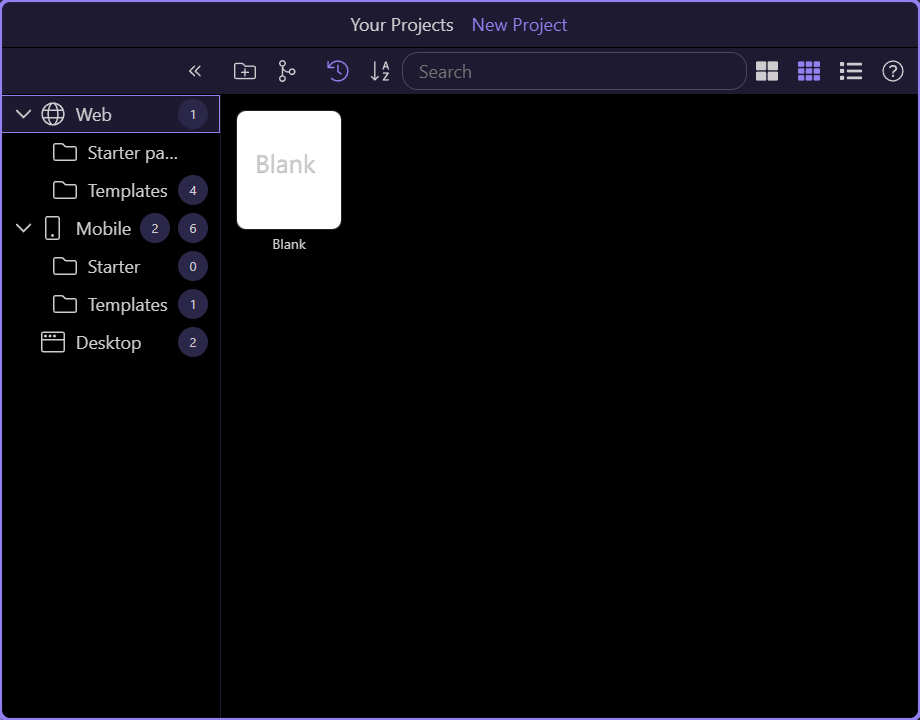
Section titled “Choose a project starter”The wizard shows categories on the left and their templates in the main area. Choose a web starter for this course. The next screens set the project folder and local development environment.
Select Web
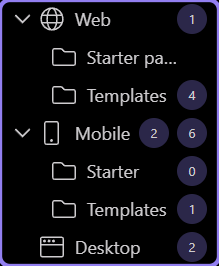
Section titled “Select Web”Select Web in the category list. This exposes browser-based project starters, including the Blank template used by this course.
Select Blank
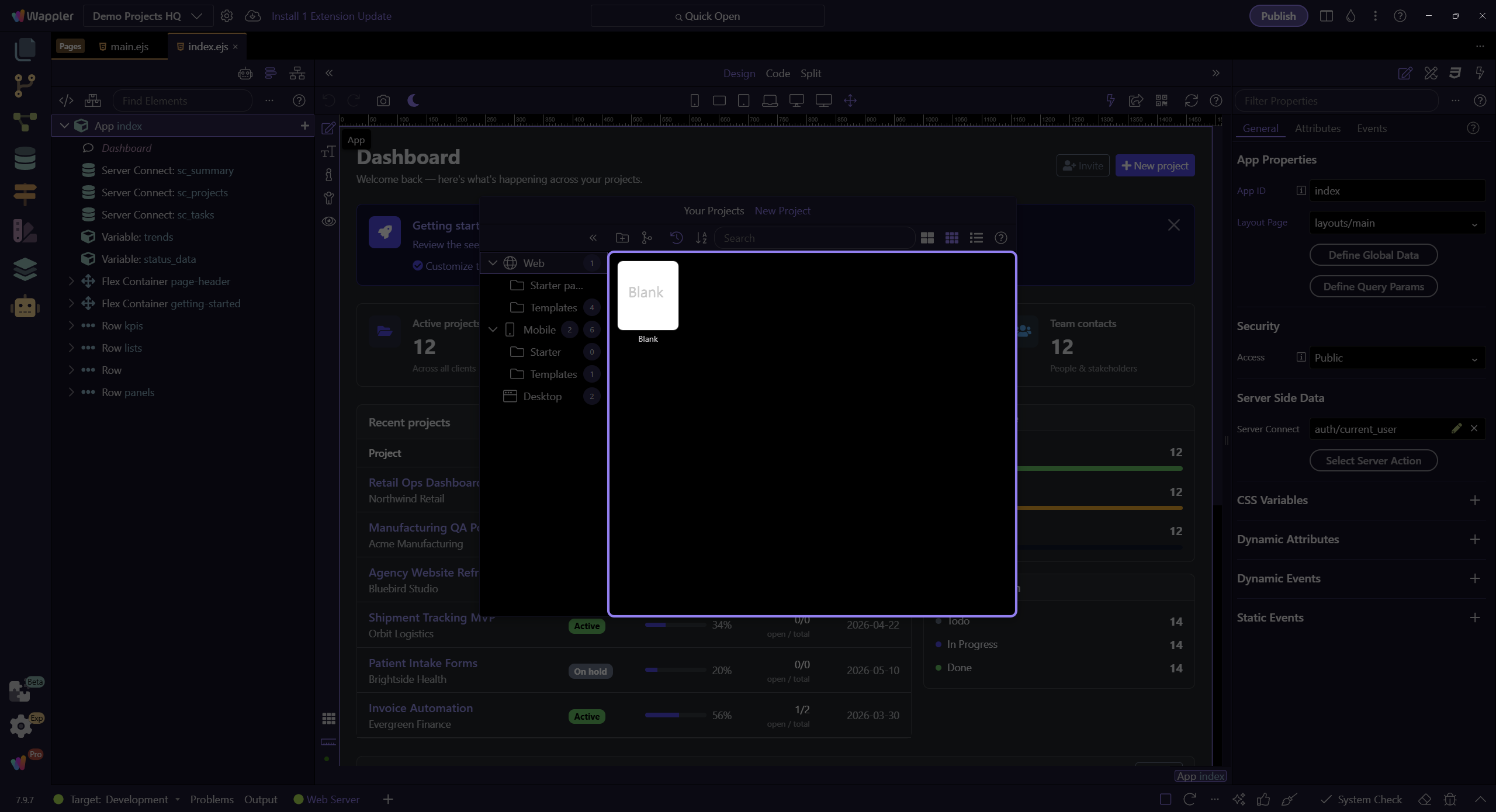
Section titled “Select Blank”Choose Blank. The course adds its own page and sample data, so no prebuilt application is needed. Continue to New Project Settings.
Create the practice project
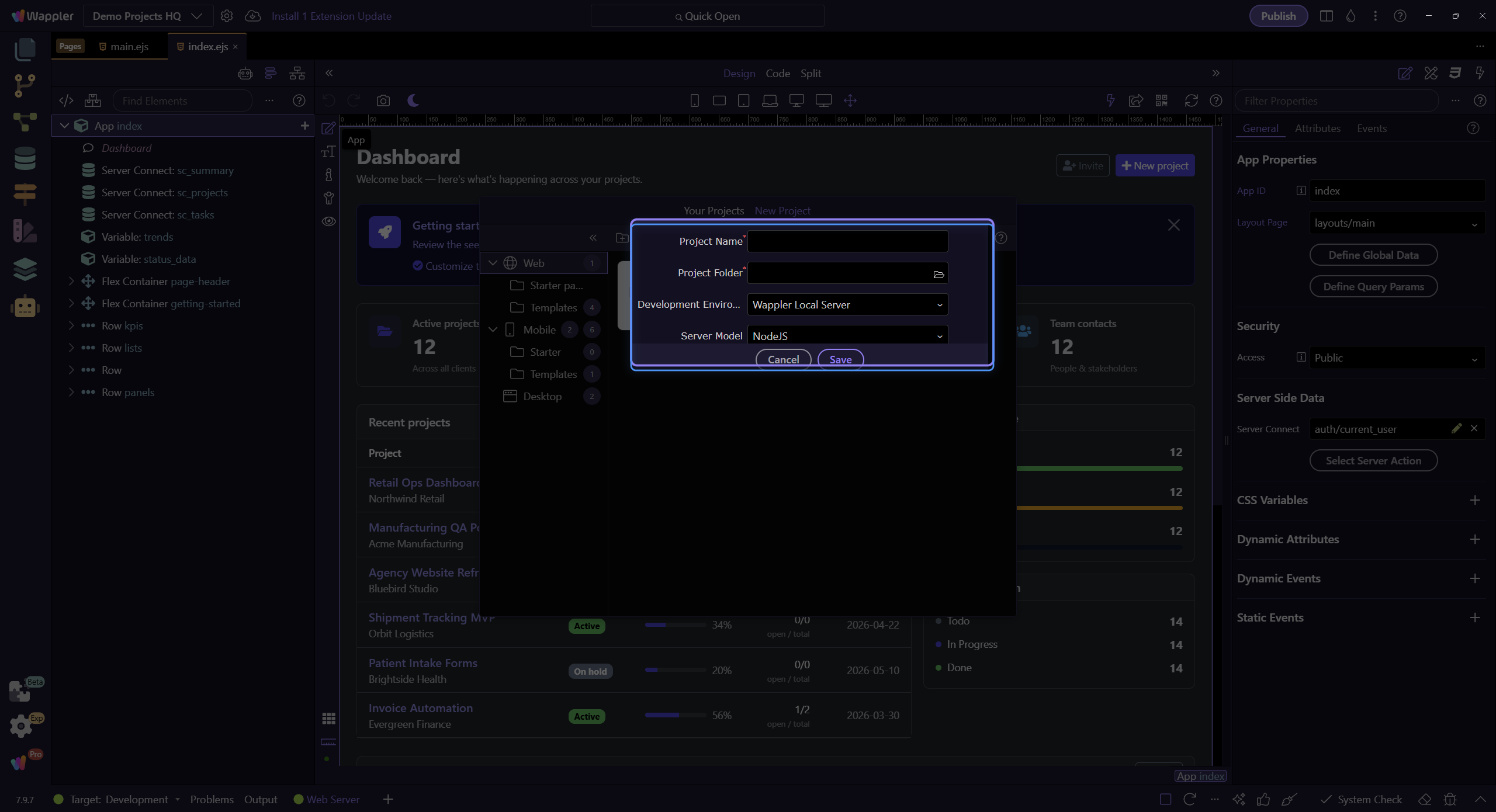
Section titled “Create the practice project”Set Project Name to Wappler Learning and choose a new empty Project Folder. Set Development Environment to Wappler Local Server and Server Model to NodeJS. Save to create the project. Wait for setup to complete and resolve any System Check error before continuing. The tour stops at the settings; create your own project when following the written guide. If you already created Wappler Learning, open that project for the next lesson. The Blank starter also creates a layout and an index page under views, which Wappler may open automatically. Keep them; the next lesson creates a separate public/learn.html practice page.
- Project Name: Wappler Learning
- Project Folder: a new empty folder
- Development Environment: Wappler Local Server
- Server Model: NodeJS
- Save, then confirm the project is open.
Check your result
Section titled “Check your result”The project opens with NodeJS and Wappler Local Server selected. Its public folder is available for learn.html.