
Repeat table rows and bind data
A complete table example: choose a collection, repeat its rows, bind each cell, and check the result.
Display one table row per record, with each cell bound to the current record.
Also called: repeat, table repeat, repeat rows, repeat region, display database data, loop records, dynamic table.
Before you begin
Section titled “Before you begin”- An HTML page with App Connect and Bootstrap 5 enabled.
- A collection to display. The tour opens a completed sample with three products in
products.value. For database data, first add a Server Connect component and select your query action.
The table you will build
Section titled “The table you will build”The tour opens a completed products example so you can inspect each setting. To build it in your own page, follow the same steps with your collection. The sample uses products.value; a Server Connect query usually appears as sc_products.data.products, where the final name is the output step in your action.
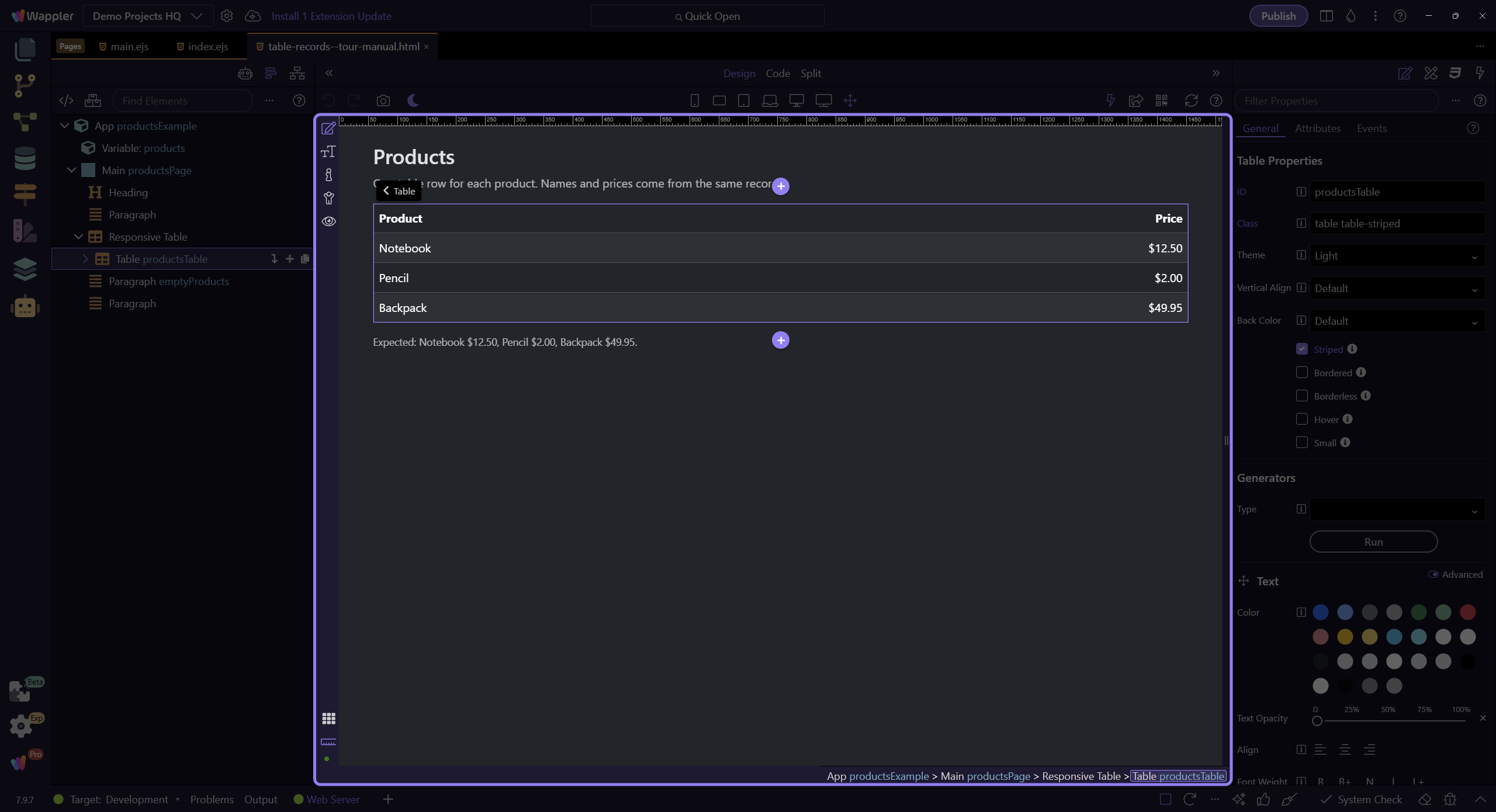
Choose the collection you already have
Section titled “Choose the collection you already have”In the beginner course, continue in public/learn.html with the products Variable from the previous lesson. Its Value holds the three sample records, so use products.value; do not add a Server Connect component or configure a database. If you are following this guide in an existing database-backed project, add Data → Server Connect named sc_products, select your products action, run it and check its response first. The query array is sc_products.data.products, not the whole response object.
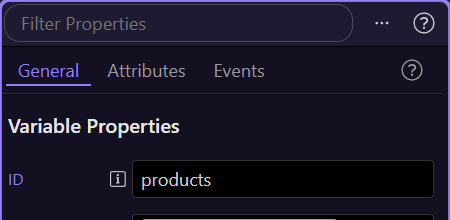
Add a table with one sample row
Section titled “Add a table with one sample row”For the beginner course, use the table you added in the previous lesson. Otherwise insert a Bootstrap Table at your chosen position. Keep the heading row in Table Head. Under Table Body, leave one row with a product-name cell and a price cell. Remove extra dummy body rows: every child row would otherwise repeat for every record.
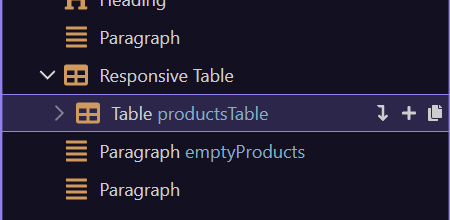
Repeat the children of Table Body
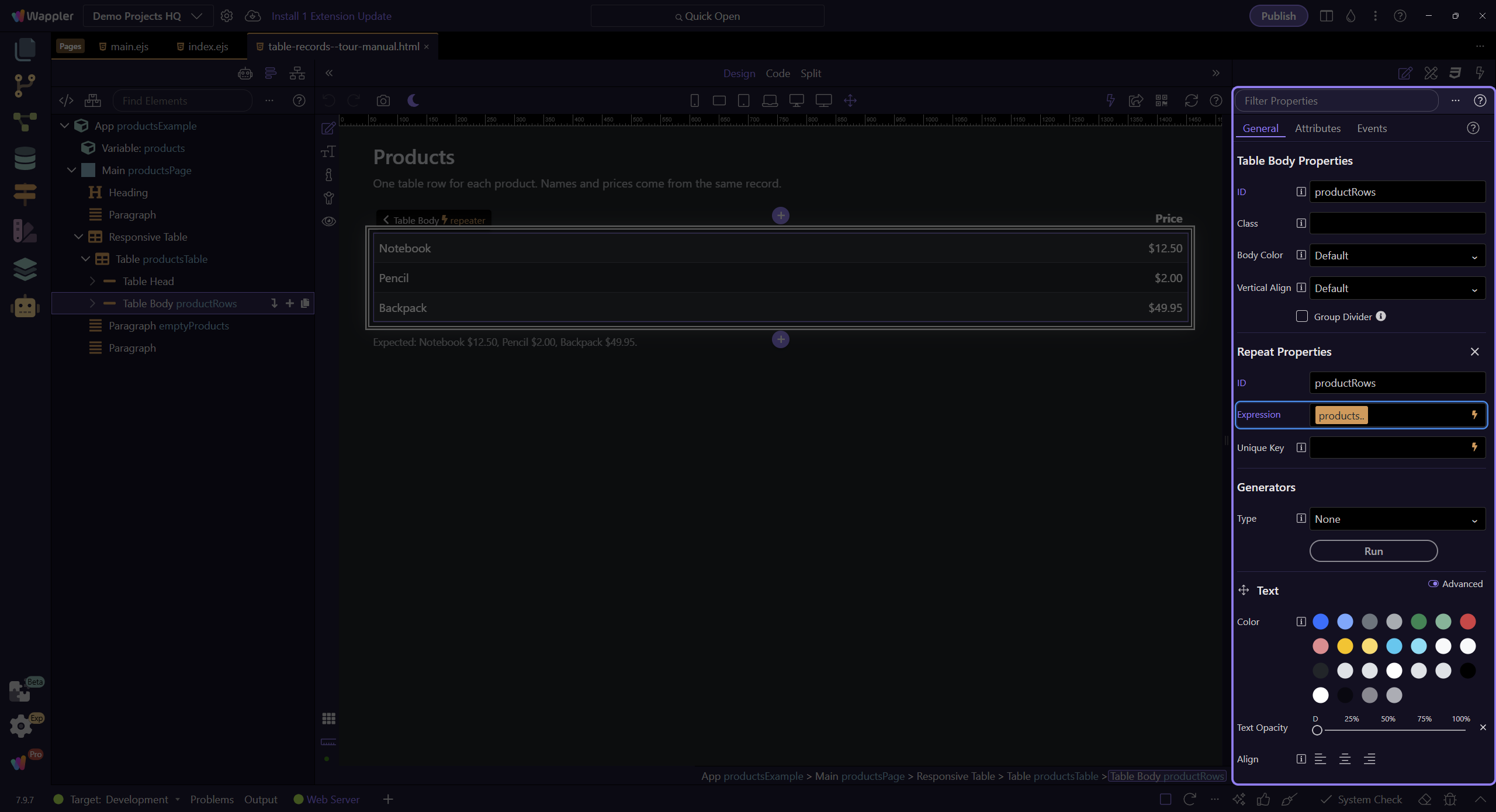
Section titled “Repeat the children of Table Body”Select Table Body in App Structure and open Convert To in Properties and choose Repeat Children. Give the repeat the ID productRows. This keeps one table body and repeats the row inside it. Use Repeat on an individual row instead when only that row should repeat; do not add both patterns to the same row.
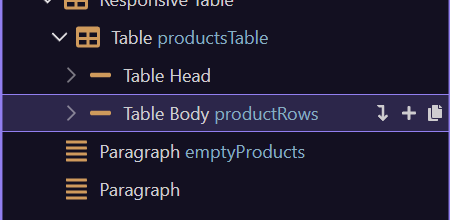
Choose the collection expression
Section titled “Choose the collection expression”With productRows selected, open the picker beside its repeat Expression. Expand Variable: products and select value. Switch the picker to Code and confirm that the complete expression is products.value, without quotes; correct it there if needed, then click Select. For an existing API-backed table, use the query array such as sc_products.data.products. The row now repeats once per item; the next steps bind each cell to that item.
Bind the name cell inside the repeat
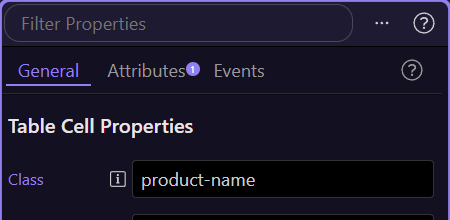
Section titled “Bind the name cell inside the repeat”Select the first body cell inside productRows. In Properties, use the (+) beside Dynamic Attributes and choose Display → Inner Text. Open the picker beside this new Inner Text Value. Expand Table Body productRows and select its name field, then switch the picker to Code and confirm name before clicking Select. Use the field inside the repeat, not the name field under the original products collection. This binding replaces the placeholder at runtime.
Bind the price cell
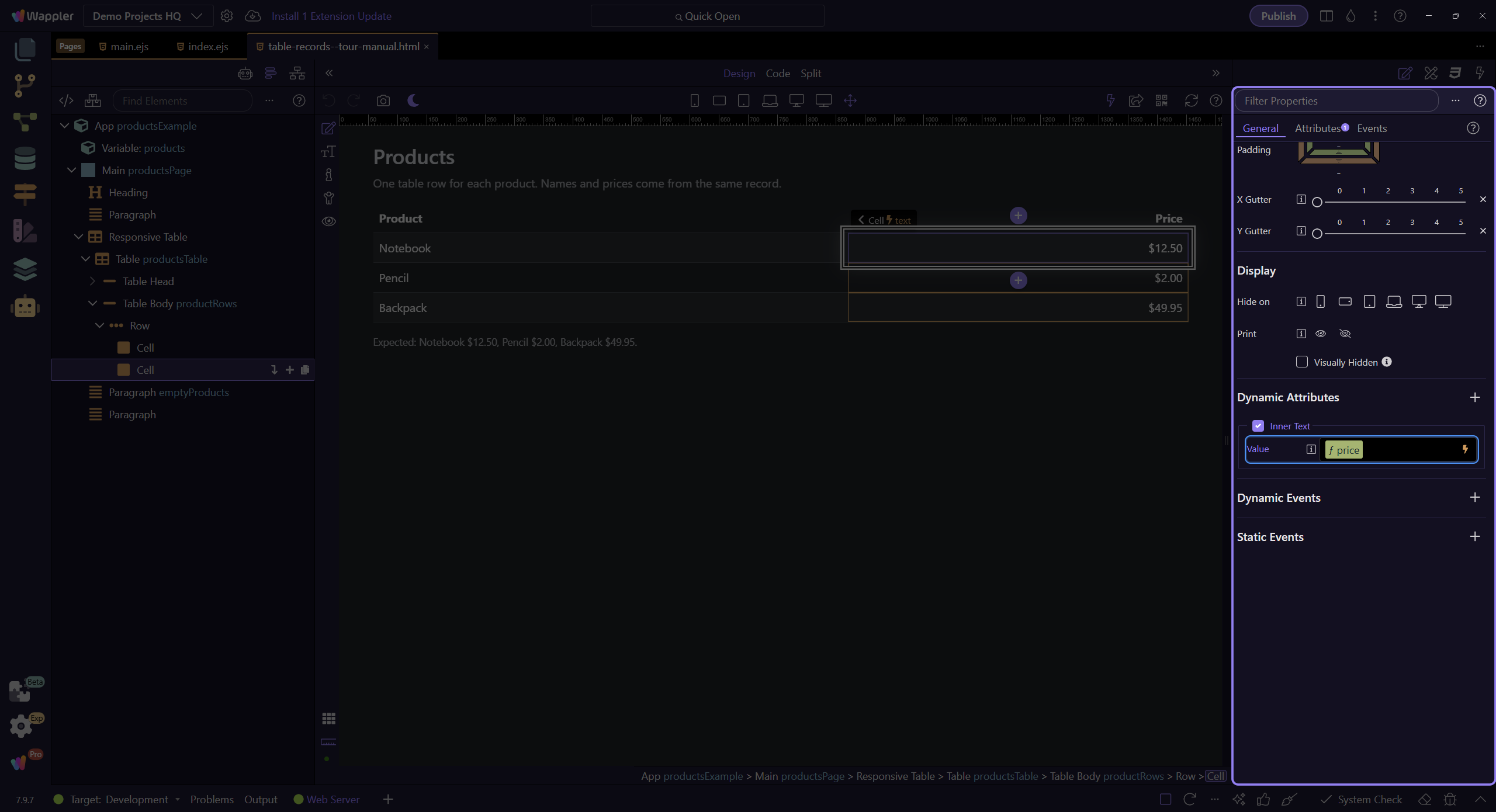
Section titled “Bind the price cell”Select the second body cell. Add Dynamic Attributes → Display → Inner Text, open its Value picker, and choose price from Table Body productRows. Confirm the expression is just price in Code view, then click Select. Keep the binding separate from the literal placeholder so the picker does not combine Price text with the expression. The completed tour sample already formats the amount; the next lesson adds that formatting to your page.
Preview all records
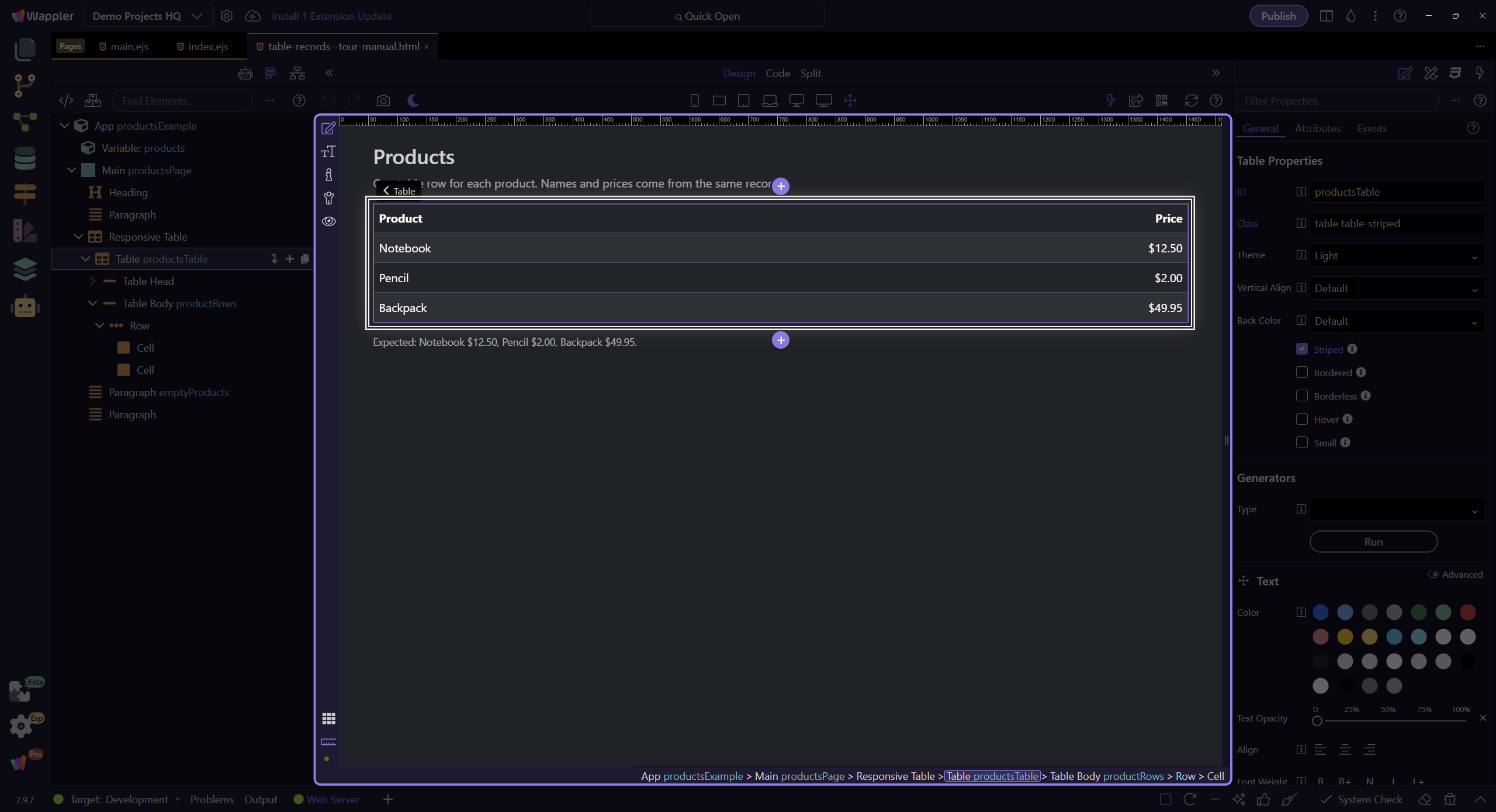
Section titled “Preview all records”Save the page and switch to Preview. The sample must show Notebook, Pencil, and Backpack on separate rows. Check that the headings appear once. In your own project, compare the number of displayed rows with the returned query records.
If the result is wrong
Section titled “If the result is wrong”No rows with the course sample: confirm the products Variable still contains the three-record array and the repeat expression is products.value. For API data, also check the request in Network and select the returned query array. The same name on every row: bind the cell to name inside the repeat. Extra copies: leave one template row and remove any second repeat. Fields missing in the picker: check the collection and repeat scope. For table structure and styling controls, see the Table reference.
- One collection → one repeat → one template row.
- The heading is outside the repeat.
- Cell bindings use the current record.
Check your result
Section titled “Check your result”The example shows three rows with three different product names. In your project, the row count matches the query result and each row displays its own fields.