
Adding Background Videos
You can easily add a responsive background video to a section/container of your page. It will auto scale to fill the available space and looks nice on any device. First, select the container you want
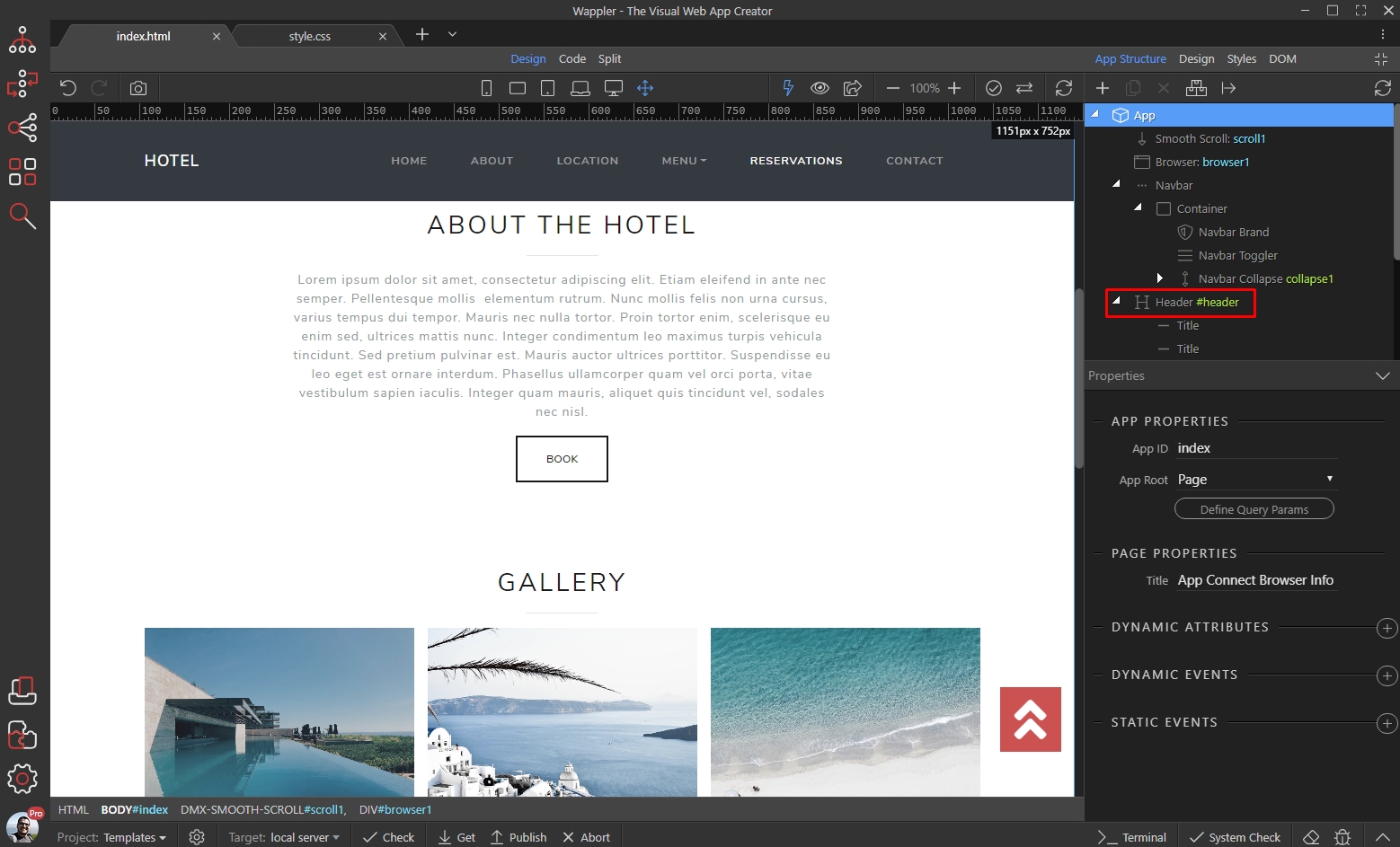
First, select the container you want to add background video to:
Section titled “First, select the container you want to add background video to:”You can easily add a responsive background video to a section/container of your page. It will auto scale to fill the available space and looks nice on any device.
First, select the container you want to add background video to:
Then click the Make Background Video button:
Section titled “Then click the Make Background Video button:”
Click the little folder icon to browse to your video and select it:
Section titled “Click the little folder icon to browse to your video and select it:”
You can see the background video added to our page header. The video will auto play and loop:
Section titled “You can see the background video added to our page header. The video will auto play and loop:”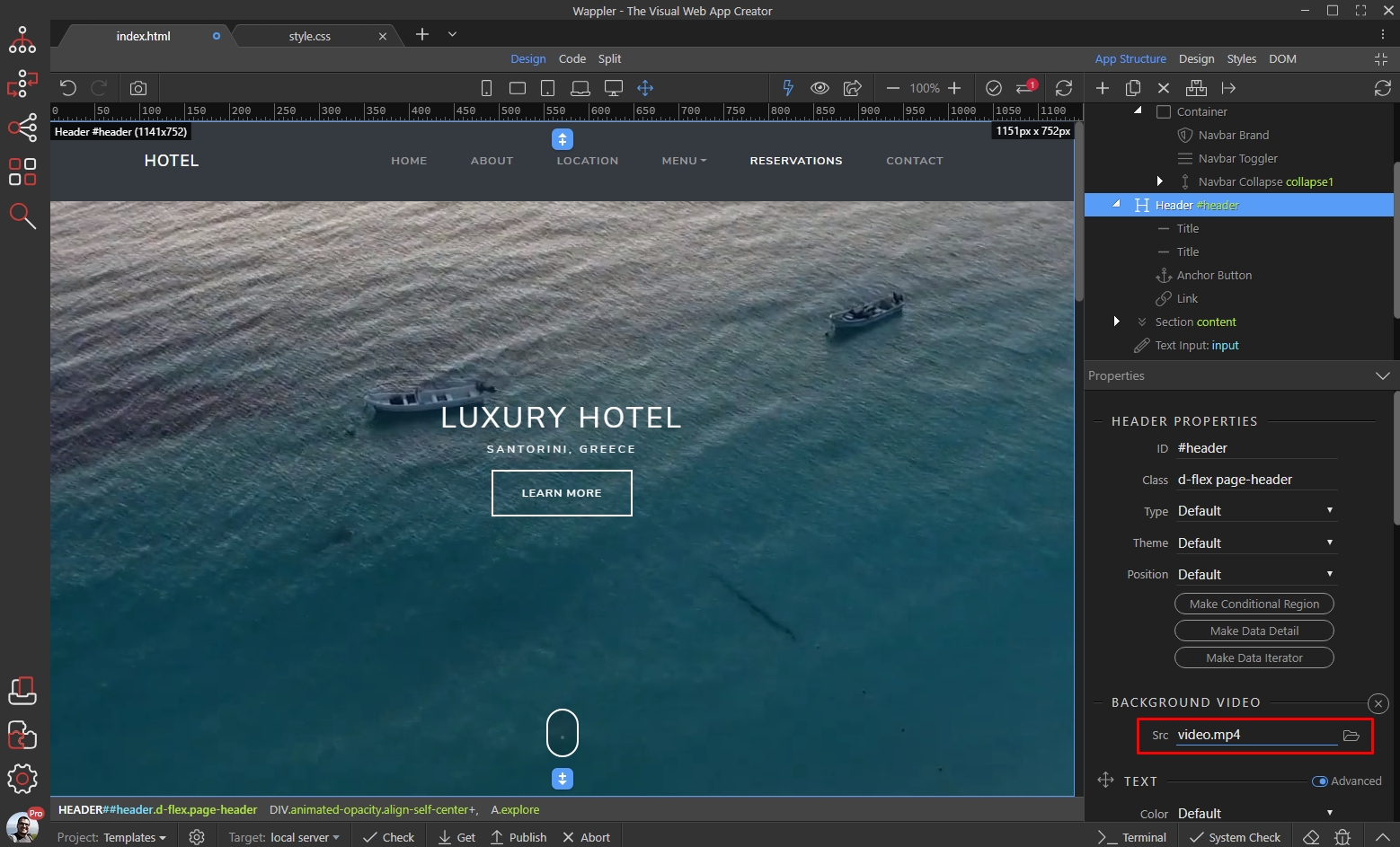
You can preview it directly in Wappler design view:
Section titled “You can preview it directly in Wappler design view:”