Using Placeholder Image with Lazy Load
In some cases, where your images are huge in size it can be useful to use an image placeholder, while the original image is loading. In this tutorial we will show you how to use a low-quality version
Let's start with adding the image on our page:
Section titled “Let's start with adding the image on our page:”In some cases, where your images are huge in size it can be useful to use an image placeholder, while the original image is loading.
In this tutorial we will show you how to use a low-quality version of the original image as a placeholder. This way the users see the low quality version, while the high-quality one is loading. It is really nice as they get the impression of what will be loaded after the loading finishes.
We saved a really low quality jpeg using Adobe Photoshop (of course you can use any other image editing program for this).
Let's start with adding the image on our page:
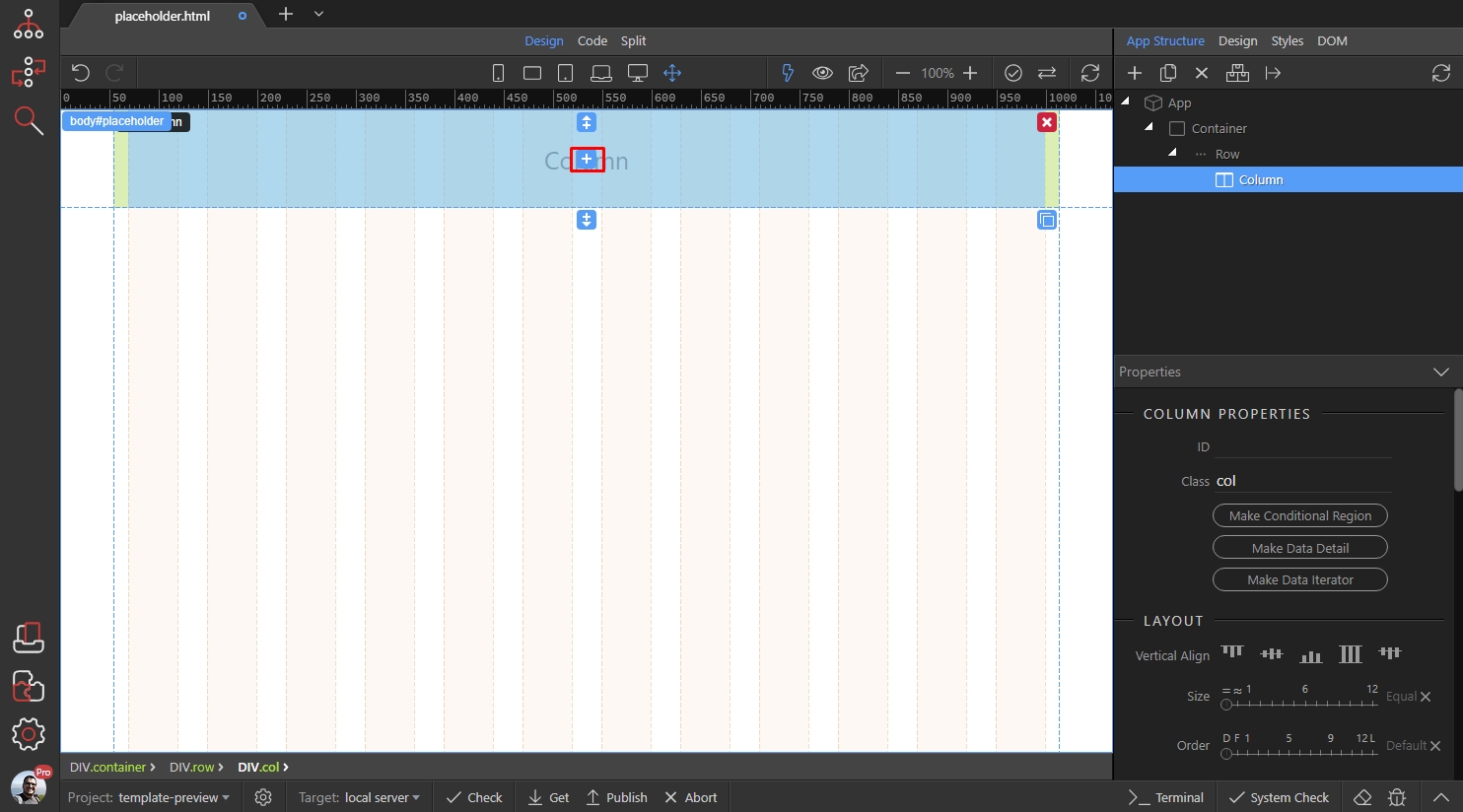
Open the Content category and add image:
Section titled “Open the Content category and add image:”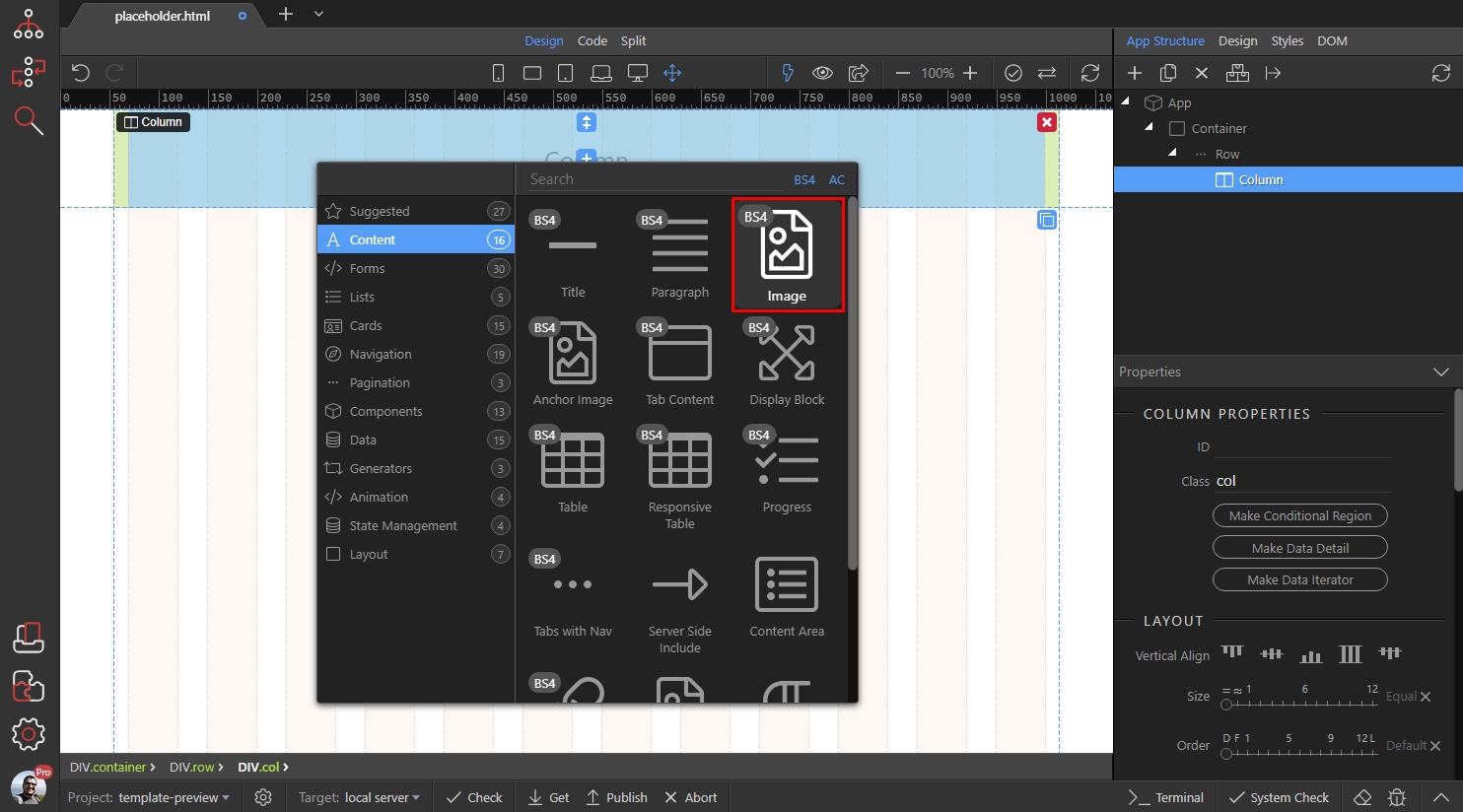
The low quality image, or the placeholder you are using must be selected in the standard src field:
Section titled “The low quality image, or the placeholder you are using must be selected in the standard src field:”The low quality image, or the placeholder you are using must be selected in the standard src
field:
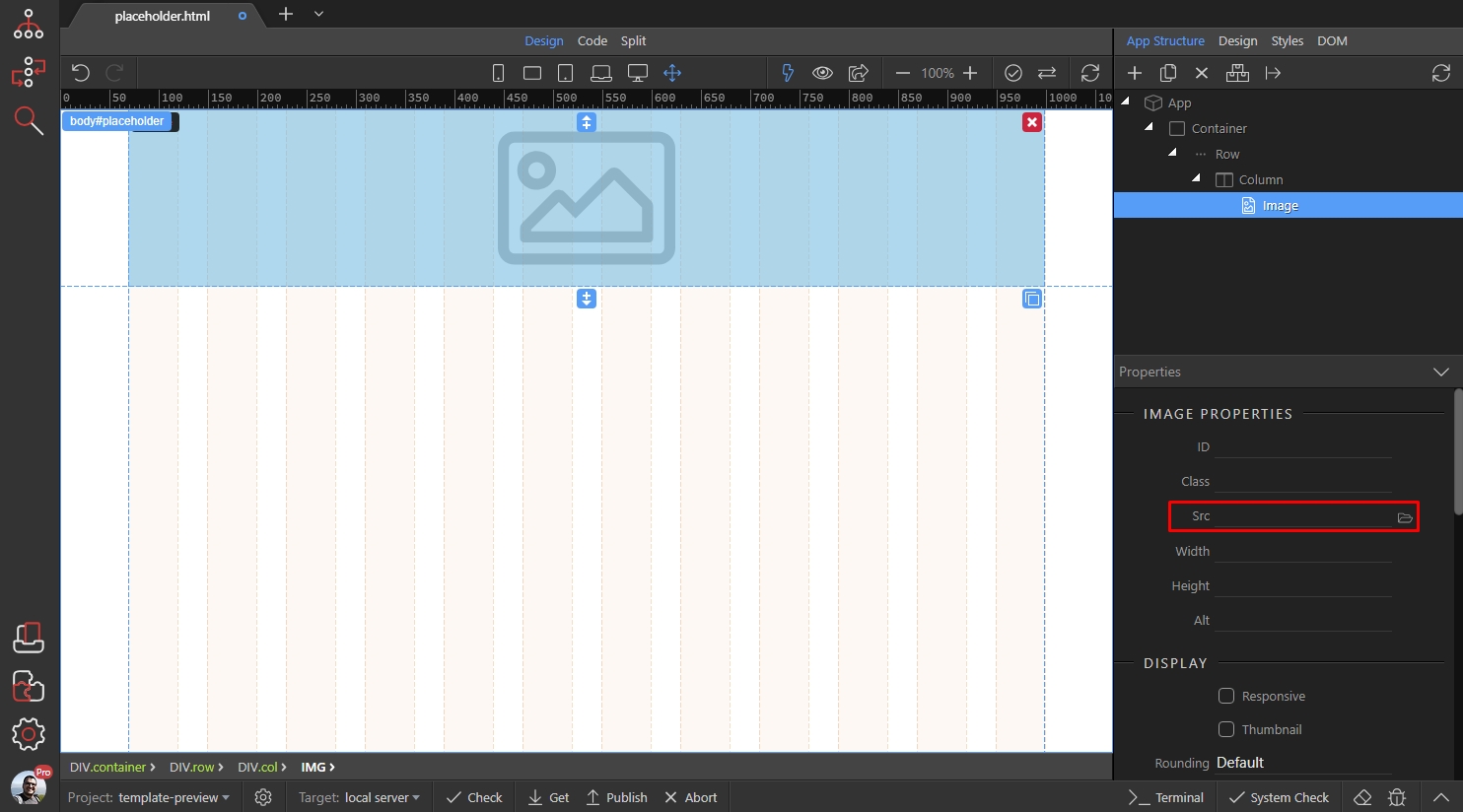
Browse to the low quality image / placeholder image and select it:
Section titled “Browse to the low quality image / placeholder image and select it:”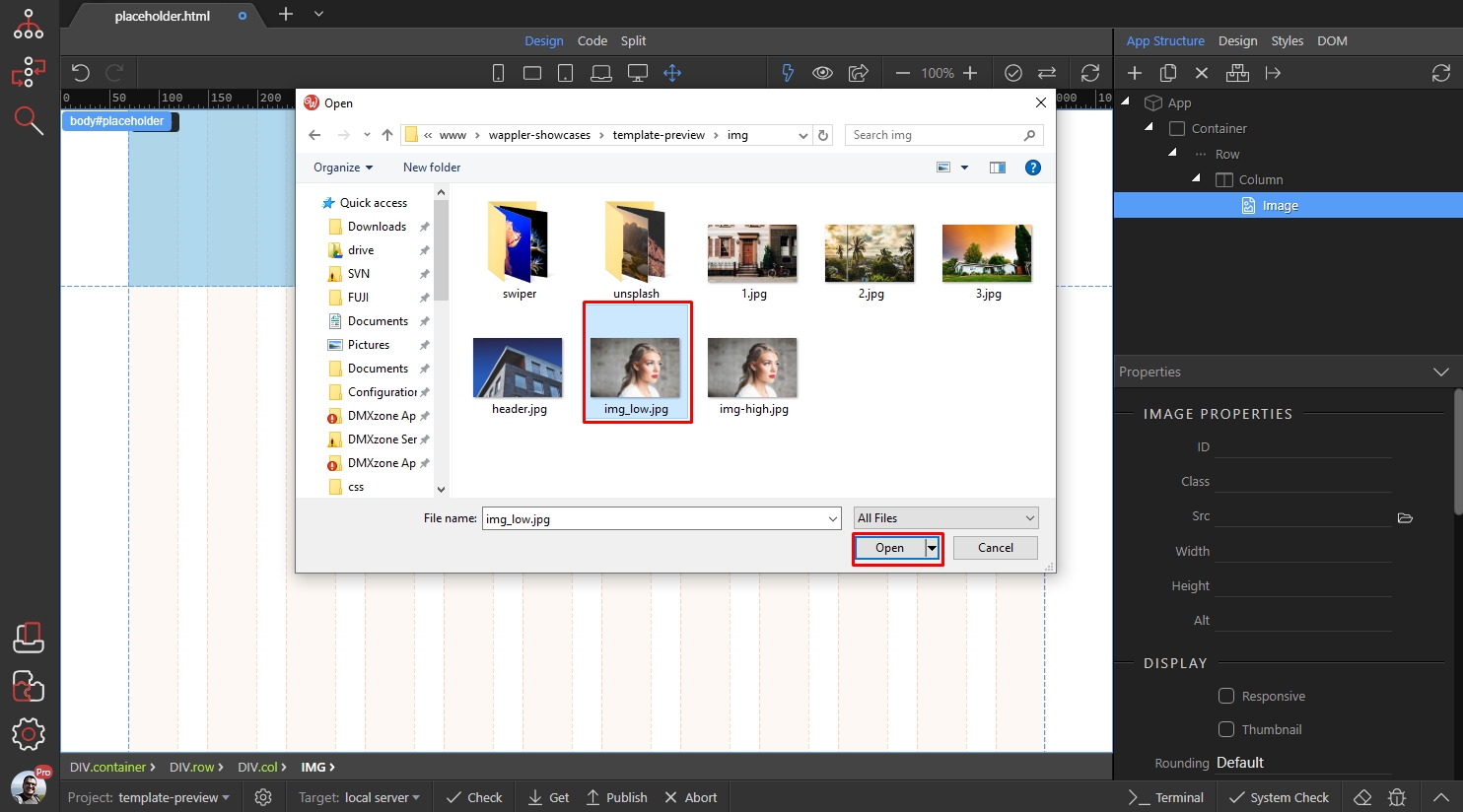
Then enable the responsive option:
Section titled “Then enable the responsive option:”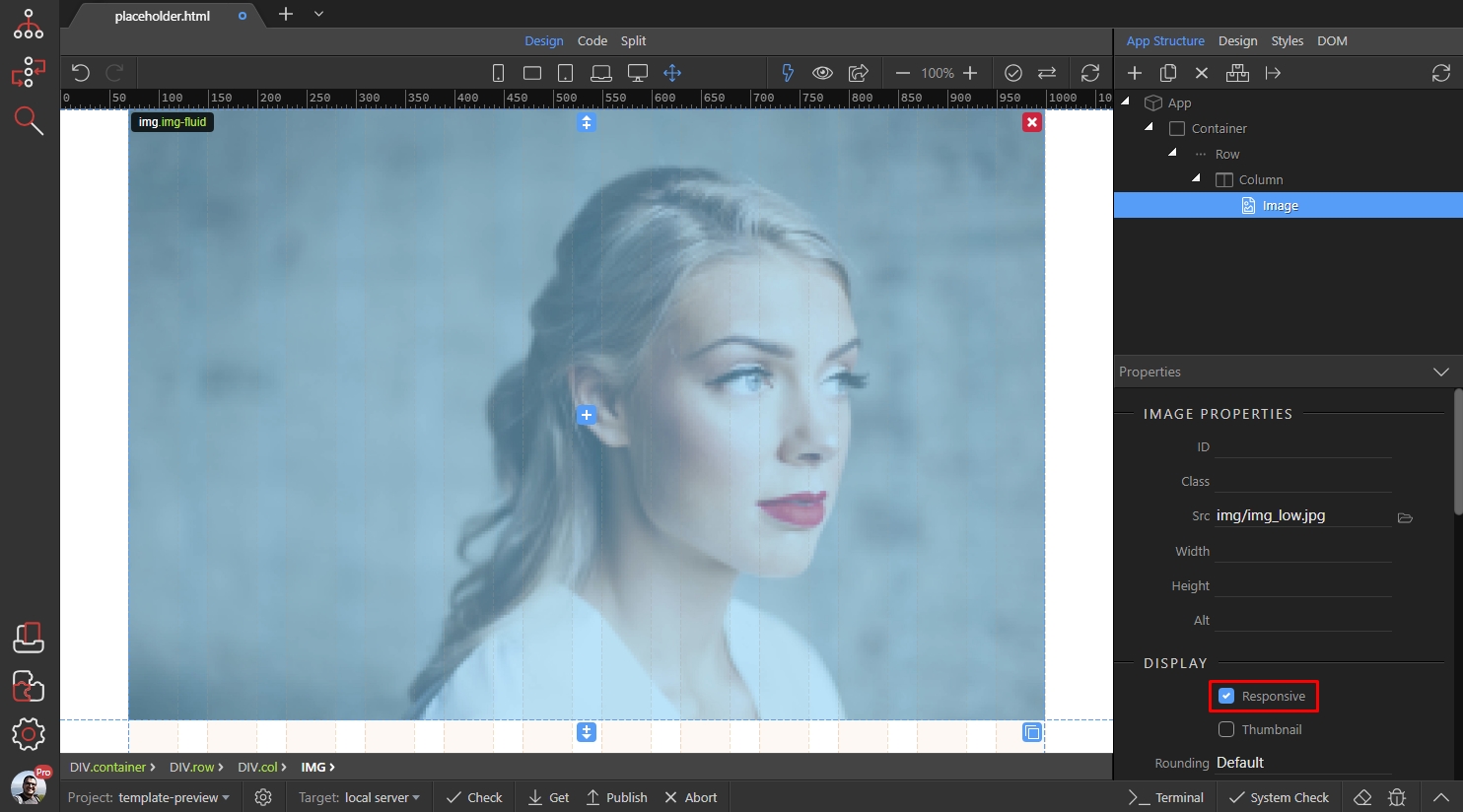
And add new dynamic attribute:
Section titled “And add new dynamic attribute:”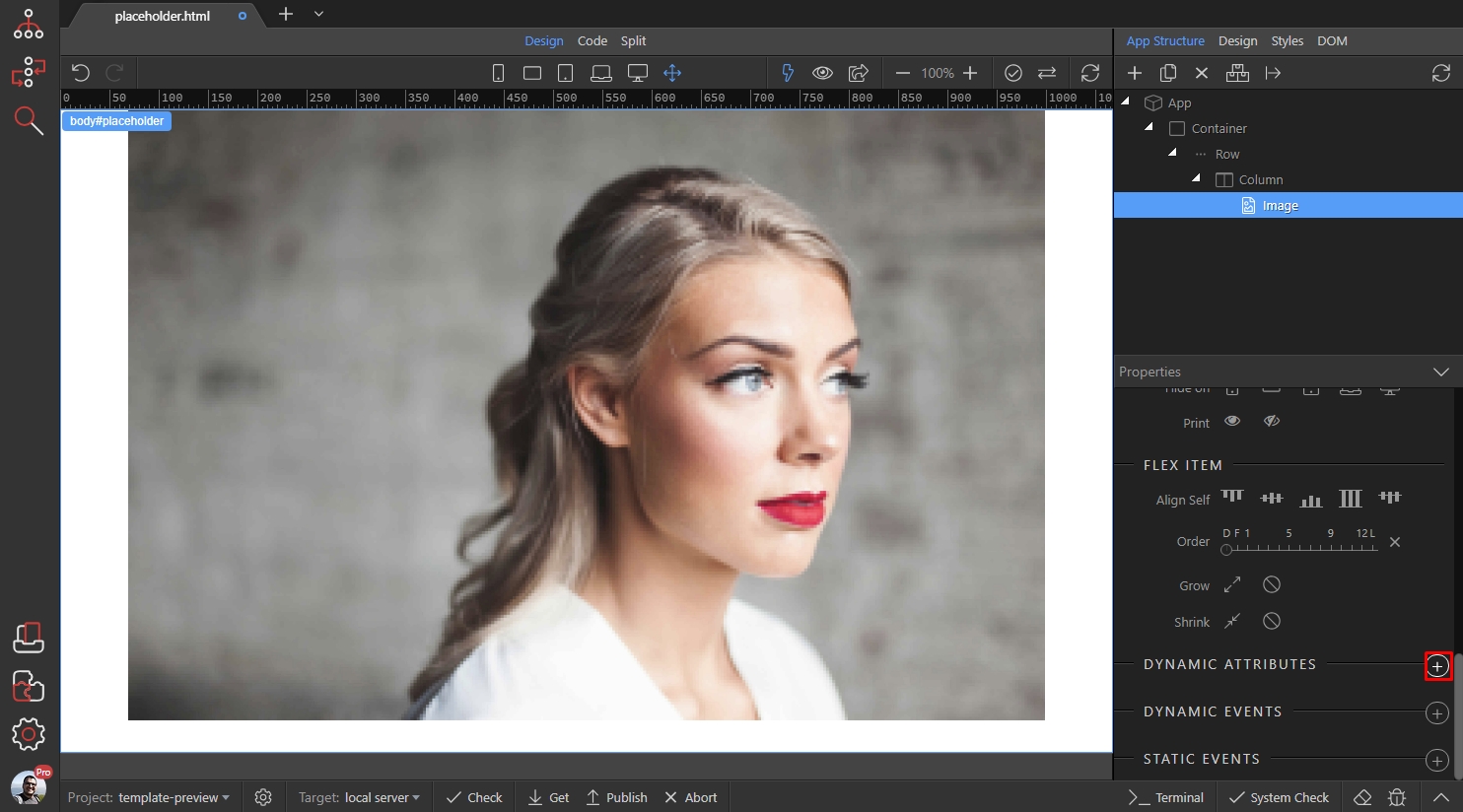
Open the Display category and add Lazy Load:
Section titled “Open the Display category and add Lazy Load:”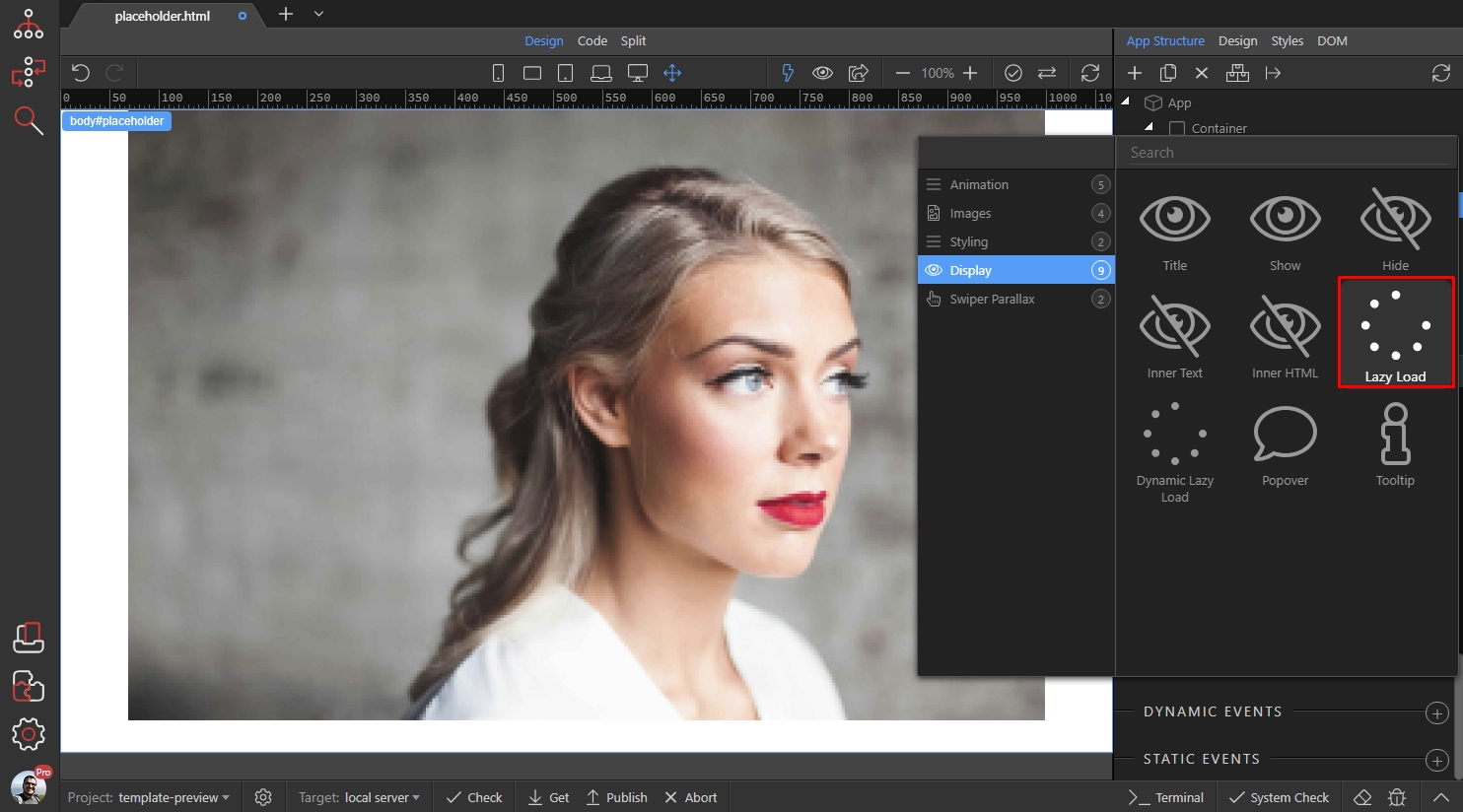
Browse to your original image:
Section titled “Browse to your original image:”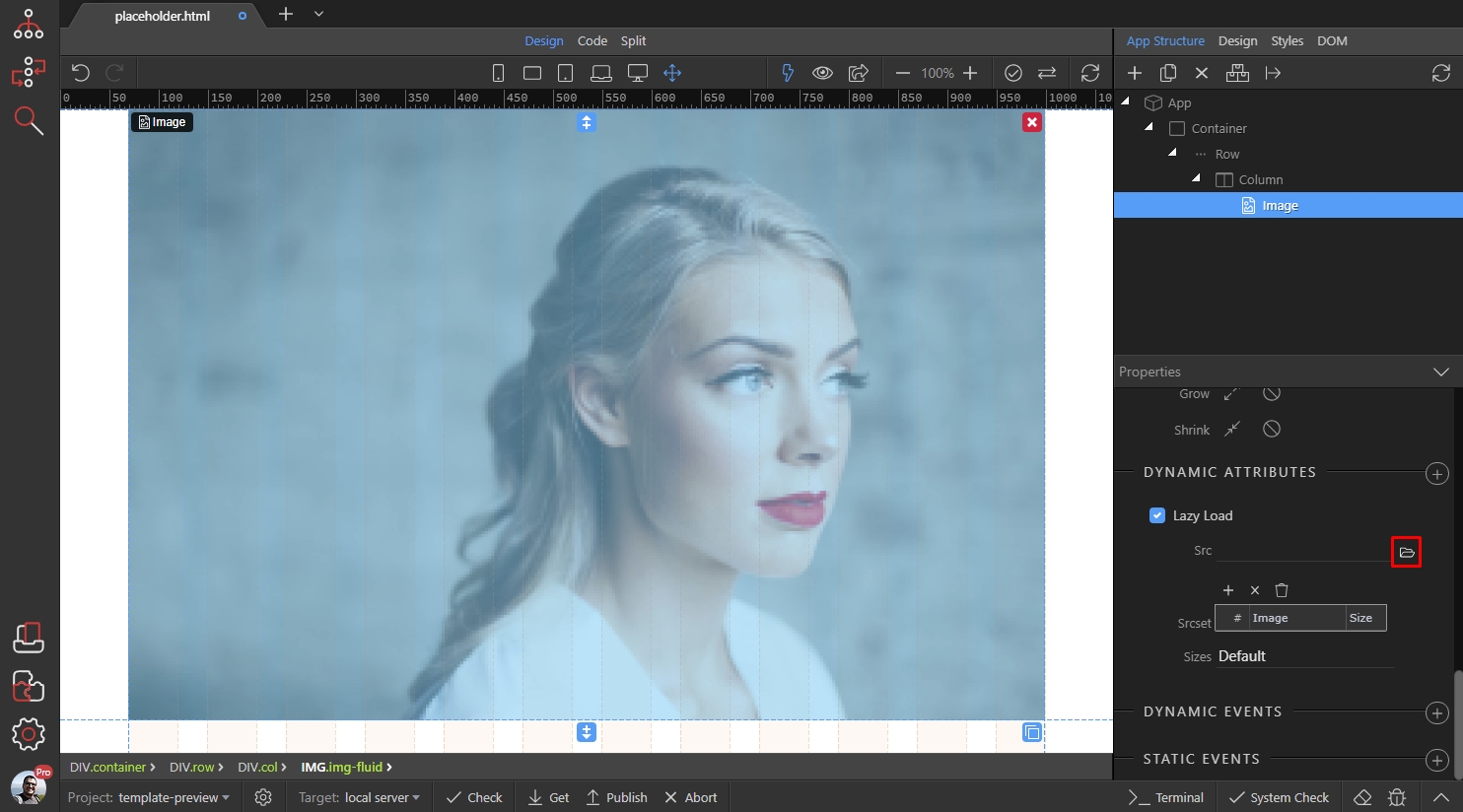
Select it:
Section titled “Select it:”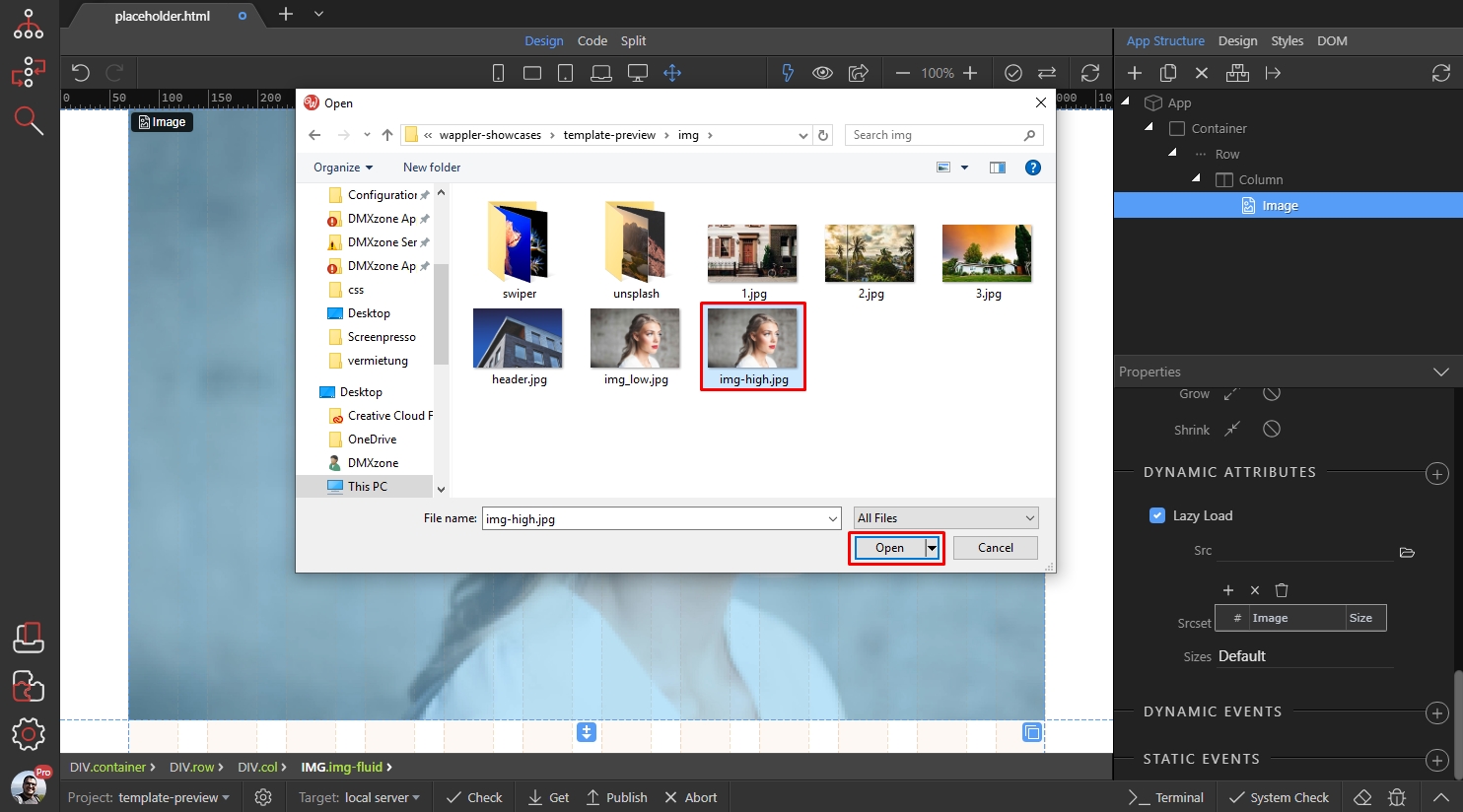
And you are done. Now you added both - low quality image and the original one:
Section titled “And you are done. Now you added both - low quality image and the original one:”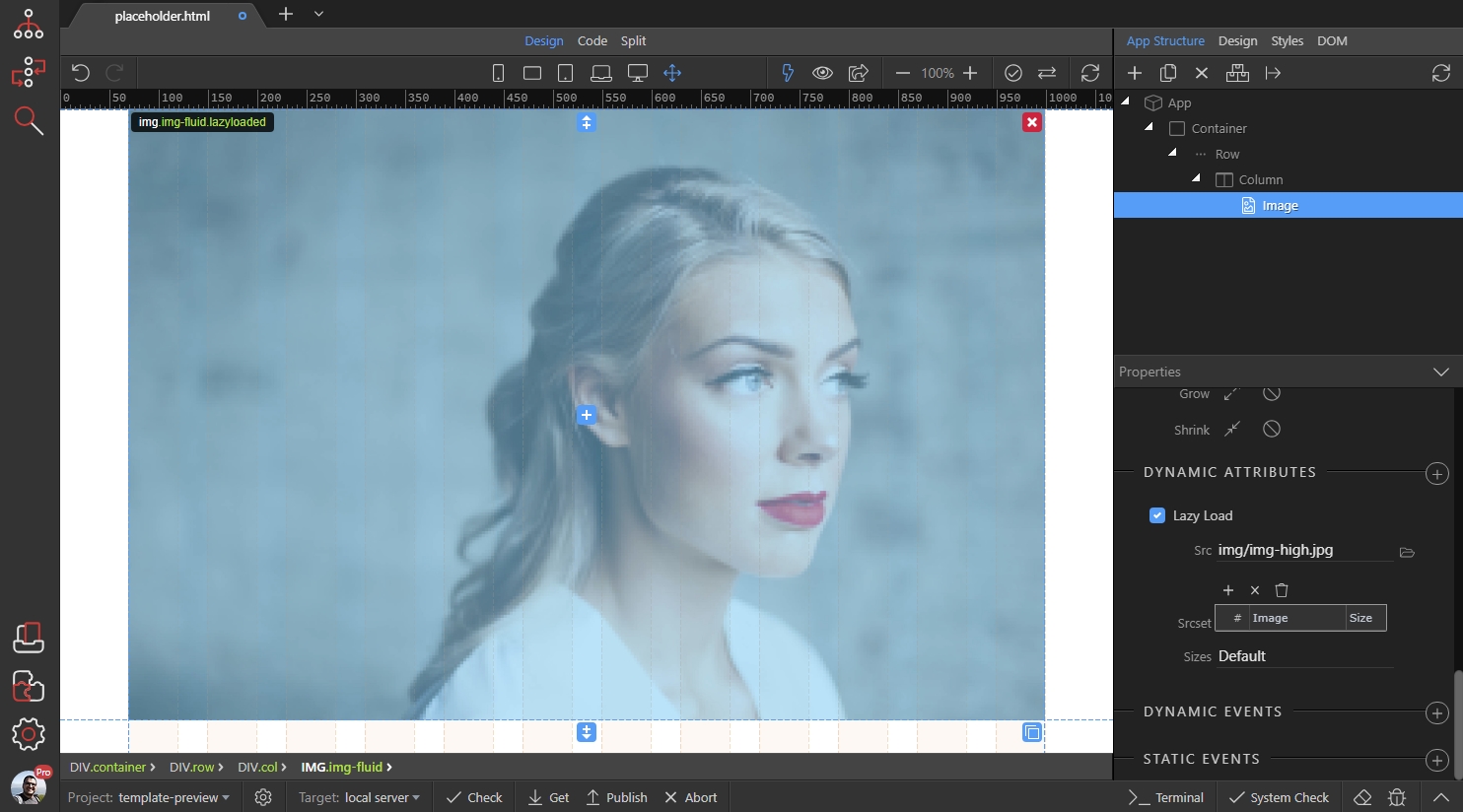
Step 11
Section titled “Step 11”You can see that the low quality version / image placeholder is displayed while the original image is being loaded: