Lazy Load with Dynamic Data
You can use the Lazy Load Component with dynamic data. We have a dynamic masonry layout on our page, created from a database query. You can use any dynamic source of course - database, API data source
You can use the Lazy Load Component with dynamic data.
Section titled “You can use the Lazy Load Component with dynamic data.”We have a dynamic masonry layout on our page, created from a database query. You can use any dynamic source of course - database, API data source or JSON file. Masonry is also not required, we just like it and that's why we added it 
So, inside the repeat region, add new element:
Section titled “So, inside the repeat region, add new element:”
Open the content category and select image:
Section titled “Open the content category and select image:”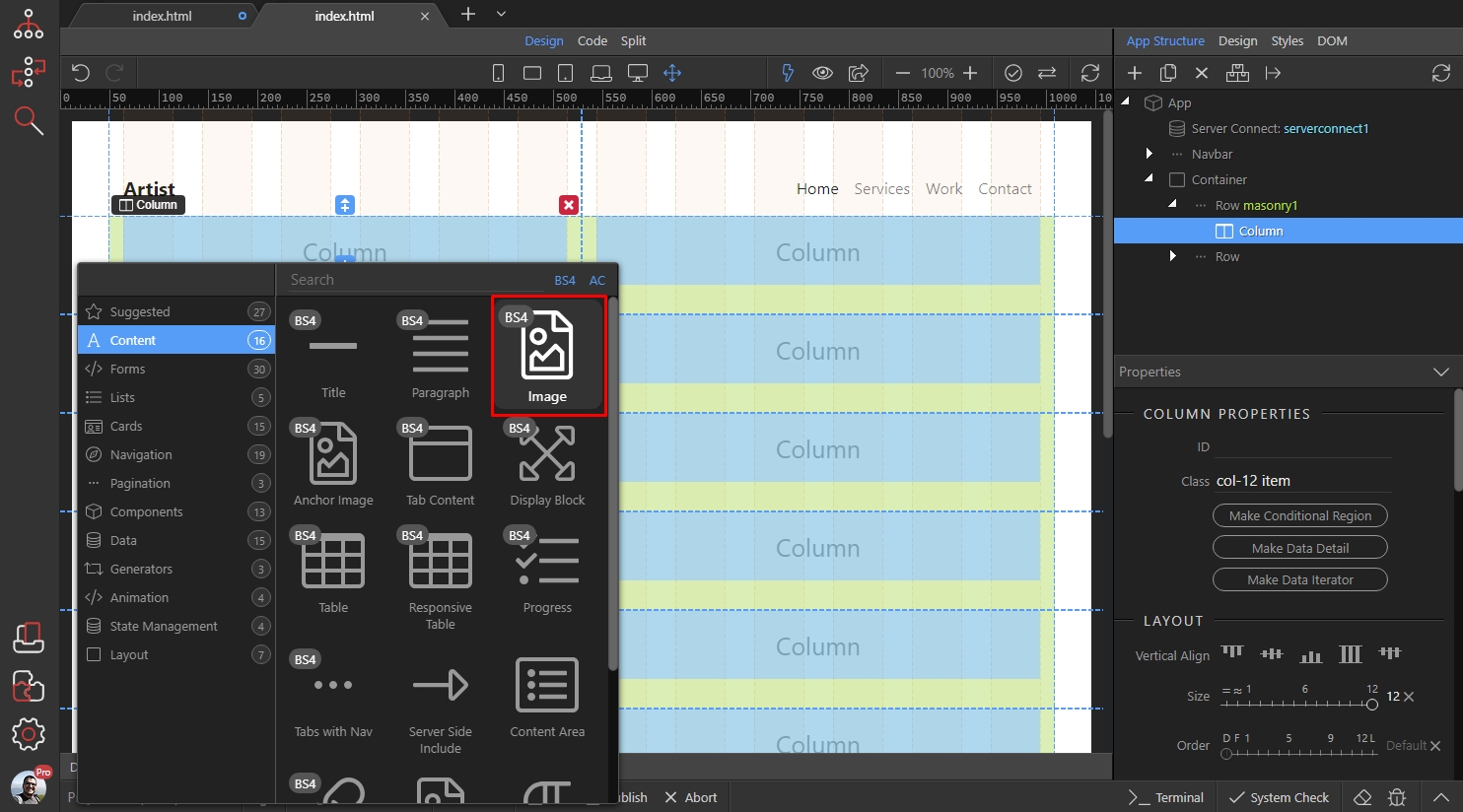
Step 4
Section titled “Step 4”Do not use the standard src option, it should remain empty. Enable the responsive option for your image, as you are usually doing for responsive images:
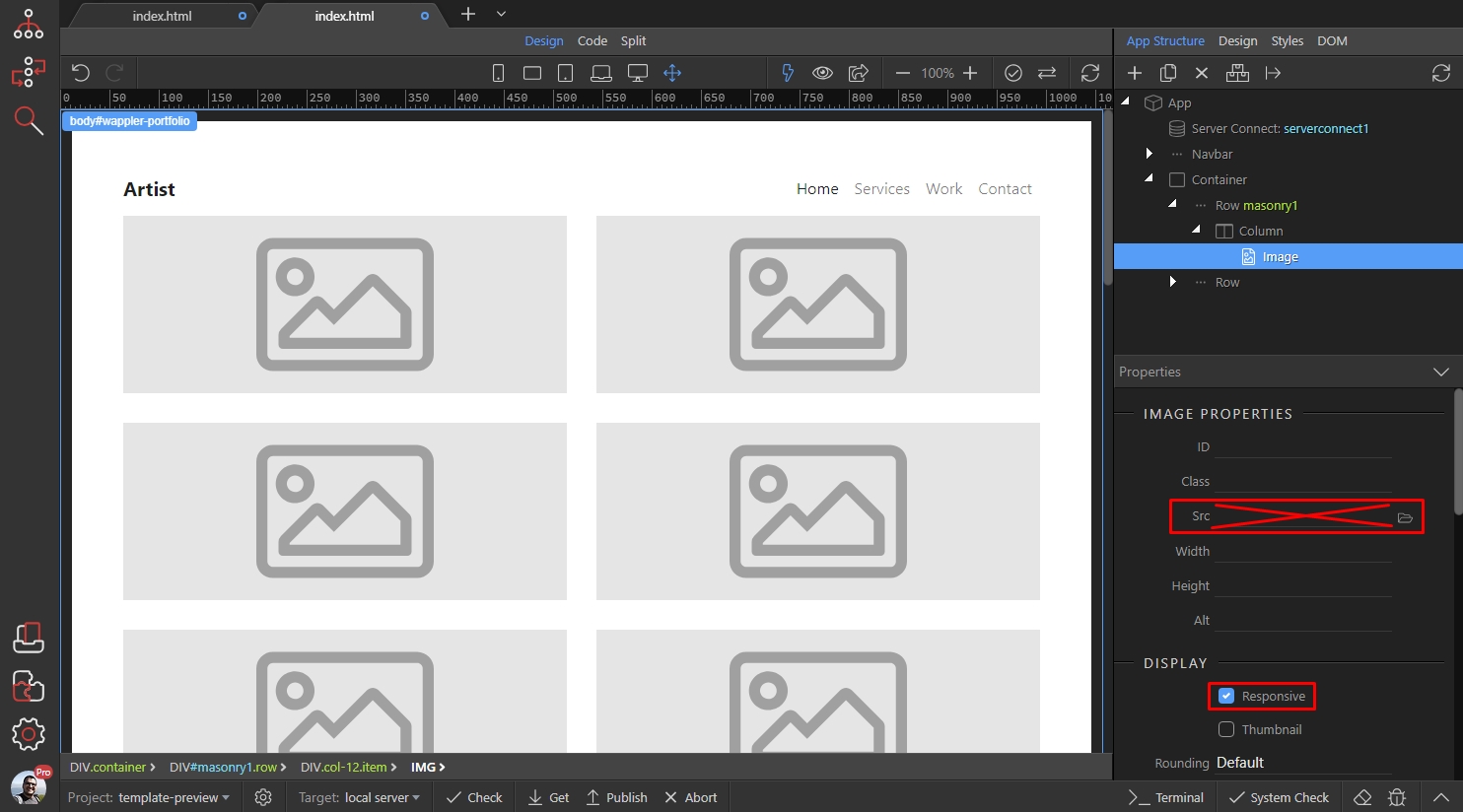
Add new dynamic attribute:
Section titled “Add new dynamic attribute:”
Open the Display category and add Dynamic Lazy Load:
Section titled “Open the Display category and add Dynamic Lazy Load:”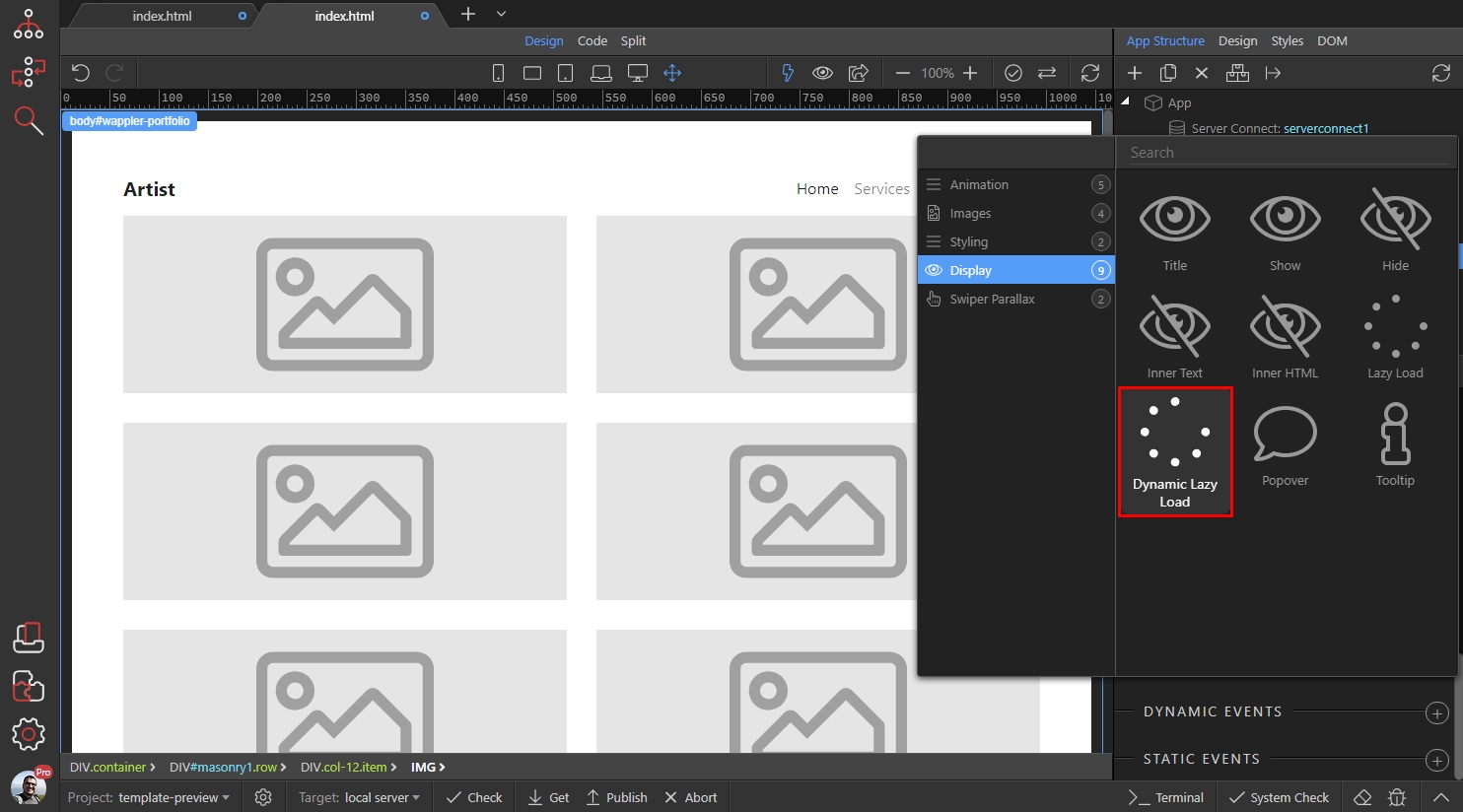
Click the dynamic data picker button, to select your dynamic image source:
Section titled “Click the dynamic data picker button, to select your dynamic image source:”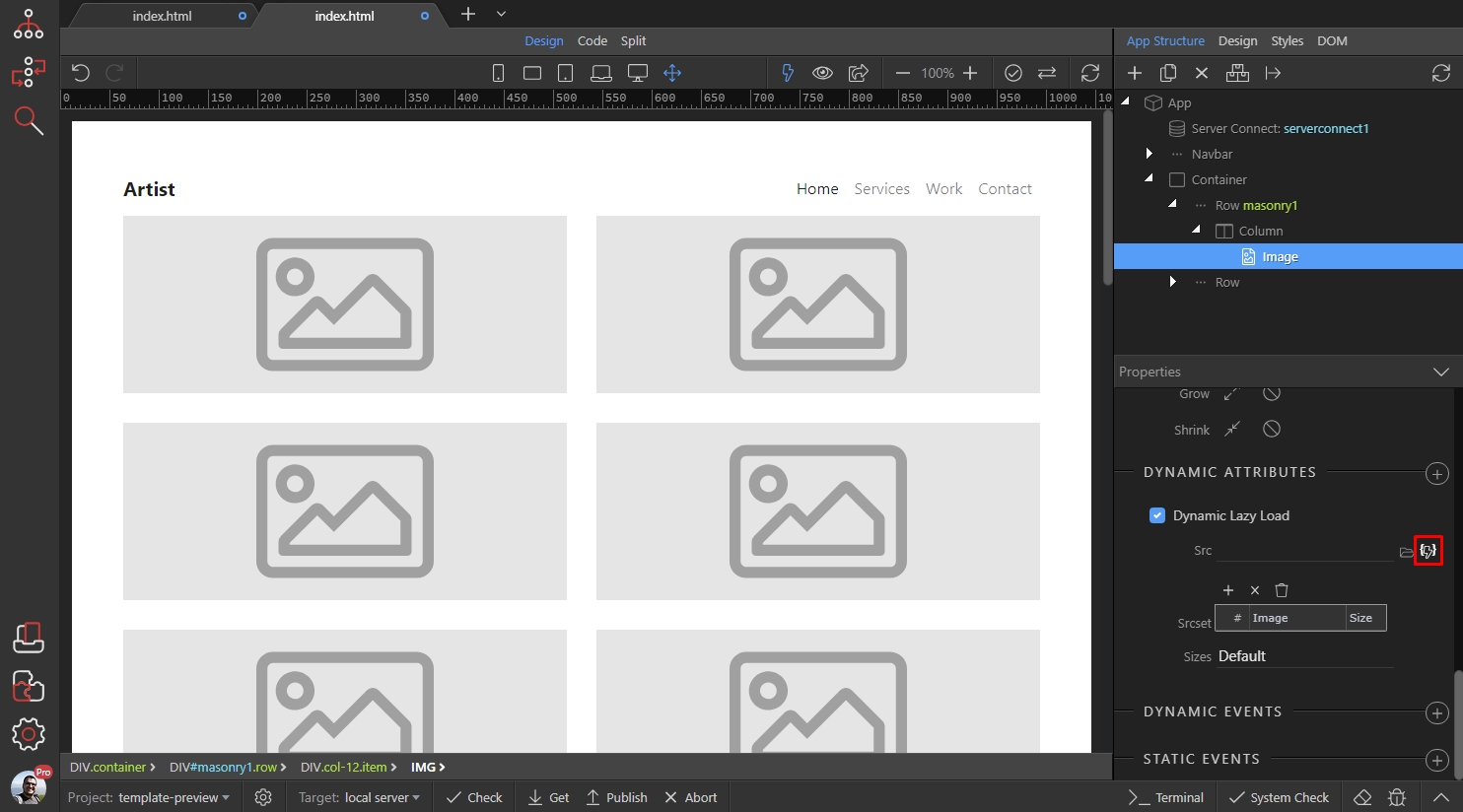
Select the binding you need and click the select button:
Section titled “Select the binding you need and click the select button:”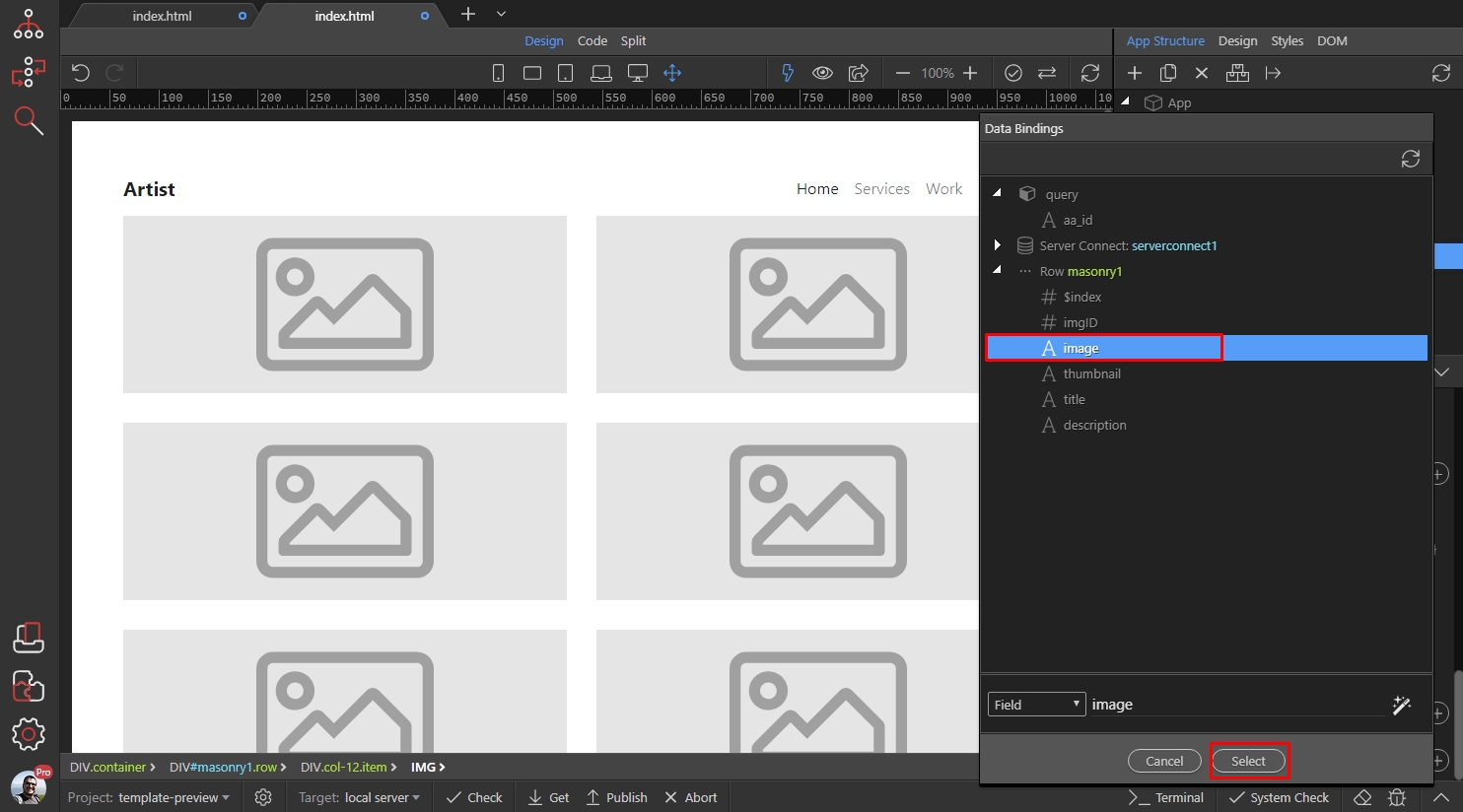
And you are done! Lazy Load has been applied to the dynamic images in your repeat region:
Section titled “And you are done! Lazy Load has been applied to the dynamic images in your repeat region:”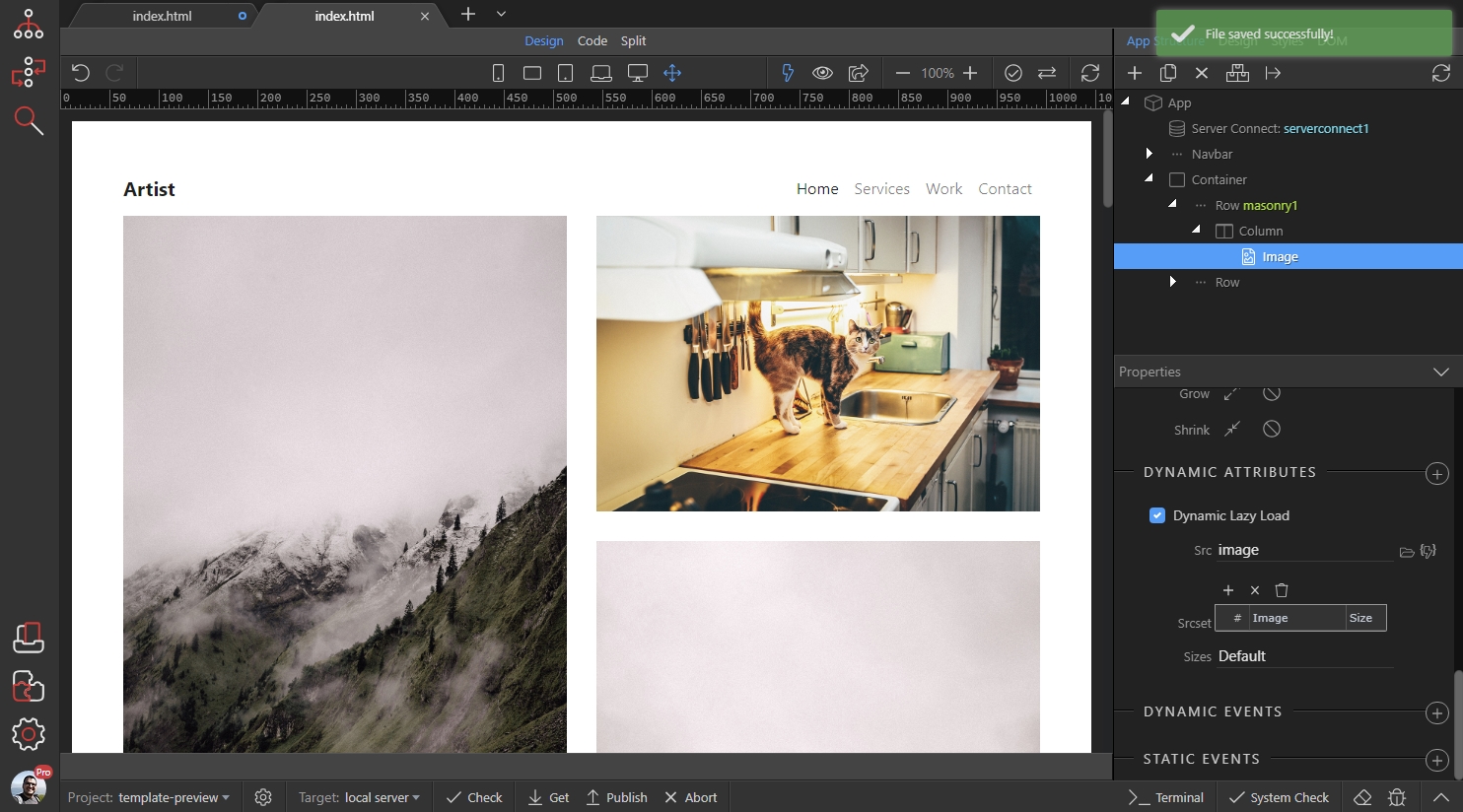
Step 10
Section titled “Step 10”You can see the results in your browser. Only the needed images are loaded on page load, the rest are being loaded while you scroll down: