
Using Animations
With Wappler you can apply different animation effects to any of the elements on the page. There are two types of anymations included - inview (or onscroll) animations, and enter/leave animations. The
Step 1
Section titled “Step 1”With Wappler you can apply different animation effects to any of the elements on the page. There are two types of anymations included - inview (or onscroll) animations, and enter/leave animations.
The inview animation is applied to your elements so that when you scroll, they get animated when they enter the viewport.
The enter/leave animations can be applied to your repeat regions, so that the repeat elements get animated when rendered on the page or when the data is filtered.
Inview/Outview Onscroll Animations
Section titled “Inview/Outview Onscroll Animations”First we will show you how to use the inview animations. Open your page and select the element, which you want to animate:
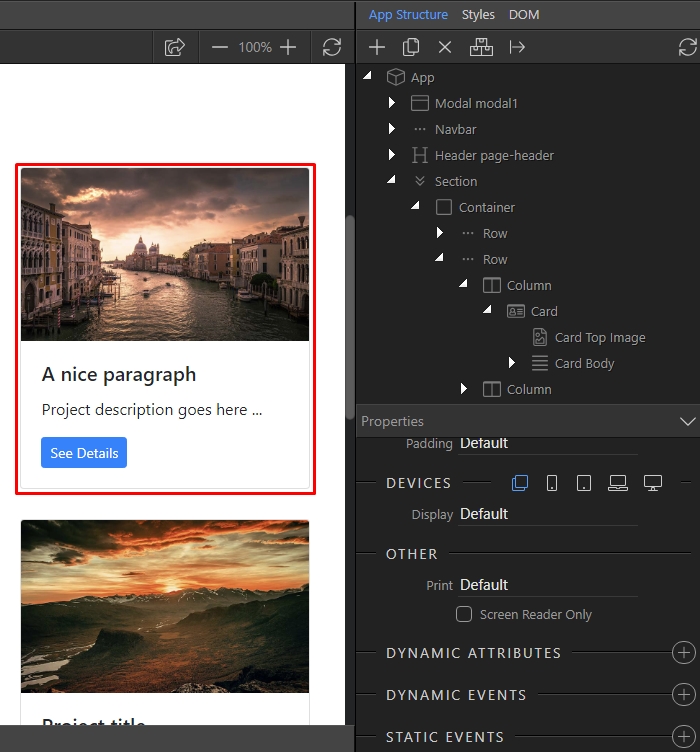
You can also select it in the App Structure:
Section titled “You can also select it in the App Structure:”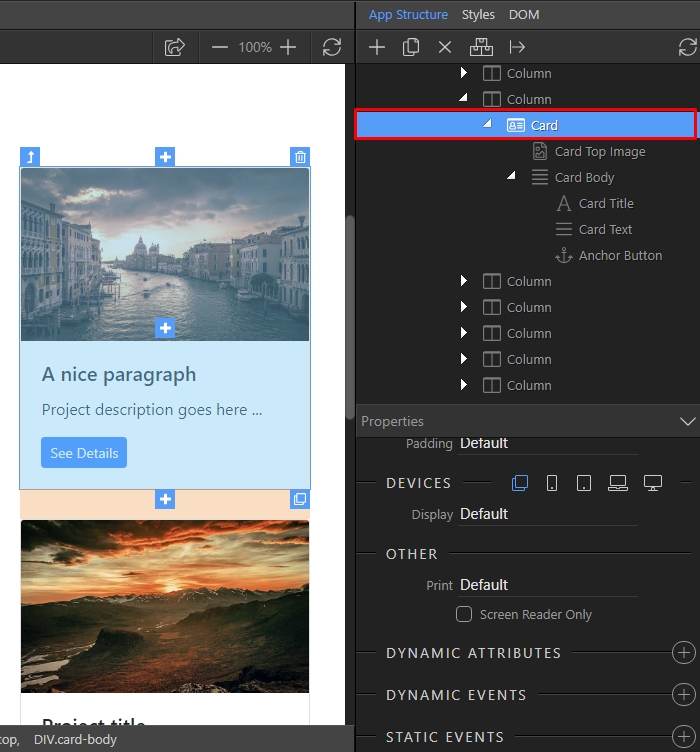
Then add new dynamic attribute:
Section titled “Then add new dynamic attribute:”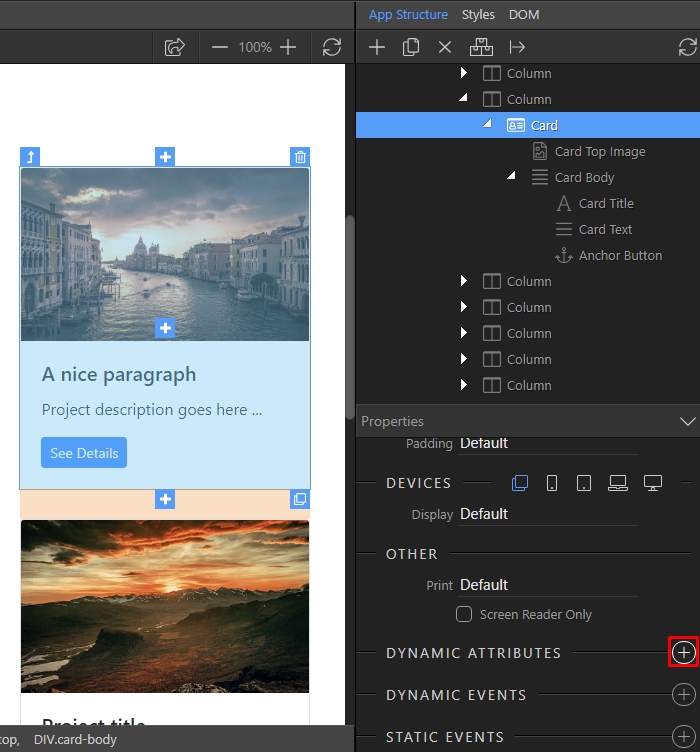
Open the Animation menu:
Section titled “Open the Animation menu:”
And add inview animation:
Section titled “And add inview animation:”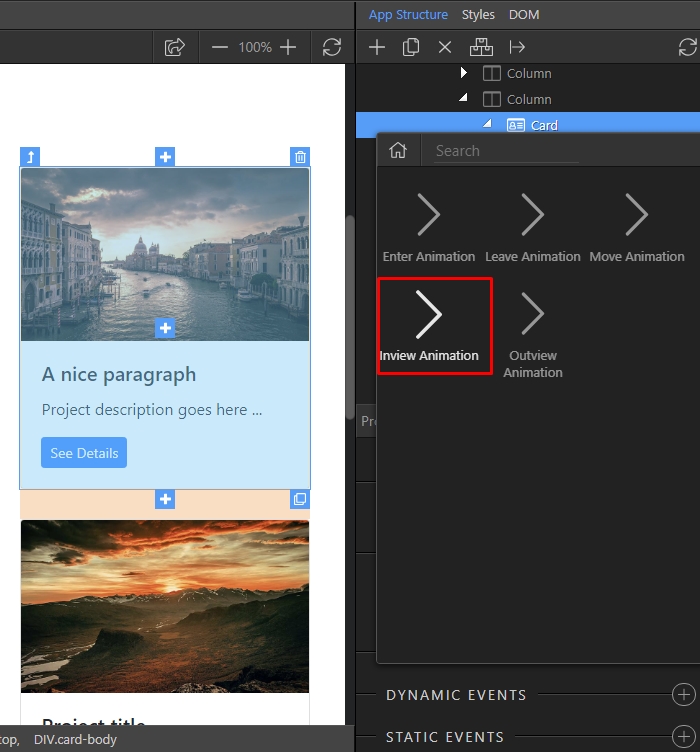
Open the Name dropdown in order to select the animation type:
Section titled “Open the Name dropdown in order to select the animation type:”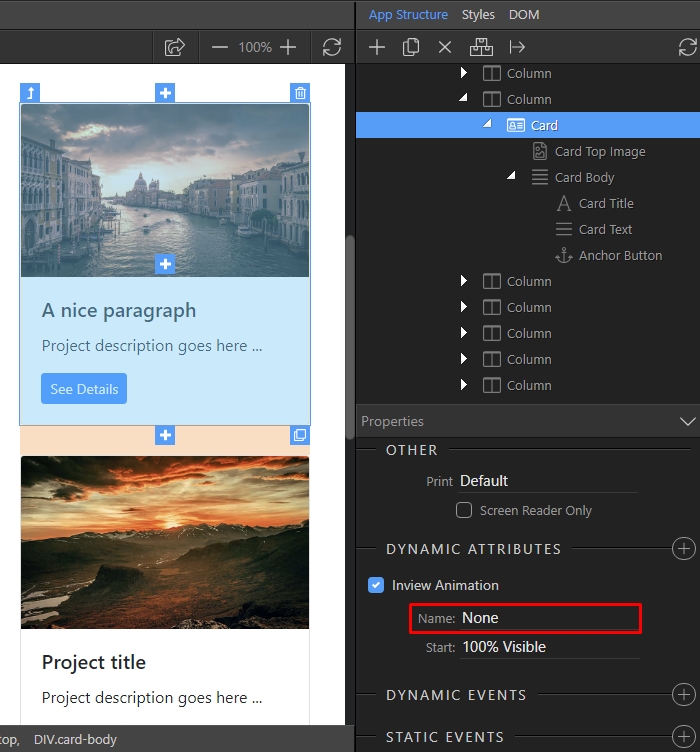
There are many different animation options available. Just select the one you need:
Section titled “There are many different animation options available. Just select the one you need:”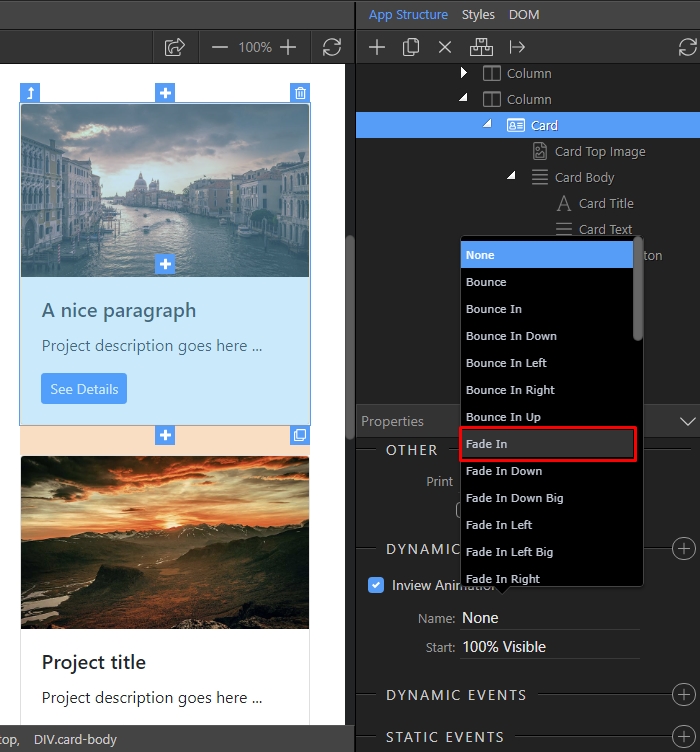
Step 9
Section titled “Step 9”Then select when to start the animation. 100% visible means, that the animation will start when the element is fully visible in the viewport, while 10% visible means that the animation starts when 10% of the element is in the viewport:
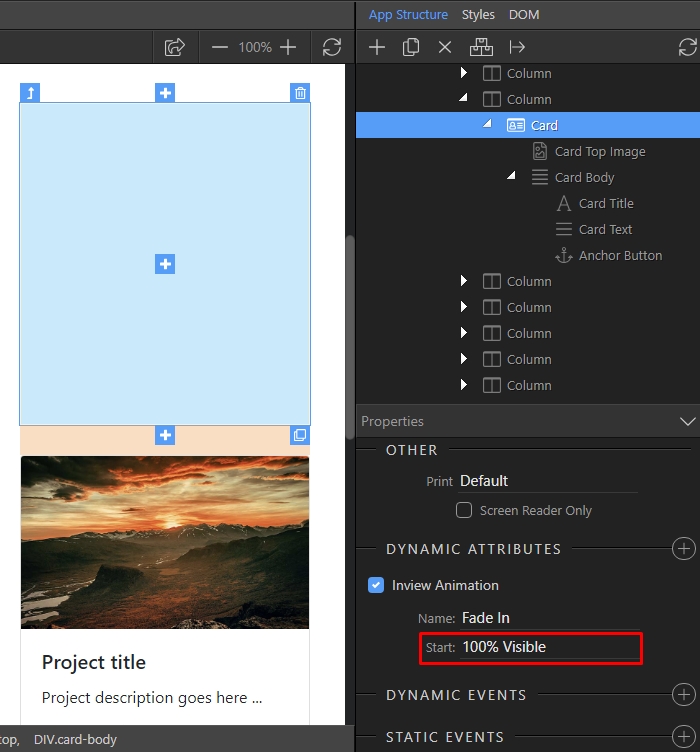
Just select the right amount for your needs:
Section titled “Just select the right amount for your needs:”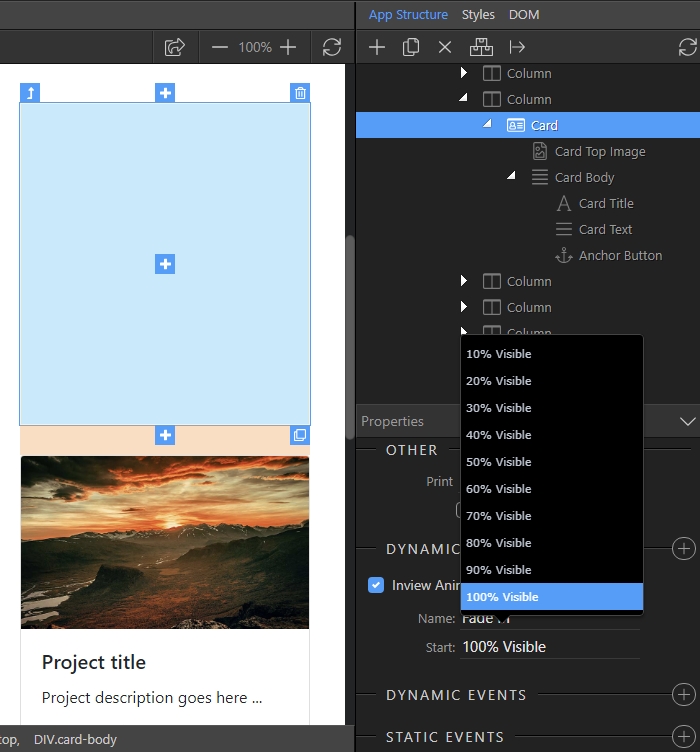
Step 11
Section titled “Step 11”The same way as you added an inview animation you can add an outview animation. It runs when the element leaves the viewport. Add new dynamic attribute:
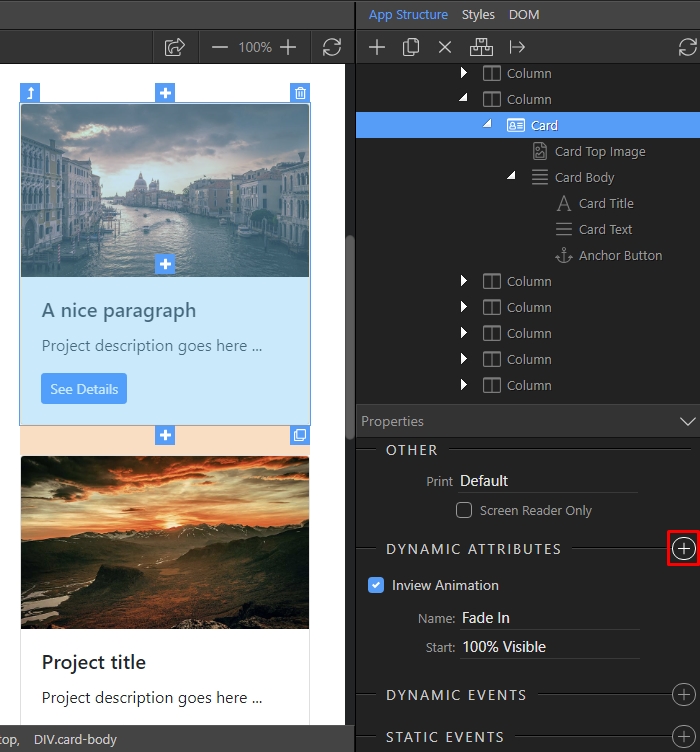
Open Animation:
Section titled “Open Animation:”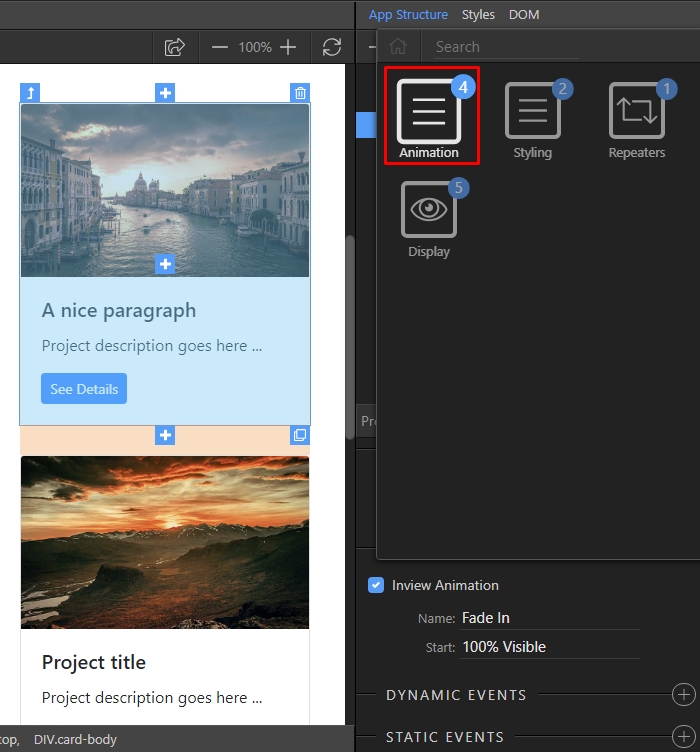
Select outview animation:
Section titled “Select outview animation:”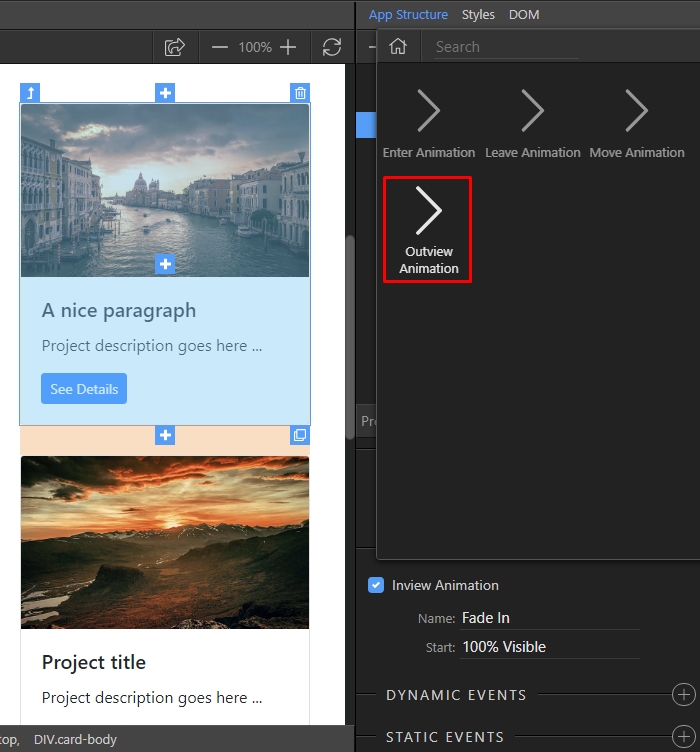
And select the type of the outview animation:
Section titled “And select the type of the outview animation:”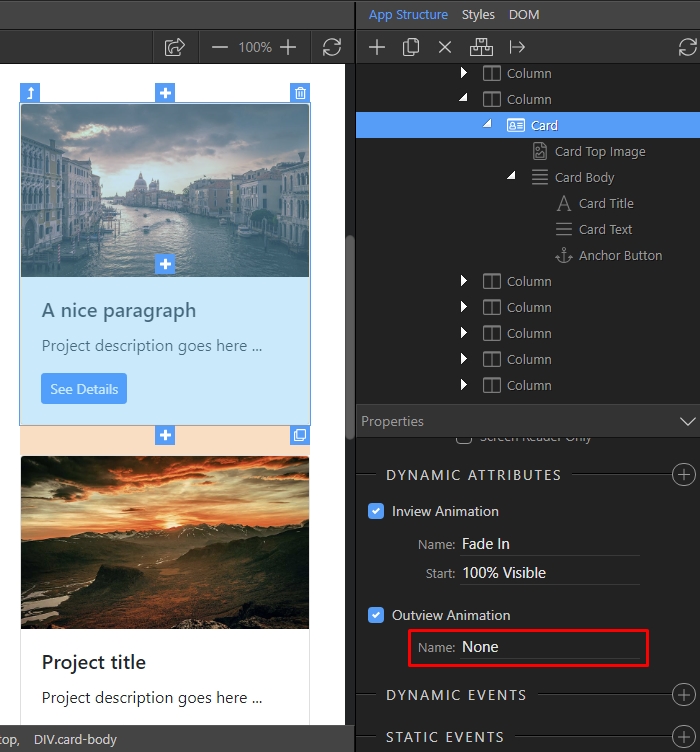
We select Zoom Out:
Section titled “We select Zoom Out:”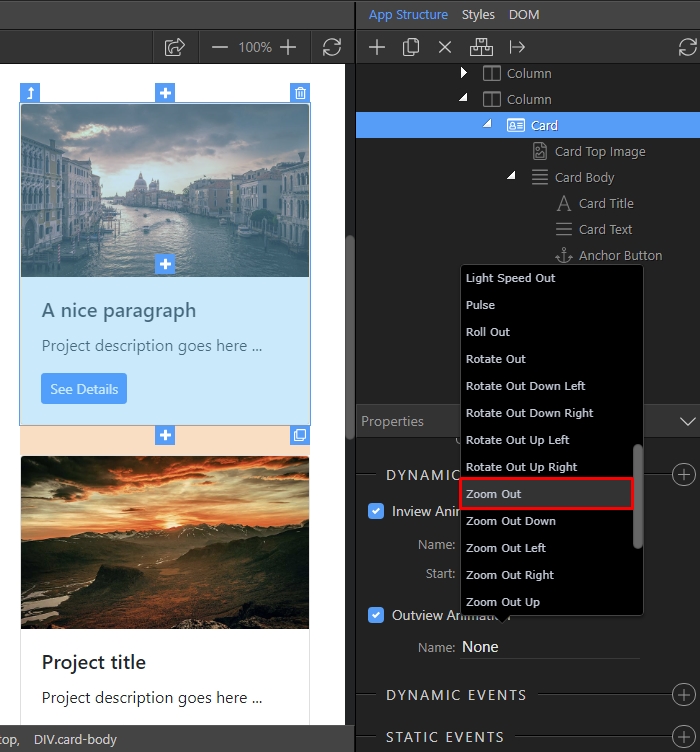
Step 16
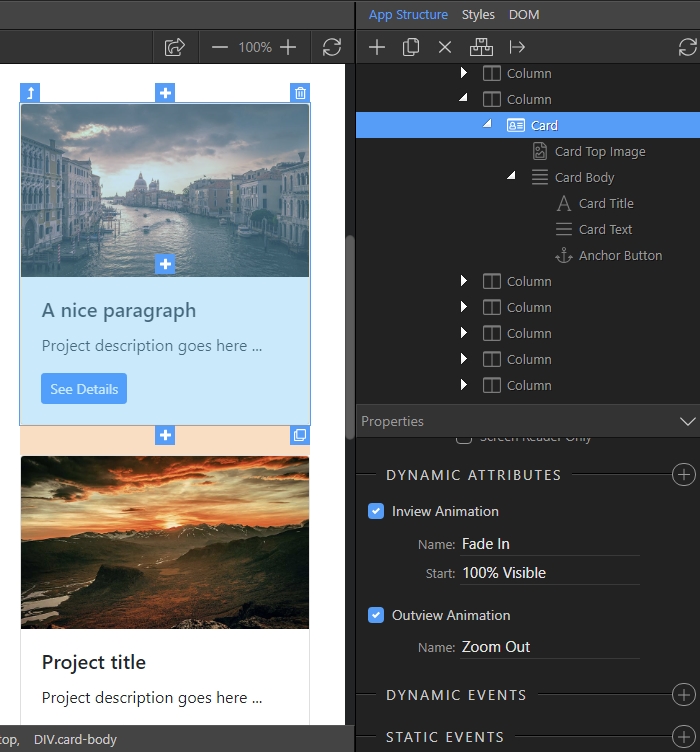
Section titled “Step 16”And you are done. Your element will fade in on scroll, when it enters the veiwport and then it will zoom out when leaving the viewport:
Enter/Leave and Move Animations
Section titled “Enter/Leave and Move Animations”The other type of animations available in Wappler are the ones applied to your repeat regions.
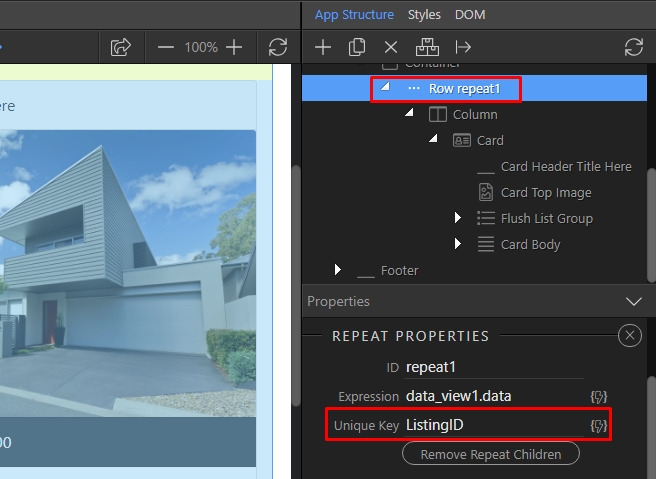
First, create a repeat children region which repeats some elements on the page. Make sure you've selected a value in the unique key field, usually this is the ID field of your data source:
Then select the child element, which you are repeating:
Section titled “Then select the child element, which you are repeating:”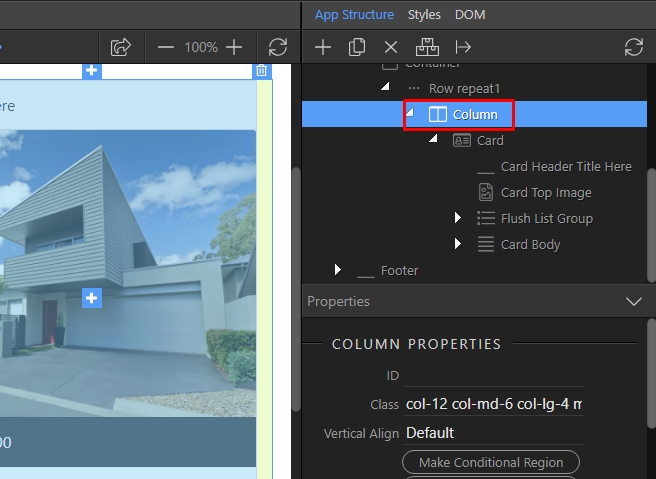
Add new dynamic attribute:
Section titled “Add new dynamic attribute:”
Open Animation:
Section titled “Open Animation:”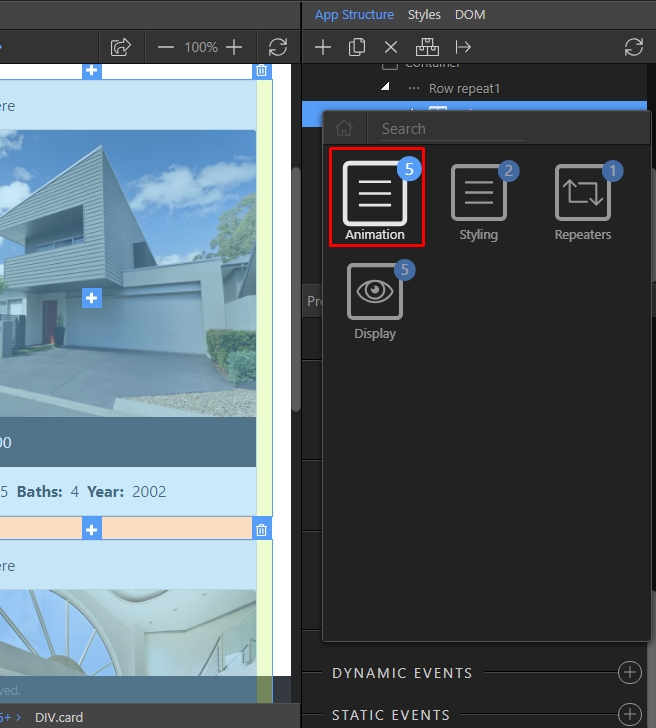
And select Enter Animation. This animation is applied when the elements are rendered on the page:
Section titled “And select Enter Animation. This animation is applied when the elements are rendered on the page:”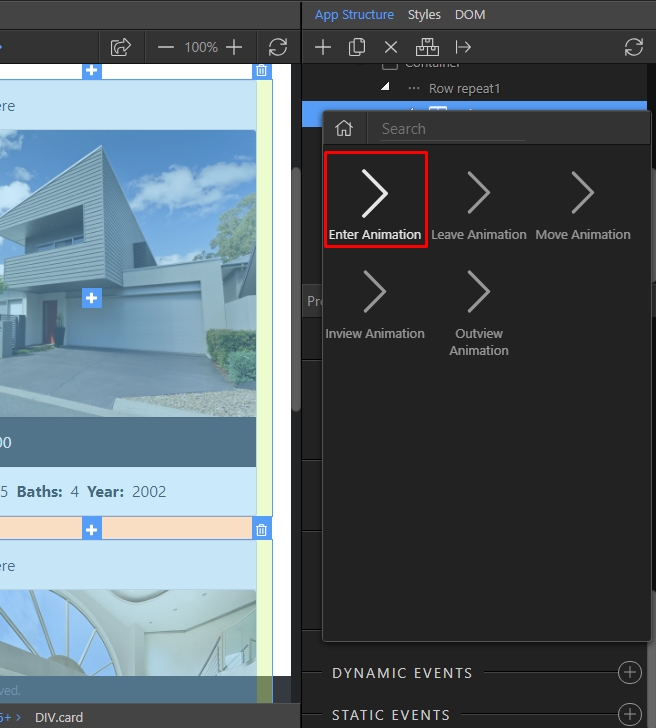
Select the animation type:
Section titled “Select the animation type:”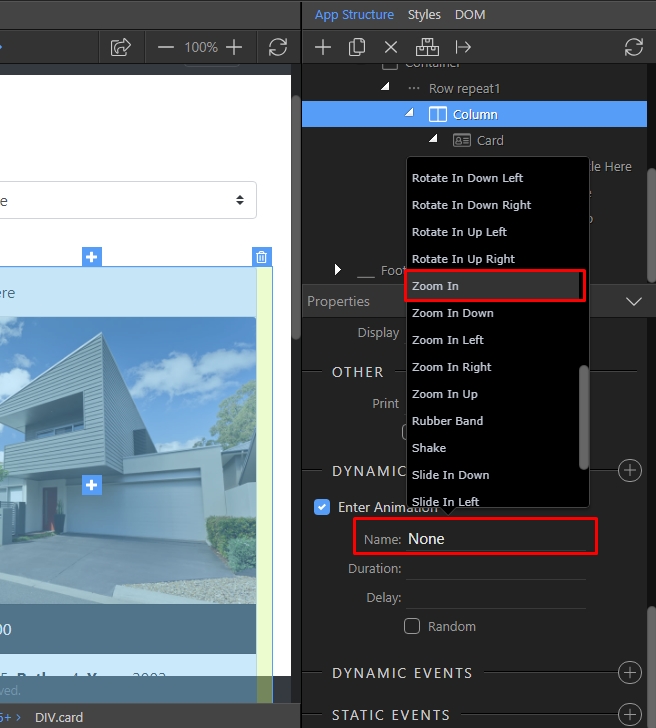
Then set the animation duration (in milliseconds):
Section titled “Then set the animation duration (in milliseconds):”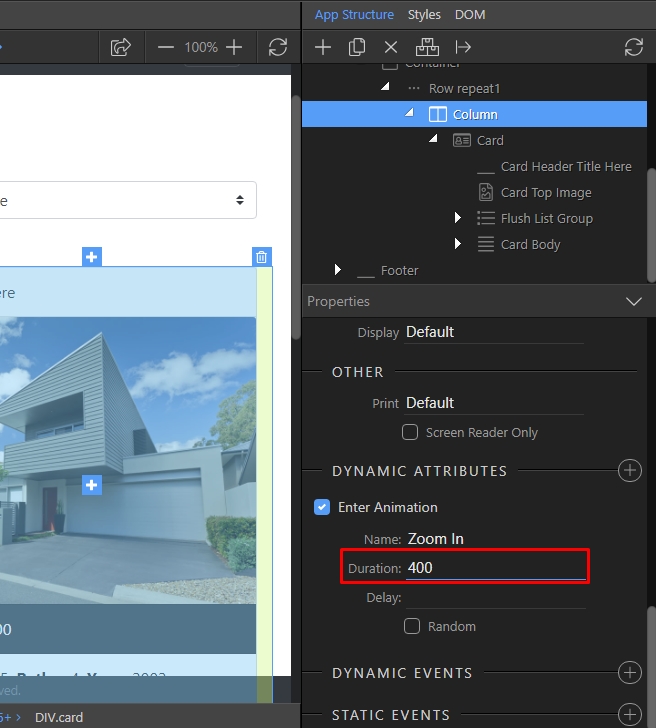
Step 25
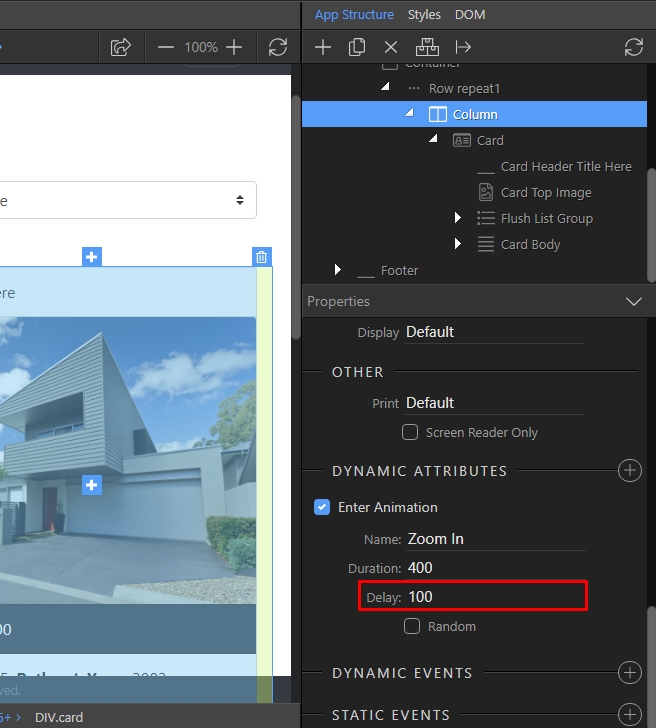
Section titled “Step 25”Set a delay if you want the elements to be animated one after another and not all at once. 100 milliseconds allows a nice smooth delay:
You can enable the Random option if you want to animate the elements randomly instead of one after another:
Section titled “You can enable the Random option if you want to animate the elements randomly instead of one after another:”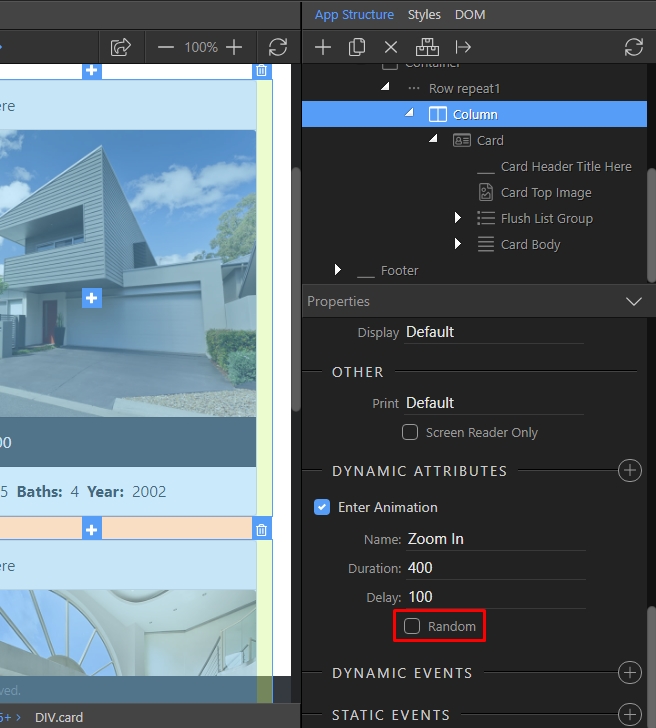
Now add another dynamic attribute:
Section titled “Now add another dynamic attribute:”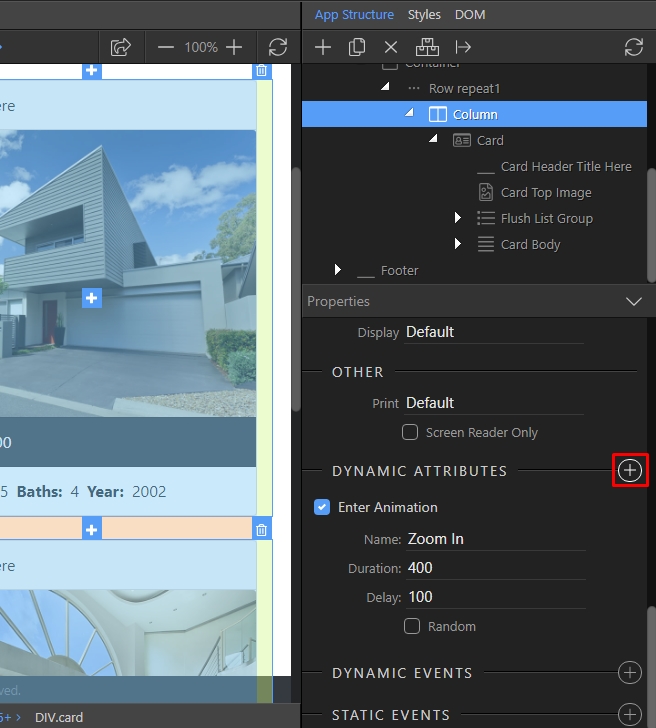
Open Animation:
Section titled “Open Animation:”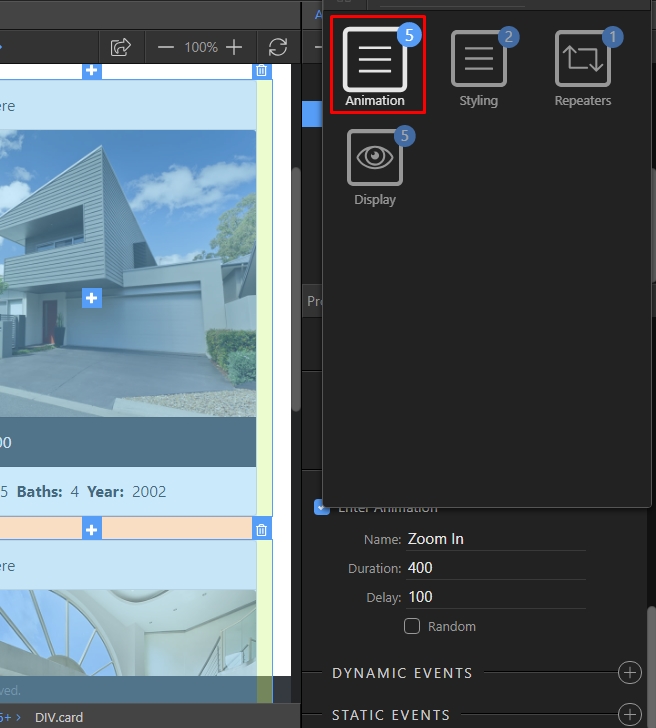
And add Leave Animation:
Section titled “And add Leave Animation:”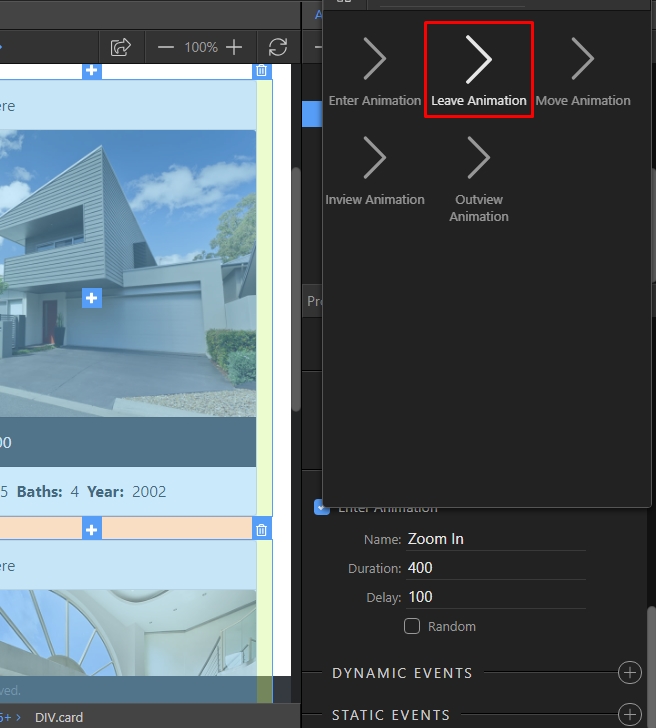
Step 30
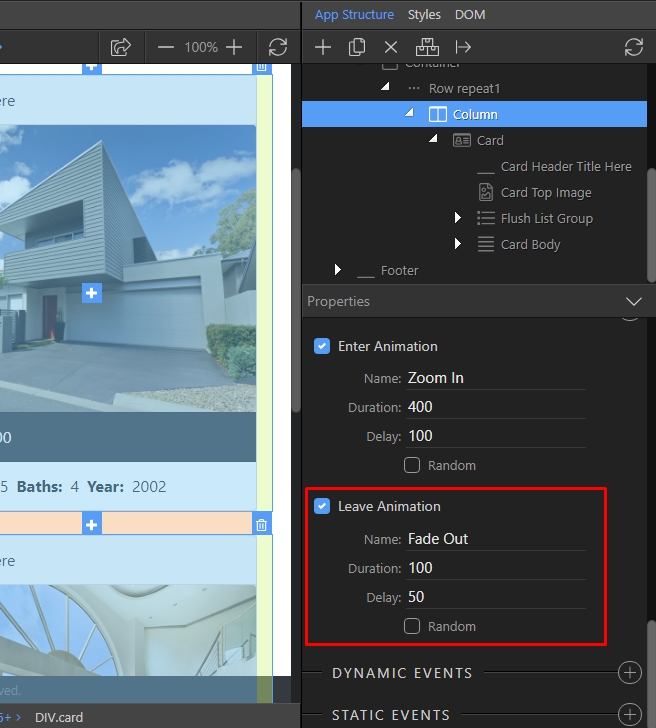
Section titled “Step 30”The Leave Animation is applied when filtering the records or when changing the current page, i.e. when there is an event making some of the records disappear from your page. Setup the Leave Animation settings as you wish:
We are going to add one more animation attribute to our repeat region elements. Add new dynamic attribute:
Section titled “We are going to add one more animation attribute to our repeat region elements. Add new dynamic attribute:”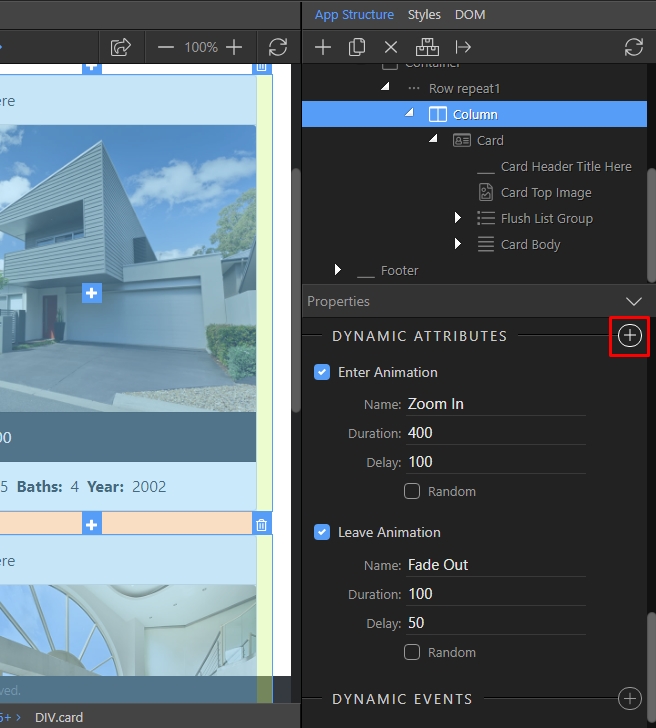
Open Animation:
Section titled “Open Animation:”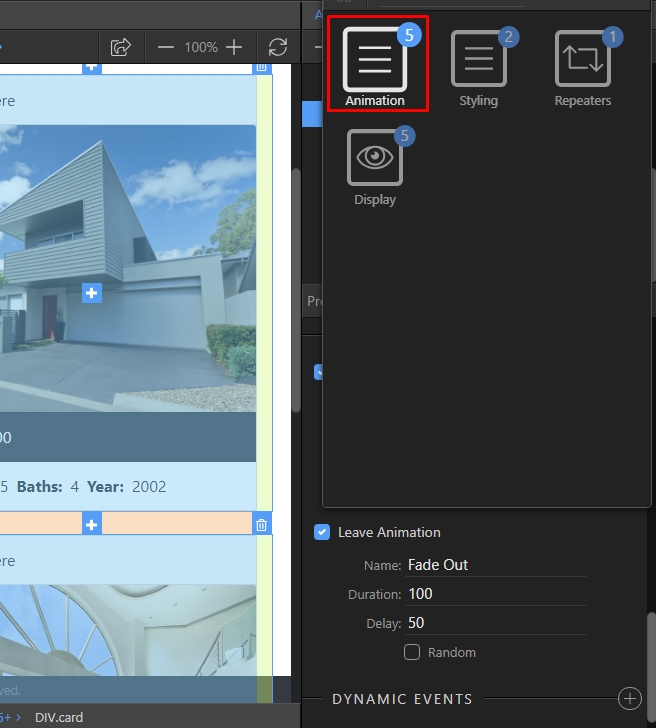
And add Move Animation:
Section titled “And add Move Animation:”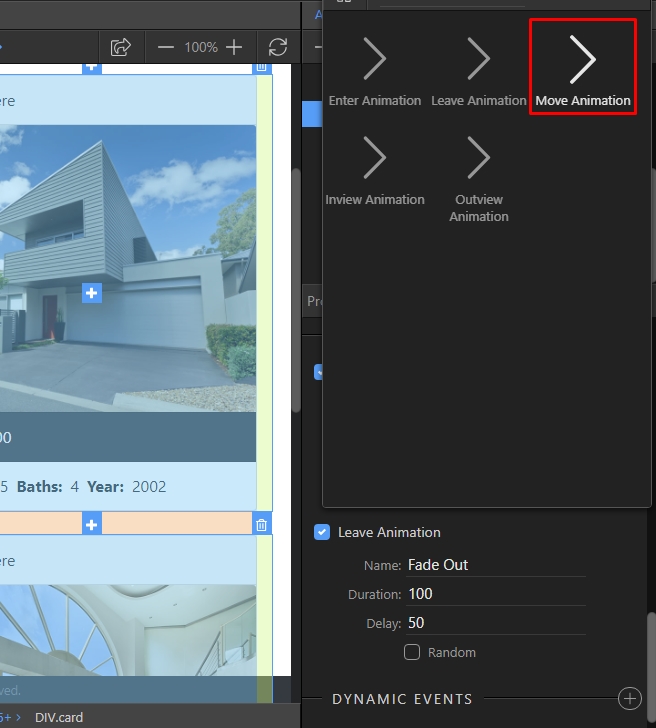
Step 34
Section titled “Step 34”The Move Animation makes the elements, left on the page after filtering the data source, move smoothly next to each other. Setup this animation settings as you need: