Using Wappler Extensions Channels
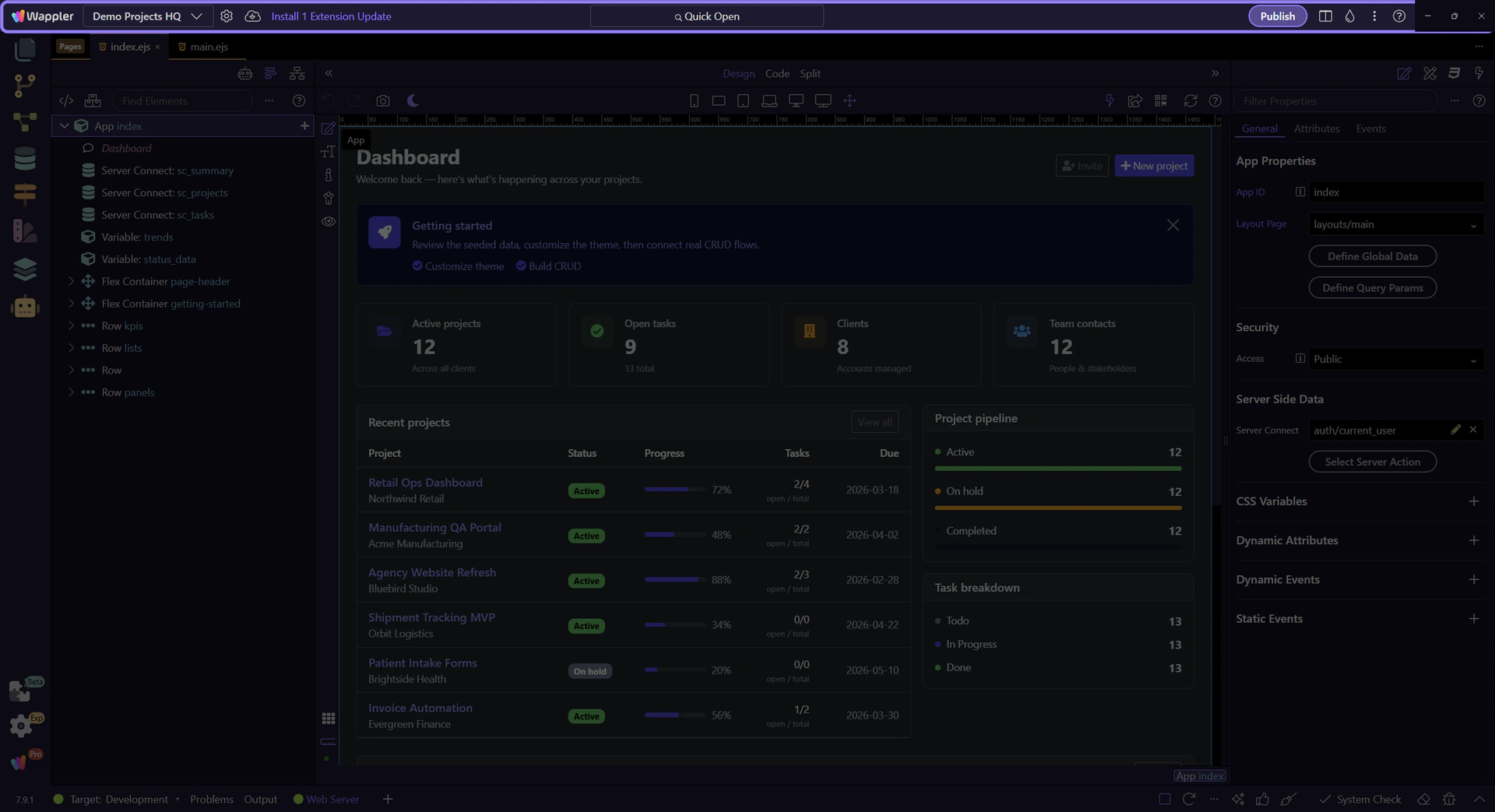
Tour of Project Updater and its Extensions Update Channel selector, showing where Stable and Beta extension packages are chosen.
Project Actions In The Toolbar
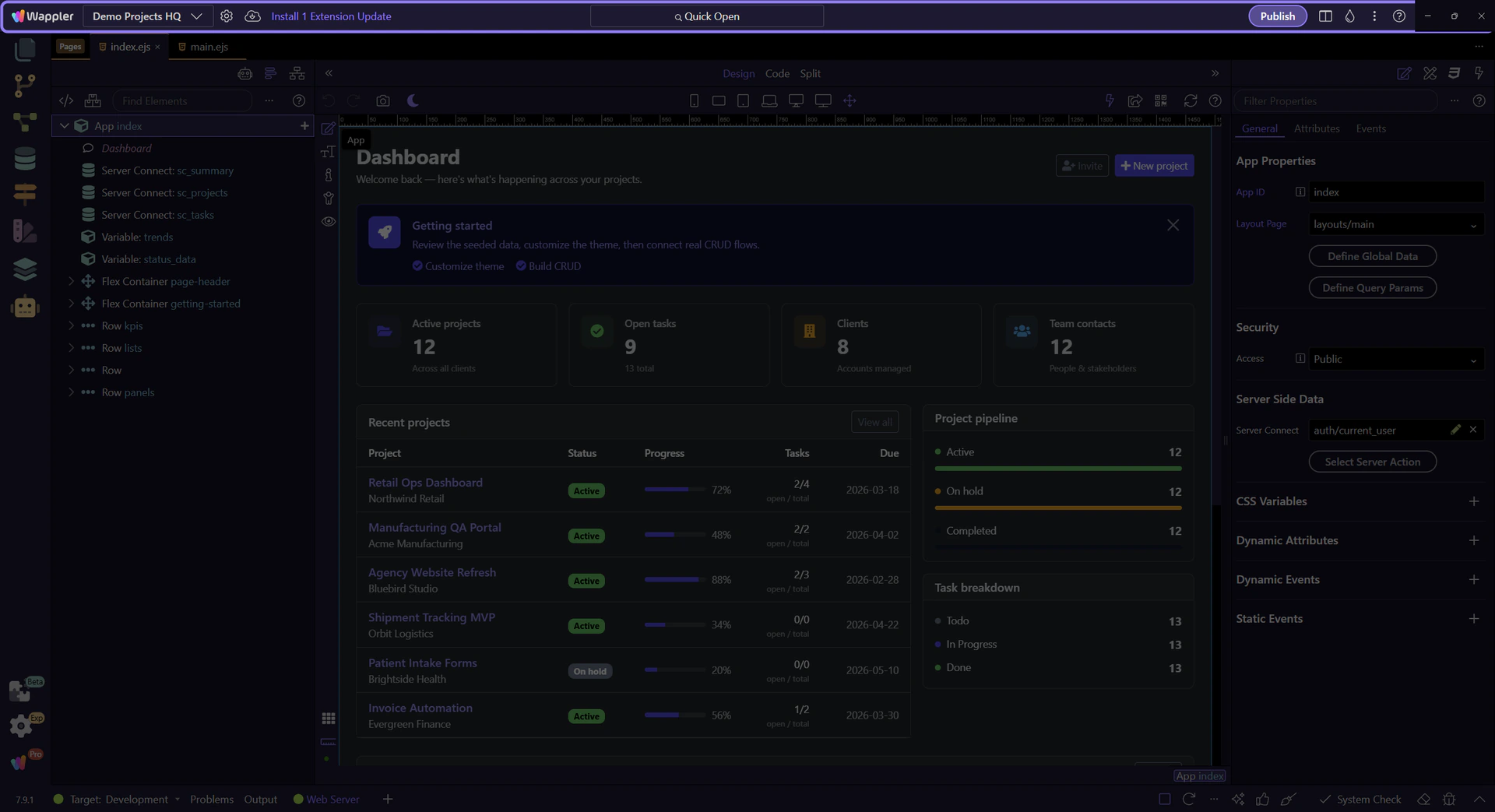
Section titled “Project Actions In The Toolbar”The top toolbar keeps the current project’s quick actions together, including settings, the updater, and the main menu.
Project Updater Button
Section titled “Project Updater Button”The Project Updater button in this toolbar opens the updater popup for the current project and exposes the extension channel controls there.
Project Assets Updater
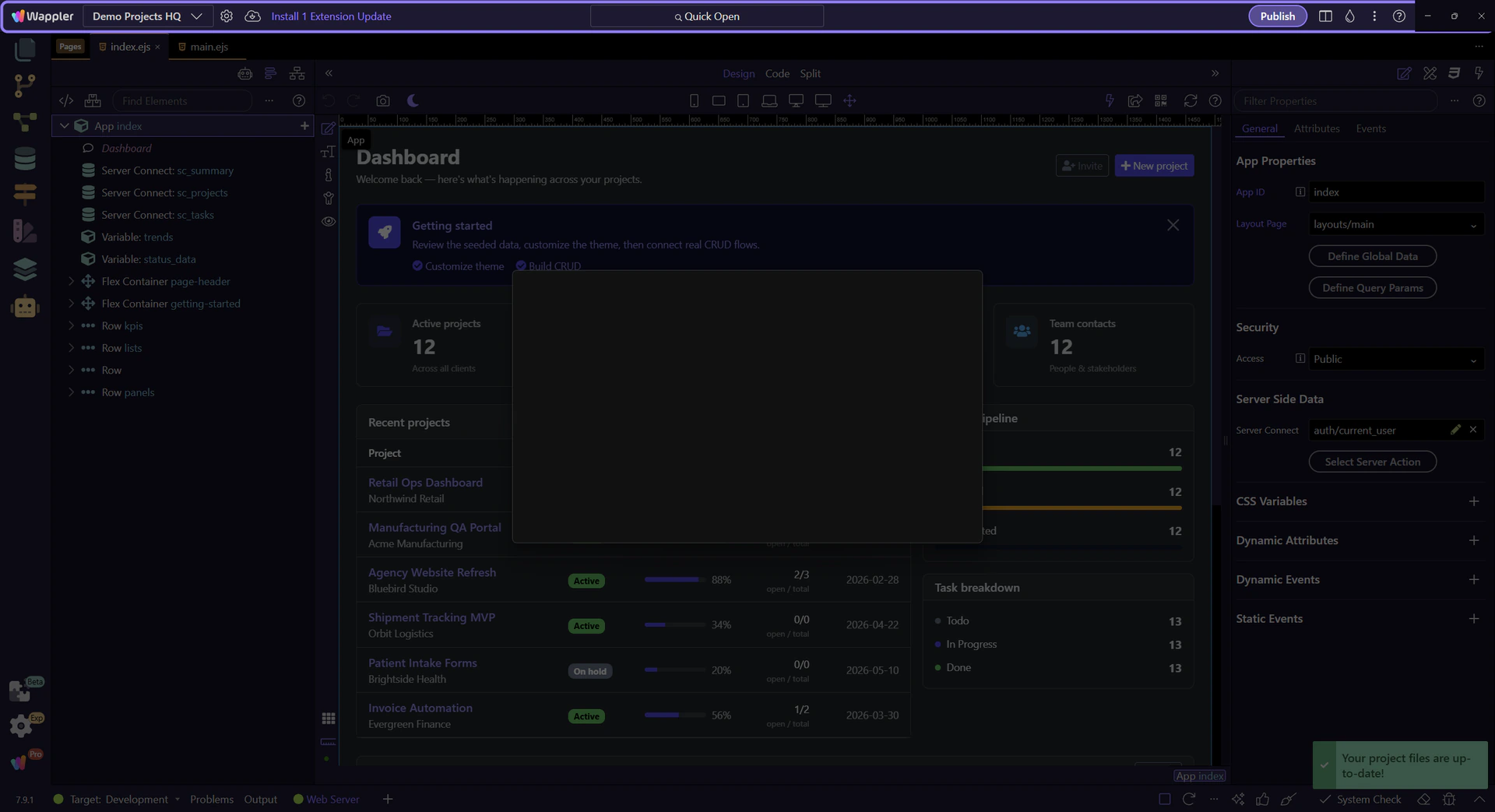
Section titled “Project Assets Updater”This popup combines project asset updates with the extension channel setting. The options area at the top controls what this project will refresh or reinstall when you run the updater.
Extensions Update Channel
Section titled “Extensions Update Channel”Use this selector to choose the extension feed for this installation. Stable keeps you on the regular release track, while Beta switches to the beta extension packages the next time you apply the change.
important: Changing the channel affects which extension packages are installed, not just the label shown in the popup.

Apply The Selected Channel
Section titled “Apply The Selected Channel”After choosing a different channel, use the Change Channel button next to the selector to install that channel’s extension set. The rest of the updater can then refresh the matching project assets when needed.

Review Before Updating
Section titled “Review Before Updating”Use the updater options to decide whether the current project should force-refresh App Connect or Server Connect files. Confirm the channel and the update scope here before applying any changes.

Close The Updater For Now
Section titled “Close The Updater For Now”This tour only needs to show where the channel lives. When you do not want to run updates yet, close the popup and return to the broader Project Manager tour.

Return to Project Manager
Section titled “Return to Project Manager”Now that the channel location is clear, continue with the broader Project Manager tour from the main workspace.