Quick Overview
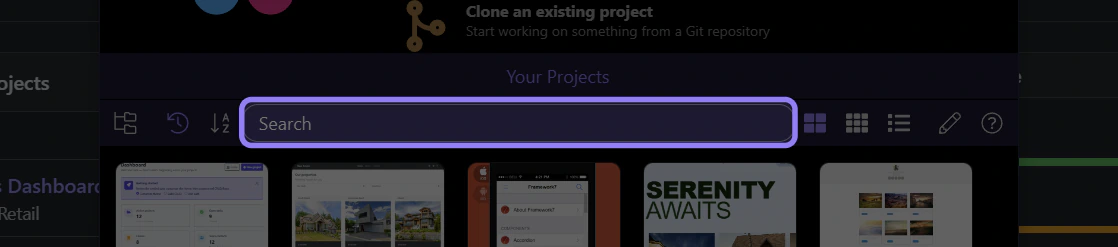
Get a quick overview of Project Manager Welcome: Project Manager Overview, Welcome Screen: Create, and Welcome Screen: Clone.
Project Manager Overview
Section titled “Project Manager Overview”This is the Project Manager. Use it to create, open, and manage your Wappler projects.
This tour focuses on where things are. For step-by-step guidance, use the Project Manager tours: Create a New Local Project, Choosing Your Project Setup, and Removing Projects.
Welcome Screen: Create
Section titled “Welcome Screen: Create”When you start without an active project, you’ll see these quick-start options. Use this to create a new project.
Welcome Screen: Clone
Section titled “Welcome Screen: Clone”Use this option to clone a project from a Git repository.
Welcome Screen: Open
Section titled “Welcome Screen: Open”Use this option to open an existing Wappler project folder from your computer.
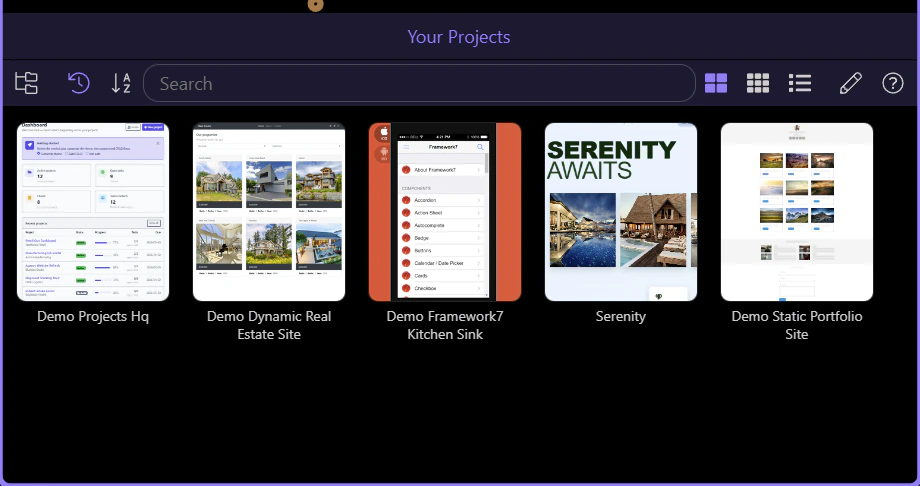
Toolbar
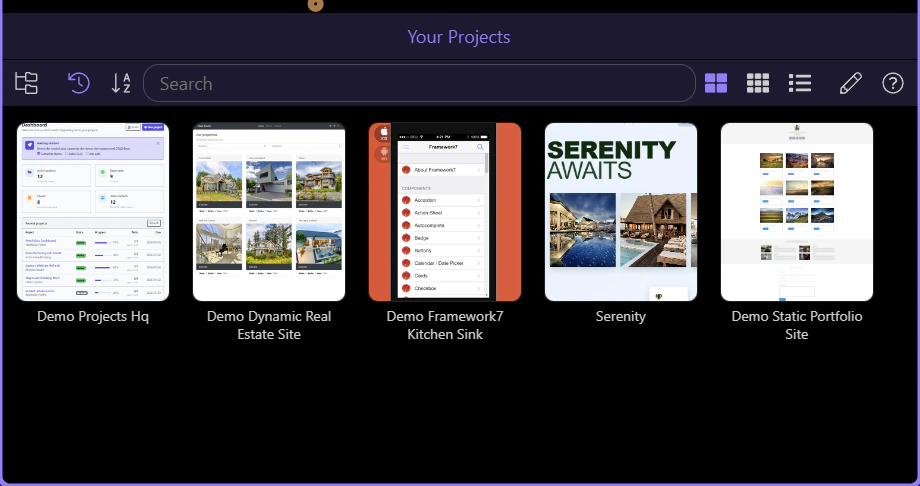
Section titled “Toolbar”Use the toolbar to switch views, sort/search projects, and manage projects. Some actions (New/Clone/Open) may appear here or in the Welcome Screen, depending on how Project Manager is opened.

Project List
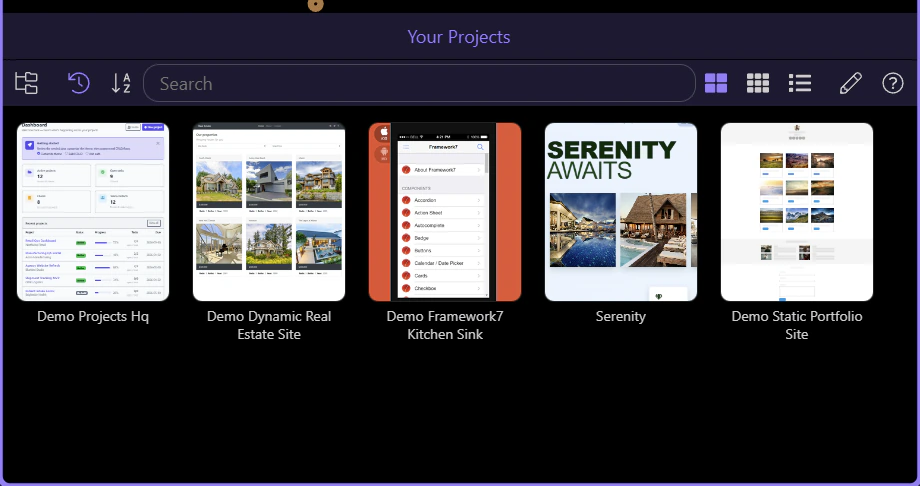
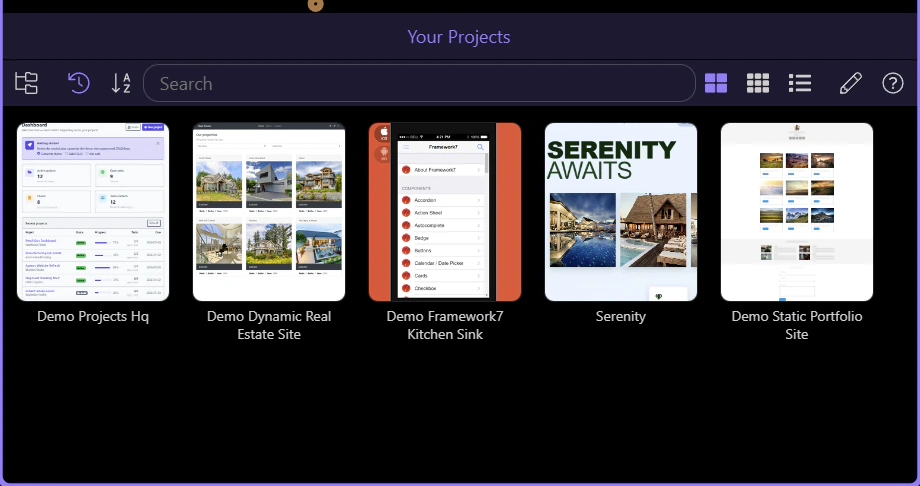
Section titled “Project List”Browse and select your projects here.
Tip: removing a project here only removes it from the list — it doesn’t delete your project folder from disk.
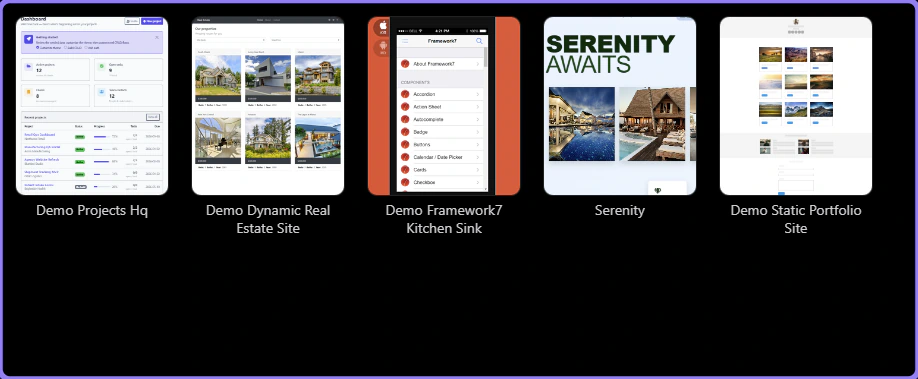
Manage Projects
Section titled “Manage Projects”Toggle Manage Projects to enable project actions like duplicate/remove in the project list.

Search
Section titled “Search”Quickly find a project by name.