
Bootstrap 5 Table Generator
Generate a Bootstrap table quickly with Wappler, then customize columns, styling, and responsive behavior.
Table Generator
Section titled “Table Generator”The Bootstrap 5 Table Generator scaffolds a Bootstrap table wired to a data source. It can optionally generate sortable headers and bindings.
Start from the Components picker
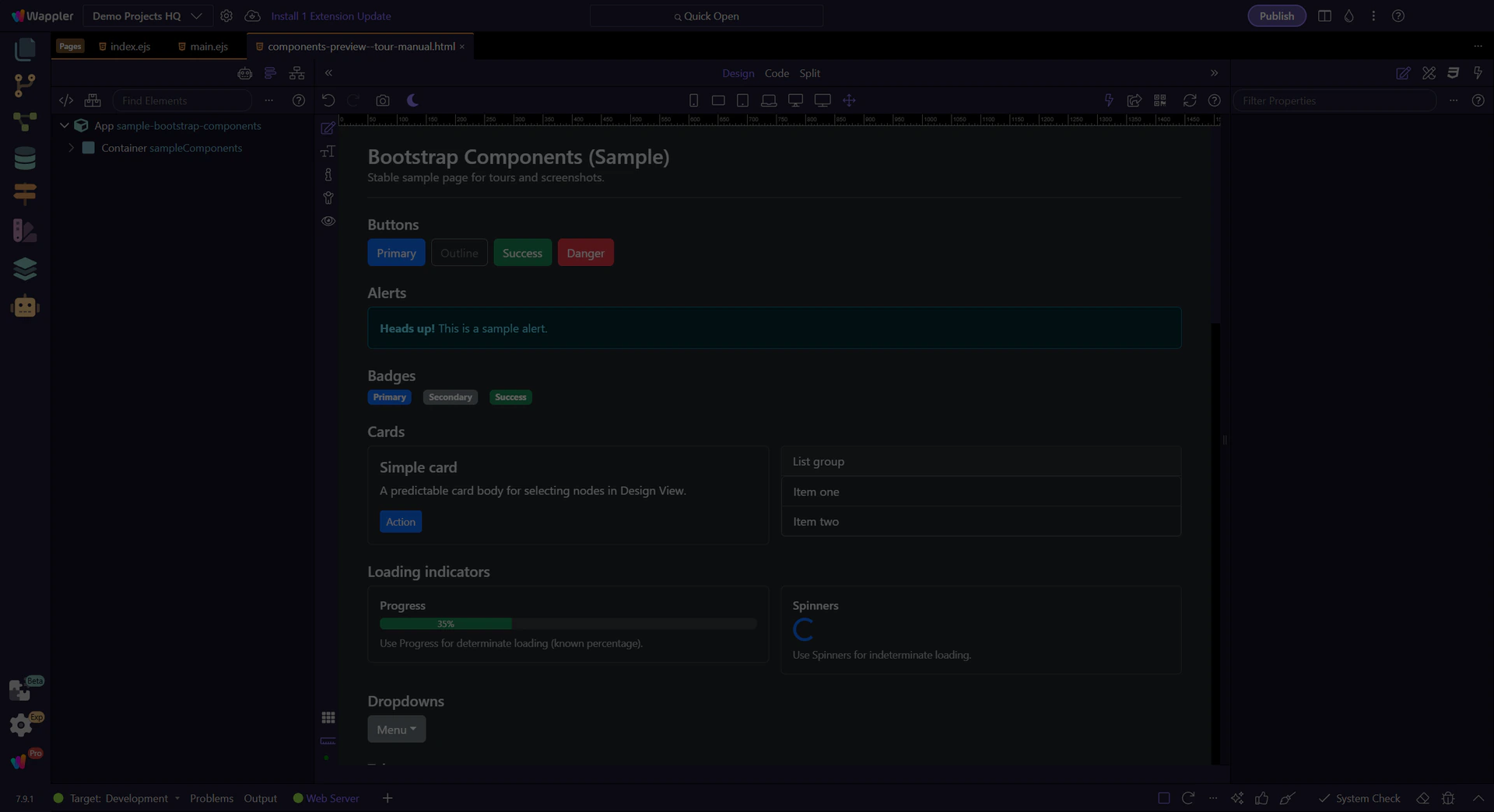
Section titled “Start from the Components picker”The table generator is easiest to understand when you begin at the Components picker, because that is where Wappler turns a data-display goal into a scaffolded UI pattern. This step frames what gets generated for you and why the first choice affects the markup and table options you inspect next.
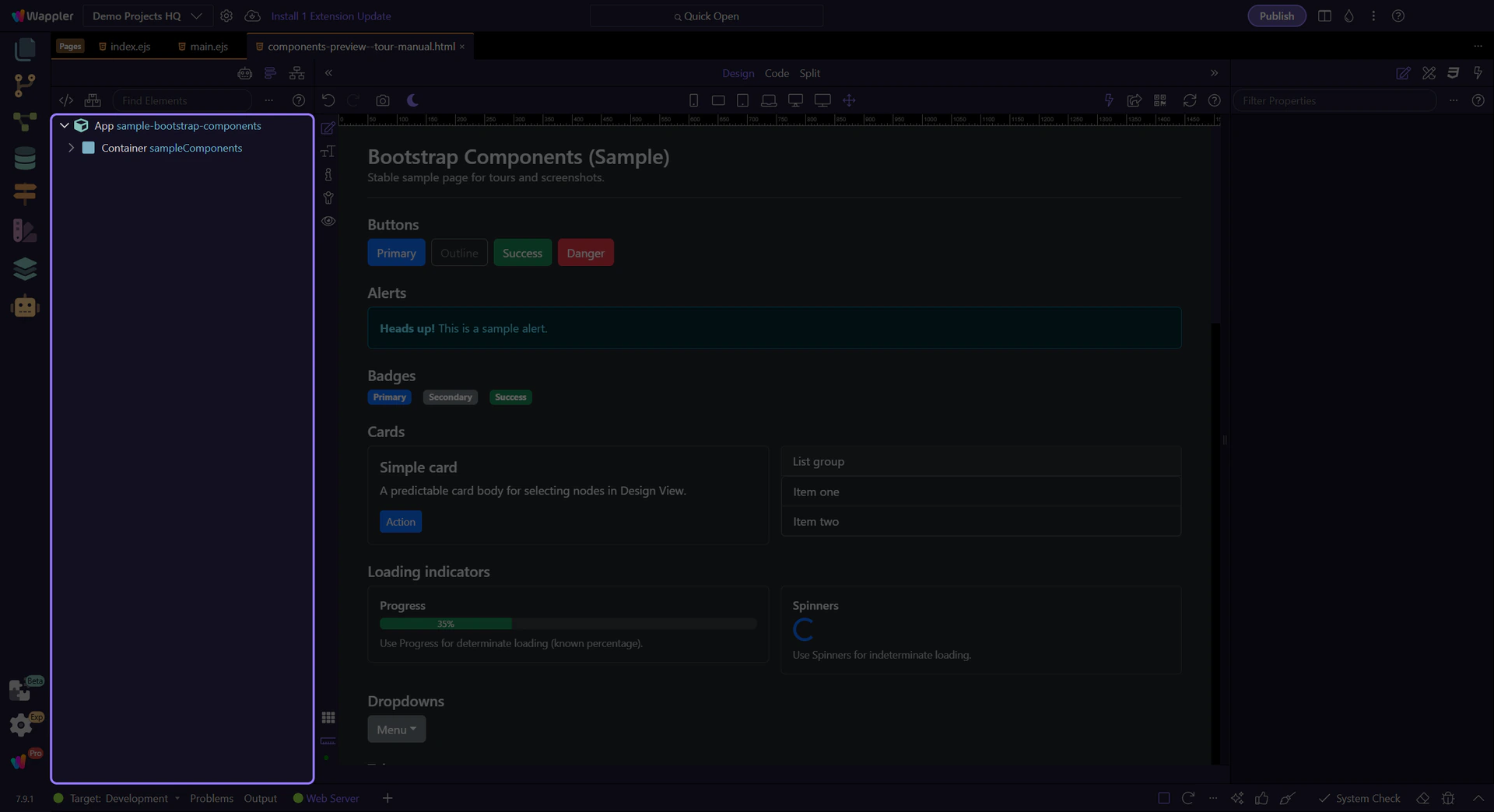
Generated result
Section titled “Generated result”The generator inserts table markup and App Connect bindings. You can refine columns, classes and bindings afterwards.
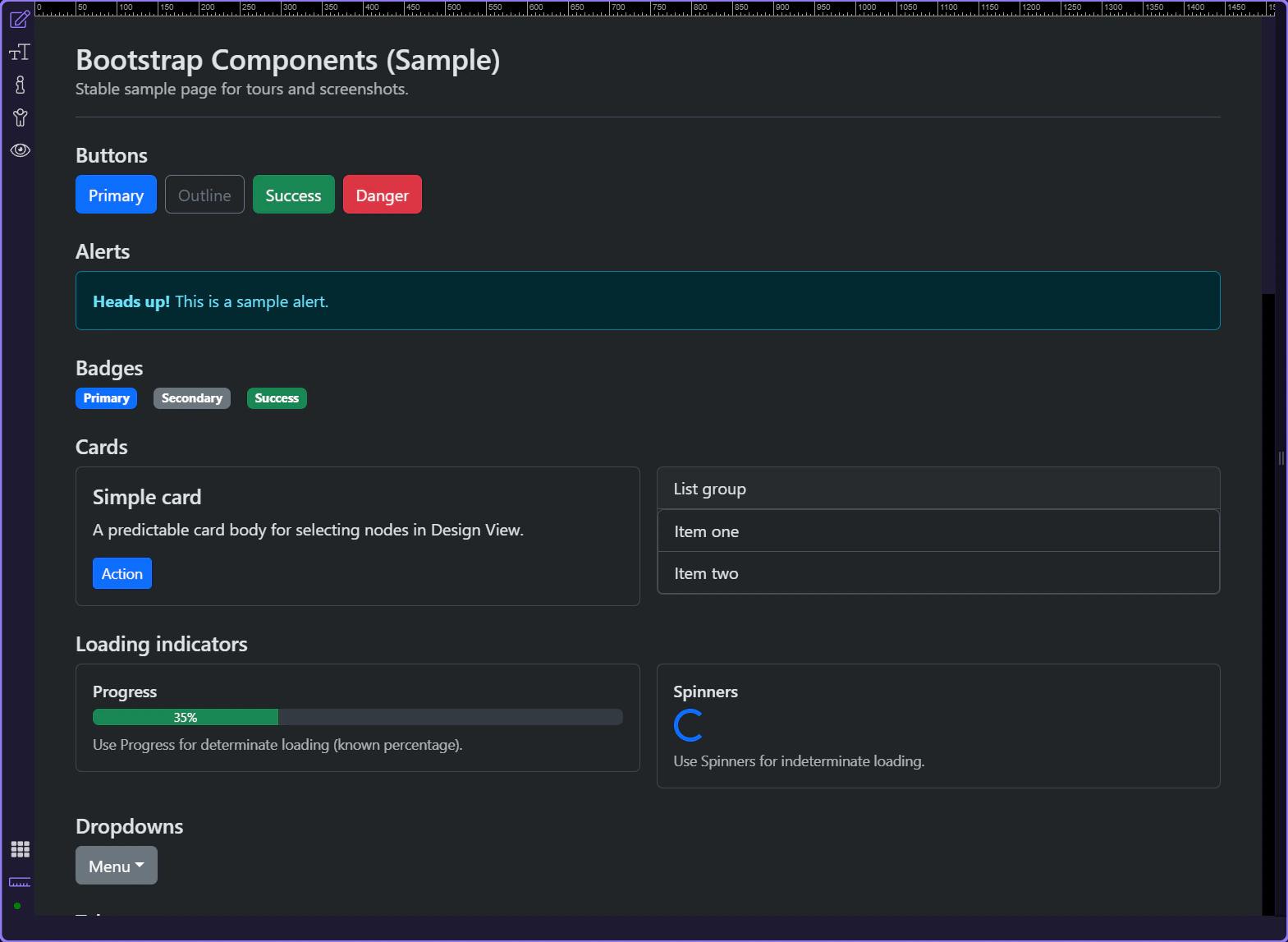
Open the generator
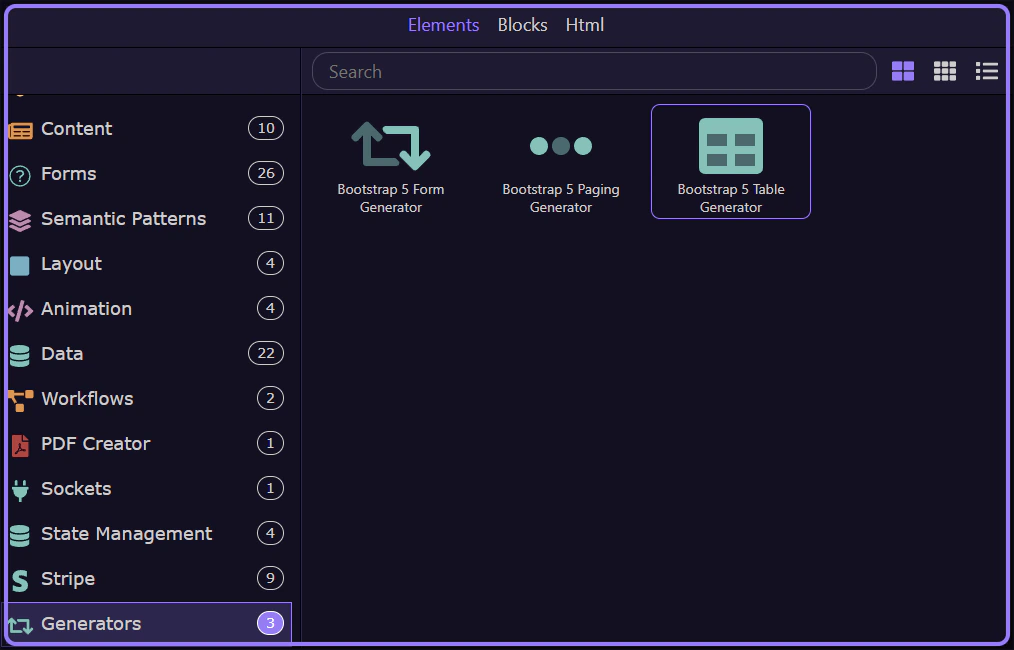
Section titled “Open the generator”Open the Components picker, select the Generators category, then choose Bootstrap 5 Table Generator.
Components picker opens
Section titled “Components picker opens”The Insert Child command opens the Components picker.
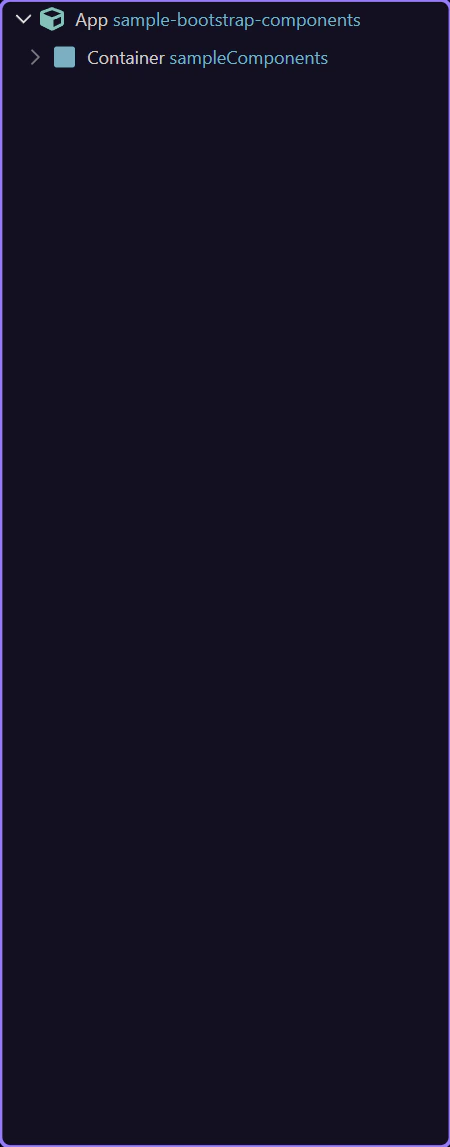
Components picker
Section titled “Components picker”Use categories to find generators quickly.
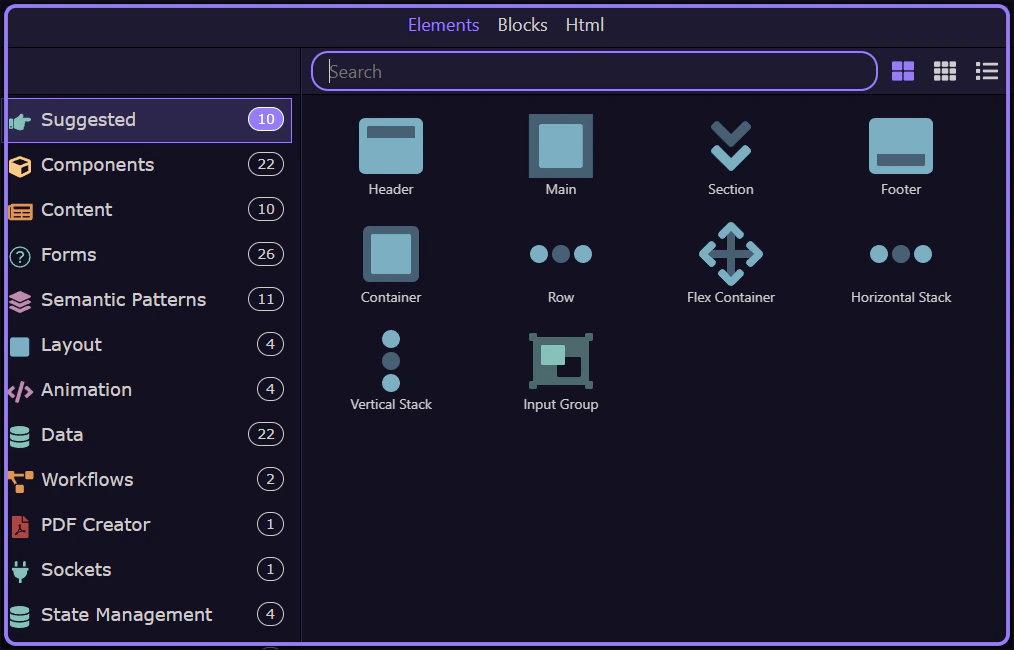
Generators category selected
Section titled “Generators category selected”The Generators category is now selected.
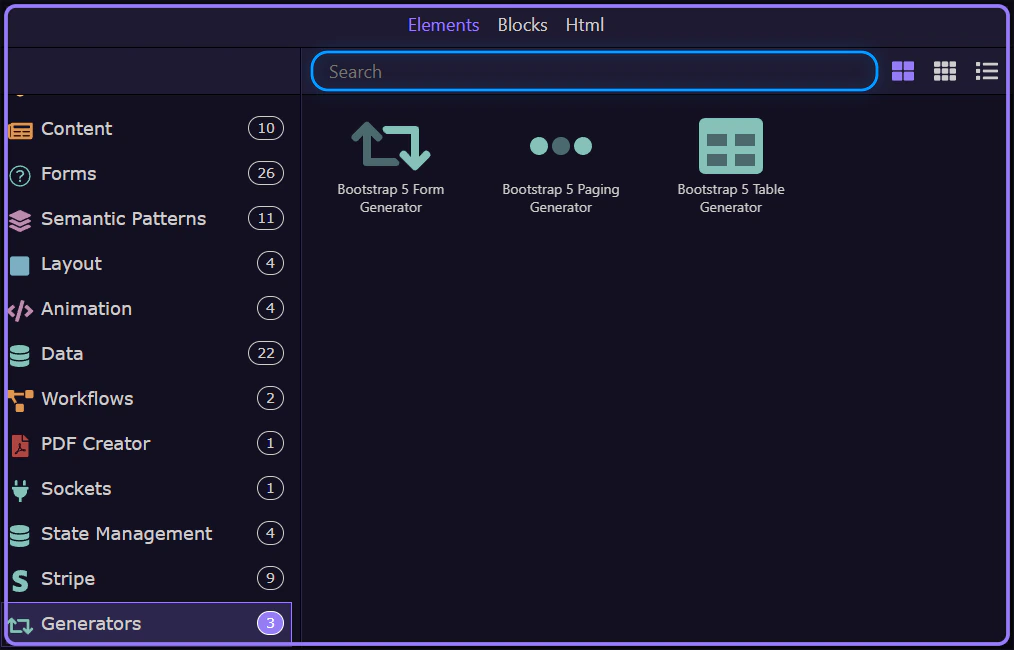
Table Generator selected
Section titled “Table Generator selected”Bootstrap 5 Table Generator is now selected and its dialog opens.
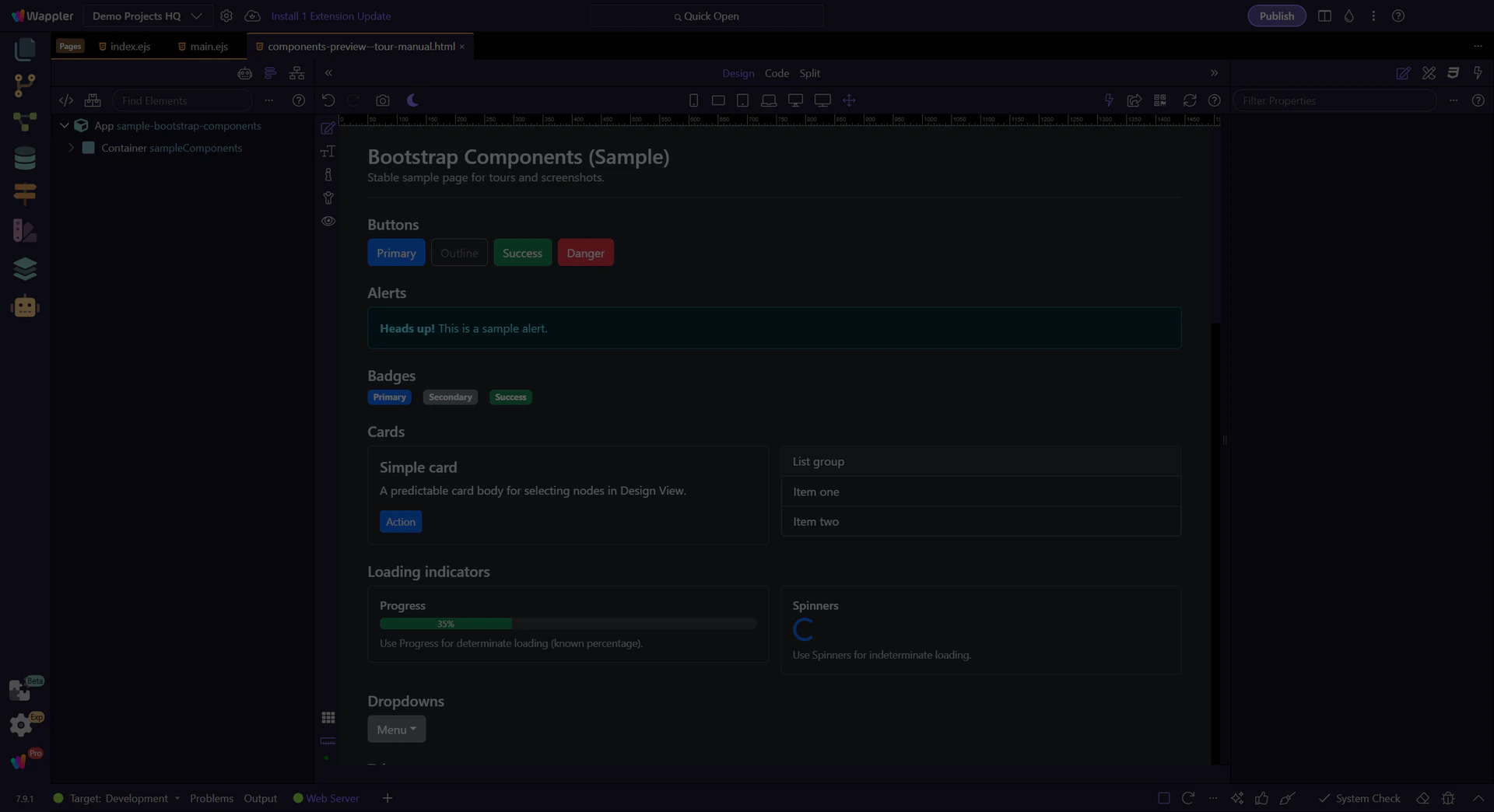
Generator dialog
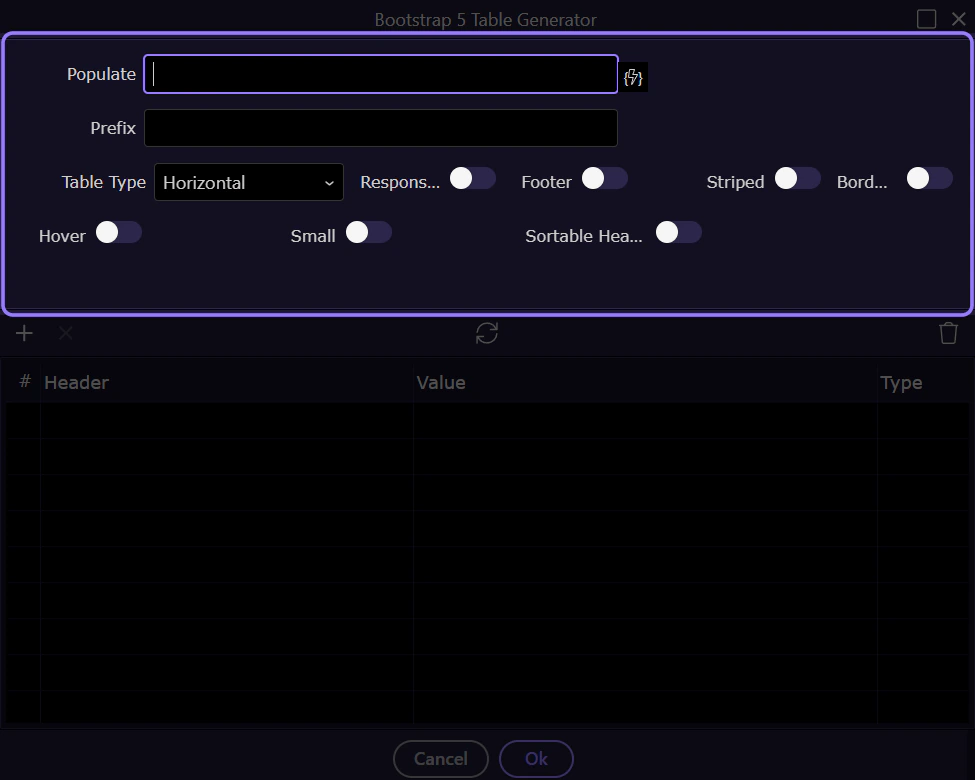
Section titled “Generator dialog”The generator opens in a popup dialog.
Data settings
Section titled “Data settings”Start by configuring how the table gets its rows.
Populate
Section titled “Populate”Populate is the expression that provides table rows (for example, an array from a data source).
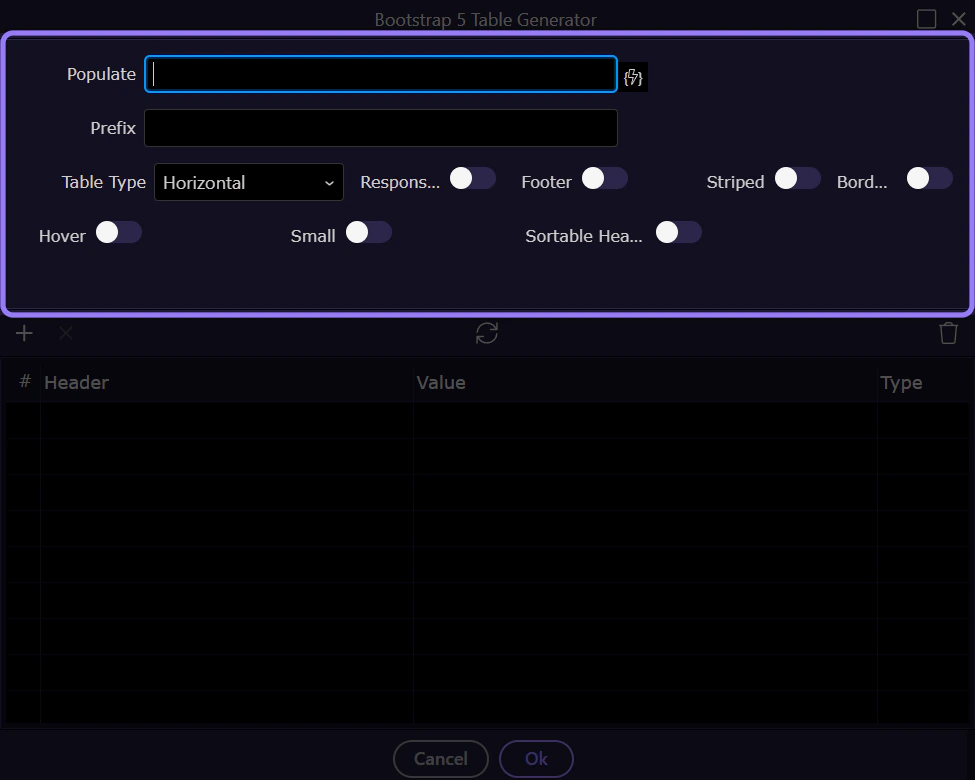
Prefix
Section titled “Prefix”Prefix is used when generating bindings for each column (for example, item).
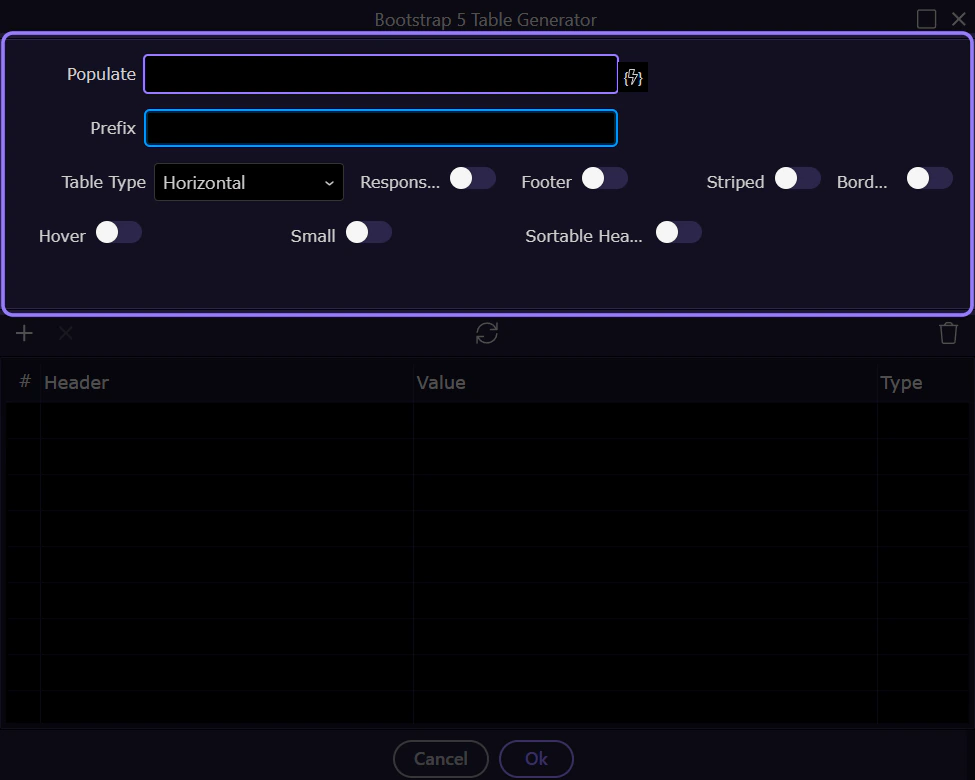
Table Type
Section titled “Table Type”The table layout can be horizontal or vertical.
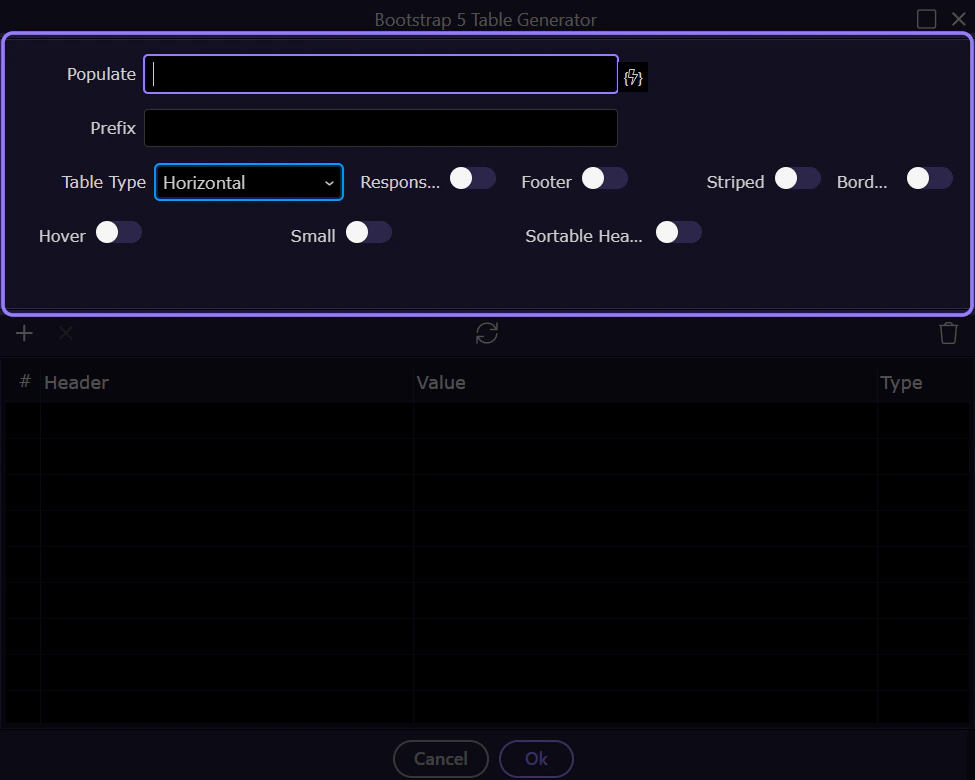
Style toggles
Section titled “Style toggles”These toggles add common Bootstrap table options.
Responsive / Footer
Section titled “Responsive / Footer”Enable Responsive to wrap the table in a responsive container. Enable Footer to generate a tfoot section.
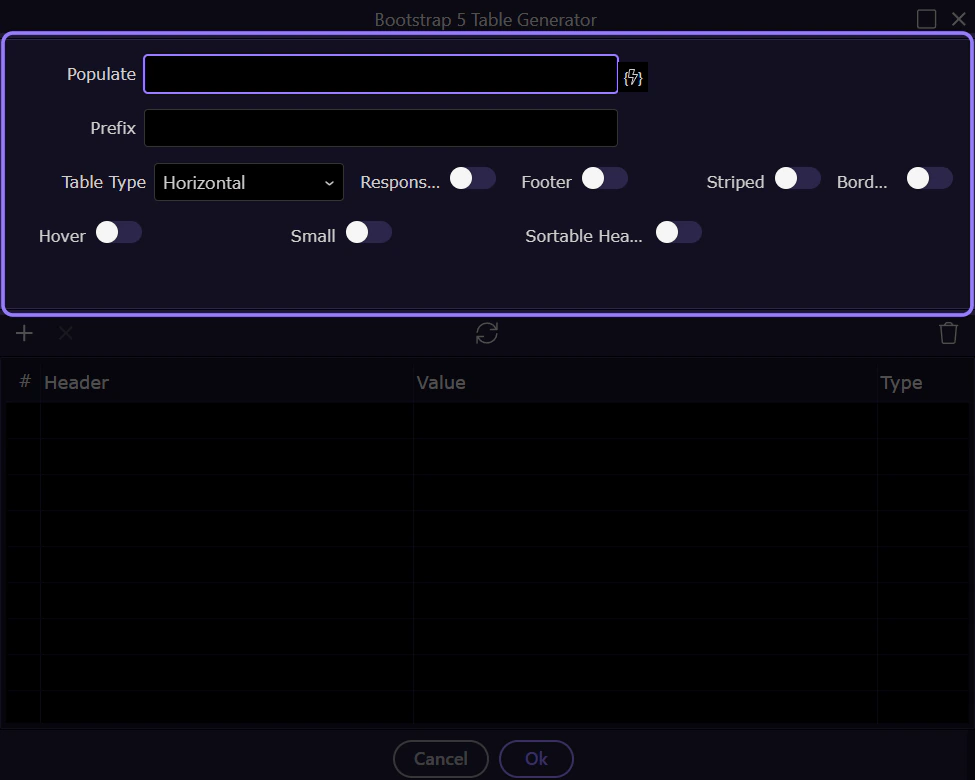
Striped / Bordered / Hover / Small
Section titled “Striped / Bordered / Hover / Small”Toggle the most common Bootstrap table styles.
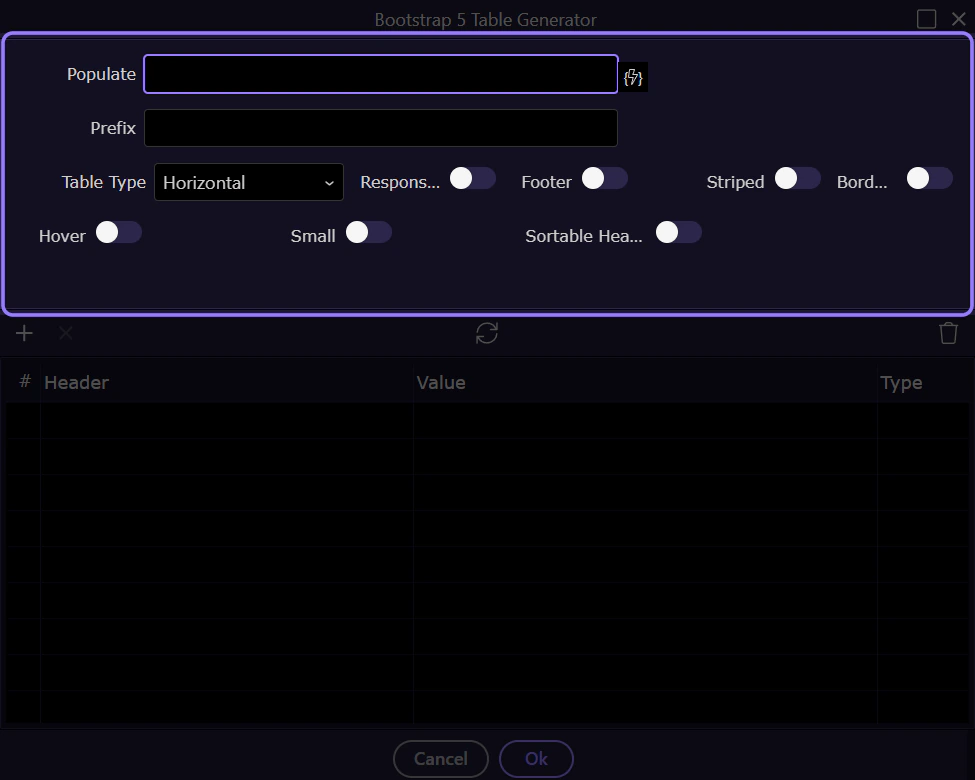
Columns
Section titled “Columns”Use the columns grid to define headers and bindings.
Columns grid
Section titled “Columns grid”Each row represents a table column (header label and the binding/expression used for cell values).
Sortable headers (optional)
Section titled “Sortable headers (optional)”Enable Sortable Headers to generate click-to-sort behavior. Additional sorting fields may appear after enabling it.
Generate
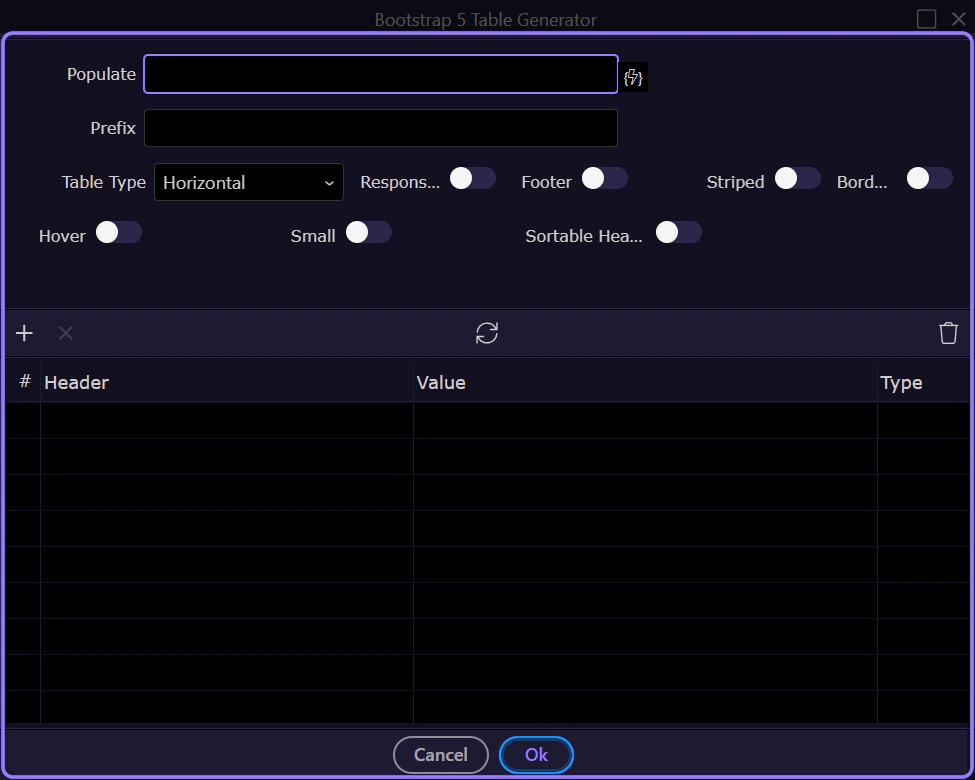
Section titled “Generate”When you’re happy with the settings, generate the table.
Selecting Ok inserts the generated table into the page at the selected insertion point.
Cancel
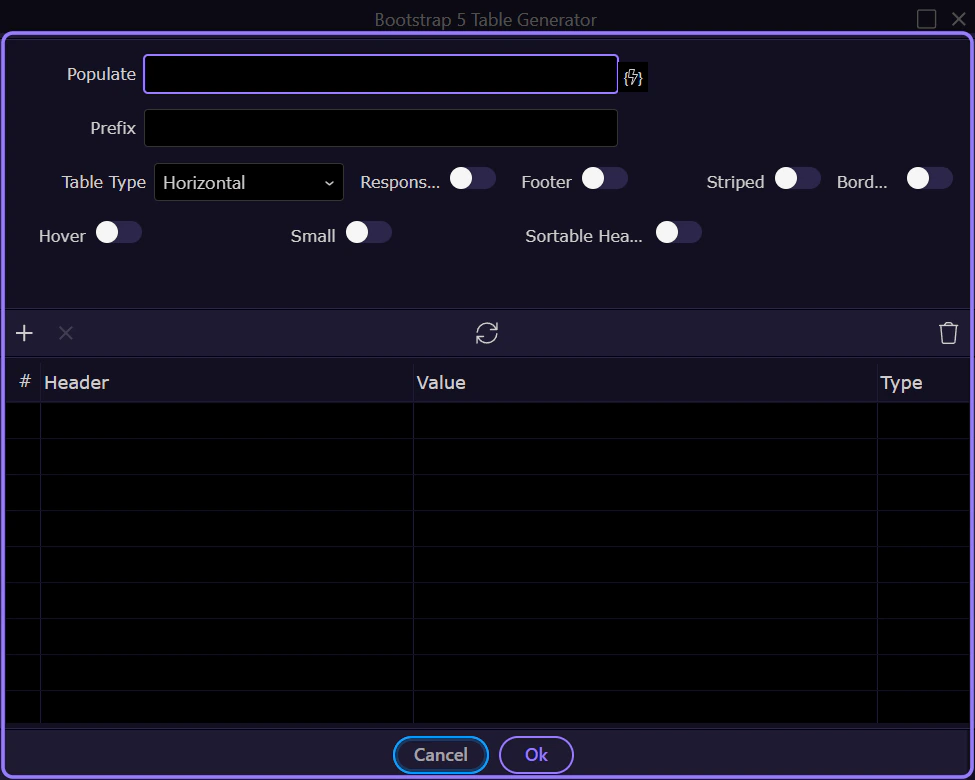
Section titled “Cancel”Selecting Cancel closes the dialog without inserting anything.
Next steps
Section titled “Next steps”Continue with other generator tours, or return to the Bootstrap tours index.