
Generators
Use Wappler generators to scaffold Bootstrap UI quickly (forms, tables, paging) and customize afterwards.
Bootstrap Generators
Section titled “Bootstrap Generators”Generators scaffold larger chunks of UI (for example, a data-driven table, a form, or pagination). You start them from the Components picker.
Components picker opened
Section titled “Components picker opened”The Components picker is the right place to start when you want Wappler to scaffold a more complex Bootstrap pattern for you. This step explains how generator-driven components differ from simple inserts and why choosing the correct starting tool saves time when the final component needs structure as well as styling.
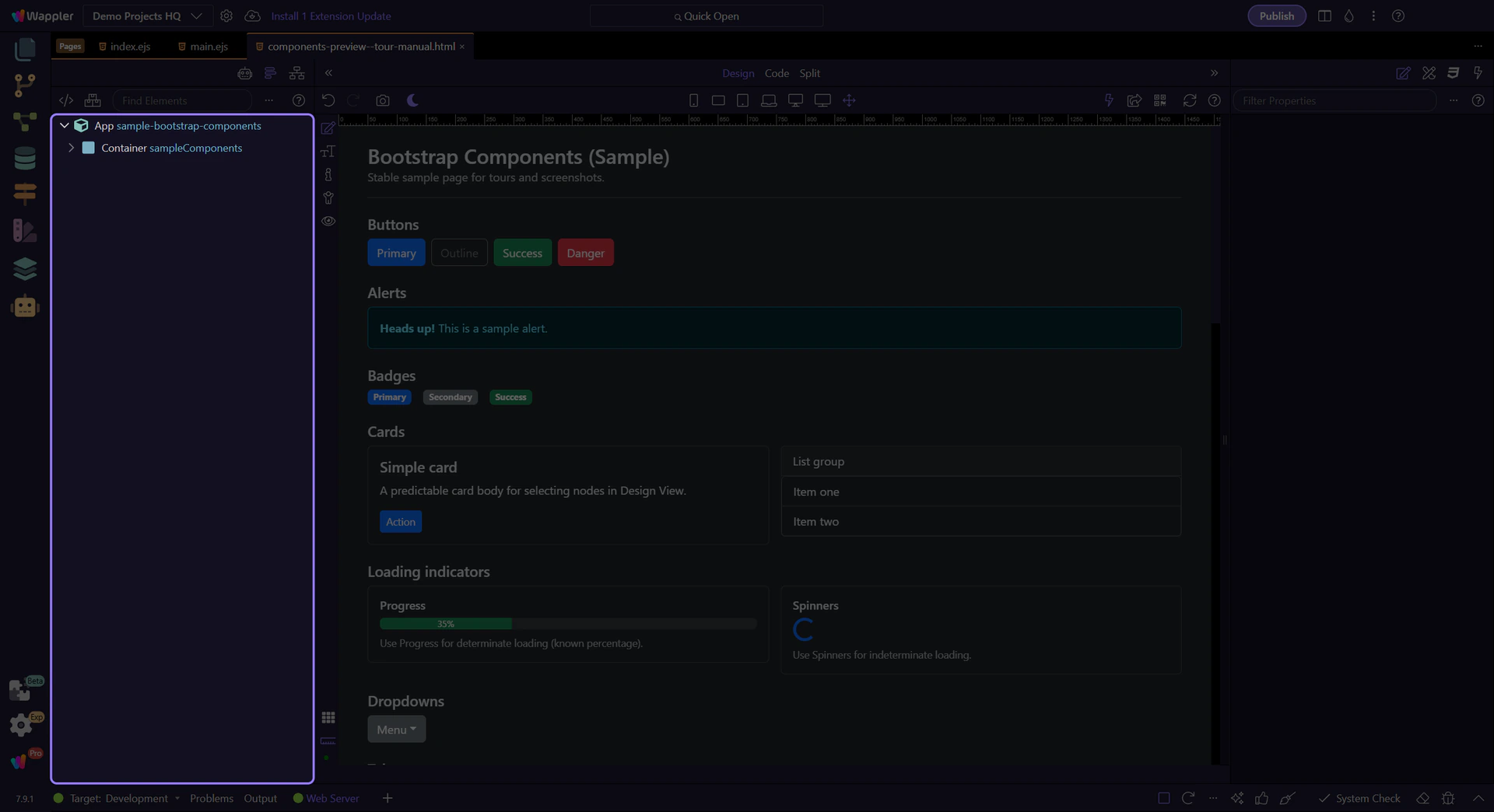
Components picker
Section titled “Components picker”The Components picker lets you browse by category and insert components and generators.
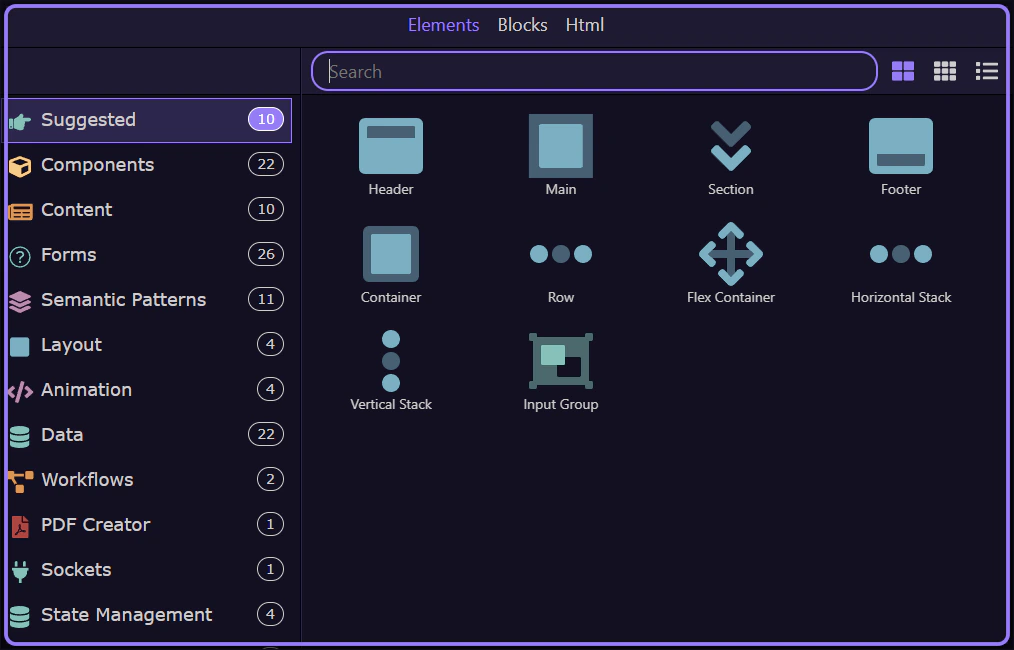
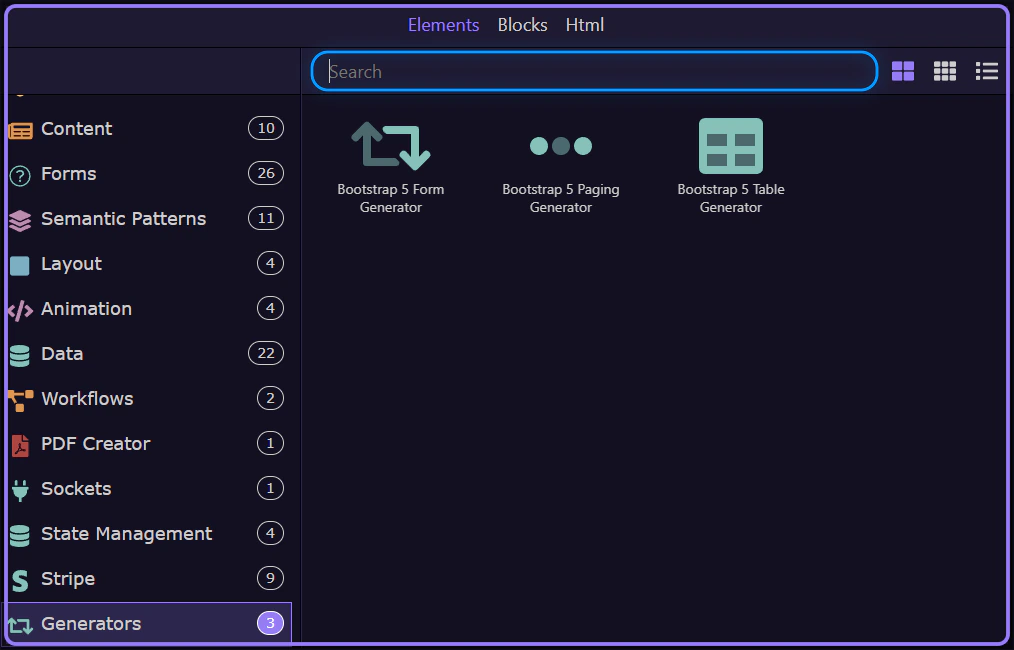
Generators category selected
Section titled “Generators category selected”The Generators category is now selected, showing the available generators.
tip: If you don’t see Bootstrap generators, make sure Bootstrap 5 is enabled for the page/frameworks.
Close the Components picker
Section titled “Close the Components picker”This closes the Components picker so you can continue working in the editor. Start a focused tour from the Generators index to walk through a specific generator dialog.
Next steps
Section titled “Next steps”Pick a focused generator tour, or return to the Bootstrap tours index.