
Tabs
Build tabbed navigation and content panes, including active states and accessibility basics.
Tab content and panes
Section titled “Tab content and panes”A tabbed interface pairs a set of tab buttons with related content panes so users can switch context without leaving the page. In this tour, start by understanding the full relationship between the tab list and the panes, because the later properties only make sense once that shared structure is clear.
Tabs example
Section titled “Tabs example”Tabs help you switch between related content panes without navigating away.
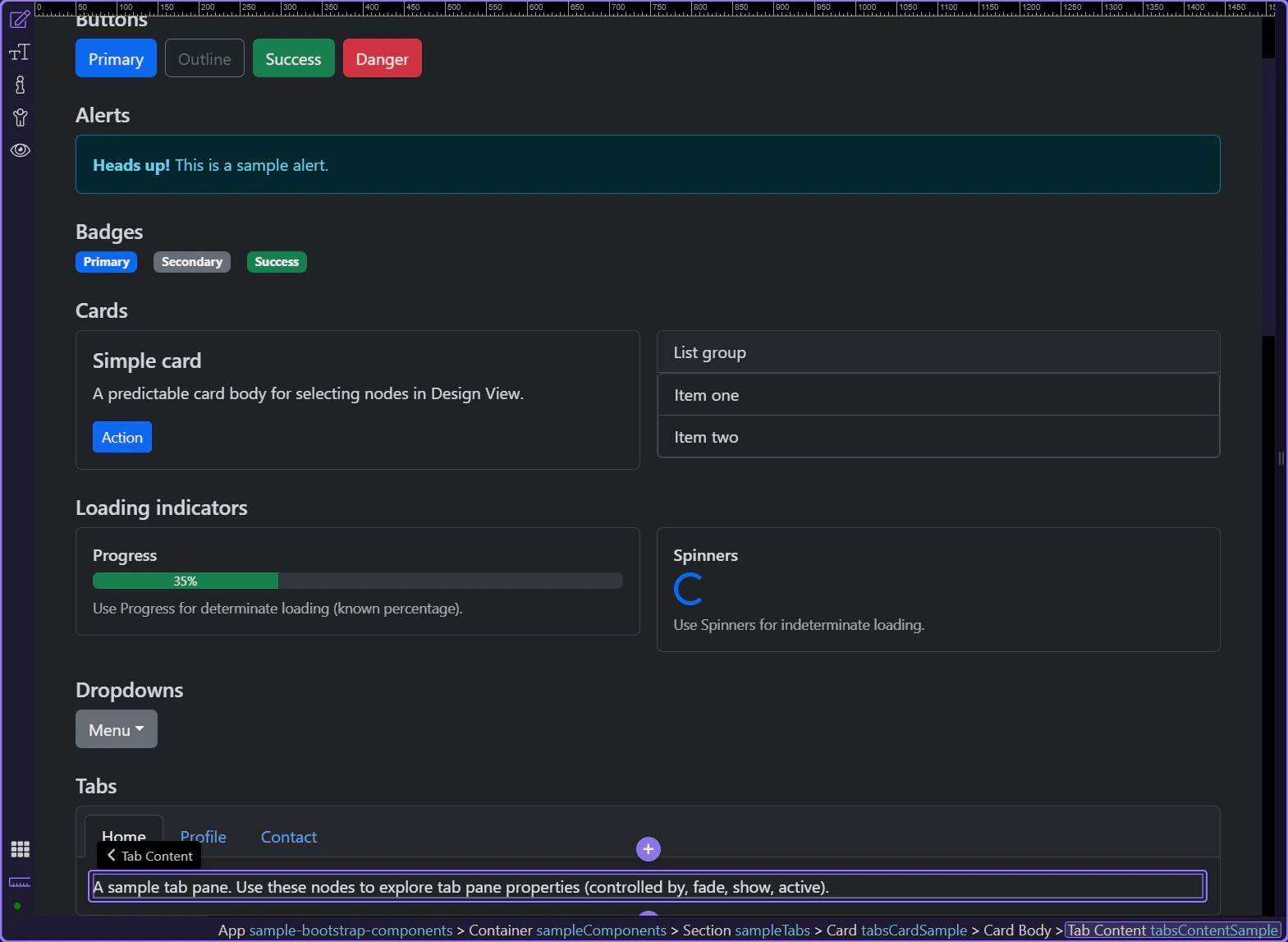
Active tab pane
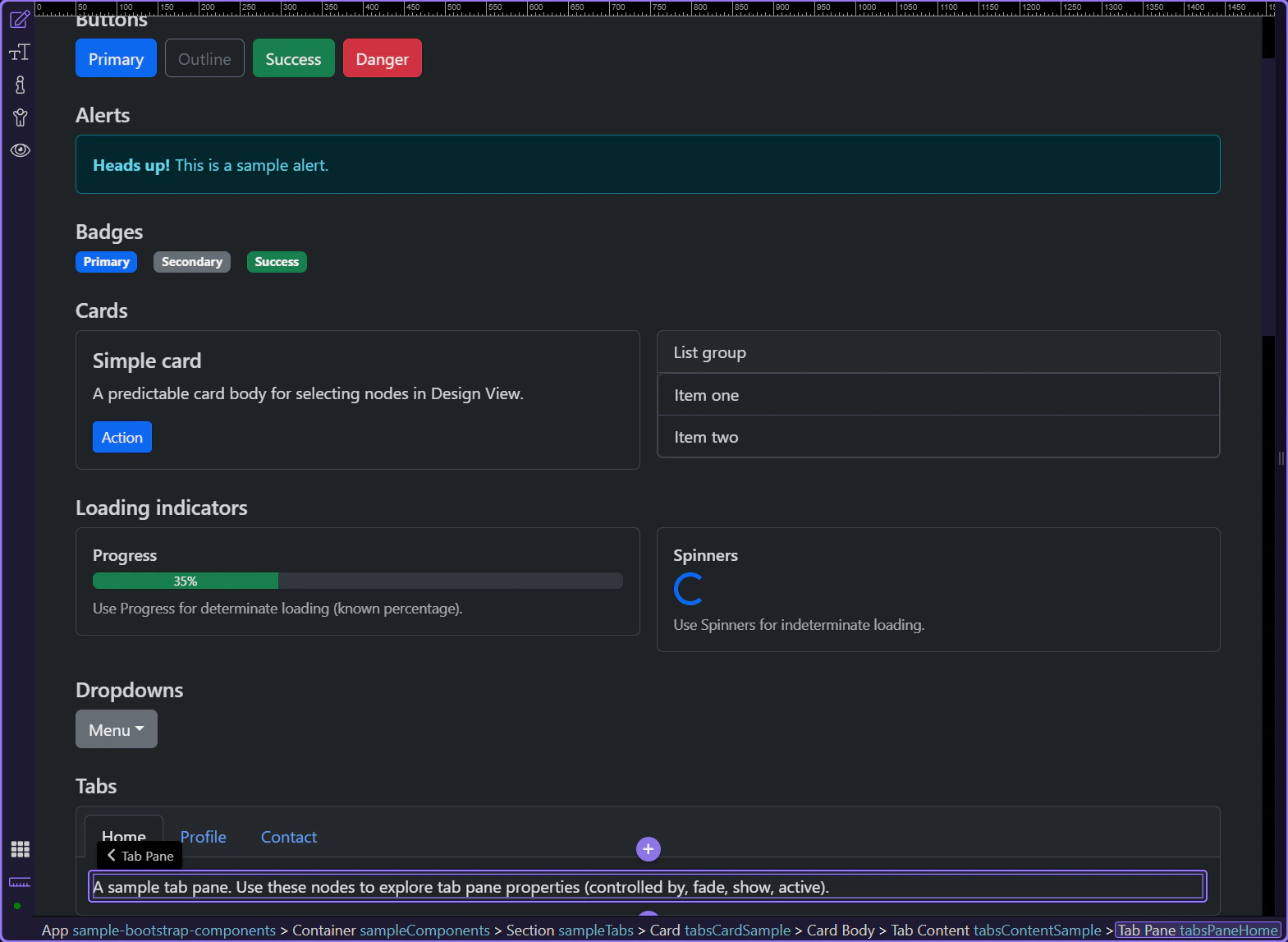
Section titled “Active tab pane”Each tab button controls a specific pane. Let’s review the active pane options.
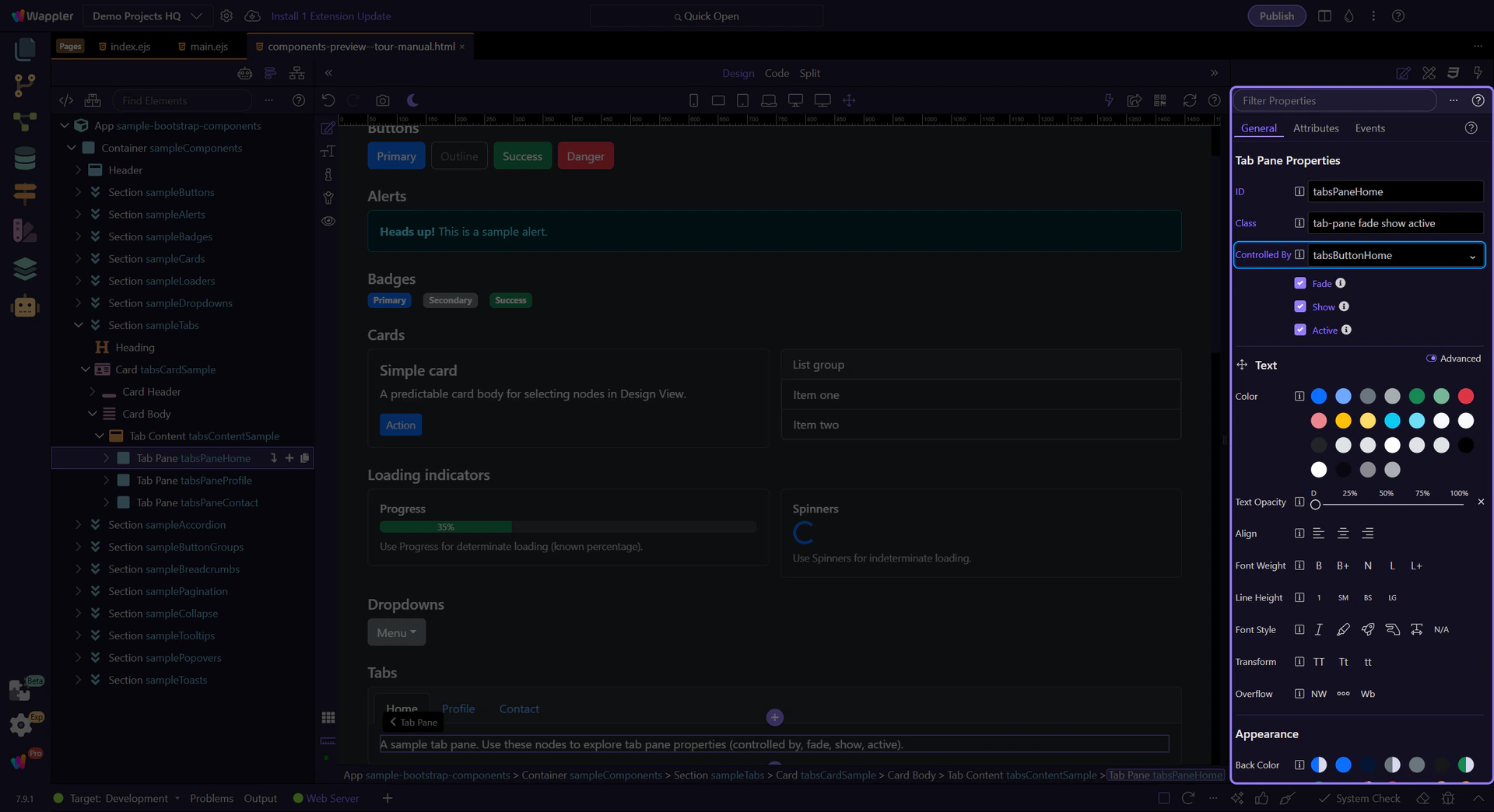
Tab pane: Controlled by
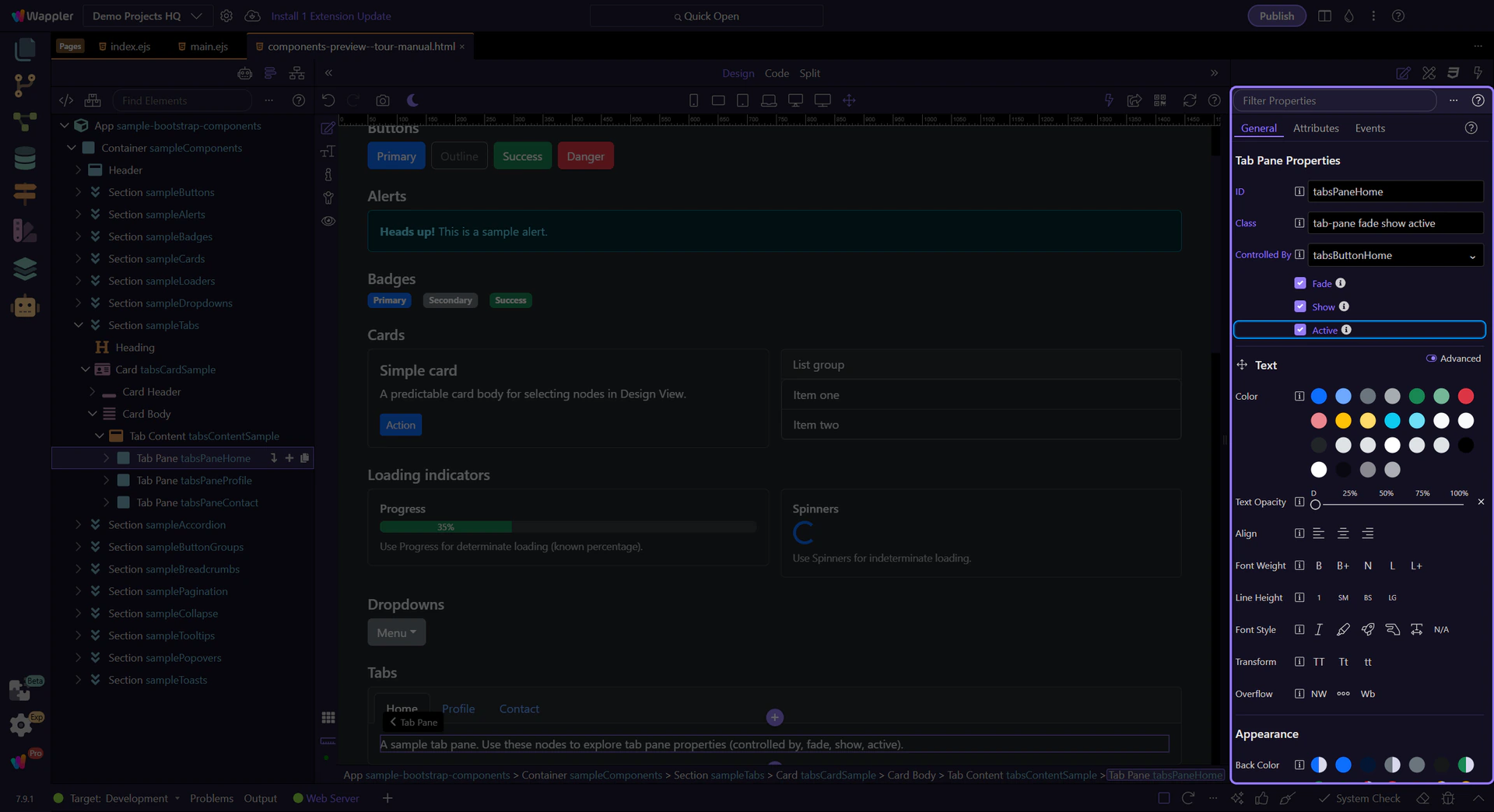
Section titled “Tab pane: Controlled by”Use Controlled By to link a pane to a specific tab button (by ID). This keeps the ARIA attributes consistent.
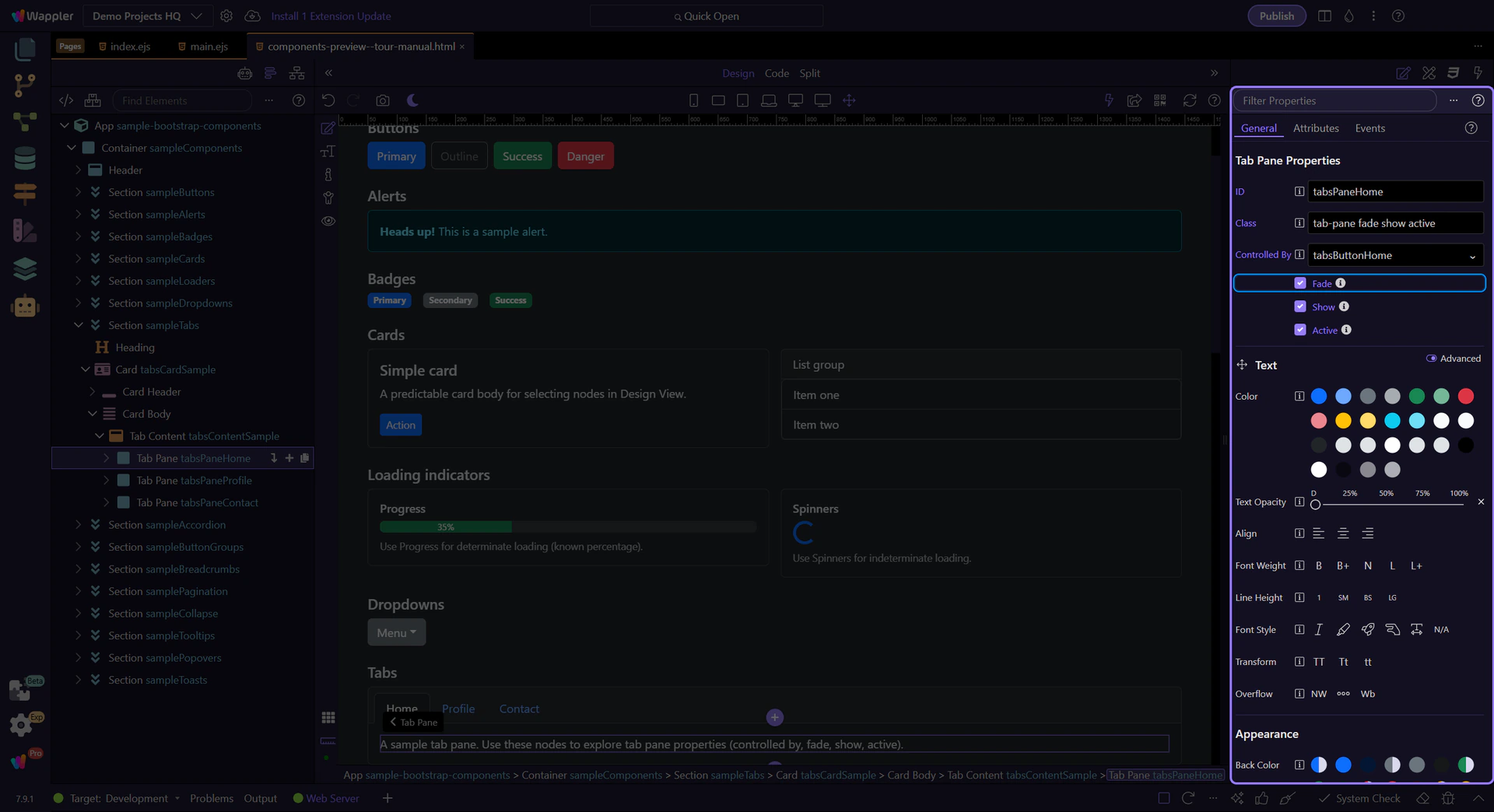
Tab pane: Fade
Section titled “Tab pane: Fade”Enable Fade for a smooth transition effect.
Tab pane: Show and Active
Section titled “Tab pane: Show and Active”Use Show and Active to control which pane is visible initially.
Next steps
Section titled “Next steps”Continue with other Components tours or return to the Components menu.