
Mobile project
Supplies the app structure and www web assets.
Configure and operate Capacitor in a Wappler Mobile project, including app identity, System Check, platforms, targets, build, run, open, debug, and packaging controls.
Capacitor is the standard app runtime for Wappler Mobile projects. Start in Project Manager with New Project → Mobile, choose Framework7 Blank or Bootstrap Blank, keep Capacitor selected as the runtime, and create the project. The current app toolbar then manages System Check, platforms, targets, builds, runs, native IDE handoffs, and packages.
Project Settings → General controls the runtime, design framework, routing, app file, assets, style file, and optional SQLite support. App Info controls the title, description, application ID, version, and author metadata written into the Capacitor project configuration and package metadata.
| Setting | Purpose | Practical guidance |
|---|---|---|
| Runtime | Selects Capacitor for the app project | Set this when creating the Mobile project |
| Design Framework | Framework7 8 or Bootstrap 5 | Choose by UI model, not by platform |
| Use Routing / Handler / File | Controls routed content pages | Framework7 handler for Framework7; App Connect for Bootstrap 5 |
| App File | Main client application script | Keep project initialization in one known file |
| Title | User-facing application name | Use the final product name before store builds |
| ID | Unique reverse-domain application identifier | Choose carefully before native platform creation |
| Version | Release version stored in package metadata | Update deliberately for releases |
| Use SQLite | Enables local database integration | Turn on only when the app needs device-local structured data |
The demo page contains real Capacitor App, Network, and Geolocation components inside a Framework7 route. This is the correct architecture: the Mobile project owns the runtime, the UI framework owns presentation, and App Connect components expose native state to the page.
The System Check button lives on the app publishing toolbar. Run it before adding a native platform or when a build tool changes. Wappler reports missing Node packages and platform requirements in Output so setup problems are resolved before they become opaque build failures.
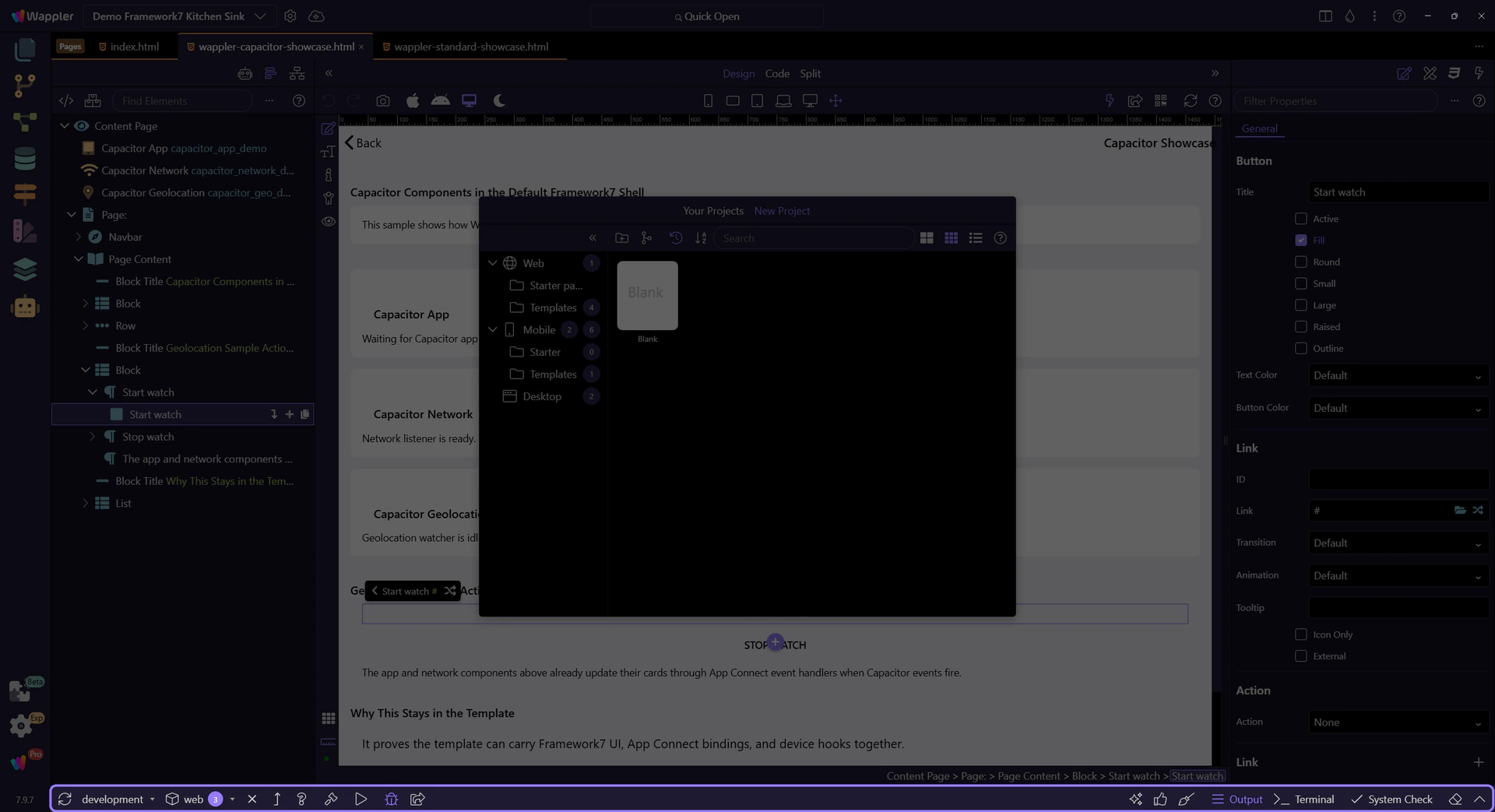
Every Capacitor project begins with the web platform. The Platform menu lists installed targets with their versions and exposes available iOS, Android, and Electron targets. Adding a target installs its packages, creates the native platform project, applies extension requirements, and refreshes the toolbar.
| Platform | Host requirement | Primary handoff |
|---|---|---|
| web | Any supported development host | Browser preview and web-compatible testing |
| android | Android SDK/JDK and Android Studio | Build, run target, device/emulator, open native project |
| ios | macOS with Xcode | Build, simulator/device target, open native project |
| electron | Desktop build toolchain | Build, run, open, and Pack desktop target |
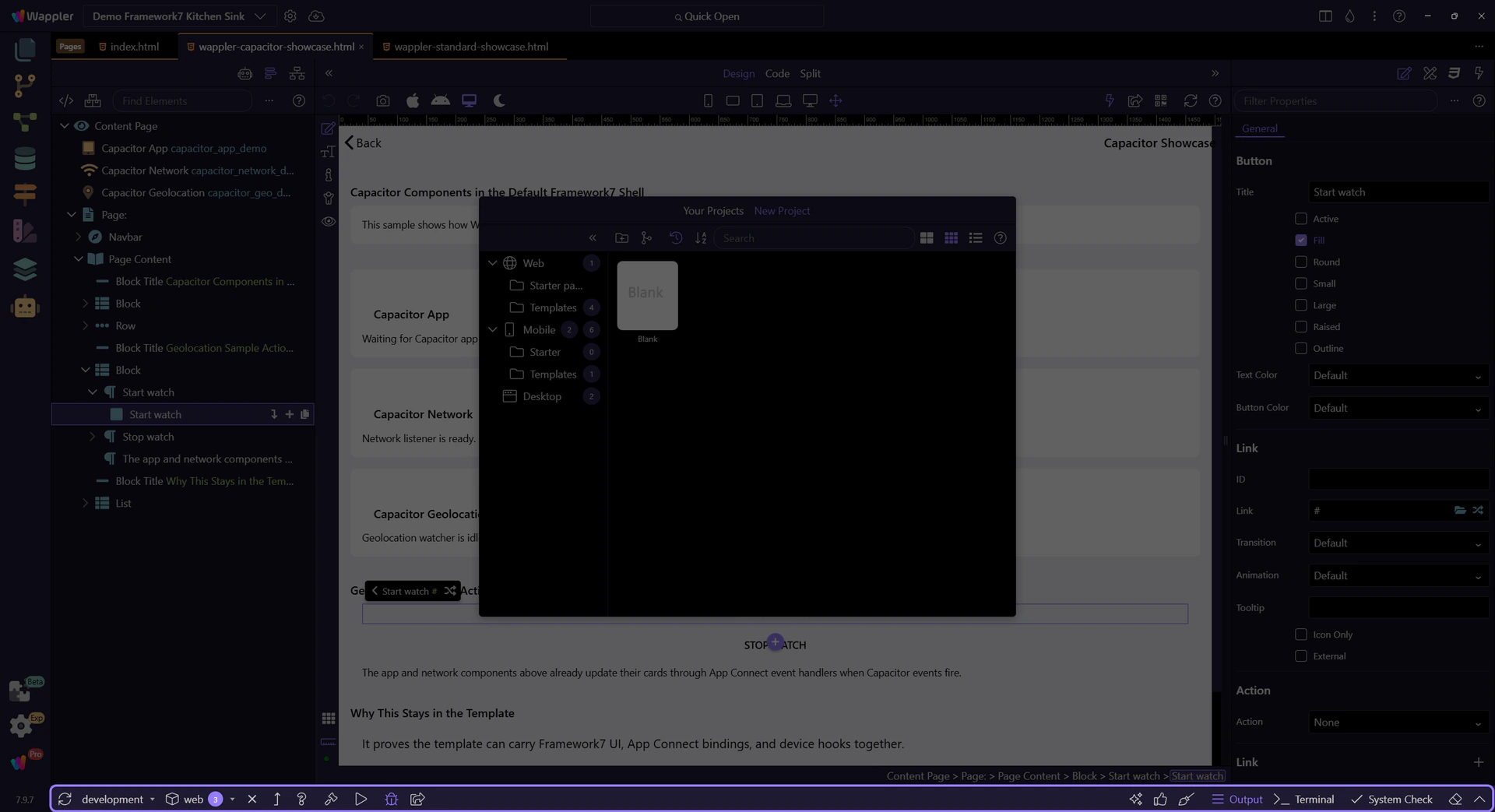
The publishing toolbar is a full operational surface, not only a Build button. Use the controls in a repeatable order and read Output after every platform operation.
| Control | Action |
|---|---|
| Refresh List | Reload installed platforms and available run targets |
| Active Environment | Select the Wappler environment used for the app build |
| Platform | Add or select web, iOS, Android, or Electron |
| Remove | Remove the selected platform project |
| Update | Update the selected platform |
| Platform Guide | Open the guide for the selected target |
| Build | Copy/synchronize web assets and build the selected platform |
| Pack | Package an Electron target for distribution |
| Run On | Choose a detected simulator, emulator, or target |
| Run | Run on the selected connected target |
| Enable Debug | Build/run with debugging enabled |
| Open | Open the native platform project in its platform application |
| Output / Terminal | Inspect Wappler operation output or use a project terminal |
| System Check | Verify and install required components |
| Clear output | Clear the current Output or Terminal pane |
Select the environment and platform, refresh targets, build, choose Run On, then Run. Use Open when native signing, manifest, store, or platform-specific work belongs in Android Studio, Xcode, or the Electron project. Return to Wappler for the shared pages, App Connect logic, extensions, and assets.
When a Capacitor extension is added or changed, Wappler refreshes project assets, evaluates the extension’s Capacitor package requirements, installs target-specific packages when needed, and applies platform configuration such as Android manifest entries or iOS plist values. Build again after extension or permission changes.
IMPORTANT: A native plugin is not complete until its package, platform configuration, permissions, web assets, and target build are all synchronized.
Confirm the application ID and version, icons and splash assets, target permissions, environment values, offline/network behavior, signing, production build mode, install/run behavior, and store package on every platform you plan to ship.
| Area | Verify |
|---|---|
| Identity | App ID, title, version, author, bundle/package identifiers |
| Assets | Icons, splash screens, safe-area layout, launch appearance |
| Capabilities | Permissions, plugin configuration, privacy descriptions |
| Environment | Correct APIs, secrets handoff, URLs, and production flags |
| Distribution | Signing, package format, installation, and store requirements |
Continue into the complete native-plugin surface, then build the Camera workflow as a focused example.