Creating Stripe Pricing Tables
Intro You can easily create a table that displays different subscription pricing levels to your customers. The Stripe Pricing Table is simple to configure using the the Stripe Dashboard. Stripe Pricin
You can easily create a table that displays different subscription pricing levels to your customers. The Stripe Pricing Table is simple to configure using the the Stripe Dashboard.
Stripe Pricing Table
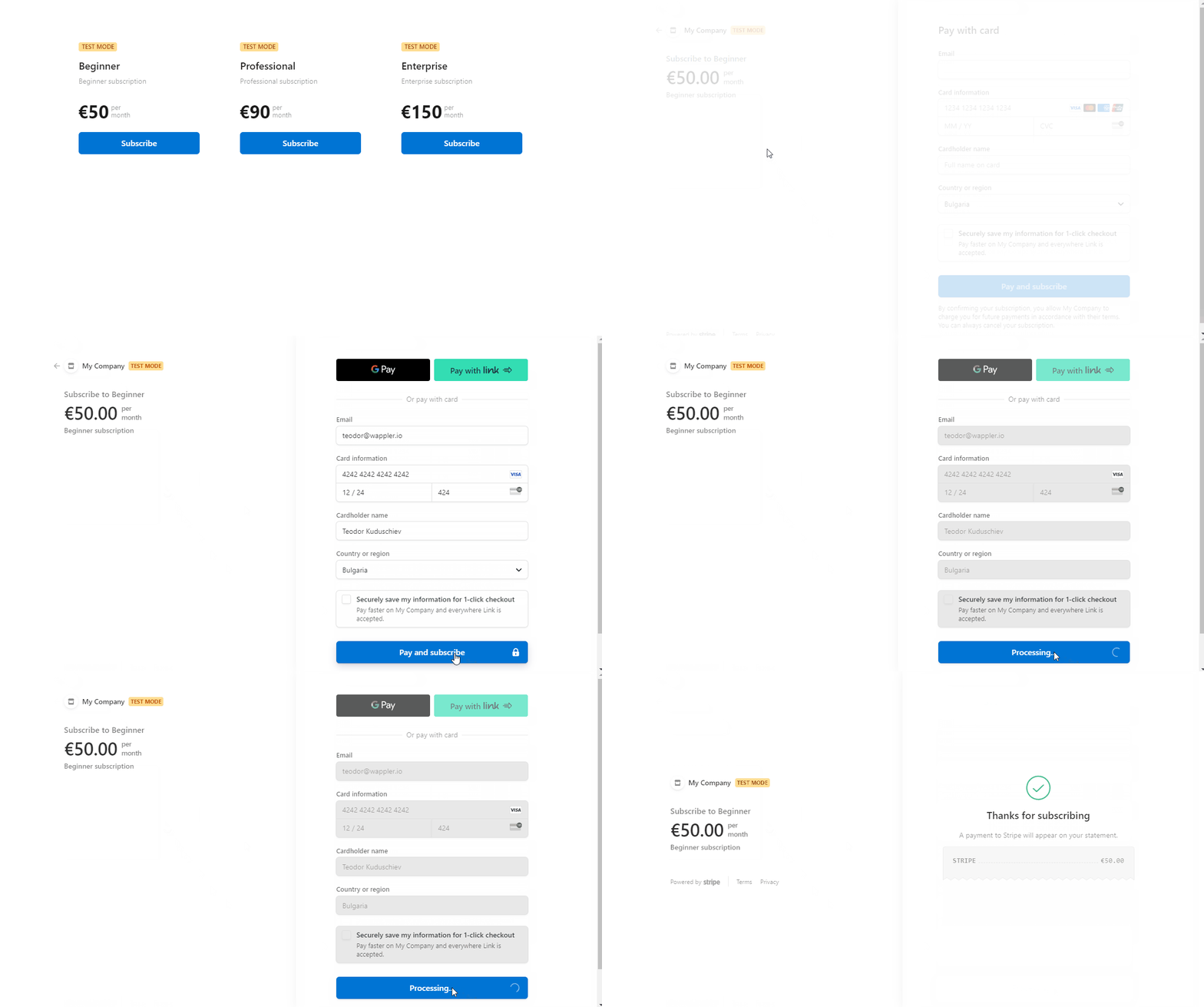
Section titled “Stripe Pricing Table”The Pricing Table displays pricing information and takes customers to a prebuilt checkout flow.
Pricing Table Setup
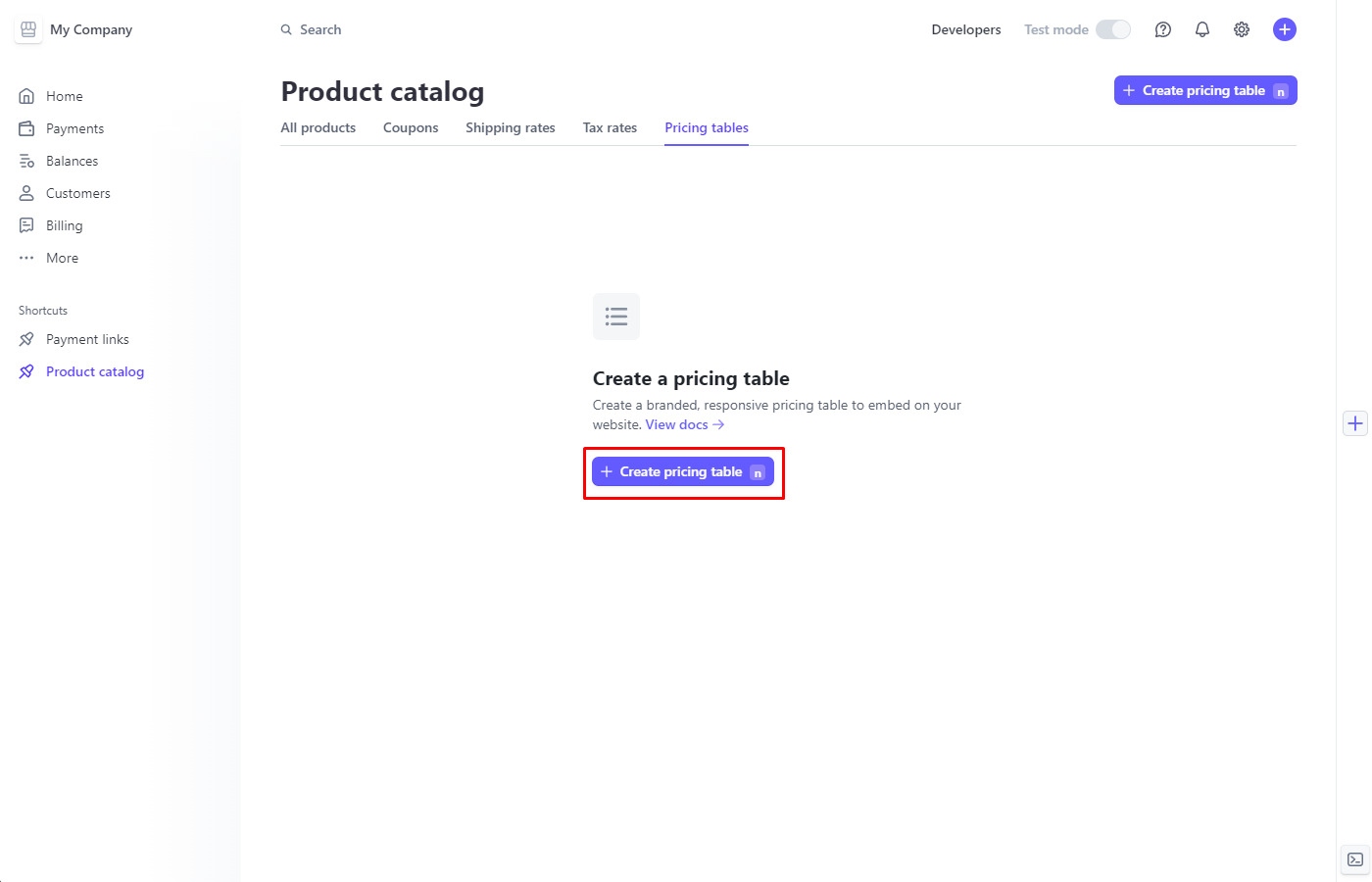
Section titled “Pricing Table Setup”In the Dashboard, go to More > Product catalog > pricing tables
Click +Create pricing table:
Add products or select from the existing ones. Optionally, include a free trial:
Section titled “Add products or select from the existing ones. Optionally, include a free trial:”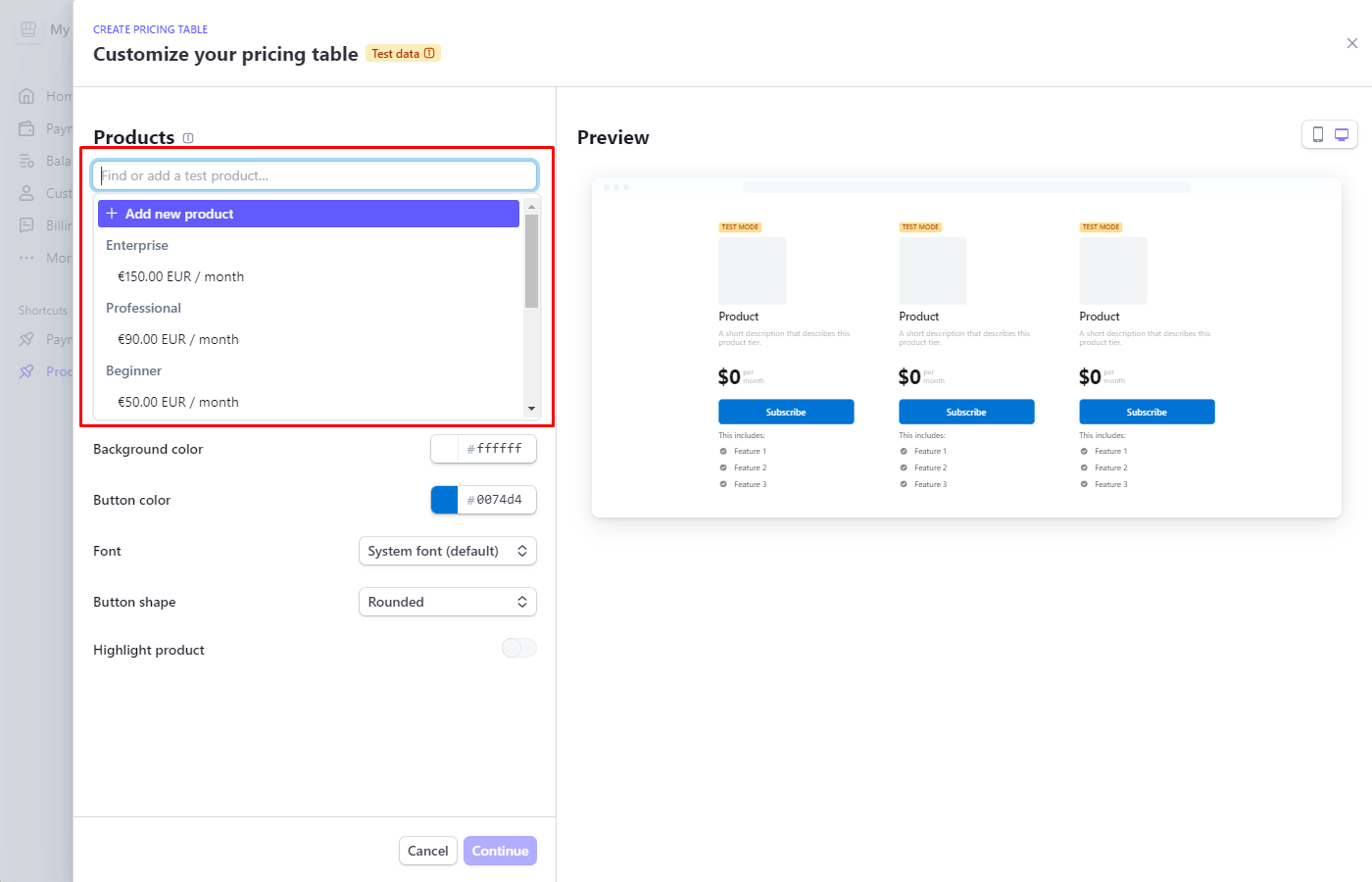
We added 3 types of subscriptions:
Section titled “We added 3 types of subscriptions:”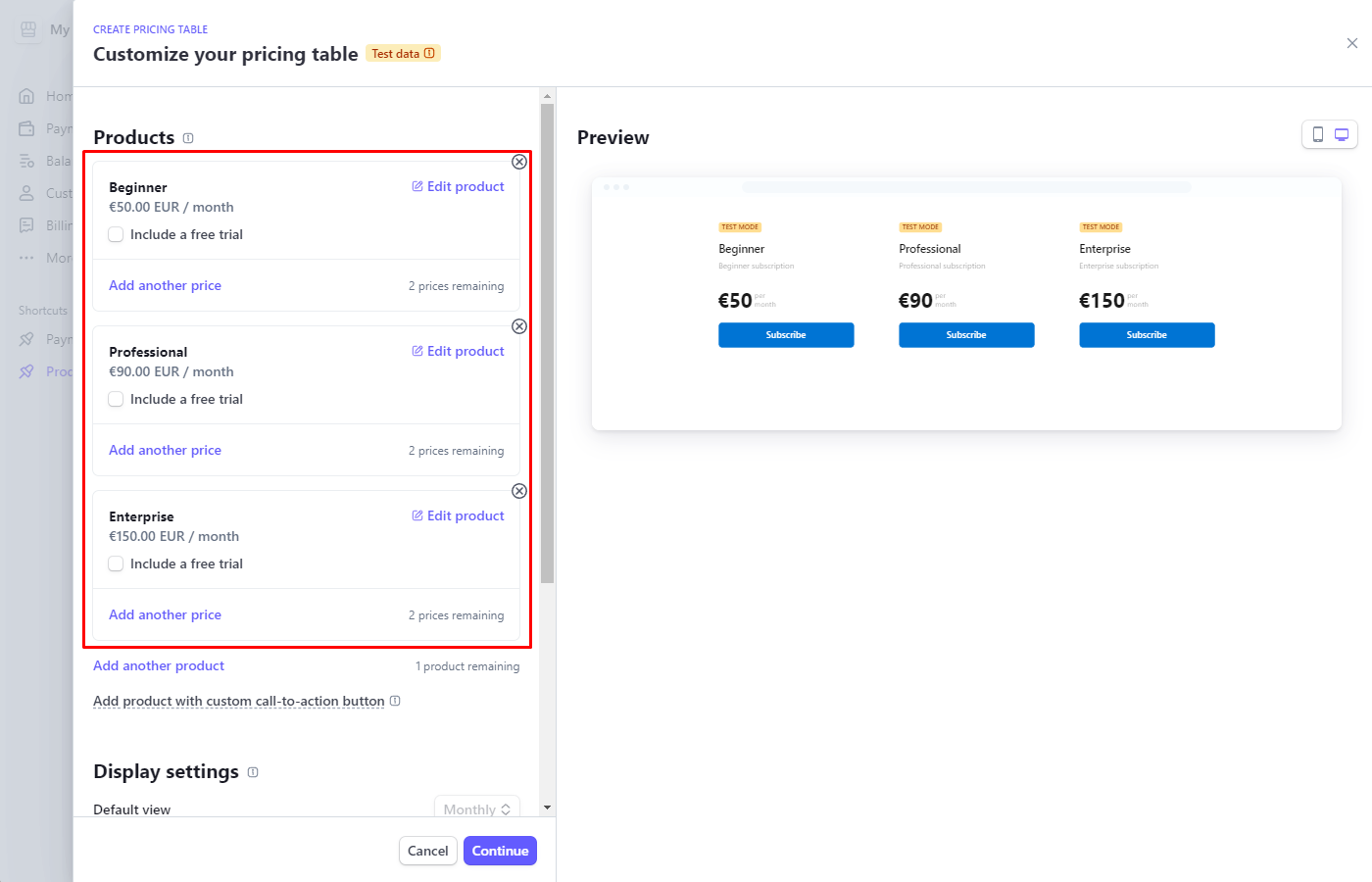
Step 7
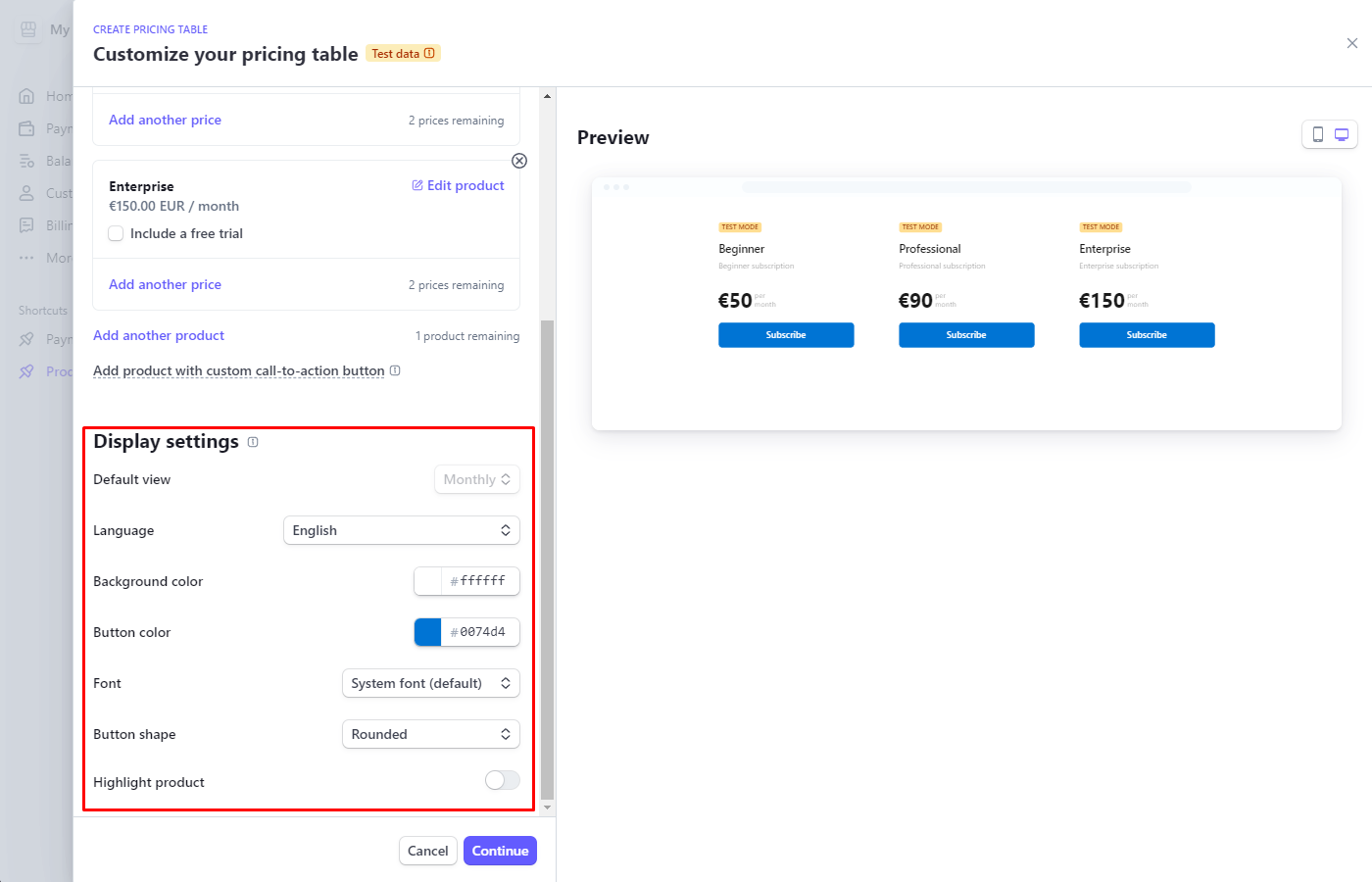
Section titled “Step 7”Adjust the look and feel in Display settings. You can highlight a specific product and customize the language, colors, font, and button design. Click Continue:
Step 8
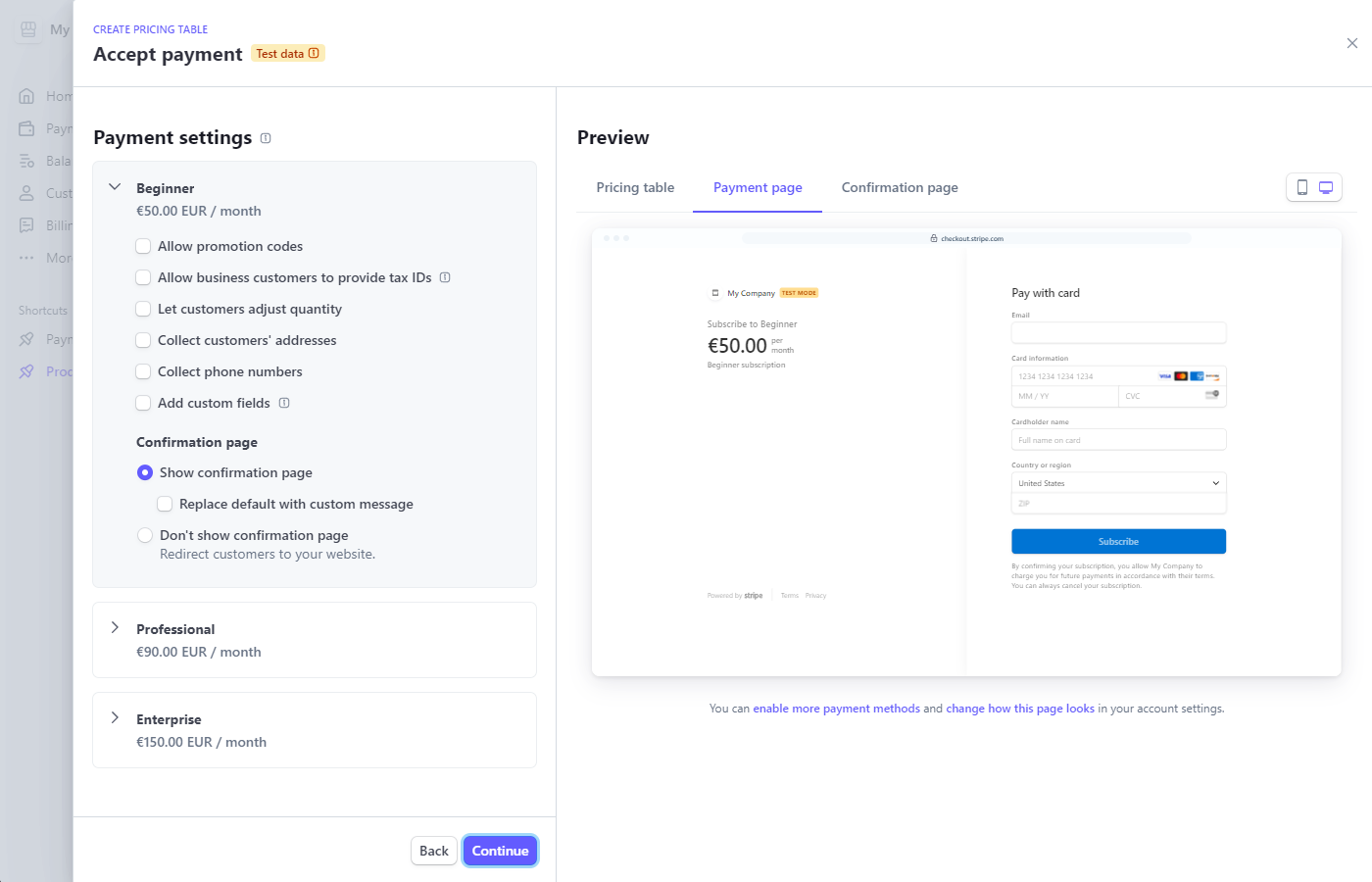
Section titled “Step 8”Customize what customers see on the payments page and whether to display a confirmation page or redirect customers back to your site after a successful purchase. Click Continue:
Configure the customer portal:
Section titled “Configure the customer portal:”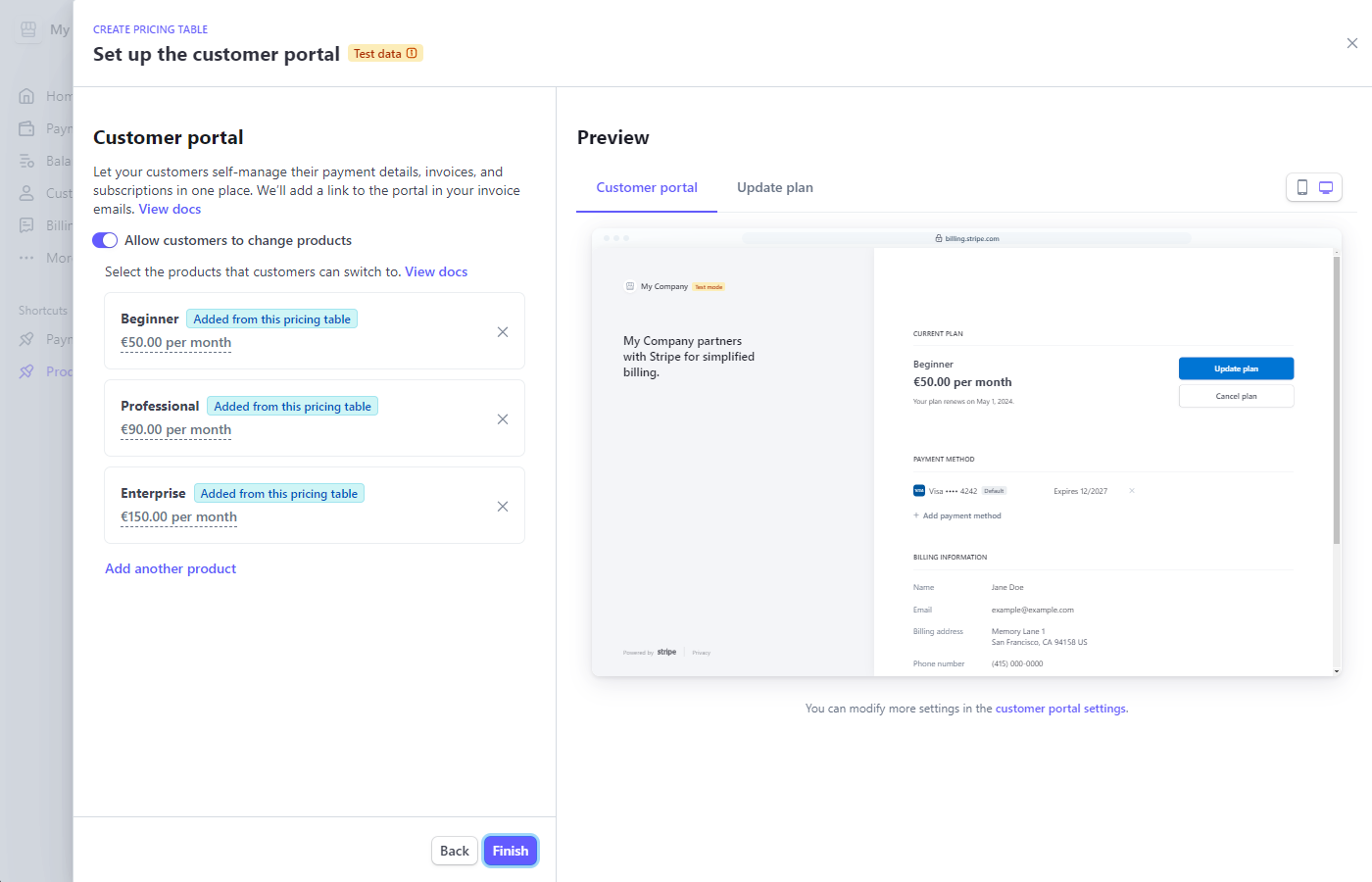
Copy the pricing table ID and the publishable key, as they will be needed in the next steps:
Section titled “Copy the pricing table ID and the publishable key, as they will be needed in the next steps:”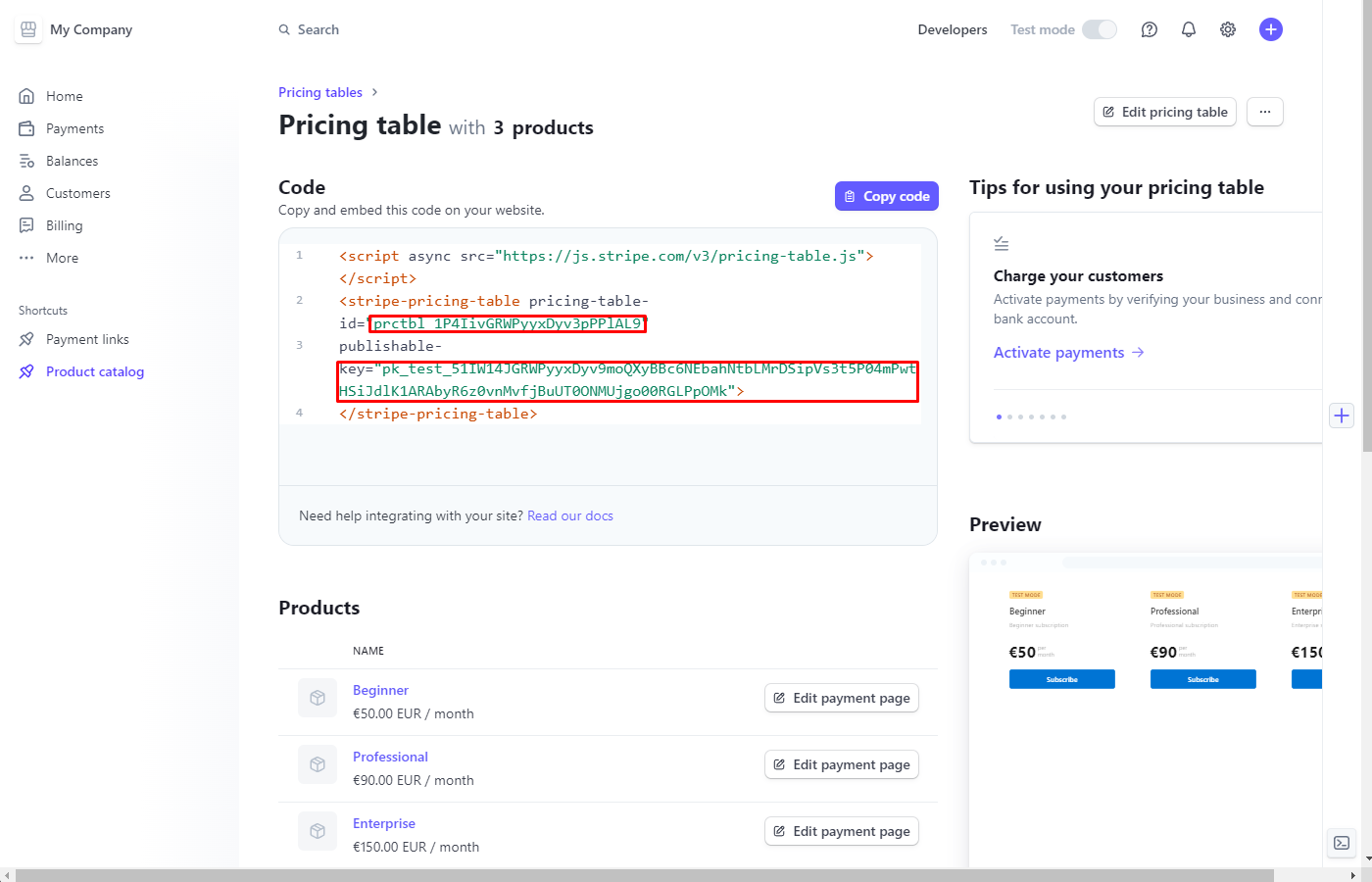
Adding Pricing Table on Your Page
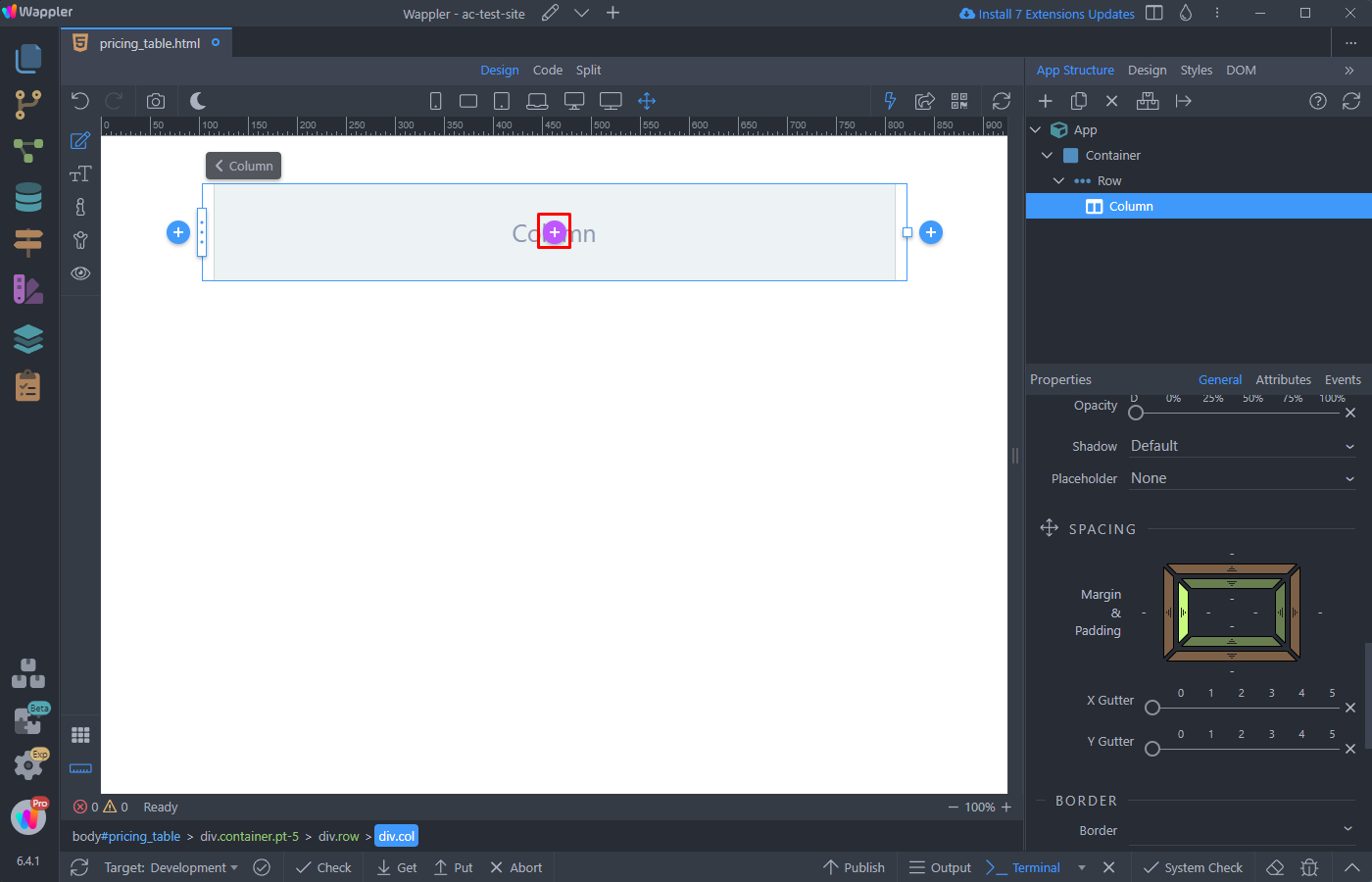
Section titled “Adding Pricing Table on Your Page”Click the Add New Component button on your page:
Select Stripe > Stripe Pricing Table:
Section titled “Select Stripe > Stripe Pricing Table:”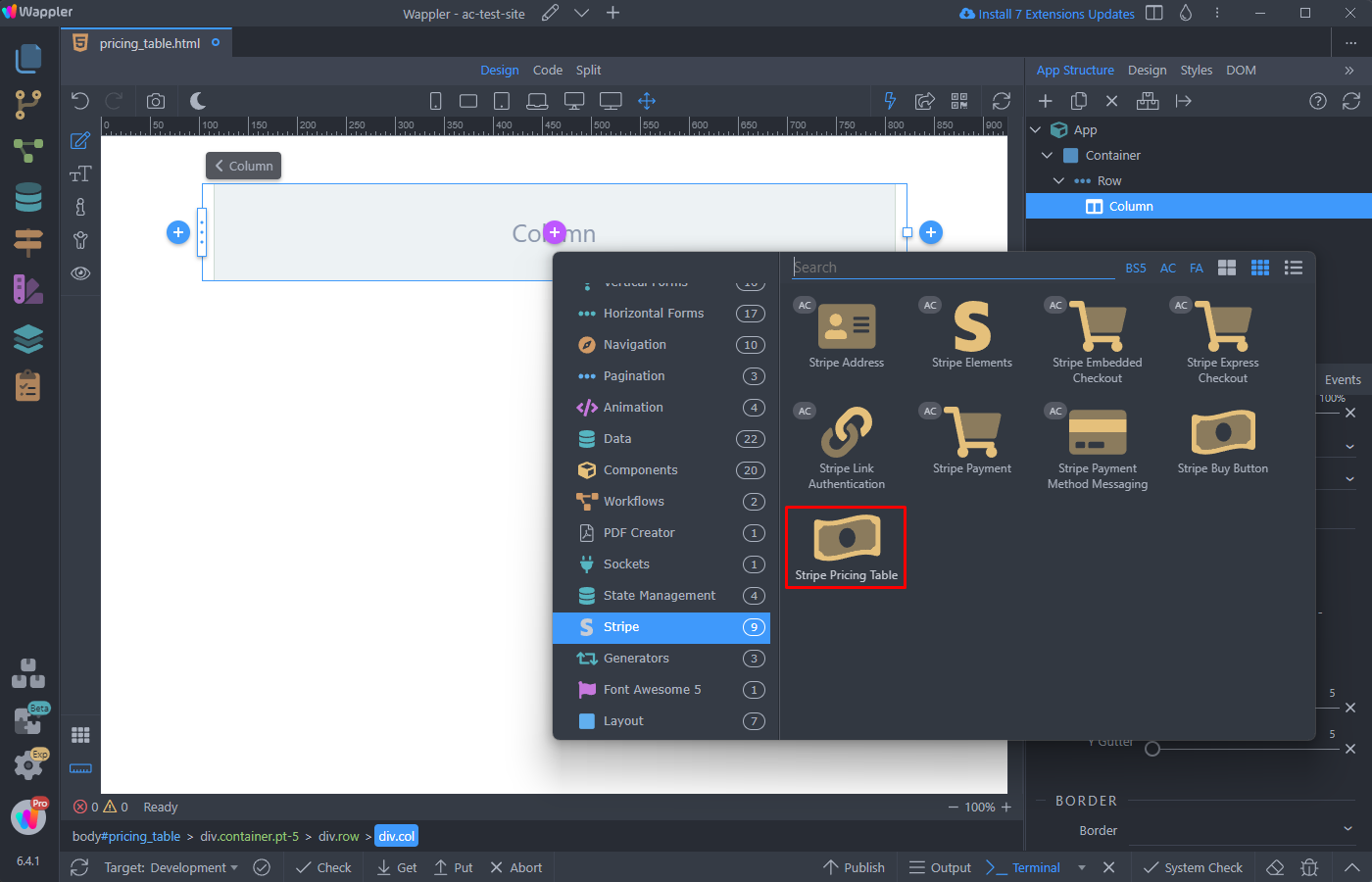
Paste the pricing table id and the publishable key:
Section titled “Paste the pricing table id and the publishable key:”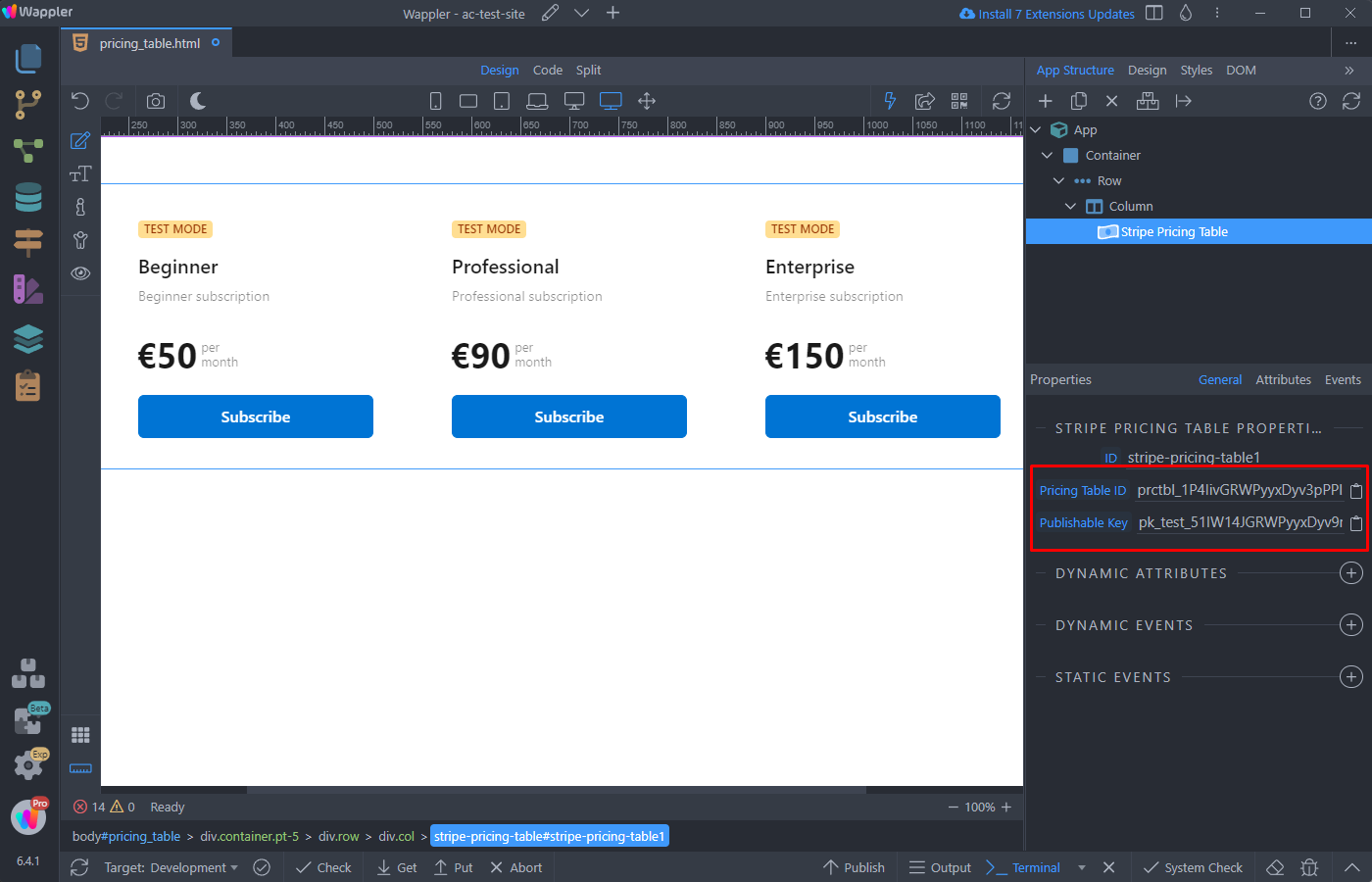
Save your page and you are done:
Section titled “Save your page and you are done:”