Installing and Using Redis for Multiple Projects
Intro You can install Redis on a remote cloud server and use it for different projects. This is useful as you can have a single Redis instance running for all your projects. Setting Up Redis We are us
You can install Redis on a remote cloud server and use it for different projects. This is useful as you can have a single Redis instance running for all your projects.
Setting Up Redis
Section titled “Setting Up Redis”We are using a cloud server by one of the cloud providers in Wappler, Hetzner:
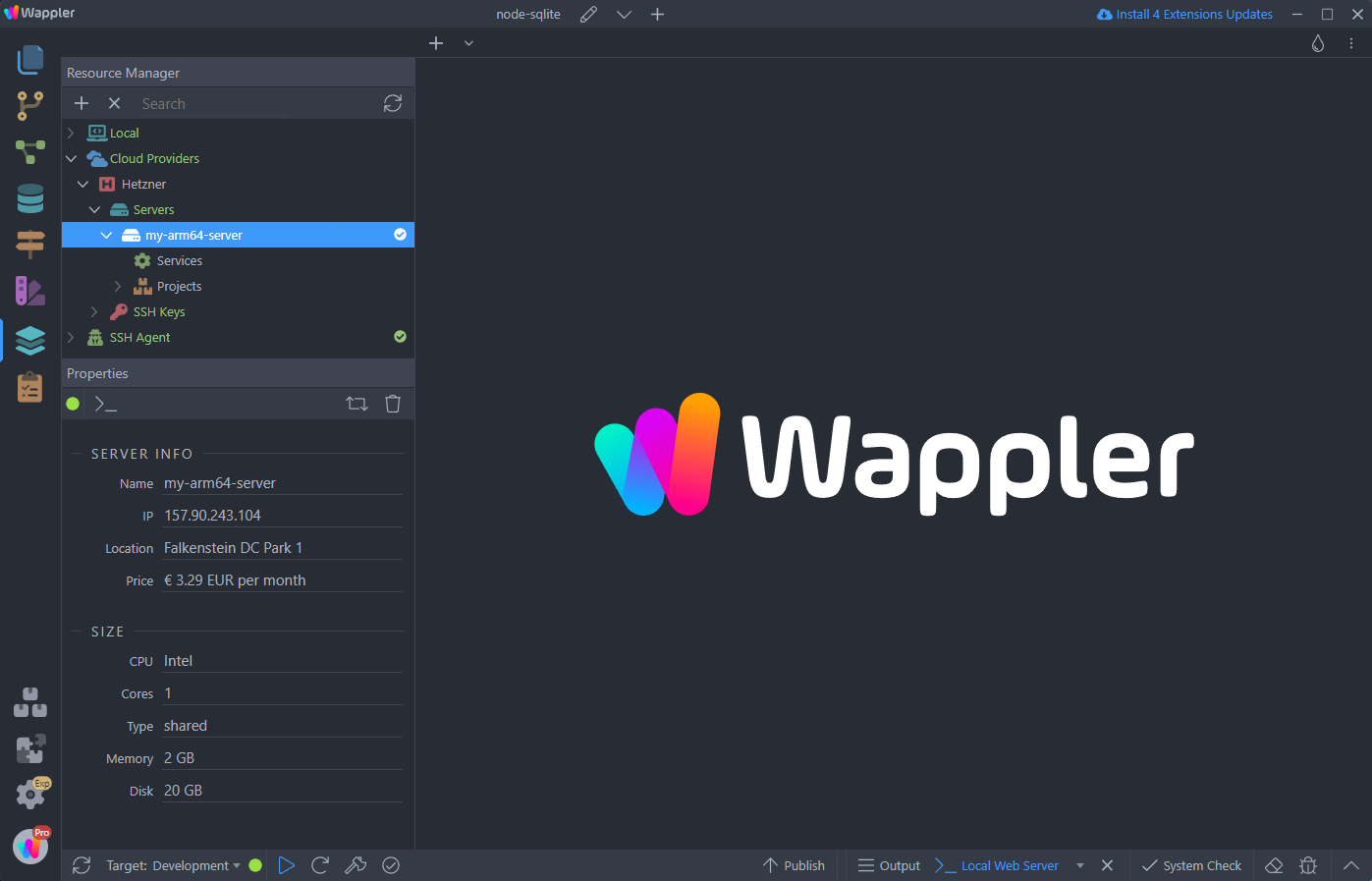
In order to add Redis there, right click services, then select Add Service > Databases > and select Redis:
Section titled “In order to add Redis there, right click services, then select Add Service > Databases > and select Redis:”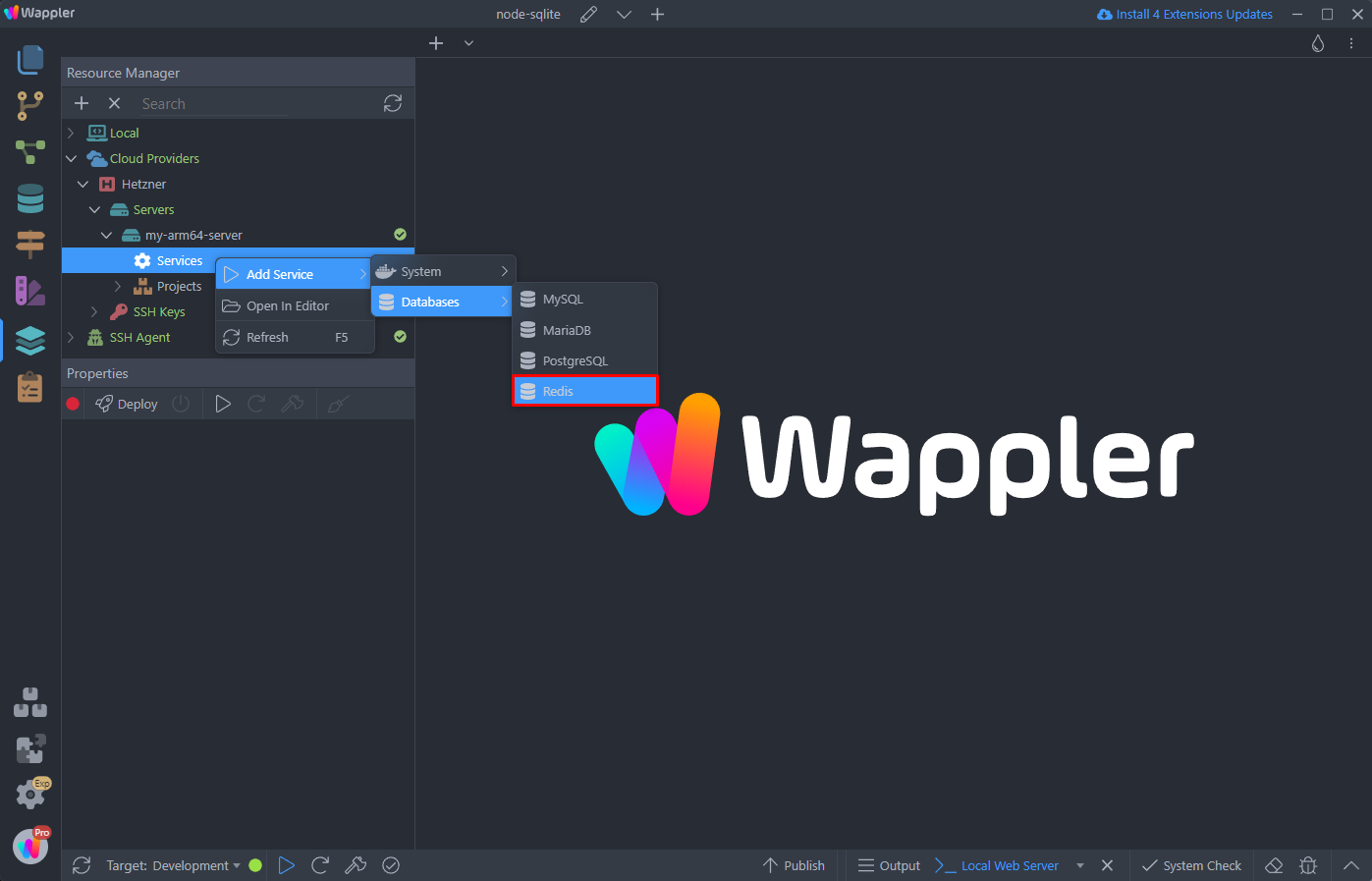
Add a name:
Section titled “Add a name:”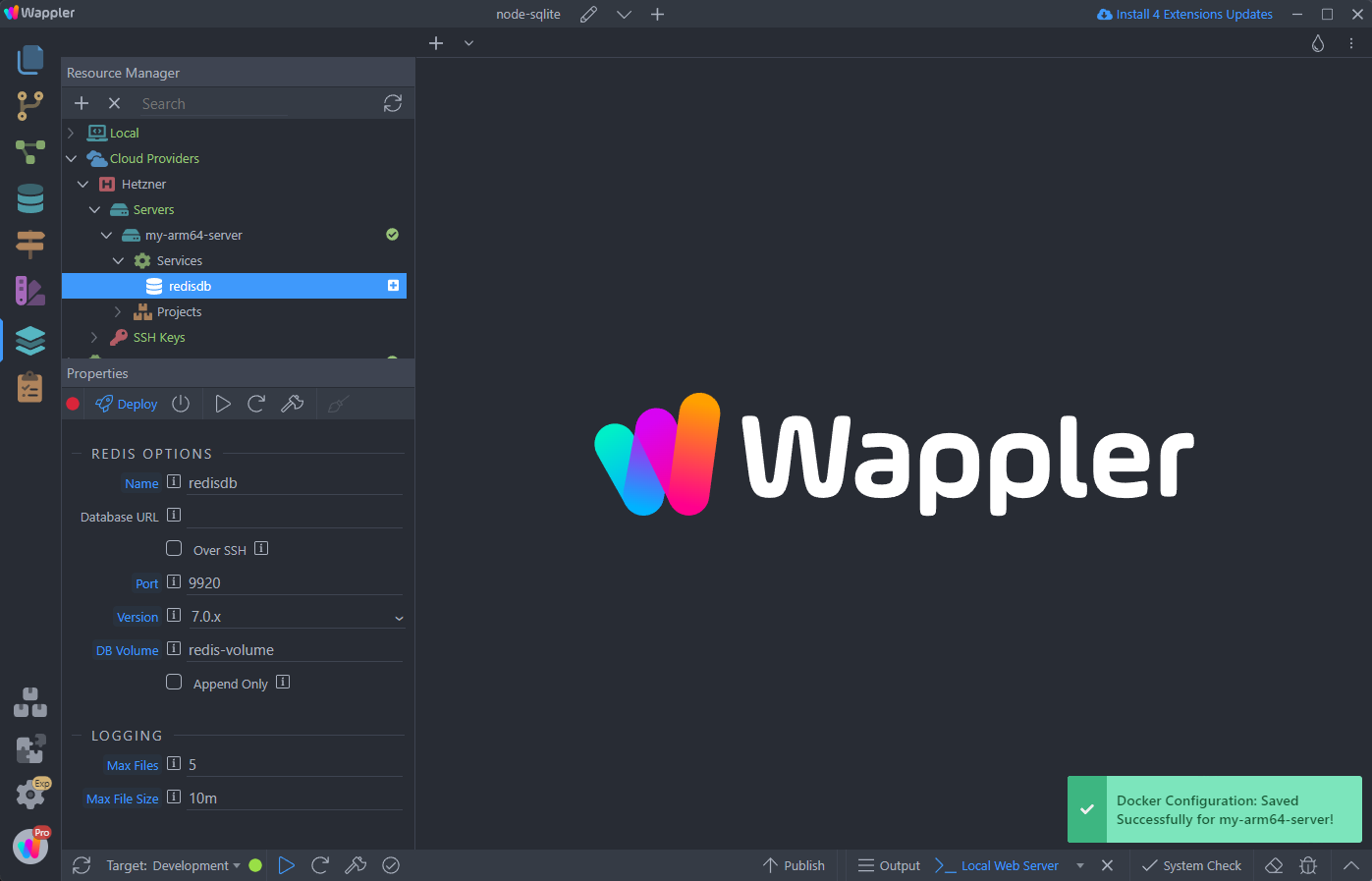
And click the Deploy button:
Section titled “And click the Deploy button:”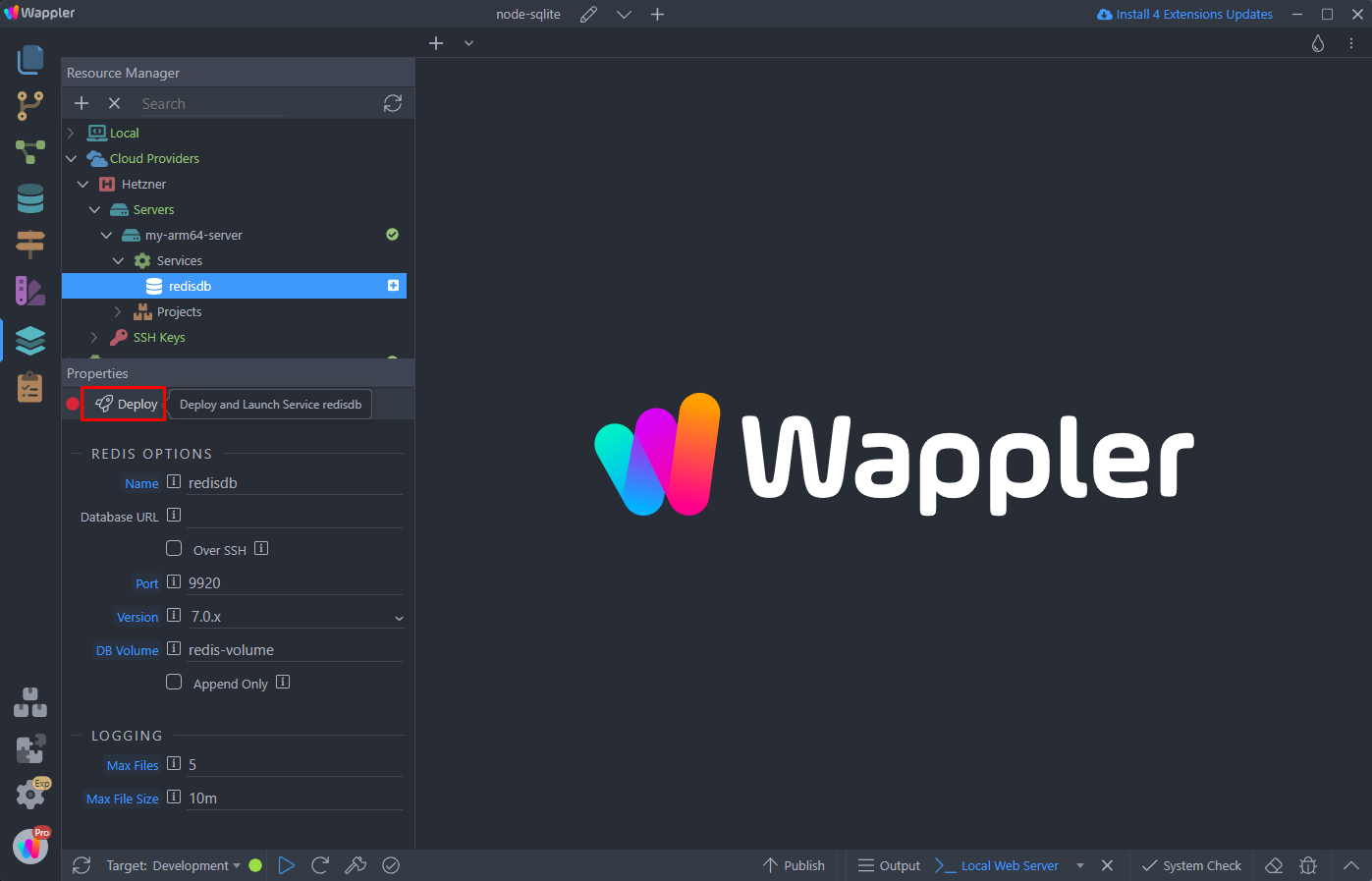
You can see the progress in the bottom panel:
Section titled “You can see the progress in the bottom panel:”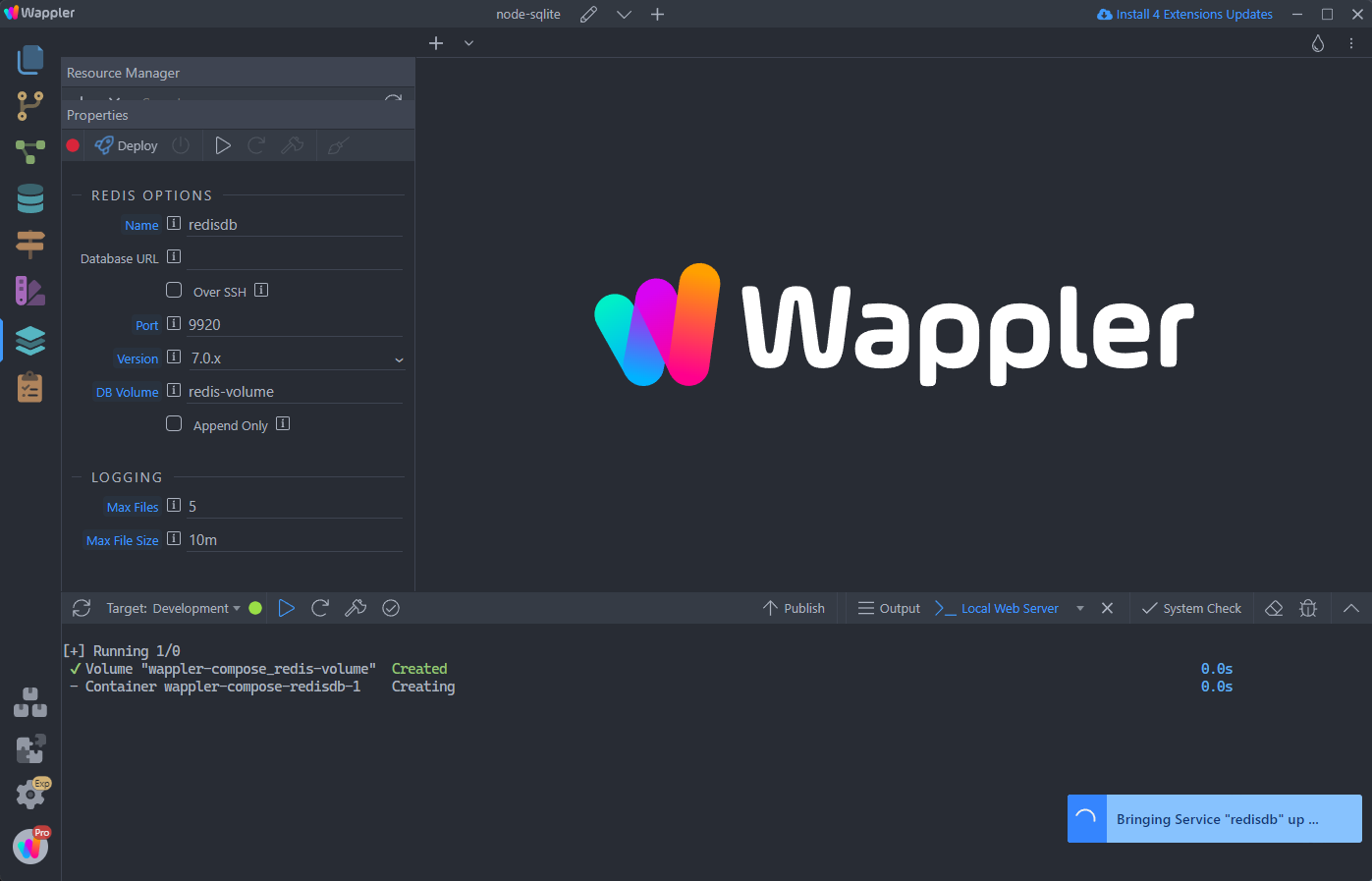
You can adjust the Redis options in the properties panel:
Section titled “You can adjust the Redis options in the properties panel:”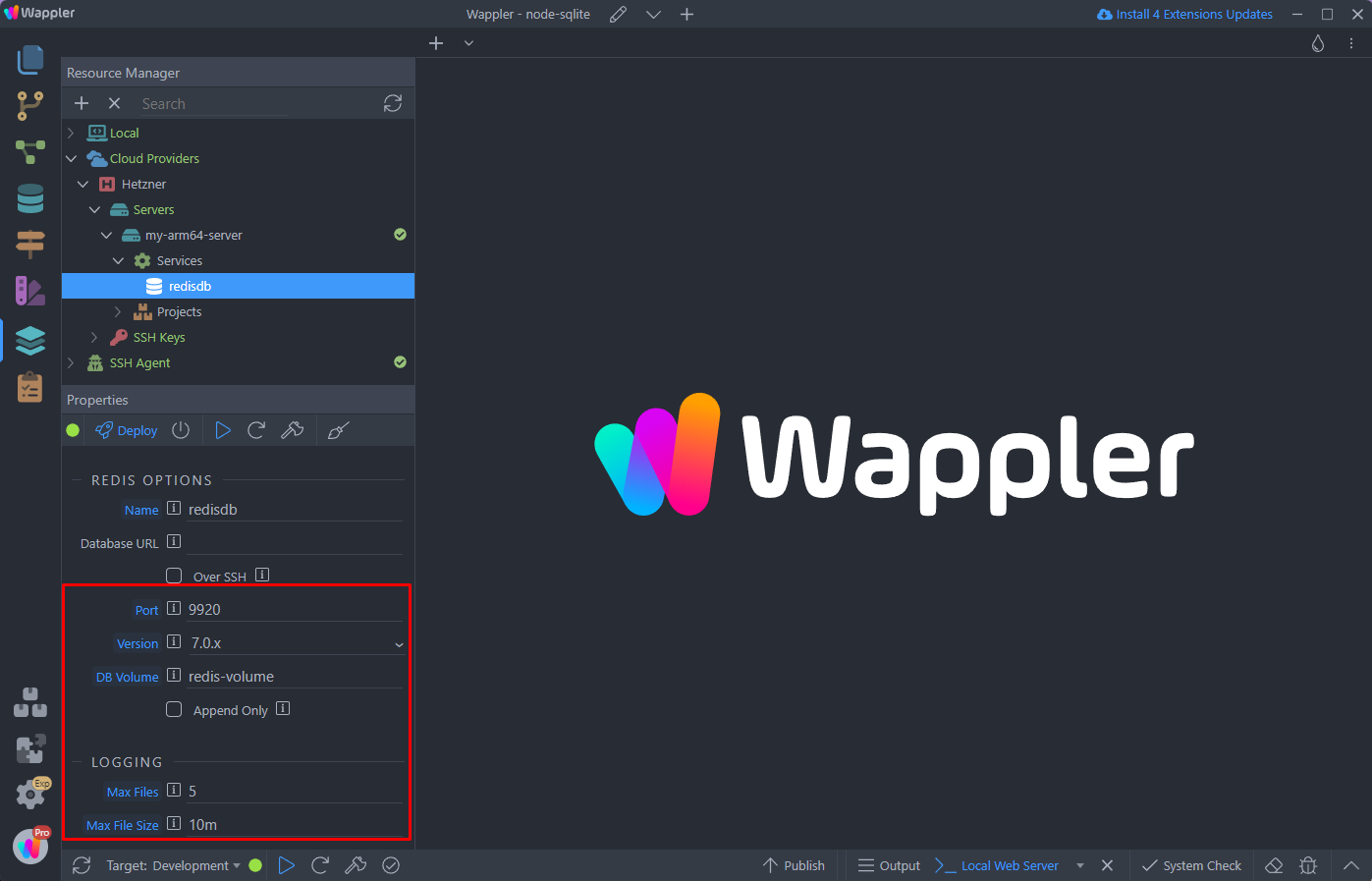
Enabling Redis for Your Project
Section titled “Enabling Redis for Your Project”Once Redis is up and running on your cloud server, you can enable it for your project(s). Open the project options:
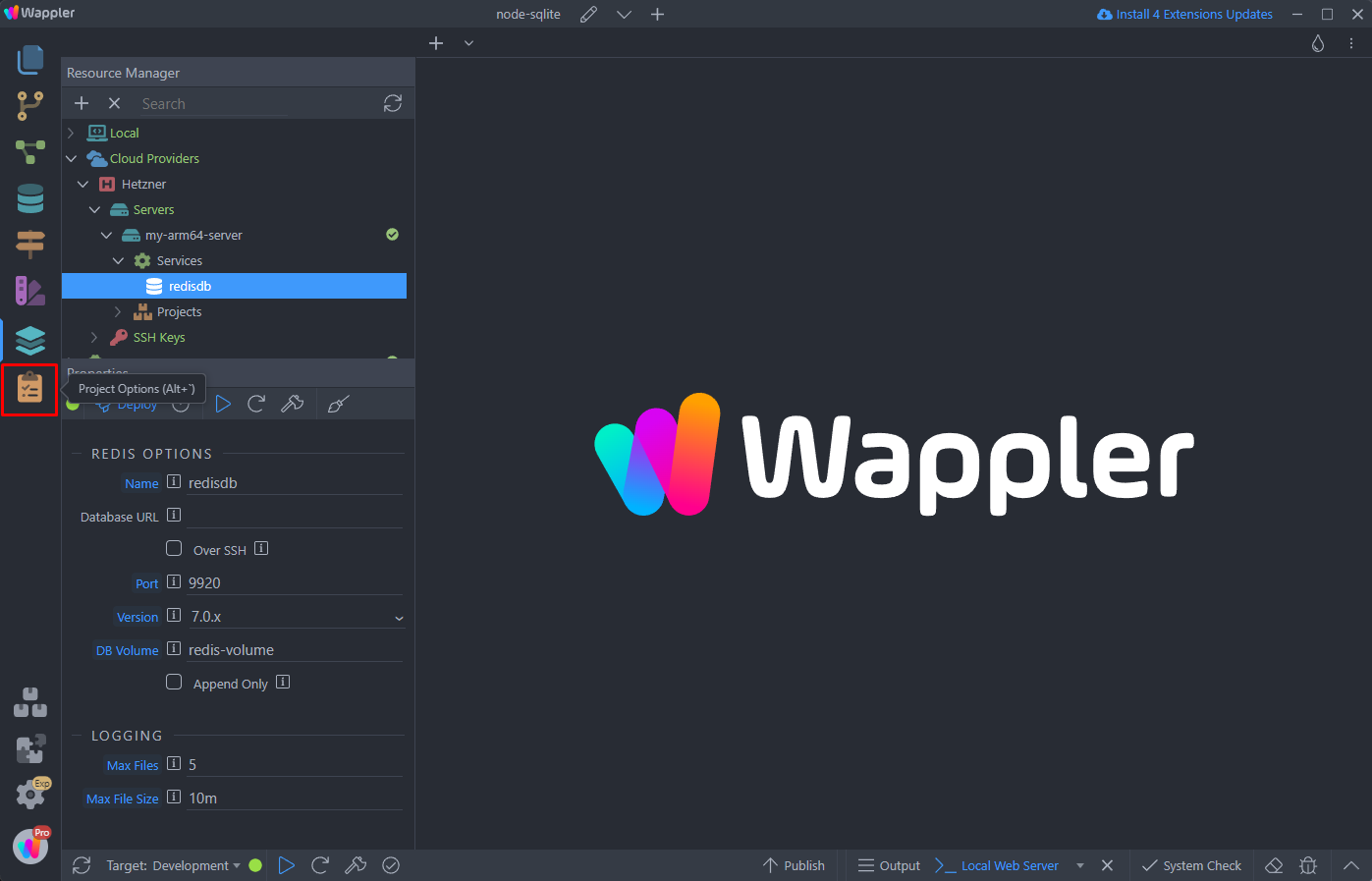
Open Targets, select your target and Enable Redis:
Section titled “Open Targets, select your target and Enable Redis:”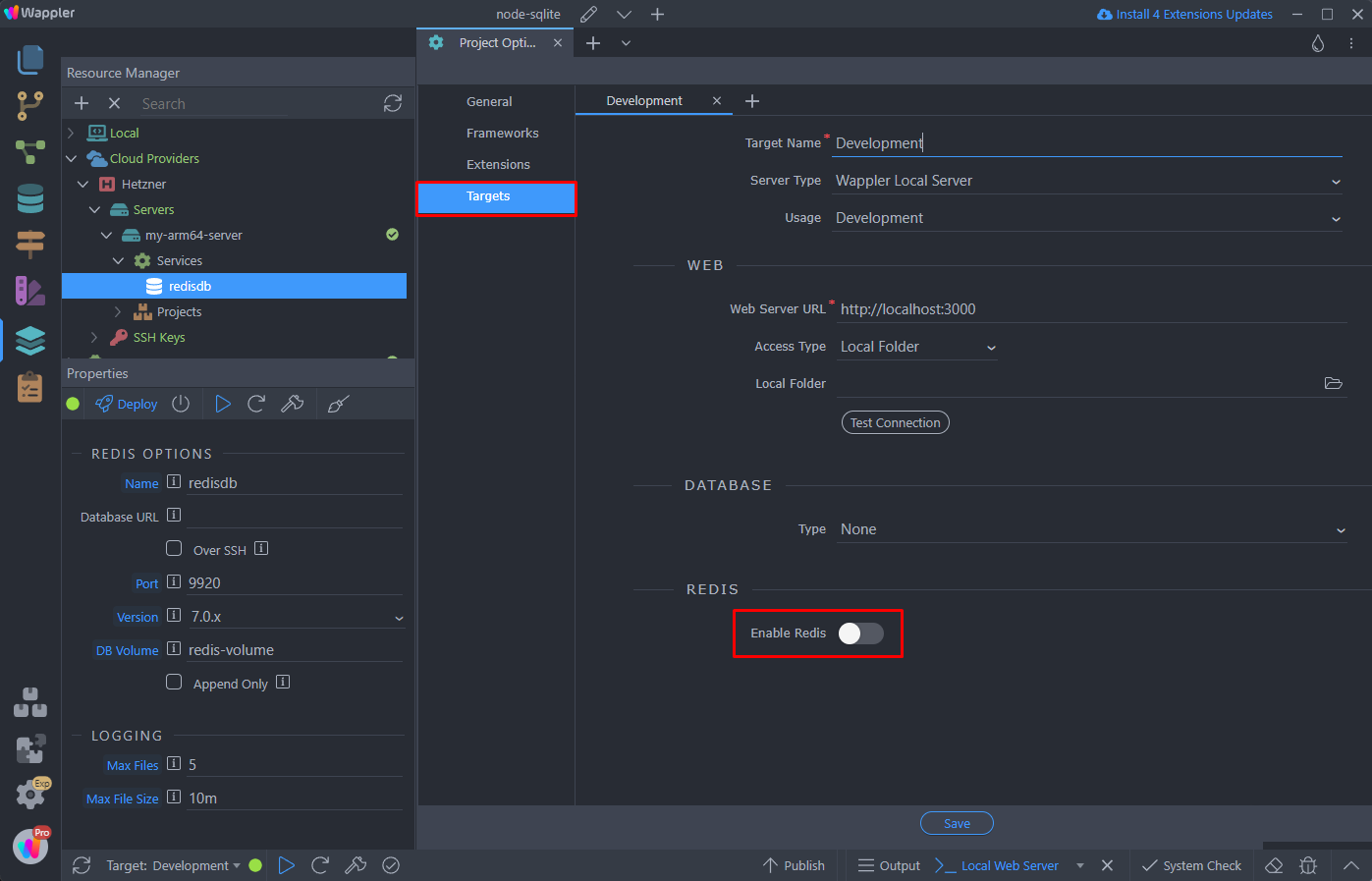
Select Cloud Database in the Type dropdown:
Section titled “Select Cloud Database in the Type dropdown:”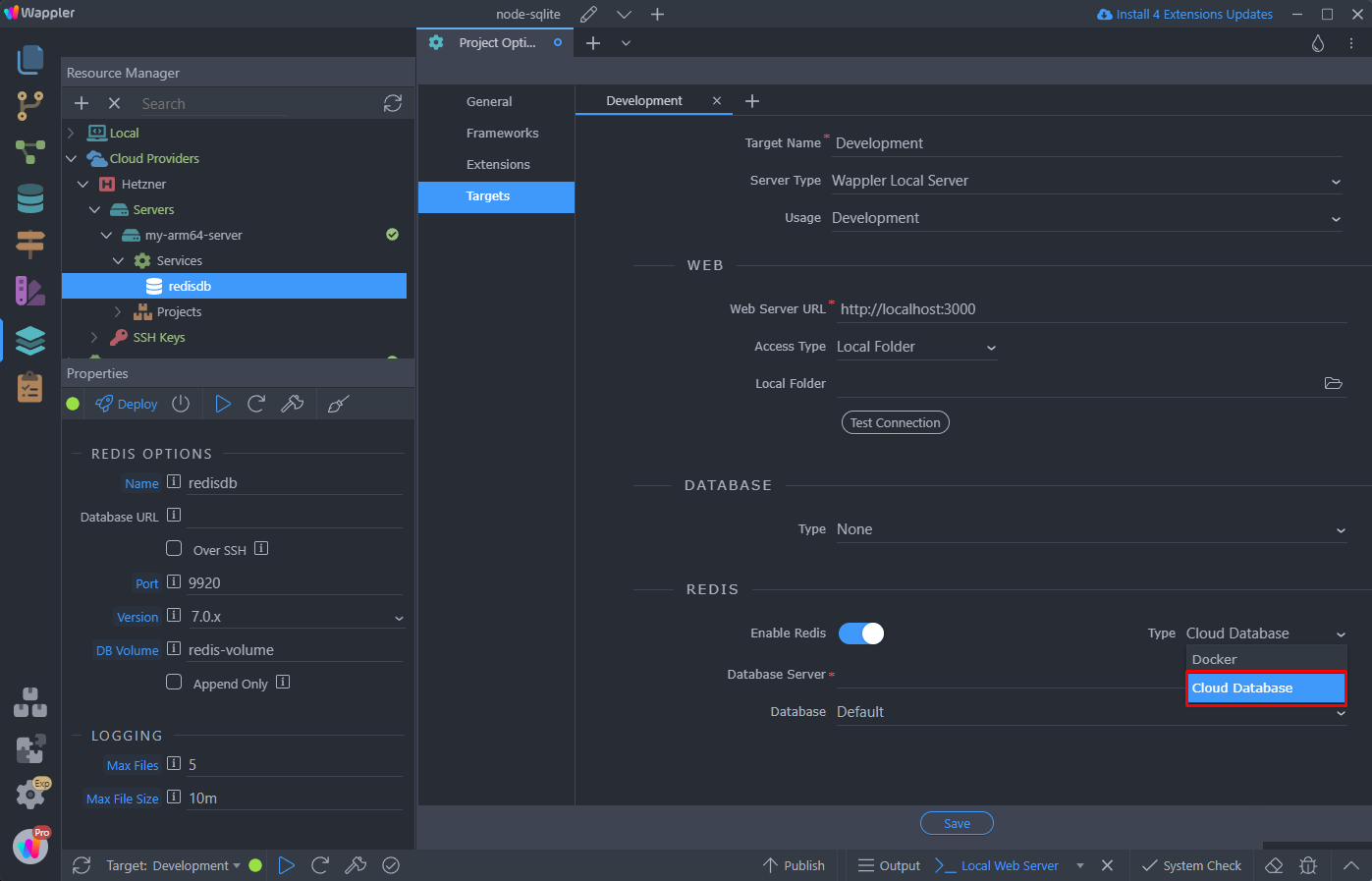
And select the Redis instance which you created on the cloud server:
Section titled “And select the Redis instance which you created on the cloud server:”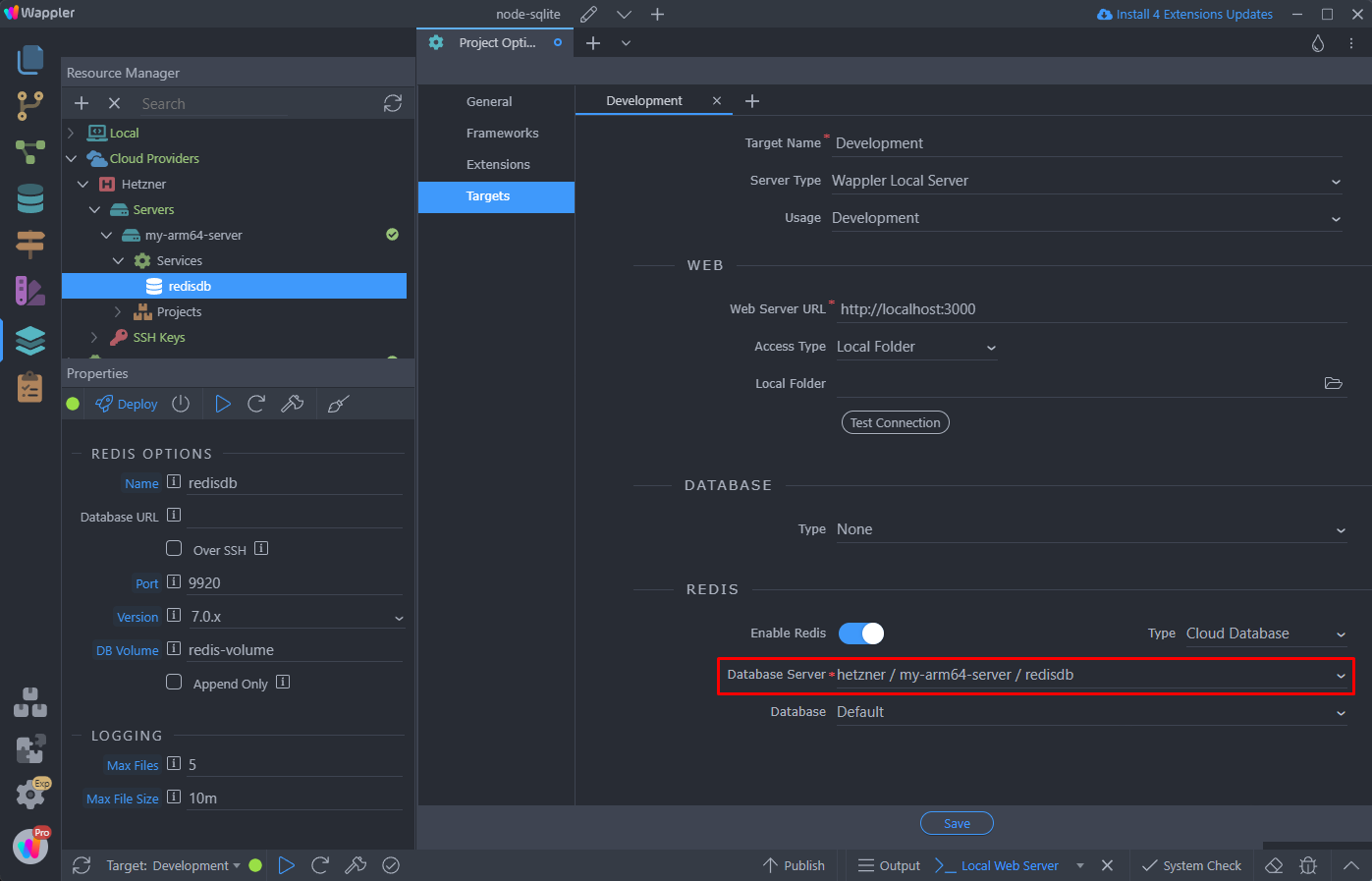
Select the Database 1 for this project:
Section titled “Select the Database 1 for this project:”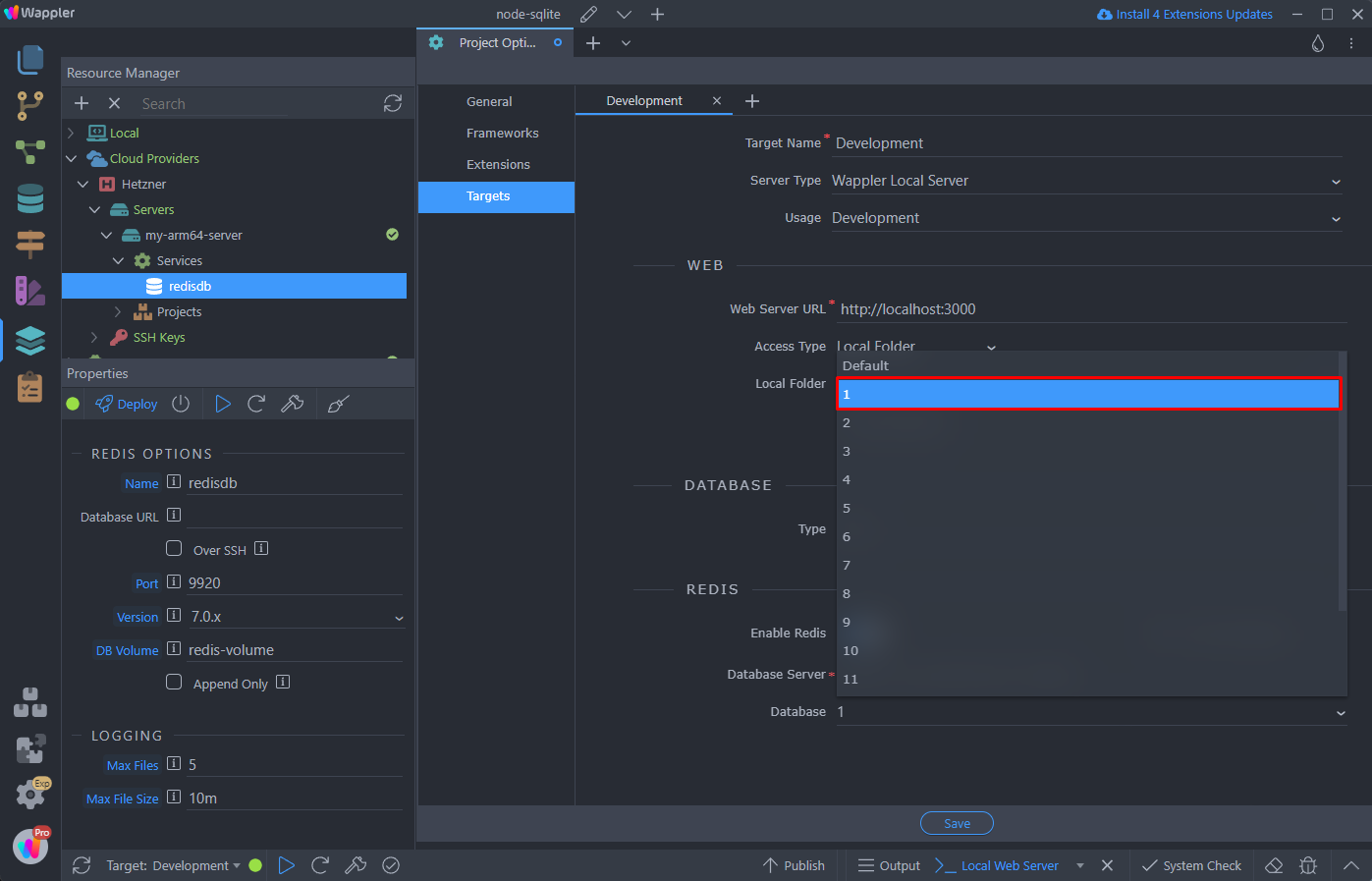
Click Save and you are done:
Section titled “Click Save and you are done:”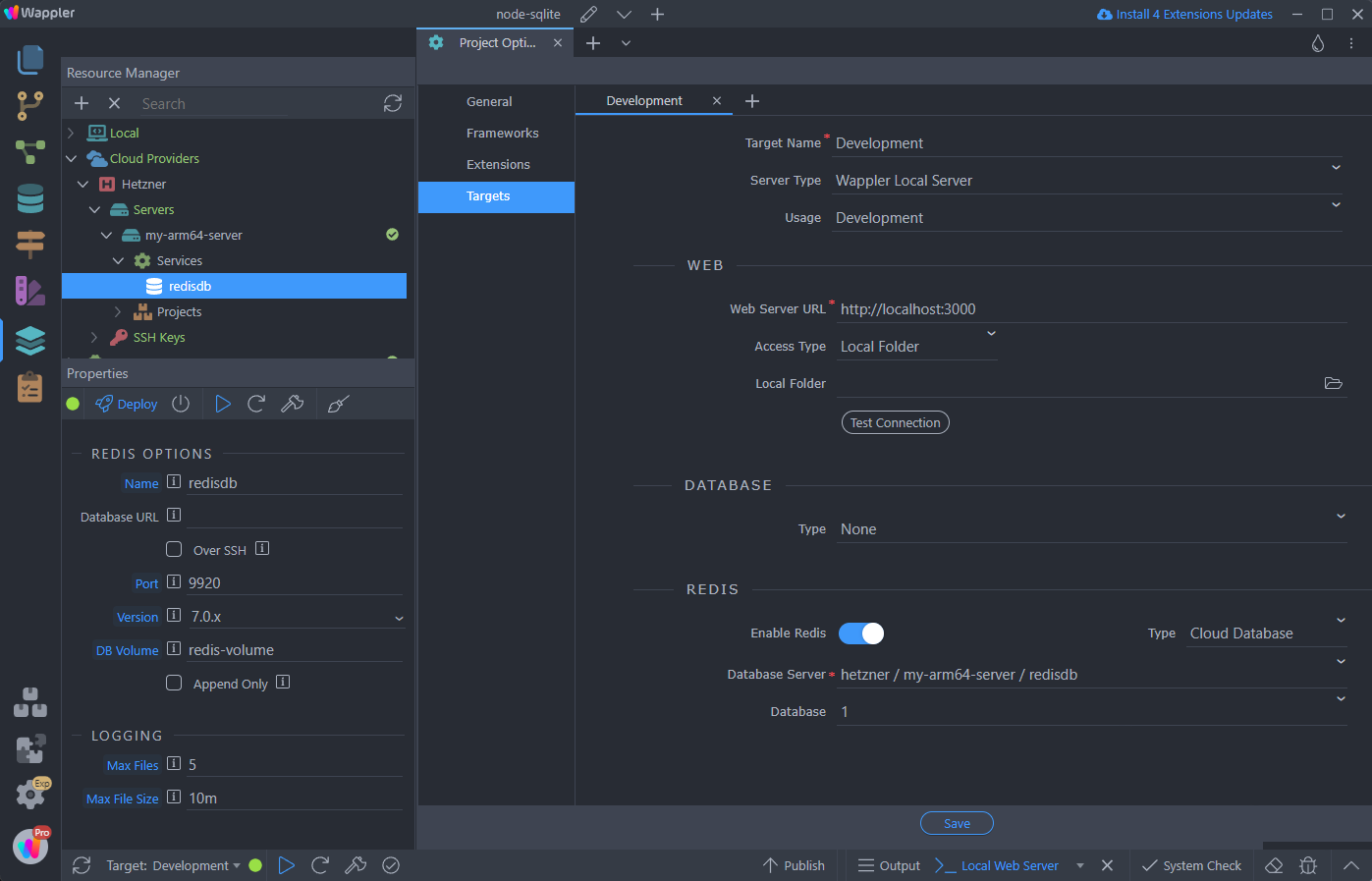
Using the Same Redis Database on Different Projects
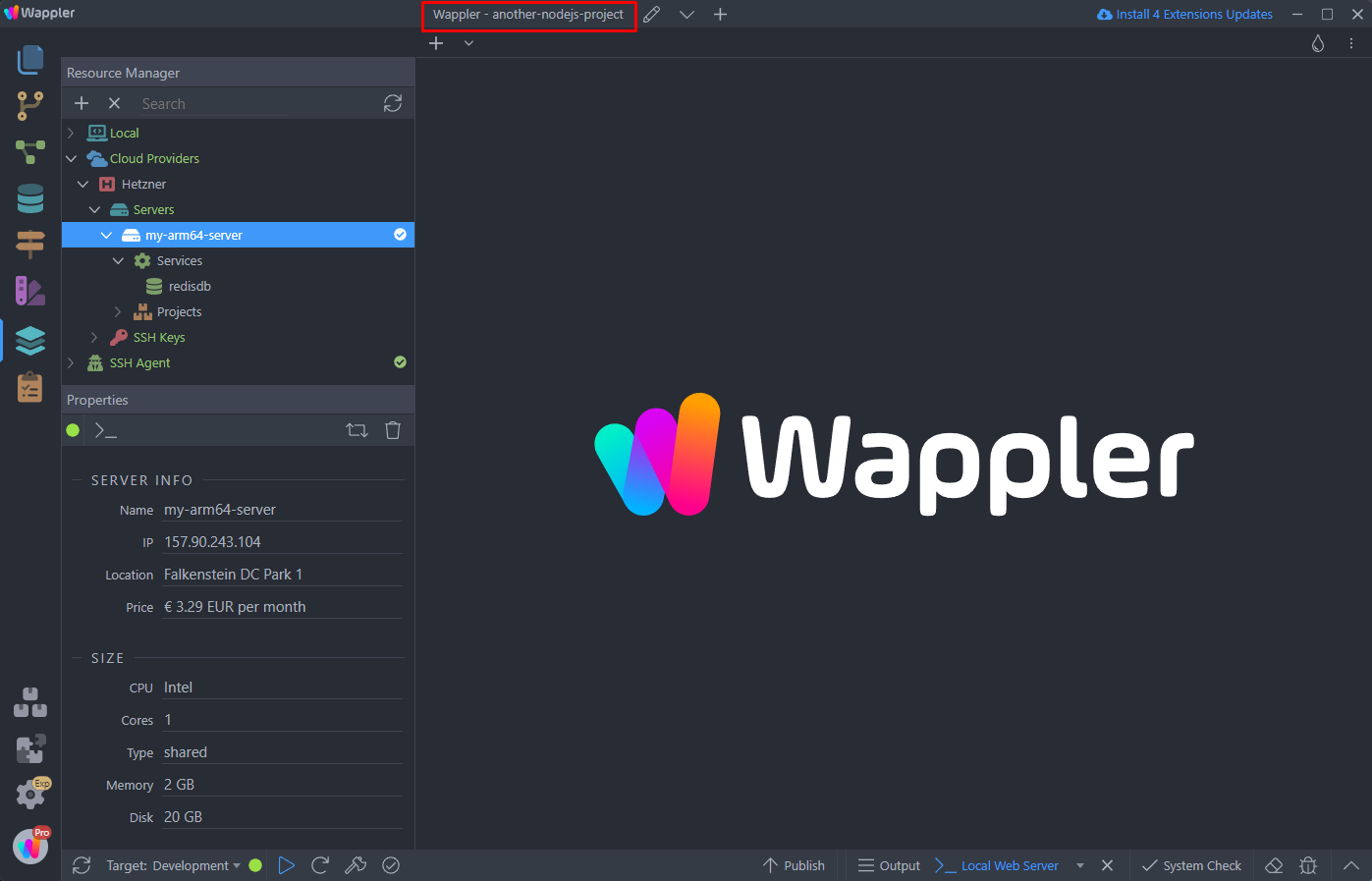
Section titled “Using the Same Redis Database on Different Projects”You can use the same Redis instance for any of your other projects. We switch the project:
Step 18
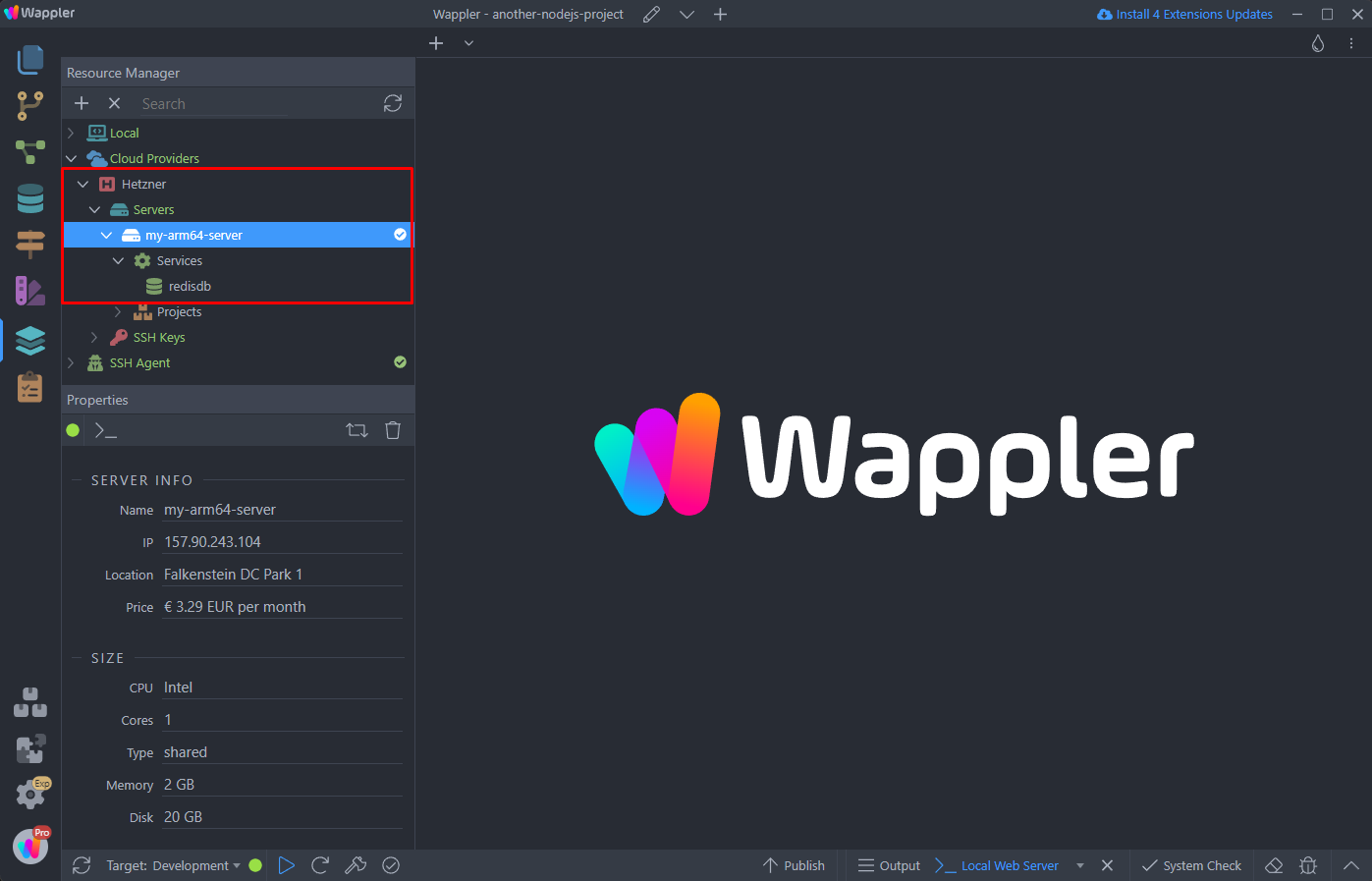
Section titled “Step 18”Here we imported the same cloud provider and the same server, which we are using in the other project. Once you import the server you will see Redis is also available under Services:
Step 19
Section titled “Step 19”In order to use the same Redis database for this project, open the Project Options, go to Targets, select your Target and enable Redis the same way you just did in the previous project.
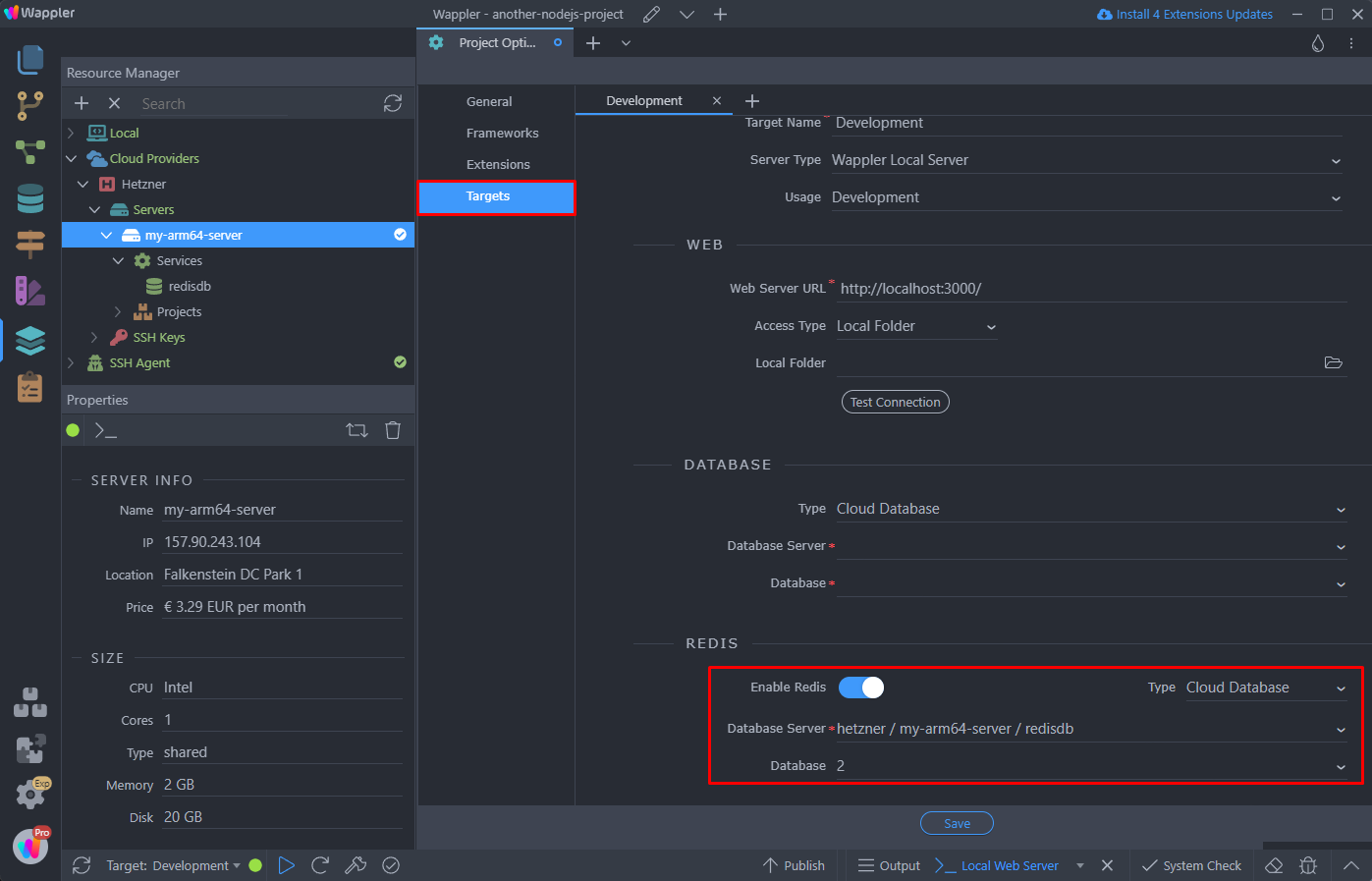
The only difference here is the Database number, here we select Database 2: