Setup S3 on AWS
What is AWS S3 Amazon Simple Storage Service (Amazon S3) is an object storage service that offers industry-leading scalability, data availability, security, and performance. This means customers of al
What is AWS S3
Section titled “What is AWS S3”Amazon Simple Storage Service (Amazon S3) is an object storage service that offers industry-leading scalability, data availability, security, and performance. This means customers of all sizes and industries can use it to store and protect any amount of data for a range of use cases, such as websites, mobile applications, backup and restore, archive, enterprise applications, IoT devices, and big data analytics.
Setup AWS Options for S3 Connector
Section titled “Setup AWS Options for S3 Connector”In order to use the S3 Connector with AWS you need to have an AWS account.
Creating an AWS account
Section titled “Creating an AWS account”If you don’t have an AWS account yet, go to https://aws.amazon.com/ and create one:
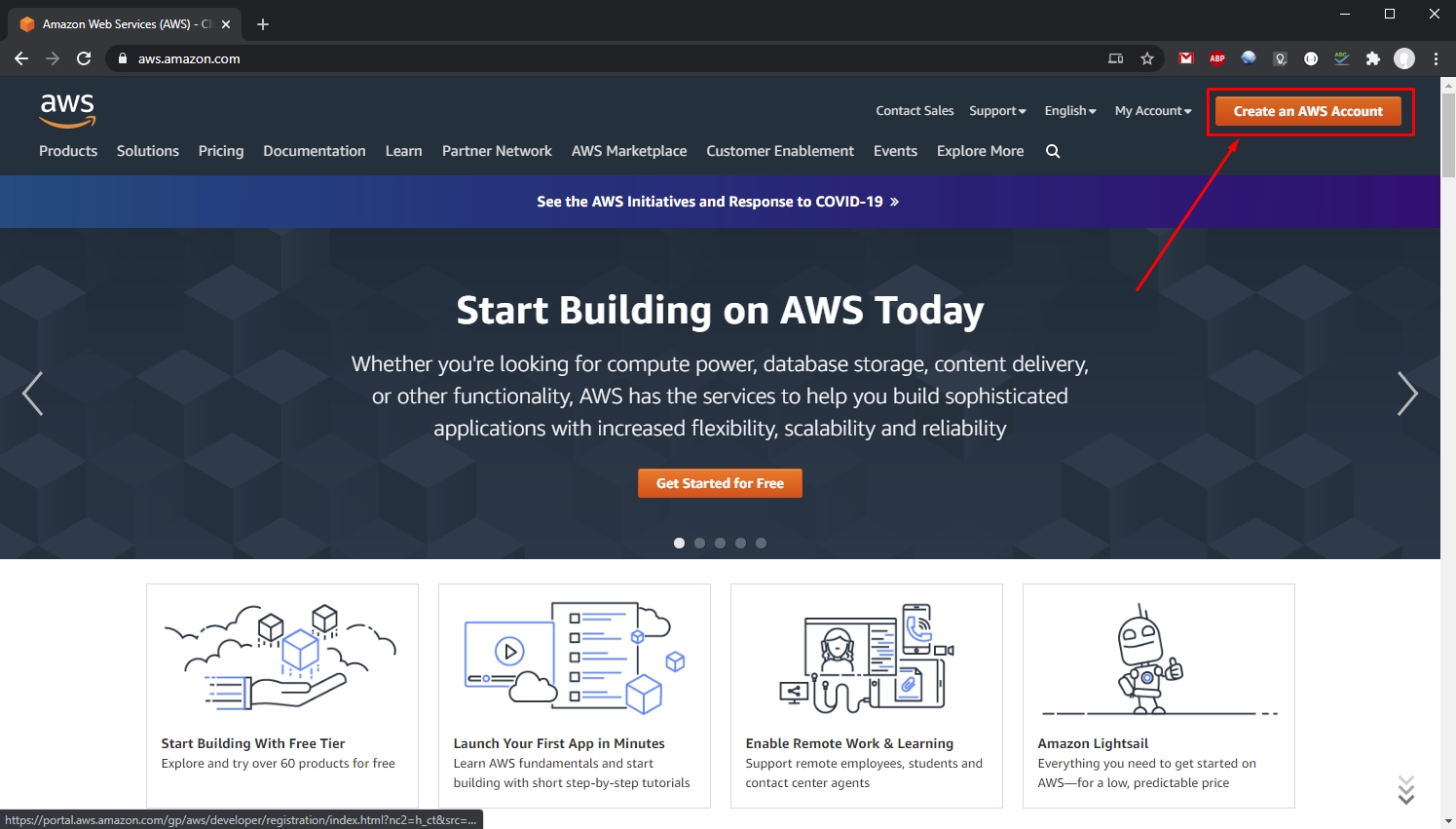
Follow the steps and setup your account.
Section titled “Follow the steps and setup your account.”When you are done setting up your account, log into the AWS Console:
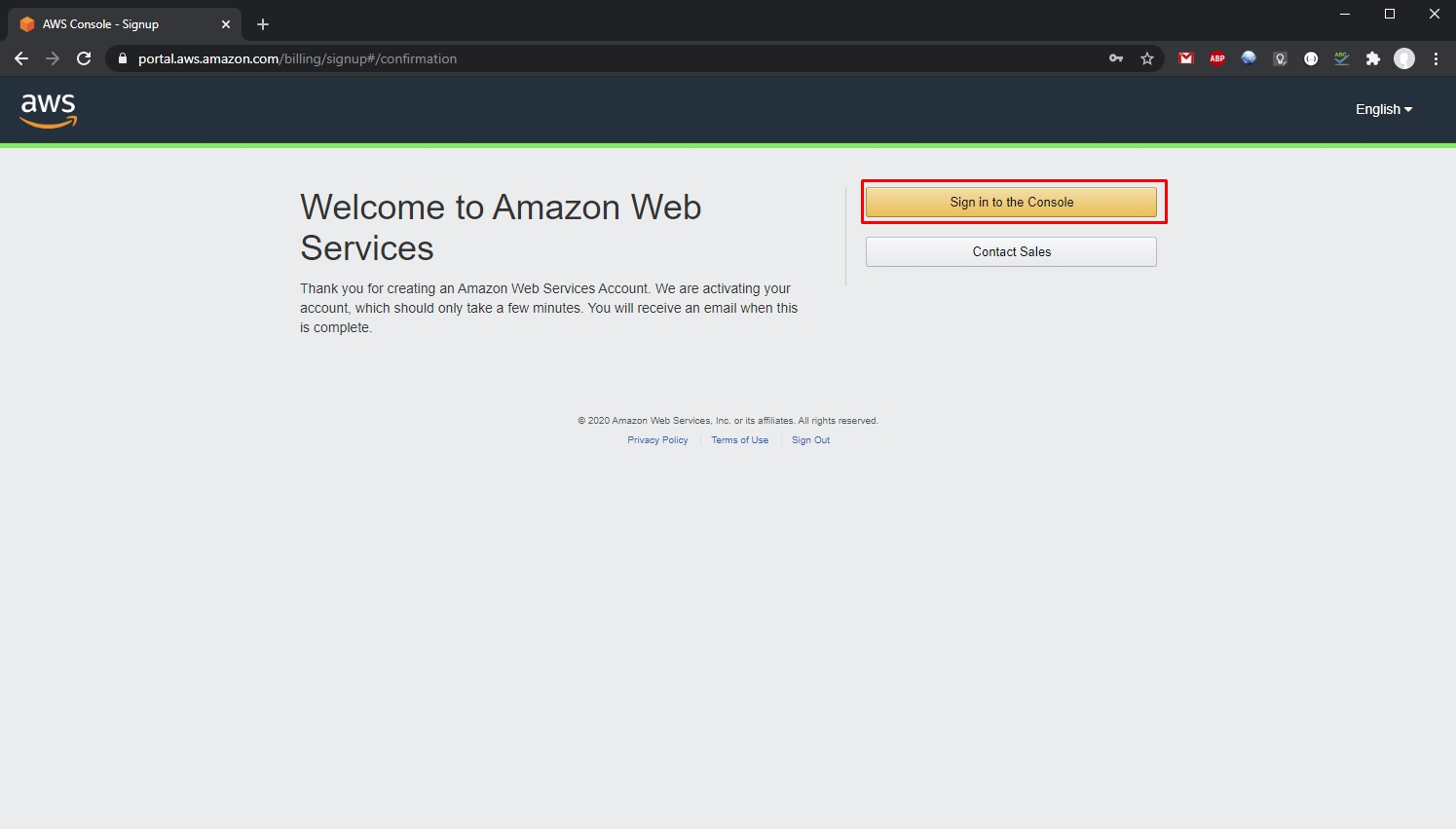
Setting up user and access
Section titled “Setting up user and access”Once you have your AWS account ready you need to setup an user and access keys for it.
Open https://console.aws.amazon.com/ and you will see the AWS console with all the services available. In the search bar type iam and select the IAM service which appears in the search results:

Select Users in the left menu:
Section titled “Select Users in the left menu:”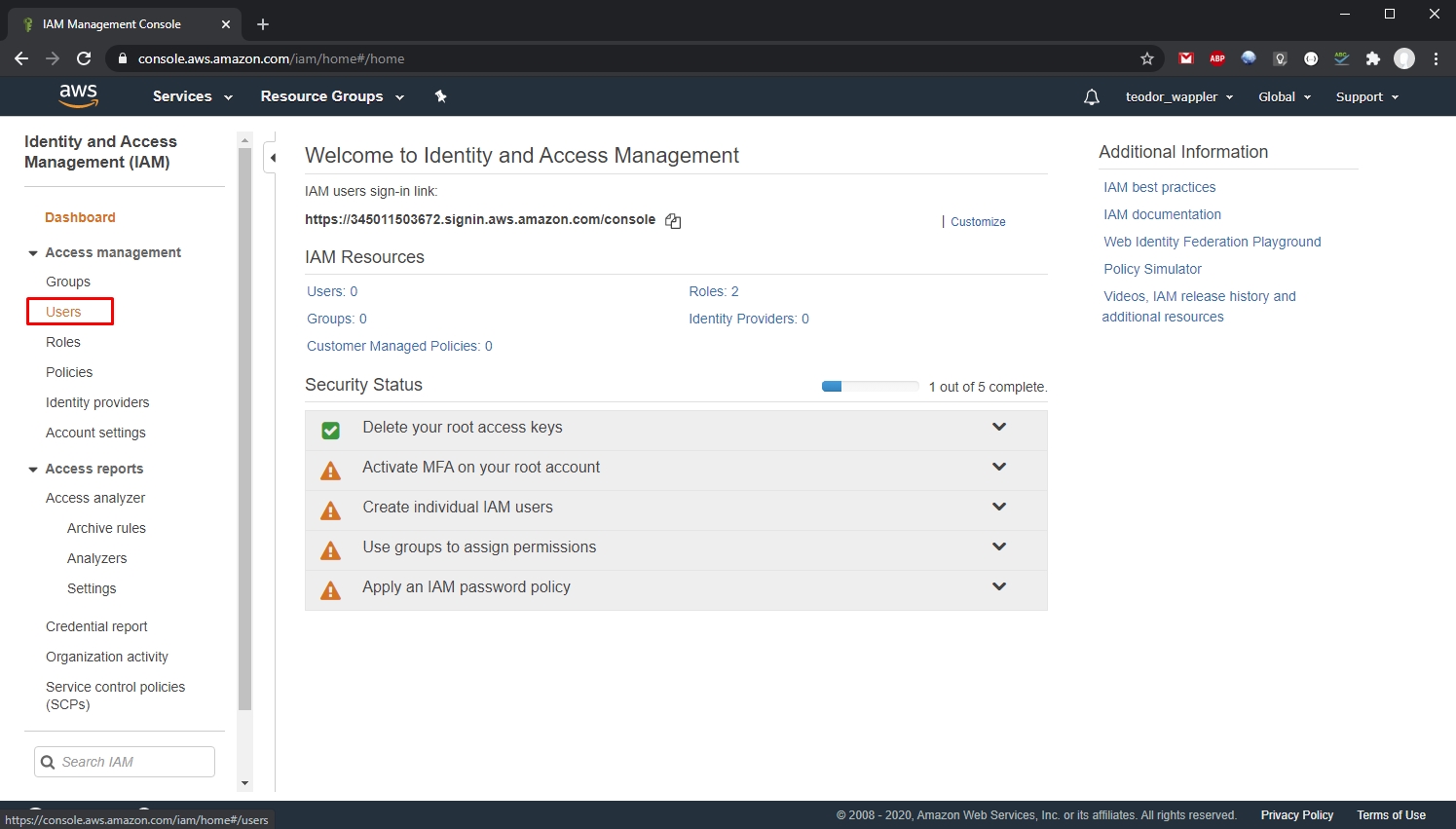
Then select Add user:
Section titled “Then select Add user:”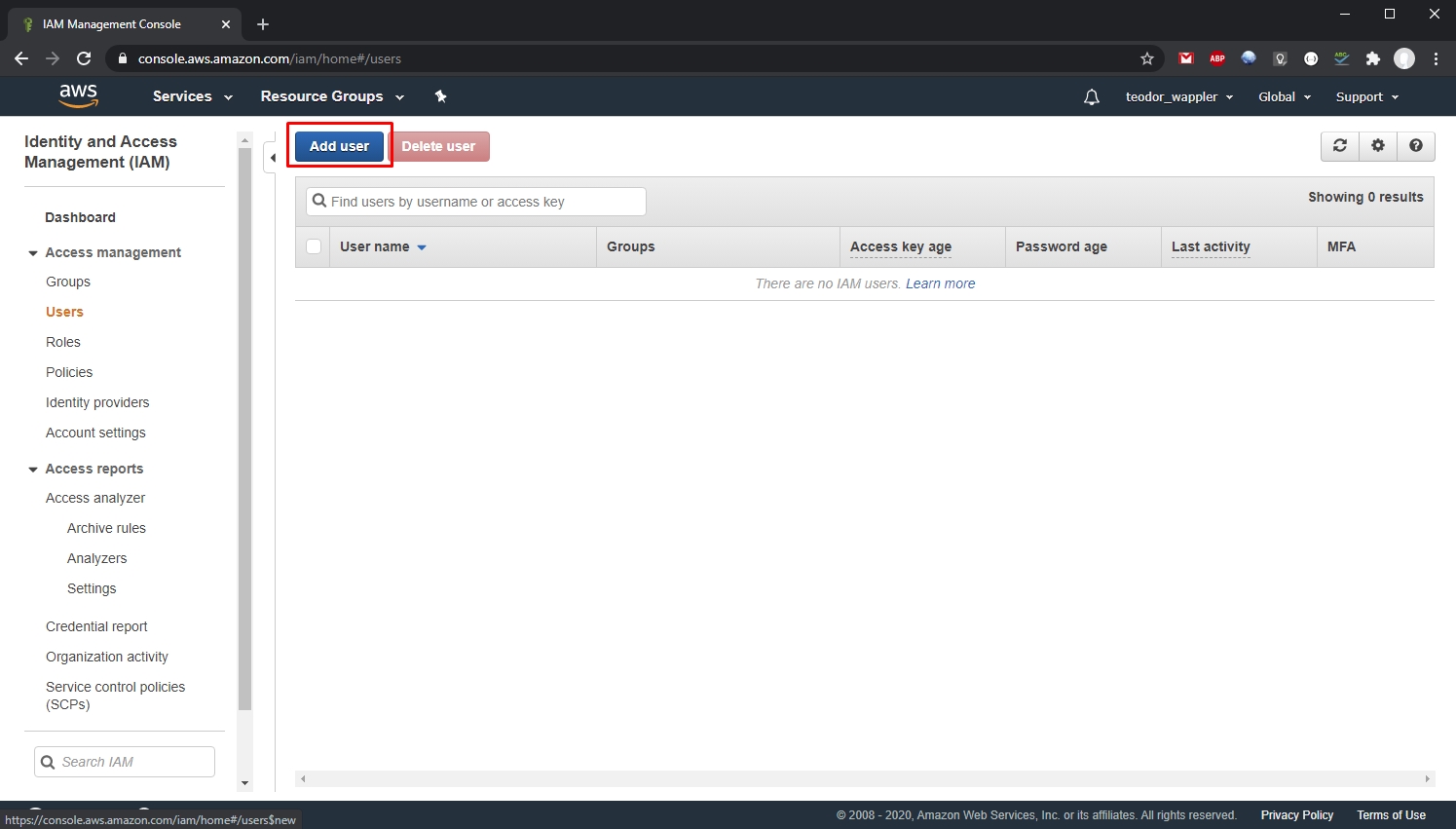
Step 10
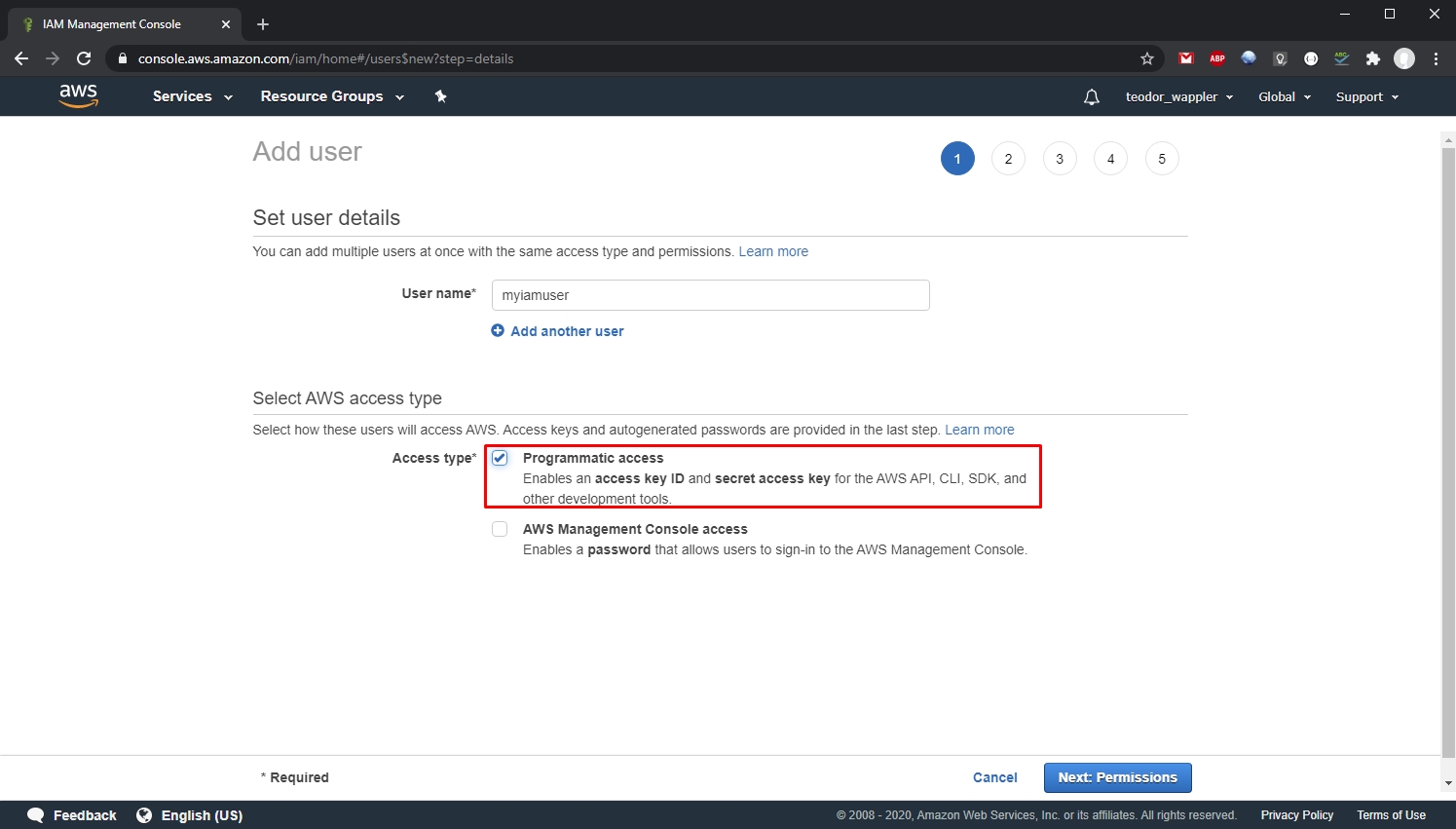
Section titled “Step 10”Add a username and select the Access type for your user. We need to select the Programmatic access option here, as it provides the access keys we need for our user. Click Next, when you are done:
Select Attach existing policies directly:
Section titled “Select Attach existing policies directly:”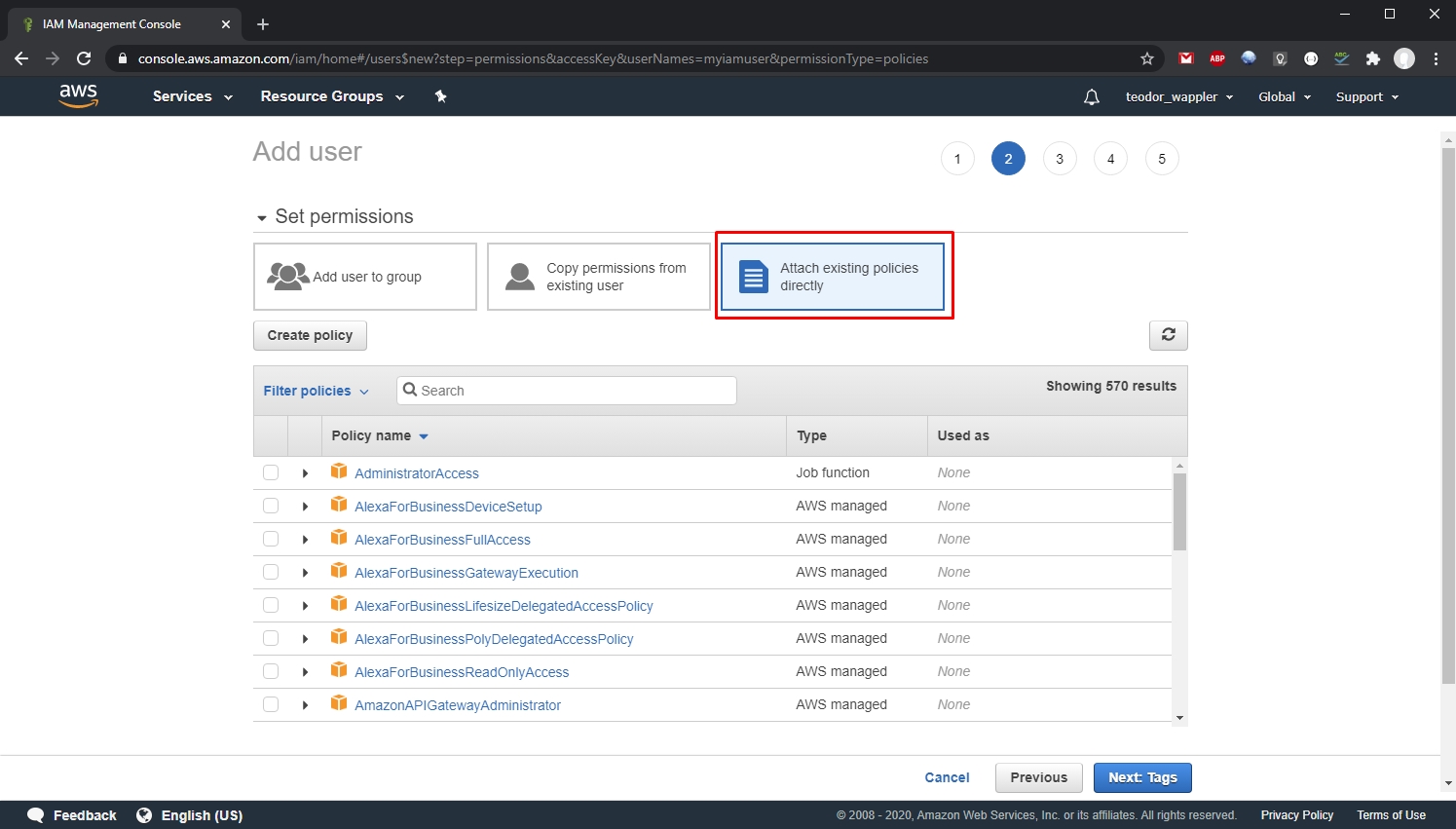
Filter the policies by typing s3 and select AmazonS3FullAccess, click Next:
Section titled “Filter the policies by typing s3 and select AmazonS3FullAccess, click Next:”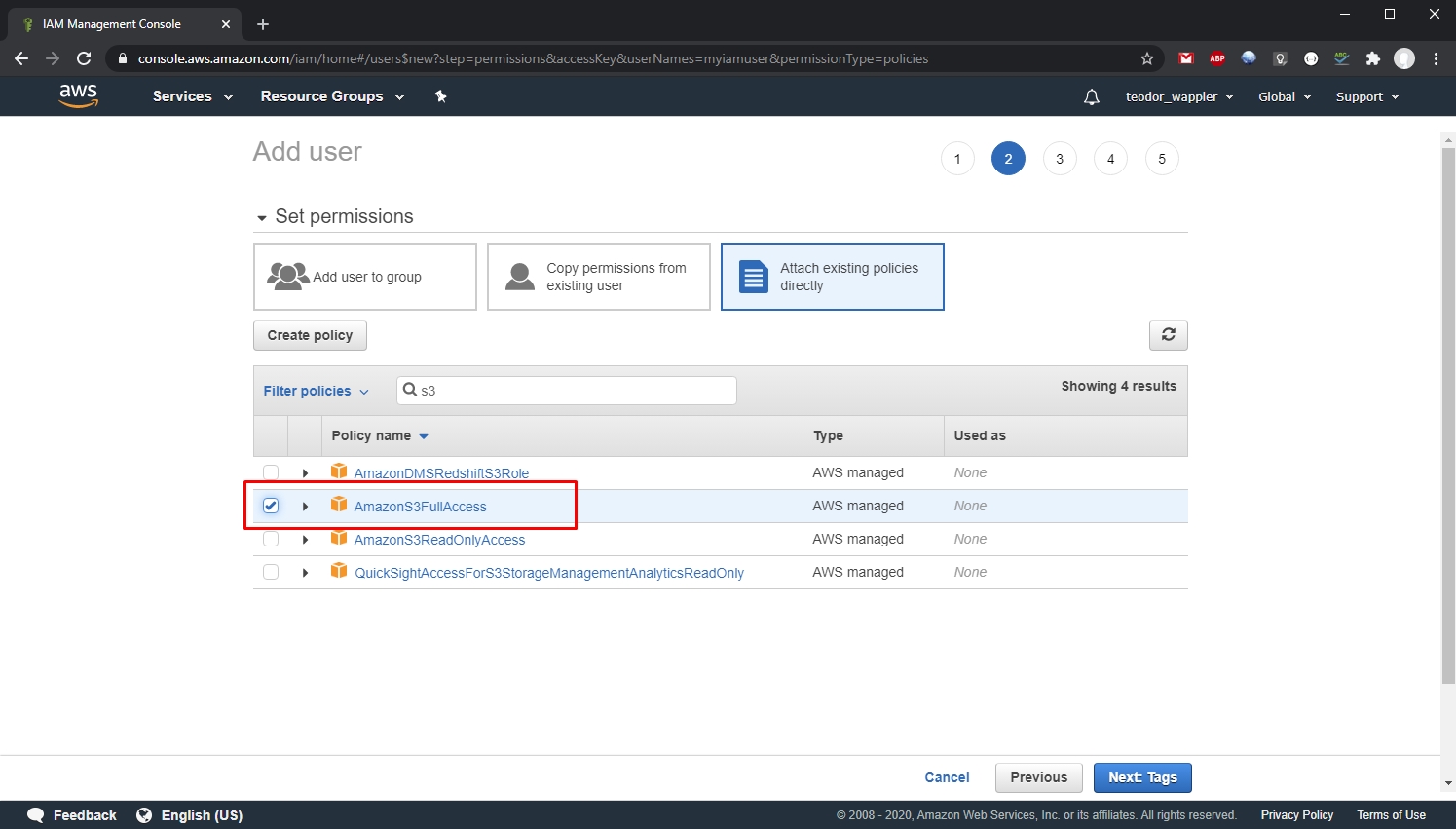
And select Create user:
Section titled “And select Create user:”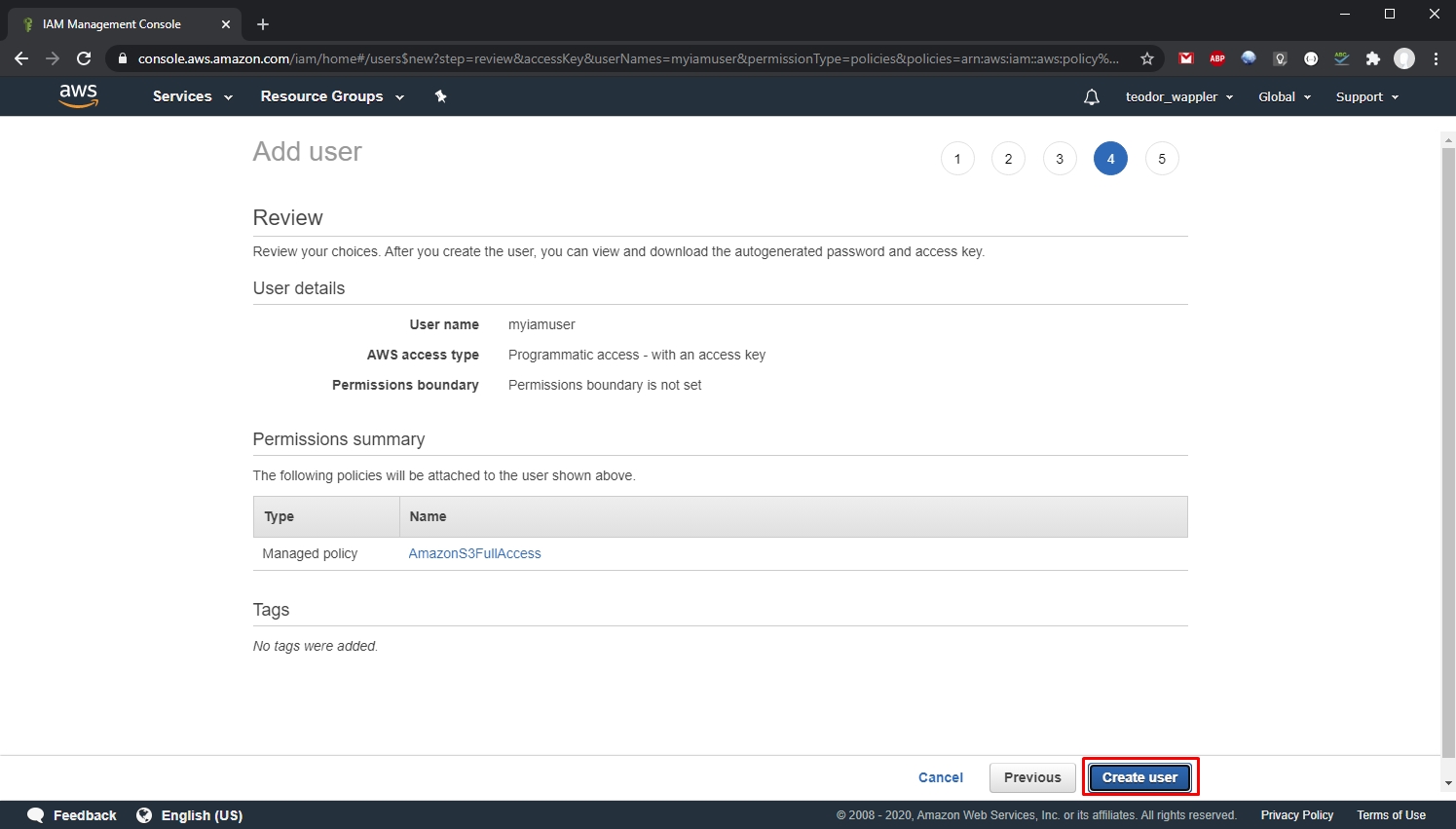
Step 14
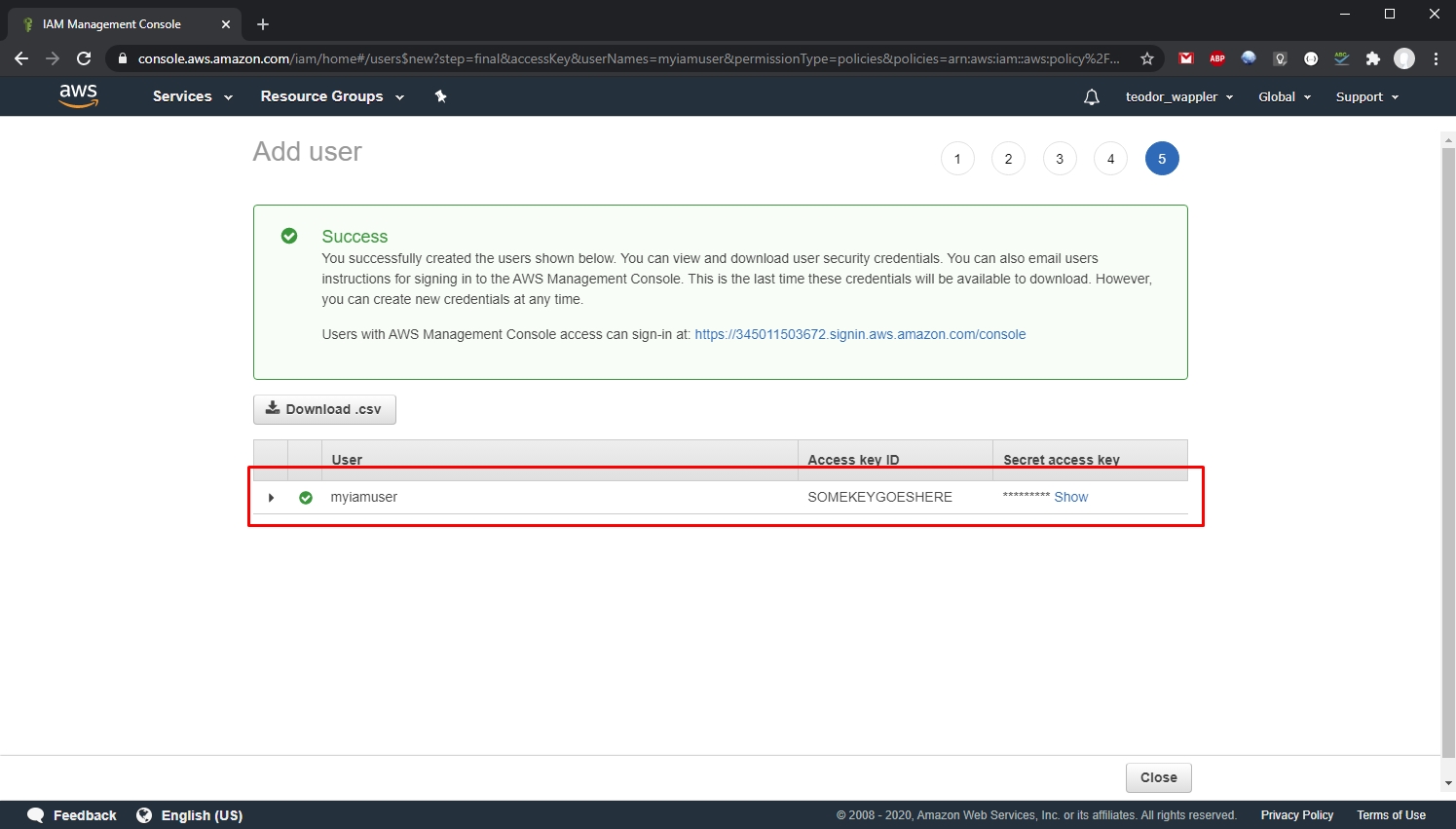
Section titled “Step 14”You can see your user has been created. Make sure to copy the Access key ID and the Secret access key for your user, as they will be needed for the S3 Connector:
Creating a Bucket
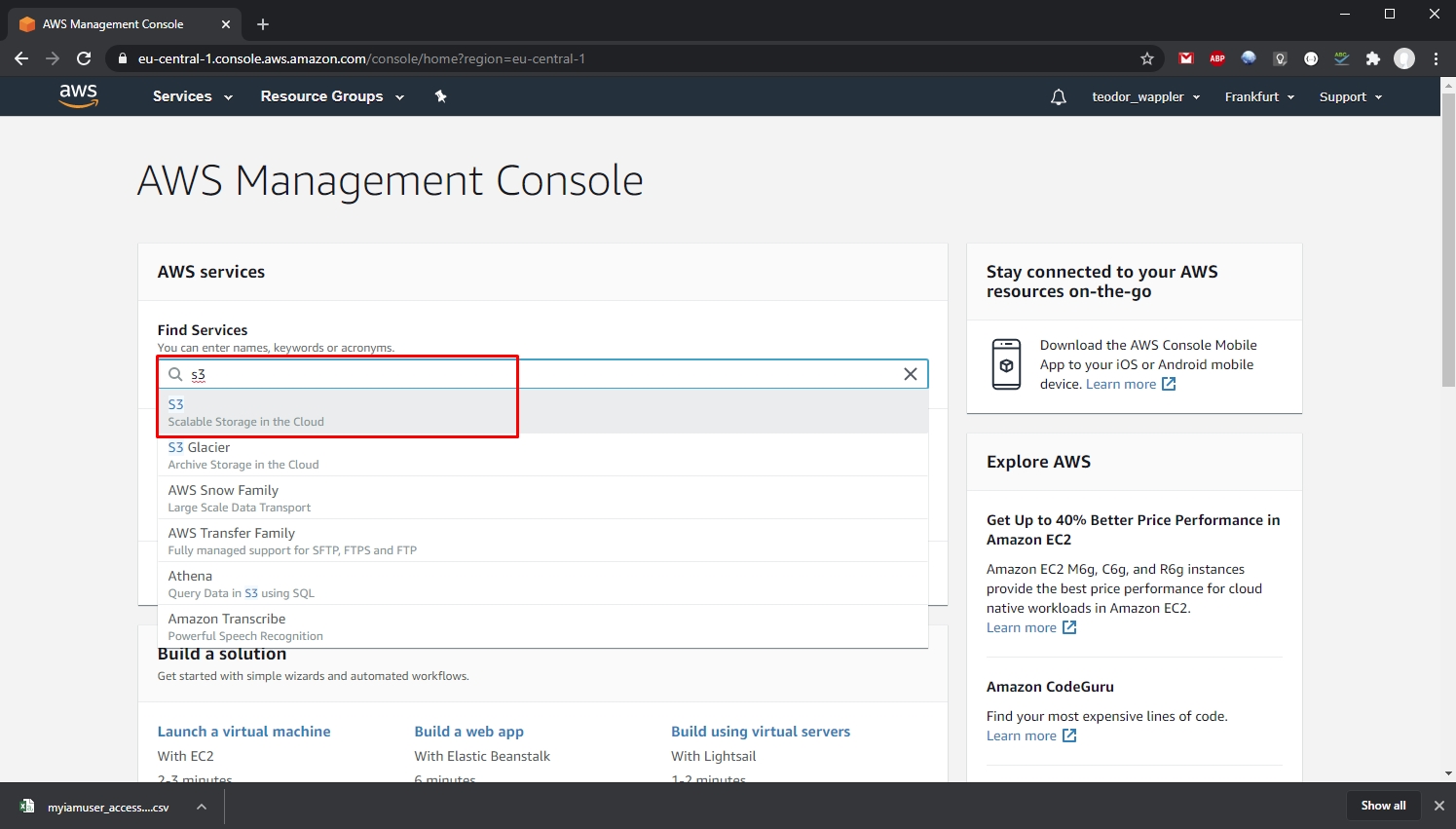
Section titled “Creating a Bucket”Now as you created your user, let’s create an S3 Bucket. Go to https://console.aws.amazon.com/ and type s3 in the search. Select S3 in the results:
Click Create bucket:
Section titled “Click Create bucket:”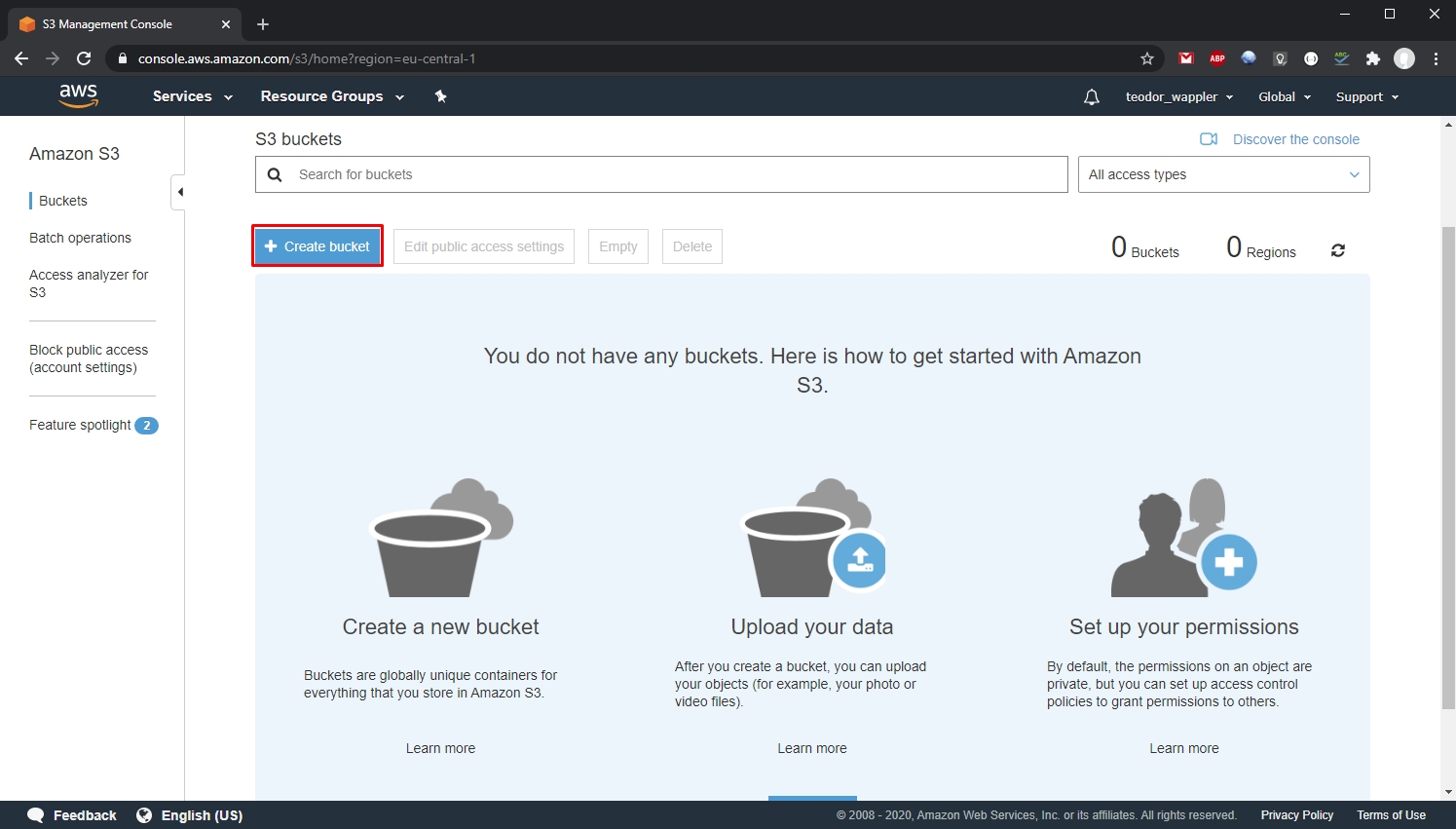
Add a name for your bucket and select a region for it. Click Next:
Section titled “Add a name for your bucket and select a region for it. Click Next:”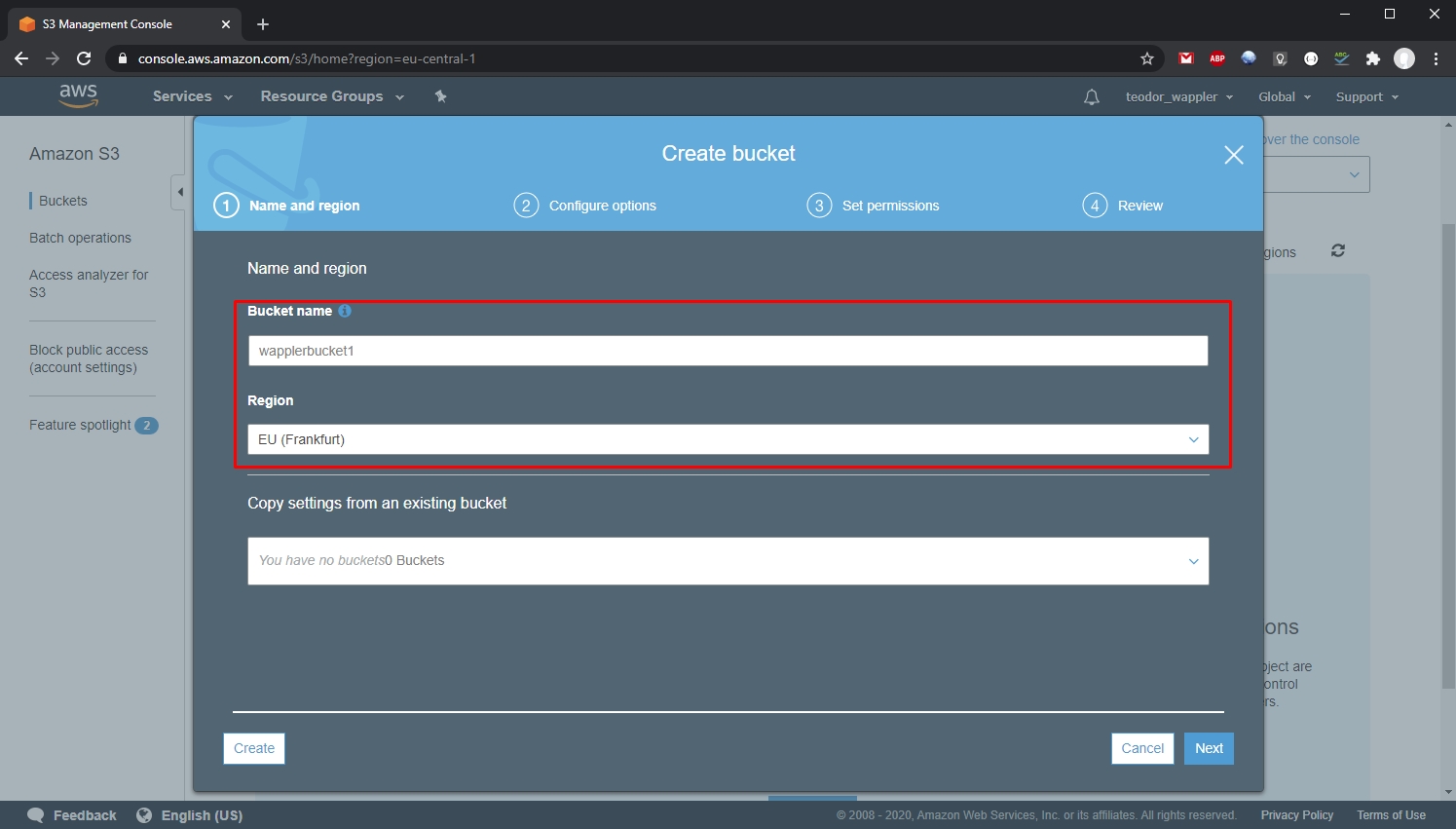
The public access is blocked by default:
Section titled “The public access is blocked by default:”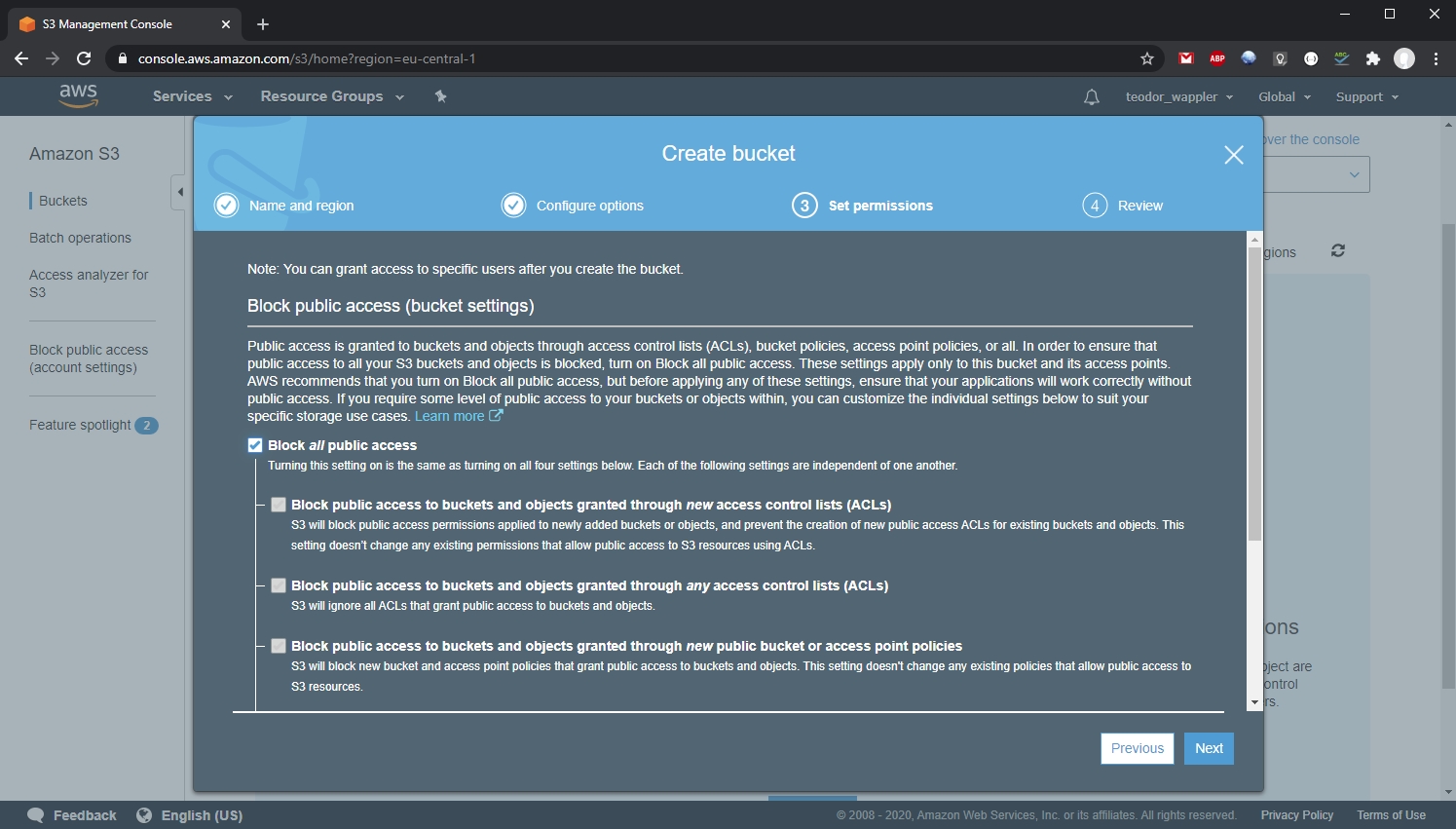
We turn this option off for our demo and click Next:
Section titled “We turn this option off for our demo and click Next:”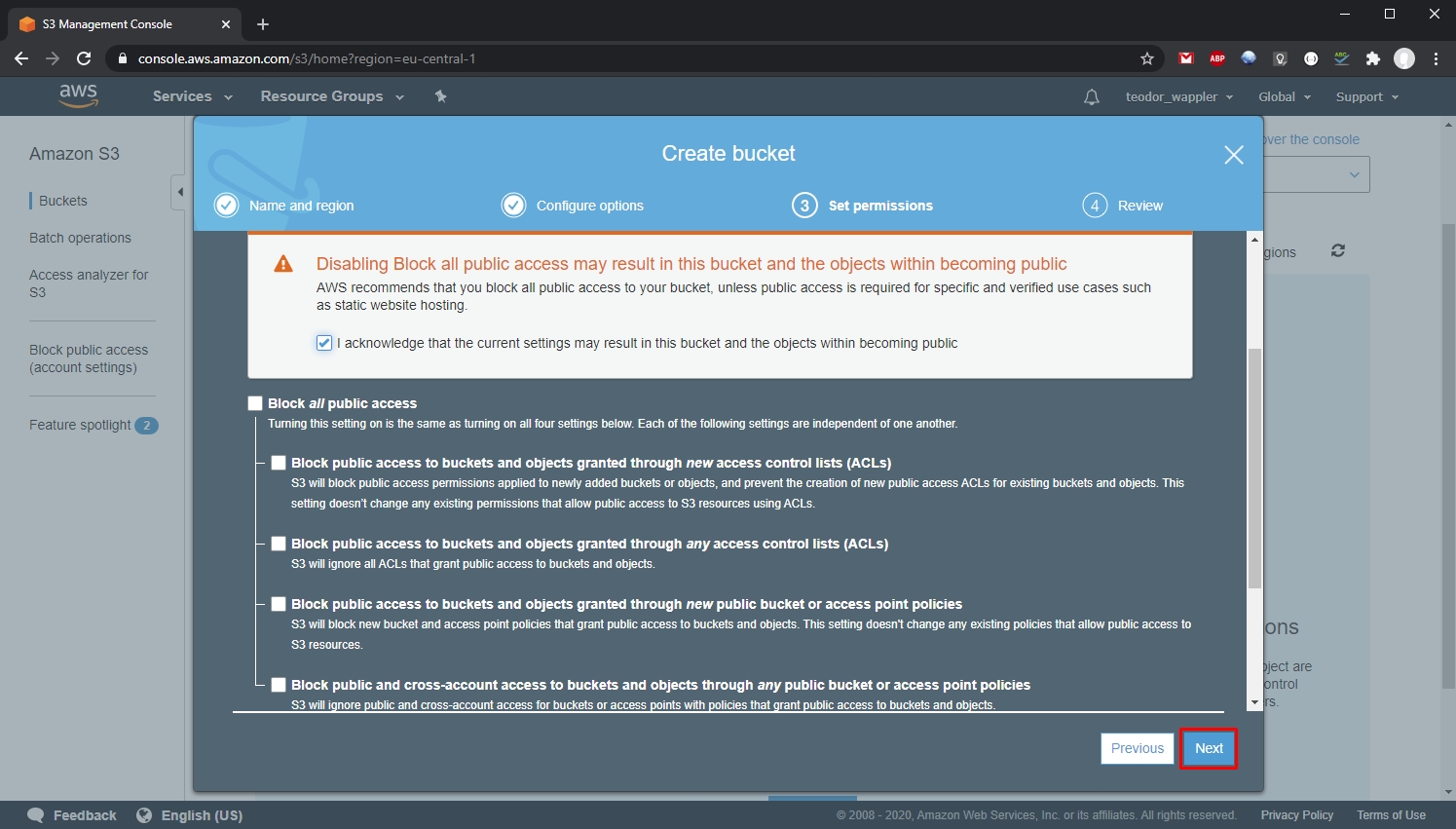
Setup the public access option as per your needs, following the AWS documentation.
Section titled “Setup the public access option as per your needs, following the AWS documentation.”Click the Create bucket button:
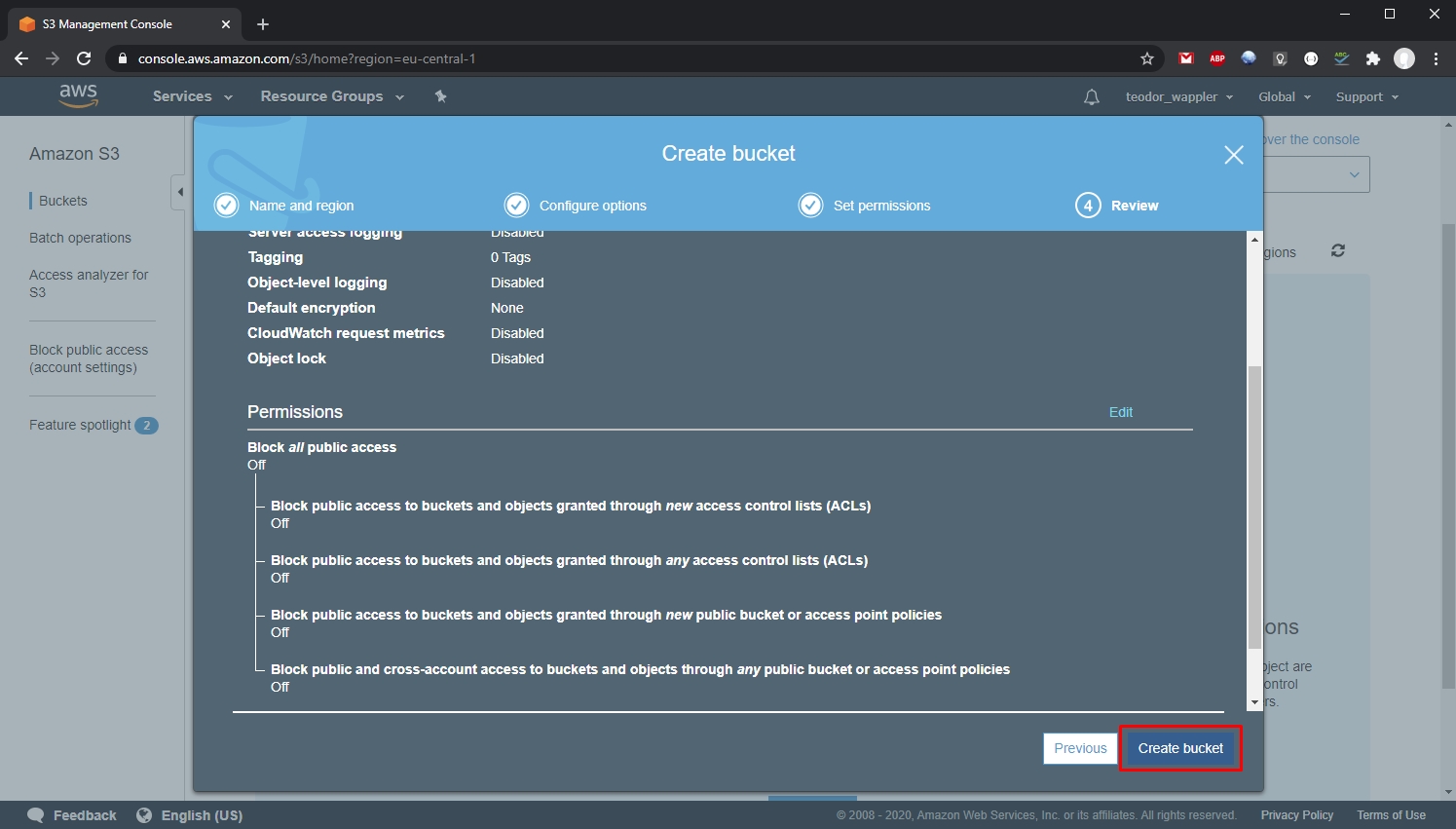
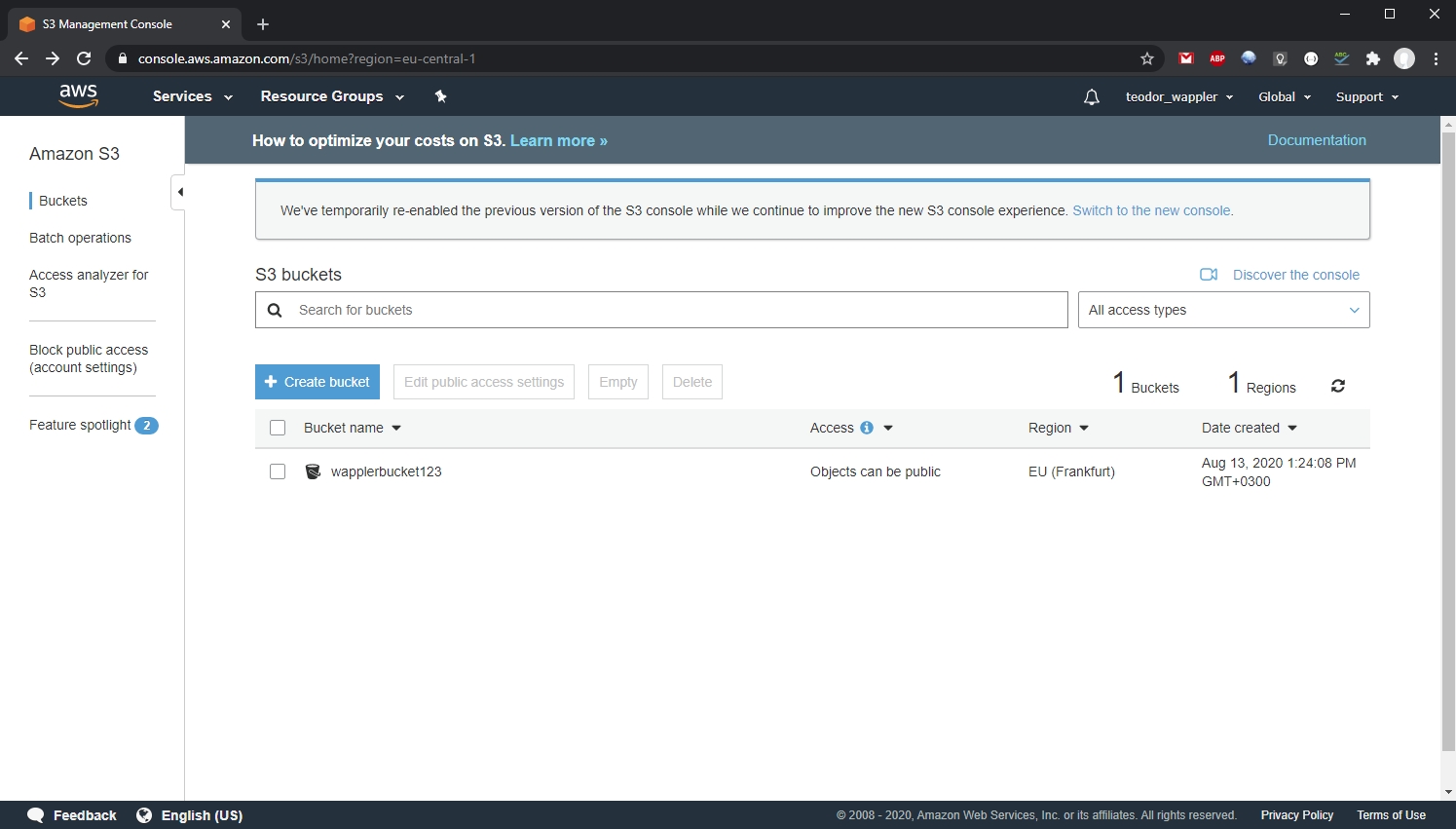
And you can see your bucket has been created:
Section titled “And you can see your bucket has been created:”