Managing SSH Keys with Resource Manager
Intro You can manage your SSH Keys in the Resource Manager. You can create and manage keys per cloud provider or import existing keys from the provider. Creating SSH Keys You can find all your ssh key
You can manage your SSH Keys in the Resource Manager. You can create and manage keys per cloud provider or import existing keys from the provider.
Creating SSH Keys
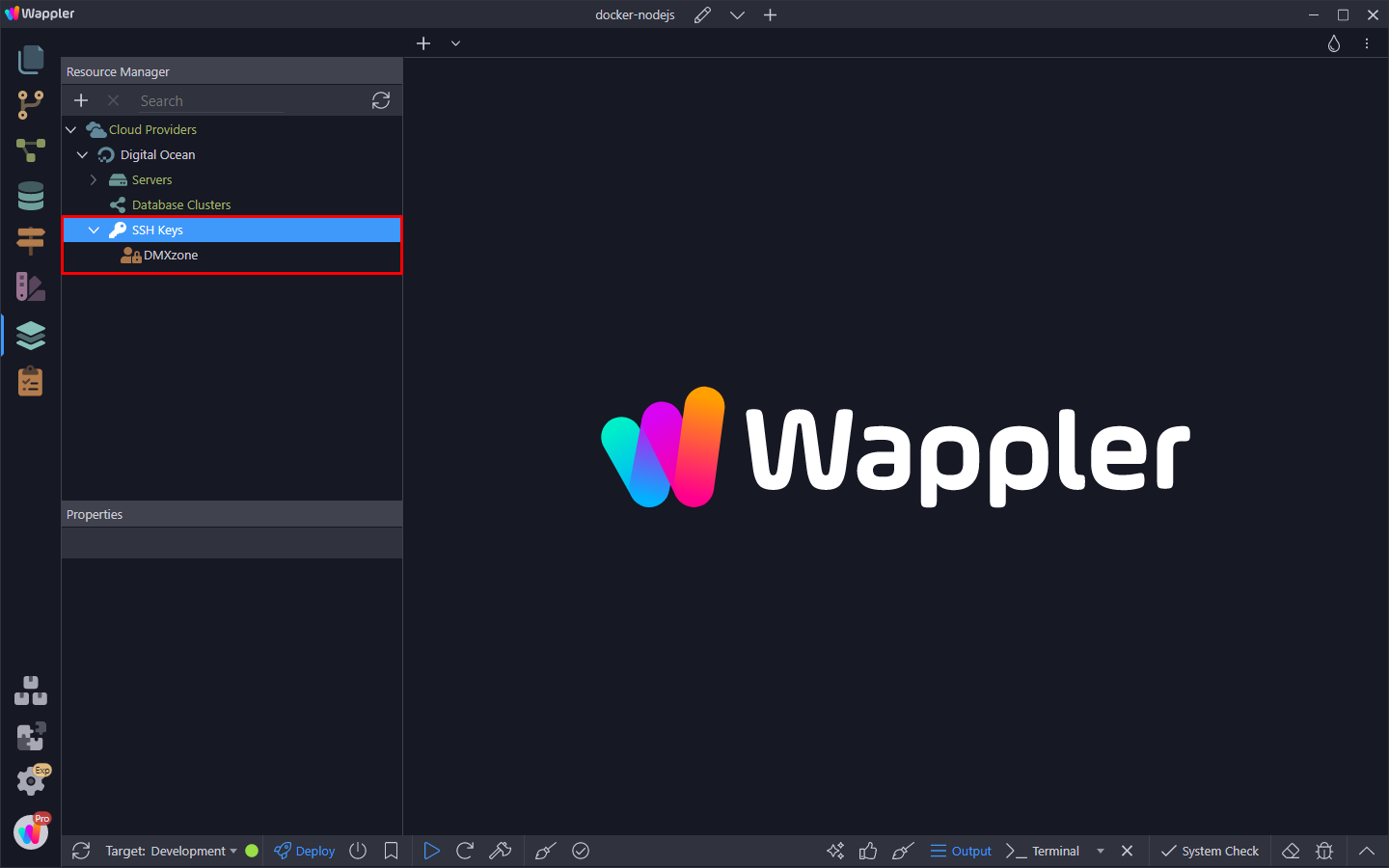
Section titled “Creating SSH Keys”You can find all your ssh keys per provider in the Resource Manager, under SSH Keys:
Creating a new key is really easy. Right click SSH Keys and click Add SSH Key:
Section titled “Creating a new key is really easy. Right click SSH Keys and click Add SSH Key:”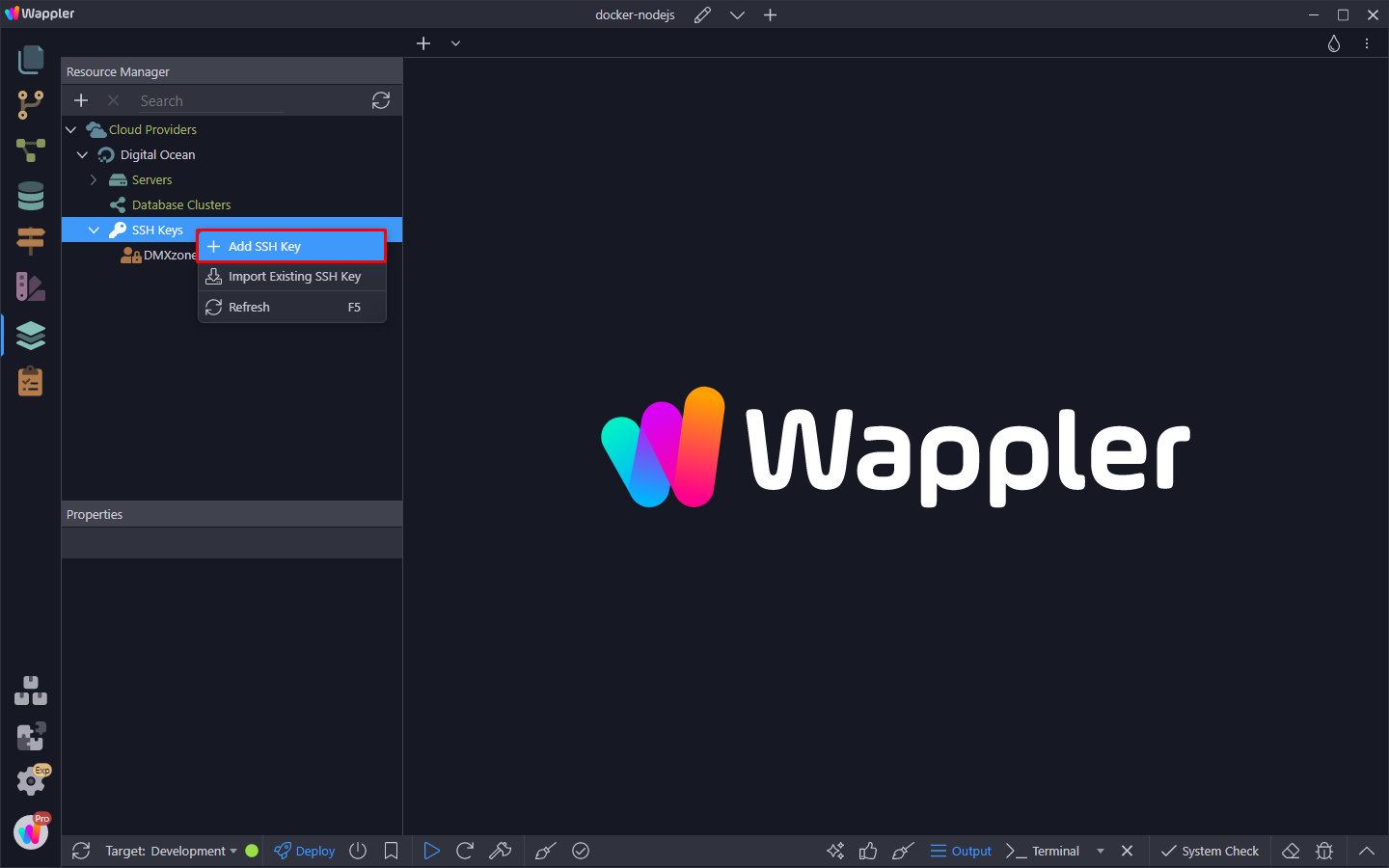
Add a name for your key:
Section titled “Add a name for your key:”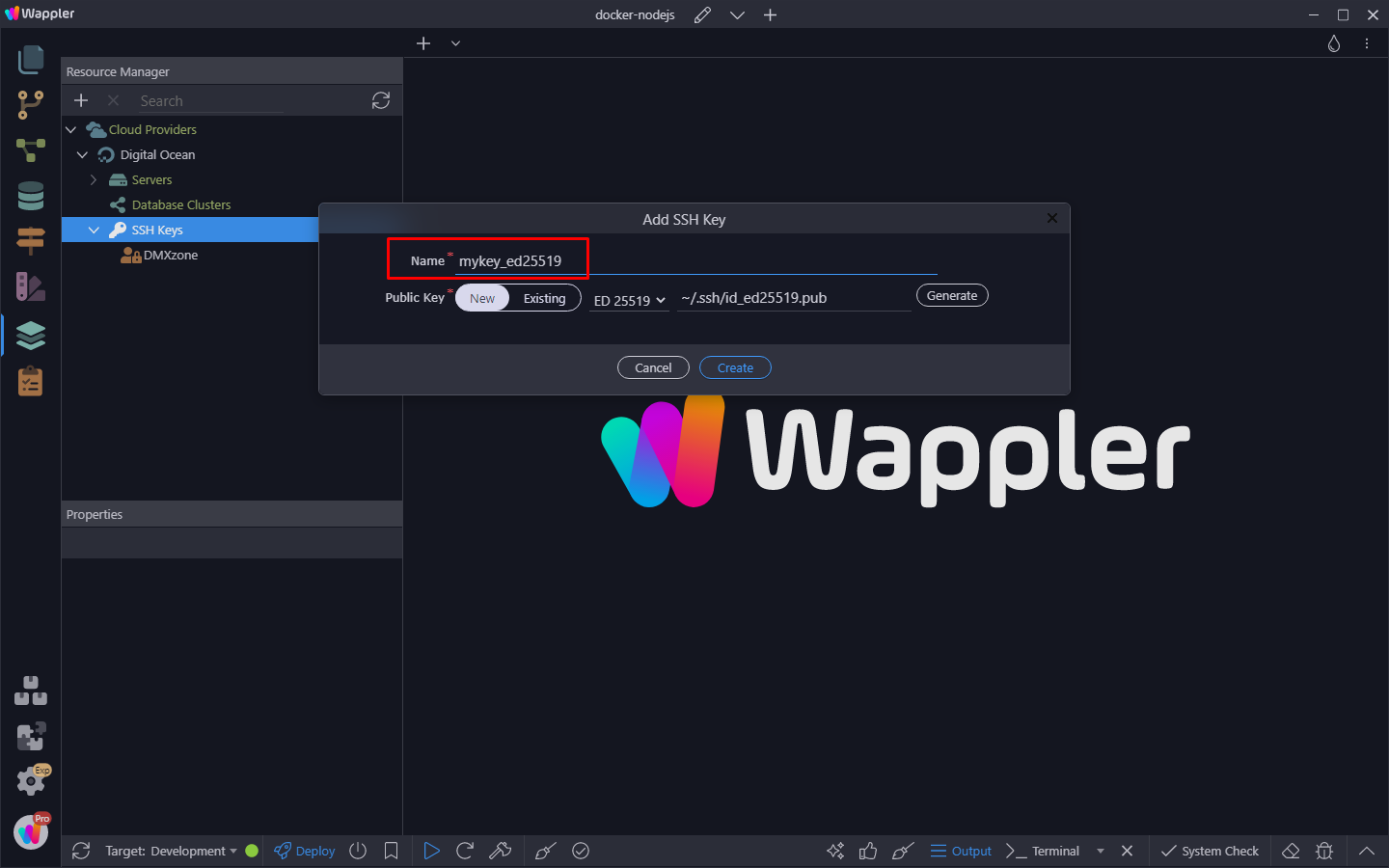
Select an encryption protocol:
Section titled “Select an encryption protocol:”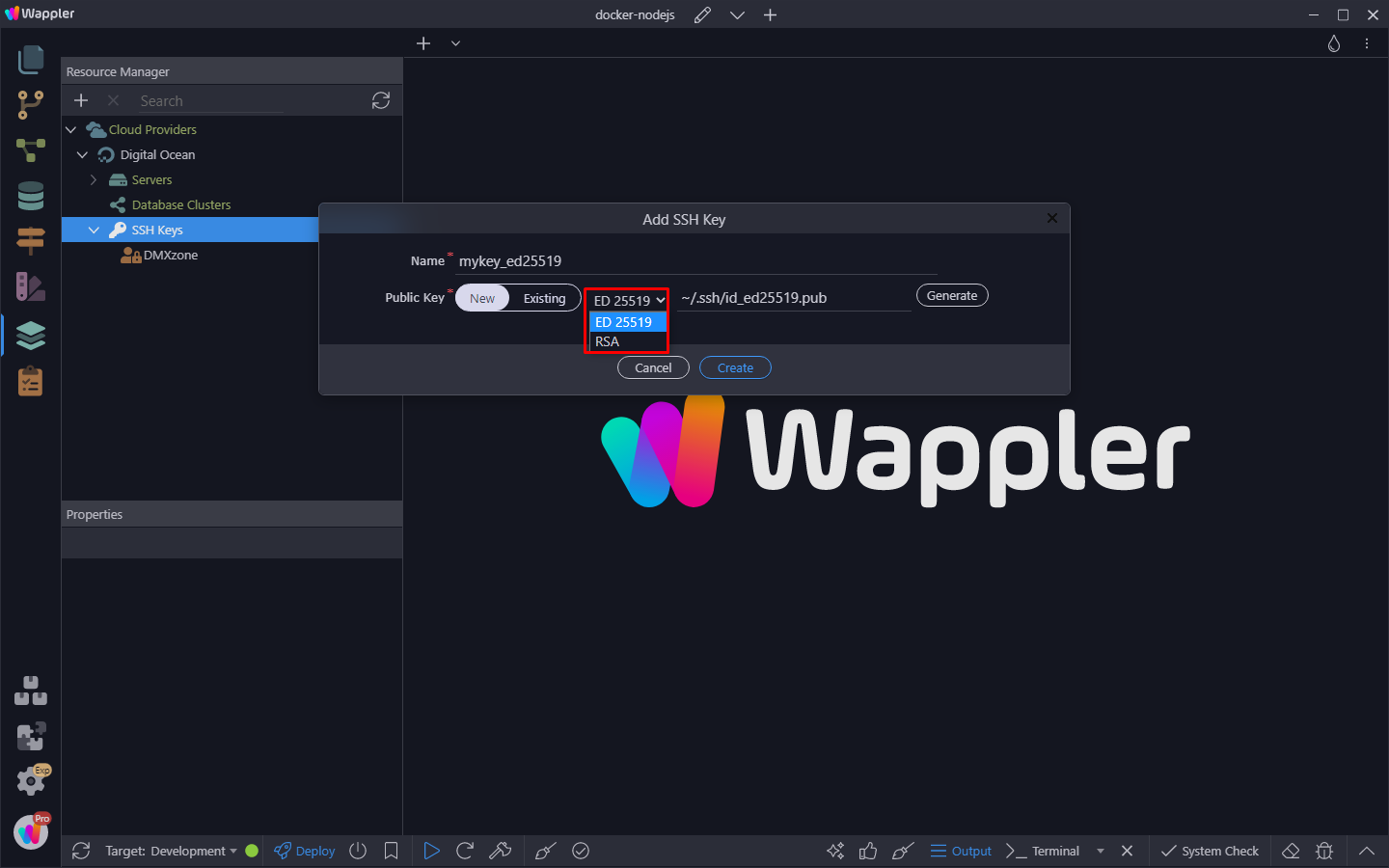
And click Generate:
Section titled “And click Generate:”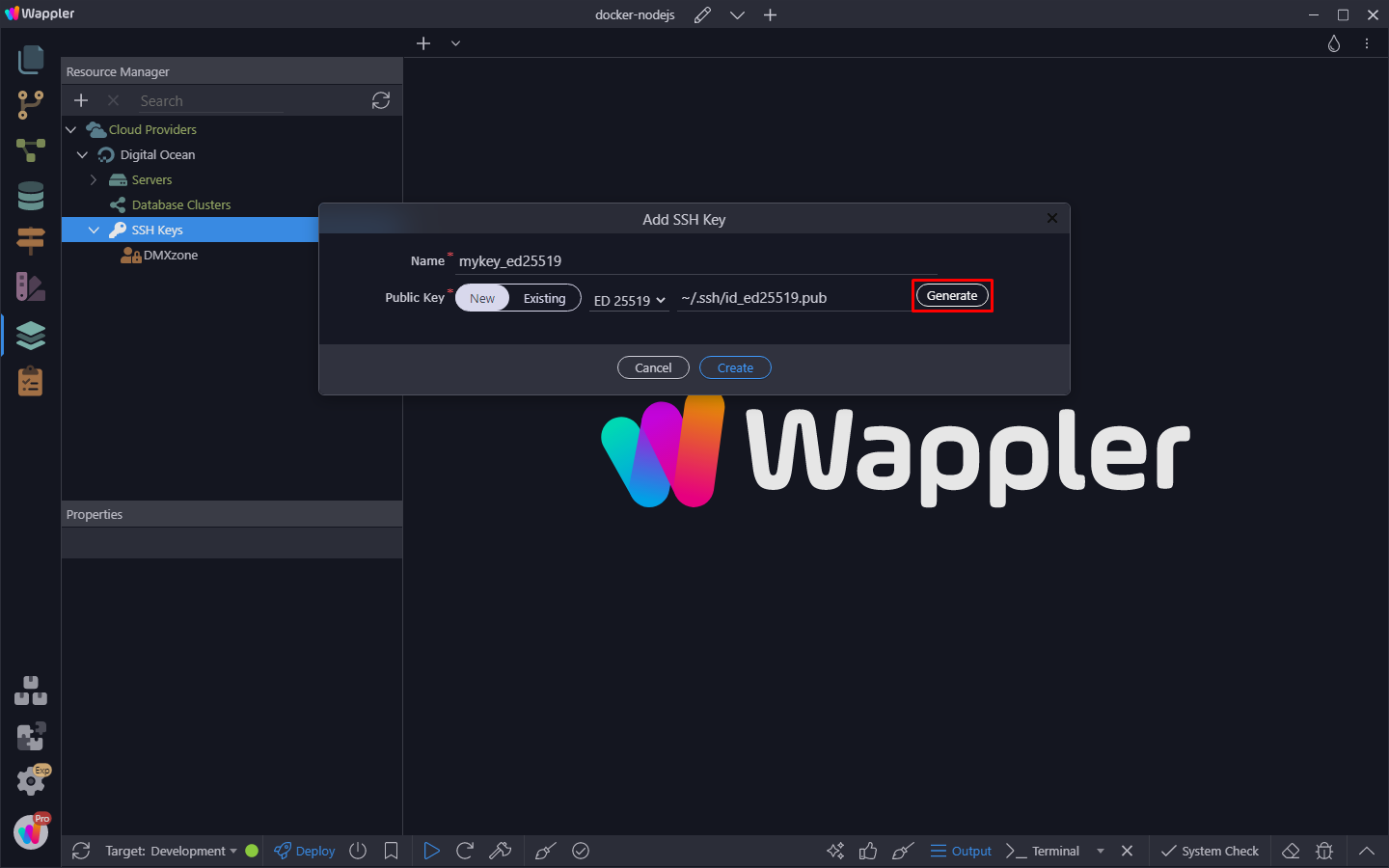
A confirmation message will appear, when the ssh key file has been generated:
Section titled “A confirmation message will appear, when the ssh key file has been generated:”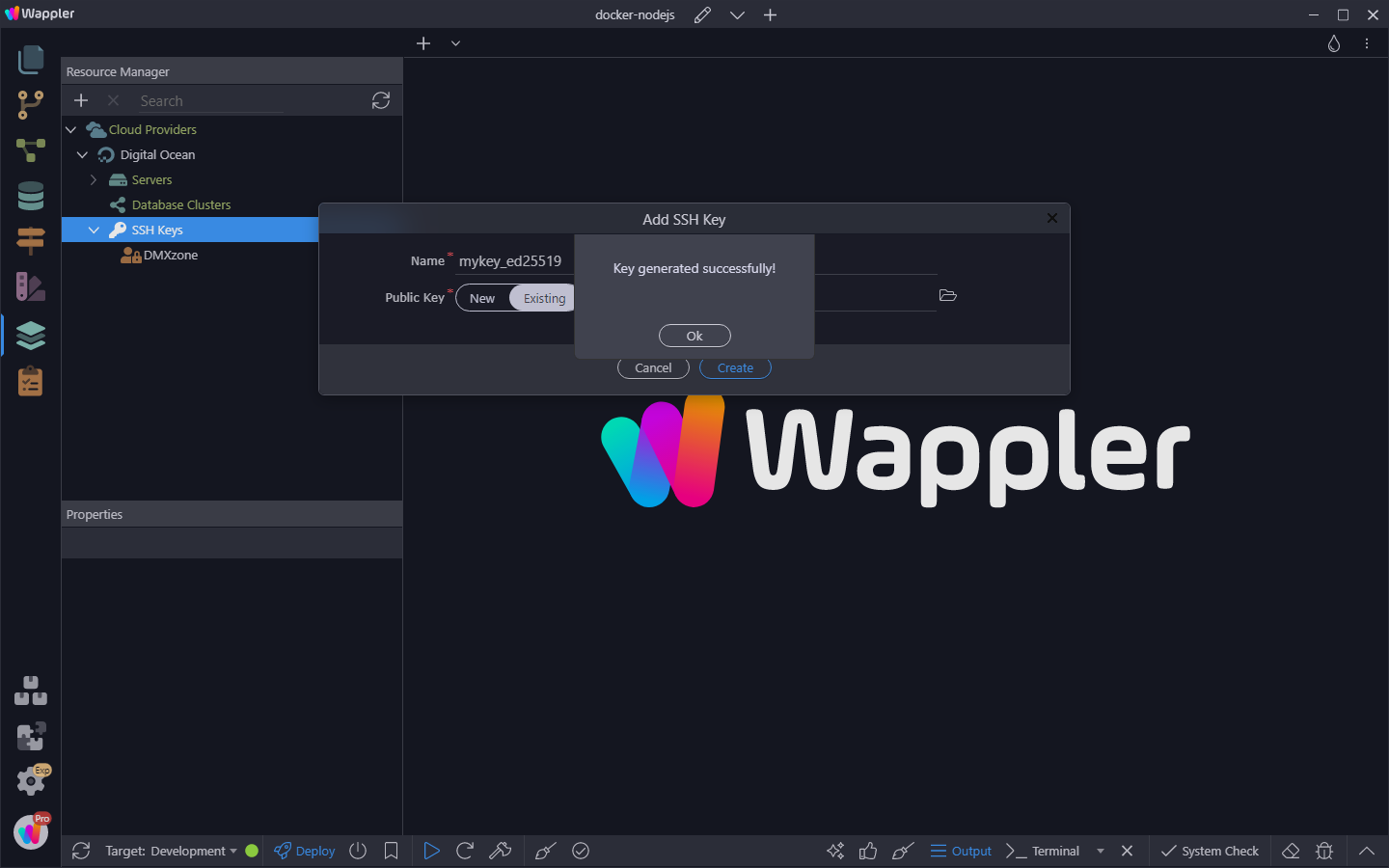
Click Create:
Section titled “Click Create:”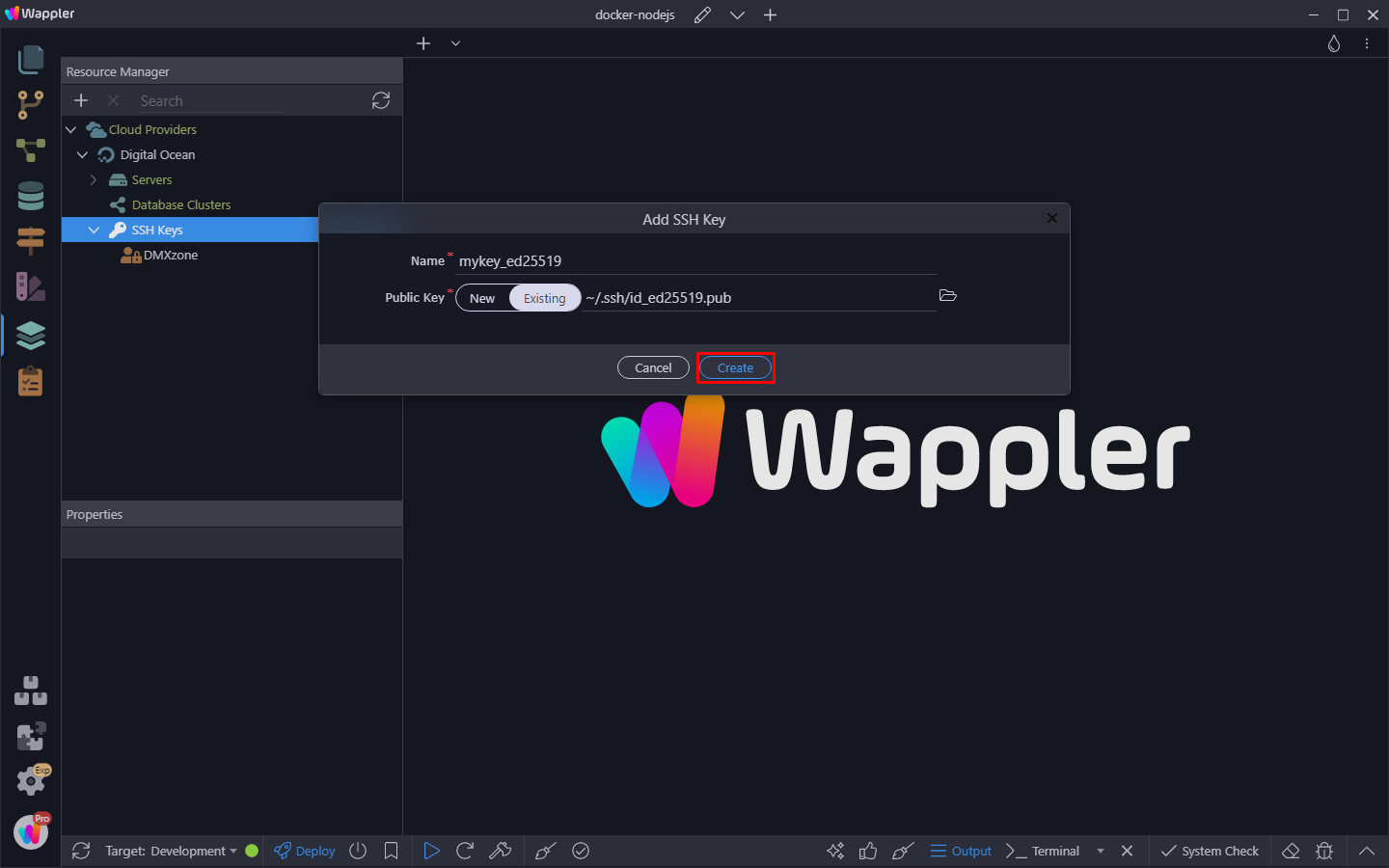
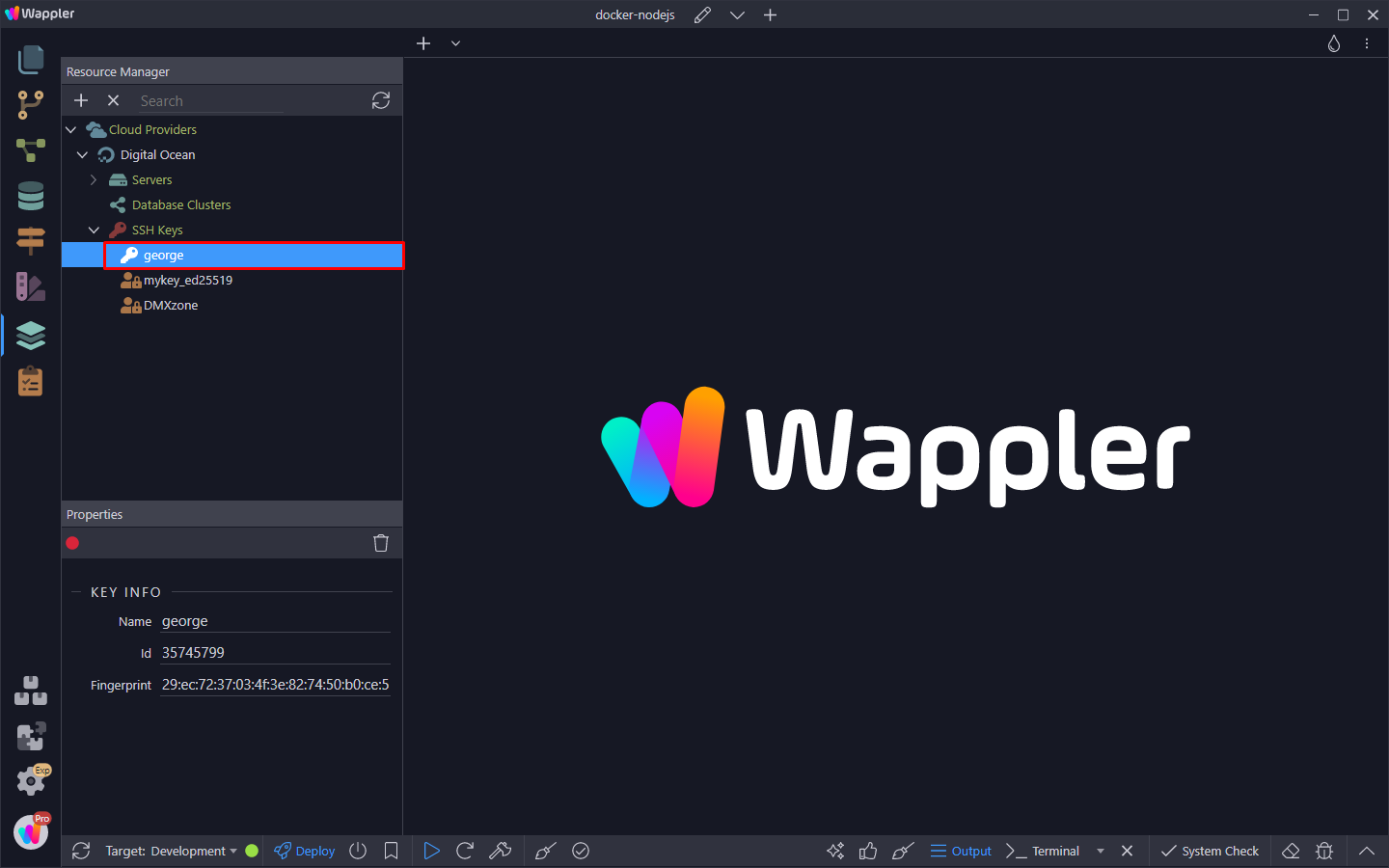
And you are done, your can see your newly created ssh key is now available for this cloud provider:
Section titled “And you are done, your can see your newly created ssh key is now available for this cloud provider:”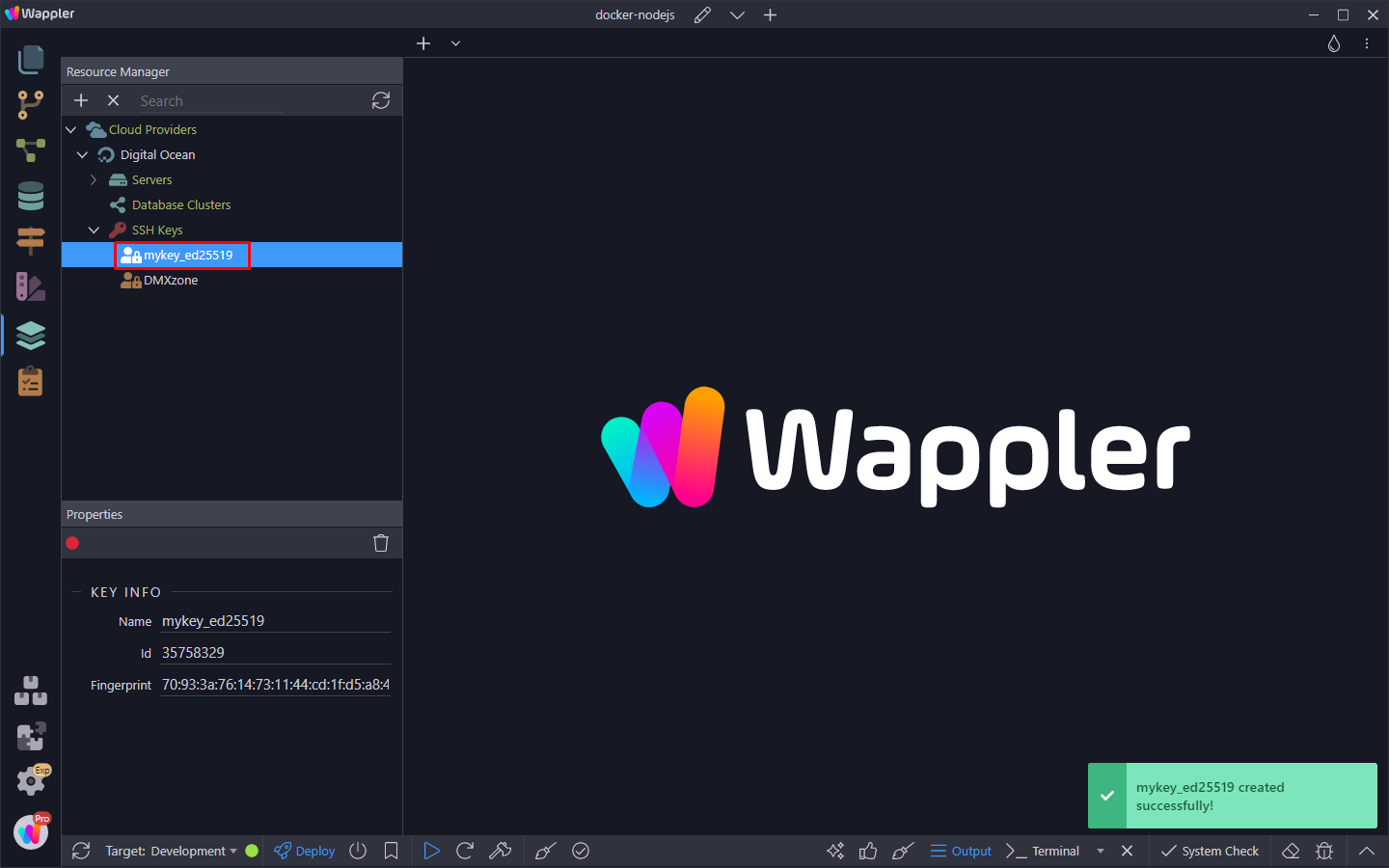
Importing SSH Keys
Section titled “Importing SSH Keys”You can import existing ssh keys from your cloud provider. Useful in cases when you work in a team and you need multiple keys - one per each team member.
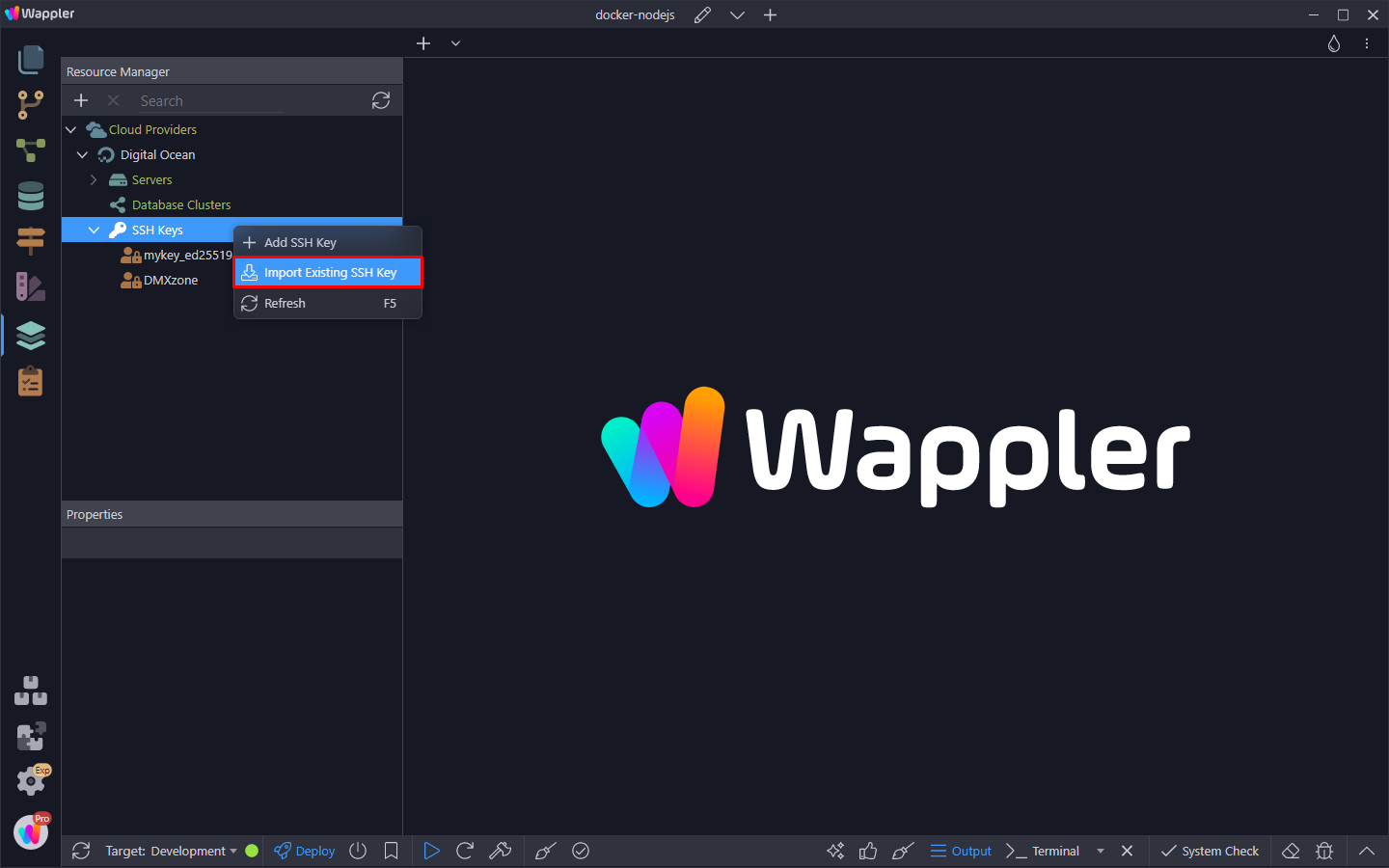
Under your cloud provider, right click SSH Keys and select Import Existing SSH Key:
Open the SSH Key dropdown:
Section titled “Open the SSH Key dropdown:”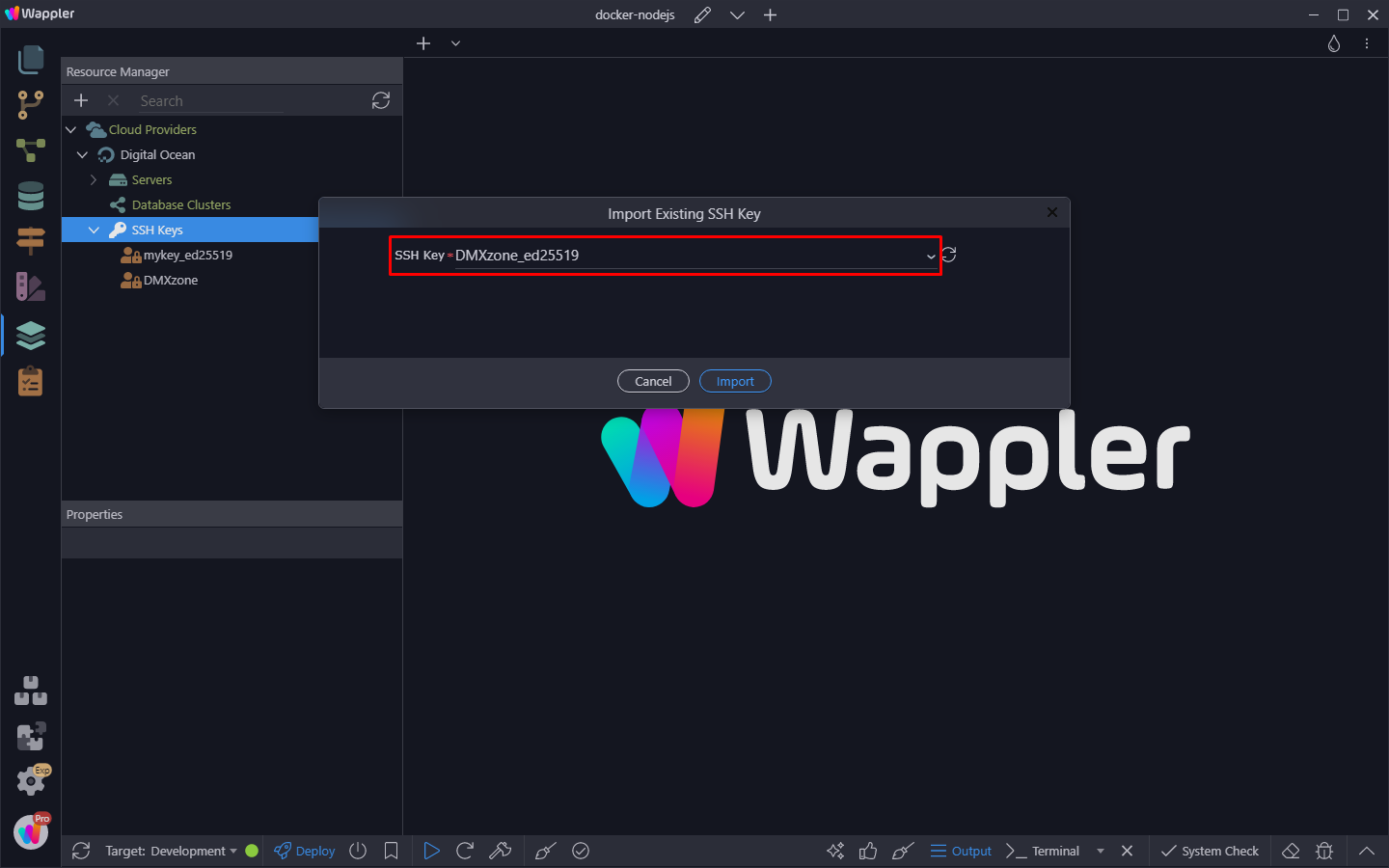
And you can see the available keys on your cloud provider. Select the one you need to import:
Section titled “And you can see the available keys on your cloud provider. Select the one you need to import:”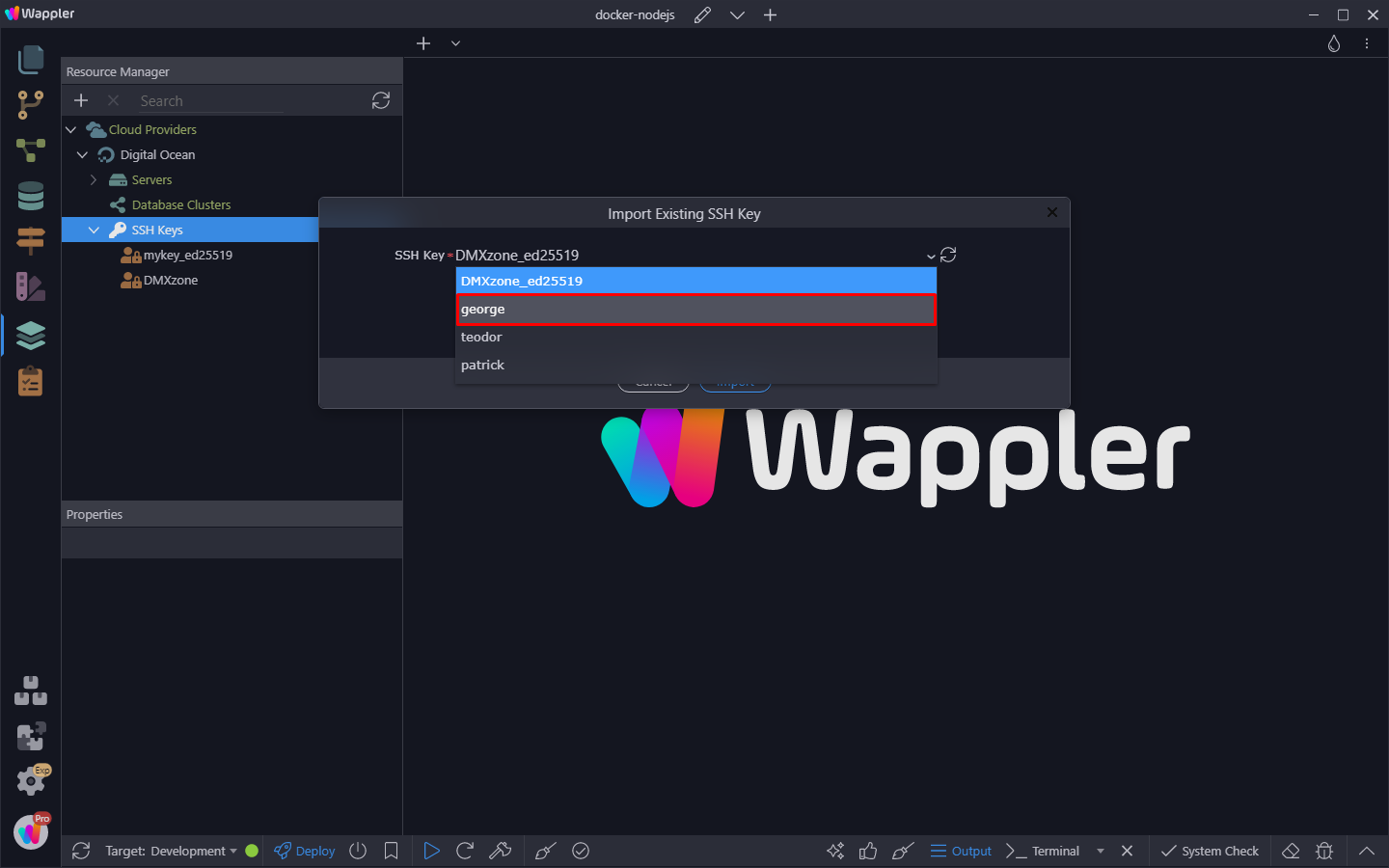
And click Import:
Section titled “And click Import:”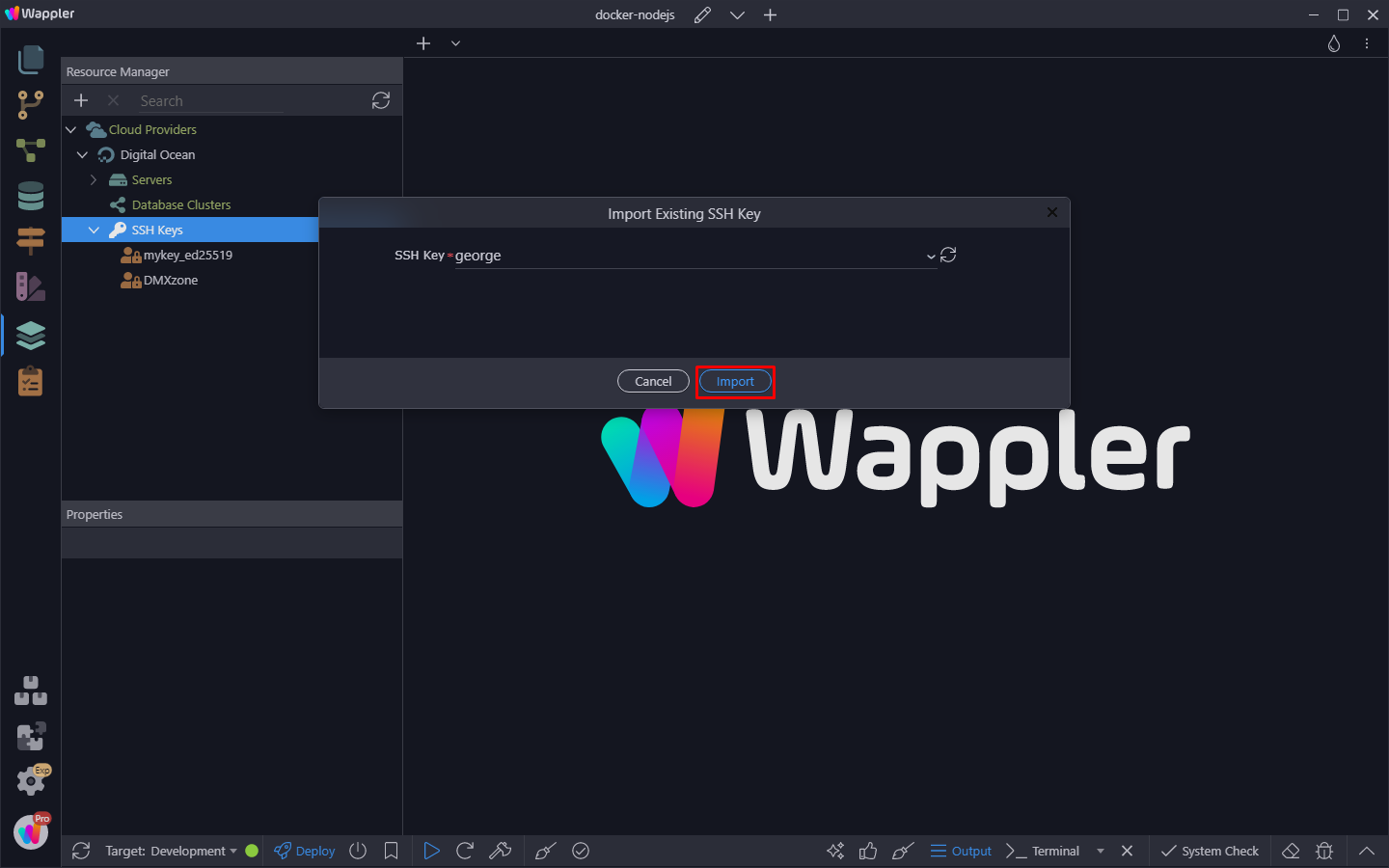
You can see the imported ssh key under SSH Keys:
Section titled “You can see the imported ssh key under SSH Keys:”