Redirecting on Login Based on User Roles
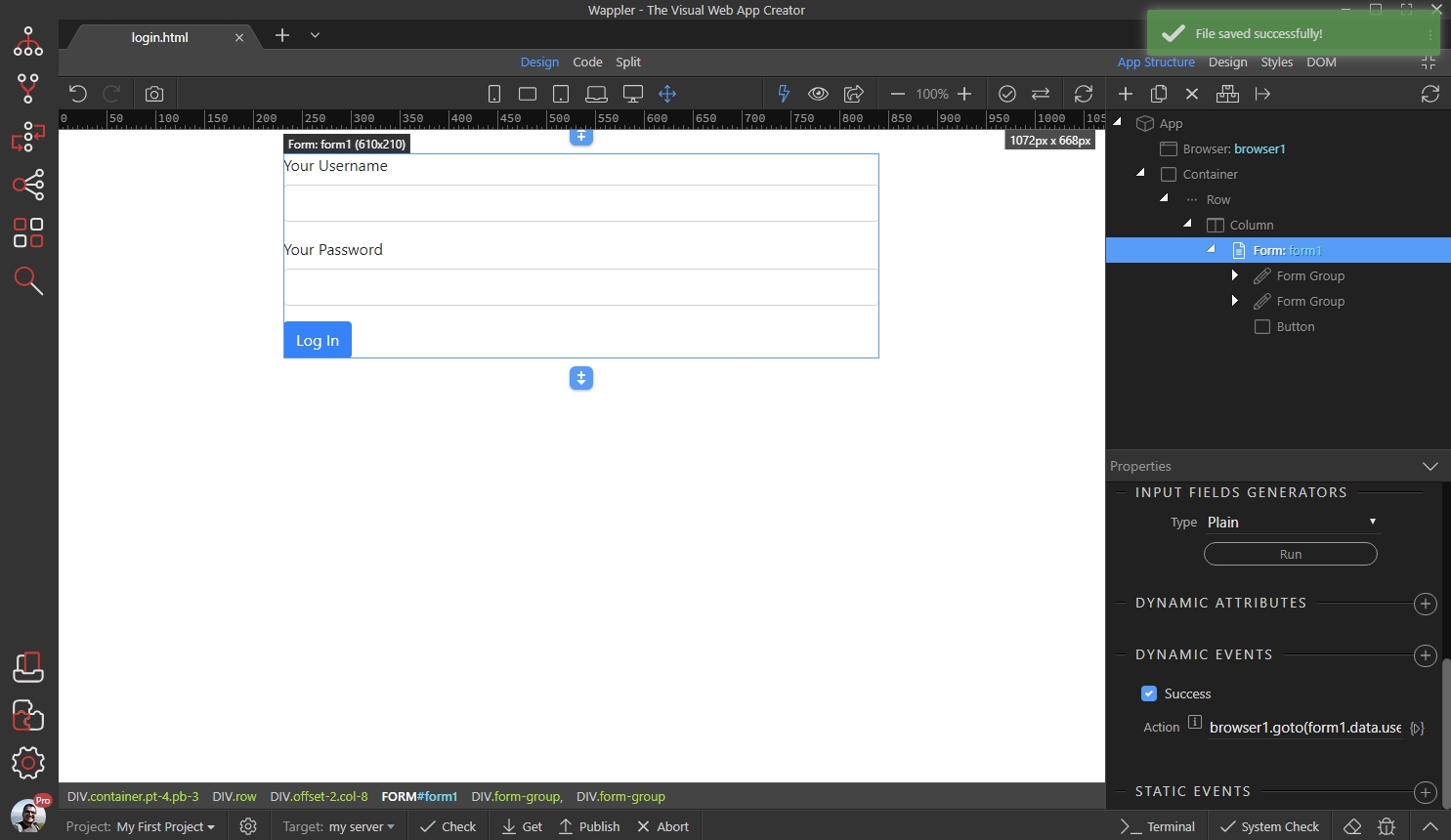
Sometimes you need to redirect users on log in, based on their roles. For example admins go to one page, while regular users go to another one. This can easily be done with a condition in the Browser
You already know how to log users in and redirect them after log in, so we won’t show this again.
Section titled “You already know how to log users in and redirect them after log in, so we won’t show this again.”Sometimes you need to redirect users on log in, based on their roles. For example admins go to one page, while regular users go to another one. This can easily be done with a condition in the Browser component and Go To action.
You already know how to log users in and redirect them after log in, so we won’t show this again.
Getting user roles
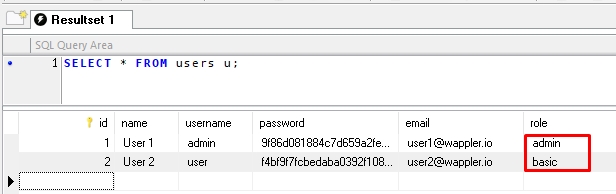
Section titled “Getting user roles”We need to get the logged user role, right after the user logs in. In our case we store the roles in the same table where our users are, but the logic is the same even if you store roles in a separate table:
Step 3
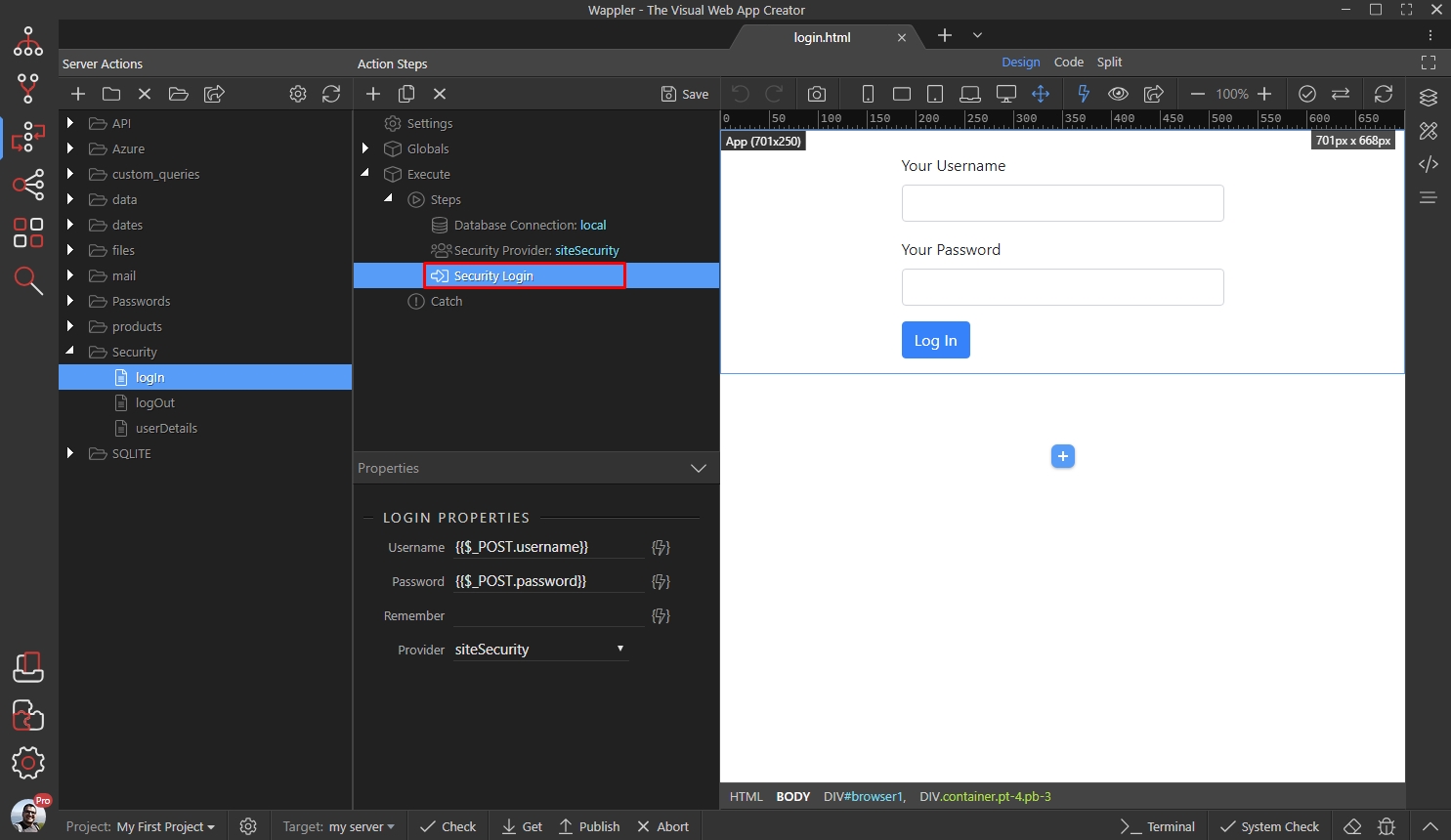
Section titled “Step 3”What we need to is to query the table, where the roles are stored and filter it by logged user identity. The login step returns the logged user identity, so we need to add the query after it. Right click the log in step:
Then add a database query:
Section titled “Then add a database query:”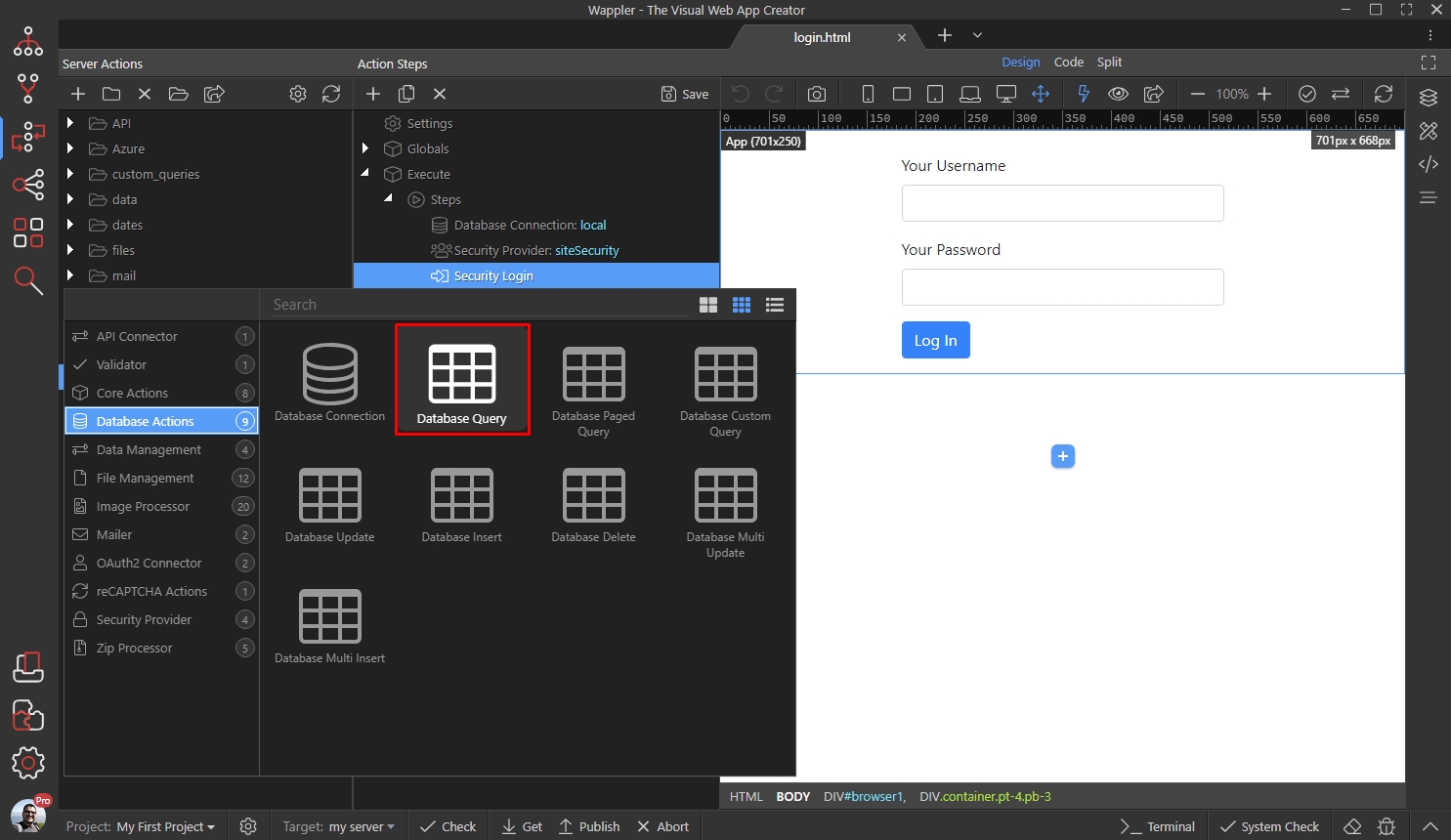
We call the query userdetails, then click the query builder button:
Section titled “We call the query userdetails, then click the query builder button:”
Step 6
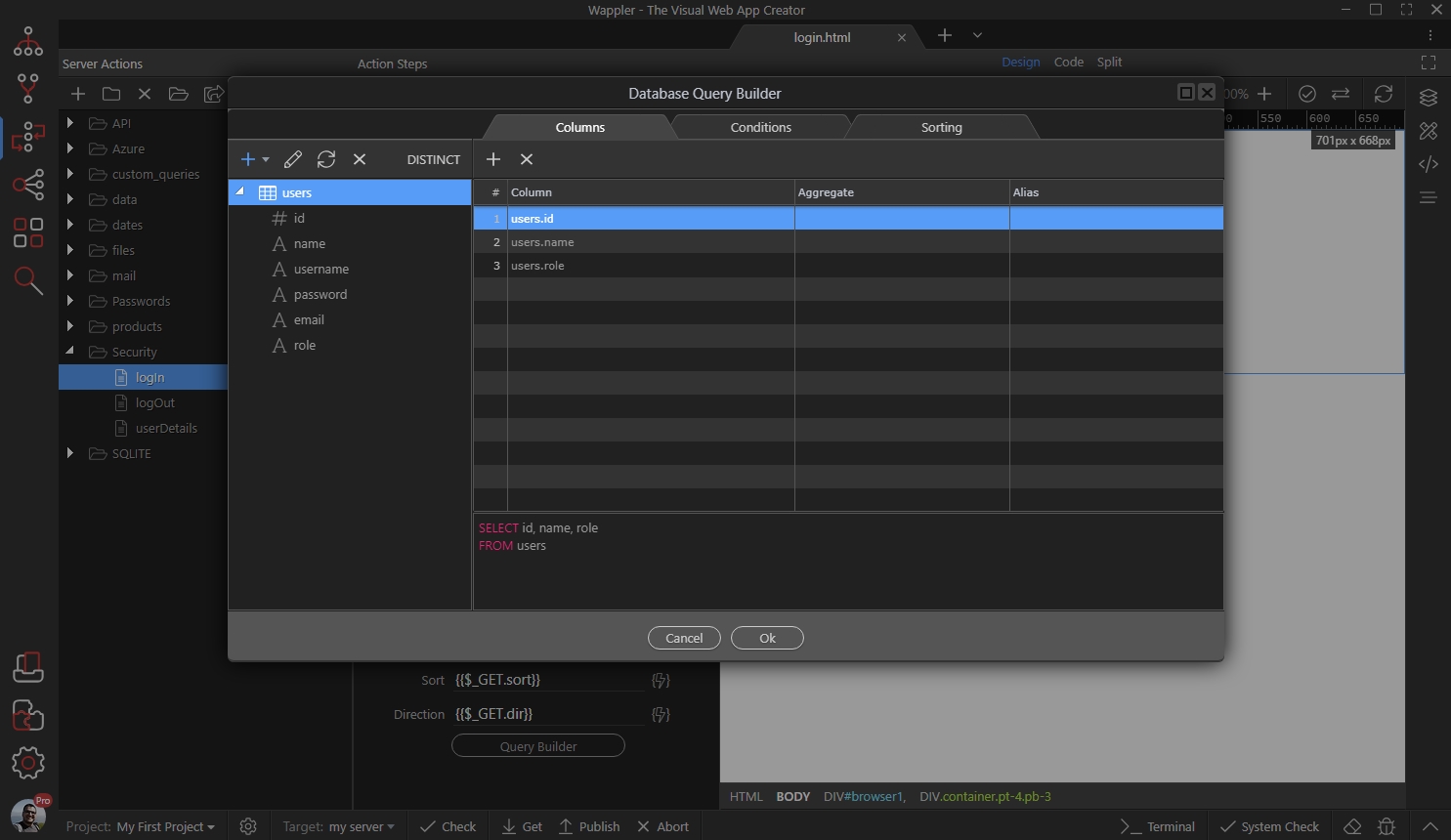
Section titled “Step 6”Add your table to the query builder and add the columns you need. The role column is mandatory here, as that is what we need for the redirect:
Open the Conditions tab:
Section titled “Open the Conditions tab:”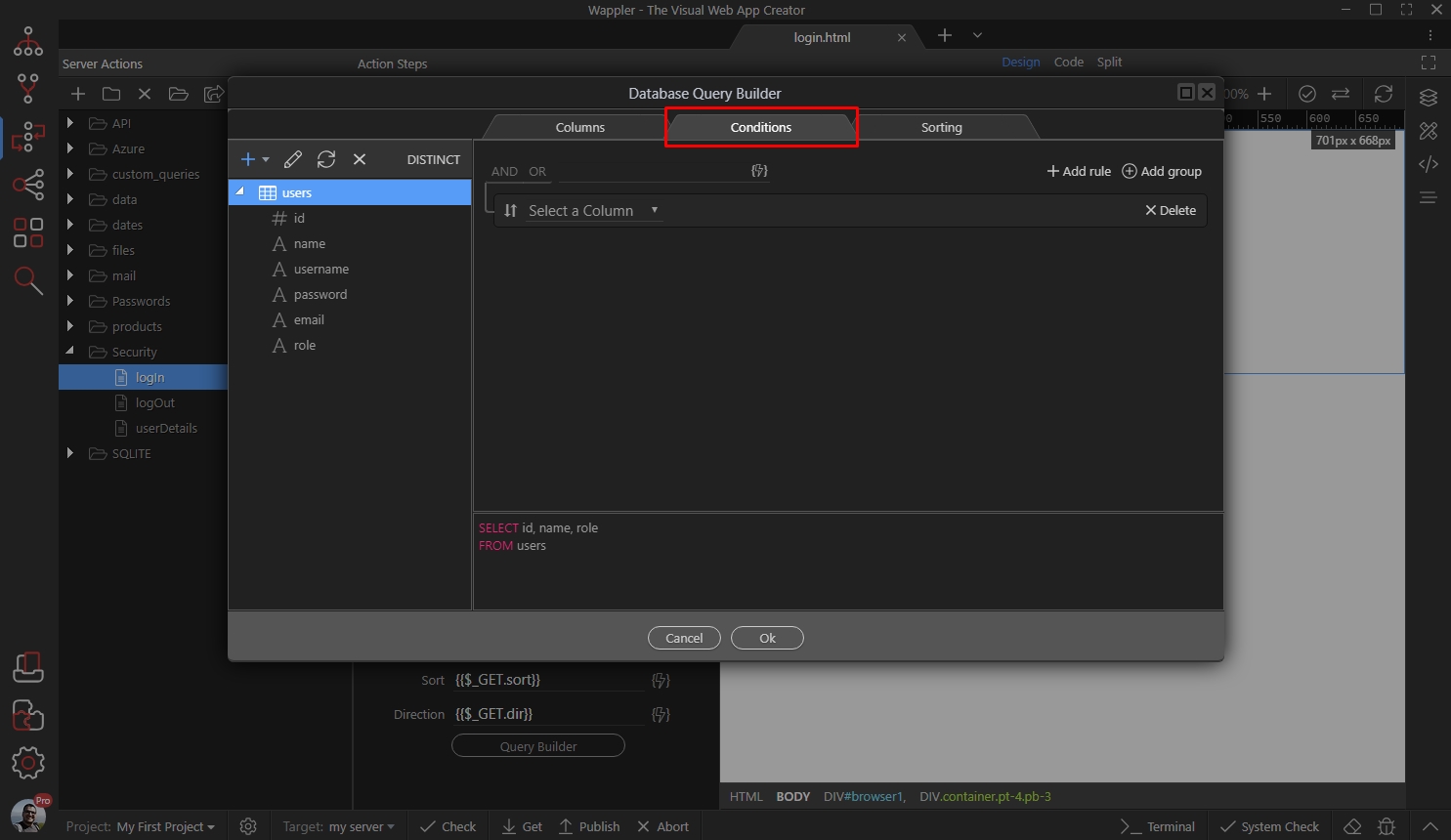
Step 8
Section titled “Step 8”Here, we will setup the query filter options, so that it returns the logged user identity. Select the user id column, select the equal condition and click the dynamic data picker to select a value:
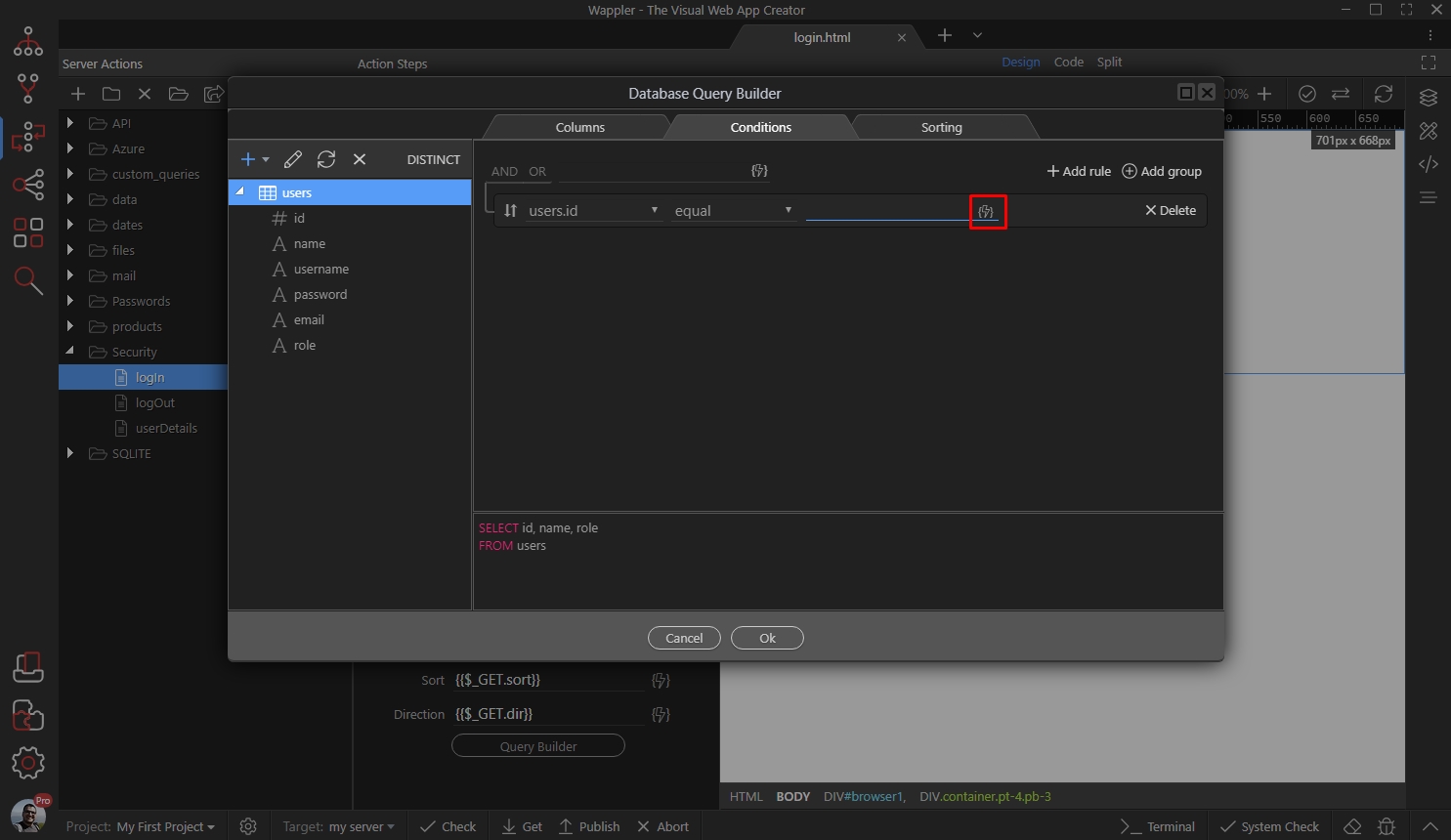
Select the Security Login step - it returns the logged user identity:
Section titled “Select the Security Login step - it returns the logged user identity:”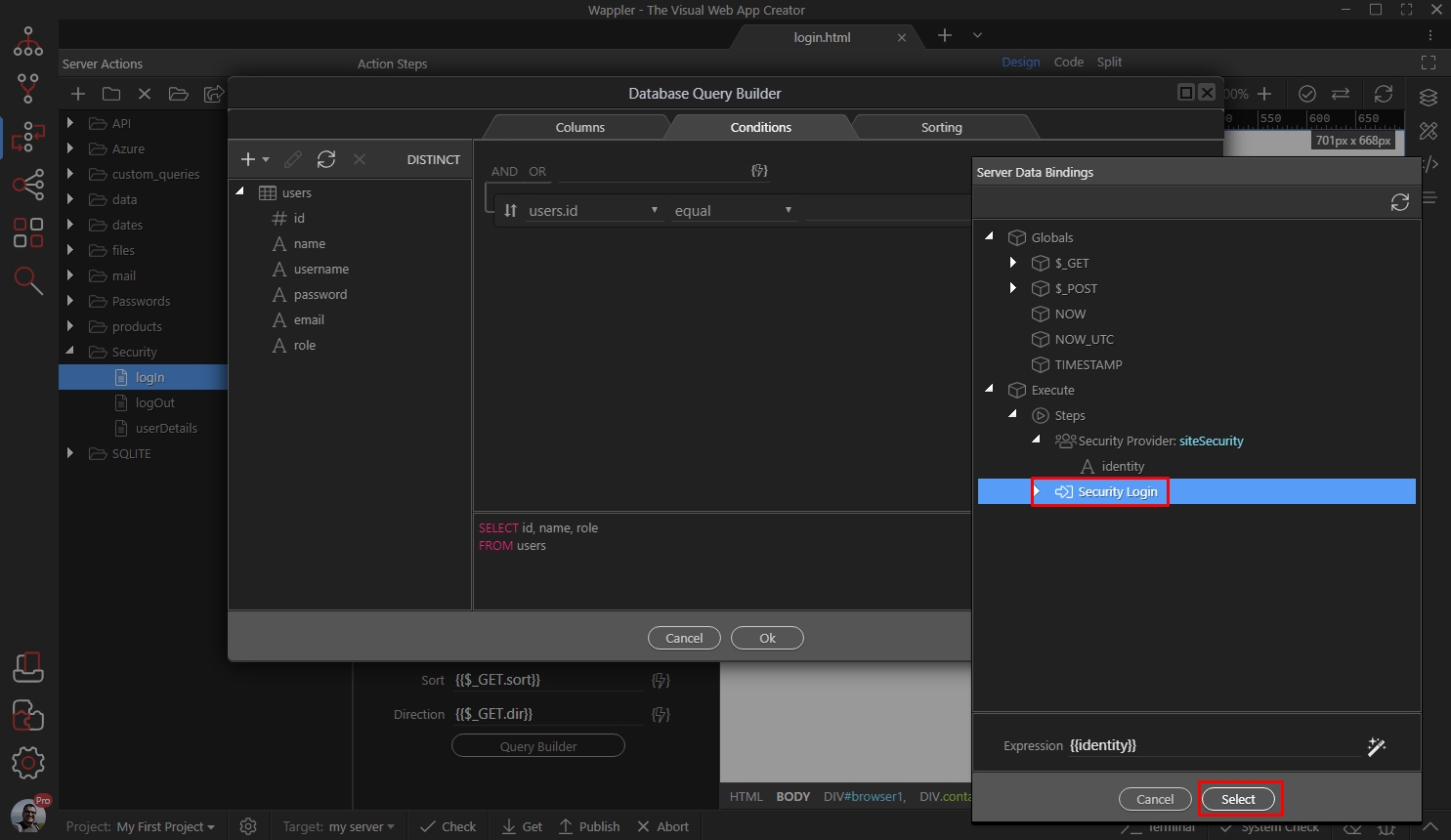
Click Ok to create the query:
Section titled “Click Ok to create the query:”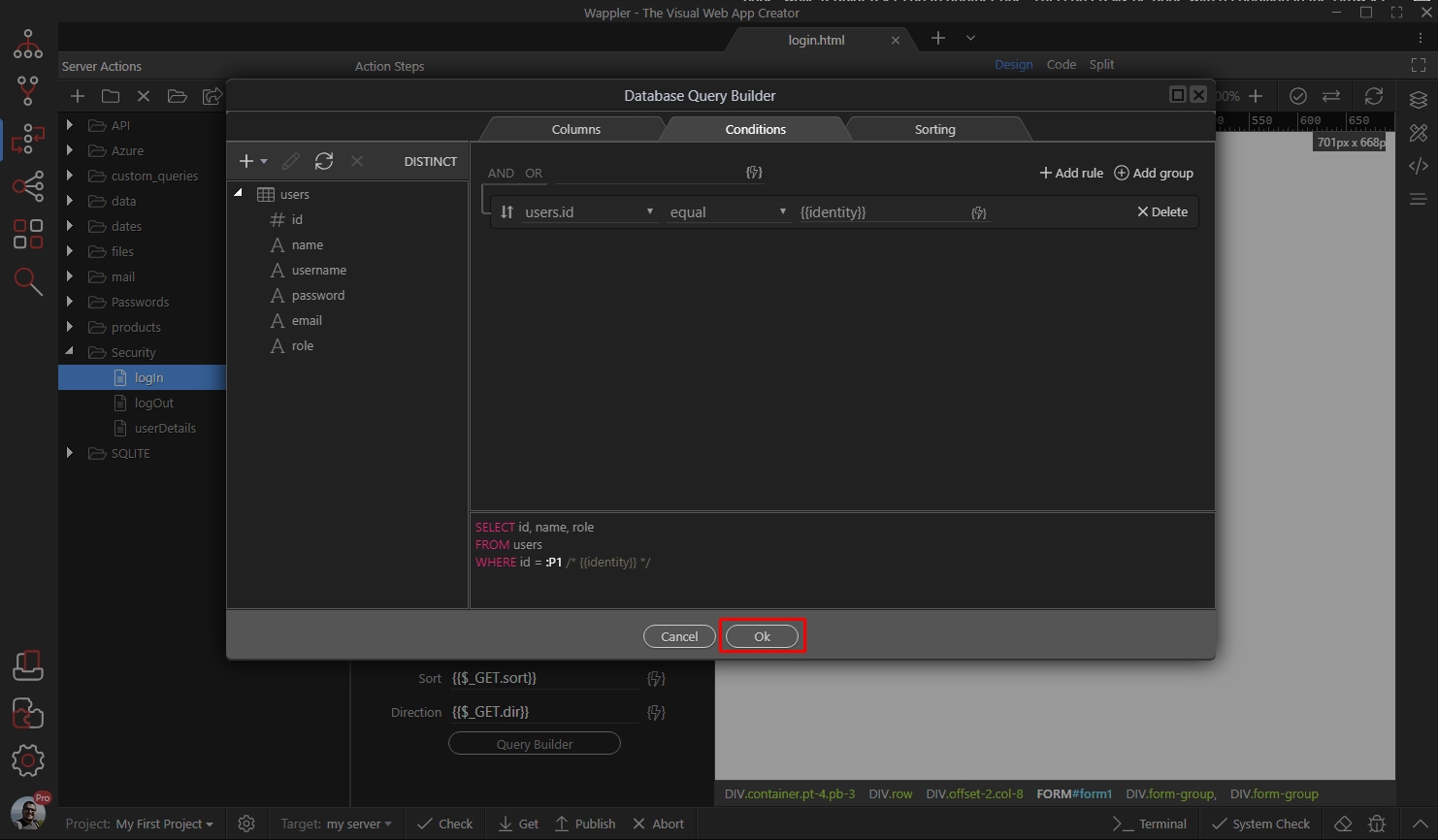
Save your server action and close the Server Connect panel:
Section titled “Save your server action and close the Server Connect panel:”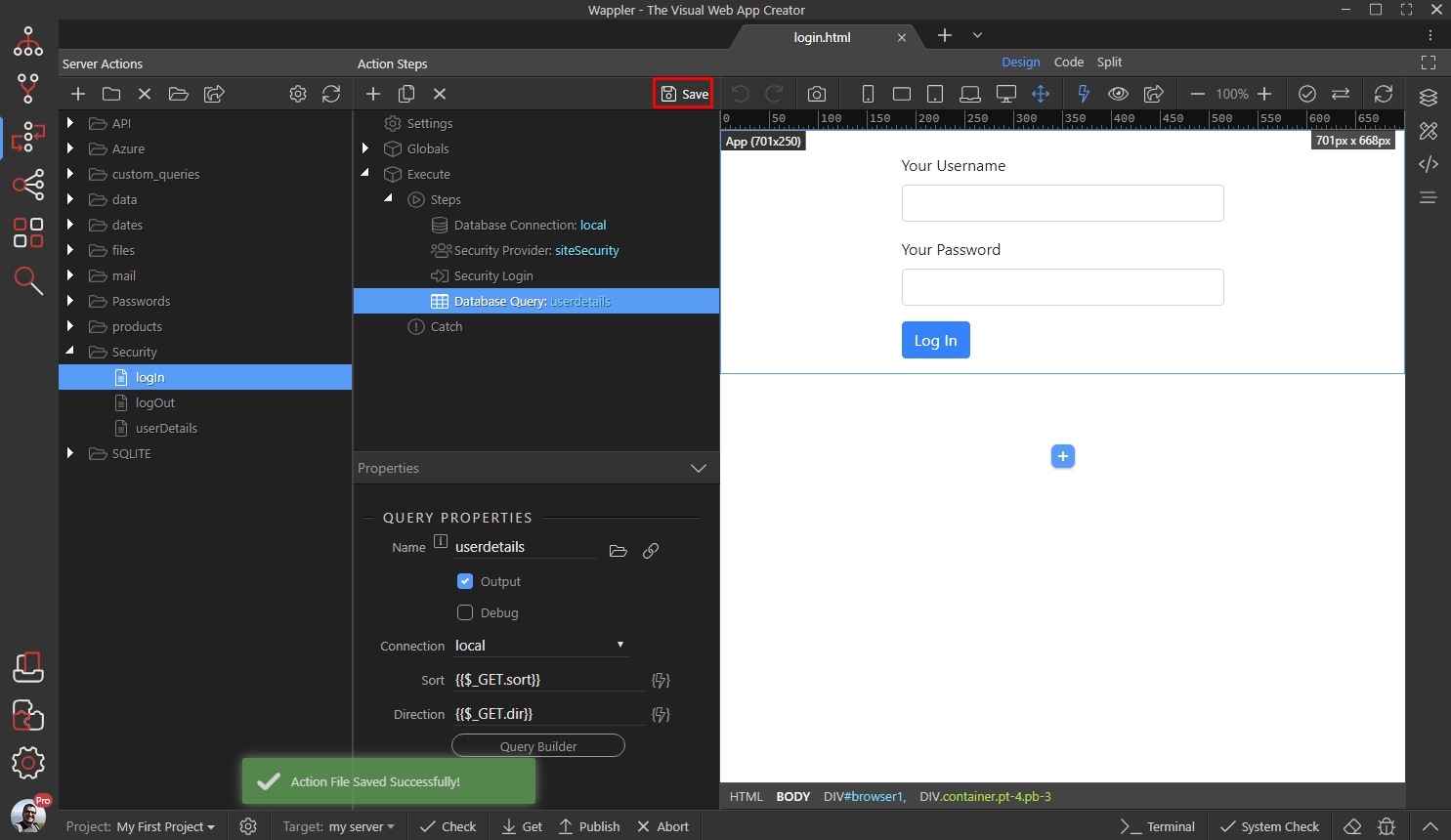
Set up redirect
Section titled “Set up redirect”Open the App Connect Panel and select your log in form. Following the log in tutorial, you probably have a redirect to a static page already in place:
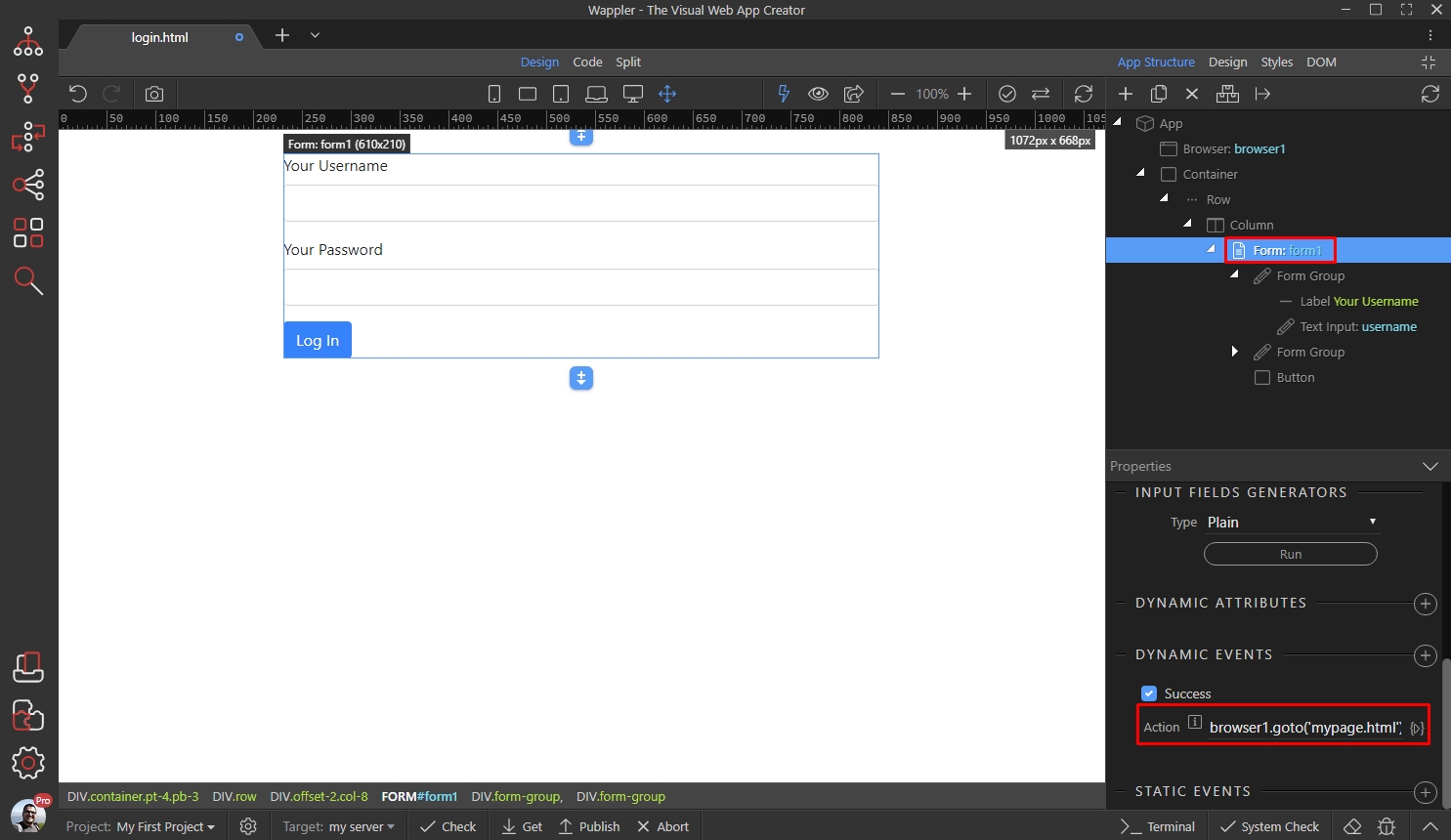
Open the dynamic action and delete what you have there:
Section titled “Open the dynamic action and delete what you have there:”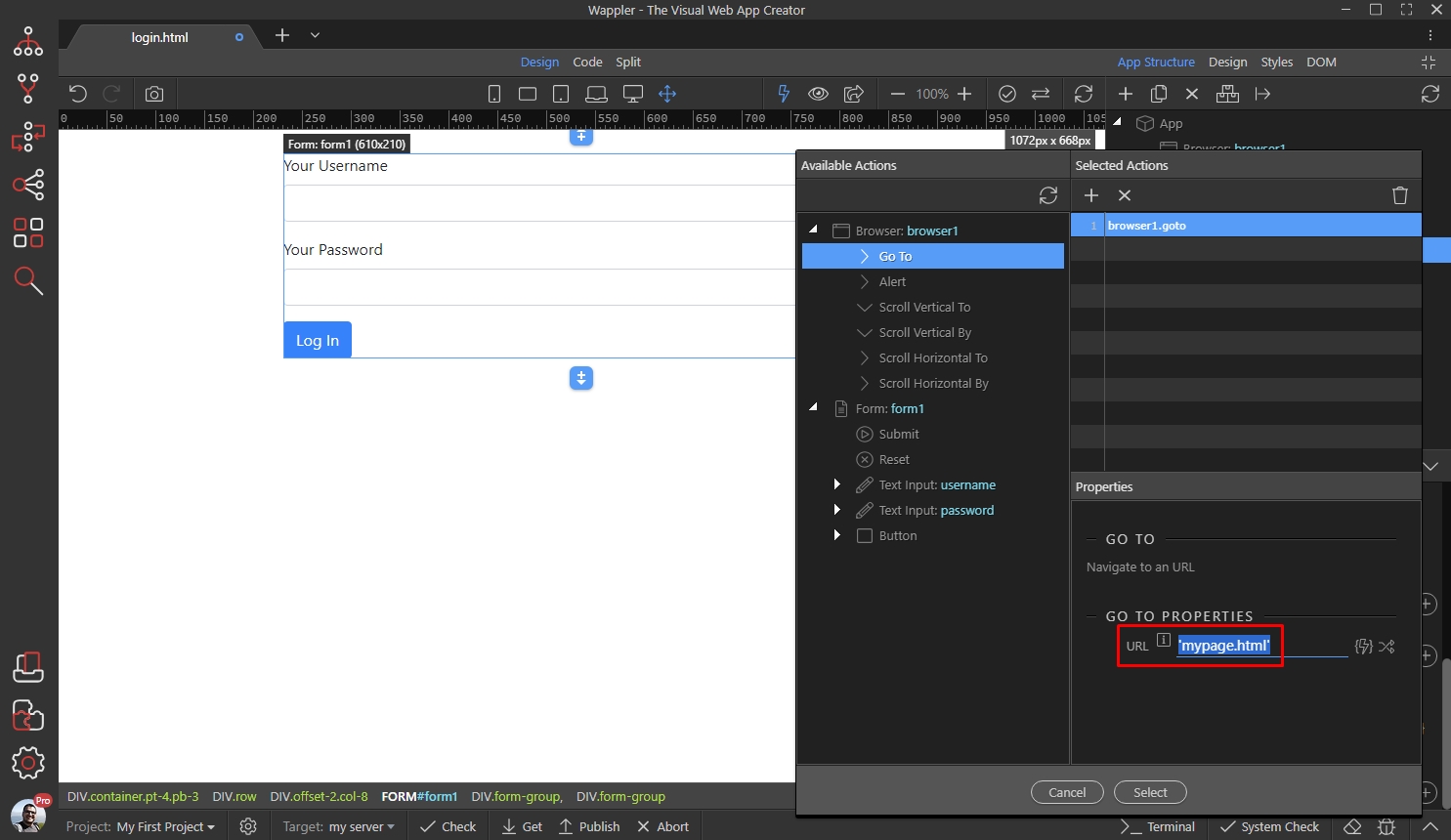
Step 15
Section titled “Step 15”We need to check the logged user role. In order to do this, we need to check what the query returns, so click the dynamic data picker:
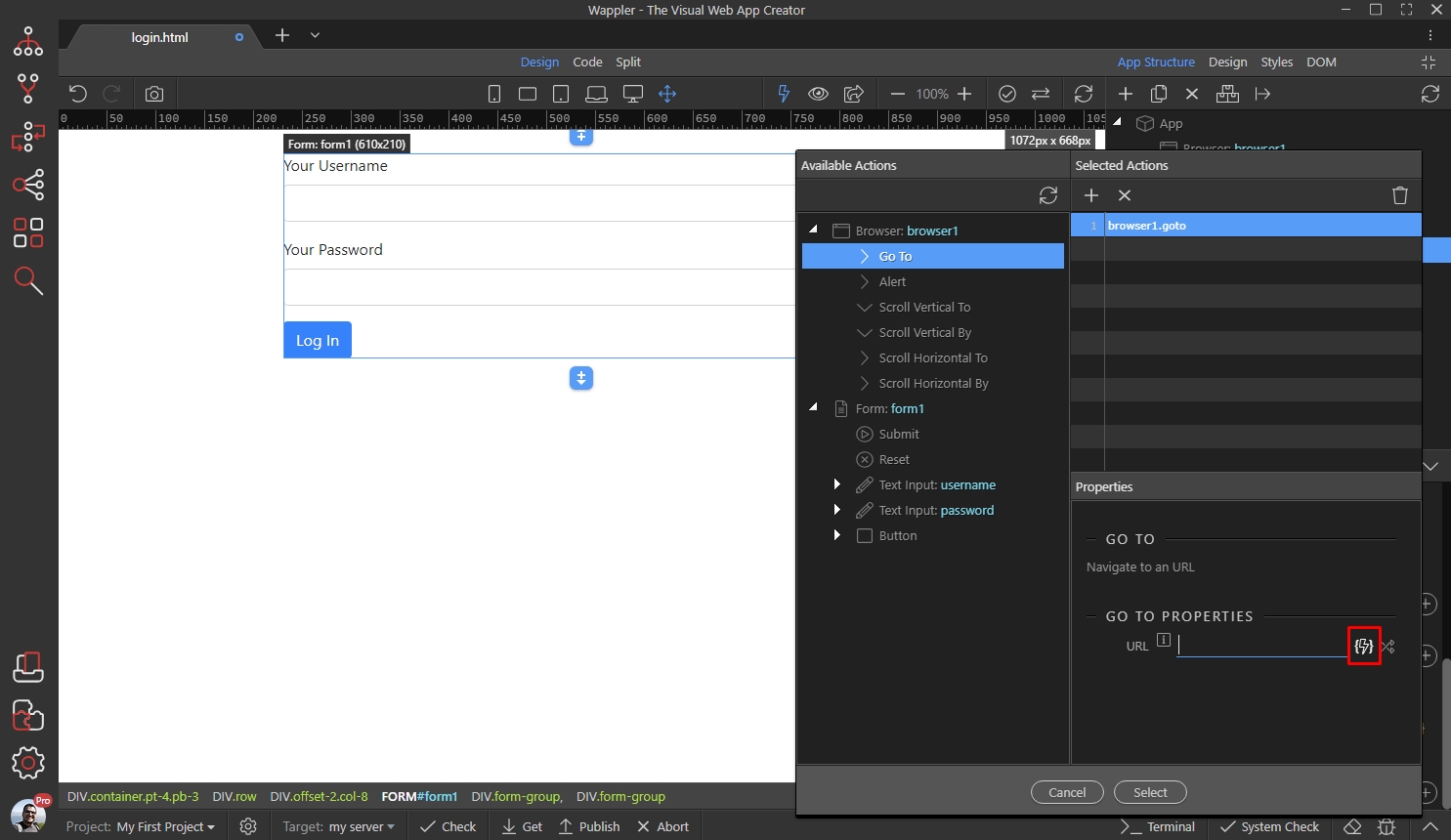
Step 16
Section titled “Step 16”Expand your log in form, open data > userdetails (the query we already created) and select role (or however is the role column named in your database table):
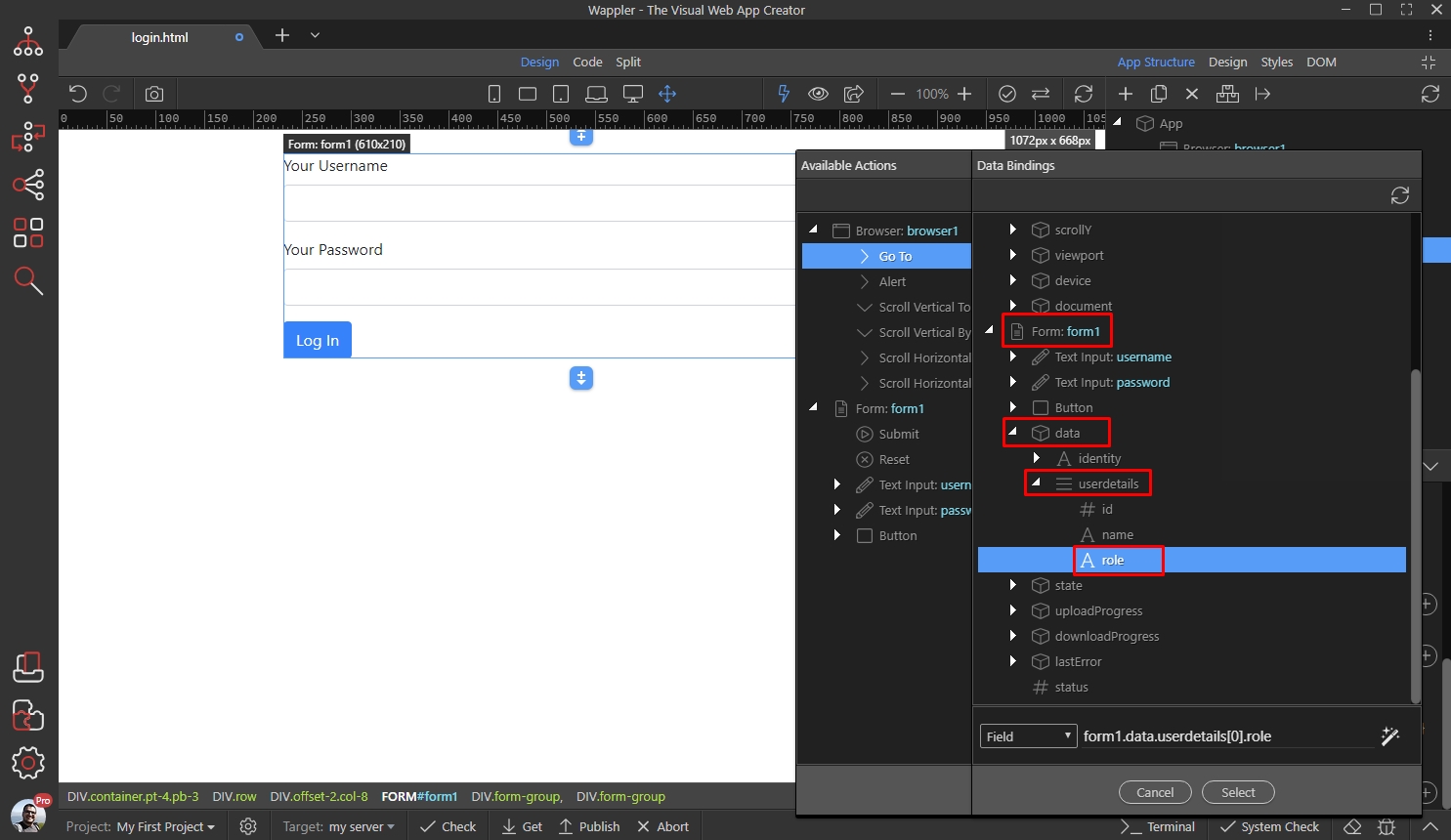
== 'admin' ? 'admin.html' : 'user.html'
Section titled “== 'admin' ? 'admin.html' : 'user.html'”This will return the role, but we need to a condition here to check it. We will use the ternary operator for this. We’d like to redirect admins to certain page, and all other users to another page, so we add the following after the role value there:
== 'admin' ? 'admin.html' : 'user.html'
Which means - if the user role equals ‘admin’, go to ‘admin.html’ in all other cases go to ‘user.html’. The whole expression becomes:
form1.data.userdetails[0].role == 'admin' ? 'admin.html' : 'user.html'
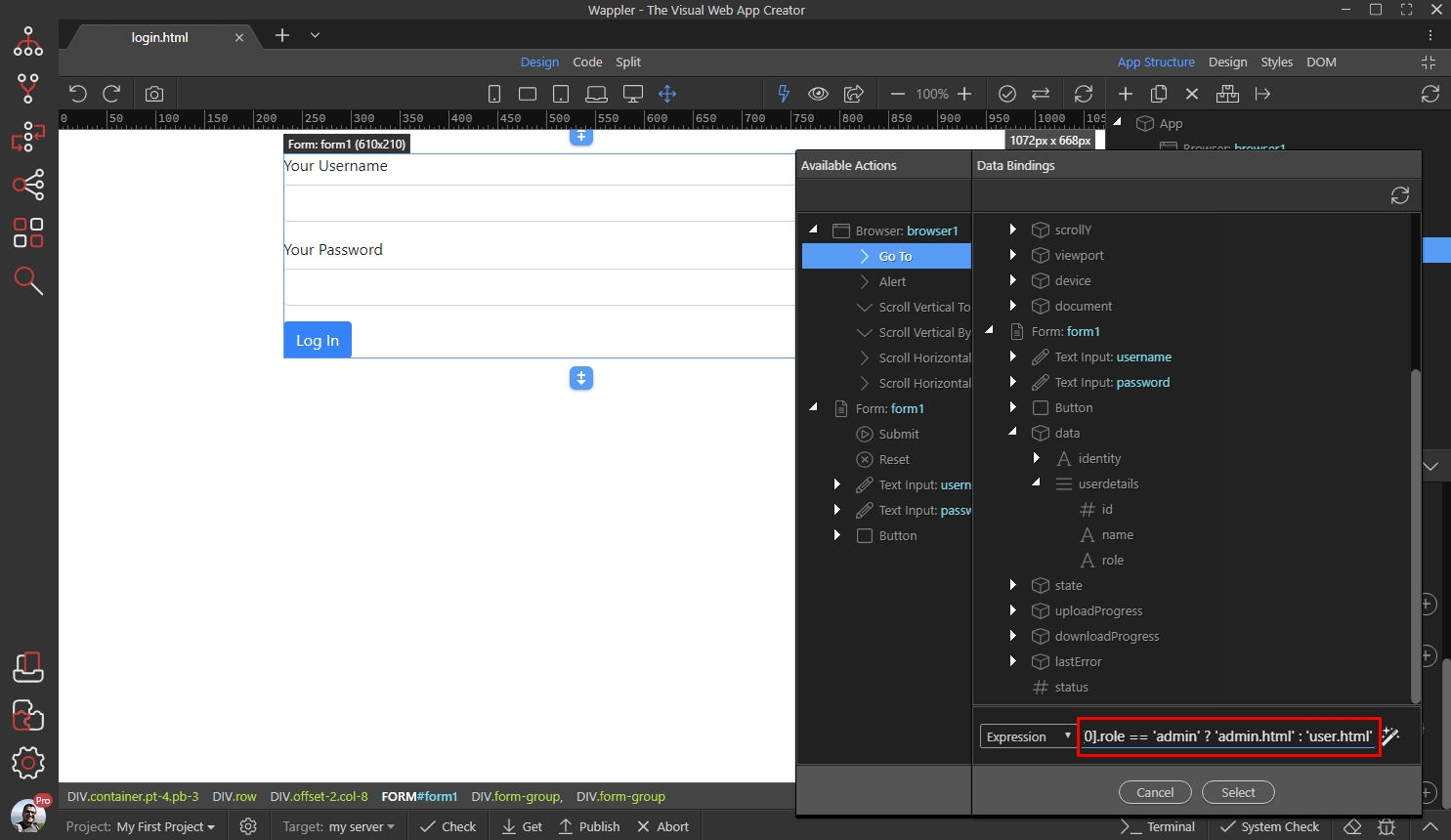
Click Select and you are done:
Section titled “Click Select and you are done:”
Save your page and test the results in your browser:
Section titled “Save your page and test the results in your browser:”