
Using Argon2 Secure Hashes
Intro Using the Argon2 hashing algorithm requires a little different workflow for creating and validating the users using Security Provider. In this tutorial we will show you what’s different and how
Using the Argon2 hashing algorithm requires a little different workflow for creating and validating the users using Security Provider. In this tutorial we will show you what’s different and how to create users in your database and validate them on login.
You already know how to create a login system, so we won’t show the whole workflow again, as it’s the same. If you don’t know how how to do this, please check: Security and Login
Hashing Users’ Passwords
Section titled “Hashing Users’ Passwords”Before we insert the users login details in the database we need to hash their password.
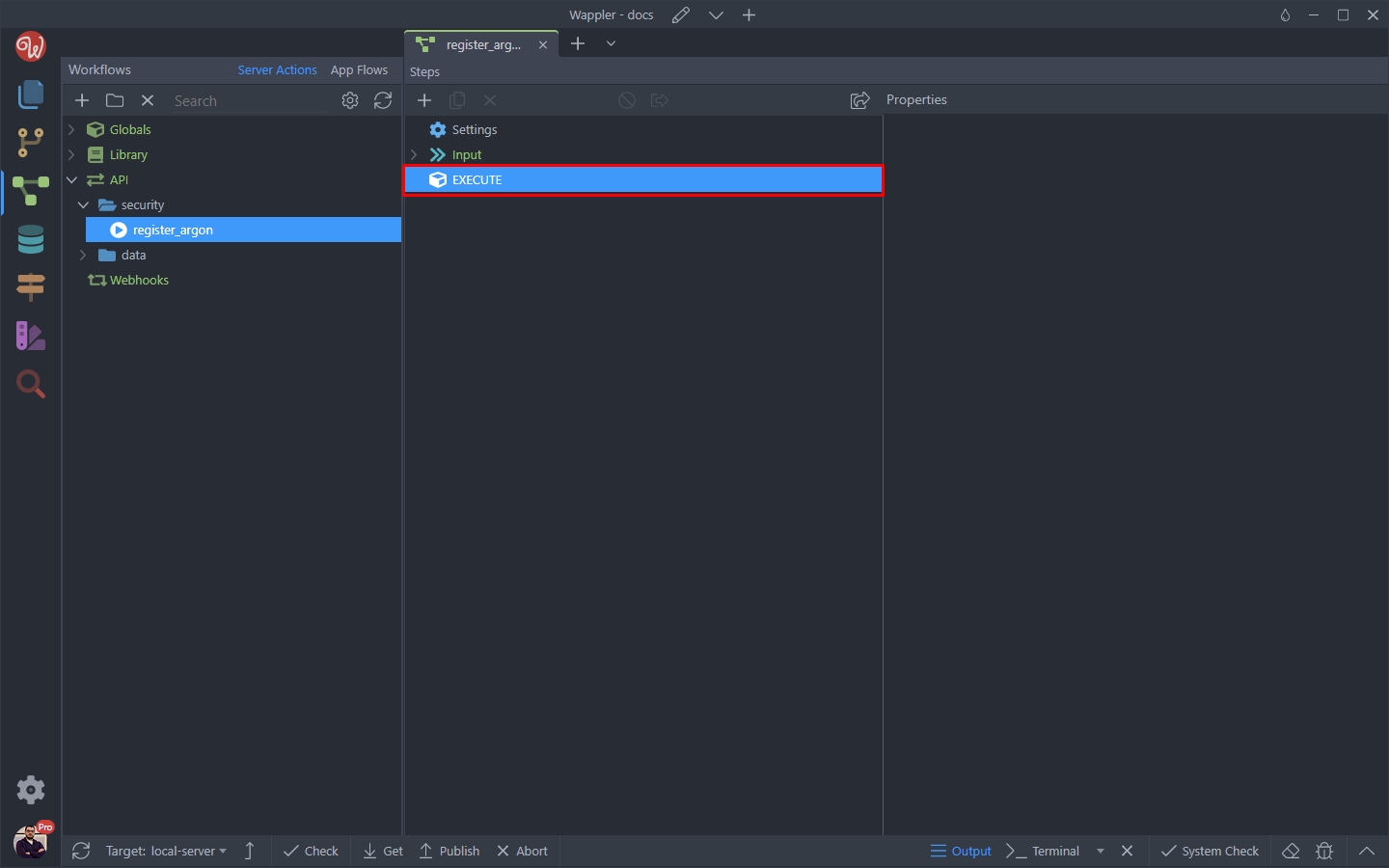
We created a server action which will insert this data in the database. Right click execute:
Add a new step. Select Cryptographic > Password Hash
Section titled “Add a new step. Select Cryptographic > Password Hash”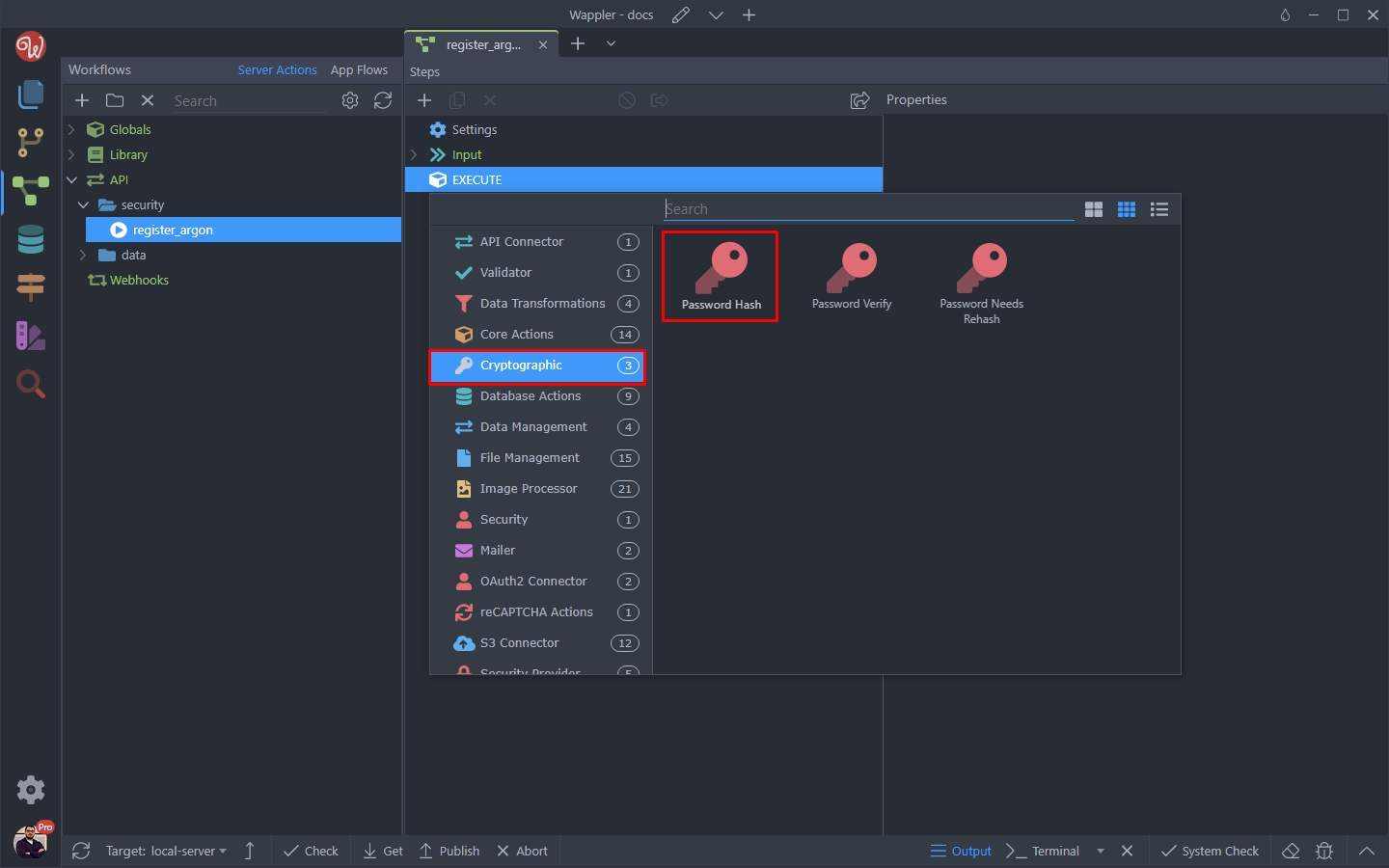
Then click the dynamic data picker for the Password:
Section titled “Then click the dynamic data picker for the Password:”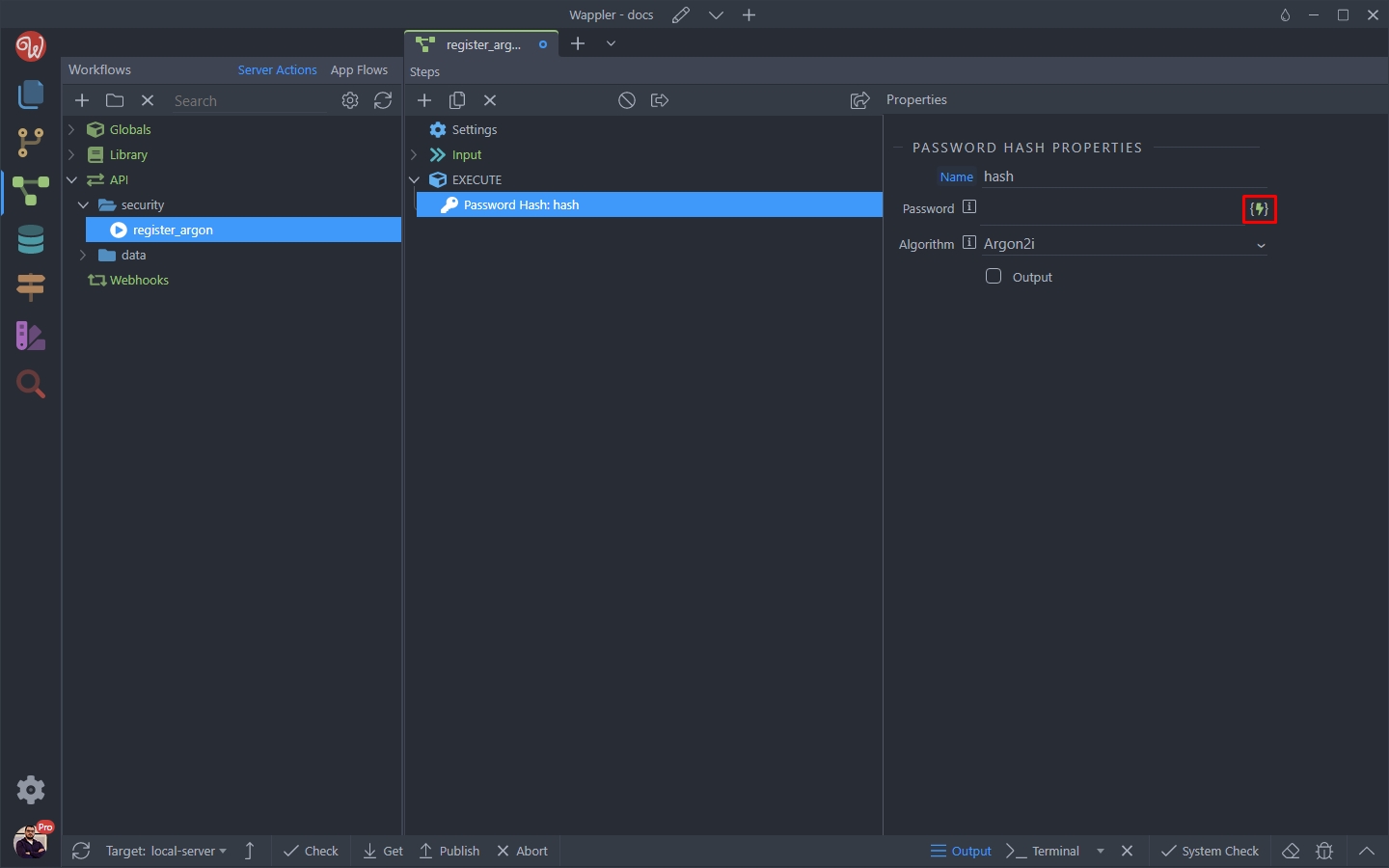
Step 6
Section titled “Step 6”This is the password input, under the $_POST variables, which we receive from the form on the registration page. Click Select:

Then select the hashing algorithm. We select Argon2id:
Section titled “Then select the hashing algorithm. We select Argon2id:”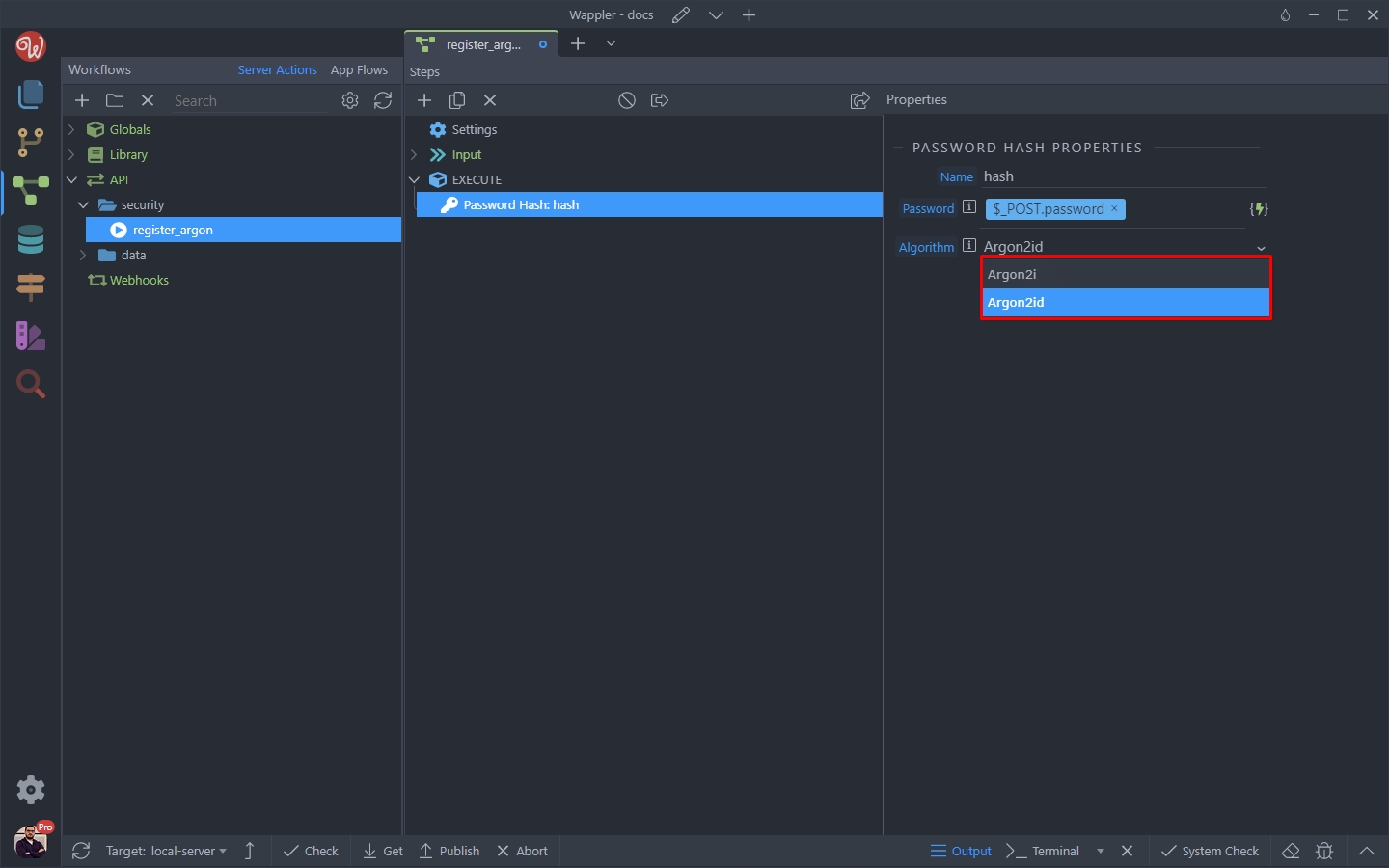
And you are done, now you have the password hashed and we can insert it in the database.
Section titled “And you are done, now you have the password hashed and we can insert it in the database.”Storing Users Login Data in the Database
Section titled “Storing Users Login Data in the Database”When creating the users in your database you need to store their hashed password there. For storing the hashed passwords in your database we recommend using a varchar(255) database field.
Right click the Password Hash step:
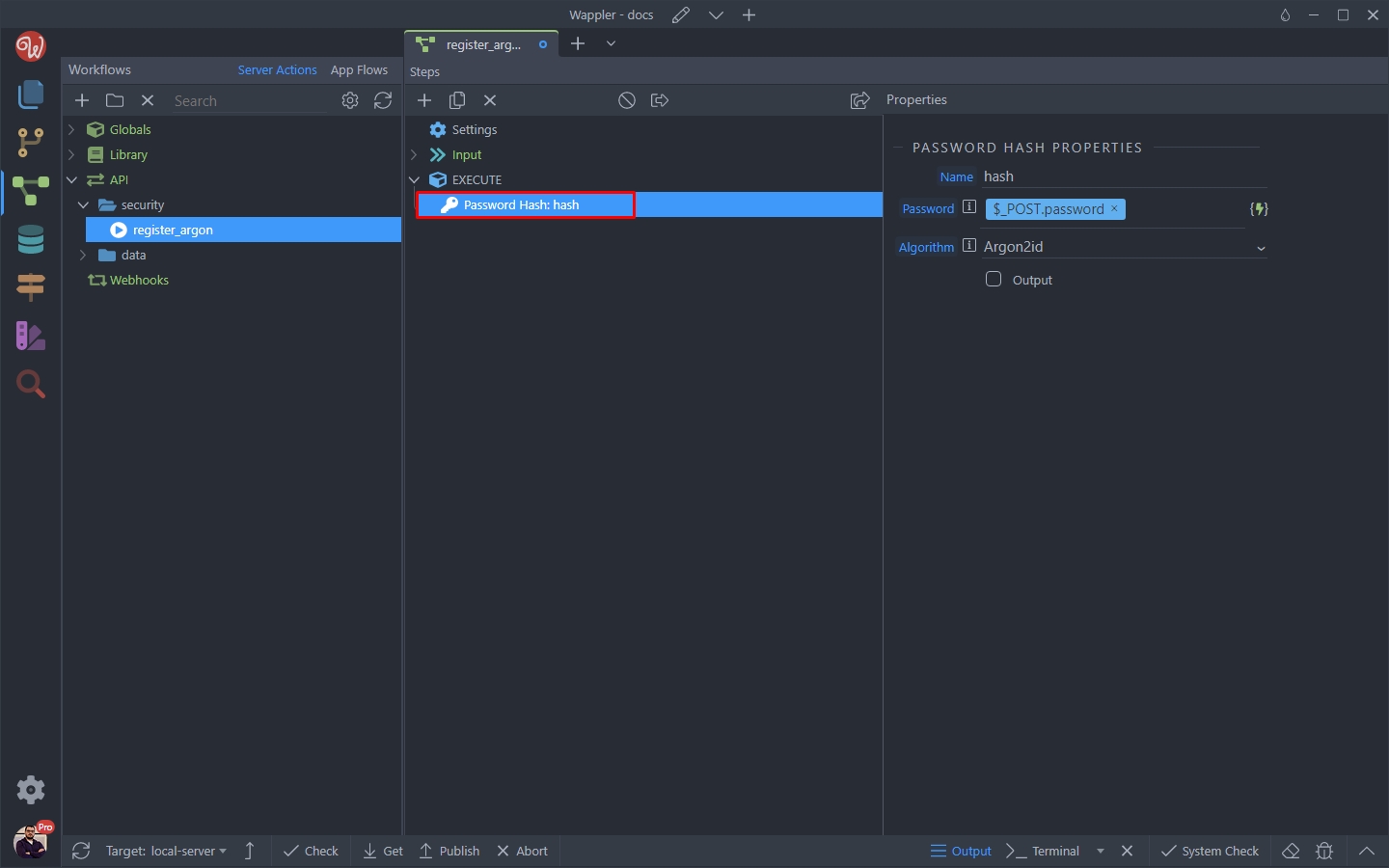
And add a new action:
Section titled “And add a new action:”
Under Database Actions select Database Insert:
Section titled “Under Database Actions select Database Insert:”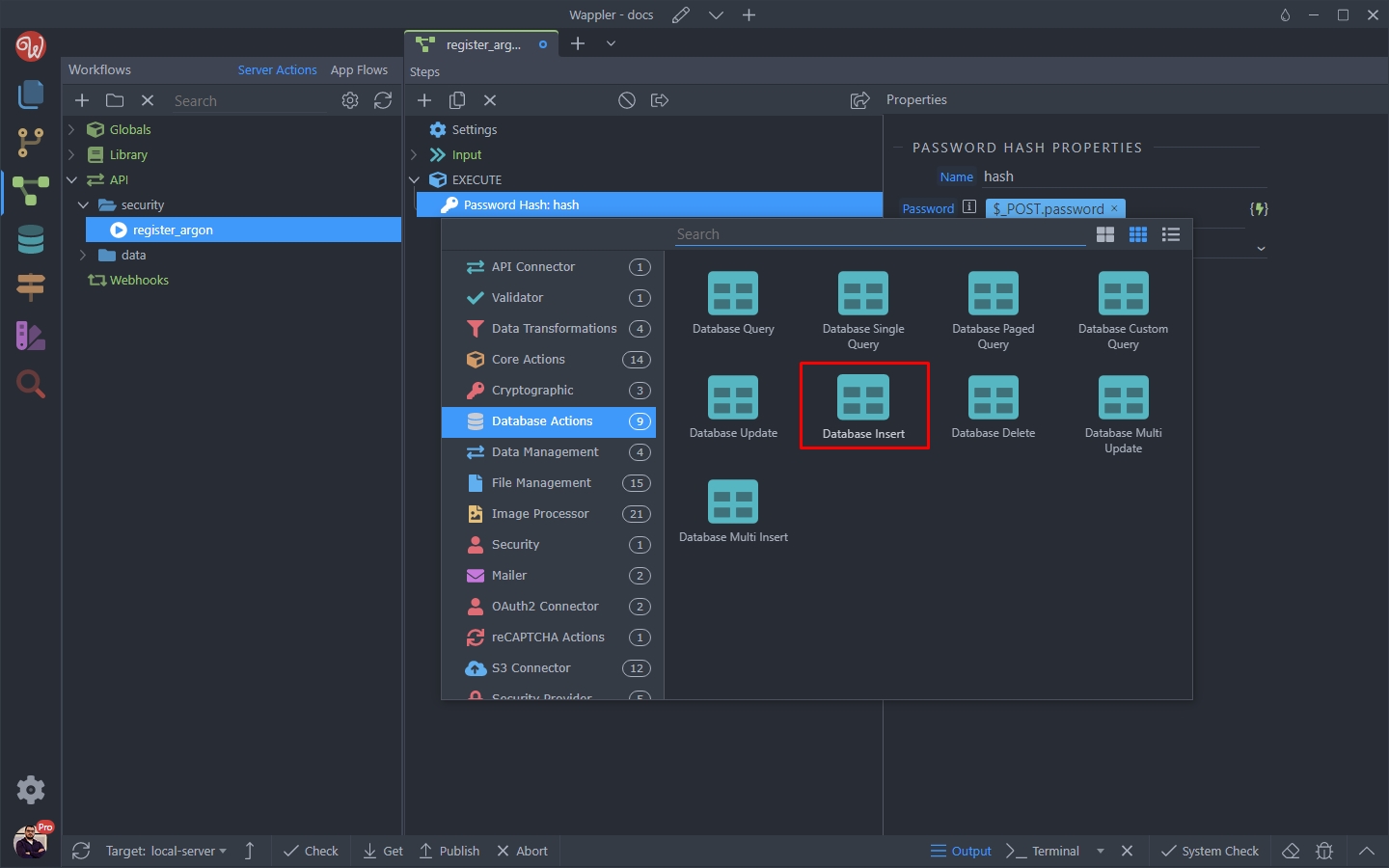
And click the Insert Options button:
Section titled “And click the Insert Options button:”
Select the database table, where you want to store your users login details:
Section titled “Select the database table, where you want to store your users login details:”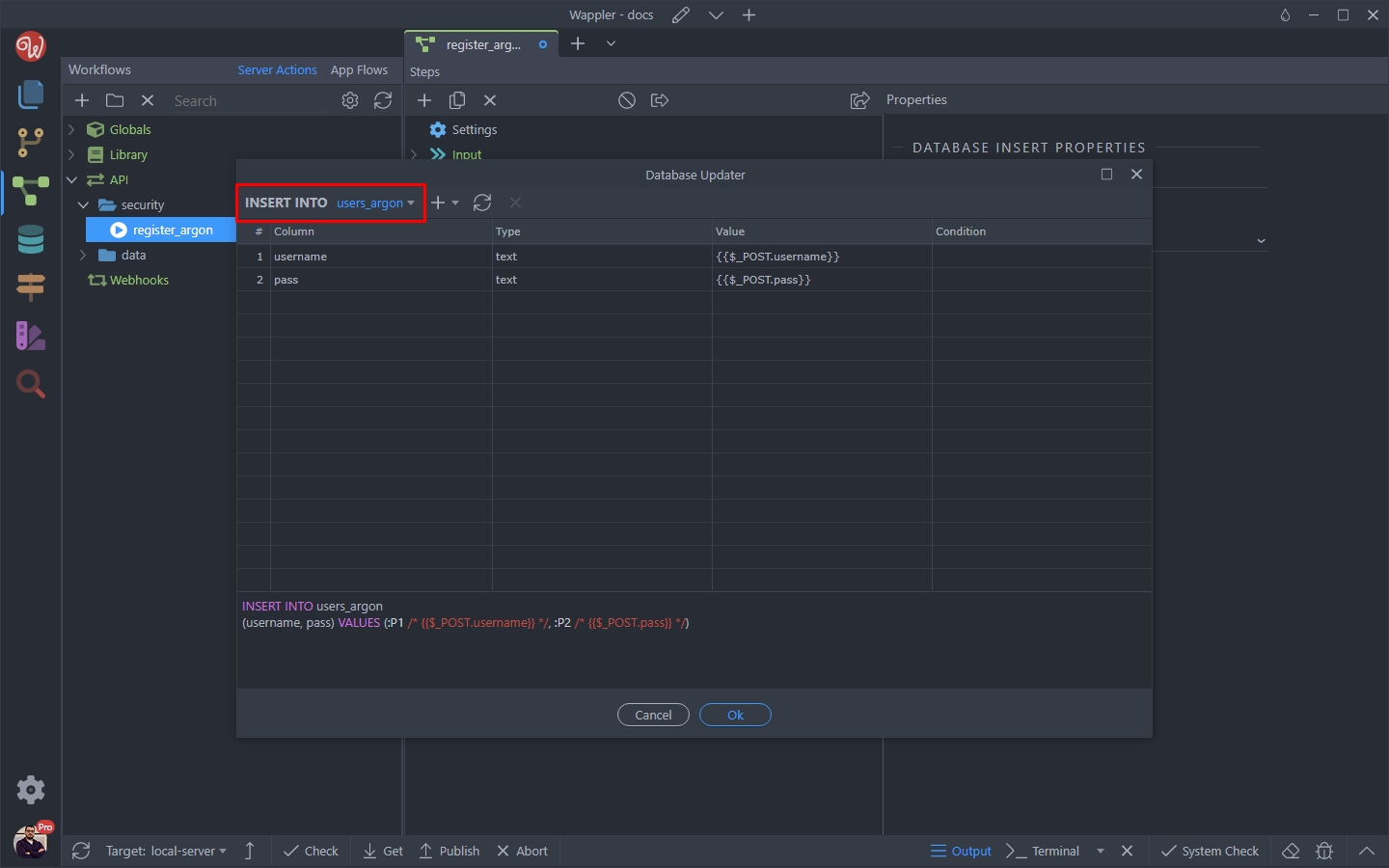
And click the dynamic data picker for the password field value:
Section titled “And click the dynamic data picker for the password field value:”
Step 15
Section titled “Step 15”Here, we need to select the Password Hash step as it returns the hashed password which we need to store in the database:
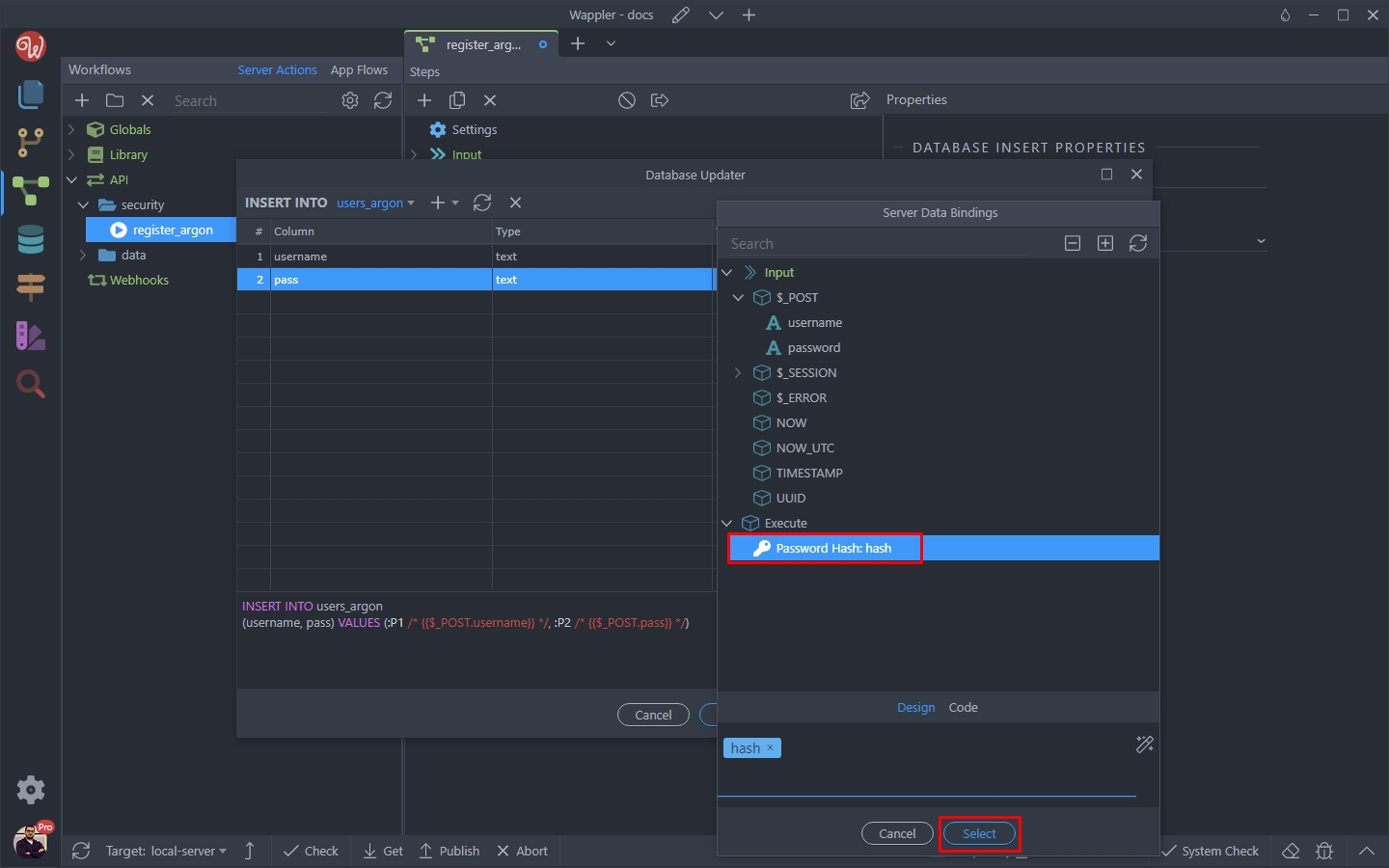
Click OK:
Section titled “Click OK:”
And you are done.
Section titled “And you are done.”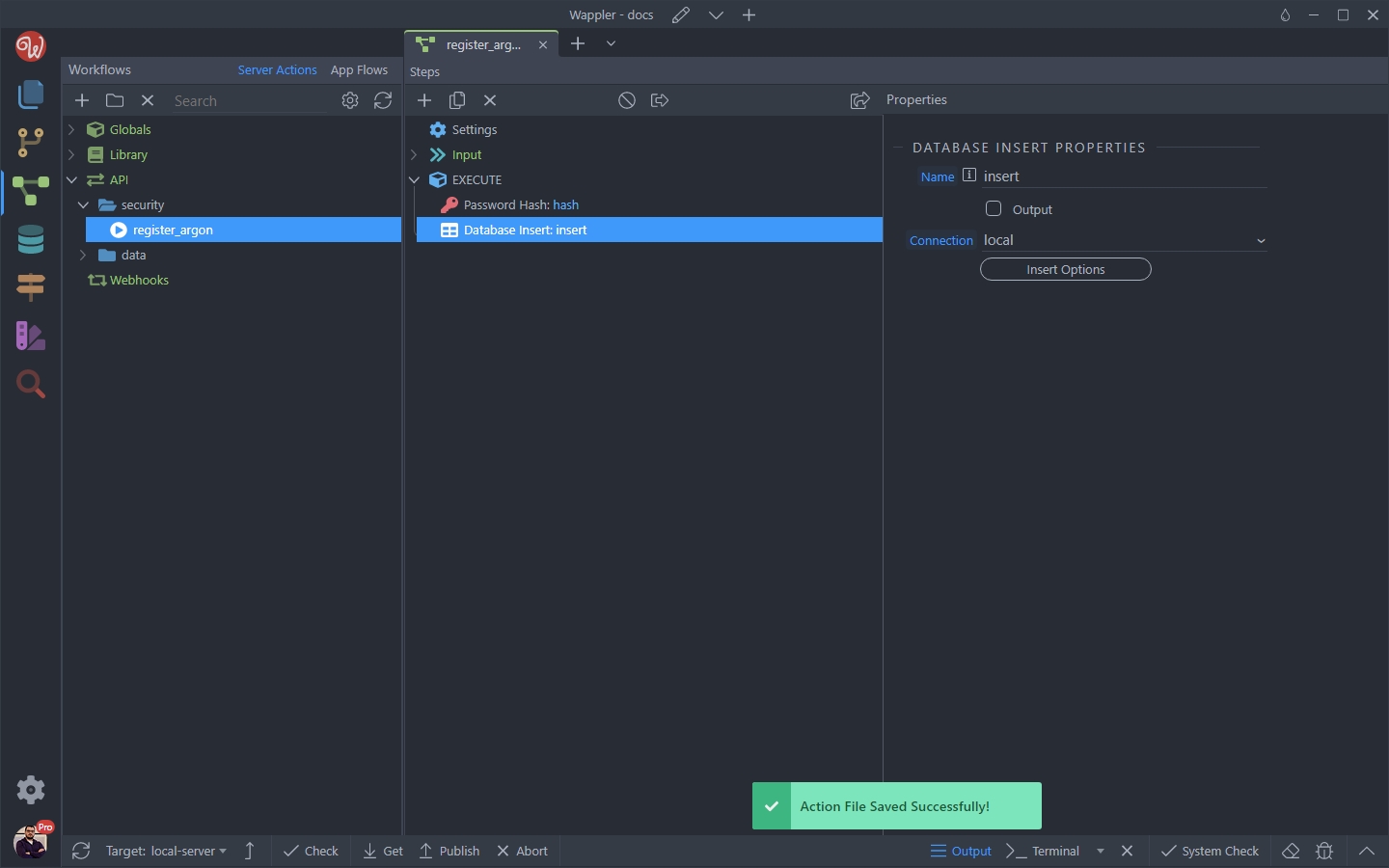
Step 18
Section titled “Step 18”And you are done. The password passed by the password input will be stored in the database hashed with the Argon2id algorithm.
Validate Users with Security Provider
Section titled “Validate Users with Security Provider”Once you have your users’ passwords hashed and stored in the database, under Globals > Security Providers setup your Security Provider as usual:

Select the users table, identity, username and password fields. Click OK:
Section titled “Select the users table, identity, username and password fields. Click OK:”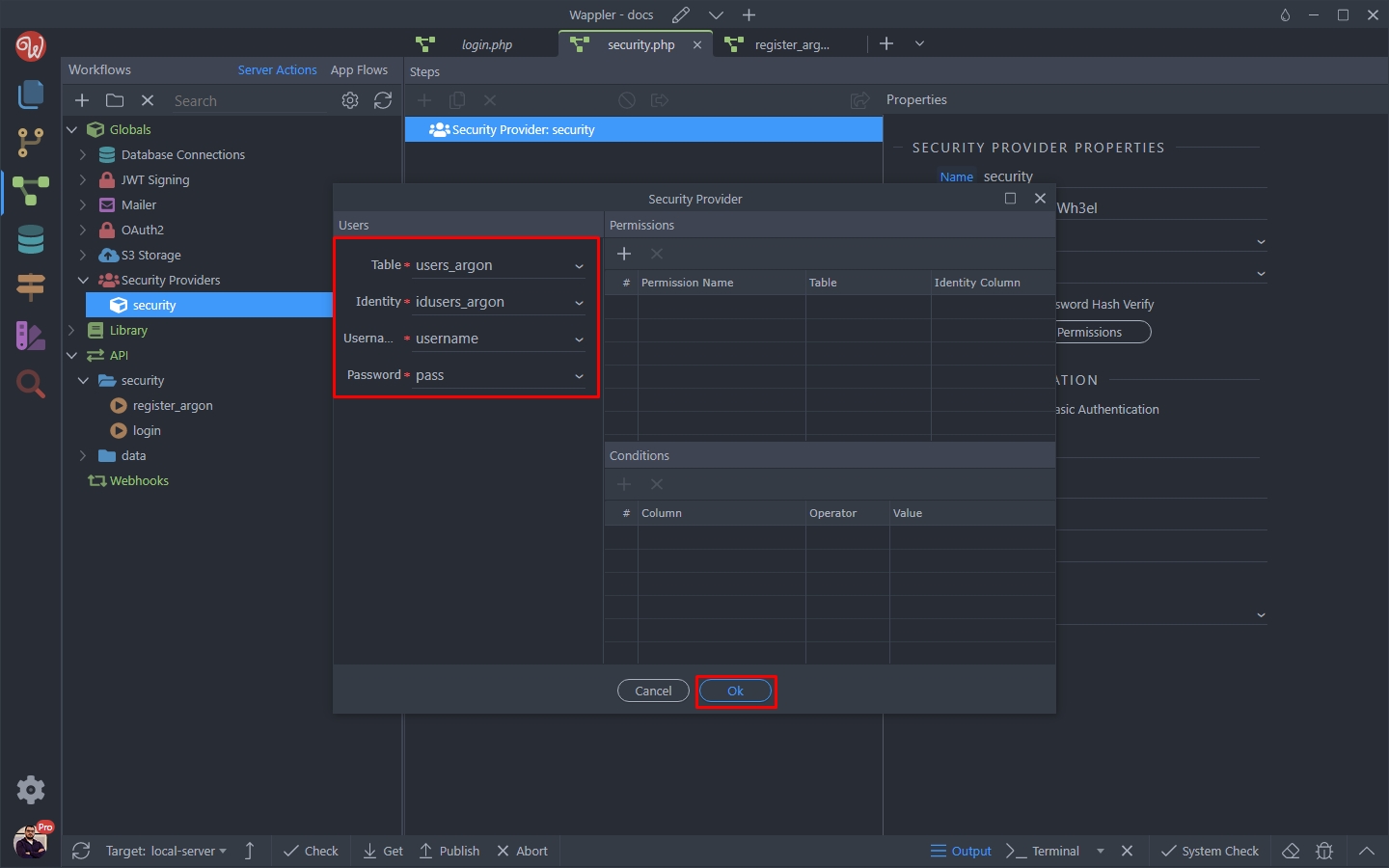
The difference with Argon2 hashing is that you need to enable the Use Password Hash Verify option:
Section titled “The difference with Argon2 hashing is that you need to enable the Use Password Hash Verify option:”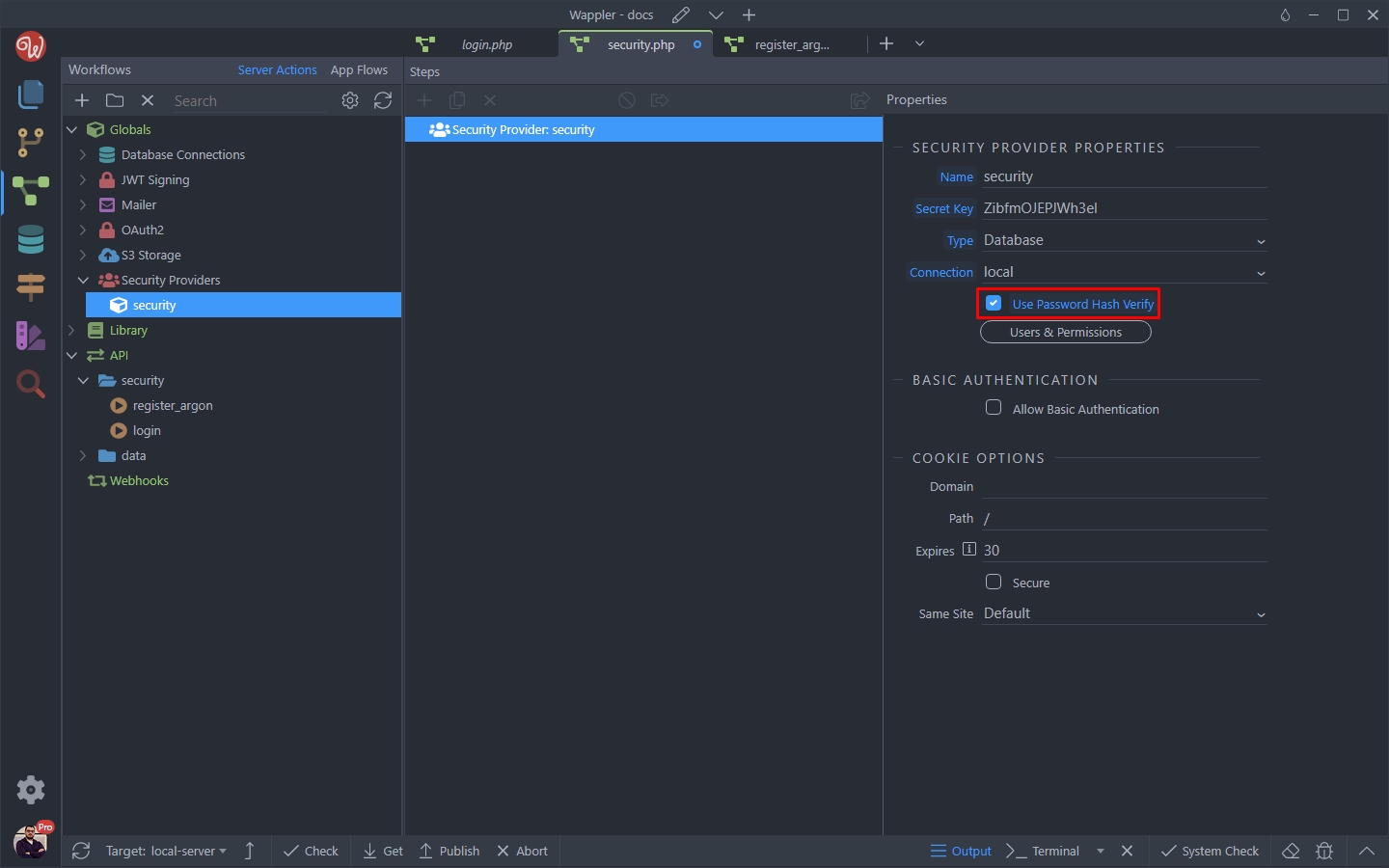
Then open your login server action:
Section titled “Then open your login server action:”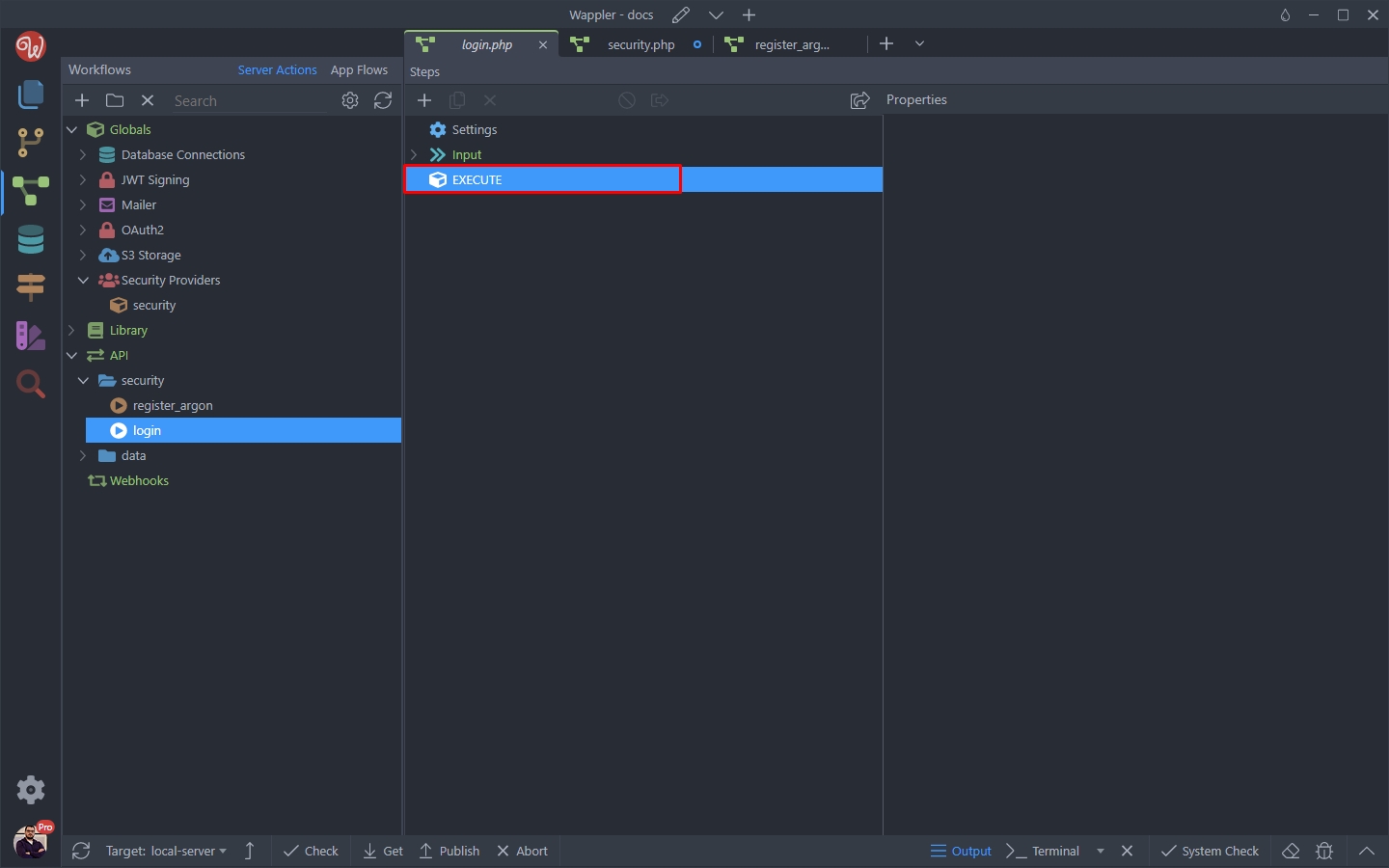
Add a new action:
Section titled “Add a new action:”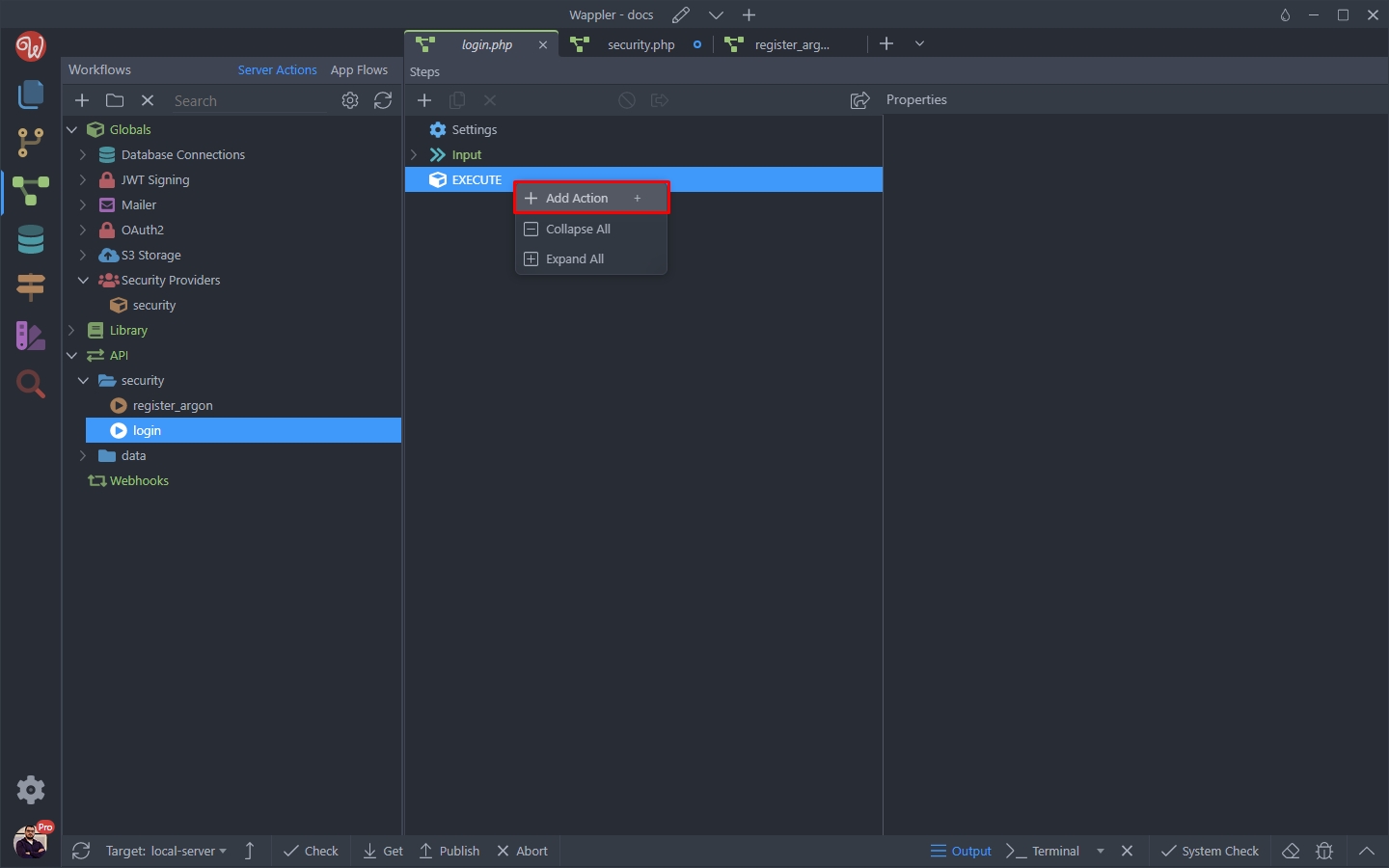
And add your login step as usual:
Section titled “And add your login step as usual:”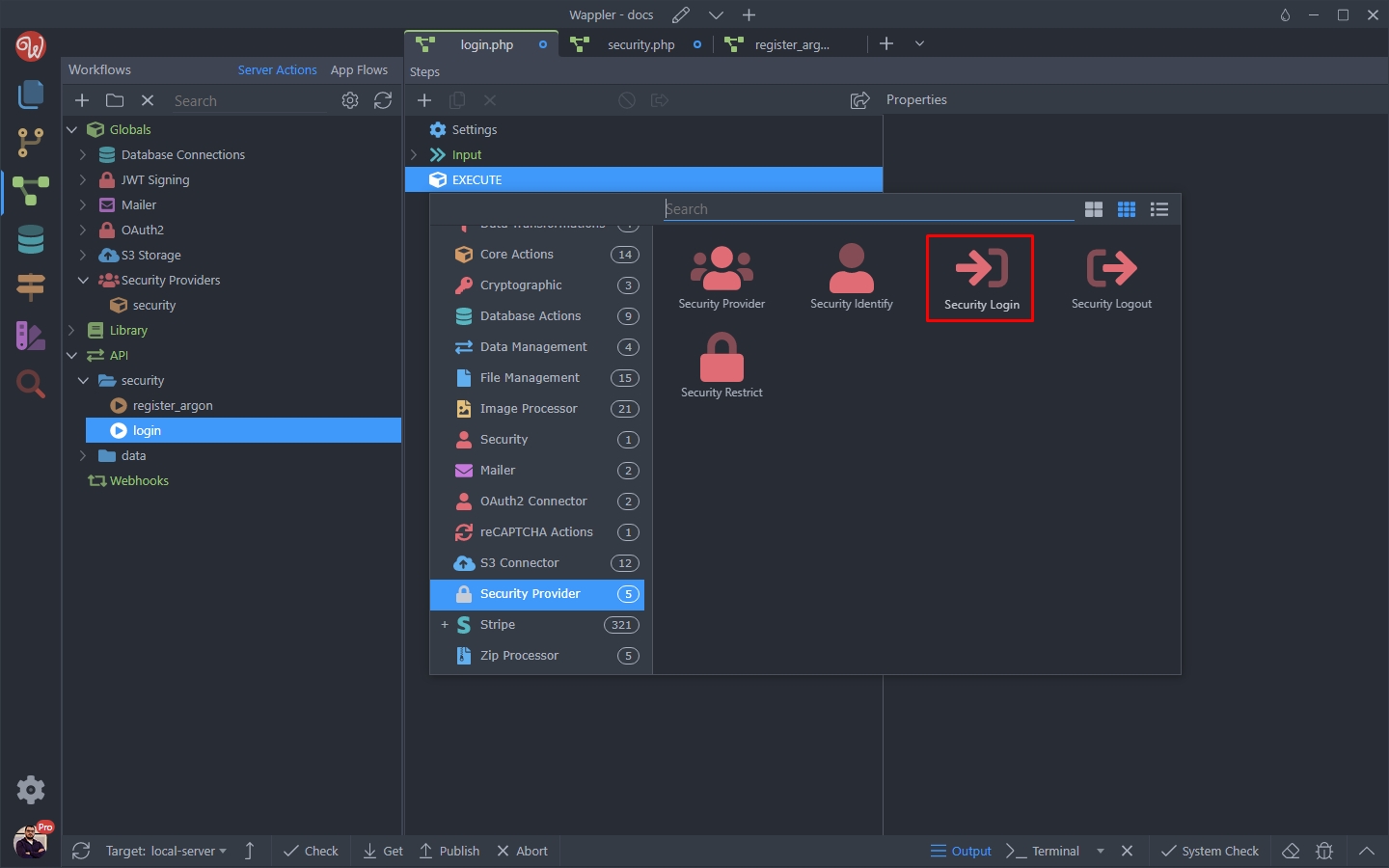
Step 25
Section titled “Step 25”Select your username and password inputs here.
Note: you should not apply any formatting for the password input value:

Step 26
Section titled “Step 26”And you are done. These are the specific things in creating users and verifying them on login using the Argon2 hashing algorithm.