Providers and Resource Creation
Connect providers and use the current context menus to create or import servers, managed database clusters, databases, users, and SSH keys.
Introduction
Section titled “Introduction”Add New Provider stores the provider account configuration that Resource Manager needs to list, create, import, inspect, and remove cloud resources. Use an account or token with the narrowest permissions that still supports the workflow.
Add New Provider
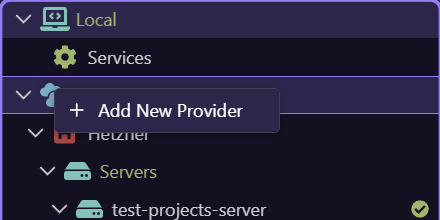
Section titled “Add New Provider”The live Cloud Providers context menu contains the provider creation entry point. Once connected, each provider gets its own supported resource groups.
Current provider capabilities
Section titled “Current provider capabilities”Resource Manager shows the operations actually supported by each provider integration.
| Provider | Create/import | Manage |
|---|---|---|
| Linode | Server, SSH Key | List, inspect, reboot, power off/on, delete |
| DigitalOcean | Server, Database Cluster, cluster Database, SSH Key | List, inspect, actions, CA, reboot, power off/on, delete |
| Hetzner | Server, SSH Key | List, inspect, actions, reboot, power off/on, delete |
| Custom | Import existing Server | List imported servers |
Create or import a server
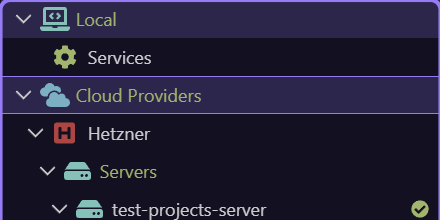
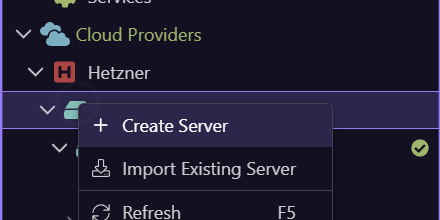
Section titled “Create or import a server”This opens the real Hetzner Servers branch menu. Create Server provisions through the provider form. Import Existing Server discovers an existing provider machine and brings it under Resource Manager without provisioning another one. Refresh reloads the provider list.
Review provisioning choices before Create
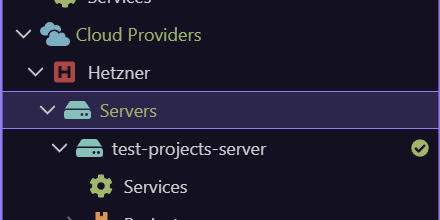
Section titled “Review provisioning choices before Create”A provider server form uses the provider’s current regions, plans, images, SSH keys, and naming choices. Review cost, location, operating system, key access, and target purpose together. Creation changes the provider account and can incur charges, so the tour never submits it.
Add or import a provider SSH key
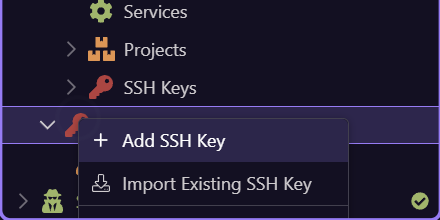
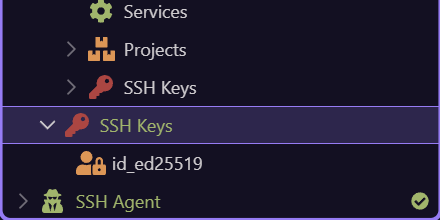
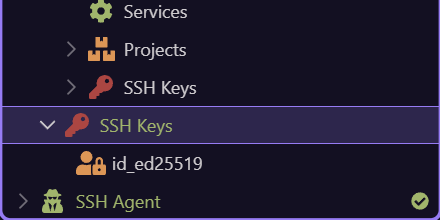
Section titled “Add or import a provider SSH key”This opens the live provider SSH Keys menu. Add SSH Key registers key material with the provider; Import Existing SSH Key adopts a key already present there. Refresh reconciles the displayed list.
Resource groups use one consistent pattern
Section titled “Resource groups use one consistent pattern”Every provider resource group dynamically offers Create
DigitalOcean managed database resources
Section titled “DigitalOcean managed database resources”DigitalOcean adds Database Clusters. Create or import the cluster at its provider branch, inspect connection and CA information, then expand the cluster’s Databases and Users branches. Databases exposes Add New Database and Delete Database; Users exposes Add New User and Delete User. Removing a cluster is a provider-side destructive operation.
| Selection | Actions |
|---|---|
| Database Clusters branch | Create Database Cluster, Import Existing Database Cluster, Refresh |
| Database Cluster | Inspect/get, retrieve CA, Delete/Remove, Refresh |
| Databases | Add New Database, Refresh |
| Database | Delete Database, Refresh |
| Users | Add New User, Refresh |
| User | Delete User, Refresh |
Understand Remove and provider Delete
Section titled “Understand Remove and provider Delete”Remove disconnects a configured Resource Manager entry where that resource type supports removal; a provider Delete action destroys the underlying cloud resource. Always read the confirmation, verify the provider account and target, and check workloads, backups, DNS, database dependencies, and SSH access before proceeding.
Next steps
Section titled “Next steps”With provider resources available, continue into server checks, SSH, Docker services, databases/users, project services, and lifecycle commands.