
Resource Manager: Quick Overview
Orient yourself in the current Resource Manager UI: local Docker, cloud providers, servers, services, projects, databases, users, and SSH access.
Introduction
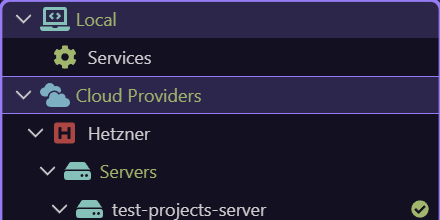
Section titled “Introduction”Resource Manager organizes the operational resources Wappler can create, import, configure, and use: local Docker, connected cloud providers, servers, provider resources, Docker services, projects, databases and users, plus local and server SSH keys.
The tree is selection-driven
Section titled “The tree is selection-driven”Expand the branch that owns the resource, then select or right-click the exact node. The context menu and Properties toolbar change with that selection, so server commands do not appear on a provider group and service lifecycle commands do not appear on an SSH key.
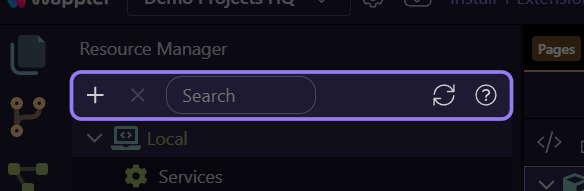
Global toolbar
Section titled “Global toolbar”Add creates the resource valid for the selected branch, Delete removes a supported selection after confirmation, Search filters a large tree, Refresh reloads resources, and Show Tour returns to guided help.
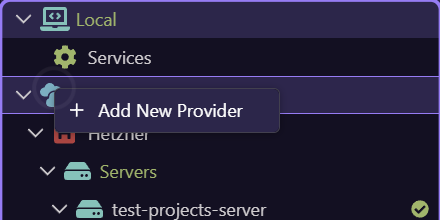
Cloud Providers starts account setup
Section titled “Cloud Providers starts account setup”This opens the current Cloud Providers menu. Add New Provider connects Linode, DigitalOcean, Hetzner, or a Custom server source. Provider-specific branches then expose only the resource types and operations that provider supports.
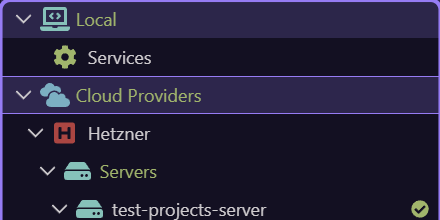
Provider branches create or import resources
Section titled “Provider branches create or import resources”Servers and SSH Keys can be created in Wappler or imported from the provider. DigitalOcean additionally exposes managed Database Clusters with databases and users. Custom focuses on discovering and importing existing servers.
| Provider | Current resource coverage |
|---|---|
| Linode | Servers and SSH keys |
| DigitalOcean | Servers, Database Clusters, databases/users, and SSH keys |
| Hetzner | Servers and SSH keys |
| Custom | List and import existing servers |
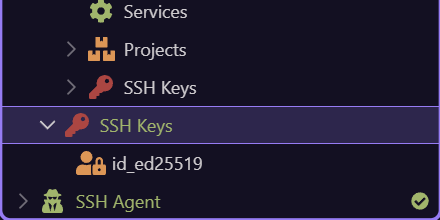
A server opens into operational branches
Section titled “A server opens into operational branches”A managed server can expose Services, Projects, and SSH Keys. Services owns Docker service creation and lifecycle. Projects shows deployed project services. SSH Keys authorizes or revokes access at the server boundary.
Properties toolbar runs lifecycle operations
Section titled “Properties toolbar runs lifecycle operations”When a server or service is selected, the Properties toolbar can deploy, shut down and clear, start, stop, restart, kill, clean unused Docker images, open SSH, resize, reboot, delete, or open Service Configuration. Availability follows the selected resource and its current state.

Next steps
Section titled “Next steps”Continue sequentially with Providers and Resource Creation, then Server Operations and Services. If you already know the job, open the complete Actions and Resources Reference directly.