
Bootstrap 4 Forms
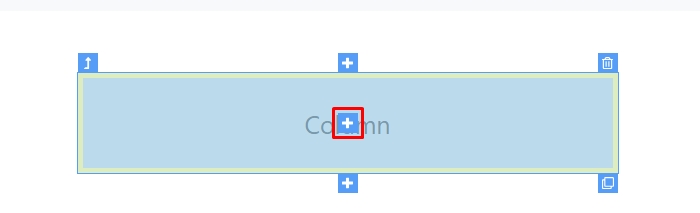
You can quickly design your forms using Bootstrap 4 tools integrated in Wappler. In order to create a form first select where to insert it, in our example this is inside a Bootstrap 4 column: Open the
Step 1
Section titled “Step 1”You can quickly design your forms using Bootstrap 4 tools integrated in Wappler. In order to create a form first select where to insert it, in our example this is inside a Bootstrap 4 column:
Step 2
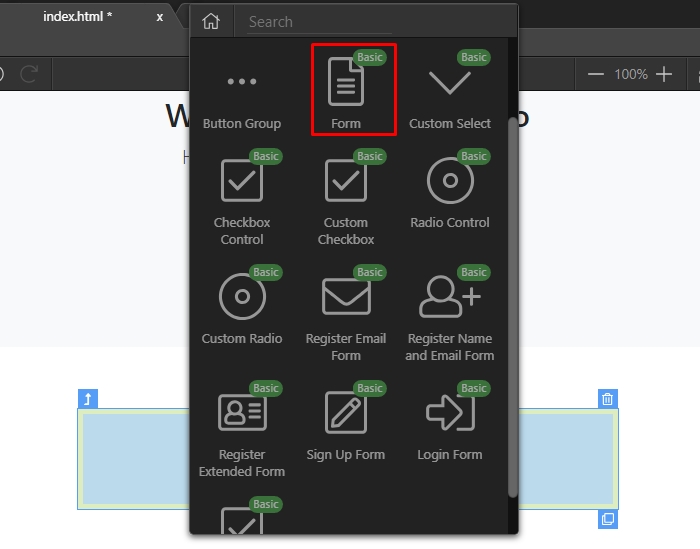
Section titled “Step 2”Open the Forms category and select whether to use any of the predefined form templates, or create a new one from scratch. We select to create one from scratch, so click Form:
You can see the form added on our page. Click add inside in order to add form elements:
Section titled “You can see the form added on our page. Click add inside in order to add form elements:”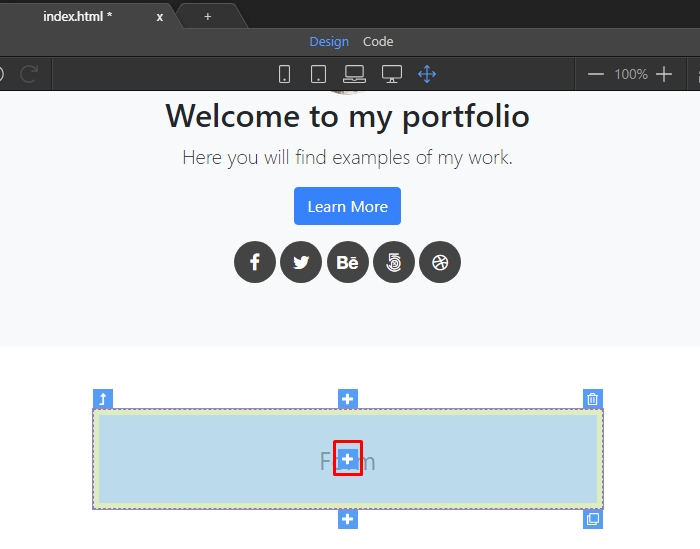
Open the Forms category:
Section titled “Open the Forms category:”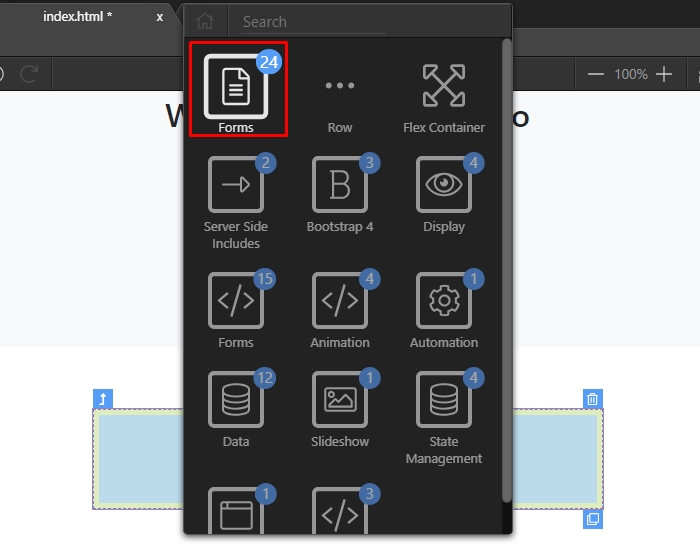
And then inside it, select the element you want to add. In our example this is a text input group:
Section titled “And then inside it, select the element you want to add. In our example this is a text input group:”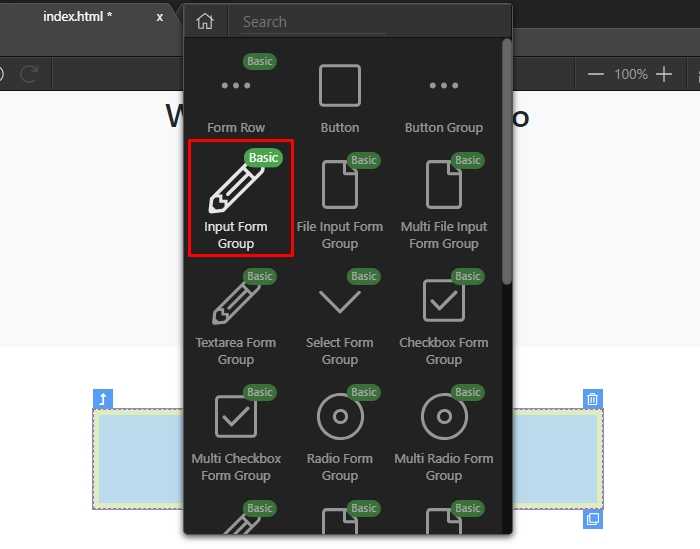
You can explore its structure in the App Structure panel:
Section titled “You can explore its structure in the App Structure panel:”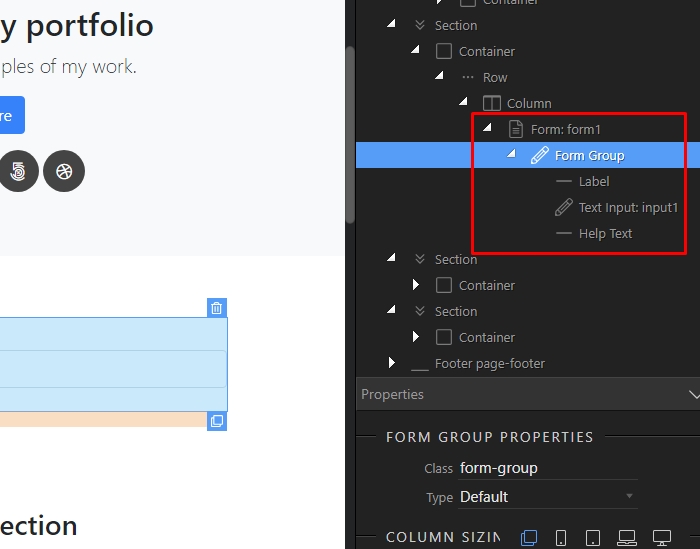
Step 7
Section titled “Step 7”Select any of the elements, like the input label and its properties will appear in the properties inspector. You can change the ID, Class, Size or Text here:

Step 8
Section titled “Step 8”When you select the input its properties appear. Customize its type, name, placeholder text here. Setup its size and the rest of the properties:
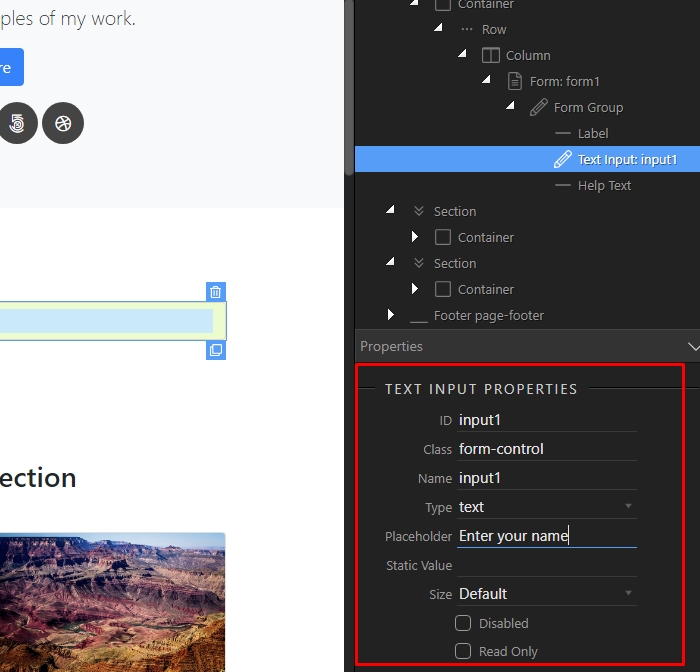
You can delete a form element either in design view (1) or using the App Structure toolbar (2):
Section titled “You can delete a form element either in design view (1) or using the App Structure toolbar (2):”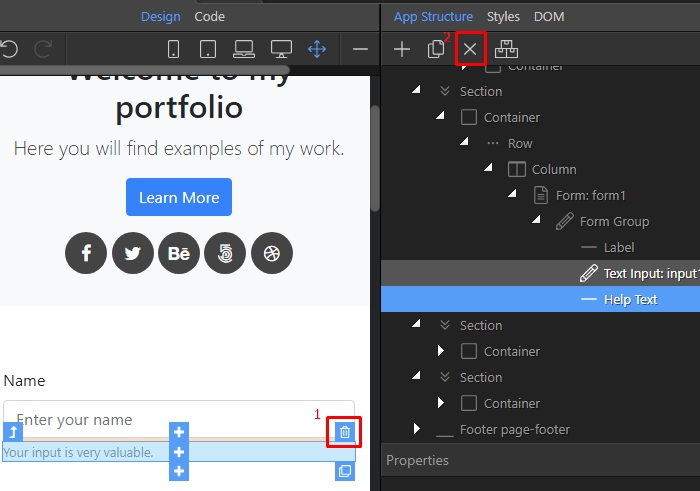
In order to add another element just select the current one, and click the insert before or insert after:
Section titled “In order to add another element just select the current one, and click the insert before or insert after:”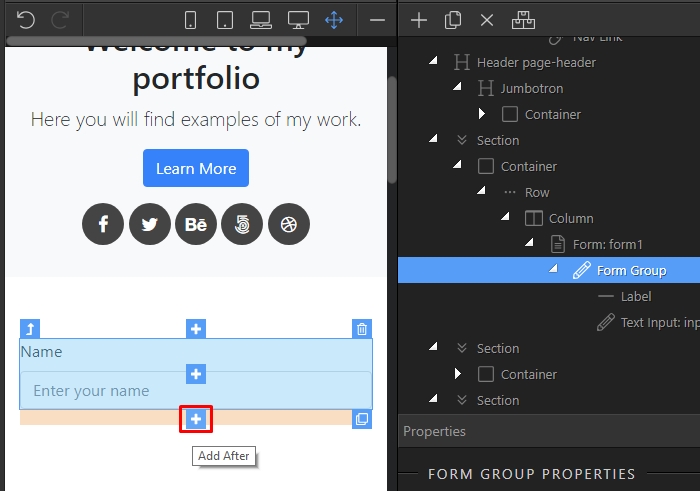
Open the forms group, and select the next element to be added:
Section titled “Open the forms group, and select the next element to be added:”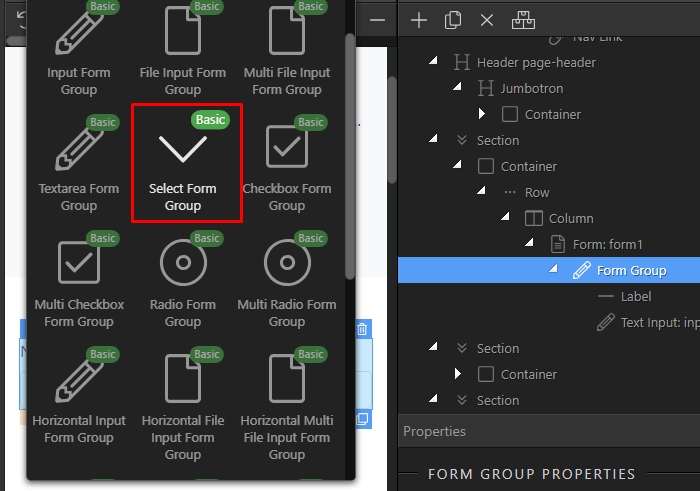
You can find it in Design View and App Structure:
Section titled “You can find it in Design View and App Structure:”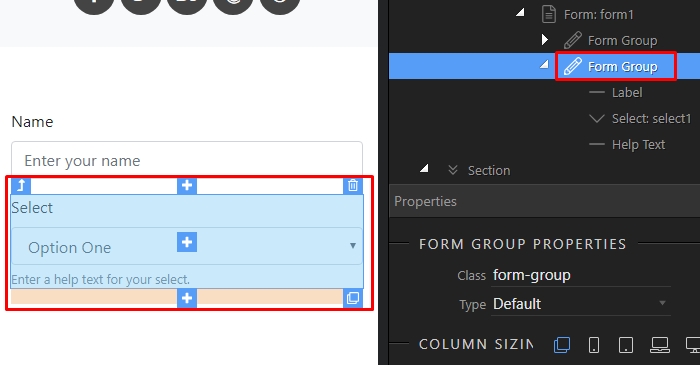
Step 13
Section titled “Step 13”That’s how to add a form and add different elements inside it. You can add unlimited elements inside the form - just customize the element properties as you need.