Theme Manager
Intro With the help of the Theme Manager you can fully customize Bootstrap 4 and 5 design as per to your needs. We have integrated a high speed Sass compiler in Wappler so fully theme compilation and
With the help of the Theme Manager you can fully customize Bootstrap 4 and 5 design as per to your needs. We have integrated a high speed Sass compiler in Wappler so fully theme compilation and generation takes a split second to produce.
Also we have created great Theme Manager panel where you can choose ready to go color themes, select great looking Google fonts and much more!
What is Theme Manager
Section titled “What is Theme Manager”The Theme Manager panel allows you to customize the style and create your own version of the design framework used in your project. It’s currently available for Bootstrap 4 and 5.
Opening the Theme Manager Panel
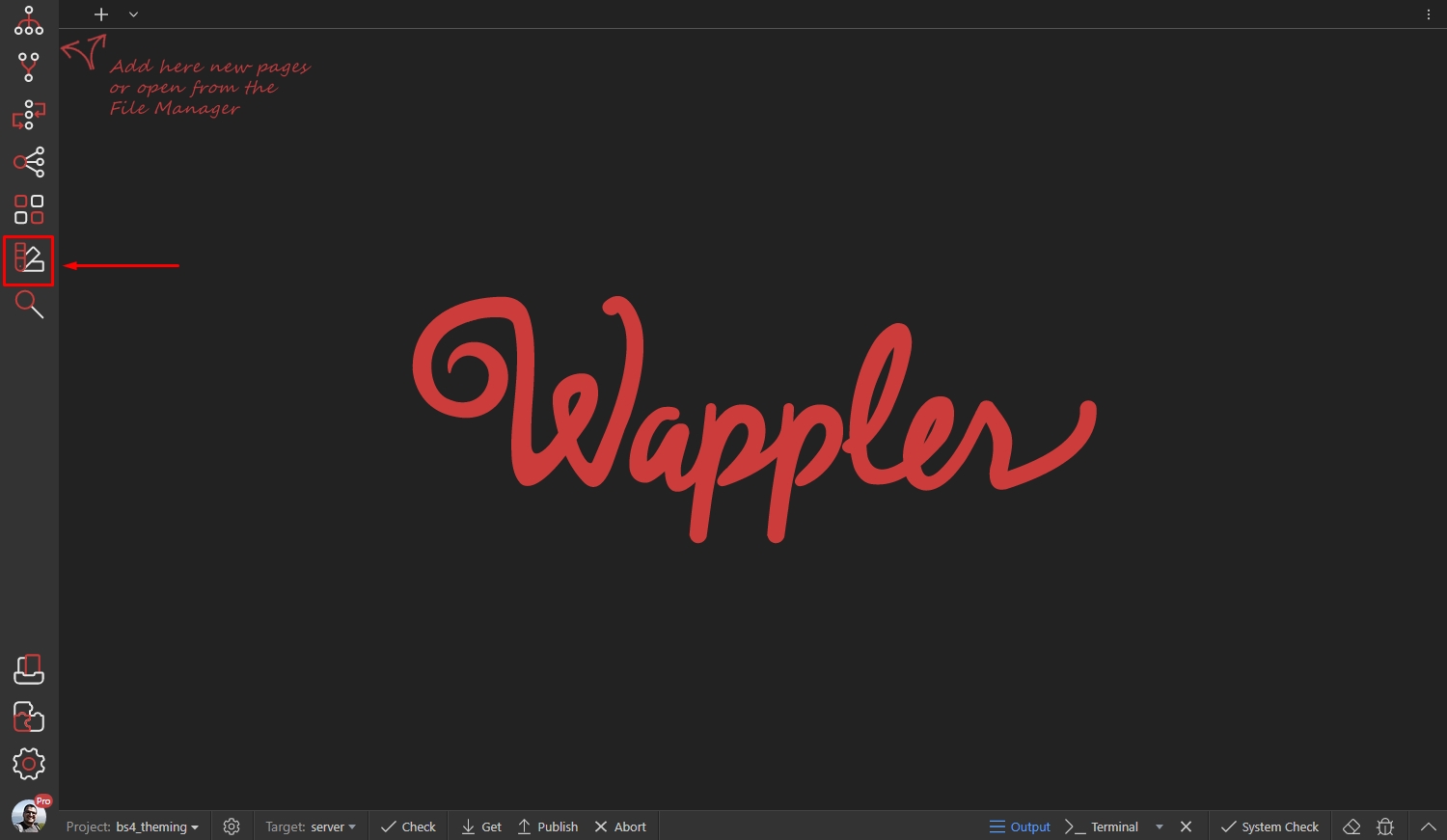
Section titled “Opening the Theme Manager Panel”The Theme Manager can be accessed by clicking its icon in the left sidebar:
Selecting a Design Framework
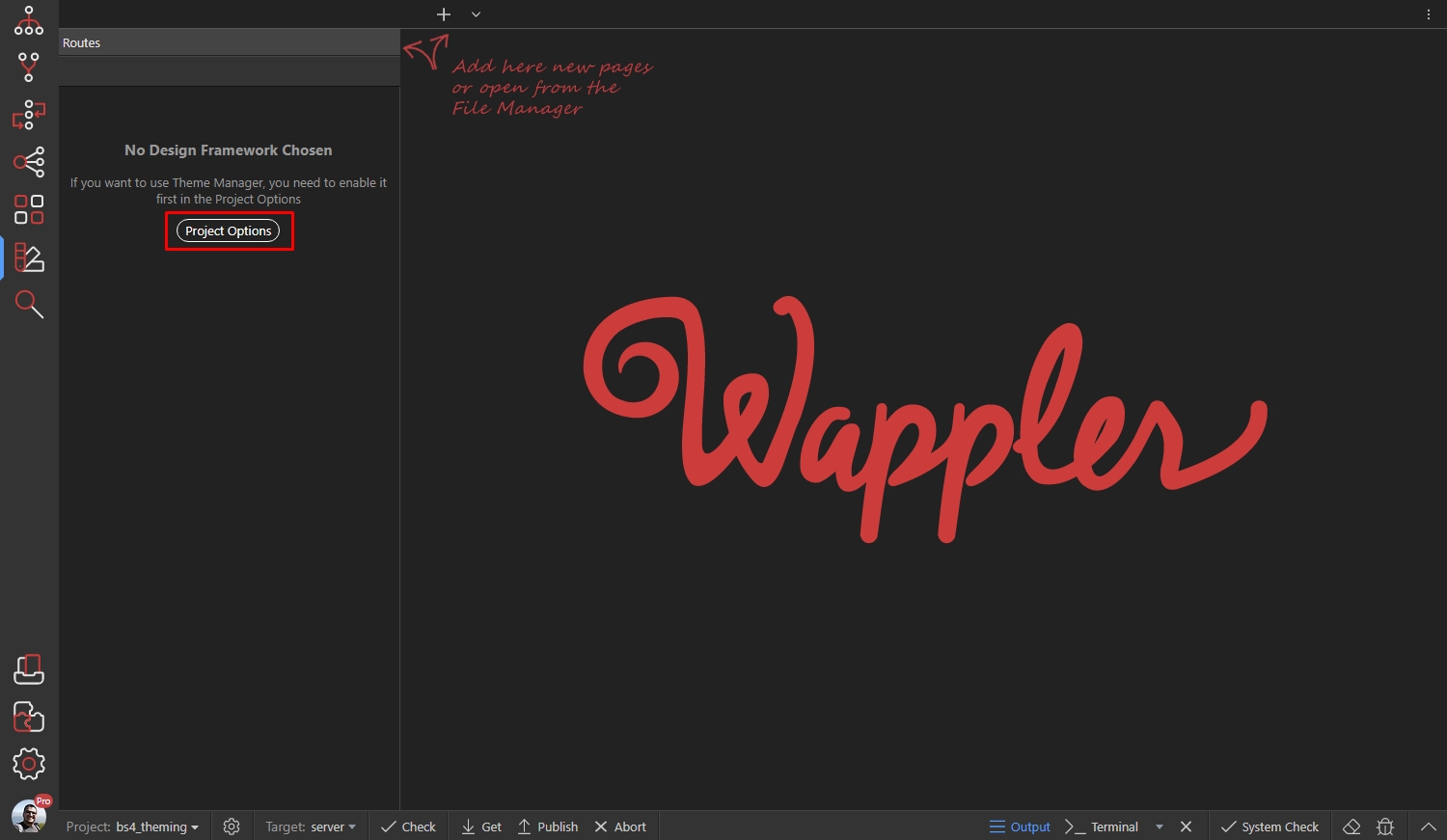
Section titled “Selecting a Design Framework”You need to select a Design Framework in your project options first:
Open the Design Framework menu:
Section titled “Open the Design Framework menu:”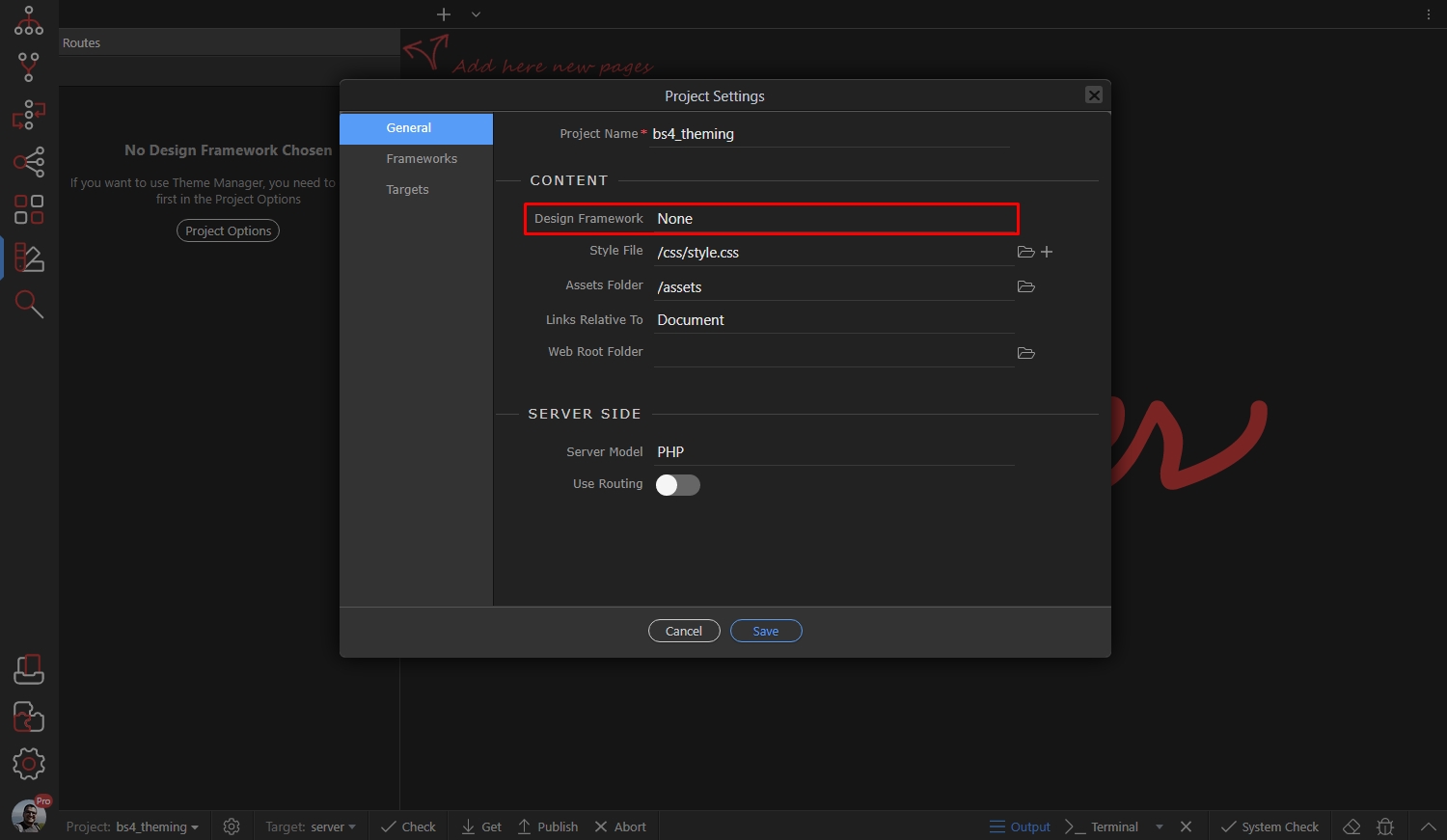
Select Bootstrap 4:
Section titled “Select Bootstrap 4:”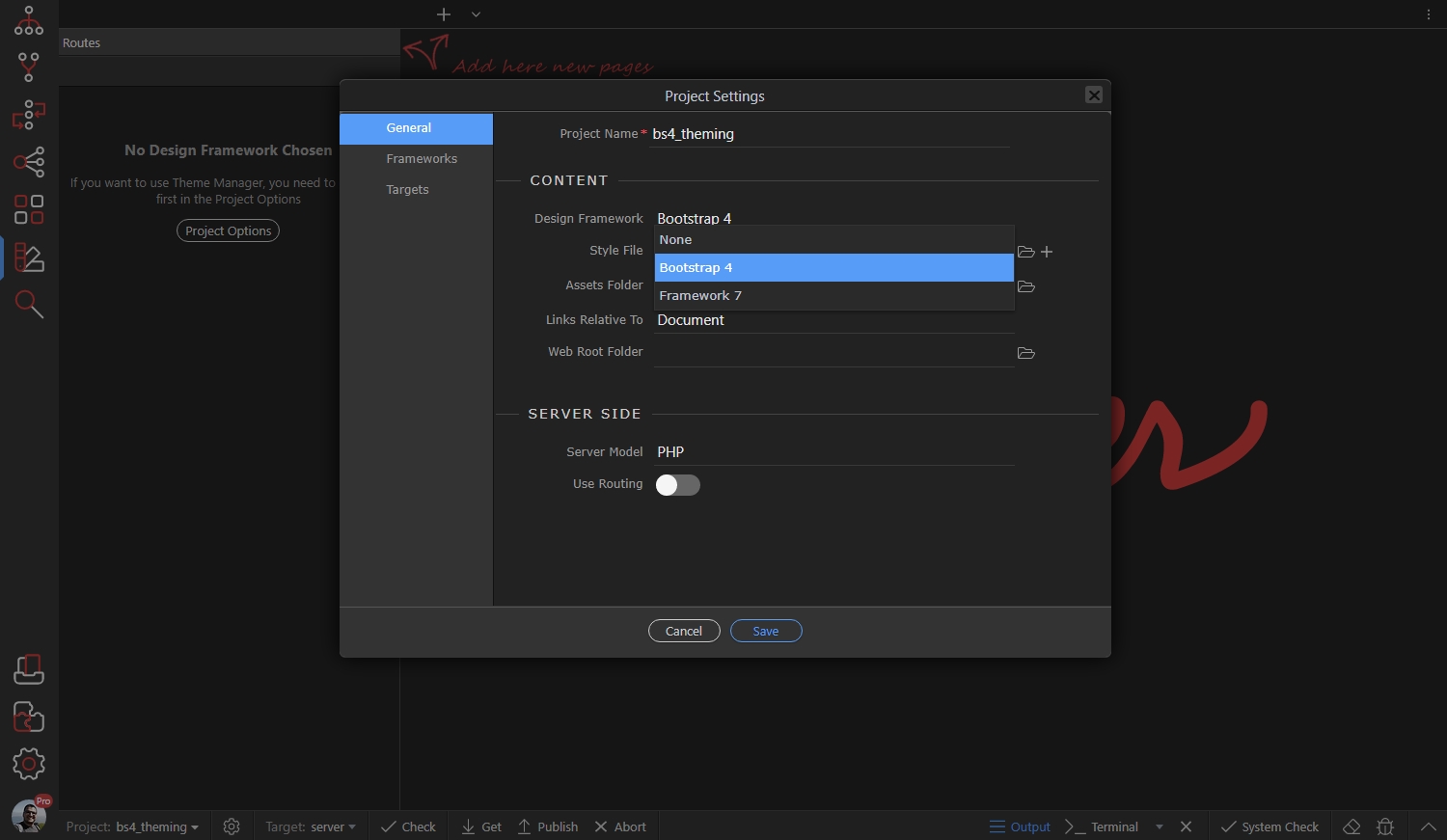
Click the Save button:
Section titled “Click the Save button:”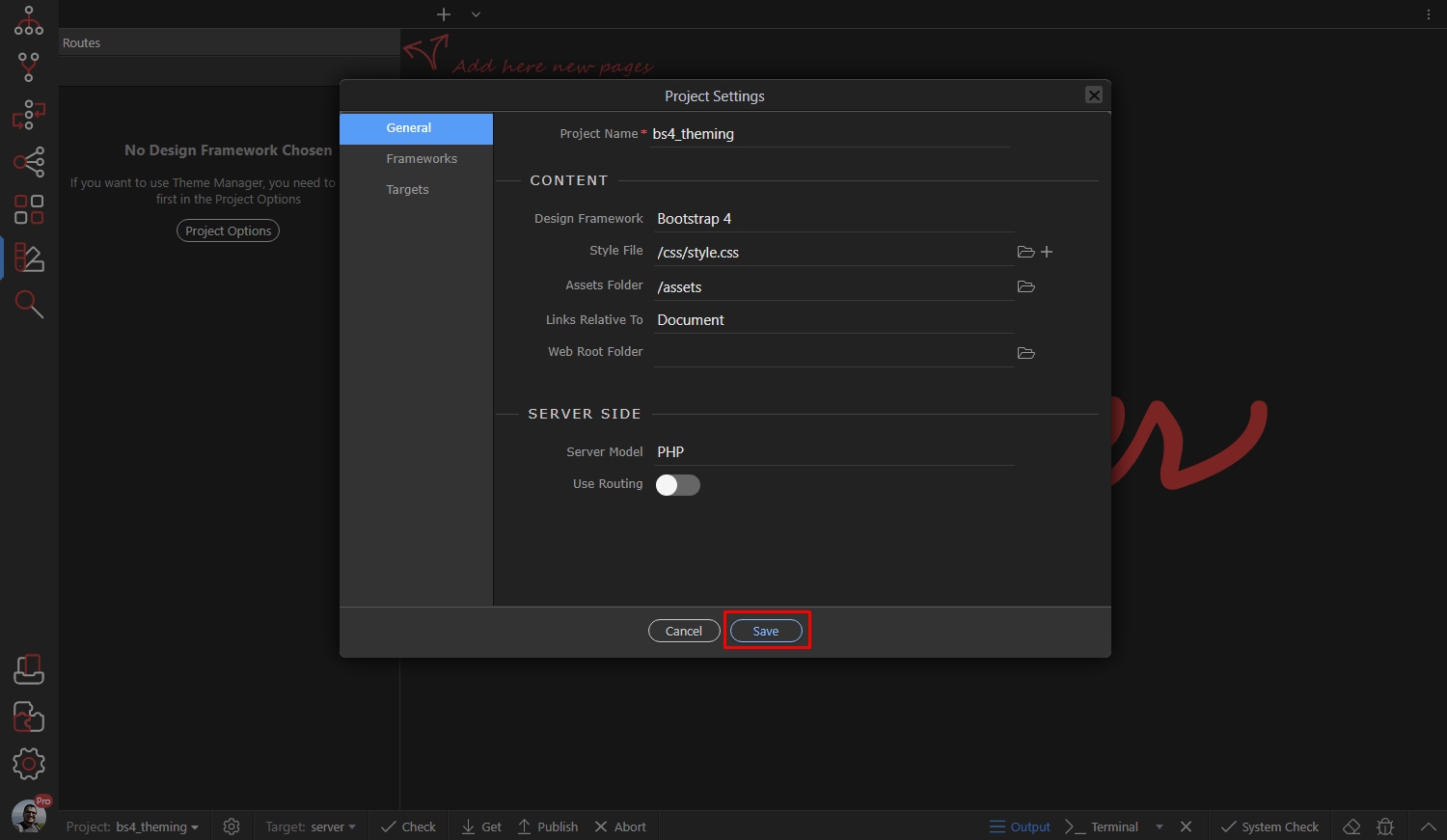
You’ll see different properties available for styling: colors, fonts, styling options:
Section titled “You’ll see different properties available for styling: colors, fonts, styling options:”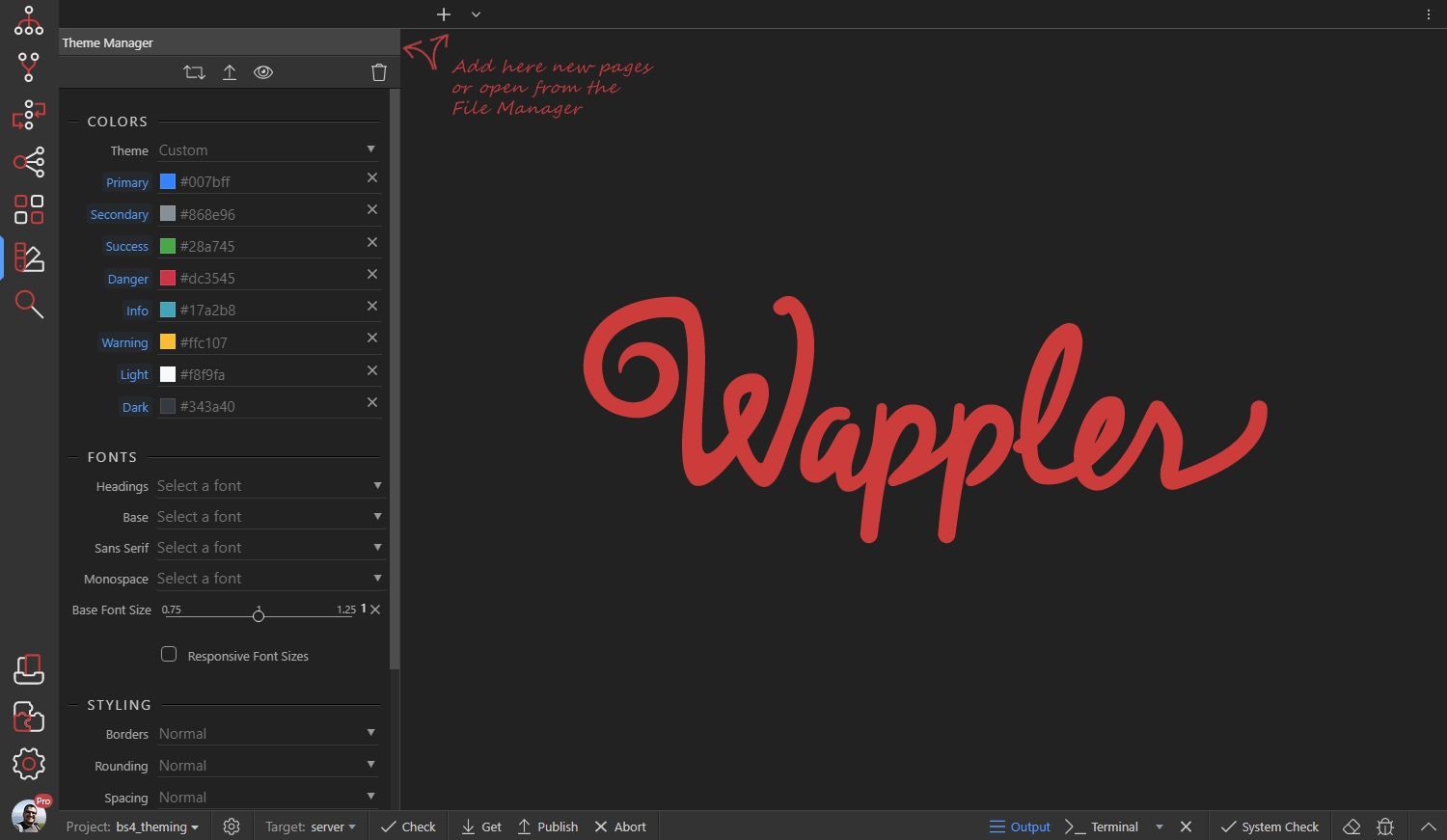
Step 11
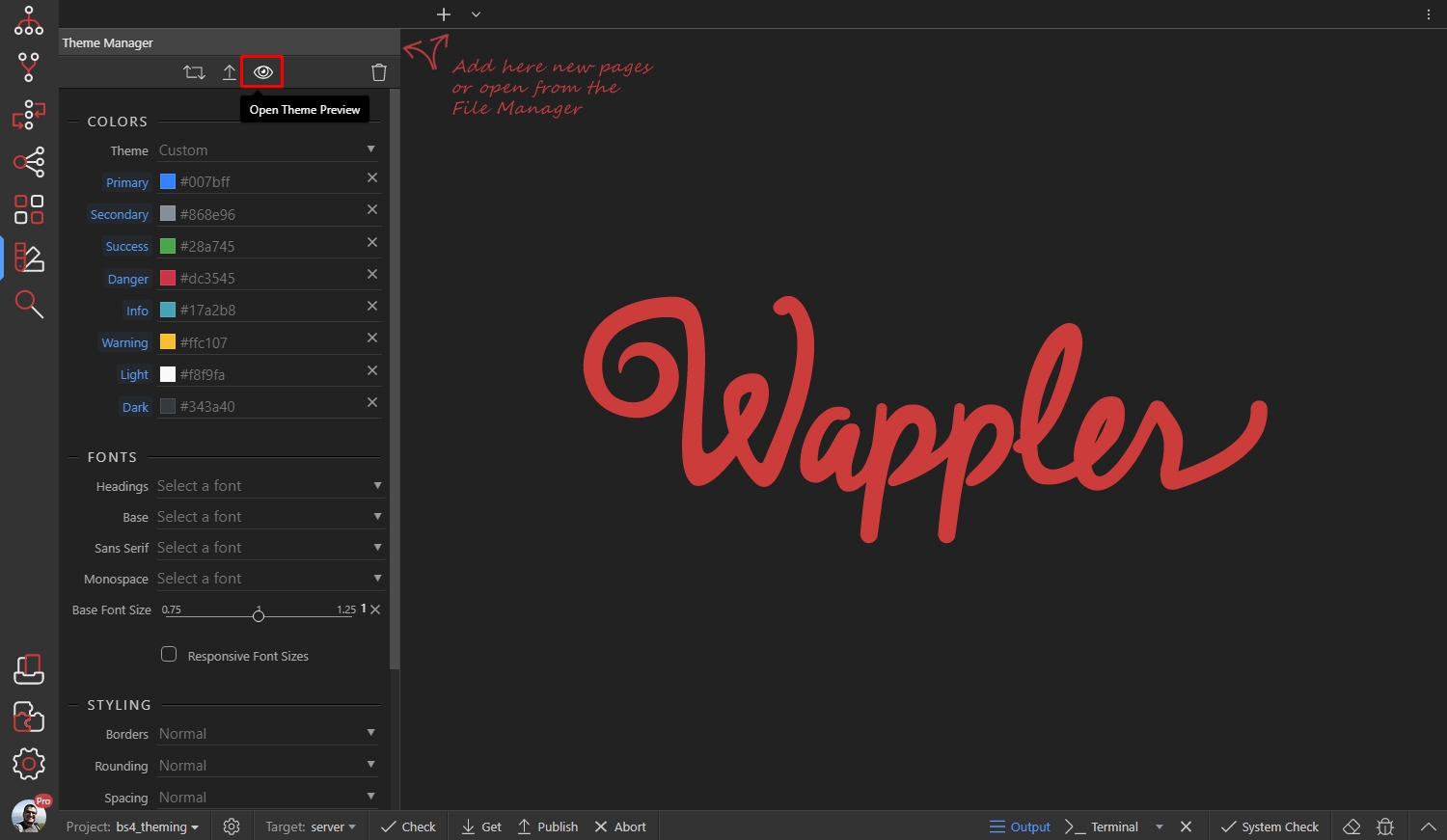
Section titled “Step 11”Click the Theme Preview button in order to open a Bootstrap 4 Preview file. It helps preview the changes you make:
Color Settings
Section titled “Color Settings”You can edit the default colors of the Bootstrap 4 Colors so they match your design or brand identity.
Let’s change the Primary color. Click the color picker in order to select a new Primary color:

Then select your new color and click OK:
Section titled “Then select your new color and click OK:”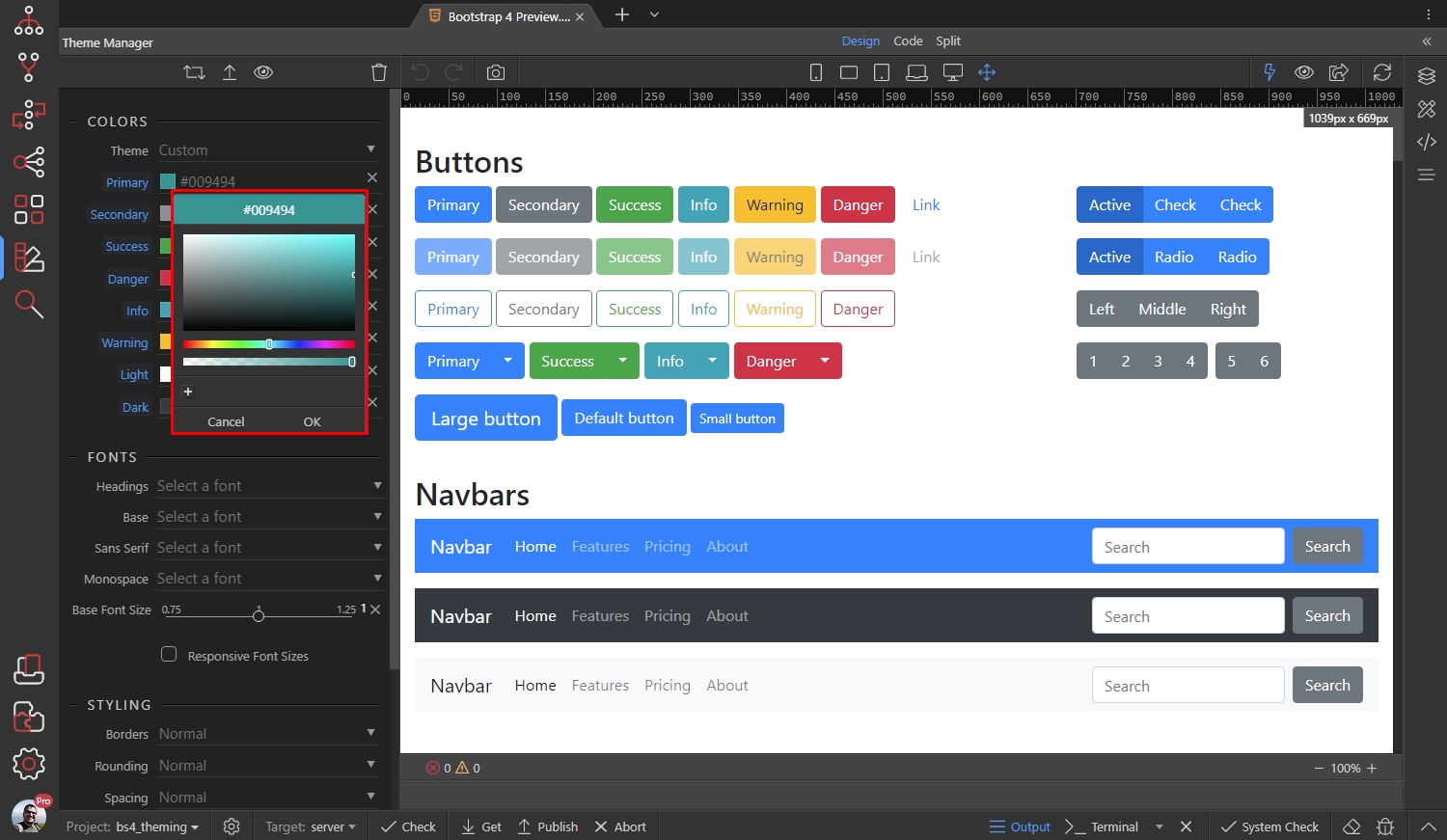
Step 15
Section titled “Step 15”You can see your changes immediately on the preview page. The primary color has been changed everywhere it’s being used:

You can do the same with the rest of the colors.
Section titled “You can do the same with the rest of the colors.”Fonts Settings
Section titled “Fonts Settings”You can edit the default fonts used in the Bootstrap 4 for the text and headings.
Let’s change the Headings font. Open the Headings dropdown:
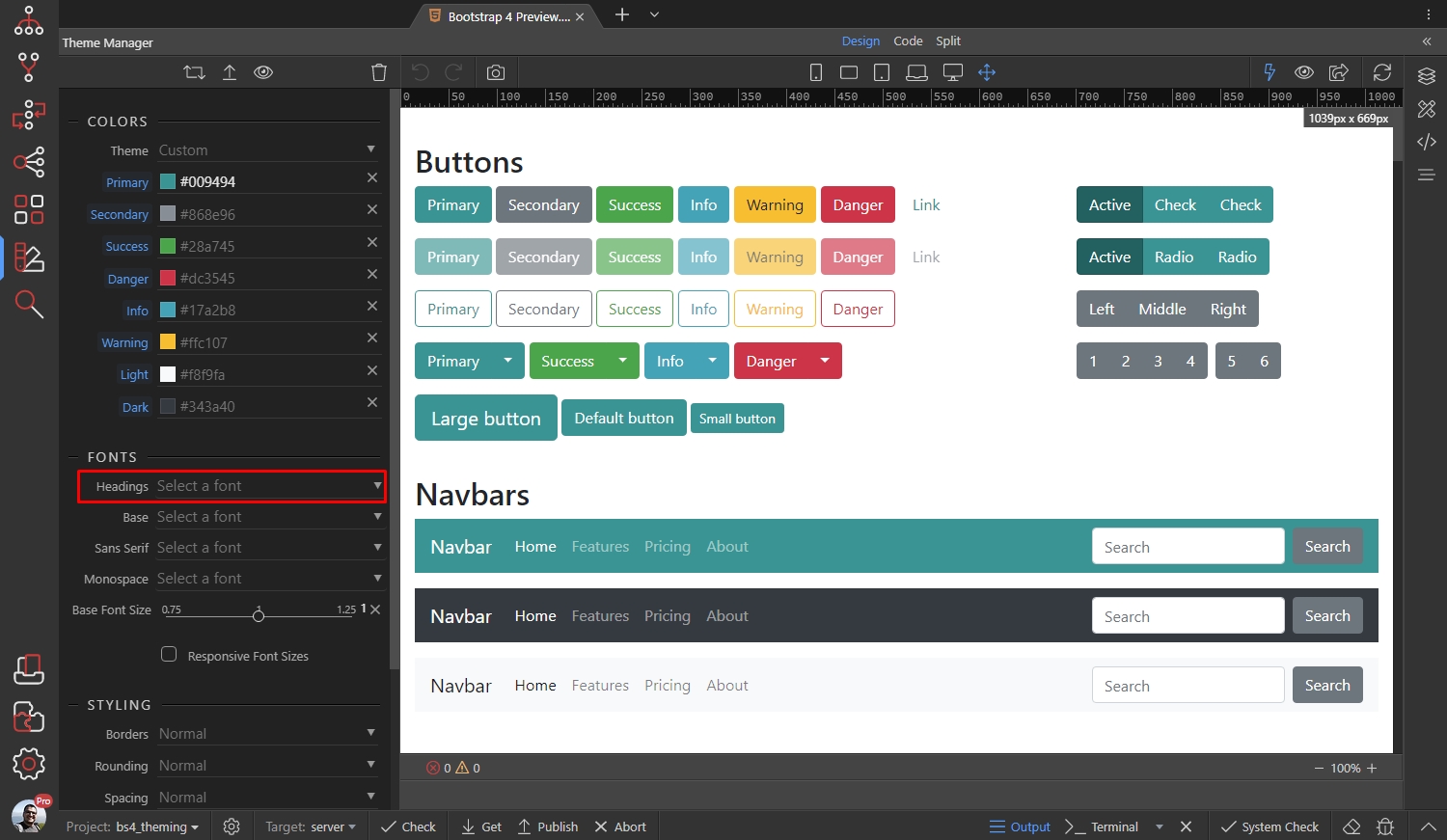
Step 18
Section titled “Step 18”The Font Picker dialog opens. Here you can see your local fonts and google fonts. You can also filter by font type, language or search a font by name:

Click a font to see its options:
Section titled “Click a font to see its options:”
Step 20
Section titled “Step 20”You can see the different font options available - weight and style, you can also add it to favorites. Select a weight and click the Select button to use this font:
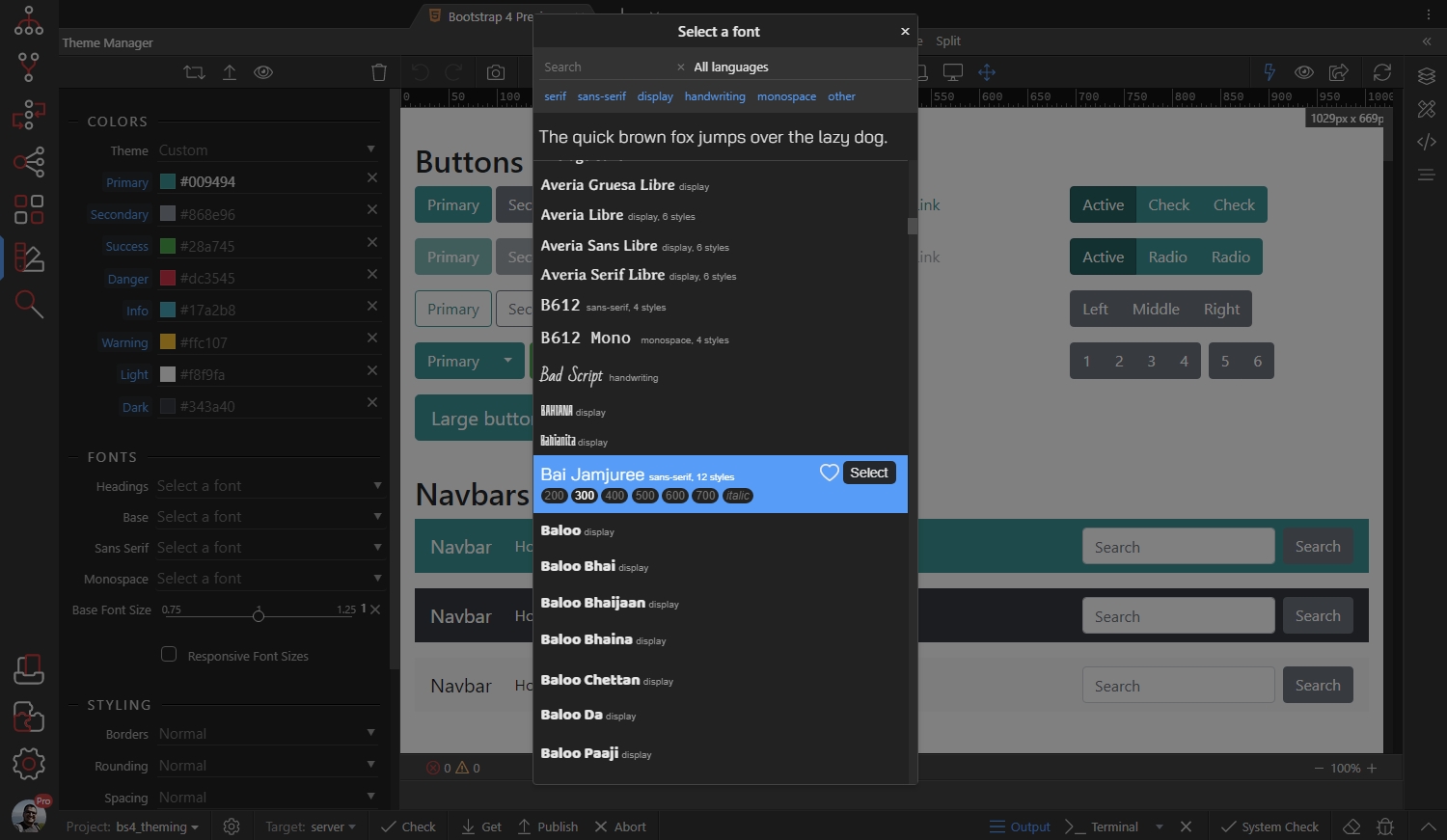
You can do the same for the base font - i.e. the font used for the text on your pages.
Section titled “You can do the same for the base font - i.e. the font used for the text on your pages.”You can change the default text size by changing the Base Font Size option:
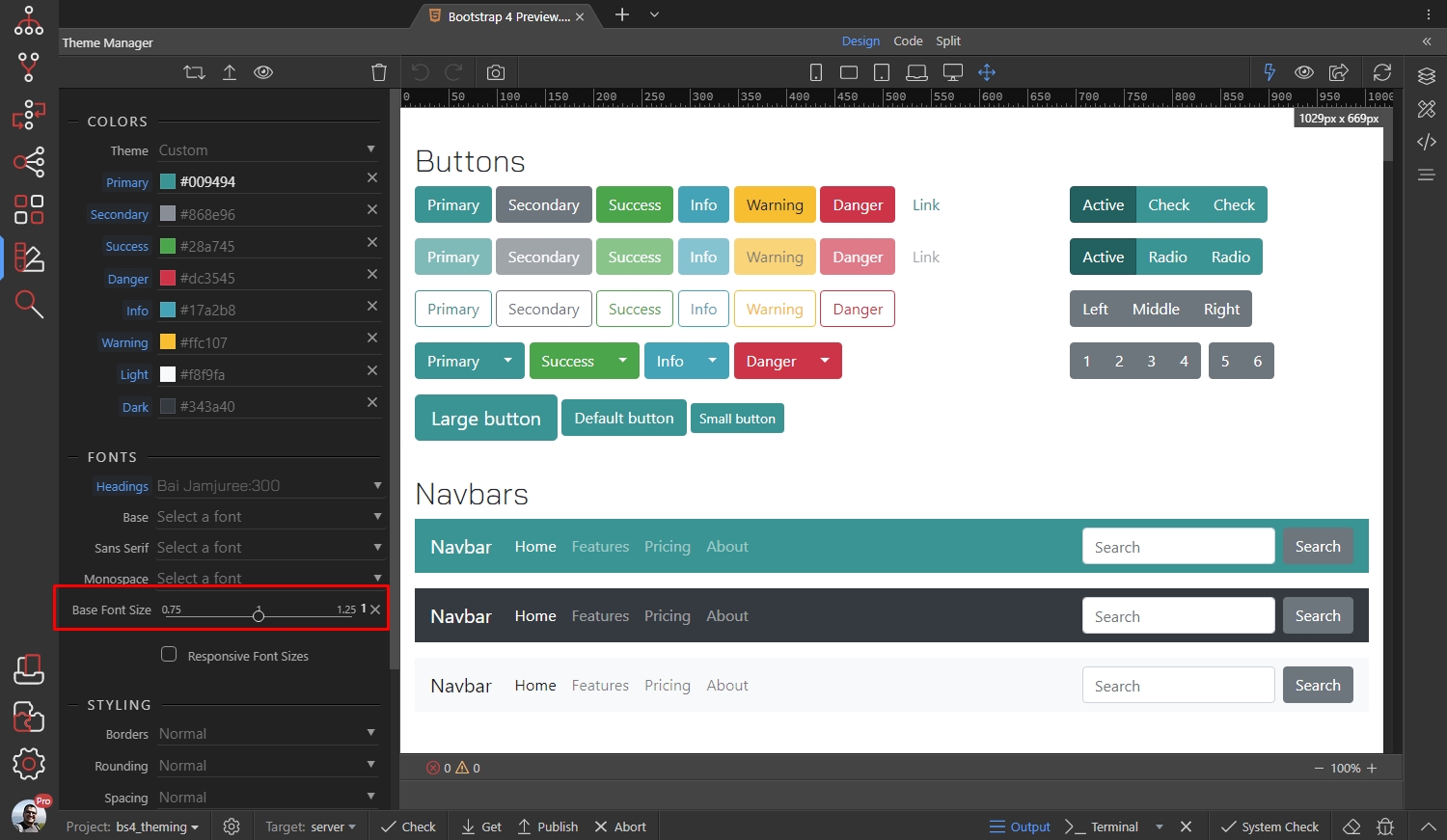
You can also enable the responsive font sizes. Learn more about the responsive font sizes in Bootstrap 4.
Section titled “You can also enable the responsive font sizes. Learn more about the responsive font sizes in Bootstrap 4.”Styling Options
Section titled “Styling Options”There are different styling options available, such as - borders, rounding, spacing, transitions, shadows and gradients, which can be enabled, disabled or changed:

Step 24
Section titled “Step 24”Play with these options to see how they affect your Bootstrap 4 elements.
All the changes are immediately shown in Design View:
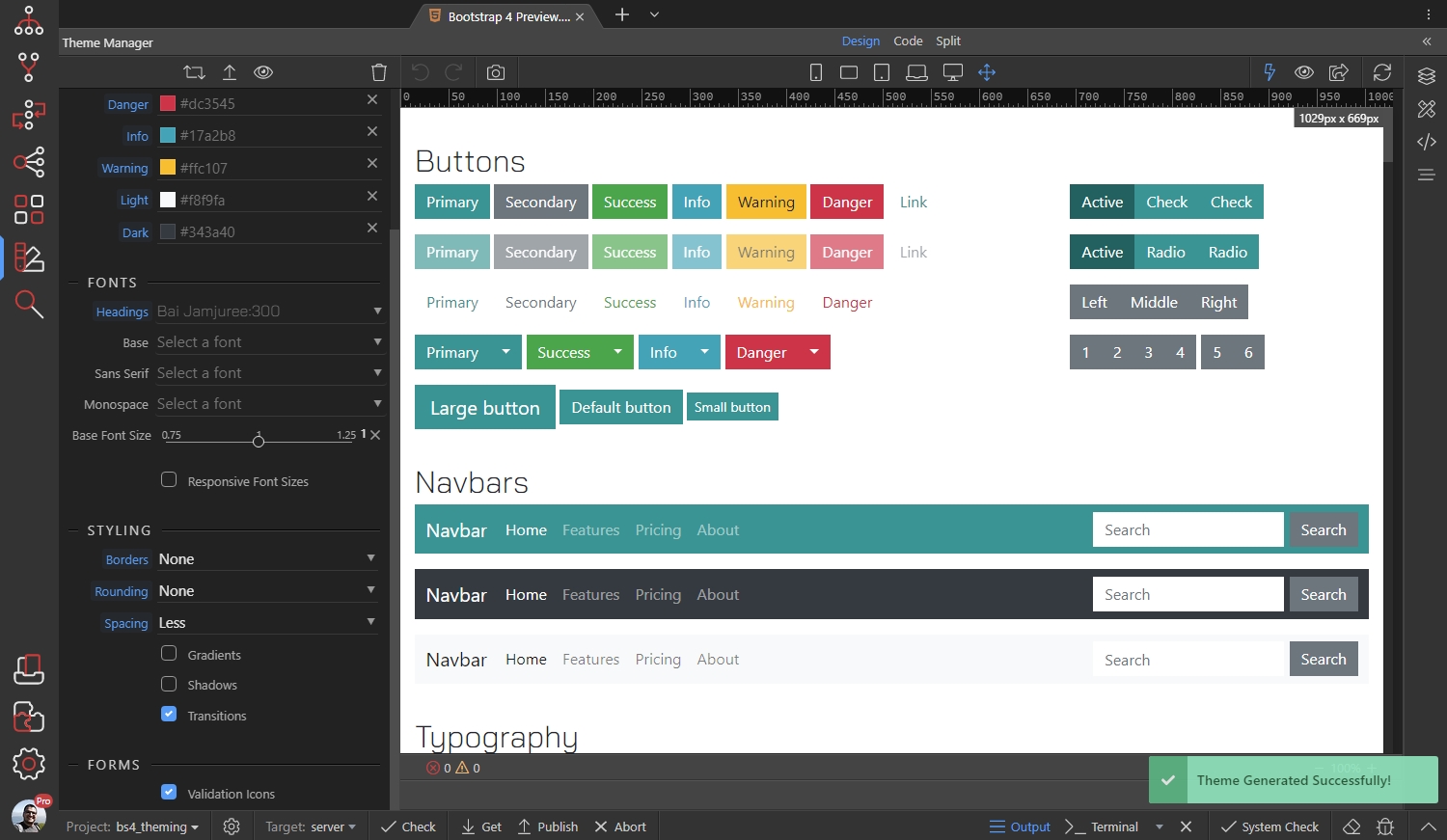
Theme Management
Section titled “Theme Management”You can reset your theme to the default one, by clicking the Reset Theme button:
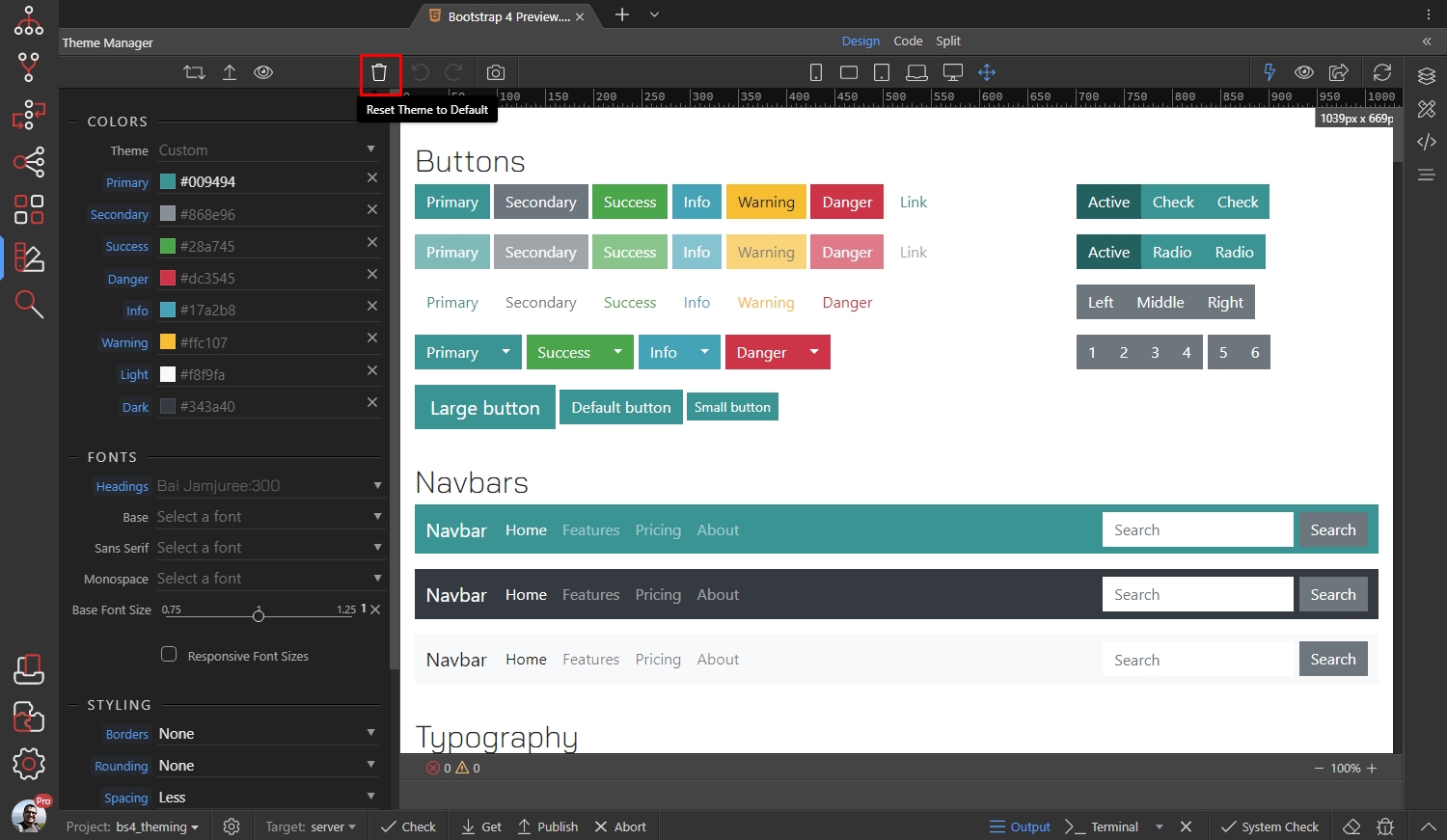
You can select a predefined theme, using the Theme dropdown:
Section titled “You can select a predefined theme, using the Theme dropdown:”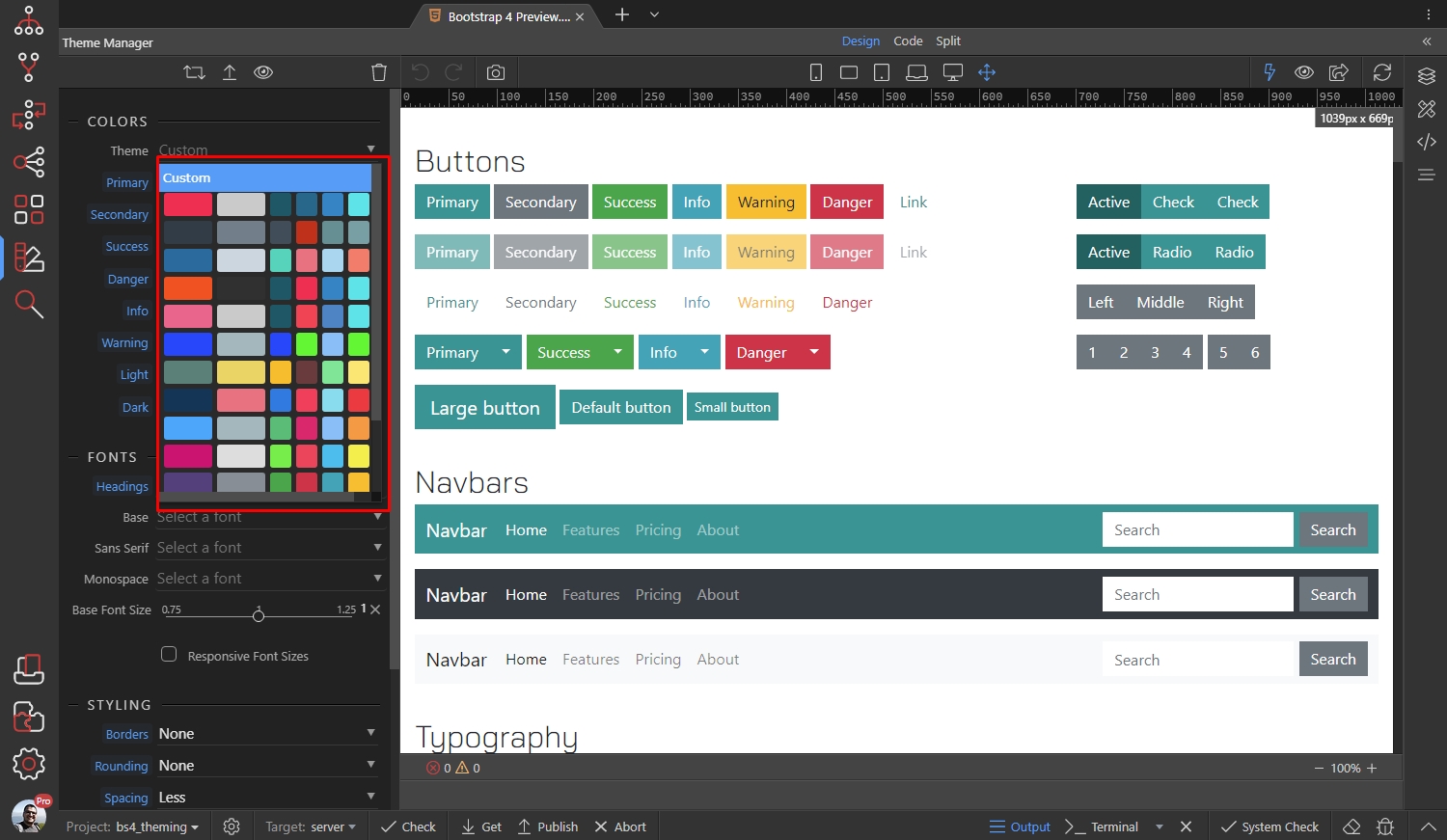
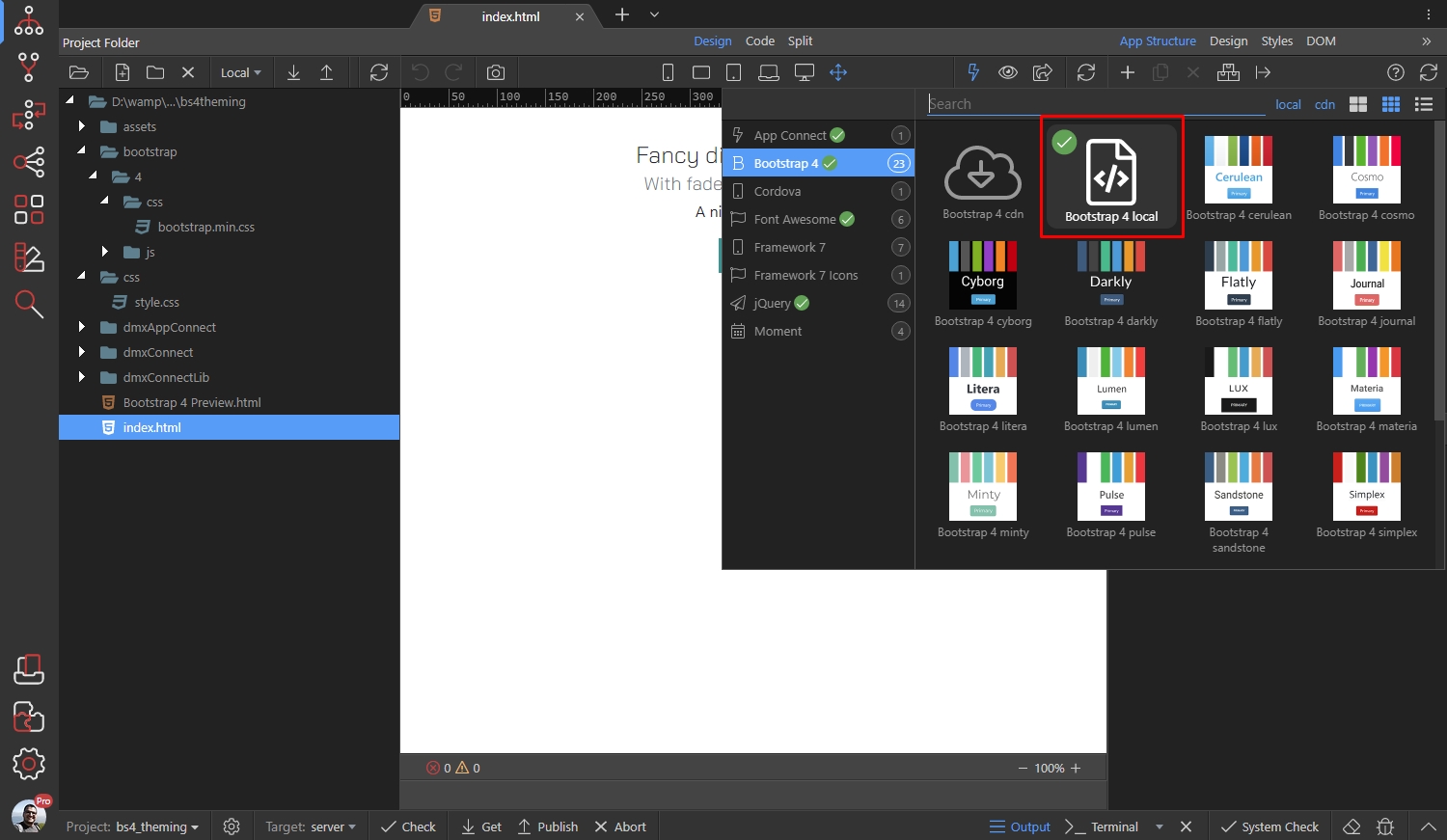
NOTE: You need to include Bootstrap 4 Local on your pages in order to be able to create a custom theme:
Section titled “NOTE: You need to include Bootstrap 4 Local on your pages in order to be able to create a custom theme:”When you are done setting up your theme, click the Upload Design Theme button in order to upload it to your server.
NOTE: You need to include Bootstrap 4 Local on your pages in order to be able to create a custom theme: