Creating Offcanvas Sidebar with Bootstrap 5
Intro You can add hidden sidebars for your web sites and apps for navigation, shopping carts, and more which appear from the left, right, or bottom edge of the viewport. You can show and hide them usi
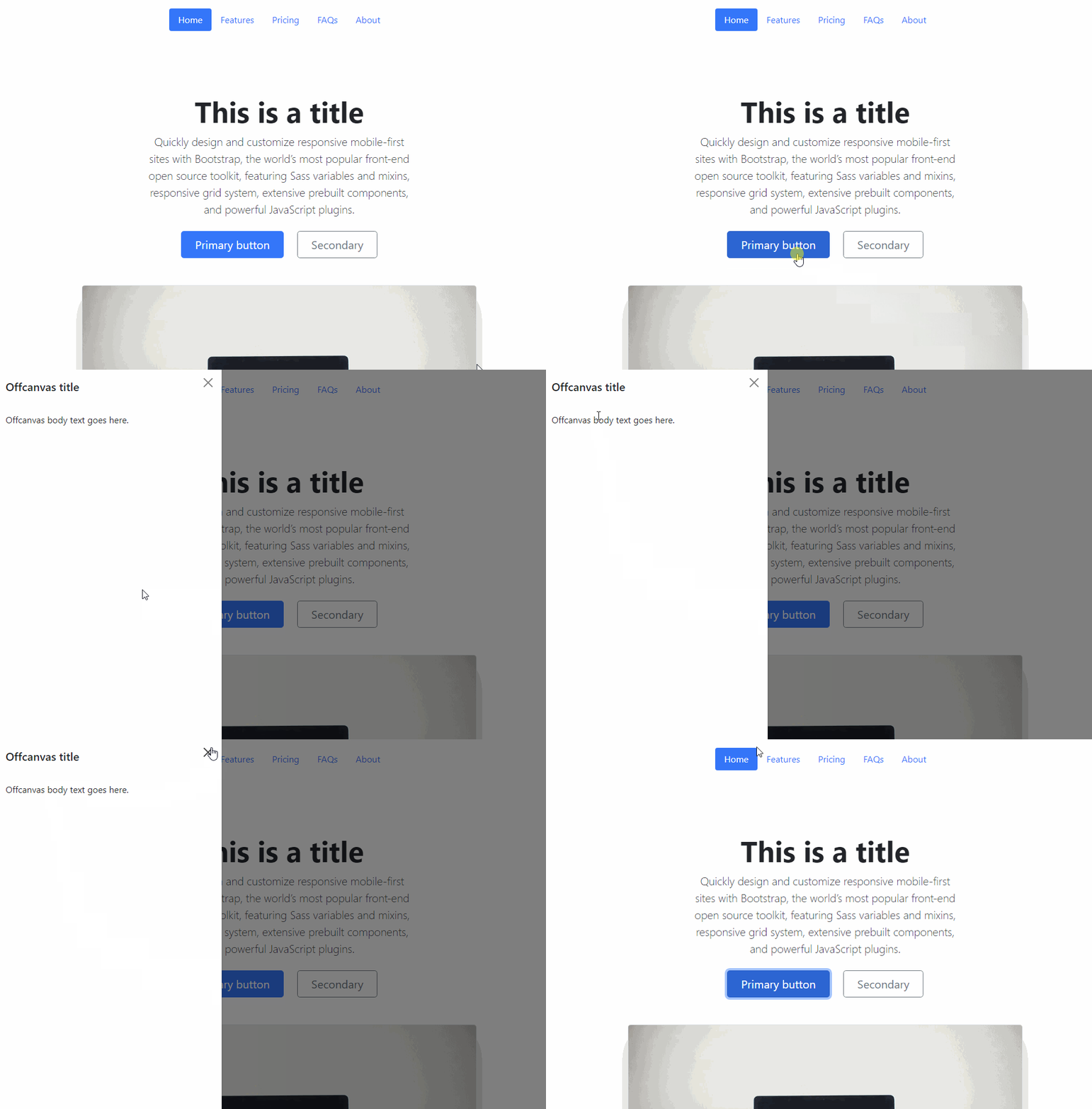
You can add hidden sidebars for your web sites and apps for navigation, shopping carts, and more which appear from the left, right, or bottom edge of the viewport. You can show and hide them using buttons, links or other elements on your page. You can also control the Offcanvas Sidebars using App Connect dynamic events.
This is possible thanks to the Offcanvas component in Bootstrap 5.
Creating Offcanvas Sidebar
Section titled “Creating Offcanvas Sidebar”We created a simple Bootstrap 5 page, where we want to add the Offcanvas component.
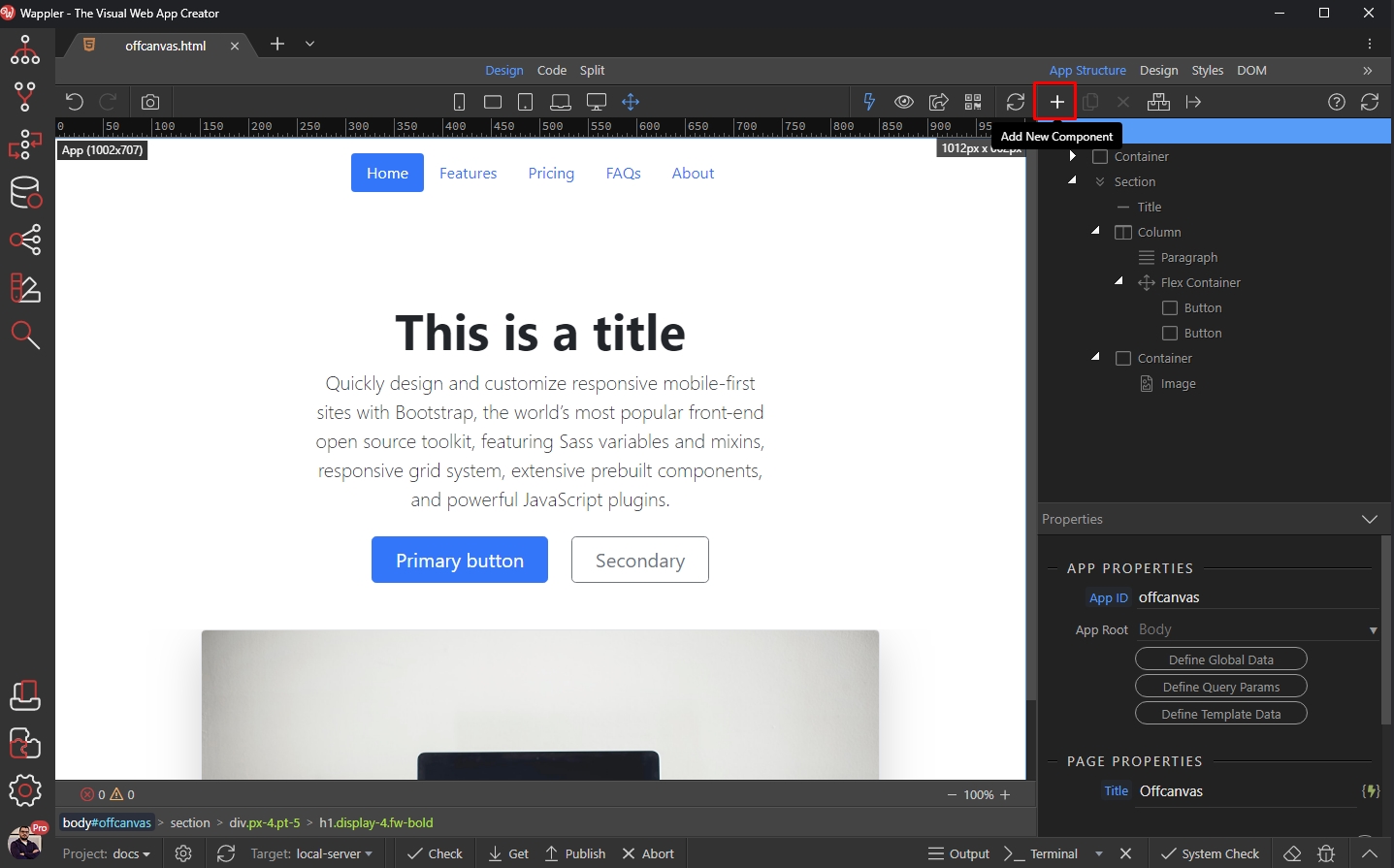
Open the App Connect panel, select App and add a new component:
Open the Components menu and select Dynamic Offcanvas:
Section titled “Open the Components menu and select Dynamic Offcanvas:”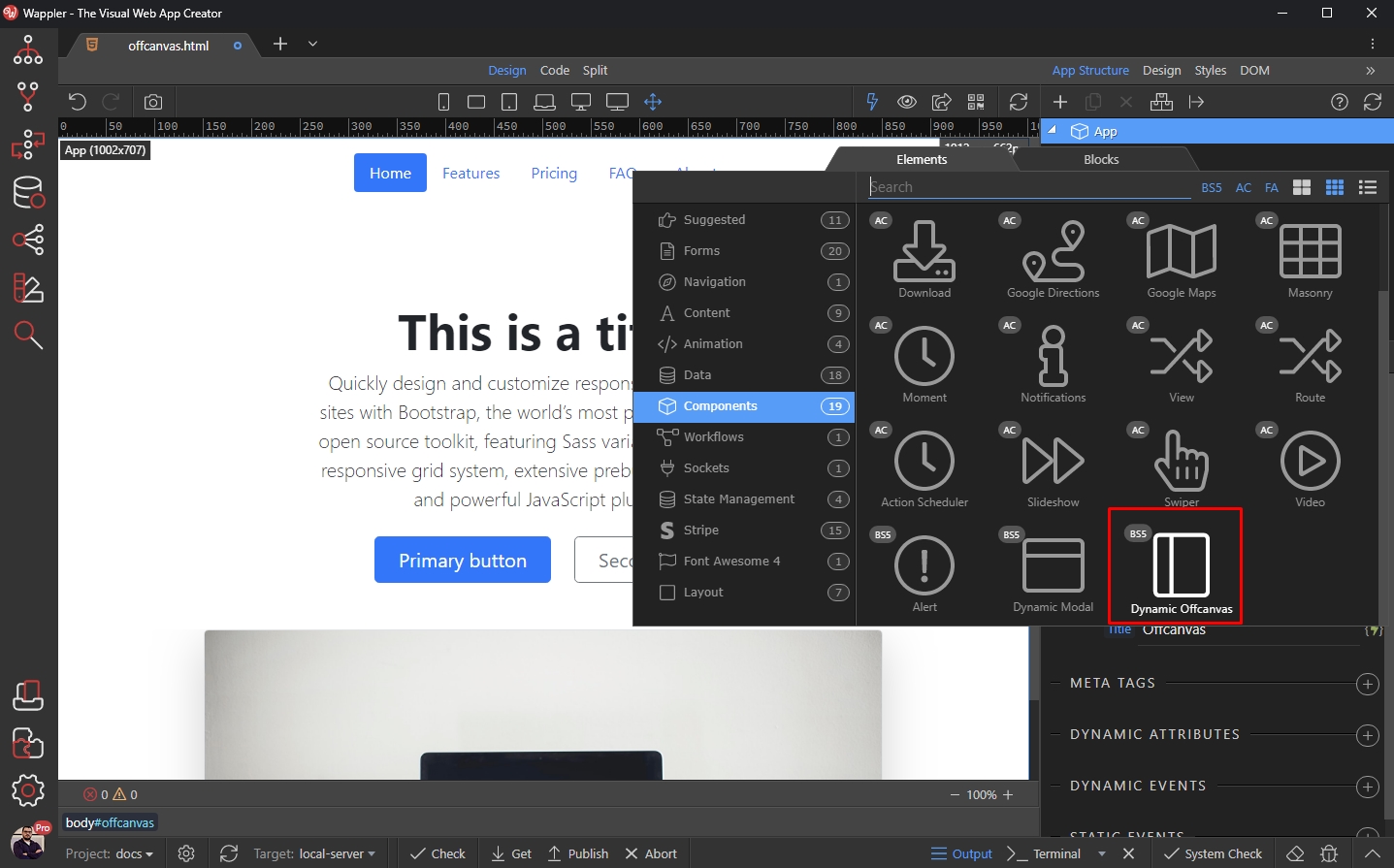
The Offcanvas component has been added on your page.
Section titled “The Offcanvas component has been added on your page.”Options
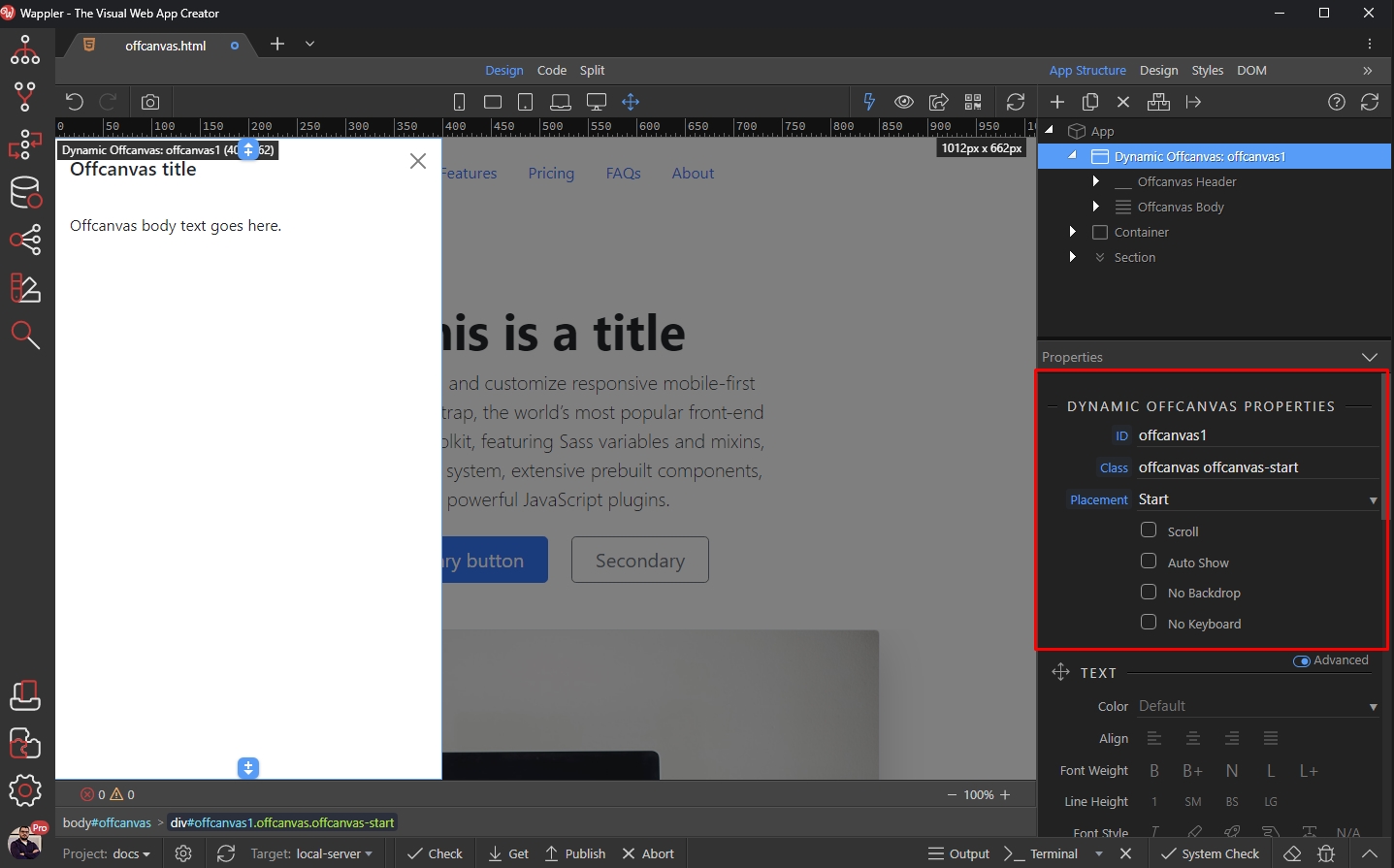
Section titled “Options”You can find its properties in the Properties panel:
Step 7
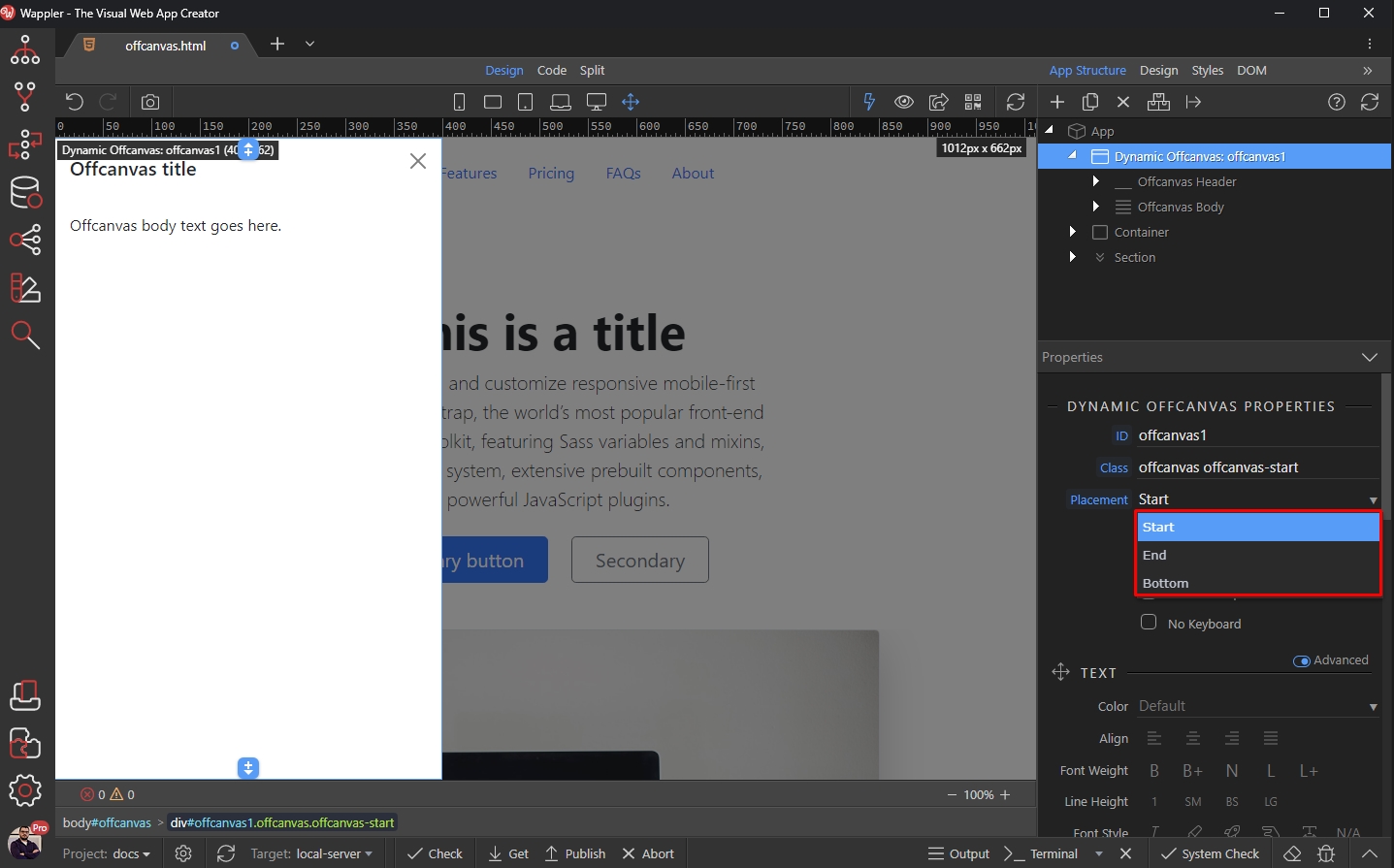
Section titled “Step 7”You can select the position of the Offcanvas - Start, End or Bottom.
Start - The Offcanvas appears from the left edge of the viewport
End - The Offcanvas appears from the right edge of the viewport
Bottom - The Offcanvas appears from the bottom edge of the viewport
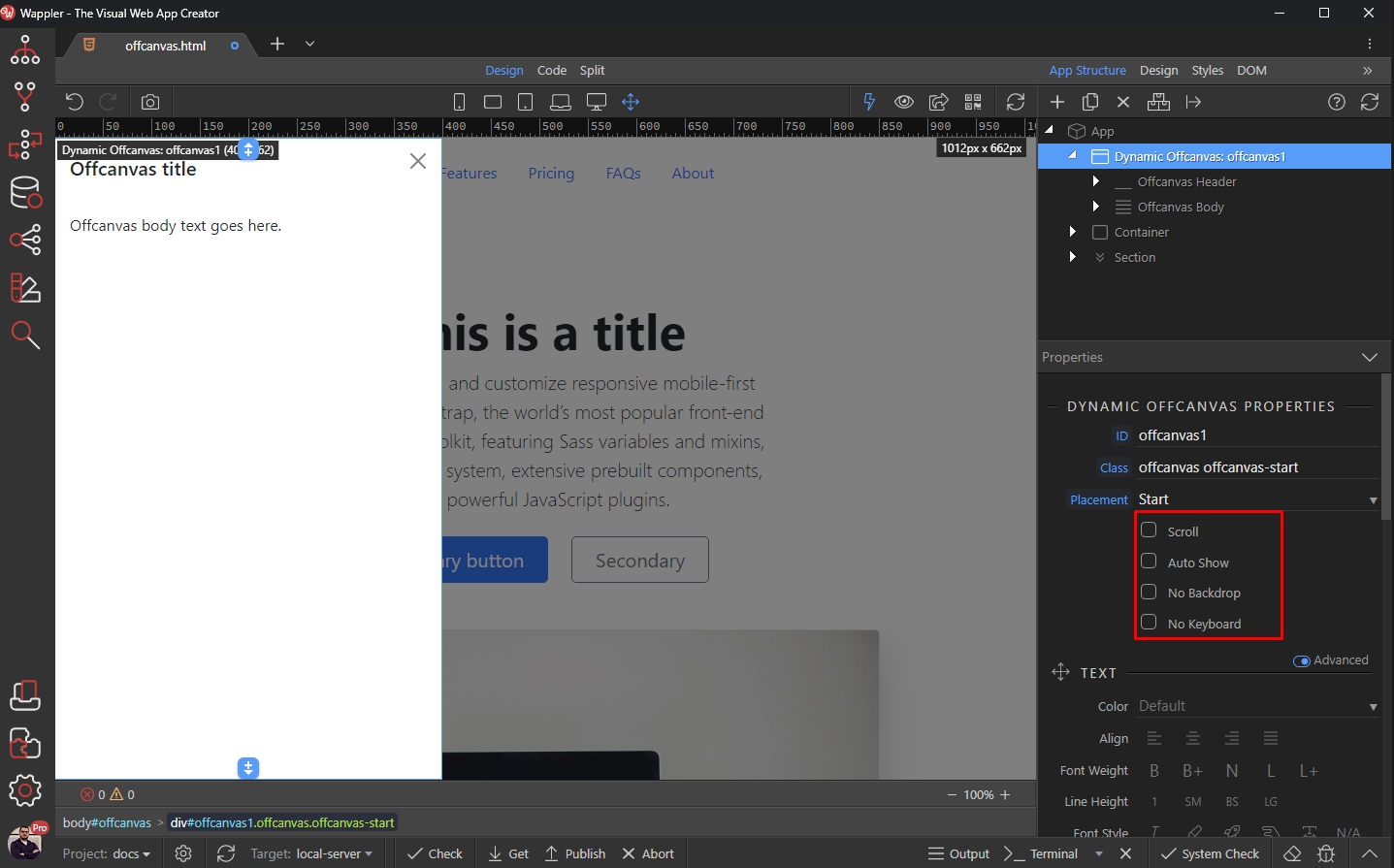
Customize the rest of the options as you need:
Section titled “Customize the rest of the options as you need:”Scroll - Allow body scrolling while offcanvas is open
Auto Show - Show the officanvas when the page loads
No Backdrop - Disable the backdrop on page body while offcanvas is open
No Keyboard - Disable closing of the offcanvas when escape key is pressed
Layout
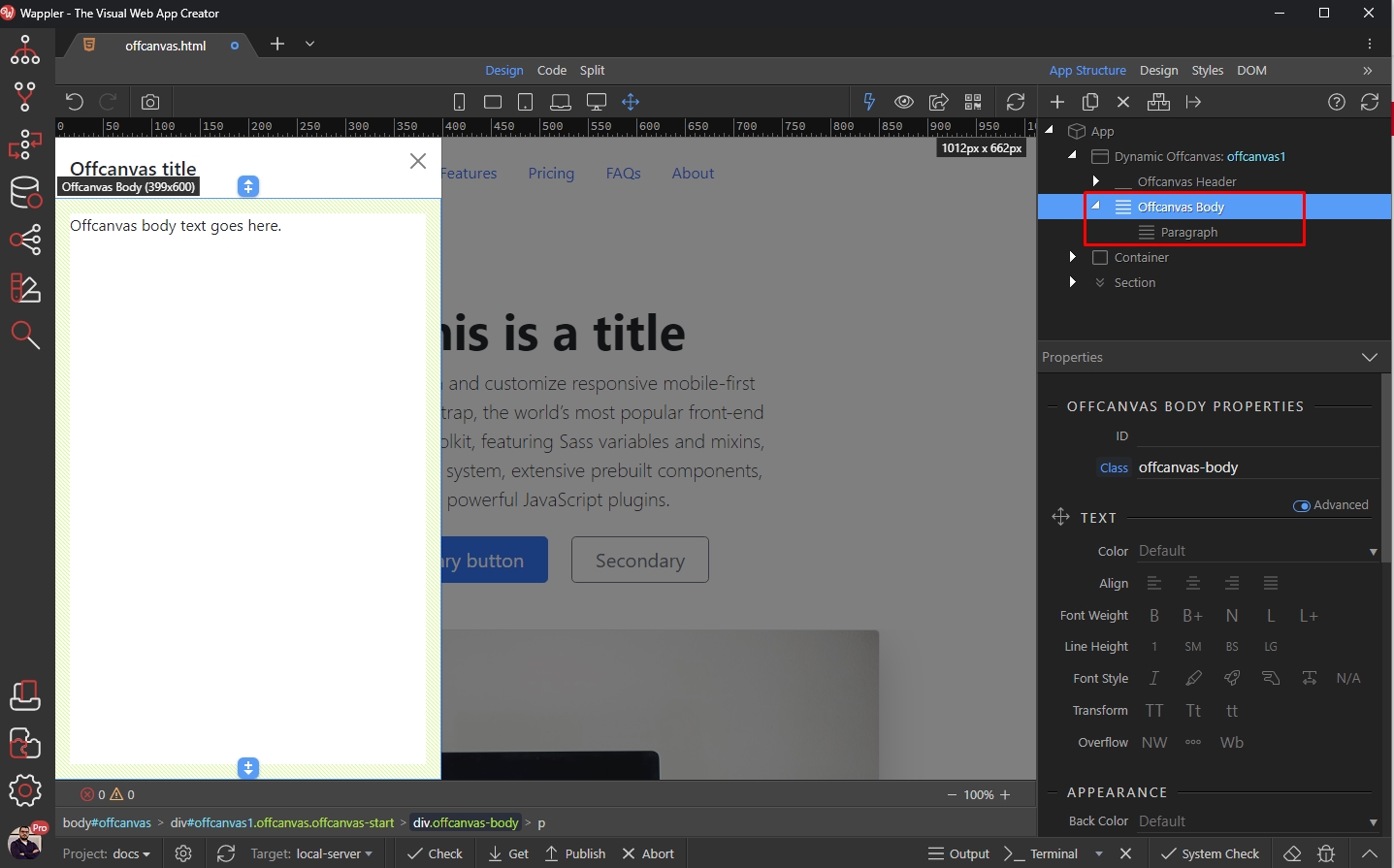
Section titled “Layout”The offcanvas component contains a header and body.
You can add your content in the offcanvas body:
Controlling Offcanvas
Section titled “Controlling Offcanvas”You can control the Offcanvas Component using any any element on your page.
Using Action Toggle
Section titled “Using Action Toggle”The easiest way to control the offcanvas is using a button. Select your button and open the Action Toggle menu:
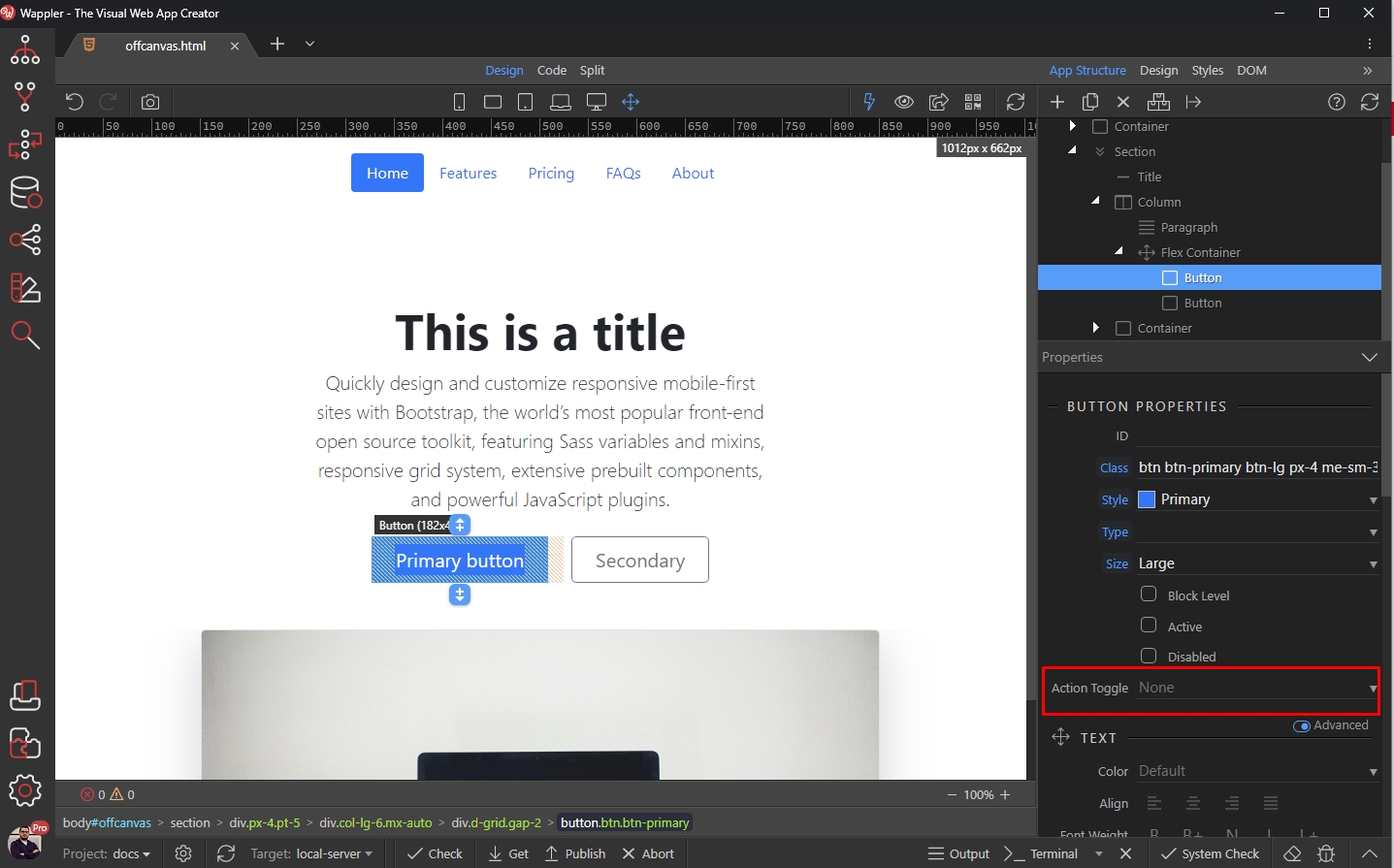
Select Offcanvas:
Section titled “Select Offcanvas:”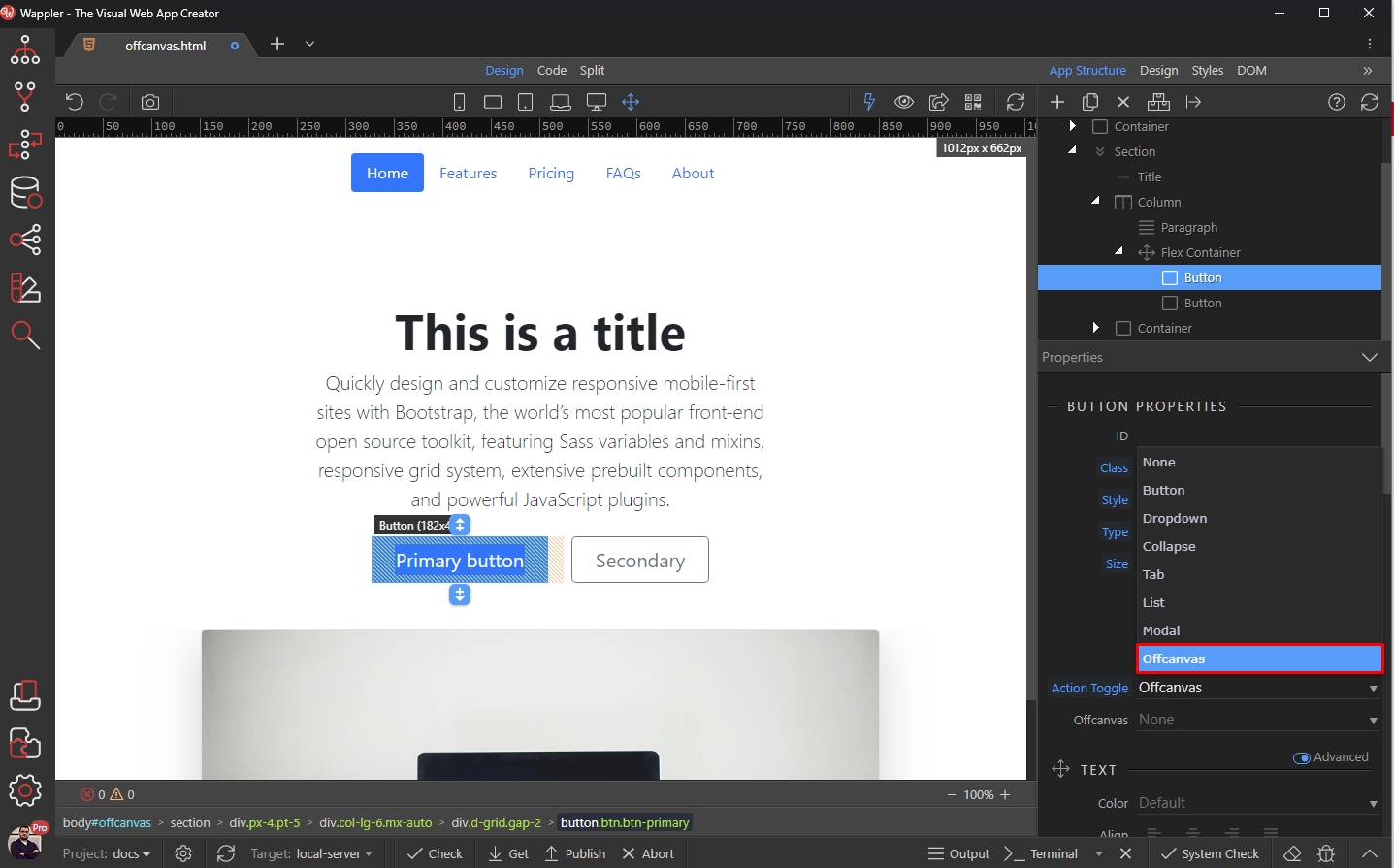
And select your offcanvas in the menu:
Section titled “And select your offcanvas in the menu:”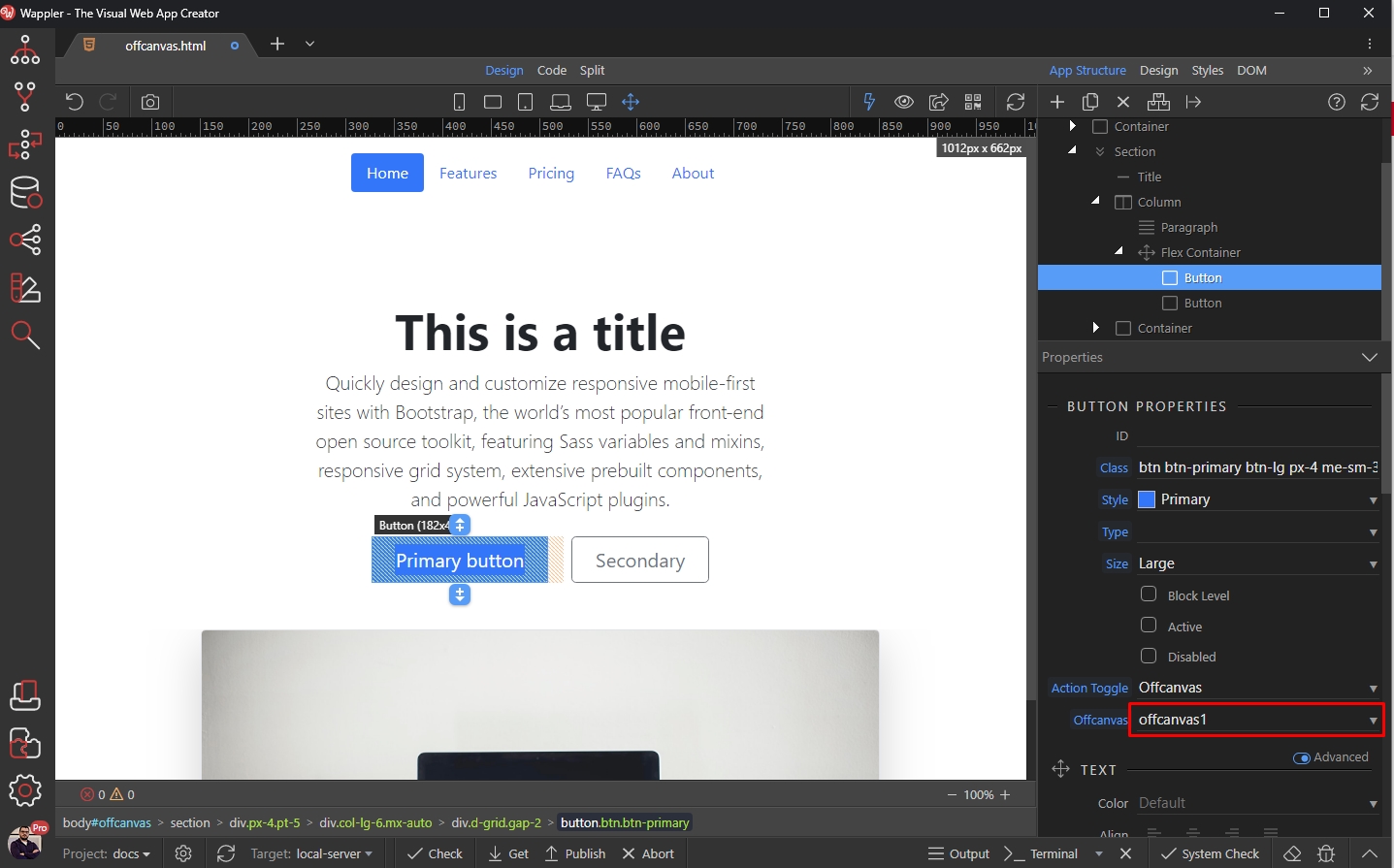
Using Dynamic Events
Section titled “Using Dynamic Events”You can also use App Connect Dynamic Events to Open, Close or Toggle the offcanvas:
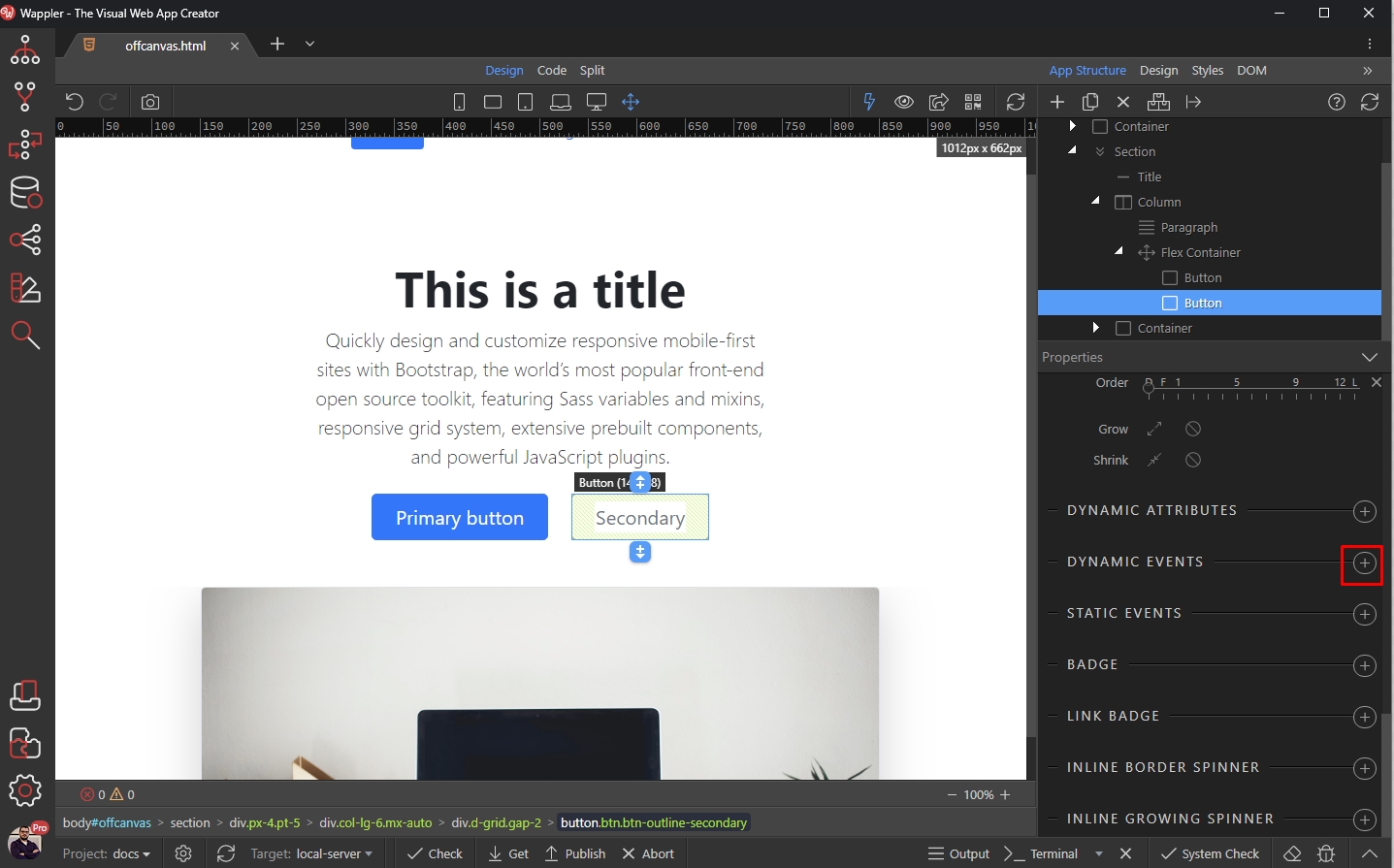
Select the event you want to use, in our case on click:
Section titled “Select the event you want to use, in our case on click:”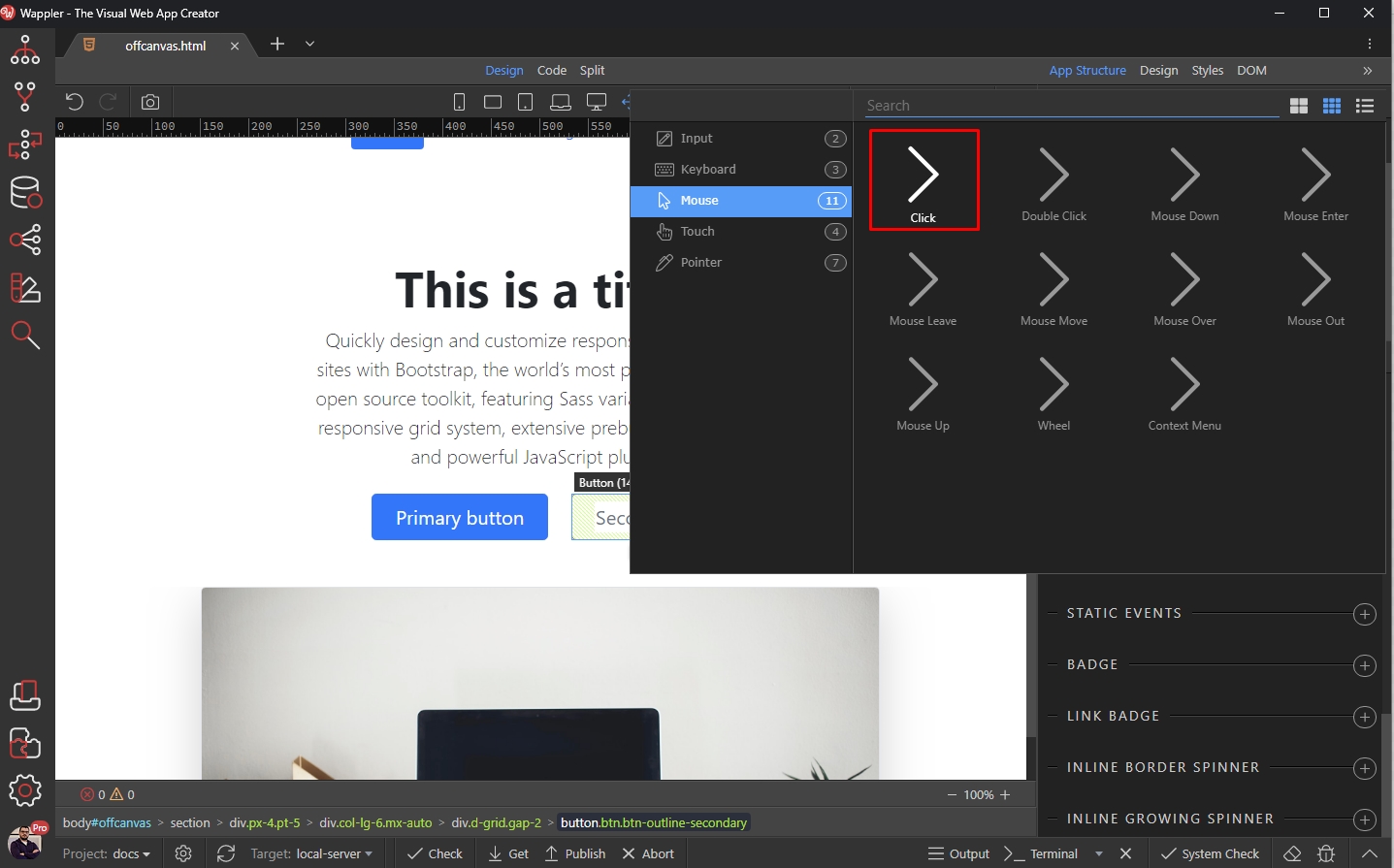
And click the Action Picker button:
Section titled “And click the Action Picker button:”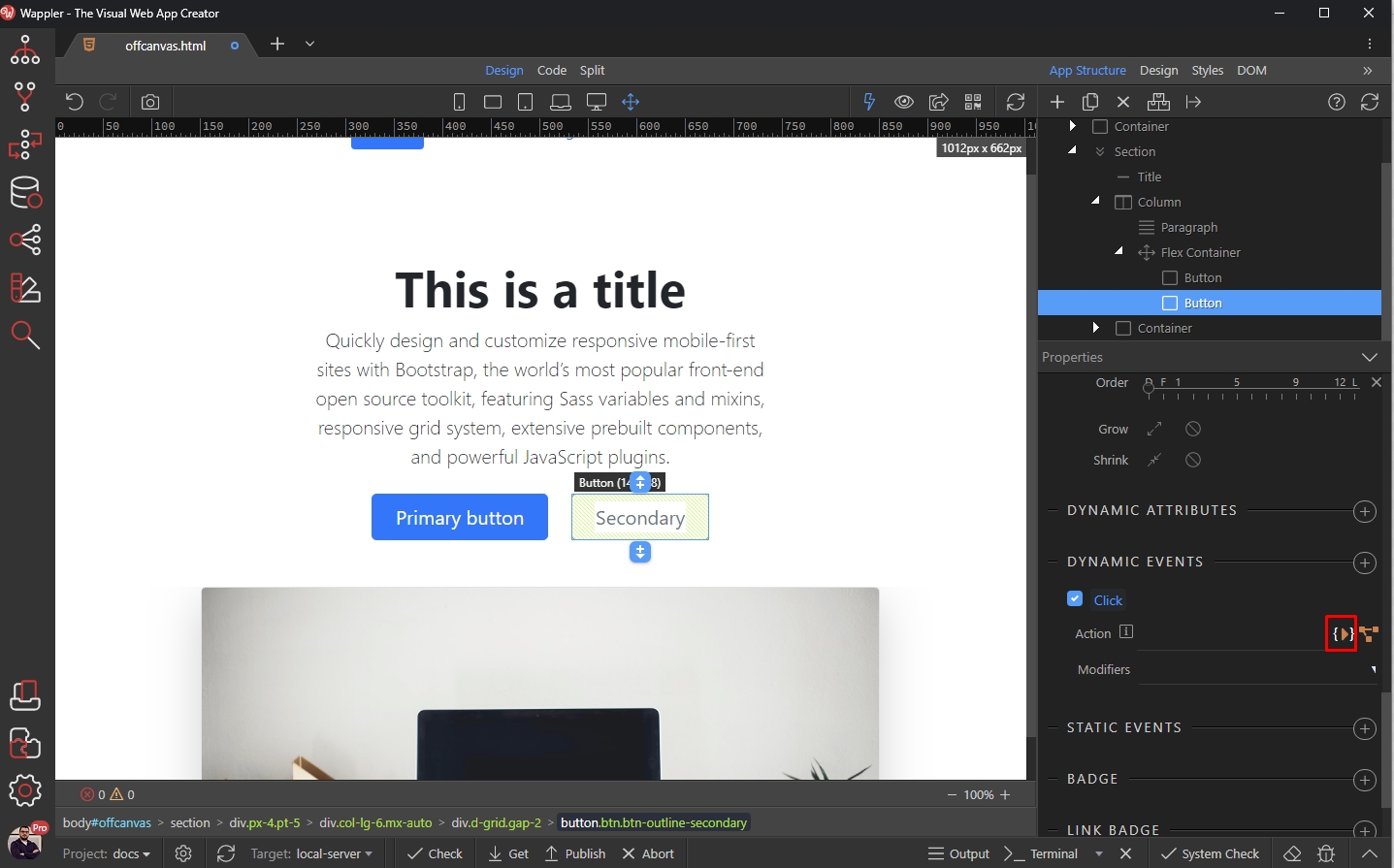
Select Show under the Offcanvas Component and add it:
Section titled “Select Show under the Offcanvas Component and add it:”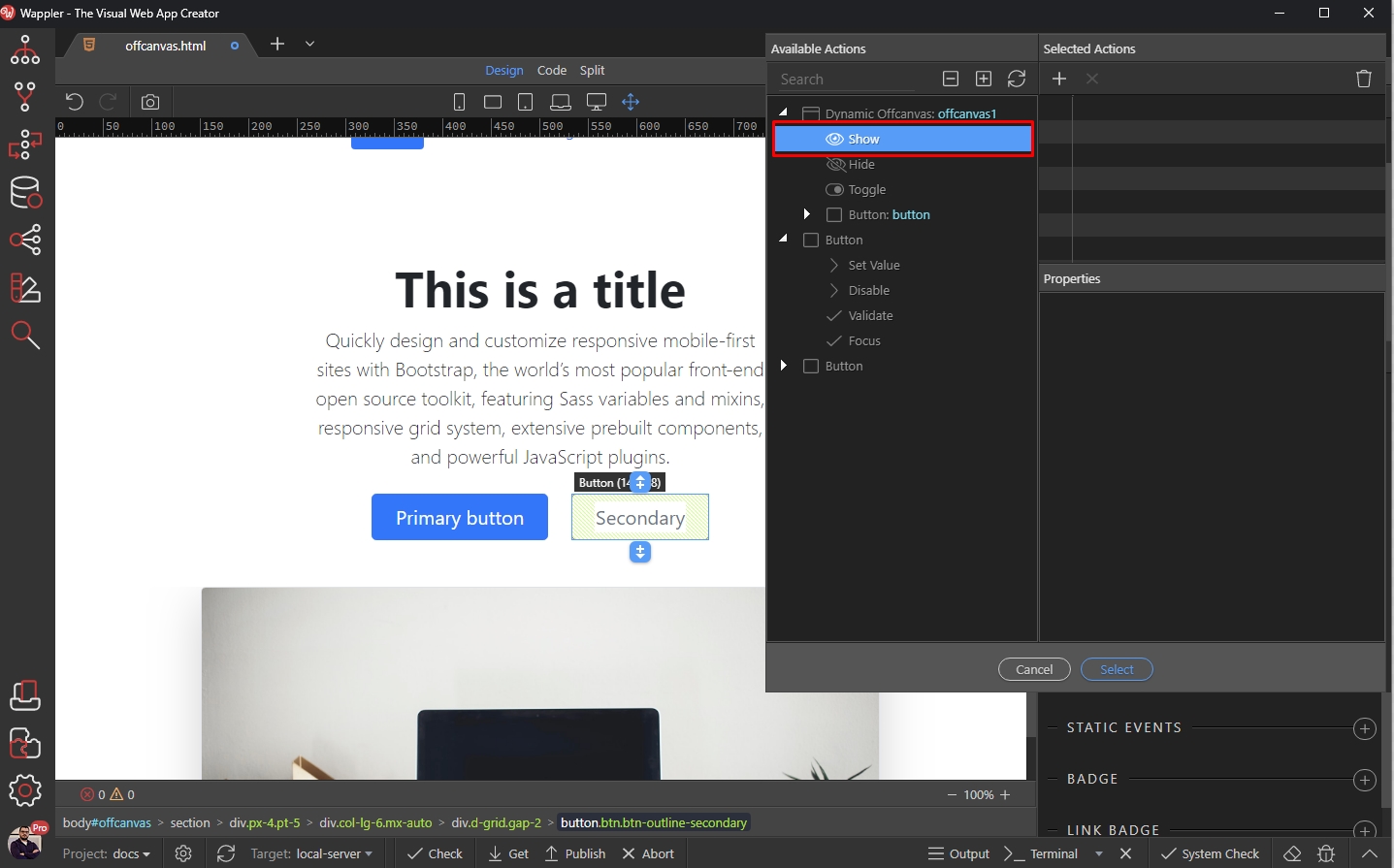
Click Select and you are done:
Section titled “Click Select and you are done:”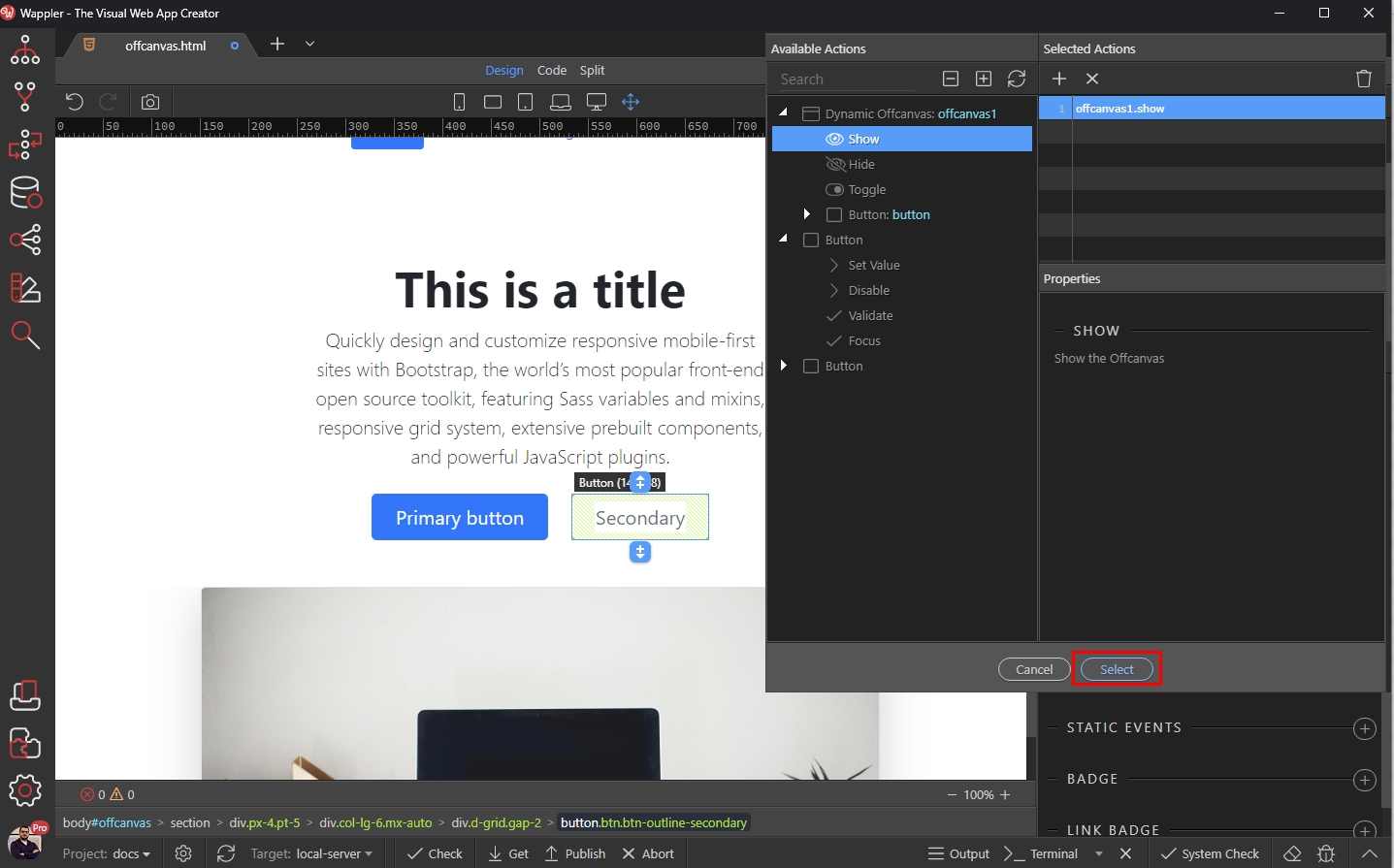
You can preview the page in the browser:
Section titled “You can preview the page in the browser:”