Using Time Picker with Date Picker Component
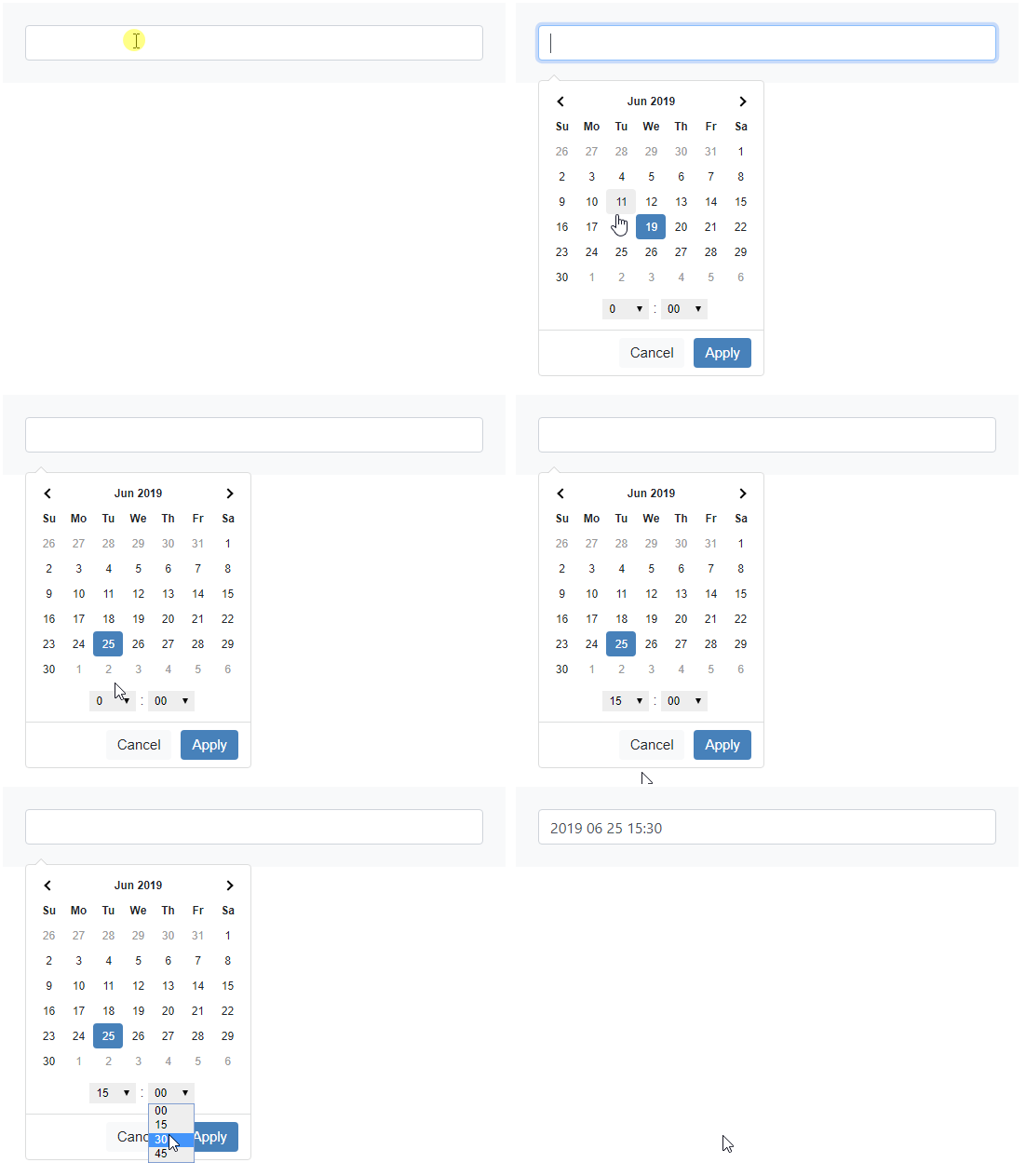
You can add a time picker in the date picker component, so the users can select the time along with the date. Enable Time Picker First select the date/date range picker on your page: Scroll down the p
You can add a time picker in the date picker component, so the users can select the time along with the date.
Section titled “You can add a time picker in the date picker component, so the users can select the time along with the date.”Enable Time Picker
Section titled “Enable Time Picker”First select the date/date range picker on your page:
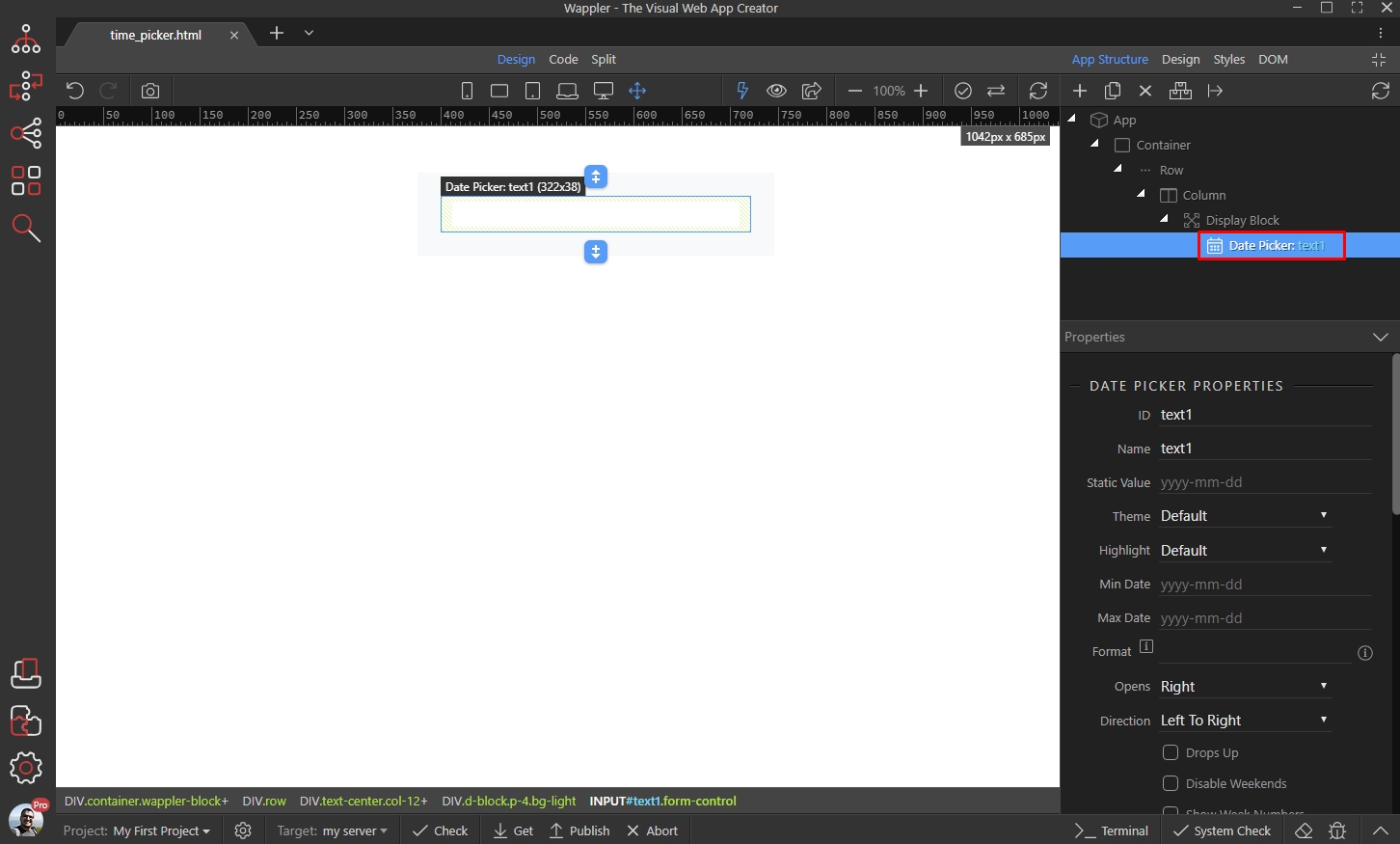
Scroll down the properties panel and enable Time Picker:
Section titled “Scroll down the properties panel and enable Time Picker:”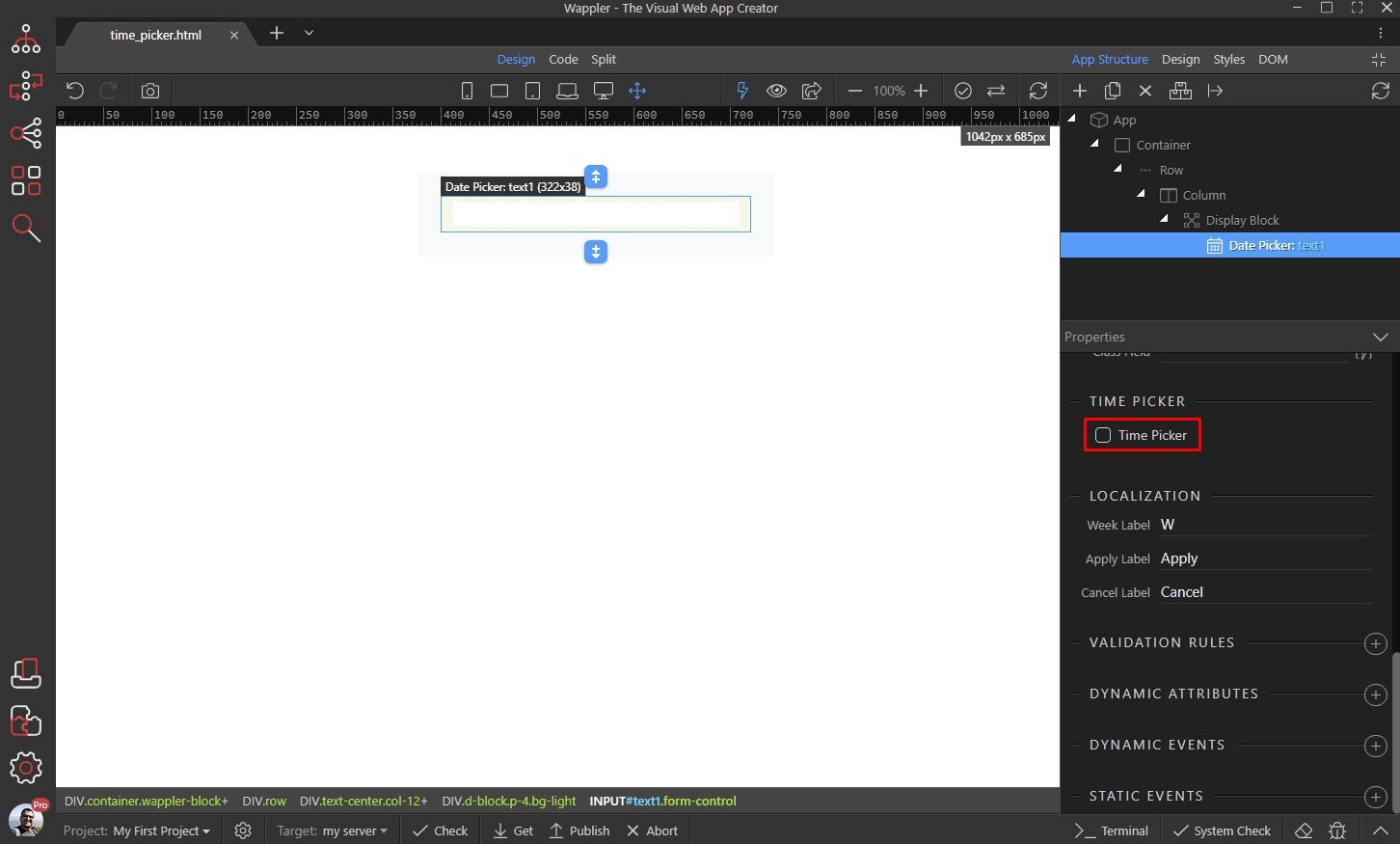
Time Picker Options
Section titled “Time Picker Options”You can select whether to display the time picker in 24 hours format or use 12 hours AM/PM.
Note - this only affects how the time picker looks, the time format displayed on the page depends on the date format options which you are using:
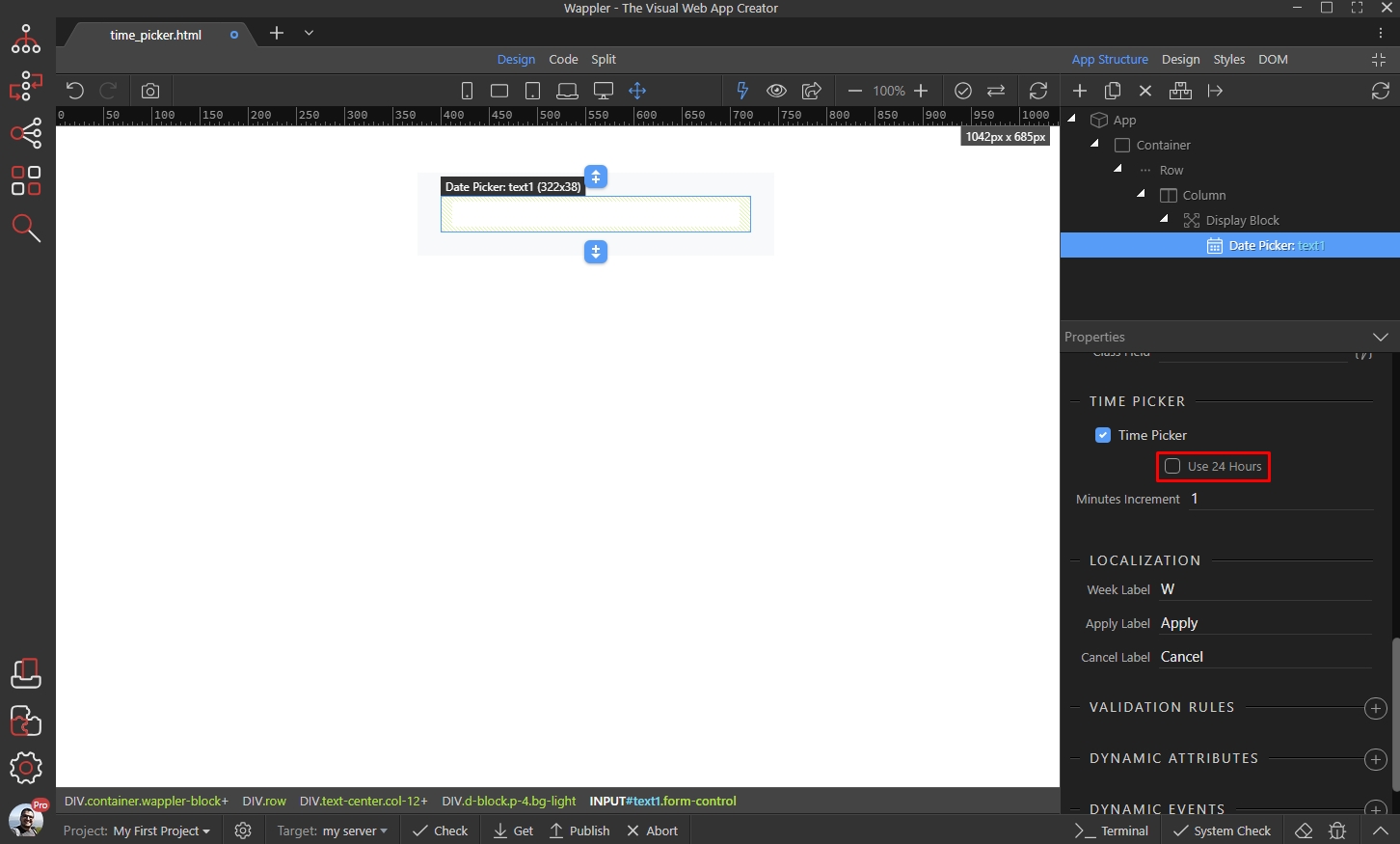
Set the increment of the minutes selection list. Setting this to 15 will show 00, 15, 30, 45 as options:
Section titled “Set the increment of the minutes selection list. Setting this to 15 will show 00, 15, 30, 45 as options:”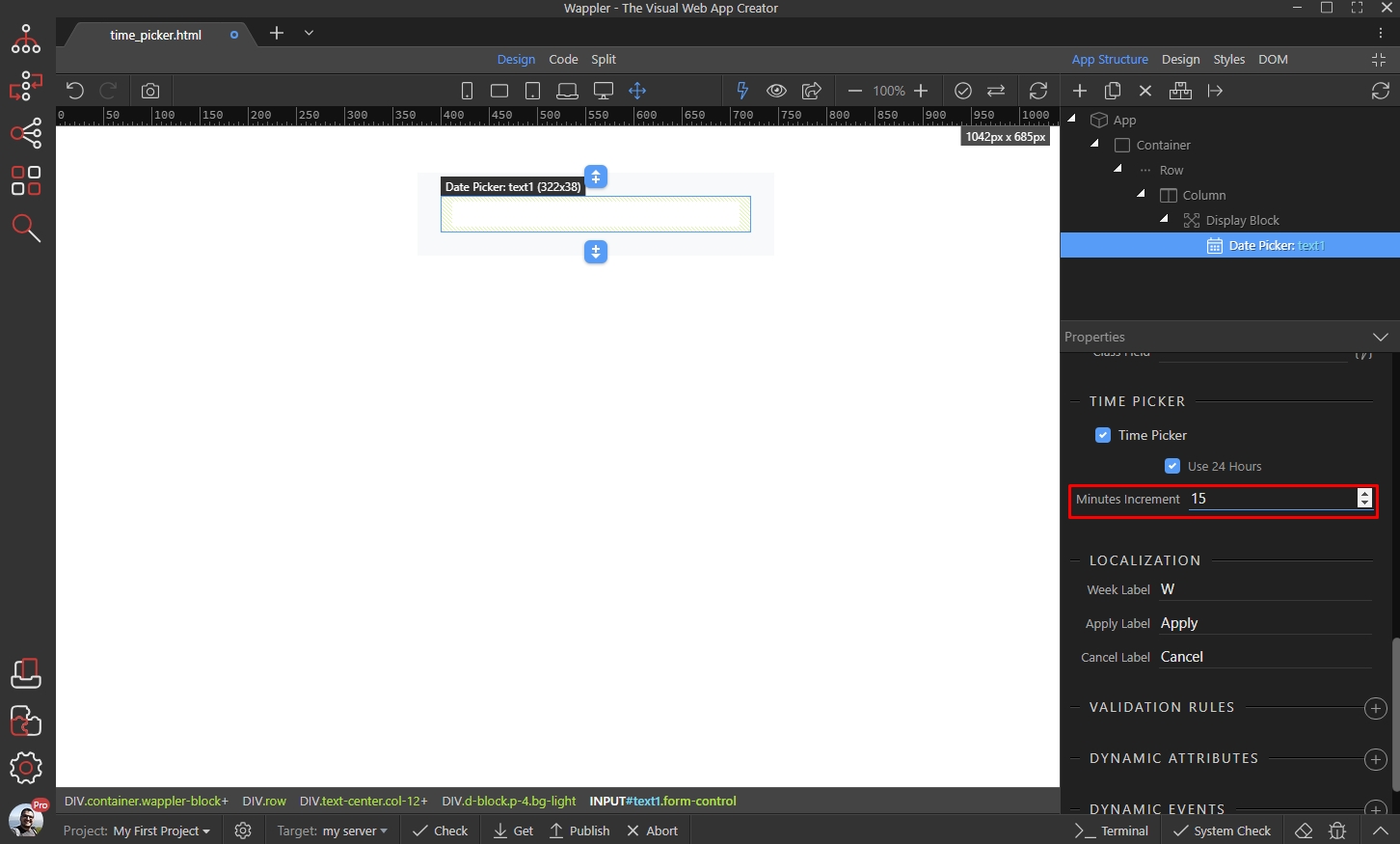
Time Format Options
Section titled “Time Format Options”Scroll up to the date picker options. You need to add the hours/minutes in the date format options in order to display them in the input:
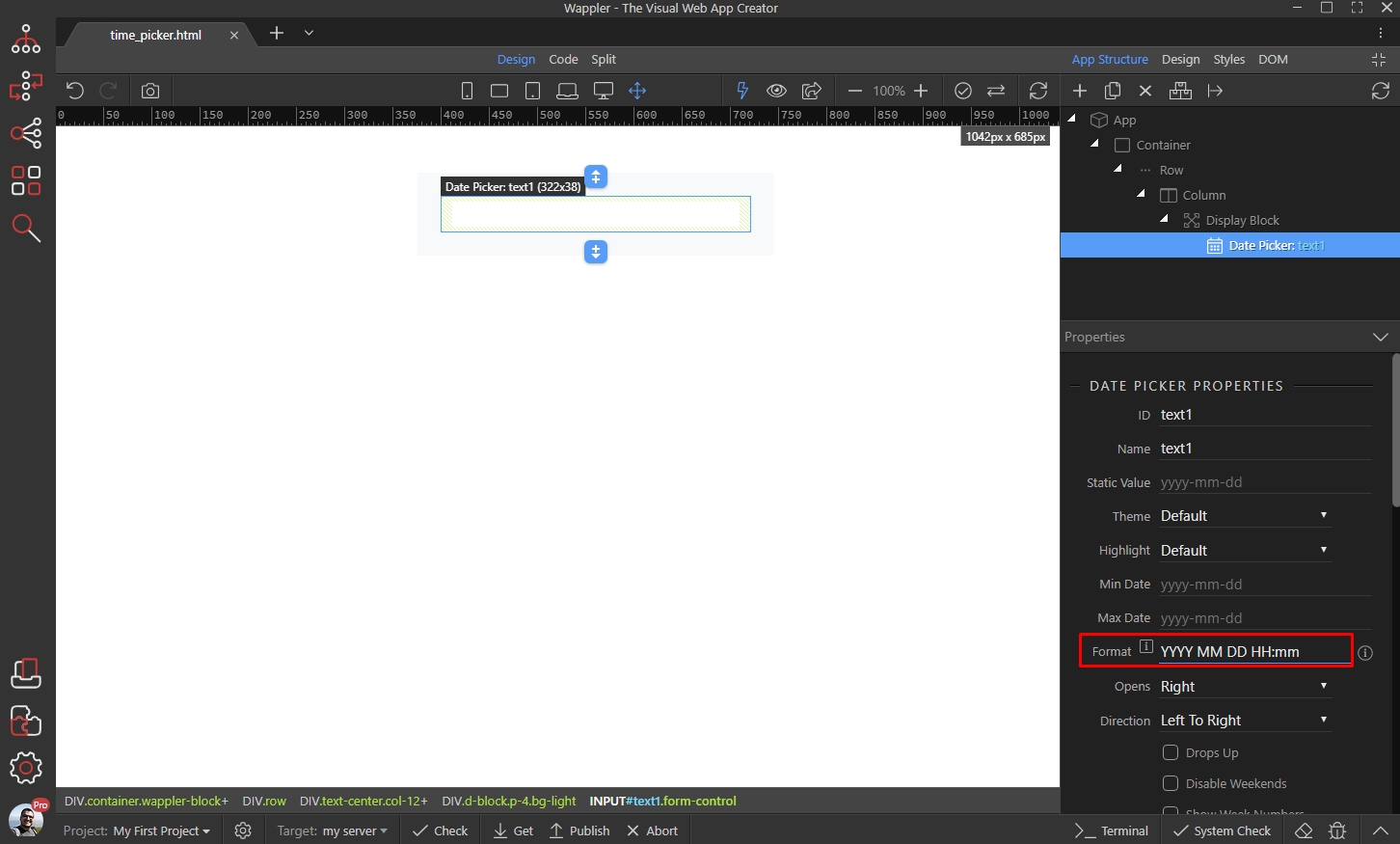
Here are the available time format options:
Section titled “Here are the available time format options:”H - 24 hours (0, 1 … 22, 23)
HH - 2 digit 24 hours ( 00, 01 … 22, 23)
h - 12 hours (1, 2 … 11, 12)
hh - 2 digit 12 hours ( 01, 02 … 11, 12)
m - minute (0, 1 … 58, 59)
mm - 2 digit munute (00, 01 … 58, 59)
A - AM/PM
a - am/pm
Example:
YYYY/MM/DD h:mm a will return: 2019/06/18 10:45 pm
YYYY/MM/DD HH:mm will return: 2019/06/18 22:45