
Button groups
Group related actions with button groups and toolbars, including sizing and alignment.
Use button groups to combine related actions into a single connected control, keeping spacing and alignment consistent.
Button group example
Section titled “Button group example”Button groups combine related actions into a single connected control. The wrapper controls layout; the buttons inside control styling and states.
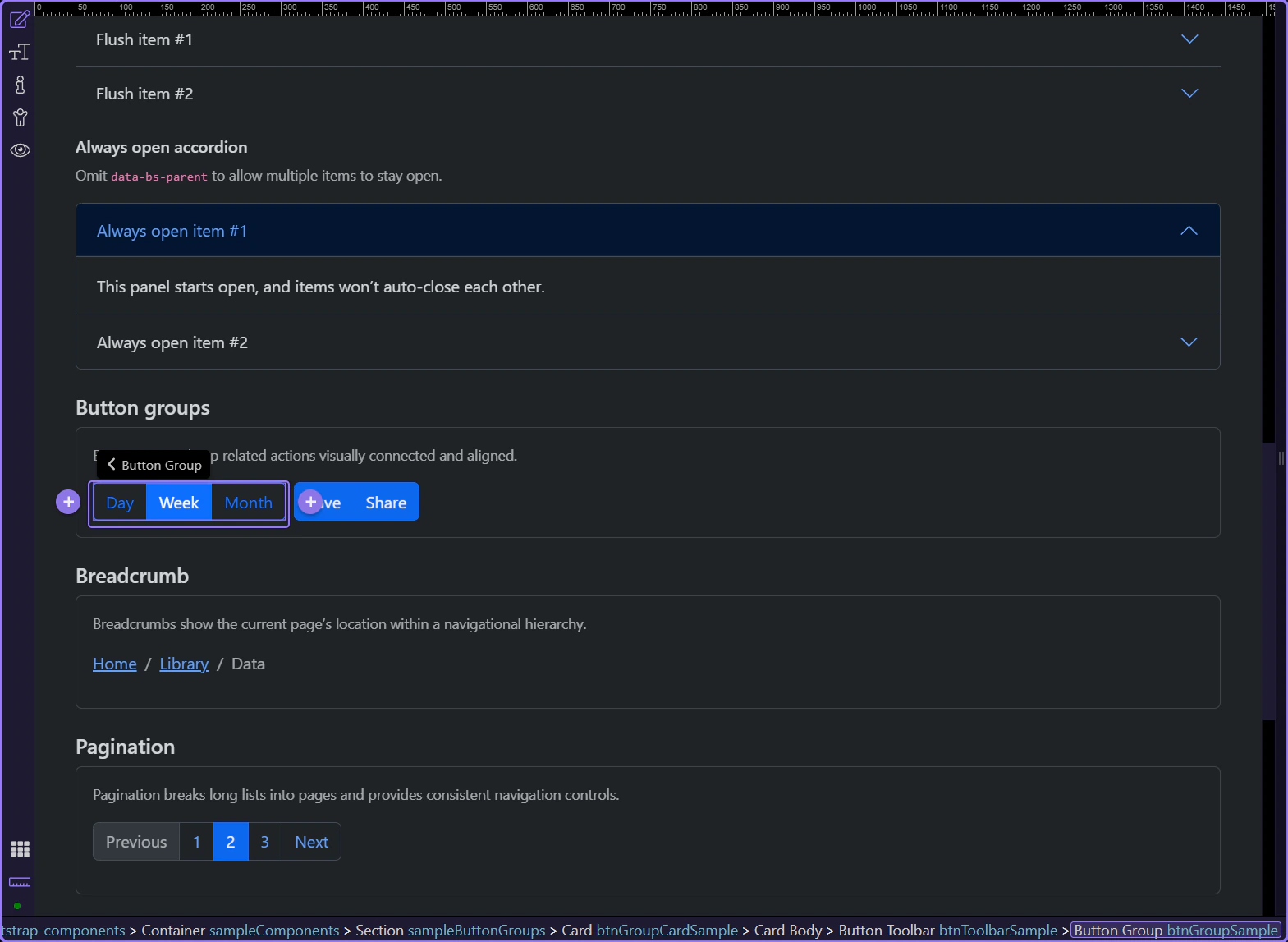
Group: Size
Section titled “Group: Size”Use Size to make the whole group larger or smaller. This matches Bootstrap’s sizing guidelines (sm / default / lg).
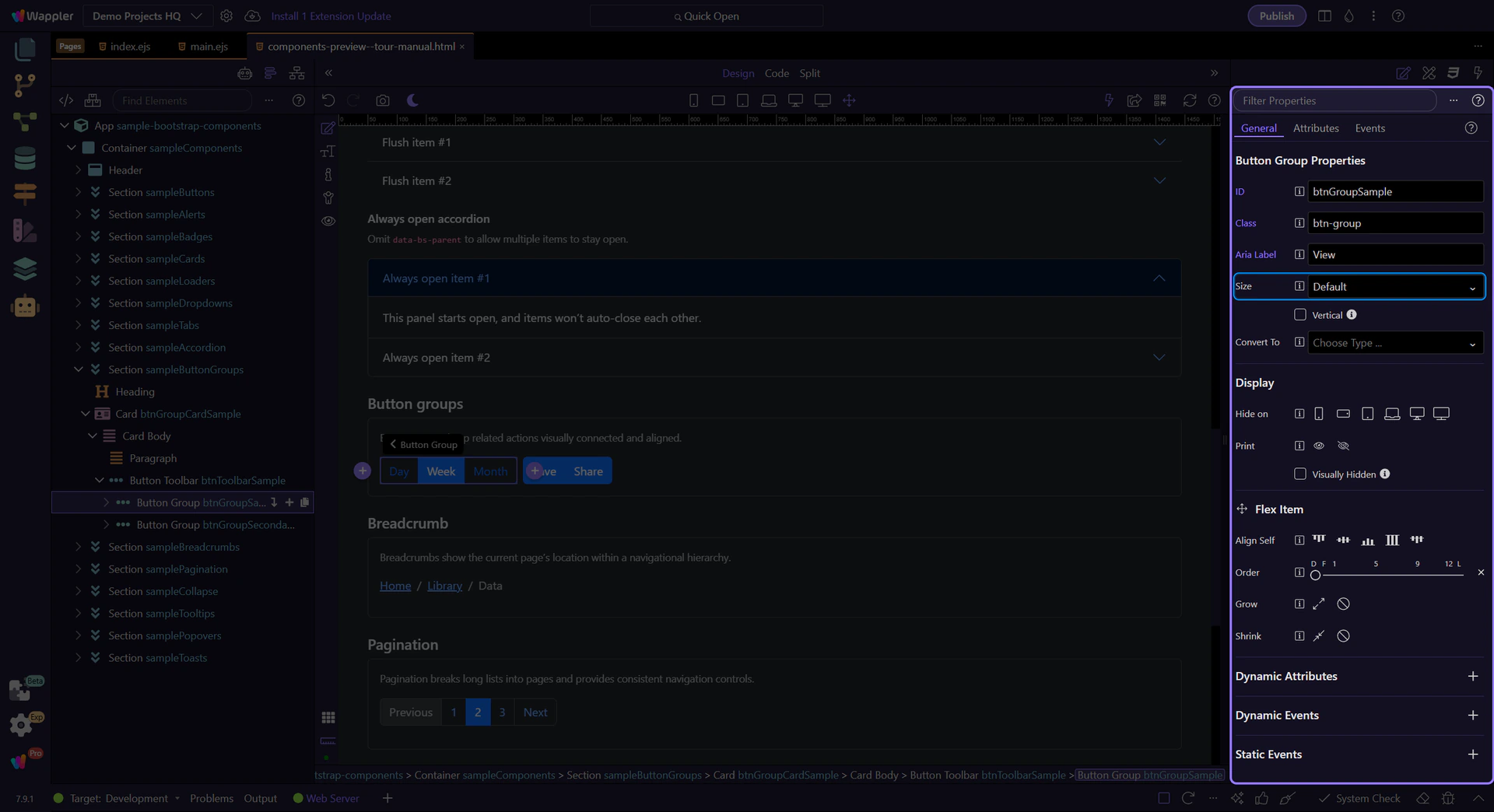
Group: Vertical
Section titled “Group: Vertical”Enable Vertical when you want stacked buttons (useful for narrow sidebars or compact tool panels).
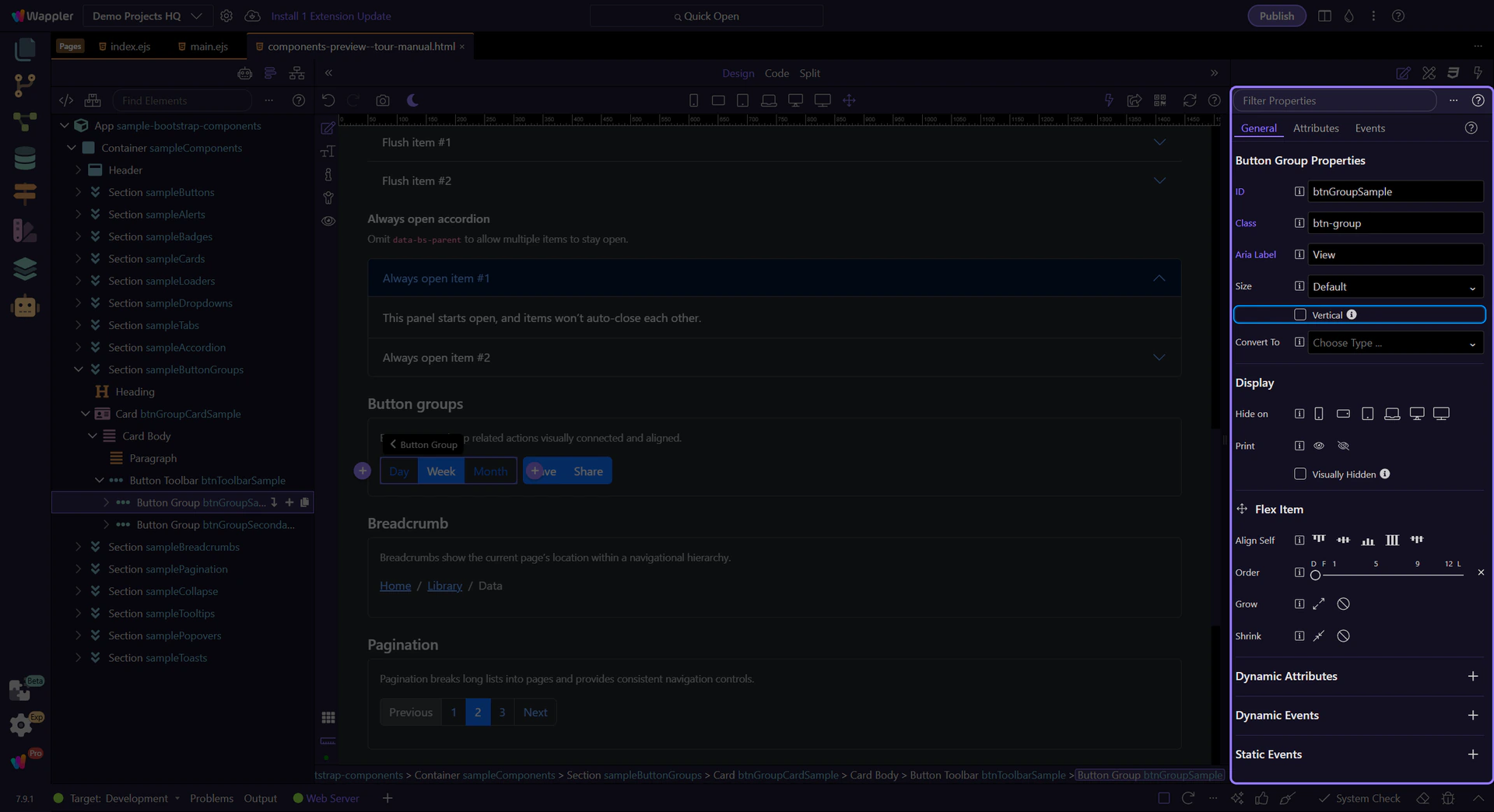
Accessibility: Aria Label
Section titled “Accessibility: Aria Label”Use Aria Label to describe what the group represents (for example, “View mode” or “Text alignment”).
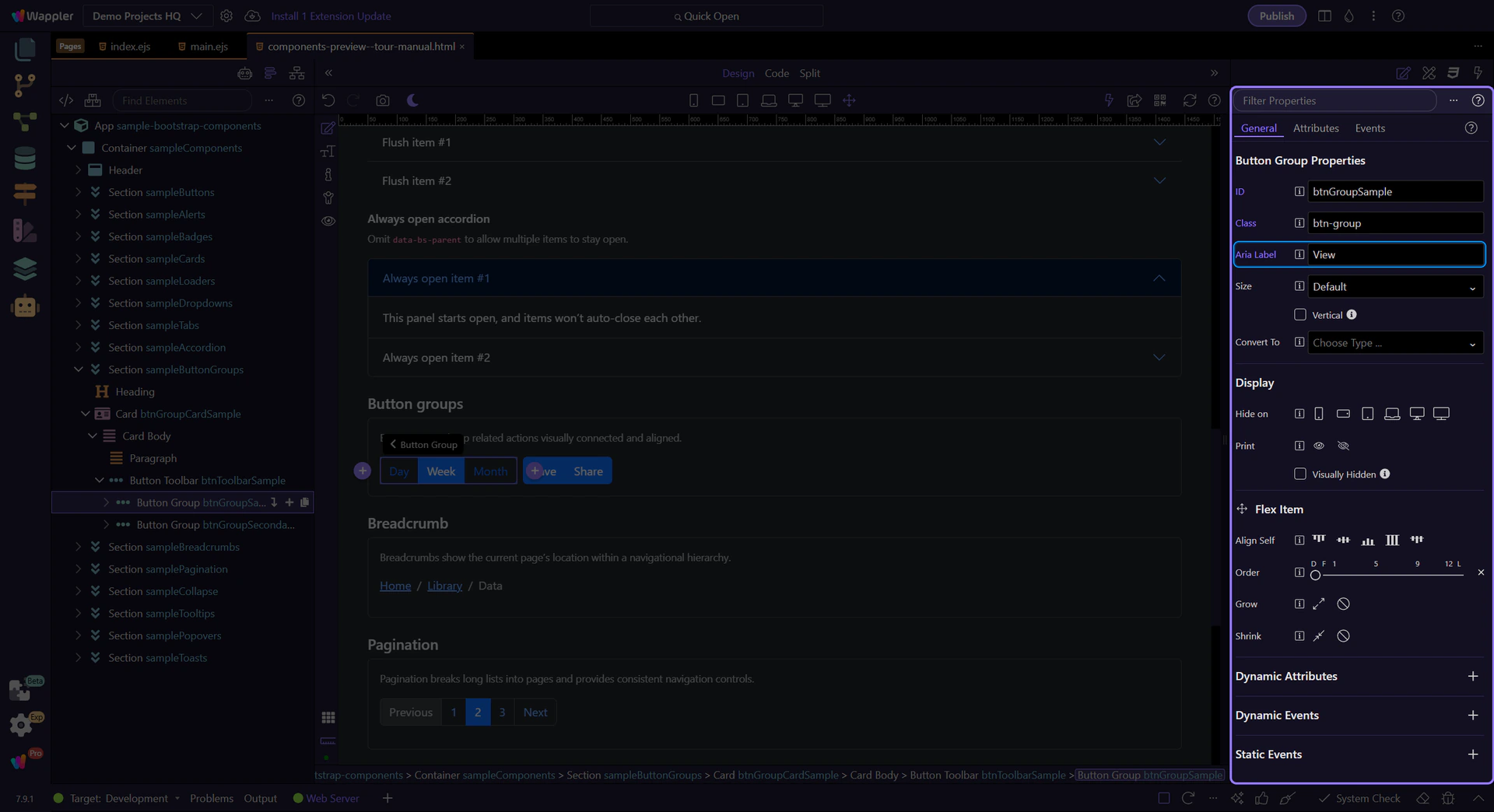
Style the buttons inside
Section titled “Style the buttons inside”Button groups handle layout; you still style each button (variant, size, disabled/active) like a normal button.
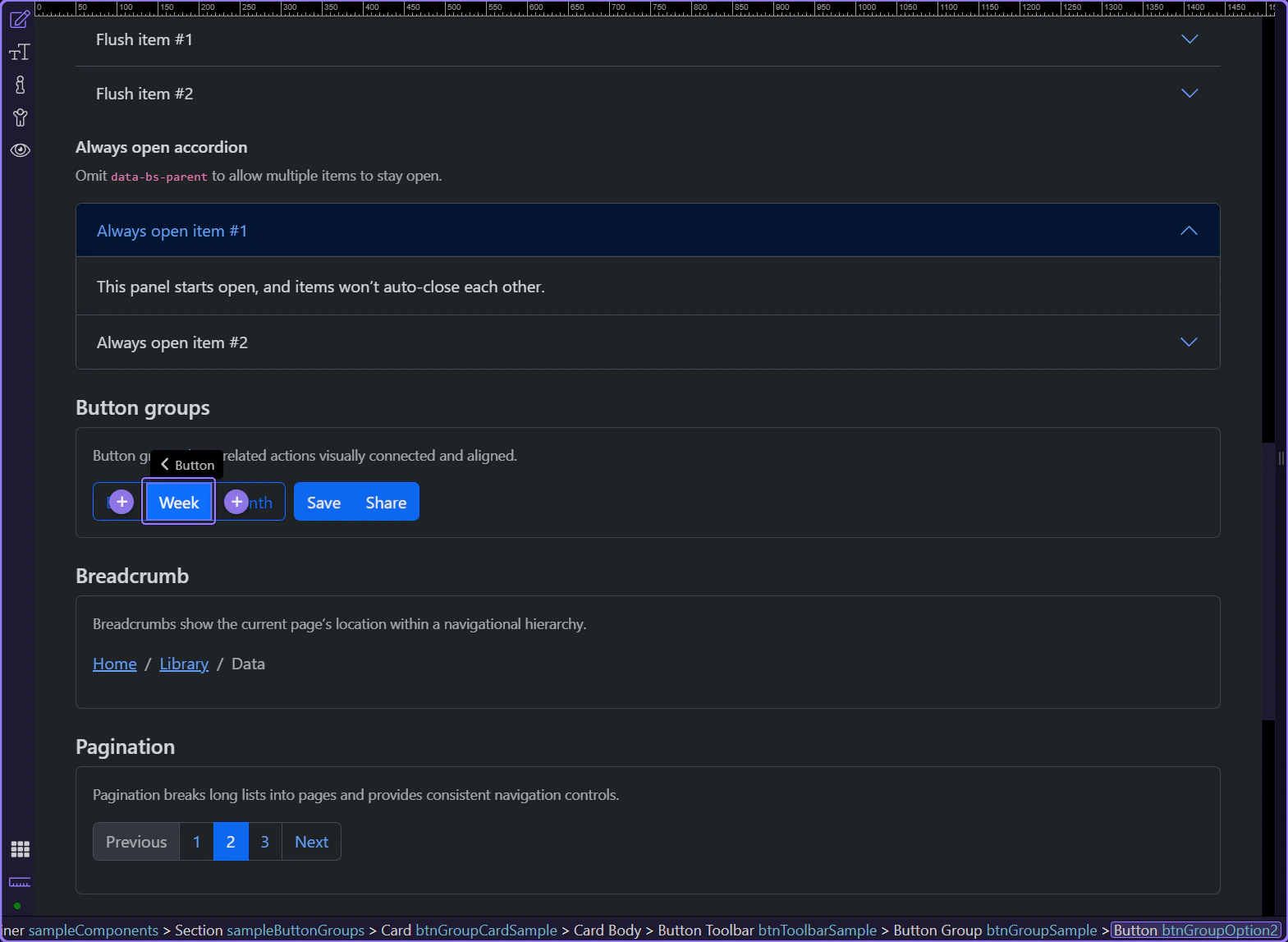
Button inside the group
Section titled “Button inside the group”Buttons inside a group still behave like normal buttons—this is where you review variant and state options.
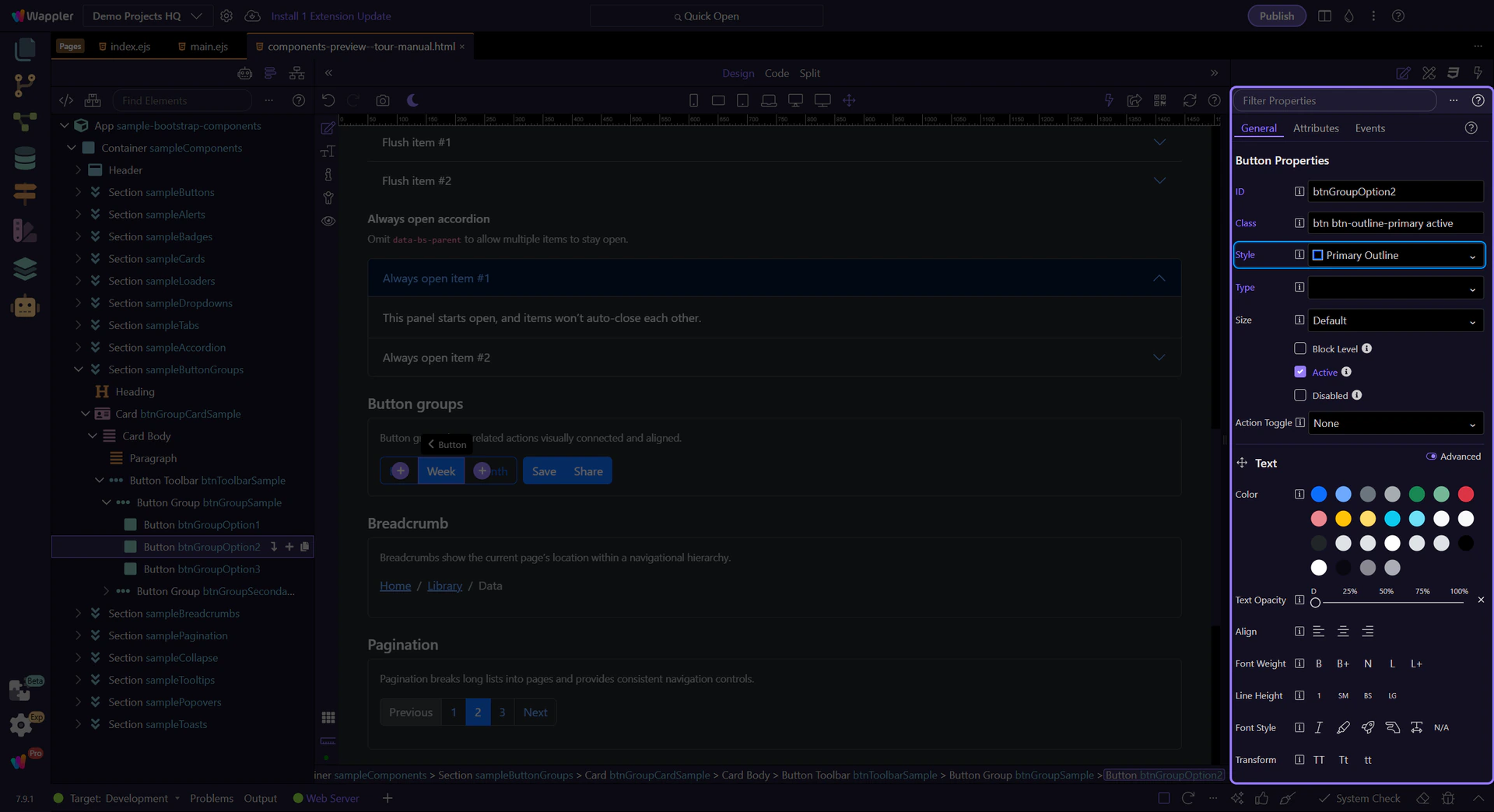
Button: Style
Section titled “Button: Style”Use Style to switch between solid/outline variants and semantic colors (primary, secondary, success, etc.).
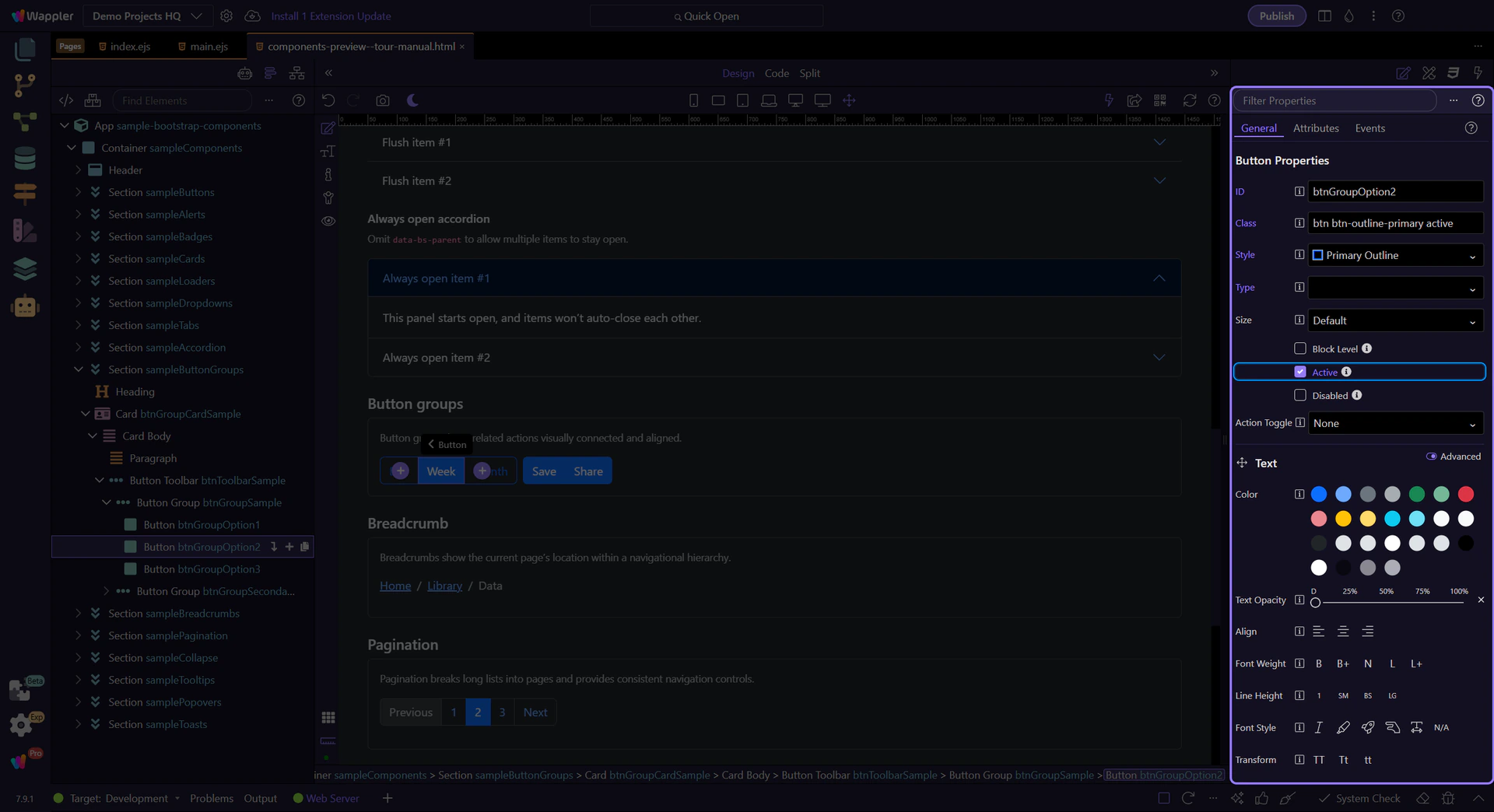
Tip: Active state
Section titled “Tip: Active state”Use Active when the button represents the currently selected option (for example, “Week” in a Day/Week/Month switcher).
Next steps
Section titled “Next steps”Continue with other Components tours or return to the Components menu.