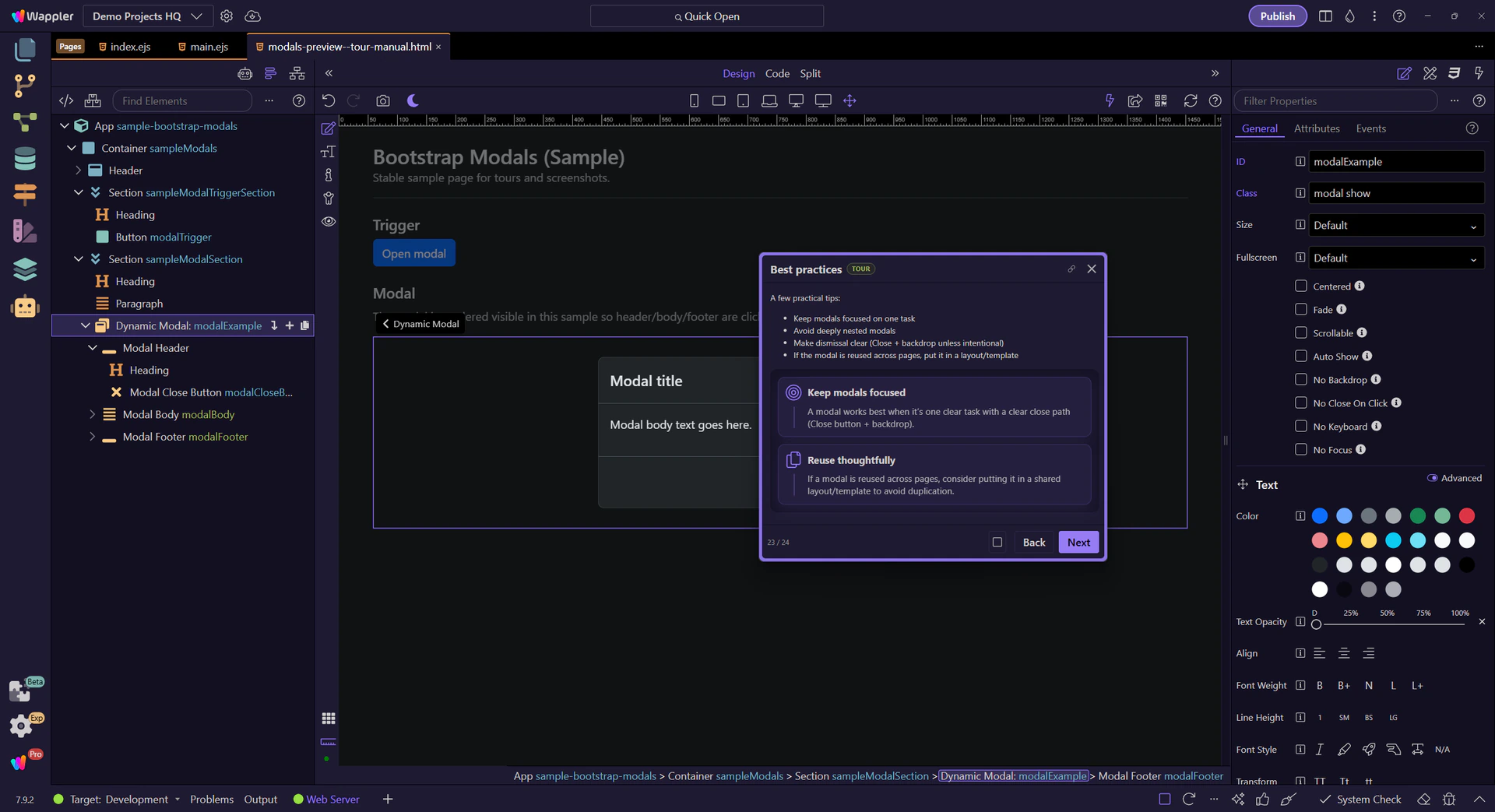
Keep modals focused
A modal works best when it’s one clear task with a clear close path (Close button + backdrop).
Use Bootstrap modals: triggers, sizing, scroll behavior, and best practices for reusable, accessible dialogs.
In this tour we’ll build a practical mental model for Bootstrap modals: triggers, modal structure (header/body/footer), and the key Properties you’ll use most.
A modal always starts with the trigger that opens it, so this button is more important than it first appears. It shows how the user enters the modal workflow, how the trigger connects to the dialog itself, and why getting that relationship right makes the rest of the modal behavior predictable.
tip: A trigger is just a regular button/link with modal toggle attributes.
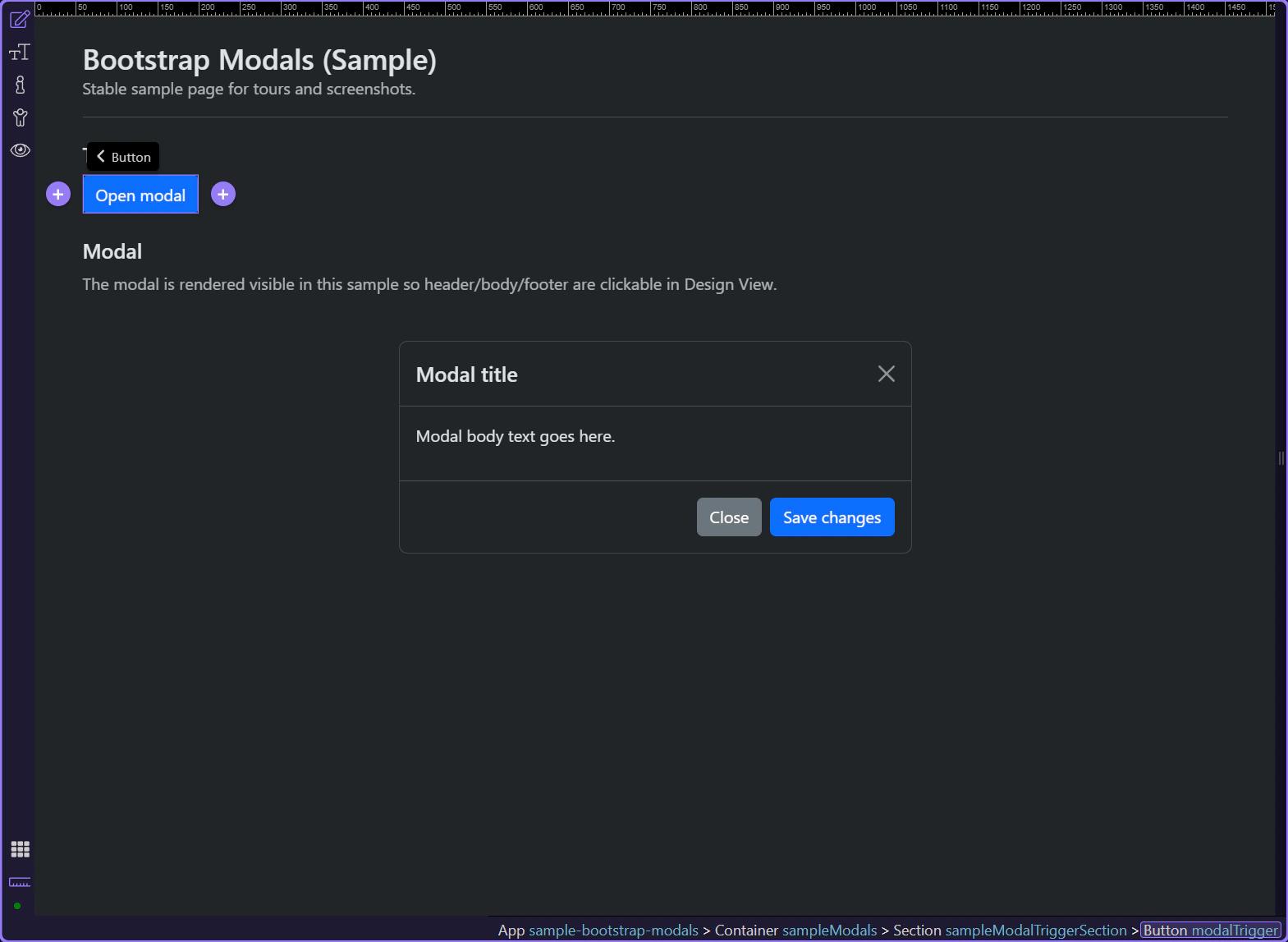
Start with the wider context in the Properties panel so the next control makes sense in the full workflow. In the next step, you will focus on Trigger: Toggle type and see how it fits into this area.
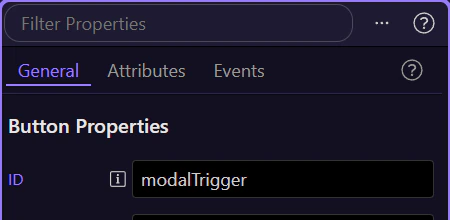
In Properties, set the trigger Toggle type to Modal. This step matters because Trigger: Toggle type is part of Selection Panels Properties Btndatatooggle, and understanding that context makes the next action easier to repeat in your own project.
important: Toggle type + target must match the modal id.
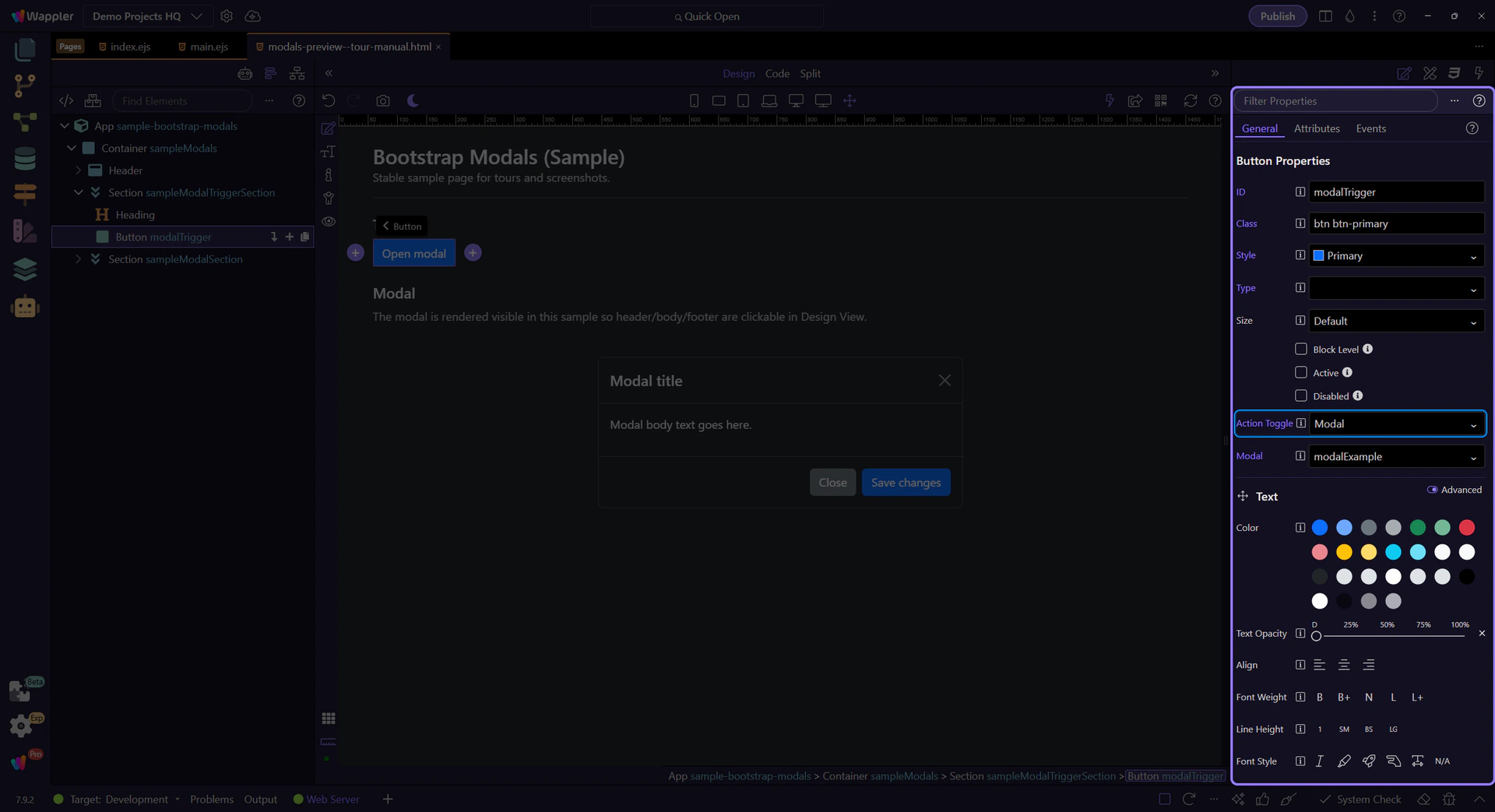
In Properties, set the trigger Target to the modal element id. This step matters because Trigger: Target is part of Selection Panels Properties Btntoggletargetmodal, and understanding that context makes the next action easier to repeat in your own project.
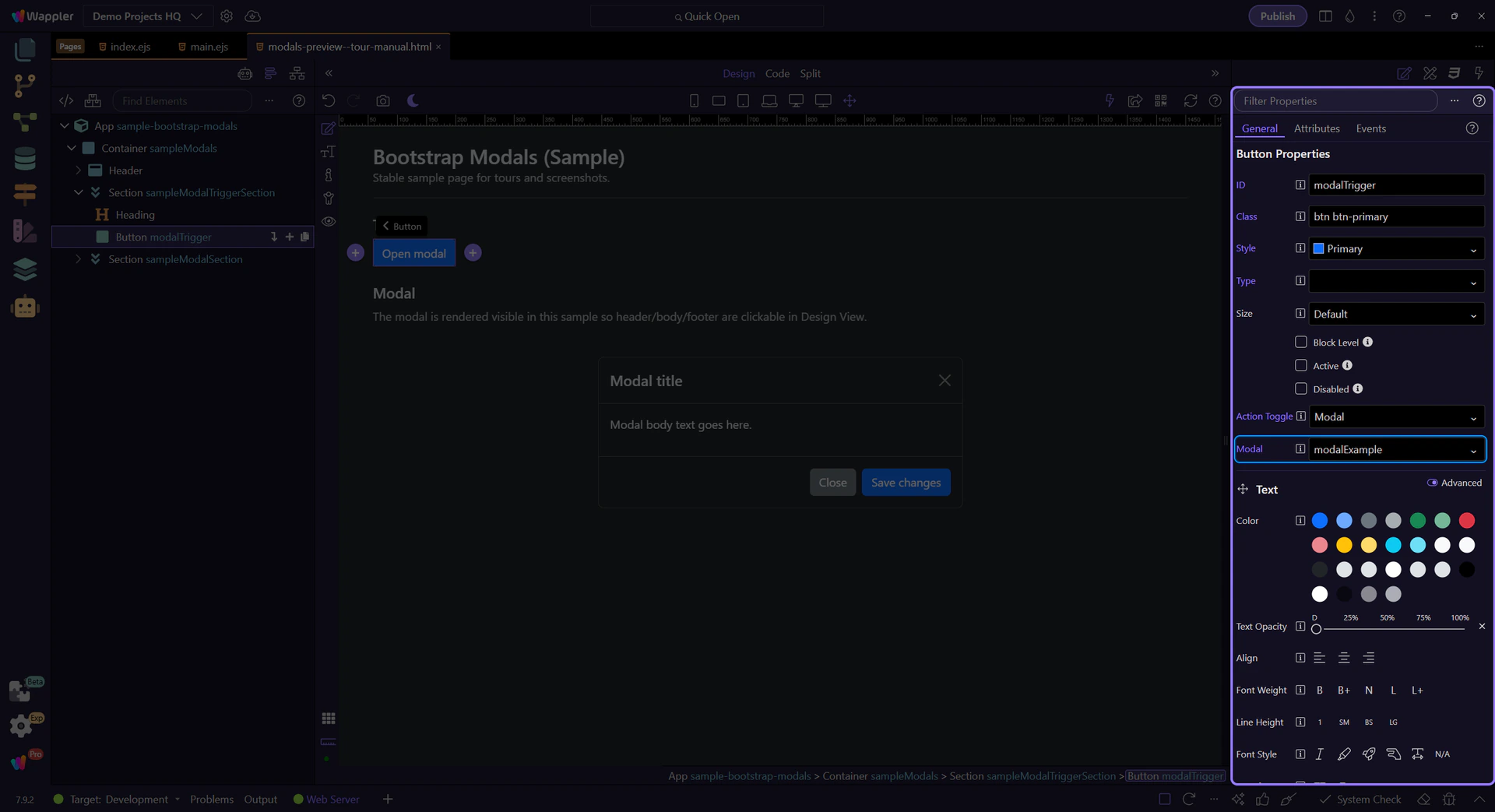
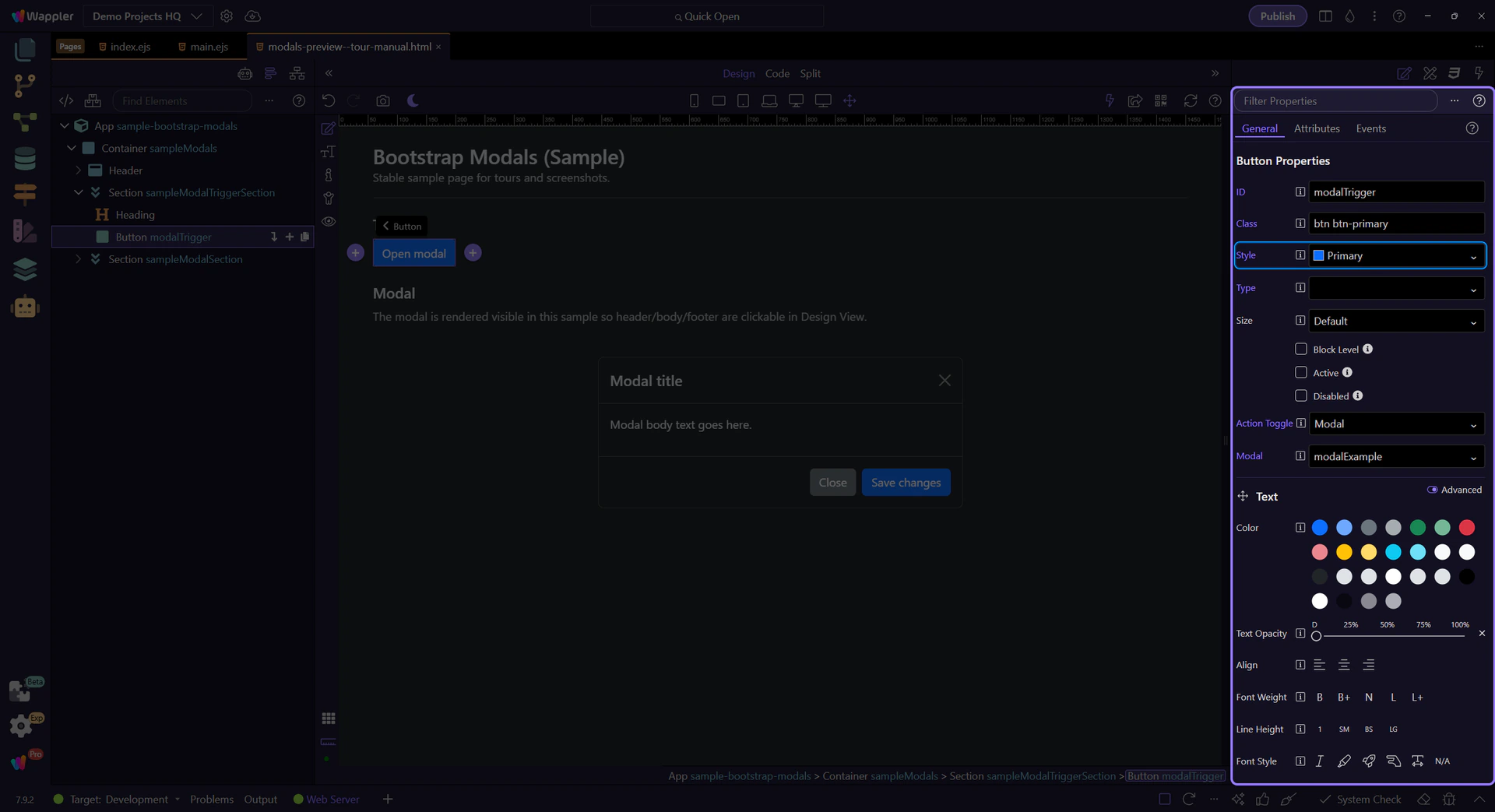
Use Style for button variants (primary/secondary/outline-*, etc.). This step matters because Trigger: Variant is part of Selection Panels Properties Btnbtnstyle, and understanding that context makes the next action easier to repeat in your own project.
The modal element controls sizing and behavior. Let’s review the options that affect how the modal opens and closes.
tip: Keep modal content focused. For long content, prefer scrolling inside the modal body.
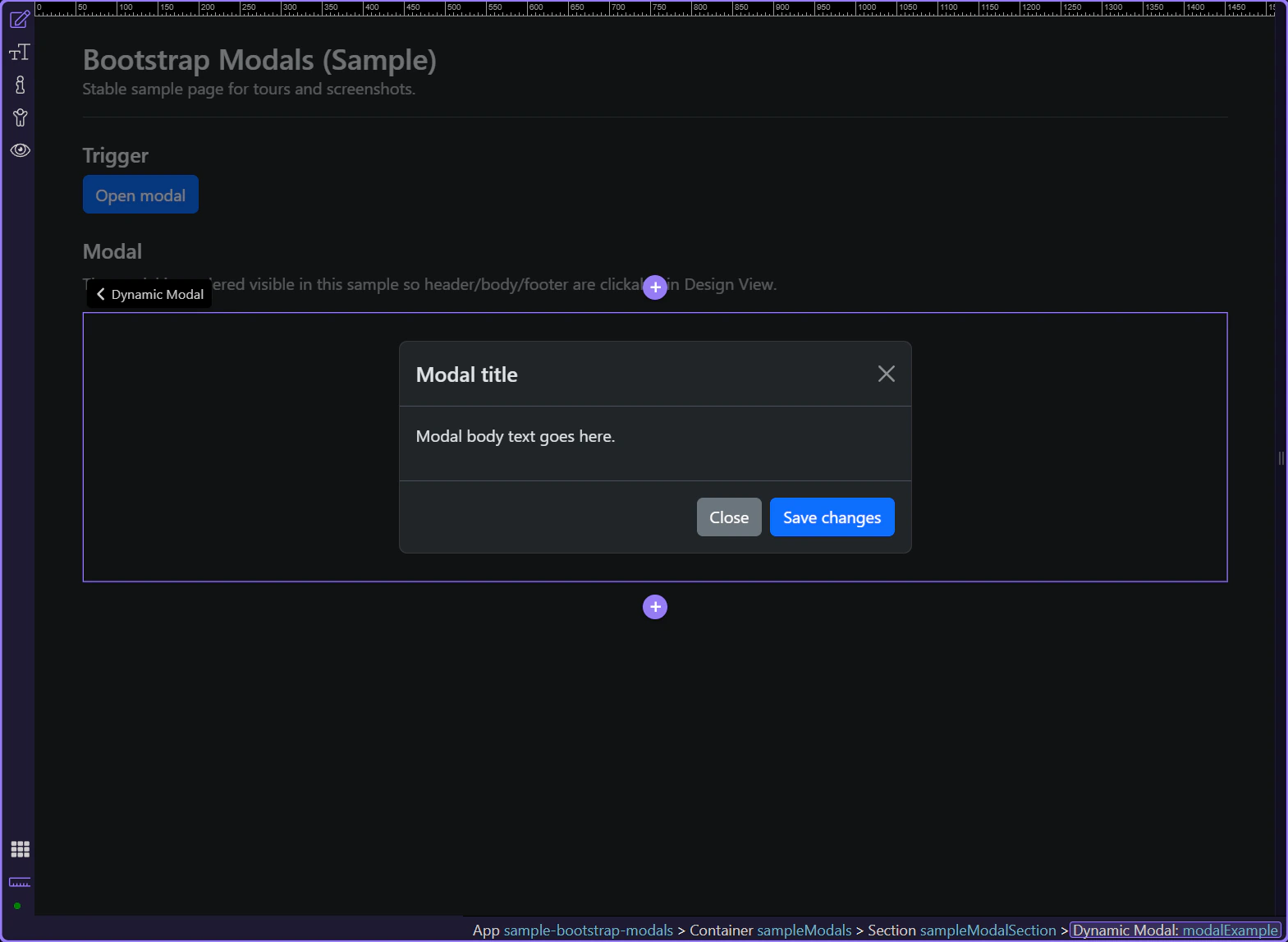
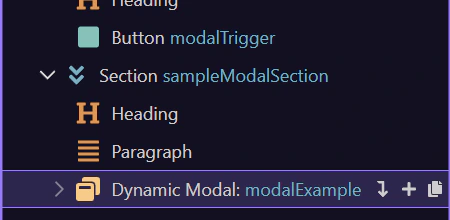
A typical modal structure is:
tip: Keep the main content inside modal-body for consistent padding.
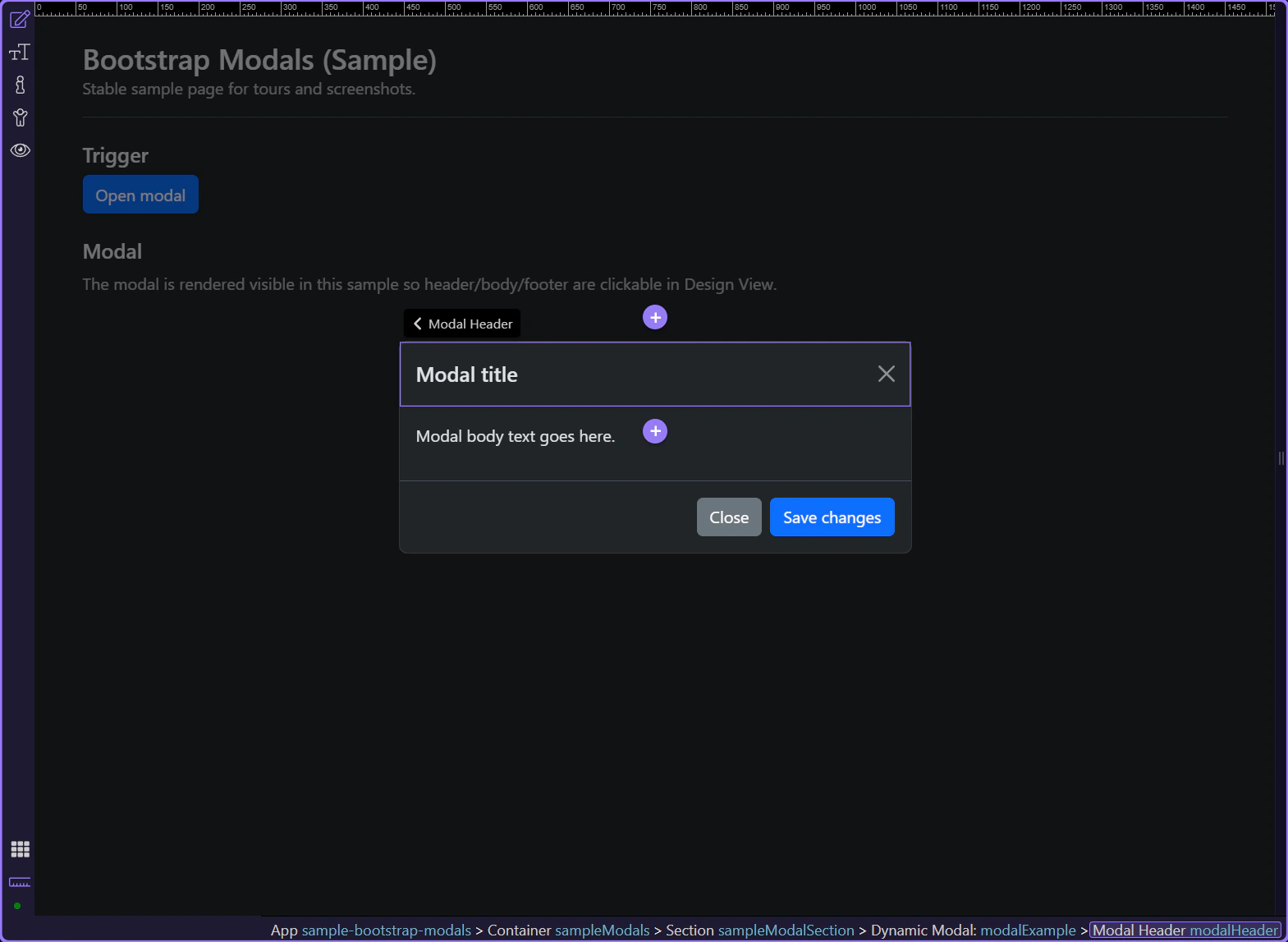
The modal header usually contains the title and the close control. This step matters because Modal header is part of Design View, and understanding that context makes the next action easier to repeat in your own project.
caution: Keep titles descriptive for accessibility and screen readers.
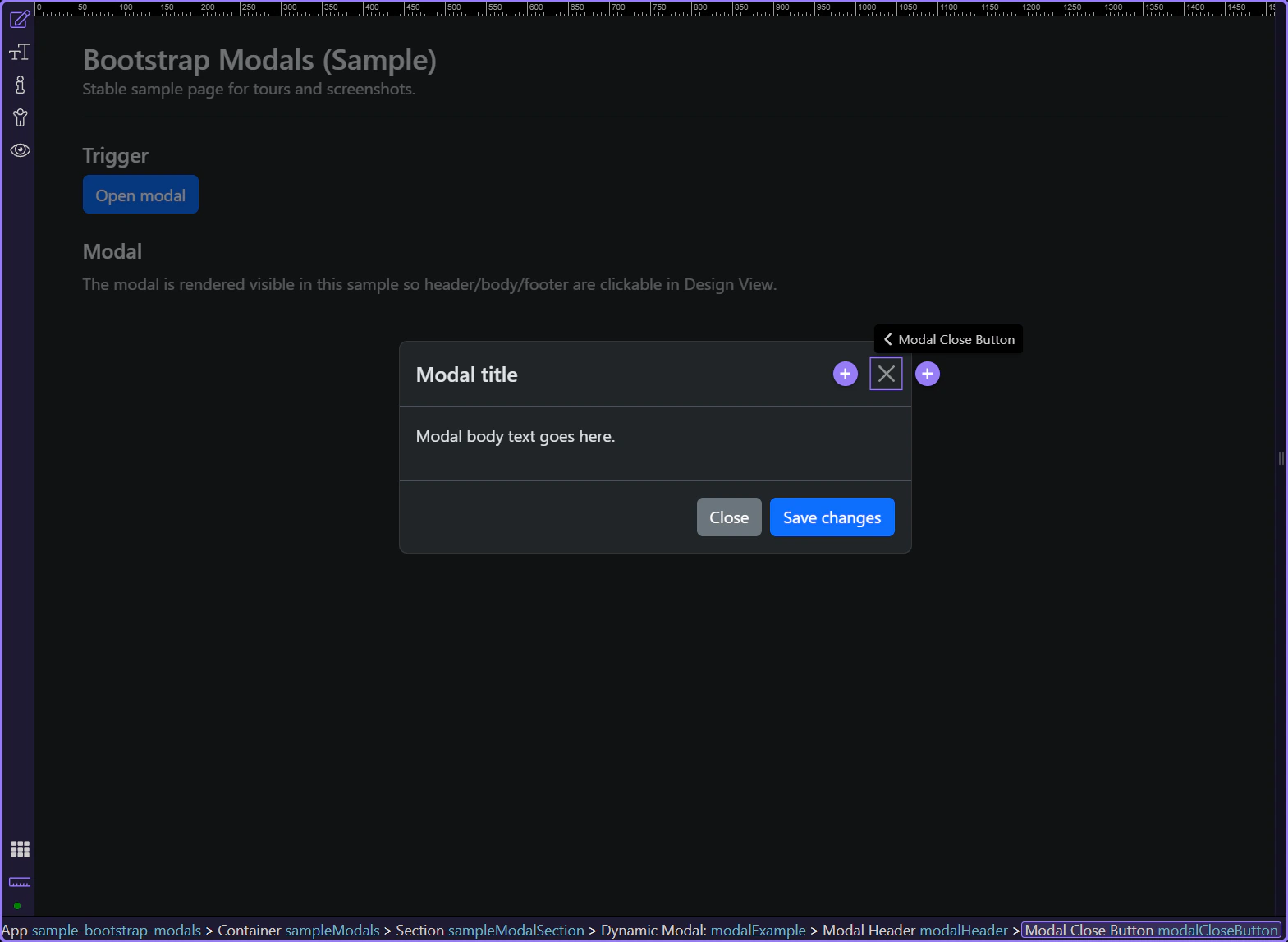
The header typically includes a Close button (.btn-close). It uses data-bs-dismiss="modal" and an aria-label so users can dismiss the modal reliably.
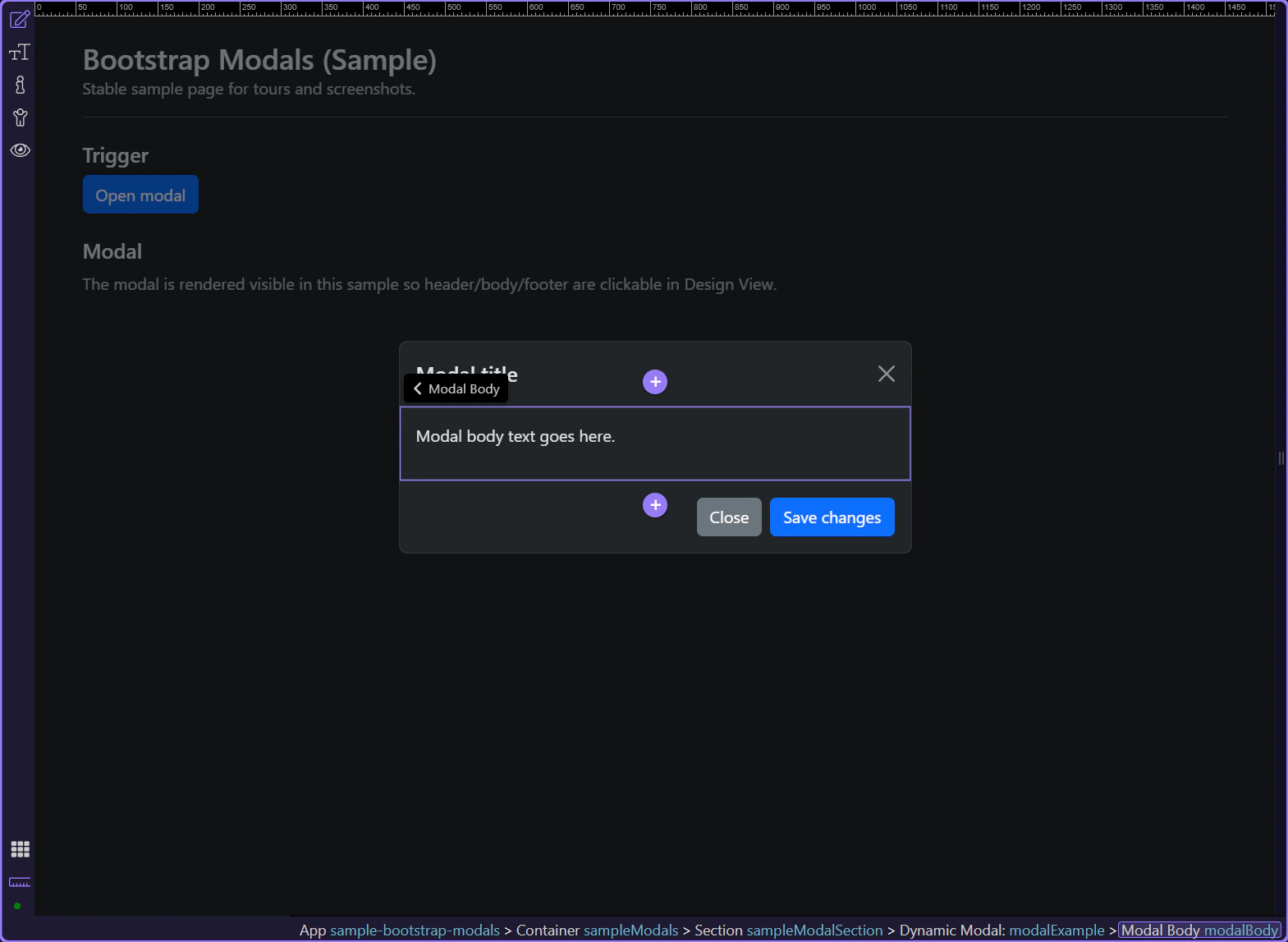
The modal body holds the main content: text, forms, or other components. This step matters because Modal body is part of Design View, and understanding that context makes the next action easier to repeat in your own project.
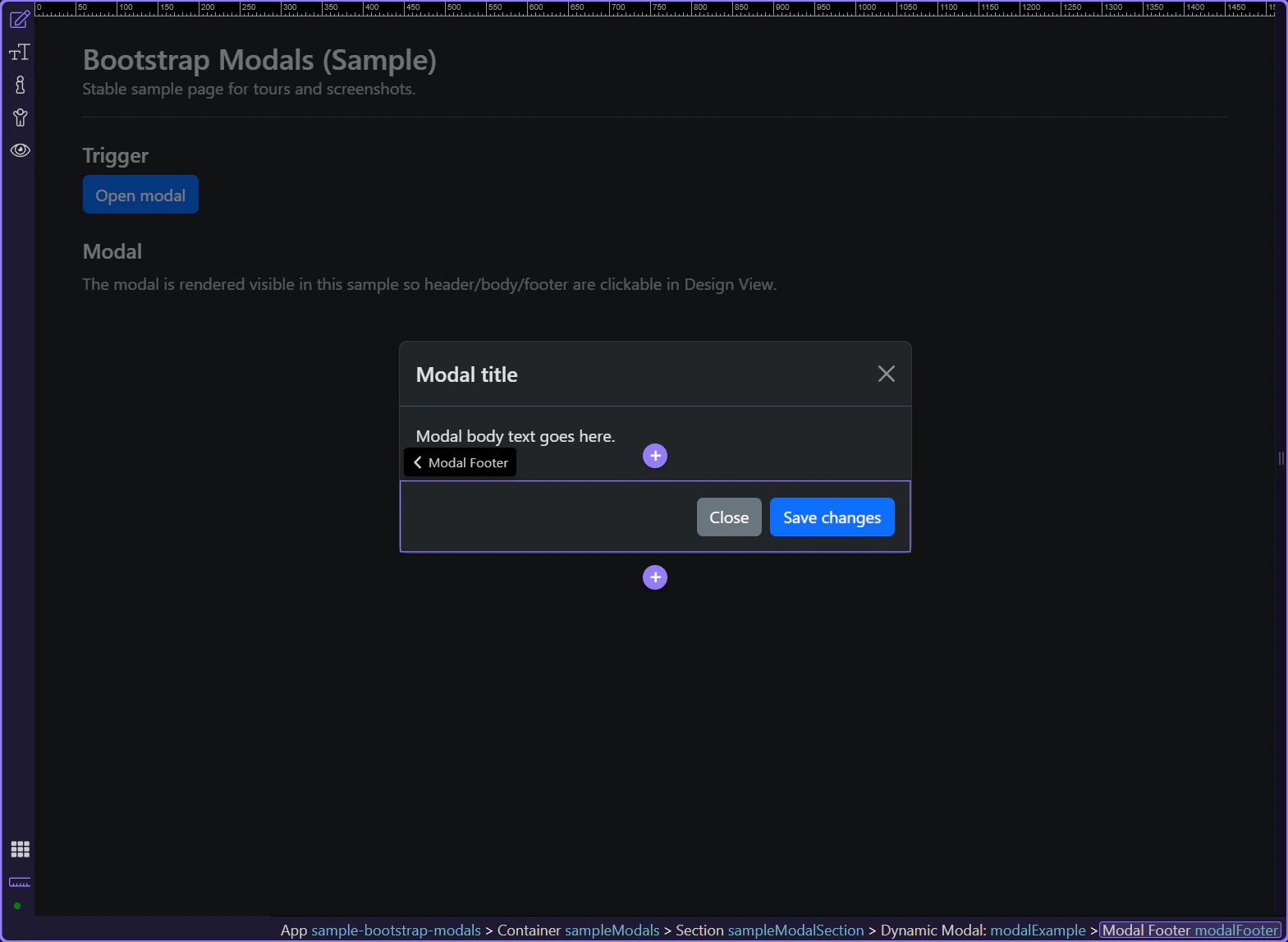
The modal footer is optional, and it’s a good place for action buttons. This step matters because Modal footer is part of Design View, and understanding that context makes the next action easier to repeat in your own project.
tip: Use a secondary “Close” and a primary “Confirm” action as a common pattern.
Next, review key behavior properties. These control how users can dismiss the modal and how it behaves for accessibility.
Return to the modal container to review modal-level properties. This step matters because Back to modal element is part of Design View, and understanding that context makes the next action easier to repeat in your own project.
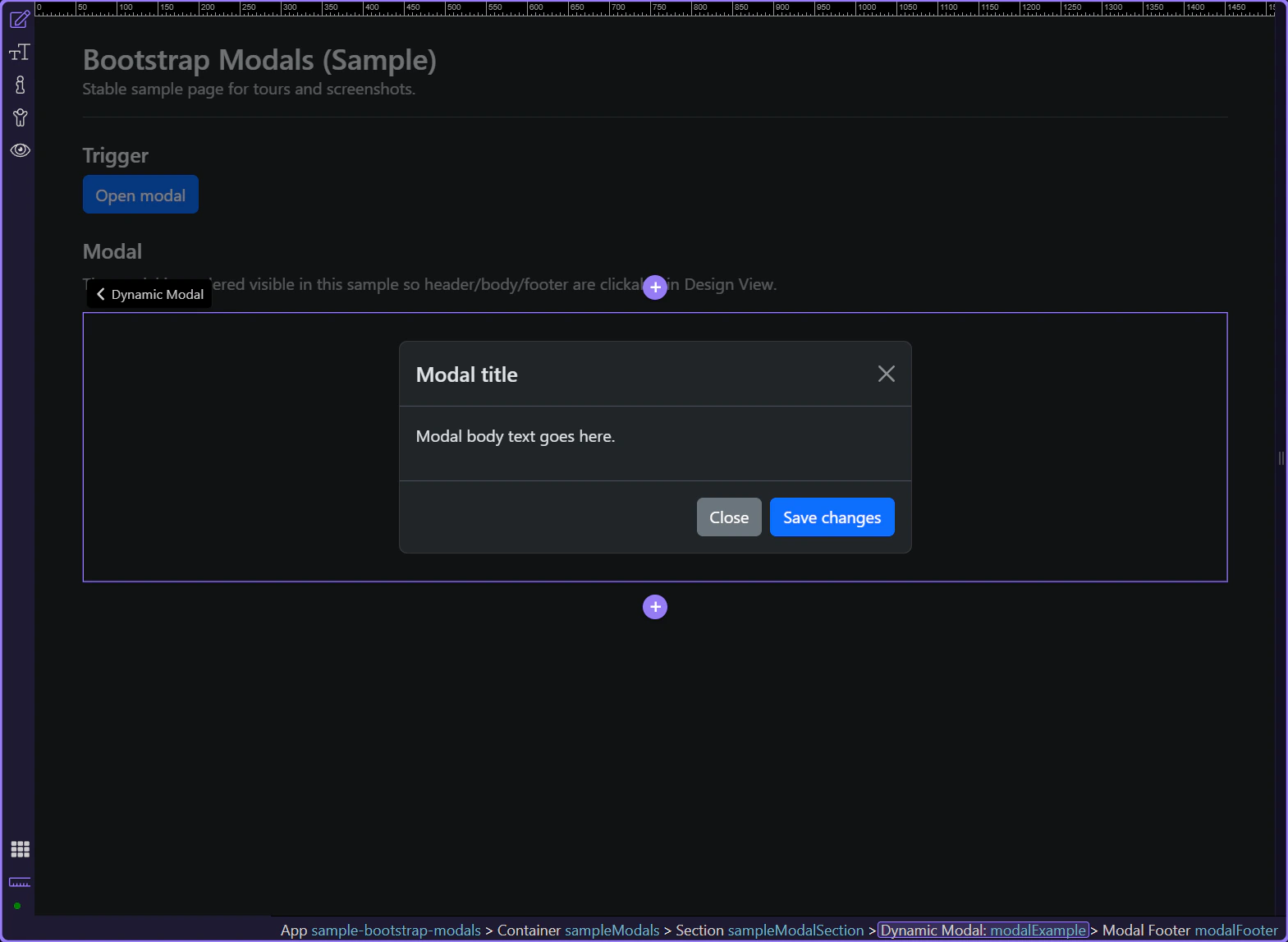
In Properties, use Centered to vertically center the dialog. This step matters because Modal: Centered is part of Selection Panels Properties Modalcentered, and understanding that context makes the next action easier to repeat in your own project.
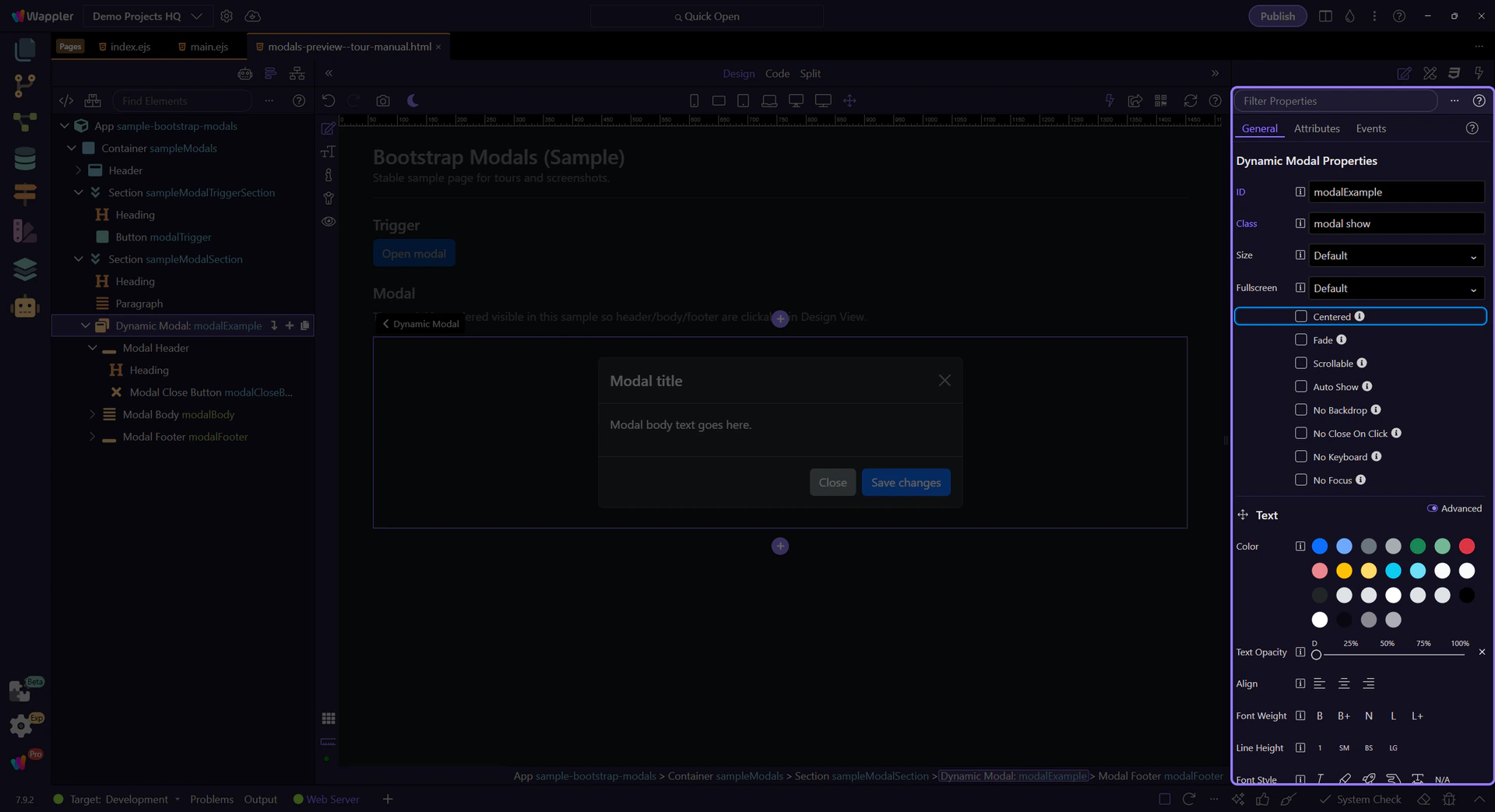
Use Scrollable when your content can exceed the viewport height. This step matters because Modal: Scrollable is part of Selection Panels Properties Modalscrollable, and understanding that context makes the next action easier to repeat in your own project.
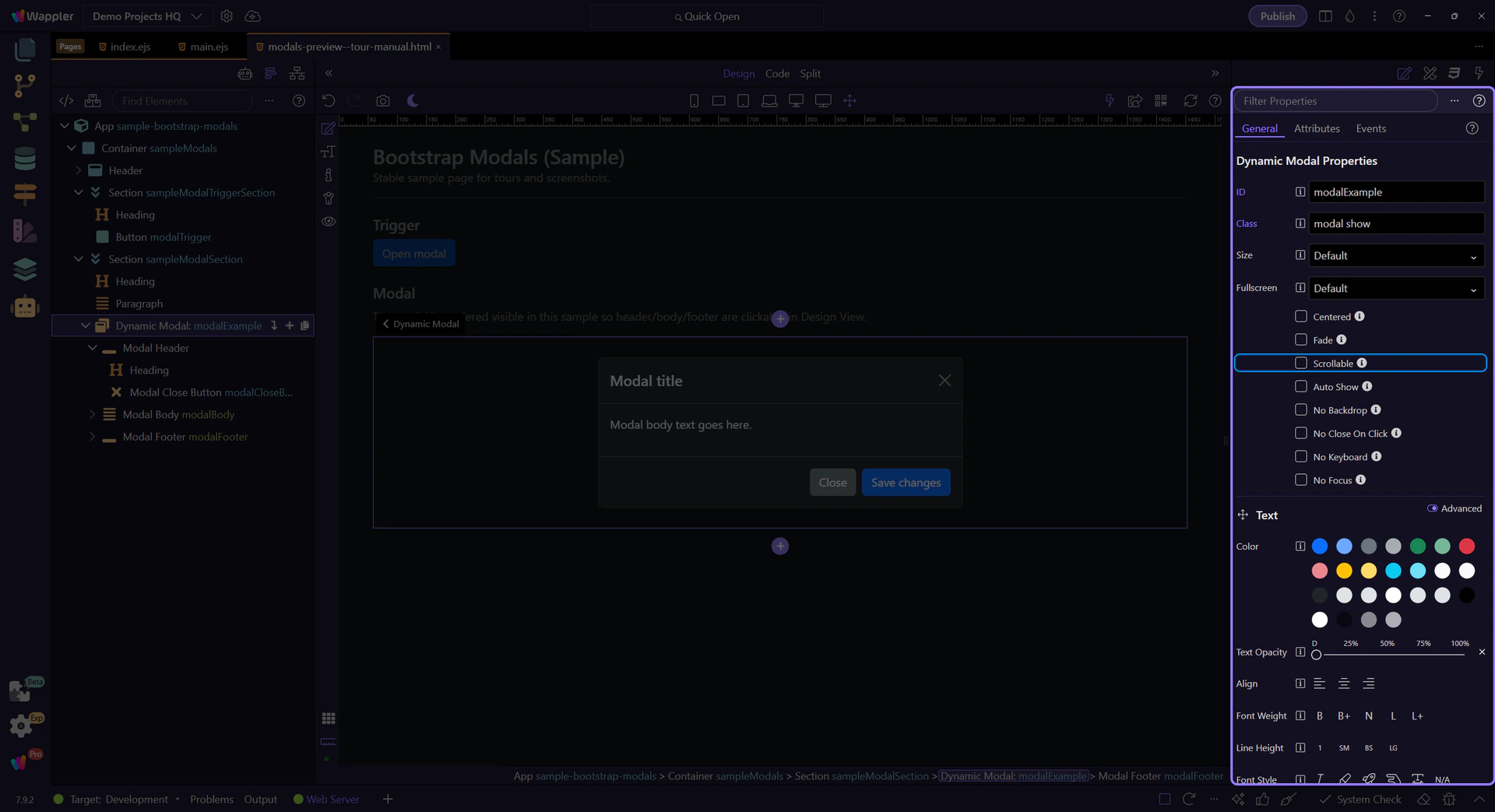
Use Size to change the dialog width (e.g. sm/lg/xl depending on the component). This step matters because Modal: Size is part of Selection Panels Properties Modalsize, and understanding that context makes the next action easier to repeat in your own project.
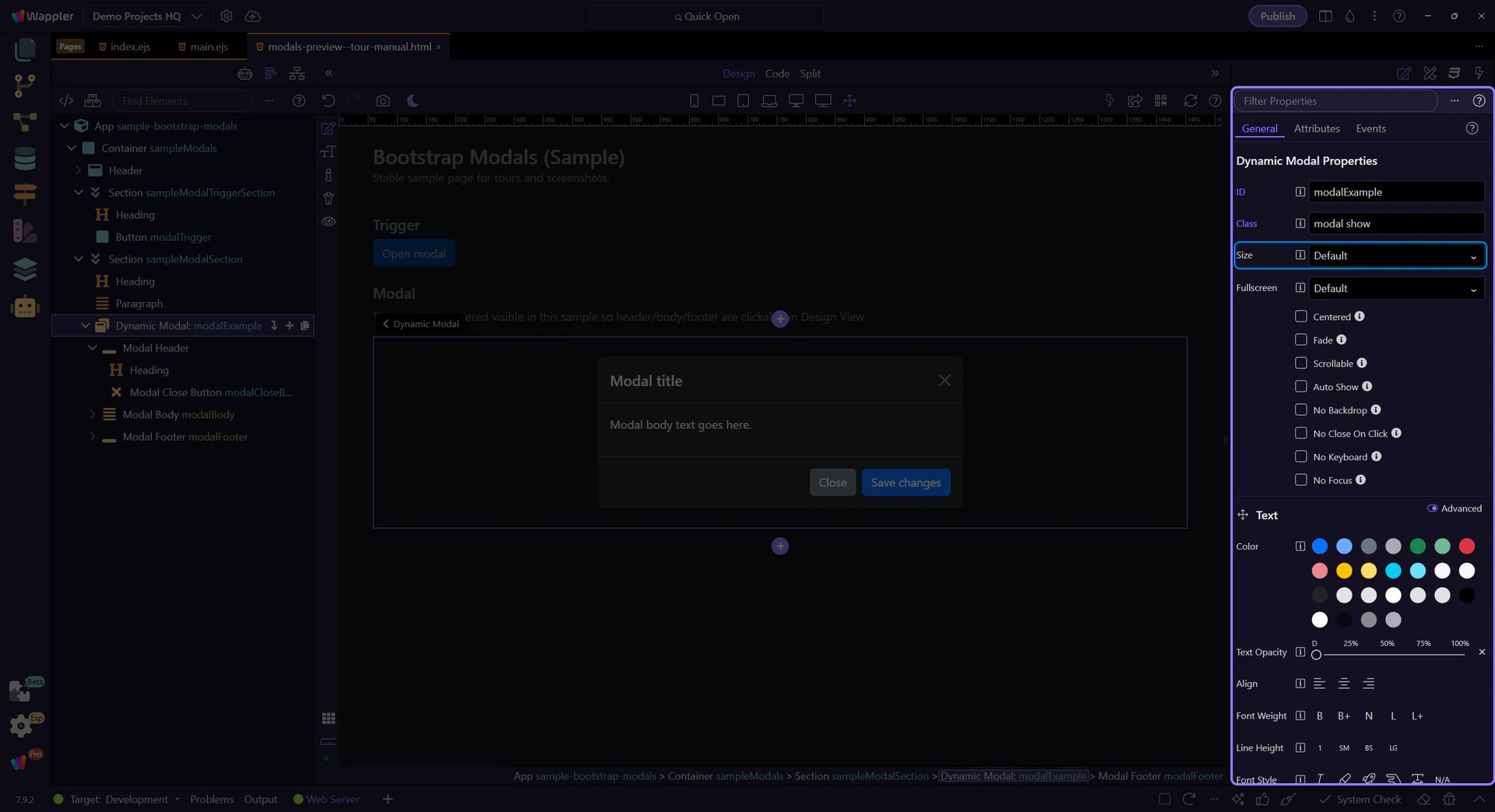
Disable the backdrop only when you have a clear alternative dismissal flow. This step matters because Modal: No Backdrop is part of Selection Panels Properties Modalnobackdrop, and understanding that context makes the next action easier to repeat in your own project.
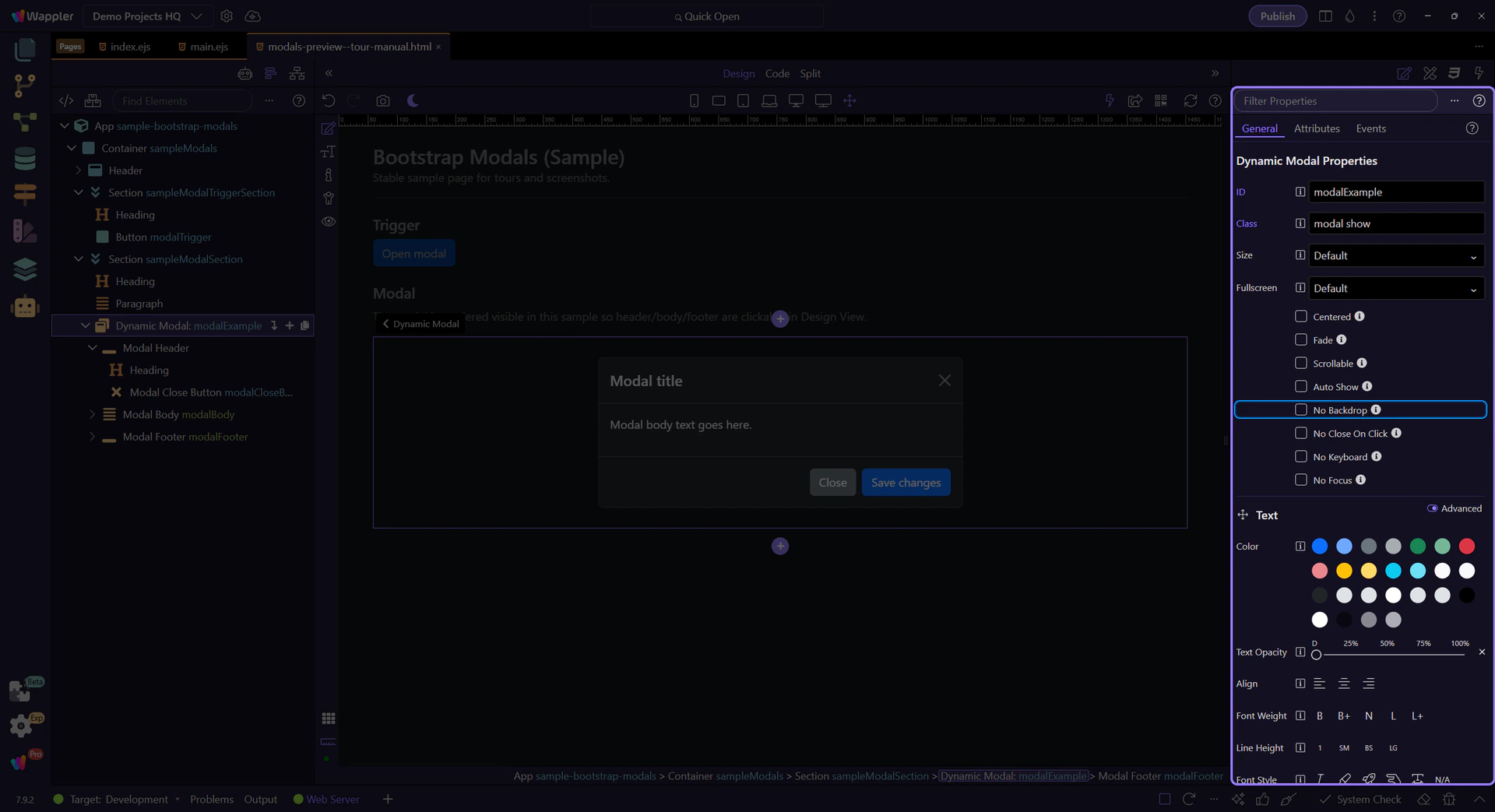
Disable click-outside-to-close only when users still have a clear intentional dismissal. This step matters because Modal: No Close On Click is part of Selection Panels Properties Modalnocloseonclick, and understanding that context makes the next action easier to repeat in your own project.
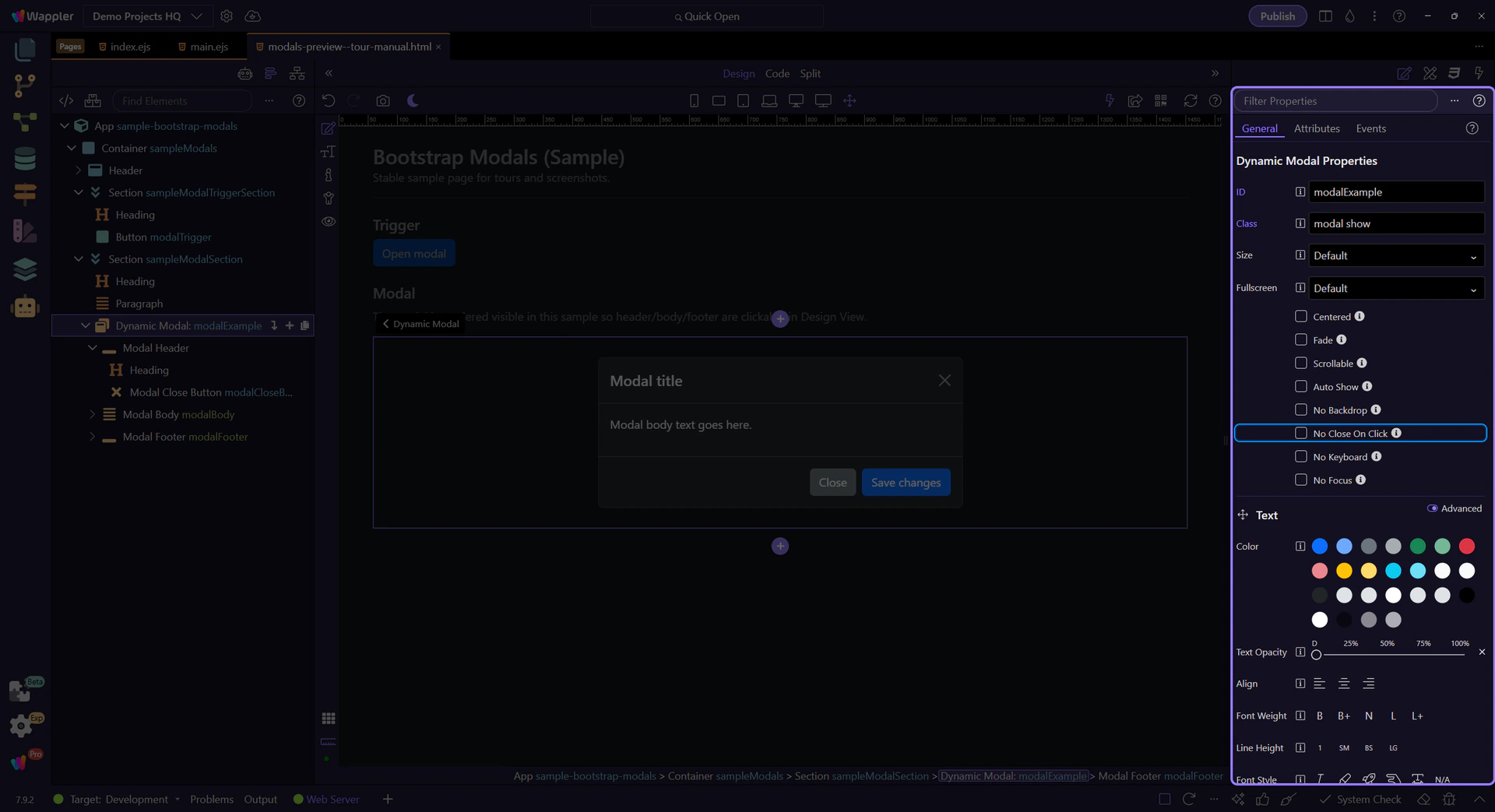
No Keyboard disables closing with Escape. Only disable this when your UI provides a clear dismissal flow.
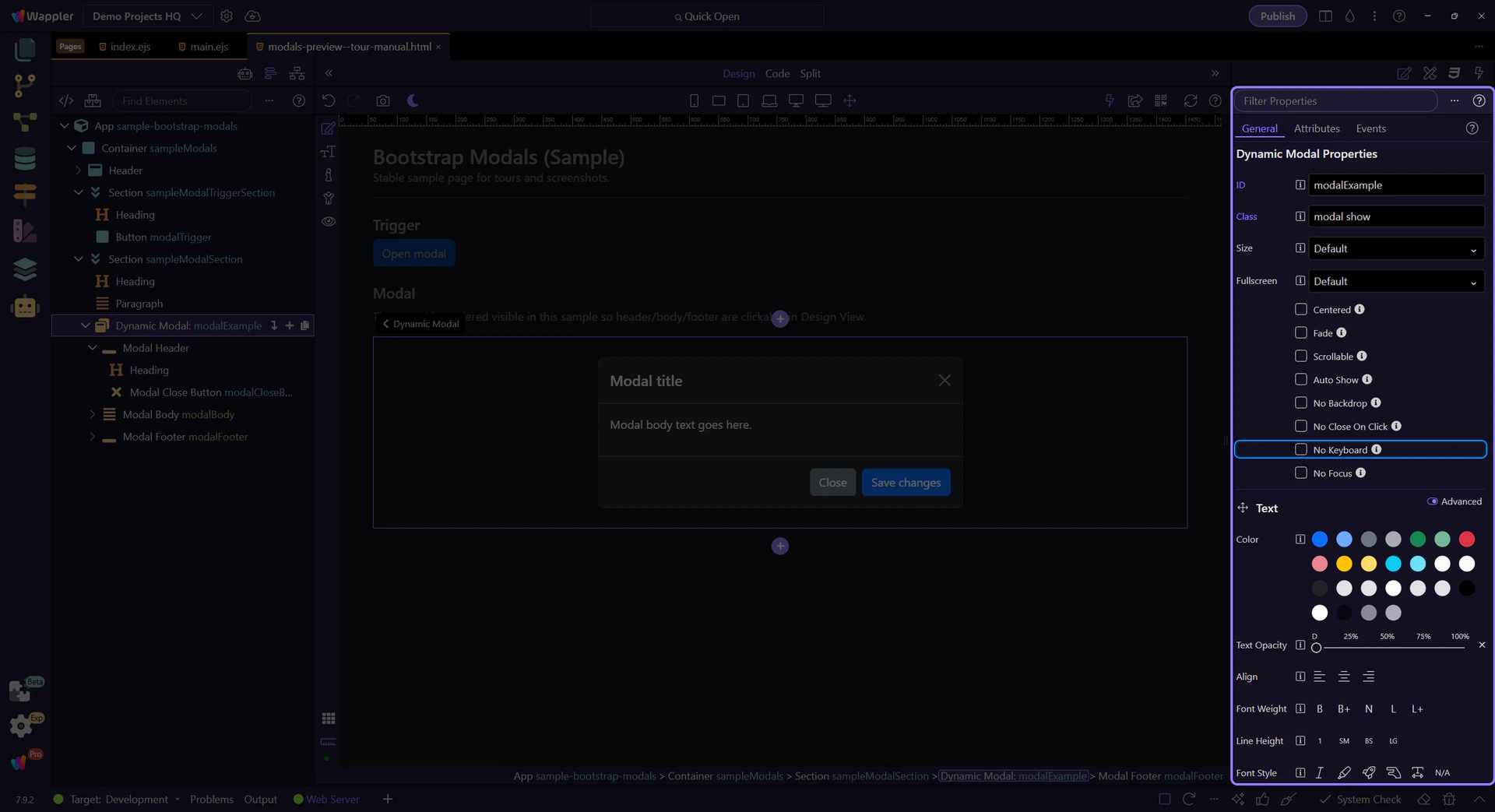
No Focus prevents focusing the modal when initialized. Combine with accessibility best practices for your UI.
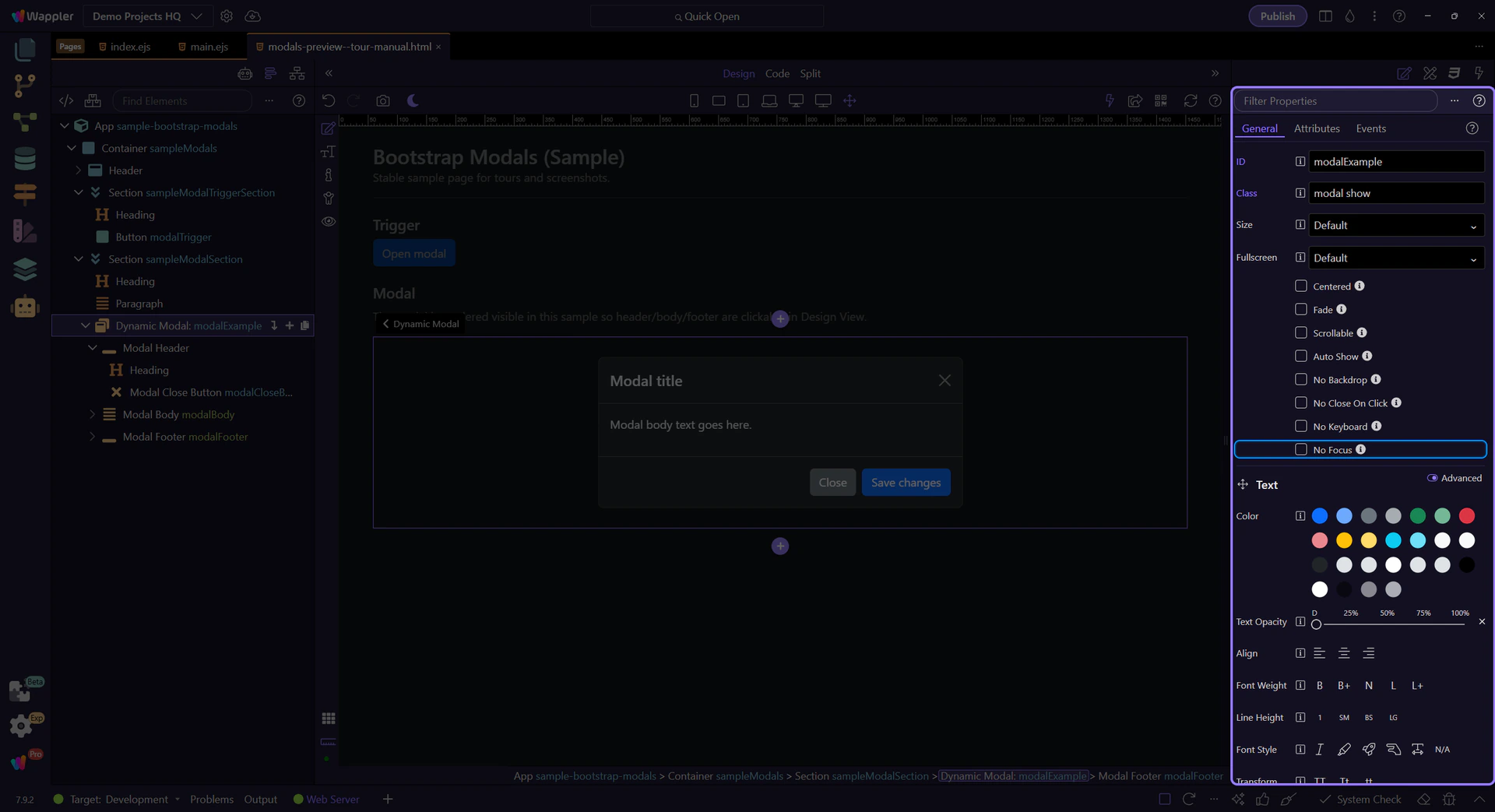
Modals have two key parts: the trigger (toggle type + target) and the modal element (dialog/content/header/body/footer). Keep those in sync.
A few practical tips:
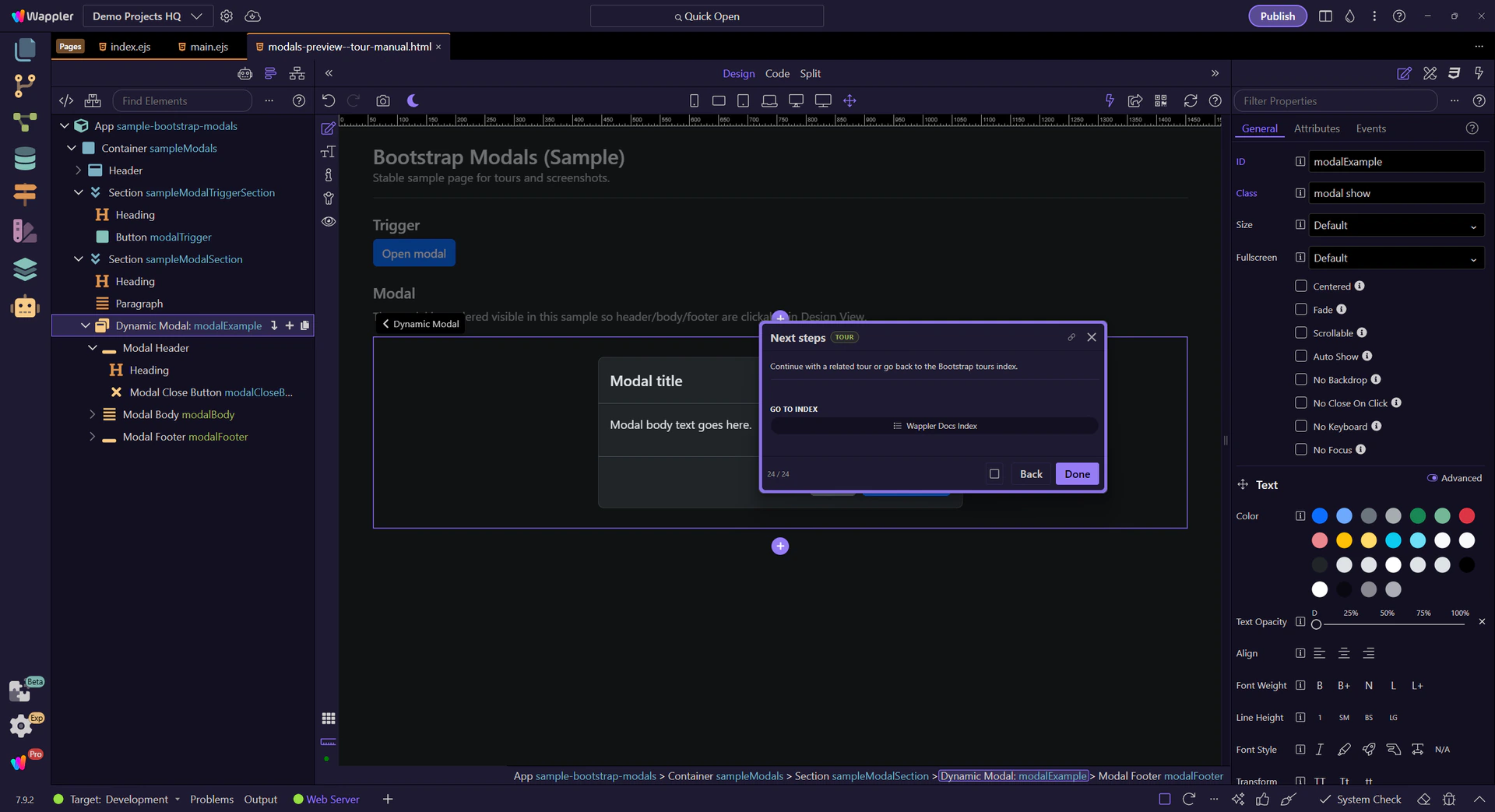
Continue with a related tour or go back to the Bootstrap tours index.