
Buttons
Use Bootstrap buttons: variants, sizes, states, icons, and common button patterns.
Variants, sizes, and states
Section titled “Variants, sizes, and states”Bootstrap buttons are about clarity and hierarchy. Start by choosing a variant (primary/secondary/etc.), then size/state based on context.
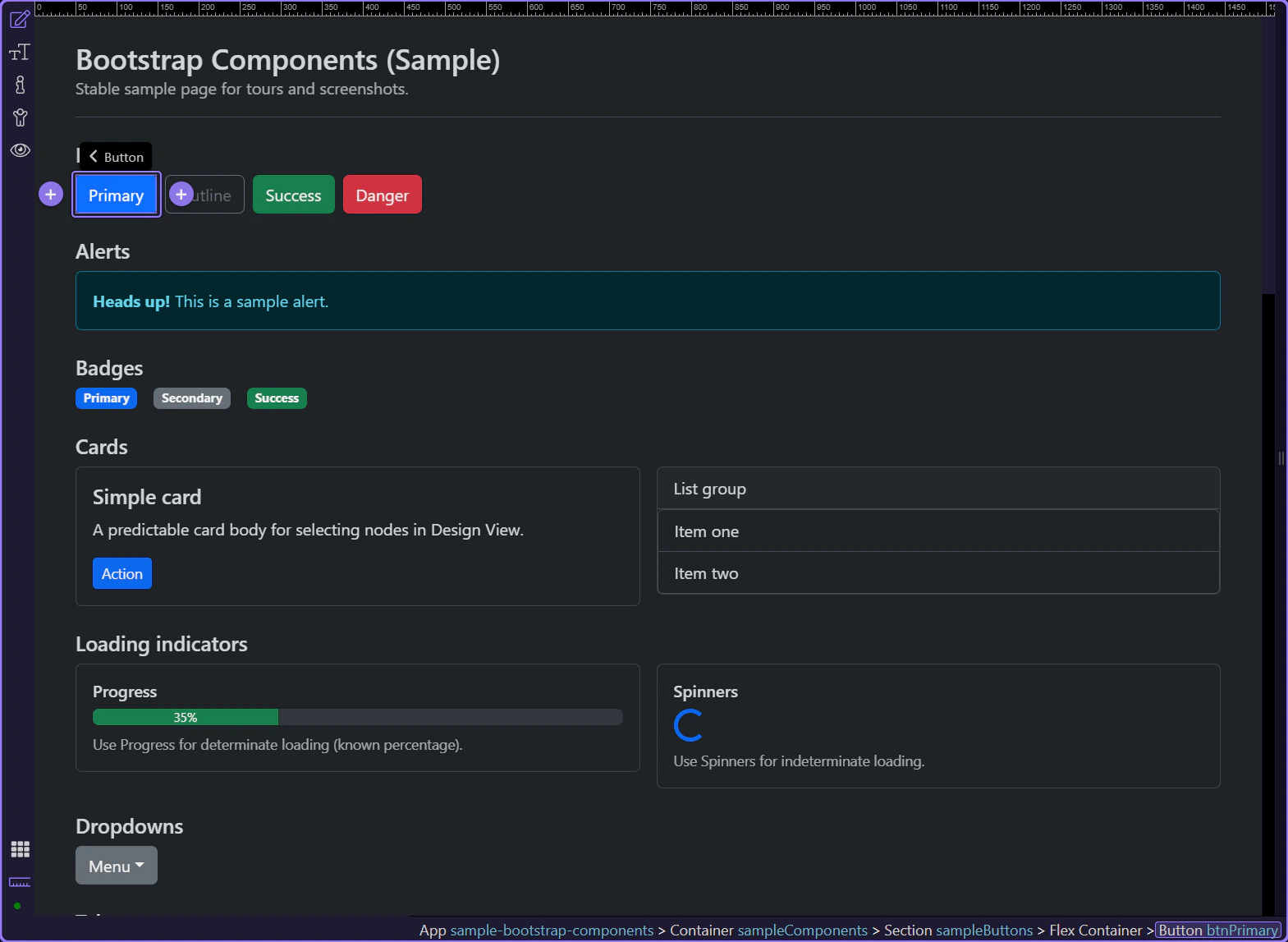
Button example
Section titled “Button example”Buttons are interactive controls for actions. This example uses the primary variant to represent a main action.
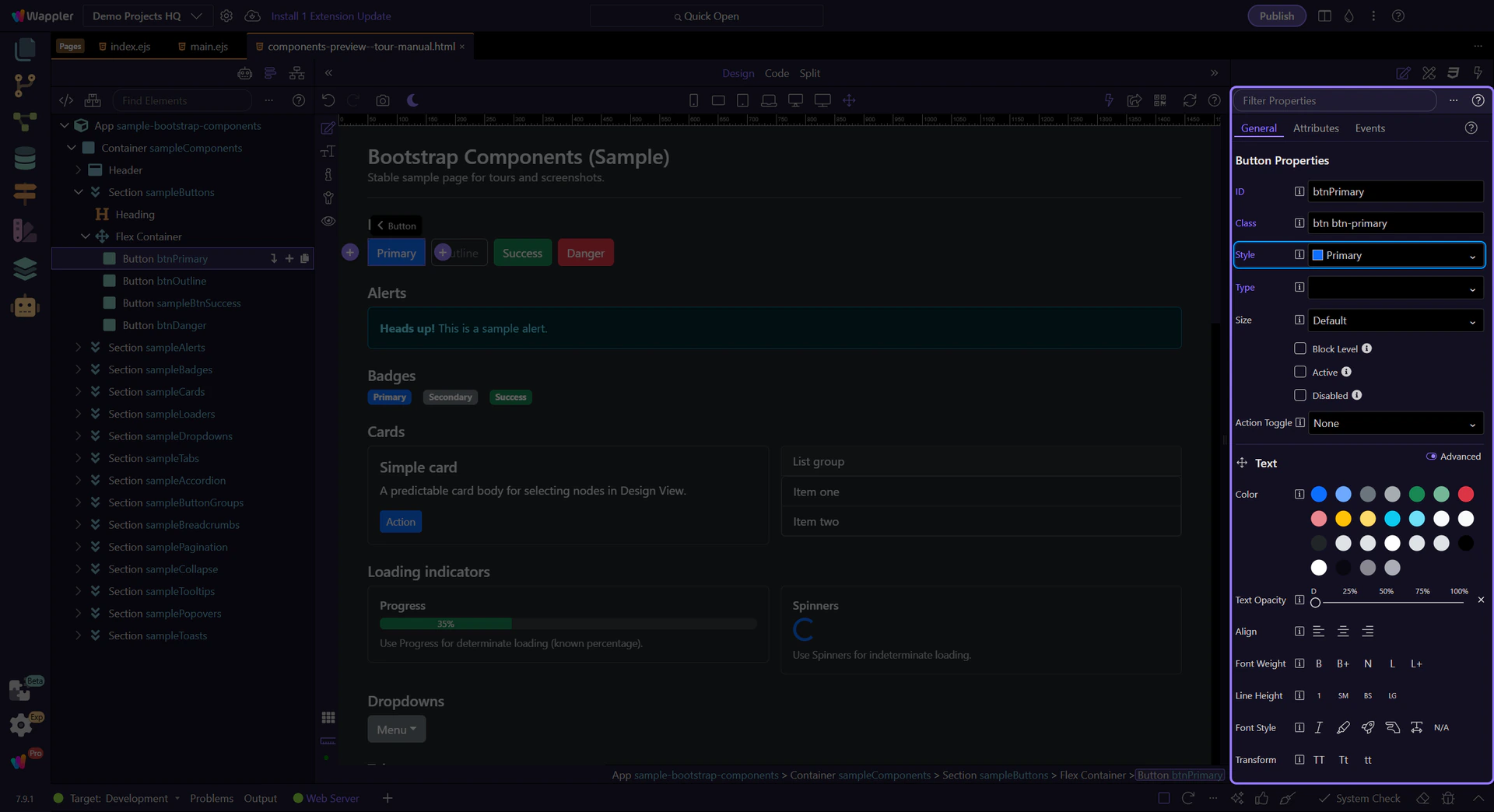
Button: Style
Section titled “Button: Style”Use Style to switch between solid, outline, and semantic variants (primary, secondary, success, etc.).
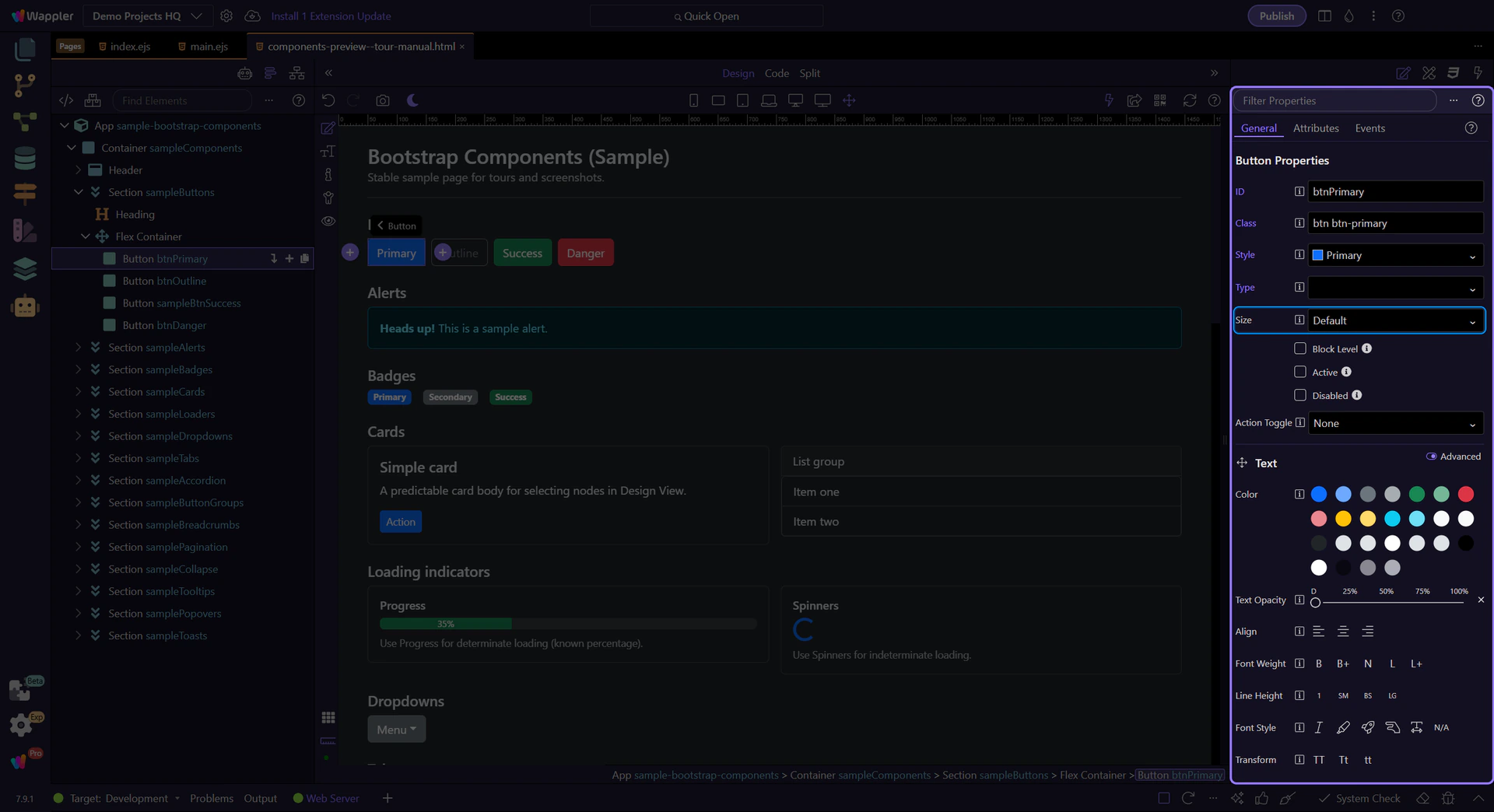
Button: Size
Section titled “Button: Size”Use Size for compact toolbars or prominent primary actions.
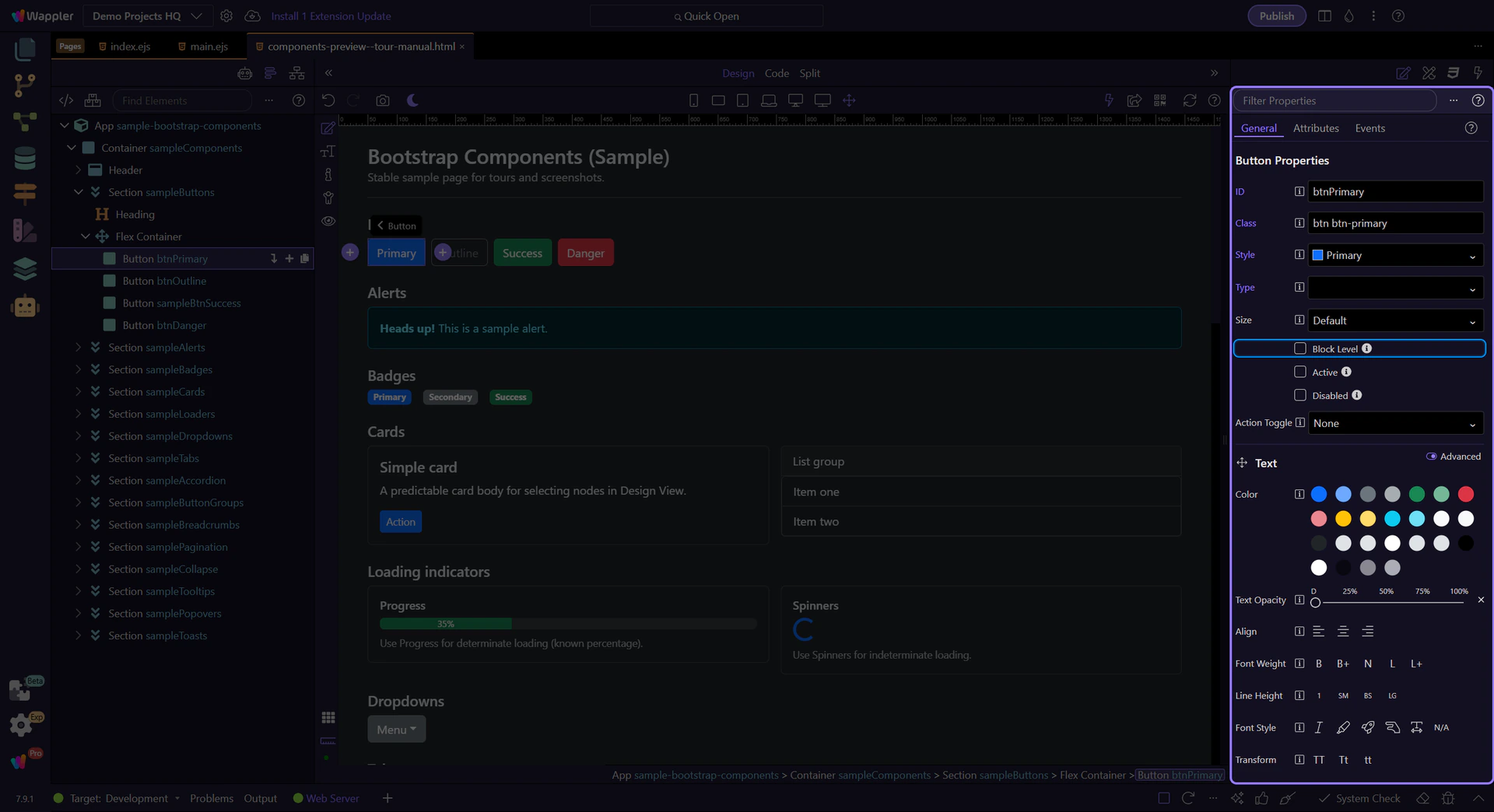
Button: Block level
Section titled “Button: Block level”Use Block Level to make a button span the full width of its container (great for mobile layouts).
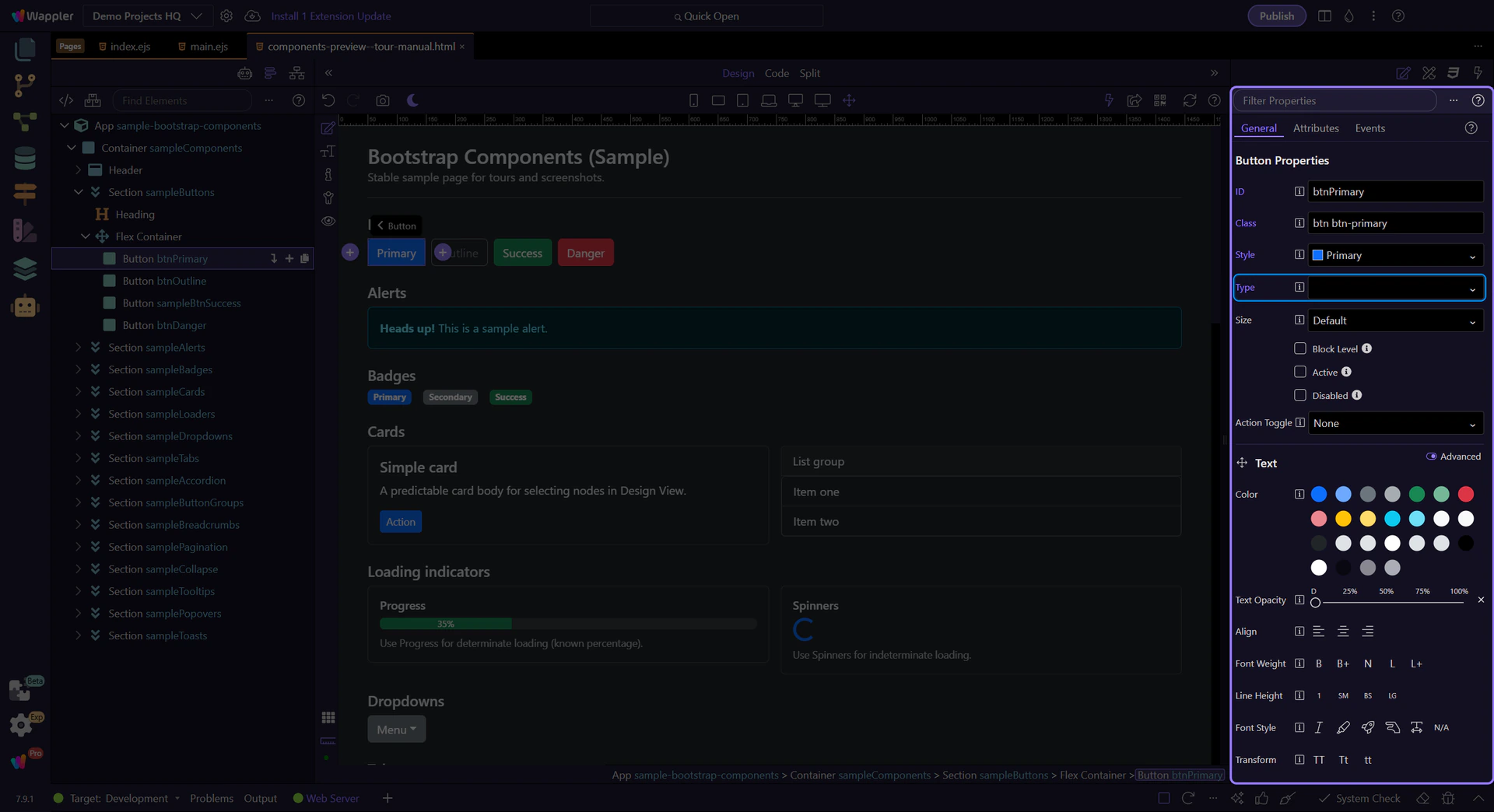
Button: Type (forms)
Section titled “Button: Type (forms)”Use Type to control form behavior. Use button for normal actions, and submit only when the button should submit a form.
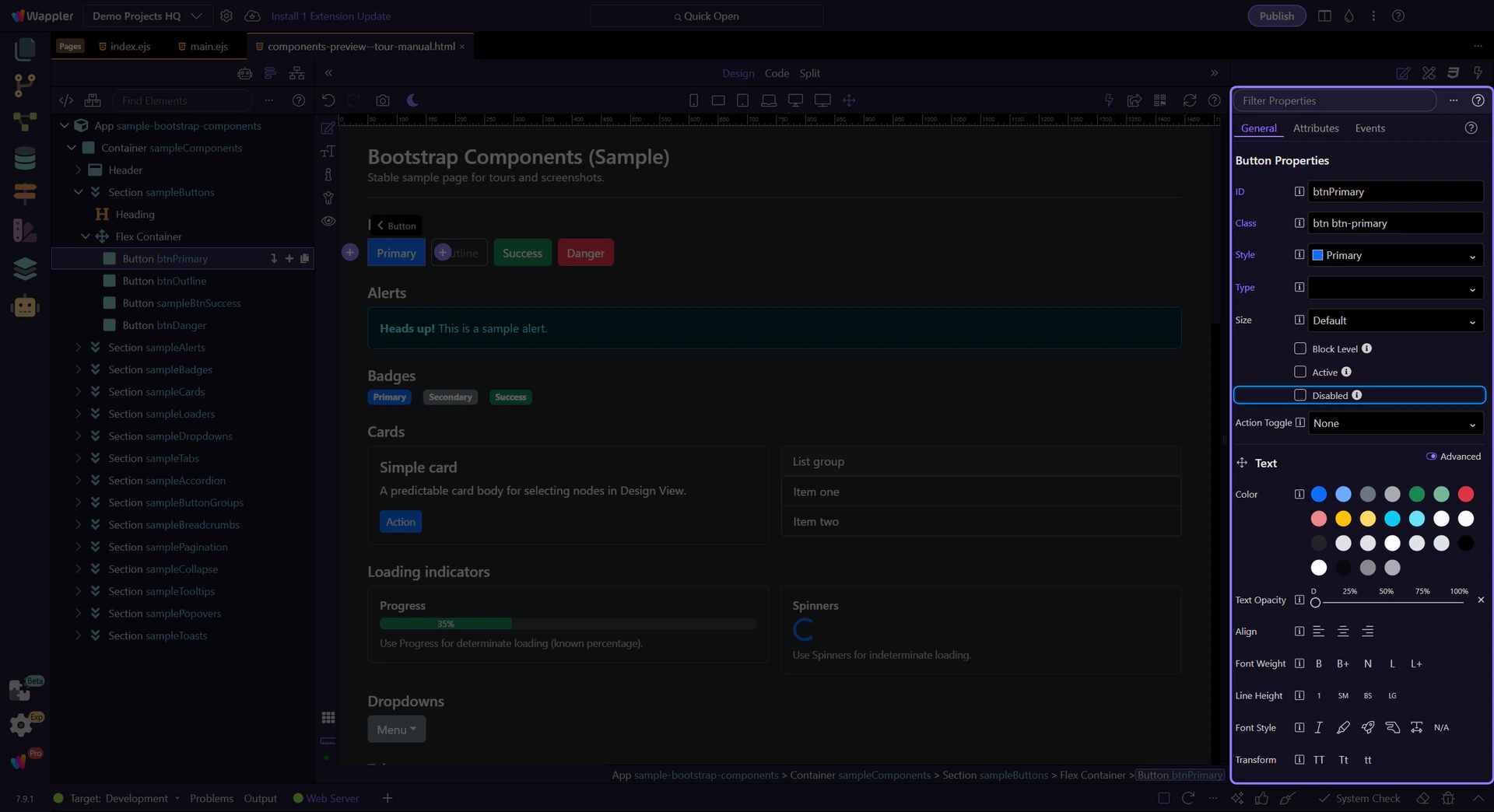
Button: Disabled
Section titled “Button: Disabled”Use Disabled when an action is not available. Prefer disabled states over hiding actions when users need to understand what’s possible.
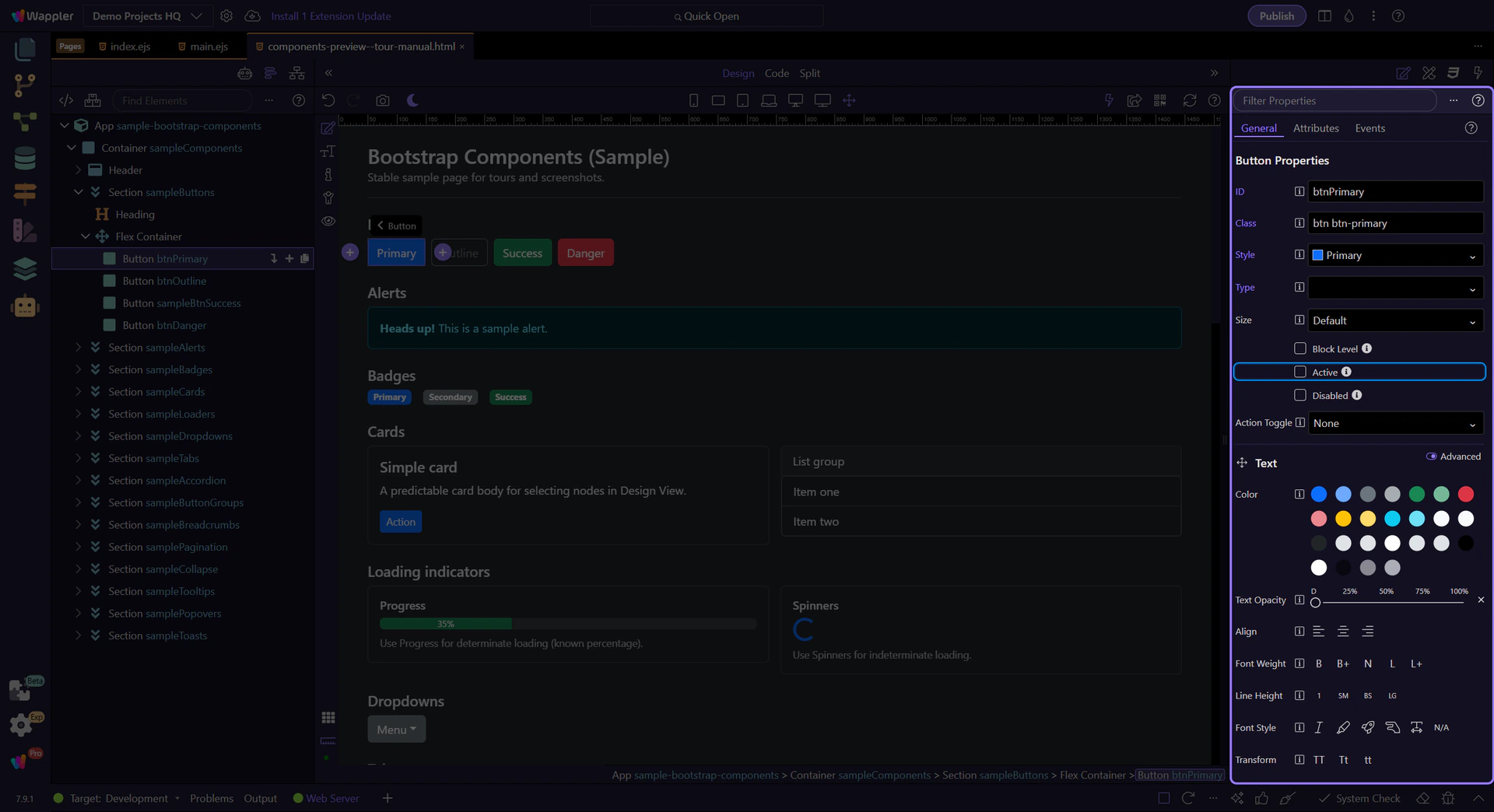
Tip: Active state
Section titled “Tip: Active state”Use Active when a button represents a selected state (for example, toggle buttons or segmented controls).
Next steps
Section titled “Next steps”Continue with other Components tours or return to the Components menu.