Delay errors until it matters
Show invalid states after interaction (blur/change) or on submit — not immediately on first load.
Build Bootstrap-styled forms with layout helpers and validation feedback, and learn patterns for a smooth form UX.
In this tour we’ll review a few common Bootstrap form controls and the properties you’ll use most often.
Start with the form as a whole instead of jumping straight to individual inputs. This example shows how Bootstrap organizes fields, spacing, and validation-friendly structure, which gives you the context you need before looking at the smaller controls that make the form readable and usable.
tip: Put spacing/layout on the parent container when possible, rather than repeating spacing on every input.
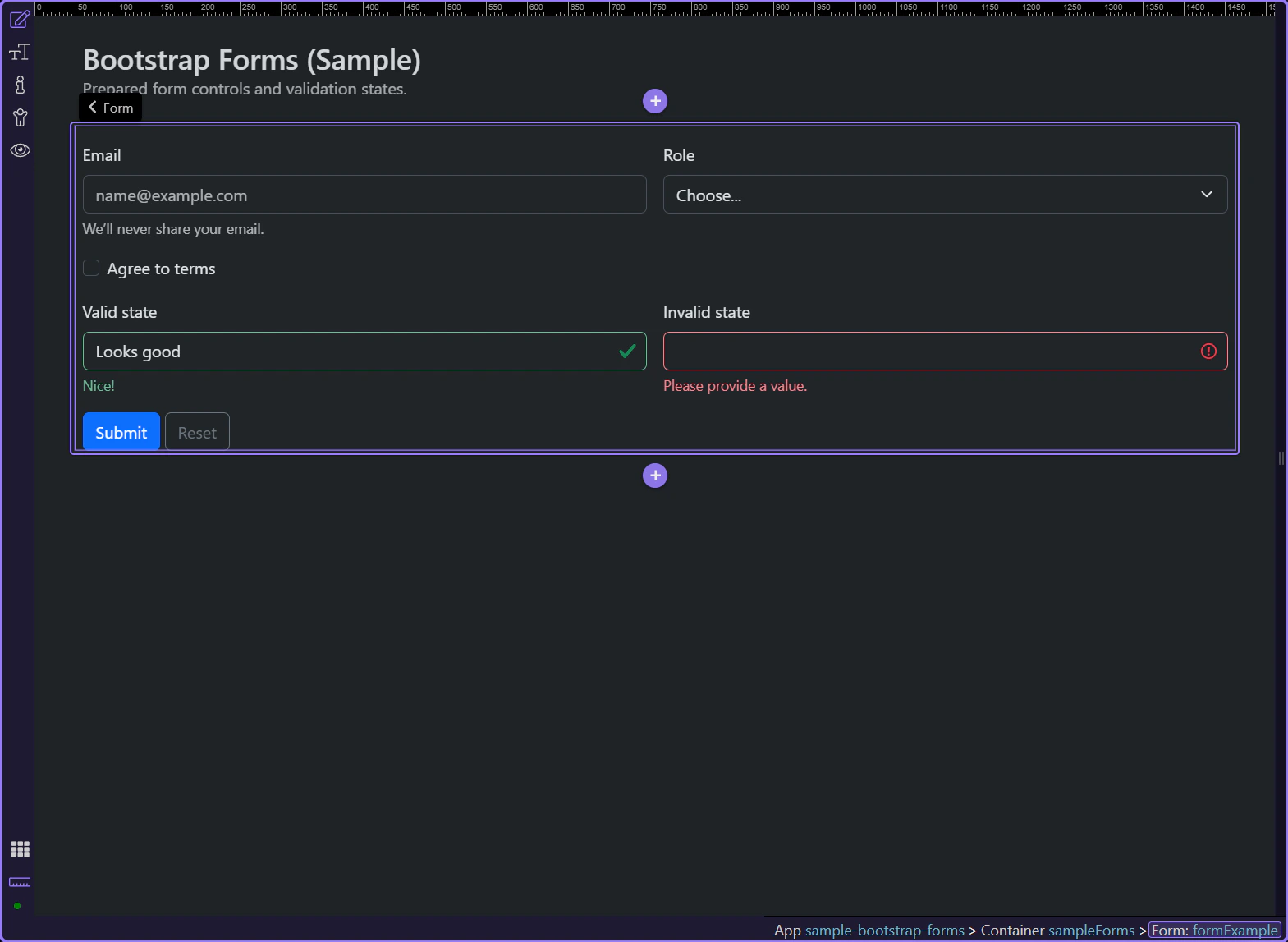
Start with the wider context in the Properties panel so the next control makes sense in the full workflow. In the next step, you will focus on Form: ID and see how it fits into this area.
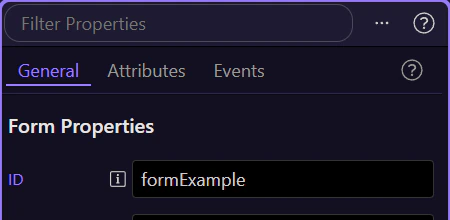
Use the ID input for stable JS hooks and testing. This step matters because Form: ID is part of Selection Panels Properties Formid, and understanding that context makes the next action easier to repeat in your own project.
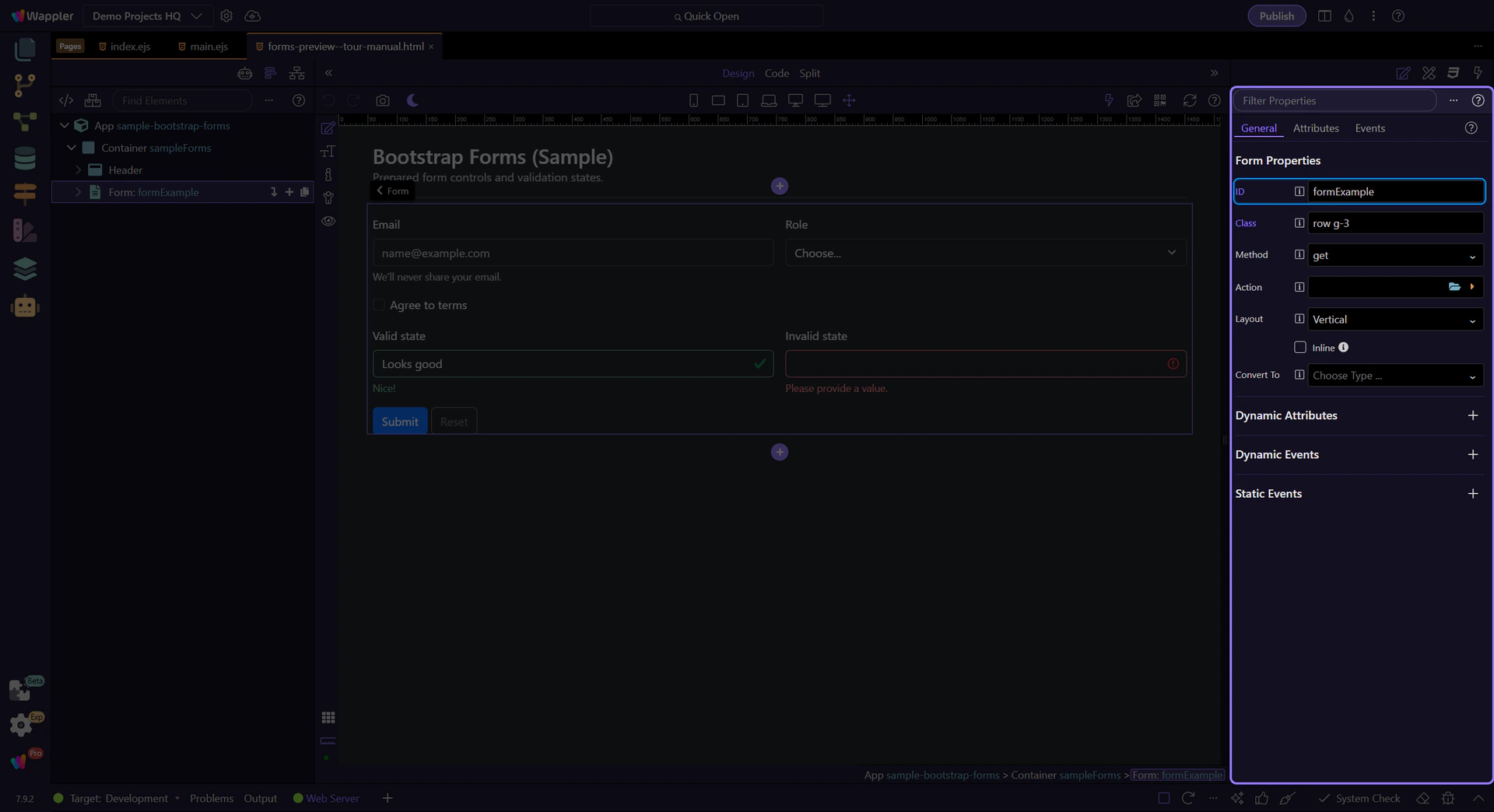
Review Method when you’re doing a classic HTML submit. This step matters because Form: Method is part of Selection Panels Properties Scmethod, and understanding that context makes the next action easier to repeat in your own project.
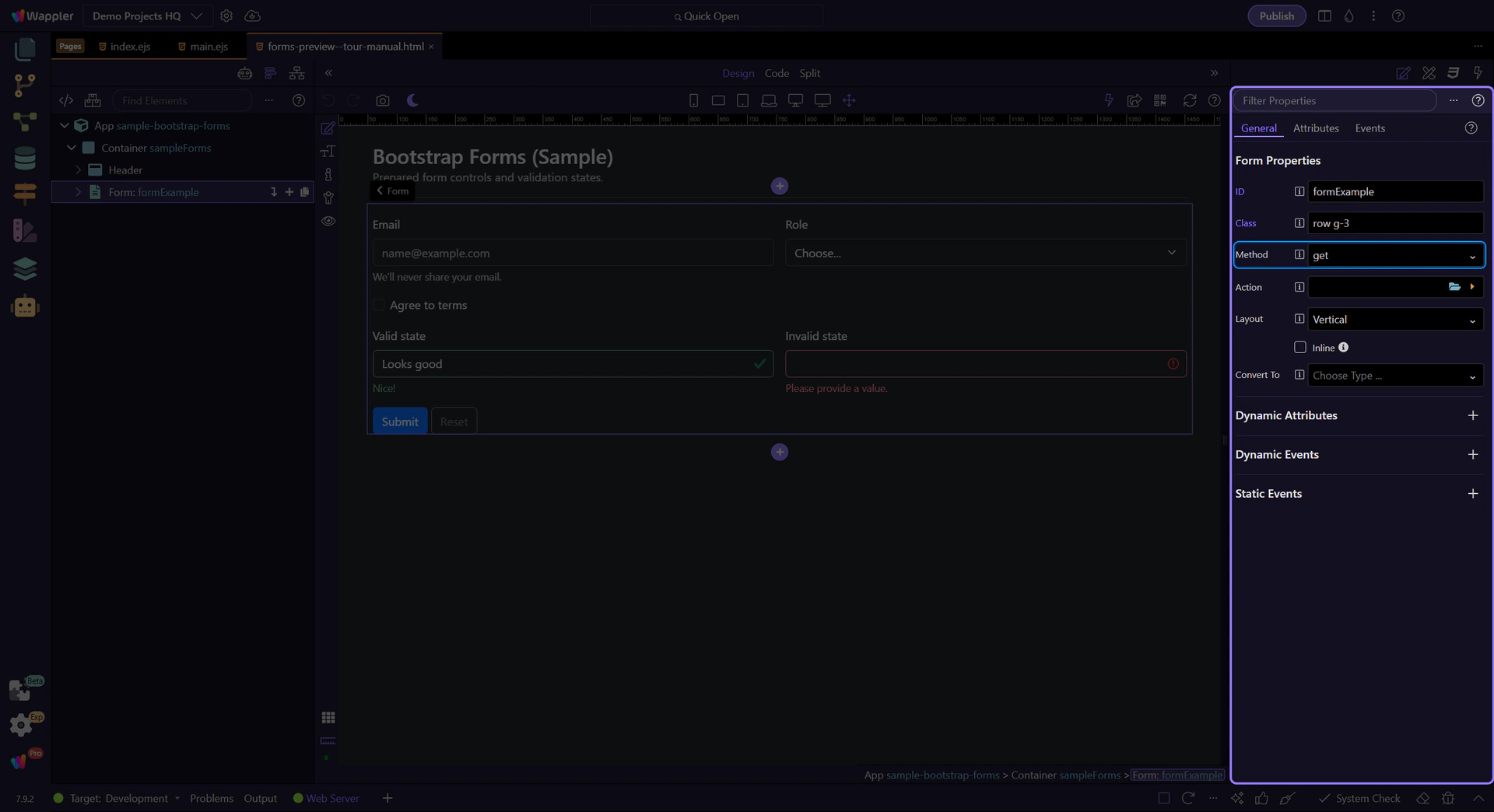
Review Action when you’re submitting to a server endpoint. This step matters because Form: Action is part of Selection Panels Properties Formaction, and understanding that context makes the next action easier to repeat in your own project.
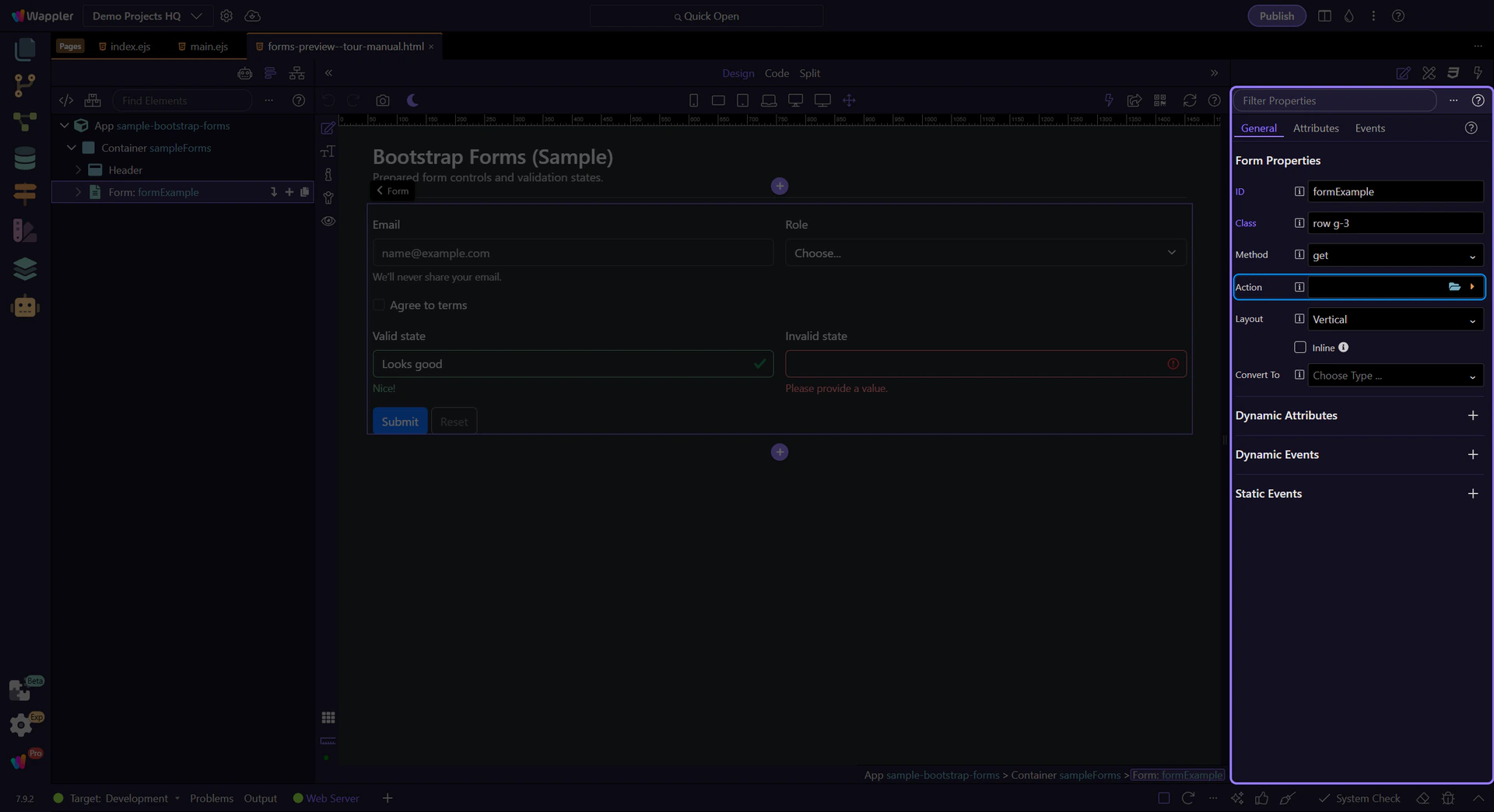
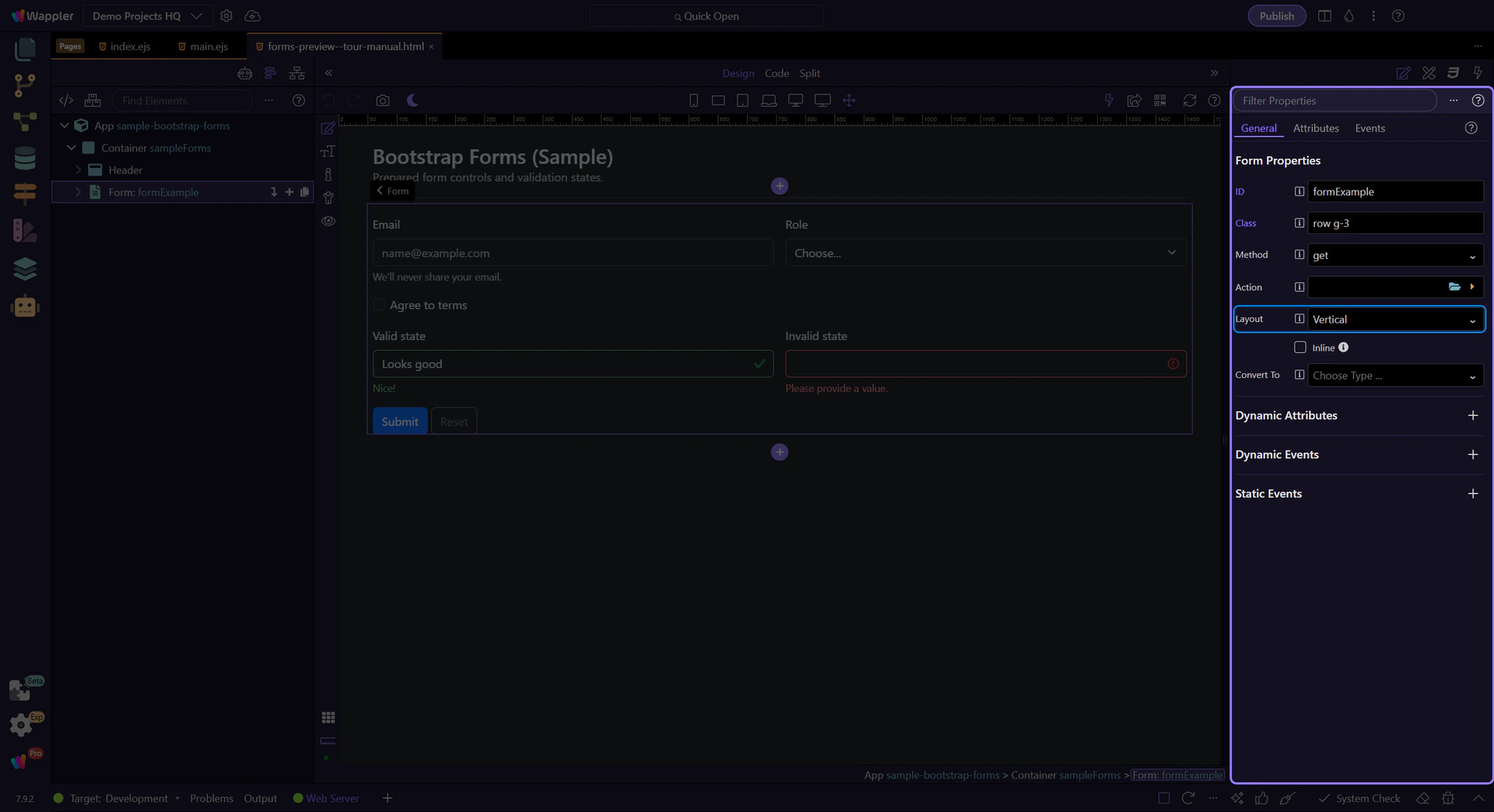
Use Layout to switch between vertical, horizontal, and floating labels. This step matters because Form: Layout is part of Selection Panels Properties Formgrouplayout, and understanding that context makes the next action easier to repeat in your own project.
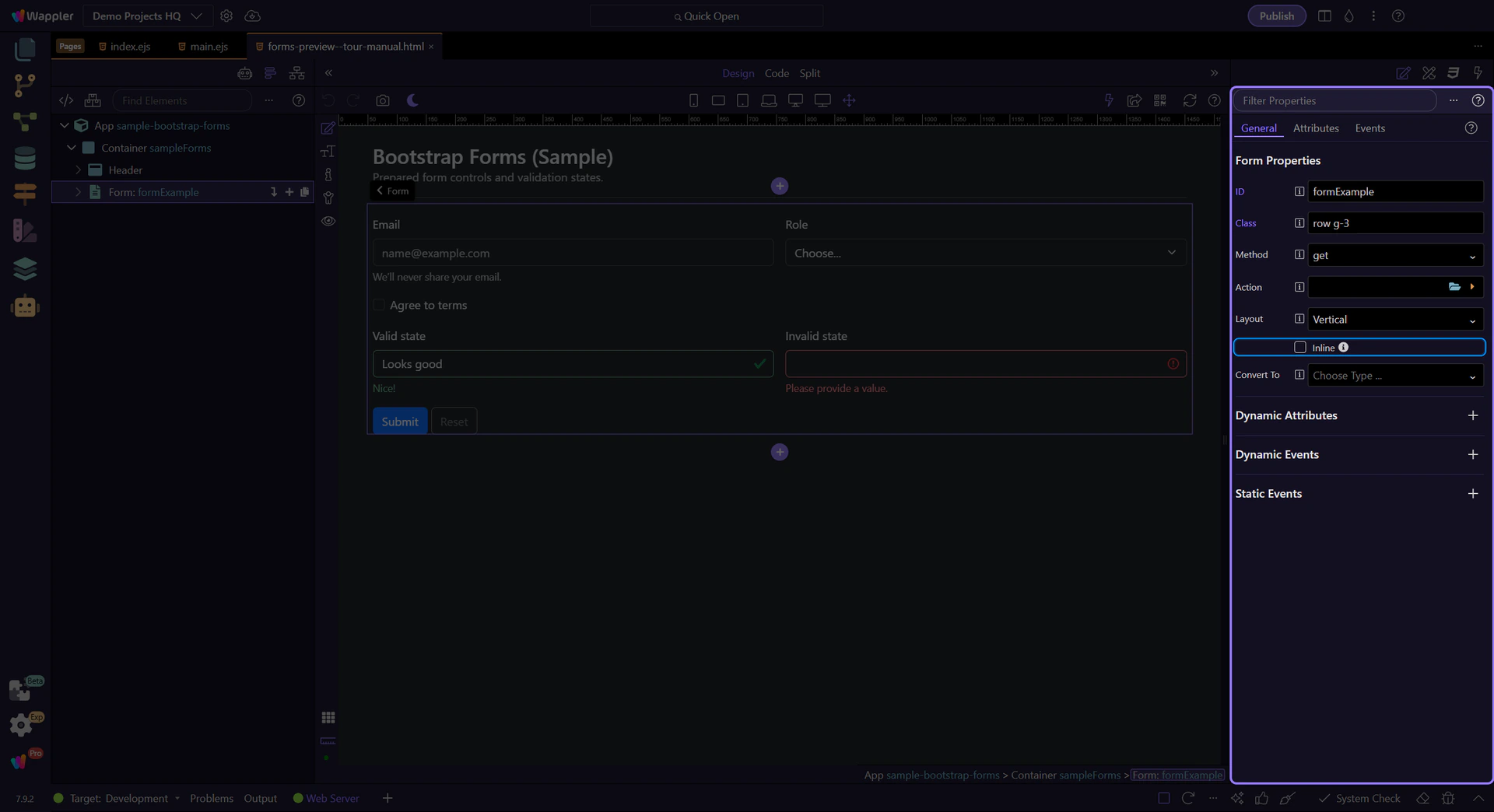
Toggle Inline when you want the form controls to sit on one line. This step matters because Form: Inline is part of Selection Panels Properties Forminline, and understanding that context makes the next action easier to repeat in your own project.
Inputs are primarily configured via attributes (type, placeholder) plus validation settings.
tip: When styling inputs, select the input itself; when adjusting spacing, select the surrounding group/container.
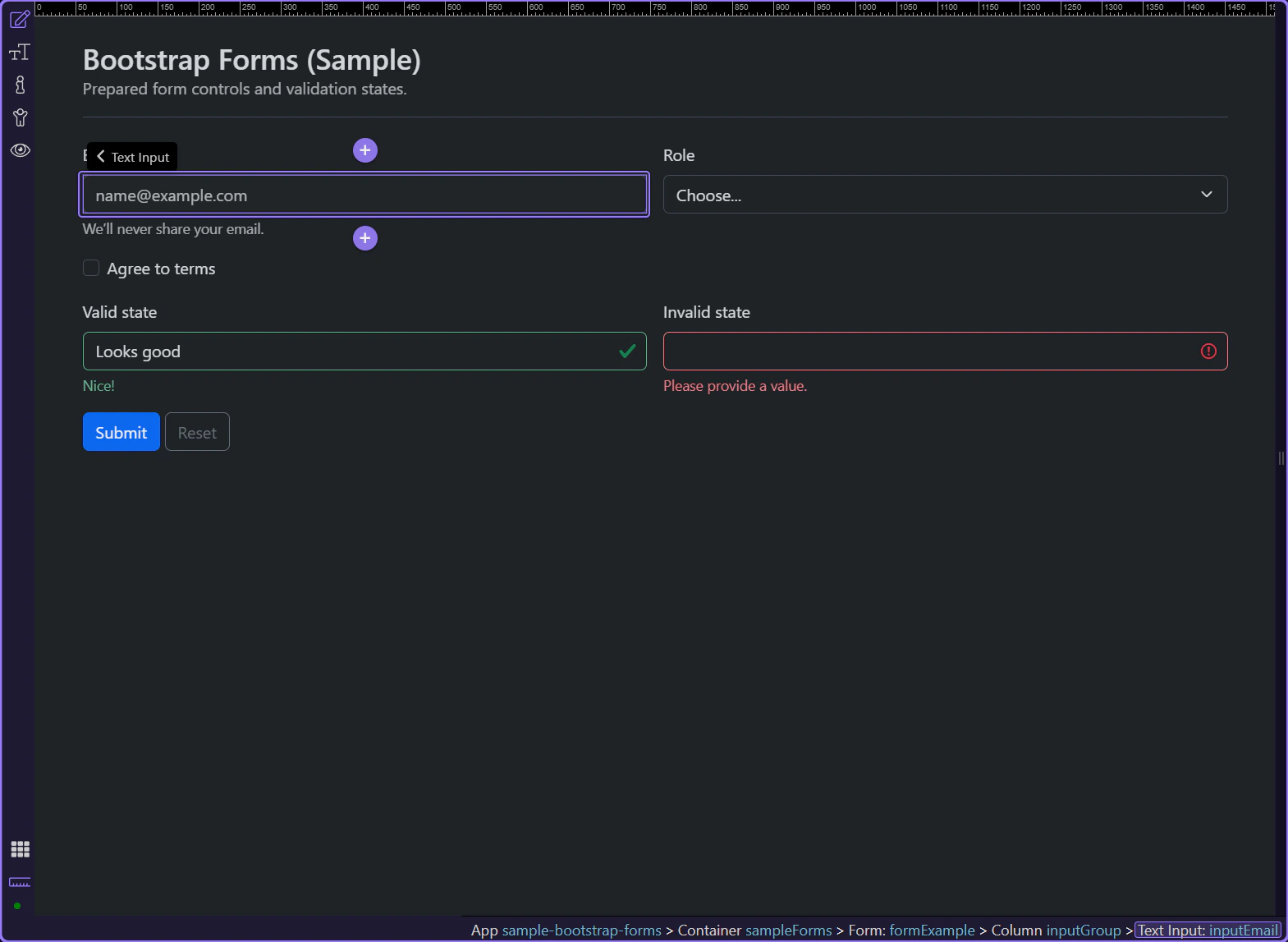
Use ID for stable selection and hooks. This step matters because Input: ID is part of Selection Panels Properties Theid, and understanding that context makes the next action easier to repeat in your own project.
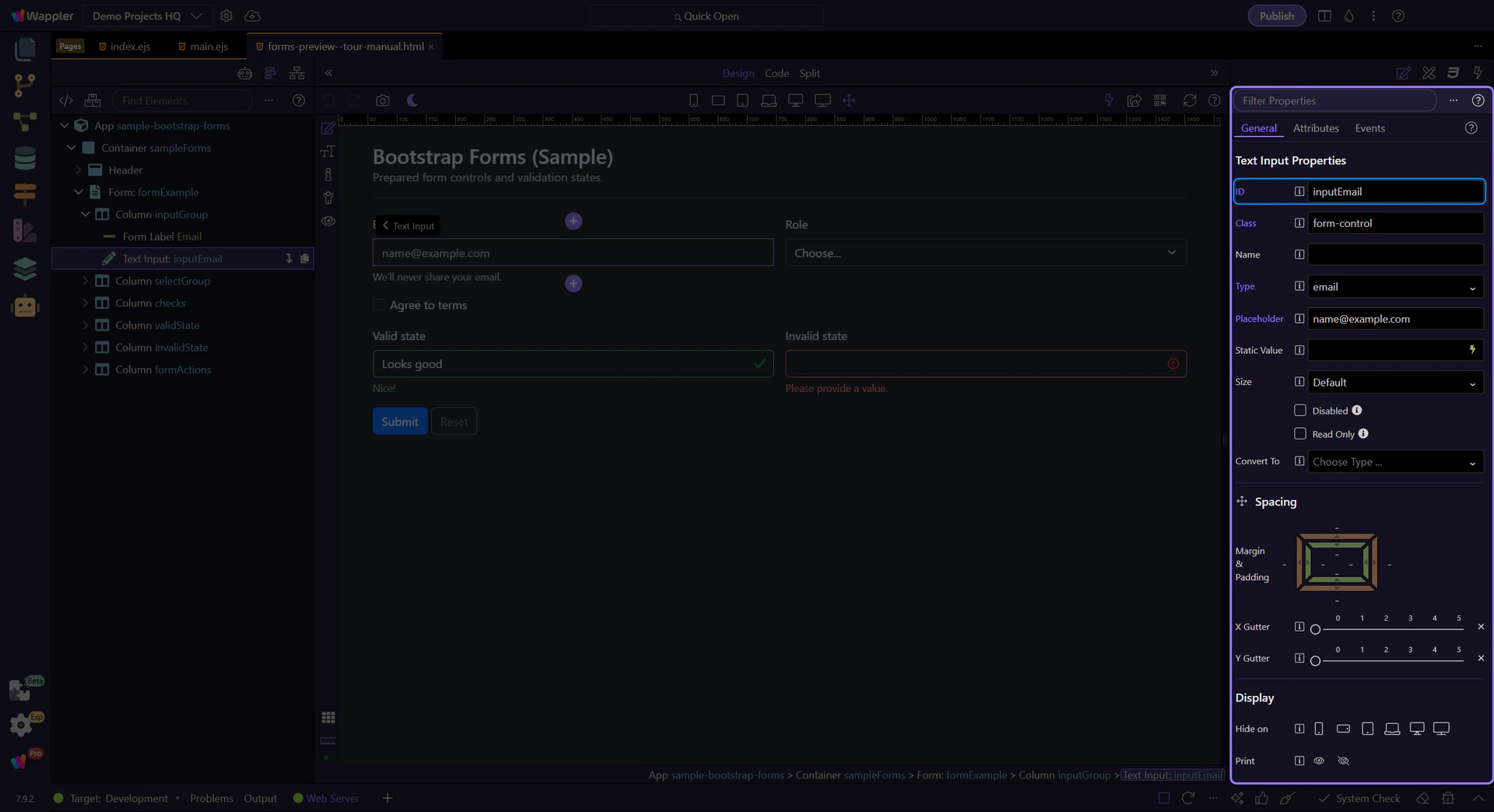
Use Name for form posting and integrations. This step matters because Input: Name is part of Selection Panels Properties Inputname, and understanding that context makes the next action easier to repeat in your own project.
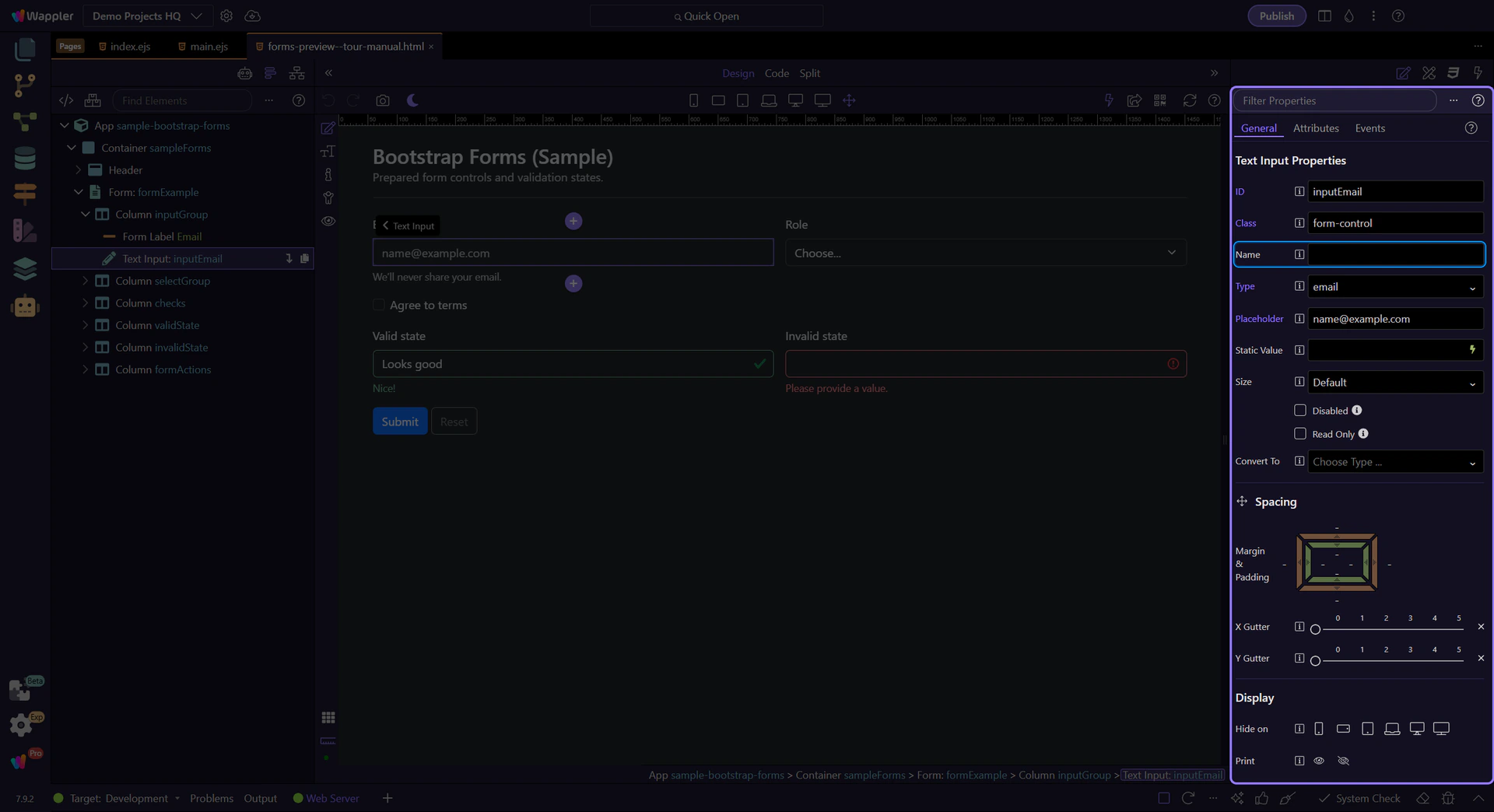
In Properties, set Type (email/password/number/etc). This step matters because Input: Type is part of Selection Panels Properties Inputtype, and understanding that context makes the next action easier to repeat in your own project.
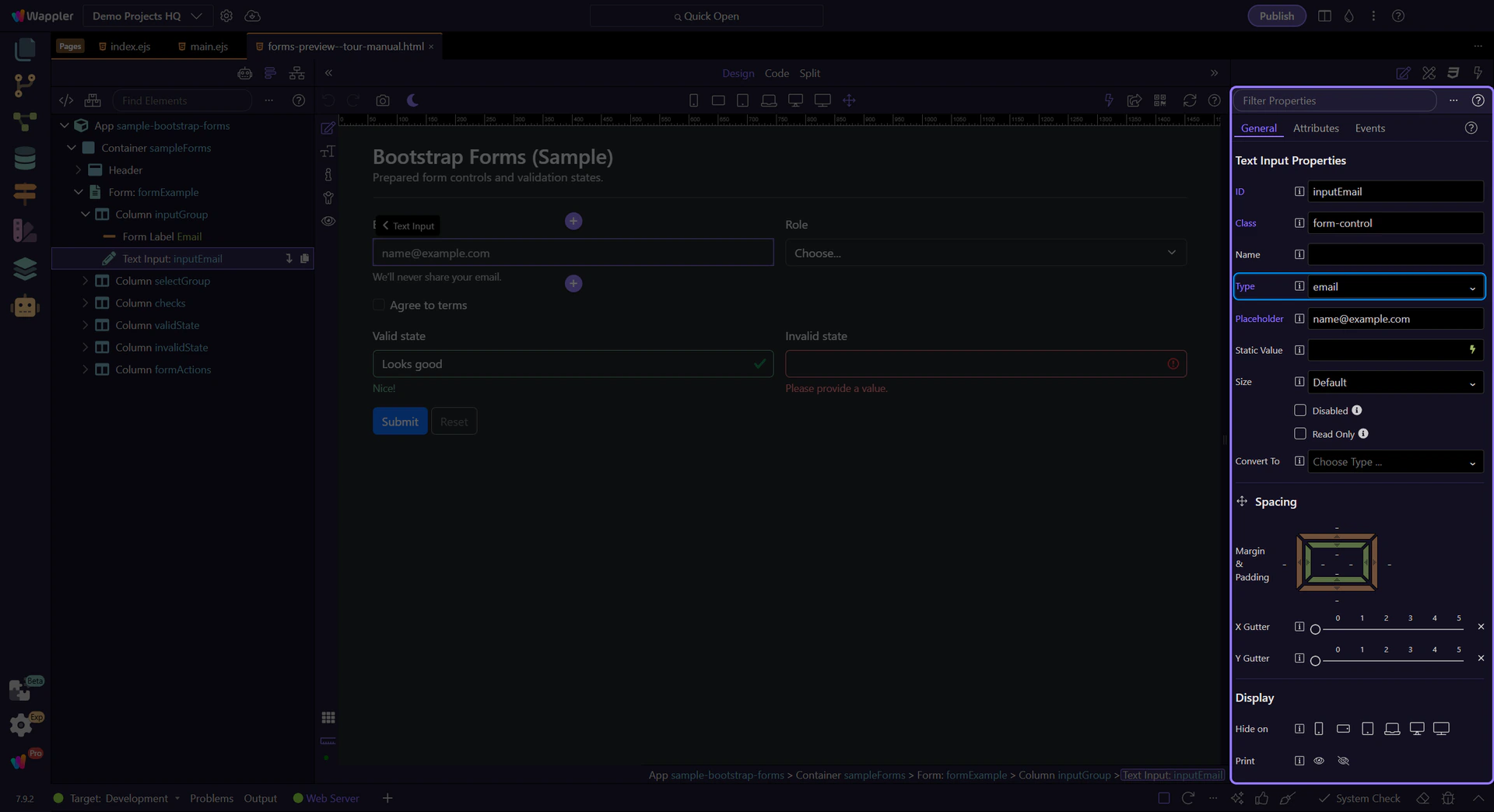
Use Placeholder for hint text. This step matters because Input: Placeholder is part of Selection Panels Properties Inputplaceholder, and understanding that context makes the next action easier to repeat in your own project.
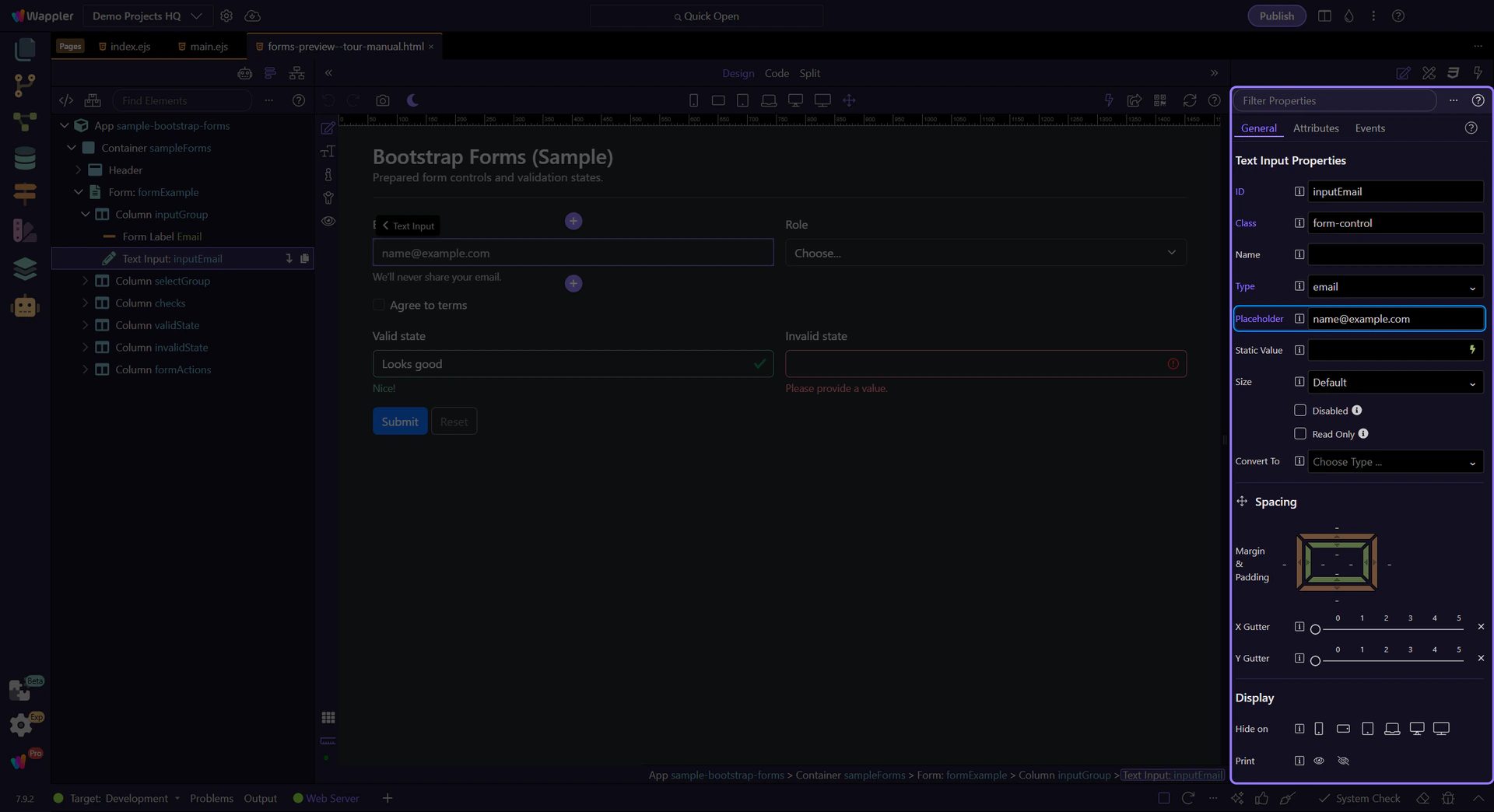
Use Static Value for a default value (when appropriate). This step matters because Input: Static Value is part of Selection Panels Properties Inputvalue, and understanding that context makes the next action easier to repeat in your own project.
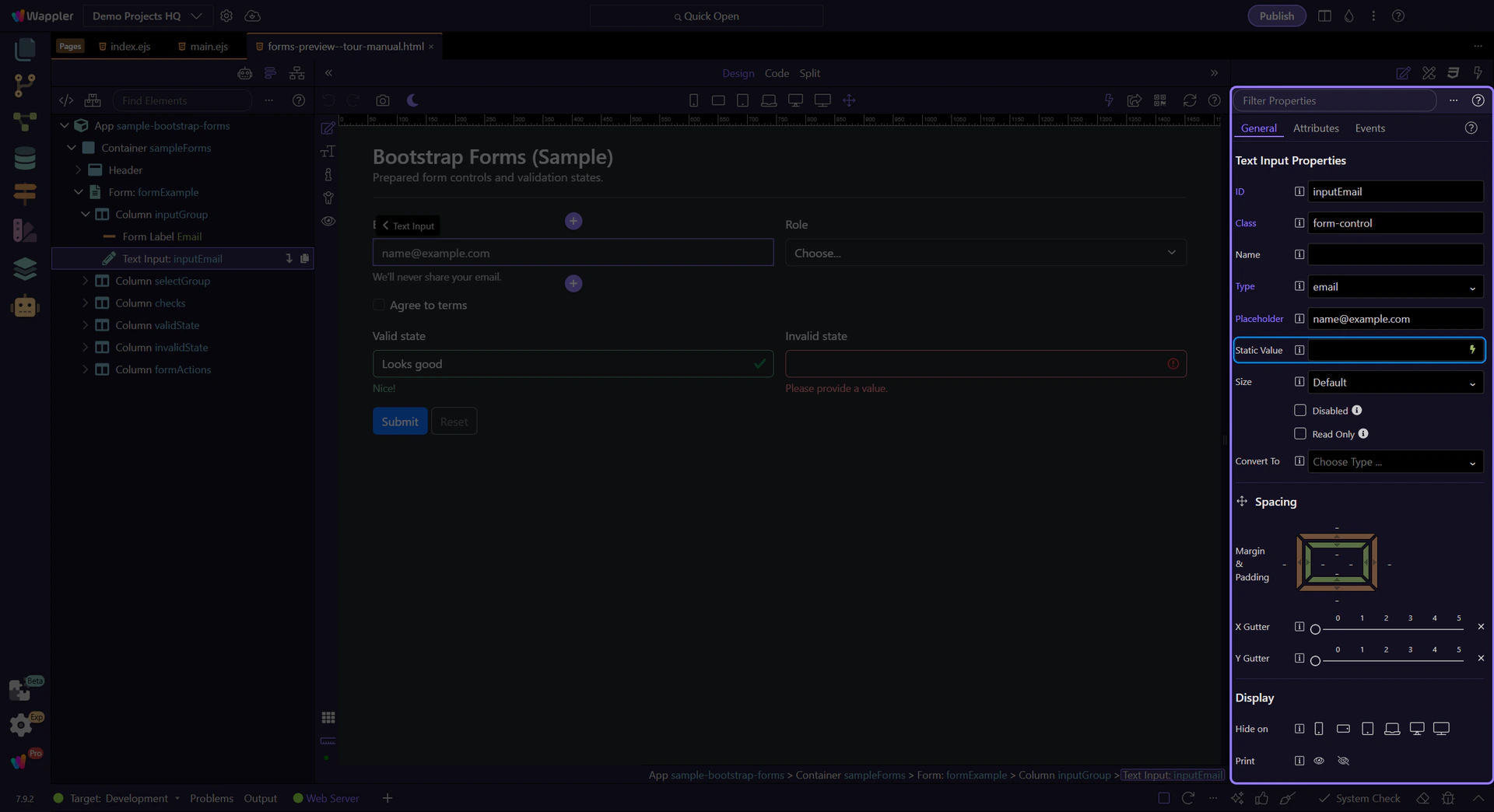
Toggle Disabled when the user shouldn’t be able to edit the field. This step matters because Input: Disabled is part of Selection Panels Properties Inputdisabled, and understanding that context makes the next action easier to repeat in your own project.
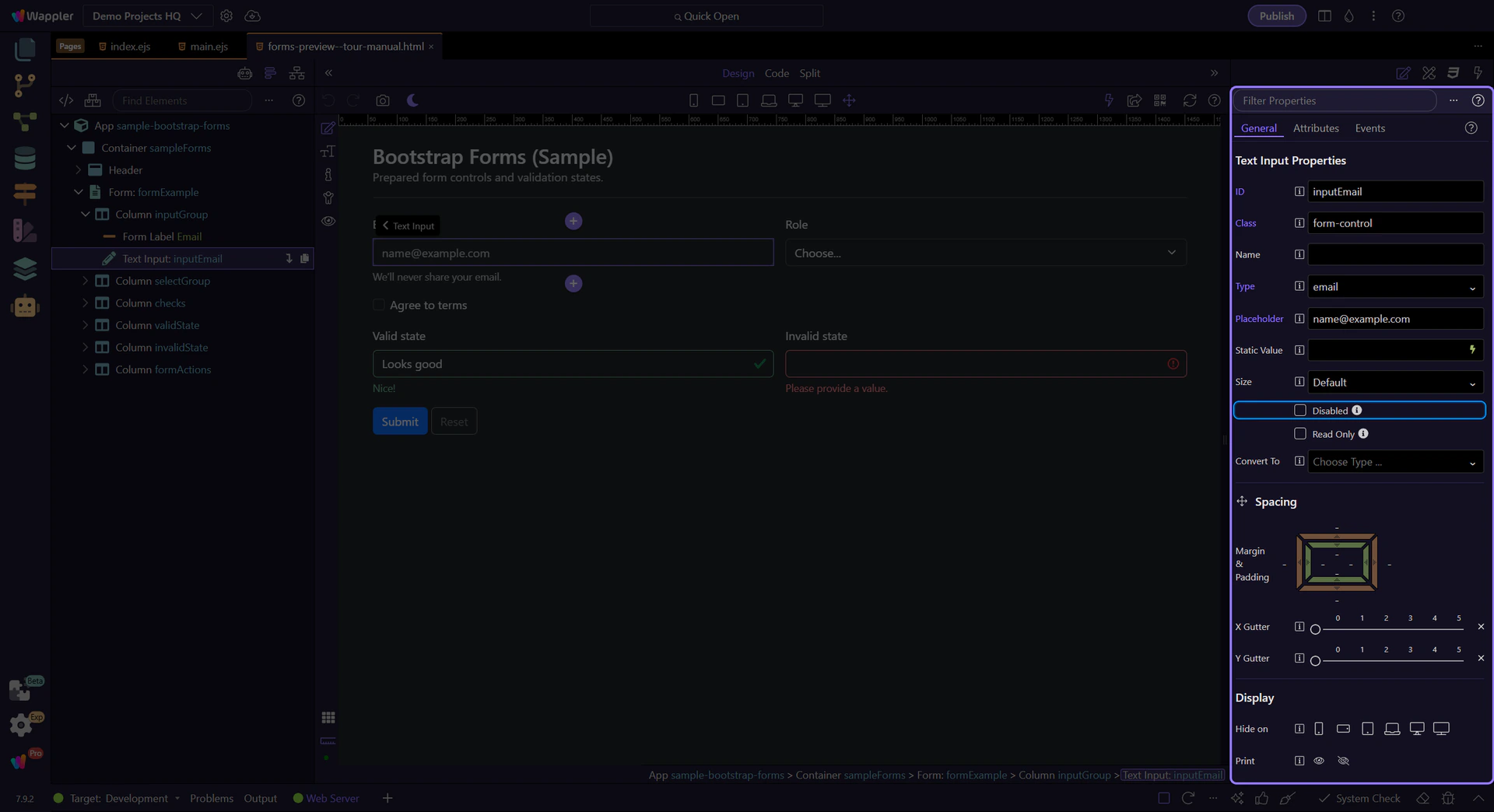
Toggle Read Only when the user can copy but not change the value. This step matters because Input: Read Only is part of Selection Panels Properties Inputreadonly, and understanding that context makes the next action easier to repeat in your own project.
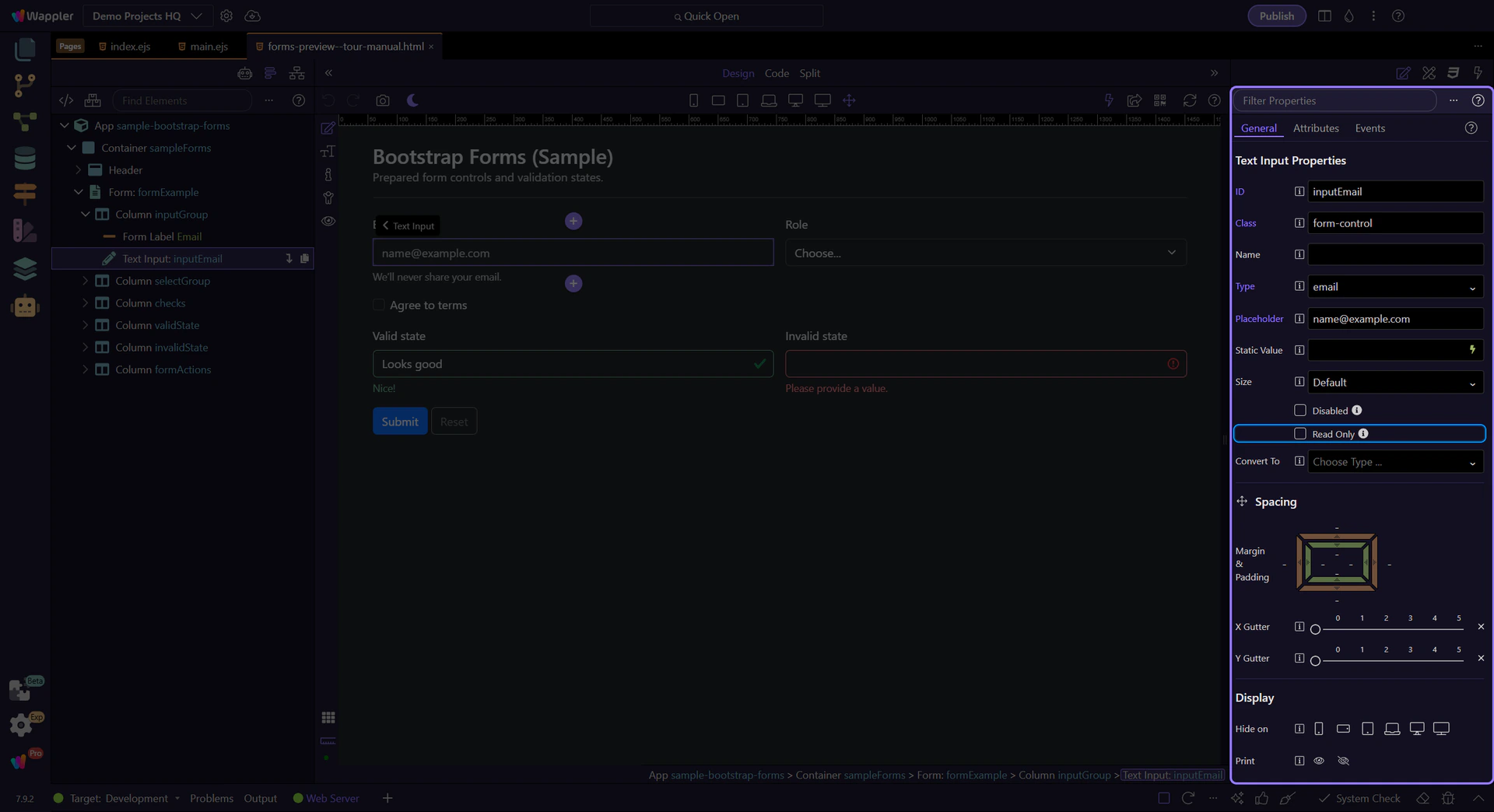
Dropdown (select) controls are great for compact choices. Next, review options like Multiple and Disabled.
tip: Keep option labels clear, and keep option values stable for integrations and testing.
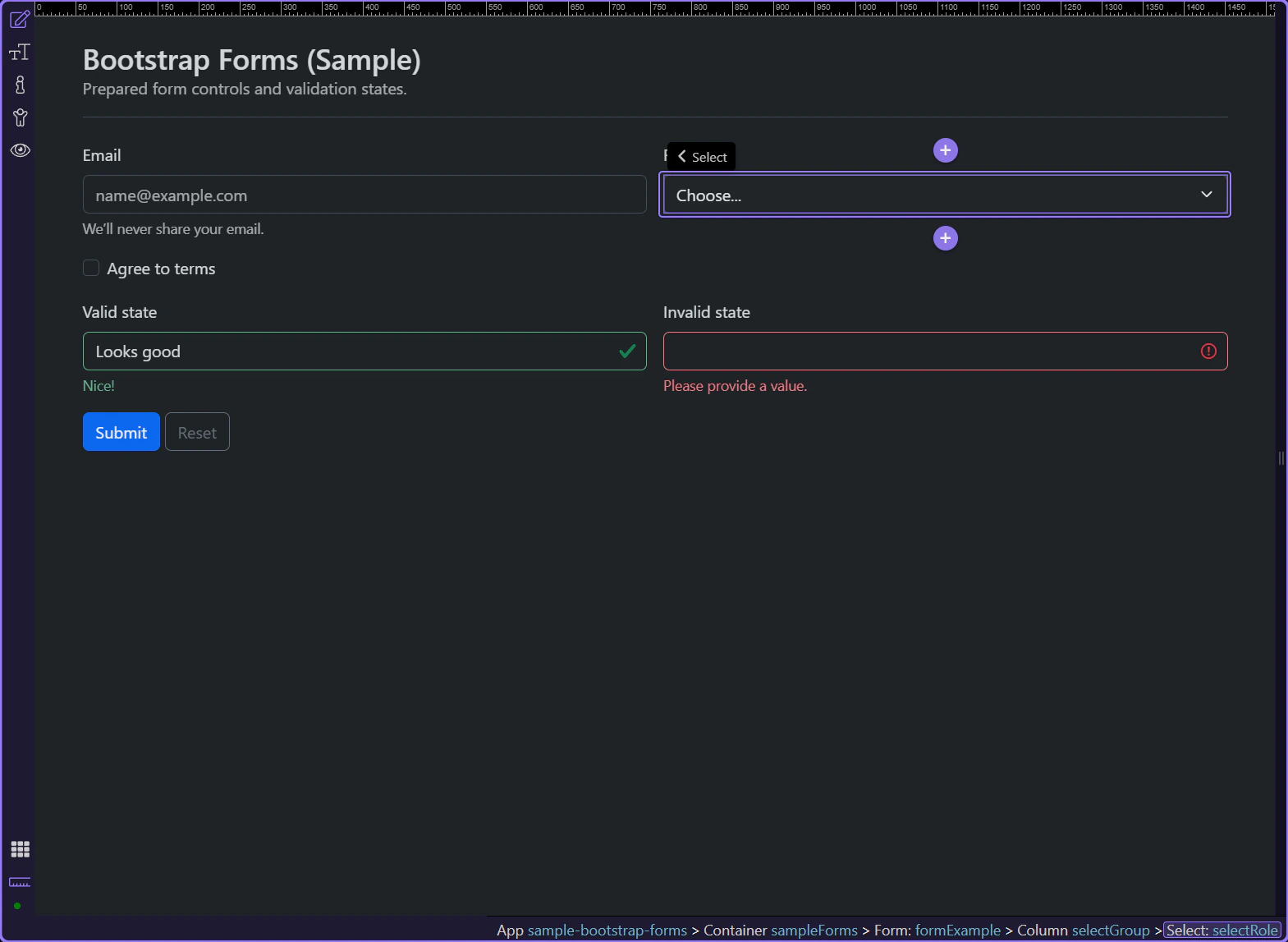
Toggle Multiple when the user should be able to select more than one option. This step matters because Multiple is part of Selection Panels Properties Selectmultiple, and understanding that context makes the next action easier to repeat in your own project.
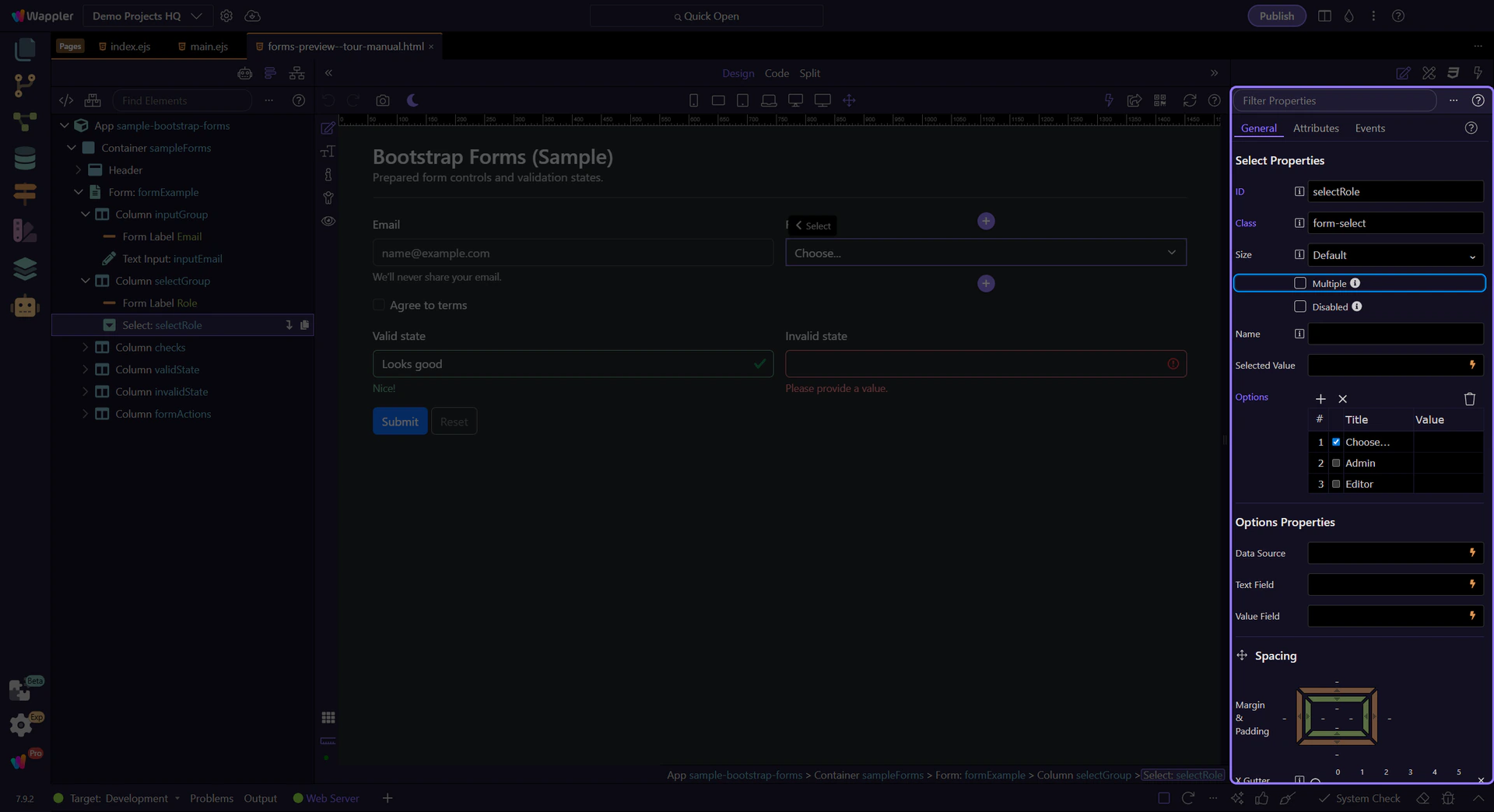
Toggle Disabled to prevent changes. This step matters because Disabled is part of Selection Panels Properties Selectdisabled, and understanding that context makes the next action easier to repeat in your own project.
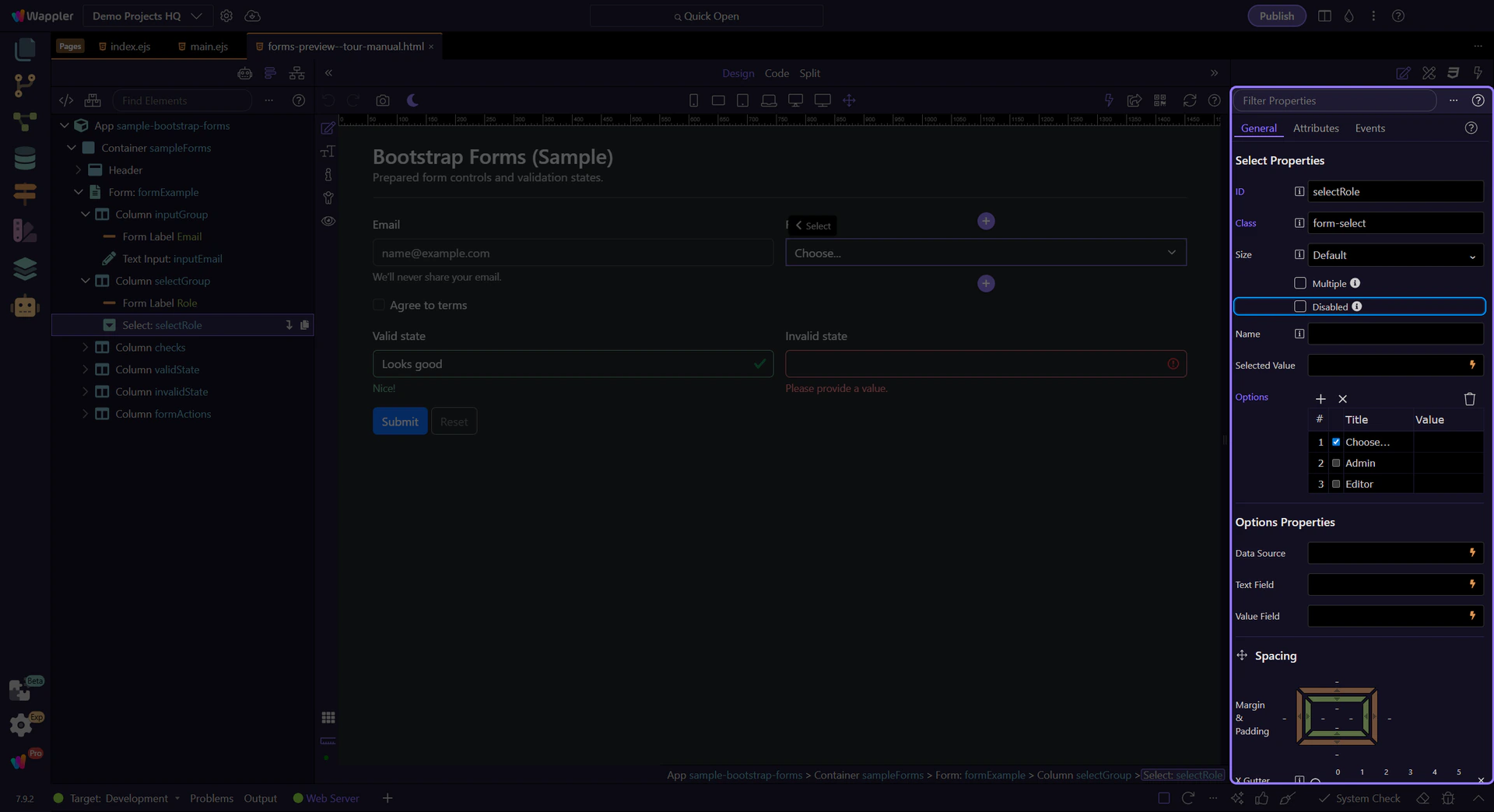
Use Size for a larger/smaller select control. This step matters because Size is part of Selection Panels Properties Selectsize, and understanding that context makes the next action easier to repeat in your own project.
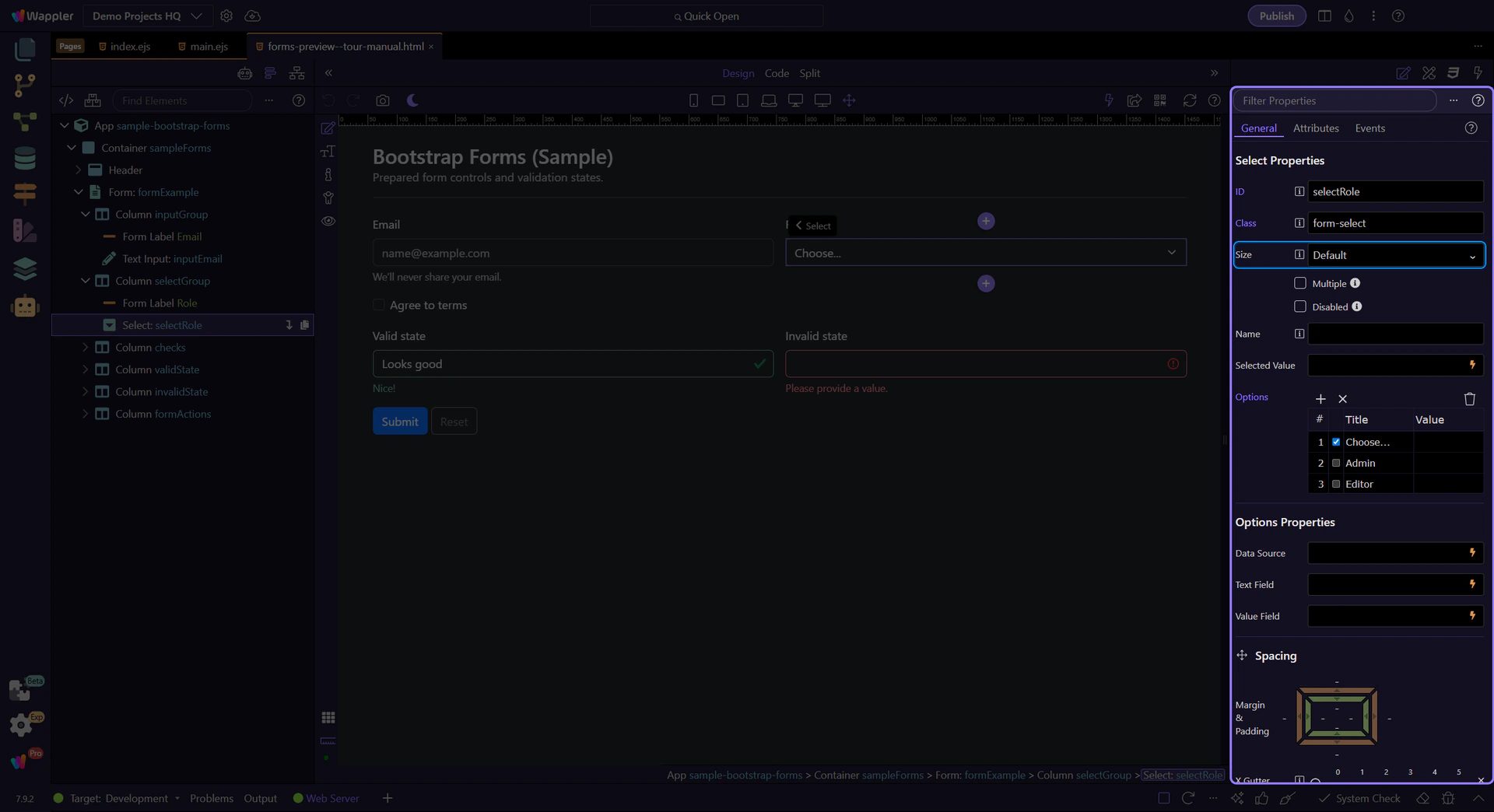
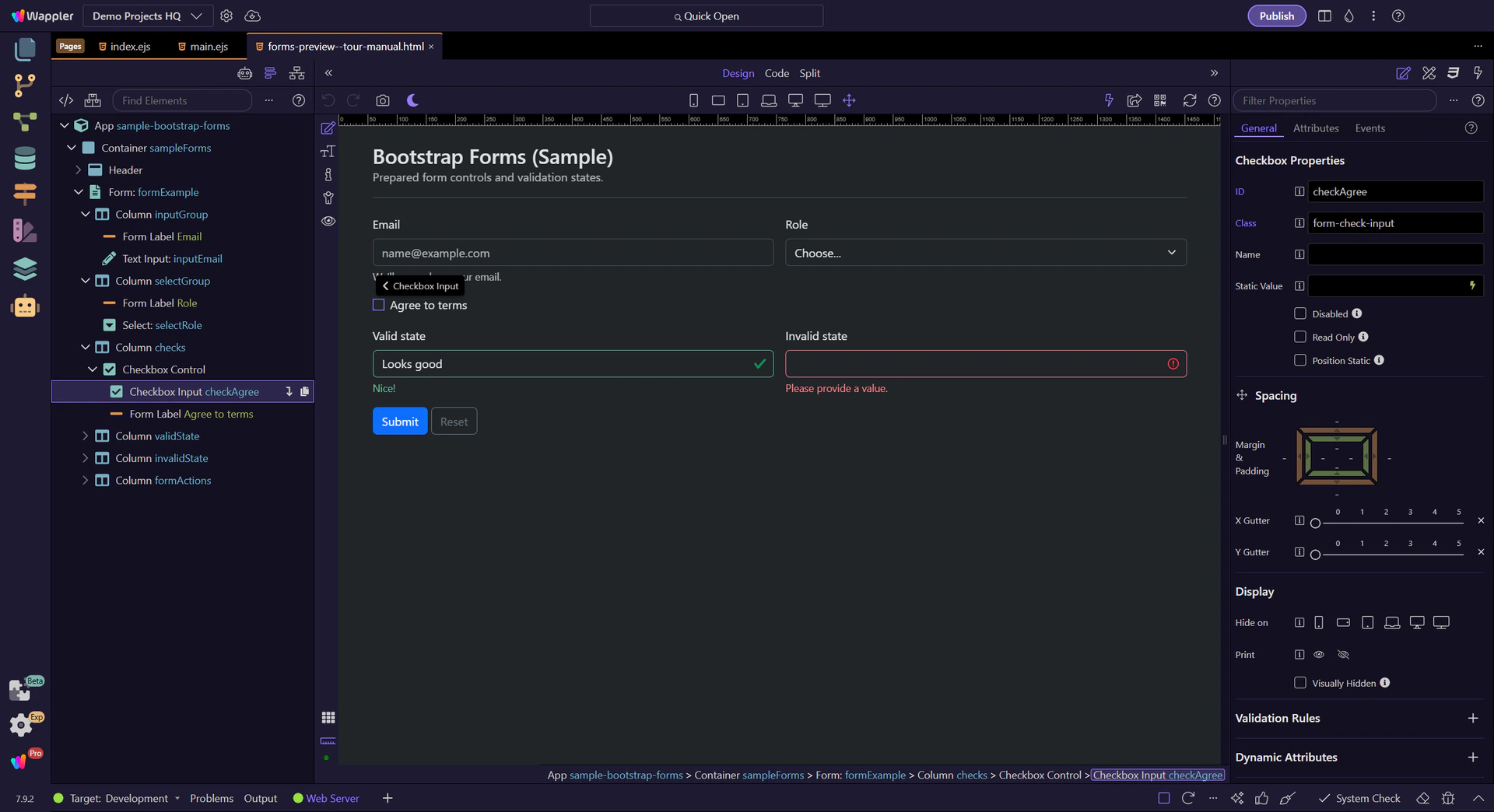
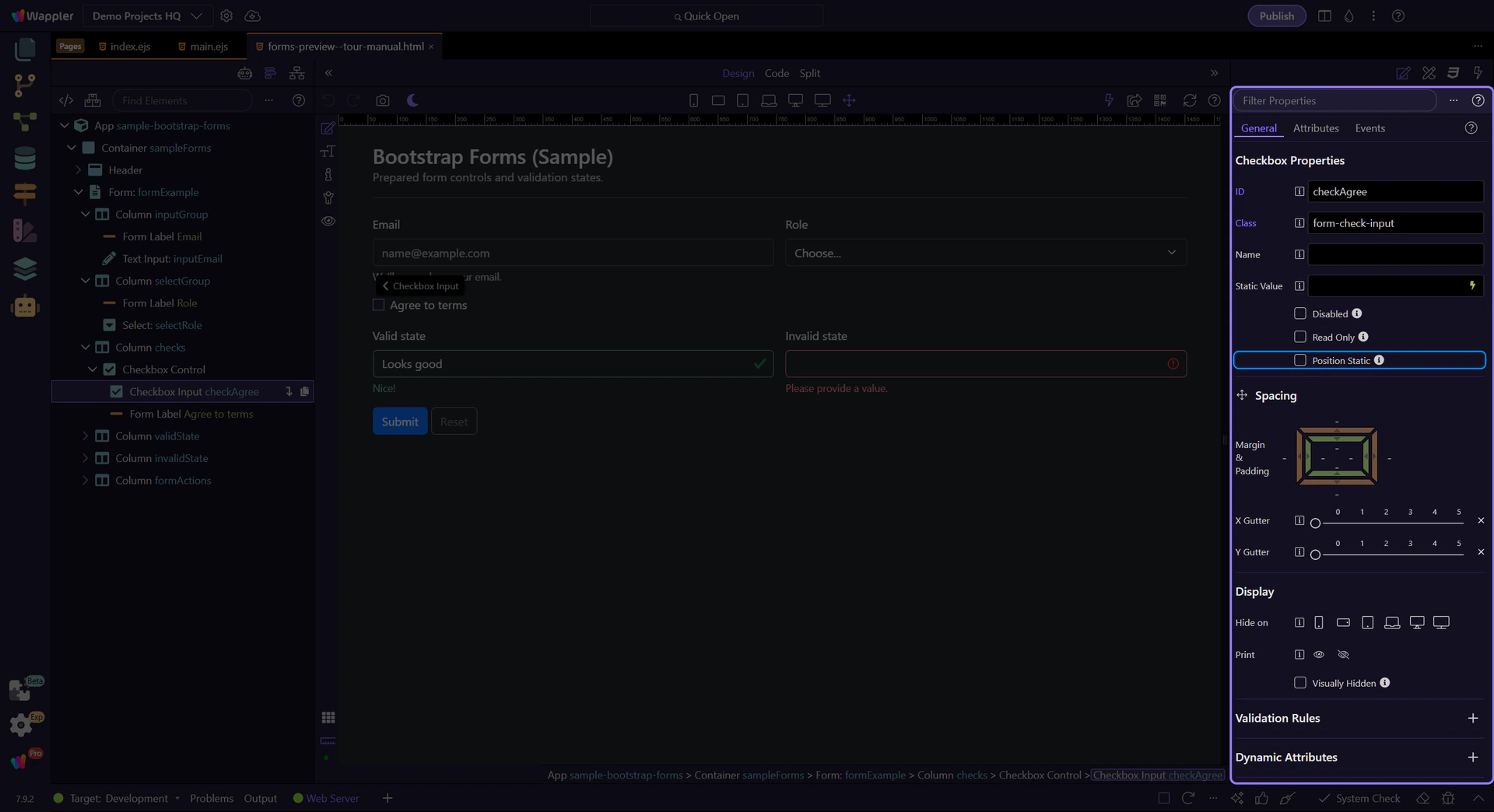
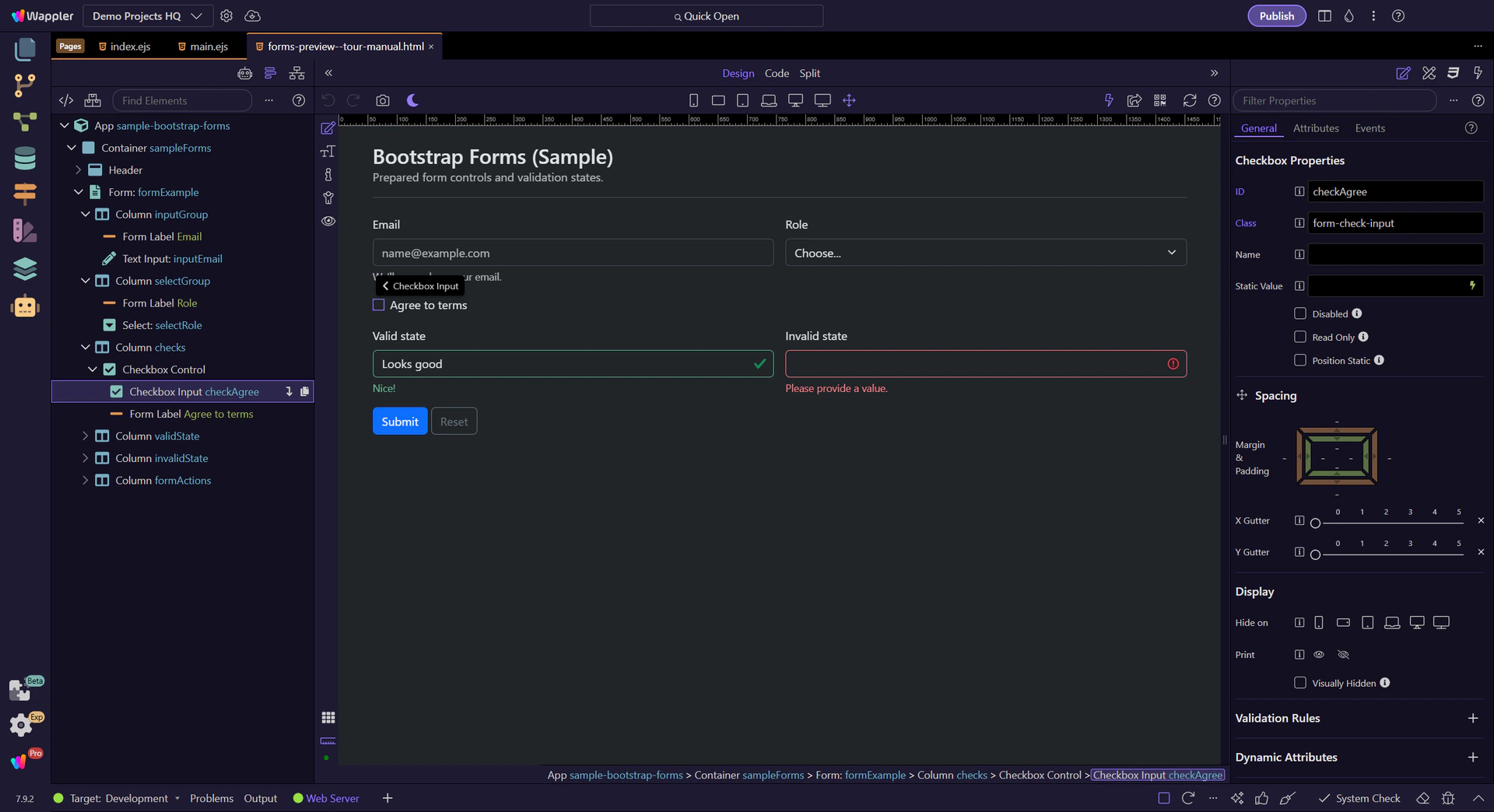
Checkboxes are best for yes/no and independent toggles. Next, review checkbox-specific properties.
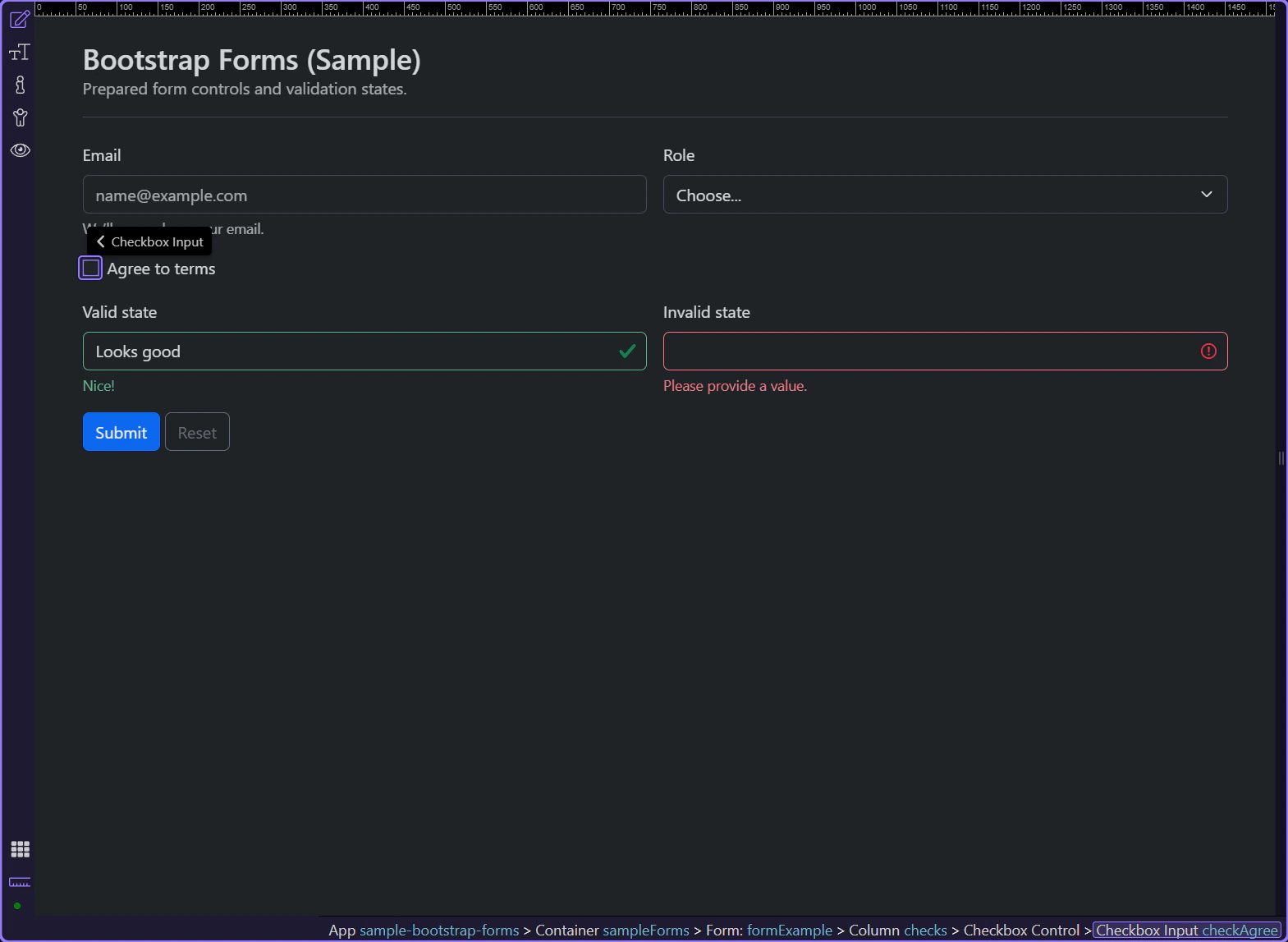
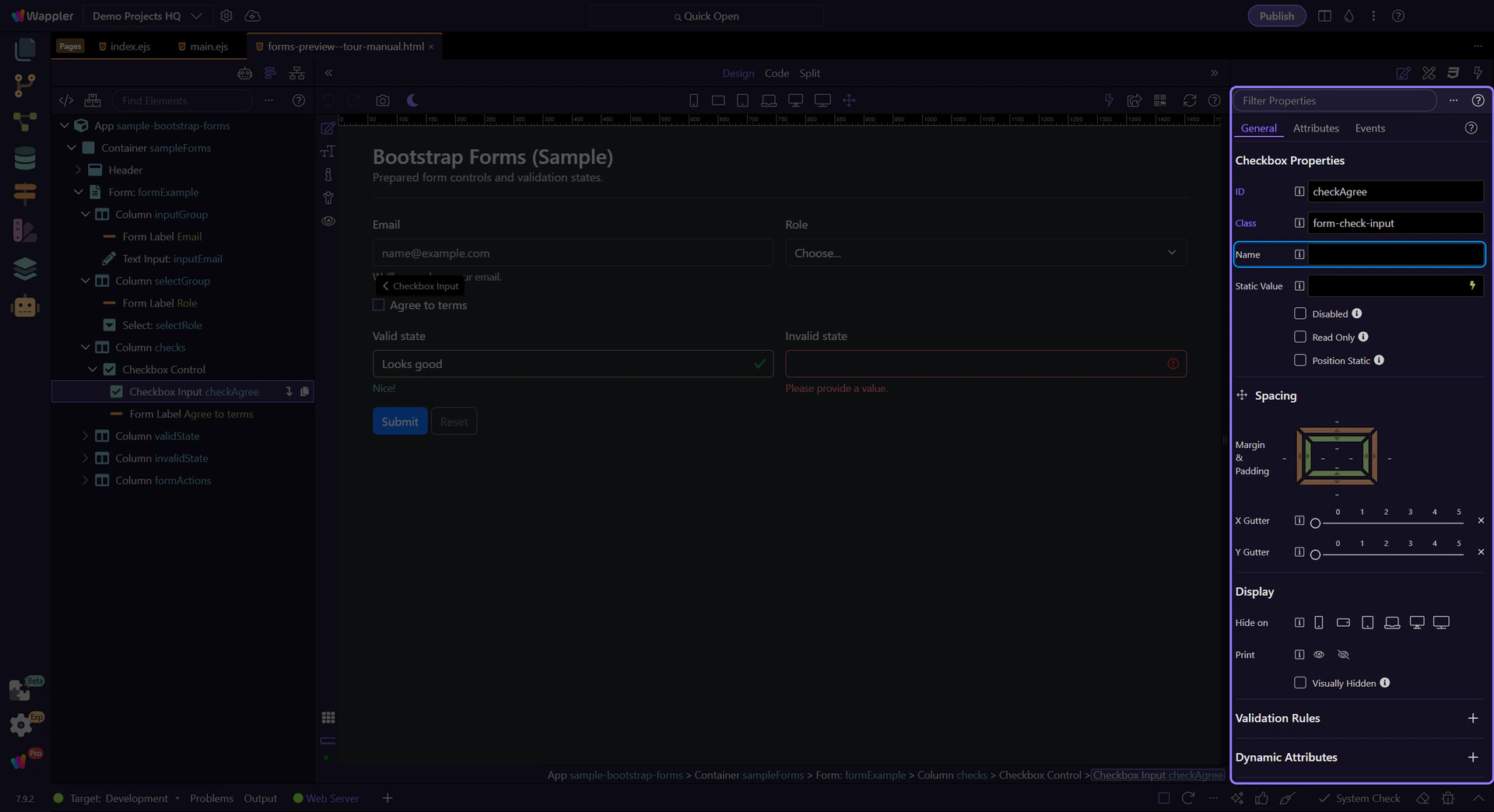
Use Name for form posting and integrations. This step matters because Checkbox: Name is part of Selection Panels Properties Checkboxname, and understanding that context makes the next action easier to repeat in your own project.
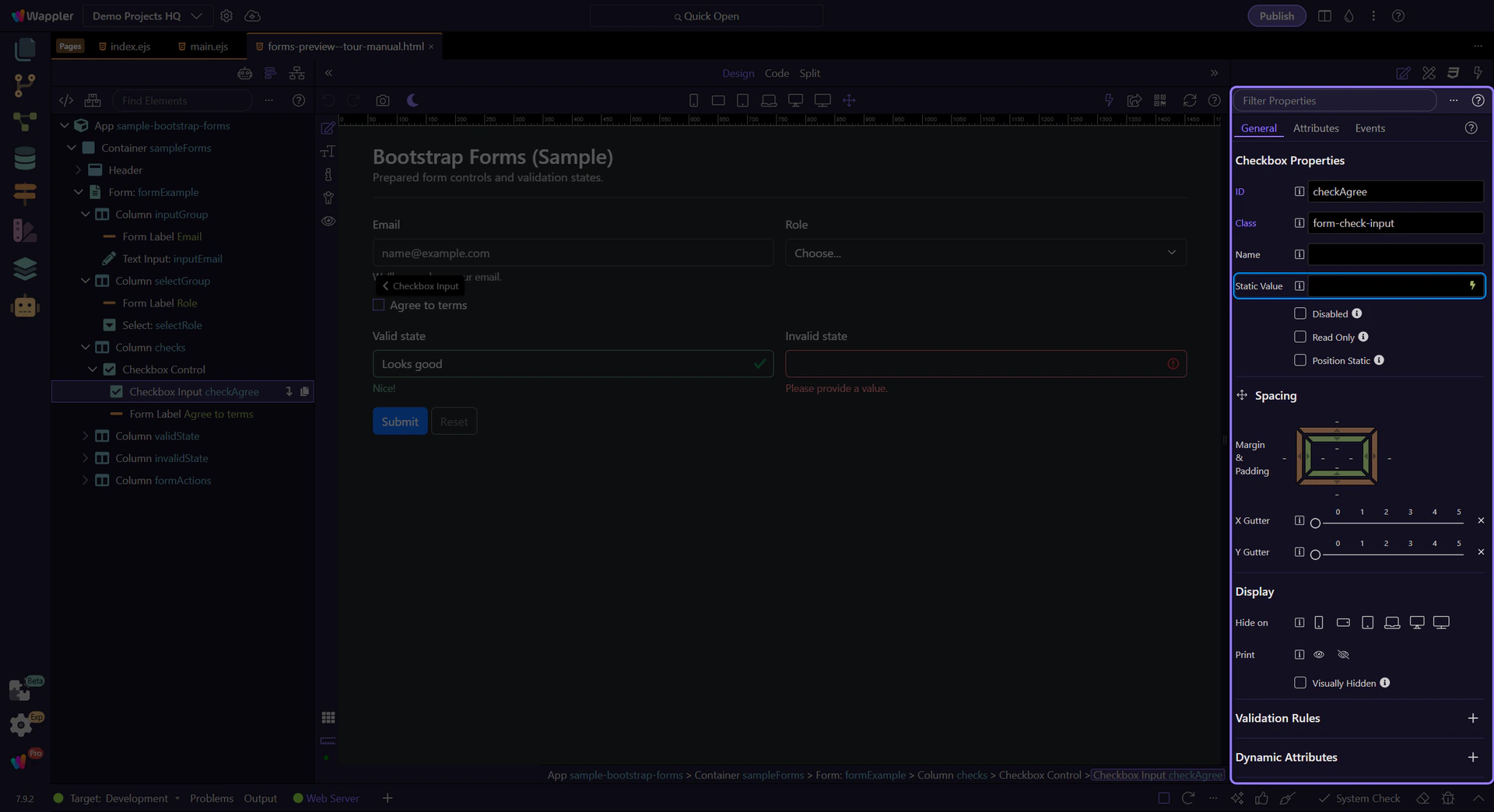
Use Static Value when you need a specific value on submit. This step matters because Checkbox: Static Value is part of Selection Panels Properties Checkboxvalue, and understanding that context makes the next action easier to repeat in your own project.
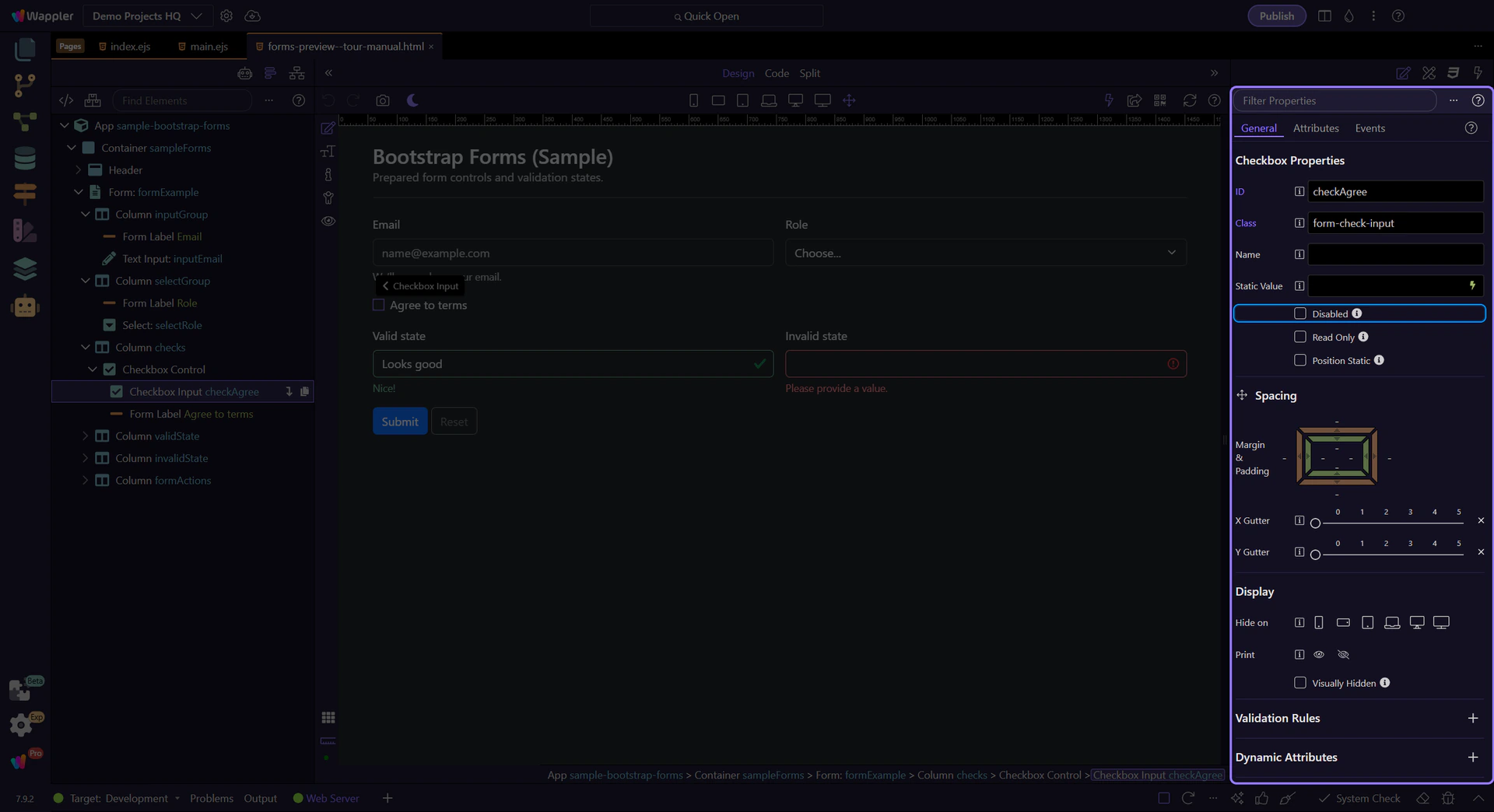
Toggle Disabled to prevent changes. This step matters because Checkbox: Disabled is part of Selection Panels Properties Checkboxdisabled, and understanding that context makes the next action easier to repeat in your own project.
Toggle Position Static when you need the checkbox aligned without absolute positioning. This step matters because Checkbox: Position Static is part of Selection Panels Properties Checkboxposstatic, and understanding that context makes the next action easier to repeat in your own project.
Bootstrap forms are mostly attributes (type/placeholder) plus a few key classes (form-control, form-select, is-valid/is-invalid).
Bootstrap provides the visual states, but you decide when to show them:
Avoid showing errors immediately on first load.
Continue with a related tour or go back to the Bootstrap tours index.