
Creating Reusable Actions with Server Connect Library
Overview Server Connect Library allows you to create reusable actions, which can be included in any of your API Actions: This way you can define some complex actions once, use input parameters for the
Overview
Section titled “Overview”Server Connect Library allows you to create reusable actions, which can be included in any of your API Actions:
Step 3
Section titled “Step 3”This way you can define some complex actions once, use input parameters for the values and then execute or include them in different API Actions, when needed.
Using Library Actions
Section titled “Using Library Actions”There are two ways of using Library Actions - Include and Exec:
Both of them run the selected Library Action but in different ways.
Section titled “Both of them run the selected Library Action but in different ways.”Include Action
Section titled “Include Action”The Include Action allows you to include a Library Action Inline in your API Action. It allows you to pick data from inside the Library Actions - as if they were steps in your API Action.
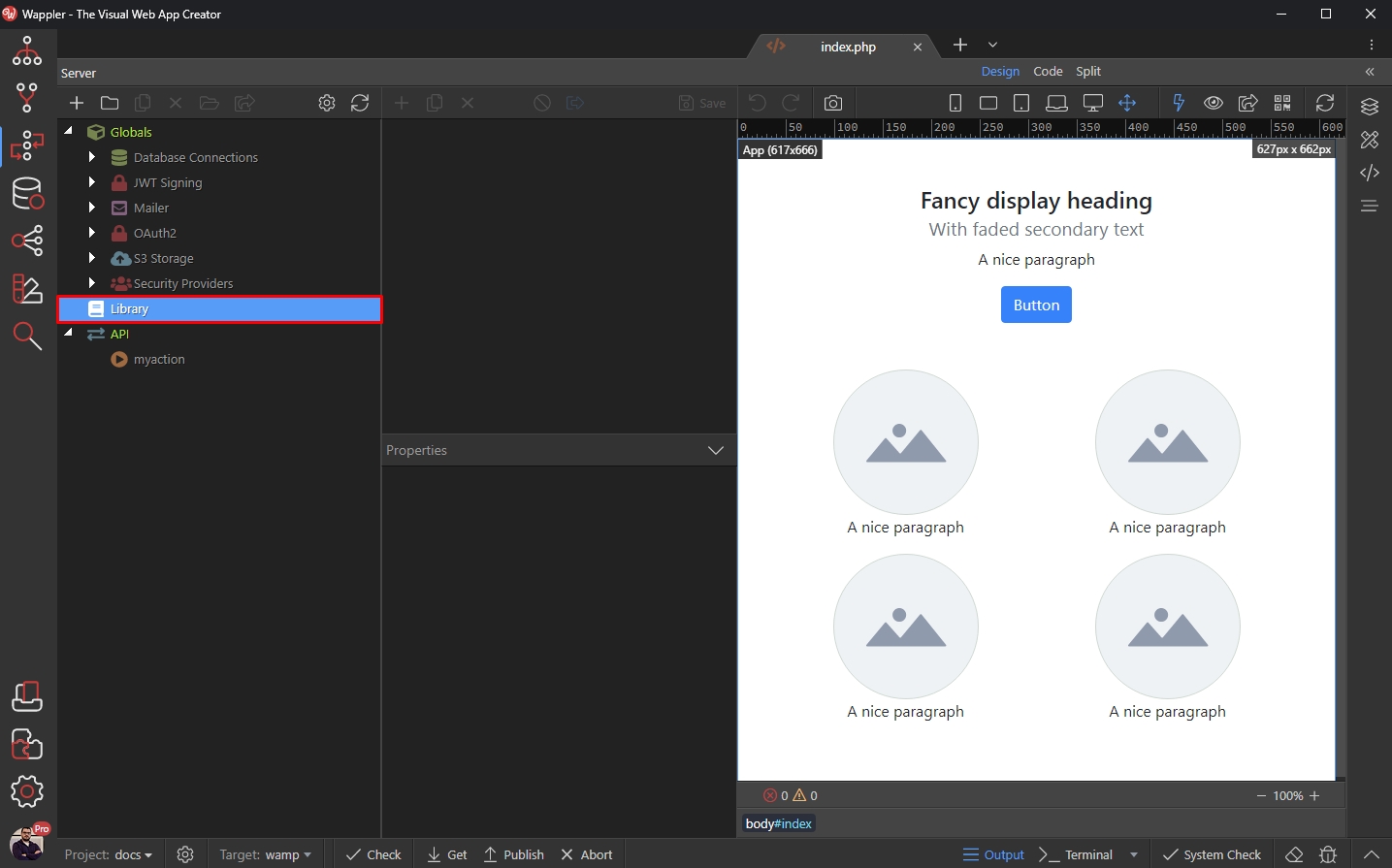
We will show you a simple example of how this works. First, right clicking Library in the Server Connect panel and select Add Library Item:

Then add name for it:
Section titled “Then add name for it:”
Let’s add a database query in the steps. Right click steps and add a Database Single Query:
Section titled “Let’s add a database query in the steps. Right click steps and add a Database Single Query:”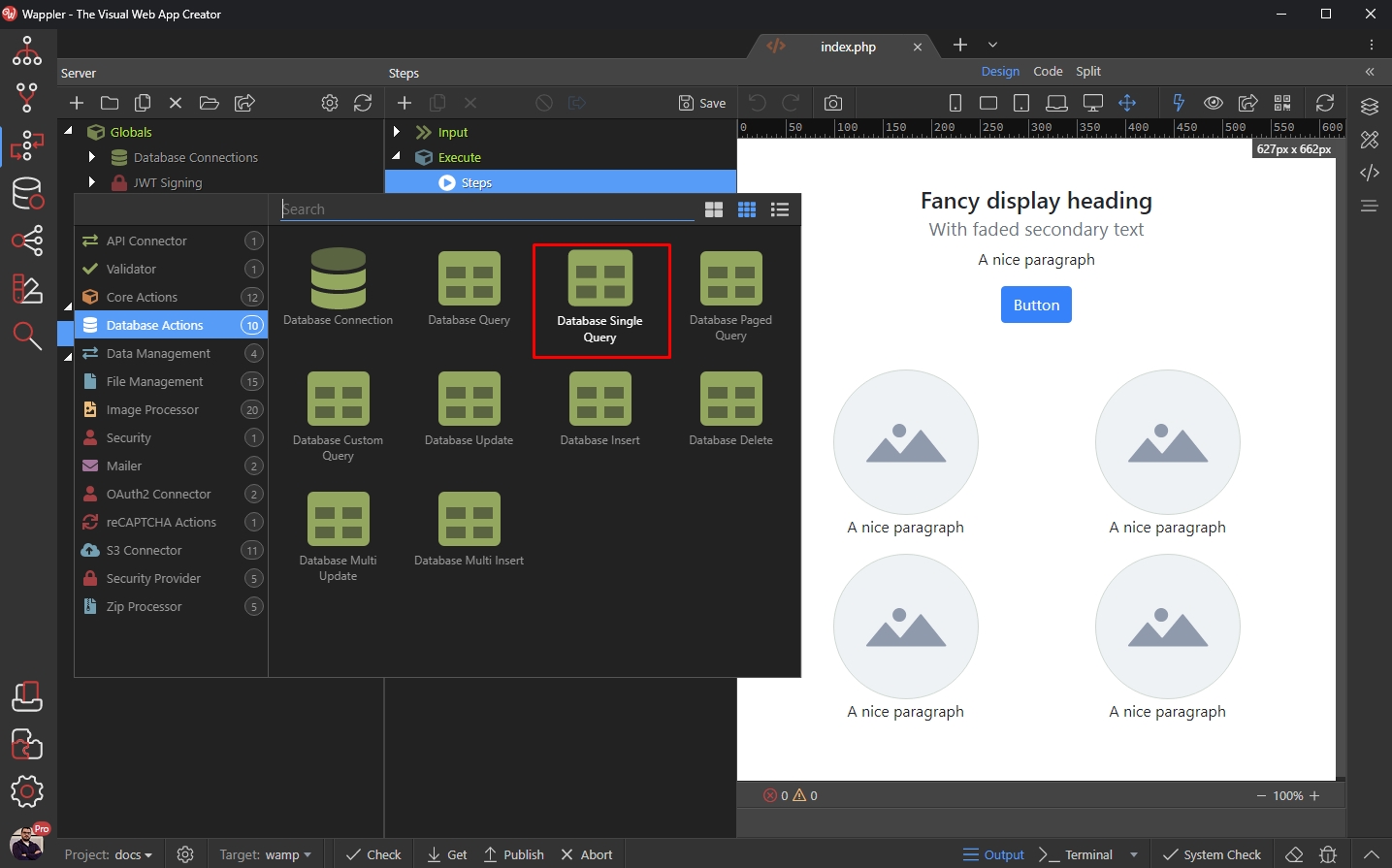
Setup the query options:
Section titled “Setup the query options:”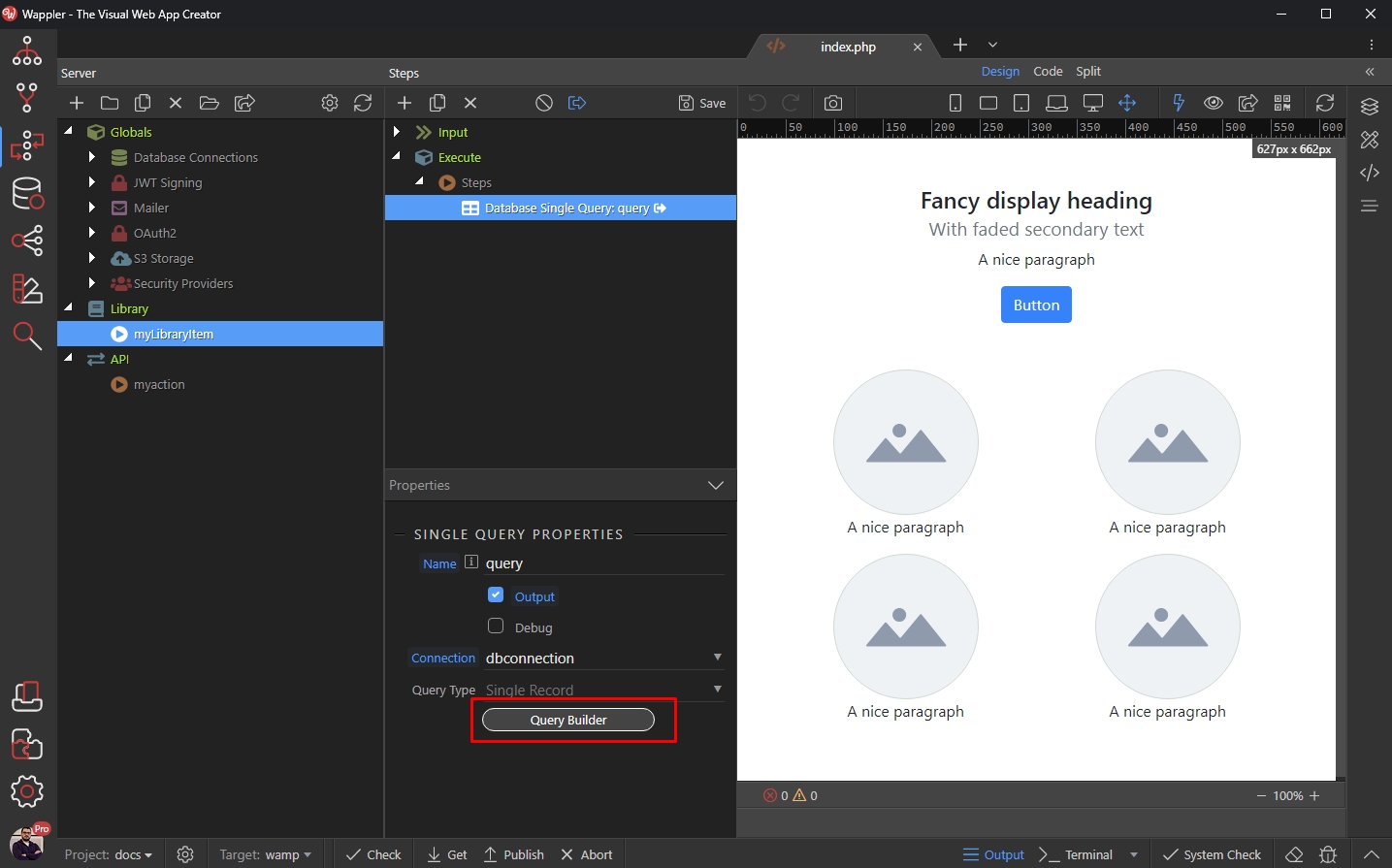
And Save your Library Action when you are done:
Section titled “And Save your Library Action when you are done:”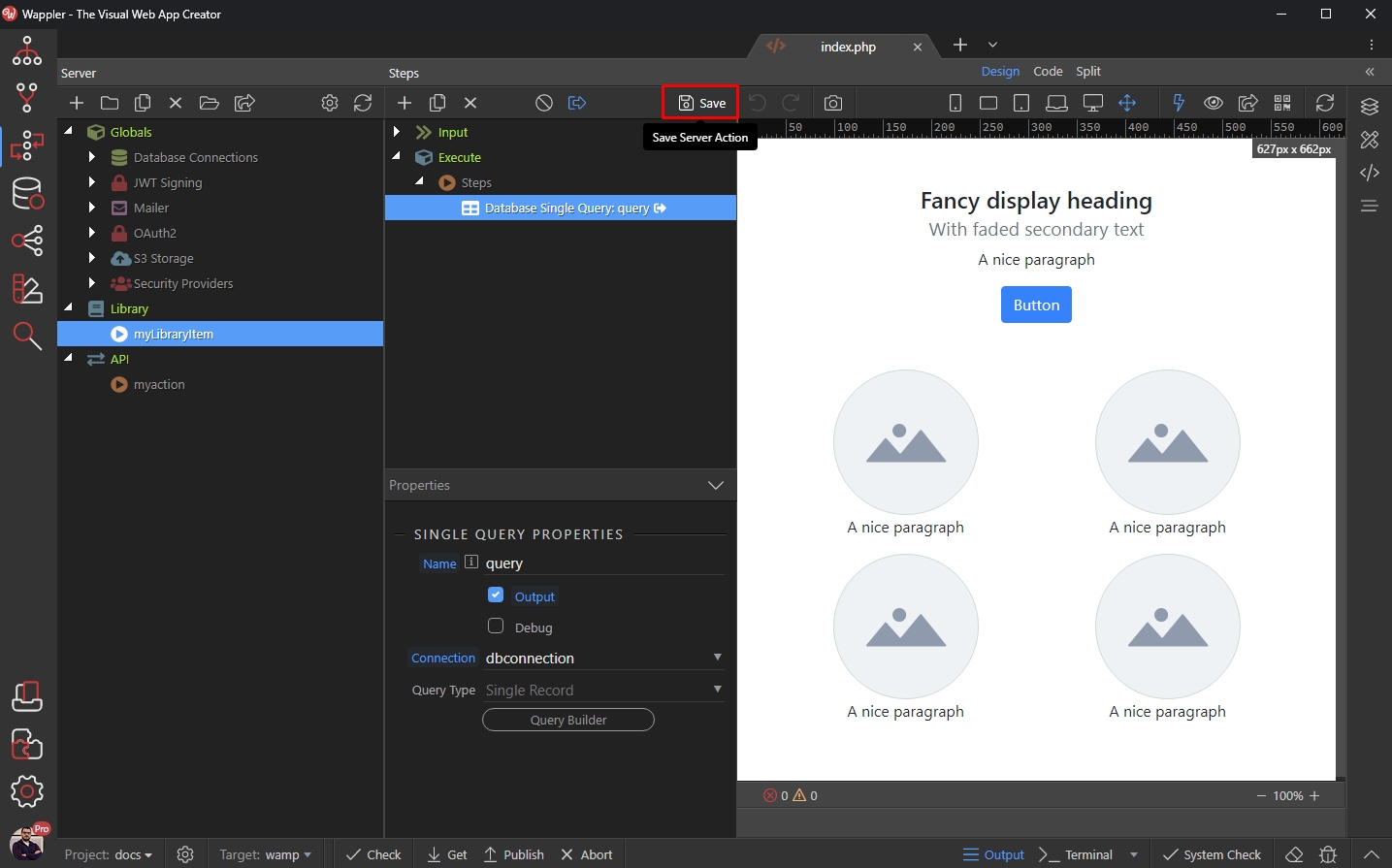
Open your API Action, where you want to include the Library Action and right click steps:
Section titled “Open your API Action, where you want to include the Library Action and right click steps:”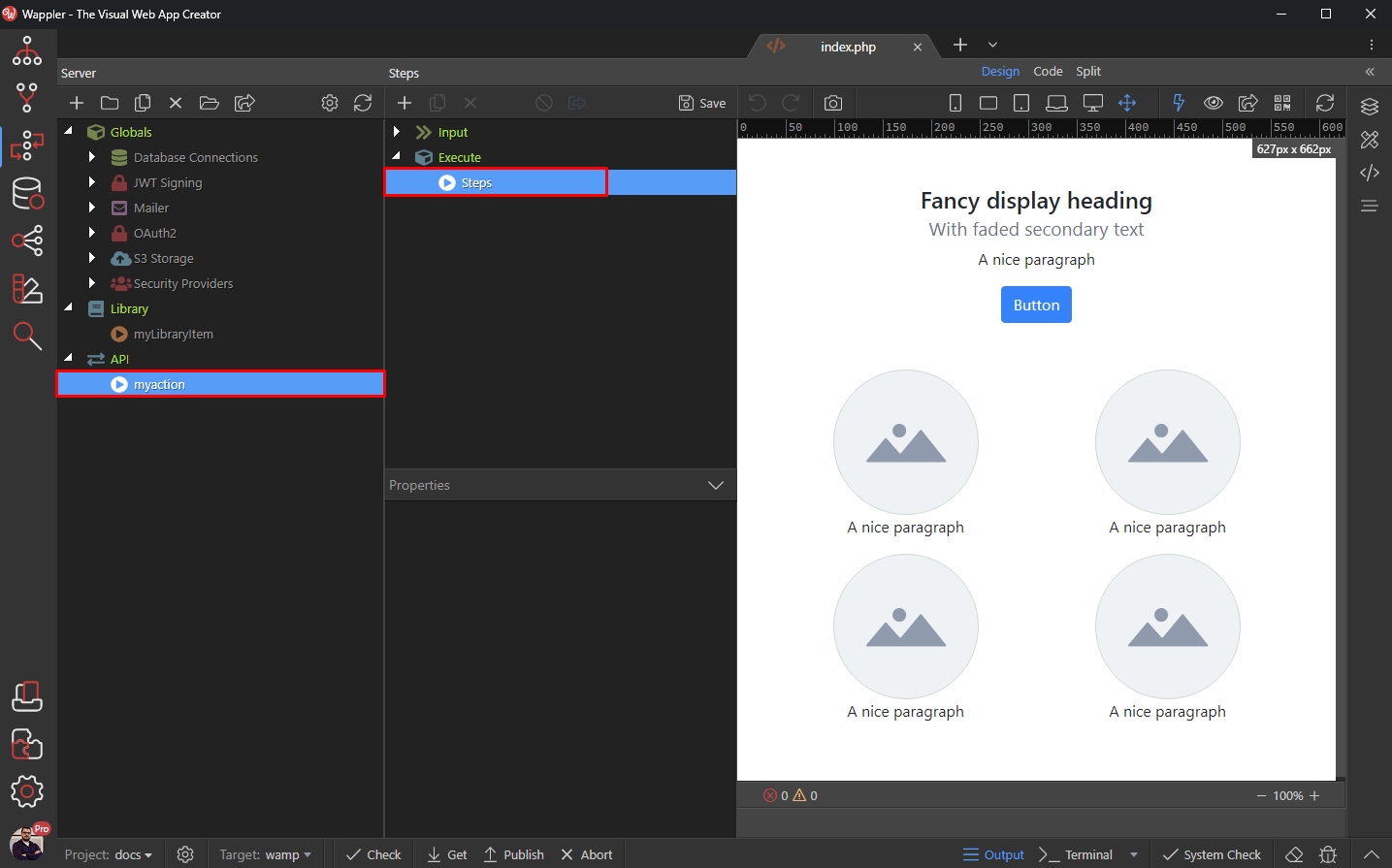
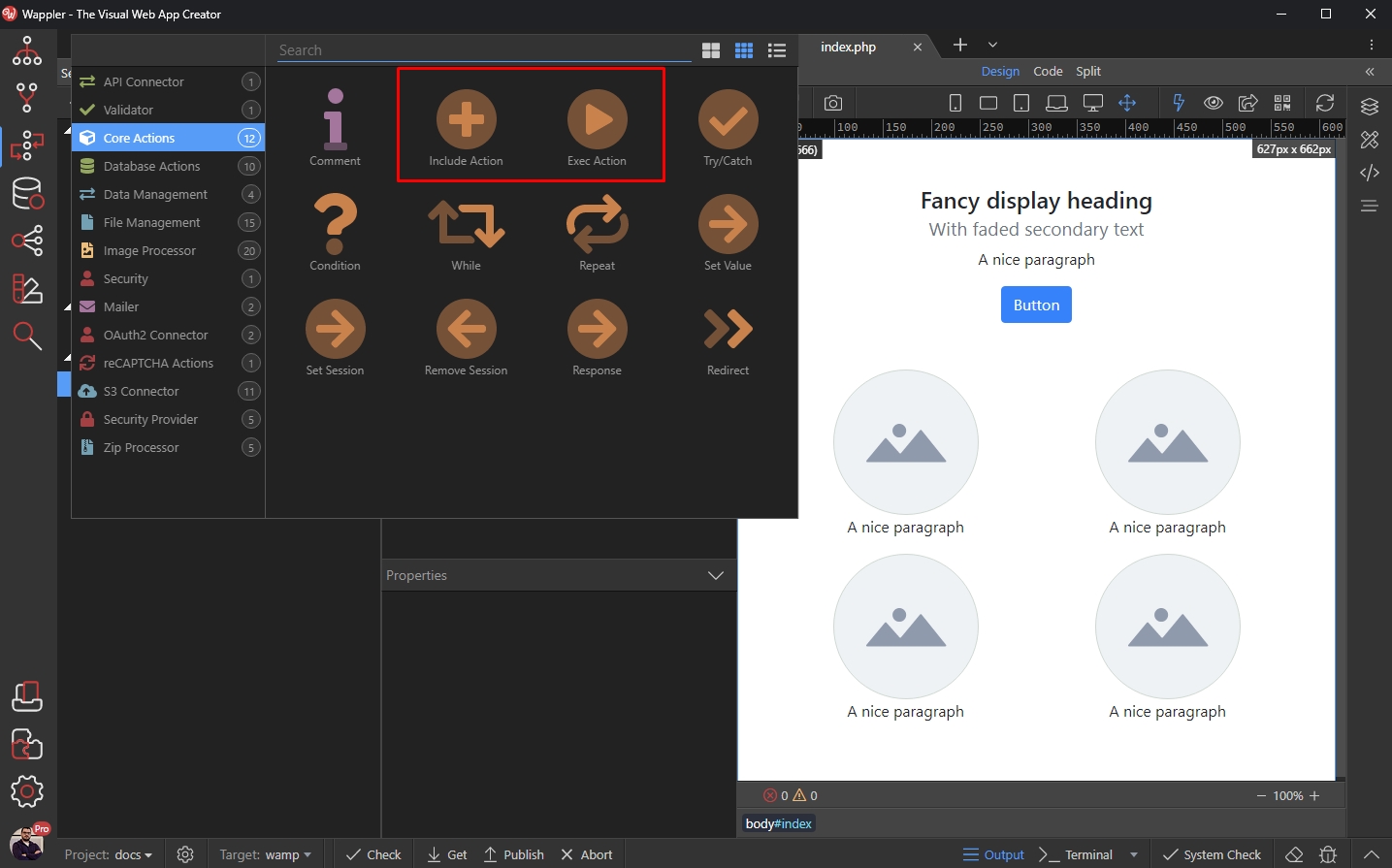
Open Core Actions and Select Include Action:
Section titled “Open Core Actions and Select Include Action:”
Then click the Action Picker button:
Section titled “Then click the Action Picker button:”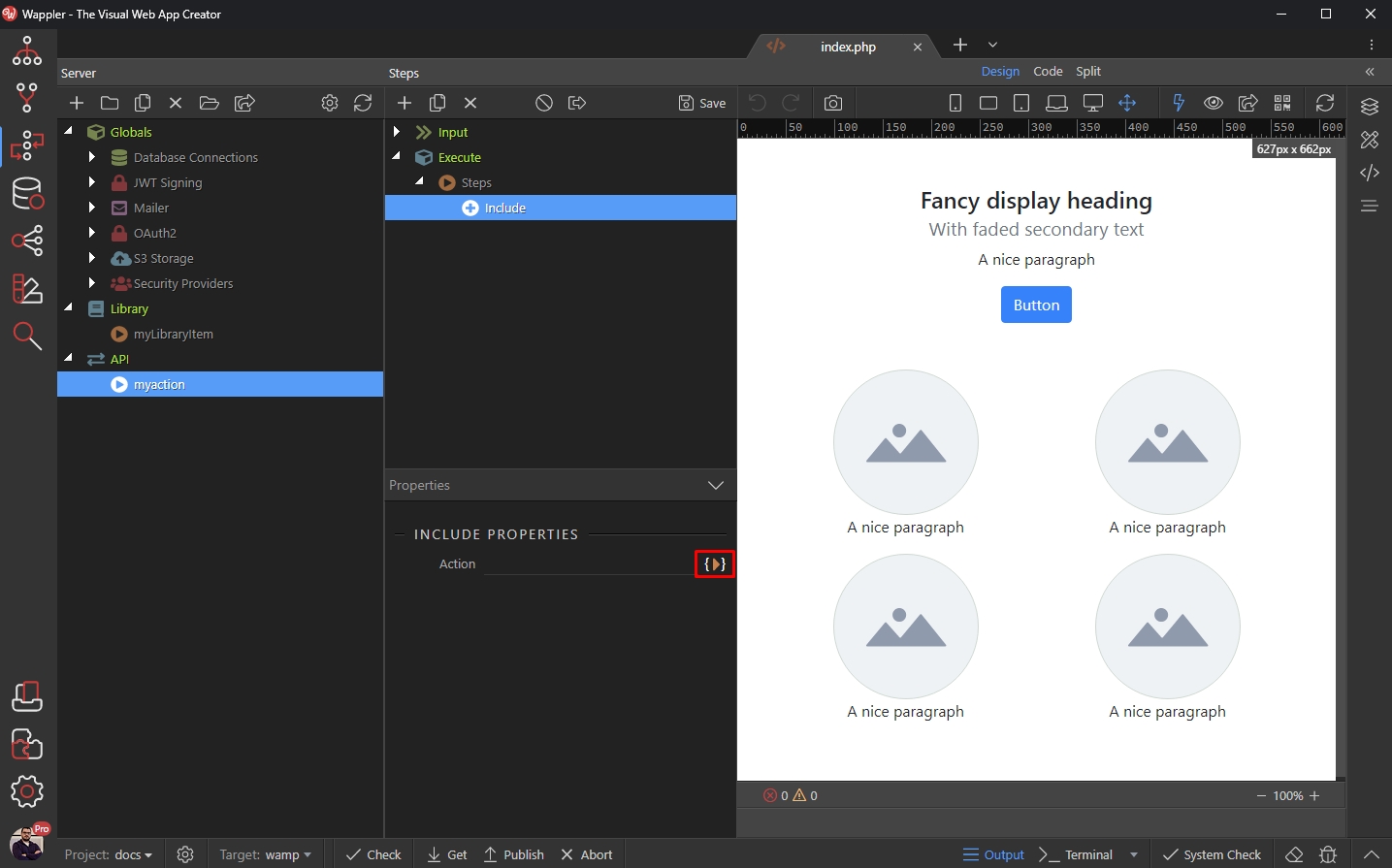
And select your Library Action:
Section titled “And select your Library Action:”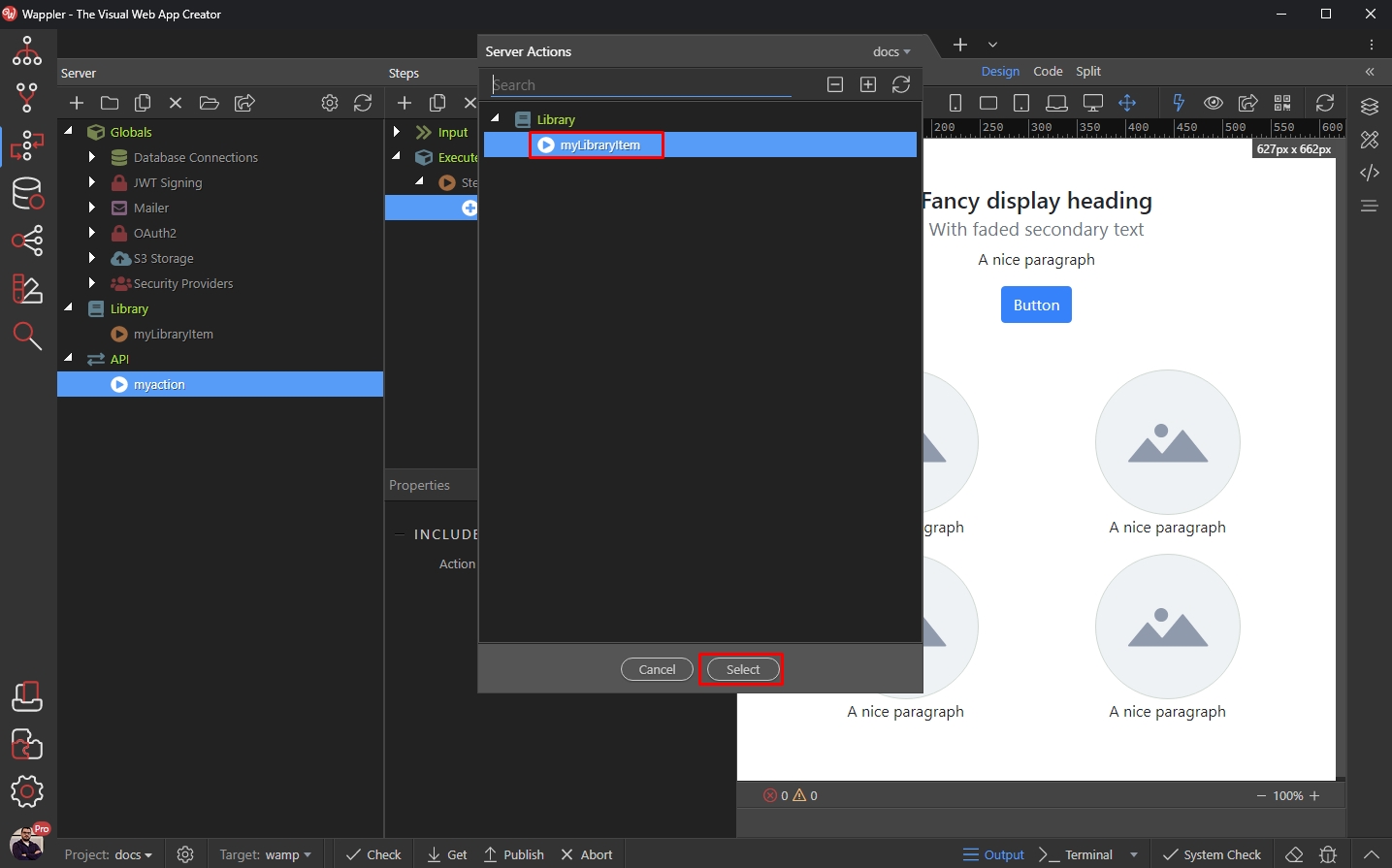
Step 15
Section titled “Step 15”Now, to demonstrate the ability to pick data from the included action, we just add a set value step, so right click on the include step:

And add Set Value:
Section titled “And add Set Value:”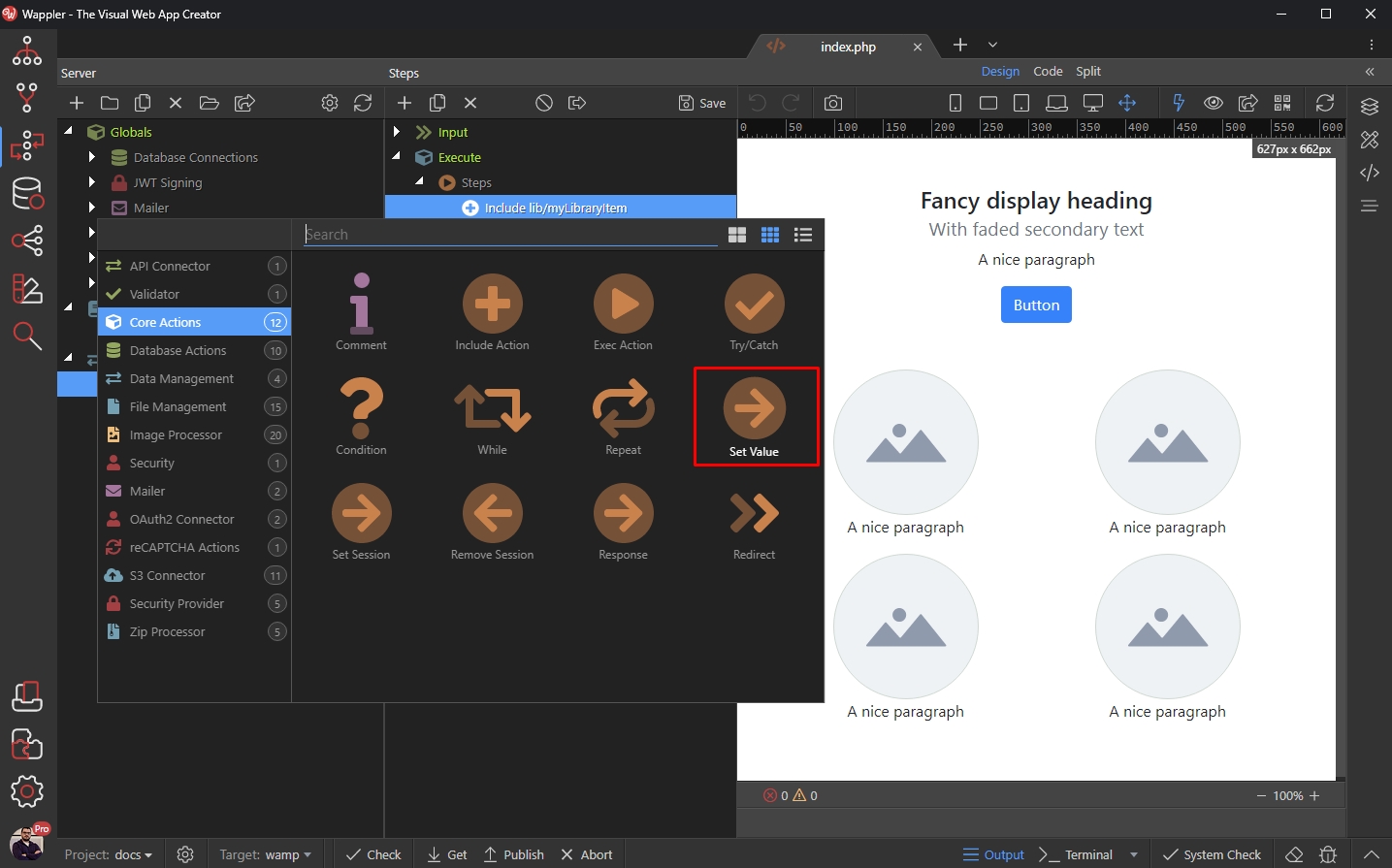
Click the dynamic data picker:
Section titled “Click the dynamic data picker:”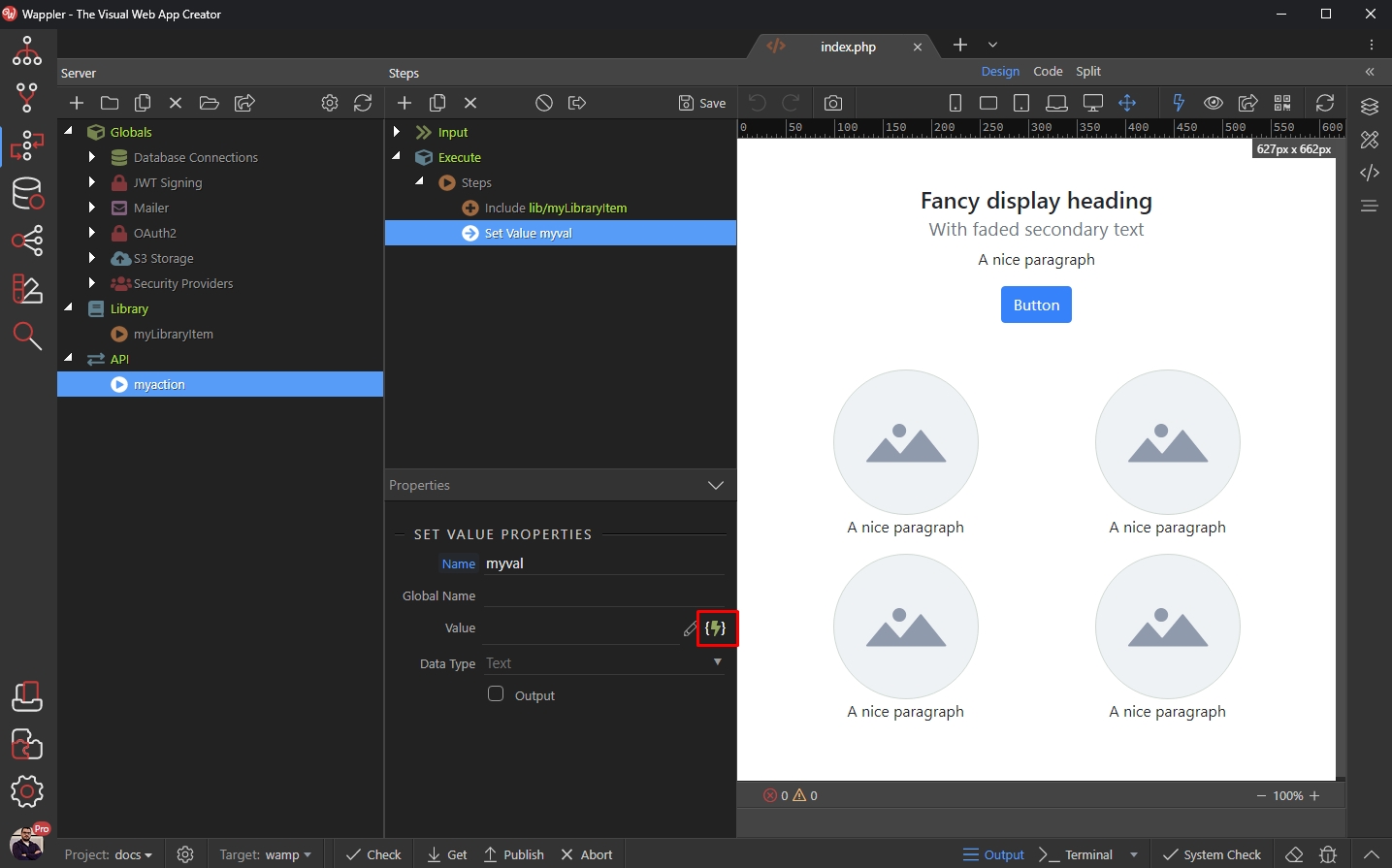
And you can see the data from your Library Item available in the picker:
Section titled “And you can see the data from your Library Item available in the picker:”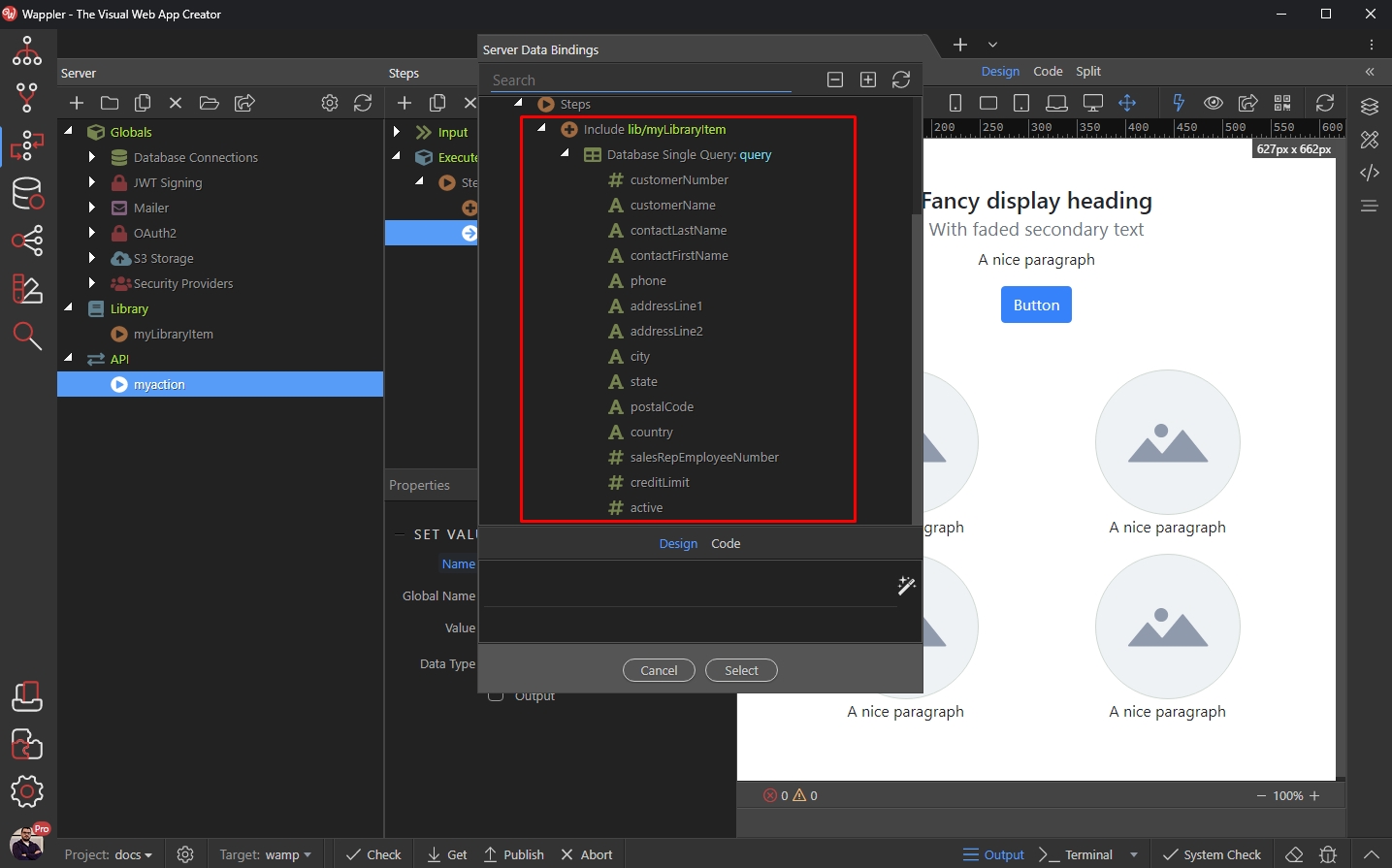
Select the data you need and click the Select button:
Section titled “Select the data you need and click the Select button:”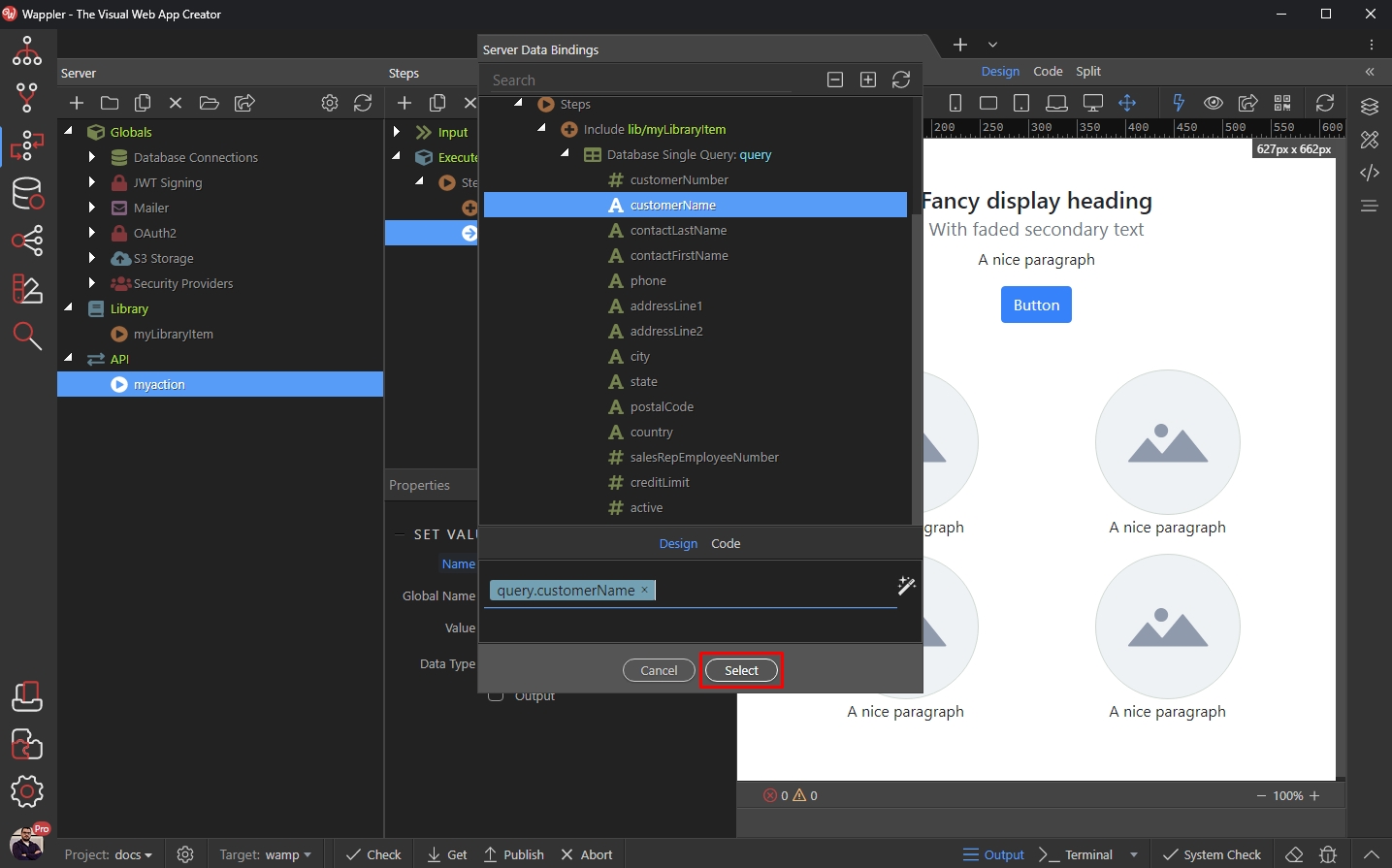
Save your API Action:
Section titled “Save your API Action:”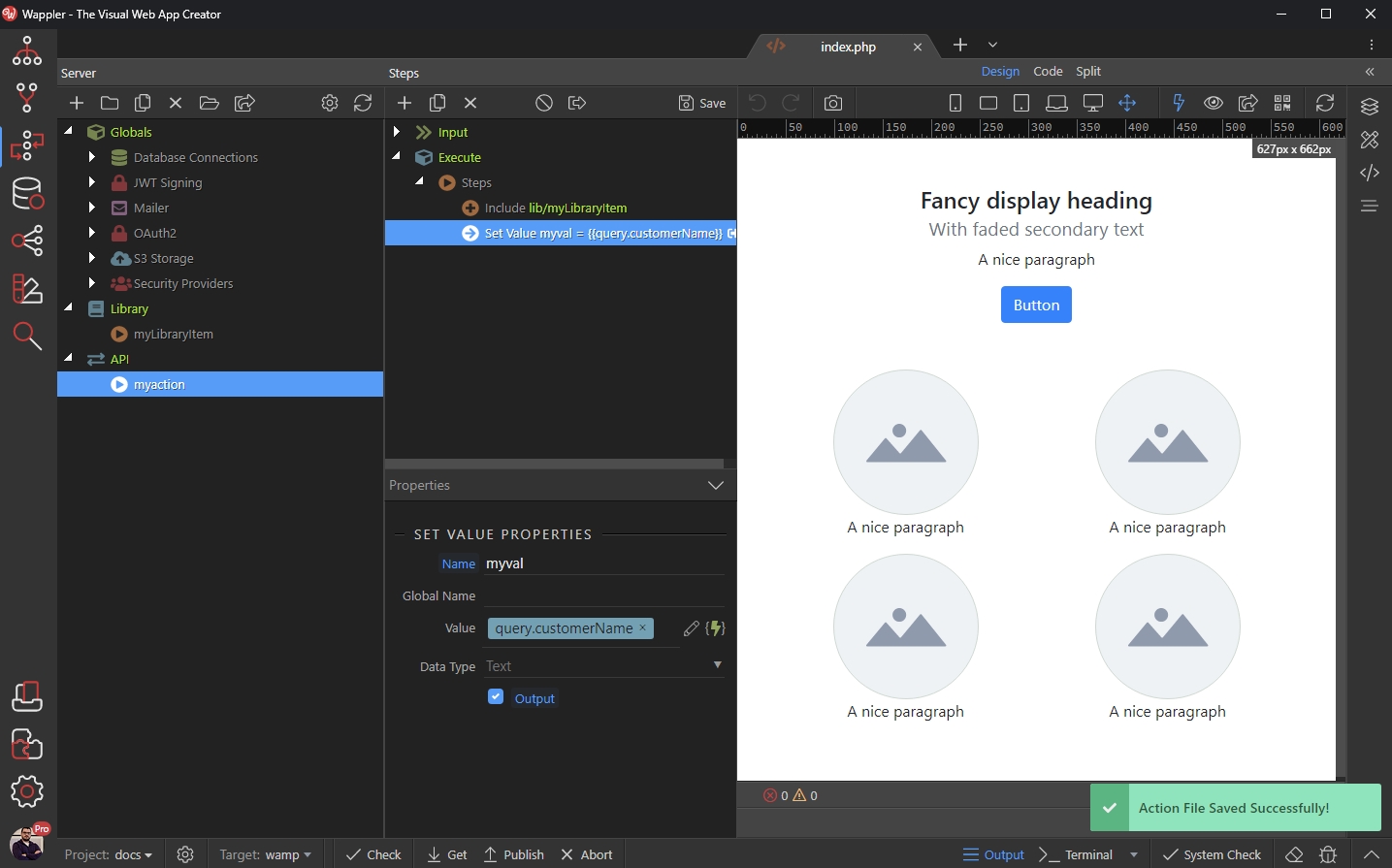
Step 21
Section titled “Step 21”Then let’s run the server action in the browser to preview the results. You can see the data from the Library Action as well as the Set Value step showing what we’ve selected:

Exec Action
Section titled “Exec Action”The Exec Action allows you to execute an Library Action as a single/separate action and only get its output data. Using Exec Action you can pass values to the input parameters.
A good use case can be defining a complex image manipulation workflow as an Library Action and use input params to control the resize/crop width/height, image url and other options.
We will show you another simple example, this way demonstrating how the Exec Action works:
First, right clicking Library in the Server Connect panel and select Add Library Item:
Then add name for it:
Section titled “Then add name for it:”Defining Input Parameters
Section titled “Defining Input Parameters”With Exec Action you can use input parameters to your Library Action. This way you can send data from your API Actions to the Library Action, when you execute it.
Let’s create an input parameter. Open Input, right click $_PARAM and add new variable:
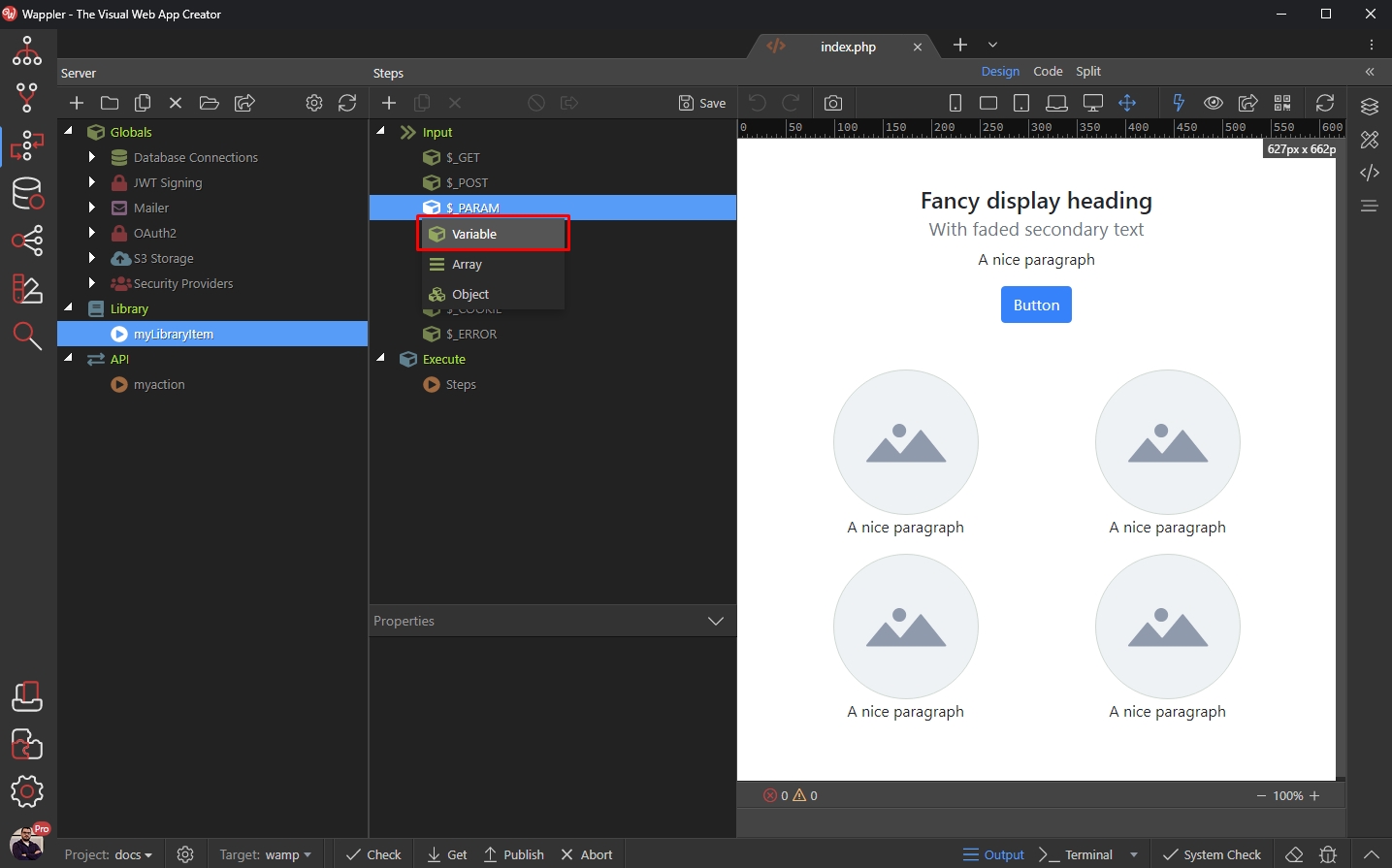
Add a name to it:
Section titled “Add a name to it:”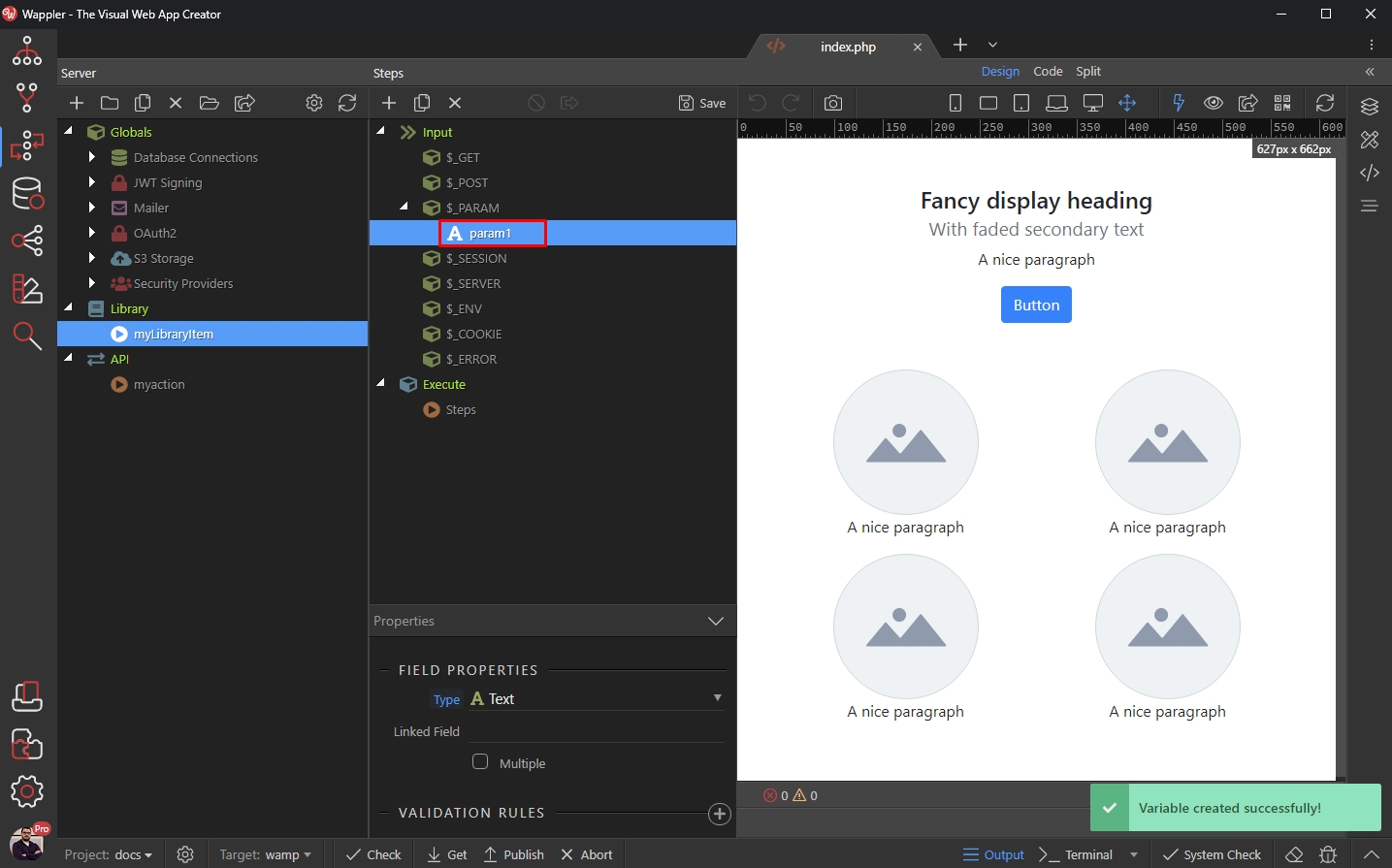
Step 28
Section titled “Step 28”Now we can use this parameter in the steps of the Library Item. For example, we can filter a database query.
Right click steps:

Add a Single Database Query:
Section titled “Add a Single Database Query:”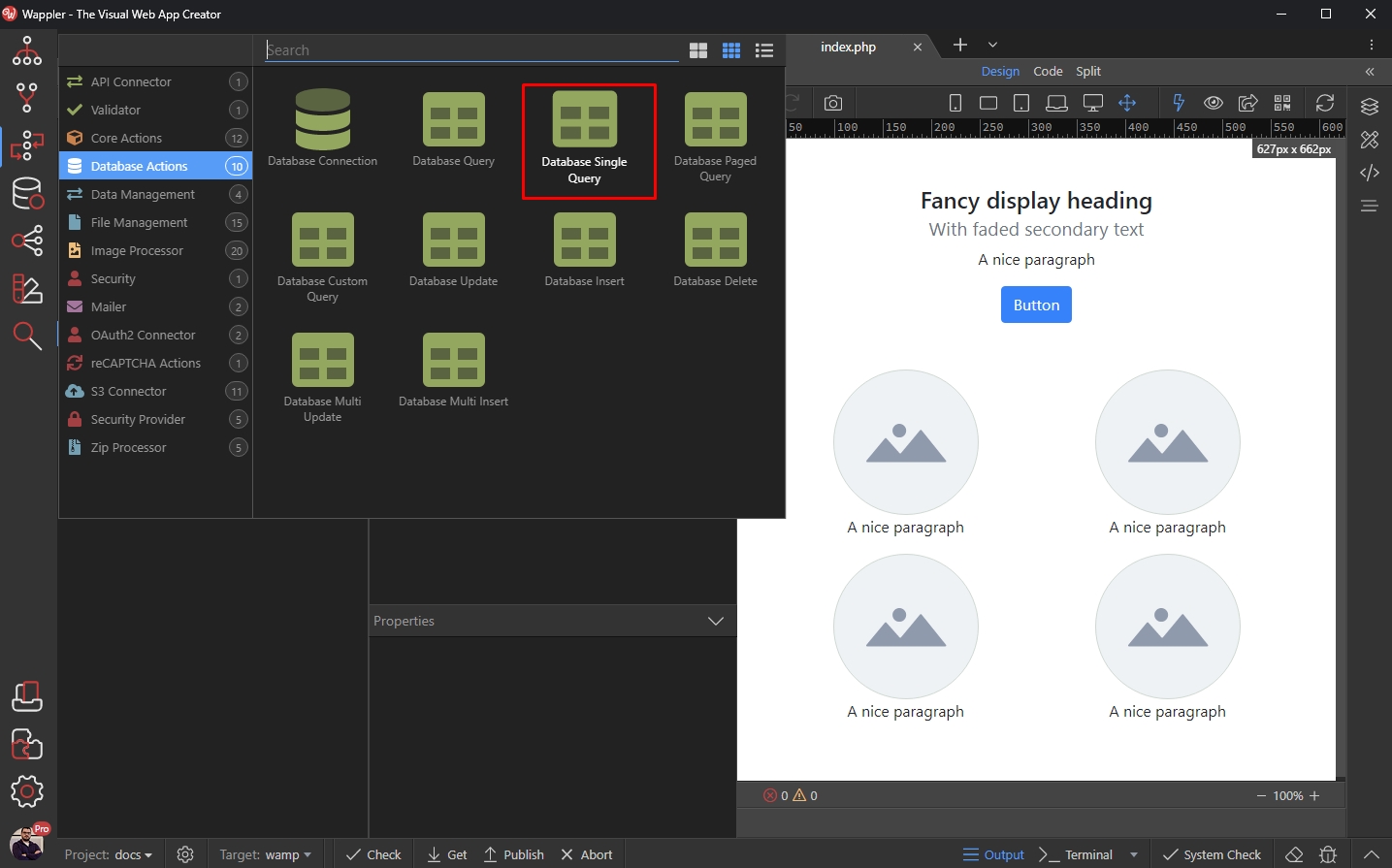
And setup the query options:
Section titled “And setup the query options:”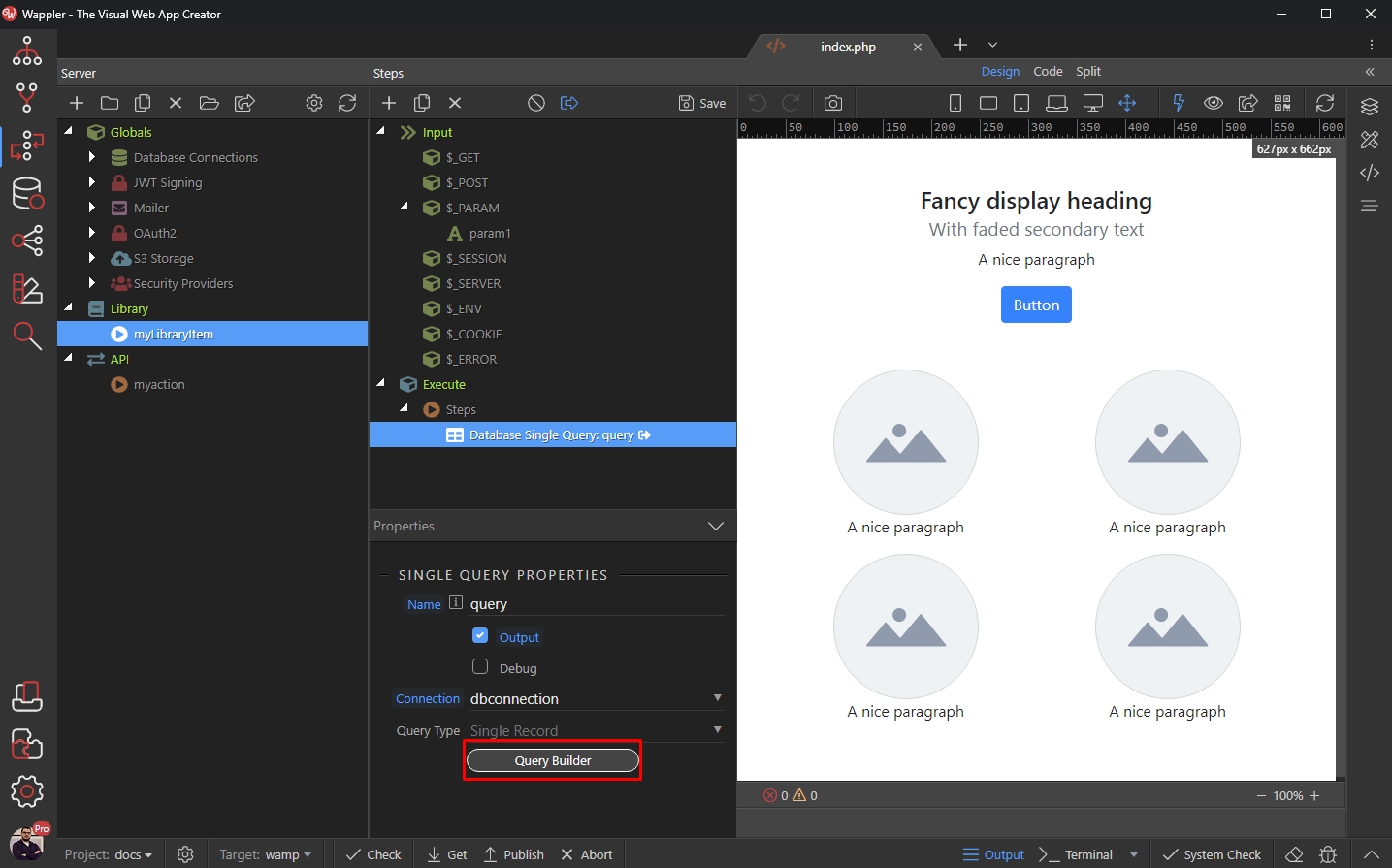
We’ll use the parameter we created to filter the query, so open the Conditions tab:
Section titled “We’ll use the parameter we created to filter the query, so open the Conditions tab:”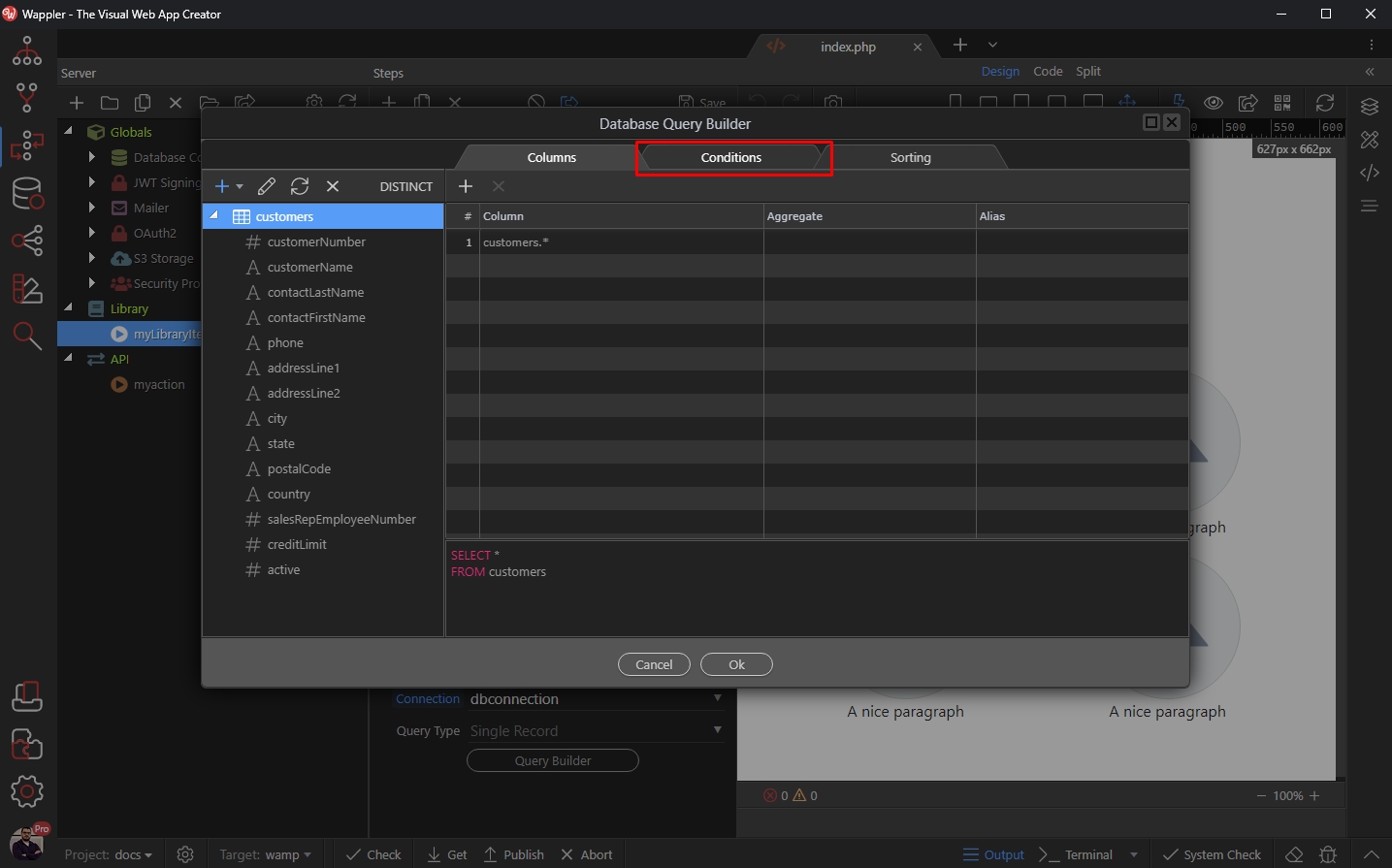
Select the column you’d like to filter by:
Section titled “Select the column you’d like to filter by:”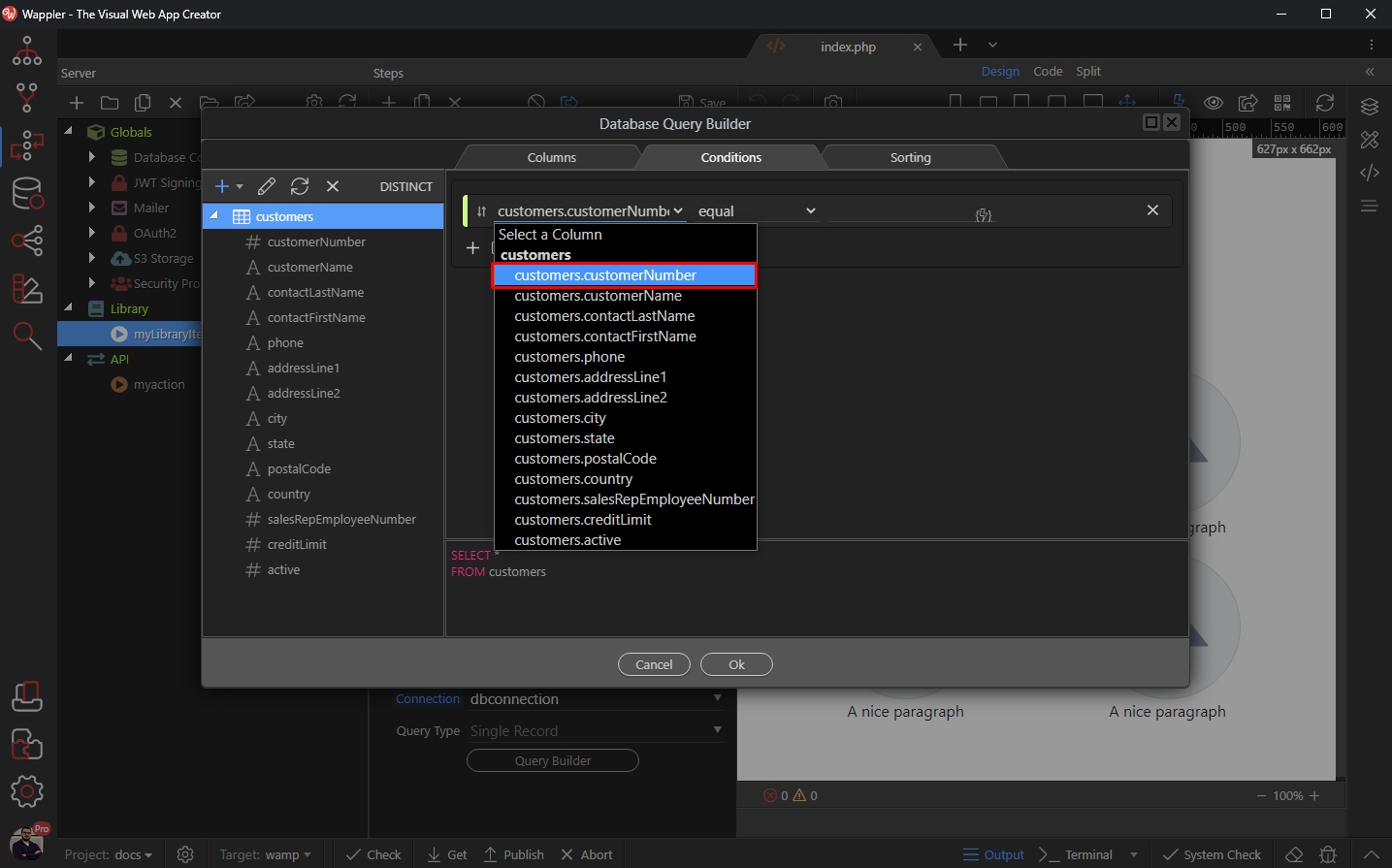
Then click the dynamic data picker button:
Section titled “Then click the dynamic data picker button:”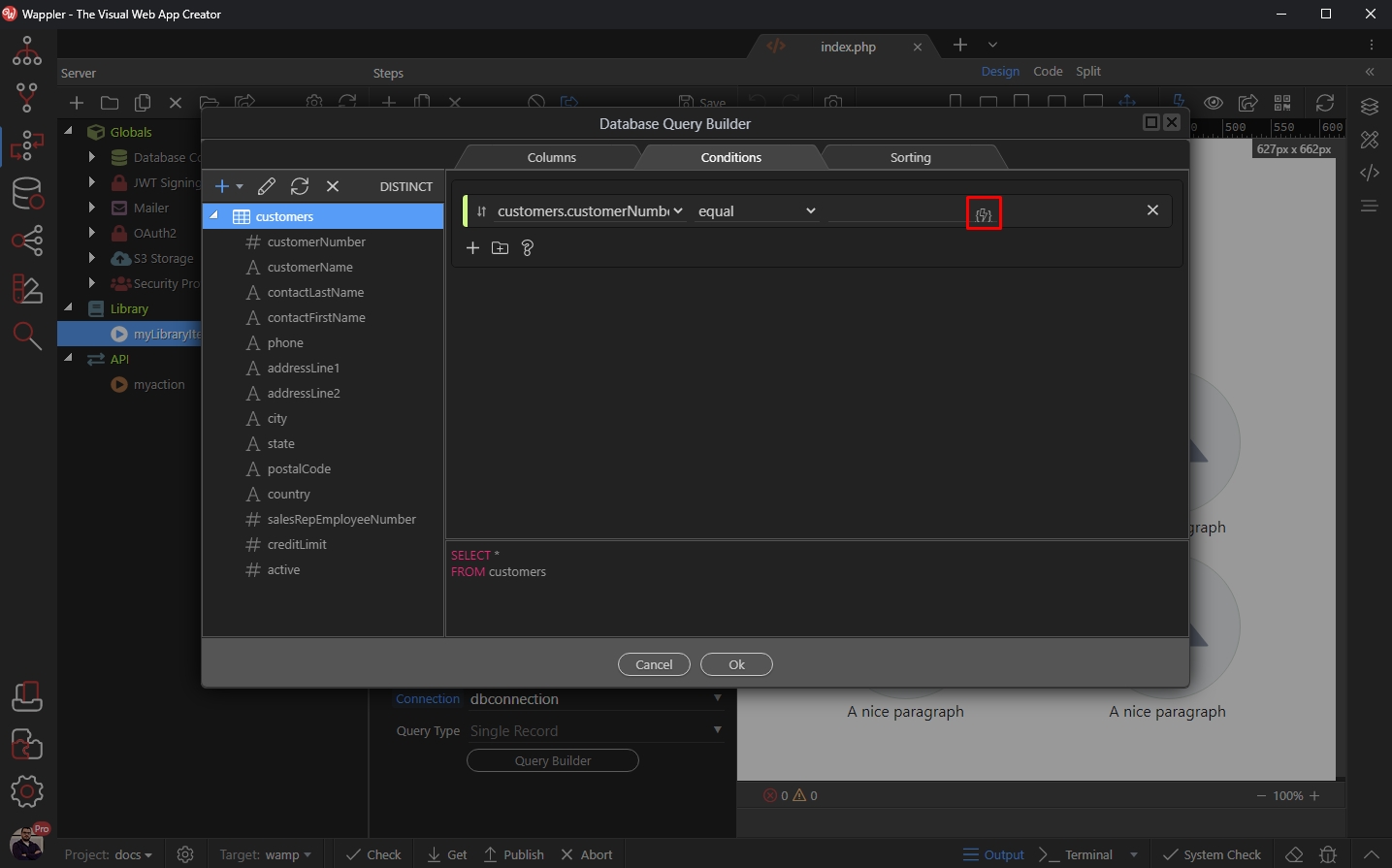
And select the input parameter we’ve created:
Section titled “And select the input parameter we’ve created:”
Click OK:
Section titled “Click OK:”
And save you Library Action:
Section titled “And save you Library Action:”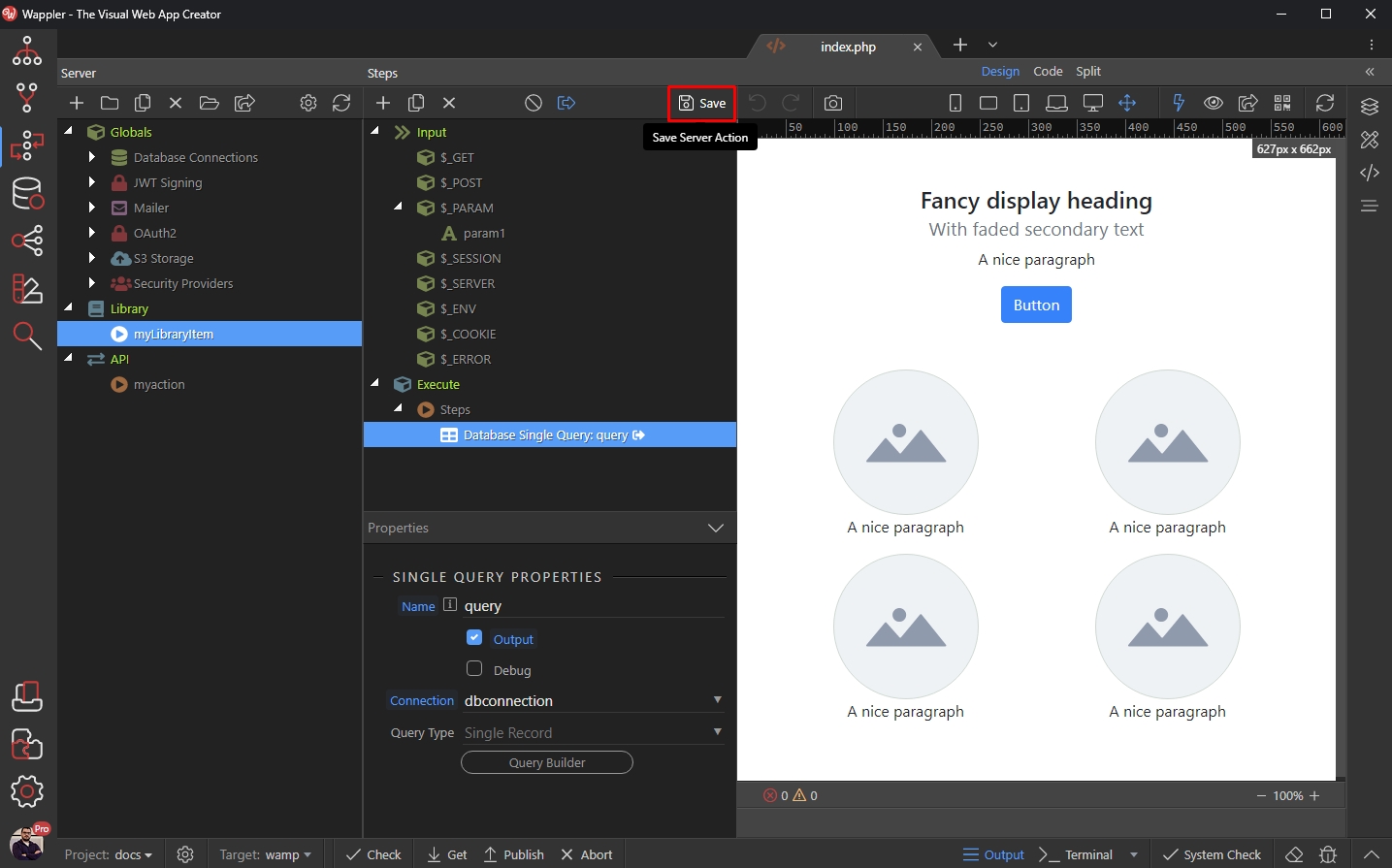
Then open the API Action you want to execute your Library Action in. Right click steps:
Section titled “Then open the API Action you want to execute your Library Action in. Right click steps:”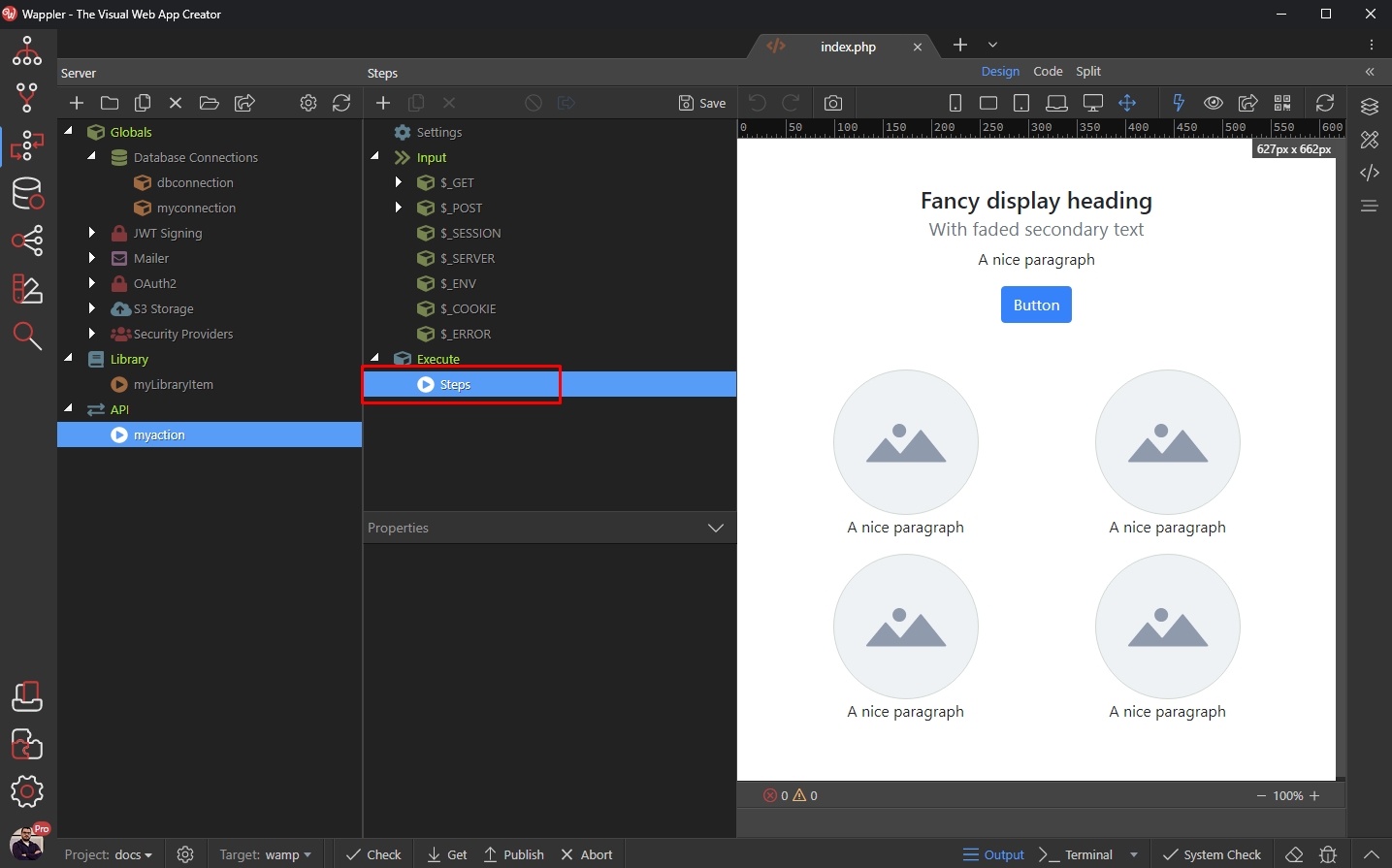
Open Core Actions and select Exec Action:
Section titled “Open Core Actions and select Exec Action:”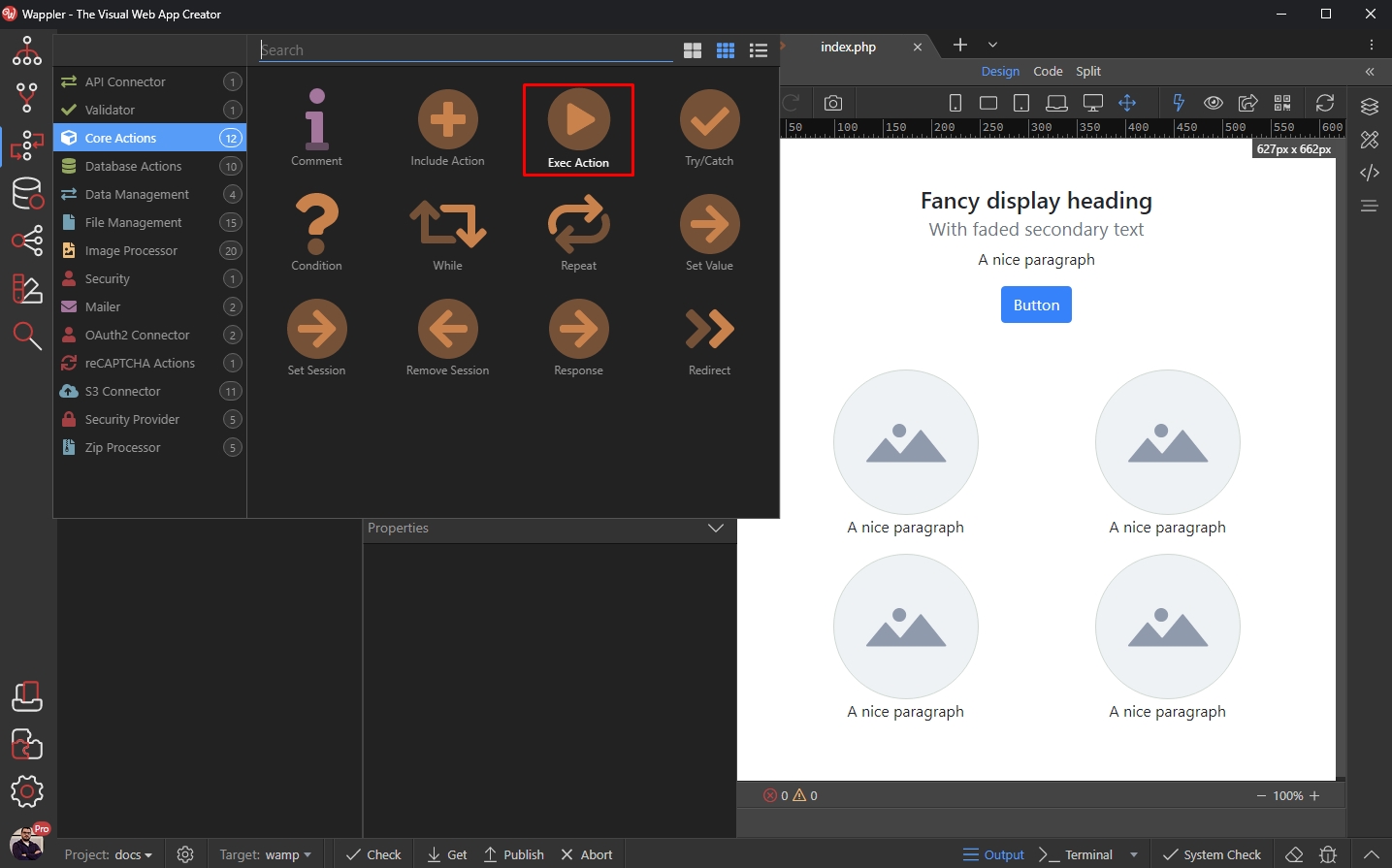
Click the action picker button:
Section titled “Click the action picker button:”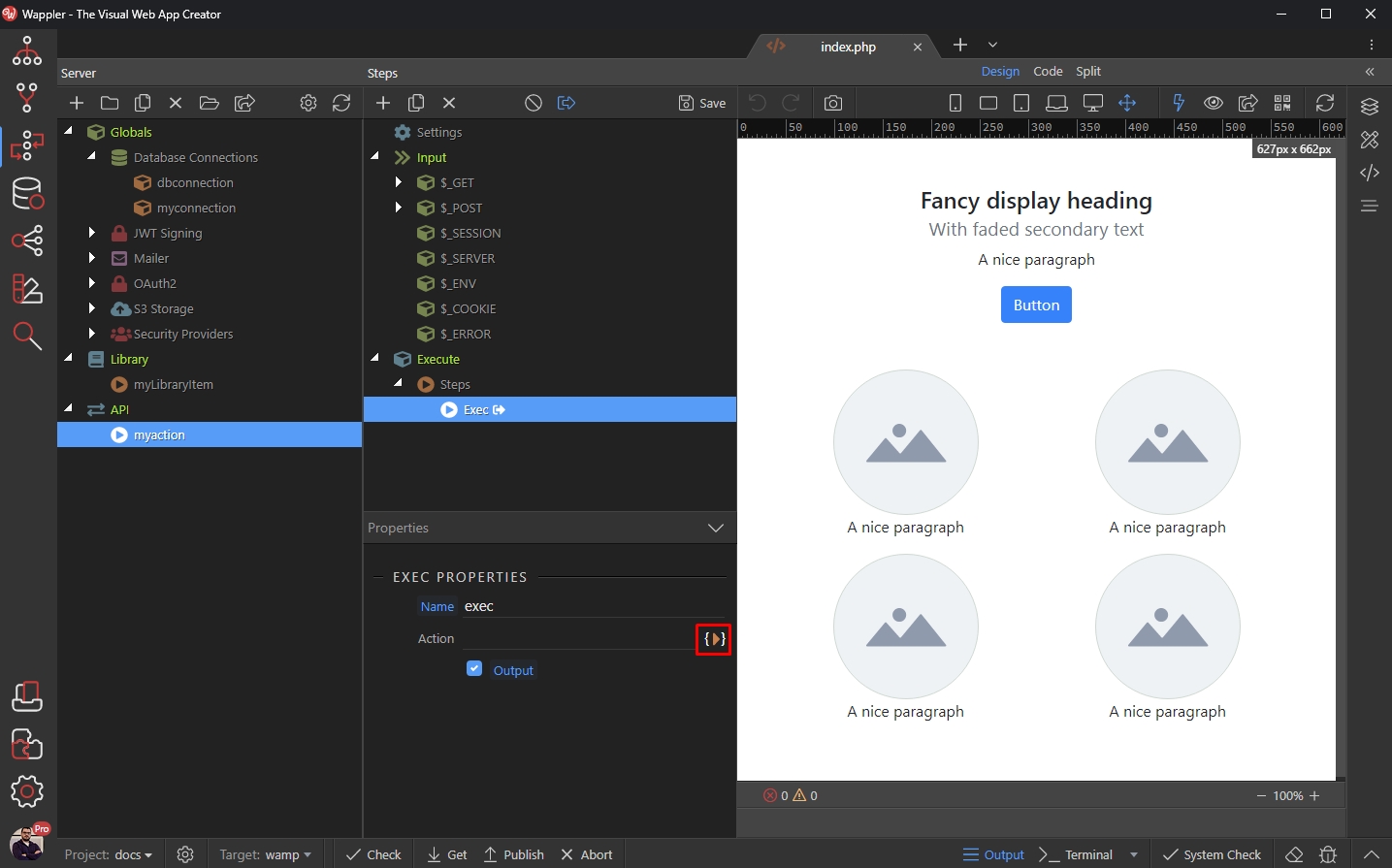
Select your Library Item and click Select:
Section titled “Select your Library Item and click Select:”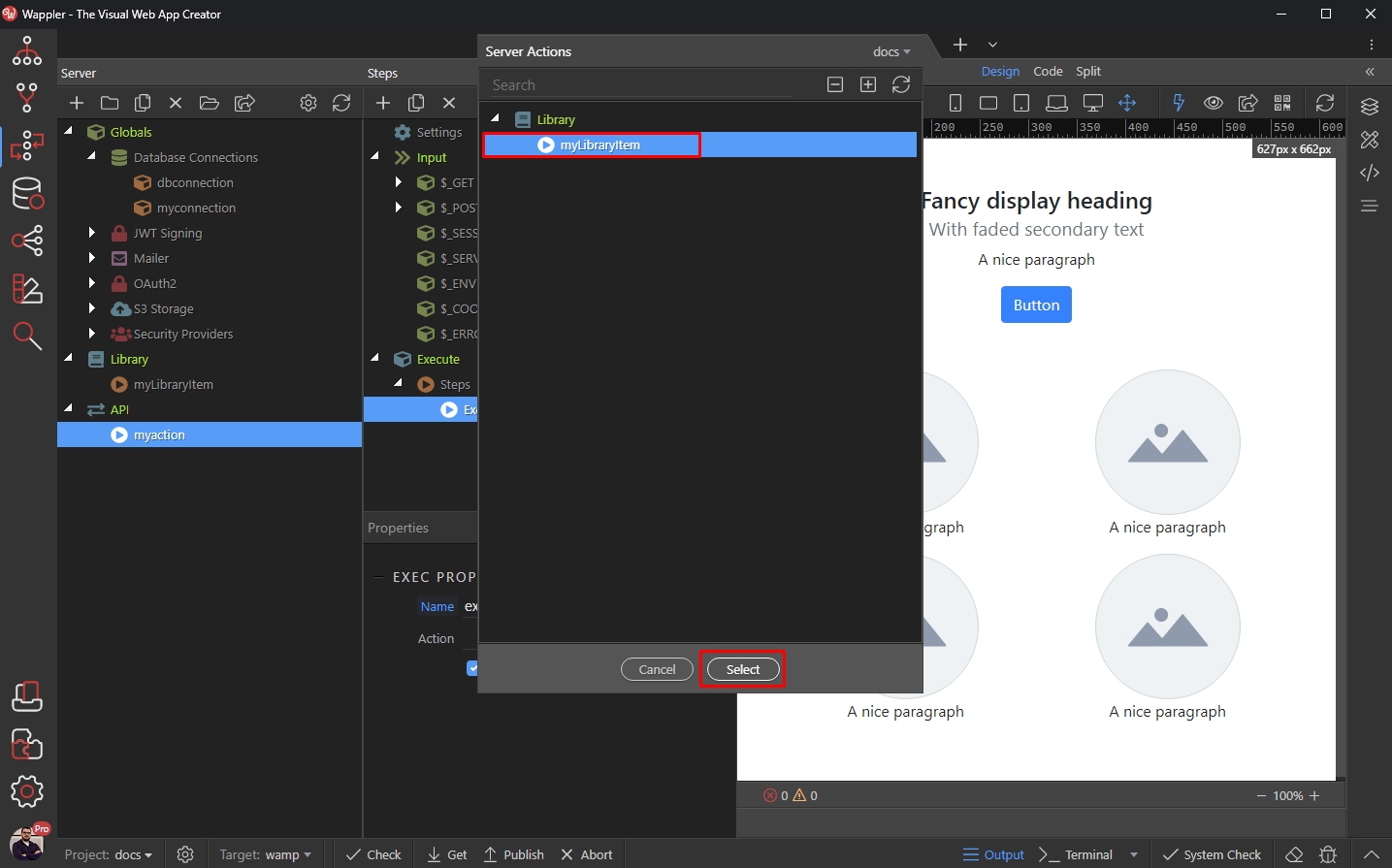
Assigning Values to Input Parameters
Section titled “Assigning Values to Input Parameters”All your Input Parameters from the Library Action will appear here:
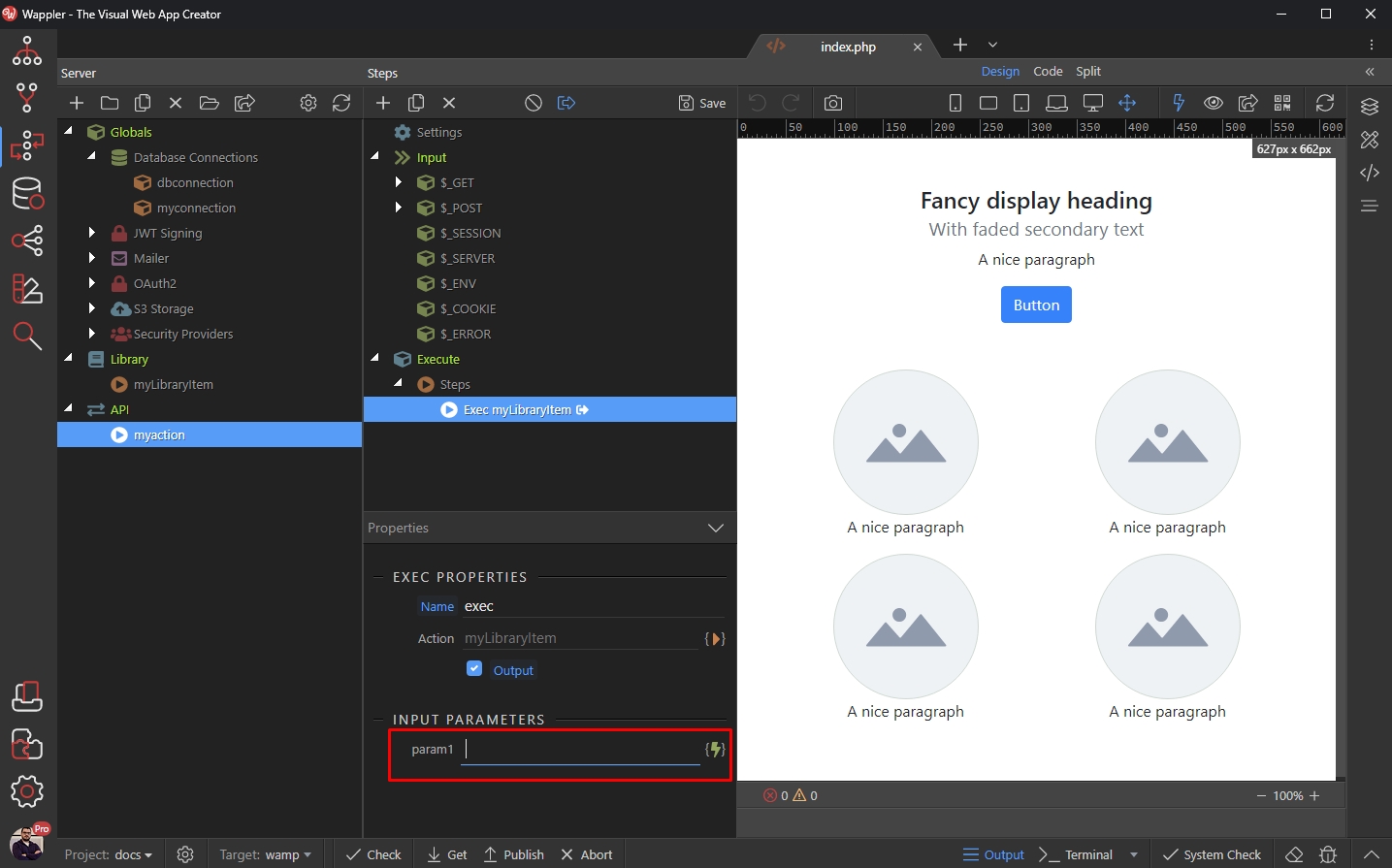
Step 43
Section titled “Step 43”You can use a dynamic or static value. The dynamic value can be any dynamic value available in your API Action - GET or POST Parameters, Session Variables, a Query Result etc.
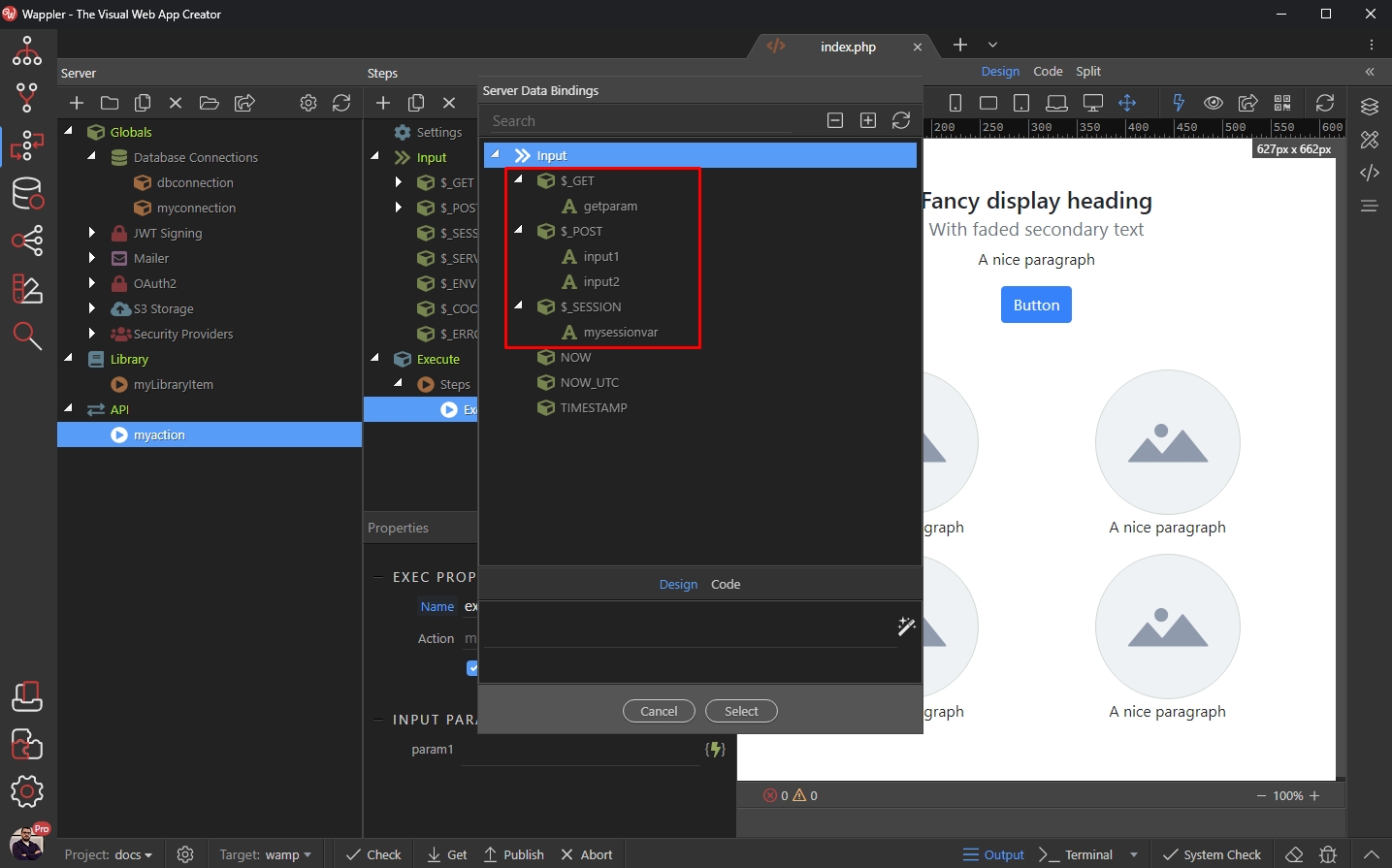
We enter a static value just for testing purposes:
Section titled “We enter a static value just for testing purposes:”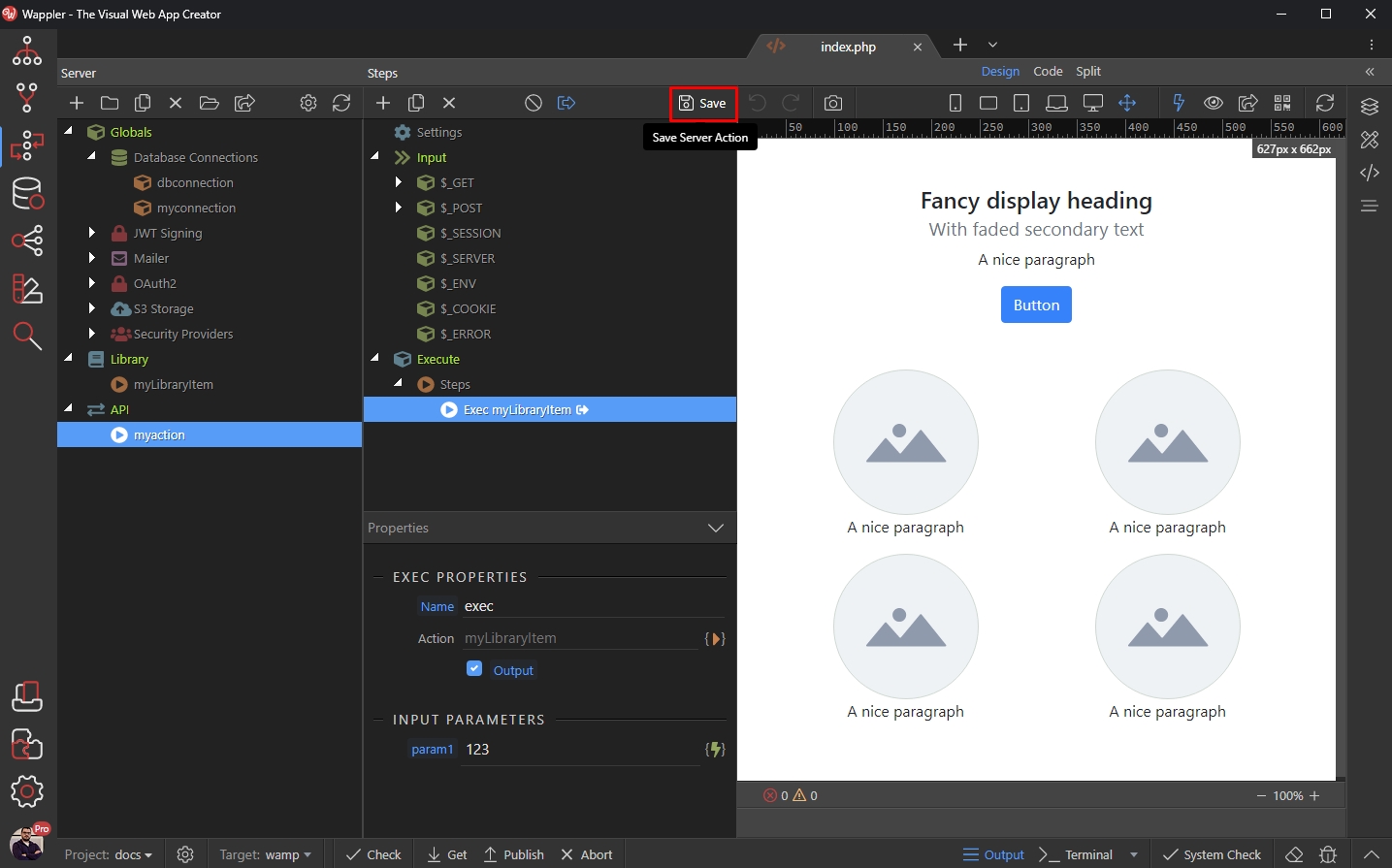
Step 45
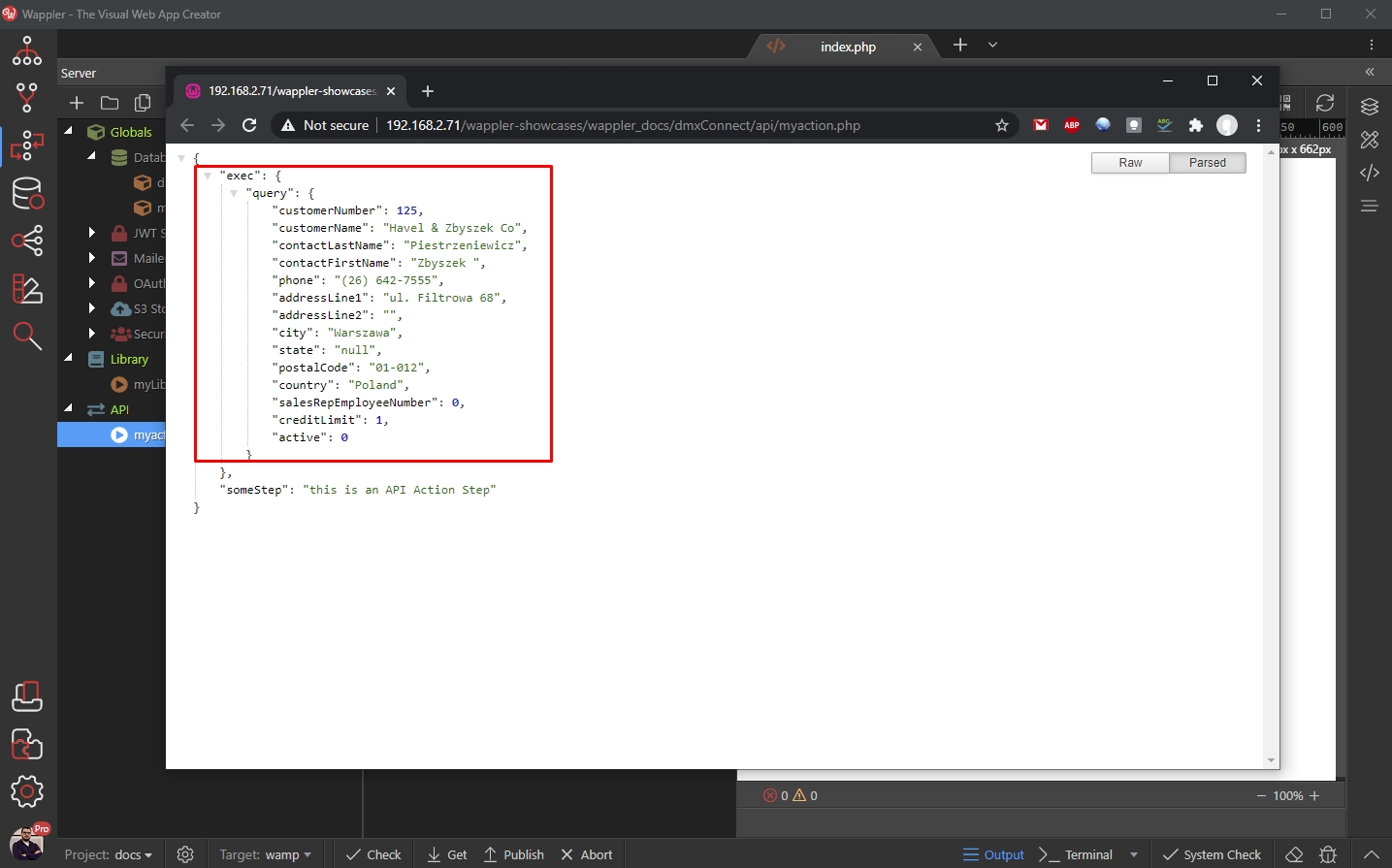
Section titled “Step 45”And then we can preview the results in our browser. You can see the Exec results, as well as the rest of your server action steps (if any):
Conclusion
Section titled “Conclusion”That’s how to use the Library Actions to create reusable actions, which can be included in any of your API Actions. Check this new functionality and let us know what do you think 