
Database Single Query
You can create a database query which returns a single record. That’s really useful in cases where you filter your data and expect a single result to be returned, like retrieving the logged in user in
Step 1
Section titled “Step 1”You can create a database query which returns a single record. That’s really useful in cases where you filter your data and expect a single result to be returned, like retrieving the logged in user info - so no complicated repeats are required.
In this tutorial we will show you how to filter a Single Query and use the result directly in the rest of the Server Action steps.
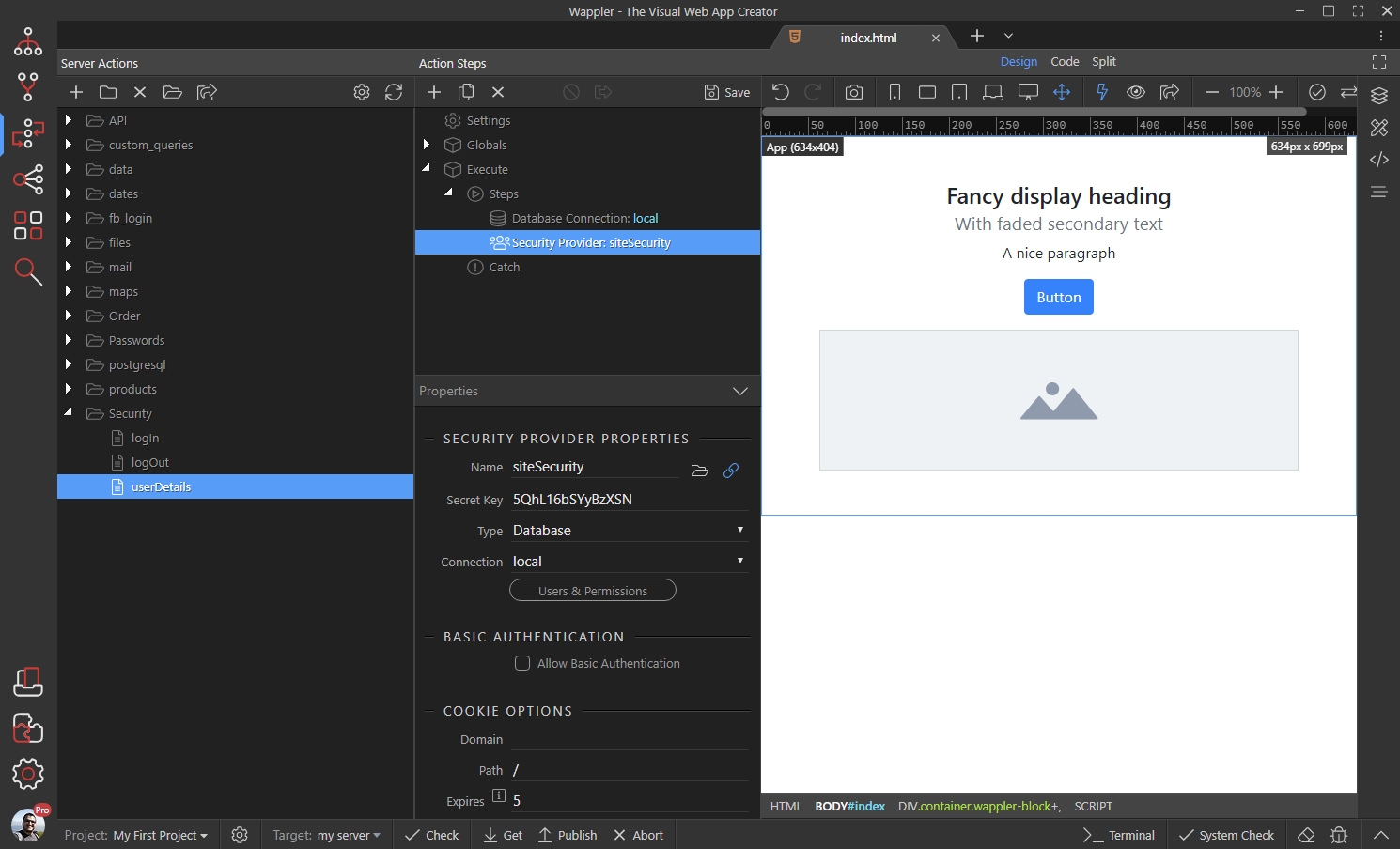
We created a server action, which is going to be used for retrieving the logged user details, so we already added the standard database connection and security provider steps:
Right click the Security Provider step, open Database Actions and select Database Single query:
Section titled “Right click the Security Provider step, open Database Actions and select Database Single query:”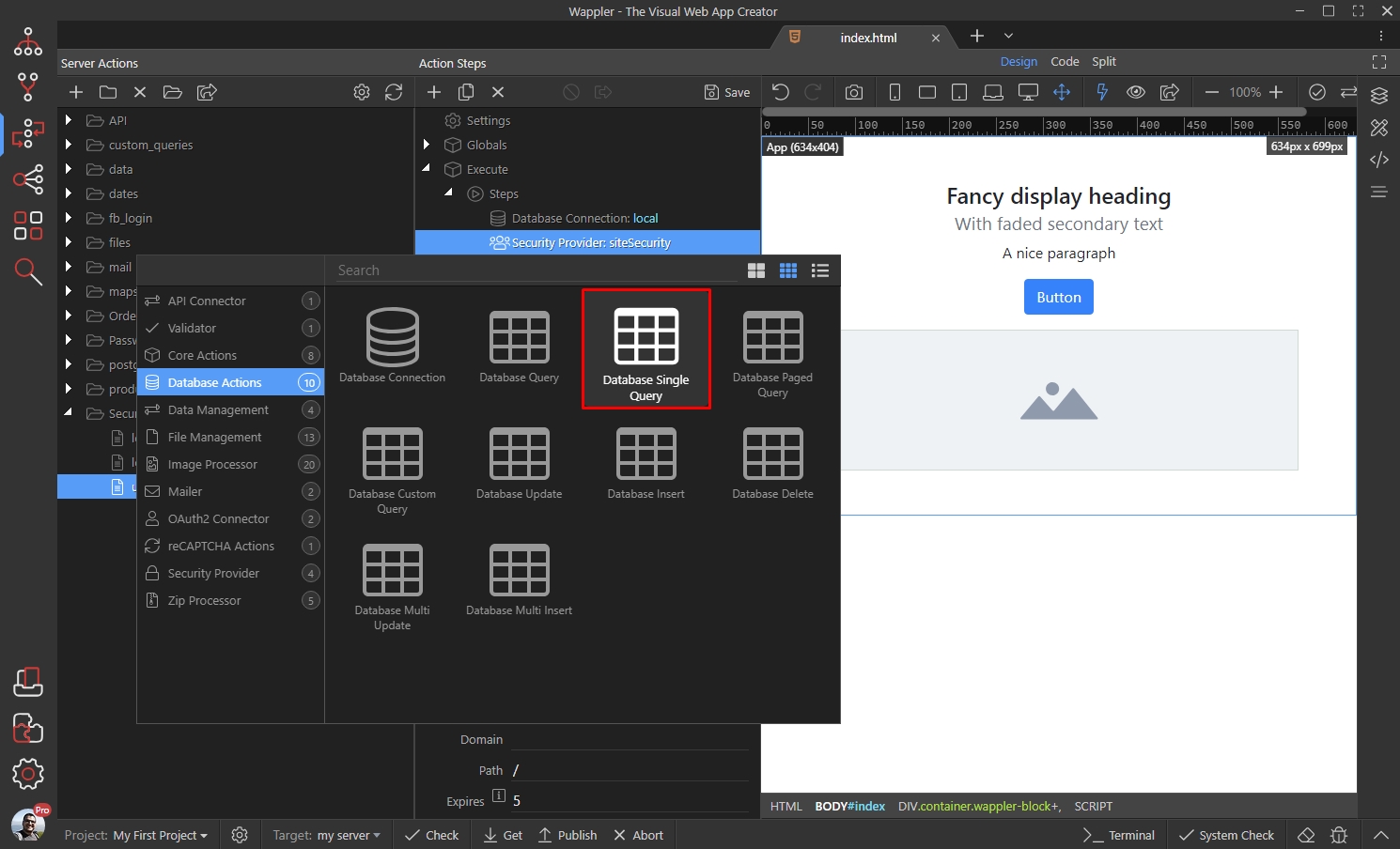
Step 3
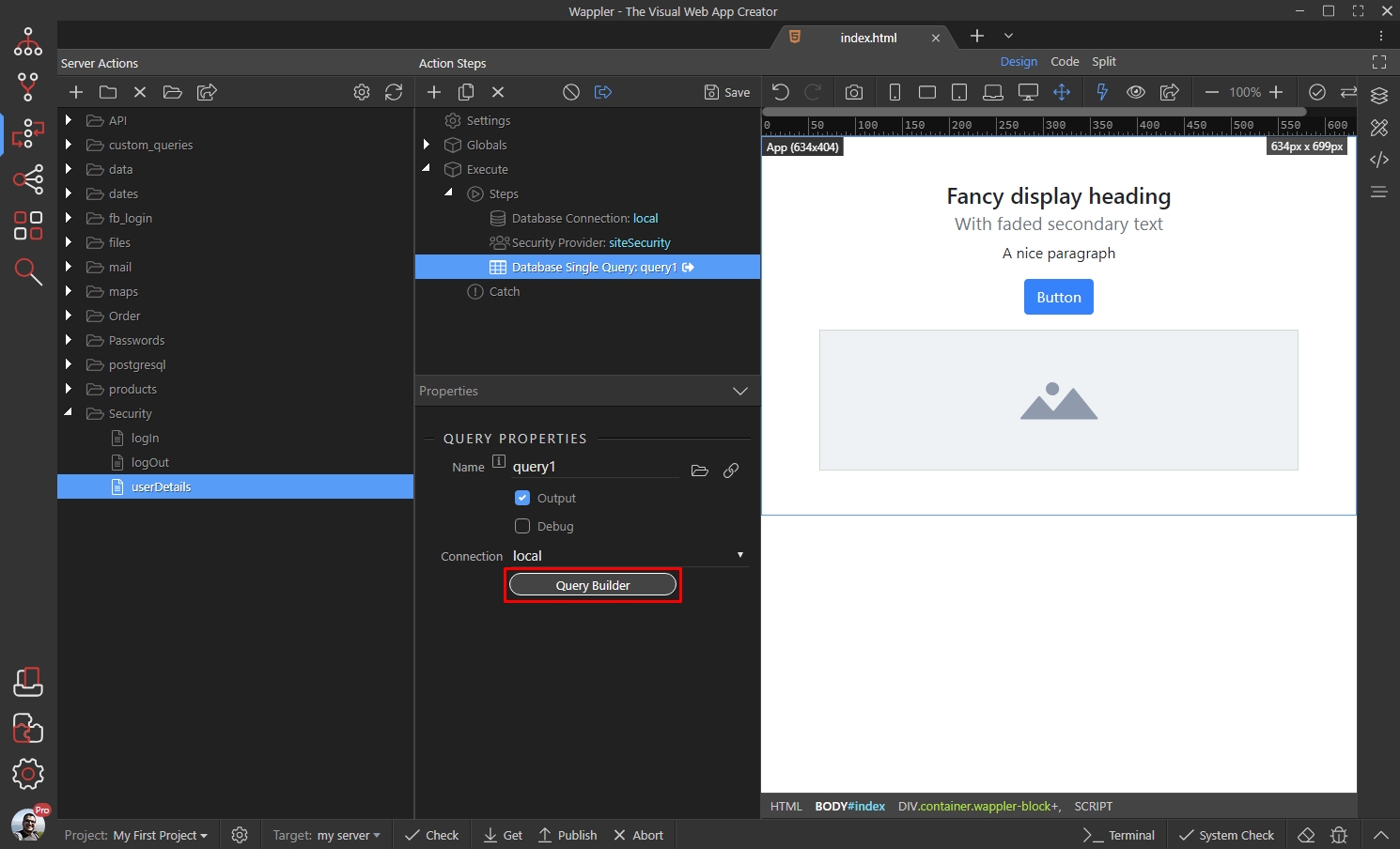
Section titled “Step 3”Configuring the Database Single Query is identical to configuring a regular database query. Just click Query Builder:
Add the table you want to query and then add the columns you need:
Section titled “Add the table you want to query and then add the columns you need:”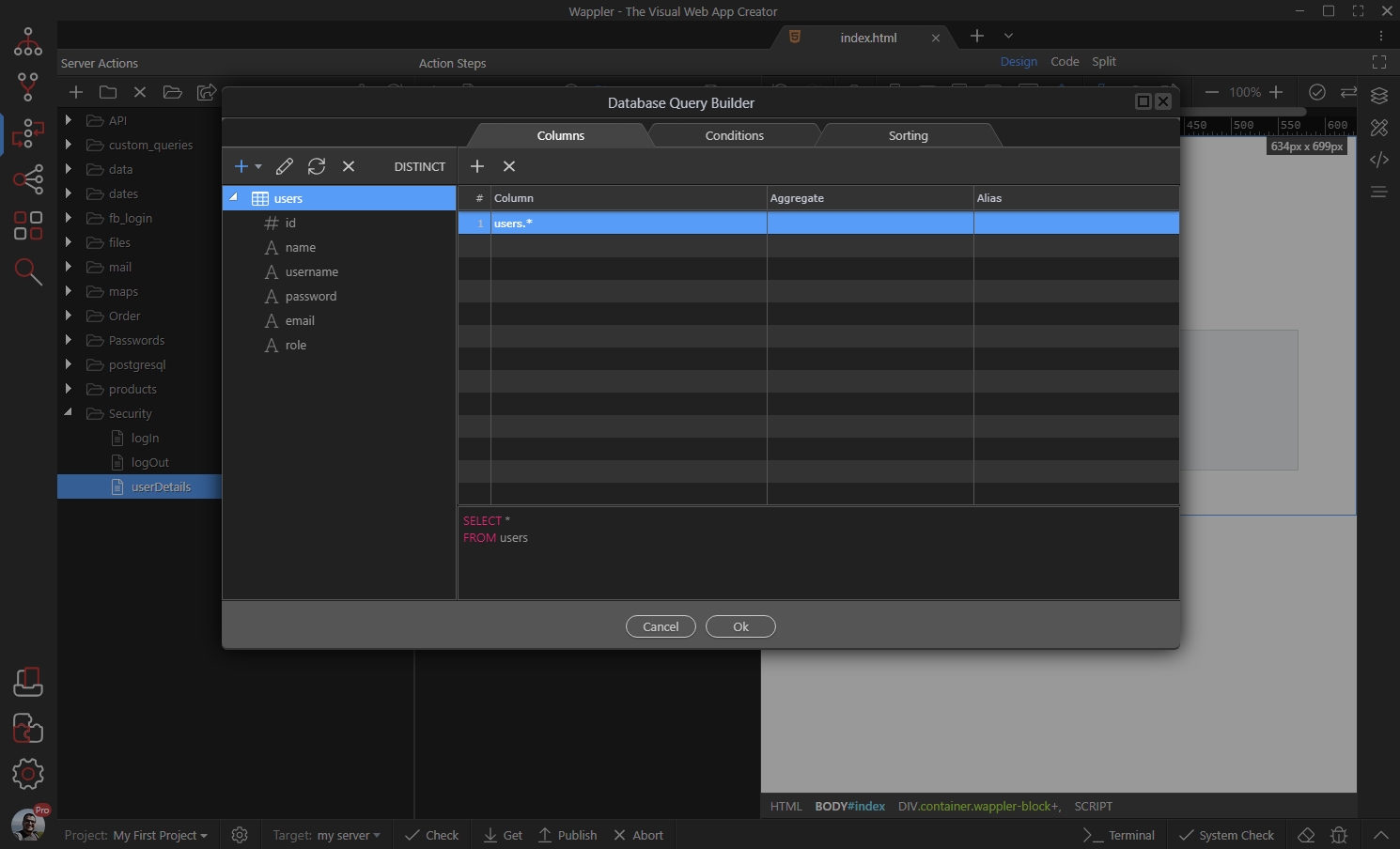
Setup your filters. In our case we filter the user ID by the Identity returned by the Security Provider step:
Section titled “Setup your filters. In our case we filter the user ID by the Identity returned by the Security Provider step:”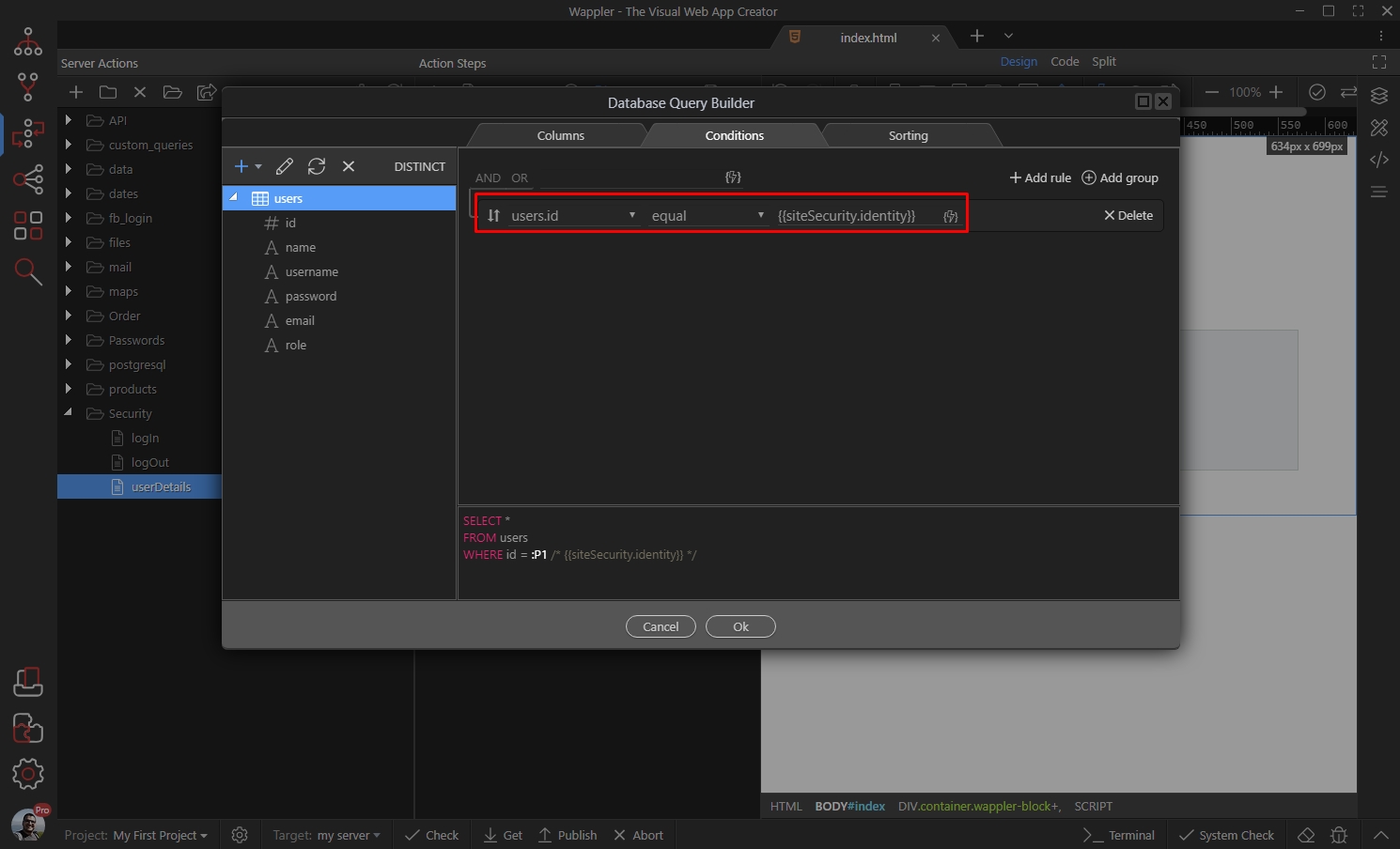
Step 6
Section titled “Step 6”Click OK when you are done.
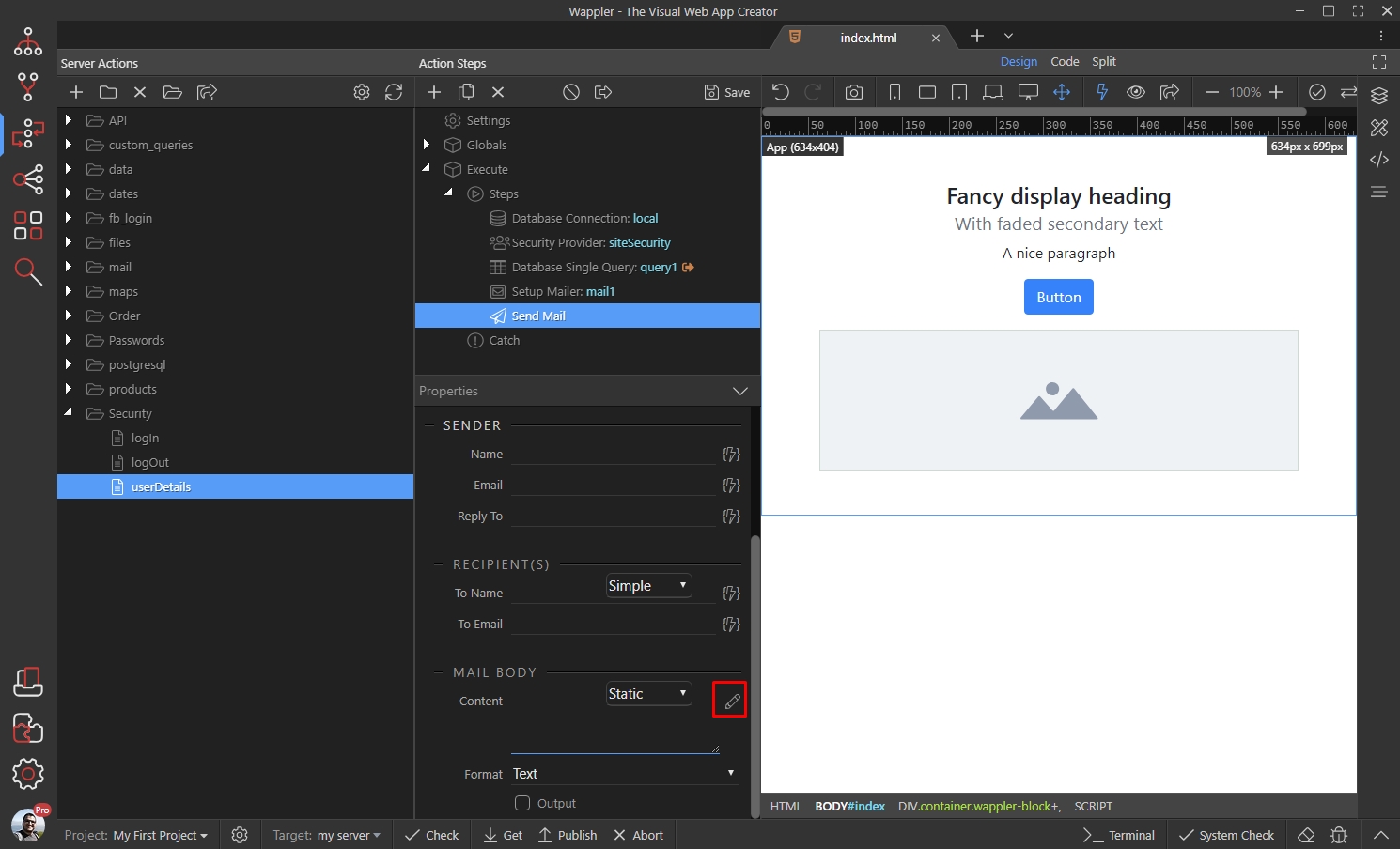
You can access the Single Query results in any Server Connect step, added after it. In the following example, we have a send mail step and we can directly bind the query results in the mail body:
Click the Dynamic Data Picker button:
Section titled “Click the Dynamic Data Picker button:”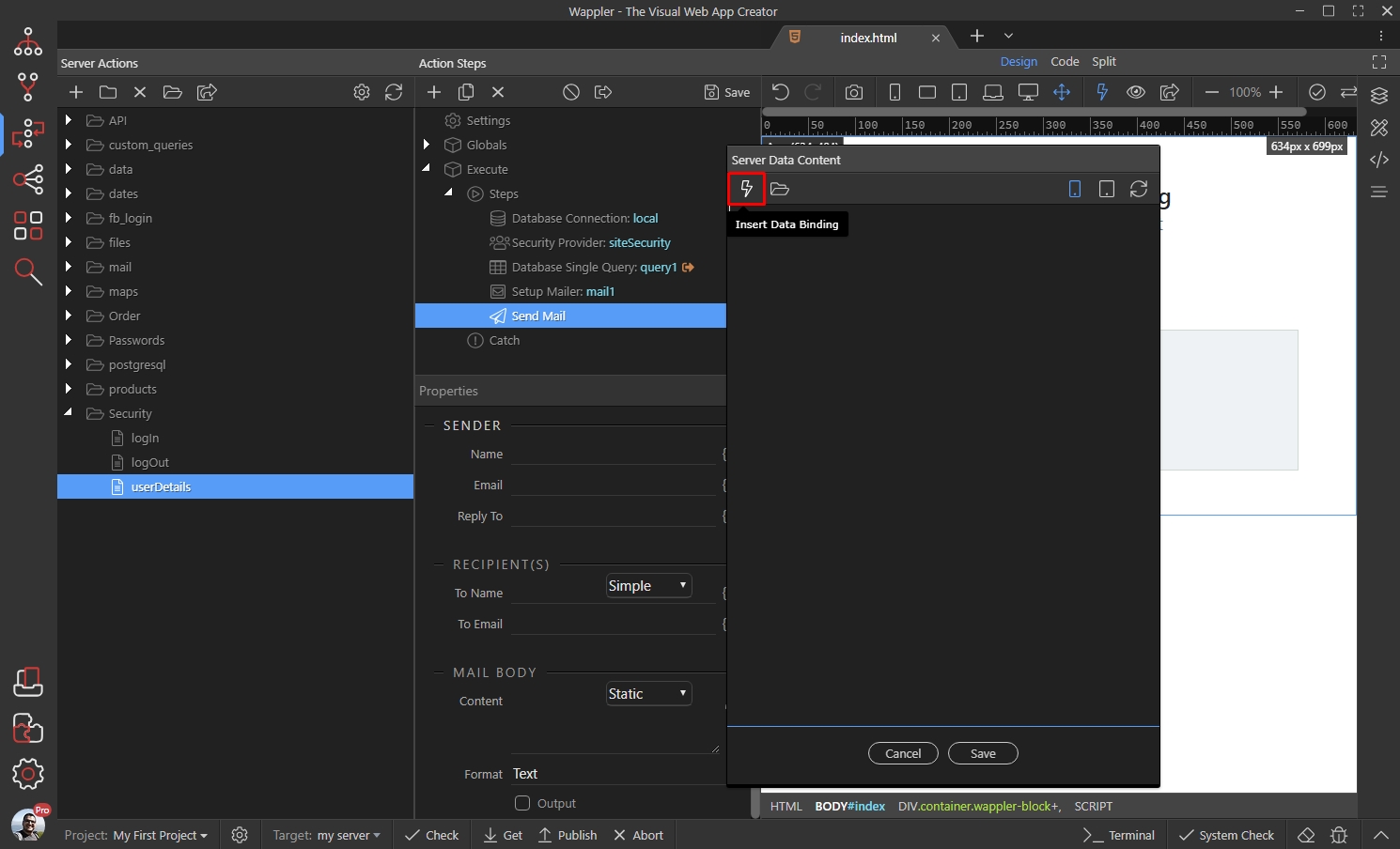
And you will see the Single Query bindings available in the picker:
Section titled “And you will see the Single Query bindings available in the picker:”
Step 9
Section titled “Step 9”You can use them wherever you need them, without using any repeaters as the Single Query only returns a single record.