Filtering Database Query with an URL Parameter
If you don’t know how to define an URL parameter on your page, please check this tutorial as you will need this later. First, we need to create a server action. Open the server connect panel and click
First, we need to create a server action. Open the server connect panel and click the add new button:
Section titled “First, we need to create a server action. Open the server connect panel and click the add new button:”If you don’t know how to define an URL parameter on your page, please check this tutorial as you will need this later.
First, we need to create a server action. Open the server connect panel and click the add new button:
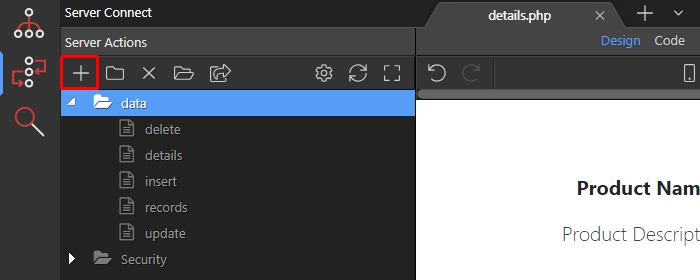
We call it product_details:
Section titled “We call it product_details:”
Then right click GET under Globals menu:
Section titled “Then right click GET under Globals menu:”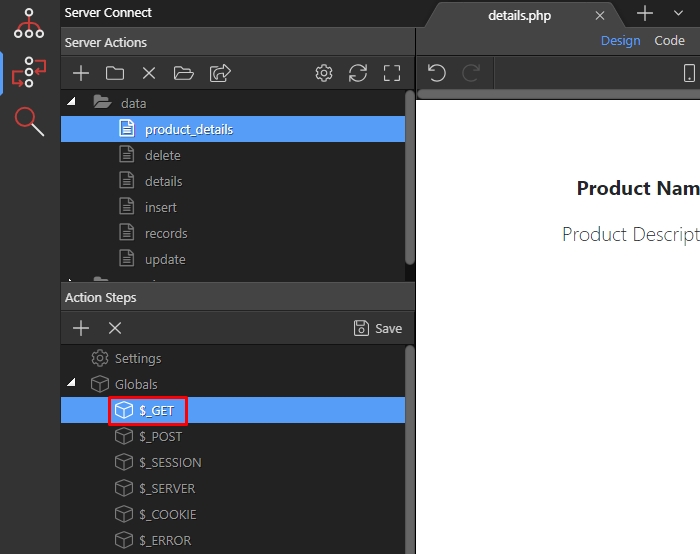
Add variable:
Section titled “Add variable:”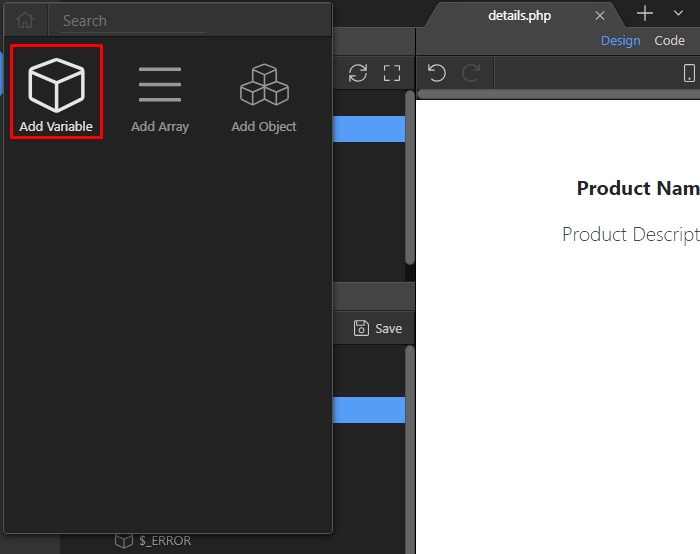
Step 5
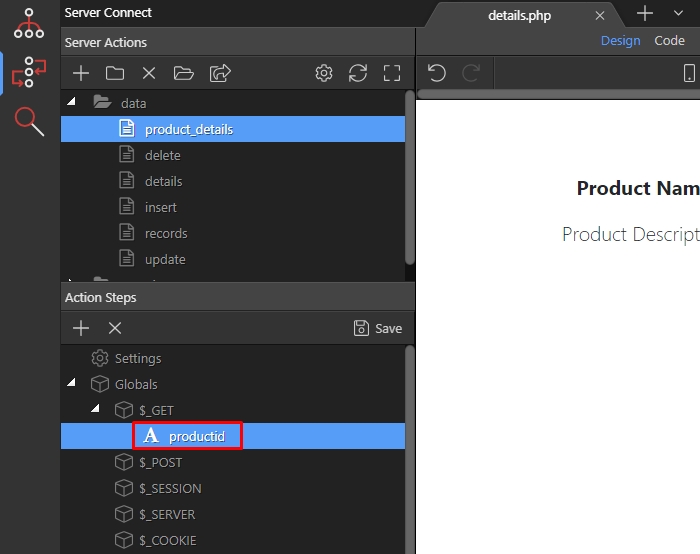
Section titled “Step 5”This variable will be used to filter our database query. Let’s call it: productid (NOTE - it needs to be lowercase).
Right click steps:
Section titled “Right click steps:”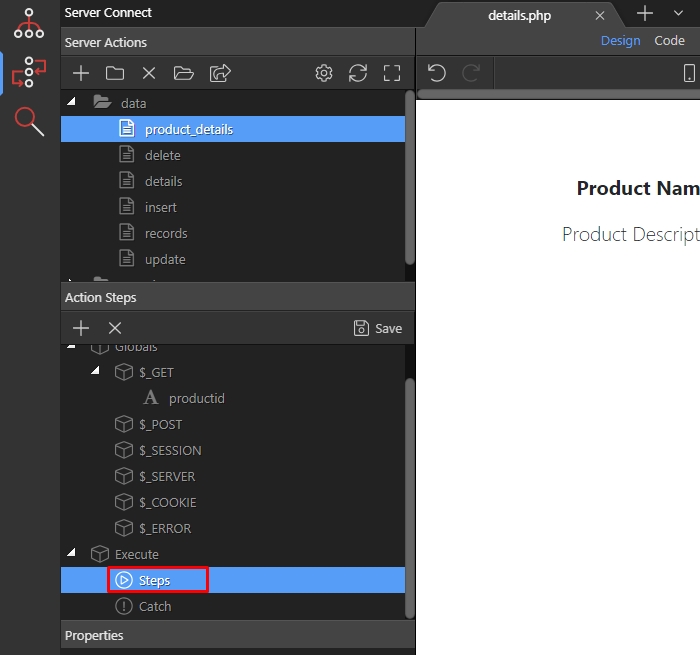
Open database actions menu:
Section titled “Open database actions menu:”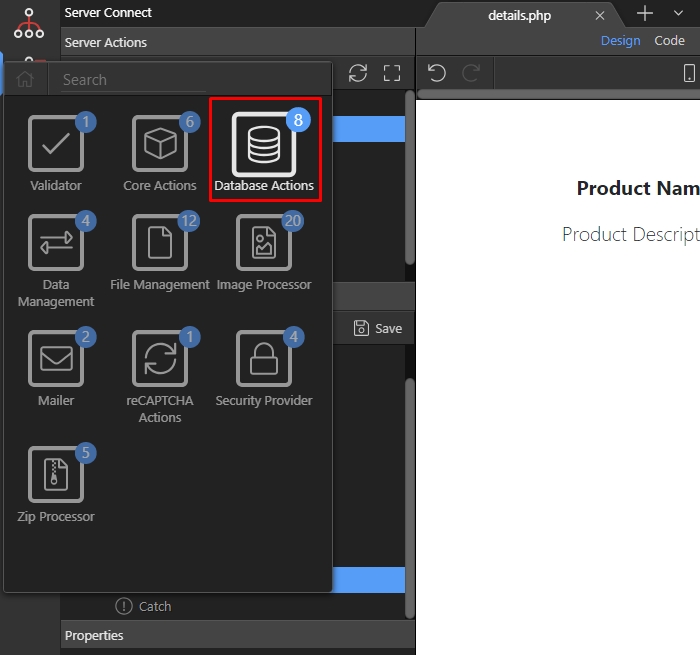
Add a database connection:
Section titled “Add a database connection:”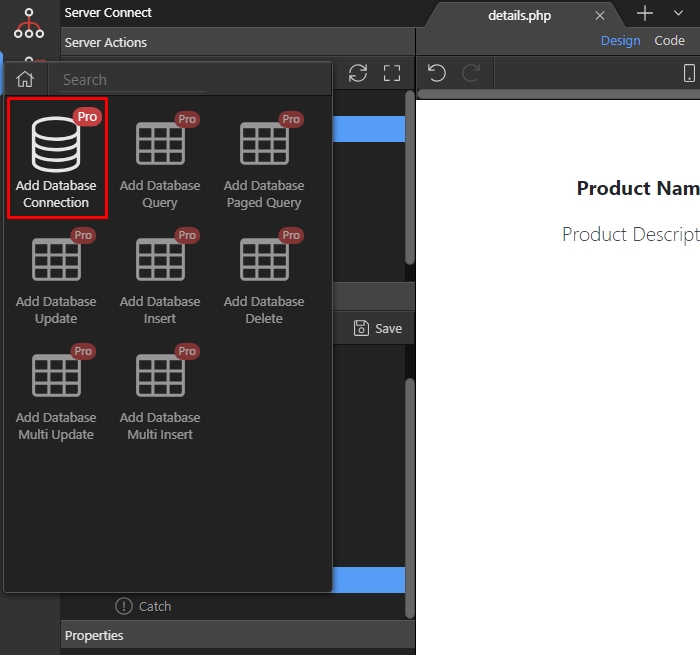
Step 9
Section titled “Step 9”Load your database connection, or create one if you have not defined one yet. Then right click the database connection step:
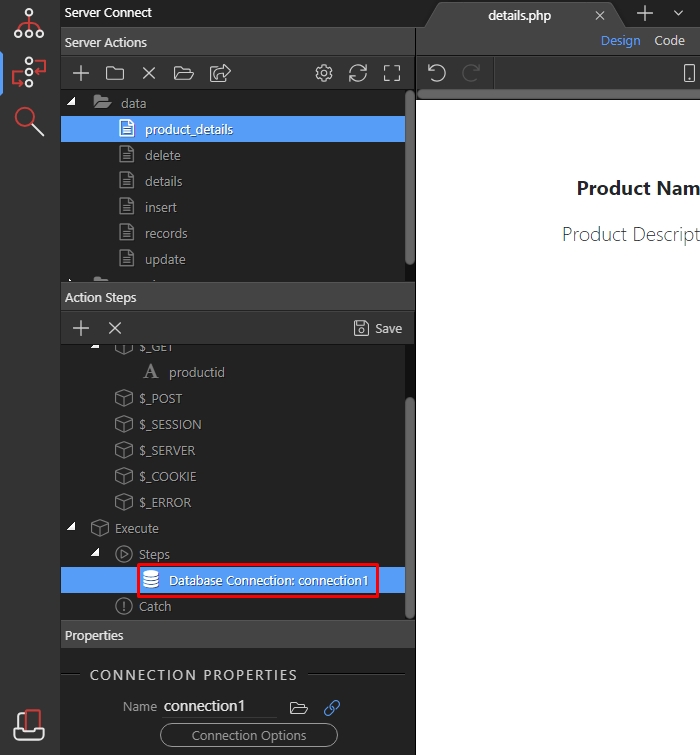
Open the database actions menu:
Section titled “Open the database actions menu:”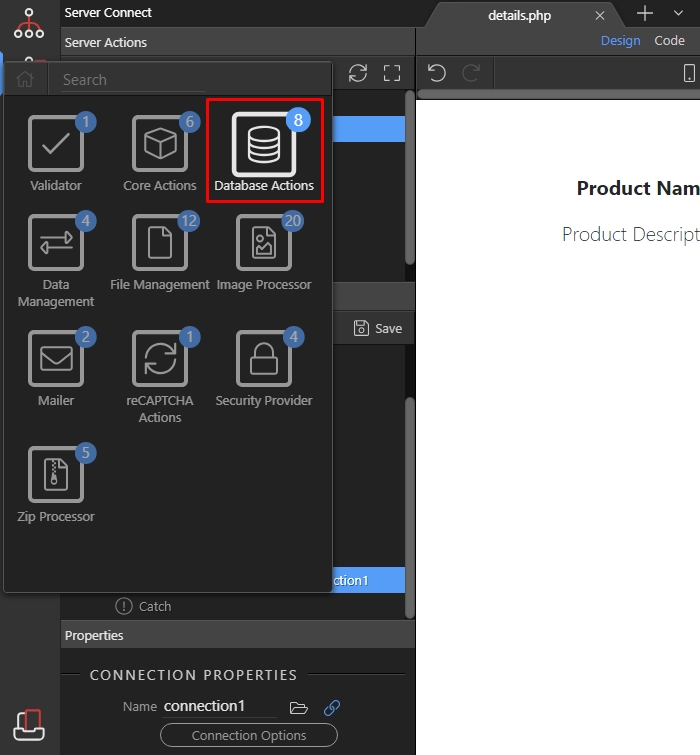
And add database query:
Section titled “And add database query:”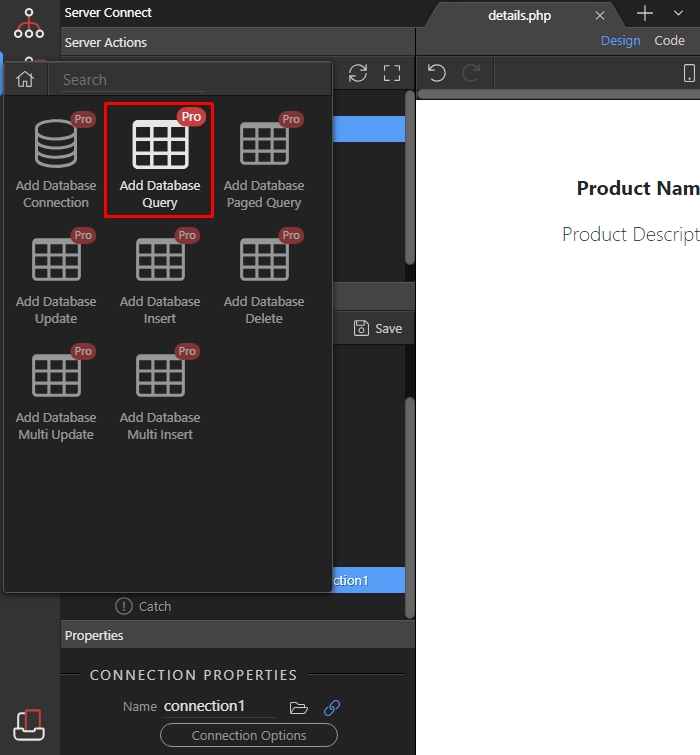
Open the query options:
Section titled “Open the query options:”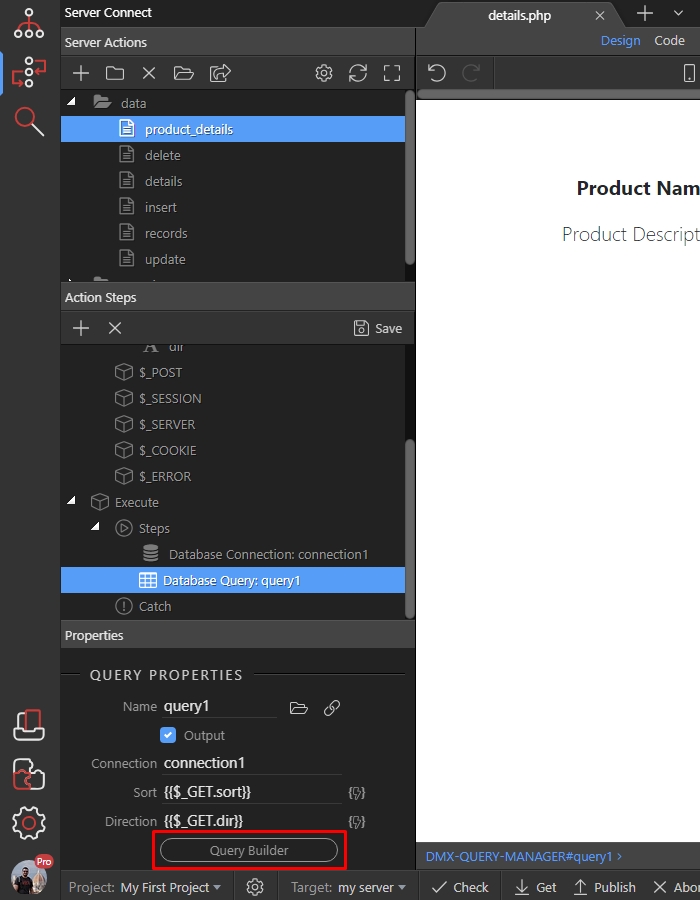
Add your database table:
Section titled “Add your database table:”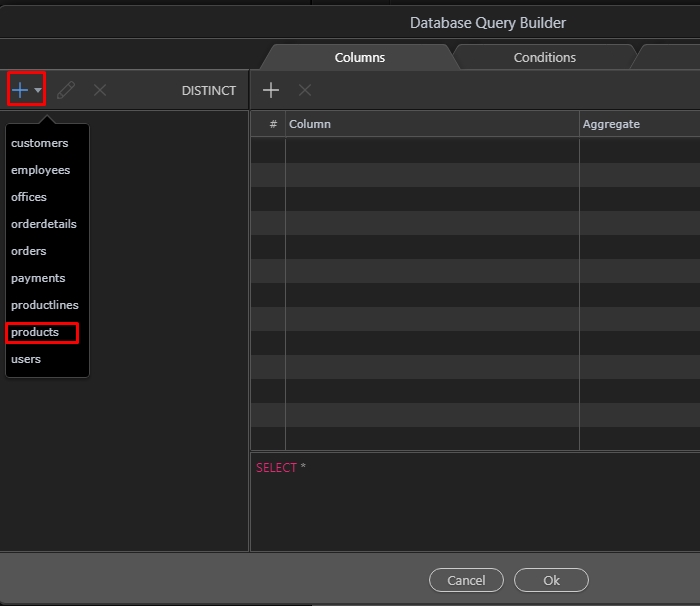
Then add the database table columns you need:
Section titled “Then add the database table columns you need:”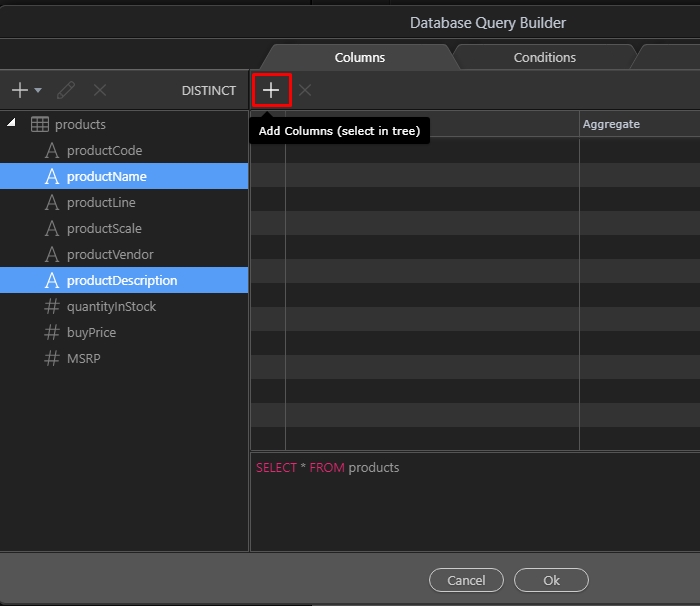
Open the conditions tab:
Section titled “Open the conditions tab:”
And select the column you want to filter your database query by:
Section titled “And select the column you want to filter your database query by:”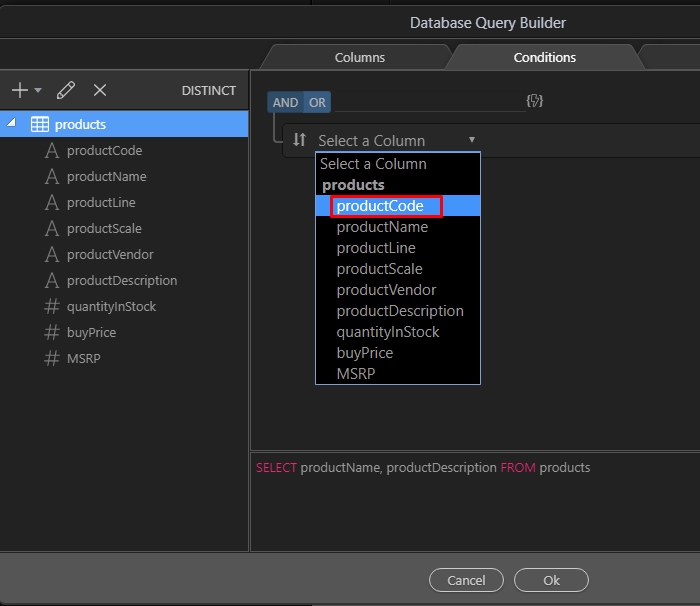
Select the equal operator:
Section titled “Select the equal operator:”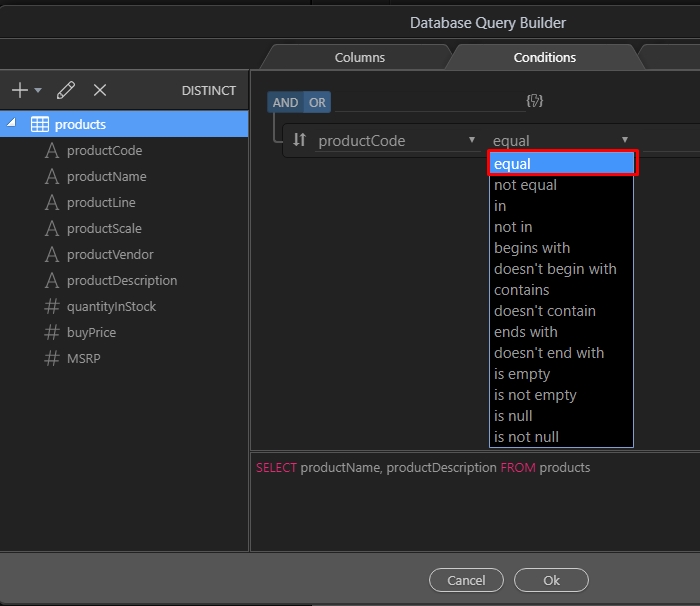
And click the dynamic data picker for the filter value:
Section titled “And click the dynamic data picker for the filter value:”
Select the GET variable we created - productid:
Section titled “Select the GET variable we created - productid:”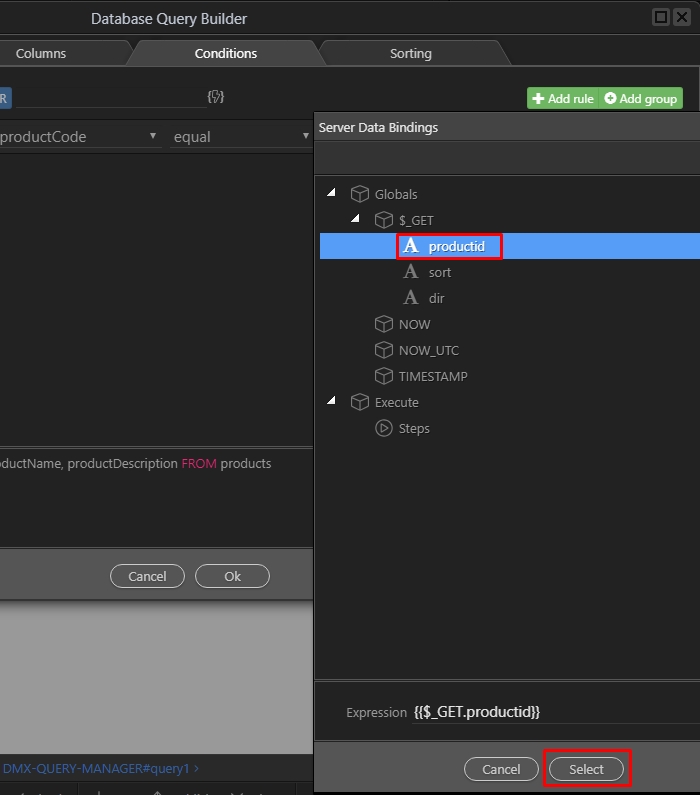
Then click ok:
Section titled “Then click ok:”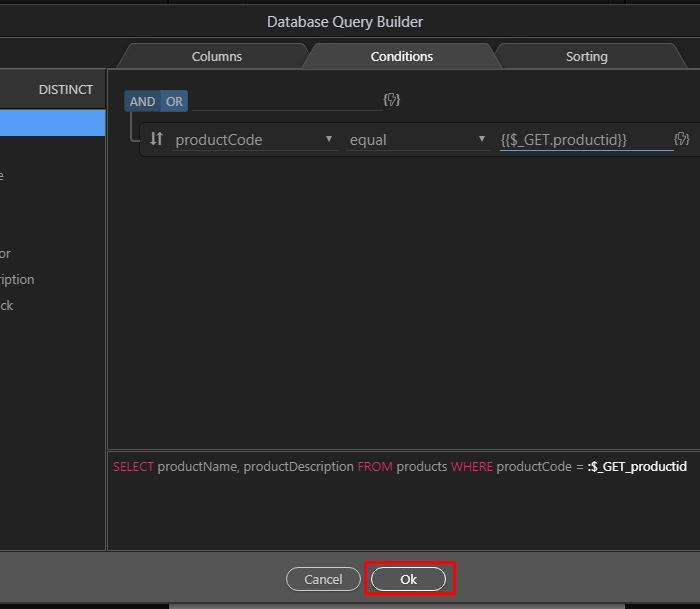
Save your server action and close the server connect panel as we won’t need it anymore:
Section titled “Save your server action and close the server connect panel as we won’t need it anymore:”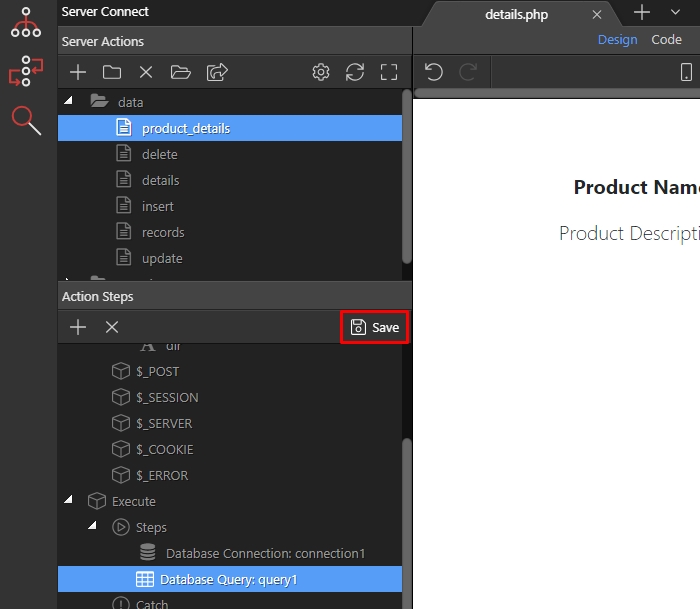
In App Structure define your URL parameter using the query manager:
Section titled “In App Structure define your URL parameter using the query manager:”
Then add new component:
Section titled “Then add new component:”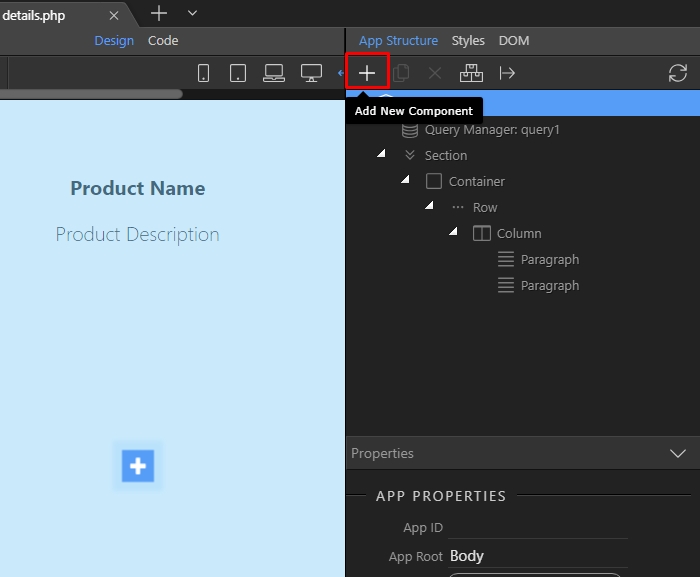
Open the data menu:
Section titled “Open the data menu:”
Select Server Connect:
Section titled “Select Server Connect:”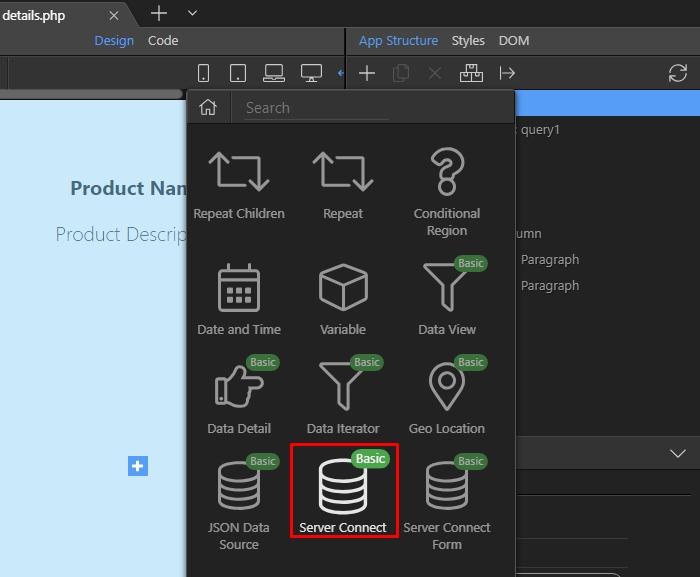
And click the select server action button:
Section titled “And click the select server action button:”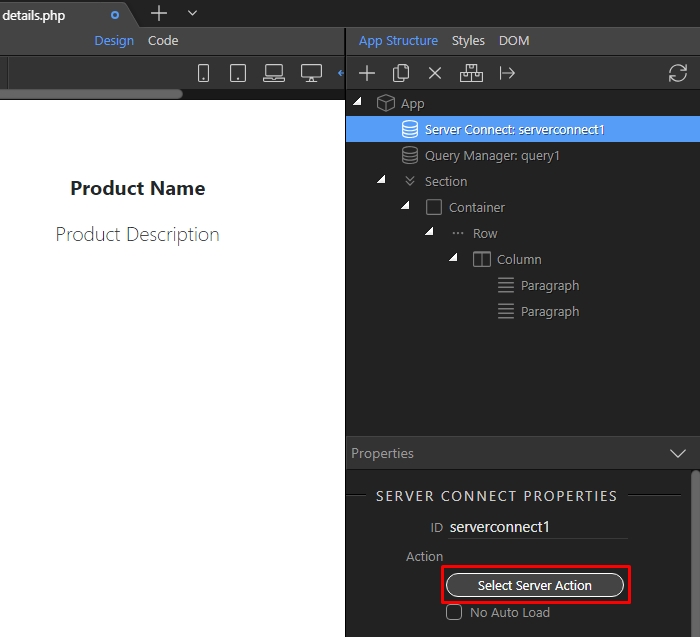
Select your server action:
Section titled “Select your server action:”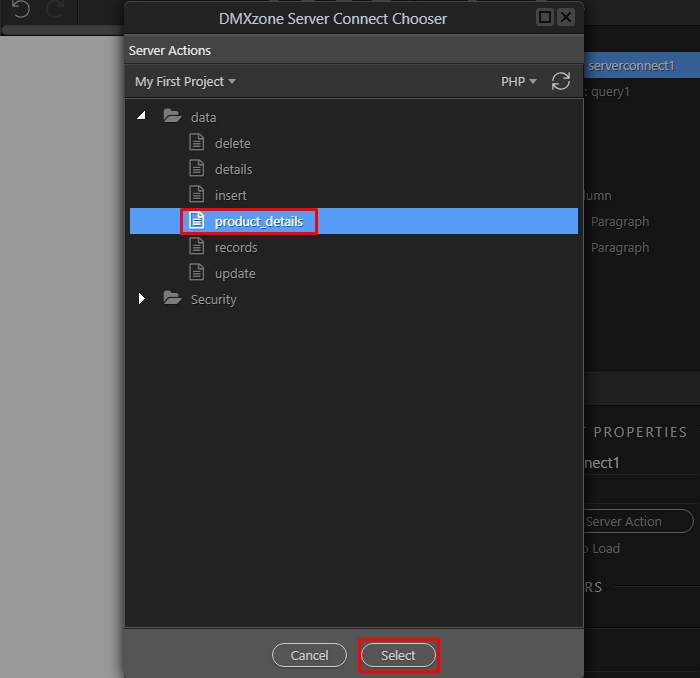
Step 28
Section titled “Step 28”Under Input parameters, you will see the GET variable which you defined in the server action. Ours is called productid - click the dynamic data picker to assign a dynamic value to it:
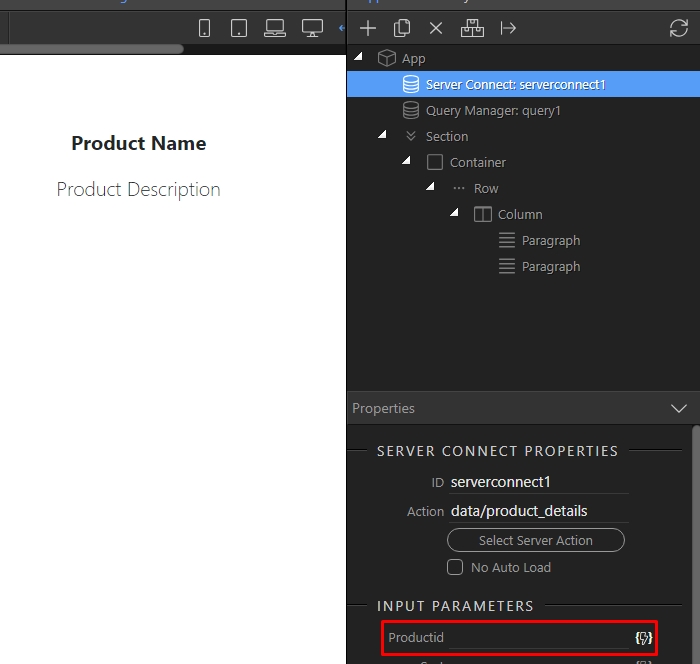
Under query select the URL parameter you defined:
Section titled “Under query select the URL parameter you defined:”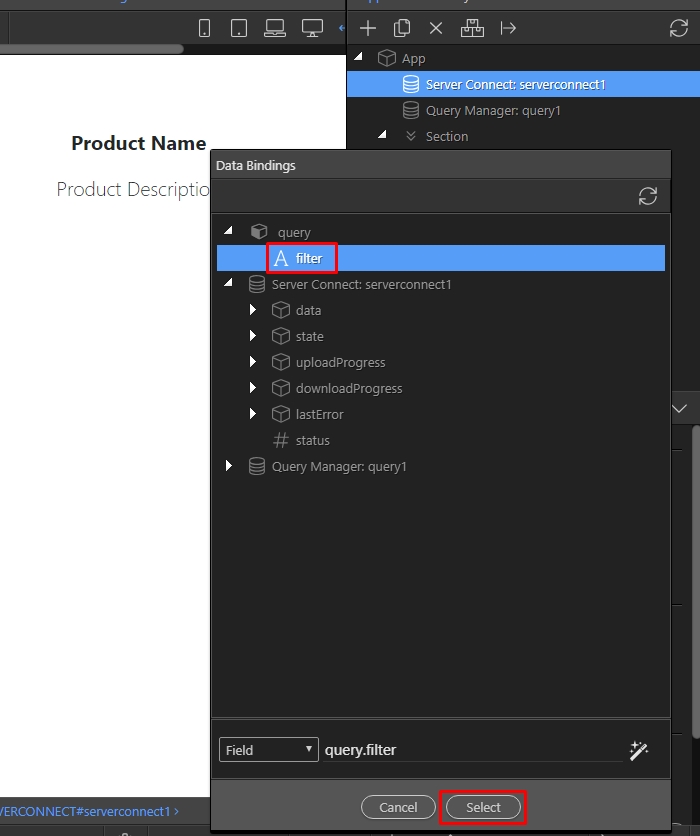
Then on your page, double click where you want to show the dynamic data:
Section titled “Then on your page, double click where you want to show the dynamic data:”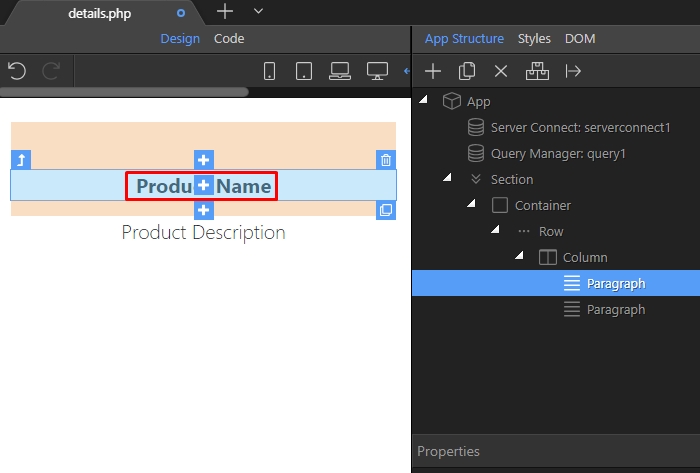
Click the dynamic data picker button:
Section titled “Click the dynamic data picker button:”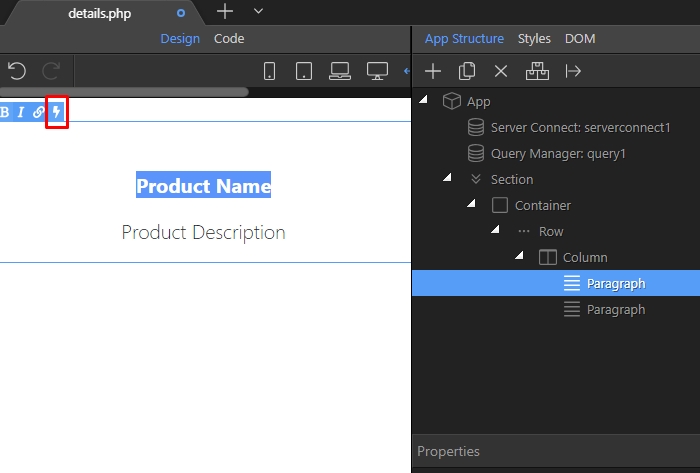
And select the data you need here, from your server action:
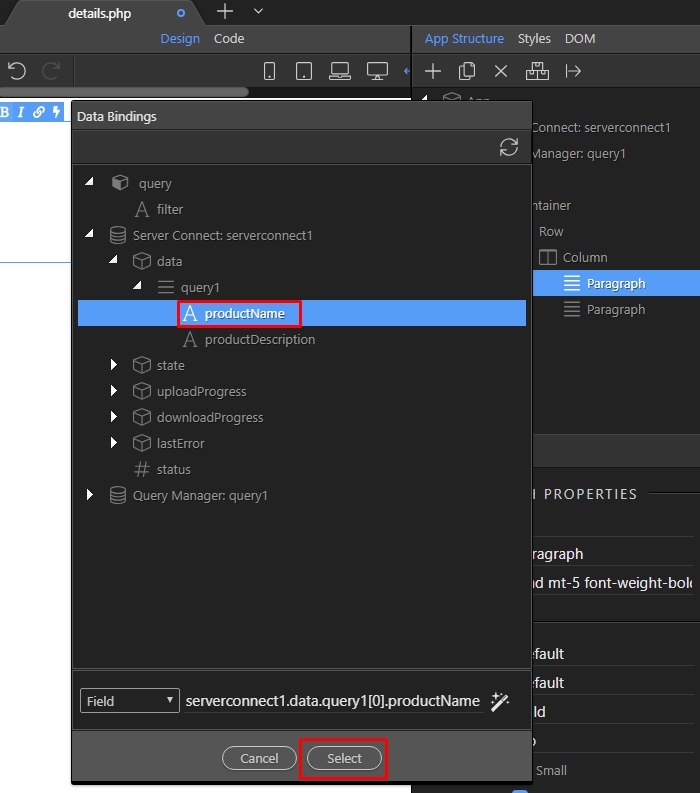
Section titled “And select the data you need here, from your server action:”