Using Set Value in Server Connect
The Set Value step in Server Connect can be useful in many cases. You can think of it as a variable where you can store any kind of static or dynamic values. These values can then be accessed in any o
Step 1
Section titled “Step 1”The Set Value step in Server Connect can be useful in many cases. You can think of it as a variable where you can store any kind of static or dynamic values. These values can then be accessed in any of the server action steps, also they can be outputted on your pages.
You can store any dynamic data with the Set Value step - query results, inserted or updated record’s ID, calculations, logged user’s ID and more.
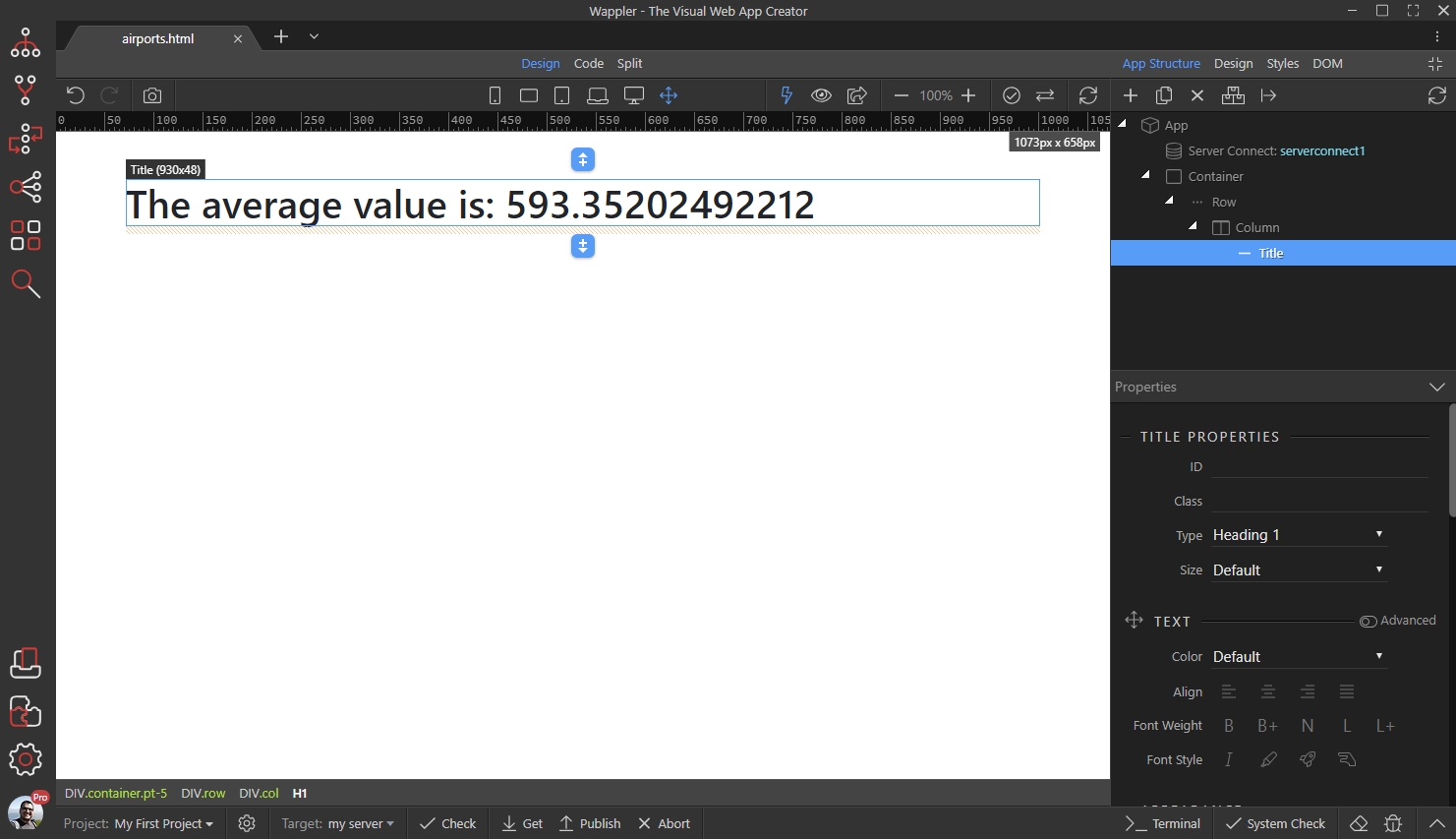
In this tutorial we will show you a basic example, explaining how to store the average value of a database query and then displaying it on our page.
Creating the Set Value step
Section titled “Creating the Set Value step”We created a database query, which returns some information about the airports across the world. We want to calculate the average altitude in a Set Value step.

Step 3
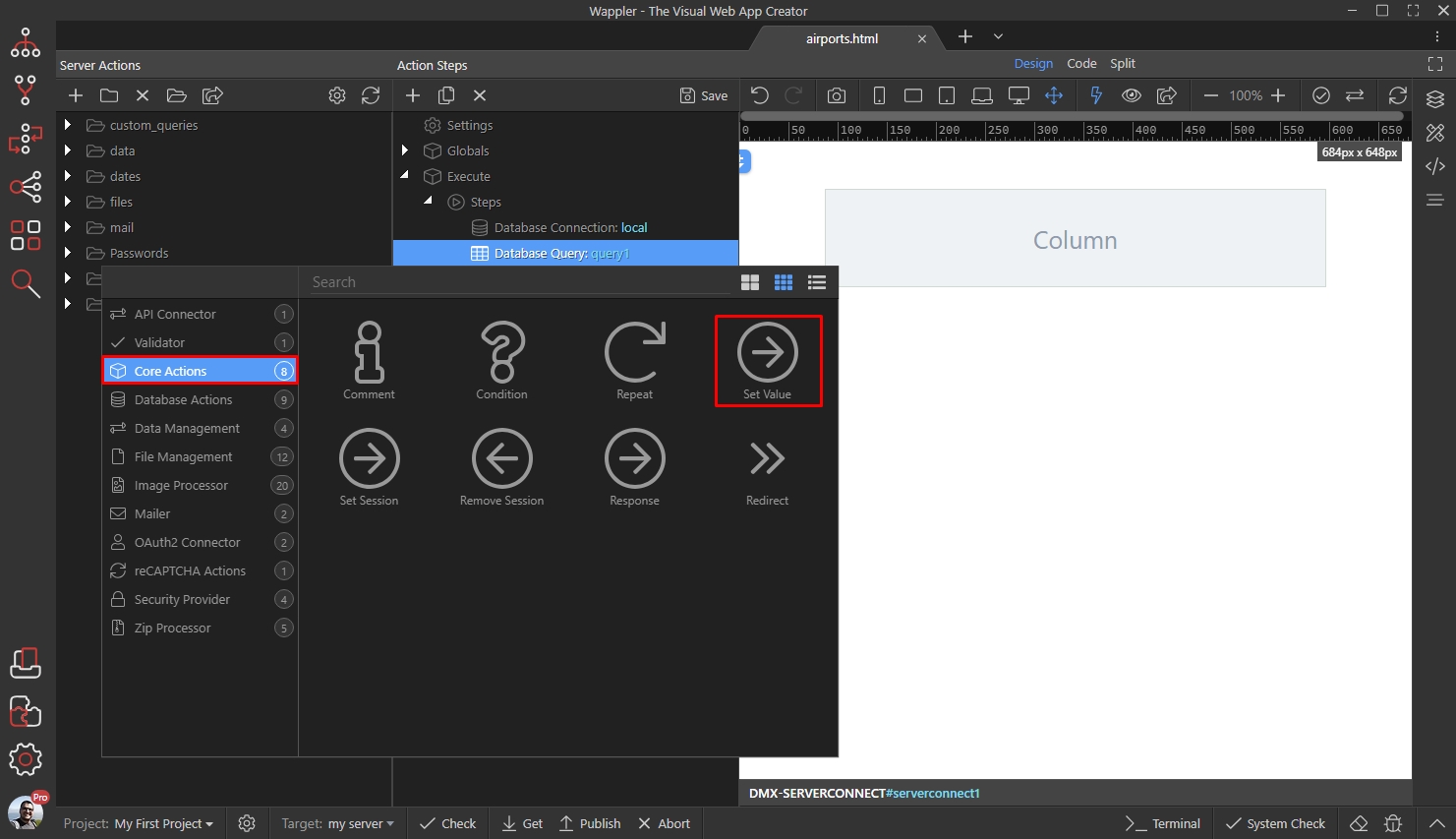
Section titled “Step 3”Creating the Set Value step is simple, just right click the database query and under core actions, select Set Value:
Add a name for this variable. We call it my_value:
Section titled “Add a name for this variable. We call it my_value:”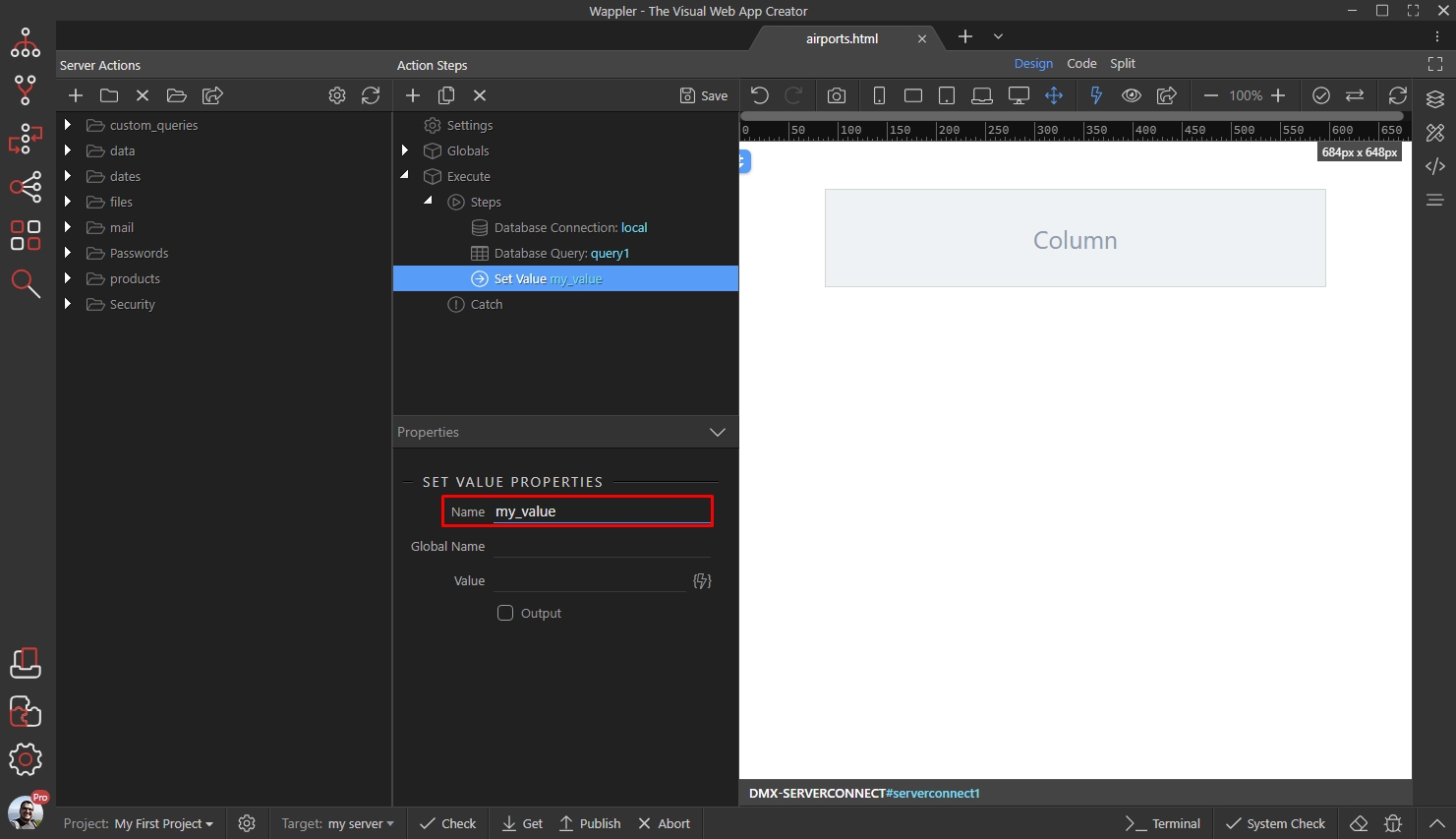
Then, let’s assign a value to it - click the dynamic data picker button:
Section titled “Then, let’s assign a value to it - click the dynamic data picker button:”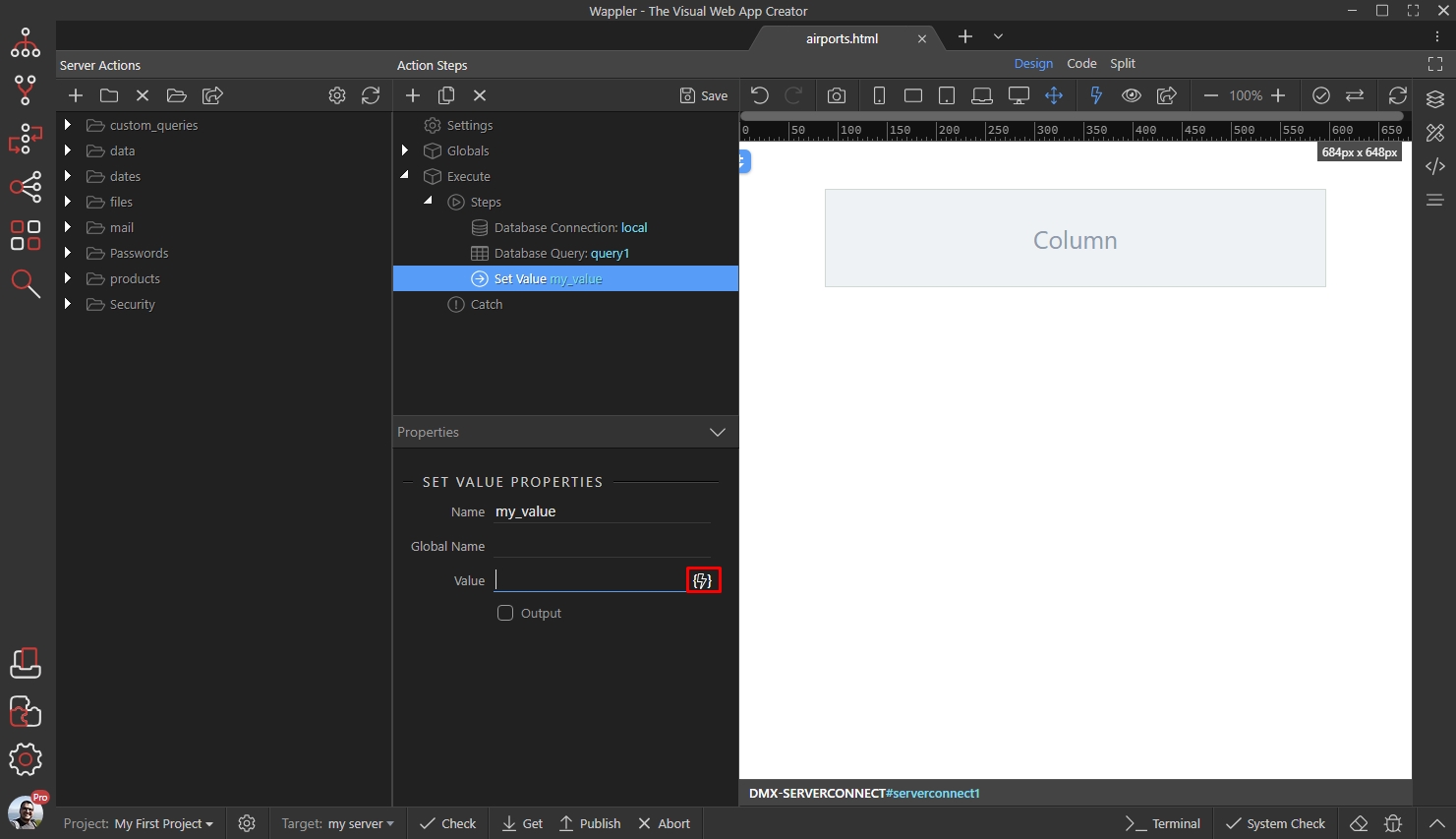
Select the database query and click the Server Data Formatter icon:
Section titled “Select the database query and click the Server Data Formatter icon:”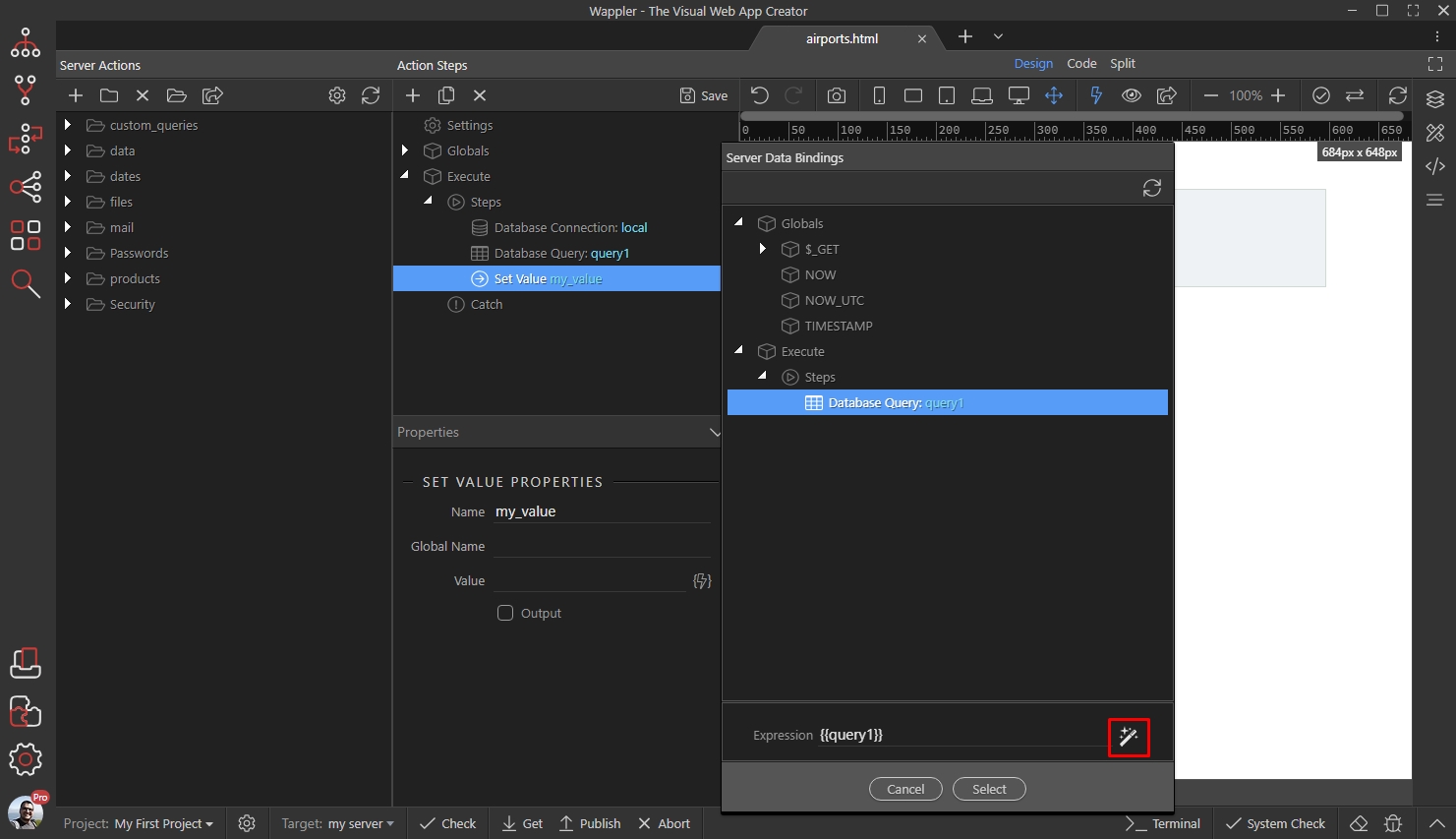
Open the Collections menu and select Avg (Average):
Section titled “Open the Collections menu and select Avg (Average):”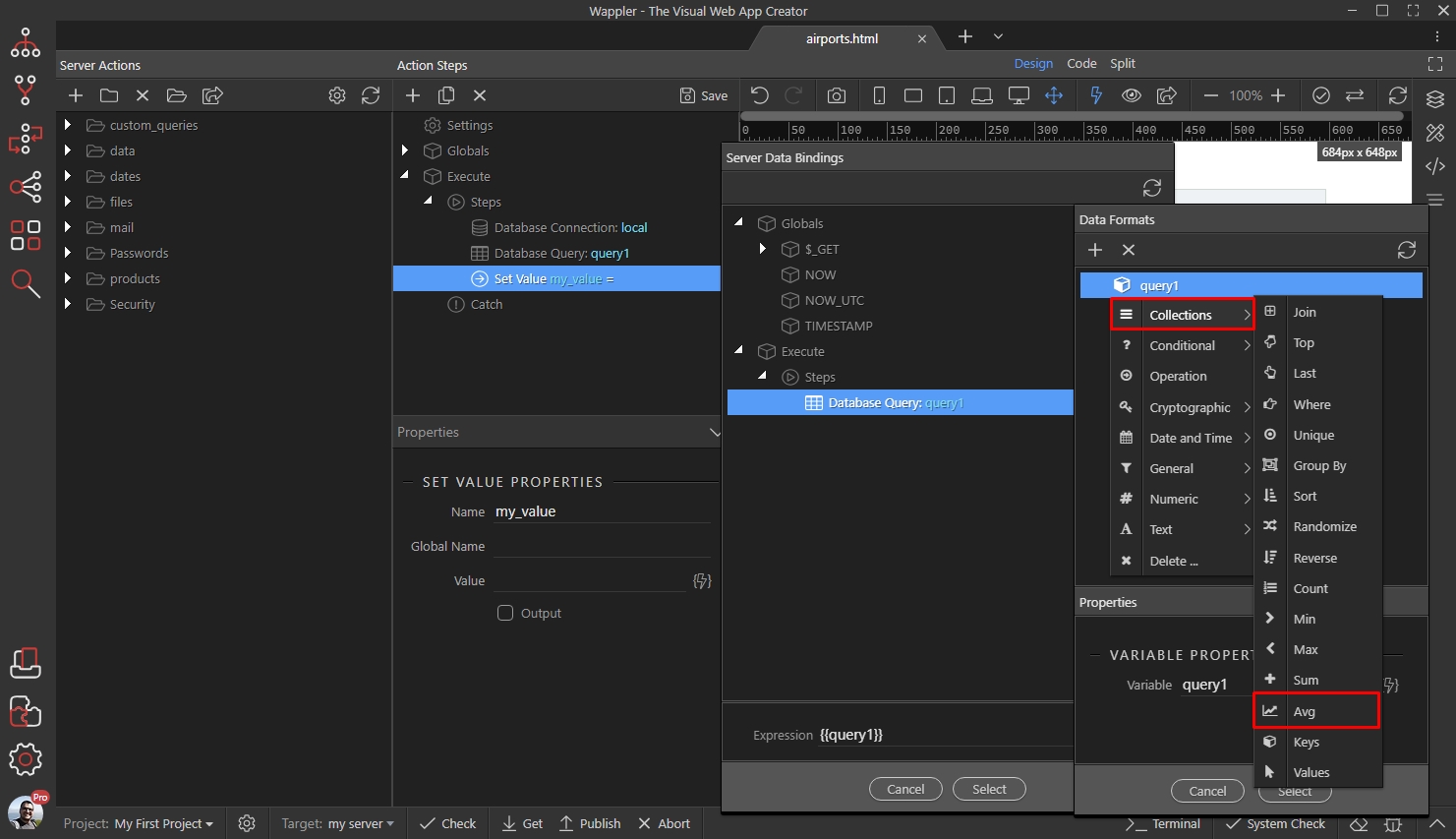
Step 8
Section titled “Step 8”Then enter the property (database column) which average value you want to calculate. In our case it’s called alt:
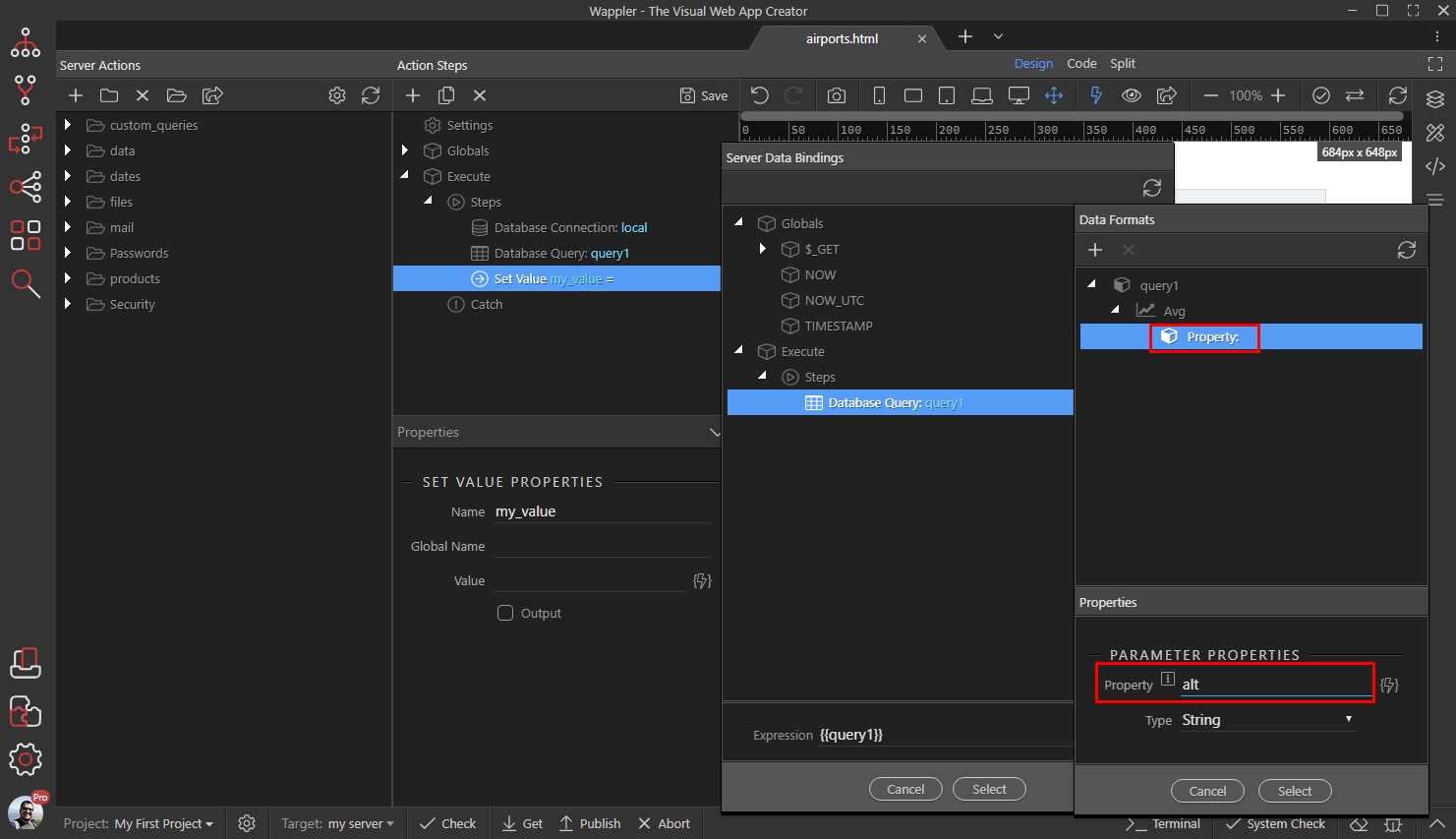
Click the select button:
Section titled “Click the select button:”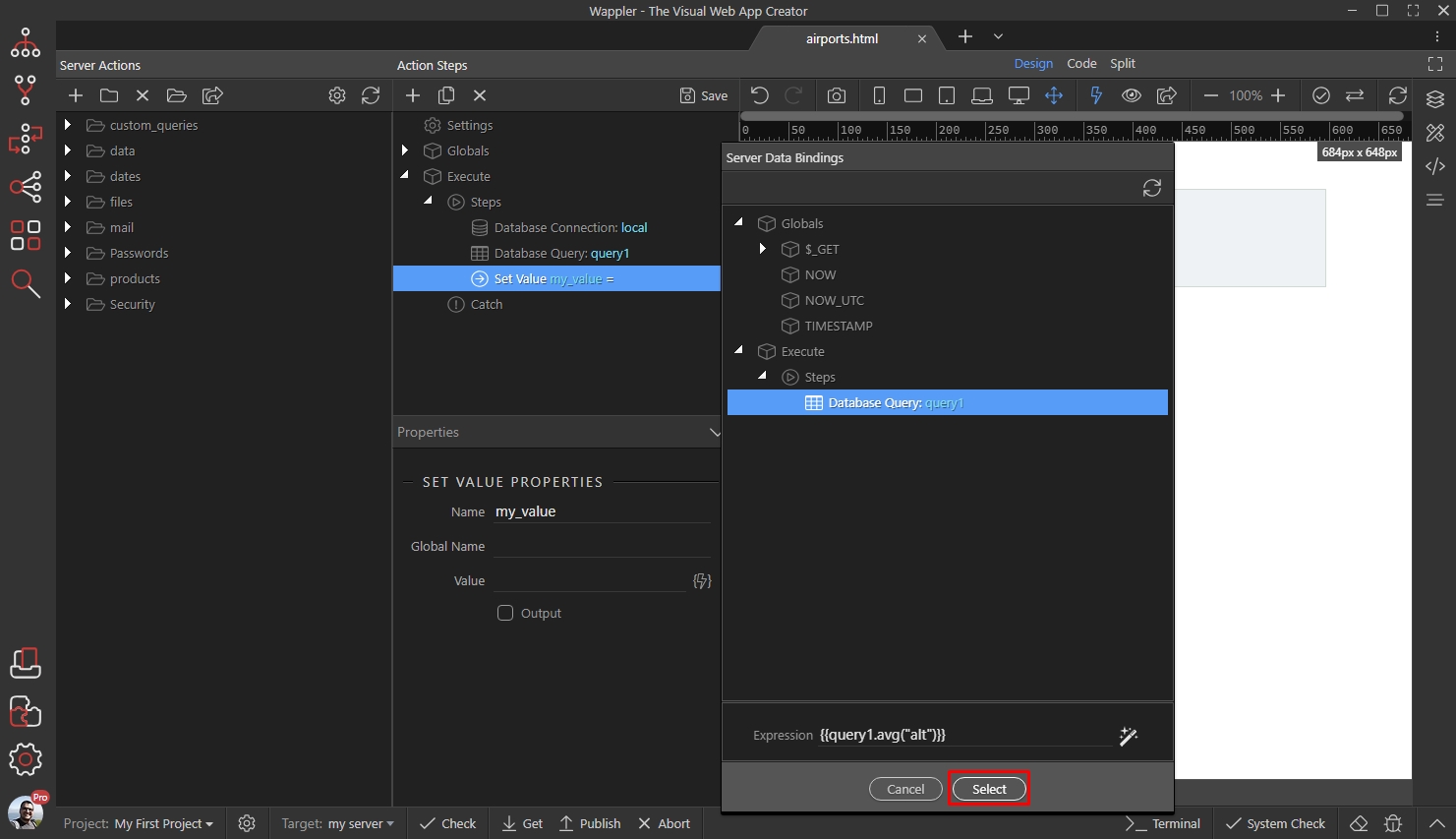
If you want to output this value on your page(s), then you need to enable the Output option:
Section titled “If you want to output this value on your page(s), then you need to enable the Output option:”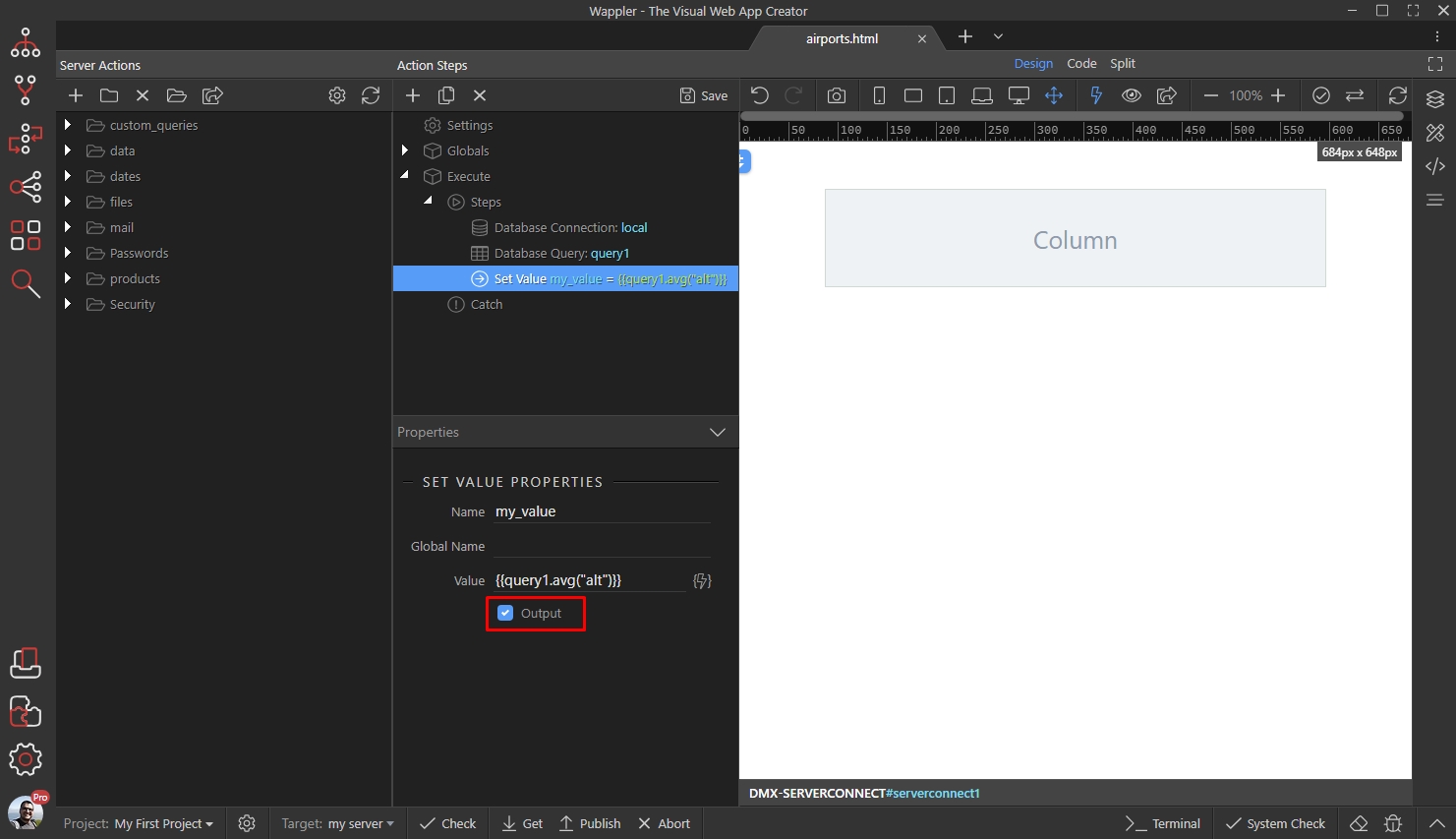
Displaying the value on your page
Section titled “Displaying the value on your page”Close the Server Connect Panel and open the App Structure Panel. We’ve already added the server connect component there and it returns the data from our server action:

Let’s add some static text on our page. Click the add component button:
Section titled “Let’s add some static text on our page. Click the add component button:”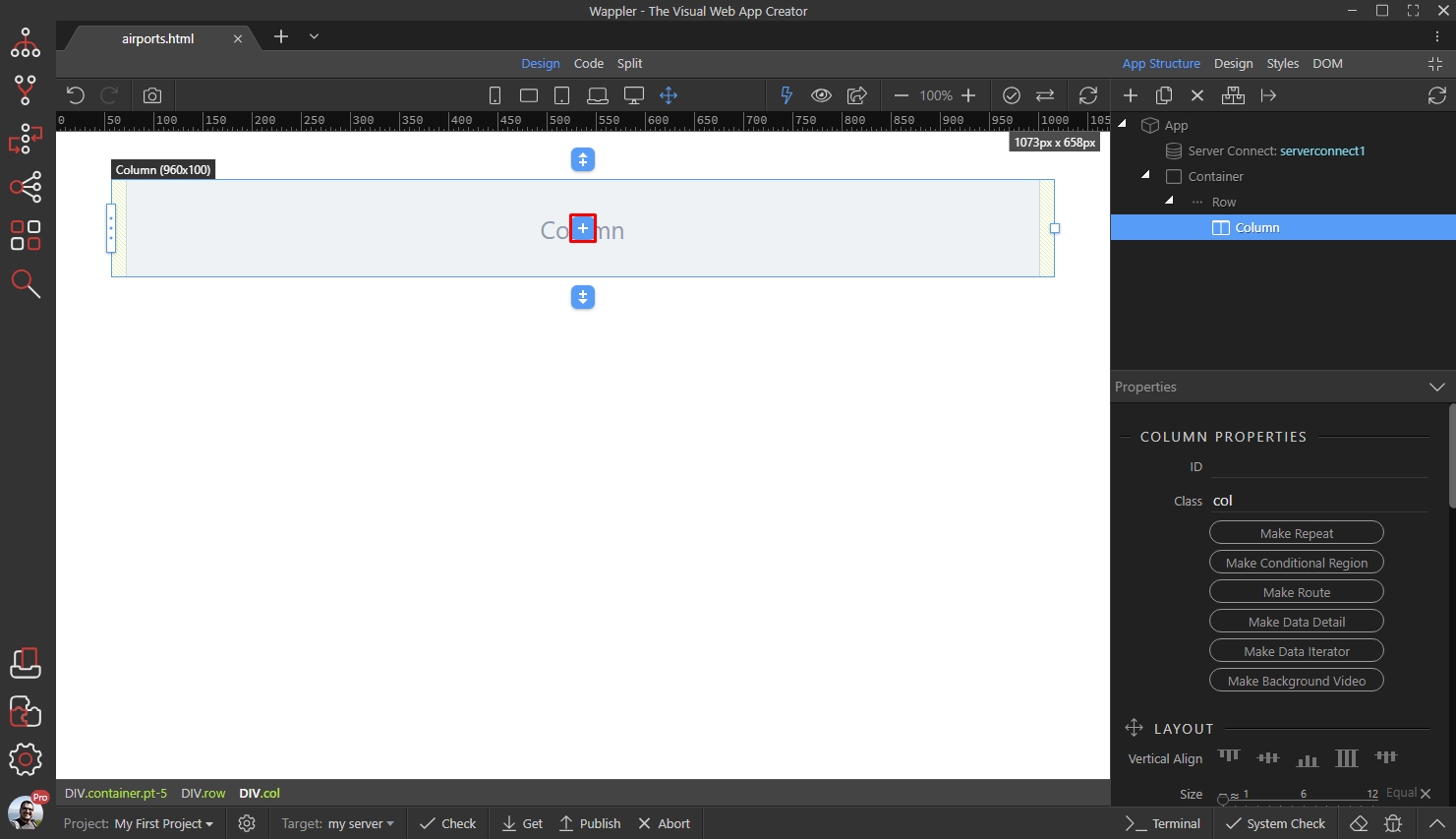
Add a title:
Section titled “Add a title:”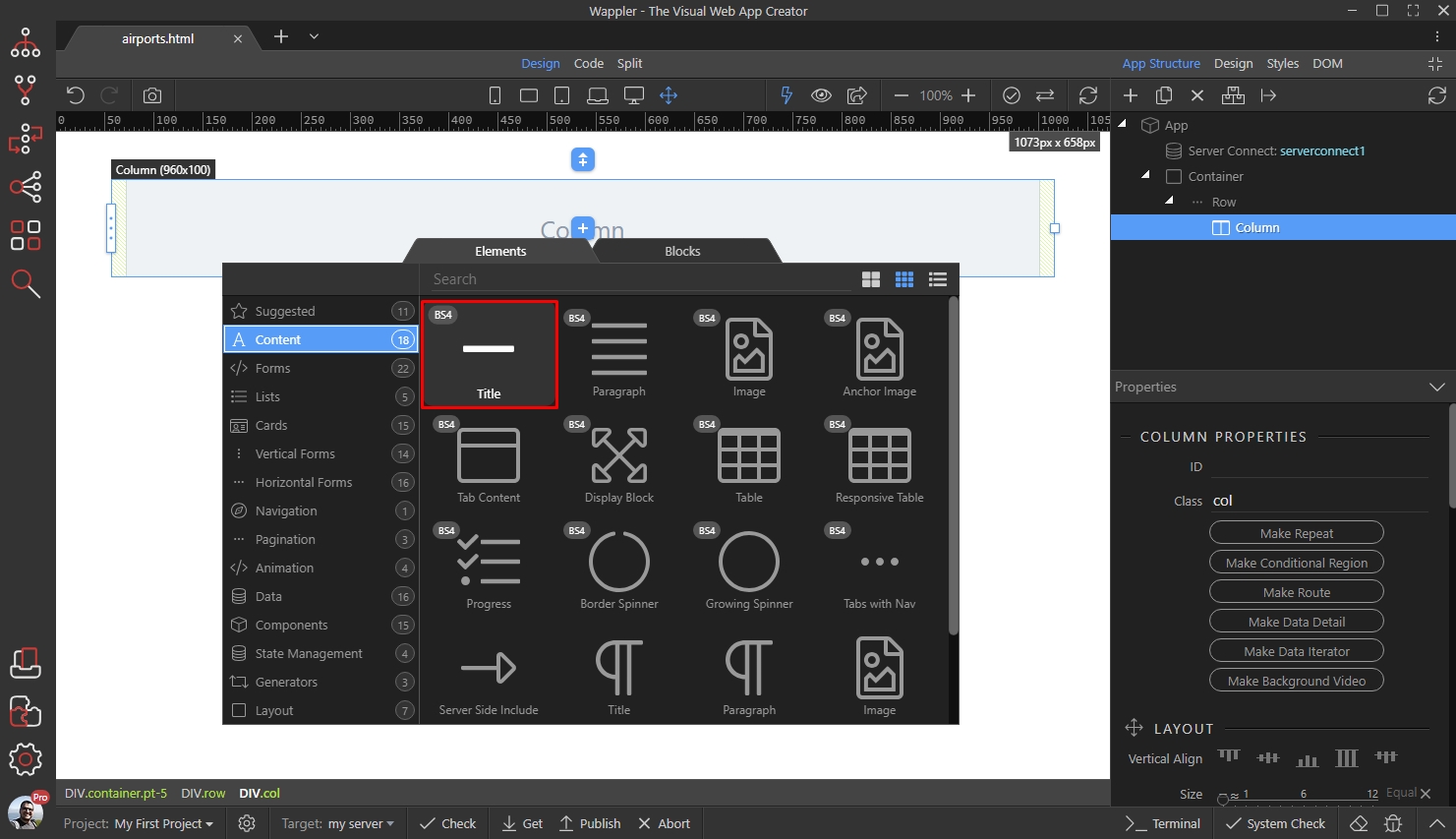
Double click to edit the title and use the dynamic data button:
Section titled “Double click to edit the title and use the dynamic data button:”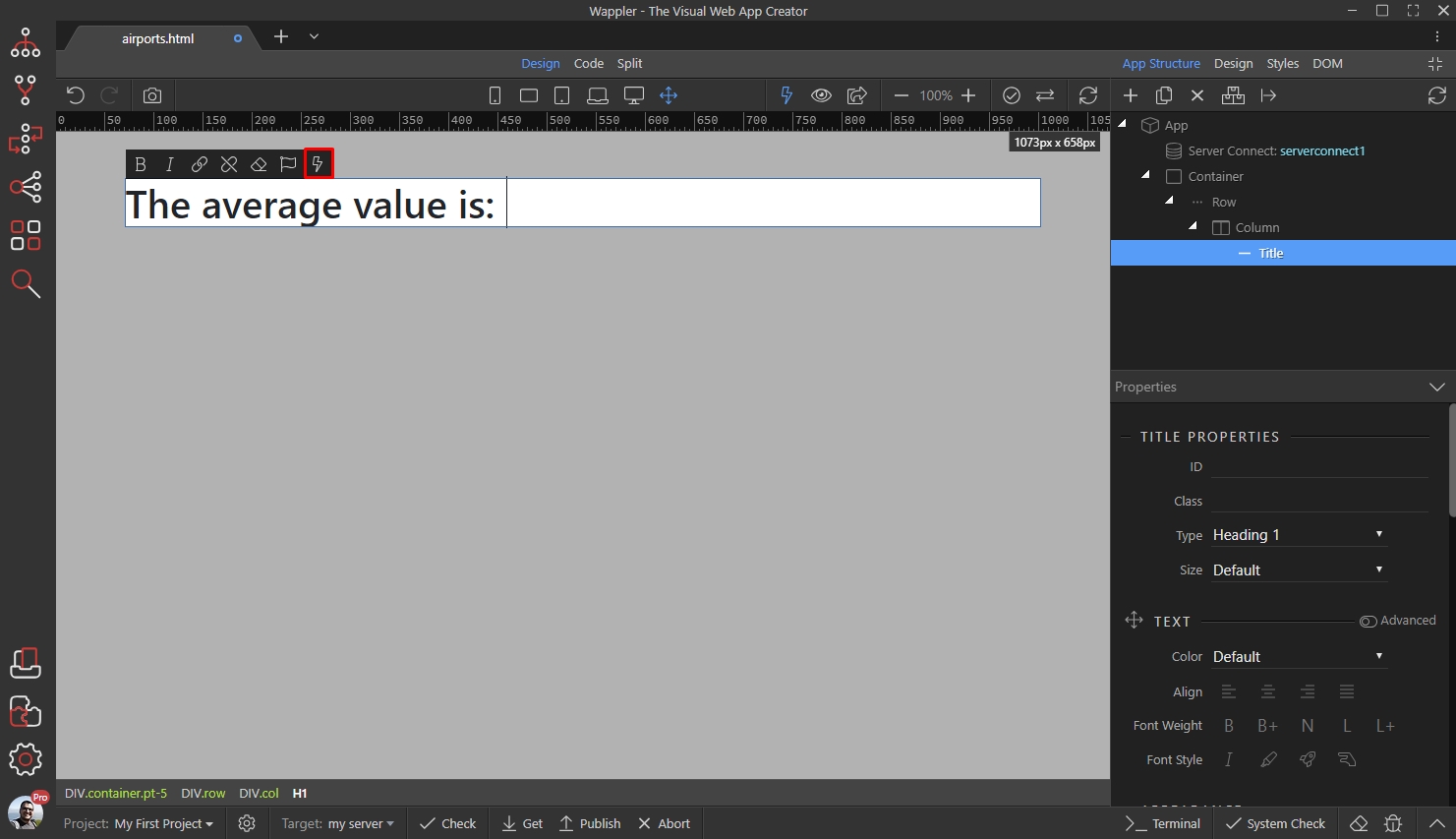
Your Set Value step will appear under data in your server action. Select it:
Section titled “Your Set Value step will appear under data in your server action. Select it:”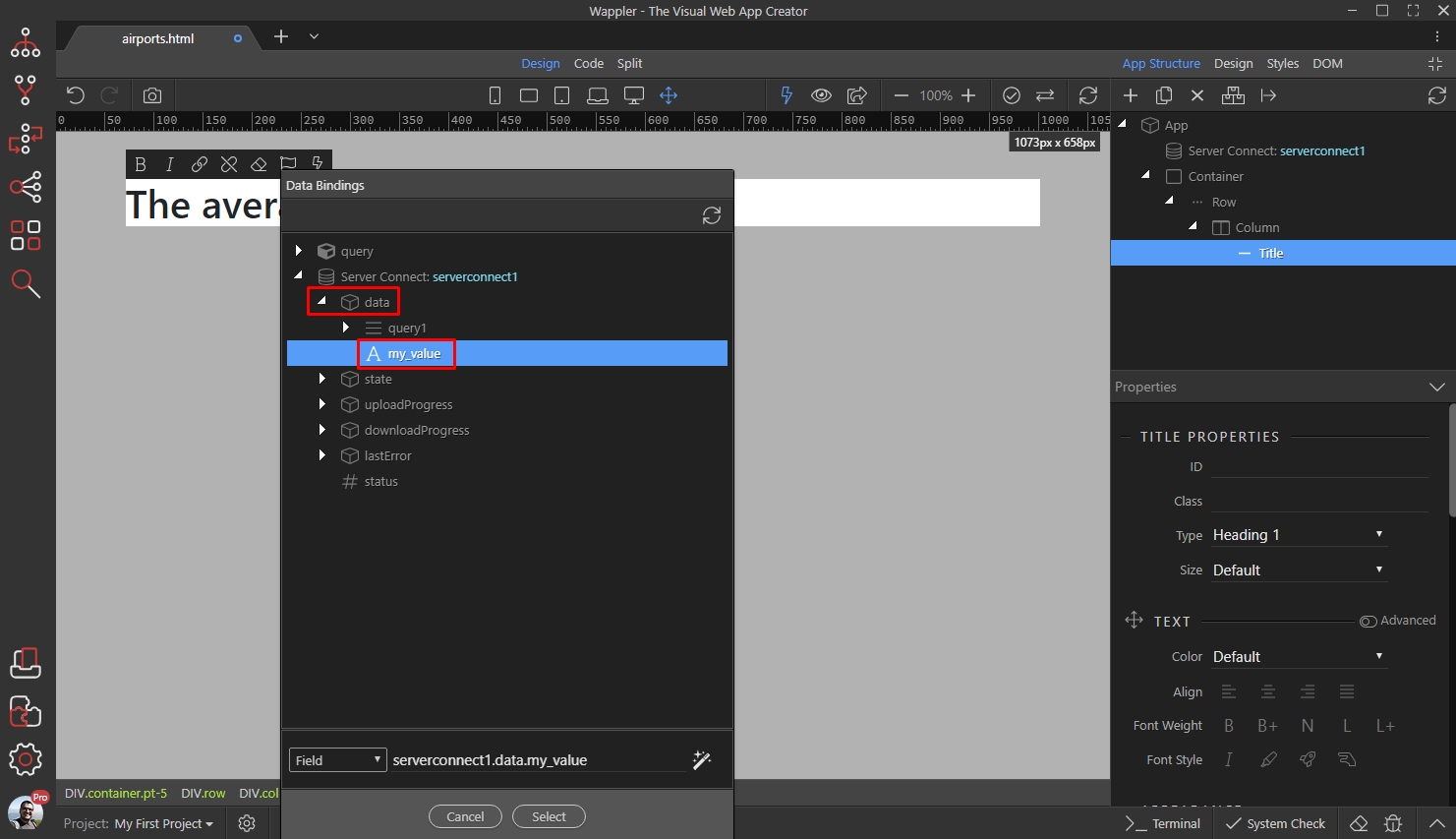
Save your page and see the results:
Section titled “Save your page and see the results:”