Displaying Record Details with the Data Detail Component
In some cases you don’t need to show all the details of your dynamic records on the page. For example you just want to show the product name, and then when the users click the product - more informati
Step 1
Section titled “Step 1”In some cases you don’t need to show all the details of your dynamic records on the page. For example you just want to show the product name, and then when the users click the product - more information is displayed. This is also useful for update record forms.
This can be done using the Data Details component and you can show the details directly on the page or in a modal.
Show details on the page
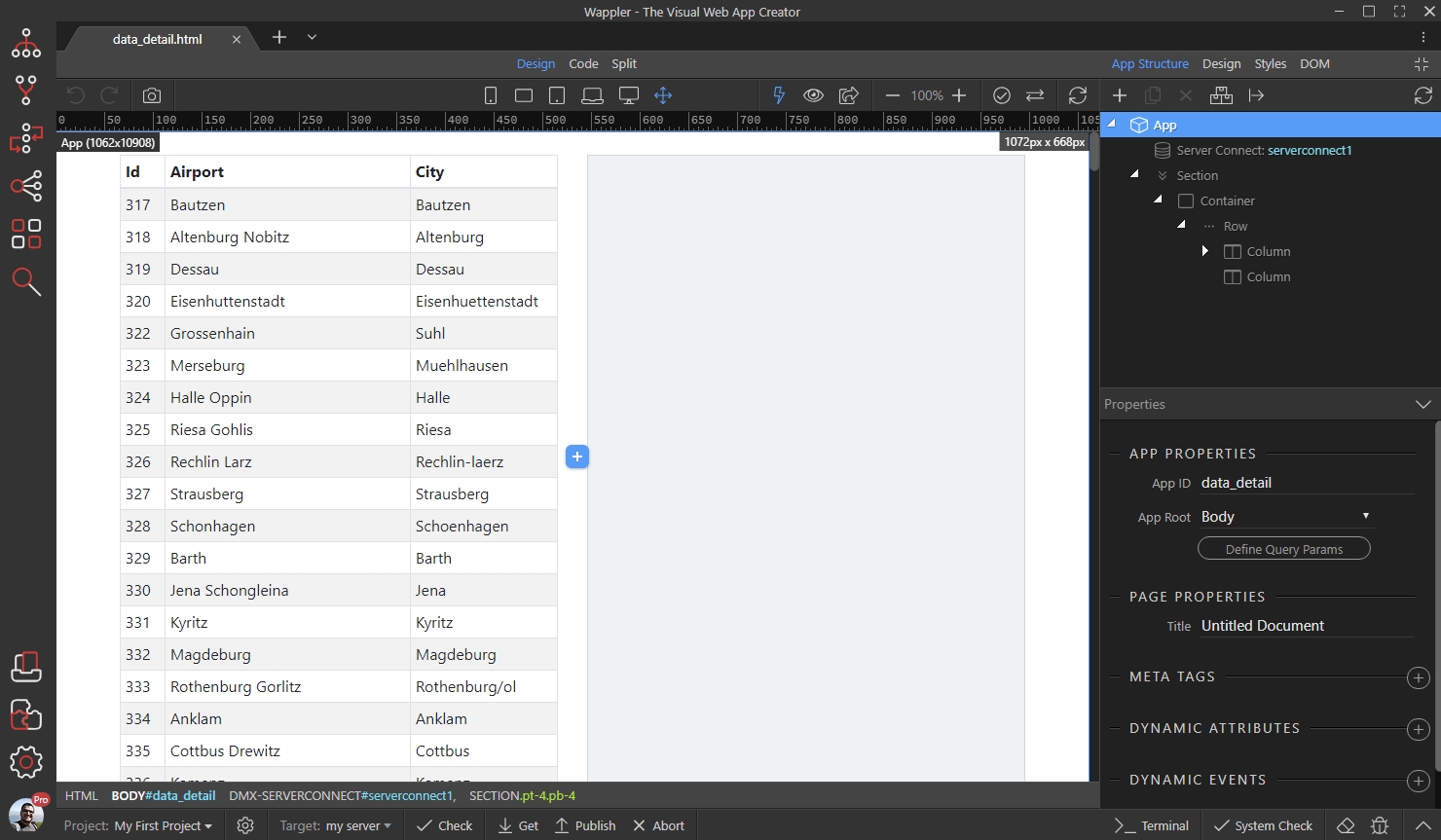
Section titled “Show details on the page”We created a dynamic table, displaying an ID, Airport Name and City. There is more info that we want to show, in the right column when a table row is clicked:
Step 3
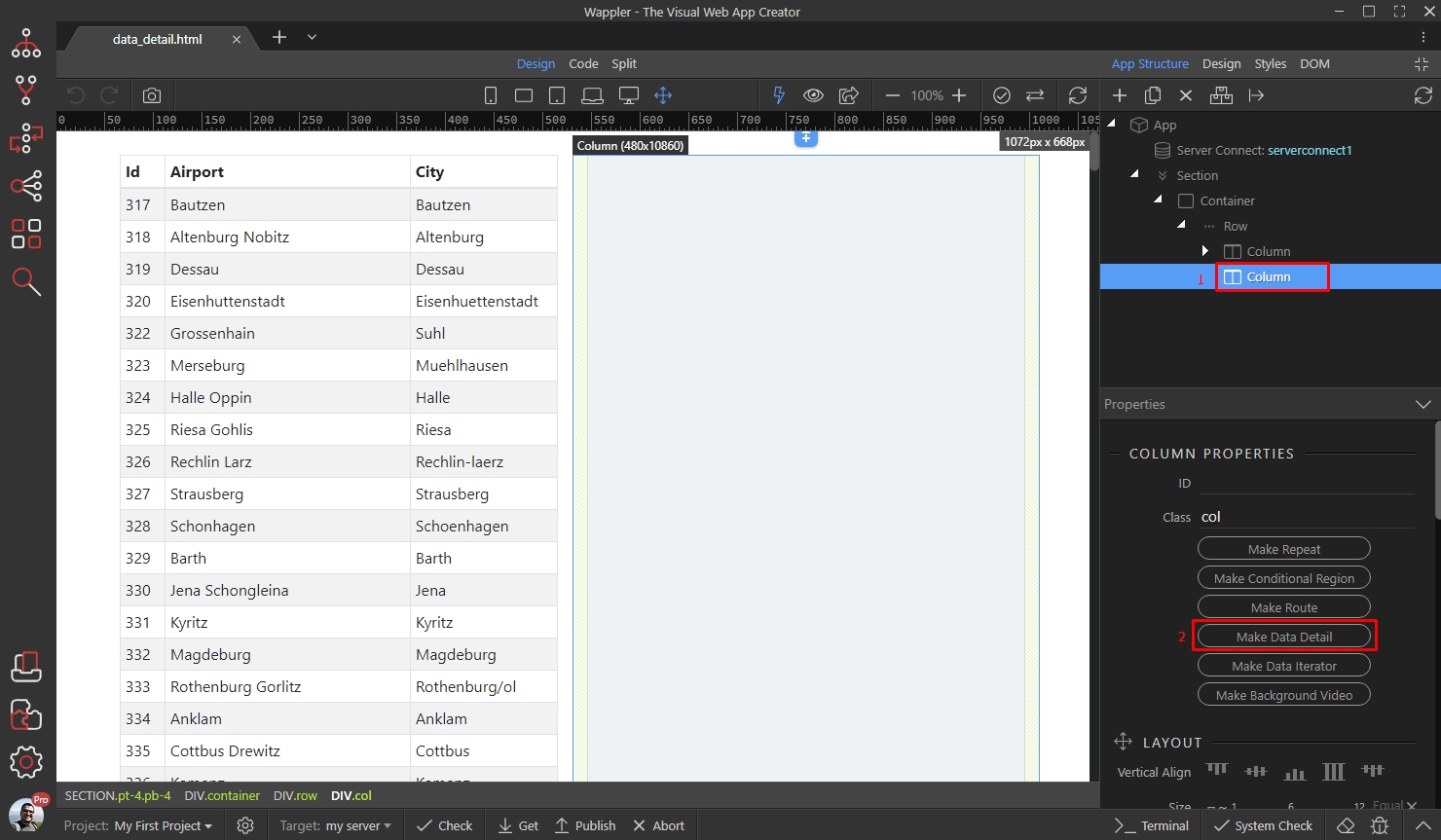
Section titled “Step 3”First, select the element, which you want to show the details into. In our case this is the column (1). Then click the Make Data Detail button (2):
Select a data source for the data detail:
Section titled “Select a data source for the data detail:”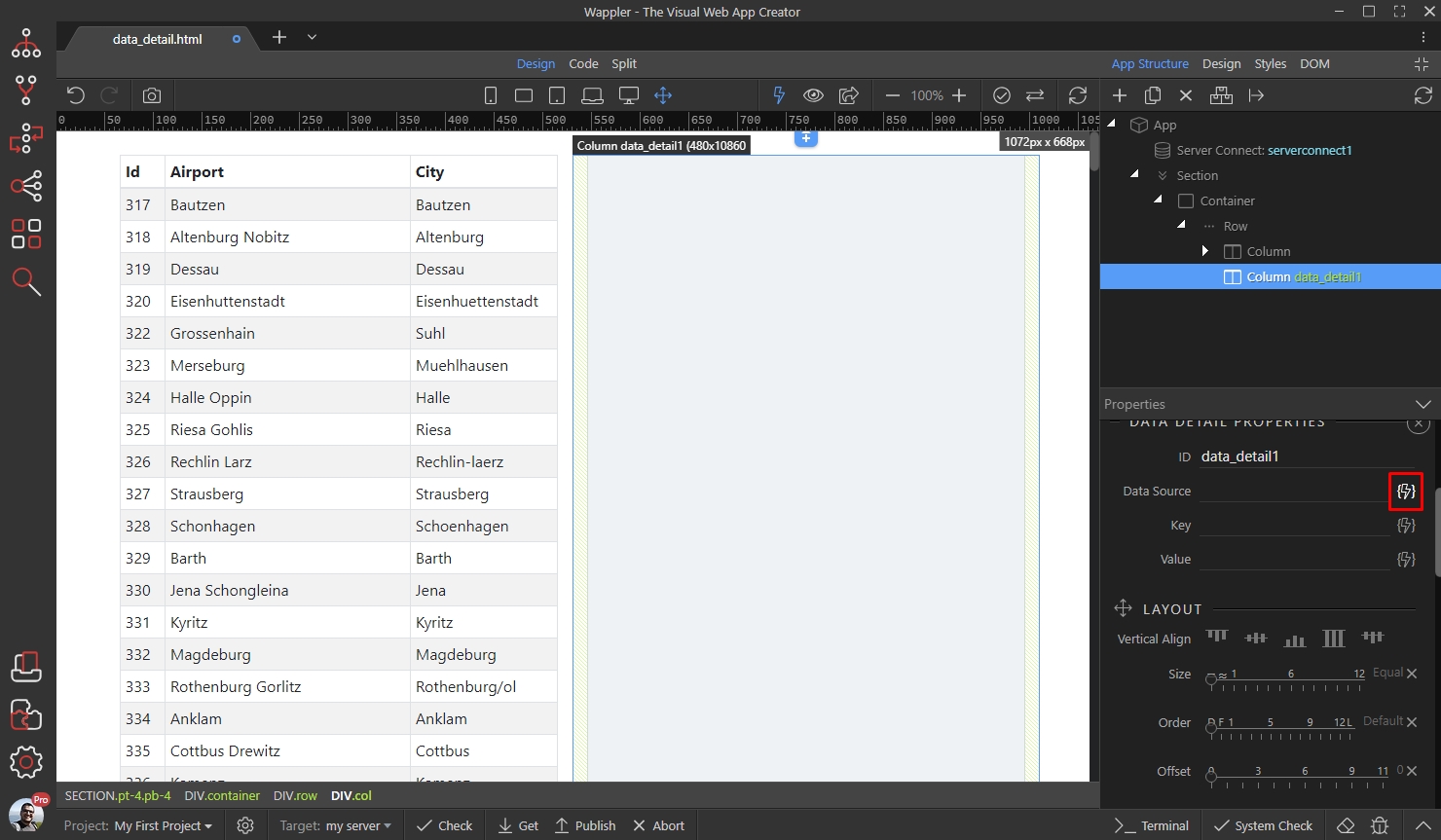
This should be the same data source, as you used for your dynamic table/list/repeat region:
Section titled “This should be the same data source, as you used for your dynamic table/list/repeat region:”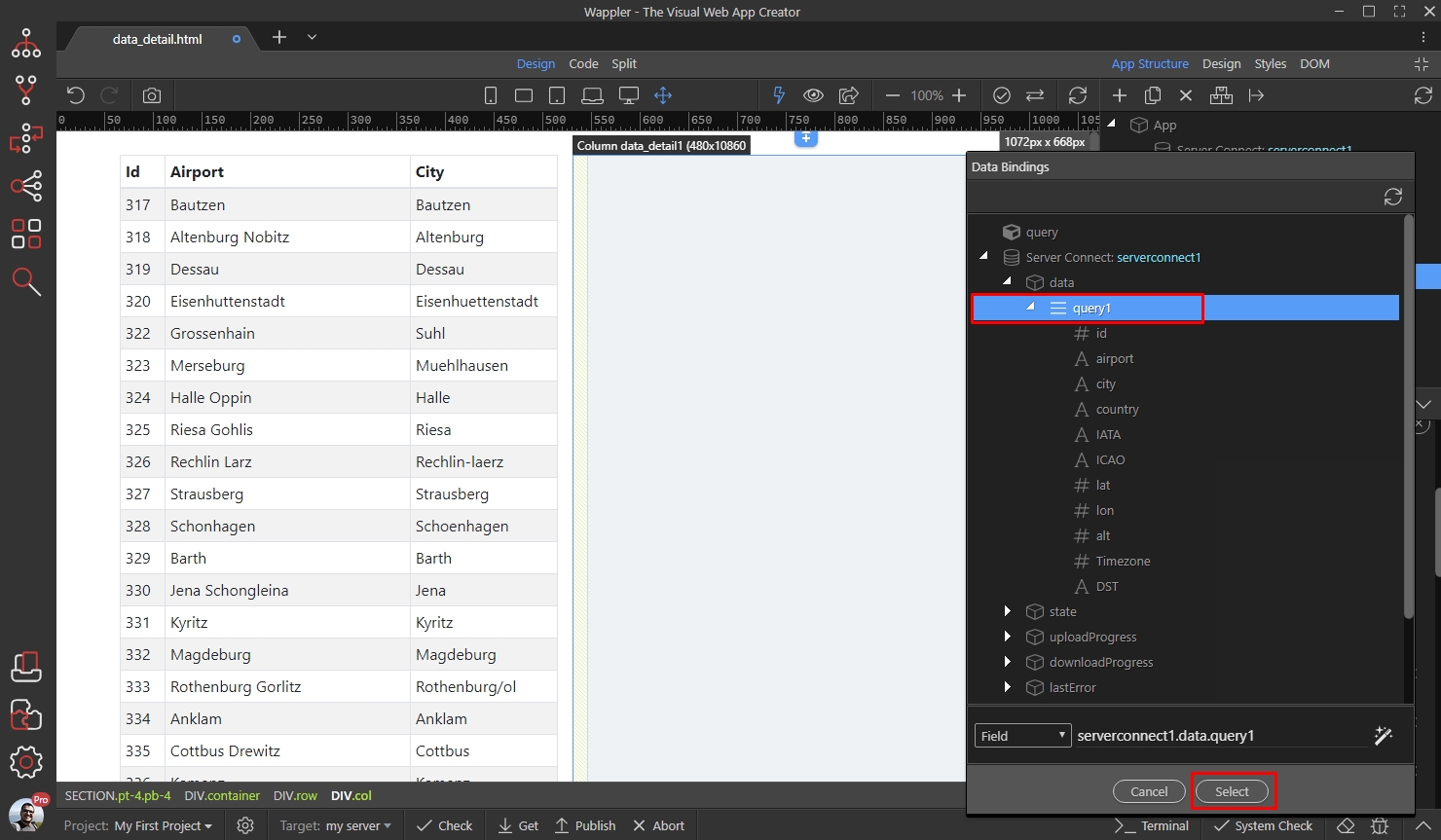
Then, select a Key:
Section titled “Then, select a Key:”
Step 7
Section titled “Step 7”The key is used to control which record details we are displaying. It should be an unique ID returned by your data source. Under Data Detail, select your ID and click the Select button:
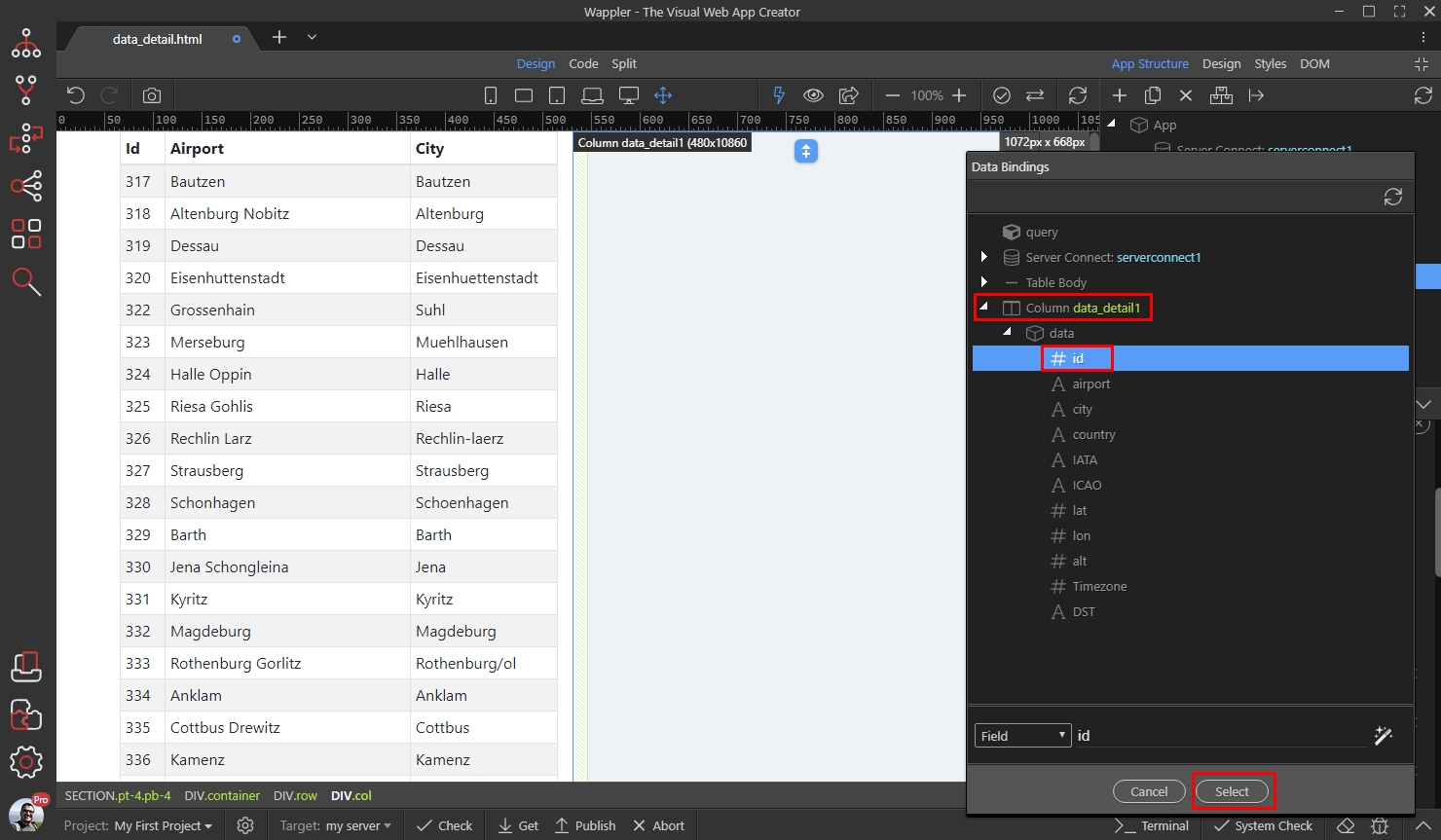
Step 8
Section titled “Step 8”We are done setting up the data detail properties. Now, let’s add a paragraph inside our detail region. Right click your data detail region:
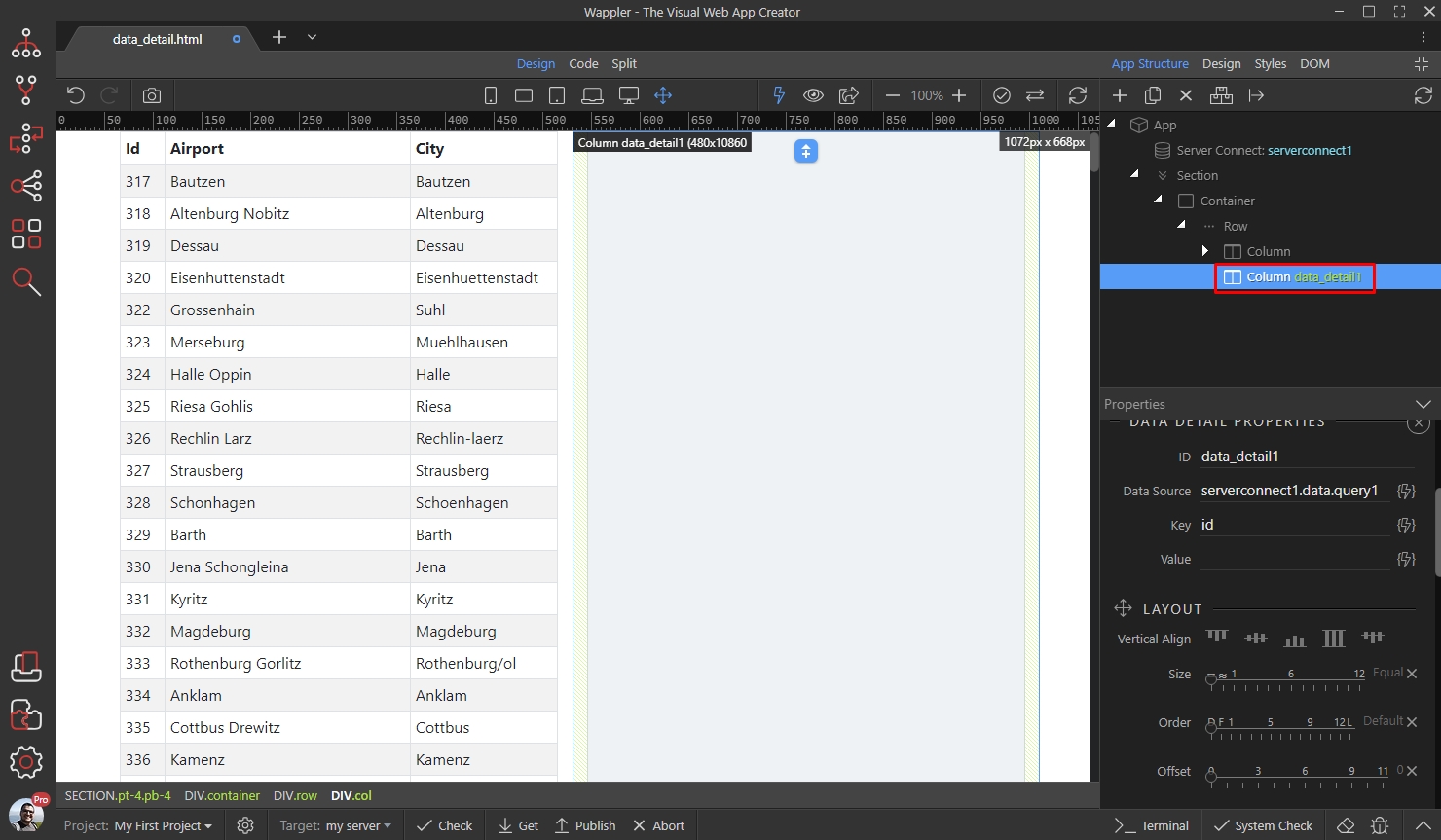
And add a paragraph:
Section titled “And add a paragraph:”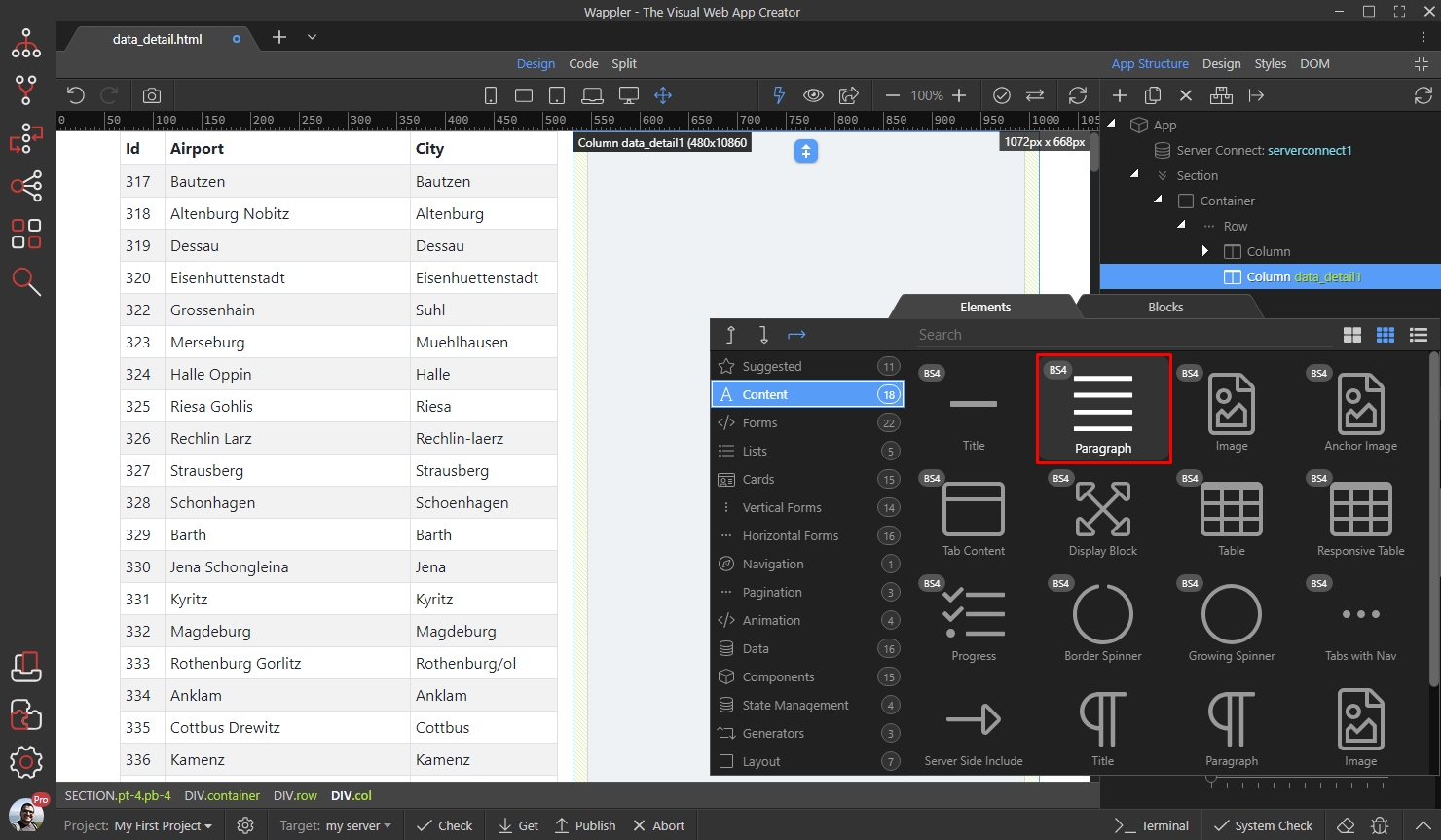
Step 10
Section titled “Step 10”NOTE: You can add any element here: title, image, lists, tables etc. We are just using a paragraph as the simplest example.
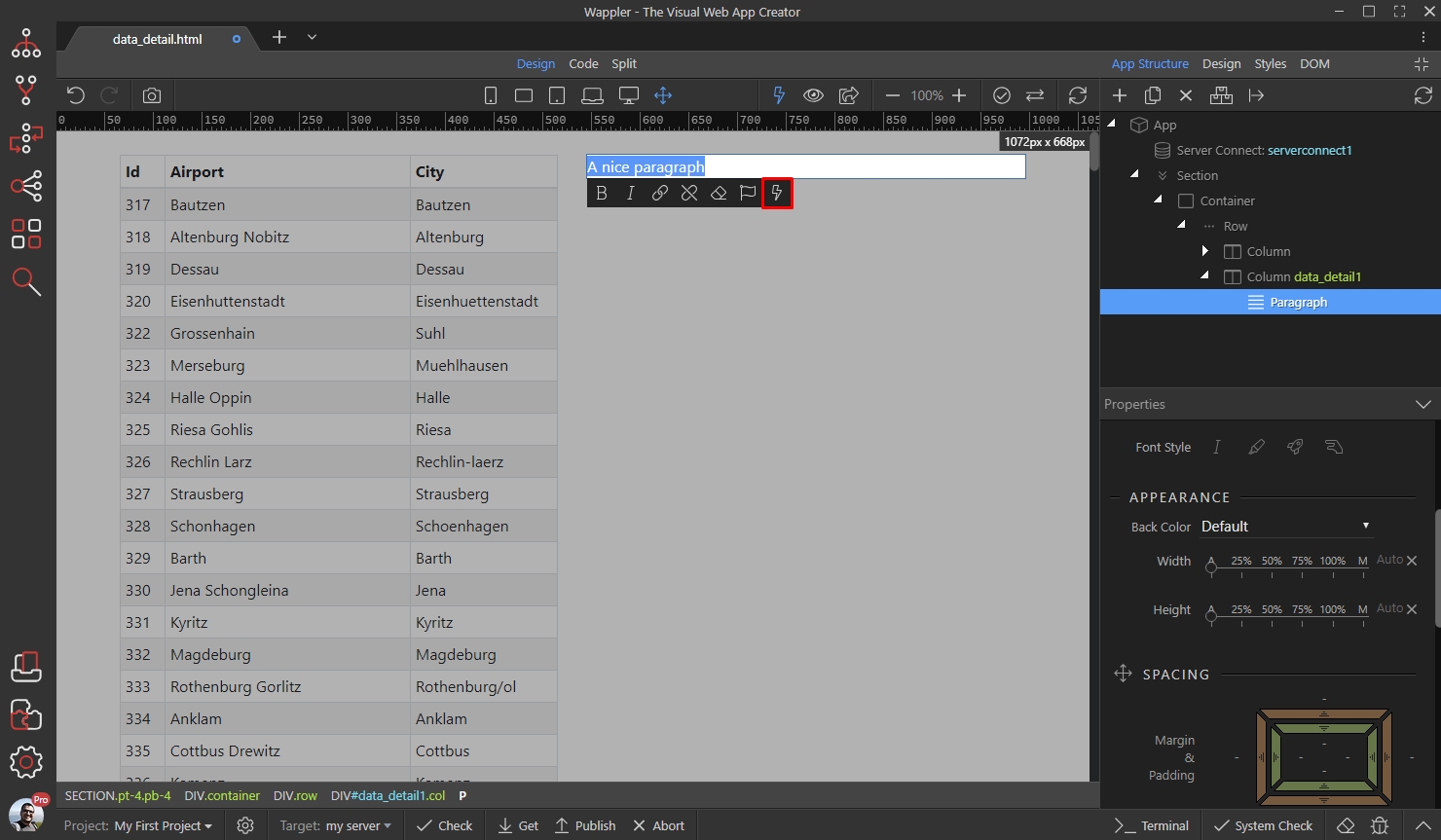
Then, double click inside the paragraph and click the dynamic data picker icon (or use the inner text dynamic attribute if you prefer):
Step 11
Section titled “Step 11”Bind the data you need here. Make sure to select your bindings under the Data Detail and not under the Server Connect component!

Step 12
Section titled “Step 12”Add as many bindings as you need.
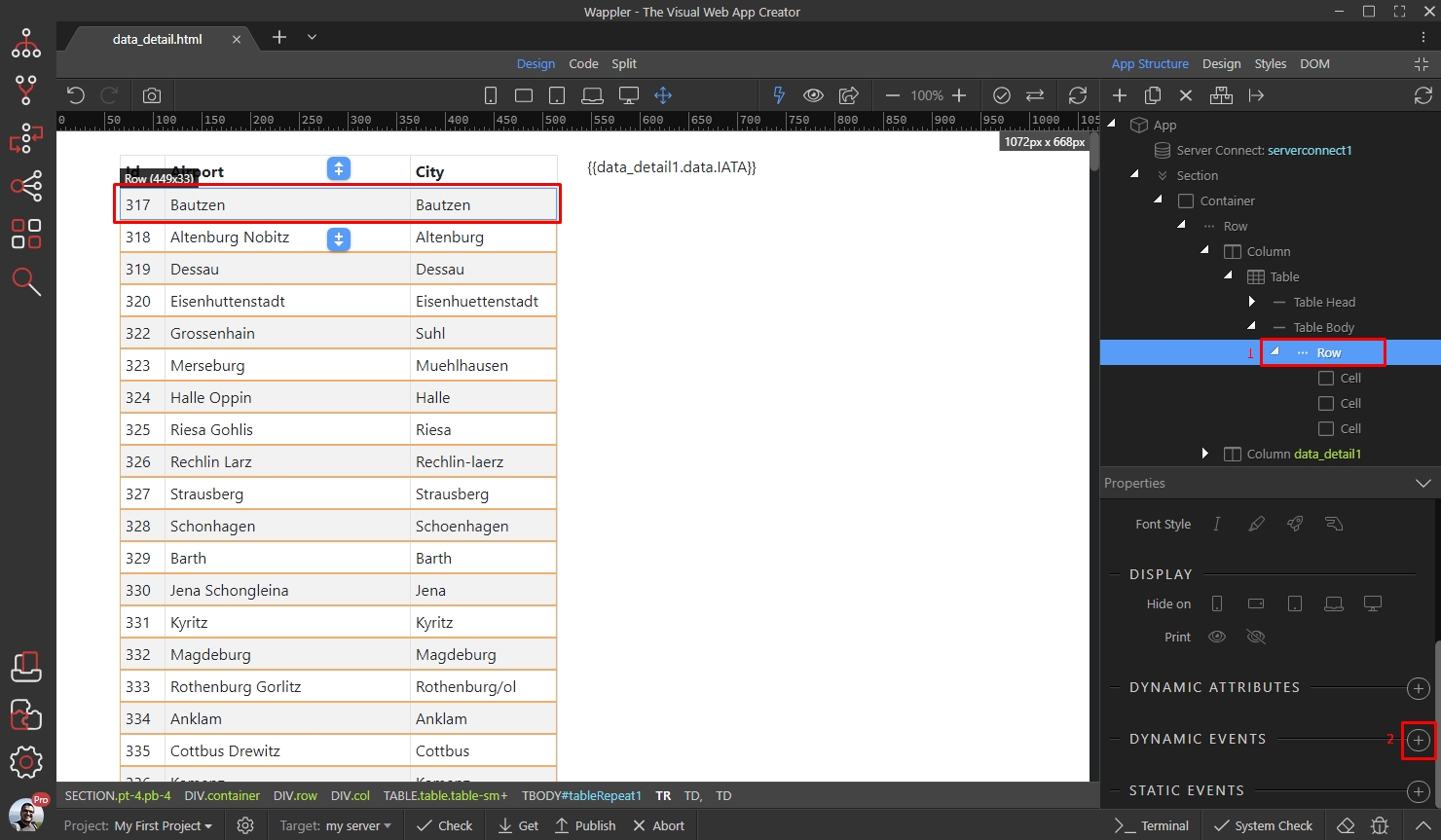
Now, let’s setup the table so that the details are displayed when a row is clicked. Click your table row (1) and then add new Dynamic Event (2):
Under Mouse, select Click:
Section titled “Under Mouse, select Click:”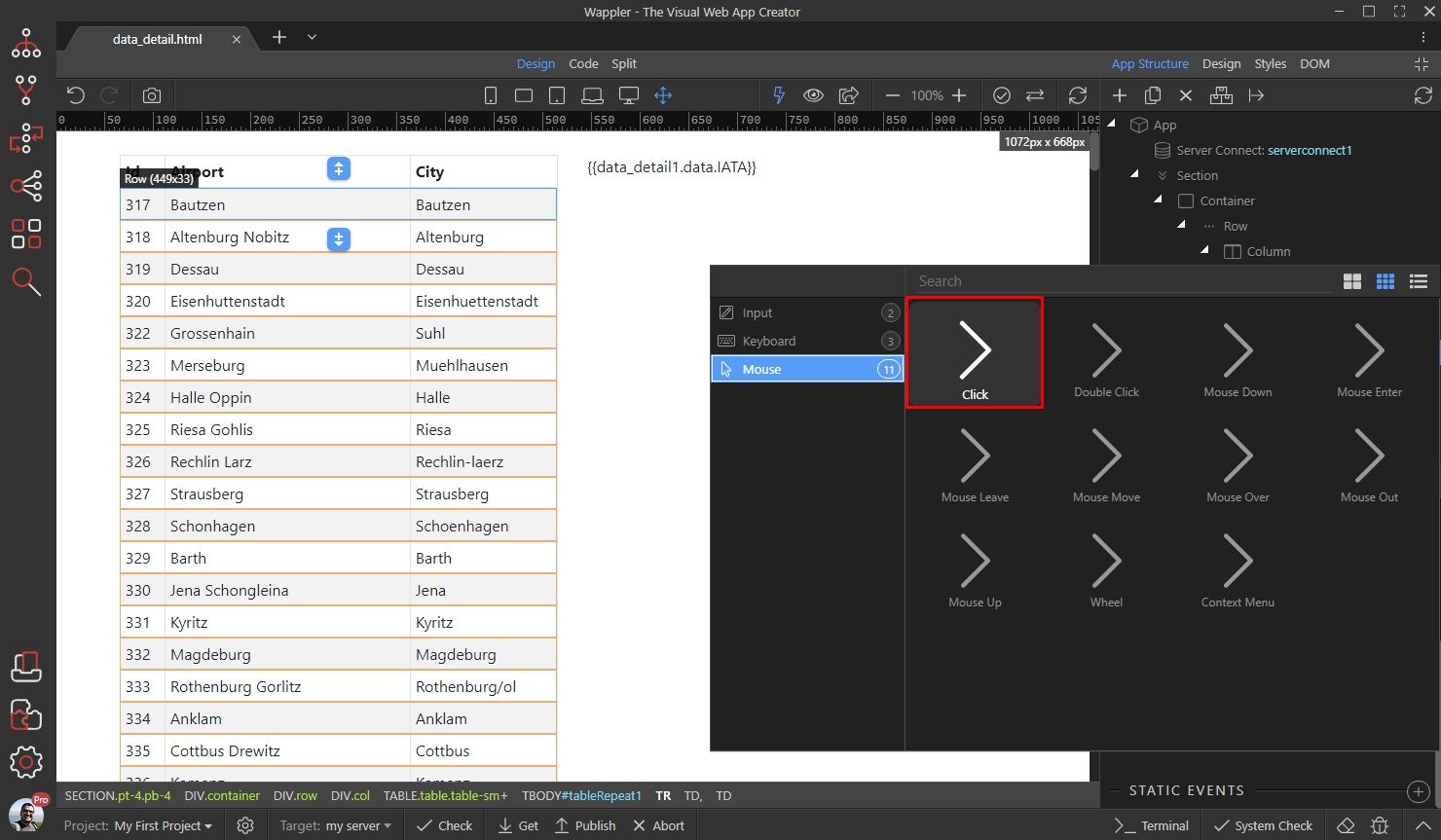
And select your dynamic action:
Section titled “And select your dynamic action:”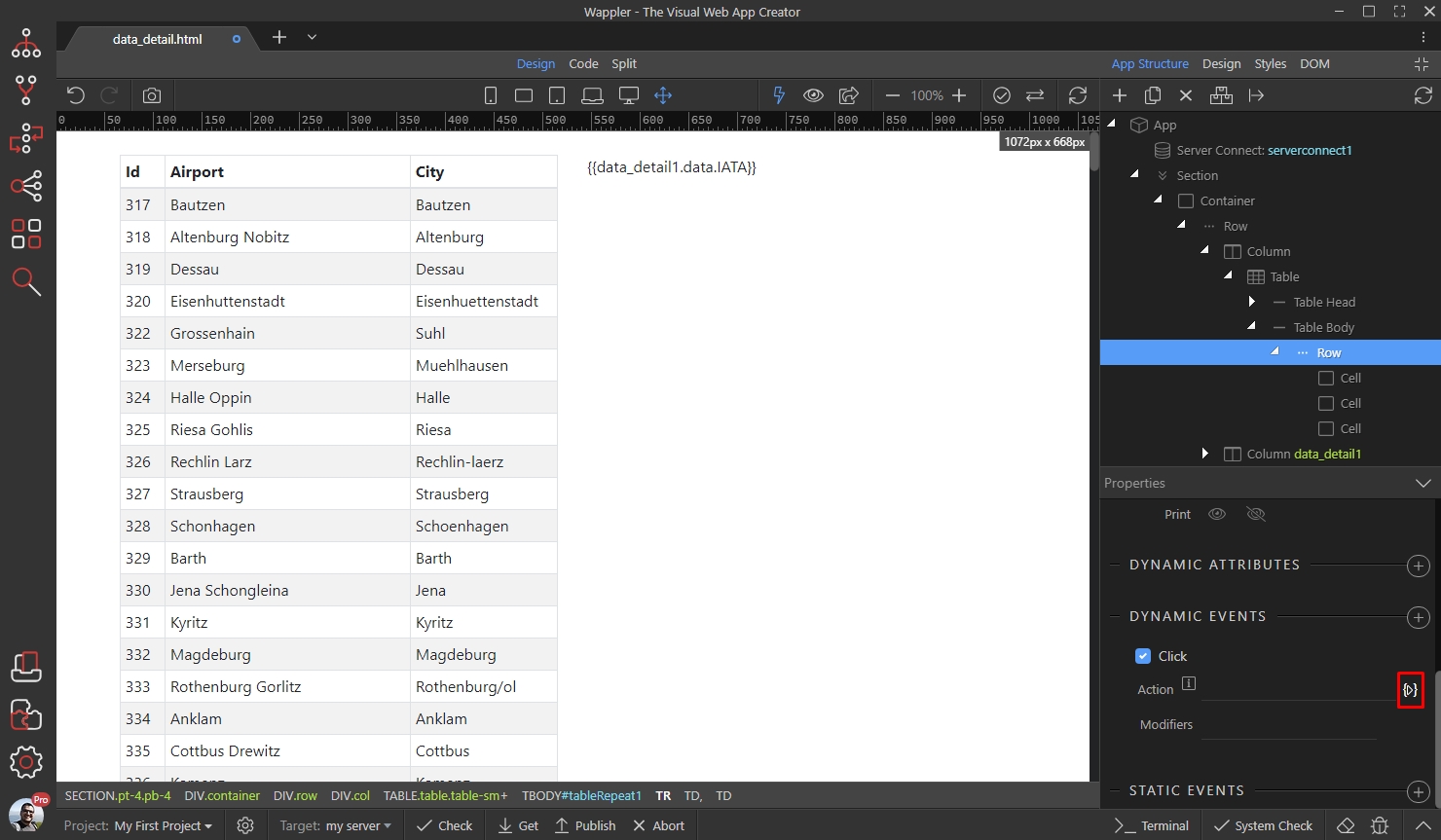
Under your data details element you will see a “Select” action. Select it:
Section titled “Under your data details element you will see a “Select” action. Select it:”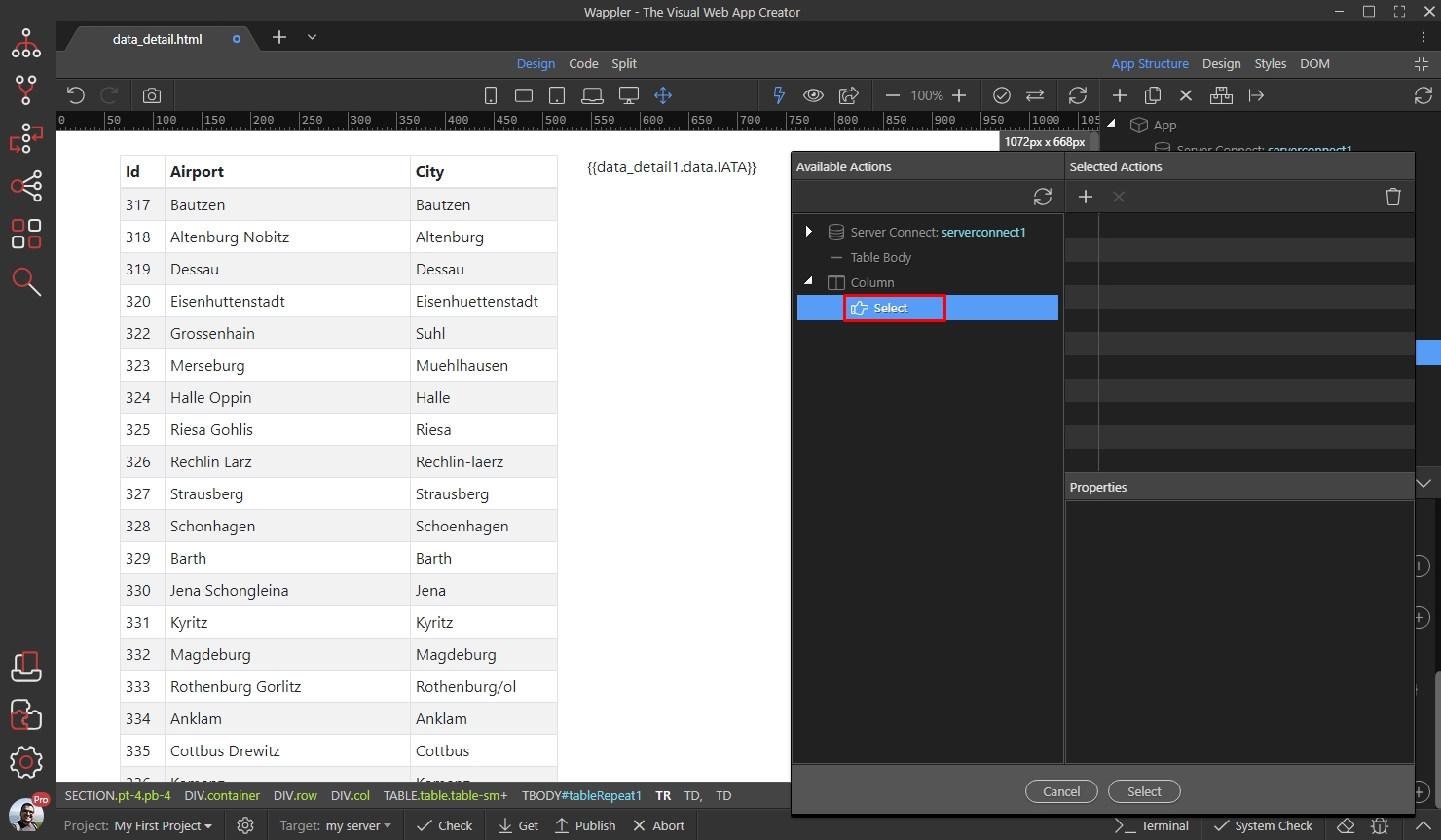
And then select a Key value:
Section titled “And then select a Key value:”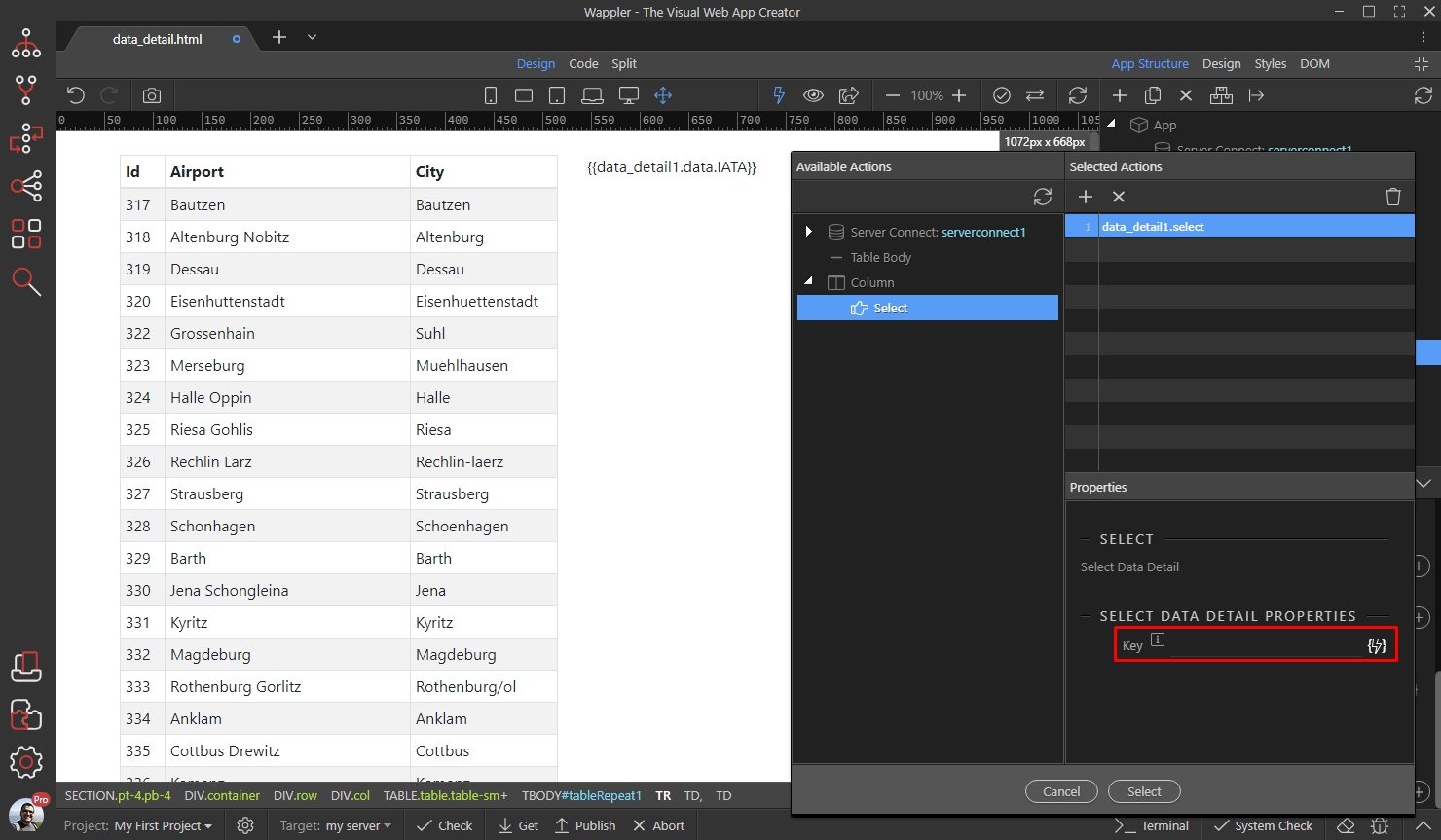
Step 17
Section titled “Step 17”This must be the same ID which you selected earlier for your data detail properties. Select it under the repent region / dynamic table data:

And you are done. You will see the details of the selected records, when you click on the table rows:
Section titled “And you are done. You will see the details of the selected records, when you click on the table rows:”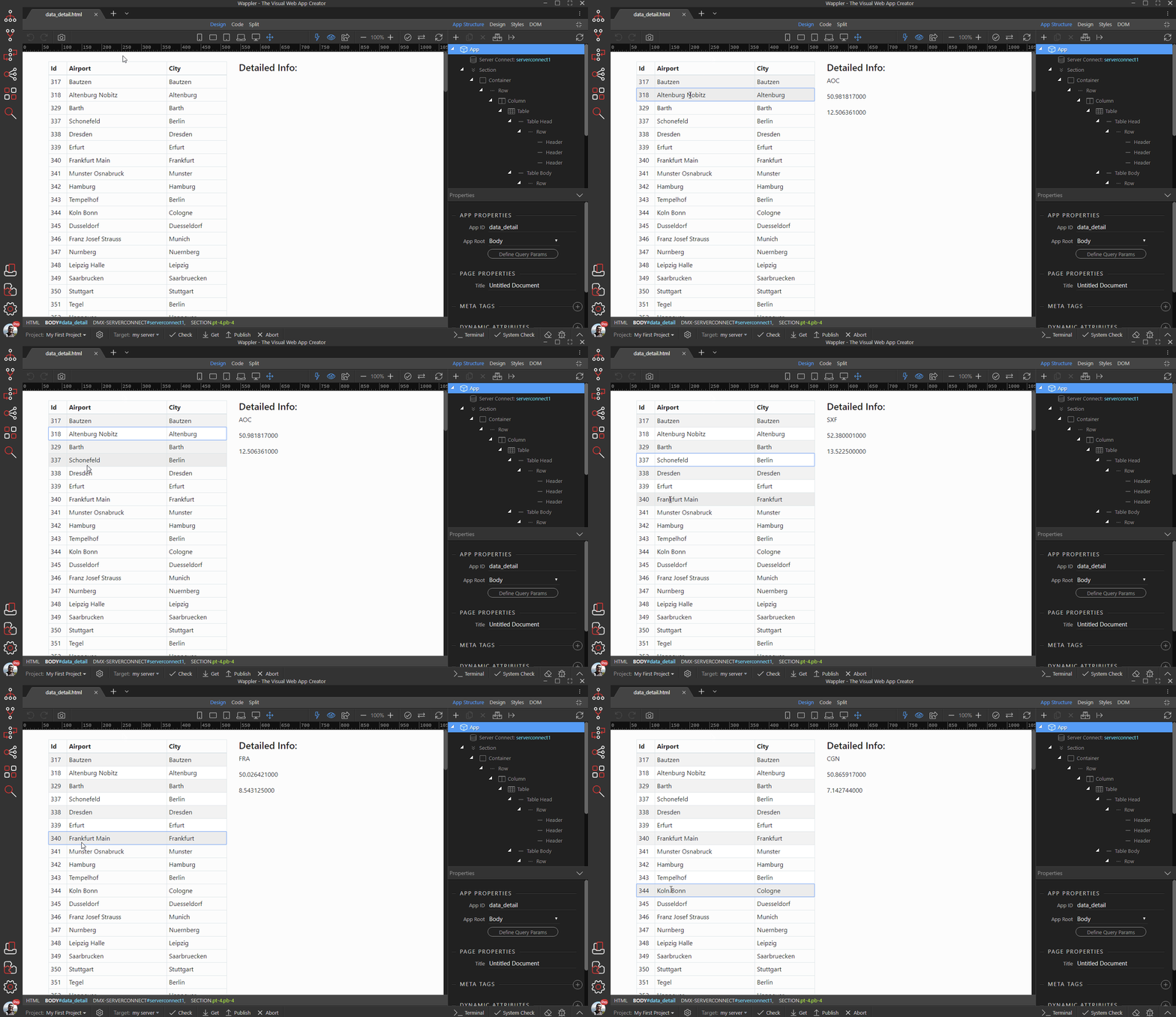
Show details in a modal
Section titled “Show details in a modal”You can also show details of a record in a modal. First, let’s add a modal on the page. Select App and add new component:
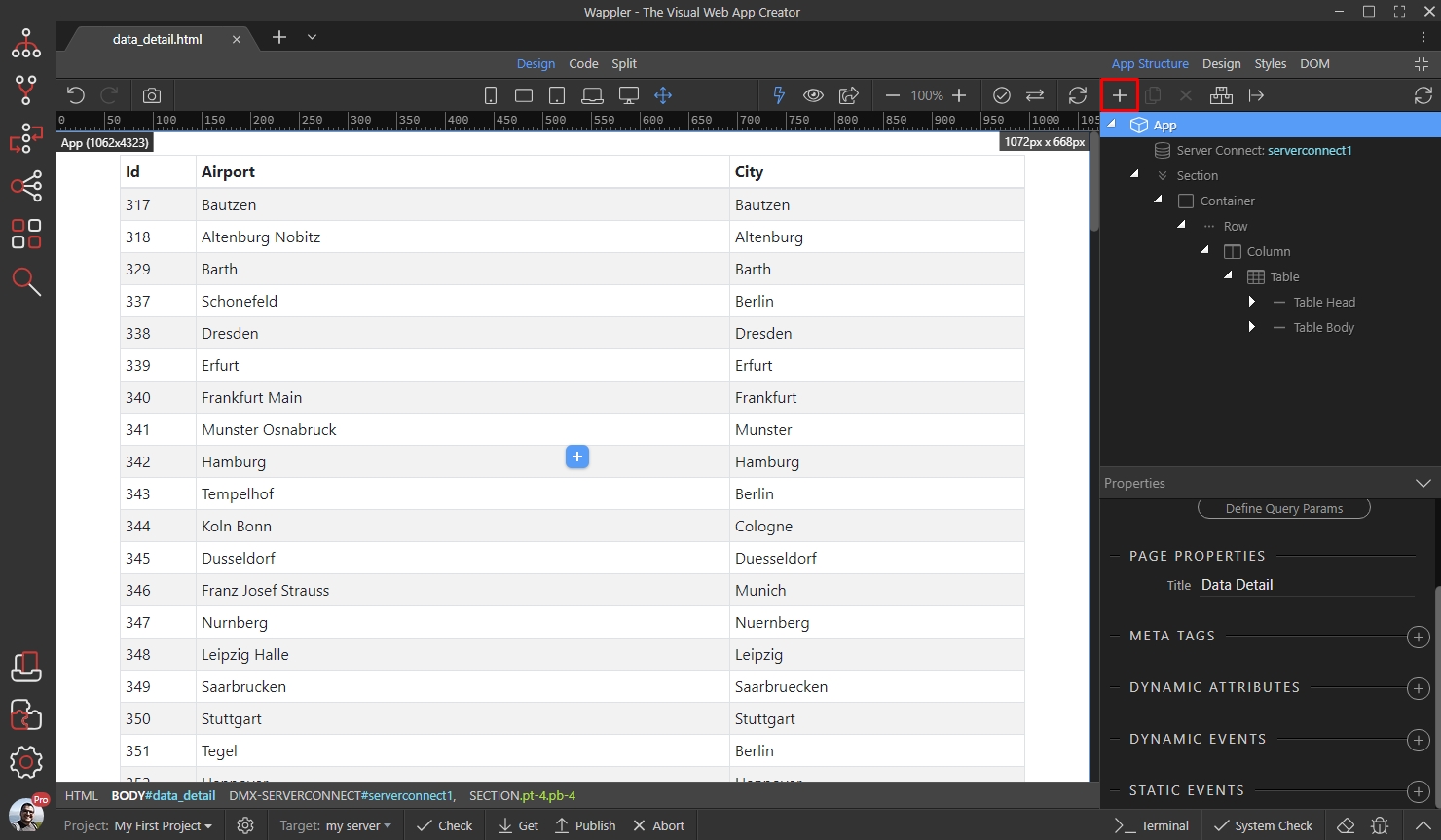
Open the Components menu and add Dynamic Modal:
Section titled “Open the Components menu and add Dynamic Modal:”
Remove the default dummy paragraph(1) in the modal body:
Section titled “Remove the default dummy paragraph(1) in the modal body:”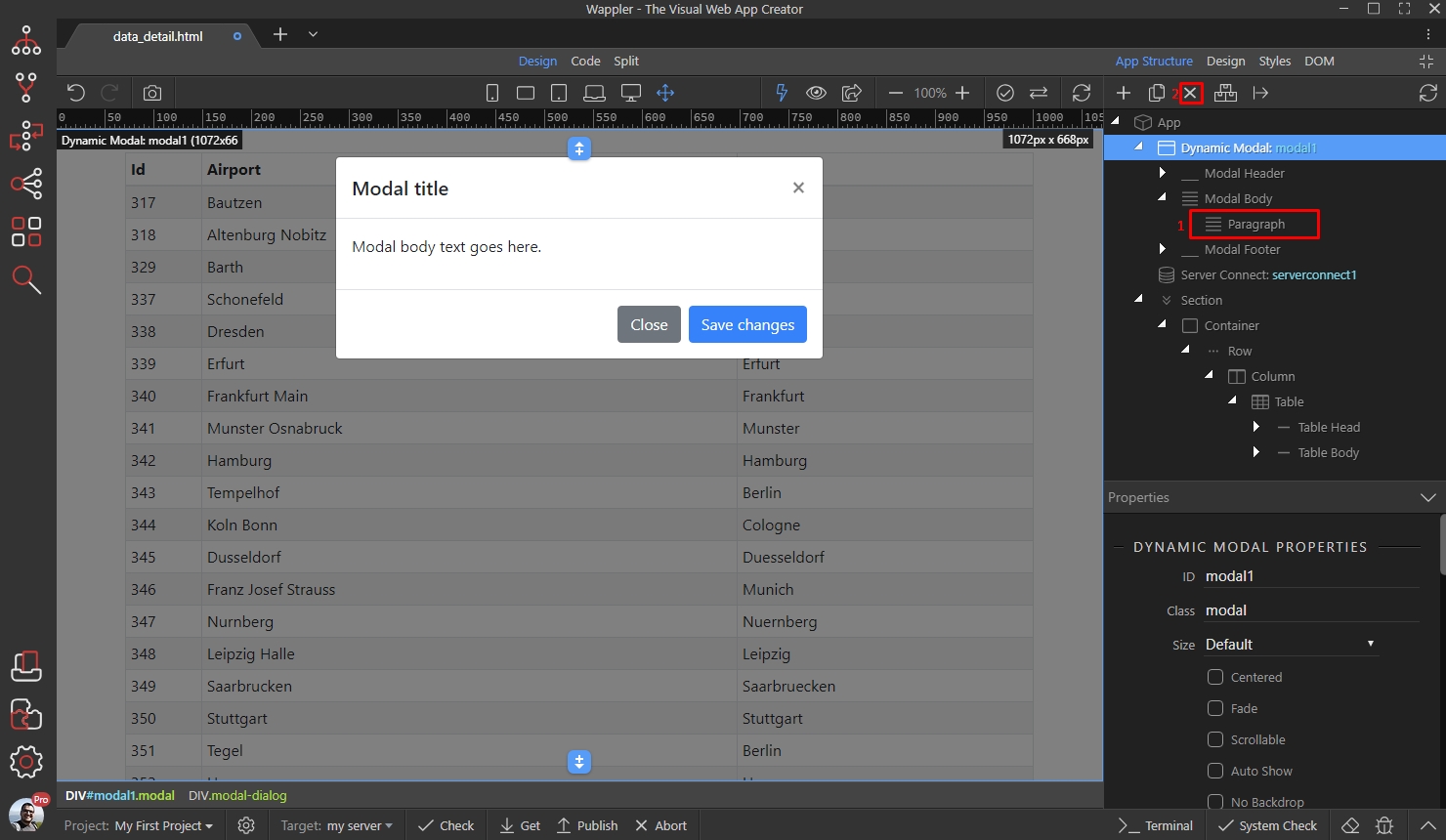
Then right click the modal body:
Section titled “Then right click the modal body:”Then right click the modal body:
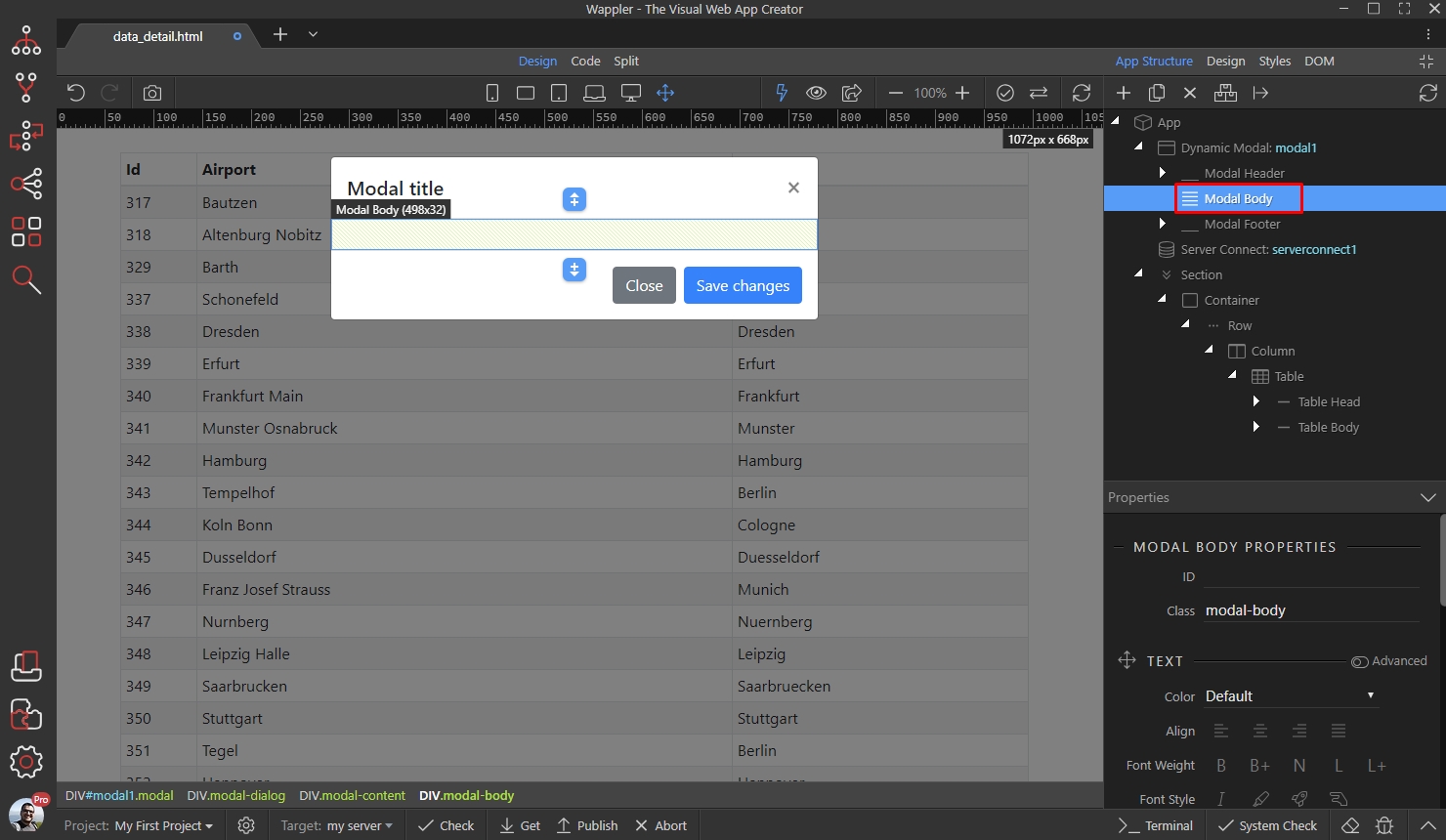
And add a container:
Section titled “And add a container:”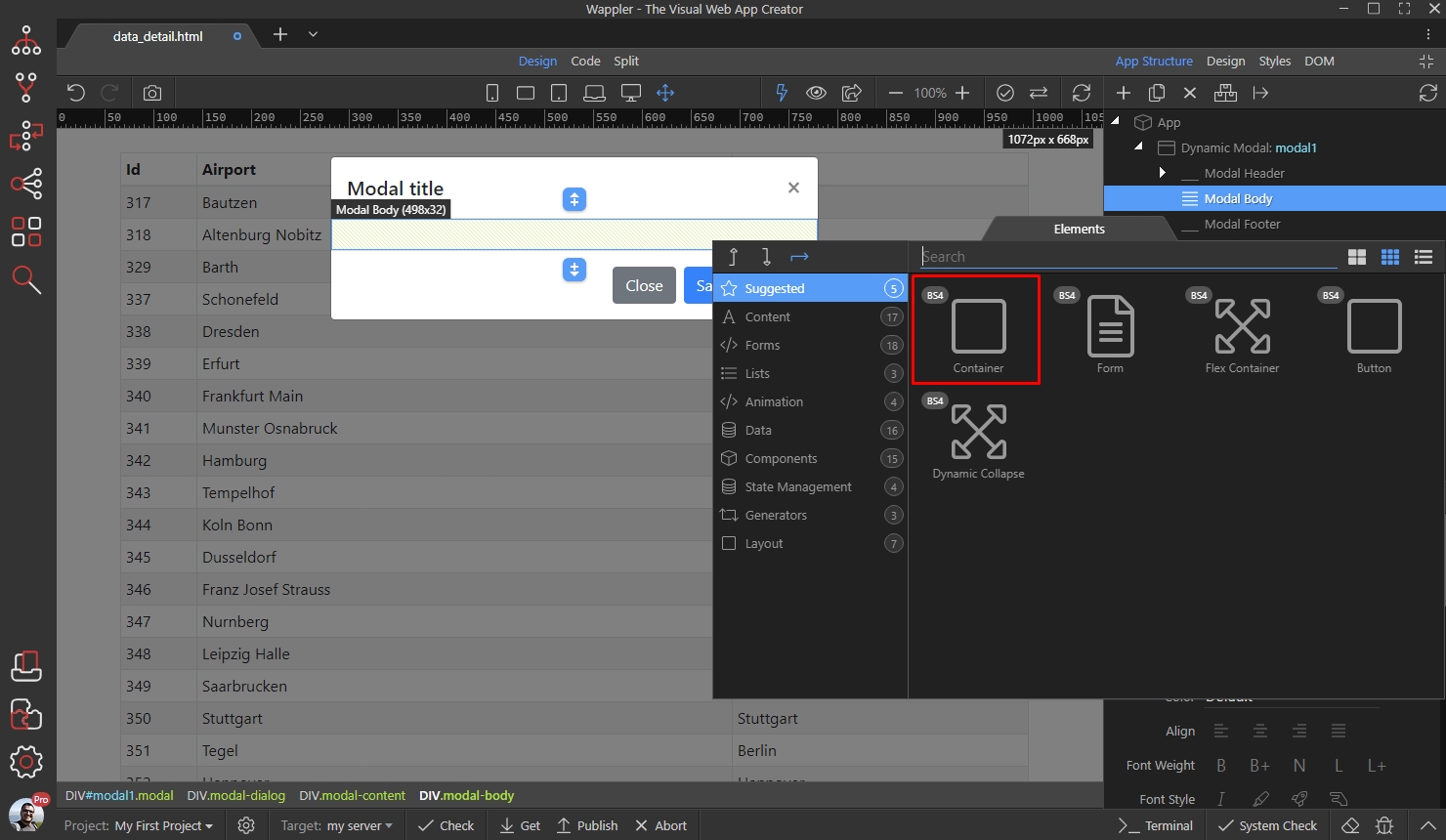
Select the container and click the Make Data Detail button:
Section titled “Select the container and click the Make Data Detail button:”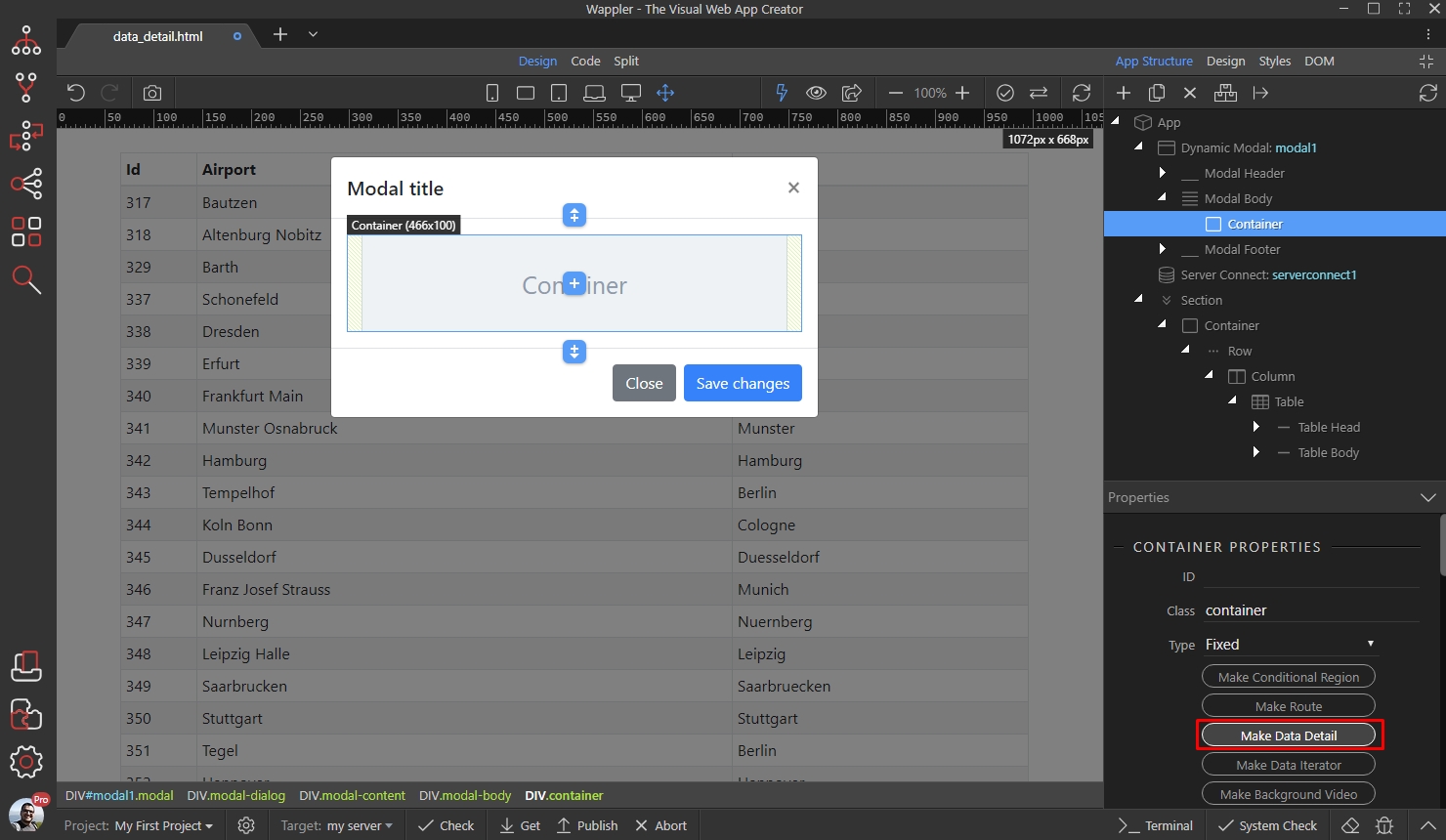
Select a data source for the data detail:
Section titled “Select a data source for the data detail:”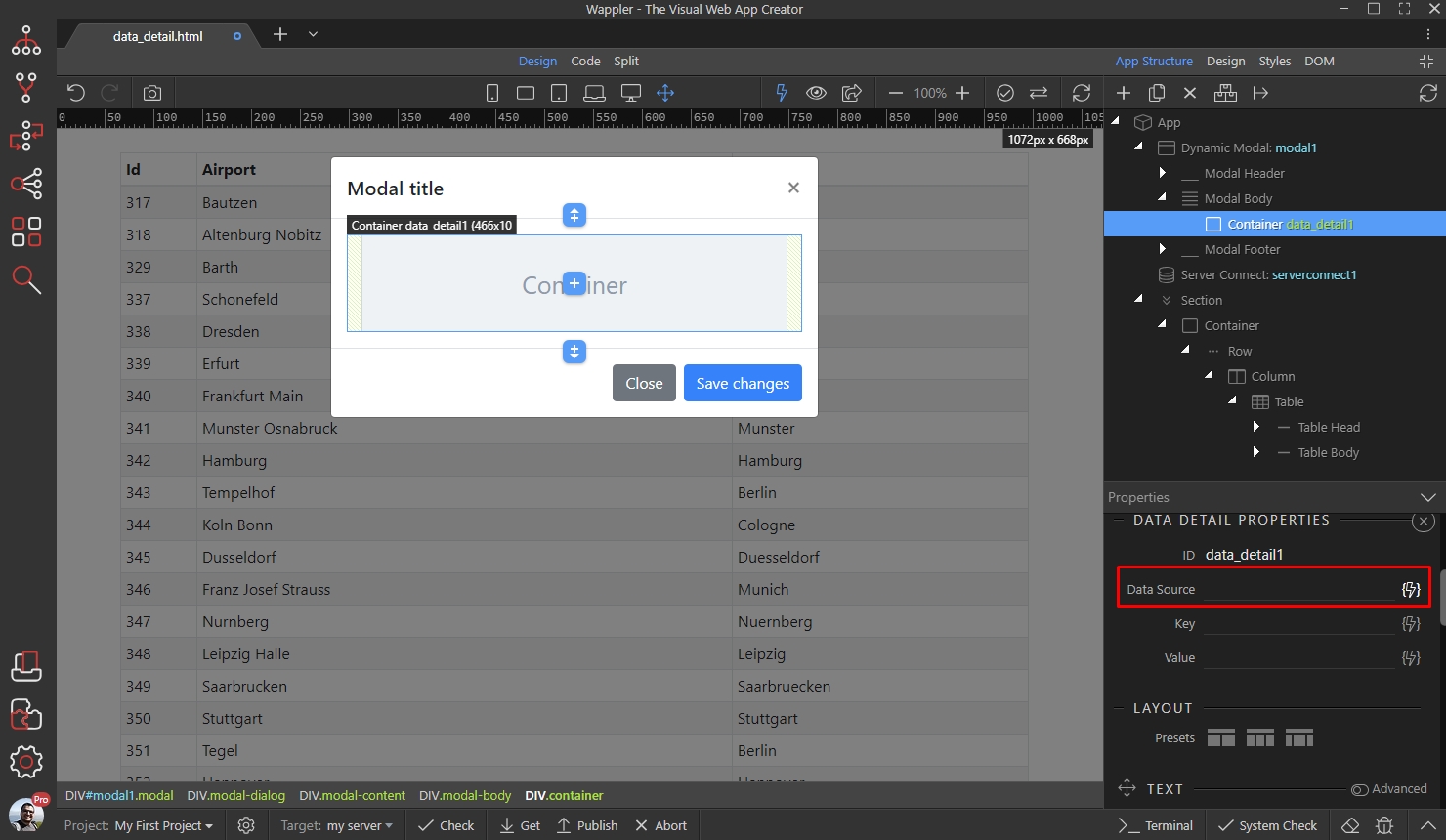
This should be the same data source, as you used for your dynamic table/list/repeat region:
Section titled “This should be the same data source, as you used for your dynamic table/list/repeat region:”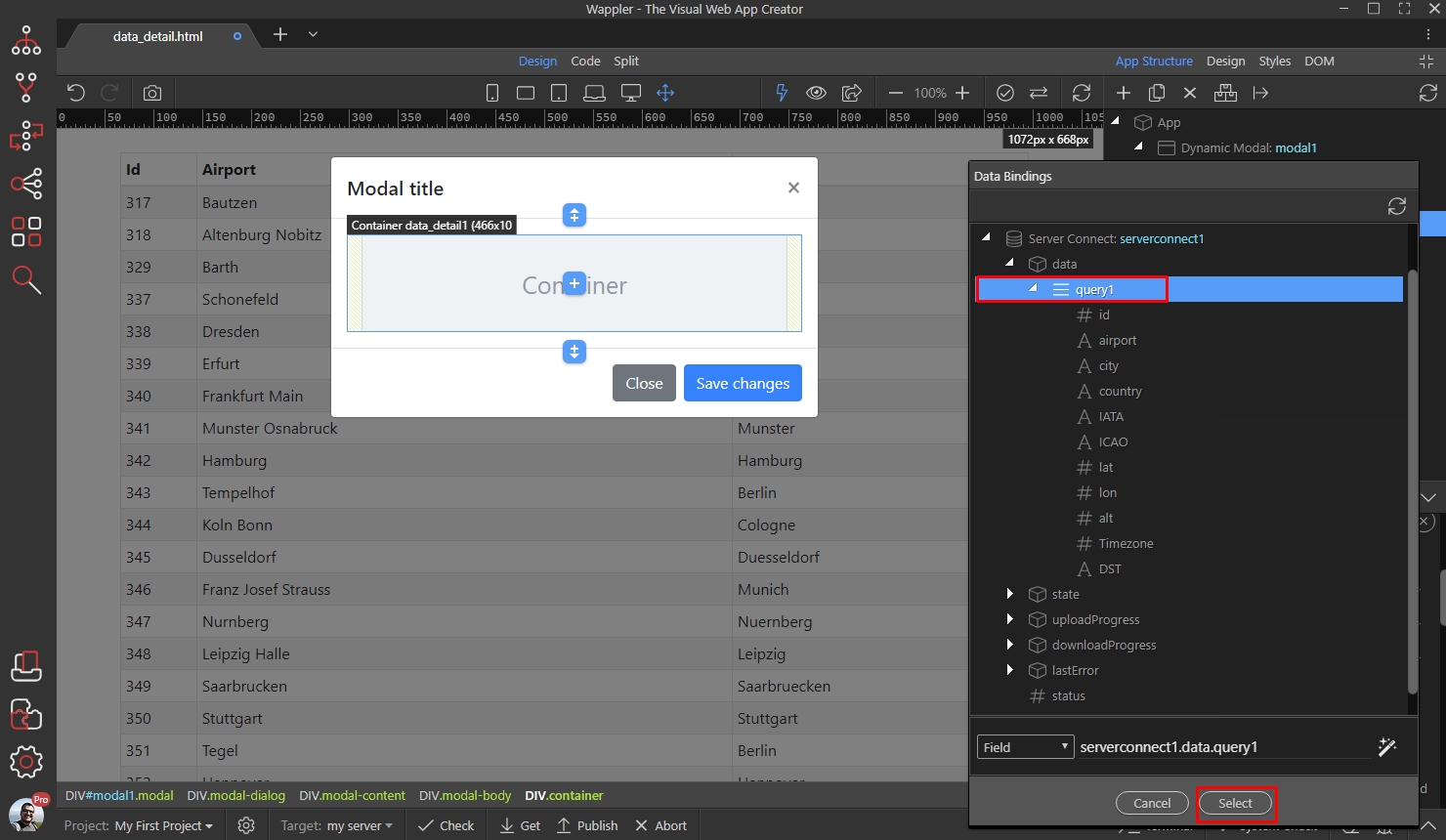
Then, select a Key:
Section titled “Then, select a Key:”
Step 29
Section titled “Step 29”The key is used to control which record details we are displaying. It should be an unique ID returned by your data source. Under Data Detail, select your ID and click the Select button:
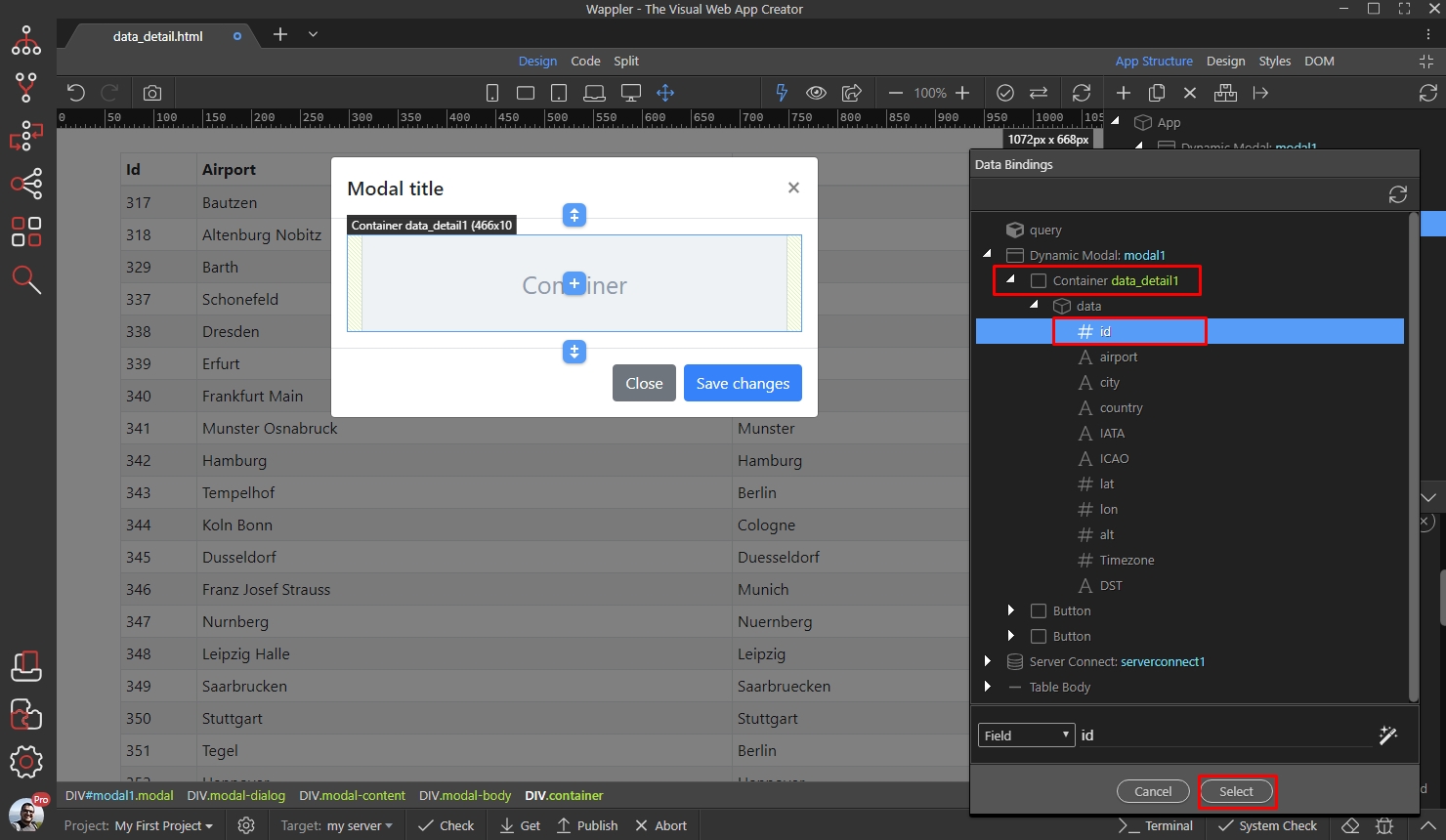
Step 30
Section titled “Step 30”We are done setting up the data detail properties. Now, let’s add a paragraph inside our detail region. Right click your data detail region:
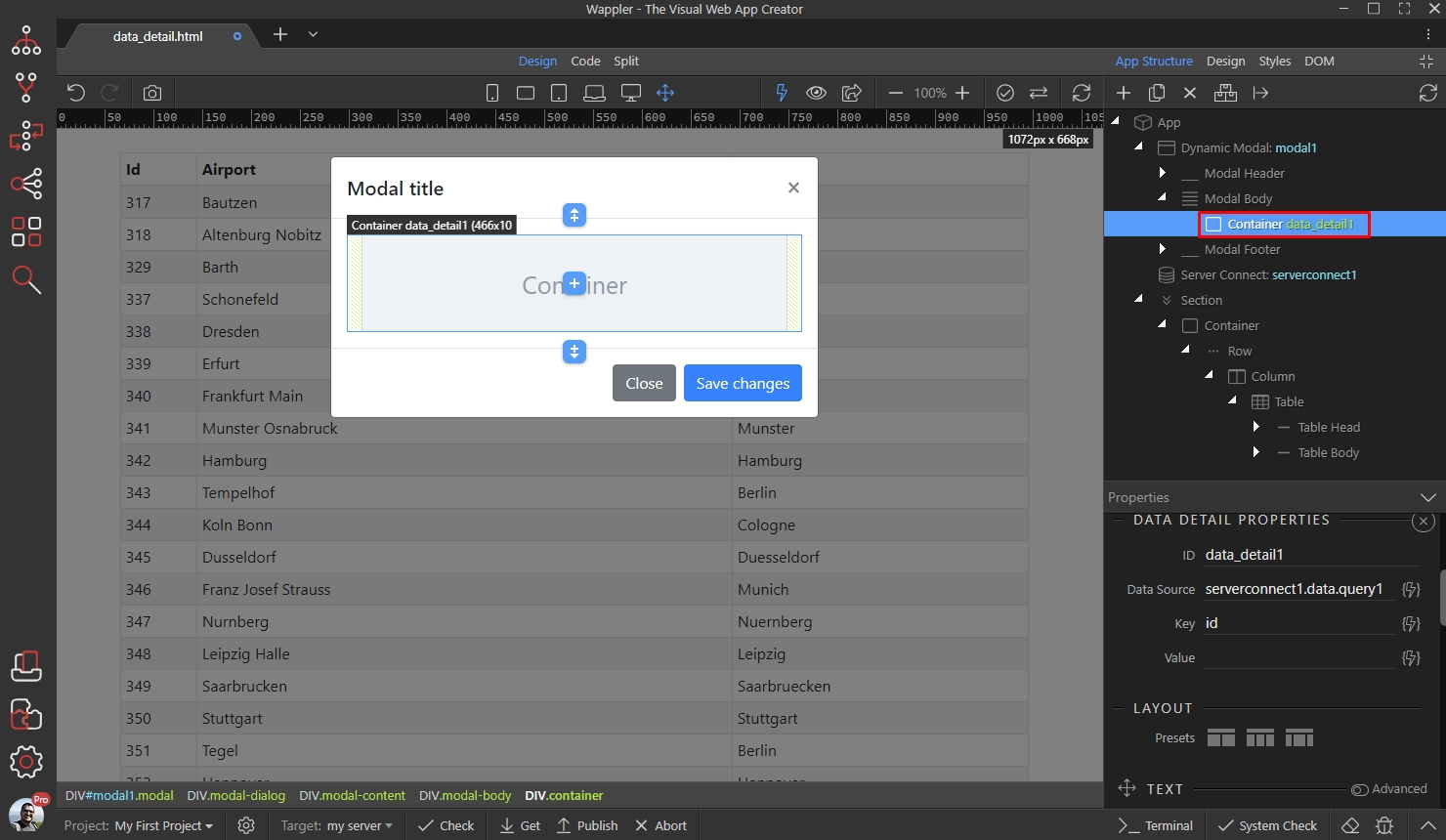
And add a paragraph:
Section titled “And add a paragraph:”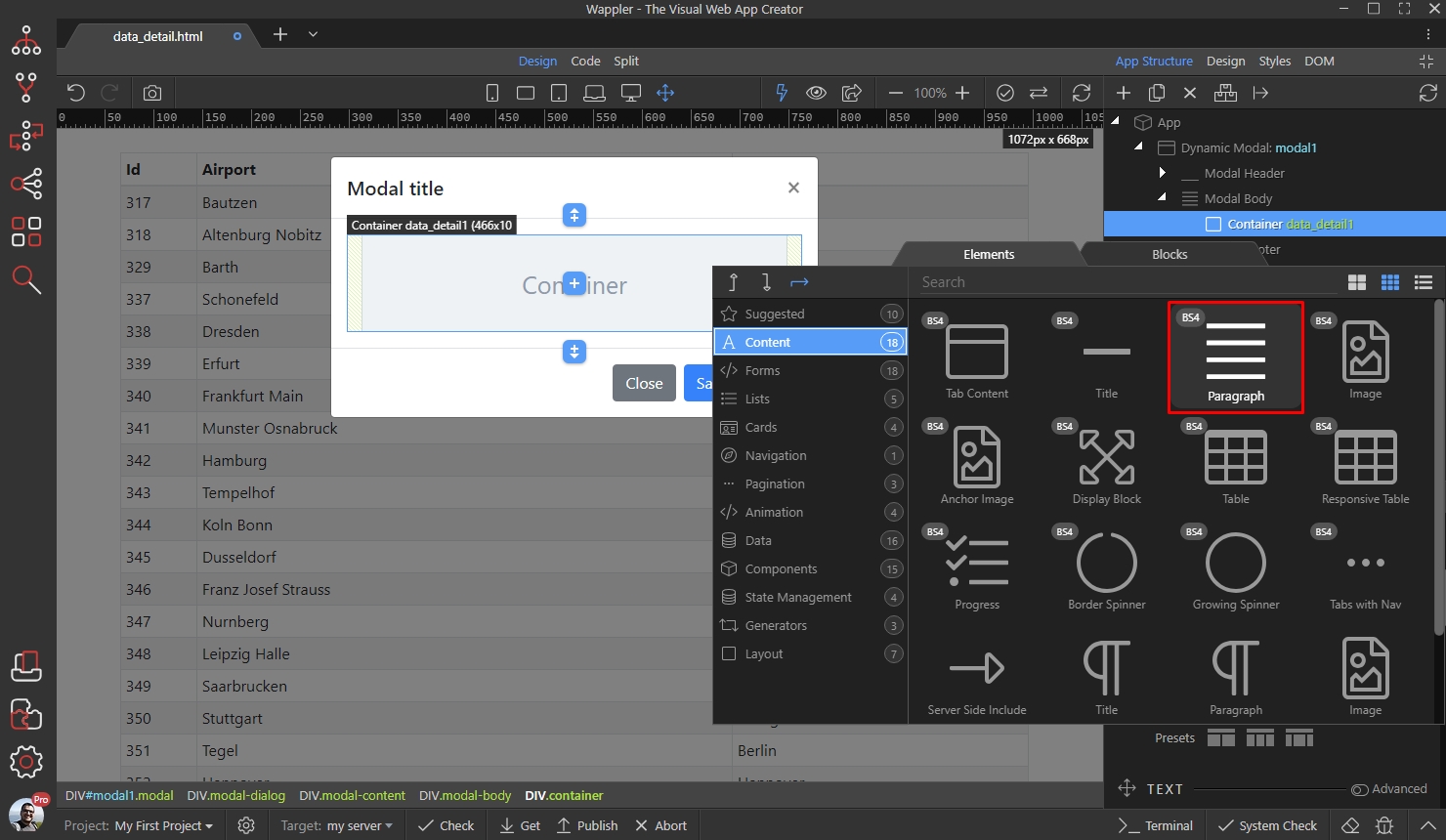
Step 32
Section titled “Step 32”NOTE: You can add any element here: title, image, lists, tables, forms etc. We are just using a paragraph as the simplest example.
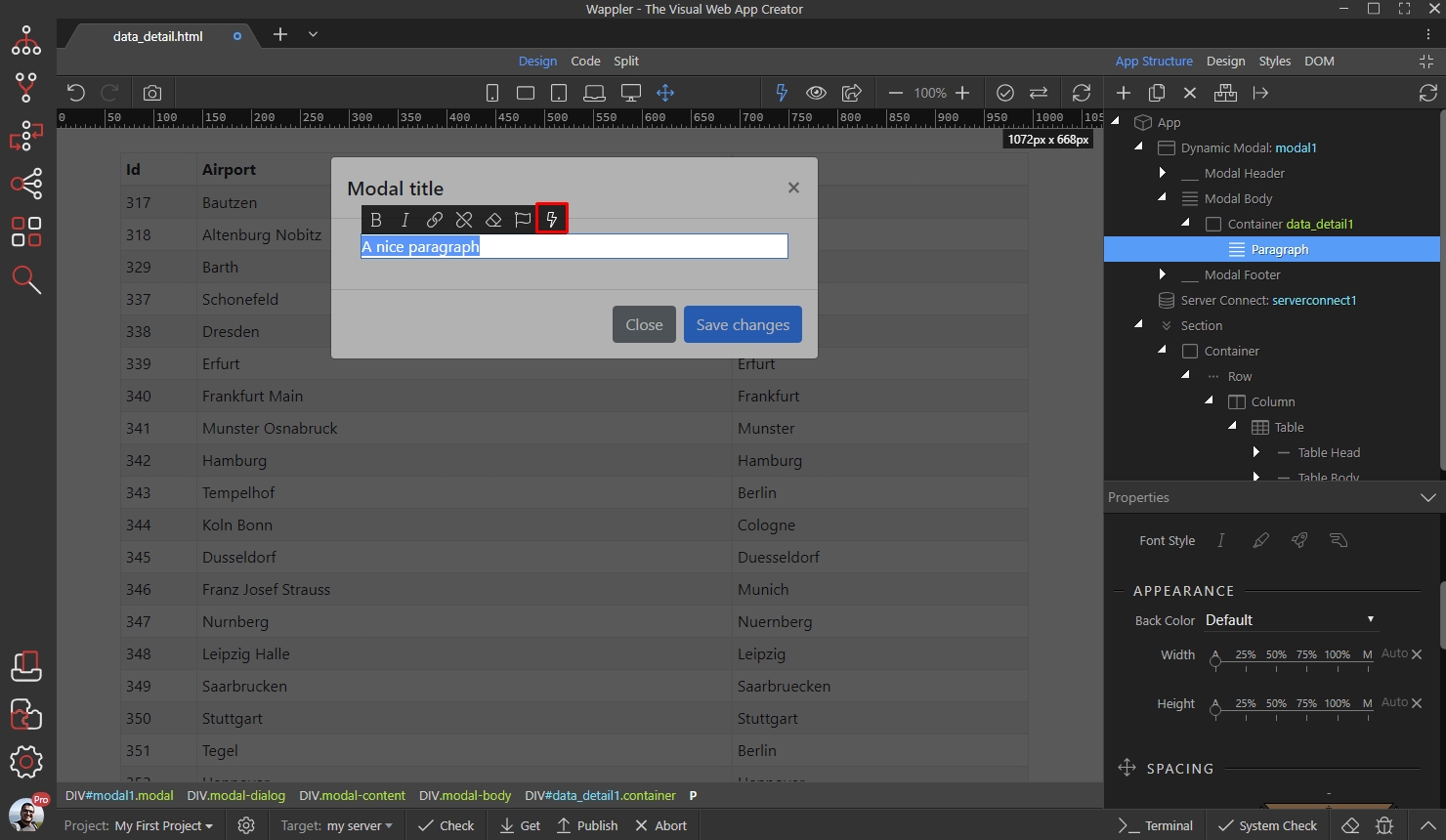
Then, double click inside the paragraph and click the dynamic data picker icon (or use the inner text dynamic attribute if you prefer):
Step 33
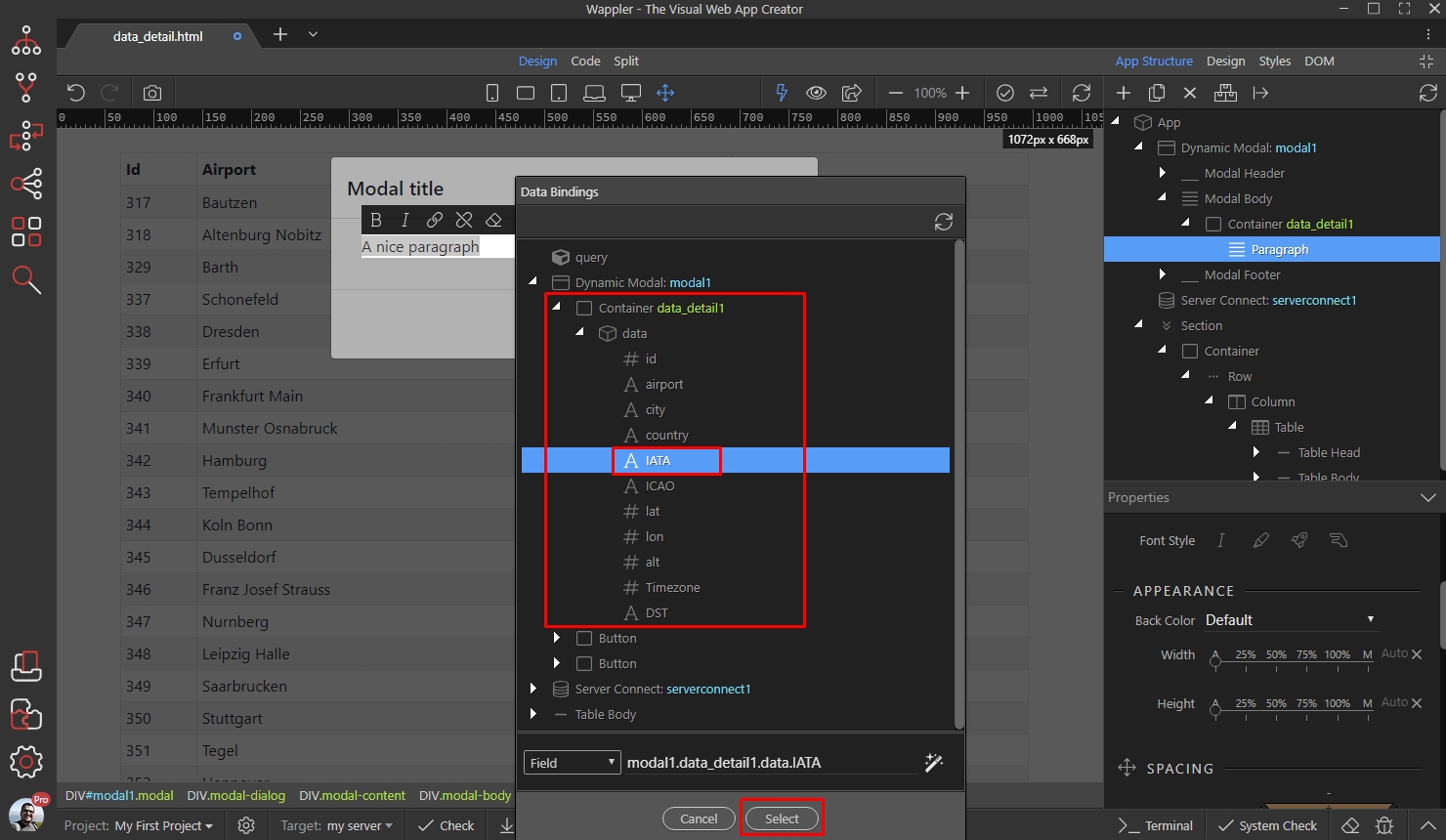
Section titled “Step 33”Bind the data you need here. Make sure to select your bindings under the Data Detail and not under the Server Connect component!
Step 34
Section titled “Step 34”Add as many bindings as you need.
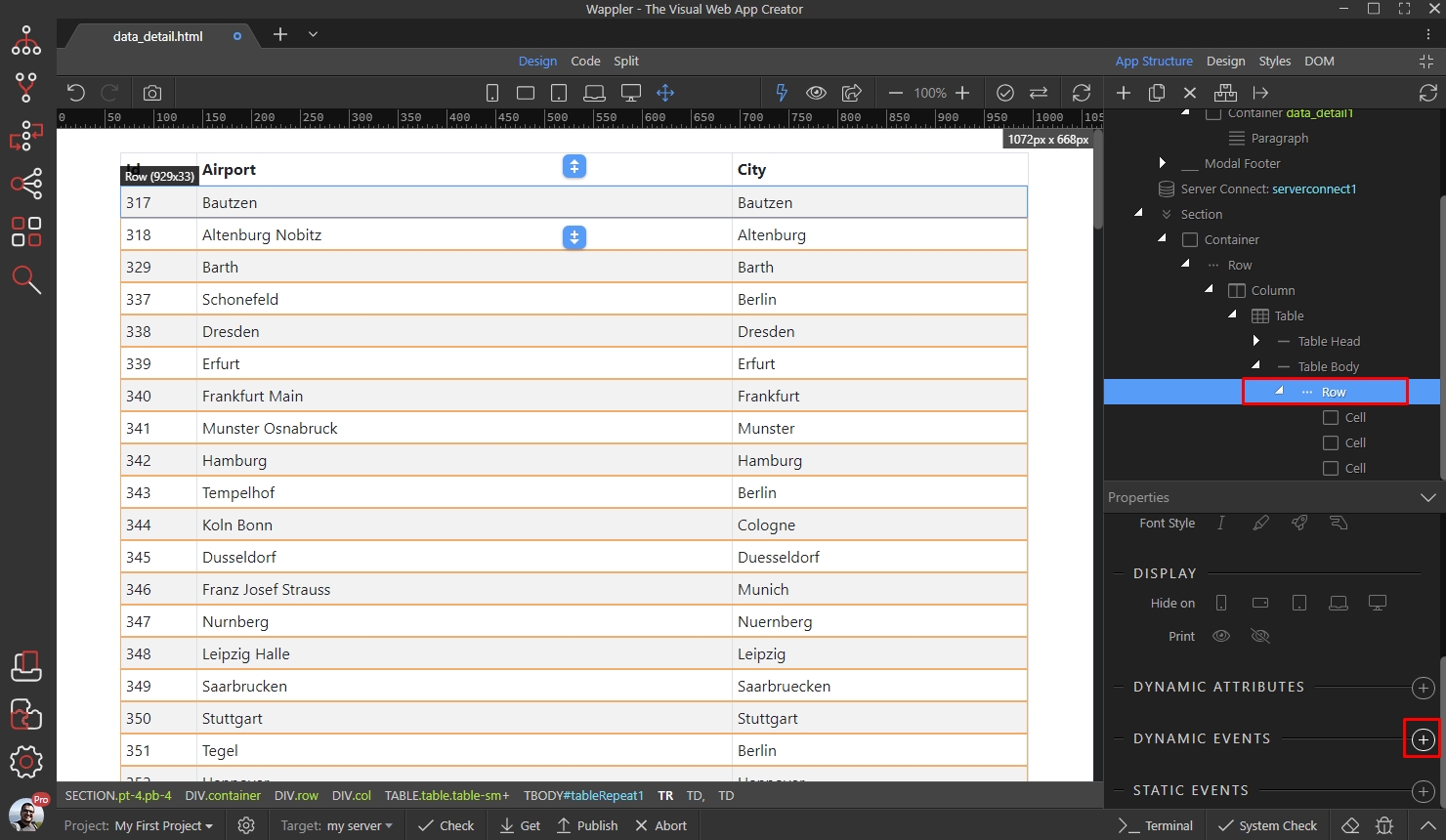
Now let’s setup the table so that the modal opens and displays the details, when a row is clicked. Click your table row and then add new Dynamic Event:
Select Mouse on Click:
Section titled “Select Mouse on Click:”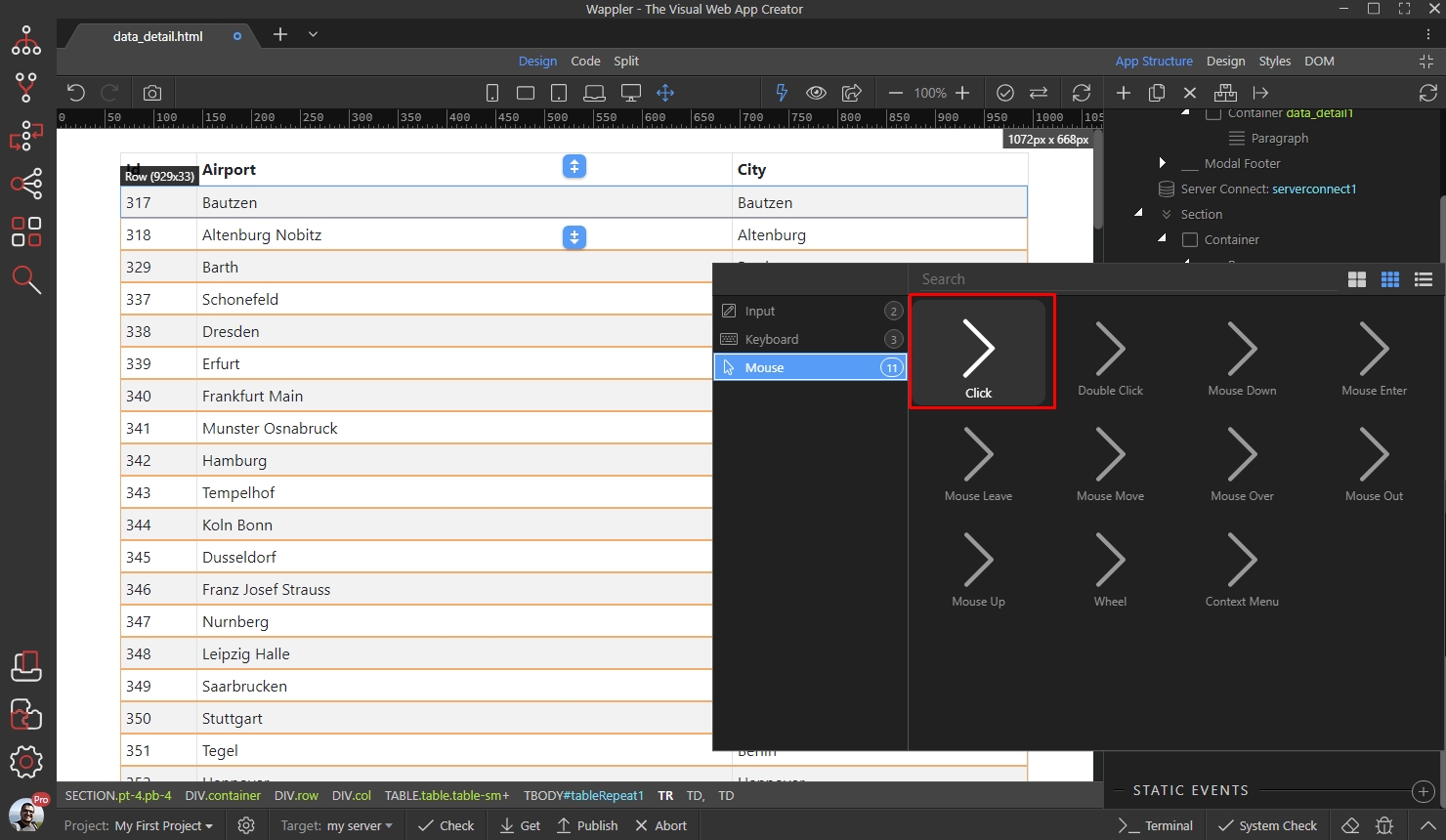
And then click the dynamic action picker button:
Section titled “And then click the dynamic action picker button:”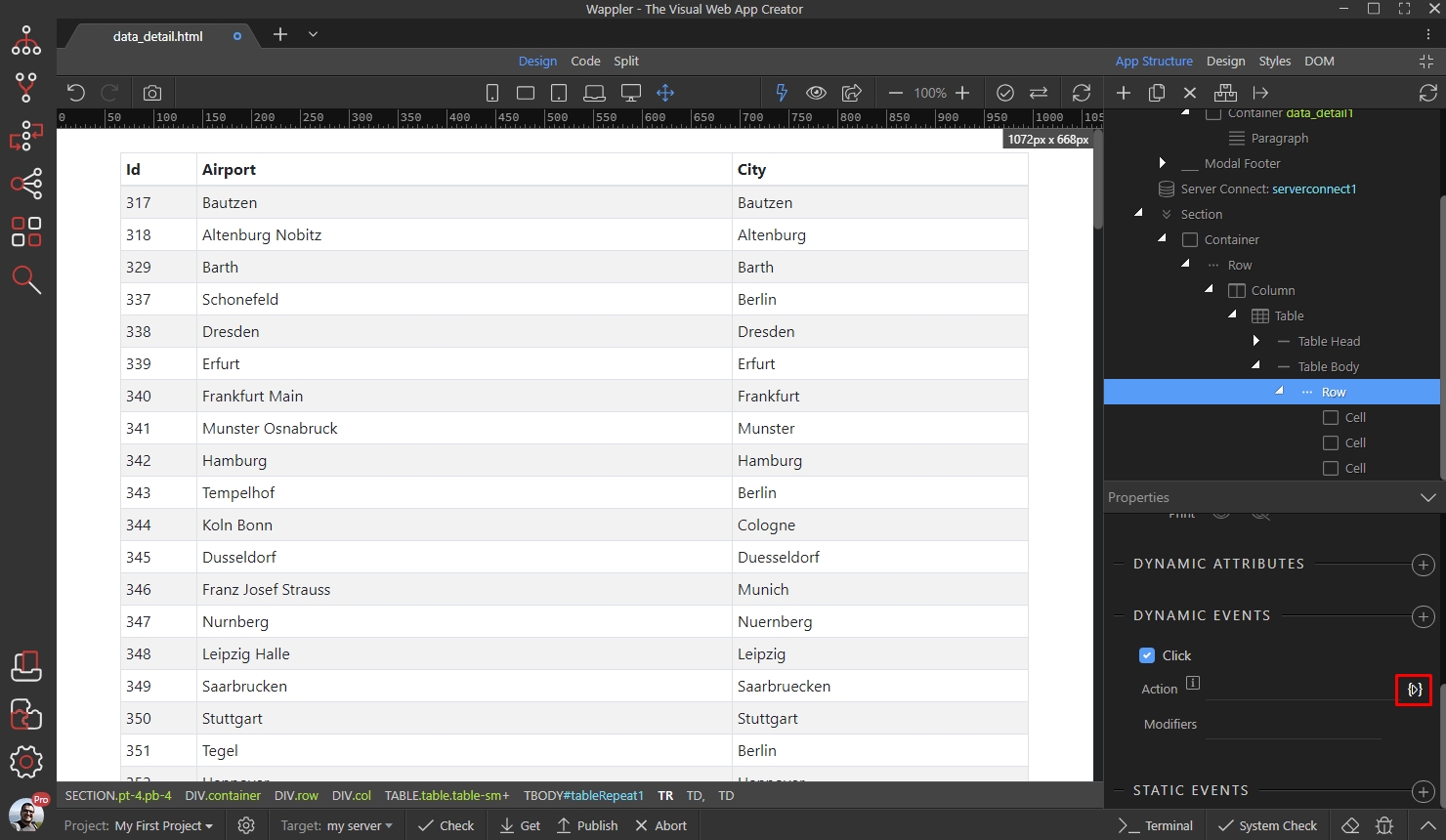
Step 37
Section titled “Step 37”We need to open the modal on click and show the selected record details inside. First add the modal show event:
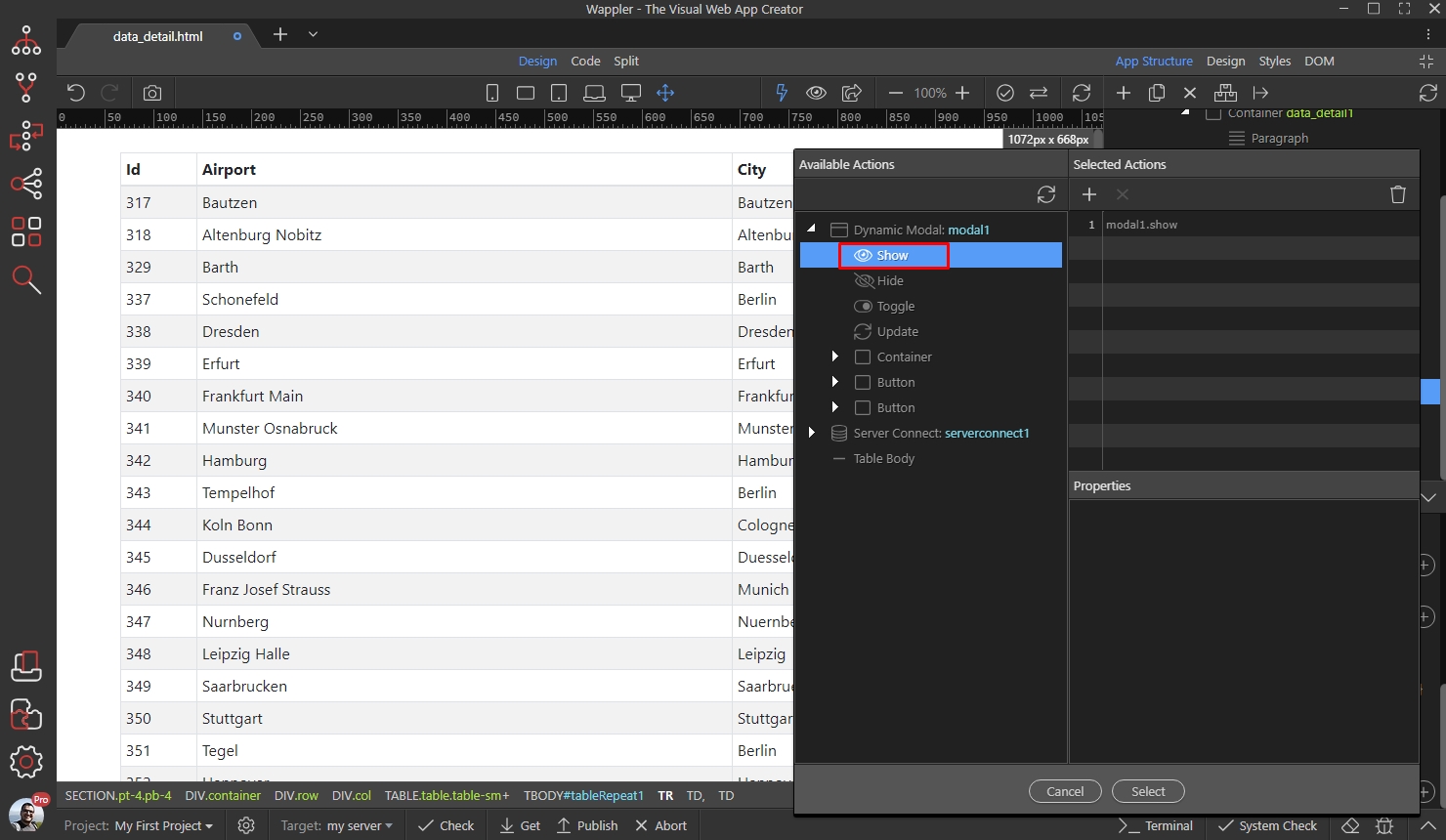
Then add the Select action, for the Data Detail component:
Section titled “Then add the Select action, for the Data Detail component:”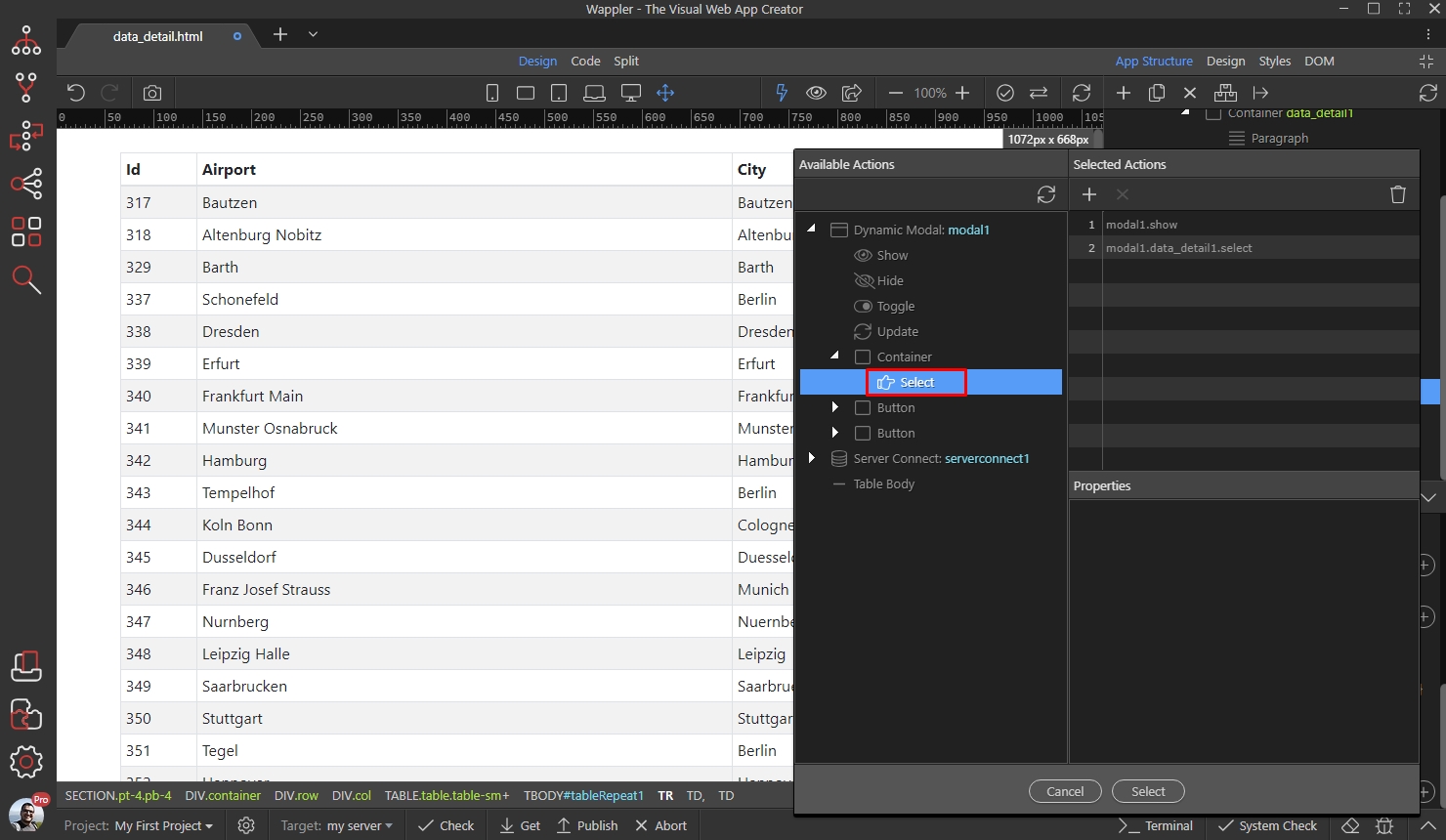
And then select a Key value:
Section titled “And then select a Key value:”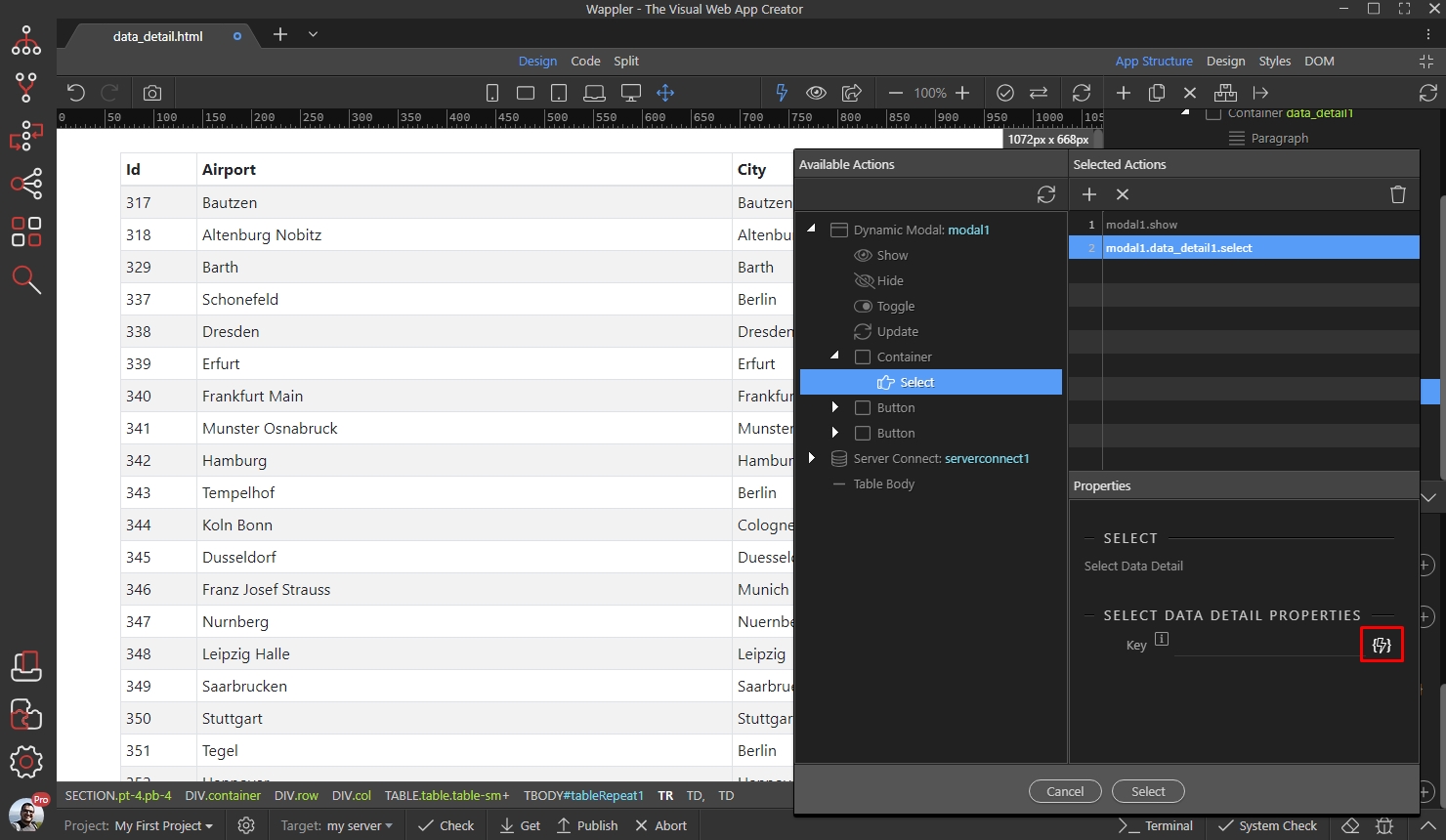
Step 40
Section titled “Step 40”This must be the same ID which you selected earlier for your data detail properties. Select it under the repent region / dynamic table data:
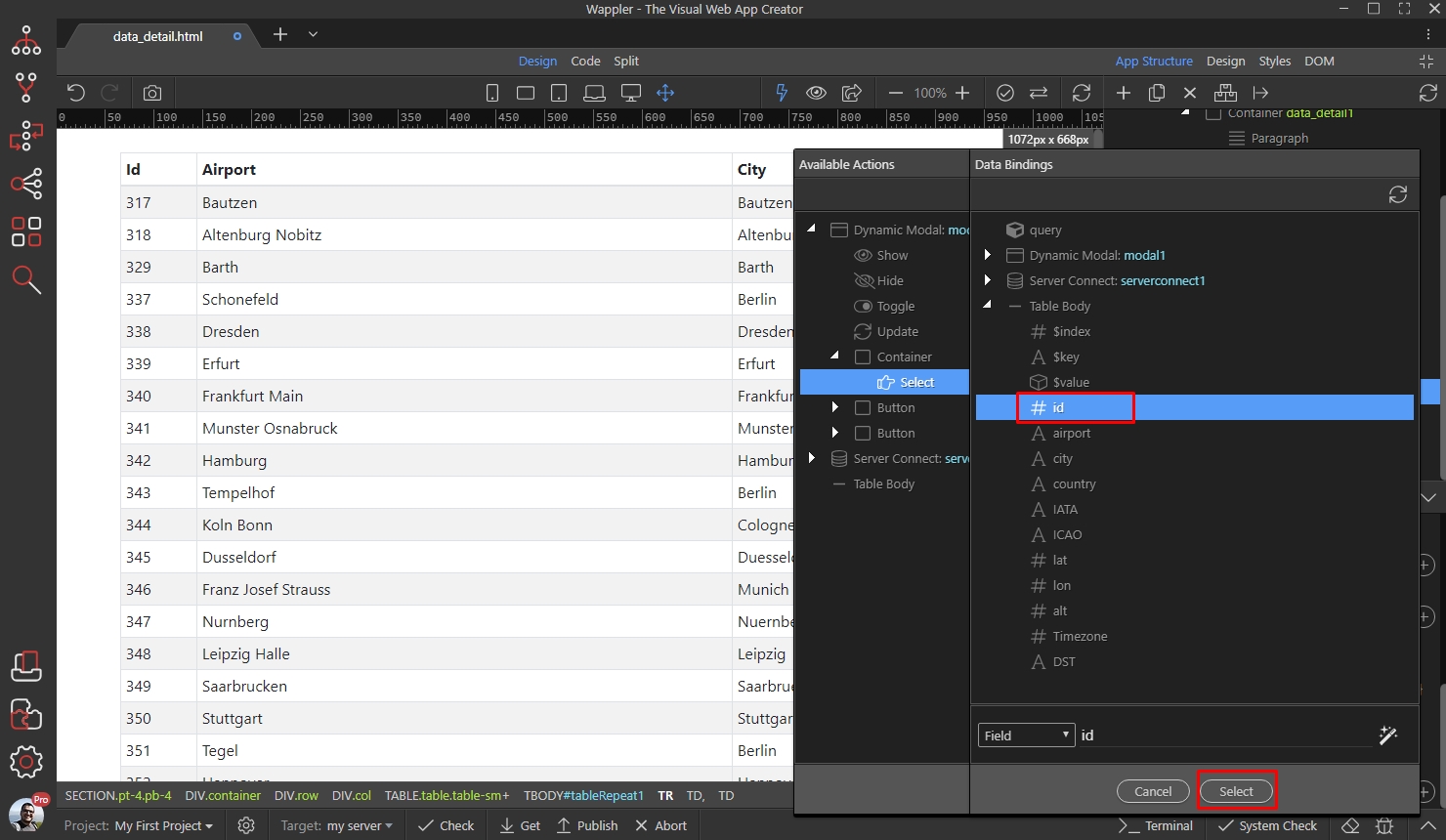
Click select and you are done:
Section titled “Click select and you are done:”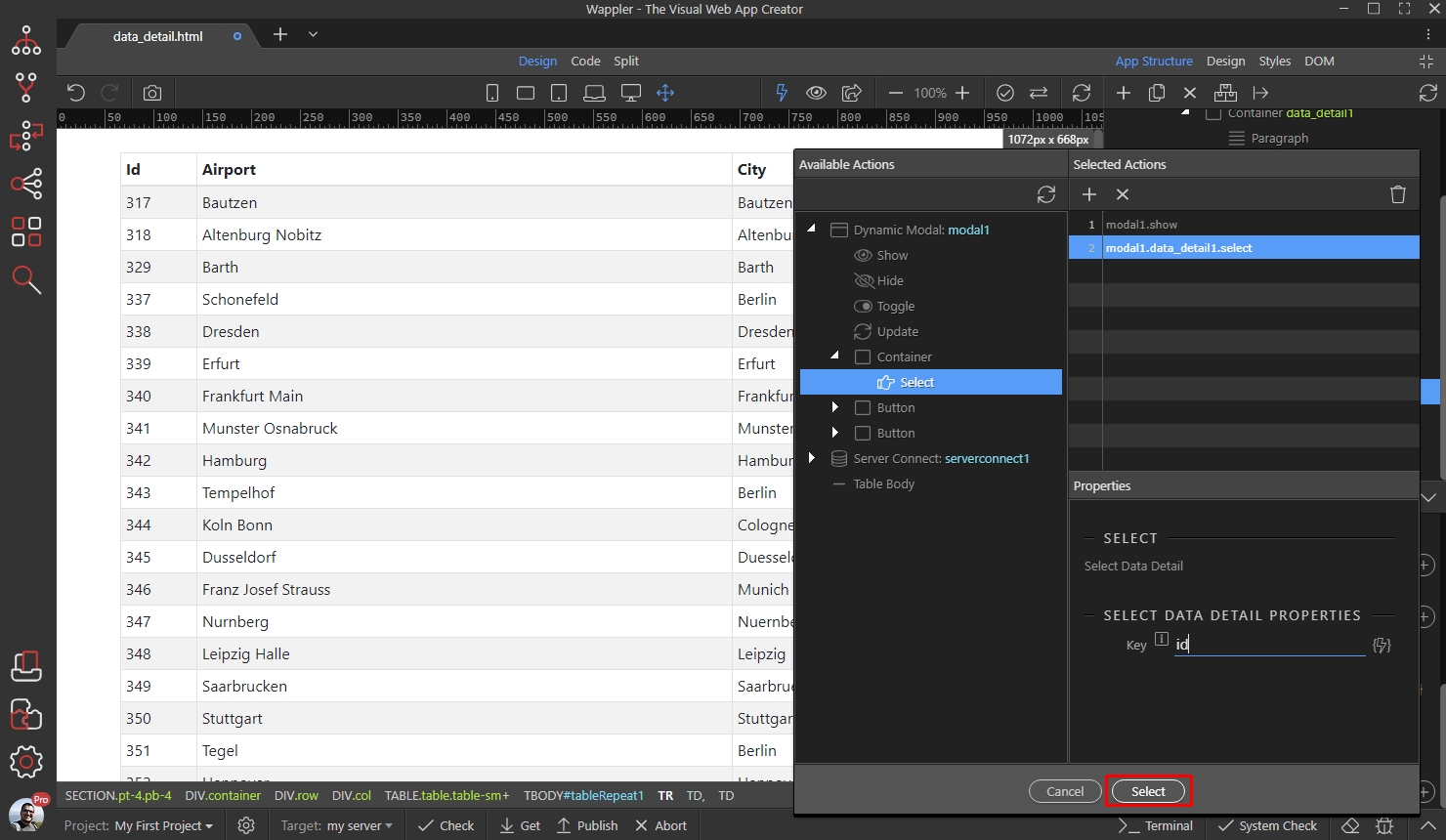
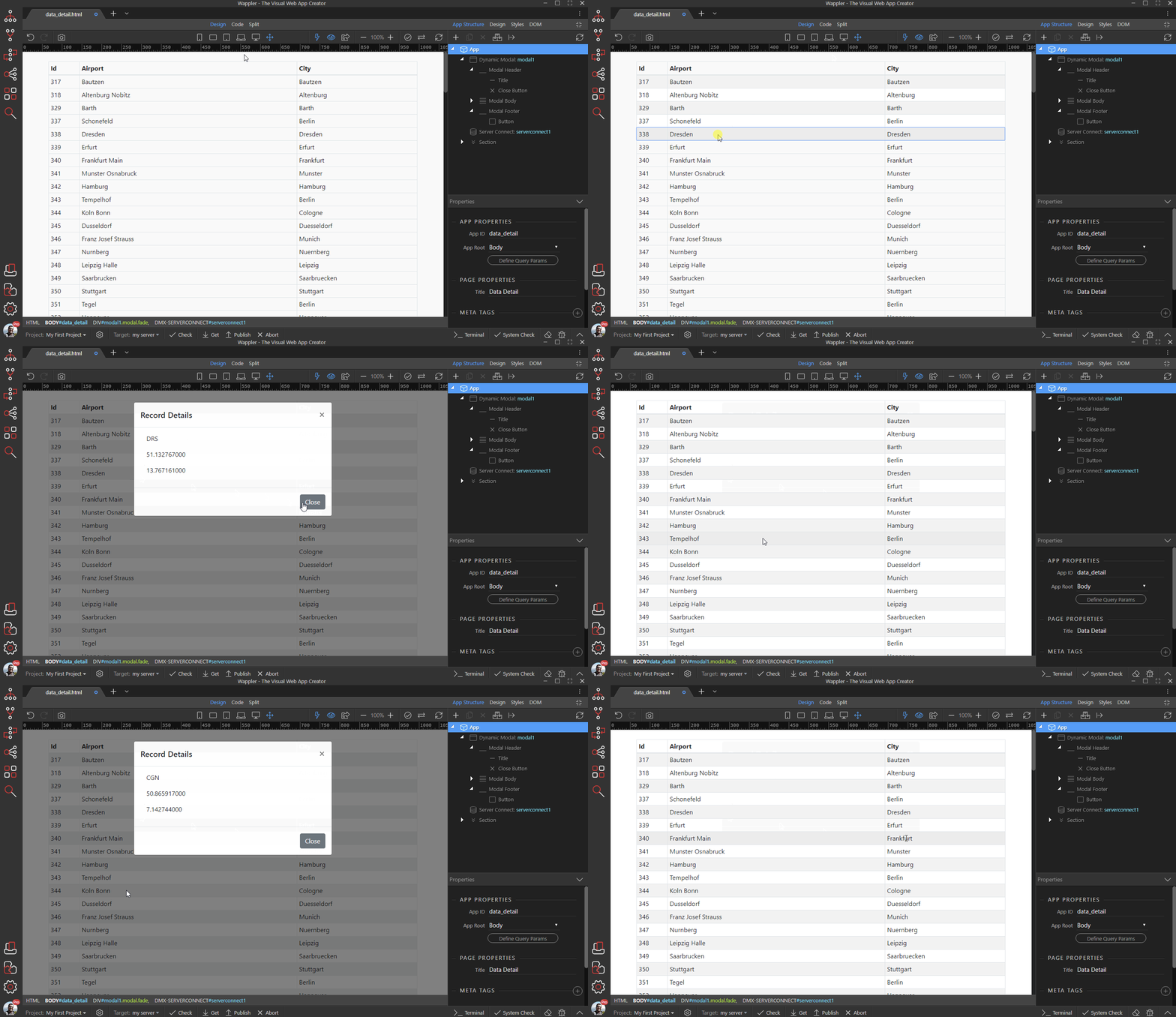
You will see the details of the selected records in a modal, when you click on the table rows:
Section titled “You will see the details of the selected records in a modal, when you click on the table rows:”