Loop Through Database Records with the Data Iterator Component
Using the Data Iterator component you can display one record at time on your page and loop through all records, using previous, next, first, last, random, or go to specific record dynamic actions. The
Step 1
Section titled “Step 1”Using the Data Iterator component you can display one record at time on your page and loop through all records, using previous, next, first, last, random, or go to specific record dynamic actions. The loop is done client-side, so your records are being loaded once and no additional server calls are done.
Server Side
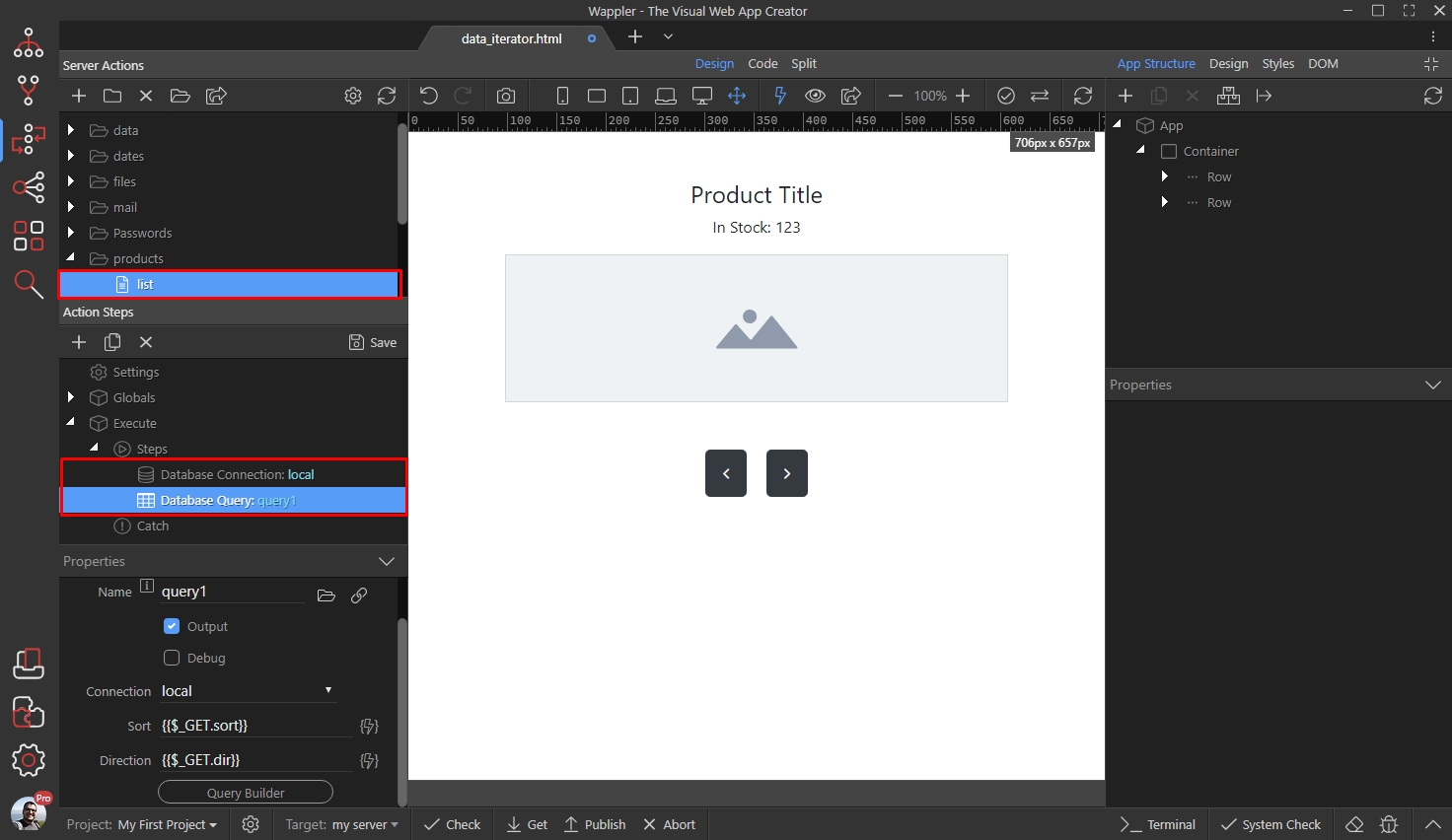
Section titled “Server Side”On the server side you need a server action with a regular database query, which returns your records. Nothing special here:
Set Up Data Iterator Component
Section titled “Set Up Data Iterator Component”Close the Server Connect panel, and let’s add the server action on our page:
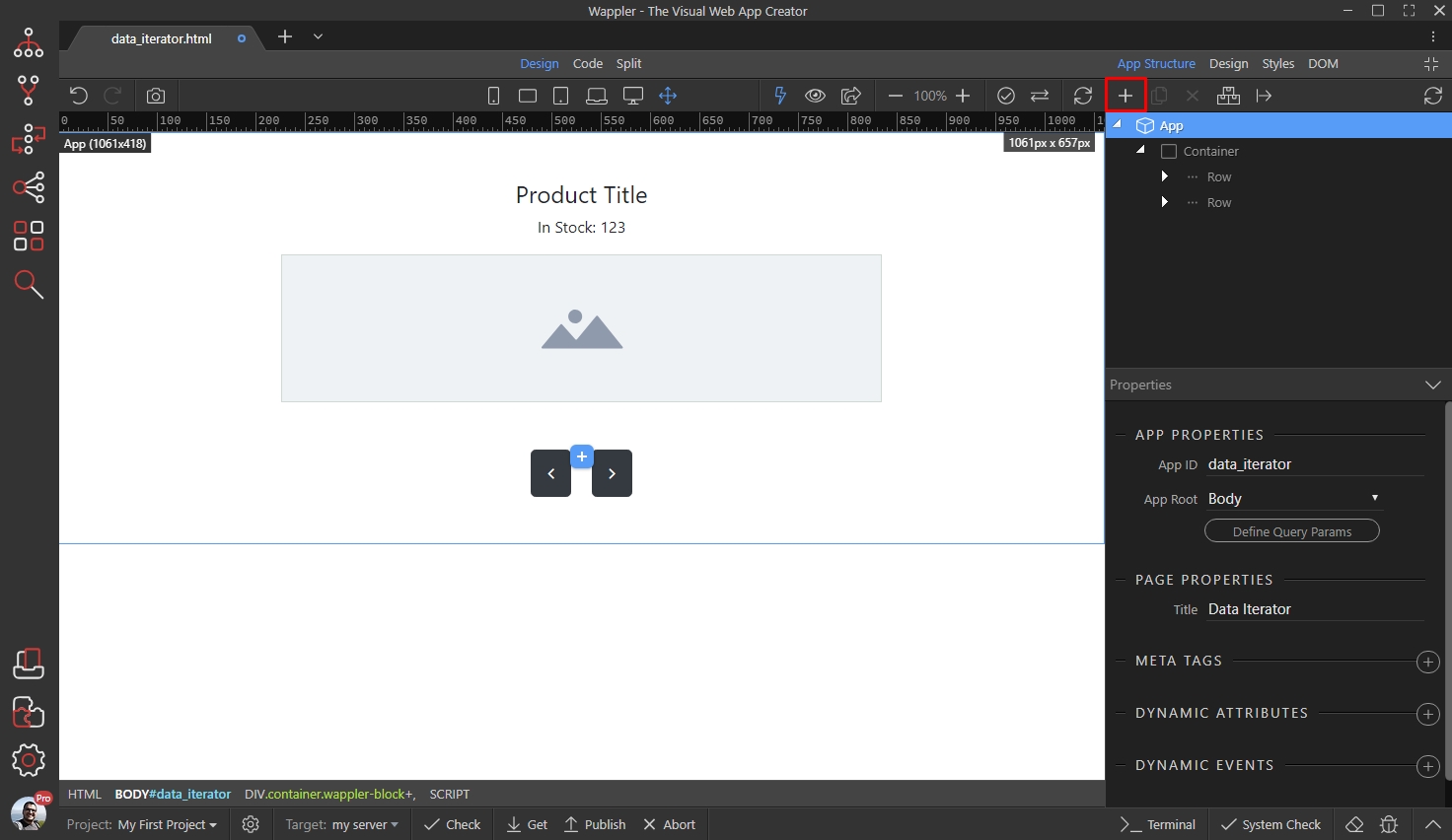
Add new component > Server Connect:
Section titled “Add new component > Server Connect:”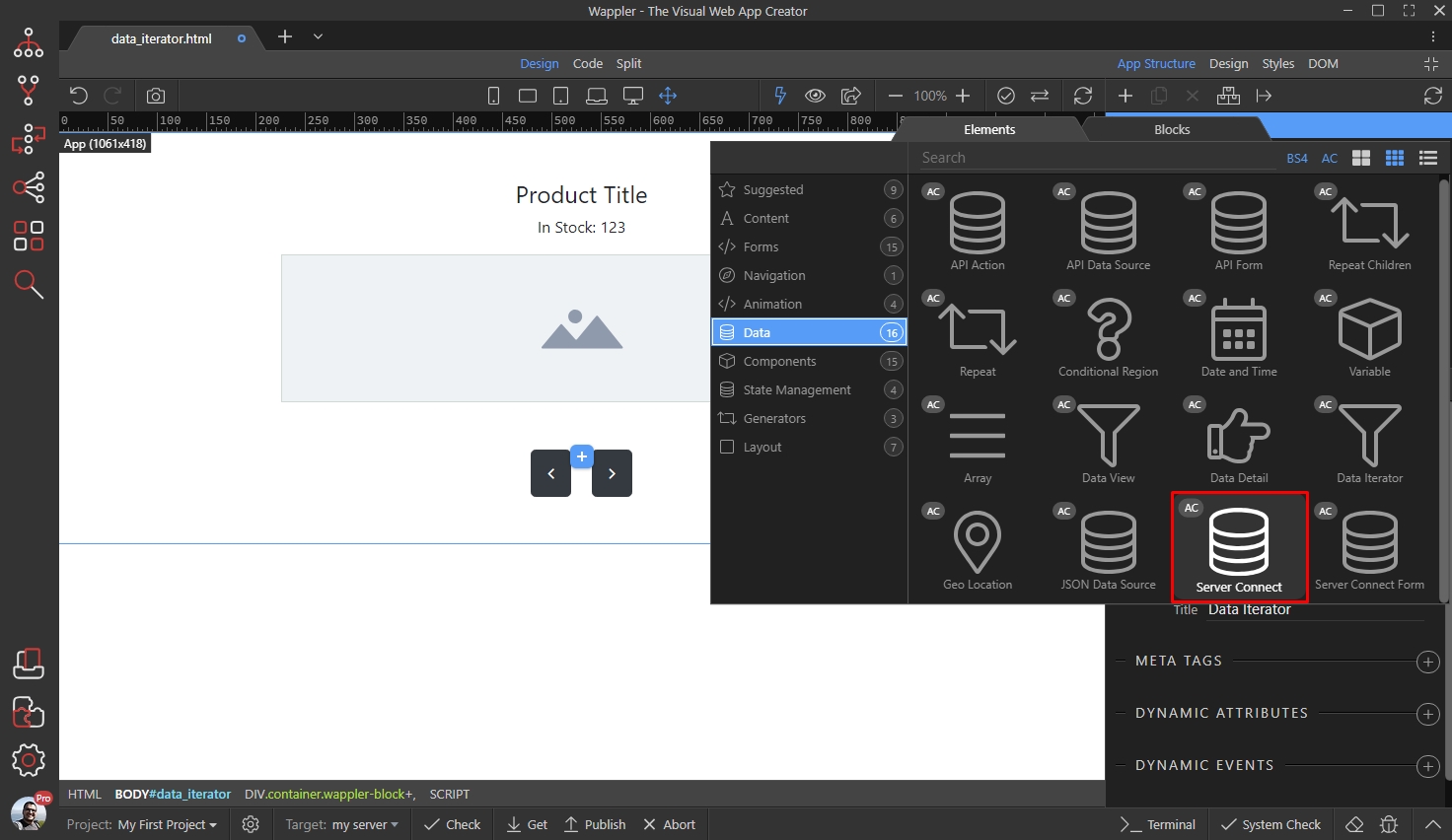
Then select your server action:
Section titled “Then select your server action:”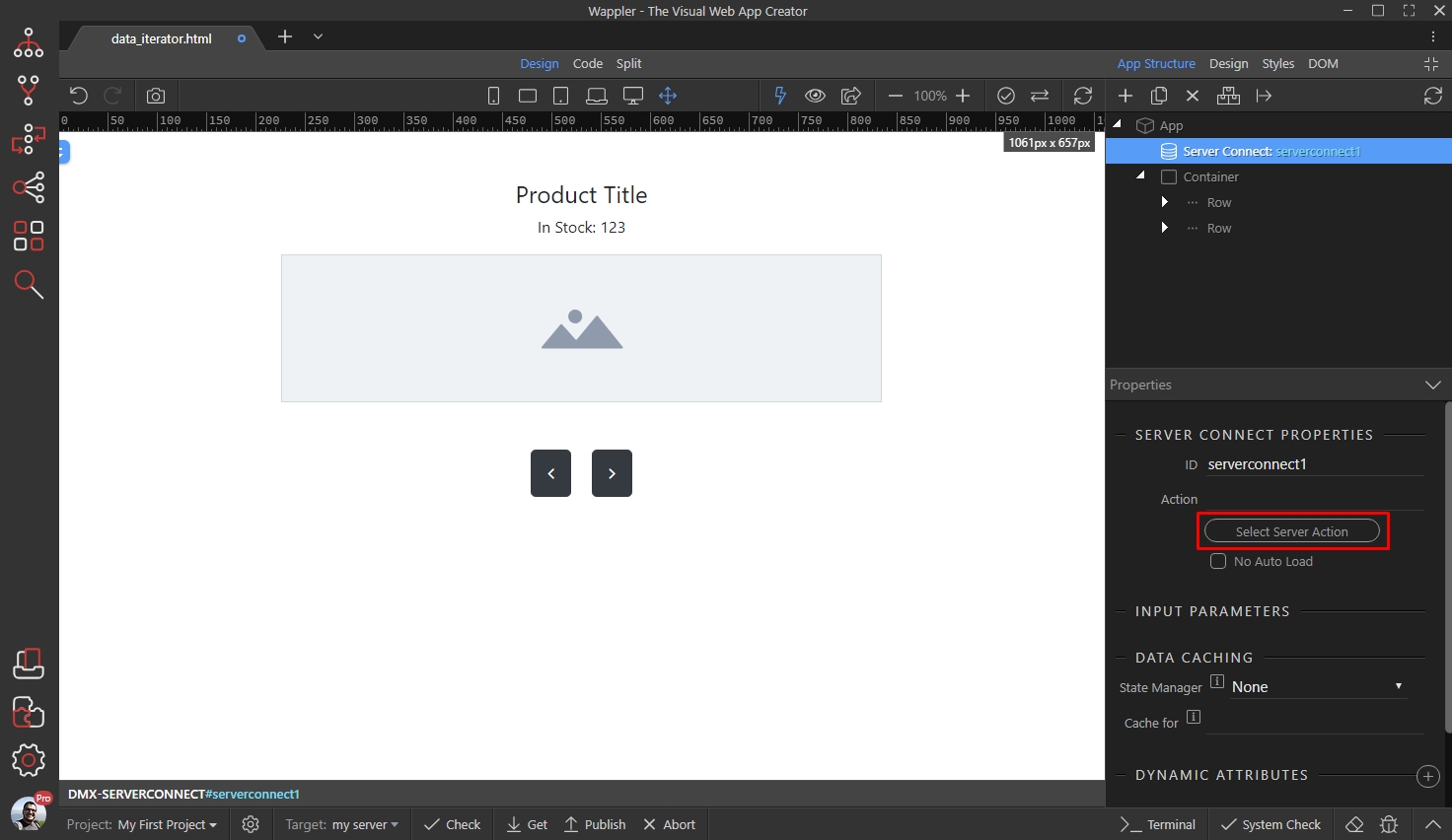
Click the Select Button:
Section titled “Click the Select Button:”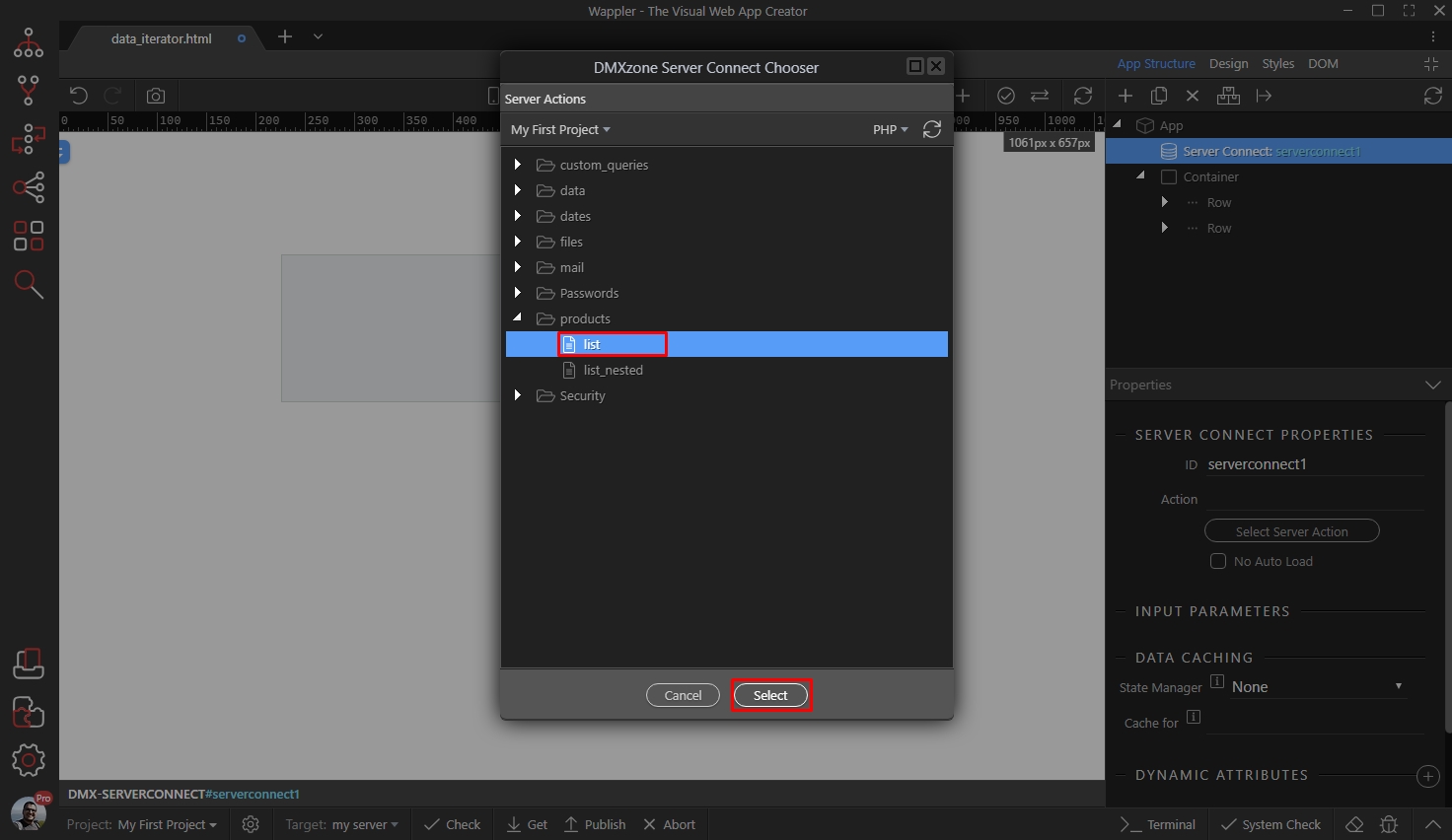
Now, select App in the App Structure and add new component:
Section titled “Now, select App in the App Structure and add new component:”
Open the Data menu and add Data Iterator:
Section titled “Open the Data menu and add Data Iterator:”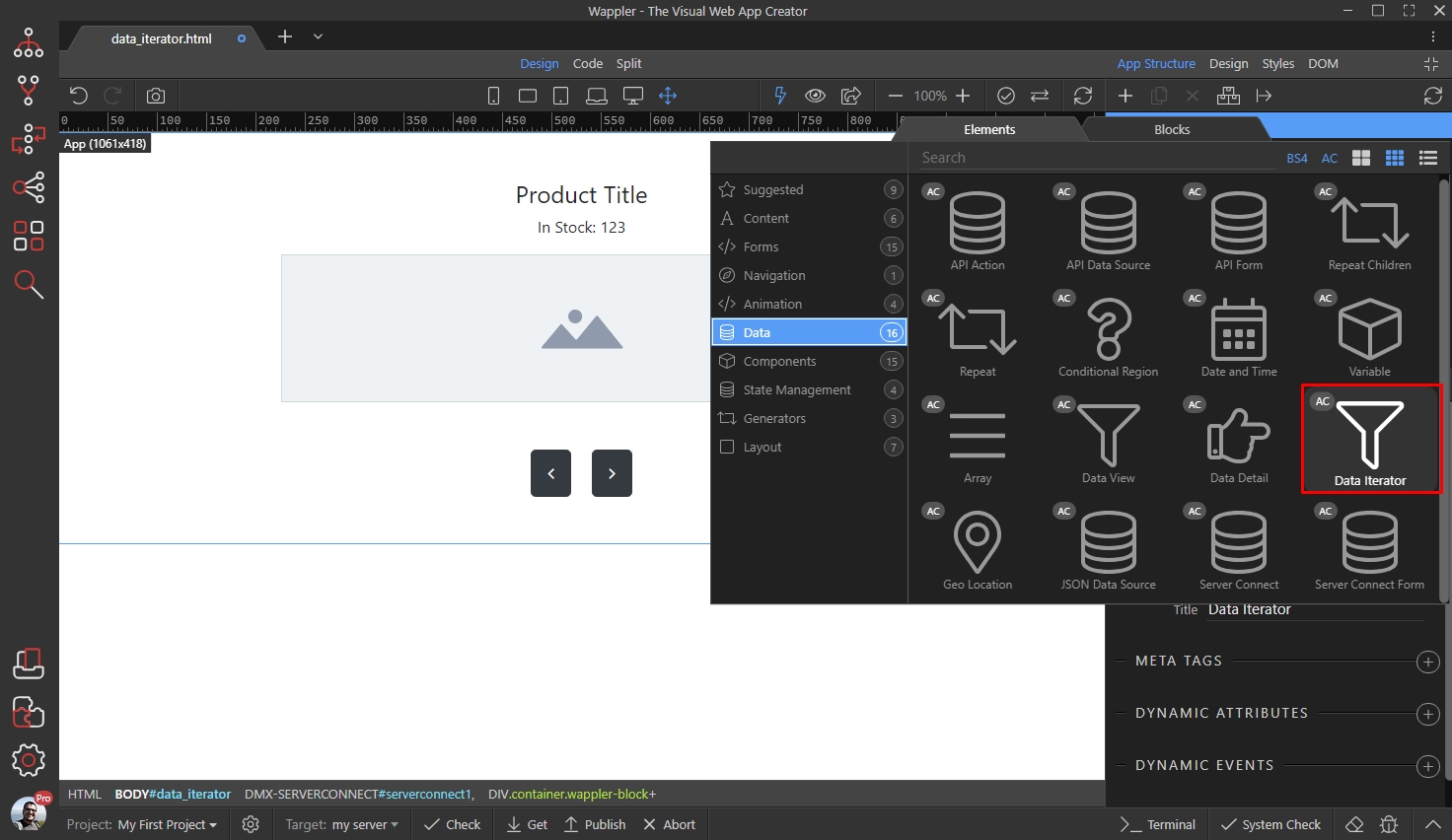
Select the data source for the iterator:
Section titled “Select the data source for the iterator:”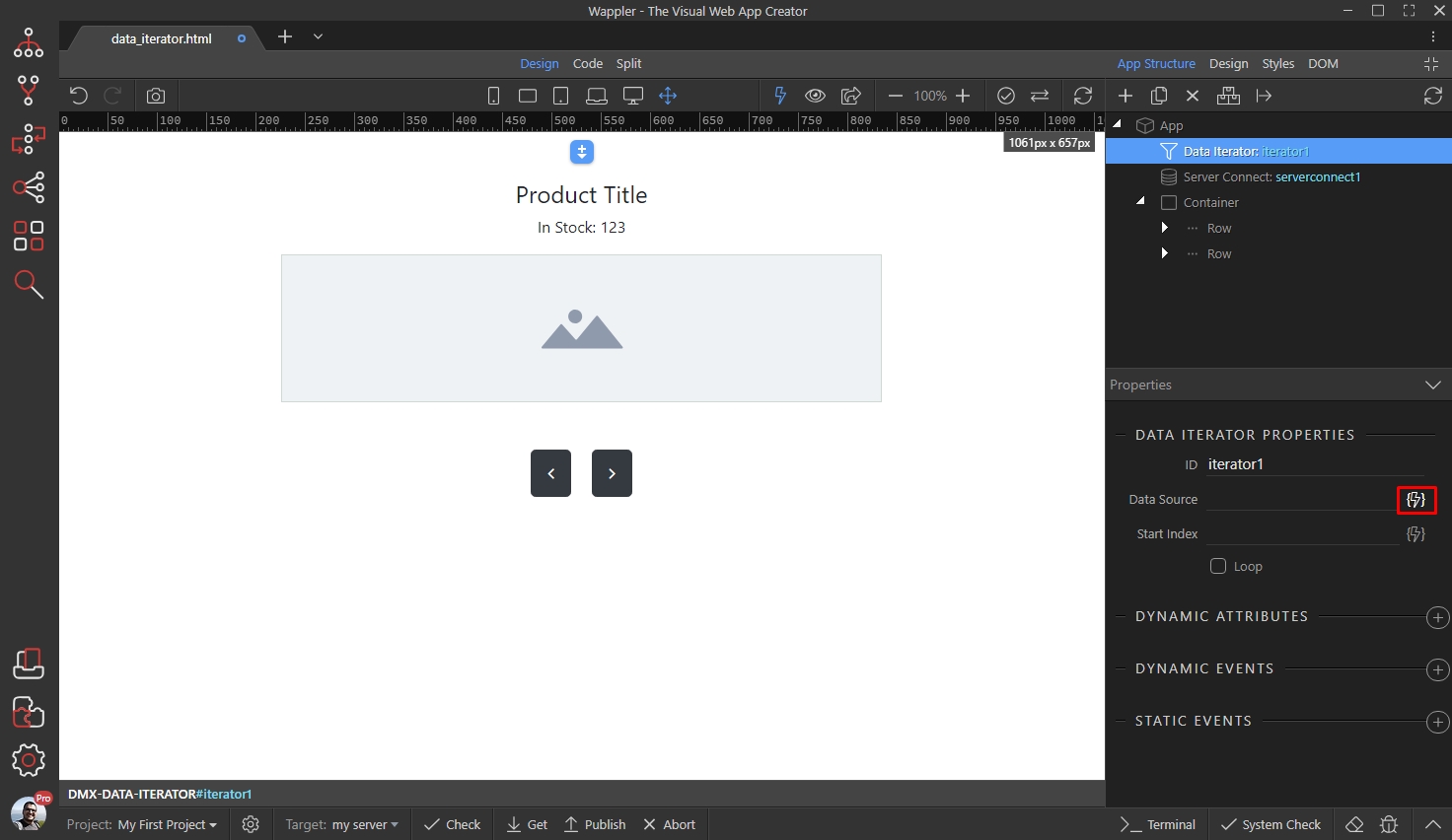
This should be the database query, which your server action contains:
Section titled “This should be the database query, which your server action contains:”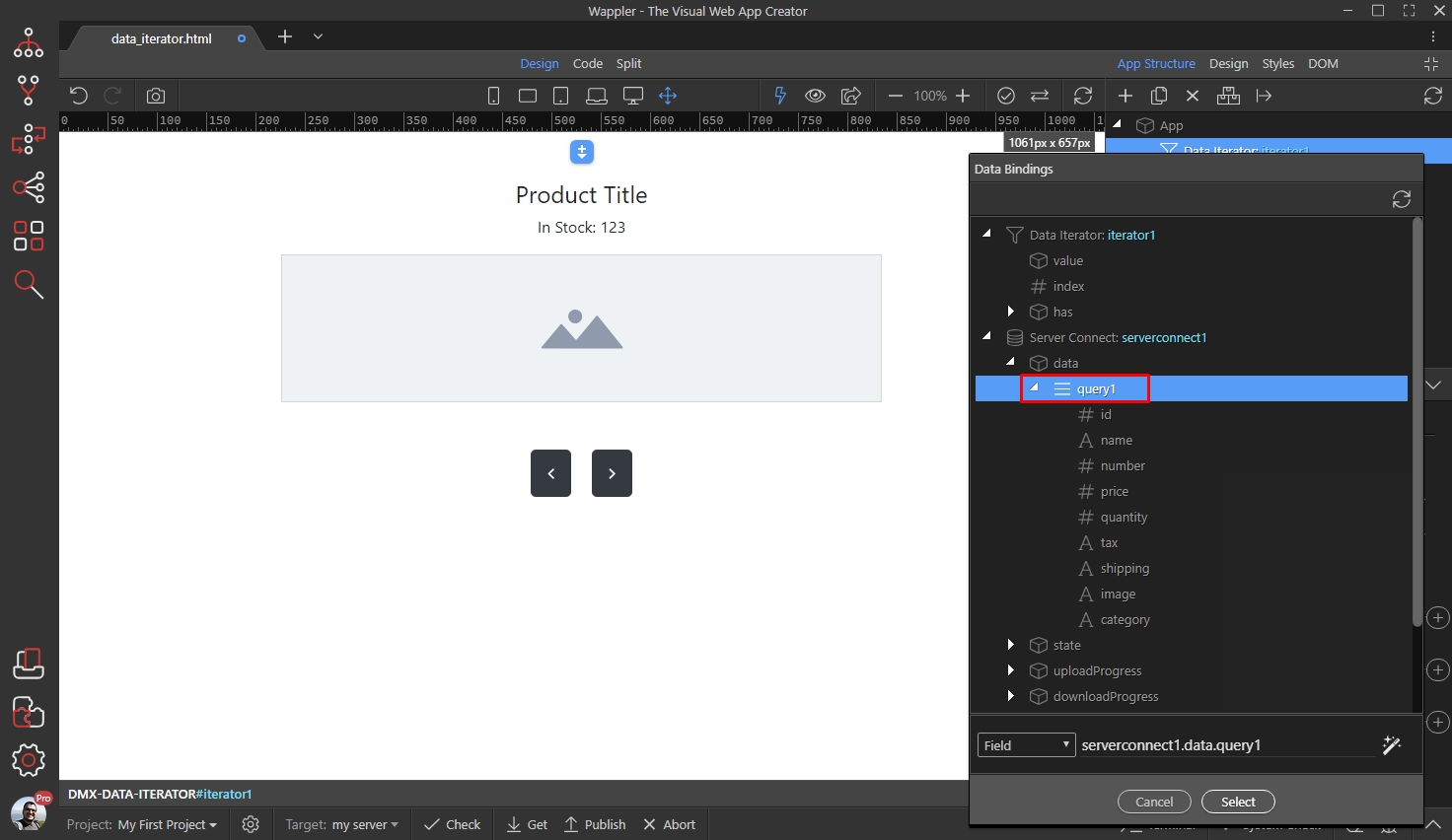
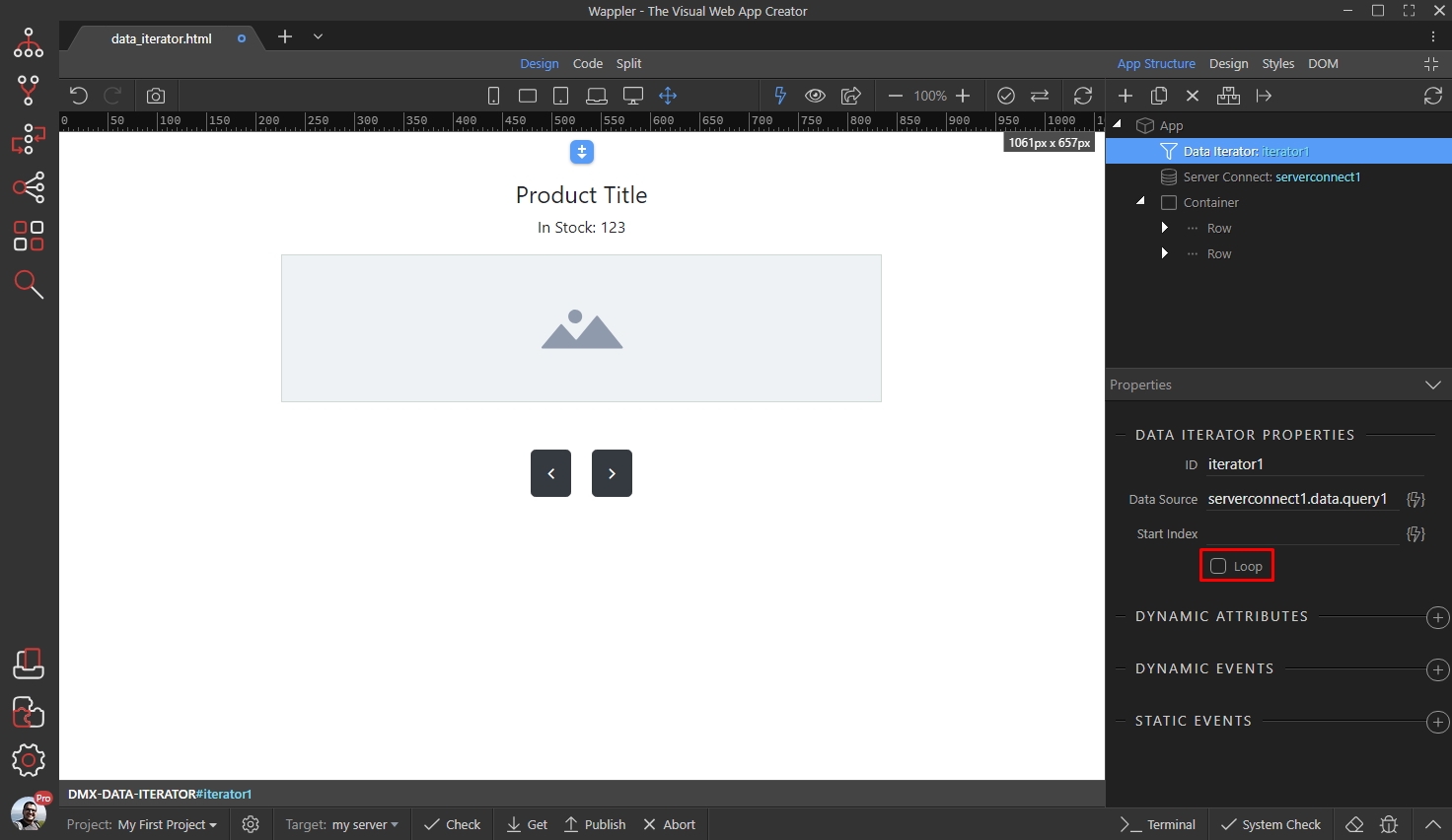
Step 12
Section titled “Step 12”Select whether you want to loop through the records, when you reach the last/first ones, or just stop there. We enable Loop as we want to be able to loop infinitely:
Step 13
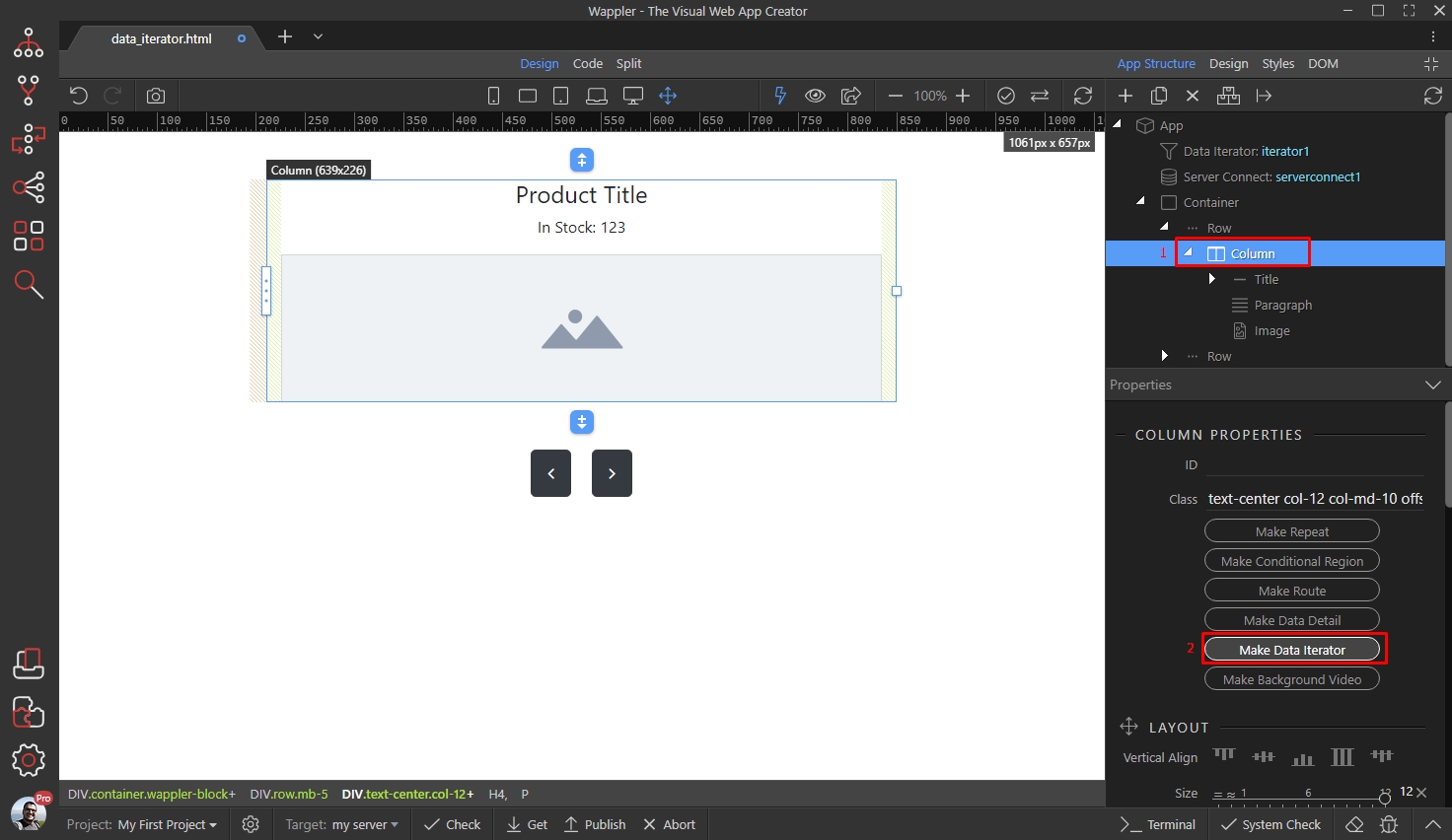
Section titled “Step 13”Then, we need to apply the Data Iterator on the page. We created a really simple layout (container > row > column) containing a title, text and image. We will use the iterator as a dynamic source for the text and the image.
We select the column (1) and click the Create Data Iterator button (2):
Step 14
Section titled “Step 14”Double click the text and use the dynamic data button to add dynamic data there (or use the inner text dynamic attribute if you prefer so):
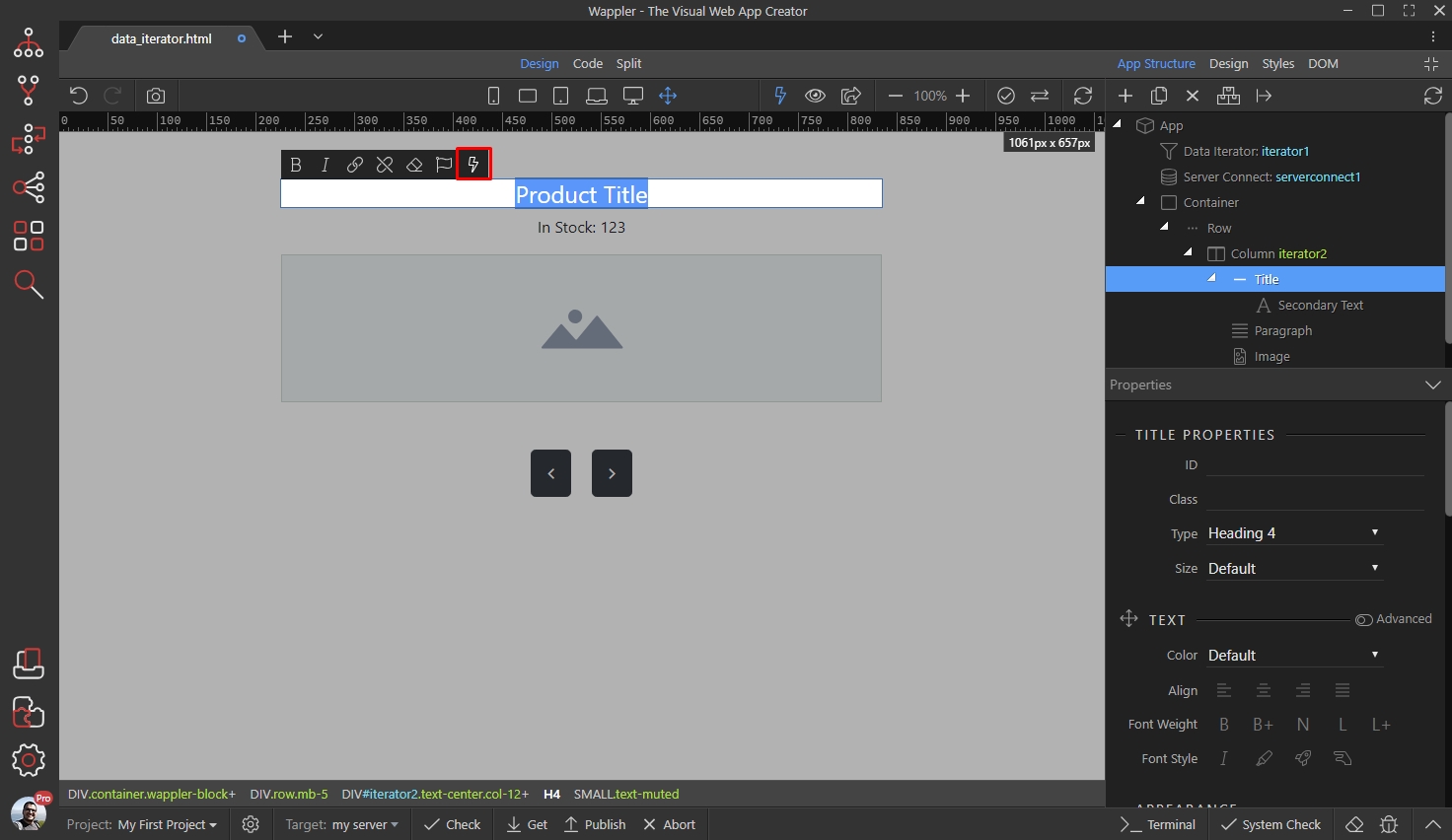
Select your data under the Value object in the Data Iterator component:
Section titled “Select your data under the Value object in the Data Iterator component:”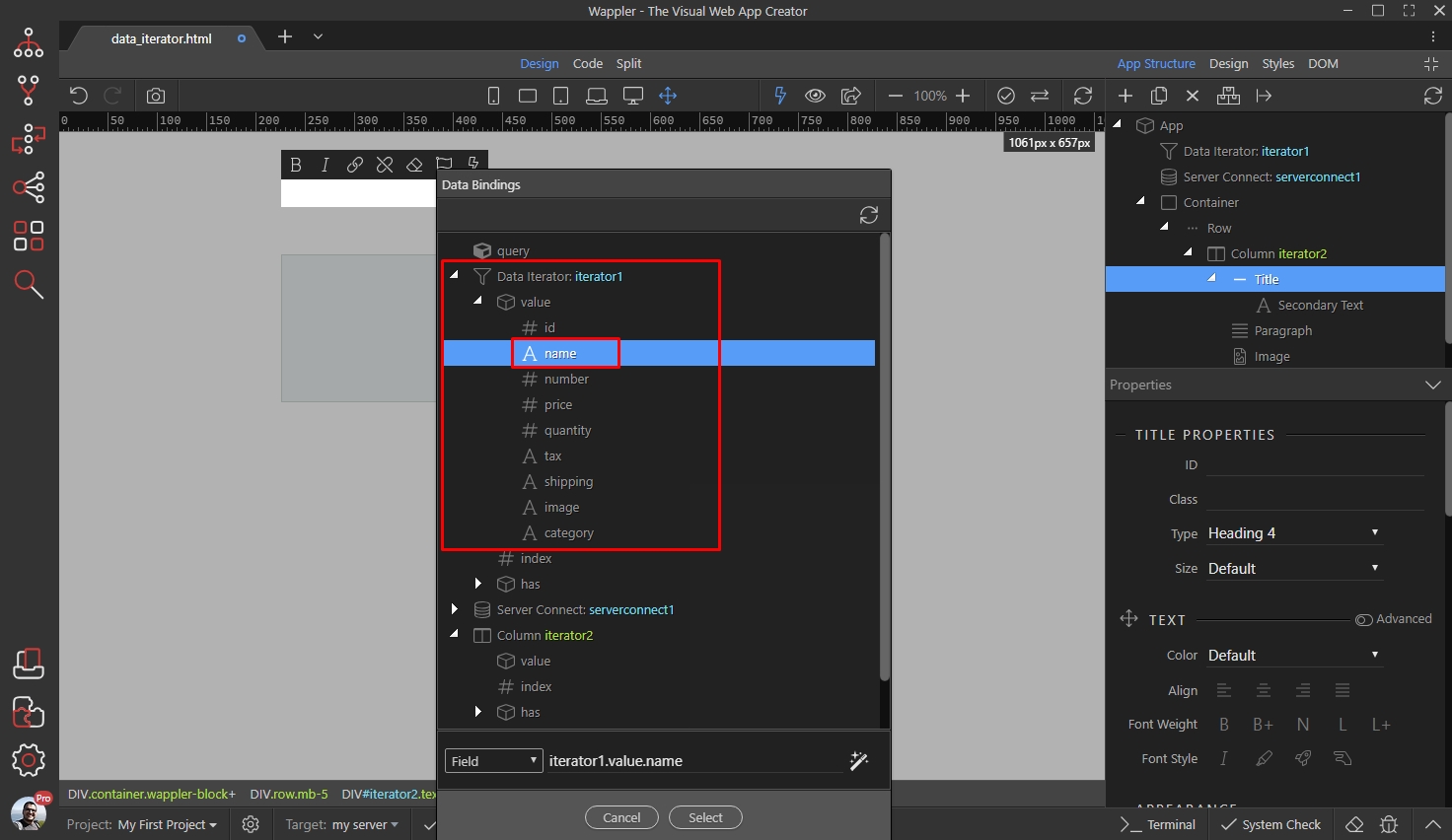
Step 16
Section titled “Step 16”Then do the same for all the elements, which need to use dynamic data (text, images etc.). The data iterator will display one record at time.
Controlling Data Iterator
Section titled “Controlling Data Iterator”You can easily control the Data Iterator using the dynamic events. We added two regular buttons on the page, which will be used to show the previous/next records on click. Select the ‘next’ button, then add new dynamic event:
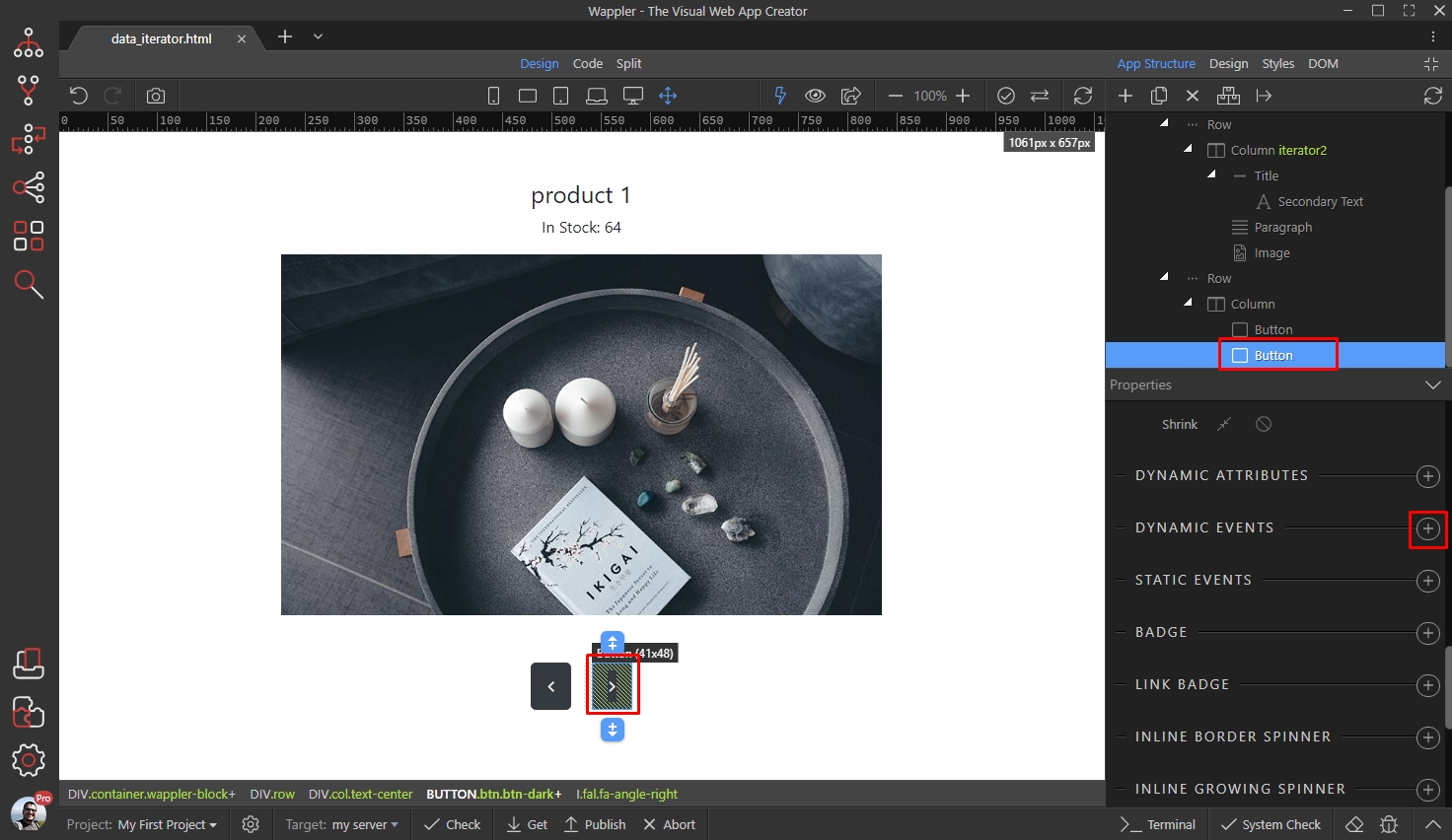
Select Mouse > Click:
Section titled “Select Mouse > Click:”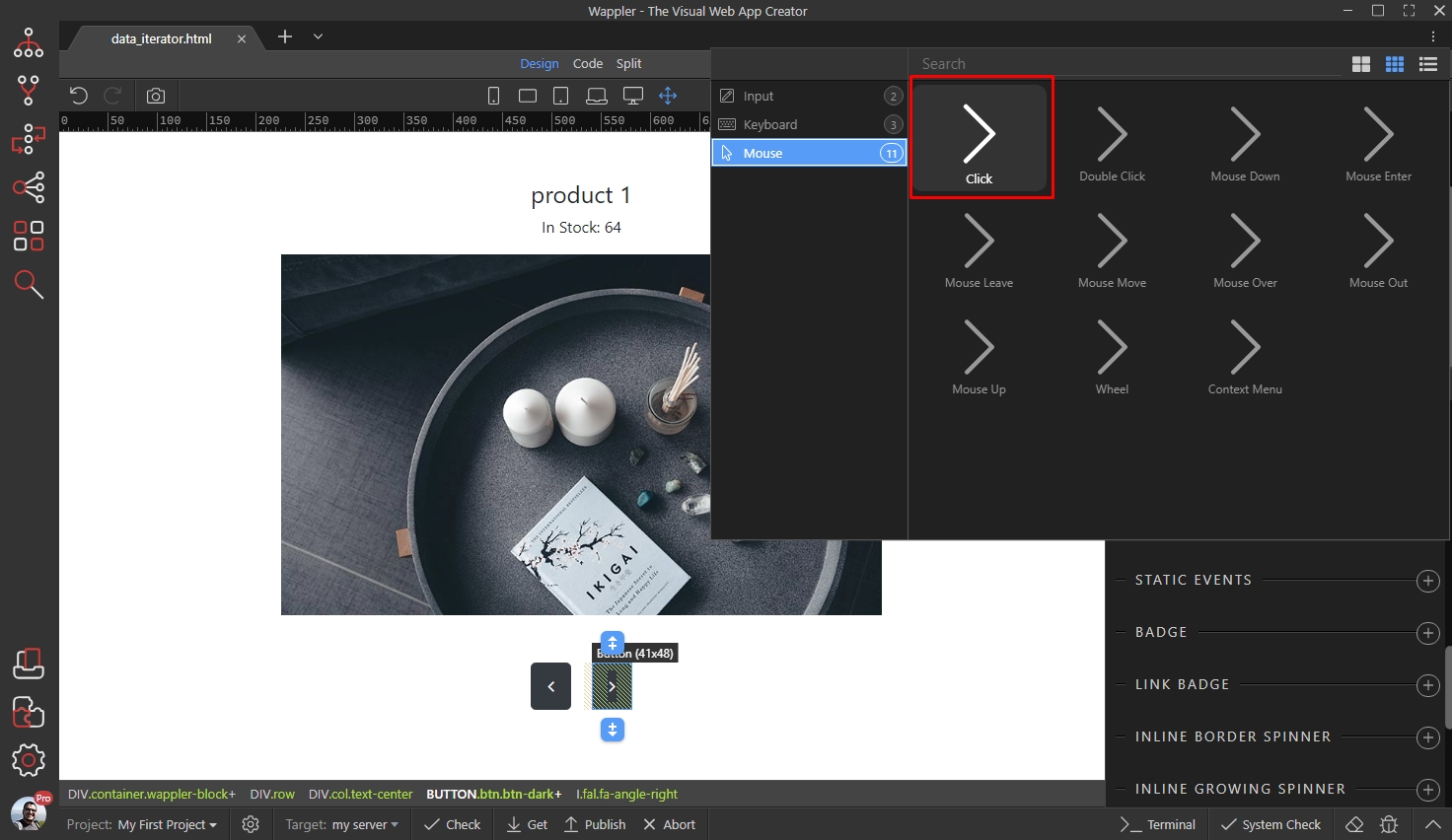
And click the dynamic action picker icon:
Section titled “And click the dynamic action picker icon:”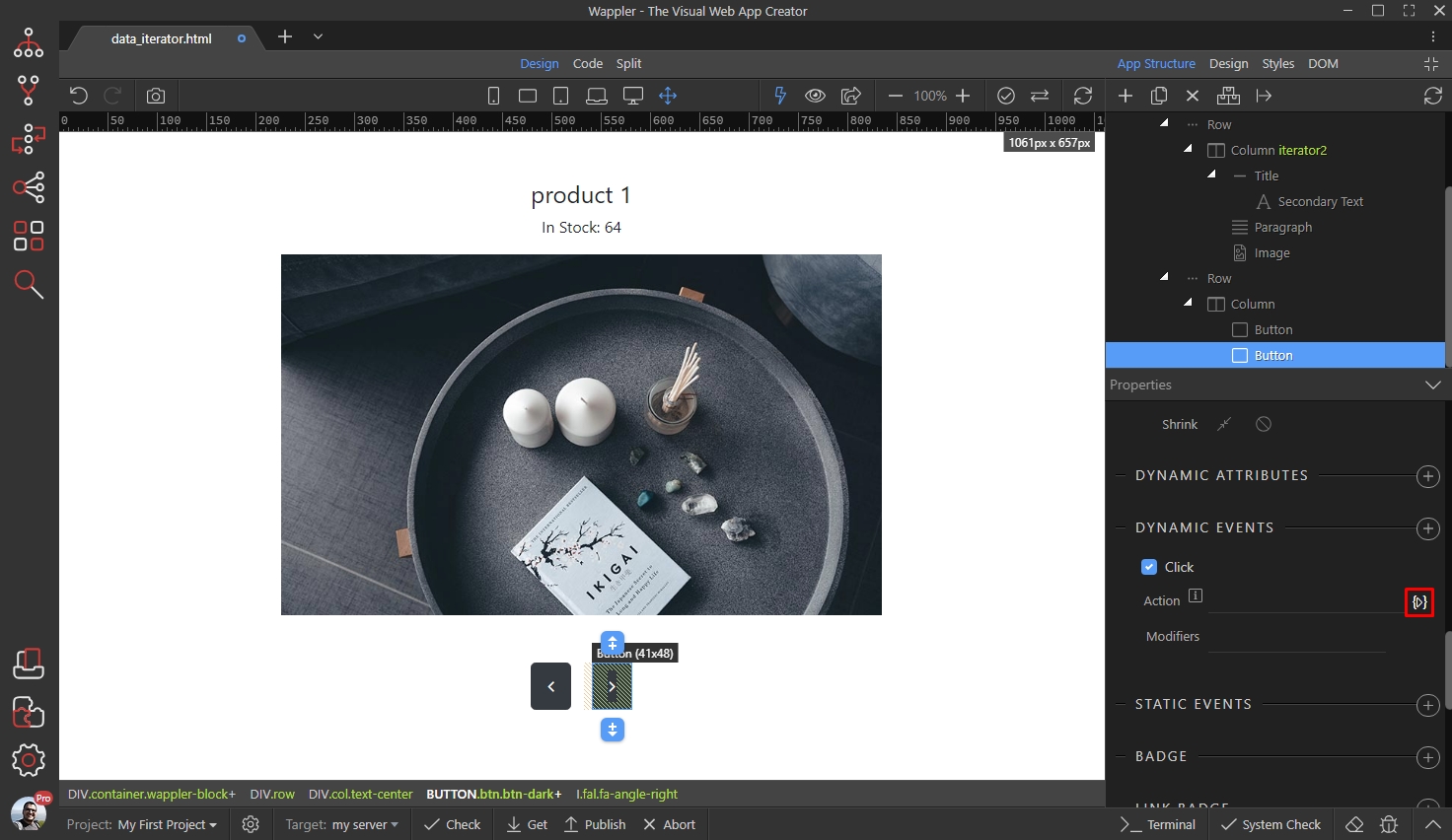
Step 20
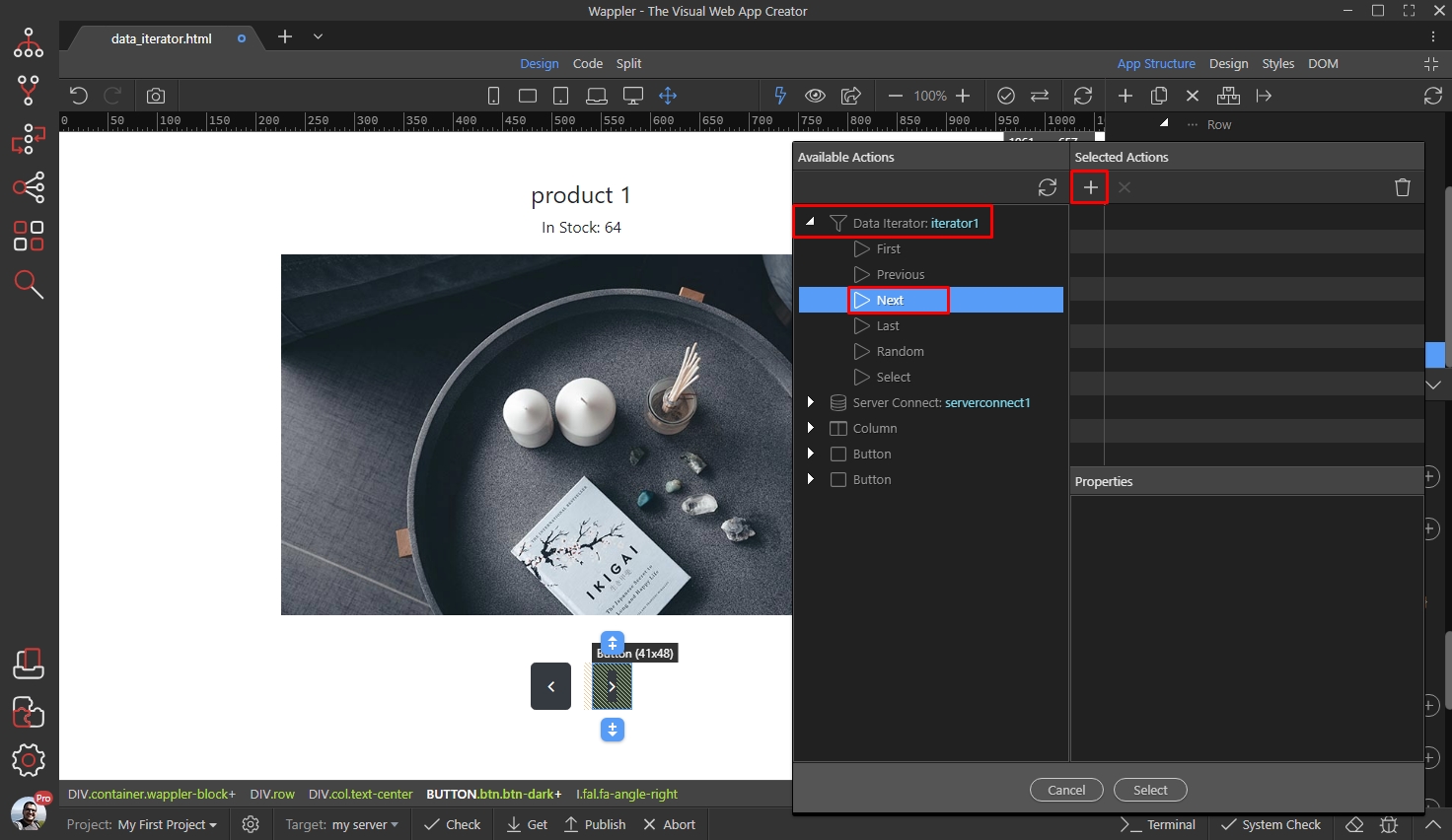
Section titled “Step 20”Under Data Iterator you will see all the available control actions: First, Previous, Next, Last, Random and Select. The options are pretty much self-explanatory, so we won’t explain every single one.
For the ‘next’ button, we select the Next action, it will load the next record on the page:
Do the same with the ‘previous’ button, selecting the Previous action.
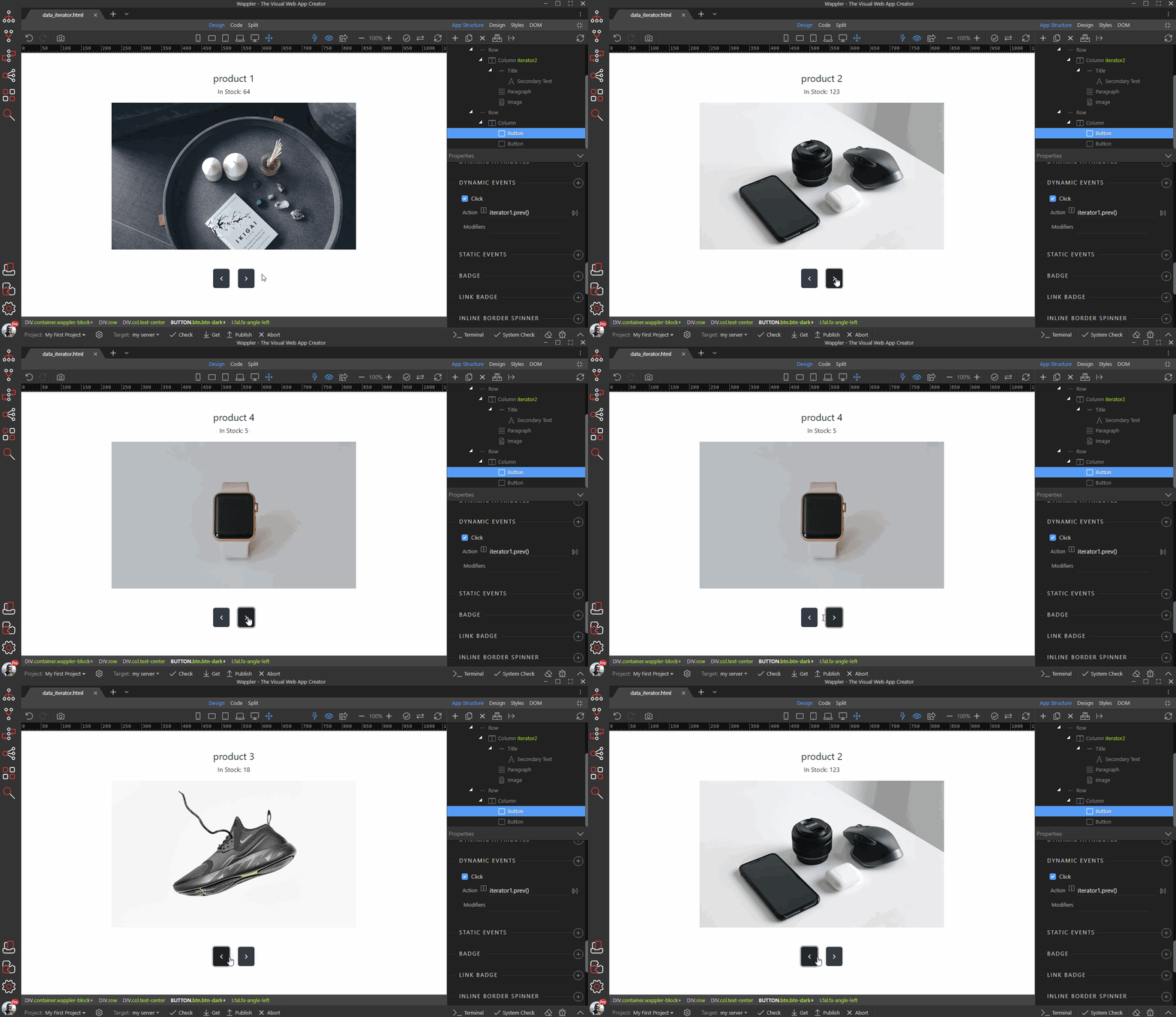
Section titled “Do the same with the ‘previous’ button, selecting the Previous action.”Here are the results, only one record is displayed on our page and we can loop through them using the prev/next buttons: