Using Globals in Server Connect
Intro The Globals allow you to define and re-use Database Connections and other Settings (1), Variables / Input Parameters (2) and API Action Steps (3) across all your API Actions in the project: When
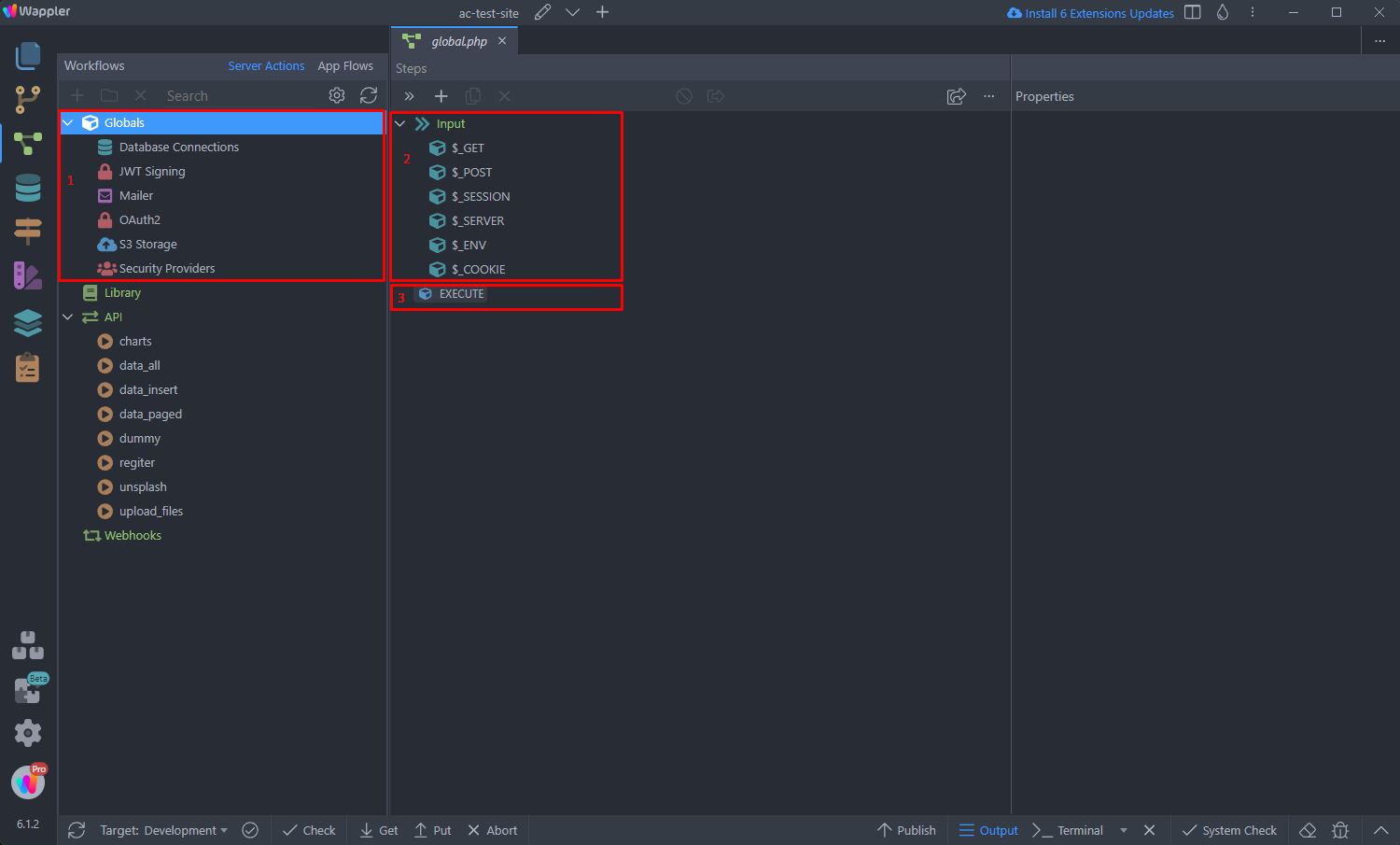
The Globals allow you to define and re-use Database Connections and other Settings (1), Variables / Input Parameters (2) and API Action Steps (3) across all your API Actions in the project:
Step 3
Section titled “Step 3”Whenever you need a Database Connection, Mailer or Security Provider you just need to define them once in the Globals and they will be available for all your Server Actions in the project.
Defining Global Variables / Input Parameters
Section titled “Defining Global Variables / Input Parameters”You can easily define a variable and access it from all your API Actions. One of the most common use cases are the session variables - that’s what our example will show you.
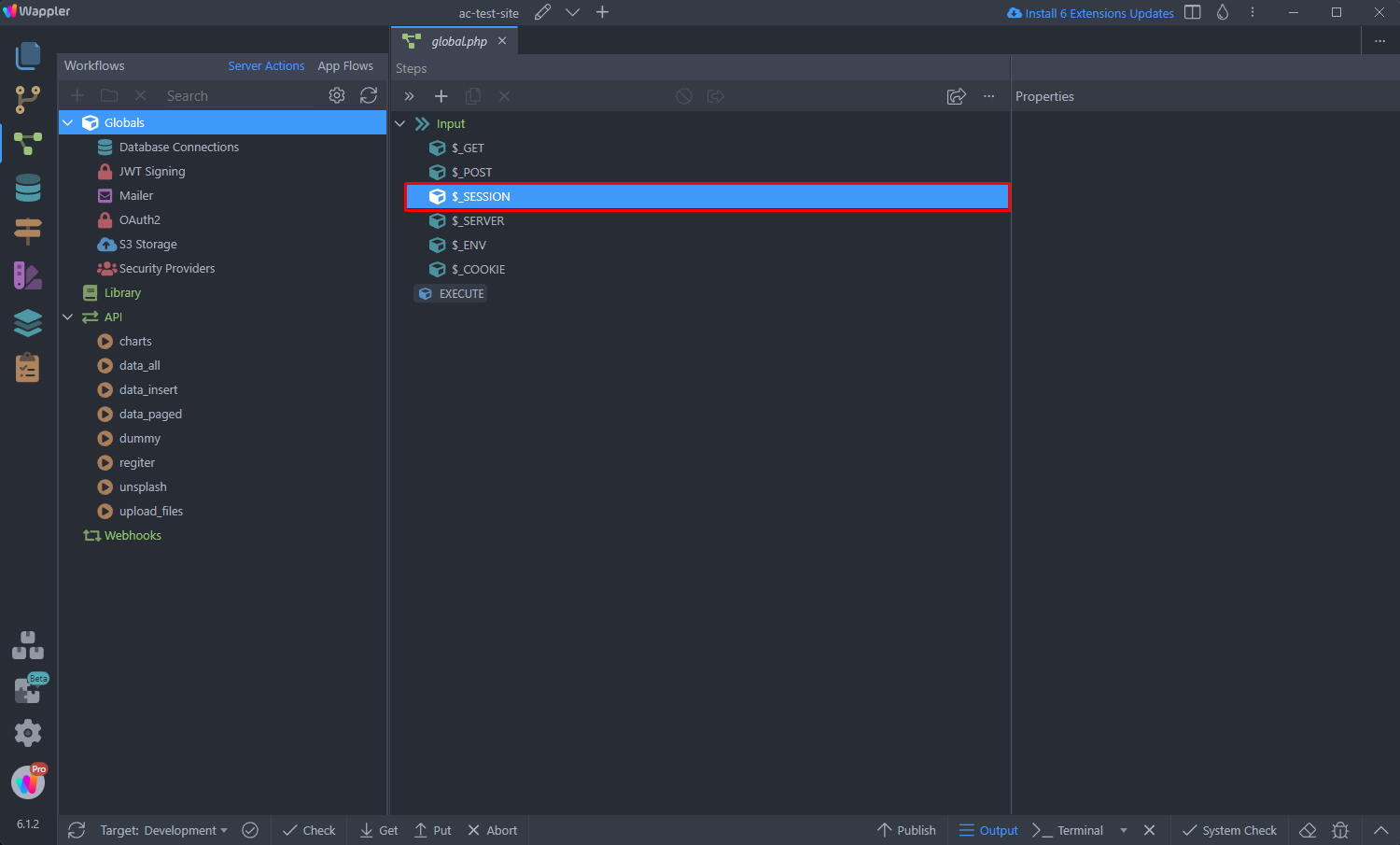
Select Globals and right click $_SESSION:
Create a session variable and add a name for it:
Section titled “Create a session variable and add a name for it:”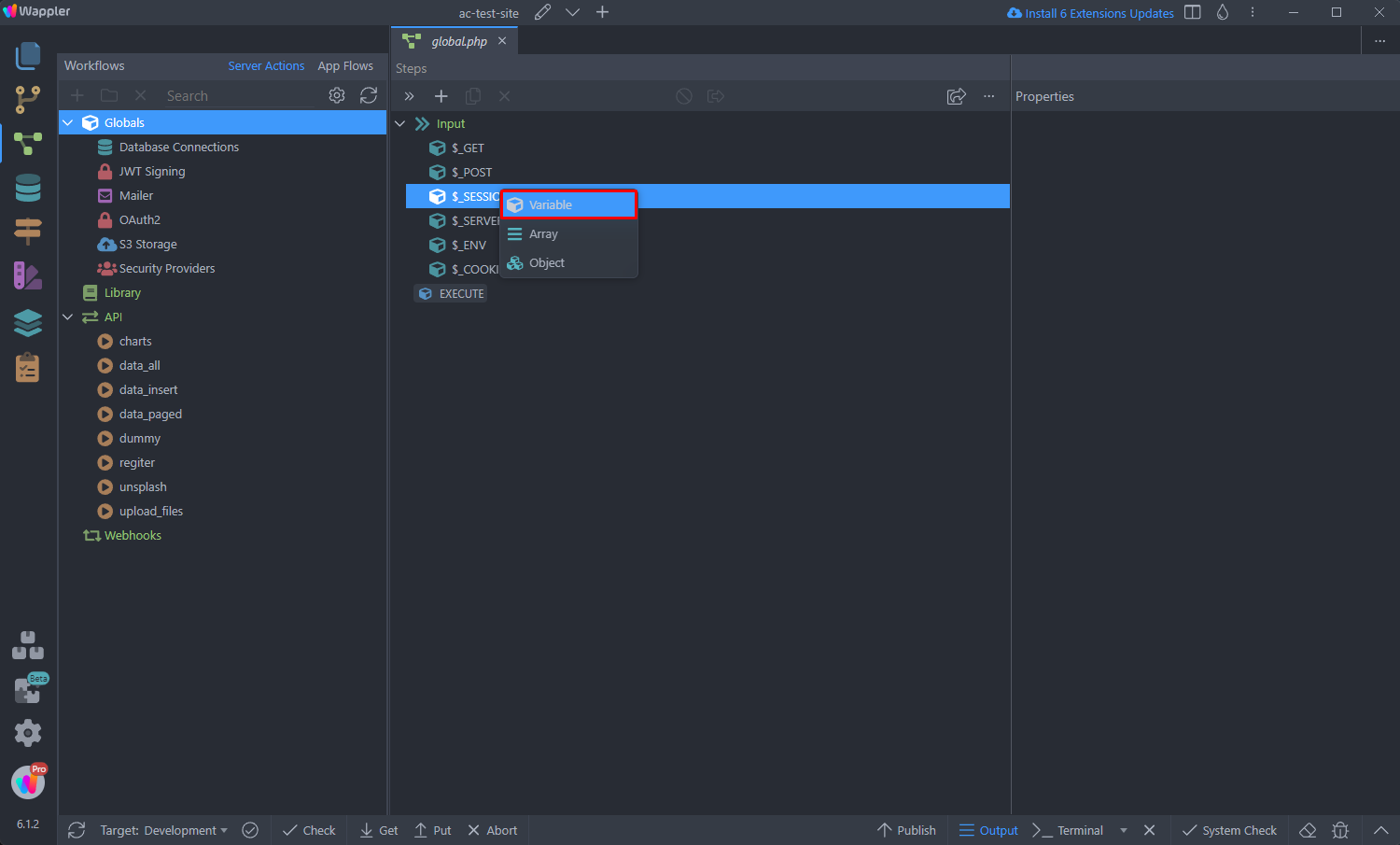
Step 6
Section titled “Step 6”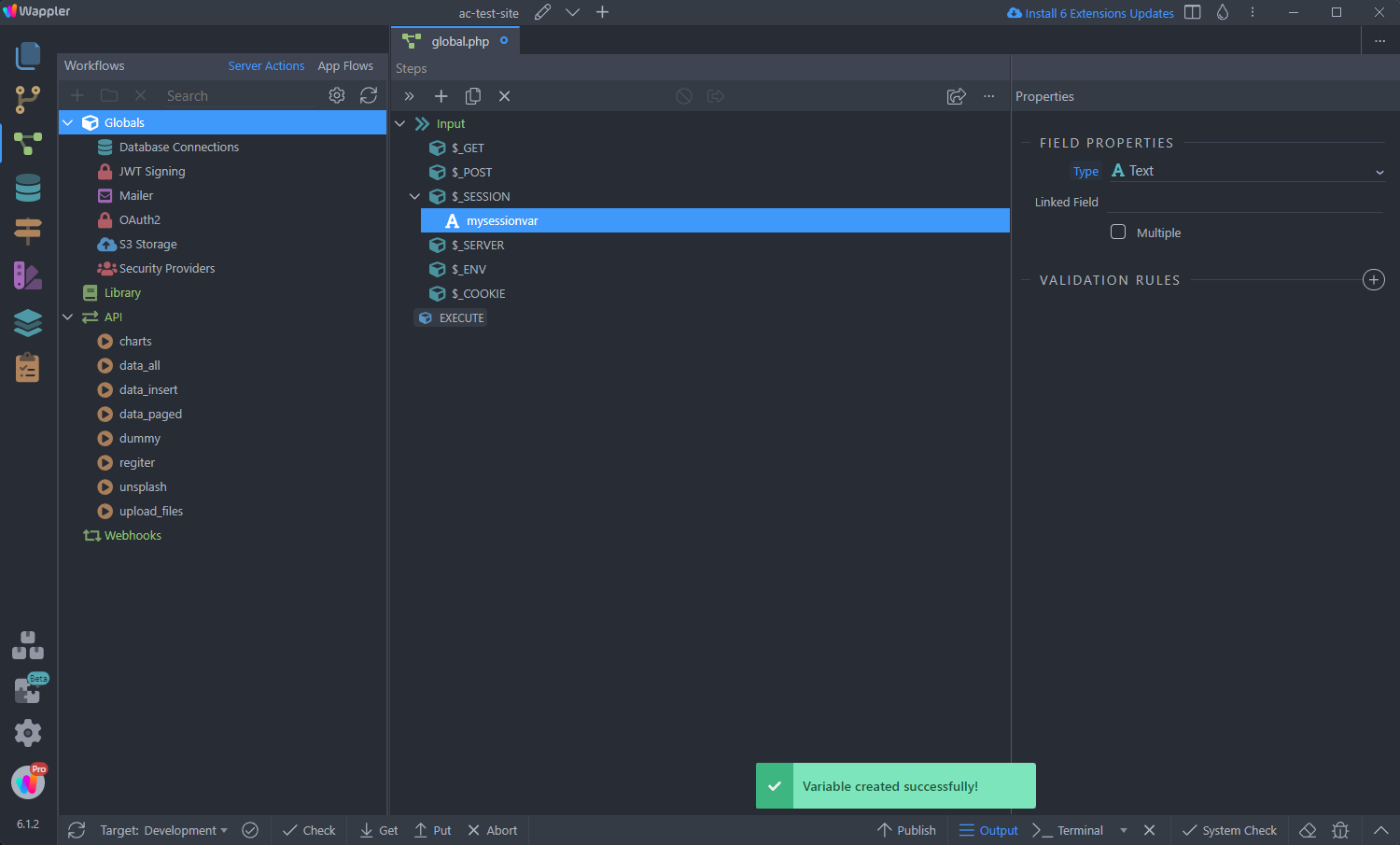
And you are done! Save the changes we made to Globals by pressing ctrl + s / cmd + s:
Section titled “And you are done! Save the changes we made to Globals by pressing ctrl + s / cmd + s:”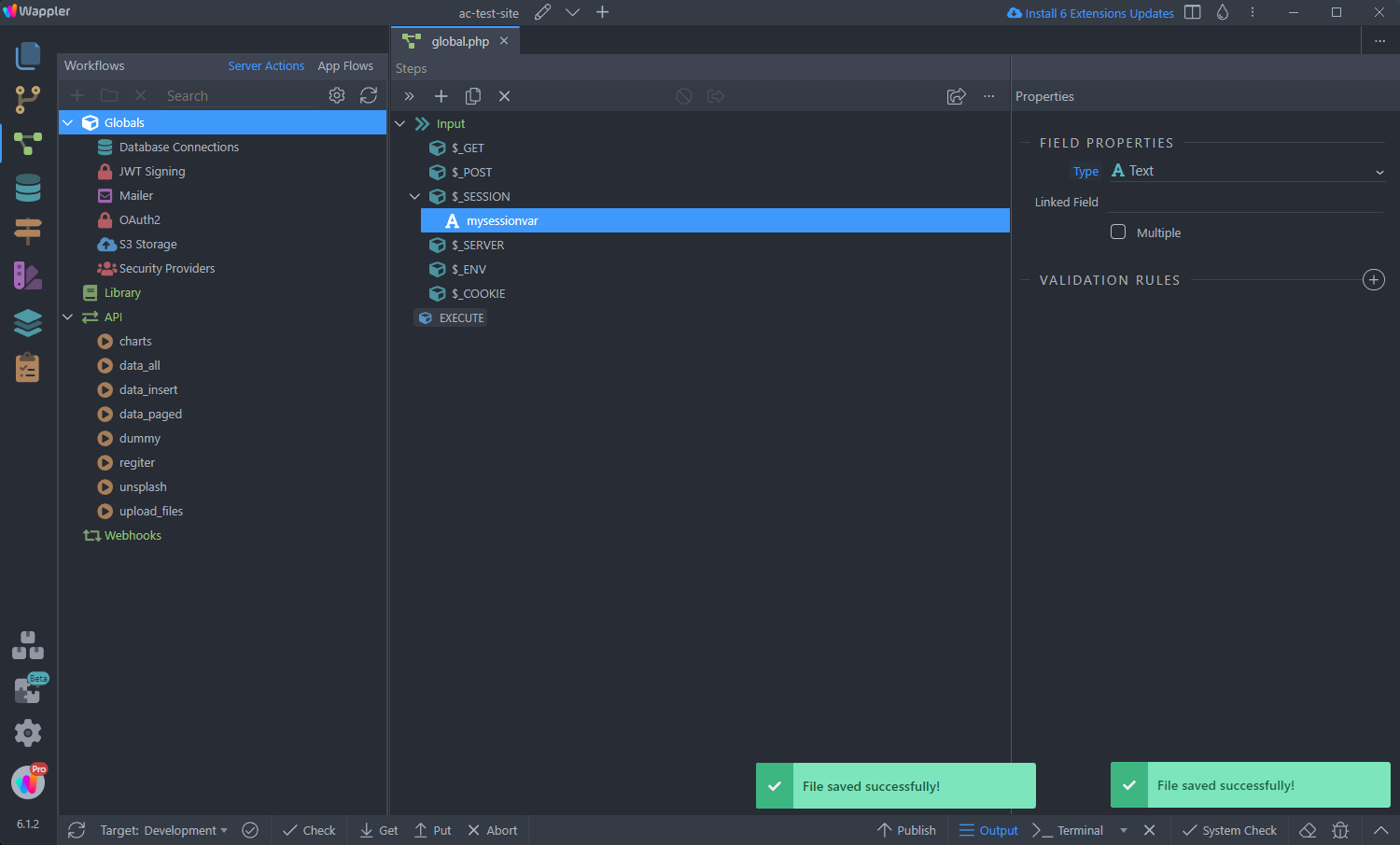
Step 8
Section titled “Step 8”Now you can access the session we defined in your API Actions. In your API Action add a step, which will need the session variable value. We add a Set Value step, just to show you how it works, but this can be any other step:
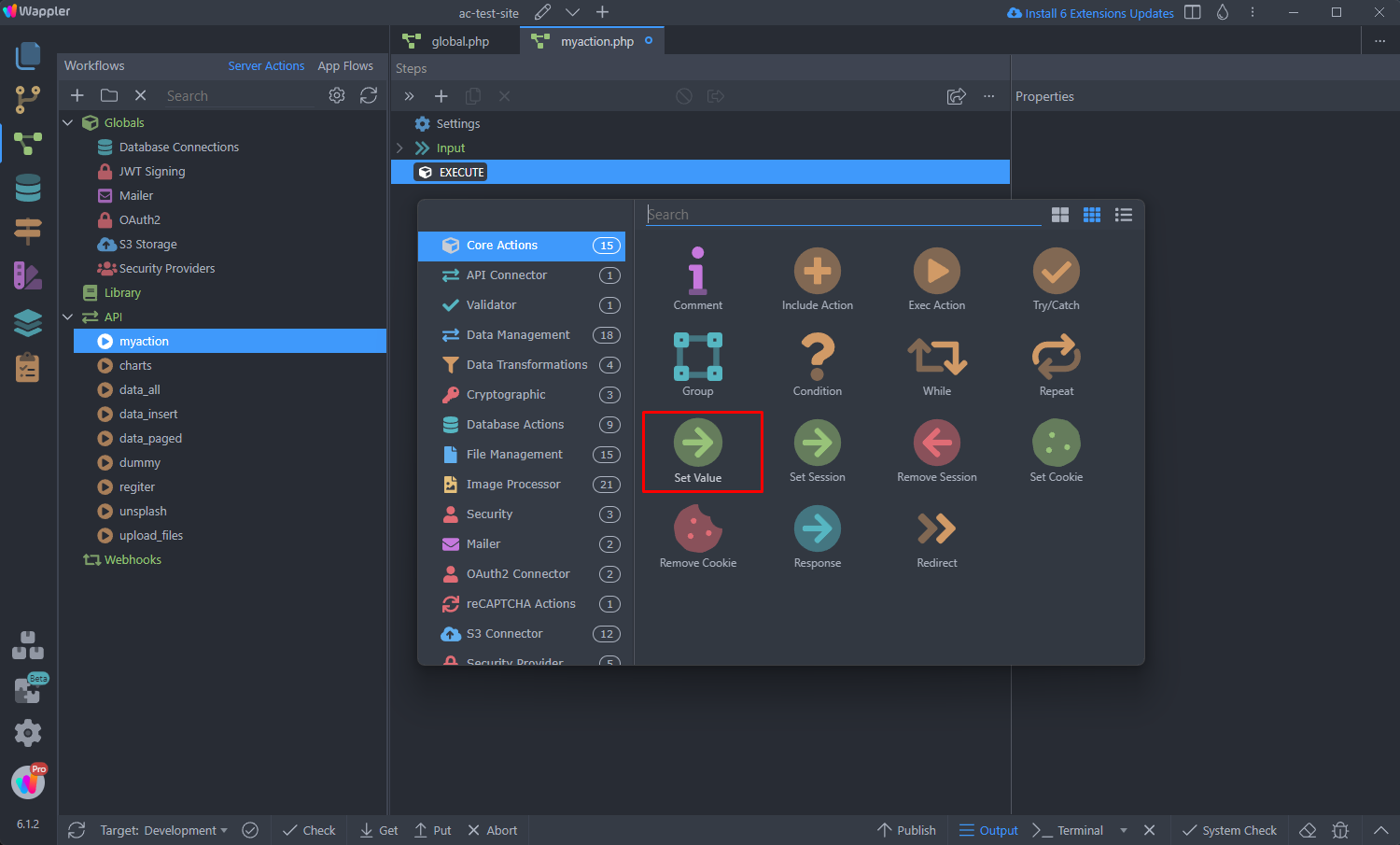
Click the dynamic data button to select a dynamic value:
Section titled “Click the dynamic data button to select a dynamic value:”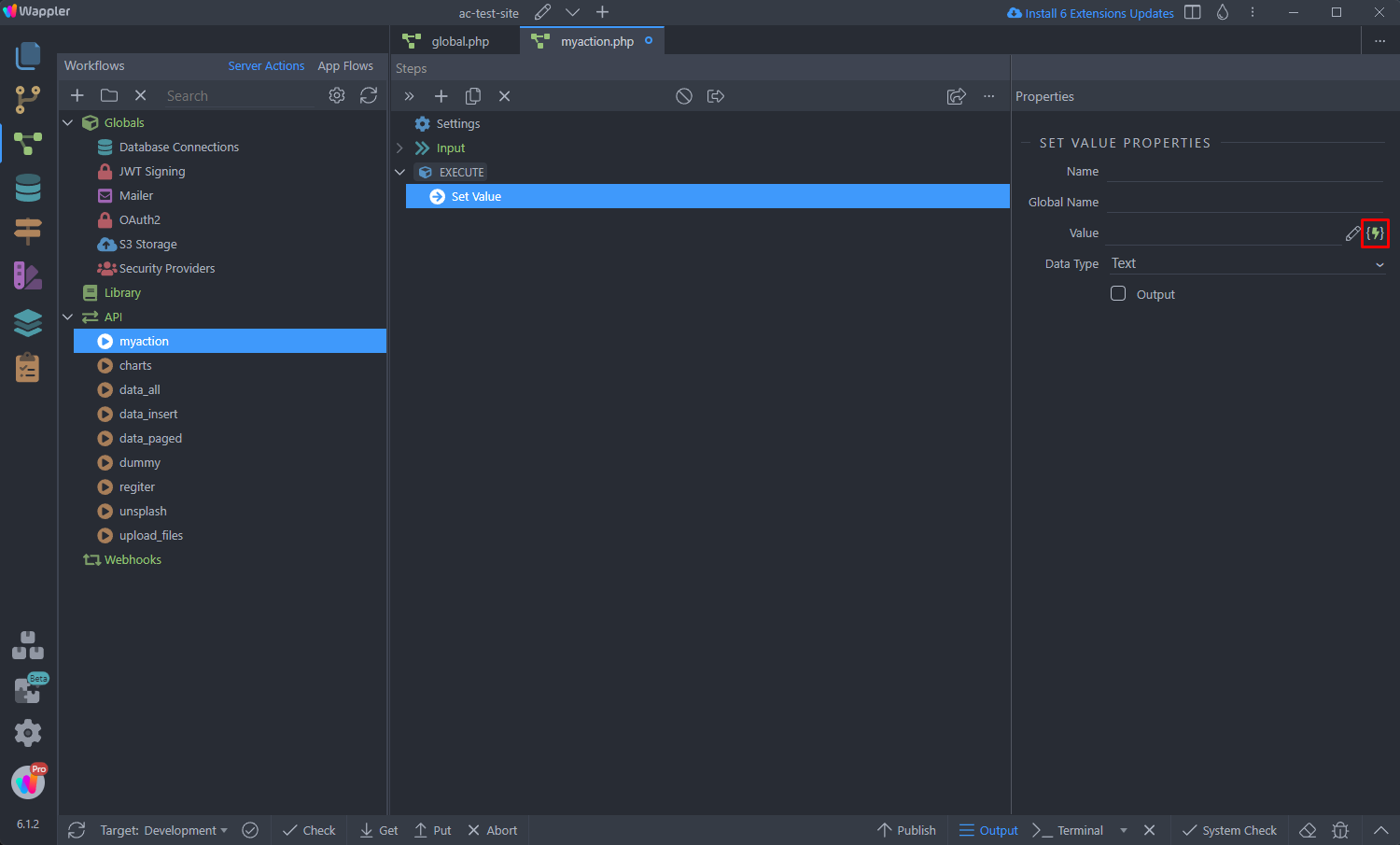
You will see the session variable which we defined globally, select it and you are done:
Section titled “You will see the session variable which we defined globally, select it and you are done:”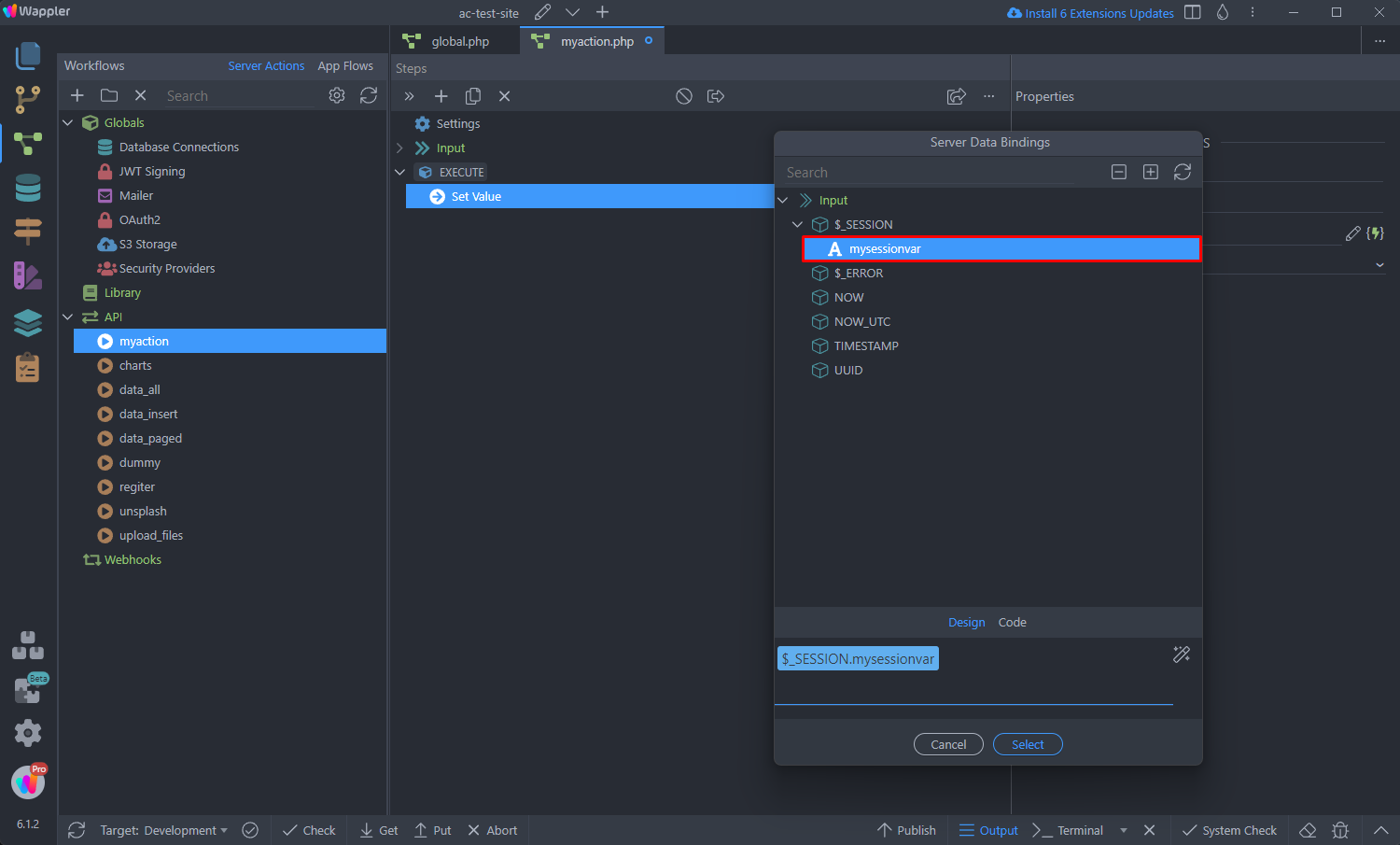
Defining Global Settings
Section titled “Defining Global Settings”The other Global Settings include Database Connections, Security Provider, Mailer, Oauth2 Provider, S3 Storage and JWT Signing. These can be globally defined and then reused across all your API Actions.
Database Connections
Section titled “Database Connections”Defining a global database connection is really easy. You can define as many global database connections as your project needs, but usually you just need one as in most of the cases the database you are using for your project is just one. The Database Connect you define here will be available for any component which requires a database connection in any of your API Actions.
First, right click the Database Connections under Globals:
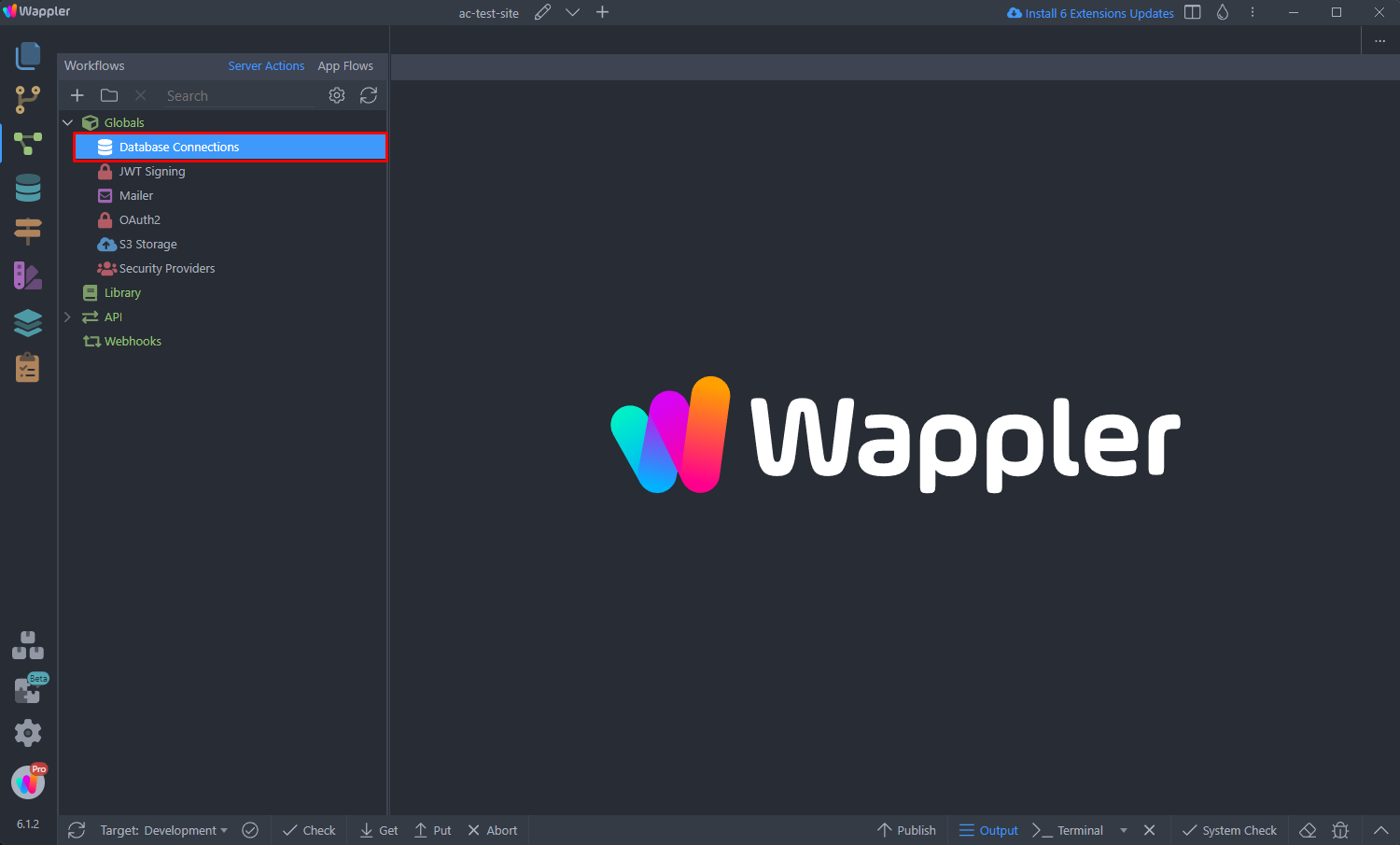
And add a database connection:
Section titled “And add a database connection:”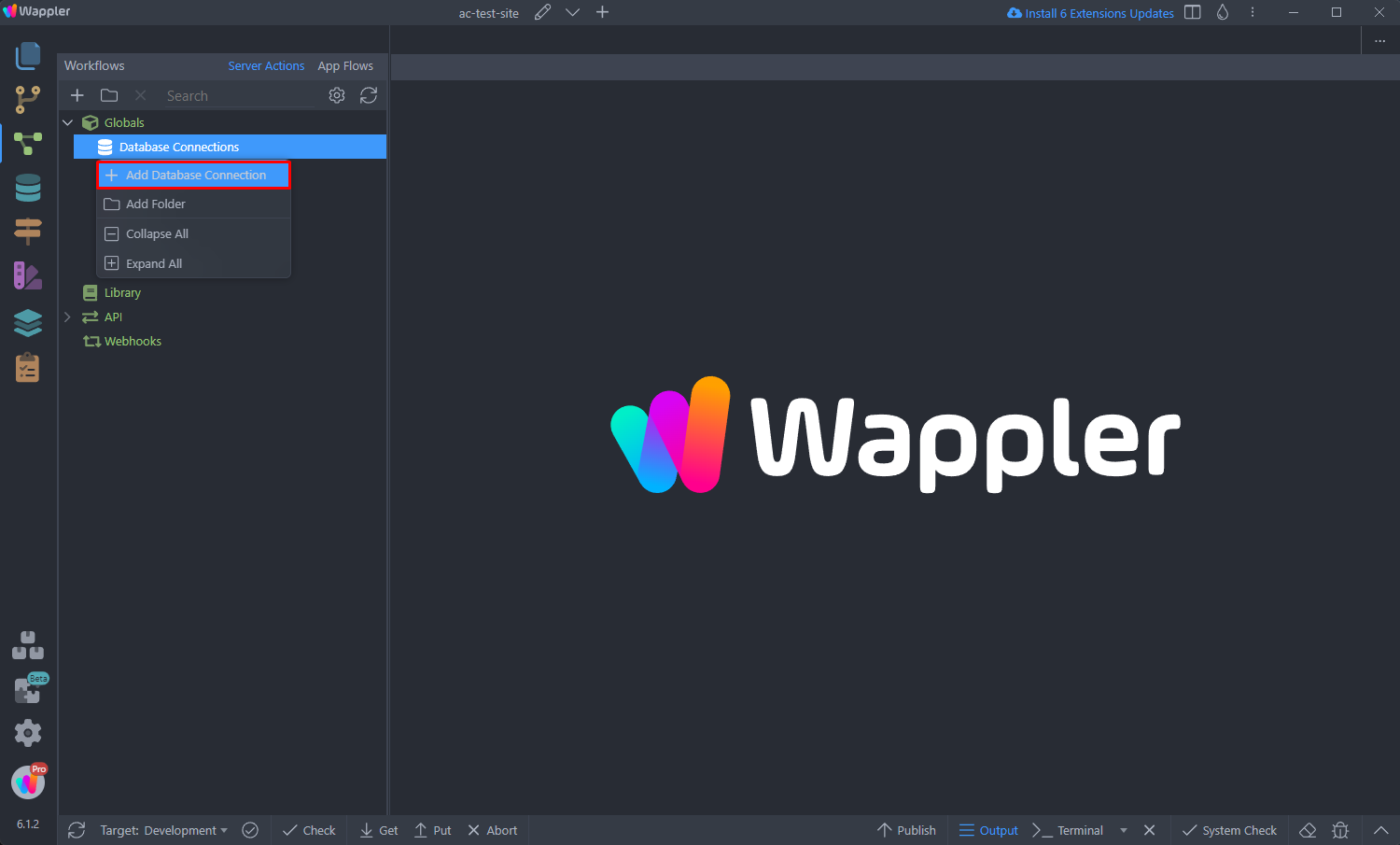
Add a name for your connection:
Section titled “Add a name for your connection:”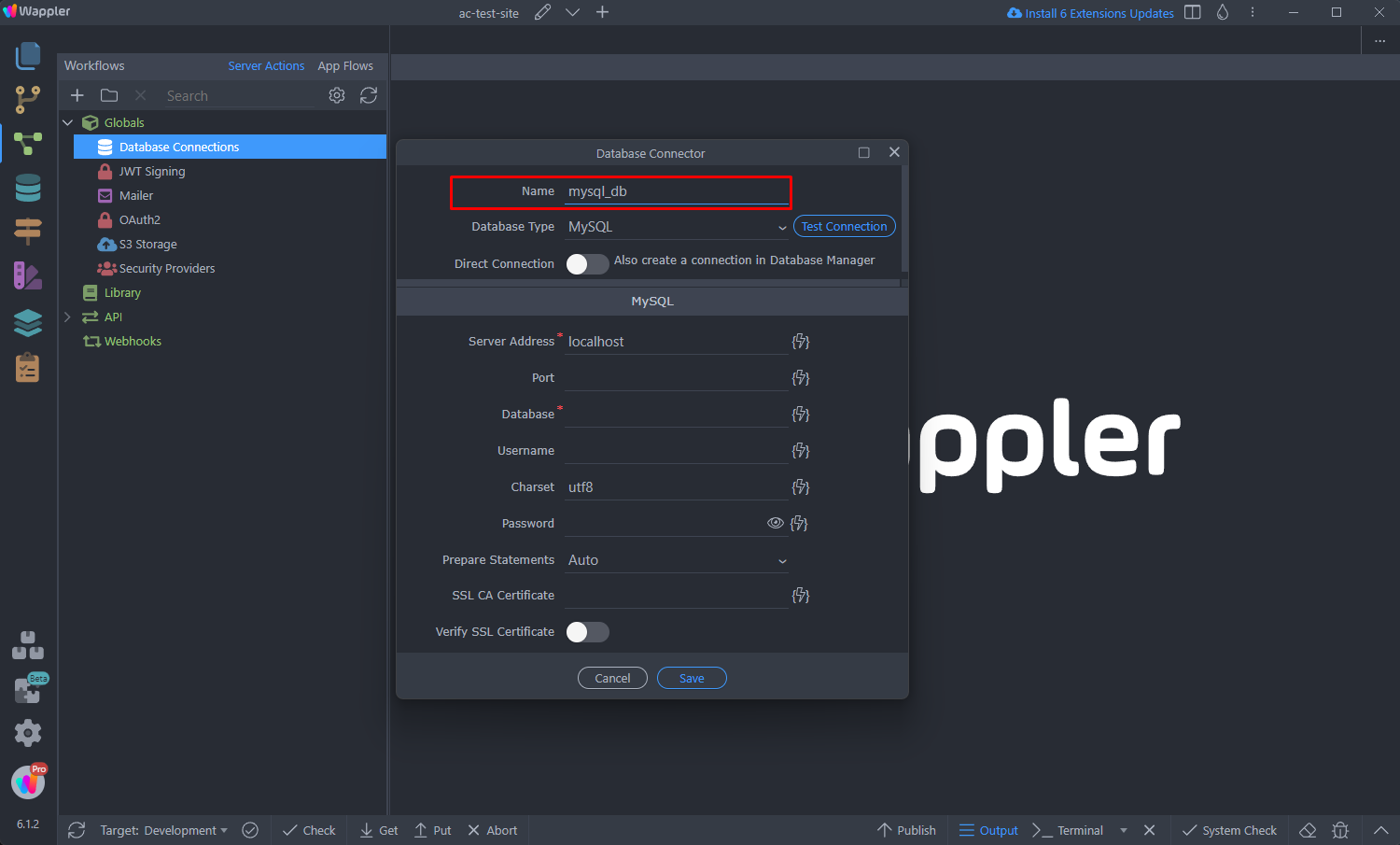
Select your database type from the dropdown:
Section titled “Select your database type from the dropdown:”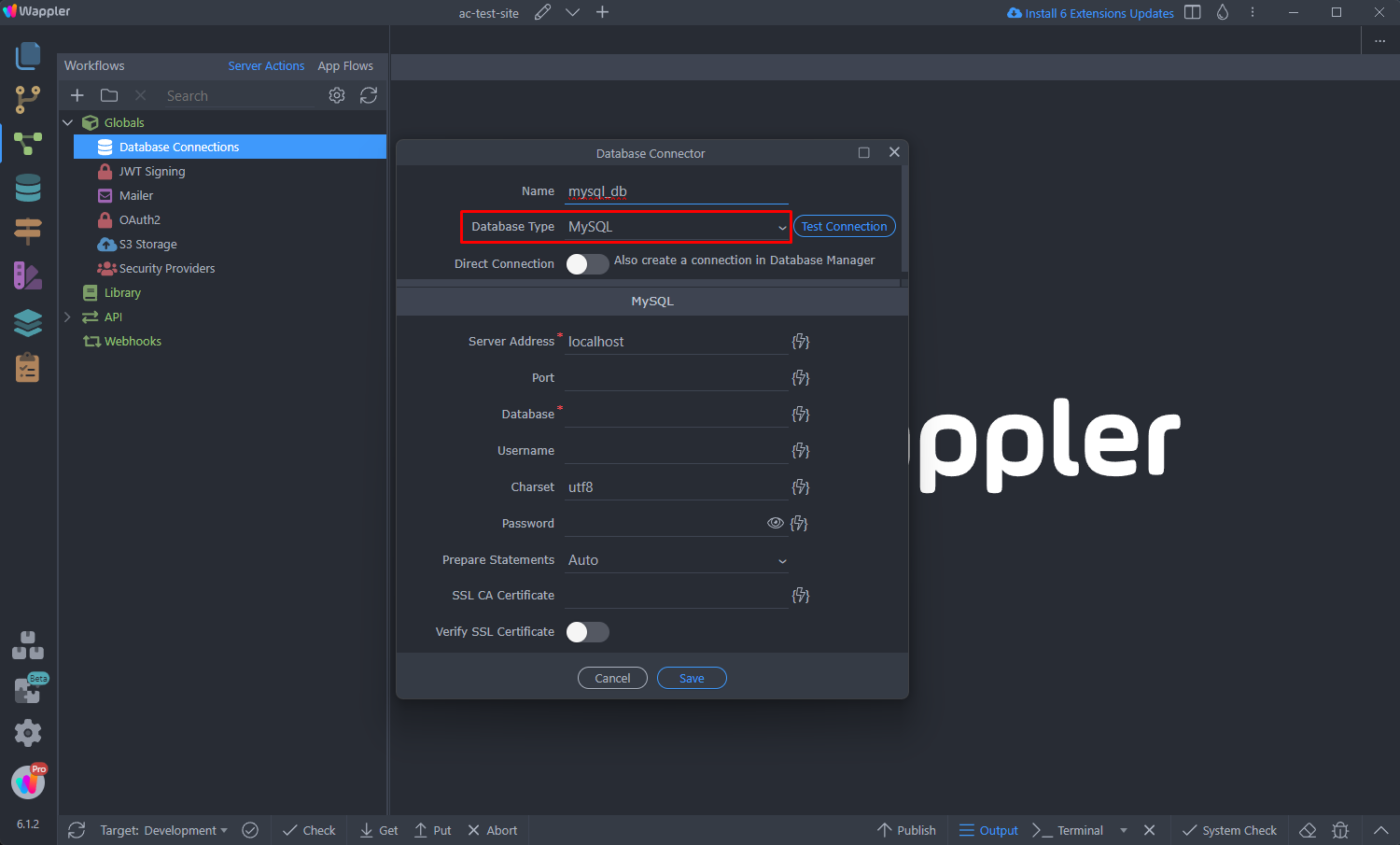
Step 17
Section titled “Step 17”Select whether you want to create a Direct Connection to your database or not, which will make your database available in the Database Manager:
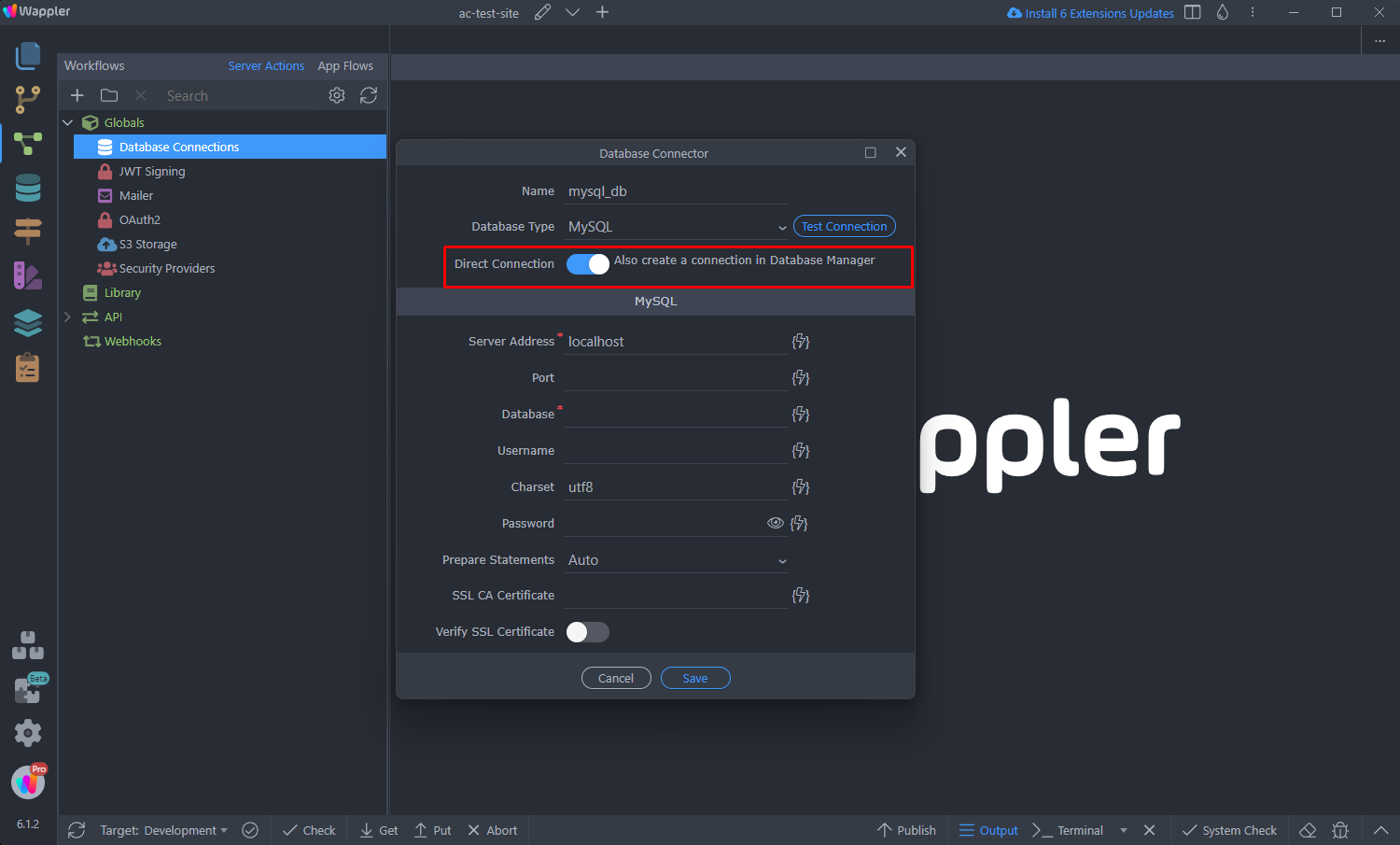
Enter the database connection details for the selected target and click Save:
Section titled “Enter the database connection details for the selected target and click Save:”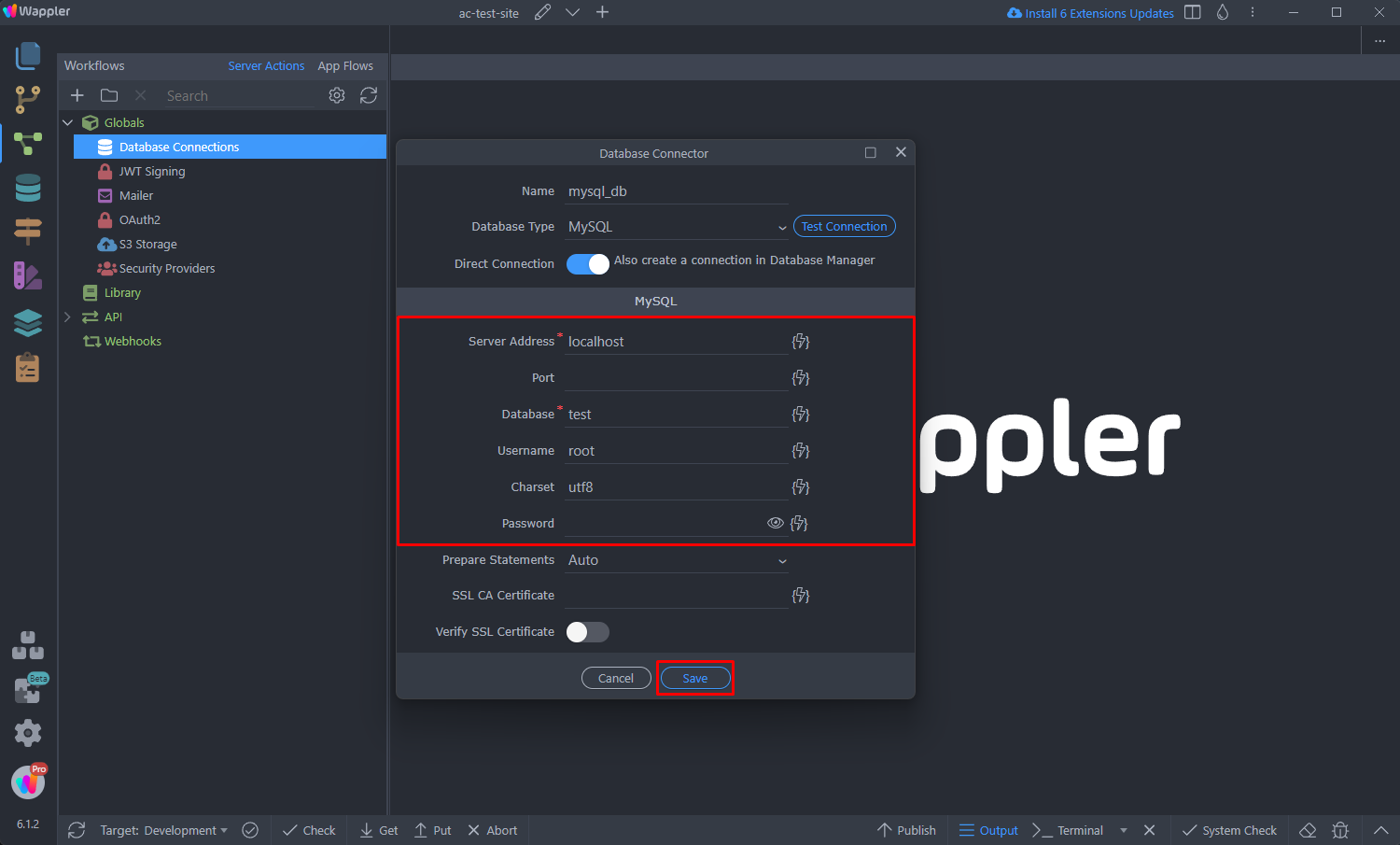
Step 19
Section titled “Step 19”If you have multiple targets using different database connections, define Connection Options per each of the targets. Just change the active target from the Target dropdown (1) and click the Connection Options button (2):
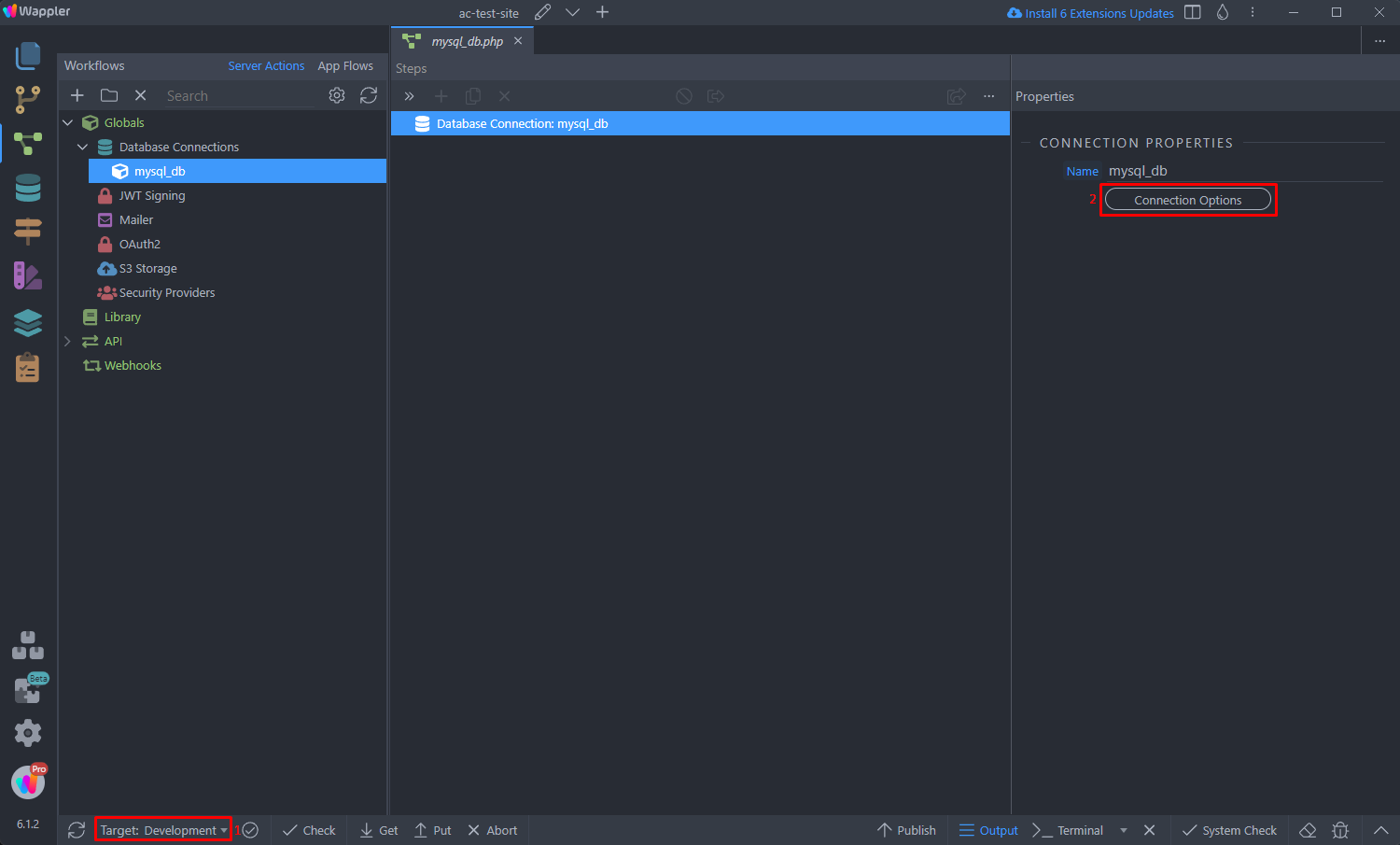
Step 20
Section titled “Step 20”Then Save the changes and you can use this Database Connection in your API Actions.
Right click Steps in your API Action:
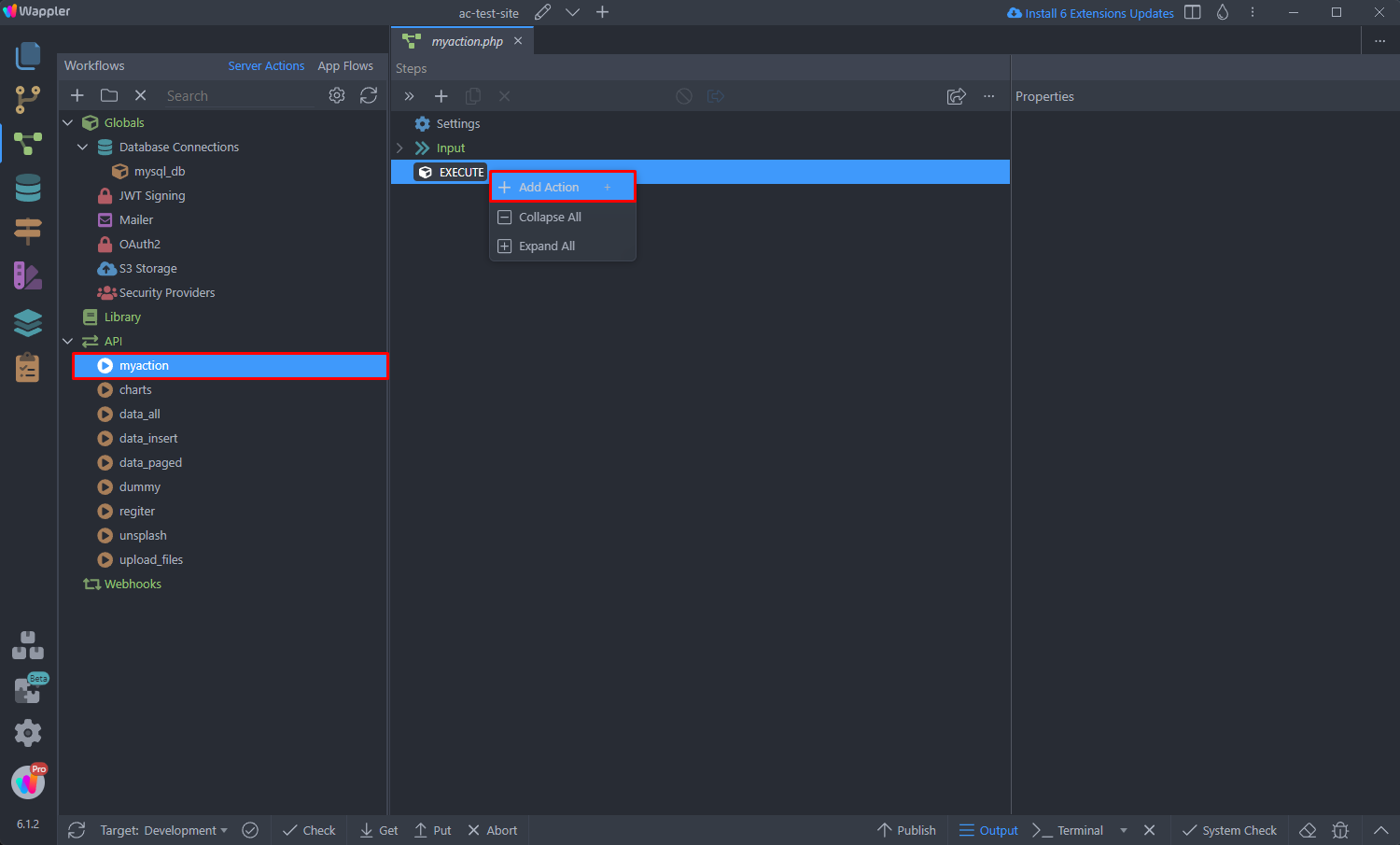
And you can directly add a Database Query step:
Section titled “And you can directly add a Database Query step:”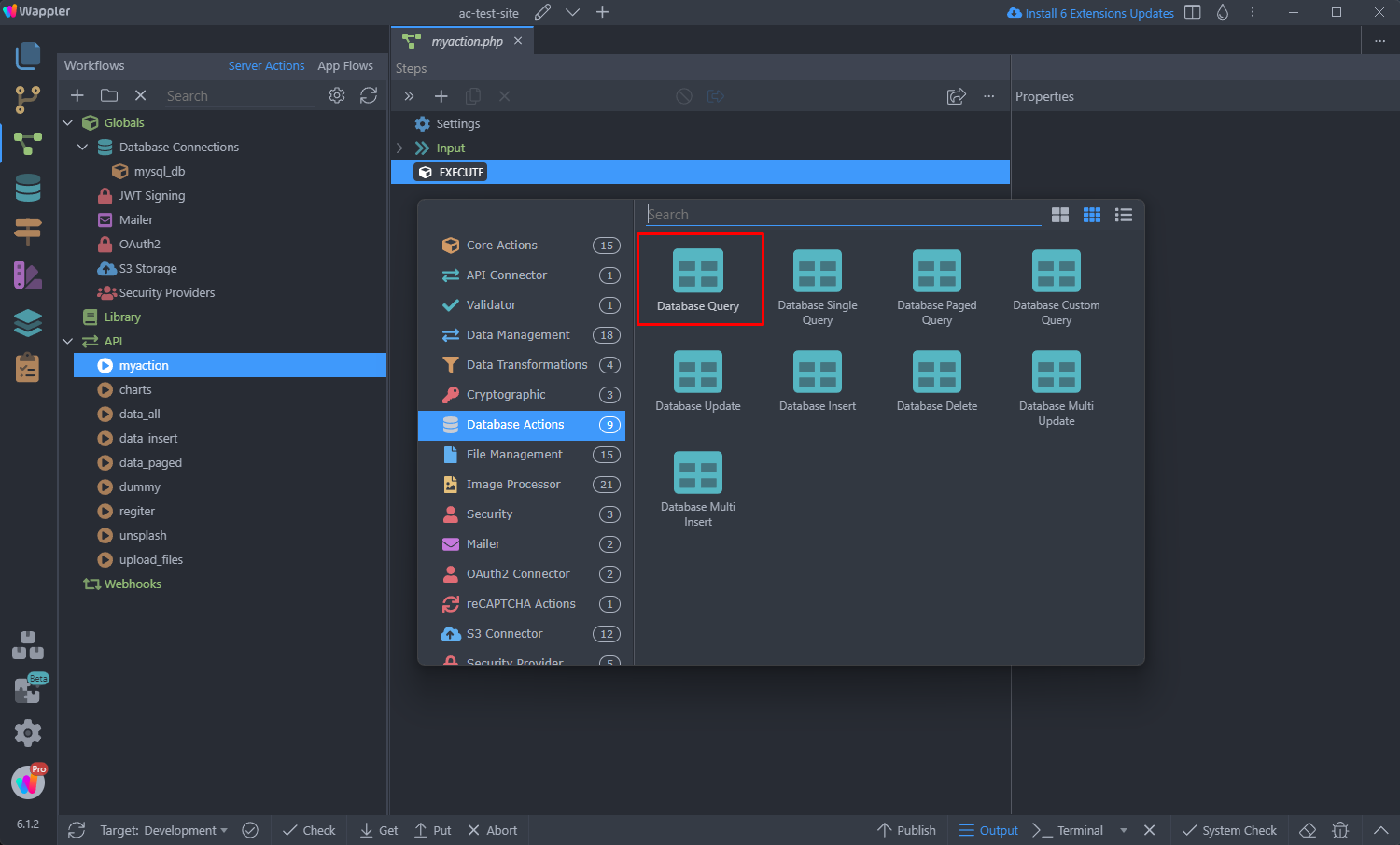
Select your database connection from the Connection dropdown:
Section titled “Select your database connection from the Connection dropdown:”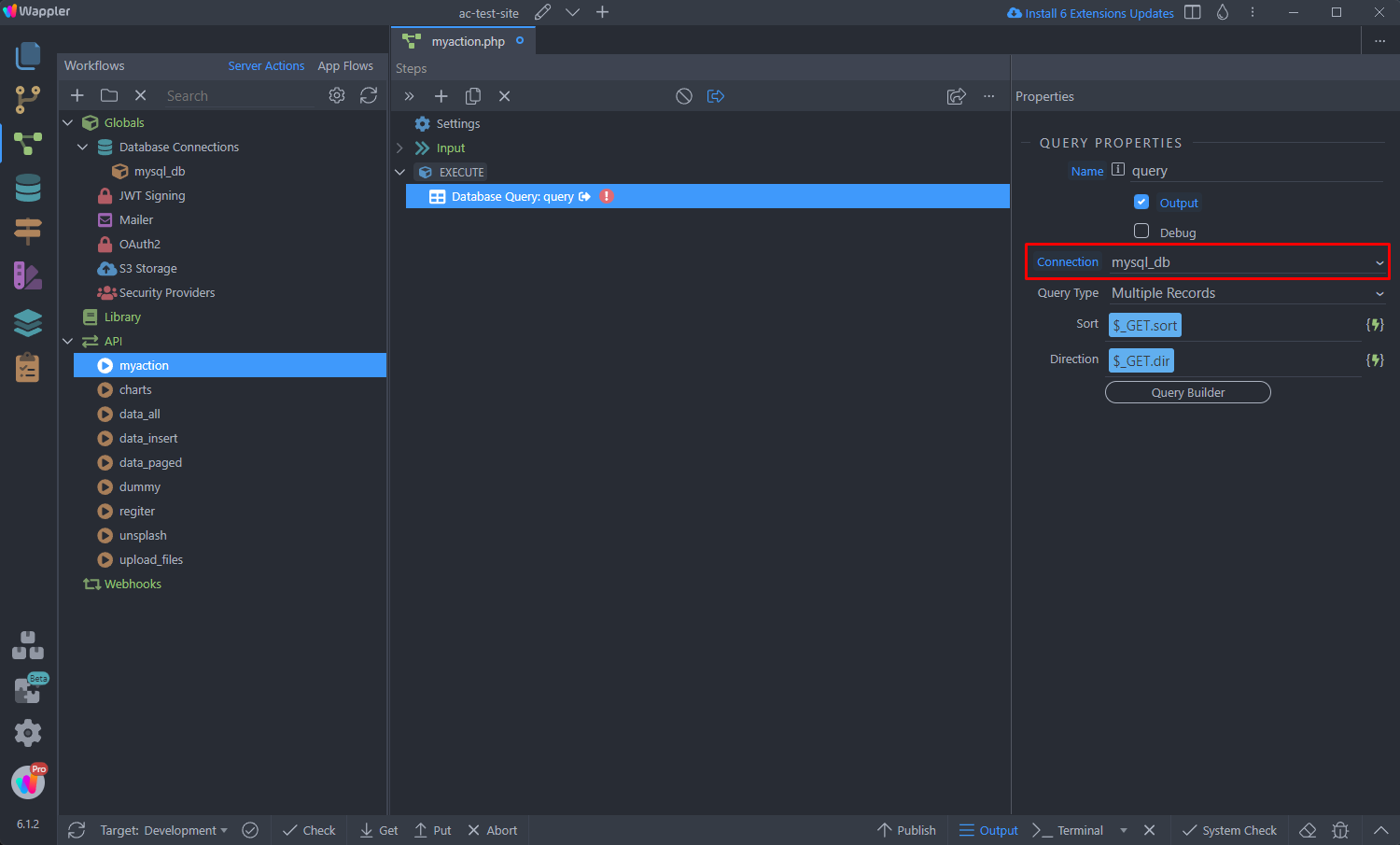
And you are done! You can now setup your query.
Section titled “And you are done! You can now setup your query.”Other Global Settings
Section titled “Other Global Settings”The other Global Settings can be defined and used the same way:
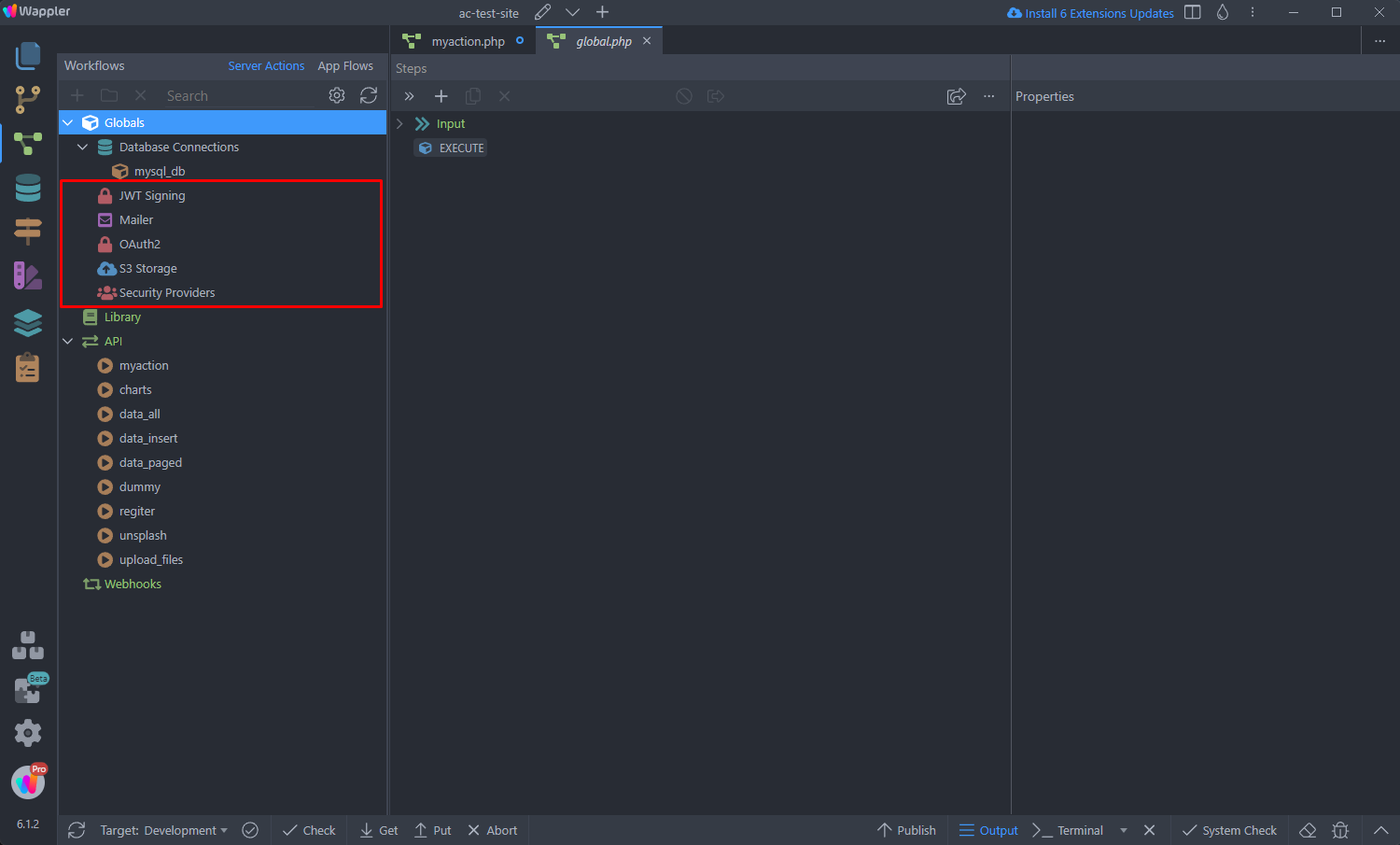
Just setup the setting you need and it’s ready to be used across your API Actions:
Section titled “Just setup the setting you need and it’s ready to be used across your API Actions:”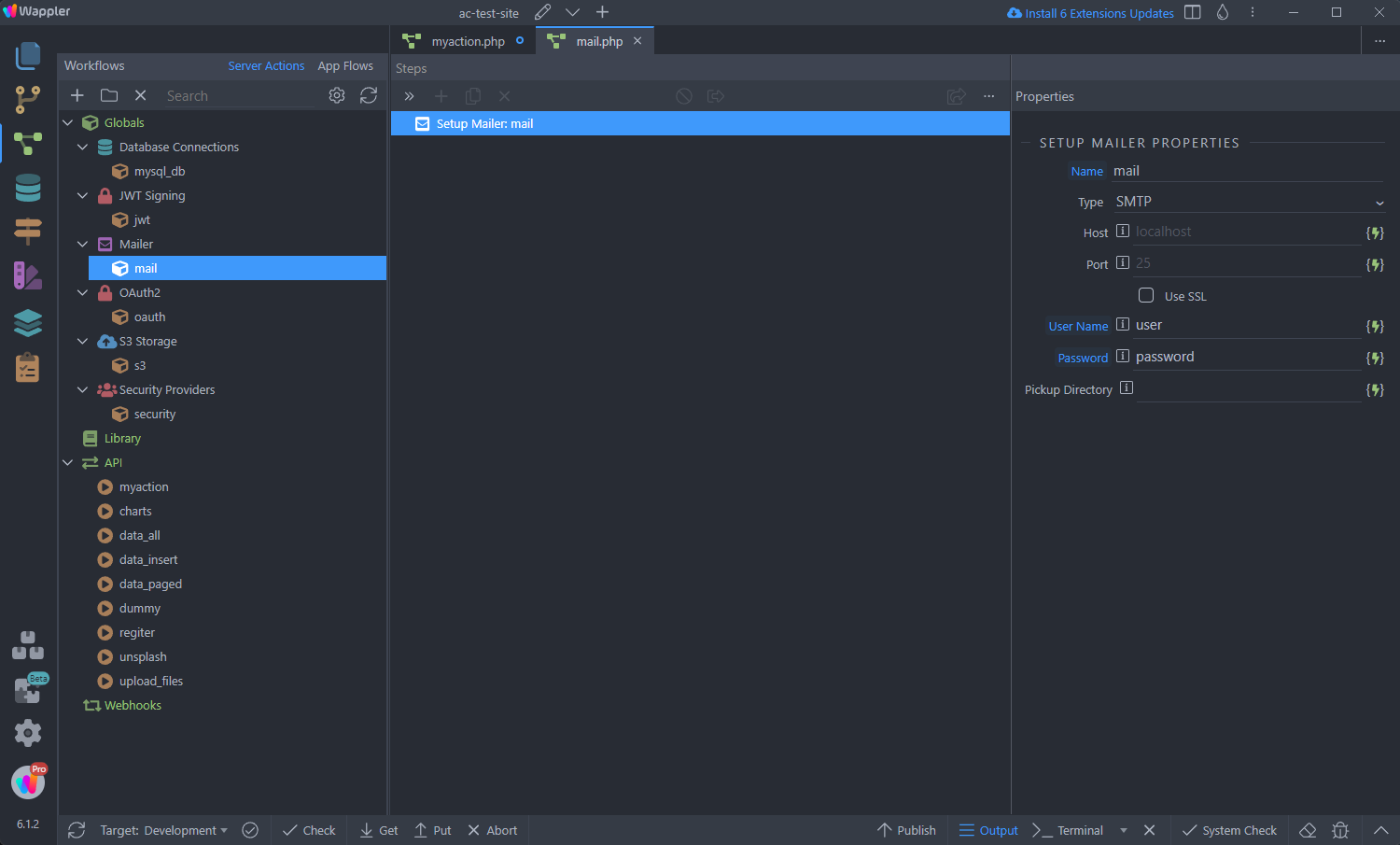
Defining Global Steps
Section titled “Defining Global Steps”The Global Steps are steps which will be executed for each of the API Actions in your project. The Global Steps will be executed before your API Action step, so their data will always be available in the API Action Steps:
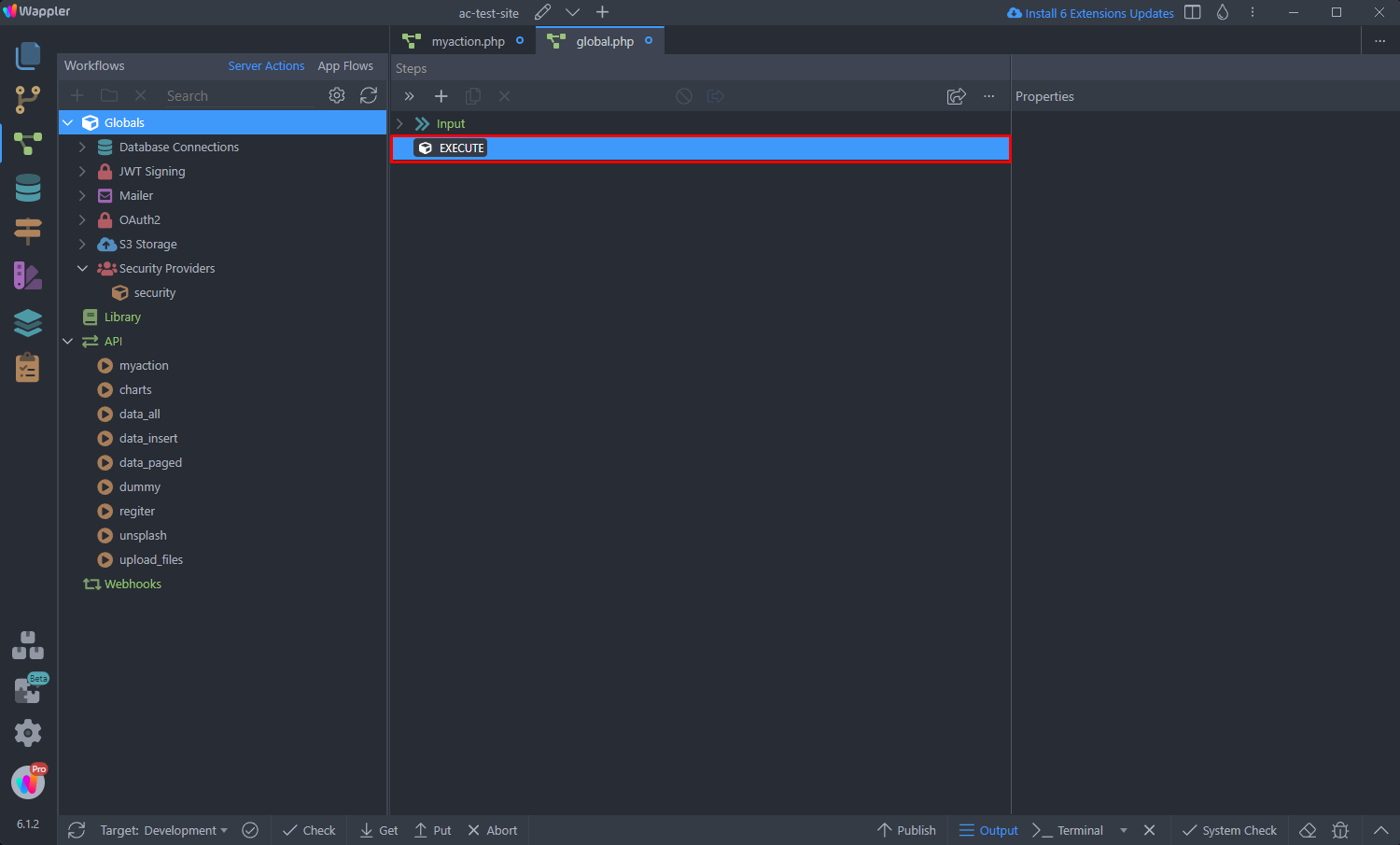
Step 28
Section titled “Step 28”One useful use case is providing the logged user identity to every server action. So after you’ve setup your global Security Provider:
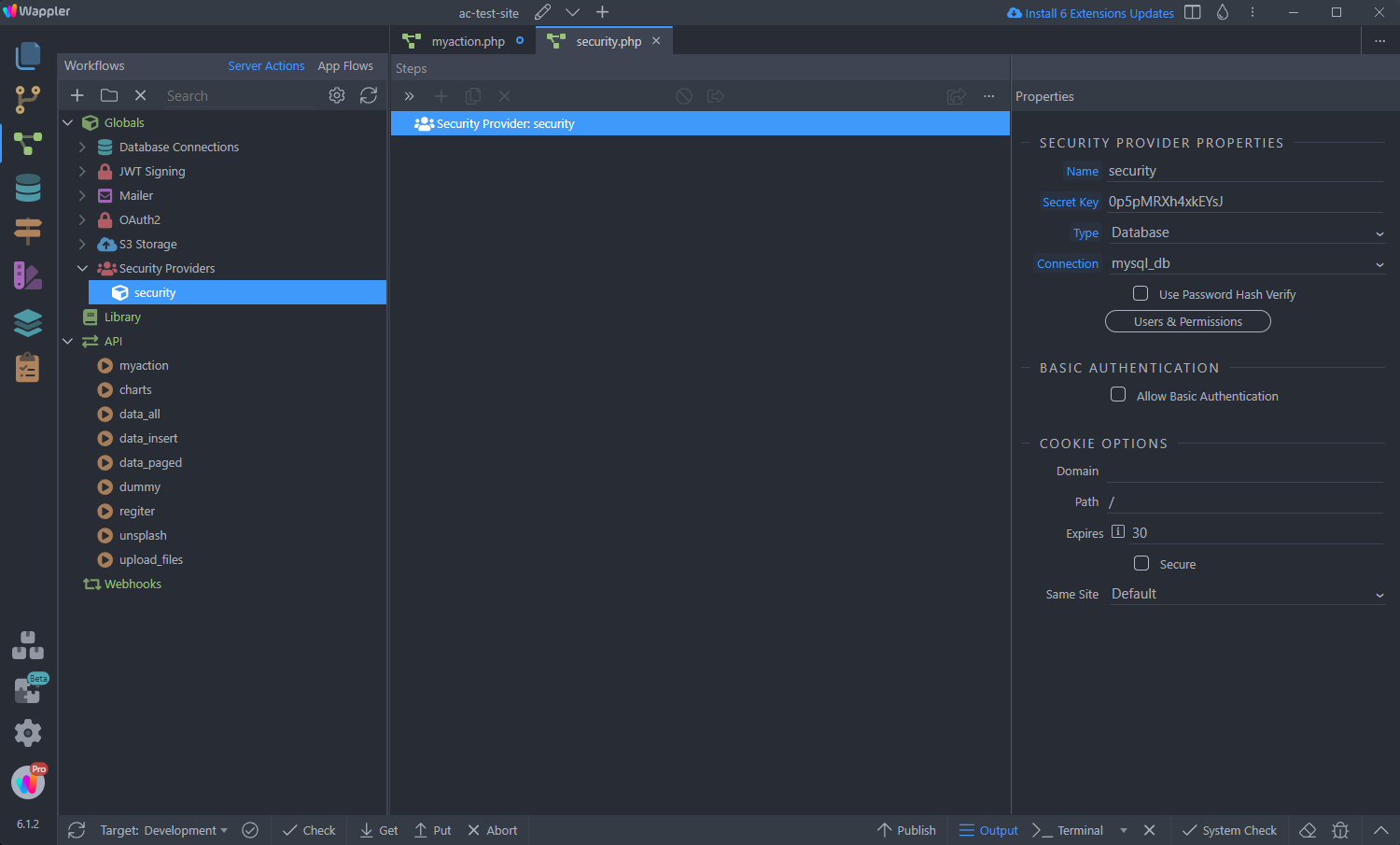
Just select Globals and right click Steps, then select Add Action:
Section titled “Just select Globals and right click Steps, then select Add Action:”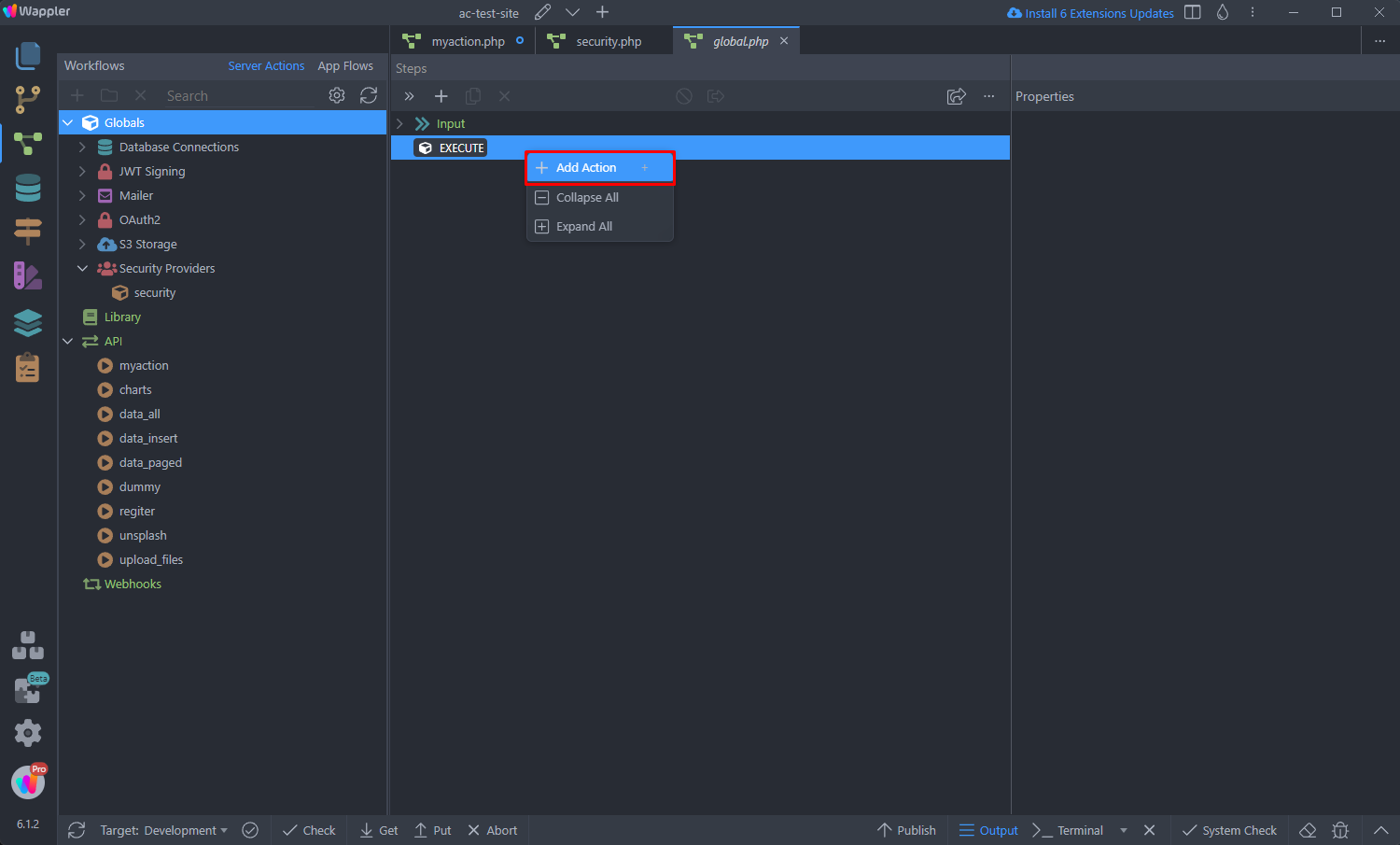
Open the Security Provider menu and select Security Identify:
Section titled “Open the Security Provider menu and select Security Identify:”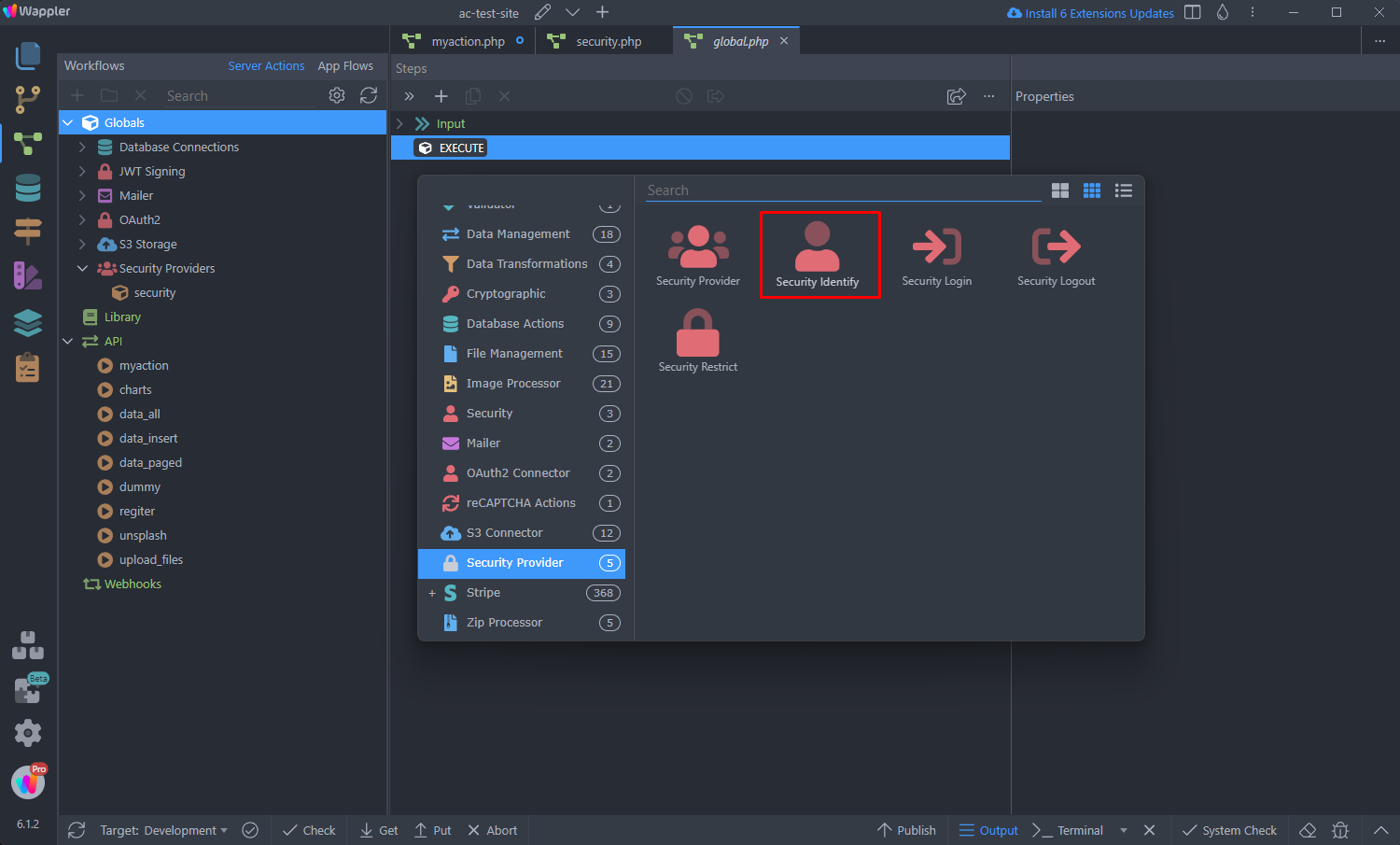
Step 31
Section titled “Step 31”Select your global Security Provider from the dropdown. You can enable/disable the Output option. Output is useful if you want to access the logged user Identity on your pages - to conditionally show/hide parts of the page for example:
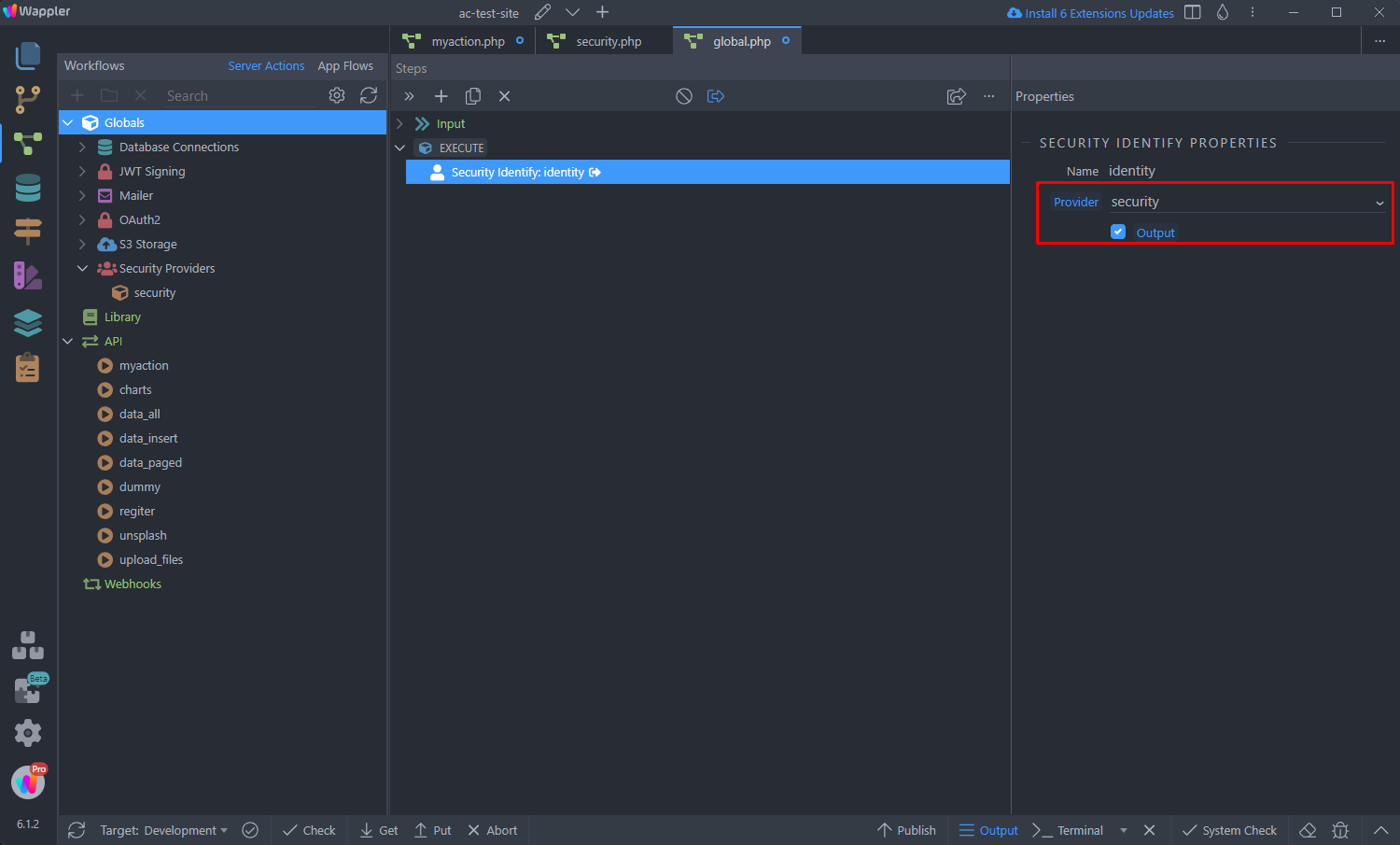
Save your Globals using ctrl + s / cmd + s.
Section titled “Save your Globals using ctrl + s / cmd + s.”The output, however, is not required if you want to access the user identity only in your API Actions, without exposing it to the front end. An example use case is filtering database query with the user identity.
Save your Globals using ctrl + s / cmd + s.
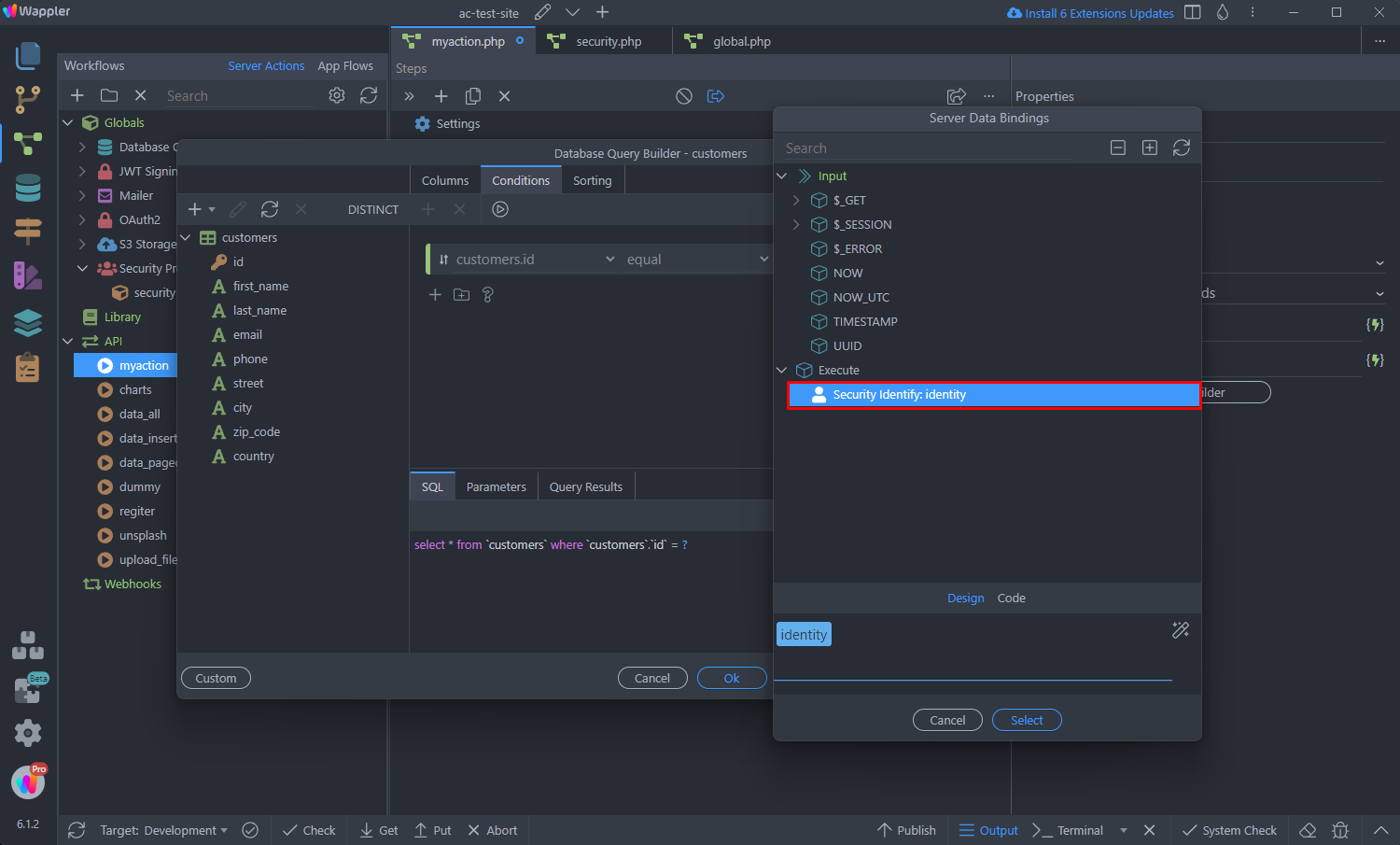
The Identify step will run with every API Action and its value will be available for them in the dynamic data picker: