
Dynamic Sortable Table
With Wappler you can create responsive, sortable data tables. First, you need to create a server action which contains a database query which will be used as a data source. In App connect panel add ne
In App connect panel add new component:
Section titled “In App connect panel add new component:”With Wappler you can create responsive, sortable data tables. First, you need to create a server action which contains a database query which will be used as a data source.
In App connect panel add new component:
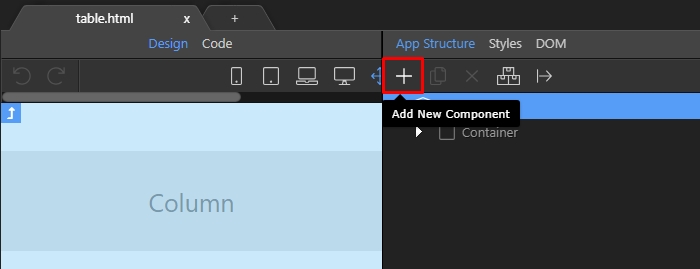
Open the data menu:
Section titled “Open the data menu:”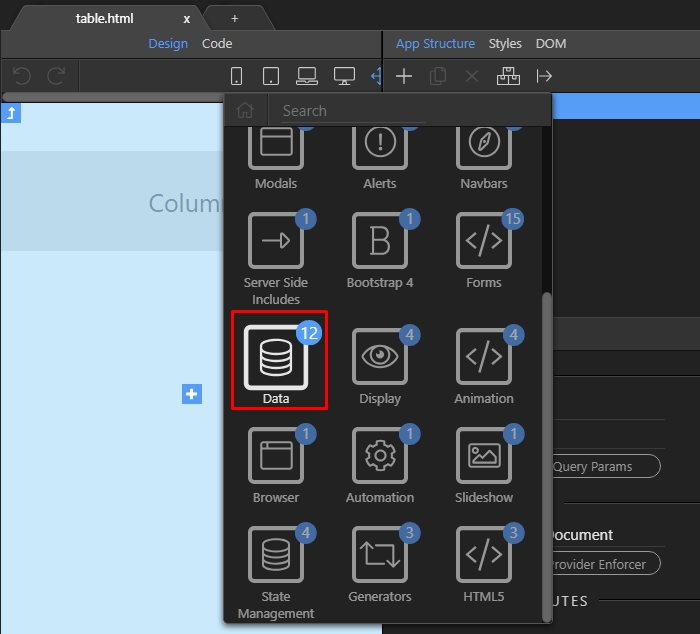
And add server connect component:
Section titled “And add server connect component:”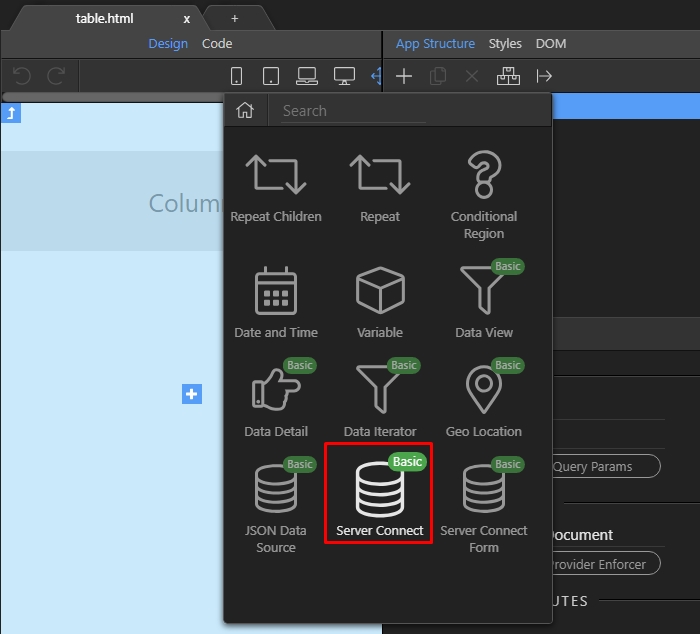
Then select your server action, which contains the database query:
Section titled “Then select your server action, which contains the database query:”
Select the server action and click the select button:
Section titled “Select the server action and click the select button:”
Step 6
Section titled “Step 6”We will show you how to store the sort order and direction in URL parameters so that on page refresh they won’t get lost. Add new component:
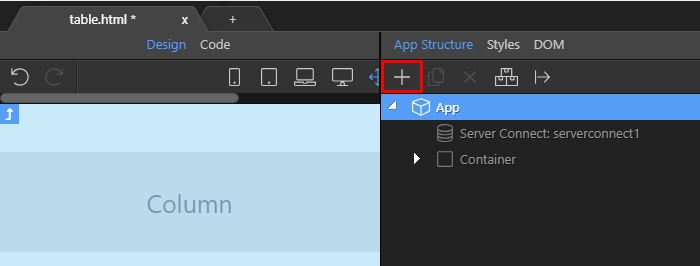
Open the state management menu:
Section titled “Open the state management menu:”
And add query manager:
Section titled “And add query manager:”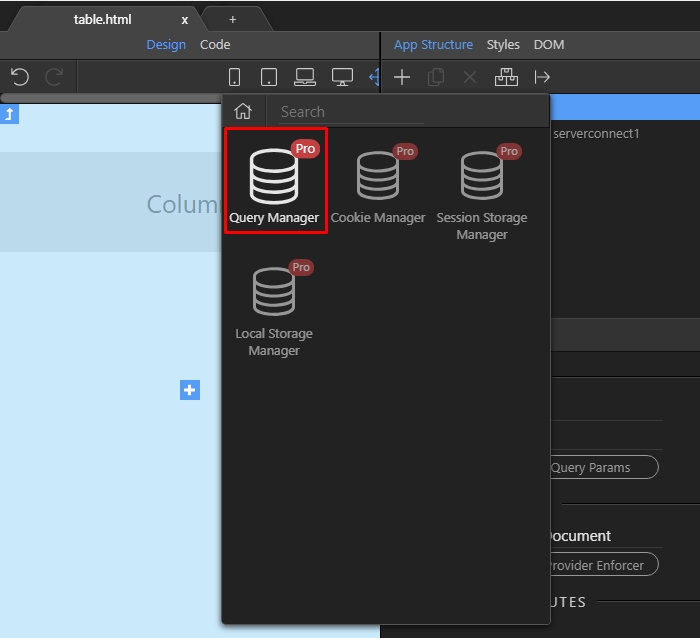
Then, define the query parameters:
Section titled “Then, define the query parameters:”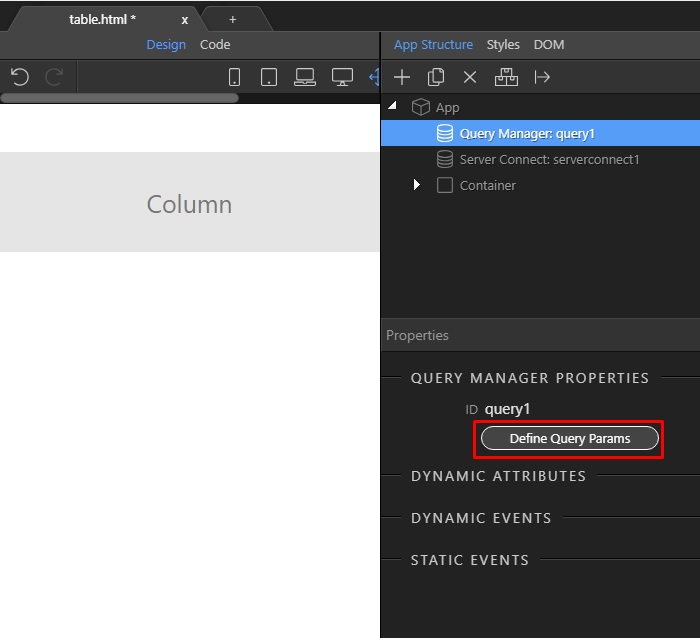
Click the add new button:
Section titled “Click the add new button:”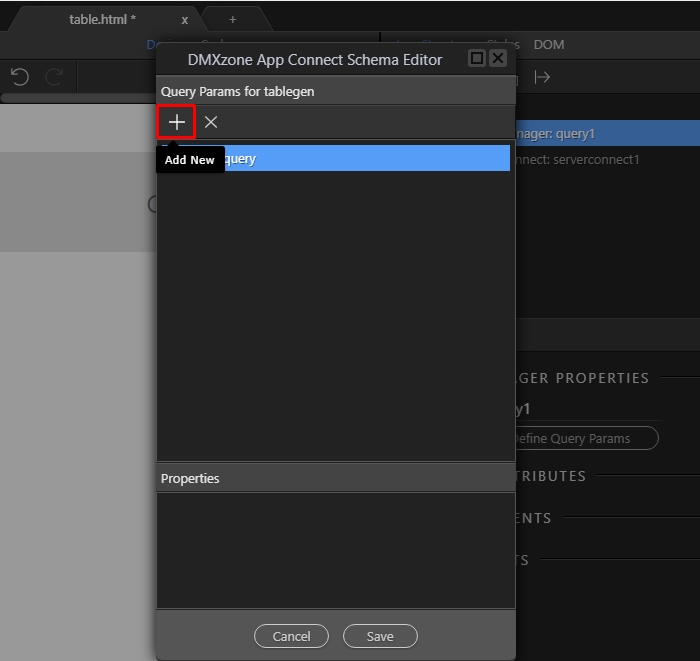
And select add variable:
Section titled “And select add variable:”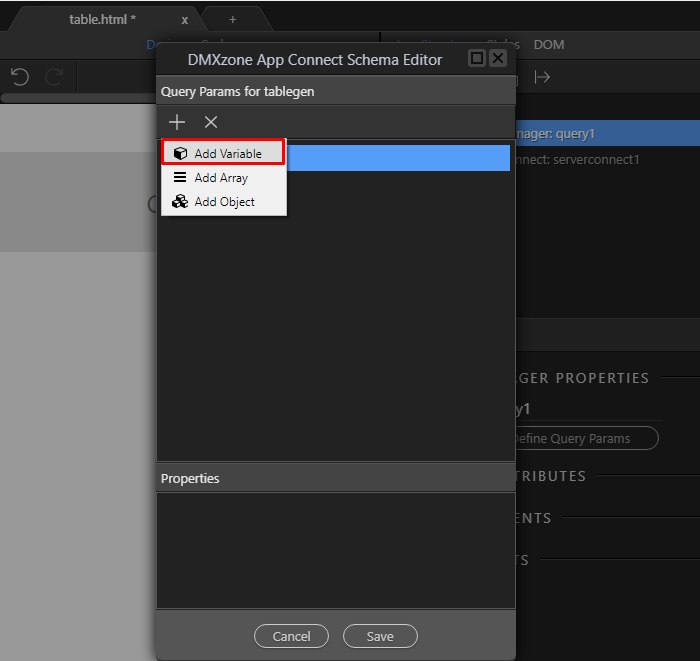
We call this query parameter - sort. It will be used to store the column we sort the table by:
Section titled “We call this query parameter - sort. It will be used to store the column we sort the table by:”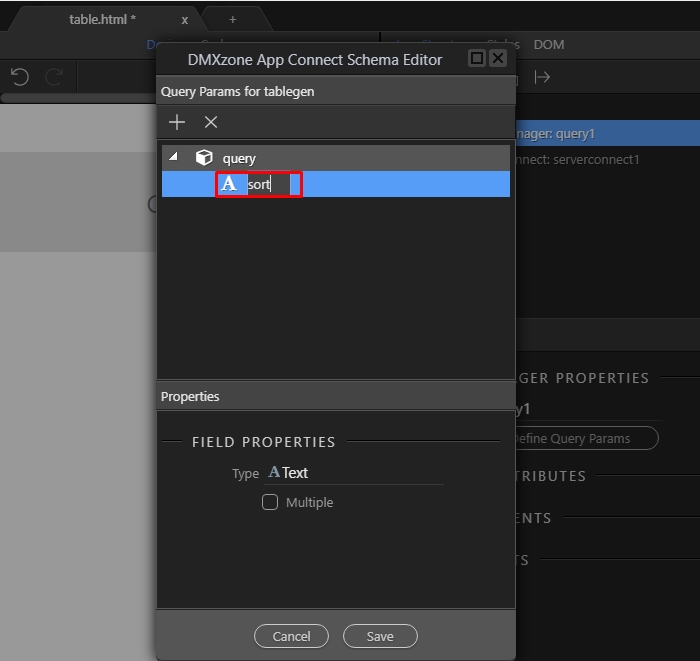
Then we add another one:
Section titled “Then we add another one:”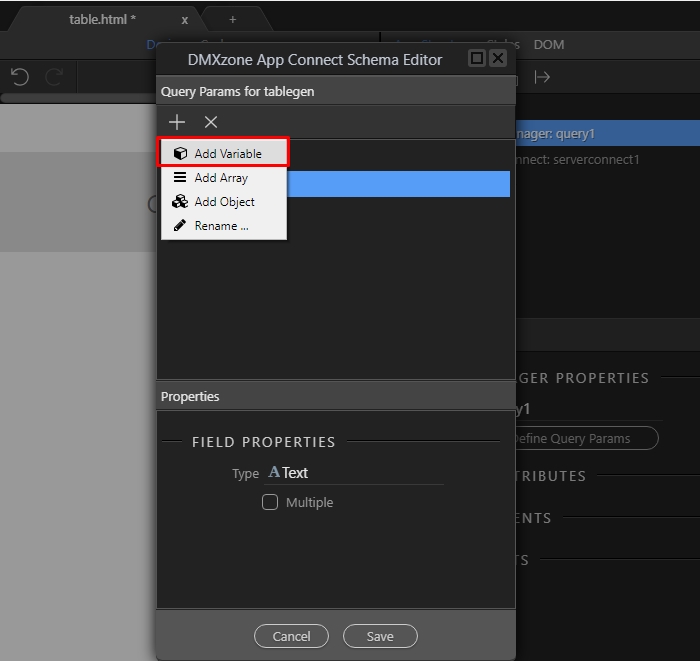
We call it - dir. It will be used to store the sort order (ascending or descending):
Section titled “We call it - dir. It will be used to store the sort order (ascending or descending):”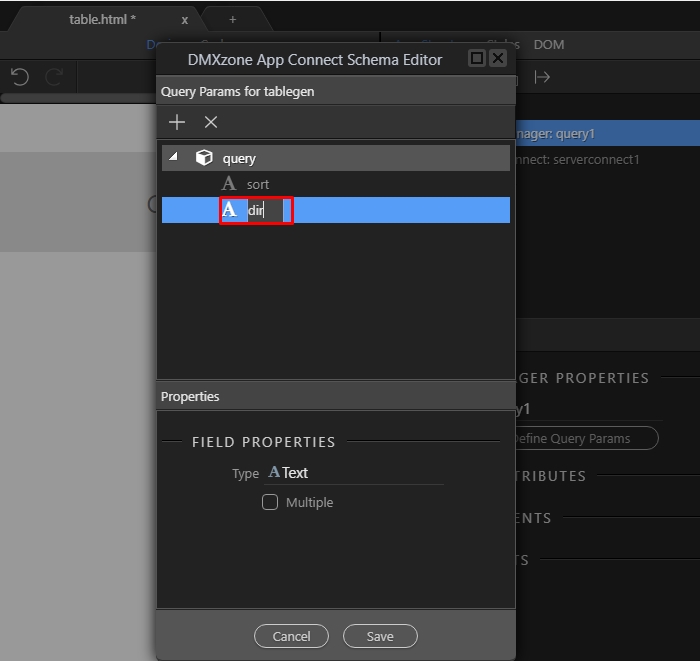
Click save:
Section titled “Click save:”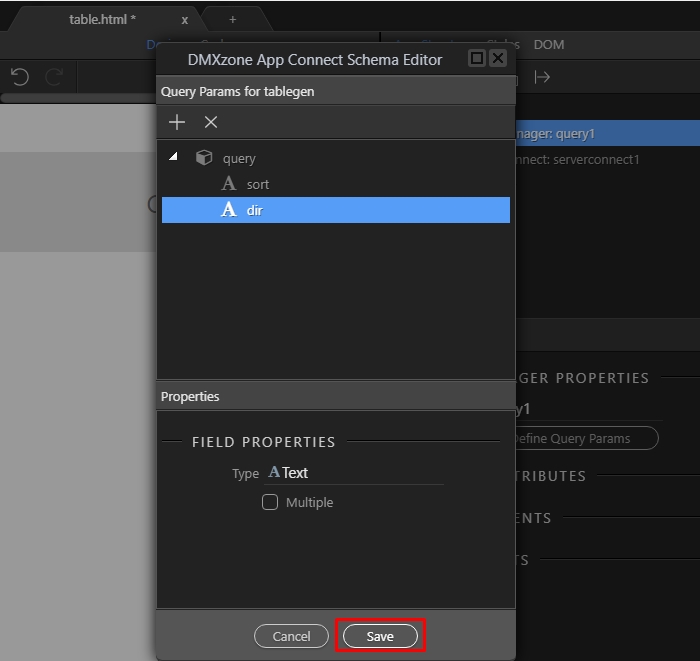
Step 16
Section titled “Step 16”Then select your server action and in the properties panel, under input parameters, select the dynamic data picker for the sort parameter:
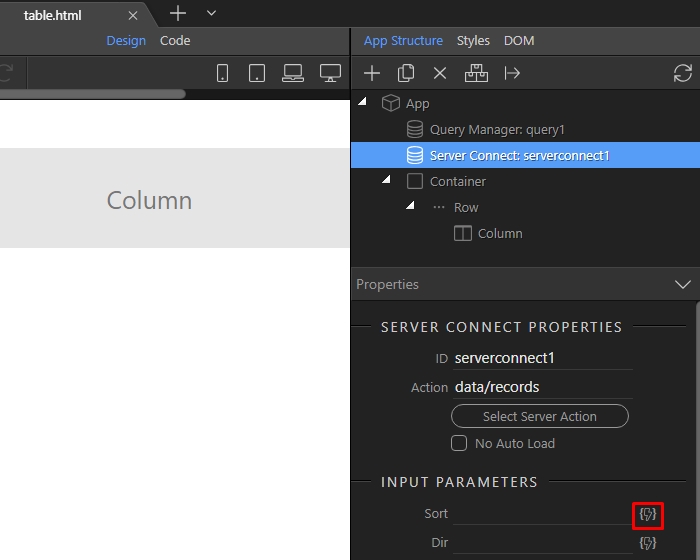
Pick the sort query parameter we just defined(1) and click save(2):
Section titled “Pick the sort query parameter we just defined(1) and click save(2):”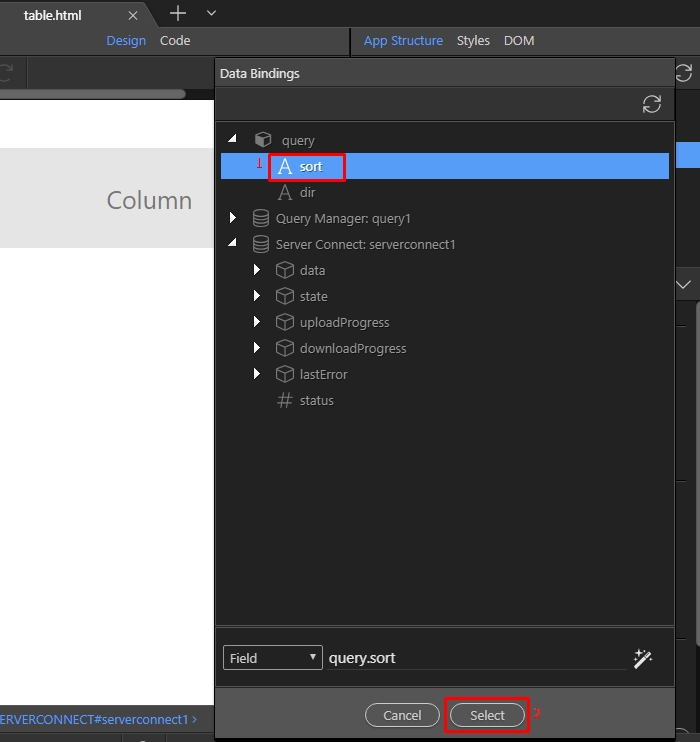
We do the same for the Dir parameter:
Section titled “We do the same for the Dir parameter:”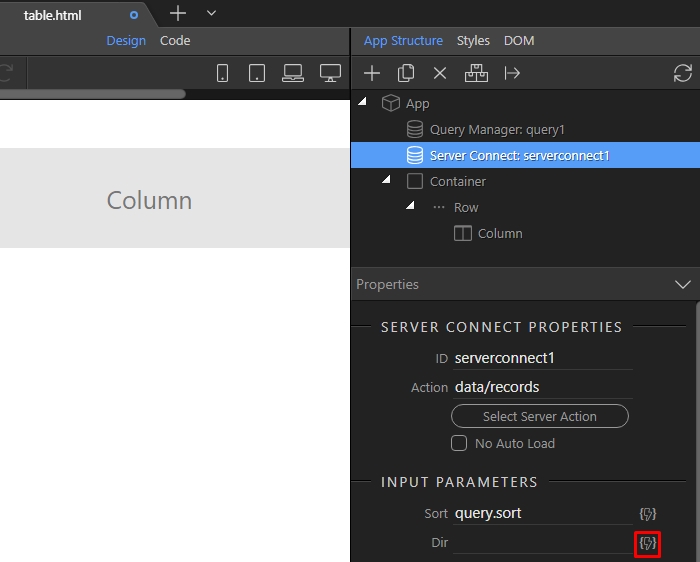
Select the dir query parameter for it:
Section titled “Select the dir query parameter for it:”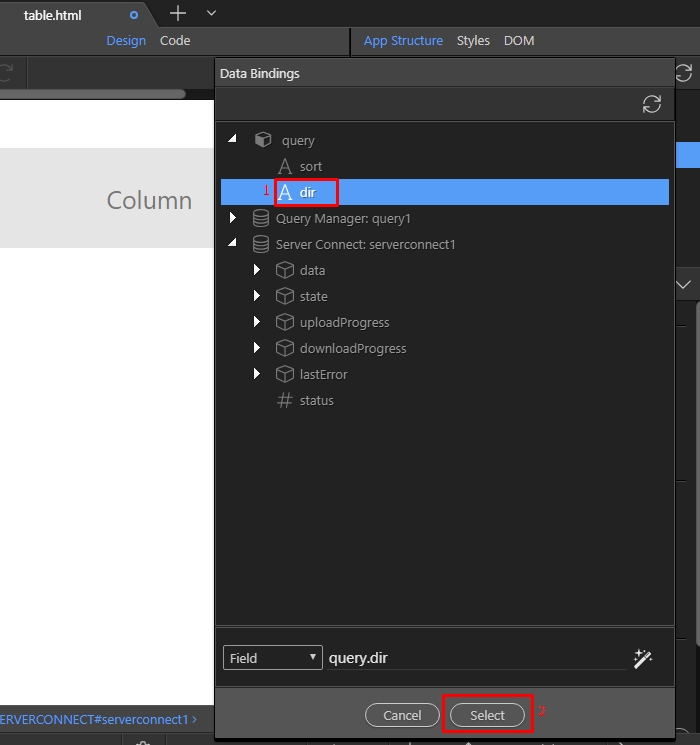
And then click the add button, where you want to insert the table:
Section titled “And then click the add button, where you want to insert the table:”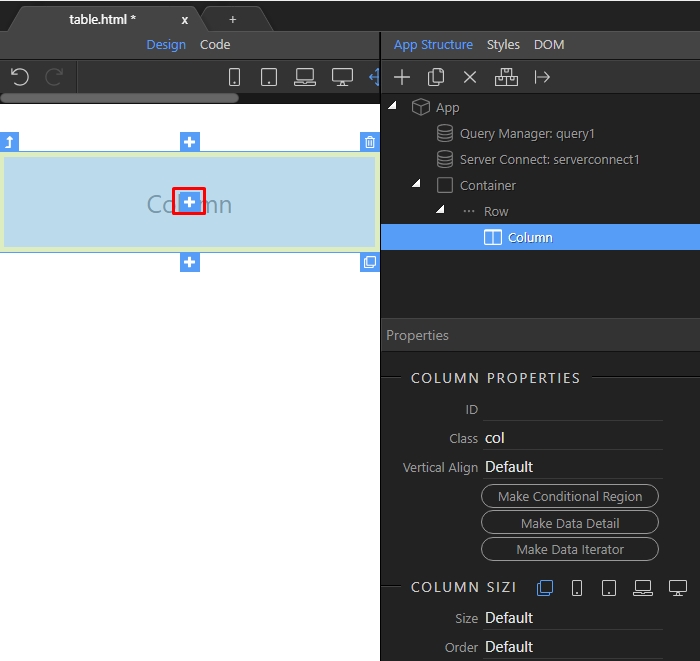
Open the generators menu:
Section titled “Open the generators menu:”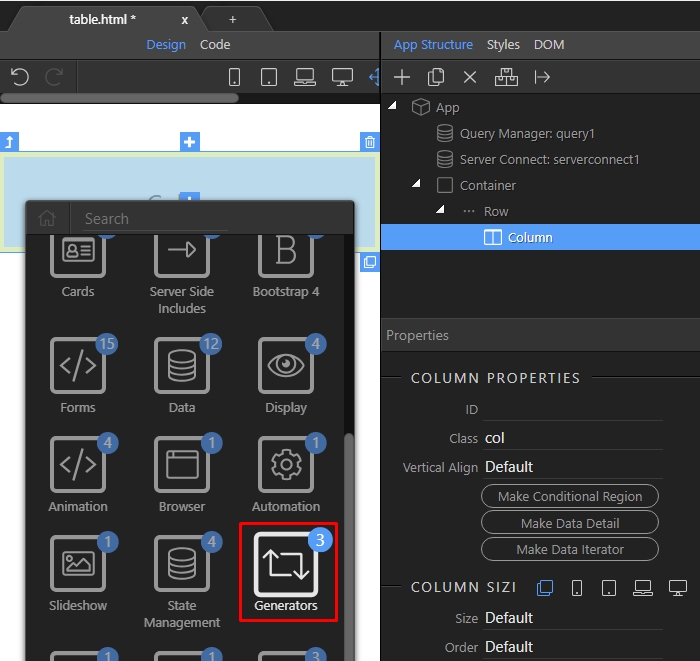
And select table generator:
Section titled “And select table generator:”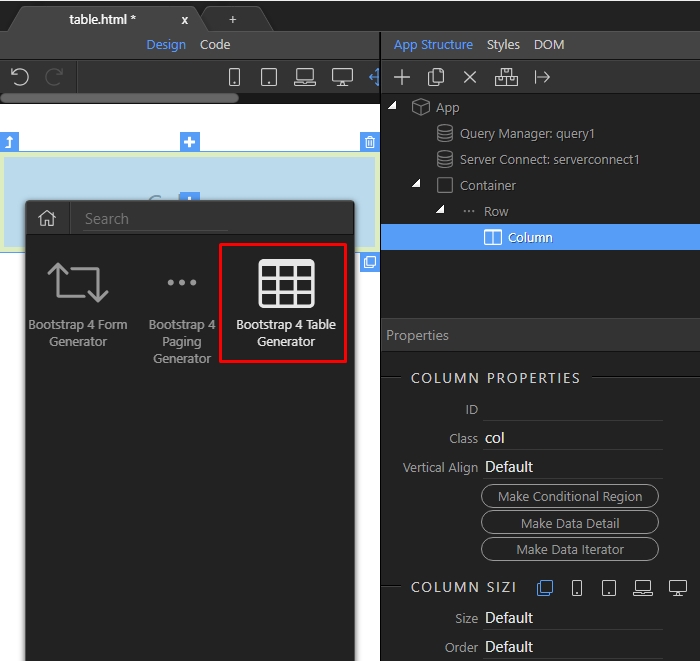
Select your data source:
Section titled “Select your data source:”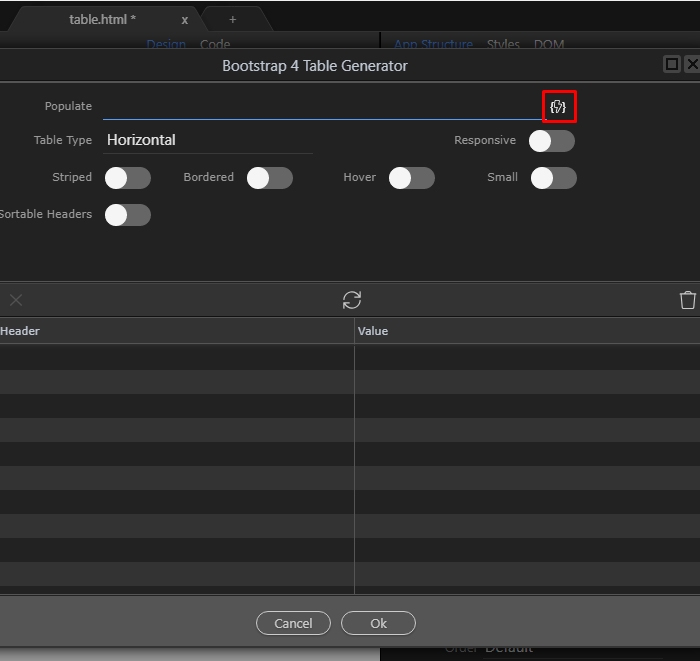
This is the database query from your server action:
Section titled “This is the database query from your server action:”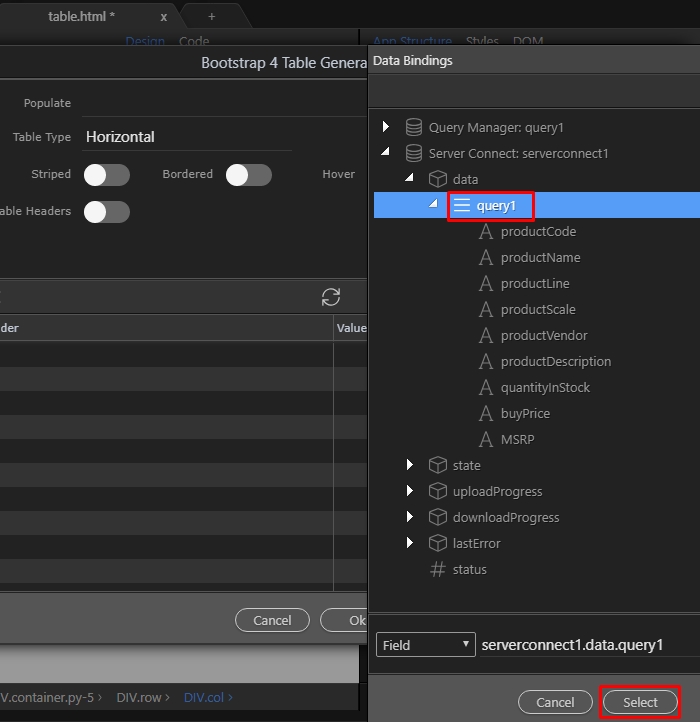
Then, select the table styling options:
Section titled “Then, select the table styling options:”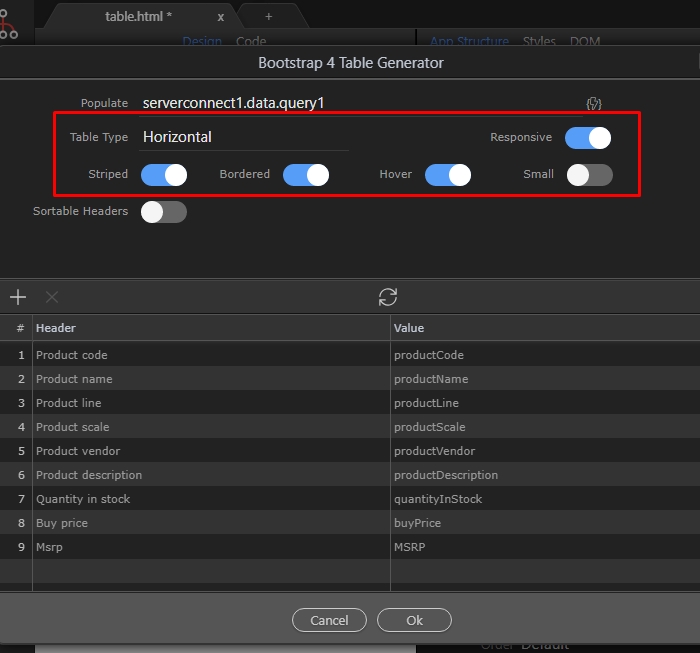
Enable the sortable headers option. This way your table headers become sortable on click:
Section titled “Enable the sortable headers option. This way your table headers become sortable on click:”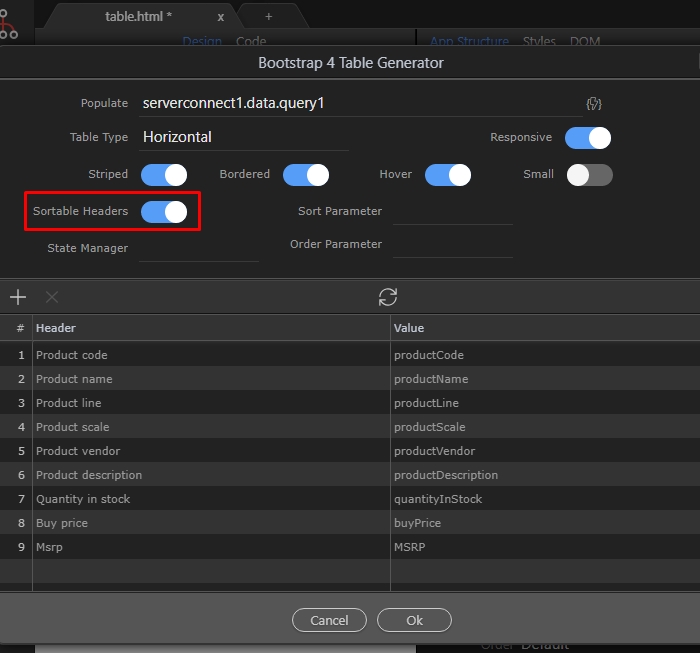
Select the query manager instance, which we created a few steps back:
Section titled “Select the query manager instance, which we created a few steps back:”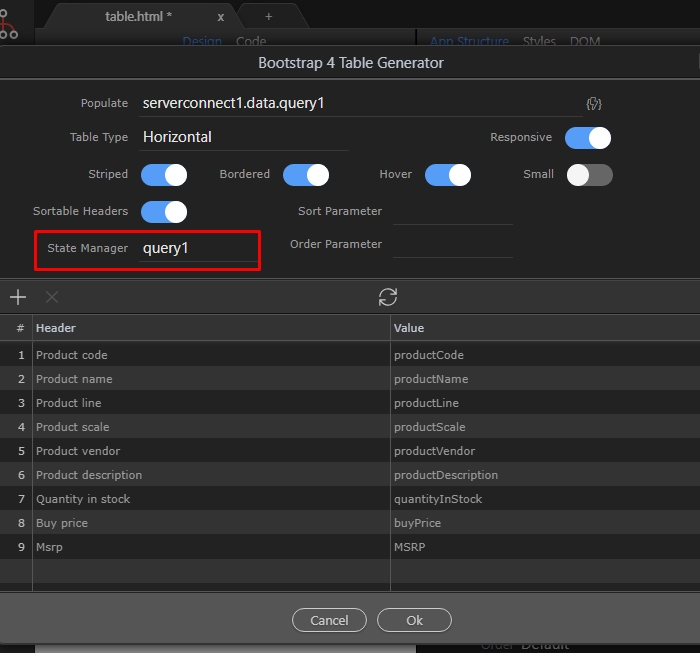
And set the sort query parameter in the Sort Parameter menu:
Section titled “And set the sort query parameter in the Sort Parameter menu:”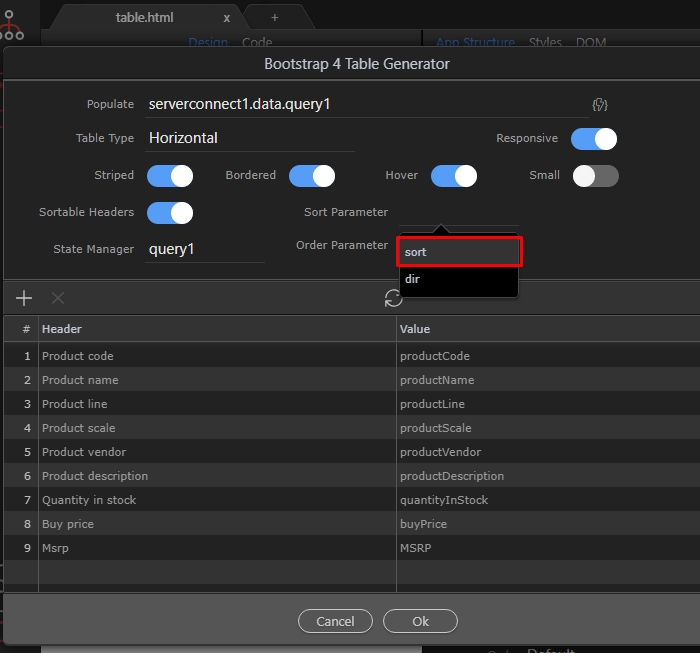
Then select the dir query parameter in the Order Parameter menu:
Section titled “Then select the dir query parameter in the Order Parameter menu:”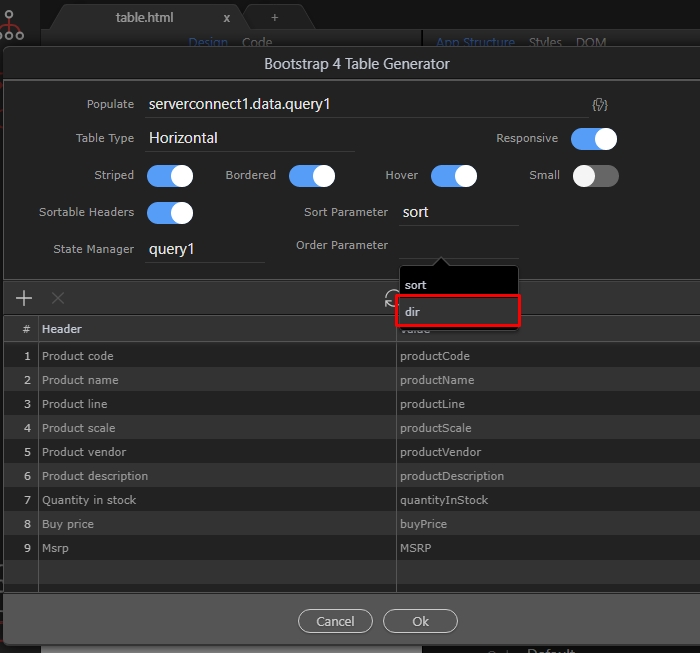
Step 30
Section titled “Step 30”You can remove columns by selecting them and clicking the remove button. You can also double click the header fields, to edit the text. Click a column number and drag it up/down to rearrange columns:

Click Ok in order to insert the table on the page:
Section titled “Click Ok in order to insert the table on the page:”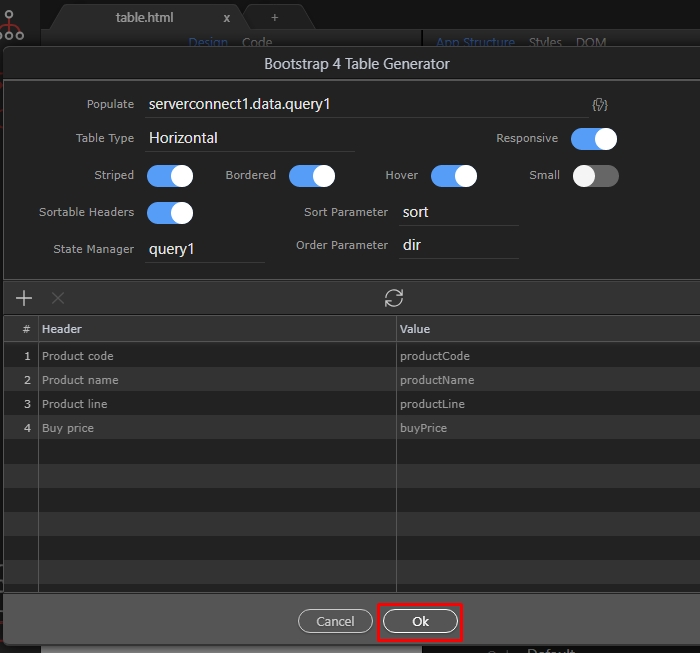
You can see your table, with sortable headers directly in design view:
Section titled “You can see your table, with sortable headers directly in design view:”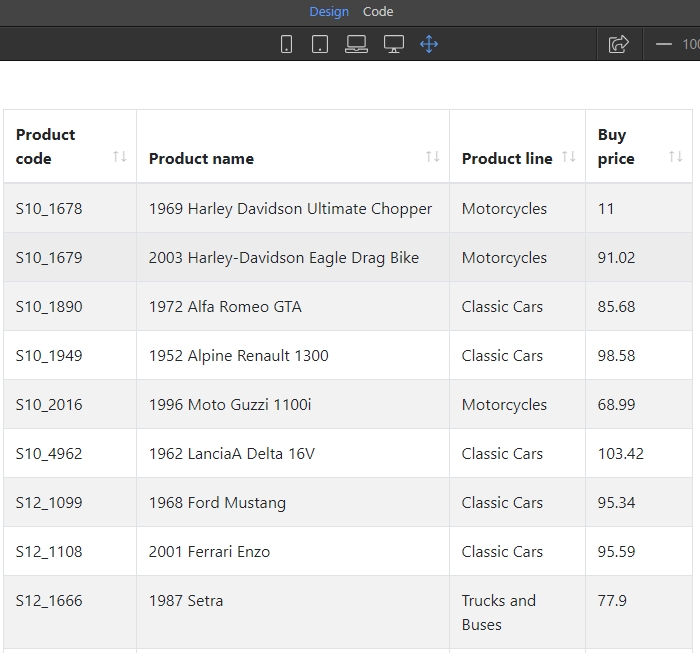
Step 33
Section titled “Step 33”Select the table in App Structure, then click the Run button if you need to edit it. This will bring the UI so you can edit the options.