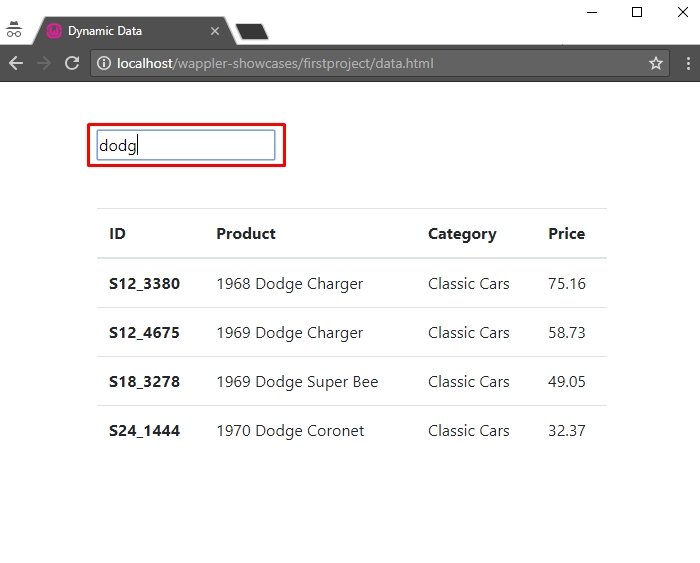
Filtering Database Query with a Text Input
You can create a real-time search with Wappler - so the results will be filtered as you type! We created a database query and displayed the results on our page. You already know how to create a databa
You can create a real-time search with Wappler - so the results will be filtered as you type!
Section titled “You can create a real-time search with Wappler - so the results will be filtered as you type!”We created a database query and displayed the results on our page. You already know how to create a database query and how to bind dynamic data on your page.
Let’s add a dynamic filter option now. First, select your Server Action in Server Connect panel:
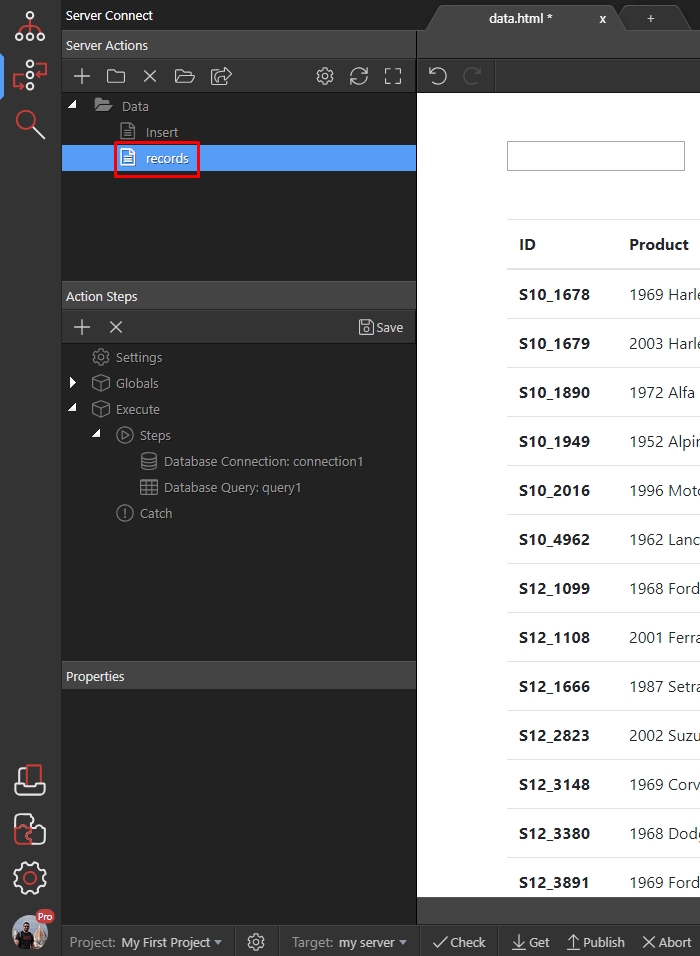
Then under Globals right click $_GET:
Section titled “Then under Globals right click $_GET:”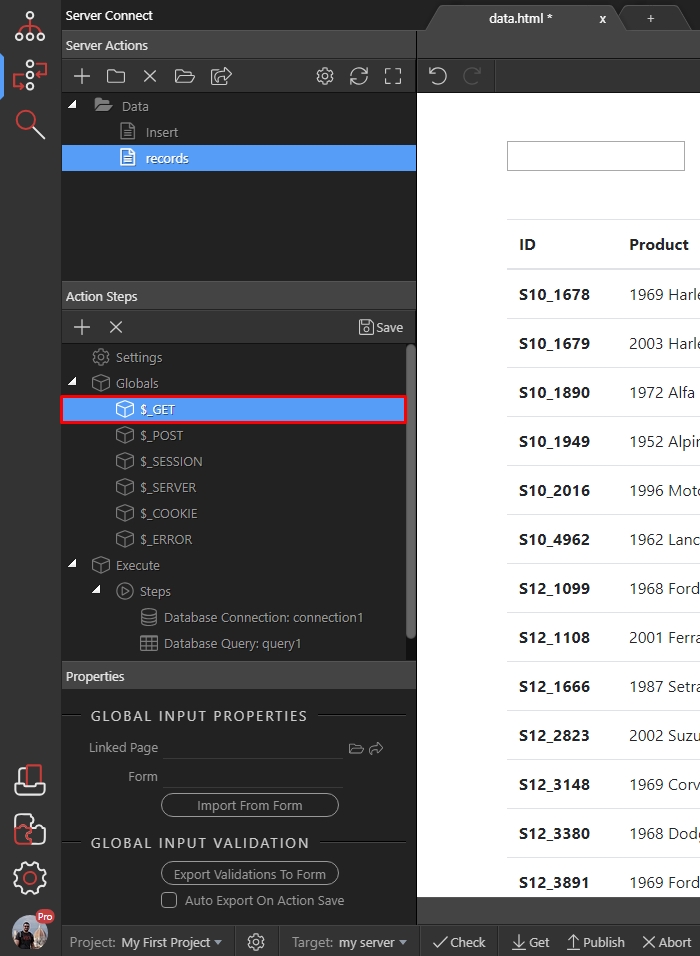
And create a variable:
Section titled “And create a variable:”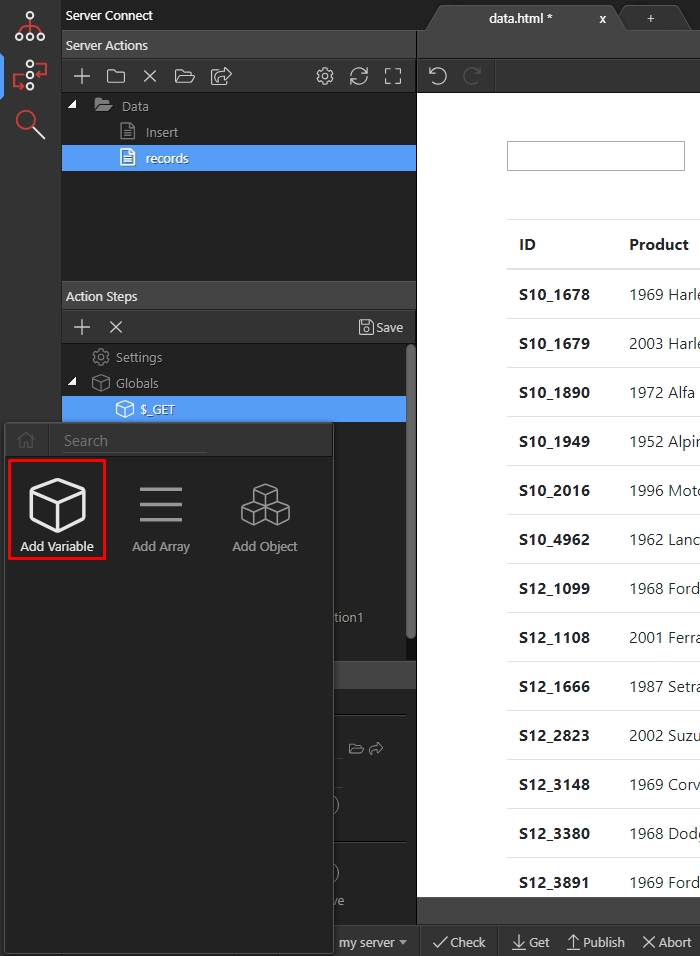
Let’s call it “filter”:
Section titled “Let’s call it “filter”:”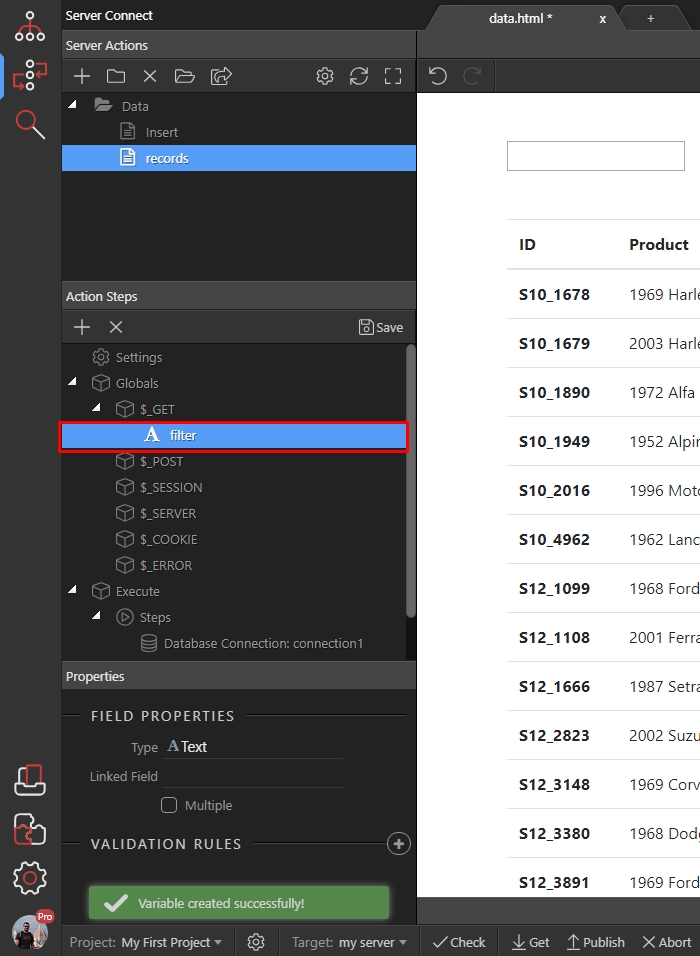
Select your database query (1) and click the query builder button (2) in order to open its options:
Section titled “Select your database query (1) and click the query builder button (2) in order to open its options:”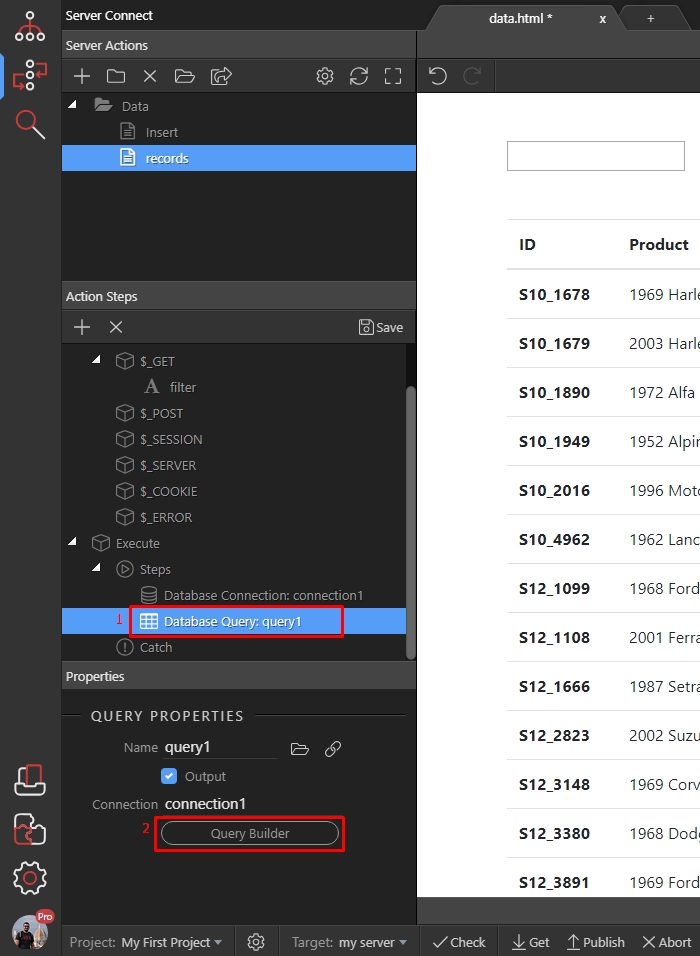
Go to Conditions tab:
Section titled “Go to Conditions tab:”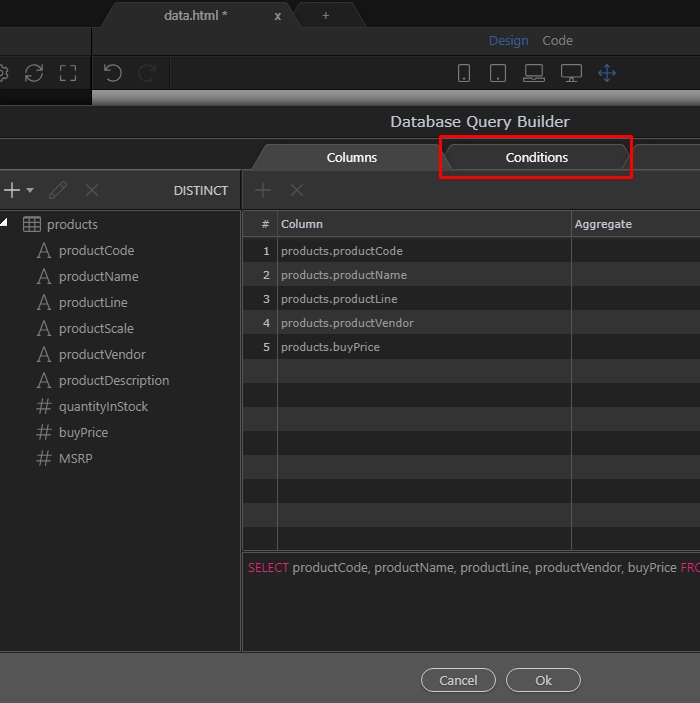
Select the column which you want to search into / filter by:
Section titled “Select the column which you want to search into / filter by:”
Step 8
Section titled “Step 8”Then select the condition. In this case the “Contains” suits best, so whatever is entered and it is contained in the productName column will be displayed:

Select the dynamic value picker:
Section titled “Select the dynamic value picker:”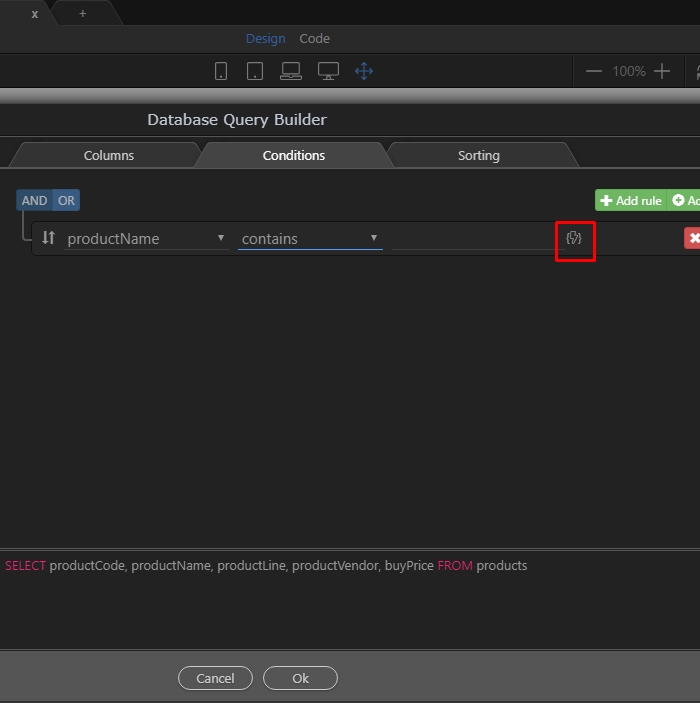
And select the filter GET variable, which we created:
Section titled “And select the filter GET variable, which we created:”
Click OK:
Section titled “Click OK:”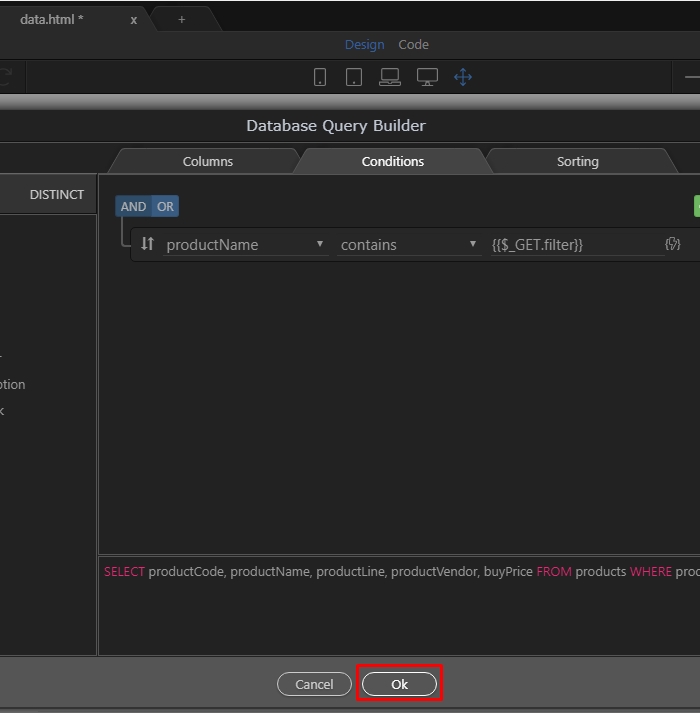
And save your server action:
Section titled “And save your server action:”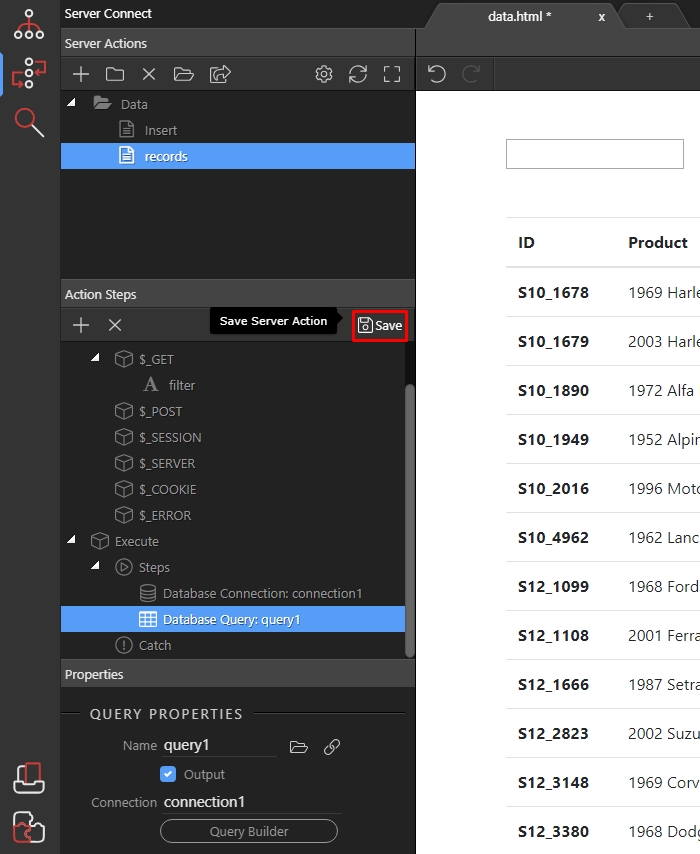
Now back to our page. We inserted a simple text field on the page - it will be used to filter the data.
Section titled “Now back to our page. We inserted a simple text field on the page - it will be used to filter the data.”In app connect panel select the server connect component, used to bind data on the page (1) and you will see our GET variable “filter” (2) listed there under Input Parameters. Click the dynamic data picker:
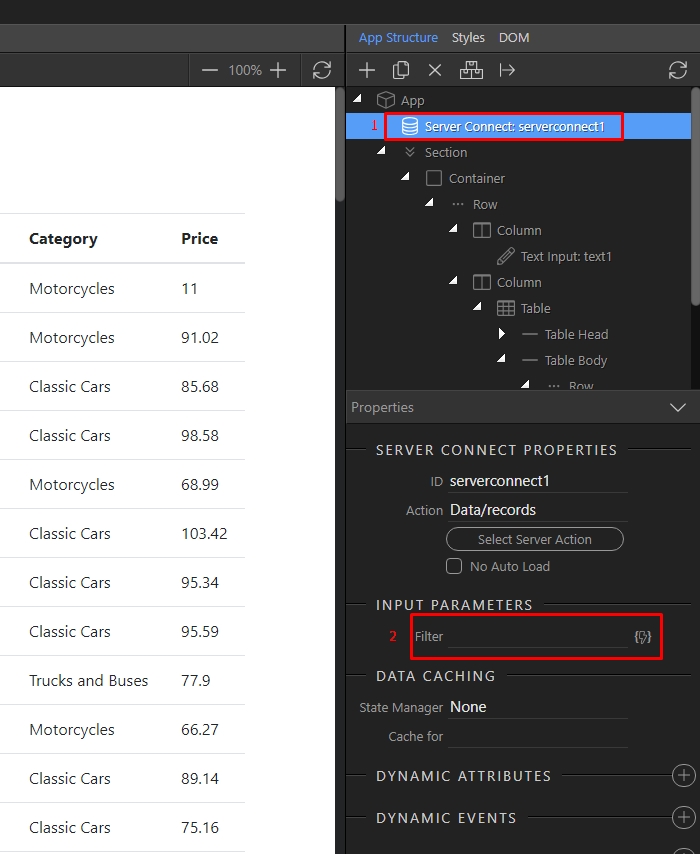
Step 14
Section titled “Step 14”When the data picker dialog appears, find the text input and select its value (1). Then click the select button (2):
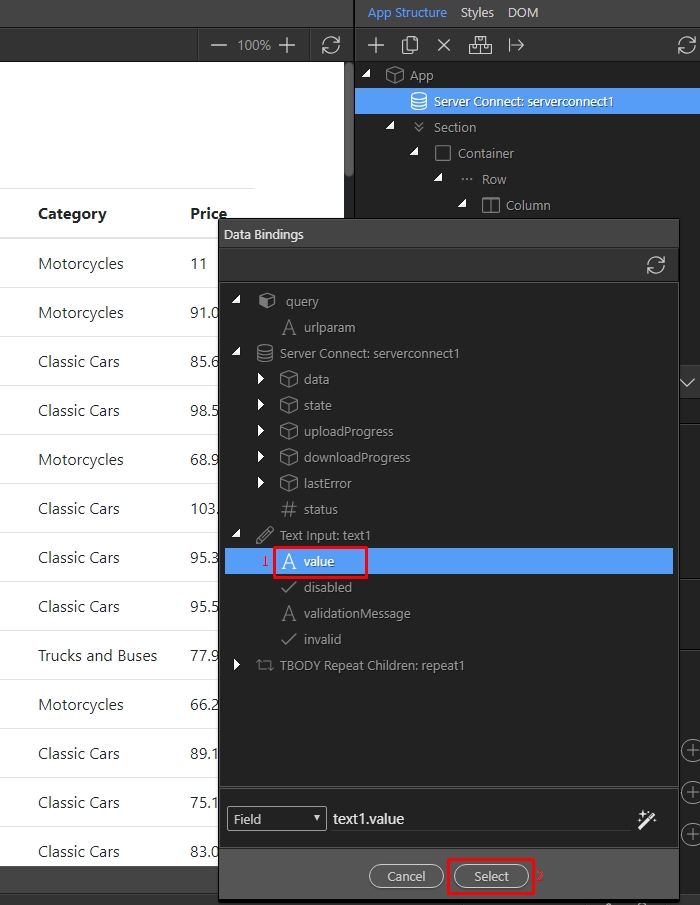
Save your page and you are done:
Section titled “Save your page and you are done:”
Now you have a field which filters the data as you type:
Section titled “Now you have a field which filters the data as you type:”