Using Nested Queries with the Database Query Builder
Intro You can access the nested data created with the help of sub tables using a single database query in your API Action. This way you don’t need complicated workflows such as using repeats and nesti
You can access the nested data created with the help of sub tables using a single database query in your API Action. This way you don’t need complicated workflows such as using repeats and nesting database queries inside them to access nested data.
Nested Queries
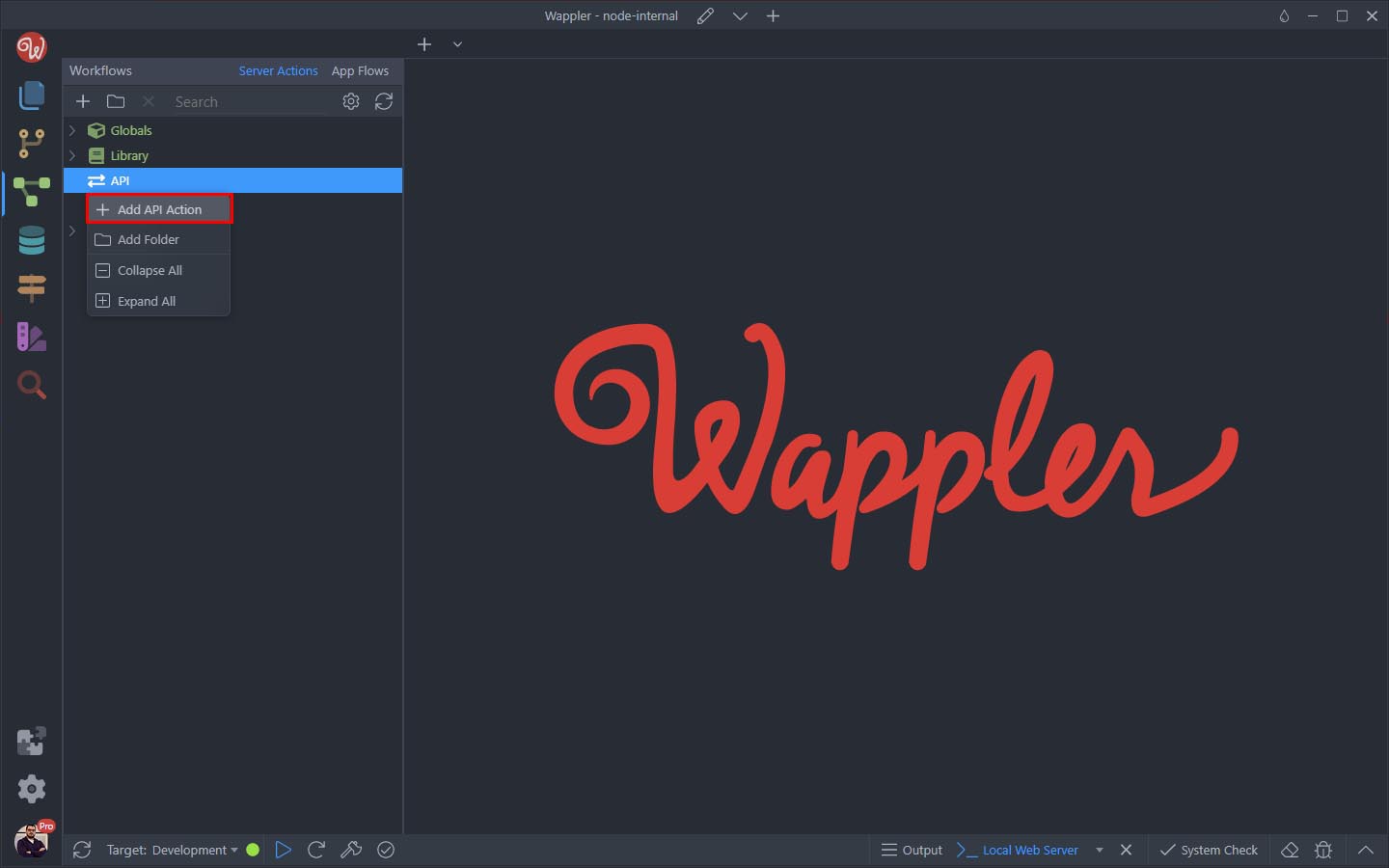
Section titled “Nested Queries”First, create a new API Action:
And add a name to it:
Section titled “And add a name to it:”
Then add a new step inside it:
Section titled “Then add a new step inside it:”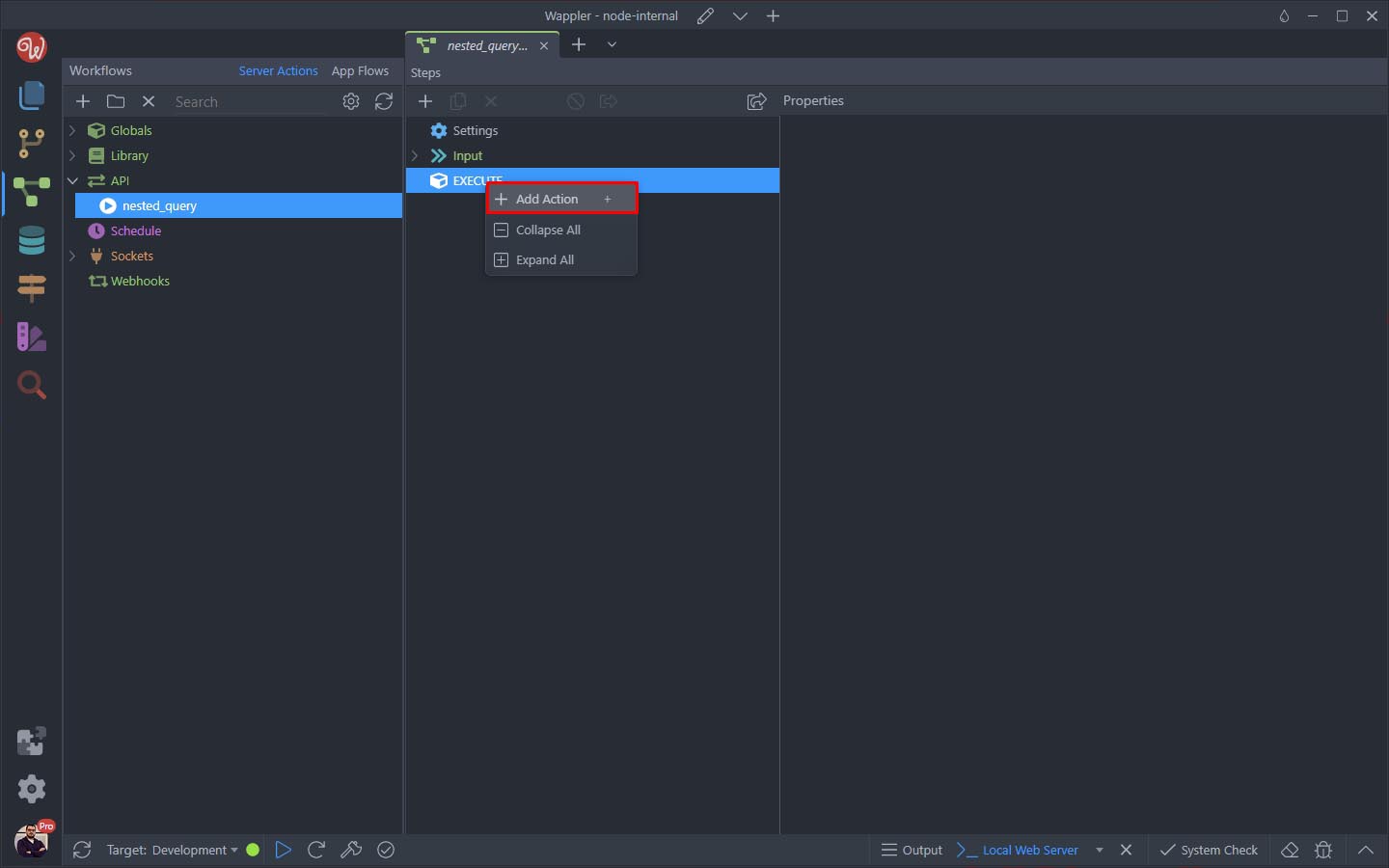
Select Database Query:
Section titled “Select Database Query:”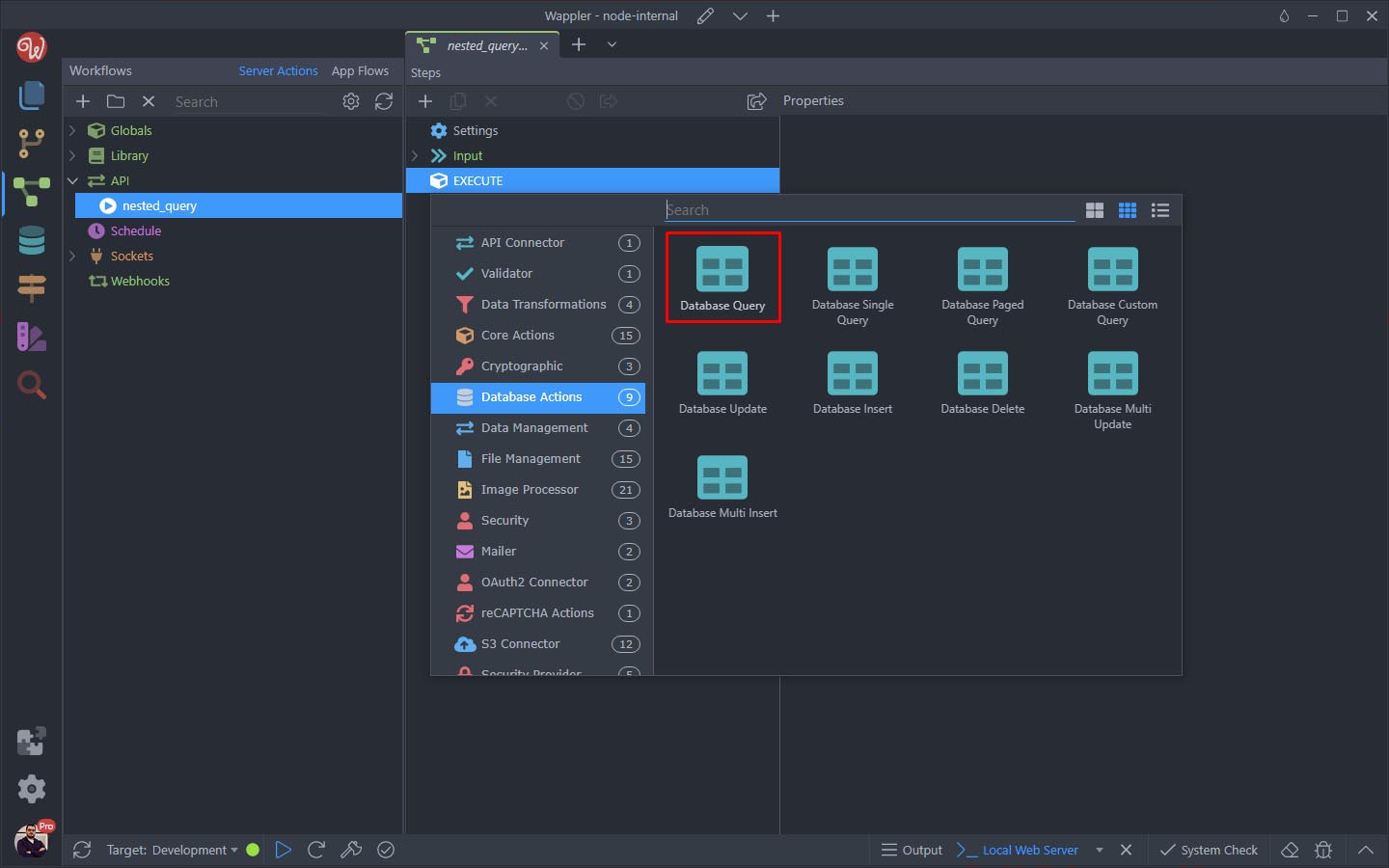
Open the Query Builder:
Section titled “Open the Query Builder:”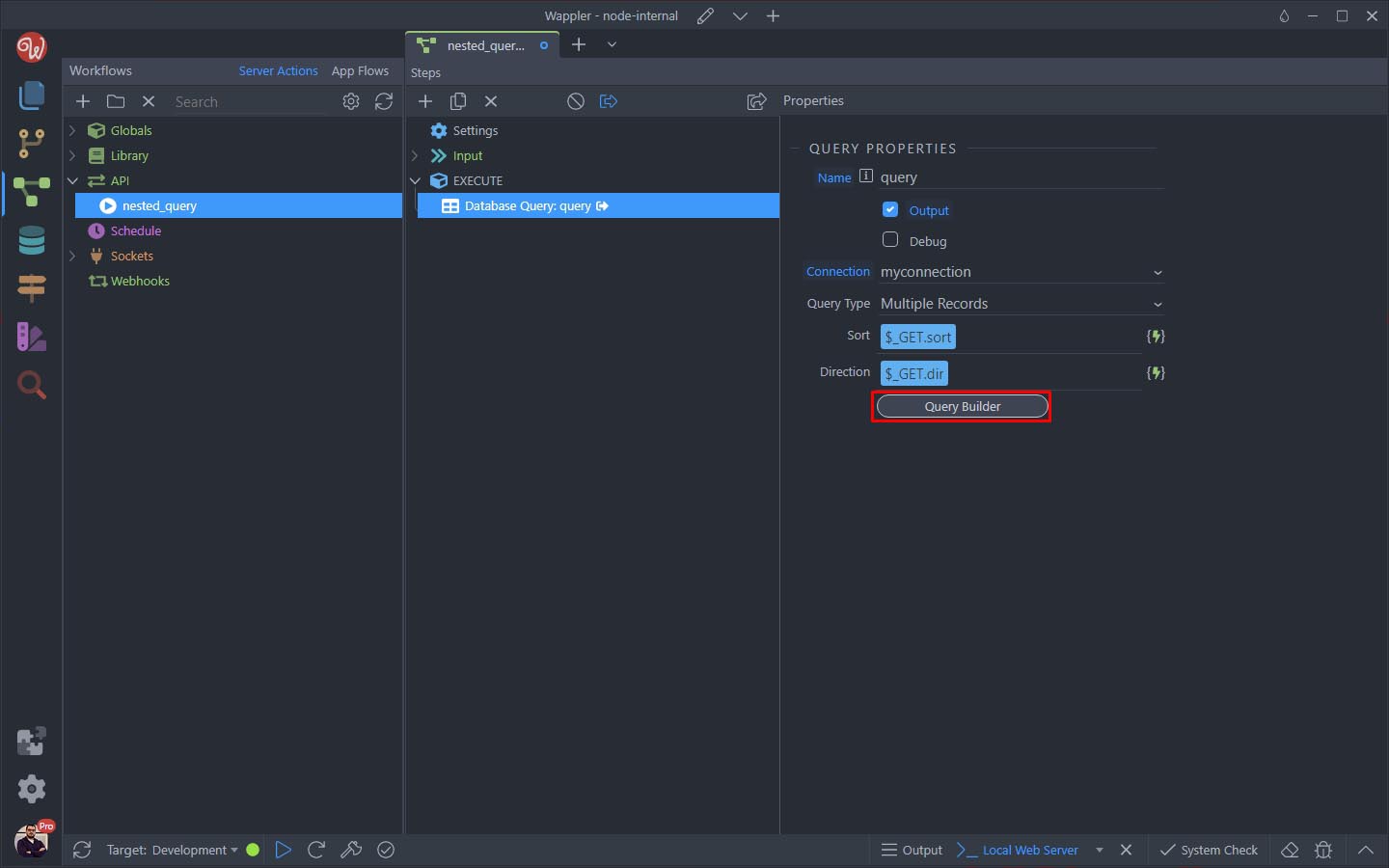
Step 8
Section titled “Step 8”And in the Tables dropdown you will see main tables and their sub tables. The sub tables appear under the main tables and start with /:
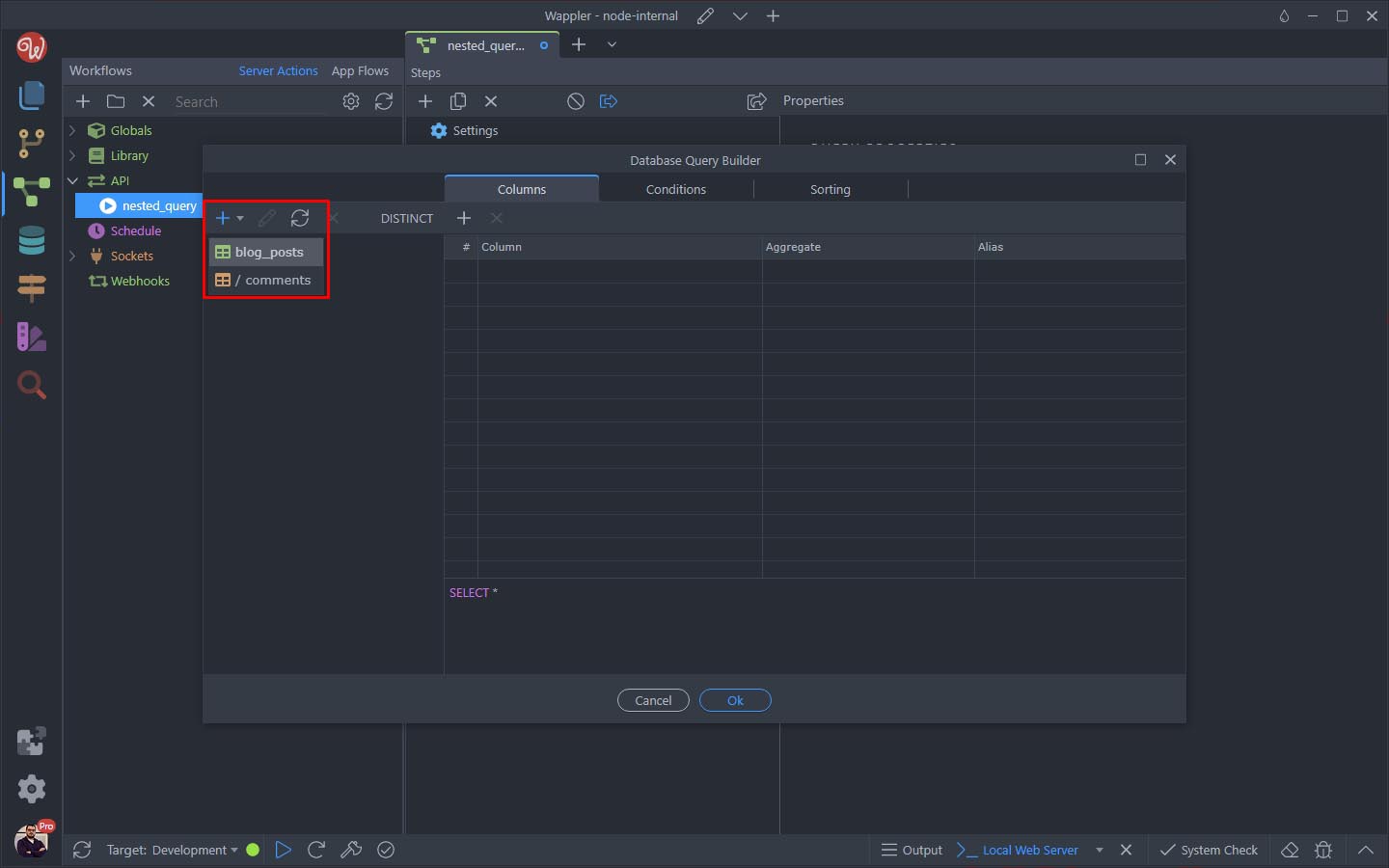
We select our blog_posts table:
Section titled “We select our blog_posts table:”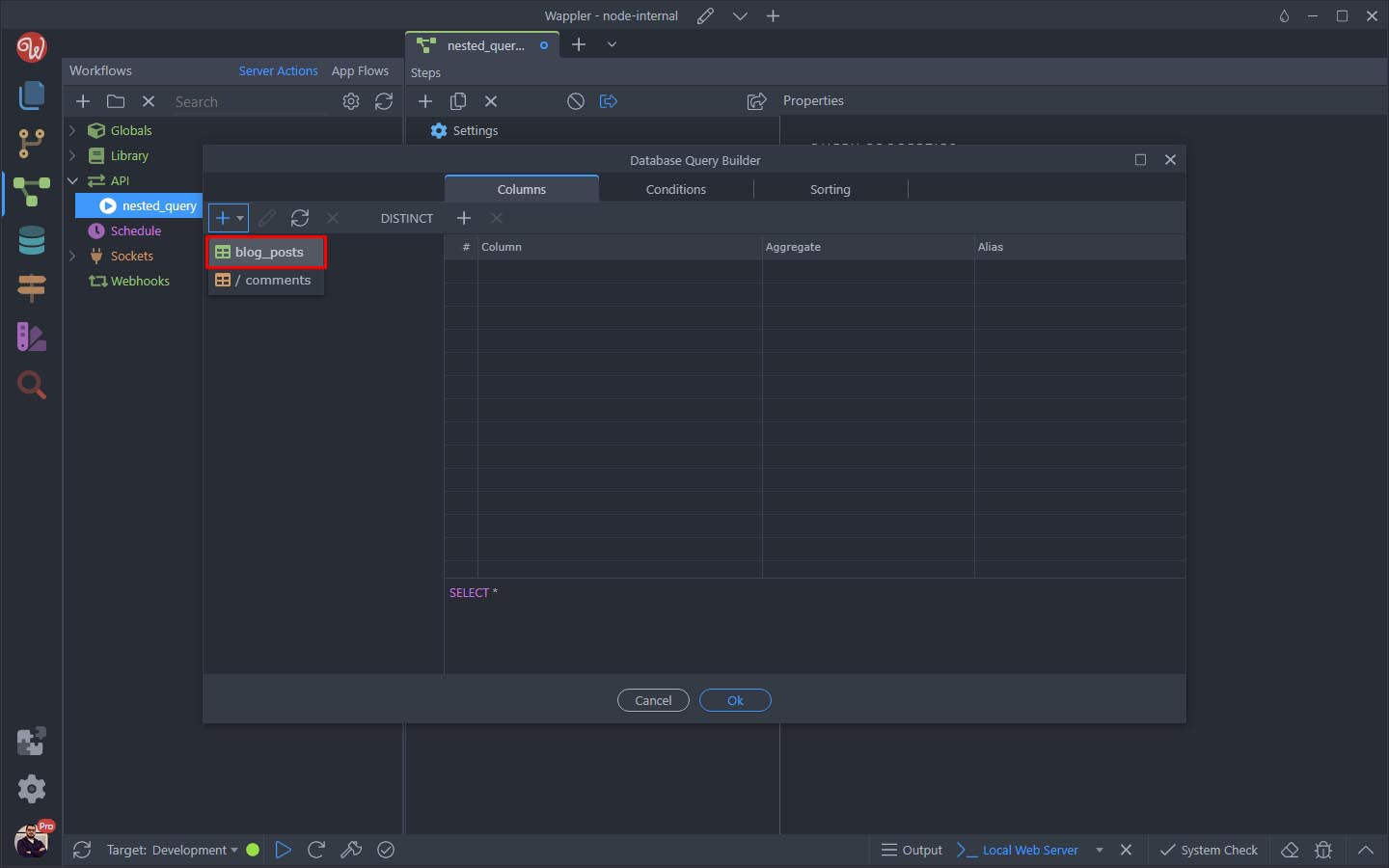
You can see the table columns:
Section titled “You can see the table columns:”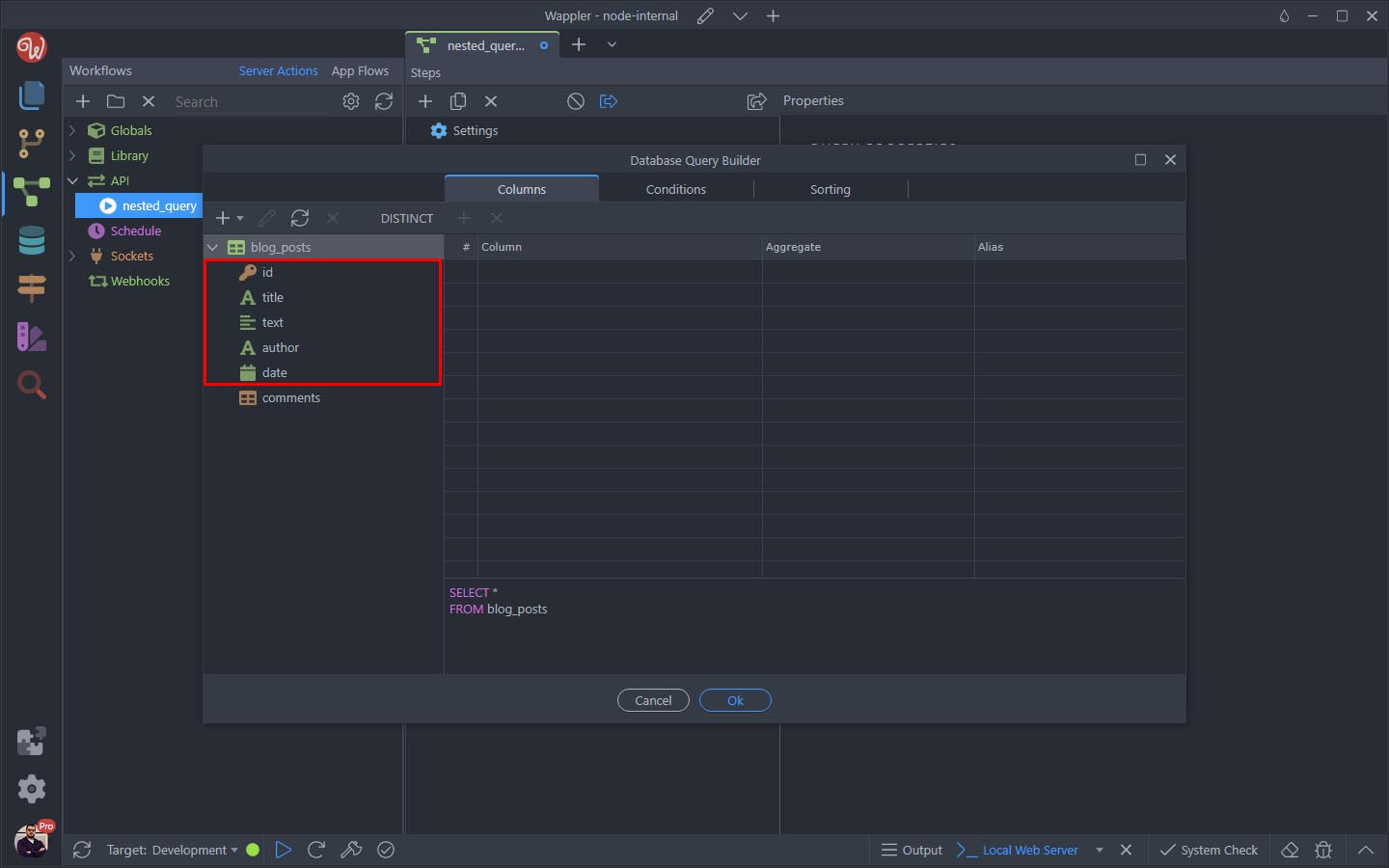
As well as its nested sub table:
Section titled “As well as its nested sub table:”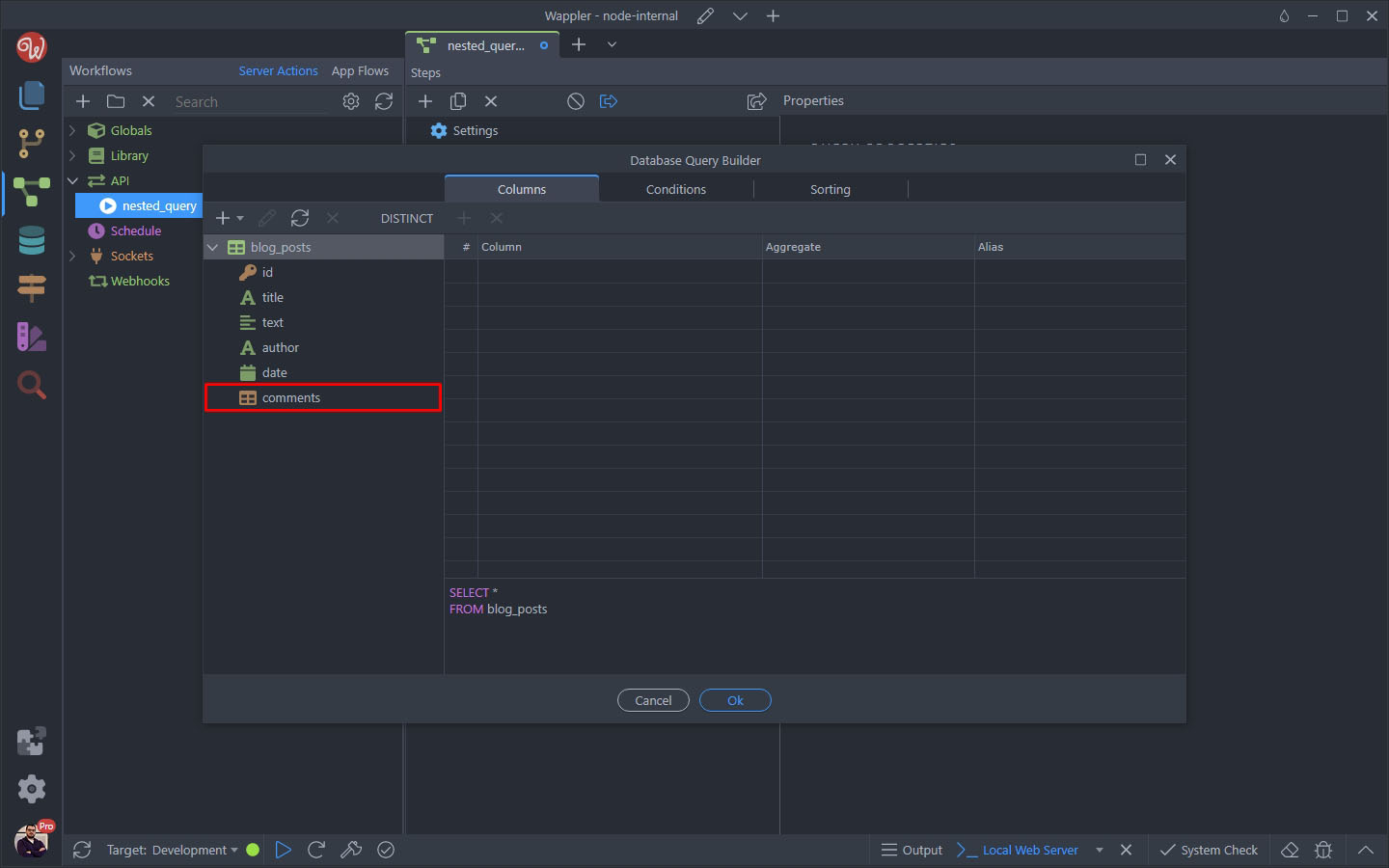
Select the columns you want to output as well as the sub table and add them to the selected columns list:
Section titled “Select the columns you want to output as well as the sub table and add them to the selected columns list:”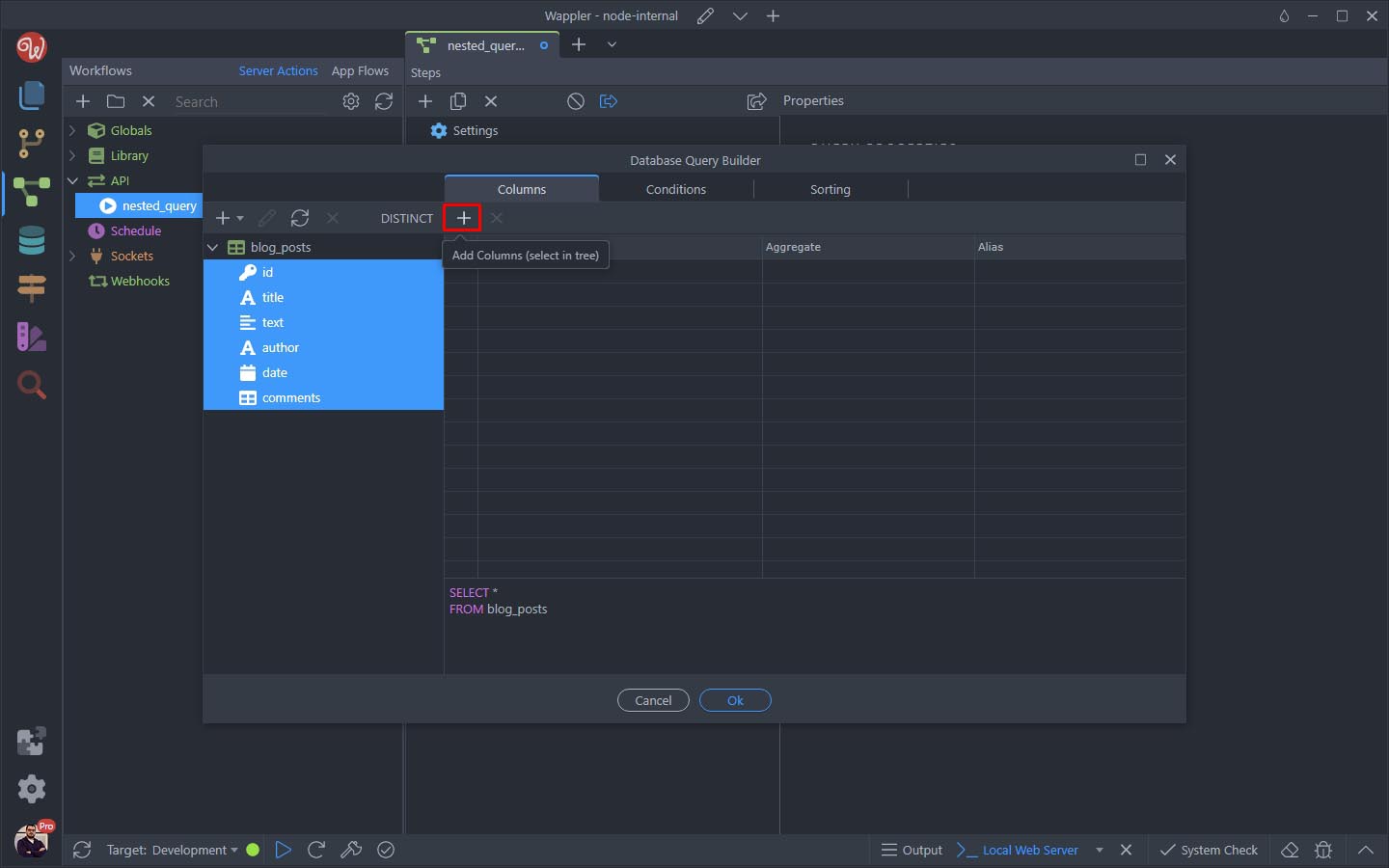
Double clicking the Sub Table name opens a separate query builder for it:
Section titled “Double clicking the Sub Table name opens a separate query builder for it:”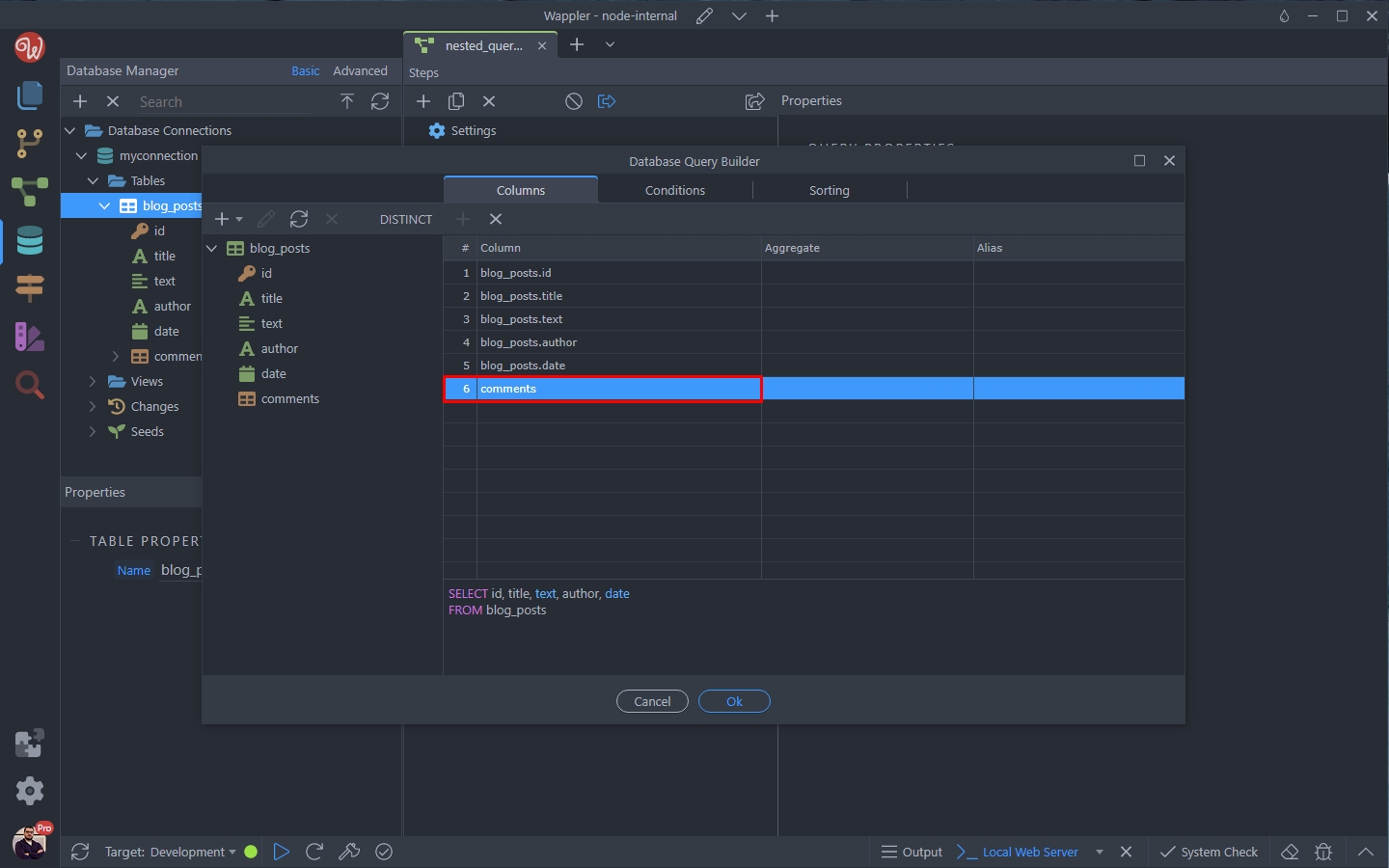
Here you can choose which fields to output:
Section titled “Here you can choose which fields to output:”
Or do some filtering as well:
Section titled “Or do some filtering as well:”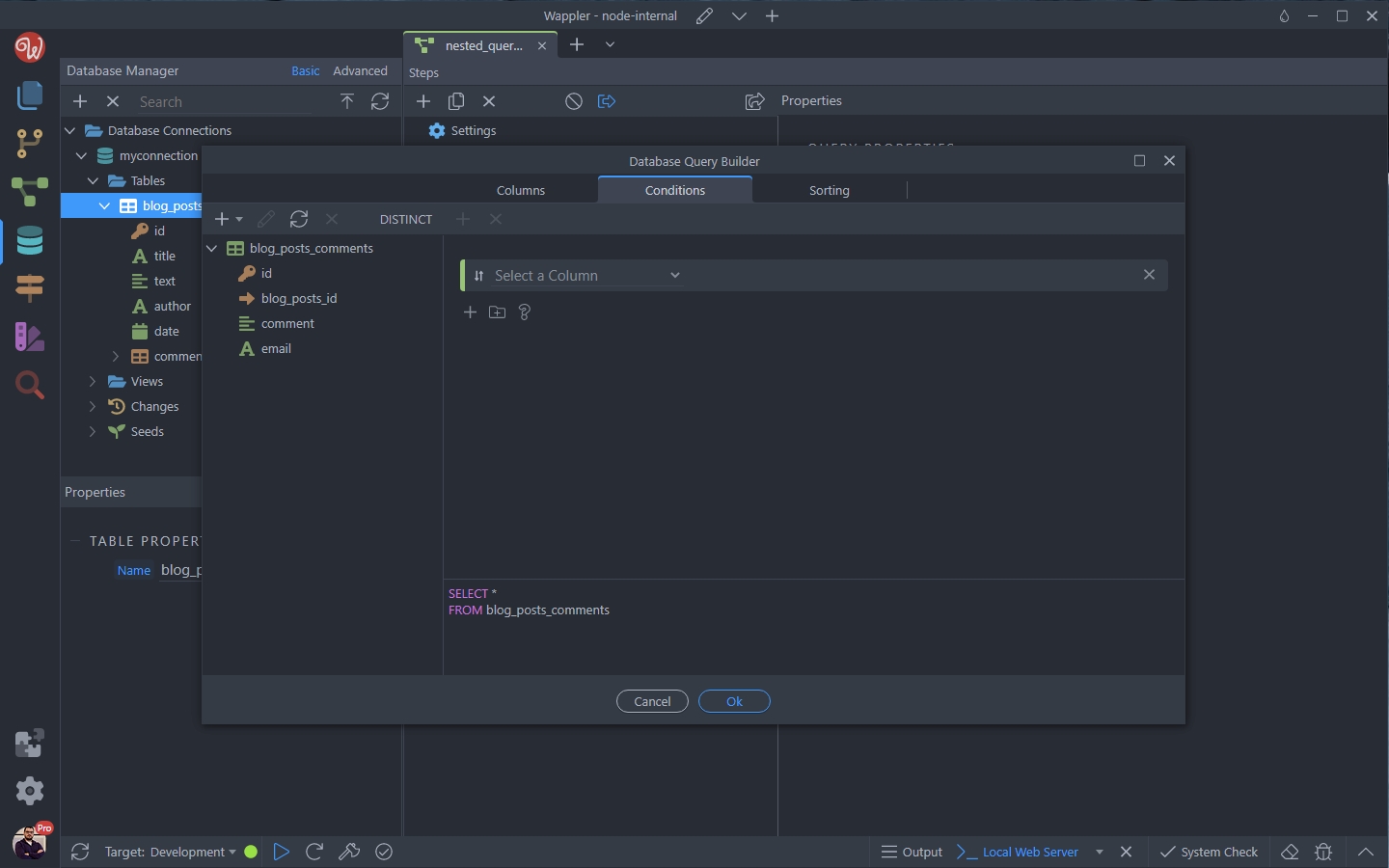
Click OK, when you are done adjusting the sub table options:
Section titled “Click OK, when you are done adjusting the sub table options:”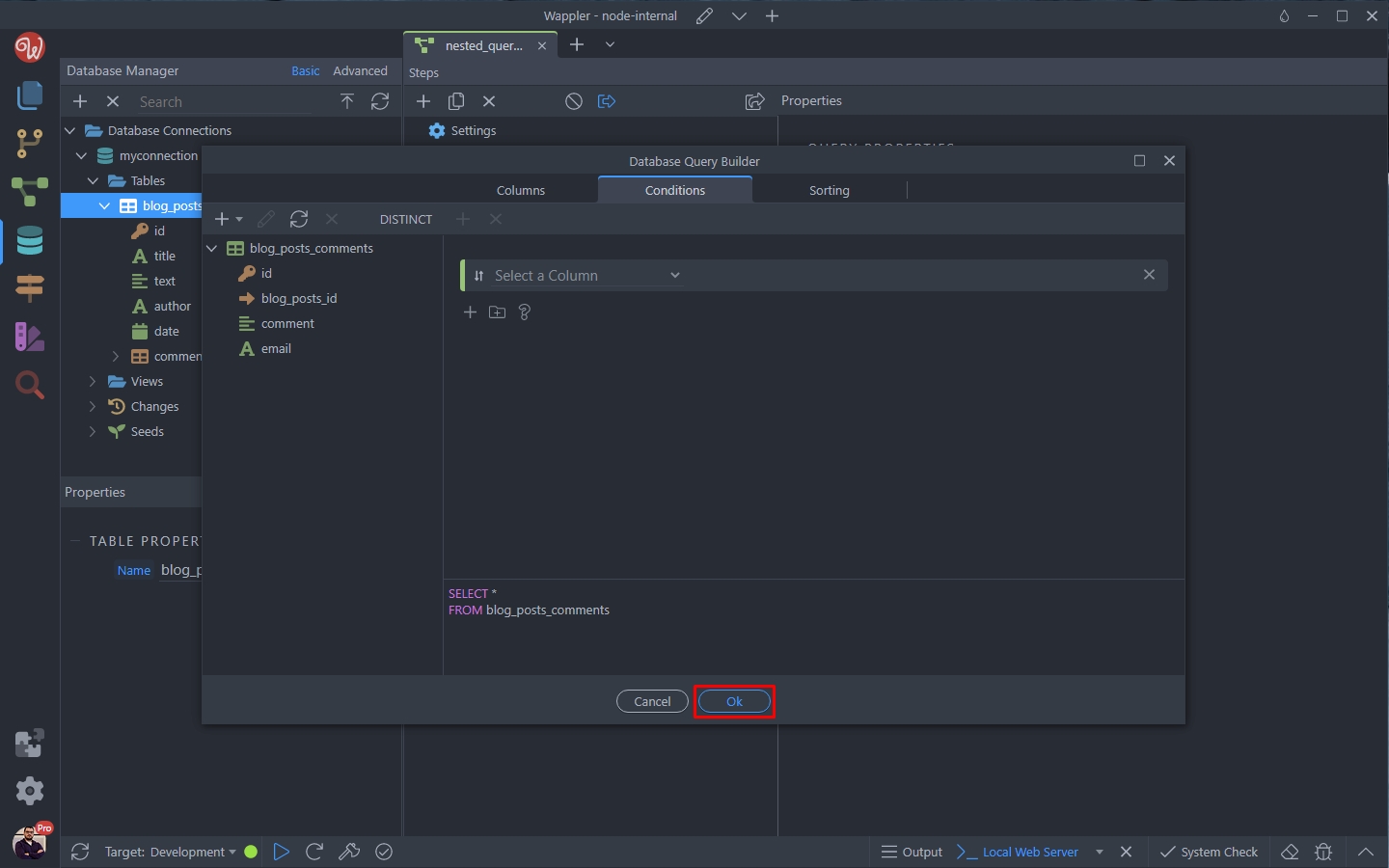
Click OK:
Section titled “Click OK:”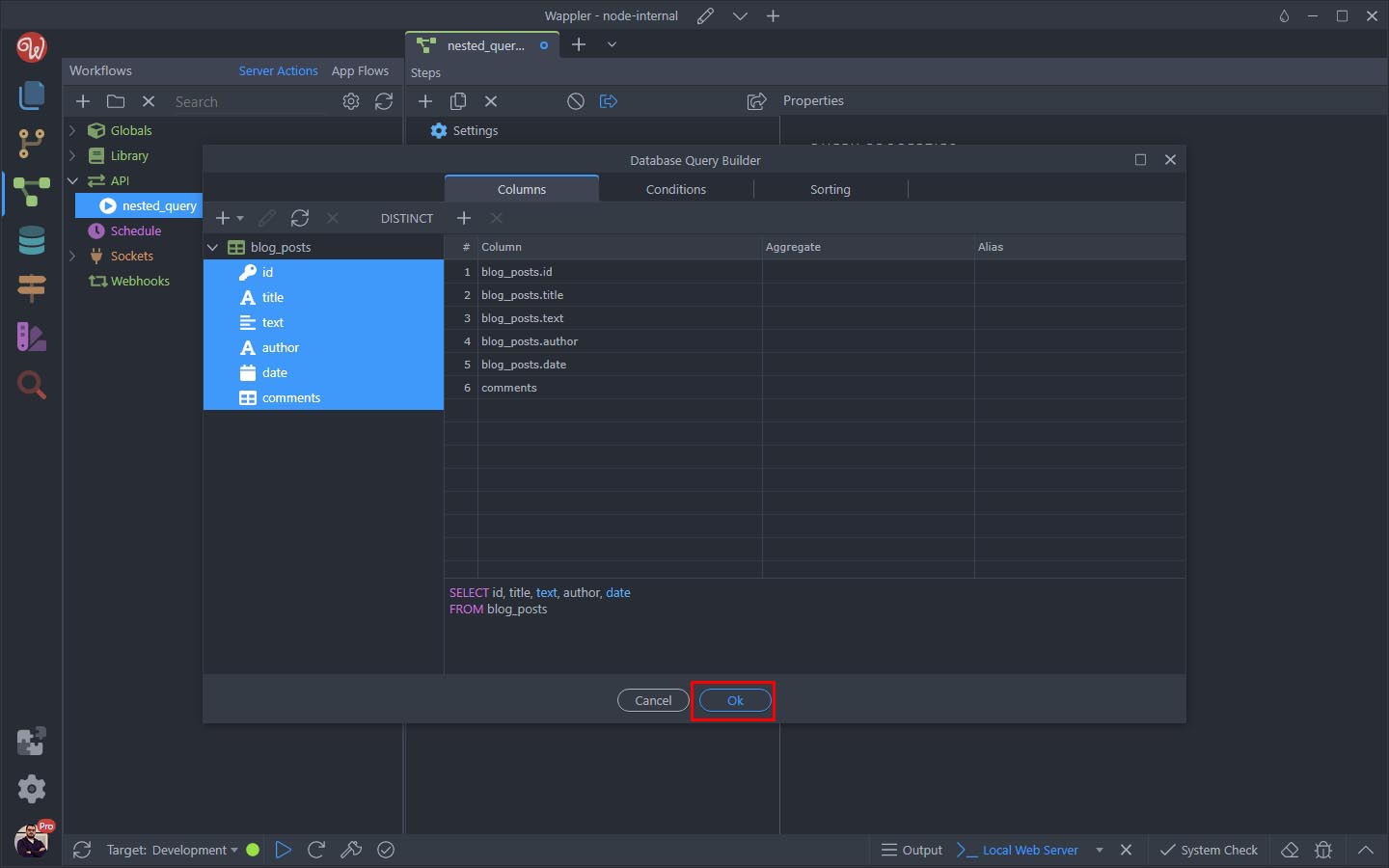
And save your server action:
Section titled “And save your server action:”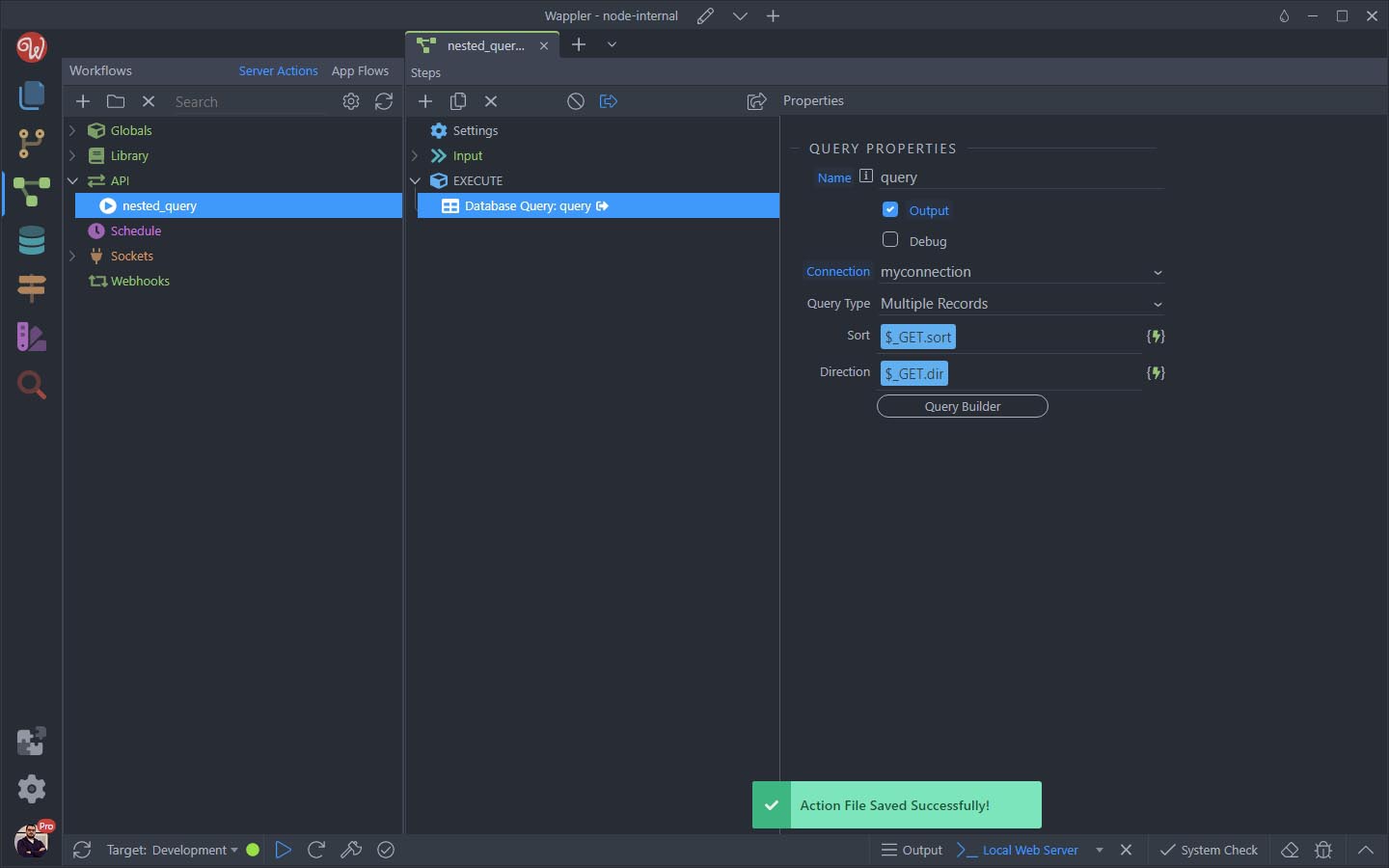
You can preview the results in your browser:
Section titled “You can preview the results in your browser:”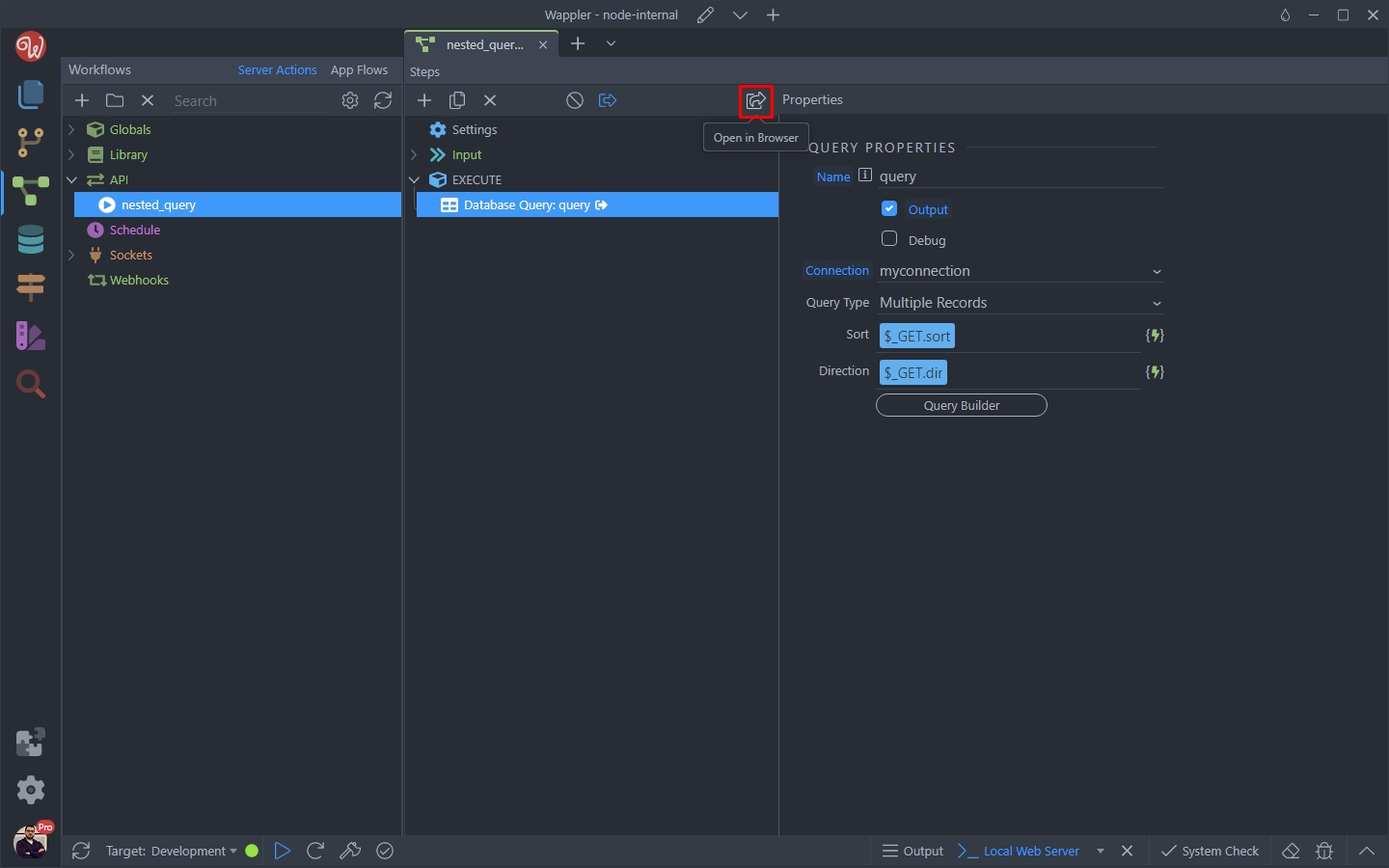
Step 20
Section titled “Step 20”And see that the nested data structure is being returned by our database query. You can se the nested query results (comments per each blog article):
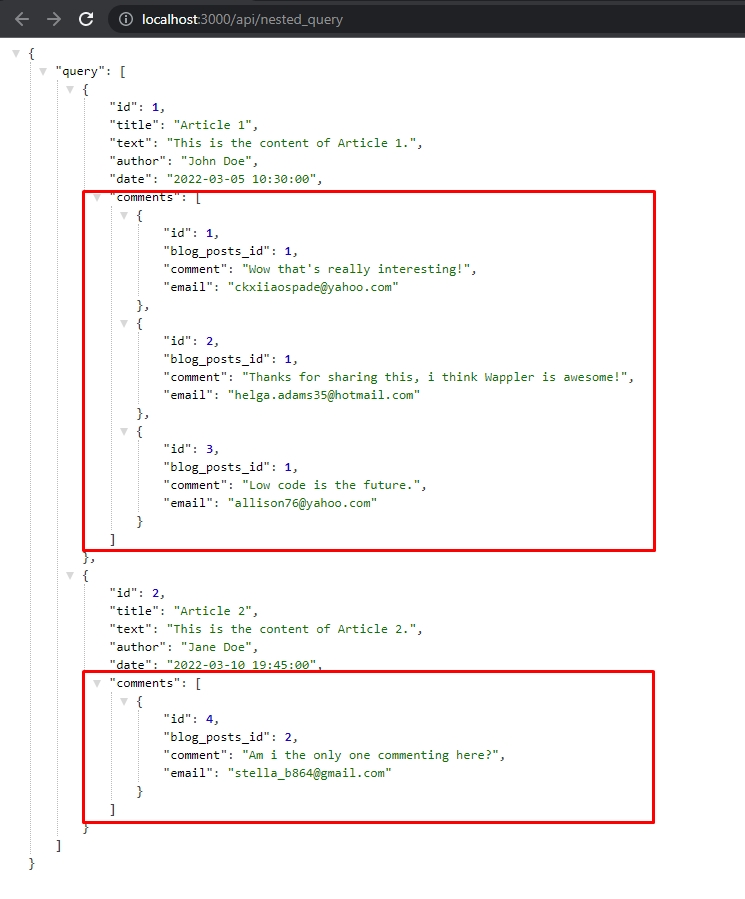
You can use this data on the front end to create nested repeats with the available data.
Section titled “You can use this data on the front end to create nested repeats with the available data.”Using Nested Data On Your Page
Section titled “Using Nested Data On Your Page”Now after we have the nested data returned by our query, let’s add in on our page.
We created a basic layout using a row with column for the blog posts and another row with column nested inside it, for the comments. Let’s add the dynamic data to this layout:

Add a new component in App Structure:
Section titled “Add a new component in App Structure:”
Under Data select Server Connect:
Section titled “Under Data select Server Connect:”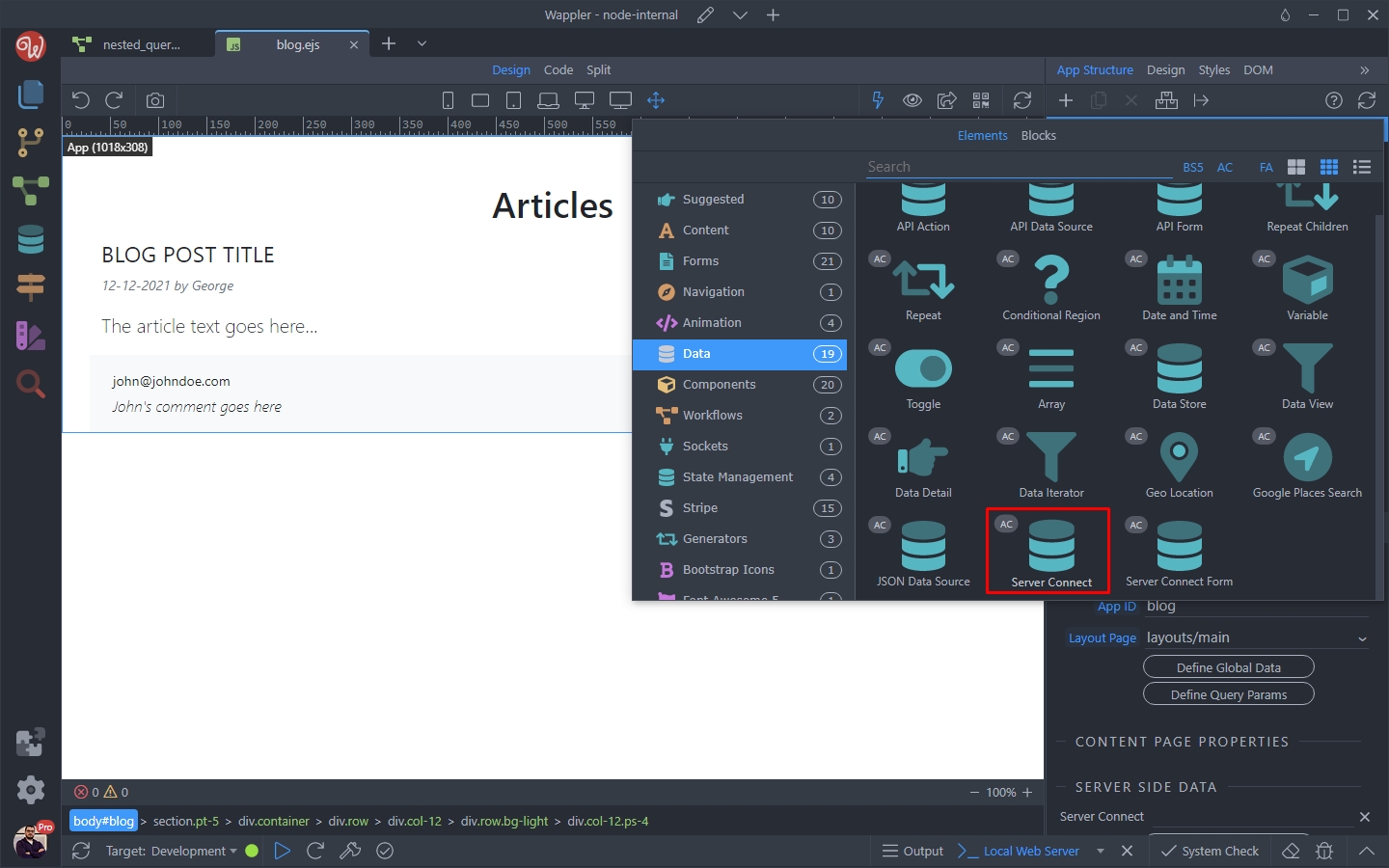
And click the Select Server Action button:
Section titled “And click the Select Server Action button:”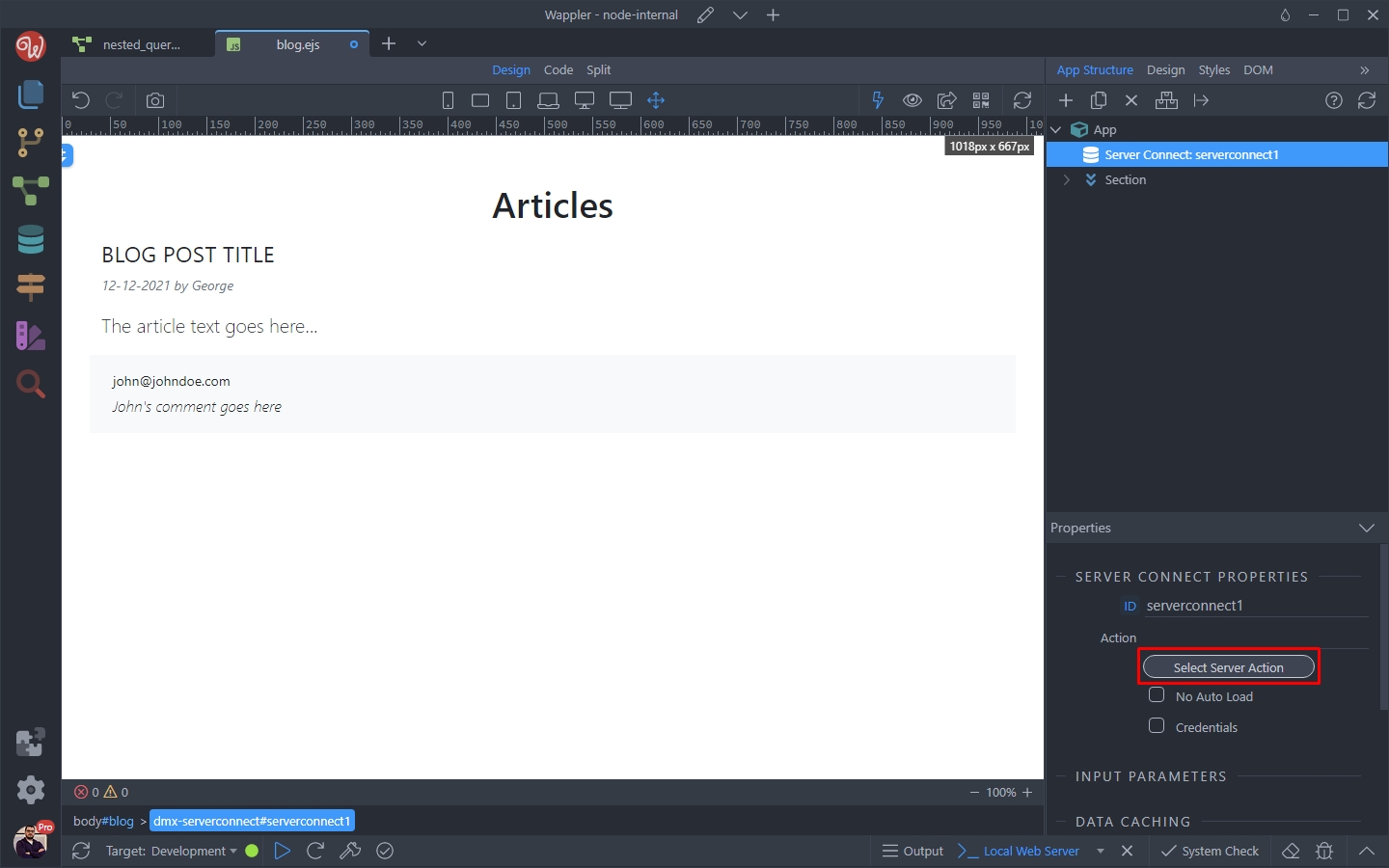
We select the server action returning our blog articles and their comments:
Section titled “We select the server action returning our blog articles and their comments:”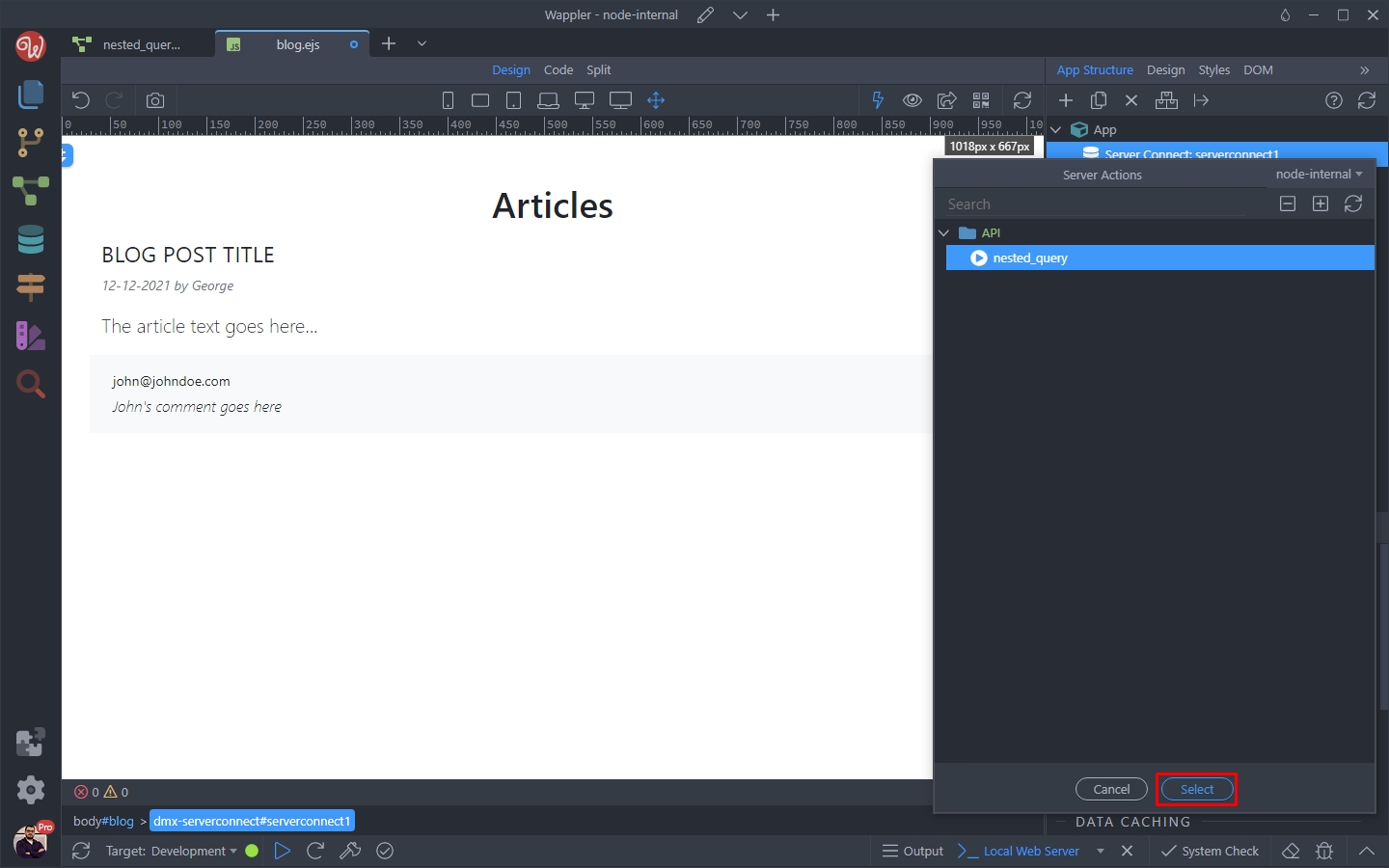
Main Repeat
Section titled “Main Repeat”Then select the row that contains our blog posts and open the Convert To menu:
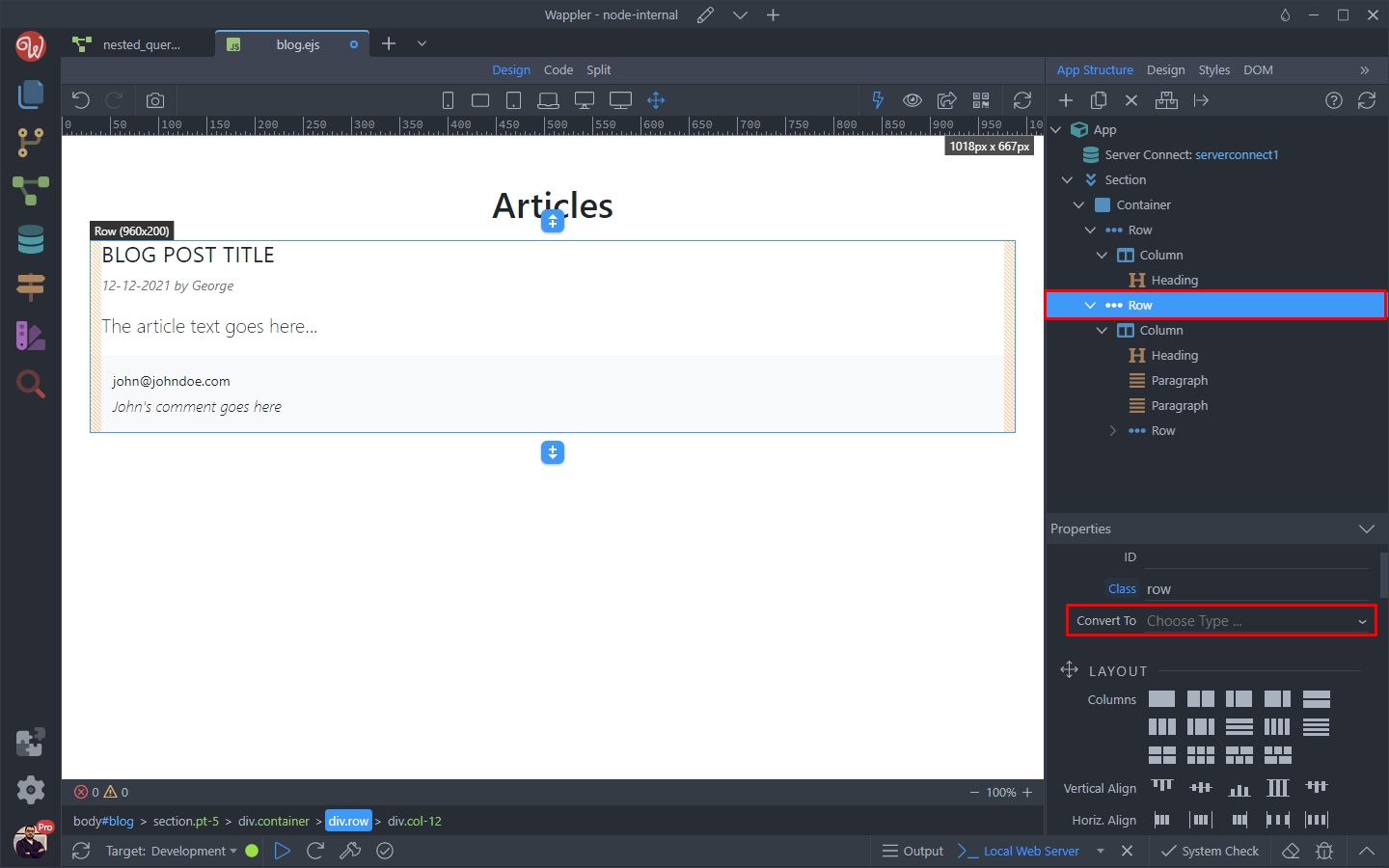
Select Repeat Children to make this row a Repeat Children region:
Section titled “Select Repeat Children to make this row a Repeat Children region:”
And select a dynamic expression for the repeat:
Section titled “And select a dynamic expression for the repeat:”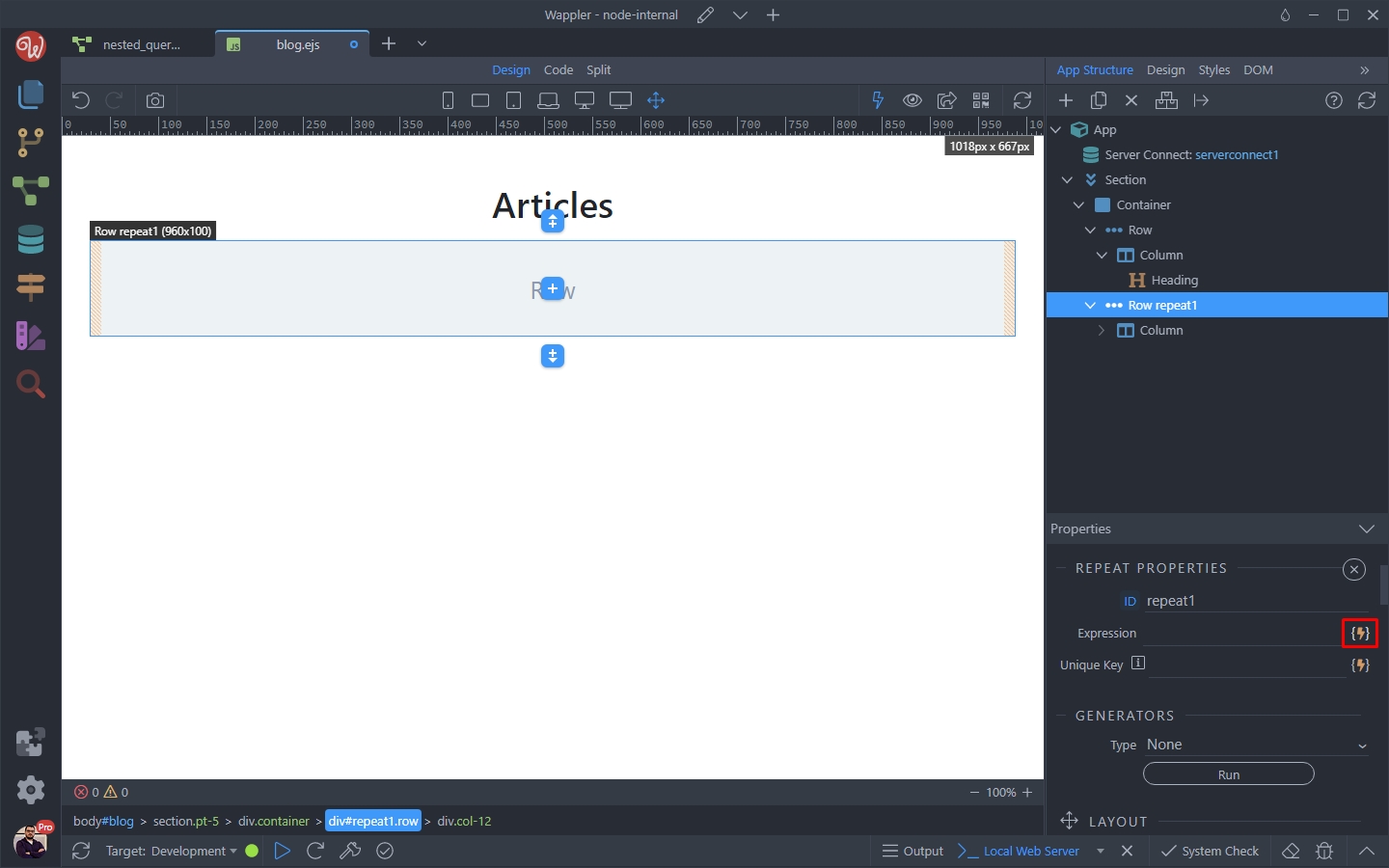
This should be the main database query, returning our blog posts:
Section titled “This should be the main database query, returning our blog posts:”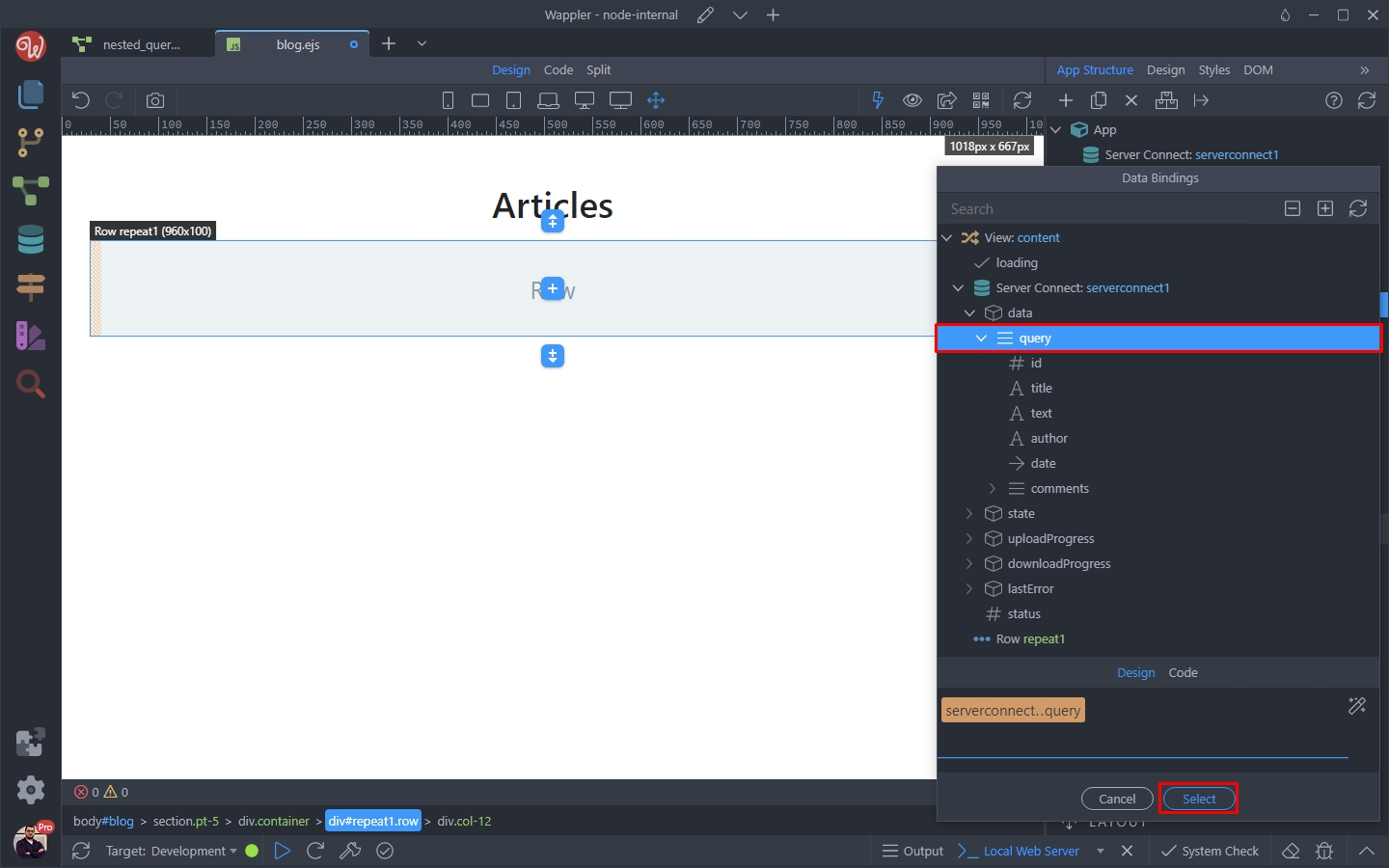
Step 32
Section titled “Step 32”Turn off App Connect mode from the top toolbar (the thunder icon) and you can then see the content inside the repeat region and bind the data. We double click the post title and click the dynamic data picker icon:
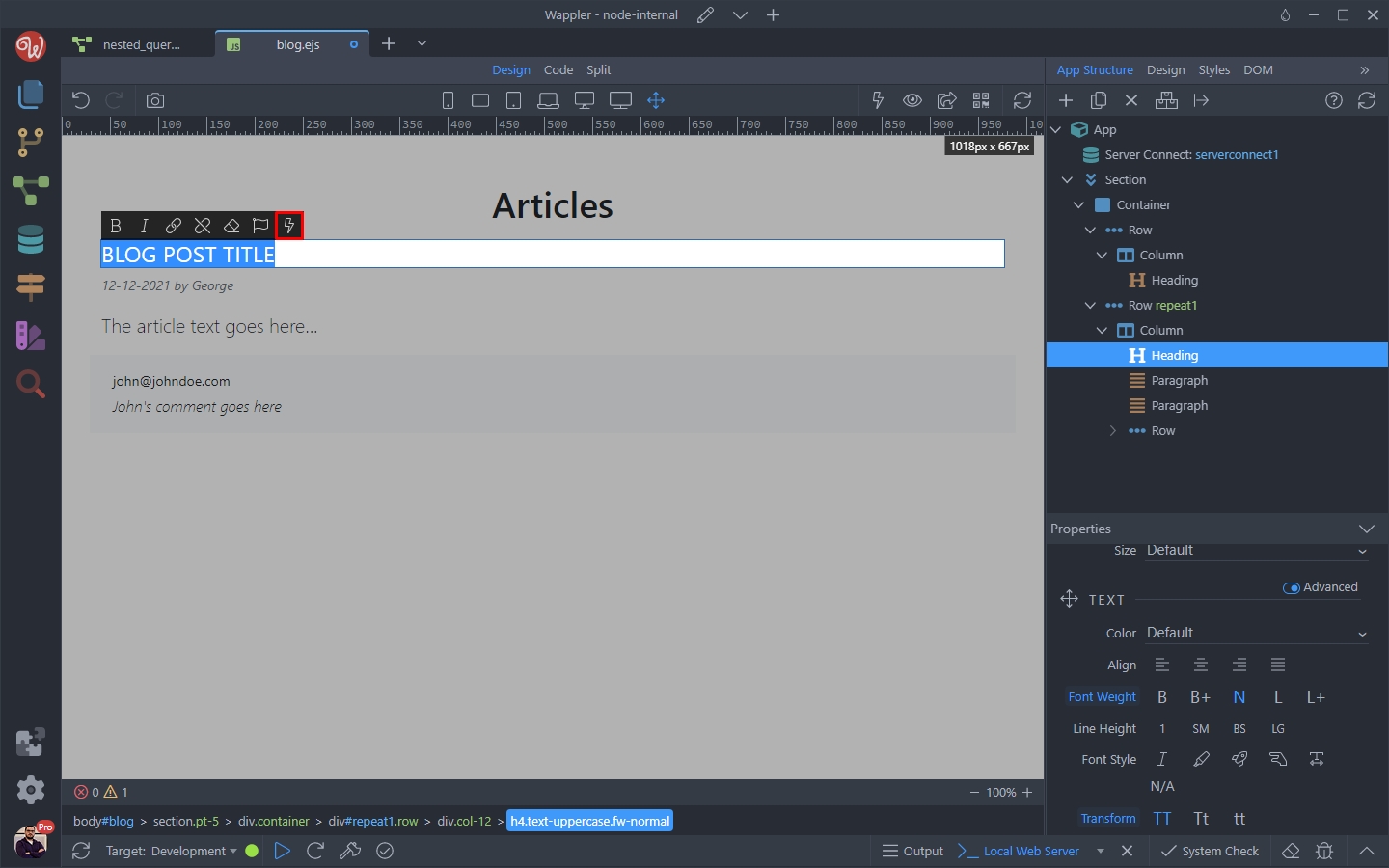
And select the title returned by our database query:
Section titled “And select the title returned by our database query:”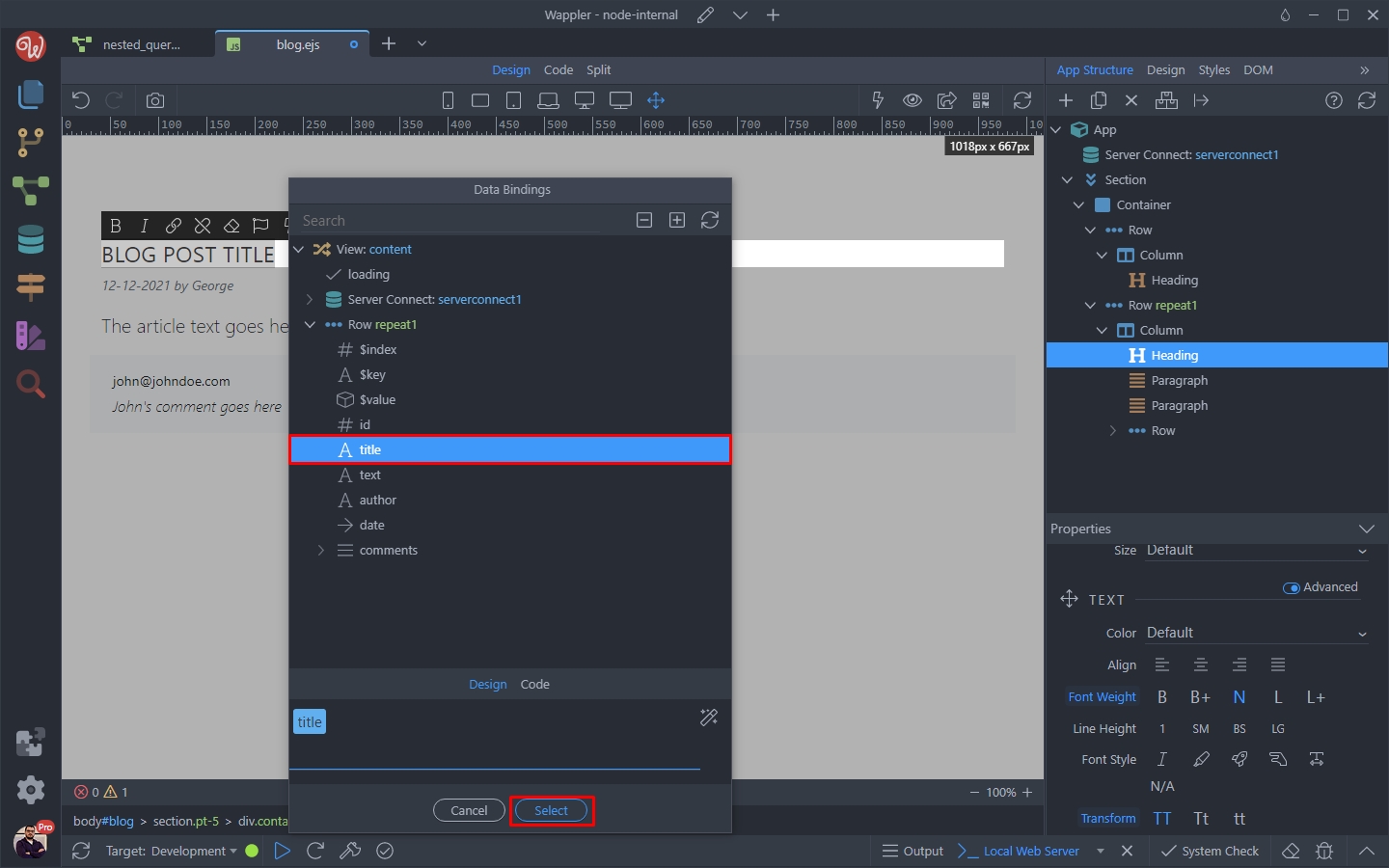
Do the same for the rest of the dynamic data for the blog post - date, author and text:
Section titled “Do the same for the rest of the dynamic data for the blog post - date, author and text:”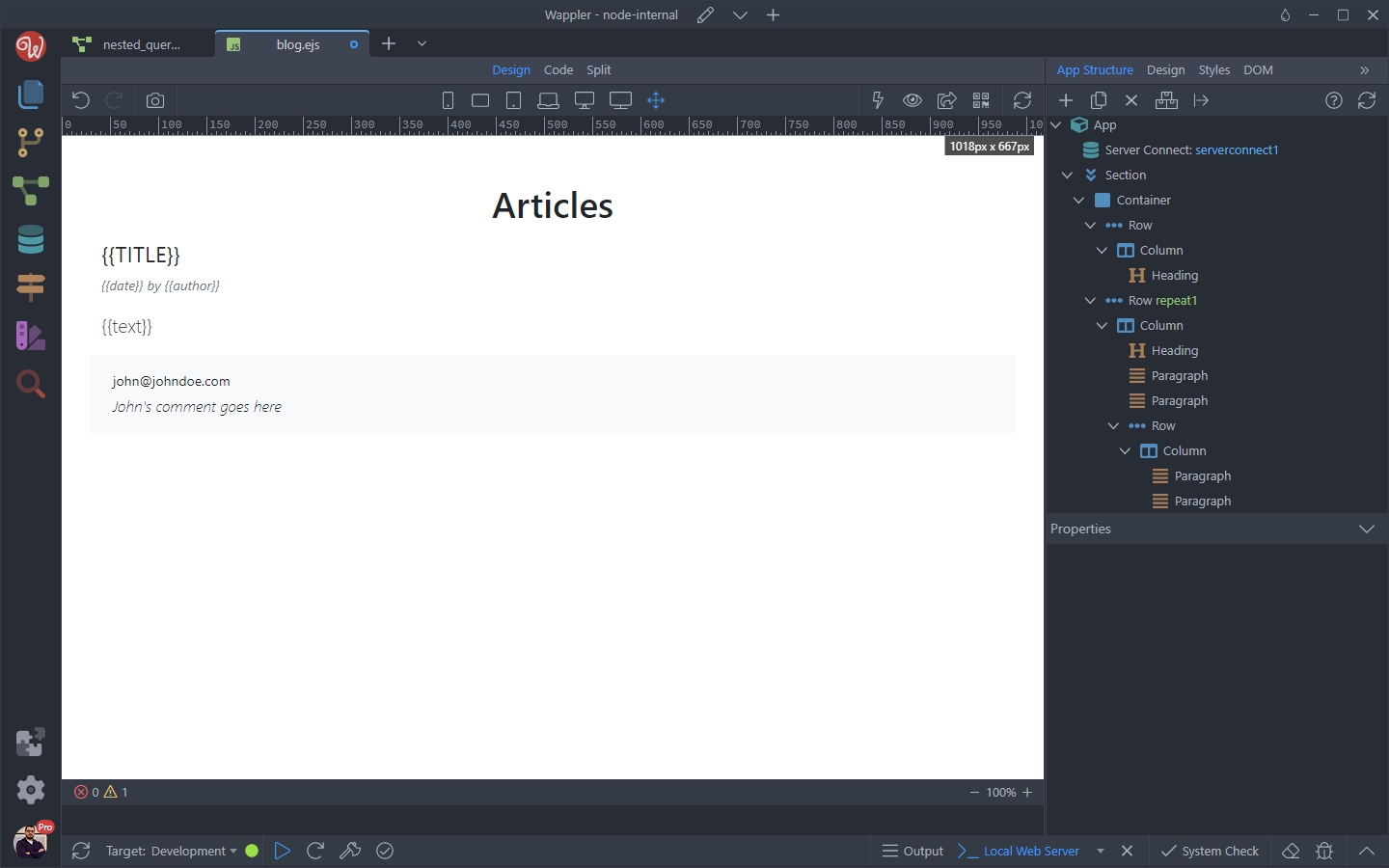
Nested Repeat
Section titled “Nested Repeat”Then we select the row, nested in the blog column and open the Convert To menu:
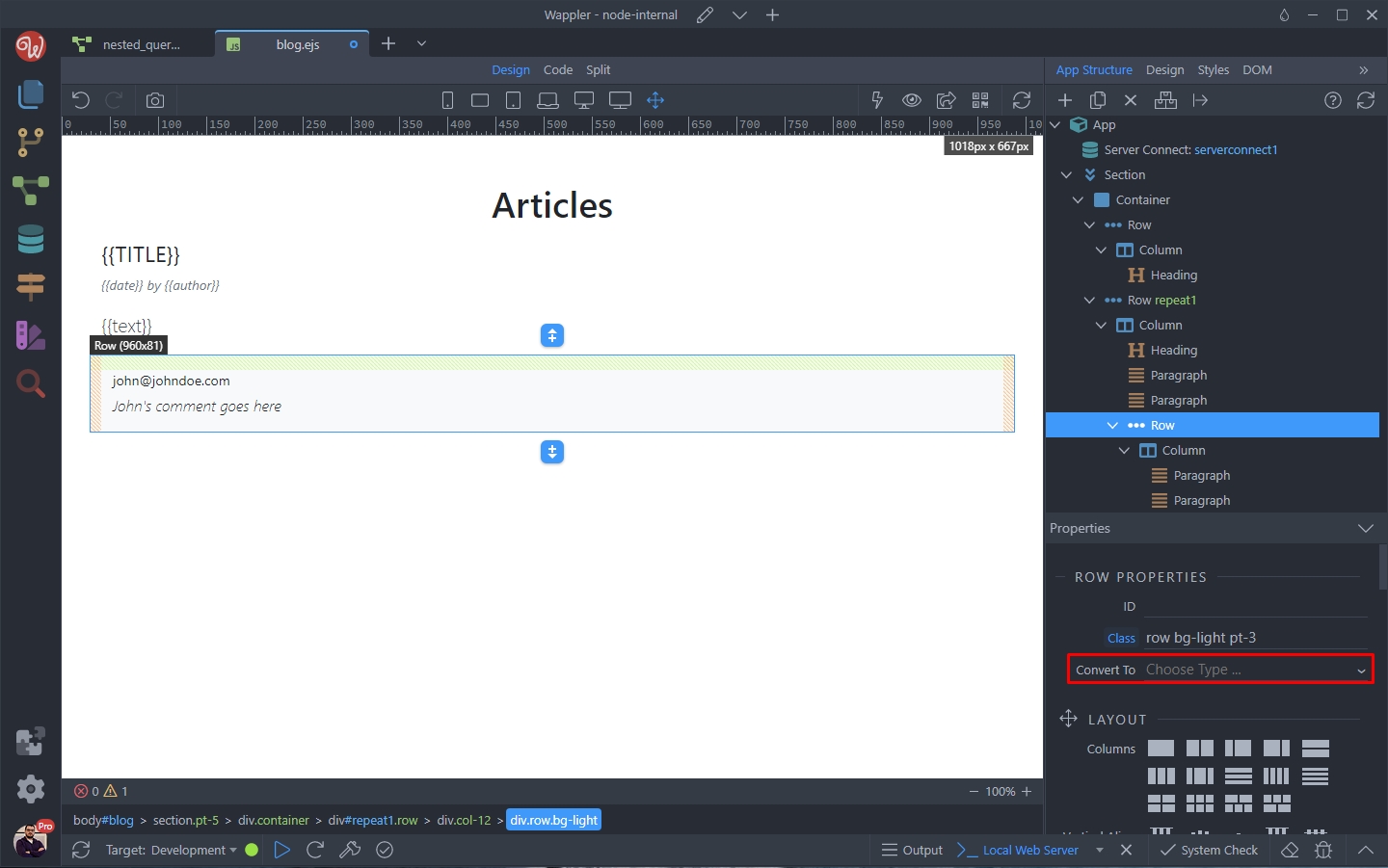
We select Repeat Children:
Section titled “We select Repeat Children:”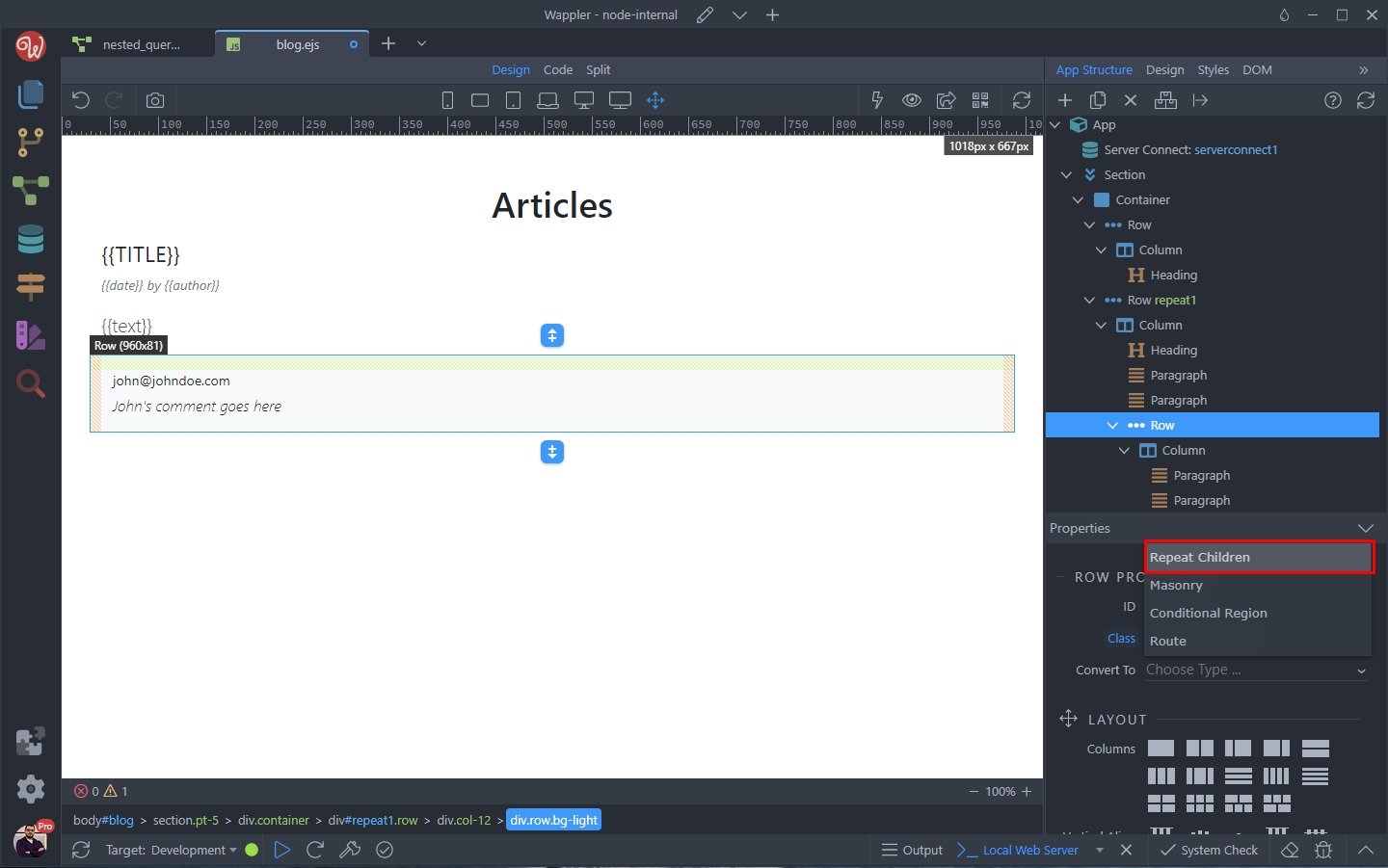
And let’s select the dynamic expression for it:
Section titled “And let’s select the dynamic expression for it:”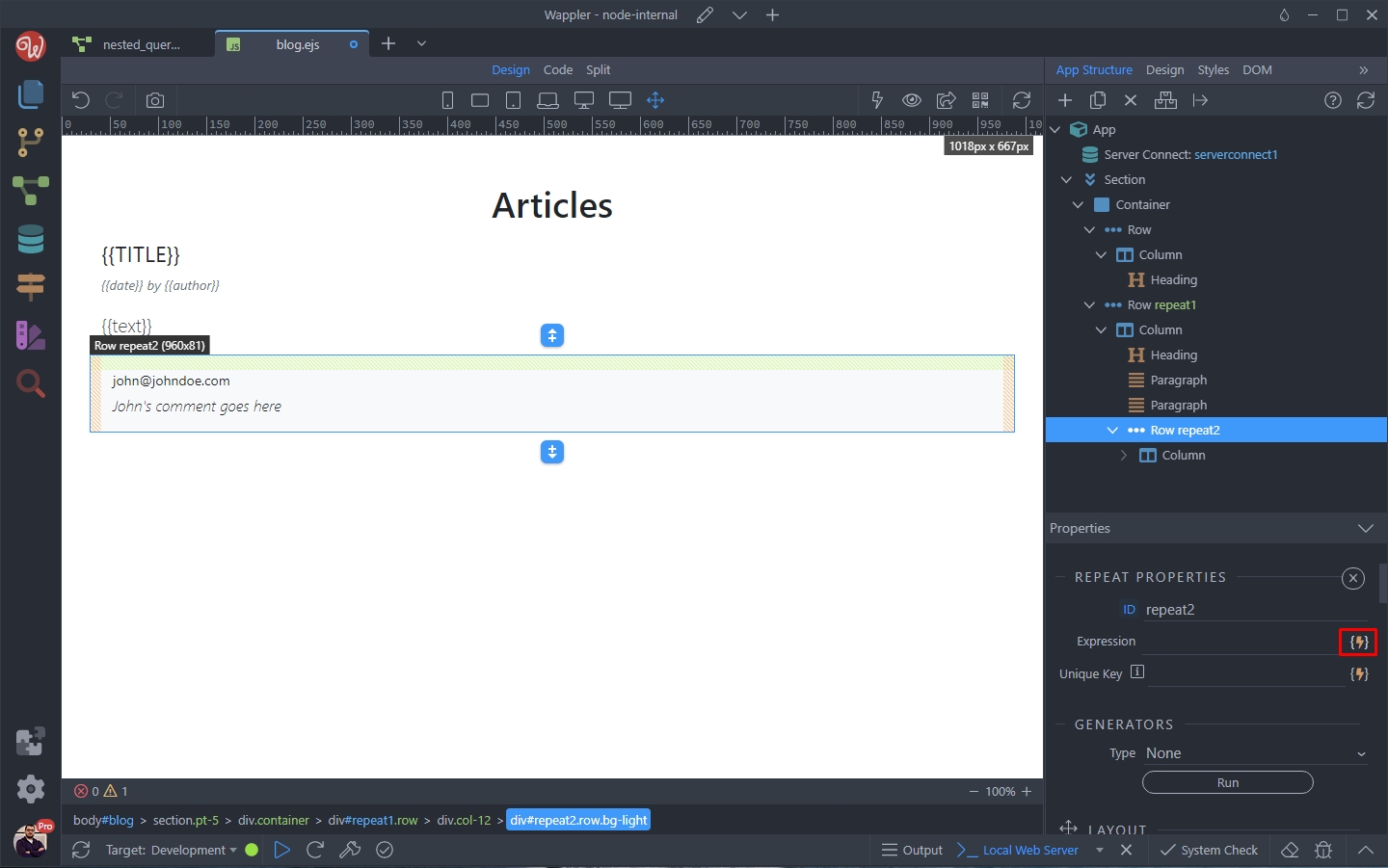
Step 39
Section titled “Step 39”Here, we select the nested database query, called comments - available in the data picker, inside the repeat region which we created for the blog articles:
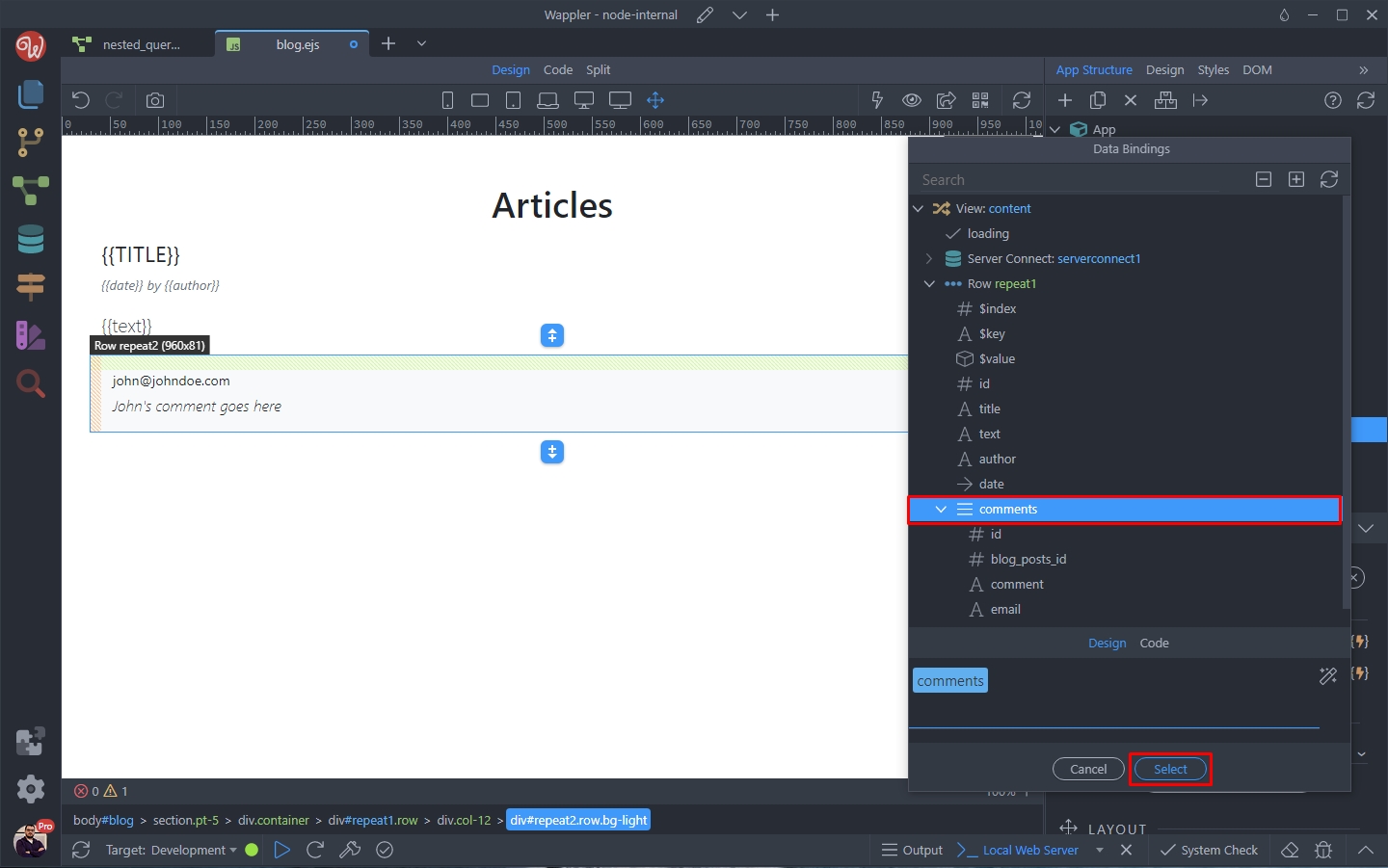
Then let’s bind the dynamic data inside this repeat children region:
Section titled “Then let’s bind the dynamic data inside this repeat children region:”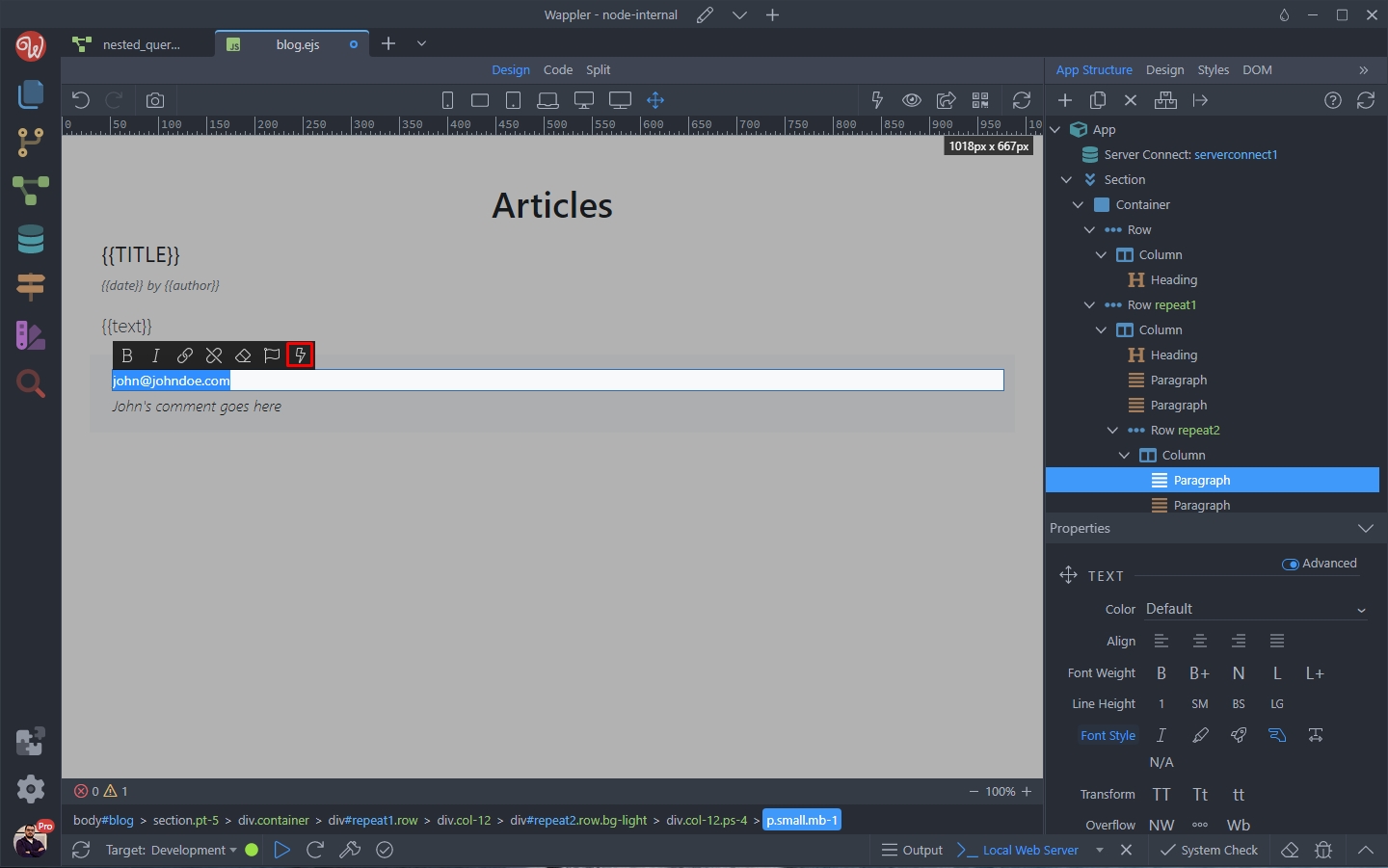
You can pick the data from the data picker, inside the nested repeat which we just created:
Section titled “You can pick the data from the data picker, inside the nested repeat which we just created:”
Do the same for all the dynamic data inside the nested repeat. Save your page when you are done:
Section titled “Do the same for all the dynamic data inside the nested repeat. Save your page when you are done:”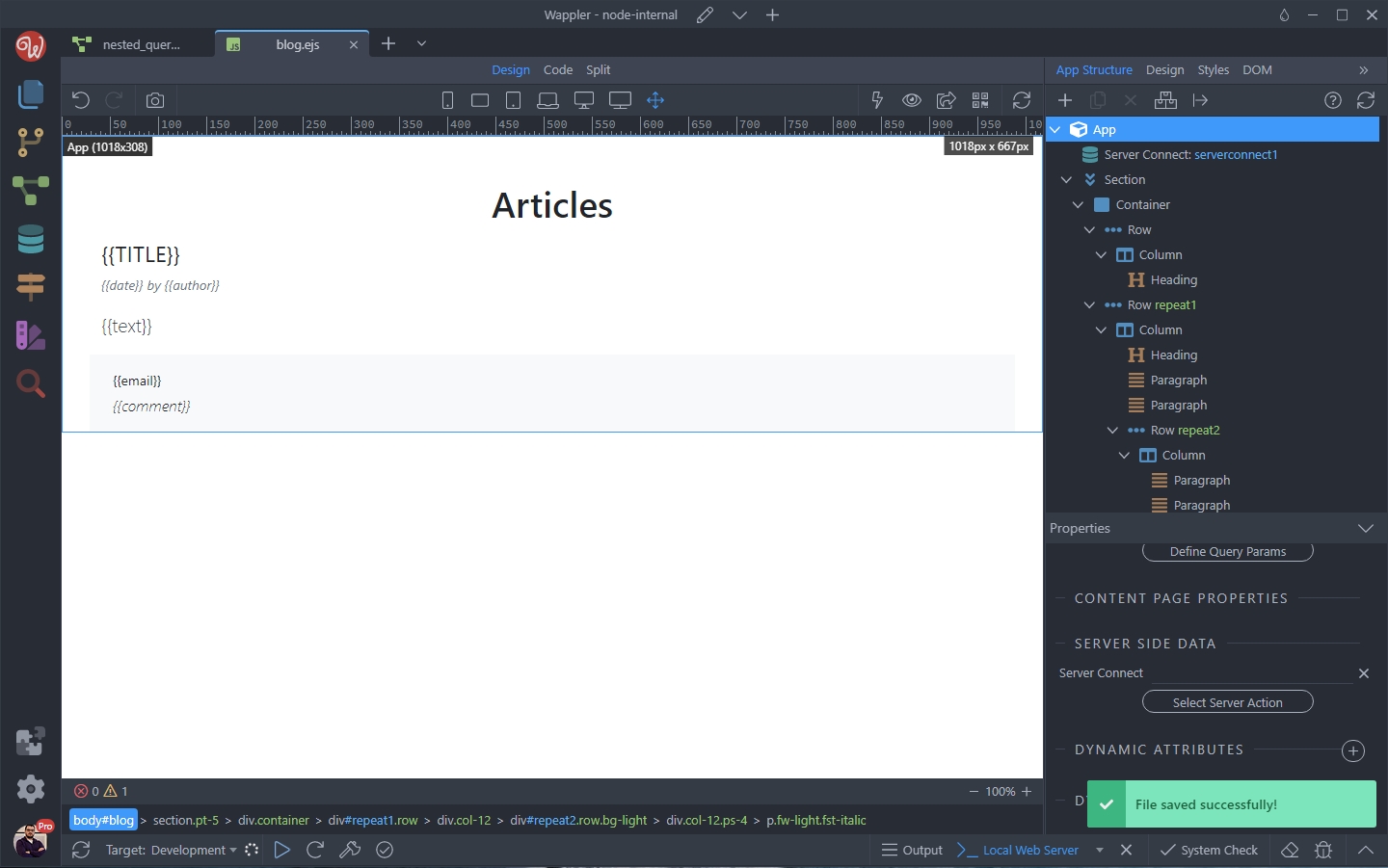
Step 43
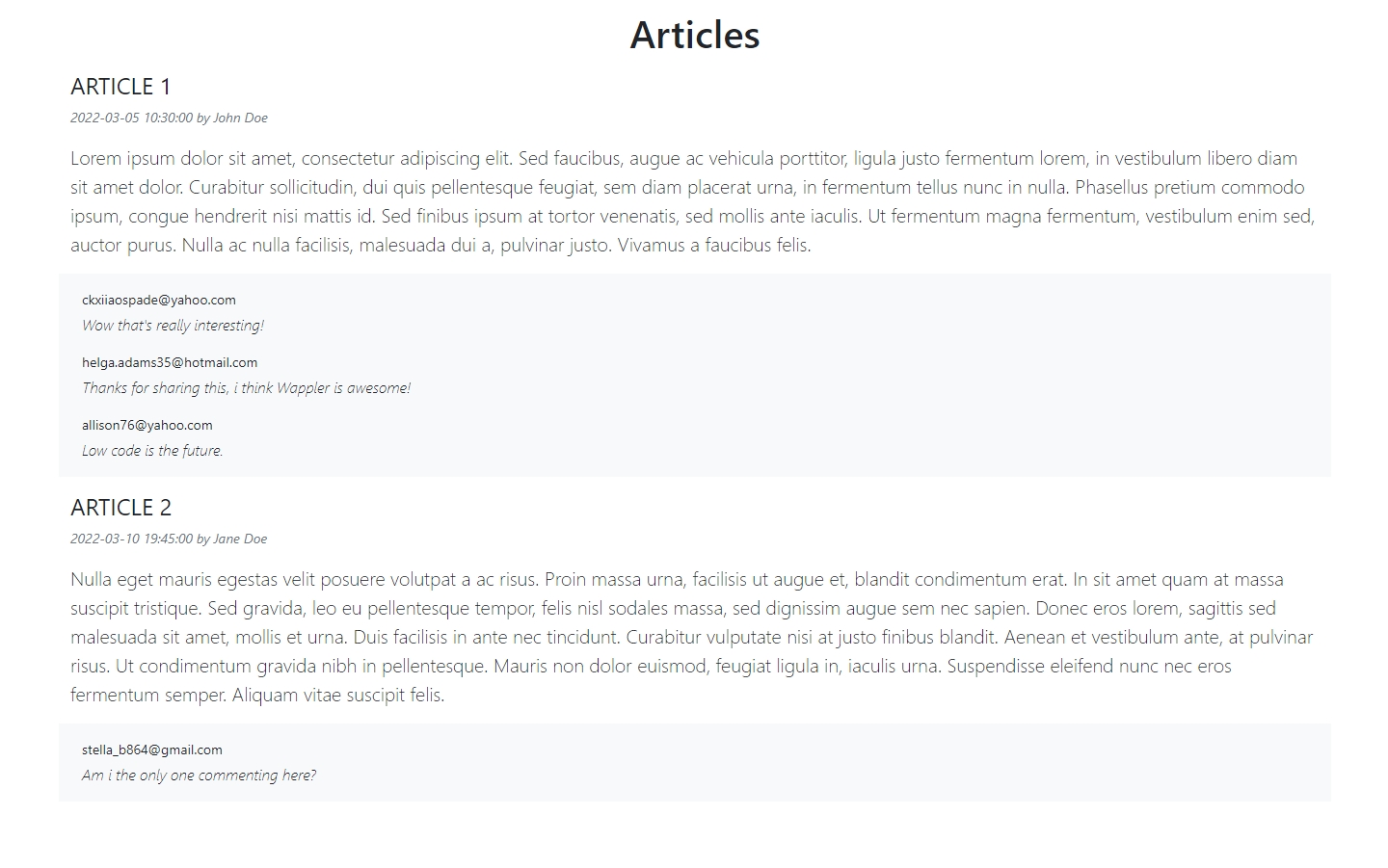
Section titled “Step 43”And let’s preview the results in the browser. You can see the comments, nested under the specific blog article they belong to: