
Alerts
Use alerts for feedback messages, including dismissible alerts and contextual states.
Alert options
Section titled “Alert options”Alerts communicate important status changes. Keep the message concise, and use variants (info/success/warning/danger) consistently across your UI.
Alert example
Section titled “Alert example”Alerts communicate status messages—success, warnings, errors, or neutral information. This step matters because Alert example is part of Design View, and understanding that context makes the next action easier to repeat in your own project.
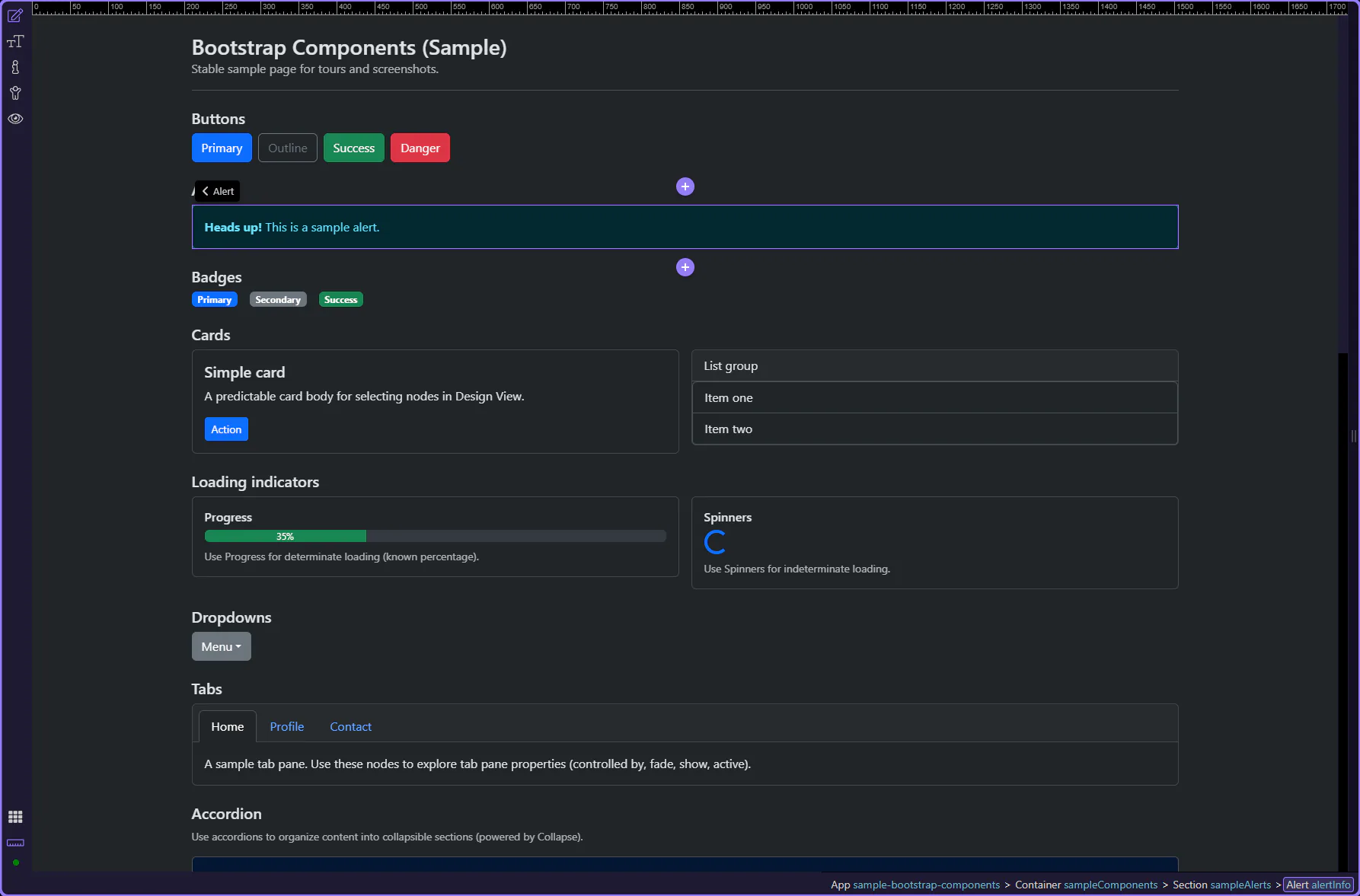
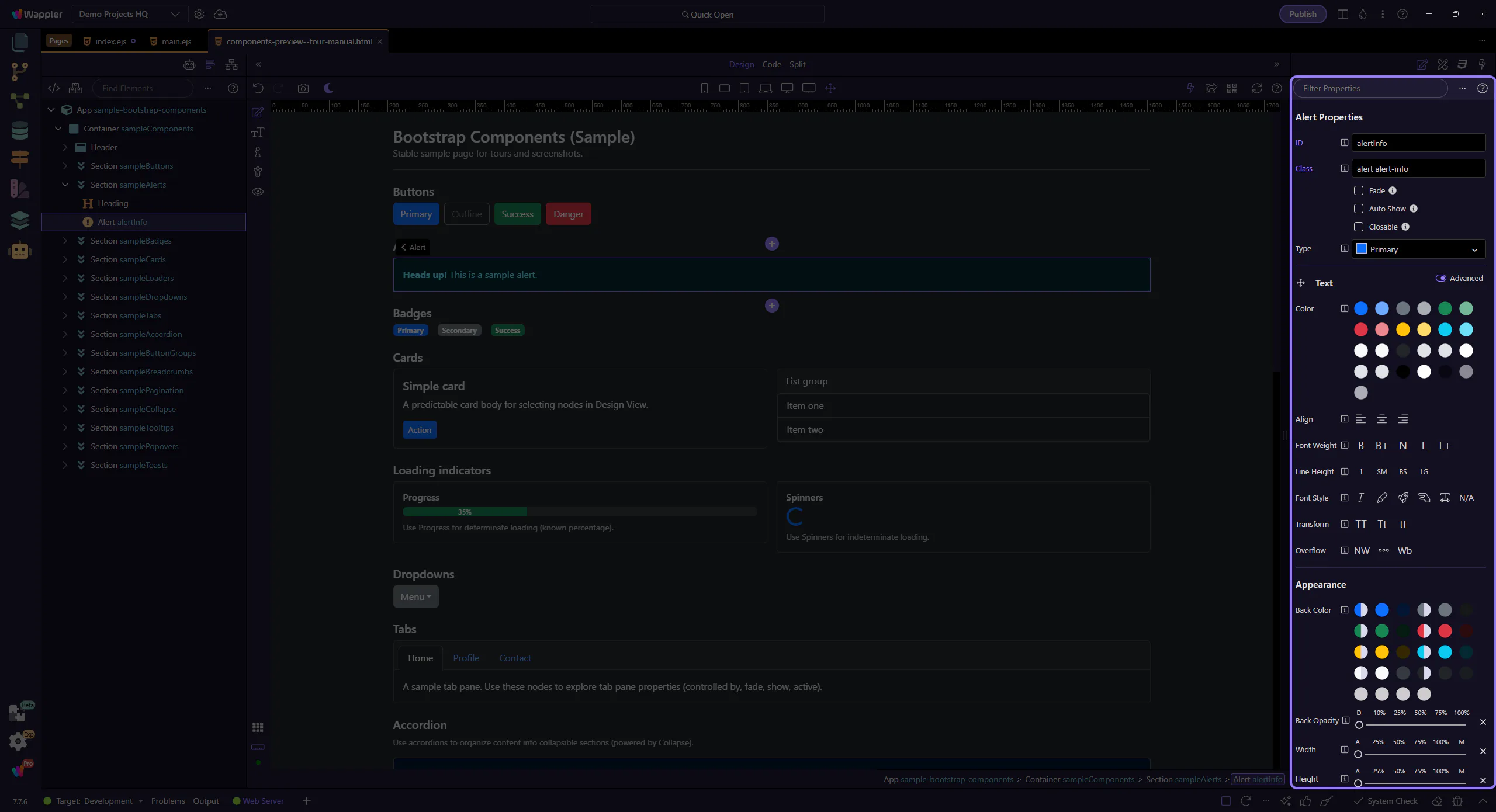
Orient yourself in Properties panel
Section titled “Orient yourself in Properties panel”Start with the wider context in the Properties panel so the next control makes sense in the full workflow. In the next step, you will focus on Alert: Type and see how it fits into this area.
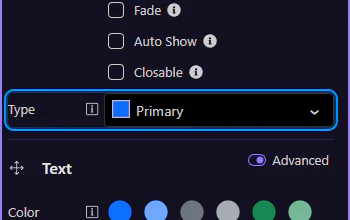
Alert: Type
Section titled “Alert: Type”Use Type to change the alert variant (info, warning, danger, success, etc.). This step matters because Alert: Type is part of Selection Panels Properties Alerttype, and understanding that context makes the next action easier to repeat in your own project.
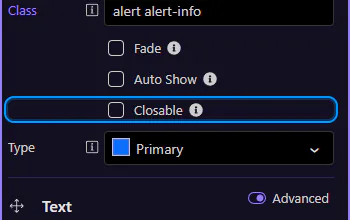
Alert: Closable
Section titled “Alert: Closable”Enable Closable to show a close button so users can dismiss the message. Use this for non-critical or informational alerts.
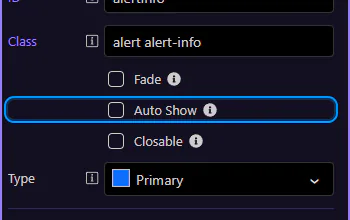
Alert: Auto Show (dynamic)
Section titled “Alert: Auto Show (dynamic)”Enable Auto Show when the alert visibility is driven by data or logic. You can bind it to a condition to show/hide the alert automatically.
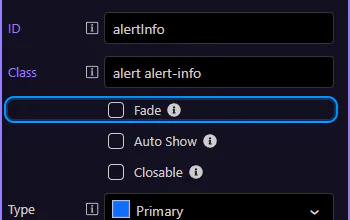
Alert: Fade animation
Section titled “Alert: Fade animation”Enable Fade for a subtle enter/exit transition. Combine this with Auto Show for smooth dynamic alerts.
Next steps
Section titled “Next steps”Continue with other Components tours or return to the Components menu.