
Dropdowns
Build dropdown menus in Wappler and learn the practical options: alignment, sizing, split buttons, and nav dropdown patterns.
Dropdown structure
Section titled “Dropdown structure”A dropdown is made of a wrapper, a toggle button, and a menu with items. Use dropdowns for short, contextual lists of actions.
Dropdown example
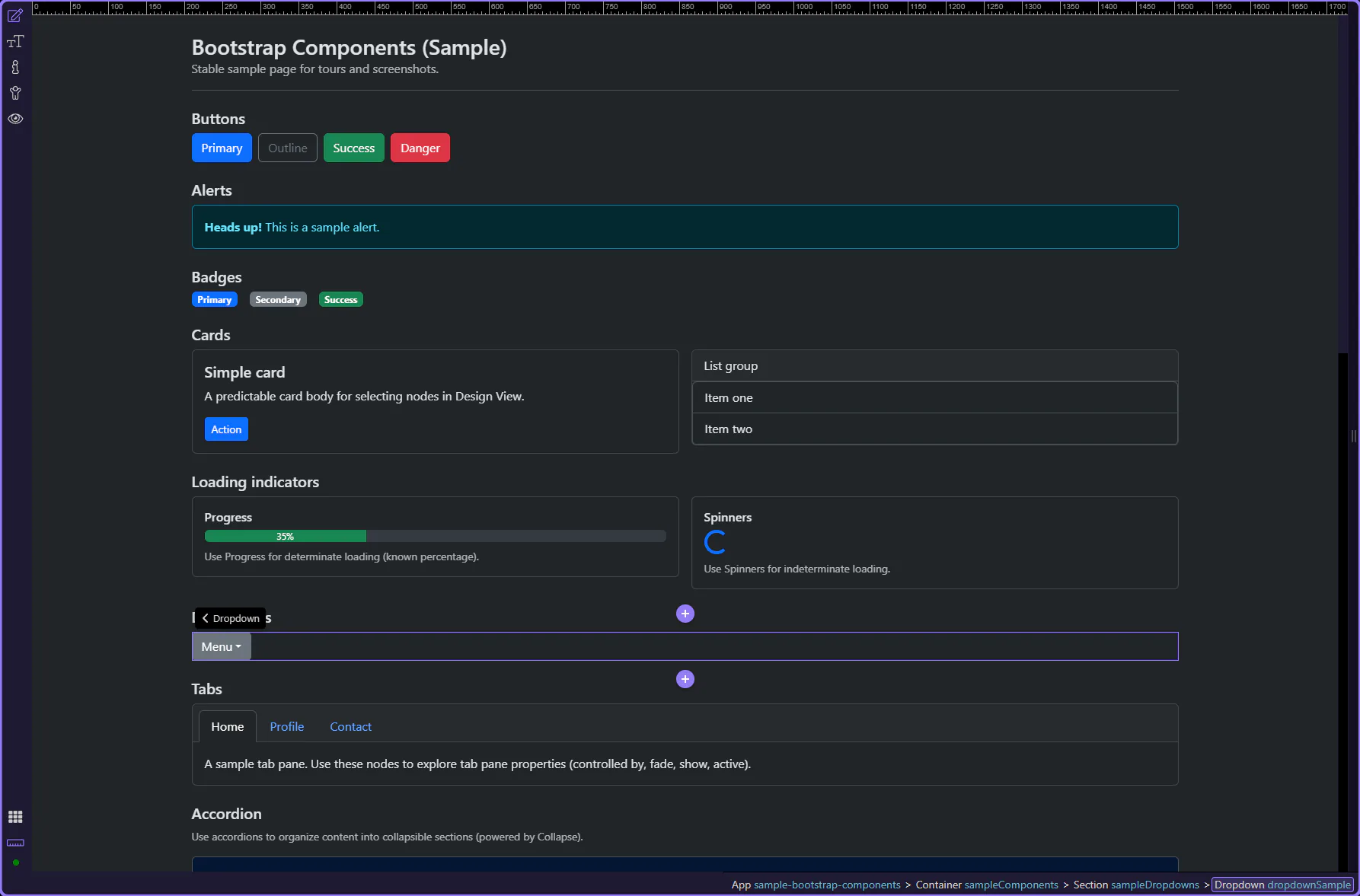
Section titled “Dropdown example”This dropdown example shows more than a button with a menu attached. It demonstrates how Wappler combines a trigger, menu container, and menu items into a compact interaction pattern that is useful for grouped actions, secondary navigation, and actions that should stay hidden until needed.
Toggle button
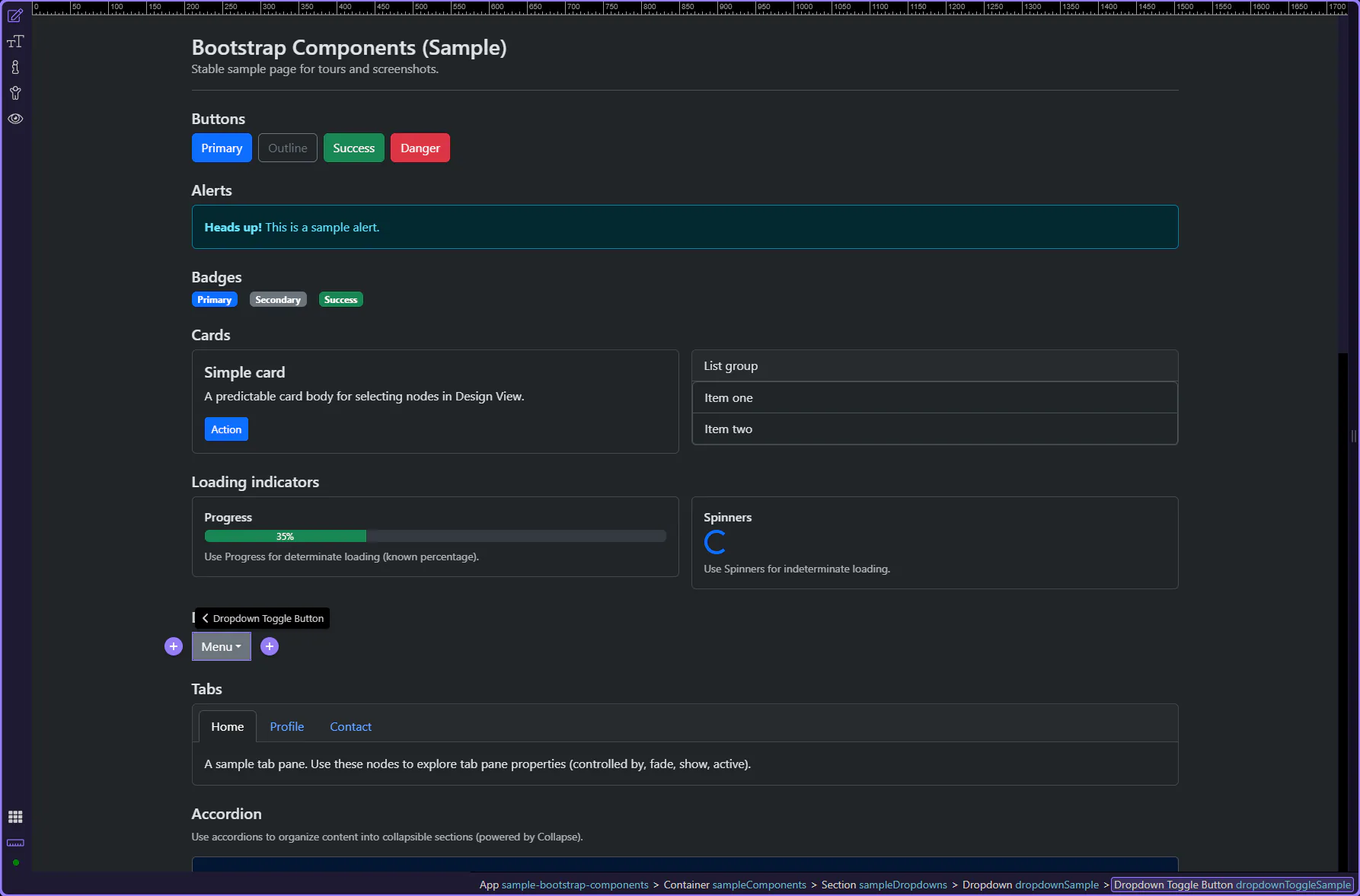
Section titled “Toggle button”The toggle button is the trigger that opens the menu. This step matters because Toggle button is part of Design View, and understanding that context makes the next action easier to repeat in your own project.
Orient yourself in Properties panel
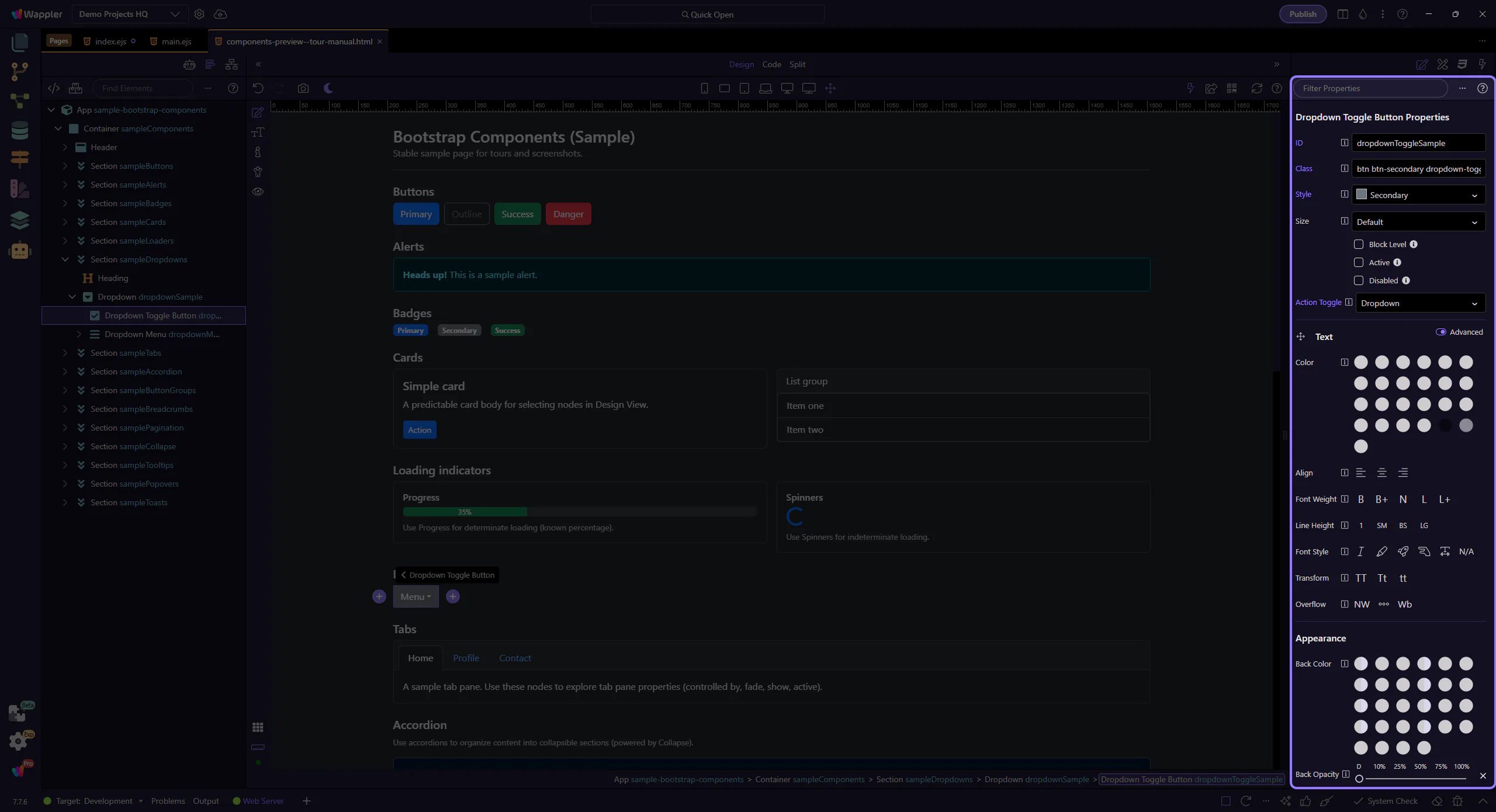
Section titled “Orient yourself in Properties panel”Start with the wider context in the Properties panel so the next control makes sense in the full workflow. In the next step, you will focus on Toggle button: Style and see how it fits into this area.
Toggle button: Style
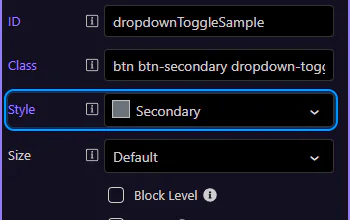
Section titled “Toggle button: Style”Use Style to choose the toggle button’s variant. This step matters because Toggle button: Style is part of Selection Panels Properties Btnbtnstyle, and understanding that context makes the next action easier to repeat in your own project.
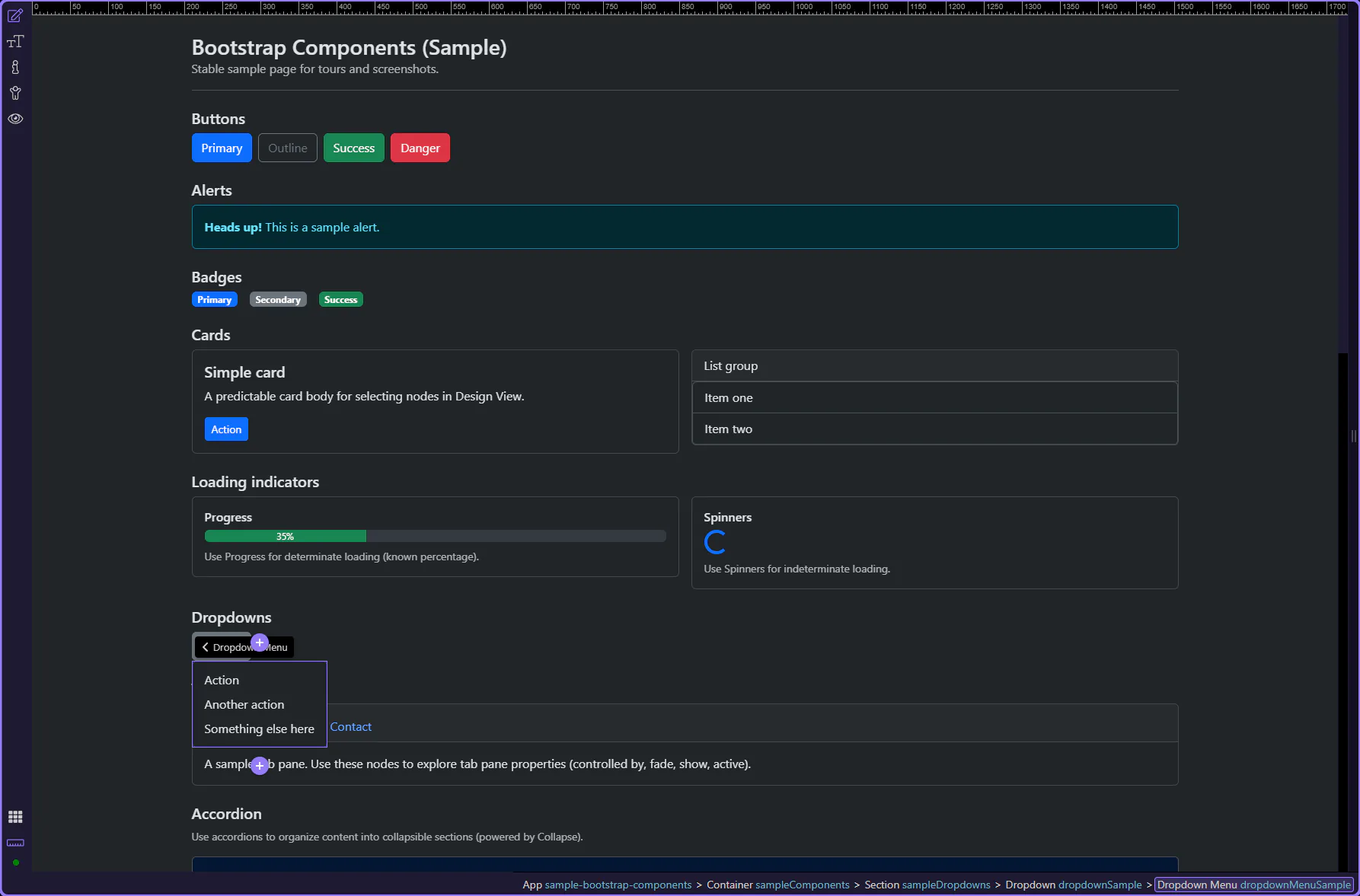
Dropdown menu
Section titled “Dropdown menu”The menu container holds the list of dropdown items. This step matters because Dropdown menu is part of Design View, and understanding that context makes the next action easier to repeat in your own project.
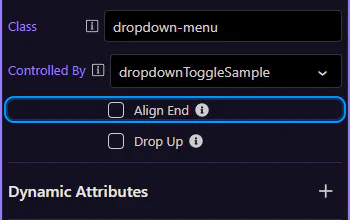
Dropdown menu: Align end
Section titled “Dropdown menu: Align end”Enable Align End to align the dropdown menu to the right edge (useful near the right side of the viewport).
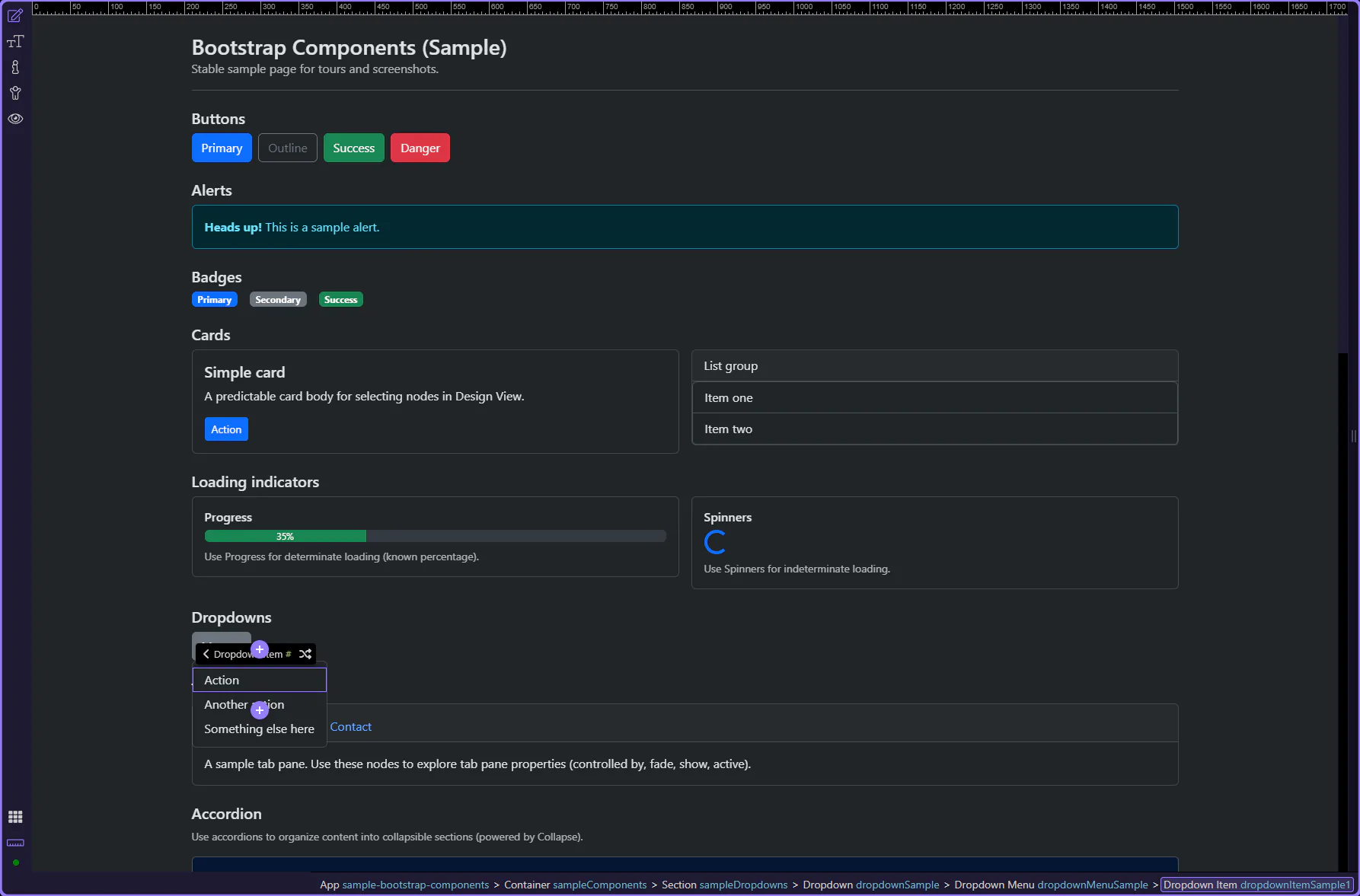
Dropdown item
Section titled “Dropdown item”Dropdown items represent the actions and destinations in the menu. This step matters because Dropdown item is part of Design View, and understanding that context makes the next action easier to repeat in your own project.
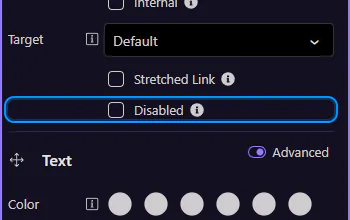
Dropdown item: Disabled
Section titled “Dropdown item: Disabled”Use Disabled for options that aren’t currently available. This step matters because Dropdown item: Disabled is part of Selection Panels Properties Dropdownitemdisabled, and understanding that context makes the next action easier to repeat in your own project.
Next steps
Section titled “Next steps”Continue with other Components tours or return to the Components menu.