
Popovers
Use popovers for richer contextual help, including placement and trigger options.
Popovers
Section titled “Popovers”Popovers are like tooltips, but can hold more content (title + body). In Wappler you enable a popover on an element, then configure its content and behavior from the Properties panel.
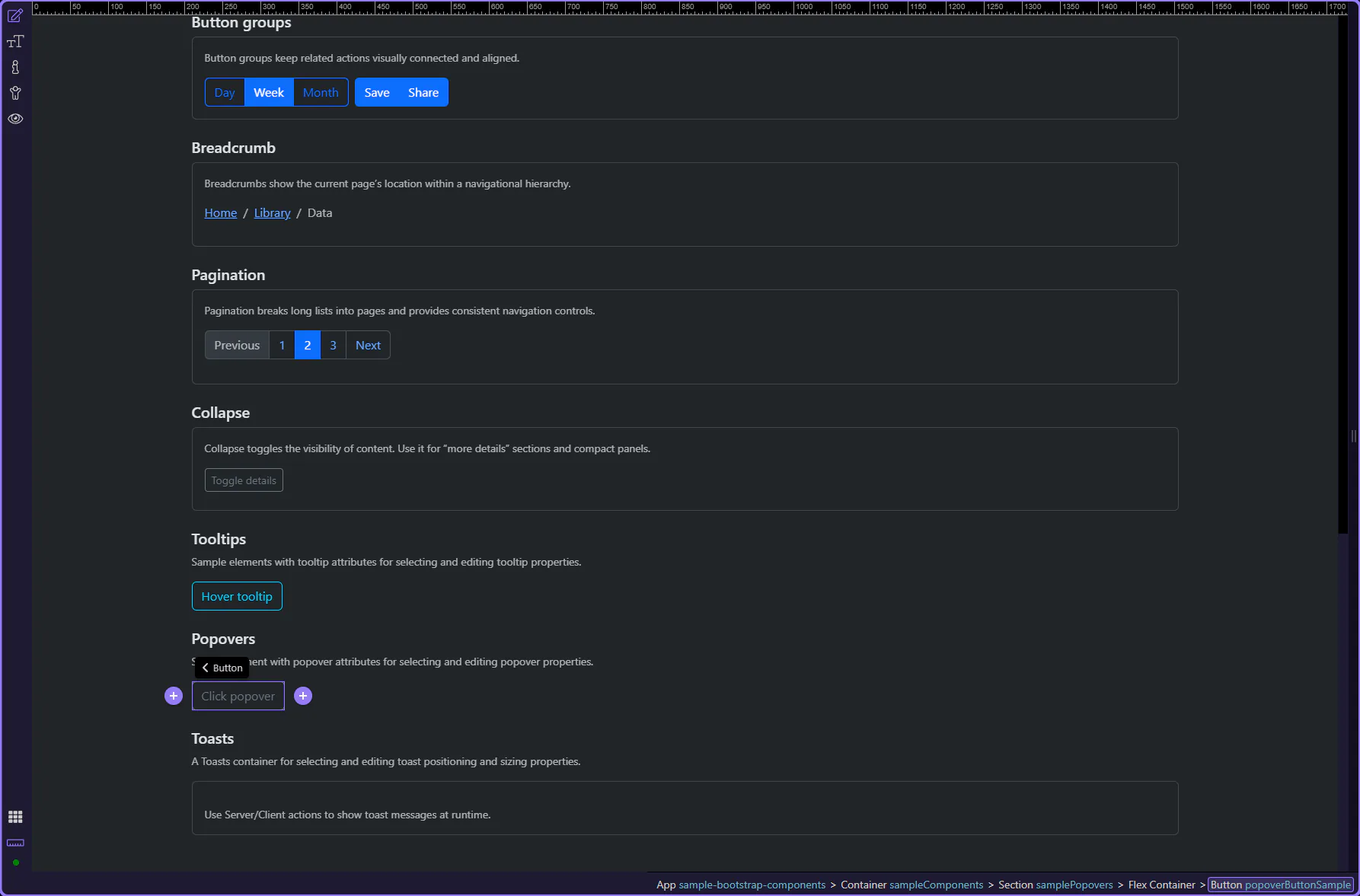
Popover example
Section titled “Popover example”This sample button is selected so you can explore popover settings. This step matters because Popover example is part of Design View, and understanding that context makes the next action easier to repeat in your own project.
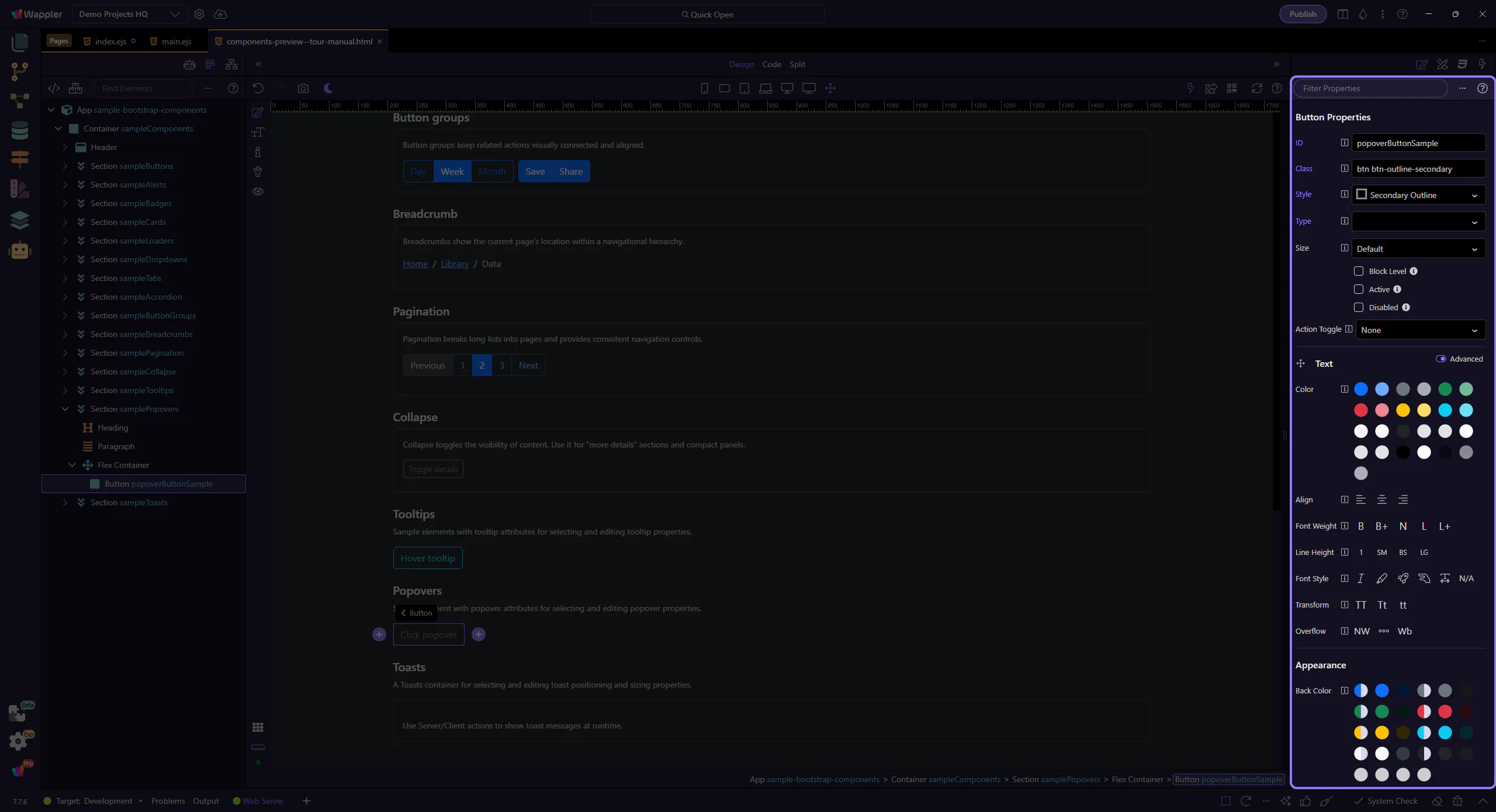
Orient yourself in Properties panel
Section titled “Orient yourself in Properties panel”Start with the wider context in the Properties panel so the next control makes sense in the full workflow. In the next step, you will focus on Popover: Title and see how it fits into this area.
Popover: Title
Section titled “Popover: Title”Use Title for the popover header. It can be plain text or a dynamic data binding. This step matters because Popover: Title is part of Selection Panels Properties Titlevalue, and understanding that context makes the next action easier to repeat in your own project.

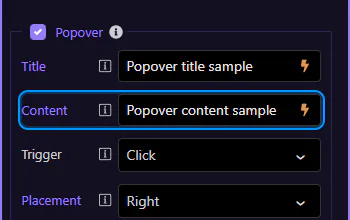
Popover: Content
Section titled “Popover: Content”Use Content for the main popover text. This step matters because Popover: Content is part of Selection Panels Properties Contentvalue, and understanding that context makes the next action easier to repeat in your own project.
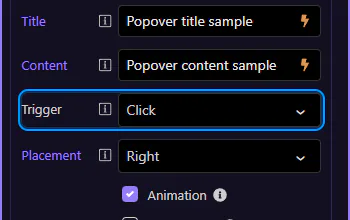
Popover: Trigger
Section titled “Popover: Trigger”Use Trigger to control how the popover opens (click, focus, hover, or manual). This step matters because Popover: Trigger is part of Selection Panels Properties Popovertrigger, and understanding that context makes the next action easier to repeat in your own project.
Popover: Placement
Section titled “Popover: Placement”Use Placement to position the popover relative to the element. This step matters because Popover: Placement is part of Selection Panels Properties Popoverplacement, and understanding that context makes the next action easier to repeat in your own project.
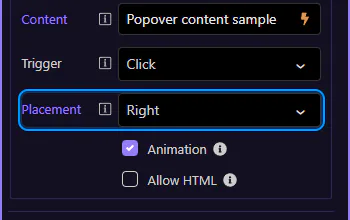
Popover: Animation
Section titled “Popover: Animation”Use Animation to enable/disable the default Bootstrap animation. This step matters because Popover: Animation is part of Selection Panels Properties Popoveranimation, and understanding that context makes the next action easier to repeat in your own project.
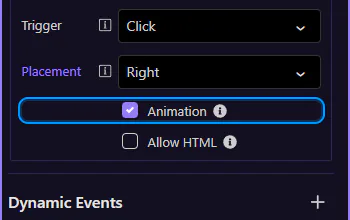
Popover: Allow HTML
Section titled “Popover: Allow HTML”Use Allow HTML if your popover content includes HTML (use carefully; keep it readable). This step matters because Popover: Allow HTML is part of Selection Panels Properties Popoverhtml, and understanding that context makes the next action easier to repeat in your own project.
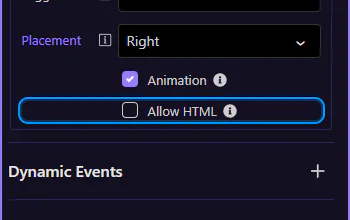
Next steps
Section titled “Next steps”Continue with other Components tours or return to the Components menu.